<!DOCTYPE html>
    <html lang="vi" xmlns="http://www.w3.org/1999/xhtml" prefix="og: http://ogp.me/ns#">
    <head>
<title>Xóa tận gốc các file &quot;cứng đầu&quot; nhất trên Windows</title>
<meta name="description" content="Xóa tận gốc các file &quot;cứng đầu&quot; nhất trên Windows - Savefile - Tin Tức -...">
<meta name="author" content=".: Nguoicodonvn2008.info - Cõi lòng người cô đơn :.">
<meta name="copyright" content=".: Nguoicodonvn2008.info - Cõi lòng người cô đơn :. [admin@nguoicodonvn2008.info]">
<meta name="robots" content="index, archive, follow, noodp">
<meta name="googlebot" content="index,archive,follow,noodp">
<meta name="msnbot" content="all,index,follow">
<meta name="generator" content="NukeViet v4.5">
<meta http-equiv="Content-Type" content="text/html; charset=utf-8">
<meta property="og:title" content="Xóa tận gốc các file &quot;cứng đầu&quot; nhất trên Windows">
<meta property="og:type" content="website">
<meta property="og:description" content="Savefile - Tin Tức - https&#x3A;&#x002F;&#x002F;www.nguoicodonvn2008.info&#x002F;vi&#x002F;news&#x002F;savefile&#x002F;kien-thuc-may-tinh&#x002F;xoa-tan-goc-cac-file-cung-dau-nhat-tren-windows-11601.html">
<meta property="og:site_name" content=".&#x3A; Nguoicodonvn2008.info - Cõi lòng người cô đơn &#x3A;.">
<meta property="og:url" content="https://www.nguoicodonvn2008.info/vi/news/savefile/kien-thuc-may-tinh/xoa-tan-goc-cac-file-cung-dau-nhat-tren-windows-11601.html">
<link rel="shortcut icon" href="https://nguoicodonvn2008.info/favicon.ico">
<link rel="canonical" href="https://www.nguoicodonvn2008.info/vi/news/savefile/kien-thuc-may-tinh/xoa-tan-goc-cac-file-cung-dau-nhat-tren-windows-11601.html">
<link rel="alternate" href="https://nguoicodonvn2008.info/vi/news/rss/" title="Tin Tức" type="application/rss+xml">
<link rel="alternate" href="https://nguoicodonvn2008.info/vi/news/rss/karaoke-dual/" title="Tin Tức - Karaoke Dual" type="application/rss+xml">
<link rel="alternate" href="https://nguoicodonvn2008.info/vi/news/rss/nhac-tre/" title="Tin Tức - Nhạc trẻ" type="application/rss+xml">
<link rel="alternate" href="https://nguoicodonvn2008.info/vi/news/rss/tru-tinh/" title="Tin Tức - Trữ tình" type="application/rss+xml">
<link rel="alternate" href="https://nguoicodonvn2008.info/vi/news/rss/nuoc-ngoai/" title="Tin Tức - Nước ngoài" type="application/rss+xml">
<link rel="alternate" href="https://nguoicodonvn2008.info/vi/news/rss/remix/" title="Tin Tức - Remix" type="application/rss+xml">
<link rel="alternate" href="https://nguoicodonvn2008.info/vi/news/rss/tam-su-tinh-yeu/" title="Tin Tức - Tâm sự tình yêu" type="application/rss+xml">
<link rel="alternate" href="https://nguoicodonvn2008.info/vi/news/rss/tho-suu-tam/" title="Tin Tức - Thơ sưu tầm" type="application/rss+xml">
<link rel="alternate" href="https://nguoicodonvn2008.info/vi/news/rss/cuoc-song/" title="Tin Tức - Cuộc sống" type="application/rss+xml">
<link rel="alternate" href="https://nguoicodonvn2008.info/vi/news/rss/phan-mem/" title="Tin Tức - Phần mềm" type="application/rss+xml">
<link rel="alternate" href="https://nguoicodonvn2008.info/vi/news/rss/kien-thuc-may-tinh/" title="Tin Tức - Kiến thức máy tính" type="application/rss+xml">
<link rel="alternate" href="https://nguoicodonvn2008.info/vi/news/rss/hoc-tap/" title="Tin Tức - Học tập" type="application/rss+xml">
<link rel="alternate" href="https://nguoicodonvn2008.info/vi/news/rss/tai-lieu/" title="Tin Tức - Tài liệu" type="application/rss+xml">
<link rel="alternate" href="https://nguoicodonvn2008.info/vi/news/rss/de-thi/" title="Tin Tức - Đề thi" type="application/rss+xml">
<link rel="preload" as="style" href="https://nguoicodonvn2008.info/assets/css/font-awesome.min.css" type="text/css">
<link rel="preload" as="style" href="https://nguoicodonvn2008.info/themes/default/css/bootstrap.non-responsive.css" type="text/css">
<link rel="preload" as="style" href="https://nguoicodonvn2008.info/themes/default/css/style.css" type="text/css">
<link rel="preload" as="style" href="https://nguoicodonvn2008.info/themes/default/css/style.non-responsive.css" type="text/css">
<link rel="preload" as="style" href="https://nguoicodonvn2008.info/themes/default/css/news.css" type="text/css">
<link rel="preload" as="style" href="https://nguoicodonvn2008.info/themes/default/css/custom.css" type="text/css">
<link rel="preload" as="script" href="https://nguoicodonvn2008.info/assets/js/jquery/jquery.min.js" type="text/javascript">
<link rel="preload" as="script" href="https://nguoicodonvn2008.info/assets/js/language/vi.js" type="text/javascript">
<link rel="preload" as="script" href="https://nguoicodonvn2008.info/assets/js/DOMPurify/purify3.js" type="text/javascript">
<link rel="preload" as="script" href="https://nguoicodonvn2008.info/assets/js/global.js" type="text/javascript">
<link rel="preload" as="script" href="https://nguoicodonvn2008.info/assets/js/site.js" type="text/javascript">
<link rel="preload" as="script" href="https://nguoicodonvn2008.info/themes/default/js/news.js" type="text/javascript">
<link rel="preload" as="script" href="https://nguoicodonvn2008.info/themes/default/js/main.js" type="text/javascript">
<link rel="preload" as="script" href="https://nguoicodonvn2008.info/themes/default/js/custom.js" type="text/javascript">
<link rel="preload" as="script" href="https://nguoicodonvn2008.info/themes/default/js/bootstrap.min.js" type="text/javascript">
<link rel="stylesheet" href="https://nguoicodonvn2008.info/assets/css/font-awesome.min.css">
<link rel="stylesheet" href="https://nguoicodonvn2008.info/themes/default/css/bootstrap.non-responsive.css">
<link rel="stylesheet" href="https://nguoicodonvn2008.info/themes/default/css/style.css">
<link rel="stylesheet" href="https://nguoicodonvn2008.info/themes/default/css/style.non-responsive.css">
<link rel="StyleSheet" href="https://nguoicodonvn2008.info/themes/default/css/news.css">
<link rel="stylesheet" href="https://nguoicodonvn2008.info/themes/default/css/custom.css">
<style type="text/css">
	body{background: #fff;}
</style>
    </head>
    <body>
<div id="print">
	<div id="hd_print">
		<h2 class="pull-left">.&#x3A; Nguoicodonvn2008.info - Cõi lòng người cô đơn &#x3A;.</h2>
		<p class="pull-right"><a title=".&#x3A; Nguoicodonvn2008.info - Cõi lòng người cô đơn &#x3A;." href="https://nguoicodonvn2008.info/">https://nguoicodonvn2008.info</a></p>
	</div>
	<div class="clear"></div>
	<hr />
	<div id="content">
		<h1>Xóa tận gốc các file &quot;cứng đầu&quot; nhất trên Windows</h1>
		<ul class="list-inline">
			<li>Thứ năm - 13/11/2025 01:06</li>
			<li class="hidden-print txtrequired"><em class="fa fa-print">&nbsp;</em><a title="In ra" href="javascript:;" onclick="window.print()">In ra</a></li>
			<li class="hidden-print txtrequired"><em class="fa fa-power-off">&nbsp;</em><a title="Đóng cửa sổ này" href="javascript:;" onclick="window.close()">Đóng cửa sổ này</a></li>
		</ul>
		<div class="clear"></div>
		<div id="hometext">
		</div>
				<div class="imghome">
			<img alt="Xóa tận gốc các file &quot;cứng đầu&quot; nhất trên Windows" src="https://st.quantrimang.com/photos/image/2025/02/13/xoa-nhung-file-cung-dau-trong-windows-10.jpg" width="460" class="img-thumbnail" />
		</div>
		<div class="clear"></div>
		<div id="bodytext" class="clearfix">
			<p style="text-align: justify;">Khi bạn không thể mở, chỉnh sửa hoặc xóa file trong Windows File Explorer, file đó vẫn mở trong một chương trình đang chạy ở chế độ nền hoặc có thứ gì đó không đóng đúng cách. May mắn thay, bạn có thể buộc xóa, đóng hoặc chỉnh sửa file bằng một vài thủ thuật đơn giản.</p>

<div style="text-align: justify;">&nbsp;</div>

<h2 id="mcetoc_1ijuh8hmq1lp" style="text-align: justify;">1. Đóng chương trình bạn đã mở file bằng</h2>

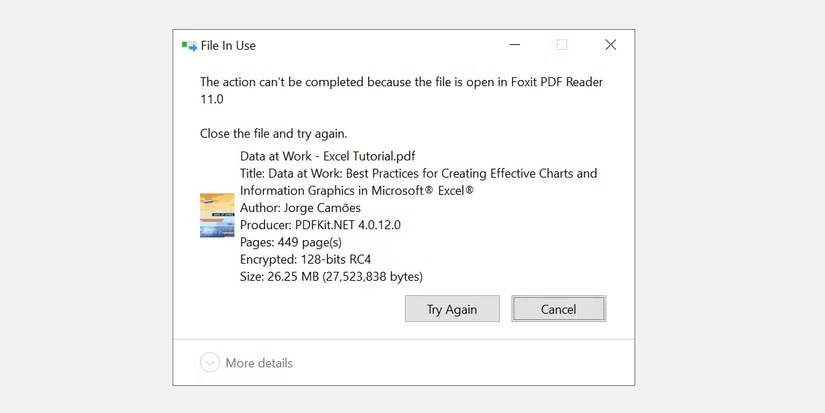
<p style="text-align: justify;">Chúng ta hãy bắt đầu với điều hiển nhiên. Bạn vừa mở file và không đóng file? Nếu file đã đóng nhưng chương trình vẫn đang chạy, hãy đóng ứng dụng, sau đó thử lại.</p>

<figure>
<div style="text-align: justify;"><img alt="Thông báo file đang được sử dụng của Windows 10 khi cố xóa PDF đang mở." data-adbro-processed="true" data-i="0" data-src="https://st.quantrimang.com/photos/image/2025/02/13/xoa-nhung-file-cung-dau-trong-windows-1.jpg" data-was-processed="true" height="413" src="https://st.quantrimang.com/photos/image/2025/02/13/xoa-nhung-file-cung-dau-trong-windows-1.jpg" width="825" /></div>

<figcaption>
<div style="text-align: justify;">Thông báo file đang được sử dụng của Windows 10 khi cố xóa PDF đang mở.</div>
</figcaption>
</figure>

<p style="text-align: justify;">Bạn cũng nên kiểm tra khay hệ thống để đảm bảo file không chỉ được thu nhỏ ở đó.</p>

<h2 id="mcetoc_1ijuh8hmq1lq" style="text-align: justify;">2. Kết thúc ứng dụng thông qua Task Manager</h2>

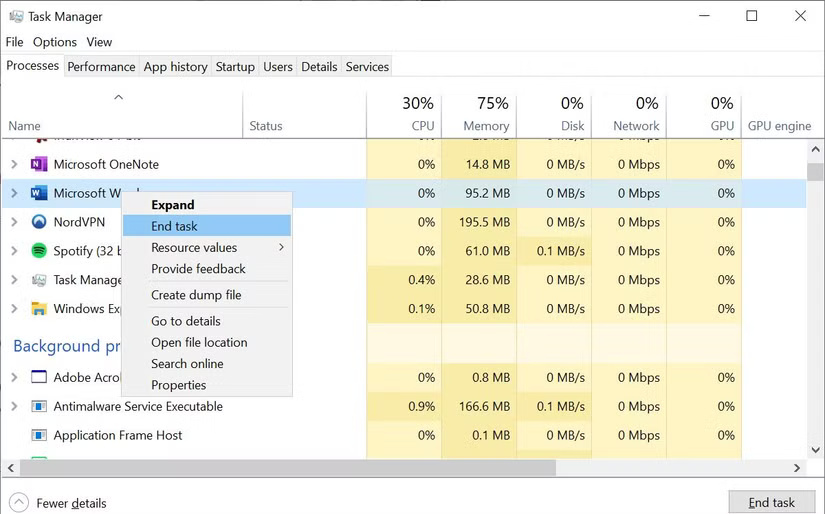
<p style="text-align: justify;">Task Manager&nbsp;có thể giúp kết thúc thủ công tiến trình hoặc ứng dụng giữ file của bạn làm con tin. Đây là một trong những phương pháp hứa hẹn nhất để khắc phục lỗi &quot;File is open in another program&quot;, vì bạn có thể không phải lúc nào cũng nhận ra rằng file không đóng đúng cách.</p>

<p style="text-align: justify;">Nhấn&nbsp;<strong>Ctrl + Shift + ESC</strong>&nbsp;trên bàn phím để&nbsp;mở Task Manager. Ngoài ra, bạn có thể nhấn&nbsp;<strong>Ctrl + Alt + Del</strong>&nbsp;để đến menu hoặc nhấp chuột phải vào Taskbar và chọn&nbsp;<strong>Task Manager</strong>. Nếu bạn đang sử dụng Windows 11, nhấp chuột phải vào Taskbar sẽ không hoạt động.</p>

<p style="text-align: justify;">Nếu bạn thấy phiên bản Task Manager nhỏ gọn, hãy nhấp vào&nbsp;<strong>More details&nbsp;</strong>ở góc dưới bên trái và đảm bảo rằng bạn đang ở trong tab&nbsp;<strong>Processes</strong>.</p>

<p style="text-align: justify;">Duyệt tìm ứng dụng mà bạn đã sử dụng để mở &quot;file đang sử dụng&quot;. Ví dụ, nếu bạn đang xem tài liệu, hãy tìm&nbsp;Microsoft Word.</p>

<figure>
<div style="text-align: justify;"><img alt="Kết thúc tác vụ trong Task Manager Windows 10." data-i="1" data-src="https://st.quantrimang.com/photos/image/2025/02/13/xoa-nhung-file-cung-dau-trong-windows-2.jpg" data-was-processed="true" height="514" src="https://st.quantrimang.com/photos/image/2025/02/13/xoa-nhung-file-cung-dau-trong-windows-2.jpg" width="825" /></div>

<figcaption>
<div style="text-align: justify;">Kết thúc tác vụ trong Task Manager Windows 10.</div>
</figcaption>
</figure>

<p style="text-align: justify;">Khi bạn tìm thấy tiến trình, hãy chọn tiến trình đó và nhấp vào&nbsp;<strong>End task</strong>&nbsp;ở góc dưới bên phải. Thao tác này sẽ đóng tất cả các phiên bản của chương trình.</p>

<h2 id="mcetoc_1ijuh8hmq1lr" style="text-align: justify;">3. Thay đổi cài đặt tiến trình của File Explorer</h2>

<p style="text-align: justify;">Theo mặc định, File Explorer khởi chạy tất cả các cửa sổ của nó trong một tiến trình duy nhất (explorer.exe). Tuy nhiên, có thể cài đặt của bạn buộc File Explorer phải khởi chạy các tiến trình riêng biệt, điều này có thể gây ra xung đột giữa những tiến trình khác nhau.</p>

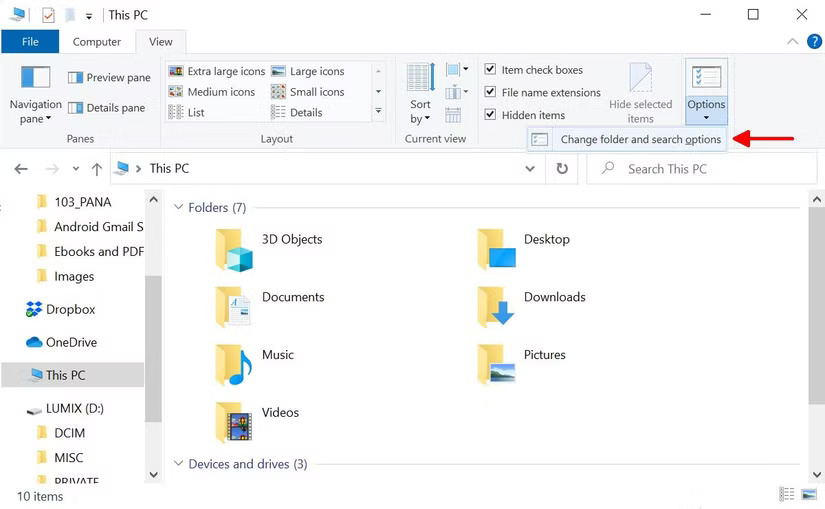
<p style="text-align: justify;">Nhấn phím&nbsp;<strong>Windows + E</strong>&nbsp;để&nbsp;mở File Explorer. Trong Windows 10, hãy vào&nbsp;<strong>View &gt; Options &gt; Change folder and search options</strong>.</p>

<figure>
<div style="text-align: justify;"><img alt="Thay đổi tùy chọn thư mục và tìm kiếm trong Windows File Explorer." data-i="2" data-src="https://st.quantrimang.com/photos/image/2025/02/13/xoa-nhung-file-cung-dau-trong-windows-3.jpg" data-was-processed="true" height="509" src="https://st.quantrimang.com/photos/image/2025/02/13/xoa-nhung-file-cung-dau-trong-windows-3.jpg" width="825" /></div>

<figcaption>
<div style="text-align: justify;">Thay đổi tùy chọn thư mục và tìm kiếm trong Windows File Explorer.</div>
</figcaption>
</figure>

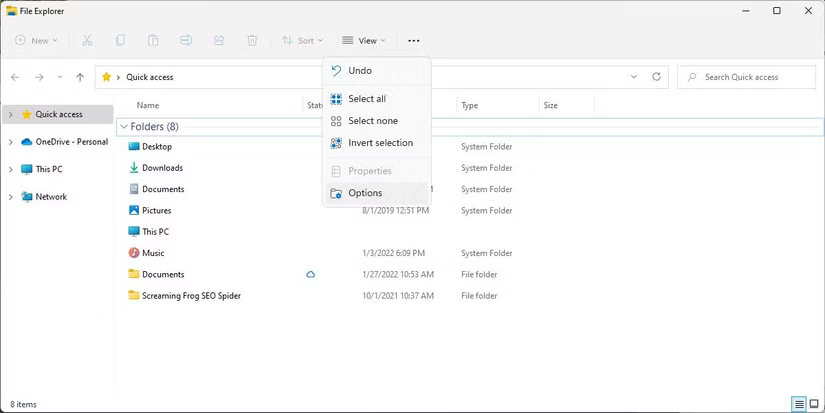
<p style="text-align: justify;">Trong Windows 11, hãy nhấp vào biểu tượng&nbsp;<strong>See more</strong>&nbsp;có ba dấu chấm bên cạnh&nbsp;<strong>View</strong>, sau đó chọn&nbsp;<strong>Options.</strong></p>

<figure>
<div style="text-align: justify;"><img alt="" data-i="3" data-src="https://st.quantrimang.com/photos/image/2025/02/13/xoa-nhung-file-cung-dau-trong-windows-4.jpg" data-was-processed="true" height="413" src="https://st.quantrimang.com/photos/image/2025/02/13/xoa-nhung-file-cung-dau-trong-windows-4.jpg" width="825" /></div>
</figure>

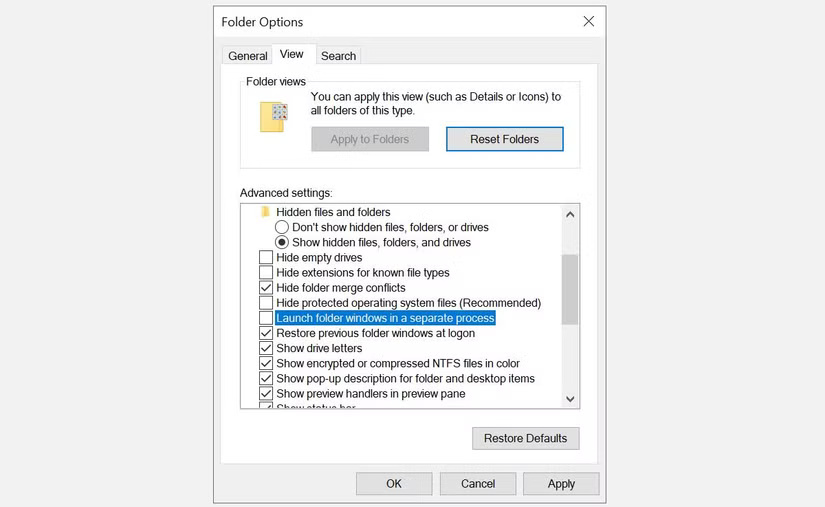
<p style="text-align: justify;">Trong cửa sổ&nbsp;<strong>Folder Options</strong>, hãy chuyển sang tab&nbsp;<strong>View</strong>&nbsp;và tìm tùy chọn&nbsp;<strong>Launch folder windows in a separate process</strong>. Đảm bảo rằng tùy chọn này không được chọn. Nhấp vào&nbsp;<strong>Apply</strong>&nbsp;để lưu bất kỳ thay đổi nào.</p>

<figure>
<div style="text-align: justify;"><img alt="Menu Windows Folder Options" data-i="4" data-src="https://st.quantrimang.com/photos/image/2025/02/13/xoa-nhung-file-cung-dau-trong-windows-5.jpg" data-was-processed="true" height="507" src="https://st.quantrimang.com/photos/image/2025/02/13/xoa-nhung-file-cung-dau-trong-windows-5.jpg" width="825" /></div>

<figcaption>
<div style="text-align: justify;">Menu Windows Folder Options</div>
</figcaption>
</figure>

<p style="text-align: justify;">Nếu tùy chọn này không được chọn ngay từ đầu, bạn nên kiểm tra xem điều này có giải quyết được sự cố của mình không.</p>

<h2 id="mcetoc_1ijuh8hmq1ls" style="text-align: justify;">4. Vô hiệu hóa ngăn File Explorer Preview</h2>

<p style="text-align: justify;">Previews trong File Explorer cũng có thể gây ra xung đột, chẳng hạn như lỗi &quot;File is open in another program&quot;.</p>

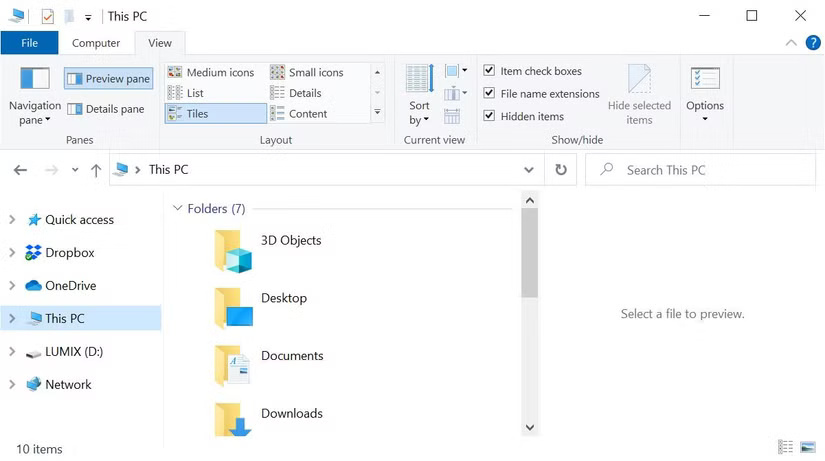
<p style="text-align: justify;">Trong Windows 10, hãy nhấn phím&nbsp;<strong>Windows + E</strong>, chuyển sang tab&nbsp;<strong>View</strong>&nbsp;và nhấn&nbsp;<strong>Alt + P</strong>&nbsp;để đóng ngăn xem trước.</p>

<p style="text-align: justify;">Trong Windows 11, hãy mở File Explorer (phím&nbsp;<strong>Windows + E</strong>), sau đó vào&nbsp;<strong>View &gt; Show</strong>&nbsp;và nếu bạn thấy dấu kiểm bên cạnh ngăn Preview, hãy nhấp vào đó để đóng bản xem trước.</p>

<p style="text-align: justify;">Ảnh chụp màn hình bên dưới hiển thị một ngăn preview mở ở bên phải.</p>

<figure>
<div style="text-align: justify;"><img alt="Đóng ngăn preview của Windows File Explorer." data-i="5" data-src="https://st.quantrimang.com/photos/image/2025/02/13/xoa-nhung-file-cung-dau-trong-windows-6.jpg" data-was-processed="true" height="461" src="https://st.quantrimang.com/photos/image/2025/02/13/xoa-nhung-file-cung-dau-trong-windows-6.jpg" width="825" /></div>

<figcaption>
<div style="text-align: justify;">Đóng ngăn preview của Windows File Explorer.</div>
</figcaption>
</figure>

<p style="text-align: justify;">Sau khi đóng ngăn preview, hãy thử lại thao tác và xem lỗi &quot;file in use&quot; đã biến mất chưa.</p>

<h2 id="mcetoc_1ijuh8hmq1lt" style="text-align: justify;">5. Buộc xóa file qua Command Prompt</h2>

<p style="text-align: justify;">Bạn có thể bỏ qua File Explorer và buộc xóa file bằng&nbsp;Command Prompt.</p>

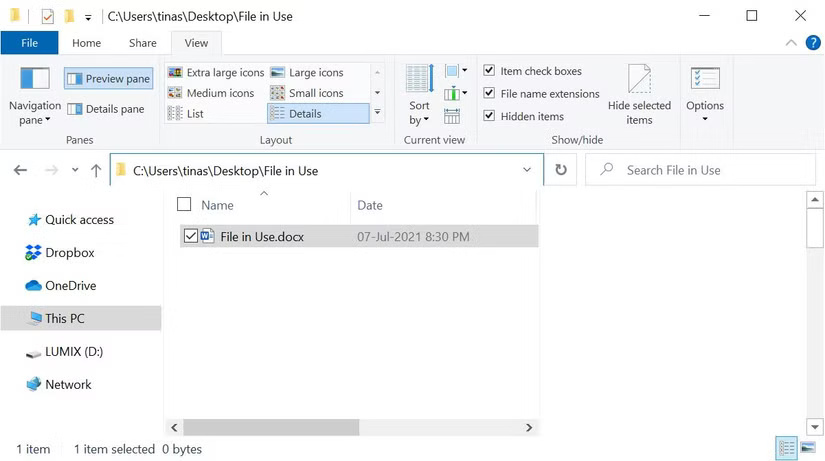
<p style="text-align: justify;">Trước tiên, chúng ta cần theo dõi thư mục đường dẫn file trong File Explorer. Nhấn phím&nbsp;<strong>Windows + E</strong>&nbsp;để mở File Explorer, định vị file bị ảnh hưởng và sao chép đường dẫn file từ thanh địa chỉ ở đầu cửa sổ.</p>

<figure>
<div style="text-align: justify;"><img alt="Tìm đường dẫn file trong Windows File Explorer." data-i="6" data-src="https://st.quantrimang.com/photos/image/2025/02/13/xoa-nhung-file-cung-dau-trong-windows-7.jpg" data-was-processed="true" height="461" src="https://st.quantrimang.com/photos/image/2025/02/13/xoa-nhung-file-cung-dau-trong-windows-7.jpg" width="825" /></div>

<figcaption>
<div style="text-align: justify;">Tìm đường dẫn file trong Windows File Explorer.</div>
</figcaption>
</figure>

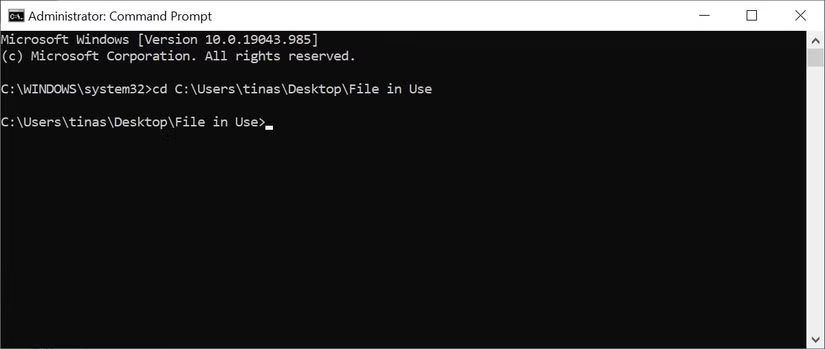
<p style="text-align: justify;">Bây giờ, hãy nhấp chuột phải vào nút<strong>&nbsp;Windows Start</strong>&nbsp;và chọn&nbsp;<strong>Command Prompt (Admin)</strong>&nbsp;hoặc&nbsp;<strong>Windows Terminal (admin)</strong>. Để điều hướng đến thư mục file của file đang sử dụng, hãy nhập&nbsp;<strong>cd &#91;đường dẫn thư mục bạn đã sao chép&#93;&nbsp;</strong>và nhấn&nbsp;<strong>Enter.</strong></p>

<figure>
<div style="text-align: justify;"><img alt="Điều hướng đến đường dẫn file trong Command Prompt của Windows." data-i="7" data-src="https://st.quantrimang.com/photos/image/2025/02/13/xoa-nhung-file-cung-dau-trong-windows-8.jpg" data-was-processed="true" height="349" src="https://st.quantrimang.com/photos/image/2025/02/13/xoa-nhung-file-cung-dau-trong-windows-8.jpg" width="825" /></div>

<figcaption>
<div style="text-align: justify;">Điều hướng đến đường dẫn file trong Command Prompt của Windows.</div>
</figcaption>
</figure>

<p style="text-align: justify;">Tuy nhiên, trước khi có thể buộc xóa file đang sử dụng, chúng ta phải tạm thời tắt tiến trình File Explorer. Thao tác này sẽ khiến Taskbar, hình nền và các thư mục đang mở của bạn biến mất. Nhưng đừng lo, bạn có thể dễ dàng&nbsp;khởi động lại File Explorer&nbsp;và lấy lại mọi thứ sau đó.</p>

<ul>
	<li style="text-align: justify;">Để đóng File Explorer, hãy nhấn&nbsp;<strong>Ctrl + Shift + ESC</strong>&nbsp;để mở Task Manager.</li>
	<li style="text-align: justify;">Tìm&nbsp;<strong>Windows Explorer</strong>&nbsp;trong danh sách và nhấp chuột phải vào tiến trình. Chọn&nbsp;<strong>End task</strong>.</li>
	<li style="text-align: justify;">Quay lại cửa sổ Command Prompt nơi bạn đã nhập lệnh trước đó.</li>
	<li style="text-align: justify;">Nhập lệnh bên dưới để xóa file, thay thế mọi thứ giữa dấu ngoặc kép bằng tên file thực tế:</li>
</ul>

<pre id="pre0">
<code>del &quot;file name&quot;</code></pre>

<p style="text-align: justify;">Bây giờ, để khởi động lại File Manager, tất cả những gì bạn cần làm là mở Task Manager (<strong>Ctrl + Shift + ESC</strong>). Sau đó, nhấp vào&nbsp;<strong>File &gt; Run new task</strong>, nhập&nbsp;<strong>explorer.exe</strong>&nbsp;và nhấp vào&nbsp;<strong>OK.</strong>&nbsp;Thao tác này sẽ khôi phục desktop của bạn về giao diện thông thường.</p>

<h2 id="mcetoc_1ijuh8hmq1lu" style="text-align: justify;">6. Mở khóa file đang sử dụng bằng công cụ</h2>

<p style="text-align: justify;">Nếu việc cố gắng xóa file theo cách thủ công không hiệu quả hoặc bạn không thoải mái khi&nbsp;sử dụng Command Prompt, bạn luôn có thể sử dụng Process Explorer của Microsoft</p>

<p style="text-align: justify;">Đây là phiên bản mạnh mẽ hơn của Task Manager có thể hiển thị cho bạn tiến trình nào đã chiếm giữ file của bạn.</p>

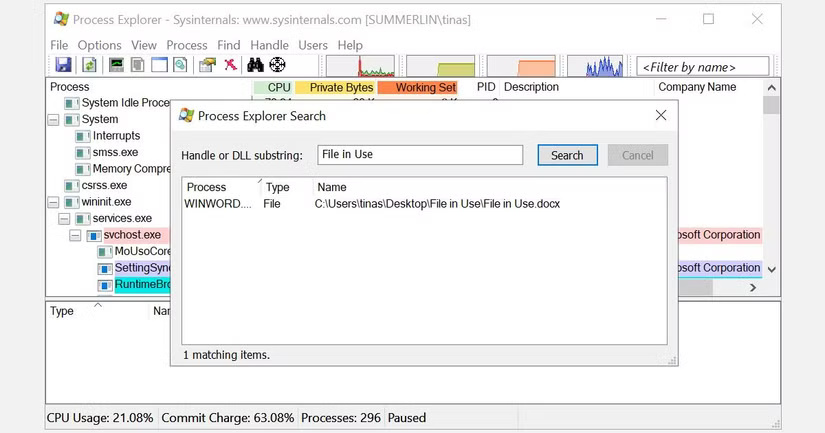
<p style="text-align: justify;">Mở cửa sổ Search của Process Explorer bằng cách nhấp vào&nbsp;<strong>Find &gt; Find Handle or DLL</strong>&nbsp;(hoặc nhấn&nbsp;<strong>Ctrl + Shift + F</strong>), nhập tên file và đợi danh sách các tiến trình truy cập file của bạn.</p>

<figure>
<div style="text-align: justify;"><img alt="Tìm kiếm của Process Explorer" data-i="8" data-src="https://st.quantrimang.com/photos/image/2025/02/13/xoa-nhung-file-cung-dau-trong-windows-9.jpg" data-was-processed="true" height="433" src="https://st.quantrimang.com/photos/image/2025/02/13/xoa-nhung-file-cung-dau-trong-windows-9.jpg" width="825" /></div>

<figcaption>
<div style="text-align: justify;">Tìm kiếm của Process Explorer</div>
</figcaption>
</figure>

<p style="text-align: justify;">Bạn không thể đóng tiến trình từ cửa sổ Search, nhưng bạn có thể sử dụng Process Explorer hoặc Windows Task Manager để đóng ứng dụng vi phạm. Ngoài ra còn có các giải pháp thay thế, chẳng hạn như&nbsp;Unlocker&nbsp;và&nbsp;LockHunter, có thể giúp bạn xác định các tiến trình gây phiền nhiễu.</p>

<h2 id="mcetoc_1ijuh8hmq1lv" style="text-align: justify;">7. Khởi động vào Safe Mode</h2>

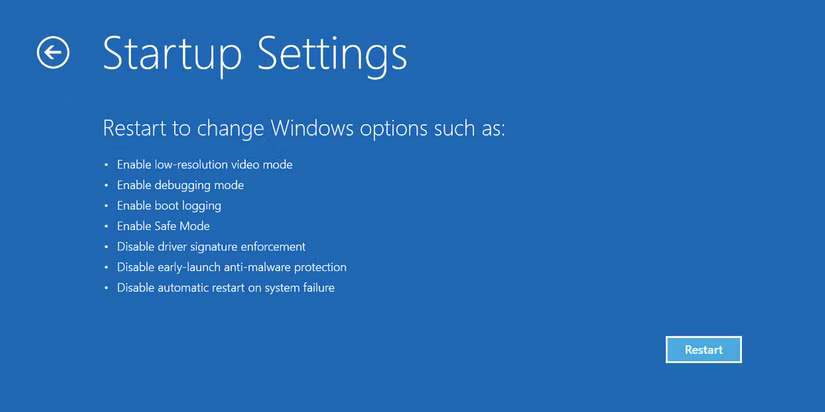
<p style="text-align: justify;">Đôi khi, file bạn đang cố gắng xóa có thể tự động được load bởi một ứng dụng khác. Các ứng dụng như Unlocker vẫn có thể hoạt động trong trường hợp đó. Tuy nhiên, nếu có phần mềm độc hại hoặc nếu bạn không muốn xử lý các công cụ của bên thứ ba, thì&nbsp;khởi động vào Safe Mode&nbsp;là lựa chọn tốt nhất tiếp theo của bạn.</p>

<p style="text-align: justify;">Trong Windows 10 hoặc 11, hãy nhấn phím&nbsp;<strong>Win</strong>&nbsp;trên bàn phím và nhấp vào biểu tượng nguồn. Giữ phím&nbsp;<strong>Shift</strong>&nbsp;và chọn tùy chọn&nbsp;<strong>Restart</strong>. PC của bạn sẽ khởi động vào trang Windows Recovery Environment (WinRE).</p>

<p style="text-align: justify;">Từ màn hình tiếp theo, chọn&nbsp;<strong>Troubleshoot &gt; Advanced Options &gt; Startup Settings &gt; Restart</strong>. Khi máy tính khởi động lại, bạn sẽ thấy màn hình Startup Settings. Chọn Safe Mode và đợi Windows khởi động.</p>

<figure>
<div style="text-align: justify;"><img alt="Trang Windows Recovery Environment có tùy chọn Startup Settings" data-i="9" data-src="https://st.quantrimang.com/photos/image/2025/02/13/xoa-nhung-file-cung-dau-trong-windows-10.jpg" data-was-processed="true" height="412" src="https://st.quantrimang.com/photos/image/2025/02/13/xoa-nhung-file-cung-dau-trong-windows-10.jpg" width="825" /></div>

<figcaption>
<div style="text-align: justify;">Trang Windows Recovery Environment có tùy chọn Startup Settings</div>
</figcaption>
</figure>

<p style="text-align: justify;">Khi bạn ở Safe Mode, hãy điều hướng đến file đang đề cập và thử truy cập hoặc xóa file đó.</p>

<p style="text-align: justify;">Bây giờ, lần tiếp theo Windows thông báo cho bạn biết một file đang được sử dụng, bạn sẽ biết cách giải phóng file đó hoặc buộc PC của mình xóa file đó. Nếu không thoải mái với các công cụ của bên thứ ba, bạn luôn có thể sử dụng Command Prompt hoặc khởi động vào Safe Mode để giúp xóa mọi sự cố với file đang đề cập.</p>

<p style="text-align: justify;">Chúc các bạn thành công!</p>

<div style="text-align: justify;">&nbsp;</div>
		</div>
				<div id="author">
						<p>
				<strong>Nguồn tin:</strong>
				Quantrimang.com:
			</p>
		</div>
	</div>
	<div id="footer" class="clearfix">
		<div id="url">
			<strong>URL của bản tin này: </strong><a href="https://www.nguoicodonvn2008.info/vi/news/savefile/kien-thuc-may-tinh/xoa-tan-goc-cac-file-cung-dau-nhat-tren-windows-11601.html" title="Xóa tận gốc các file &quot;cứng đầu&quot; nhất trên Windows">https://www.nguoicodonvn2008.info/vi/news/savefile/kien-thuc-may-tinh/xoa-tan-goc-cac-file-cung-dau-nhat-tren-windows-11601.html</a>

		</div>
		<div class="clear"></div>
		<div class="copyright">
			&copy; .&#x3A; Nguoicodonvn2008.info - Cõi lòng người cô đơn &#x3A;.
		</div>
		<div id="contact">
			<a href="mailto:admin@nguoicodonvn2008.info">admin@nguoicodonvn2008.info</a>
		</div>
	</div>
</div>
        <div id="timeoutsess" class="chromeframe">
            Bạn đã không sử dụng Site, <a onclick="timeoutsesscancel();" href="https://nguoicodonvn2008.info/#">Bấm vào đây để duy trì trạng thái đăng nhập</a>. Thời gian chờ: <span id="secField"> 60 </span> giây
        </div>
        <div id="openidResult" class="nv-alert" style="display:none"></div>
        <div id="openidBt" data-result="" data-redirect=""></div>
		</script>
		<div class="car-top">
  <span><img src="https://nguoicodonvn2008.info/themes/default/images/car.png" alt=""></span>
</div>
<script src="https://nguoicodonvn2008.info/assets/js/jquery/jquery.min.js"></script>
<script>var nv_base_siteurl="/",nv_lang_data="vi",nv_lang_interface="vi",nv_name_variable="nv",nv_fc_variable="op",nv_lang_variable="language",nv_module_name="news",nv_func_name="savefile",nv_is_user=0, nv_my_ofs=-4,nv_my_abbr="EDT",nv_cookie_prefix="nv4c_e856T",nv_check_pass_mstime=1738000,nv_area_admin=0,nv_safemode=0,theme_responsive=0,nv_recaptcha_ver=2,nv_recaptcha_sitekey="",nv_recaptcha_type="image",XSSsanitize=1;</script>
<script src="https://nguoicodonvn2008.info/assets/js/language/vi.js"></script>
<script src="https://nguoicodonvn2008.info/assets/js/DOMPurify/purify3.js"></script>
<script src="https://nguoicodonvn2008.info/assets/js/global.js"></script>
<script src="https://nguoicodonvn2008.info/assets/js/site.js"></script>
<script src="https://nguoicodonvn2008.info/themes/default/js/news.js"></script>
<script src="https://nguoicodonvn2008.info/themes/default/js/main.js"></script>
<script src="https://nguoicodonvn2008.info/themes/default/js/custom.js"></script>
<script type="application/ld+json">
        {
            "@context": "https://schema.org",
            "@type": "Organization",
            "url": "https://nguoicodonvn2008.info",
            "logo": "https://nguoicodonvn2008.info/uploads/angel.gif"
        }
        </script>
<script src="https://nguoicodonvn2008.info/themes/default/js/bootstrap.min.js"></script>
<script type="text/javascript">
var $scrolltop = $('.car-top');
$scrolltop.on('click', function () {
    $('html,body').animate({
        scrollTop: 0
    }, 800);
    $(this).addClass("car-run");
    setTimeout(function(){ $scrolltop.removeClass('car-run');}, 1000);
    return false;
});
$(window).on('scroll', function ()
{ 
    if($(window).scrollTop() >= 200)
    {
        $scrolltop.addClass("show");
        $scrolltop.addClass("car-down");
    }
    else
    {
       $scrolltop.removeClass("show");
       setTimeout(function(){ $scrolltop.removeClass('car-down');}, 300);
    }
});
</script>
</body>
</html>