<!DOCTYPE html>
    <html lang="vi" xmlns="http://www.w3.org/1999/xhtml" prefix="og: http://ogp.me/ns#">
    <head>
<title>Word 2019 &#40;Phần 3&#41;&#x3A; Lưu và chia sẻ tài liệu</title>
<meta name="description" content="Word 2019 &#40;Phần 3&#41;&#x3A; Lưu và chia sẻ tài liệu - Savefile - Tin Tức -...">
<meta name="author" content=".: Nguoicodonvn2008.info - Cõi lòng người cô đơn :.">
<meta name="copyright" content=".: Nguoicodonvn2008.info - Cõi lòng người cô đơn :. [admin@nguoicodonvn2008.info]">
<meta name="robots" content="index, archive, follow, noodp">
<meta name="googlebot" content="index,archive,follow,noodp">
<meta name="msnbot" content="all,index,follow">
<meta name="generator" content="NukeViet v4.5">
<meta http-equiv="Content-Type" content="text/html; charset=utf-8">
<meta property="og:title" content="Word 2019 &#40;Phần 3&#41;&#x3A; Lưu và chia sẻ tài liệu">
<meta property="og:type" content="website">
<meta property="og:description" content="Savefile - Tin Tức - https&#x3A;&#x002F;&#x002F;www.nguoicodonvn2008.info&#x002F;vi&#x002F;news&#x002F;savefile&#x002F;kien-thuc-may-tinh&#x002F;word-2019-phan-3-luu-va-chia-se-tai-lieu-5028.html">
<meta property="og:site_name" content=".&#x3A; Nguoicodonvn2008.info - Cõi lòng người cô đơn &#x3A;.">
<meta property="og:url" content="https://www.nguoicodonvn2008.info/vi/news/savefile/kien-thuc-may-tinh/word-2019-phan-3-luu-va-chia-se-tai-lieu-5028.html">
<link rel="shortcut icon" href="https://nguoicodonvn2008.info/favicon.ico">
<link rel="canonical" href="https://www.nguoicodonvn2008.info/vi/news/savefile/kien-thuc-may-tinh/word-2019-phan-3-luu-va-chia-se-tai-lieu-5028.html">
<link rel="alternate" href="https://nguoicodonvn2008.info/vi/news/rss/" title="Tin Tức" type="application/rss+xml">
<link rel="alternate" href="https://nguoicodonvn2008.info/vi/news/rss/karaoke-dual/" title="Tin Tức - Karaoke Dual" type="application/rss+xml">
<link rel="alternate" href="https://nguoicodonvn2008.info/vi/news/rss/nhac-tre/" title="Tin Tức - Nhạc trẻ" type="application/rss+xml">
<link rel="alternate" href="https://nguoicodonvn2008.info/vi/news/rss/tru-tinh/" title="Tin Tức - Trữ tình" type="application/rss+xml">
<link rel="alternate" href="https://nguoicodonvn2008.info/vi/news/rss/nuoc-ngoai/" title="Tin Tức - Nước ngoài" type="application/rss+xml">
<link rel="alternate" href="https://nguoicodonvn2008.info/vi/news/rss/remix/" title="Tin Tức - Remix" type="application/rss+xml">
<link rel="alternate" href="https://nguoicodonvn2008.info/vi/news/rss/tam-su-tinh-yeu/" title="Tin Tức - Tâm sự tình yêu" type="application/rss+xml">
<link rel="alternate" href="https://nguoicodonvn2008.info/vi/news/rss/tho-suu-tam/" title="Tin Tức - Thơ sưu tầm" type="application/rss+xml">
<link rel="alternate" href="https://nguoicodonvn2008.info/vi/news/rss/cuoc-song/" title="Tin Tức - Cuộc sống" type="application/rss+xml">
<link rel="alternate" href="https://nguoicodonvn2008.info/vi/news/rss/phan-mem/" title="Tin Tức - Phần mềm" type="application/rss+xml">
<link rel="alternate" href="https://nguoicodonvn2008.info/vi/news/rss/kien-thuc-may-tinh/" title="Tin Tức - Kiến thức máy tính" type="application/rss+xml">
<link rel="alternate" href="https://nguoicodonvn2008.info/vi/news/rss/hoc-tap/" title="Tin Tức - Học tập" type="application/rss+xml">
<link rel="alternate" href="https://nguoicodonvn2008.info/vi/news/rss/tai-lieu/" title="Tin Tức - Tài liệu" type="application/rss+xml">
<link rel="alternate" href="https://nguoicodonvn2008.info/vi/news/rss/de-thi/" title="Tin Tức - Đề thi" type="application/rss+xml">
<link rel="preload" as="style" href="https://nguoicodonvn2008.info/assets/css/font-awesome.min.css" type="text/css">
<link rel="preload" as="style" href="https://nguoicodonvn2008.info/themes/default/css/bootstrap.non-responsive.css" type="text/css">
<link rel="preload" as="style" href="https://nguoicodonvn2008.info/themes/default/css/style.css" type="text/css">
<link rel="preload" as="style" href="https://nguoicodonvn2008.info/themes/default/css/style.non-responsive.css" type="text/css">
<link rel="preload" as="style" href="https://nguoicodonvn2008.info/themes/default/css/news.css" type="text/css">
<link rel="preload" as="style" href="https://nguoicodonvn2008.info/themes/default/css/custom.css" type="text/css">
<link rel="preload" as="script" href="https://nguoicodonvn2008.info/assets/js/jquery/jquery.min.js" type="text/javascript">
<link rel="preload" as="script" href="https://nguoicodonvn2008.info/assets/js/language/vi.js" type="text/javascript">
<link rel="preload" as="script" href="https://nguoicodonvn2008.info/assets/js/DOMPurify/purify3.js" type="text/javascript">
<link rel="preload" as="script" href="https://nguoicodonvn2008.info/assets/js/global.js" type="text/javascript">
<link rel="preload" as="script" href="https://nguoicodonvn2008.info/assets/js/site.js" type="text/javascript">
<link rel="preload" as="script" href="https://nguoicodonvn2008.info/themes/default/js/news.js" type="text/javascript">
<link rel="preload" as="script" href="https://nguoicodonvn2008.info/themes/default/js/main.js" type="text/javascript">
<link rel="preload" as="script" href="https://nguoicodonvn2008.info/themes/default/js/custom.js" type="text/javascript">
<link rel="preload" as="script" href="https://nguoicodonvn2008.info/themes/default/js/bootstrap.min.js" type="text/javascript">
<link rel="stylesheet" href="https://nguoicodonvn2008.info/assets/css/font-awesome.min.css">
<link rel="stylesheet" href="https://nguoicodonvn2008.info/themes/default/css/bootstrap.non-responsive.css">
<link rel="stylesheet" href="https://nguoicodonvn2008.info/themes/default/css/style.css">
<link rel="stylesheet" href="https://nguoicodonvn2008.info/themes/default/css/style.non-responsive.css">
<link rel="StyleSheet" href="https://nguoicodonvn2008.info/themes/default/css/news.css">
<link rel="stylesheet" href="https://nguoicodonvn2008.info/themes/default/css/custom.css">
<style type="text/css">
	body{background: #fff;}
</style>
    </head>
    <body>
<div id="print">
	<div id="hd_print">
		<h2 class="pull-left">.&#x3A; Nguoicodonvn2008.info - Cõi lòng người cô đơn &#x3A;.</h2>
		<p class="pull-right"><a title=".&#x3A; Nguoicodonvn2008.info - Cõi lòng người cô đơn &#x3A;." href="https://nguoicodonvn2008.info/">https://nguoicodonvn2008.info</a></p>
	</div>
	<div class="clear"></div>
	<hr />
	<div id="content">
		<h1>Word 2019 &#40;Phần 3&#41;&#x3A; Lưu và chia sẻ tài liệu</h1>
		<ul class="list-inline">
			<li>Thứ sáu - 14/01/2022 23:54</li>
			<li class="hidden-print txtrequired"><em class="fa fa-print">&nbsp;</em><a title="In ra" href="javascript:;" onclick="window.print()">In ra</a></li>
			<li class="hidden-print txtrequired"><em class="fa fa-power-off">&nbsp;</em><a title="Đóng cửa sổ này" href="javascript:;" onclick="window.close()">Đóng cửa sổ này</a></li>
		</ul>
		<div class="clear"></div>
		<div id="hometext">
		</div>
				<div class="imghome">
			<img alt="Word 2019 &#40;Phần 3&#41;&#x3A; Lưu và chia sẻ tài liệu" src="https://st.quantrimang.com/photos/image/2022/01/15/word-2019-phan-3-luu-va-chia-se-tai-lieu-2.png" width="460" class="img-thumbnail" />
		</div>
		<div class="clear"></div>
		<div id="bodytext" class="clearfix">
			<p style="text-align: justify;">Khi tạo một tài liệu mới trong Word, bạn sẽ cần biết cách lưu nó để có thể truy cập và chỉnh sửa sau này. Như với các phiên bản Word trước, bạn có thể lưu file vào máy tính của mình. Nếu muốn, bạn cũng có thể lưu file vào đám mây bằng <a href="https://quantrimang.com/onedrive-trong-windows-10-la-gi-172470" title="Truy cập OneDrive">OneDrive</a>. Bạn thậm chí có thể xuất và chia sẻ tài liệu trực tiếp từ Word.</p>

<h2 style="text-align: justify;">Chức năng Save và Save As</h2>

<p style="text-align: justify;">Word cung cấp hai cách để lưu file: <strong>Save</strong> và <strong>Save As</strong>. Các tùy chọn này hoạt động theo những cách tương tự, với một vài điểm khác biệt quan trọng.</p>

<ul>
	<li style="text-align: justify;"><strong>Save:</strong> Khi tạo hoặc chỉnh sửa tài liệu, bạn sẽ sử dụng lệnh <strong>Save</strong> để lưu các thay đổi của mình. Bạn sẽ sử dụng lệnh này trong hầu hết mọi trường hợp. Khi lưu file, bạn sẽ chỉ cần chọn tên và vị trí file trong lần đầu tiên. Sau đó, bạn có thể nhấp vào lệnh <strong>Save</strong> để lưu nó với cùng tên và vị trí.</li>
	<li style="text-align: justify;"><strong>Save As</strong>: Bạn sẽ sử dụng lệnh này để tạo bản sao của tài liệu trong khi vẫn giữ bản gốc. Khi sử dụng <strong>Save As</strong>, bạn sẽ cần chọn một tên và/hoặc vị trí khác cho phiên bản đã sao chép</li>
</ul>

<div class="adbox adsense in-article" id="articleads">
<div style="text-align: justify;">&nbsp;</div>

<div id="v-quantrimang-v1-0" style="display: block; width: 100%; margin-left: 0px; text-align: justify;"></div>
</div>

<h2 style="text-align: justify;">Cách lưu tài liệu</h2>

<p style="text-align: justify;">Điều quan trọng là phải lưu tài liệu bất cứ khi nào bạn bắt đầu một dự án mới hoặc thực hiện các thay đổi đối với dự án hiện có. Lưu tài liệu sớm và thường xuyên có thể giúp công việc của bạn không bị mất nếu xảy ra sự cố. Bạn cũng sẽ cần phải chú ý đến nơi bạn lưu tài liệu để có thể dễ dàng tìm thấy sau này.</p>

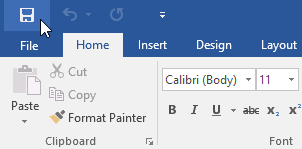
<p style="text-align: justify;">1. Định vị và chọn lệnh <strong>Save</strong> trên <strong>Quick Access Toolbar</strong>.</p>

<figure>
<div style="text-align: justify;"><img alt="Chọn lệnh Save" class="lazy lightbox loaded" data-i="0" data-src="https://st.quantrimang.com/photos/image/2022/01/15/word-2019-phan-3-luu-va-chia-se-tai-lieu-1.png" data-was-processed="true" height="149" src="https://st.quantrimang.com/photos/image/2022/01/15/word-2019-phan-3-luu-va-chia-se-tai-lieu-1.png" style="height: 149px; width: 302px;" width="302" /></div>

<figcaption>
<div style="text-align: justify;">Chọn lệnh Save</div>
</figcaption>
</figure>

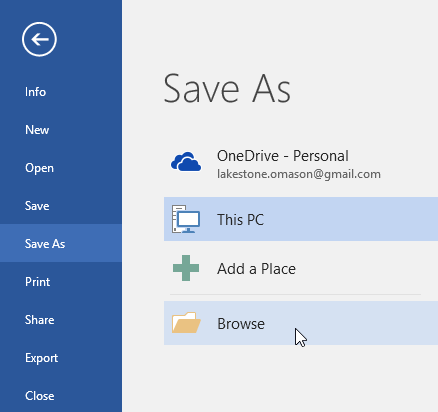
<p style="text-align: justify;">2. Nếu bạn đang lưu file lần đầu tiên, <strong>Save As</strong> sẽ xuất hiện trong <strong>Backstage view.</strong></p>

<p style="text-align: justify;">3. Sau đó, bạn sẽ cần chọn nơi lưu và đặt tên file. Nhấp vào <strong>Browse</strong> để chọn một vị trí trên máy tính. Bạn cũng có thể bấm vào OneDrive để lưu file vào bộ nhớ đám mây này.</p>

<figure>
<div style="text-align: justify;"><img alt="Chọn nơi lưu và đặt tên file" class="lazy lightbox loaded" data-i="1" data-src="https://st.quantrimang.com/photos/image/2022/01/15/word-2019-phan-3-luu-va-chia-se-tai-lieu-2.png" data-was-processed="true" height="412" src="https://st.quantrimang.com/photos/image/2022/01/15/word-2019-phan-3-luu-va-chia-se-tai-lieu-2.png" style="height: 412px; width: 438px;" width="438" /></div>

<figcaption>
<div style="text-align: justify;">Chọn nơi lưu và đặt tên file</div>
</figcaption>
</figure>

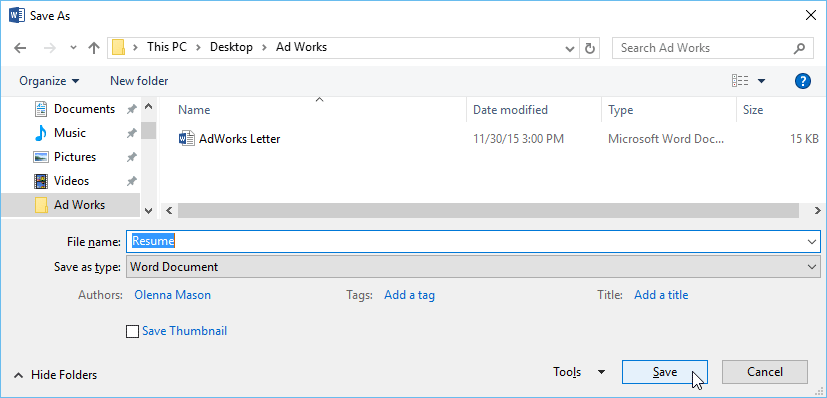
<p style="text-align: justify;">4. Hộp thoại <strong>Save As</strong> sẽ xuất hiện. Chọn vị trí bạn muốn lưu tài liệu.</p>

<p style="text-align: justify;">5. Nhập tên cho tài liệu, sau đó bấm <strong>Save.</strong></p>

<figure>
<div style="text-align: justify;"><img alt="Nhập tên cho tài liệu" class="lazy lightbox loaded" data-i="3" data-inimage-loaded="true" data-src="https://st.quantrimang.com/photos/image/2022/01/15/word-2019-phan-3-luu-va-chia-se-tai-lieu-3.png" data-was-processed="true" height="398" src="https://st.quantrimang.com/photos/image/2022/01/15/word-2019-phan-3-luu-va-chia-se-tai-lieu-3.png" style="height: 334px; width: 696px;" width="827" /></div>

<figcaption>
<div style="text-align: justify;">Nhập tên cho tài liệu</div>
</figcaption>
</figure>

<p style="text-align: justify;">6. Tài liệu sẽ được lưu. Bạn có thể nhấp lại vào lệnh <strong>Save</strong> để lưu các thay đổi của mình khi sửa đổi tài liệu.</p>

<p style="text-align: justify;">Bạn cũng có thể truy cập lệnh <strong>Save</strong> bằng cách nhấn <strong>Ctrl + S</strong> trên bàn phím.</p>

<h3 style="text-align: justify;">Sử dụng Save As để tạo một bản sao</h3>

<p style="text-align: justify;">Nếu bạn muốn lưu một phiên bản khác của tài liệu trong khi vẫn giữ nguyên bản gốc, bạn có thể tạo một bản sao. Ví dụ, nếu bạn có một file có tên <em>Sales Report</em>, bạn có thể lưu nó dưới dạng <em>Sales Report 2</em> để có thể chỉnh sửa file mới và tham chiếu trở lại phiên bản gốc.</p>

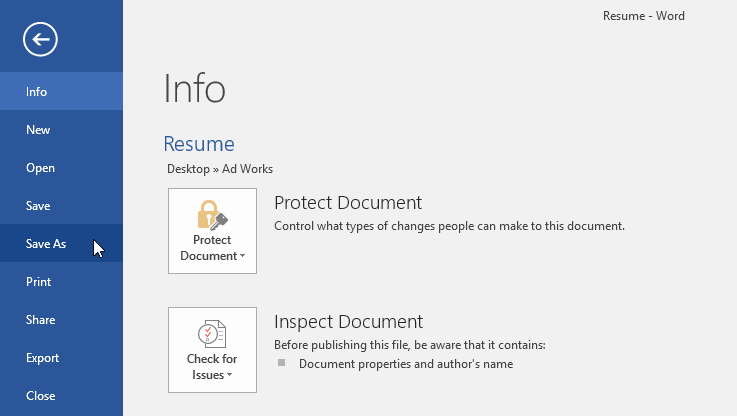
<p style="text-align: justify;">Để thực hiện việc này, bạn sẽ nhấp vào lệnh <strong>Save As </strong>trong <strong>Backstage view.</strong> Giống như khi lưu file lần đầu tiên, bạn sẽ cần chọn nơi lưu file và đặt tên file mới.</p>

<figure>
<div style="text-align: justify;"><img alt="Nhấp vào lệnh Save As trong Backstage view" class="lazy lightbox loaded" data-i="4" data-src="https://st.quantrimang.com/photos/image/2022/01/15/word-2019-phan-3-luu-va-chia-se-tai-lieu-4.png" data-was-processed="true" height="416" src="https://st.quantrimang.com/photos/image/2022/01/15/word-2019-phan-3-luu-va-chia-se-tai-lieu-4.png" style="height: 392px; width: 696px;" width="737" /></div>

<figcaption>
<div style="text-align: justify;">Nhấp vào lệnh Save As trong Backstage view</div>
</figcaption>
</figure>

<h3 style="text-align: justify;">Thay đổi vị trí lưu mặc định</h3>

<p style="text-align: justify;">Nếu không muốn sử dụng OneDrive, bạn có thể bực bội vì OneDrive được chọn làm vị trí mặc định khi lưu. Nếu bạn thấy điều này bất tiện, bạn có thể thay đổi vị trí lưu mặc định để PC này được chọn theo mặc định.</p>

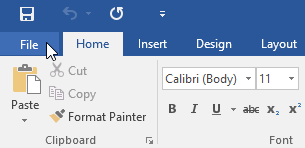
<p style="text-align: justify;">1. Bấm vào tab <strong>File</strong> để truy cập <strong>Backstage view.</strong></p>

<figure>
<div style="text-align: justify;"><img alt="Bấm vào tab File" class="lazy lightbox loaded" data-i="5" data-src="https://st.quantrimang.com/photos/image/2022/01/15/word-2019-phan-3-luu-va-chia-se-tai-lieu-5.png" data-was-processed="true" height="148" src="https://st.quantrimang.com/photos/image/2022/01/15/word-2019-phan-3-luu-va-chia-se-tai-lieu-5.png" style="height: 148px; width: 305px;" width="305" /></div>

<figcaption>
<div style="text-align: justify;">Bấm vào tab File</div>
</figcaption>
</figure>

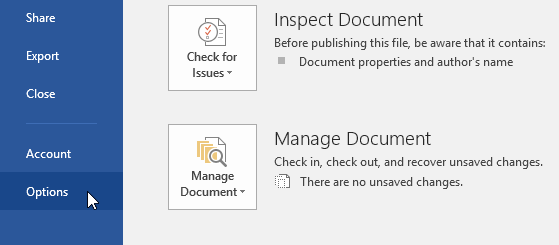
<p style="text-align: justify;">2. Nhấp vào <strong>Options.</strong></p>

<figure>
<div style="text-align: justify;"><img alt="Nhấp vào Options" class="lazy lightbox loaded" data-i="6" data-src="https://st.quantrimang.com/photos/image/2022/01/15/word-2019-phan-3-luu-va-chia-se-tai-lieu-6.png" data-was-processed="true" height="245" src="https://st.quantrimang.com/photos/image/2022/01/15/word-2019-phan-3-luu-va-chia-se-tai-lieu-6.png" style="height: 245px; width: 559px;" width="559" /></div>

<figcaption>
<div style="text-align: justify;">Nhấp vào Options</div>
</figcaption>
</figure>

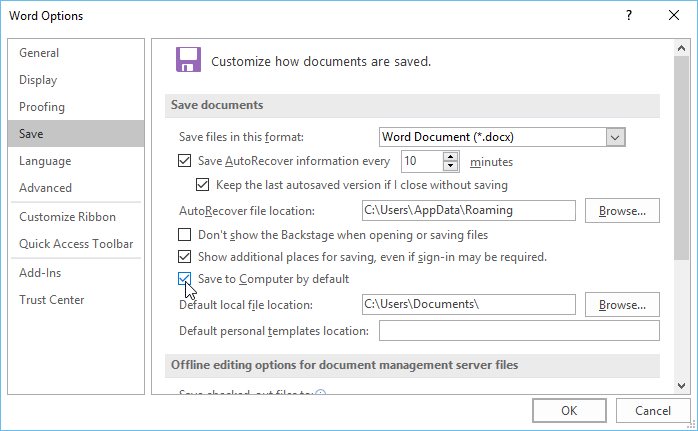
<p style="text-align: justify;">3. Hộp thoại <strong>Word Options</strong> sẽ xuất hiện. Chọn <strong>Save</strong> ở bên trái, chọn hộp bên cạnh <strong>Save to Computer by default</strong>, sau đó nhấp vào <strong>OK.</strong> Vị trí lưu mặc định sẽ được thay đổi.</p>

<figure>
<div style="text-align: justify;"><img alt="Chọn hộp bên cạnh Save to Computer by default" class="lazy lightbox loaded" data-i="7" data-src="https://st.quantrimang.com/photos/image/2022/01/15/word-2019-phan-3-luu-va-chia-se-tai-lieu-7.png" data-was-processed="true" height="431" src="https://st.quantrimang.com/photos/image/2022/01/15/word-2019-phan-3-luu-va-chia-se-tai-lieu-7.png" style="height: 429px; width: 696px;" width="698" /></div>

<figcaption>
<div style="text-align: justify;">Chọn hộp bên cạnh Save to Computer by default</div>
</figcaption>
</figure>

<h2 style="text-align: justify;">AutoRecover</h2>

<p style="text-align: justify;">Word tự động lưu tài liệu của bạn vào một thư mục tạm thời trong khi bạn đang làm việc trên chúng. Nếu bạn quên lưu các thay đổi của mình hoặc nếu Word bị treo, bạn có thể khôi phục file bằng tính năng AutoRecover.</p>

<p style="text-align: justify;">Để sử dụng AutoRecover:</p>

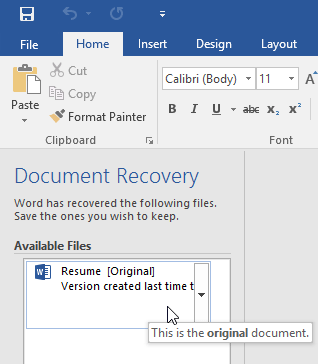
<p style="text-align: justify;">1. Mở Word. Nếu tìm thấy phiên bản tự động lưu của file, <strong>Document Recovery</strong> sẽ xuất hiện ở bên trái.</p>

<p style="text-align: justify;">2. Nhấp để mở một file có sẵn. Tài liệu sẽ được phục hồi.</p>

<figure>
<div style="text-align: justify;"><img alt="Nhấp vào bản sao để khôi phục tài liệu" class="lazy lightbox loaded" data-i="8" data-src="https://st.quantrimang.com/photos/image/2022/01/15/word-2019-phan-3-luu-va-chia-se-tai-lieu-8.png" data-was-processed="true" height="364" src="https://st.quantrimang.com/photos/image/2022/01/15/word-2019-phan-3-luu-va-chia-se-tai-lieu-8.png" style="height: 364px; width: 318px;" width="318" /></div>

<figcaption>
<div style="text-align: justify;">Nhấp vào bản sao để khôi phục tài liệu</div>
</figcaption>
</figure>

<p style="text-align: justify;">Theo mặc định, Word tự động lưu cứ 10 phút một lần. Nếu bạn đang chỉnh sửa tài liệu trong thời gian ít hơn 10 phút, Word có thể không tạo phiên bản tự động lưu.</p>

<div class="adbox in-article adsense" style="text-align: justify;">&nbsp;</div>

<div class="adbox in-article adsense" style="text-align: justify;"><iframe allowfullscreen="true" allowtransparency="true" data-google-container-id="a!6" data-google-query-id="COzp-Mj7svUCFWjHTAIdpVoNag" data-load-complete="true" frameborder="0" height="0" hspace="0" id="aswift_5" marginheight="0" marginwidth="0" name="aswift_5" sandbox="allow-forms allow-popups allow-popups-to-escape-sandbox allow-same-origin allow-scripts allow-top-navigation-by-user-activation" scrolling="no" style="left: 0px; position: absolute; top: 0px; border: 0px none; width: 694px; height: 0px;" vspace="0" width="694"></iframe></div>

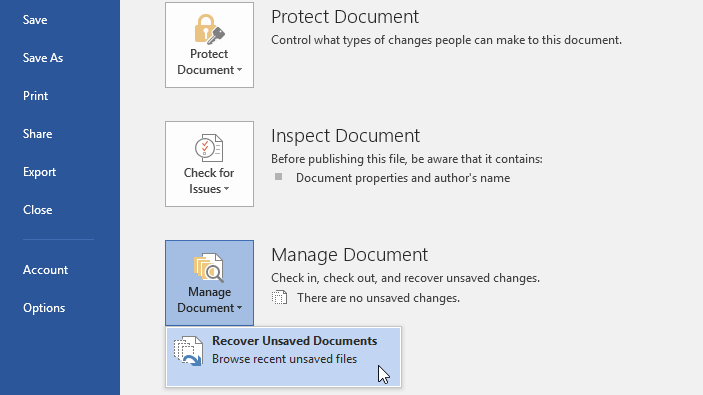
<p style="text-align: justify;">Nếu không thấy file mình cần, bạn có thể duyệt qua tất cả các file được lưu tự động từ <strong>Backstage view.</strong> Chọn tab <strong>File</strong>, bấm <strong>Manage</strong> <strong>Versions</strong>, sau đó chọn <strong>Recover Unsaved Documents</strong>.</p>

<figure>
<div style="text-align: justify;"><img alt="Chọn Recover Unsaved Documents" class="lazy lightbox loaded" data-i="9" data-src="https://st.quantrimang.com/photos/image/2022/01/15/word-2019-phan-3-luu-va-chia-se-tai-lieu-9.png" data-was-processed="true" height="395" src="https://st.quantrimang.com/photos/image/2022/01/15/word-2019-phan-3-luu-va-chia-se-tai-lieu-9.png" style="height: 391px; width: 696px;" width="703" /></div>

<figcaption>
<div style="text-align: justify;">Chọn Recover Unsaved Documents</div>
</figcaption>
</figure>

<h2 style="text-align: justify;">Xuất tài liệu</h2>

<p style="text-align: justify;">Theo mặc định, tài liệu Word được lưu dưới dạng file .docx. Tuy nhiên, đôi khi bạn cần sử dụng loại file khác, chẳng hạn như tài liệu PDF hoặc Word 97-2003. Thật dễ dàng để xuất tài liệu của bạn từ Word sang nhiều loại file khác nhau.</p>

<h3 style="text-align: justify;">Xuất tài liệu dưới dạng file PDF</h3>

<p style="text-align: justify;">Xuất tài liệu của bạn dưới dạng tài liệu Adobe Acrobat, thường được gọi là <a href="https://quantrimang.com/tim-hieu-ve-dinh-dang-pdf-118417" title="File PDF là gì? Đọc file PDF như thế nào?">file PDF</a>, có thể đặc biệt hữu ích nếu bạn đang chia sẻ tài liệu với người không có Word. File PDF sẽ giúp người nhận có thể xem - nhưng không thể chỉnh sửa - nội dung tài liệu của bạn.</p>

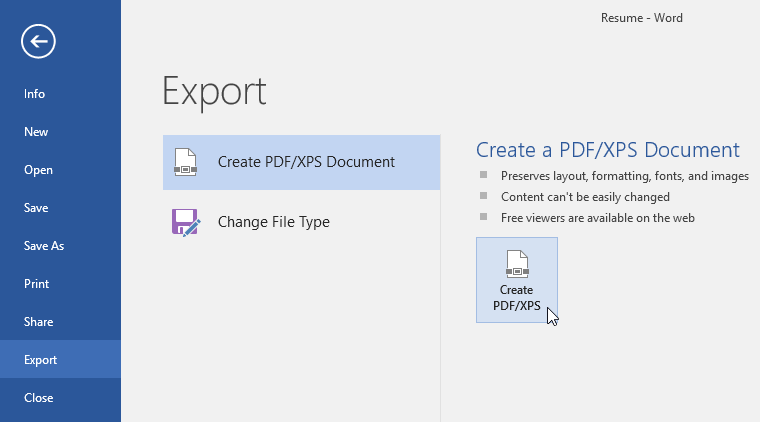
<p style="text-align: justify;">1. Nhấp vào tab <strong>File</strong> để truy cập <strong>Backstage view</strong>, chọn <strong>Export</strong>, sau đó chọn <strong>Create PDF/XPS.</strong></p>

<figure>
<div style="text-align: justify;"><img alt="Chọn Create PDF/XPS" class="lazy lightbox loaded" data-i="10" data-src="https://st.quantrimang.com/photos/image/2022/01/15/word-2019-phan-3-luu-va-chia-se-tai-lieu-10.png" data-was-processed="true" height="422" src="https://st.quantrimang.com/photos/image/2022/01/15/word-2019-phan-3-luu-va-chia-se-tai-lieu-10.png" style="height: 386px; width: 696px;" width="760" /></div>

<figcaption>
<div style="text-align: justify;">Chọn Create PDF/XPS</div>
</figcaption>
</figure>

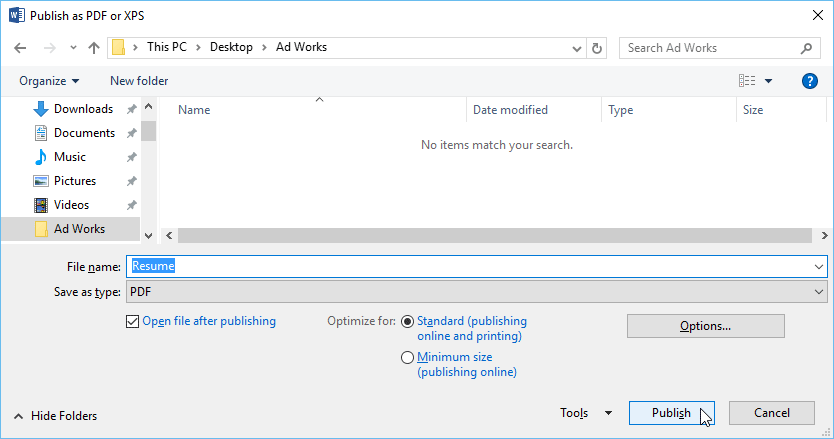
<p style="text-align: justify;">2. Hộp thoại <strong>Save As</strong> sẽ xuất hiện. Chọn vị trí bạn muốn xuất tài liệu, nhập tên file, sau đó bấm <strong>Publish.</strong></p>

<figure>
<div style="text-align: justify;"><img alt="Chọn Publish" class="lazy lightbox loaded" data-i="11" data-src="https://st.quantrimang.com/photos/image/2022/01/15/word-2019-phan-3-luu-va-chia-se-tai-lieu-11.png" data-was-processed="true" height="439" src="https://st.quantrimang.com/photos/image/2022/01/15/word-2019-phan-3-luu-va-chia-se-tai-lieu-11.png" style="height: 366px; width: 696px;" width="834" /></div>

<figcaption>
<div style="text-align: justify;">Chọn Publish</div>
</figcaption>
</figure>

<div class="adbox in-article" style="text-align: justify;">&nbsp;</div>

<div class="adbox in-article" style="text-align: justify;"><iframe allowfullscreen="true" allowtransparency="true" data-google-container-id="a!7" data-google-query-id="CP3n38n7svUCFX7ATAId5yEBgw" data-load-complete="true" frameborder="0" height="0" hspace="0" id="aswift_6" marginheight="0" marginwidth="0" name="aswift_6" sandbox="allow-forms allow-popups allow-popups-to-escape-sandbox allow-same-origin allow-scripts allow-top-navigation-by-user-activation" scrolling="no" style="left: 0px; position: absolute; top: 0px; border: 0px none; width: 694px; height: 0px;" vspace="0" width="694"></iframe></div>

<p style="text-align: justify;">Nếu bạn cần chỉnh sửa file PDF, Word cho phép bạn chuyển đổi file PDF thành tài liệu có thể chỉnh sửa.</p>

<h3 style="text-align: justify;">Xuất tài liệu sang các loại file khác</h3>

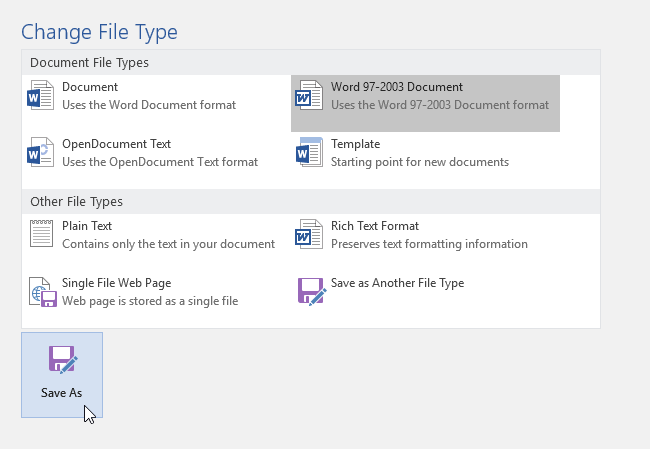
<p style="text-align: justify;">Bạn cũng có thể thấy hữu ích khi xuất tài liệu của mình sang các loại file khác, chẳng hạn như Word 97-2003 Document nếu bạn cần chia sẻ với mọi người bằng phiên bản Word cũ hơn hoặc file .txt nếu bạn cần phiên bản plain text của tài liệu.</p>

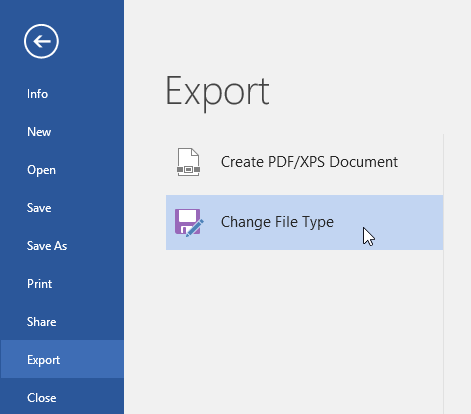
<p style="text-align: justify;">1. Nhấp vào tab <strong>File</strong> để truy cập <strong>Backstage view</strong>, chọn <strong>Export</strong>, sau đó chọn <strong>Change File Type</strong>.</p>

<figure>
<div style="text-align: justify;"><img alt="Chọn Change File Type" class="lazy lightbox loaded" data-i="12" data-src="https://st.quantrimang.com/photos/image/2022/01/15/word-2019-phan-3-luu-va-chia-se-tai-lieu-12.png" data-was-processed="true" height="414" src="https://st.quantrimang.com/photos/image/2022/01/15/word-2019-phan-3-luu-va-chia-se-tai-lieu-12.png" style="height: 414px; width: 471px;" width="471" /></div>

<figcaption>
<div style="text-align: justify;">Chọn Change File Type</div>
</figcaption>
</figure>

<p style="text-align: justify;">2. Chọn loại file, sau đó nhấp vào <strong>Save As</strong>.</p>

<figure>
<div style="text-align: justify;"><img alt="Nhấp vào Save As" class="lazy lightbox loaded" data-i="13" data-src="https://st.quantrimang.com/photos/image/2022/01/15/word-2019-phan-3-luu-va-chia-se-tai-lieu-13.png" data-was-processed="true" height="449" src="https://st.quantrimang.com/photos/image/2022/01/15/word-2019-phan-3-luu-va-chia-se-tai-lieu-13.png" style="height: 449px; width: 650px;" width="650" /></div>

<figcaption>
<div style="text-align: justify;">Nhấp vào Save As</div>
</figcaption>
</figure>

<p style="text-align: justify;">3. Hộp thoại <strong>Save As</strong> sẽ xuất hiện. Chọn vị trí bạn muốn xuất tài liệu, nhập tên file, sau đó bấm <strong>Save.</strong></p>

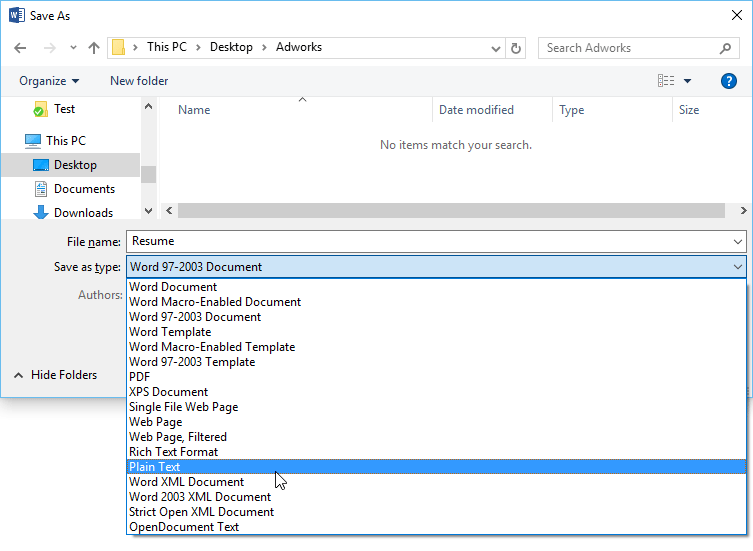
<p style="text-align: justify;">Bạn cũng có thể sử dụng menu drop-down <strong>Save As type</strong> trong hộp thoại <strong>Save As</strong> để lưu tài liệu thành nhiều loại file khác nhau.</p>

<figure>
<div style="text-align: justify;"><img alt="Sử dụng menu drop-down Save As type trong hộp thoại Save As" class="lazy lightbox loaded" data-i="14" data-src="https://st.quantrimang.com/photos/image/2022/01/15/word-2019-phan-3-luu-va-chia-se-tai-lieu-14.png" data-was-processed="true" height="551" src="https://st.quantrimang.com/photos/image/2022/01/15/word-2019-phan-3-luu-va-chia-se-tai-lieu-14.png" style="height: 509px; width: 696px;" width="753" /></div>

<figcaption>
<div style="text-align: justify;">Sử dụng menu drop-down Save As type trong hộp thoại Save As</div>
</figcaption>
</figure>

<h2 style="text-align: justify;">Chia sẻ tài liệu</h2>

<p style="text-align: justify;">Word giúp bạn dễ dàng chia sẻ và cộng tác trên các tài liệu bằng OneDrive. Trước đây, nếu bạn muốn chia sẻ file với ai đó, bạn có thể gửi file đó dưới dạng file đính kèm trong email. Mặc dù thuận tiện, hệ thống này cũng tạo ra nhiều phiên bản của cùng một file, gây khó cho việc sắp xếp lại về sau.</p>

<div class="adbox adsense in-article" id="articleads">
<div style="text-align: justify;">&nbsp;</div>

<div style="margin-left: 0px; text-align: justify;"></div>

<div id="v-quantrimang-v1-1" style="margin-left: 0px;">
<div class="vdo_floating" id="_vdo_ads_player_ai_4751" style="display: block; width: 100%; margin-left: 0px; bottom: 10px; right: 10px;">
<div class="vdo_ai_7223335_ima-ad-container ima-ad-container" id="vdo_ai_7223335_ima-ad-container" style="position: absolute; z-index: 1111; display: block; text-align: justify;">&nbsp;</div>
</div>

<div class="vdo_floating" style="display: block; width: 100%; margin-left: 0px; bottom: 10px; right: 10px; text-align: justify;">&nbsp;</div>

<div class="vdo_floating" style="display: block; width: 100%; margin-left: 0px; bottom: 10px; right: 10px;"></div>

<div class="vdo_floating" style="display: block; width: 100%; margin-left: 0px; bottom: 10px; right: 10px; text-align: justify;">&nbsp;</div>

<div class="vdo_floating" style="display: block; width: 100%; margin-left: 0px; bottom: 10px; right: 10px;"></div>

<div class="vdo_floating" style="display: block; width: 100%; margin-left: 0px; bottom: 10px; right: 10px; text-align: justify;">&nbsp;</div>

<div class="vdo_floating" style="display: block; width: 100%; margin-left: 0px; bottom: 10px; right: 10px;"></div>

<div class="vdo_floating" style="display: block; width: 100%; margin-left: 0px; bottom: 10px; right: 10px; text-align: justify;">&nbsp;</div>

<div class="vdo_floating" style="display: block; width: 100%; margin-left: 0px; bottom: 10px; right: 10px;"></div>

<div class="vdo_floating" style="display: block; width: 100%; margin-left: 0px; bottom: 10px; right: 10px; text-align: justify;">&nbsp;</div>

<div class="vdo_floating" style="display: block; width: 100%; margin-left: 0px; bottom: 10px; right: 10px;">
<div aria-disabled="false" class="vjs-poster" style="background-image: url(&#039;https://vhs.vdo.ai/uploads/thumbnails/16394881987561b89ac68dd3d.png&#039;); text-align: justify;" tabindex="-1">&nbsp;</div>

<div aria-atomic="true" aria-live="off" class="vjs-text-track-display">
<div style="position: absolute; inset: 0px; margin: 1.5%; text-align: justify;">&nbsp;</div>
</div>
</div>

<div class="vdo_floating" style="display: block; width: 100%; margin-left: 0px; bottom: 10px; right: 10px; text-align: justify;">&nbsp;</div>
</div>
</div>

<p style="text-align: justify;">Khi chia sẻ một tài liệu từ Word, bạn đang thực sự cấp cho người khác quyền truy cập vào cùng một file. Điều này cho phép bạn và những người bạn chia sẻ cùng chỉnh sửa cùng một tài liệu mà không cần phải theo dõi nhiều phiên bản.</p>

<p style="text-align: justify;">Để chia sẻ tài liệu, trước tiên tài liệu đó phải được lưu vào OneDrive của bạn.</p>

<p style="text-align: justify;">Để chia sẻ một tài liệu:</p>

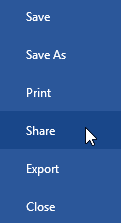
<p style="text-align: justify;">1. Bấm vào tab file để truy cập <strong>Backstage view</strong>, sau đó bấm <strong>Share.</strong></p>

<figure>
<div style="text-align: justify;"><img alt="Nhấp vào Share" class="lazy lightbox loaded" data-i="15" data-src="https://st.quantrimang.com/photos/image/2022/01/15/word-2019-phan-3-luu-va-chia-se-tai-lieu-15.png" data-was-processed="true" height="223" src="https://st.quantrimang.com/photos/image/2022/01/15/word-2019-phan-3-luu-va-chia-se-tai-lieu-15.png" style="height: 223px; width: 121px;" width="121" /></div>

<figcaption>
<div style="text-align: justify;">Nhấp vào Share</div>
</figcaption>
</figure>

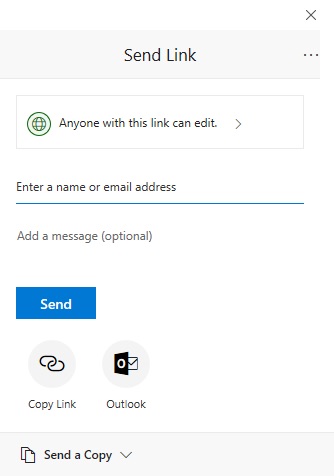
<p style="text-align: justify;">2. Một cửa sổ <strong>Send Link</strong> sẽ xuất hiện.</p>

<figure>
<div style="text-align: justify;"><img alt="Cửa sổ Send Link" class="lazy lightbox loaded" data-i="16" data-src="https://st.quantrimang.com/photos/image/2022/01/15/word-2019-phan-3-luu-va-chia-se-tai-lieu-16.jpg" data-was-processed="true" height="476" src="https://st.quantrimang.com/photos/image/2022/01/15/word-2019-phan-3-luu-va-chia-se-tai-lieu-16.jpg" style="height: 476px; width: 334px;" width="334" /></div>

<figcaption>
<div style="text-align: justify;">Cửa sổ Send Link</div>
</figcaption>
</figure>

<p style="text-align: justify;">Tại đây, bạn có thể chọn chia sẻ tài liệu qua email thông thường, Outlook hoặc copy link tài liệu rồi gửi cho người nhận mong muốn.</p>
		</div>
				<div id="author">
						<p>
				<strong>Nguồn tin:</strong>
				Quantrimang.com
			</p>
		</div>
	</div>
	<div id="footer" class="clearfix">
		<div id="url">
			<strong>URL của bản tin này: </strong><a href="https://www.nguoicodonvn2008.info/vi/news/savefile/kien-thuc-may-tinh/word-2019-phan-3-luu-va-chia-se-tai-lieu-5028.html" title="Word 2019 &#40;Phần 3&#41;&#x3A; Lưu và chia sẻ tài liệu">https://www.nguoicodonvn2008.info/vi/news/savefile/kien-thuc-may-tinh/word-2019-phan-3-luu-va-chia-se-tai-lieu-5028.html</a>

		</div>
		<div class="clear"></div>
		<div class="copyright">
			&copy; .&#x3A; Nguoicodonvn2008.info - Cõi lòng người cô đơn &#x3A;.
		</div>
		<div id="contact">
			<a href="mailto:admin@nguoicodonvn2008.info">admin@nguoicodonvn2008.info</a>
		</div>
	</div>
</div>
        <div id="timeoutsess" class="chromeframe">
            Bạn đã không sử dụng Site, <a onclick="timeoutsesscancel();" href="https://nguoicodonvn2008.info/#">Bấm vào đây để duy trì trạng thái đăng nhập</a>. Thời gian chờ: <span id="secField"> 60 </span> giây
        </div>
        <div id="openidResult" class="nv-alert" style="display:none"></div>
        <div id="openidBt" data-result="" data-redirect=""></div>
		</script>
		<div class="car-top">
  <span><img src="https://nguoicodonvn2008.info/themes/default/images/car.png" alt=""></span>
</div>
<div id="run_cronjobs" style="visibility:hidden;display:none;"><img alt="cron" src="/index.php?second=cronjobs&amp;p=x2uKKg9U" width="1" height="1" /></div>
<script src="https://nguoicodonvn2008.info/assets/js/jquery/jquery.min.js"></script>
<script>var nv_base_siteurl="/",nv_lang_data="vi",nv_lang_interface="vi",nv_name_variable="nv",nv_fc_variable="op",nv_lang_variable="language",nv_module_name="news",nv_func_name="savefile",nv_is_user=0, nv_my_ofs=-4,nv_my_abbr="EDT",nv_cookie_prefix="nv4c_e856T",nv_check_pass_mstime=1738000,nv_area_admin=0,nv_safemode=0,theme_responsive=0,nv_recaptcha_ver=2,nv_recaptcha_sitekey="",nv_recaptcha_type="image",XSSsanitize=1;</script>
<script src="https://nguoicodonvn2008.info/assets/js/language/vi.js"></script>
<script src="https://nguoicodonvn2008.info/assets/js/DOMPurify/purify3.js"></script>
<script src="https://nguoicodonvn2008.info/assets/js/global.js"></script>
<script src="https://nguoicodonvn2008.info/assets/js/site.js"></script>
<script src="https://nguoicodonvn2008.info/themes/default/js/news.js"></script>
<script src="https://nguoicodonvn2008.info/themes/default/js/main.js"></script>
<script src="https://nguoicodonvn2008.info/themes/default/js/custom.js"></script>
<script type="application/ld+json">
        {
            "@context": "https://schema.org",
            "@type": "Organization",
            "url": "https://nguoicodonvn2008.info",
            "logo": "https://nguoicodonvn2008.info/uploads/angel.gif"
        }
        </script>
<script src="https://nguoicodonvn2008.info/themes/default/js/bootstrap.min.js"></script>
<script type="text/javascript">
var $scrolltop = $('.car-top');
$scrolltop.on('click', function () {
    $('html,body').animate({
        scrollTop: 0
    }, 800);
    $(this).addClass("car-run");
    setTimeout(function(){ $scrolltop.removeClass('car-run');}, 1000);
    return false;
});
$(window).on('scroll', function ()
{ 
    if($(window).scrollTop() >= 200)
    {
        $scrolltop.addClass("show");
        $scrolltop.addClass("car-down");
    }
    else
    {
       $scrolltop.removeClass("show");
       setTimeout(function(){ $scrolltop.removeClass('car-down');}, 300);
    }
});
</script>
</body>
</html>