<!DOCTYPE html>
    <html lang="vi" xmlns="http://www.w3.org/1999/xhtml" prefix="og: http://ogp.me/ns#">
    <head>
<title>Word 2019 &#40;Phần 29&#41;&#x3A; Công cụ Mail Merge</title>
<meta name="description" content="Word 2019 &#40;Phần 29&#41;&#x3A; Công cụ Mail Merge - Savefile - Tin Tức -...">
<meta name="author" content=".: Nguoicodonvn2008.info - Cõi lòng người cô đơn :.">
<meta name="copyright" content=".: Nguoicodonvn2008.info - Cõi lòng người cô đơn :. [admin@nguoicodonvn2008.info]">
<meta name="robots" content="index, archive, follow, noodp">
<meta name="googlebot" content="index,archive,follow,noodp">
<meta name="msnbot" content="all,index,follow">
<meta name="generator" content="NukeViet v4.5">
<meta http-equiv="Content-Type" content="text/html; charset=utf-8">
<meta property="og:title" content="Word 2019 &#40;Phần 29&#41;&#x3A; Công cụ Mail Merge">
<meta property="og:type" content="website">
<meta property="og:description" content="Savefile - Tin Tức - https&#x3A;&#x002F;&#x002F;www.nguoicodonvn2008.info&#x002F;vi&#x002F;news&#x002F;savefile&#x002F;kien-thuc-may-tinh&#x002F;word-2019-phan-29-cong-cu-mail-merge-5151.html">
<meta property="og:site_name" content=".&#x3A; Nguoicodonvn2008.info - Cõi lòng người cô đơn &#x3A;.">
<meta property="og:url" content="https://www.nguoicodonvn2008.info/vi/news/savefile/kien-thuc-may-tinh/word-2019-phan-29-cong-cu-mail-merge-5151.html">
<link rel="shortcut icon" href="https://nguoicodonvn2008.info/favicon.ico">
<link rel="canonical" href="https://www.nguoicodonvn2008.info/vi/news/savefile/kien-thuc-may-tinh/word-2019-phan-29-cong-cu-mail-merge-5151.html">
<link rel="alternate" href="https://nguoicodonvn2008.info/vi/news/rss/" title="Tin Tức" type="application/rss+xml">
<link rel="alternate" href="https://nguoicodonvn2008.info/vi/news/rss/karaoke-dual/" title="Tin Tức - Karaoke Dual" type="application/rss+xml">
<link rel="alternate" href="https://nguoicodonvn2008.info/vi/news/rss/nhac-tre/" title="Tin Tức - Nhạc trẻ" type="application/rss+xml">
<link rel="alternate" href="https://nguoicodonvn2008.info/vi/news/rss/tru-tinh/" title="Tin Tức - Trữ tình" type="application/rss+xml">
<link rel="alternate" href="https://nguoicodonvn2008.info/vi/news/rss/nuoc-ngoai/" title="Tin Tức - Nước ngoài" type="application/rss+xml">
<link rel="alternate" href="https://nguoicodonvn2008.info/vi/news/rss/remix/" title="Tin Tức - Remix" type="application/rss+xml">
<link rel="alternate" href="https://nguoicodonvn2008.info/vi/news/rss/tam-su-tinh-yeu/" title="Tin Tức - Tâm sự tình yêu" type="application/rss+xml">
<link rel="alternate" href="https://nguoicodonvn2008.info/vi/news/rss/tho-suu-tam/" title="Tin Tức - Thơ sưu tầm" type="application/rss+xml">
<link rel="alternate" href="https://nguoicodonvn2008.info/vi/news/rss/cuoc-song/" title="Tin Tức - Cuộc sống" type="application/rss+xml">
<link rel="alternate" href="https://nguoicodonvn2008.info/vi/news/rss/phan-mem/" title="Tin Tức - Phần mềm" type="application/rss+xml">
<link rel="alternate" href="https://nguoicodonvn2008.info/vi/news/rss/kien-thuc-may-tinh/" title="Tin Tức - Kiến thức máy tính" type="application/rss+xml">
<link rel="alternate" href="https://nguoicodonvn2008.info/vi/news/rss/hoc-tap/" title="Tin Tức - Học tập" type="application/rss+xml">
<link rel="alternate" href="https://nguoicodonvn2008.info/vi/news/rss/tai-lieu/" title="Tin Tức - Tài liệu" type="application/rss+xml">
<link rel="alternate" href="https://nguoicodonvn2008.info/vi/news/rss/de-thi/" title="Tin Tức - Đề thi" type="application/rss+xml">
<link rel="preload" as="style" href="https://nguoicodonvn2008.info/assets/css/font-awesome.min.css" type="text/css">
<link rel="preload" as="style" href="https://nguoicodonvn2008.info/themes/default/css/bootstrap.non-responsive.css" type="text/css">
<link rel="preload" as="style" href="https://nguoicodonvn2008.info/themes/default/css/style.css" type="text/css">
<link rel="preload" as="style" href="https://nguoicodonvn2008.info/themes/default/css/style.non-responsive.css" type="text/css">
<link rel="preload" as="style" href="https://nguoicodonvn2008.info/themes/default/css/news.css" type="text/css">
<link rel="preload" as="style" href="https://nguoicodonvn2008.info/themes/default/css/custom.css" type="text/css">
<link rel="preload" as="script" href="https://nguoicodonvn2008.info/assets/js/jquery/jquery.min.js" type="text/javascript">
<link rel="preload" as="script" href="https://nguoicodonvn2008.info/assets/js/language/vi.js" type="text/javascript">
<link rel="preload" as="script" href="https://nguoicodonvn2008.info/assets/js/DOMPurify/purify3.js" type="text/javascript">
<link rel="preload" as="script" href="https://nguoicodonvn2008.info/assets/js/global.js" type="text/javascript">
<link rel="preload" as="script" href="https://nguoicodonvn2008.info/assets/js/site.js" type="text/javascript">
<link rel="preload" as="script" href="https://nguoicodonvn2008.info/themes/default/js/news.js" type="text/javascript">
<link rel="preload" as="script" href="https://nguoicodonvn2008.info/themes/default/js/main.js" type="text/javascript">
<link rel="preload" as="script" href="https://nguoicodonvn2008.info/themes/default/js/custom.js" type="text/javascript">
<link rel="preload" as="script" href="https://nguoicodonvn2008.info/themes/default/js/bootstrap.min.js" type="text/javascript">
<link rel="stylesheet" href="https://nguoicodonvn2008.info/assets/css/font-awesome.min.css">
<link rel="stylesheet" href="https://nguoicodonvn2008.info/themes/default/css/bootstrap.non-responsive.css">
<link rel="stylesheet" href="https://nguoicodonvn2008.info/themes/default/css/style.css">
<link rel="stylesheet" href="https://nguoicodonvn2008.info/themes/default/css/style.non-responsive.css">
<link rel="StyleSheet" href="https://nguoicodonvn2008.info/themes/default/css/news.css">
<link rel="stylesheet" href="https://nguoicodonvn2008.info/themes/default/css/custom.css">
<style type="text/css">
	body{background: #fff;}
</style>
    </head>
    <body>
<div id="print">
	<div id="hd_print">
		<h2 class="pull-left">.&#x3A; Nguoicodonvn2008.info - Cõi lòng người cô đơn &#x3A;.</h2>
		<p class="pull-right"><a title=".&#x3A; Nguoicodonvn2008.info - Cõi lòng người cô đơn &#x3A;." href="https://nguoicodonvn2008.info/">https://nguoicodonvn2008.info</a></p>
	</div>
	<div class="clear"></div>
	<hr />
	<div id="content">
		<h1>Word 2019 &#40;Phần 29&#41;&#x3A; Công cụ Mail Merge</h1>
		<ul class="list-inline">
			<li>Thứ năm - 17/02/2022 23:55</li>
			<li class="hidden-print txtrequired"><em class="fa fa-print">&nbsp;</em><a title="In ra" href="javascript:;" onclick="window.print()">In ra</a></li>
			<li class="hidden-print txtrequired"><em class="fa fa-power-off">&nbsp;</em><a title="Đóng cửa sổ này" href="javascript:;" onclick="window.close()">Đóng cửa sổ này</a></li>
		</ul>
		<div class="clear"></div>
		<div id="hometext">
		</div>
				<div class="imghome">
			<img alt="Word 2019 &#40;Phần 29&#41;&#x3A; Công cụ Mail Merge" src="https://st.quantrimang.com/photos/image/2022/02/18/mail-merge-1.png" width="460" class="img-thumbnail" />
		</div>
		<div class="clear"></div>
		<div id="bodytext" class="clearfix">
			<p style="text-align: justify;">Mail Merge là một công cụ hữu ích cho phép bạn tạo nhiều thư, nhãn, phong bì, thẻ tên, v.v… bằng cách sử dụng thông tin được lưu trữ trong danh sách, cơ sở dữ liệu hoặc bảng tính. Khi sử dụng Mail Merge, bạn sẽ cần tài liệu Word (bạn có thể bắt đầu với tài liệu hiện có hoặc tạo tài liệu mới) và danh sách người nhận, thường là Excel workbook.</p>

<h2 style="text-align: justify;">Cách sử dụng Mail Merge</h2>

<p style="text-align: justify;">1. Mở tài liệu&nbsp;Word&nbsp;hiện có hoặc tạo tài liệu mới.</p>

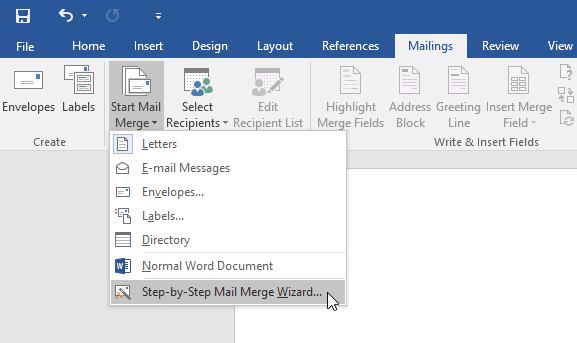
<p style="text-align: justify;">2. Từ tab&nbsp;<strong>Mailings</strong>, nhấp vào lệnh&nbsp;<strong>Start Mail Merge</strong>&nbsp;và chọn&nbsp;<strong>Step-by-Step Mail Merge Wizard</strong>&nbsp;từ menu drop-down.</p>

<figure>
<div style="text-align: justify;"><img alt="Chọn Step-by-Step Mail Merge Wizard" data-i="0" data-src="https://st.quantrimang.com/photos/image/2022/02/18/mail-merge-1.png" data-was-processed="true" height="343" src="https://st.quantrimang.com/photos/image/2022/02/18/mail-merge-1.png" width="577" /></div>

<figcaption>
<div style="text-align: justify;">Chọn Step-by-Step Mail Merge Wizard</div>
</figcaption>
</figure>

<p style="text-align: justify;">Hộp&nbsp;<strong>Mail Merge</strong>&nbsp;sẽ xuất hiện và hướng dẫn bạn qua 6 bước chính để hoàn tất nhiệm vụ.</p>

<h2 style="text-align: justify;">Ví dụ mẫu</h2>

<p style="text-align: justify;">Ví dụ sau đây trình bày cách tạo một bức thư dạng biểu mẫu và hợp nhất bức thư với một danh sách người nhận.</p>

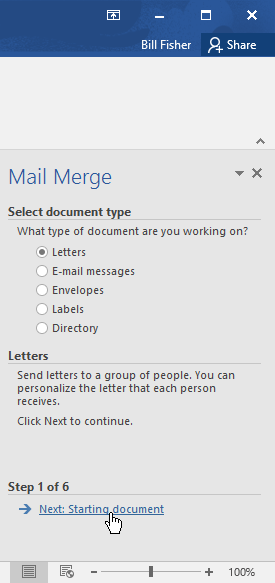
<p style="text-align: justify;"><strong>Bước 1</strong>: Từ ngăn tác vụ&nbsp;<strong>Mail Merge</strong>&nbsp;ở phía bên phải của cửa sổ Word, hãy chọn loại tài liệu bạn muốn tạo. Ví dụ sẽ chọn&nbsp;<strong>Letters.</strong>&nbsp;Sau đó nhấp vào&nbsp;<strong>Next: Starting document</strong>&nbsp;để chuyển sang bước 2.</p>

<figure>
<div style="text-align: justify;"><img alt="Nhấp vào Next: Starting document " data-i="1" data-src="https://st.quantrimang.com/photos/image/2022/02/18/mail-merge-2.png" data-was-processed="true" height="583" src="https://st.quantrimang.com/photos/image/2022/02/18/mail-merge-2.png" width="275" /></div>

<figcaption>
<div style="text-align: justify;">Nhấp vào Next: Starting document</div>
</figcaption>
</figure>

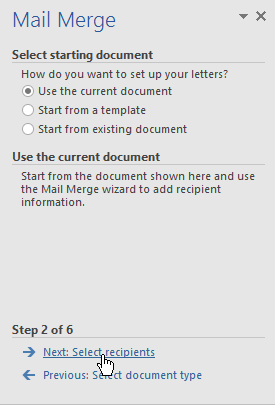
<p style="text-align: justify;"><strong>Bước 2</strong>: Chọn&nbsp;<strong>Use the current document</strong>, sau đó nhấp vào&nbsp;<strong>Next: Select recipients</strong>&nbsp;để chuyển sang bước 3.</p>

<figure>
<div style="text-align: justify;"><img alt="Nhấp vào Next: Select recipients" data-i="2" data-src="https://st.quantrimang.com/photos/image/2022/02/18/mail-merge-3.png" data-was-processed="true" height="405" src="https://st.quantrimang.com/photos/image/2022/02/18/mail-merge-3.png" width="275" /></div>

<figcaption>
<div style="text-align: justify;">Nhấp vào Next: Select recipients</div>
</figcaption>
</figure>

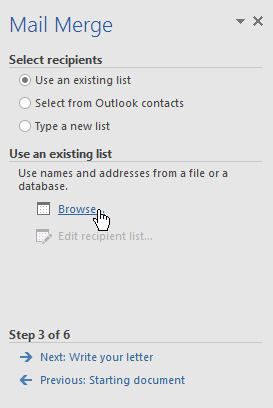
<p style="text-align: justify;"><strong>Bước 3</strong>: Bây giờ, bạn sẽ cần một danh sách địa chỉ để Word có thể tự động đặt từng địa chỉ vào tài liệu. Danh sách có thể nằm trong file hiện có, chẳng hạn như Excel workbook hoặc bạn có thể nhập danh sách địa chỉ mới từ trong&nbsp;<strong>Mail Merge Wizard</strong>.</p>

<p style="text-align: justify;">1. Chọn&nbsp;<strong>Use an existing list</strong>, sau đó nhấp vào&nbsp;<strong>Browse</strong>&nbsp;để chọn file.</p>

<figure>
<div style="text-align: justify;"><img alt="Nhấp vào Browse để chọn file" data-i="3" data-src="https://st.quantrimang.com/photos/image/2022/02/18/mail-merge-4.png" data-was-processed="true" height="408" src="https://st.quantrimang.com/photos/image/2022/02/18/mail-merge-4.png" width="273" /></div>

<figcaption>
<div style="text-align: justify;">Nhấp vào Browse để chọn file</div>
</figcaption>
</figure>

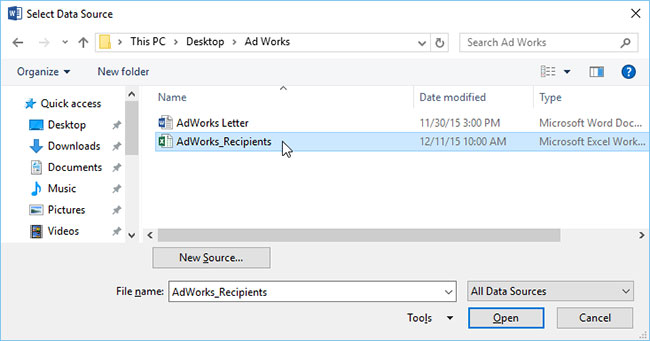
<p style="text-align: justify;">2. Định vị file, sau đó nhấp vào&nbsp;<strong>Open.</strong></p>

<figure>
<div style="text-align: justify;"><img alt="Nhấp vào Open" data-i="4" data-src="https://st.quantrimang.com/photos/image/2022/02/18/mail-merge-5.jpg" data-was-processed="true" height="341" src="https://st.quantrimang.com/photos/image/2022/02/18/mail-merge-5.jpg" width="650" /></div>

<figcaption>
<div style="text-align: justify;">Nhấp vào Open</div>
</figcaption>
</figure>

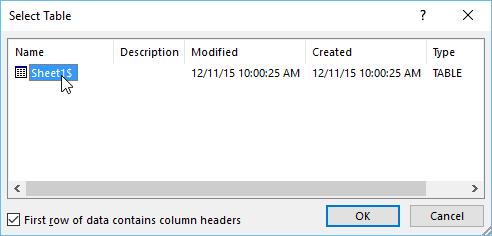
<p style="text-align: justify;">3. Nếu danh sách địa chỉ nằm trong Excel workbook, hãy chọn trang tính có chứa danh sách, sau đó bấm&nbsp;<strong>OK.</strong></p>

<figure>
<div style="text-align: justify;"><img alt="Bấm OK" data-i="5" data-src="https://st.quantrimang.com/photos/image/2022/02/18/mail-merge-6.png" data-was-processed="true" height="236" src="https://st.quantrimang.com/photos/image/2022/02/18/mail-merge-6.png" width="492" /></div>

<figcaption>
<div style="text-align: justify;">Bấm OK</div>
</figcaption>
</figure>

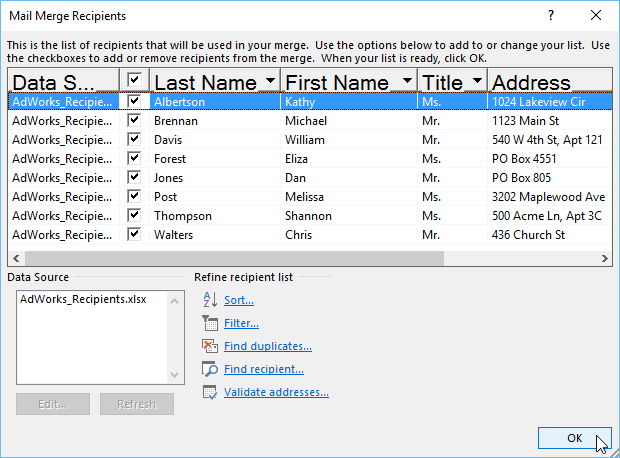
<p style="text-align: justify;">4. Trong hộp thoại&nbsp;<strong>Mail Merge Recipients</strong>, bạn có thể chọn hoặc bỏ chọn từng hộp để kiểm soát những người nhận nào được đưa vào. Theo mặc định, tất cả người nhận phải được chọn. Khi bạn hoàn tất, hãy nhấp vào&nbsp;<strong>OK.</strong></p>

<figure>
<div style="text-align: justify;"><img alt="Chọn người nhận" data-i="6" data-src="https://st.quantrimang.com/photos/image/2022/02/18/mail-merge-7.png" data-was-processed="true" height="458" src="https://st.quantrimang.com/photos/image/2022/02/18/mail-merge-7.png" width="620" /></div>

<figcaption>
<div style="text-align: justify;">Chọn người nhận</div>
</figcaption>
</figure>

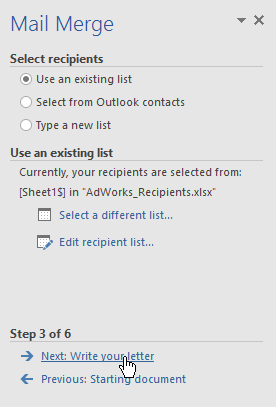
<p style="text-align: justify;">5. Nhấp vào&nbsp;<strong>Next: Write your letter</strong>&nbsp;để chuyển sang bước 4.</p>

<figure>
<div style="text-align: justify;"><img alt="Nhấp vào Next: Write your letter " data-i="7" data-src="https://st.quantrimang.com/photos/image/2022/02/18/mail-merge-8.png" data-was-processed="true" height="407" src="https://st.quantrimang.com/photos/image/2022/02/18/mail-merge-8.png" width="276" /></div>

<figcaption>
<div style="text-align: justify;">Nhấp vào Next: Write your letter</div>
</figcaption>
</figure>

<p style="text-align: justify;">Nếu không có sẵn danh sách địa chỉ, bạn có thể nhấp vào nút&nbsp;<strong>Type a new list</strong>&nbsp;và nhấp vào&nbsp;<strong>Create</strong>, sau đó nhập danh sách địa chỉ theo cách thủ công.</p>

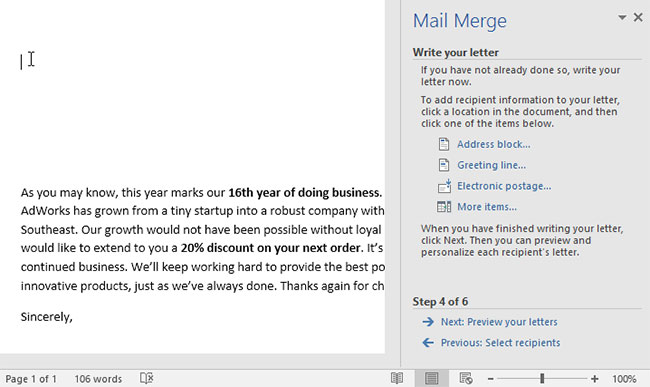
<p style="text-align: justify;"><strong>Bước 4</strong>: Bây giờ, bạn đã sẵn sàng để viết thư của mình. Khi nó được in ra, mỗi bản sao của bức thư về cơ bản sẽ giống nhau; chỉ dữ liệu người nhận (chẳng hạn như tên và địa chỉ) là khác biệt. Bạn sẽ cần thêm trình giữ chỗ cho dữ liệu người nhận để Mail Merge biết chính xác nơi cần thêm dữ liệu.</p>

<p style="text-align: justify;"><strong>Cách chèn dữ liệu người nhận</strong></p>

<p style="text-align: justify;">1. Đặt điểm chèn vào tài liệu nơi bạn muốn thông tin xuất hiện.</p>

<figure>
<div style="text-align: justify;"><img alt="Đặt điểm chèn vào tài liệu" data-i="8" data-src="https://st.quantrimang.com/photos/image/2022/02/18/mail-merge-9.jpg" data-was-processed="true" height="387" src="https://st.quantrimang.com/photos/image/2022/02/18/mail-merge-9.jpg" width="650" /></div>

<figcaption>
<div style="text-align: justify;">Đặt điểm chèn vào tài liệu</div>
</figcaption>
</figure>

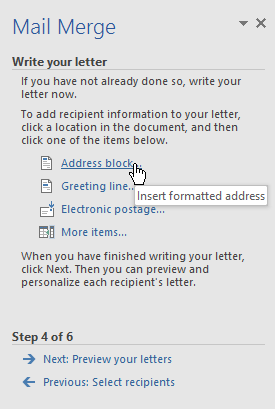
<p style="text-align: justify;">2. Chọn một trong các tùy chọn giữ chỗ. Ví dụ sẽ chọn&nbsp;<strong>Address block.</strong></p>

<figure>
<div style="text-align: justify;"><img alt="Chọn một trong các tùy chọn giữ chỗ" data-i="9" data-src="https://st.quantrimang.com/photos/image/2022/02/18/mail-merge-10.png" data-was-processed="true" height="409" src="https://st.quantrimang.com/photos/image/2022/02/18/mail-merge-10.png" width="275" /></div>

<figcaption>
<div style="text-align: justify;">Chọn một trong các tùy chọn giữ chỗ</div>
</figcaption>
</figure>

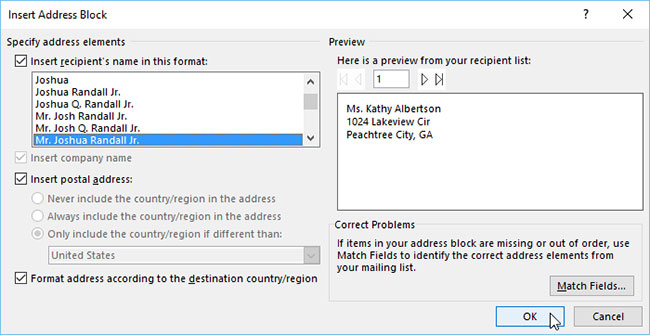
<p style="text-align: justify;">3. Tùy thuộc vào lựa chọn của bạn, một hộp thoại có thể xuất hiện với các tùy chọn tùy chỉnh khác nhau. Chọn các tùy chọn mong muốn, sau đó bấm&nbsp;<strong>OK.</strong></p>

<figure>
<div style="text-align: justify;"><img alt="Chọn các tùy chọn mong muốn" data-i="10" data-src="https://st.quantrimang.com/photos/image/2022/02/18/mail-merge-11.jpg" data-was-processed="true" height="335" src="https://st.quantrimang.com/photos/image/2022/02/18/mail-merge-11.jpg" width="650" /></div>

<figcaption>
<div style="text-align: justify;">Chọn các tùy chọn mong muốn</div>
</figcaption>
</figure>

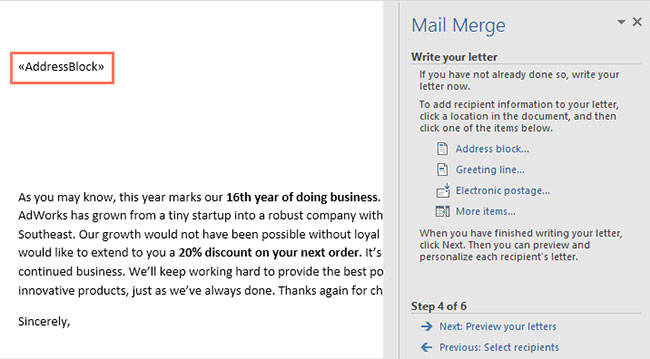
<p style="text-align: justify;">4. Một trình giữ chỗ sẽ xuất hiện trong tài liệu của bạn (ví dụ: «AddressBlock»).</p>

<figure>
<div style="text-align: justify;"><img alt="Trình giữ chỗ sẽ xuất hiện trong tài liệu" data-i="11" data-src="https://st.quantrimang.com/photos/image/2022/02/18/mail-merge-12.jpg" data-was-processed="true" height="359" src="https://st.quantrimang.com/photos/image/2022/02/18/mail-merge-12.jpg" width="650" /></div>

<figcaption>
<div style="text-align: justify;">Trình giữ chỗ sẽ xuất hiện trong tài liệu</div>
</figcaption>
</figure>

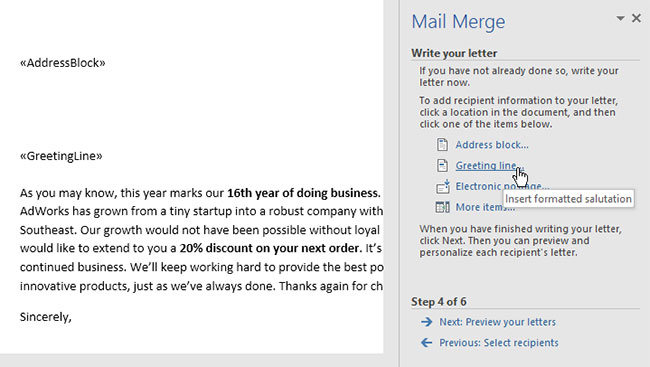
<p style="text-align: justify;">5. Thêm bất kỳ trình giữ chỗ nào khác mà bạn muốn. Ví dụ sẽ thêm một chỗ dành sẵn cho&nbsp;<strong>Greeting line</strong>&nbsp;ngay phía trên phần nội dung của bức thư.</p>

<figure>
<div style="text-align: justify;"><img alt="Thêm bất kỳ trình giữ chỗ nào khác" data-i="12" data-src="https://st.quantrimang.com/photos/image/2022/02/18/mail-merge-13.jpg" data-was-processed="true" height="367" src="https://st.quantrimang.com/photos/image/2022/02/18/mail-merge-13.jpg" width="650" /></div>

<figcaption>
<div style="text-align: justify;">Thêm bất kỳ trình giữ chỗ nào khác</div>
</figcaption>
</figure>

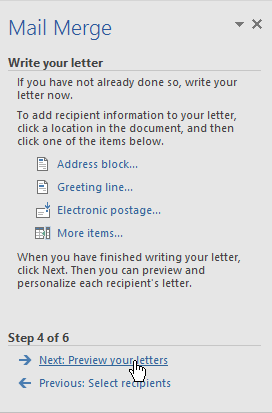
<p style="text-align: justify;">6. Khi bạn hoàn tất, hãy nhấp vào&nbsp;<strong>Next: Preview your letters</strong>&nbsp;để chuyển sang bước 5.</p>

<figure>
<div style="text-align: justify;"><img alt="Nhấp vào Next: Preview your letters" data-i="13" data-src="https://st.quantrimang.com/photos/image/2022/02/18/mail-merge-14.png" data-was-processed="true" height="413" src="https://st.quantrimang.com/photos/image/2022/02/18/mail-merge-14.png" width="272" /></div>

<figcaption>
<div style="text-align: justify;">Nhấp vào Next: Preview your letters</div>
</figcaption>
</figure>

<p style="text-align: justify;">Đối với một số bức thư, bạn sẽ chỉ cần thêm&nbsp;<strong>Address block</strong>&nbsp;và&nbsp;<strong>Greeting line</strong>. Nhưng bạn cũng có thể thêm nhiều trình giữ chỗ hơn (chẳng hạn như tên hoặc địa chỉ của người nhận) trong phần nội dung của bức thư để cá nhân hóa nó hơn nữa.</p>

<p style="text-align: justify;"><strong>Bước 5:</strong></p>

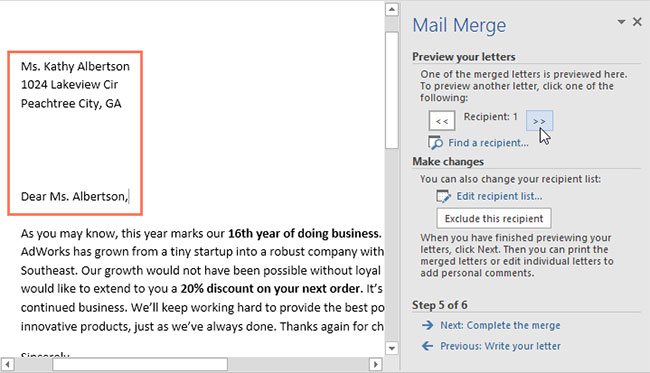
<p style="text-align: justify;">1. Xem trước các bức thư để đảm bảo thông tin từ danh sách người nhận xuất hiện chính xác trong bức thư. Bạn có thể sử dụng các mũi tên cuộn trái và phải để xem từng phiên bản của tài liệu.</p>

<figure>
<div style="text-align: justify;"><img alt="Xem lại để đảm bảo thông tin chính xác" data-i="14" data-src="https://st.quantrimang.com/photos/image/2022/02/18/mail-merge-15.jpg" data-was-processed="true" height="373" src="https://st.quantrimang.com/photos/image/2022/02/18/mail-merge-15.jpg" width="650" /></div>

<figcaption>
<div style="text-align: justify;">Xem lại để đảm bảo thông tin chính xác</div>
</figcaption>
</figure>

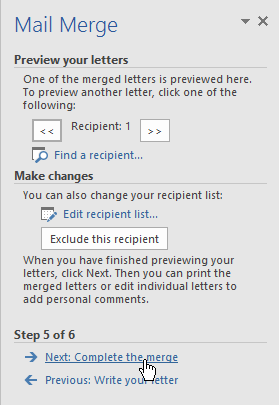
<p style="text-align: justify;">2. Nếu mọi thứ đều đúng, hãy nhấp vào&nbsp;<strong>Next: Complete the merge</strong>&nbsp;để chuyển sang bước 6.</p>

<figure>
<div style="text-align: justify;"><img alt="Nhấp vào Next: Complete the merge" data-i="15" data-src="https://st.quantrimang.com/photos/image/2022/02/18/mail-merge-16.png" data-was-processed="true" height="405" src="https://st.quantrimang.com/photos/image/2022/02/18/mail-merge-16.png" width="279" /></div>

<figcaption>
<div style="text-align: justify;">Nhấp vào Next: Complete the merge</div>
</figcaption>
</figure>

<p style="text-align: justify;"><strong>Bước 6:</strong></p>

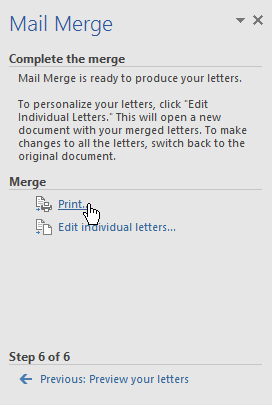
<p style="text-align: justify;">1. Nhấp vào&nbsp;<strong>Print</strong>&nbsp;để in các bức thư.</p>

<figure>
<div style="text-align: justify;"><img alt="Nhấp vào Print" data-i="16" data-src="https://st.quantrimang.com/photos/image/2022/02/18/mail-merge-17.png" data-was-processed="true" height="405" src="https://st.quantrimang.com/photos/image/2022/02/18/mail-merge-17.png" width="272" /></div>

<figcaption>
<div style="text-align: justify;">Nhấp vào Print</div>
</figcaption>
</figure>

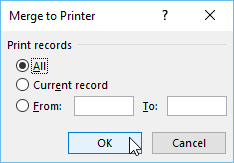
<p style="text-align: justify;">2. Một hộp thoại sẽ xuất hiện. Quyết định xem bạn muốn in tất cả các thư, tài liệu hiện tại (bản ghi) hay chỉ một nhóm đã chọn, sau đó bấm&nbsp;<strong>OK.</strong>&nbsp;Ví dụ sẽ chọn in tất cả thư.</p>

<figure>
<div style="text-align: justify;"><img alt="Quyết định tùy chọn in" data-i="17" data-src="https://st.quantrimang.com/photos/image/2022/02/18/mail-merge-18.png" data-was-processed="true" height="163" src="https://st.quantrimang.com/photos/image/2022/02/18/mail-merge-18.png" width="234" /></div>

<figcaption>
<div style="text-align: justify;">Quyết định tùy chọn in</div>
</figcaption>
</figure>

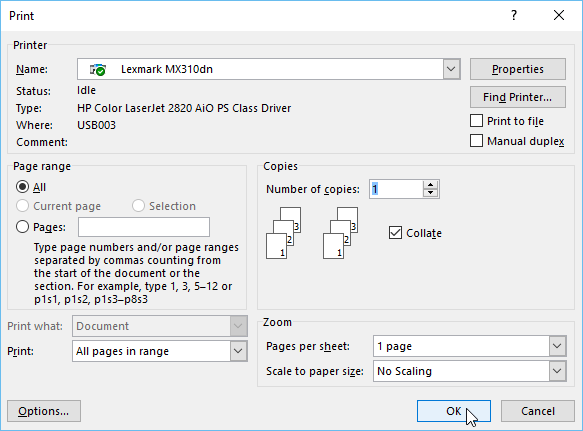
<p style="text-align: justify;">3. Hộp thoại&nbsp;<strong>Print</strong>&nbsp;sẽ xuất hiện. Điều chỉnh cài đặt in nếu cần, sau đó bấm&nbsp;<strong>OK.</strong>&nbsp;Các bức thư sẽ được in.</p>

<figure>
<div style="text-align: justify;"><img alt="Điều chỉnh cài đặt in nếu cần" data-i="18" data-src="https://st.quantrimang.com/photos/image/2022/02/18/mail-merge-19.png" data-was-processed="true" height="431" src="https://st.quantrimang.com/photos/image/2022/02/18/mail-merge-19.png" width="583" /></div>

<figcaption>
<div style="text-align: justify;">Điều chỉnh cài đặt in nếu cần</div>
</figcaption>
</figure>
		</div>
				<div id="author">
						<p>
				<strong>Nguồn tin:</strong>
				Quantrimang.com
			</p>
		</div>
	</div>
	<div id="footer" class="clearfix">
		<div id="url">
			<strong>URL của bản tin này: </strong><a href="https://www.nguoicodonvn2008.info/vi/news/savefile/kien-thuc-may-tinh/word-2019-phan-29-cong-cu-mail-merge-5151.html" title="Word 2019 &#40;Phần 29&#41;&#x3A; Công cụ Mail Merge">https://www.nguoicodonvn2008.info/vi/news/savefile/kien-thuc-may-tinh/word-2019-phan-29-cong-cu-mail-merge-5151.html</a>

		</div>
		<div class="clear"></div>
		<div class="copyright">
			&copy; .&#x3A; Nguoicodonvn2008.info - Cõi lòng người cô đơn &#x3A;.
		</div>
		<div id="contact">
			<a href="mailto:admin@nguoicodonvn2008.info">admin@nguoicodonvn2008.info</a>
		</div>
	</div>
</div>
        <div id="timeoutsess" class="chromeframe">
            Bạn đã không sử dụng Site, <a onclick="timeoutsesscancel();" href="https://nguoicodonvn2008.info/#">Bấm vào đây để duy trì trạng thái đăng nhập</a>. Thời gian chờ: <span id="secField"> 60 </span> giây
        </div>
        <div id="openidResult" class="nv-alert" style="display:none"></div>
        <div id="openidBt" data-result="" data-redirect=""></div>
		</script>
		<div class="car-top">
  <span><img src="https://nguoicodonvn2008.info/themes/default/images/car.png" alt=""></span>
</div>
<script src="https://nguoicodonvn2008.info/assets/js/jquery/jquery.min.js"></script>
<script>var nv_base_siteurl="/",nv_lang_data="vi",nv_lang_interface="vi",nv_name_variable="nv",nv_fc_variable="op",nv_lang_variable="language",nv_module_name="news",nv_func_name="savefile",nv_is_user=0, nv_my_ofs=-4,nv_my_abbr="EDT",nv_cookie_prefix="nv4c_e856T",nv_check_pass_mstime=1738000,nv_area_admin=0,nv_safemode=0,theme_responsive=0,nv_recaptcha_ver=2,nv_recaptcha_sitekey="",nv_recaptcha_type="image",XSSsanitize=1;</script>
<script src="https://nguoicodonvn2008.info/assets/js/language/vi.js"></script>
<script src="https://nguoicodonvn2008.info/assets/js/DOMPurify/purify3.js"></script>
<script src="https://nguoicodonvn2008.info/assets/js/global.js"></script>
<script src="https://nguoicodonvn2008.info/assets/js/site.js"></script>
<script src="https://nguoicodonvn2008.info/themes/default/js/news.js"></script>
<script src="https://nguoicodonvn2008.info/themes/default/js/main.js"></script>
<script src="https://nguoicodonvn2008.info/themes/default/js/custom.js"></script>
<script type="application/ld+json">
        {
            "@context": "https://schema.org",
            "@type": "Organization",
            "url": "https://nguoicodonvn2008.info",
            "logo": "https://nguoicodonvn2008.info/uploads/angel.gif"
        }
        </script>
<script src="https://nguoicodonvn2008.info/themes/default/js/bootstrap.min.js"></script>
<script type="text/javascript">
var $scrolltop = $('.car-top');
$scrolltop.on('click', function () {
    $('html,body').animate({
        scrollTop: 0
    }, 800);
    $(this).addClass("car-run");
    setTimeout(function(){ $scrolltop.removeClass('car-run');}, 1000);
    return false;
});
$(window).on('scroll', function ()
{ 
    if($(window).scrollTop() >= 200)
    {
        $scrolltop.addClass("show");
        $scrolltop.addClass("car-down");
    }
    else
    {
       $scrolltop.removeClass("show");
       setTimeout(function(){ $scrolltop.removeClass('car-down');}, 300);
    }
});
</script>
</body>
</html>