<!DOCTYPE html>
    <html lang="vi" xmlns="http://www.w3.org/1999/xhtml" prefix="og: http://ogp.me/ns#">
    <head>
<title>Word 2019 &#40;Phần 22&#41;&#x3A; Bảng</title>
<meta name="description" content="Word 2019 &#40;Phần 22&#41;&#x3A; Bảng - Savefile - Tin Tức - https&#x3A;&#x002F;&#x002F;www.nguoicodonvn2008.info&#x002F;vi&#x002F;news&#x002F;savefile&#x002F;kien-thuc-may-tinh&#x002F;word-2019-phan-22-bang-5113.html">
<meta name="author" content=".: Nguoicodonvn2008.info - Cõi lòng người cô đơn :.">
<meta name="copyright" content=".: Nguoicodonvn2008.info - Cõi lòng người cô đơn :. [admin@nguoicodonvn2008.info]">
<meta name="robots" content="index, archive, follow, noodp">
<meta name="googlebot" content="index,archive,follow,noodp">
<meta name="msnbot" content="all,index,follow">
<meta name="generator" content="NukeViet v4.5">
<meta http-equiv="Content-Type" content="text/html; charset=utf-8">
<meta property="og:title" content="Word 2019 &#40;Phần 22&#41;&#x3A; Bảng">
<meta property="og:type" content="website">
<meta property="og:description" content="Savefile - Tin Tức - https&#x3A;&#x002F;&#x002F;www.nguoicodonvn2008.info&#x002F;vi&#x002F;news&#x002F;savefile&#x002F;kien-thuc-may-tinh&#x002F;word-2019-phan-22-bang-5113.html">
<meta property="og:site_name" content=".&#x3A; Nguoicodonvn2008.info - Cõi lòng người cô đơn &#x3A;.">
<meta property="og:url" content="https://www.nguoicodonvn2008.info/vi/news/savefile/kien-thuc-may-tinh/word-2019-phan-22-bang-5113.html">
<link rel="shortcut icon" href="https://nguoicodonvn2008.info/favicon.ico">
<link rel="canonical" href="https://www.nguoicodonvn2008.info/vi/news/savefile/kien-thuc-may-tinh/word-2019-phan-22-bang-5113.html">
<link rel="alternate" href="https://nguoicodonvn2008.info/vi/news/rss/" title="Tin Tức" type="application/rss+xml">
<link rel="alternate" href="https://nguoicodonvn2008.info/vi/news/rss/karaoke-dual/" title="Tin Tức - Karaoke Dual" type="application/rss+xml">
<link rel="alternate" href="https://nguoicodonvn2008.info/vi/news/rss/nhac-tre/" title="Tin Tức - Nhạc trẻ" type="application/rss+xml">
<link rel="alternate" href="https://nguoicodonvn2008.info/vi/news/rss/tru-tinh/" title="Tin Tức - Trữ tình" type="application/rss+xml">
<link rel="alternate" href="https://nguoicodonvn2008.info/vi/news/rss/nuoc-ngoai/" title="Tin Tức - Nước ngoài" type="application/rss+xml">
<link rel="alternate" href="https://nguoicodonvn2008.info/vi/news/rss/remix/" title="Tin Tức - Remix" type="application/rss+xml">
<link rel="alternate" href="https://nguoicodonvn2008.info/vi/news/rss/tam-su-tinh-yeu/" title="Tin Tức - Tâm sự tình yêu" type="application/rss+xml">
<link rel="alternate" href="https://nguoicodonvn2008.info/vi/news/rss/tho-suu-tam/" title="Tin Tức - Thơ sưu tầm" type="application/rss+xml">
<link rel="alternate" href="https://nguoicodonvn2008.info/vi/news/rss/cuoc-song/" title="Tin Tức - Cuộc sống" type="application/rss+xml">
<link rel="alternate" href="https://nguoicodonvn2008.info/vi/news/rss/phan-mem/" title="Tin Tức - Phần mềm" type="application/rss+xml">
<link rel="alternate" href="https://nguoicodonvn2008.info/vi/news/rss/kien-thuc-may-tinh/" title="Tin Tức - Kiến thức máy tính" type="application/rss+xml">
<link rel="alternate" href="https://nguoicodonvn2008.info/vi/news/rss/hoc-tap/" title="Tin Tức - Học tập" type="application/rss+xml">
<link rel="alternate" href="https://nguoicodonvn2008.info/vi/news/rss/tai-lieu/" title="Tin Tức - Tài liệu" type="application/rss+xml">
<link rel="alternate" href="https://nguoicodonvn2008.info/vi/news/rss/de-thi/" title="Tin Tức - Đề thi" type="application/rss+xml">
<link rel="preload" as="style" href="https://nguoicodonvn2008.info/assets/css/font-awesome.min.css" type="text/css">
<link rel="preload" as="style" href="https://nguoicodonvn2008.info/themes/default/css/bootstrap.non-responsive.css" type="text/css">
<link rel="preload" as="style" href="https://nguoicodonvn2008.info/themes/default/css/style.css" type="text/css">
<link rel="preload" as="style" href="https://nguoicodonvn2008.info/themes/default/css/style.non-responsive.css" type="text/css">
<link rel="preload" as="style" href="https://nguoicodonvn2008.info/themes/default/css/news.css" type="text/css">
<link rel="preload" as="style" href="https://nguoicodonvn2008.info/themes/default/css/custom.css" type="text/css">
<link rel="preload" as="script" href="https://nguoicodonvn2008.info/assets/js/jquery/jquery.min.js" type="text/javascript">
<link rel="preload" as="script" href="https://nguoicodonvn2008.info/assets/js/language/vi.js" type="text/javascript">
<link rel="preload" as="script" href="https://nguoicodonvn2008.info/assets/js/DOMPurify/purify3.js" type="text/javascript">
<link rel="preload" as="script" href="https://nguoicodonvn2008.info/assets/js/global.js" type="text/javascript">
<link rel="preload" as="script" href="https://nguoicodonvn2008.info/assets/js/site.js" type="text/javascript">
<link rel="preload" as="script" href="https://nguoicodonvn2008.info/themes/default/js/news.js" type="text/javascript">
<link rel="preload" as="script" href="https://nguoicodonvn2008.info/themes/default/js/main.js" type="text/javascript">
<link rel="preload" as="script" href="https://nguoicodonvn2008.info/themes/default/js/custom.js" type="text/javascript">
<link rel="preload" as="script" href="https://nguoicodonvn2008.info/themes/default/js/bootstrap.min.js" type="text/javascript">
<link rel="stylesheet" href="https://nguoicodonvn2008.info/assets/css/font-awesome.min.css">
<link rel="stylesheet" href="https://nguoicodonvn2008.info/themes/default/css/bootstrap.non-responsive.css">
<link rel="stylesheet" href="https://nguoicodonvn2008.info/themes/default/css/style.css">
<link rel="stylesheet" href="https://nguoicodonvn2008.info/themes/default/css/style.non-responsive.css">
<link rel="StyleSheet" href="https://nguoicodonvn2008.info/themes/default/css/news.css">
<link rel="stylesheet" href="https://nguoicodonvn2008.info/themes/default/css/custom.css">
<style type="text/css">
	body{background: #fff;}
</style>
    </head>
    <body>
<div id="print">
	<div id="hd_print">
		<h2 class="pull-left">.&#x3A; Nguoicodonvn2008.info - Cõi lòng người cô đơn &#x3A;.</h2>
		<p class="pull-right"><a title=".&#x3A; Nguoicodonvn2008.info - Cõi lòng người cô đơn &#x3A;." href="https://nguoicodonvn2008.info/">https://nguoicodonvn2008.info</a></p>
	</div>
	<div class="clear"></div>
	<hr />
	<div id="content">
		<h1>Word 2019 &#40;Phần 22&#41;&#x3A; Bảng</h1>
		<ul class="list-inline">
			<li>Thứ năm - 10/02/2022 06:54</li>
			<li class="hidden-print txtrequired"><em class="fa fa-print">&nbsp;</em><a title="In ra" href="javascript:;" onclick="window.print()">In ra</a></li>
			<li class="hidden-print txtrequired"><em class="fa fa-power-off">&nbsp;</em><a title="Đóng cửa sổ này" href="javascript:;" onclick="window.close()">Đóng cửa sổ này</a></li>
		</ul>
		<div class="clear"></div>
		<div id="hometext">
		</div>
				<div class="imghome">
			<img alt="Word 2019 &#40;Phần 22&#41;&#x3A; Bảng" src="https://st.quantrimang.com/photos/image/2022/02/10/word-2019-phan-22-bang-1.jpg" width="460" class="img-thumbnail" />
		</div>
		<div class="clear"></div>
		<div id="bodytext" class="clearfix">
			<p style="text-align: justify;">Bảng là một lưới các ô được sắp xếp theo hàng và cột. Các bảng có thể được sử dụng để sắp xếp bất kỳ loại nội dung nào, cho dù bạn đang làm việc với dữ liệu văn bản hay số. Trong Microsoft Word, bạn có thể nhanh chóng chèn một bảng trống hoặc chuyển đổi văn bản hiện có thành một bảng. Bạn cũng có thể tùy chỉnh bảng của mình bằng cách sử dụng các kiểu và bố cục khác nhau.</p>

<h2 style="text-align: justify;">Cách chèn một bảng trống</h2>

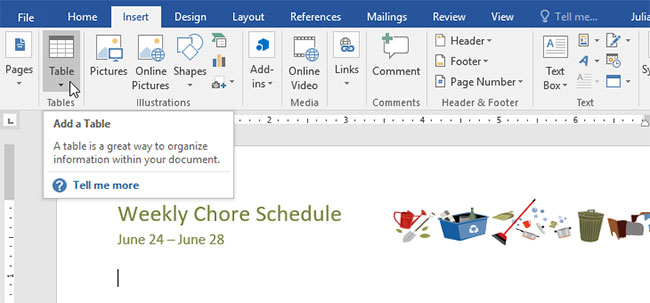
<p style="text-align: justify;">1. Đặt điểm chèn ở nơi bạn muốn bảng xuất hiện.</p>

<p style="text-align: justify;">2. Điều hướng đến tab<strong> Insert</strong>, sau đó nhấp vào lệnh <strong>Table.</strong></p>

<figure>
<div style="text-align: justify;"><img alt="Nhấp vào lệnh Table" class="lazy loaded lightbox" data-i="1" data-inimage-loaded="true" data-src="https://st.quantrimang.com/photos/image/2022/02/10/word-2019-phan-22-bang-1.jpg" data-was-processed="true" height="303" src="https://st.quantrimang.com/photos/image/2022/02/10/word-2019-phan-22-bang-1.jpg" style="height: 303px; width: 650px;" width="650" /></div>

<figcaption>
<div style="text-align: justify;">Nhấp vào lệnh Table</div>
</figcaption>
</figure>

<div class="adbox adsense in-article" id="articleads">
<div style="text-align: justify;">&nbsp;</div>

<div style="text-align: justify;"><iframe allowfullscreen="true" allowtransparency="true" data-google-container-id="a!2" data-google-query-id="CID7yJWH9fUCFVUUcgodGNoMpA" data-load-complete="true" frameborder="0" height="0" hspace="0" id="aswift_1" marginheight="0" marginwidth="0" name="aswift_1" sandbox="allow-forms allow-popups allow-popups-to-escape-sandbox allow-same-origin allow-scripts allow-top-navigation-by-user-activation" scrolling="no" style="left: 0px; position: absolute; top: 0px; border: 0px none; width: 694px; height: 0px;" vspace="0" width="694"></iframe></div>

<div id="v-quantrimang-v1-0" style="display: block; width: 100%; margin-left: 0px; text-align: justify;"></div>
</div>

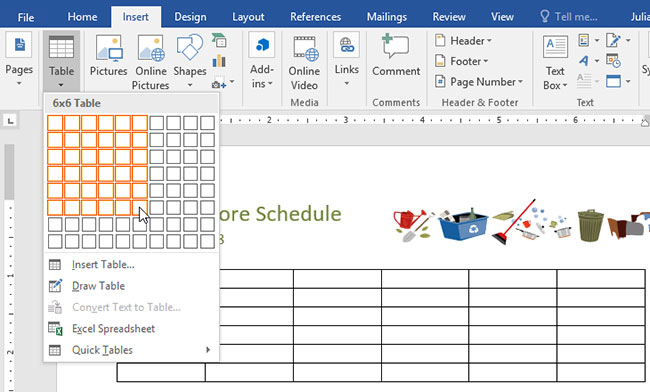
<p style="text-align: justify;">3. Thao tác này sẽ mở menu drop-down có chứa lưới. Di chuột qua lưới để chọn số cột và hàng bạn muốn.</p>

<figure>
<div style="text-align: justify;"><img alt="Chọn số cột và hàng" class="lazy lightbox loaded" data-i="2" data-src="https://st.quantrimang.com/photos/image/2022/02/10/word-2019-phan-22-bang-2.jpg" data-was-processed="true" height="392" src="https://st.quantrimang.com/photos/image/2022/02/10/word-2019-phan-22-bang-2.jpg" style="height: 392px; width: 650px;" width="650" /></div>

<figcaption>
<div style="text-align: justify;">Chọn số cột và hàng</div>
</figcaption>
</figure>

<p style="text-align: justify;">4. Nhấp vào lưới để xác nhận lựa chọn của bạn và một bảng sẽ xuất hiện.</p>

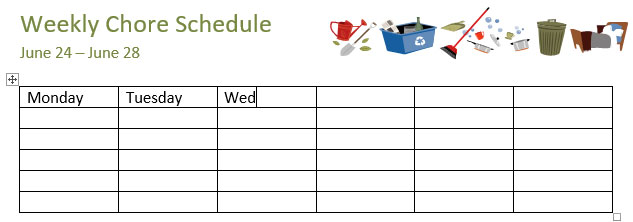
<p style="text-align: justify;">5. Để nhập văn bản, hãy đặt điểm chèn vào bất kỳ ô nào, sau đó bắt đầu nhập.</p>

<figure>
<div style="text-align: justify;"><img alt="Nhập văn bản" class="lazy lightbox loaded" data-i="3" data-src="https://st.quantrimang.com/photos/image/2022/02/10/word-2019-phan-22-bang-3.jpg" data-was-processed="true" height="222" src="https://st.quantrimang.com/photos/image/2022/02/10/word-2019-phan-22-bang-3.jpg" style="height: 222px; width: 633px;" width="633" /></div>

<figcaption>
<div style="text-align: justify;">Nhập văn bản</div>
</figcaption>
</figure>

<p style="text-align: justify;">Để điều hướng giữa các ô, hãy sử dụng phím <strong>Tab</strong> hoặc các phím mũi tên trên bàn phím. Nếu điểm chèn ở ô cuối cùng, nhấn phím <strong>Tab</strong> sẽ tự động tạo một hàng mới.</p>

<h2 style="text-align: justify;">Cách chuyển đổi văn bản hiện có thành một bảng</h2>

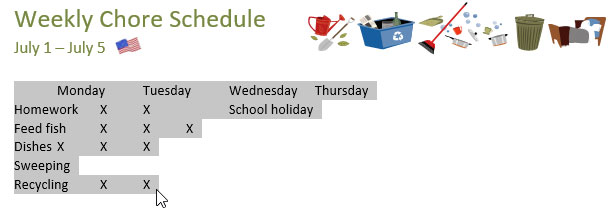
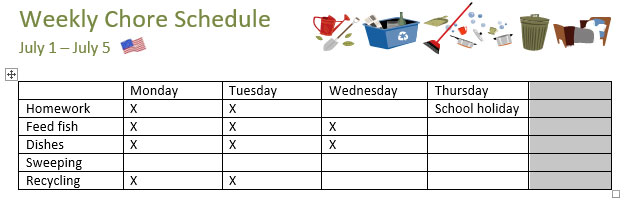
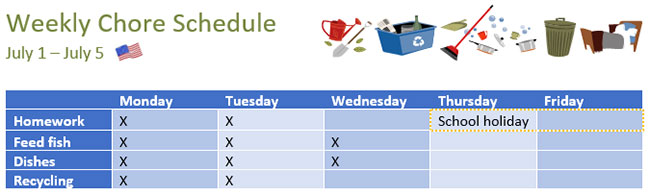
<p style="text-align: justify;">Trong ví dụ dưới đây, mỗi dòng văn bản chứa một phần của checklist, bao gồm việc nhà và các ngày trong tuần. Các mục được phân tách bằng các tab. Word có thể chuyển đổi thông tin này thành một bảng, sử dụng các tab để tách dữ liệu thành các cột.</p>

<p style="text-align: justify;">1. Chọn văn bản bạn muốn chuyển đổi thành bảng.</p>

<figure>
<div style="text-align: justify;"><img alt="Chọn văn bản muốn chuyển đổi" class="lazy lightbox loaded" data-i="4" data-src="https://st.quantrimang.com/photos/image/2022/02/10/word-2019-phan-22-bang-4.jpg" data-was-processed="true" height="220" src="https://st.quantrimang.com/photos/image/2022/02/10/word-2019-phan-22-bang-4.jpg" style="height: 220px; width: 613px;" width="613" /></div>

<figcaption>
<div style="text-align: justify;">Chọn văn bản muốn chuyển đổi</div>
</figcaption>
</figure>

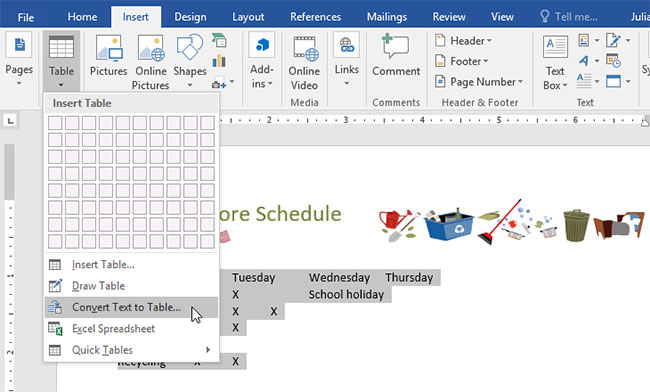
<p style="text-align: justify;">2. Chuyển đến tab <strong>Insert</strong>, sau đó nhấp vào lệnh <strong>Table.</strong></p>

<p style="text-align: justify;">3. Chọn <strong>Convert Text to Table</strong> từ menu drop-down.</p>

<figure>
<div style="text-align: justify;"><img alt="Chọn Convert Text to Table" class="lazy lightbox loaded" data-i="5" data-src="https://st.quantrimang.com/photos/image/2022/02/10/word-2019-phan-22-bang-5.jpg" data-was-processed="true" height="392" src="https://st.quantrimang.com/photos/image/2022/02/10/word-2019-phan-22-bang-5.jpg" style="height: 392px; width: 650px;" width="650" /></div>

<figcaption>
<div style="text-align: justify;">Chọn Convert Text to Table</div>
</figcaption>
</figure>

<div class="adbox in-article" style="text-align: justify;">&nbsp;</div>

<div class="adbox in-article" id="articleads3" style="text-align: justify;"><iframe allowfullscreen="true" allowtransparency="true" data-google-container-id="a!4" data-google-query-id="CIO24aSH9fUCFapLfQod2MsJGA" data-load-complete="true" frameborder="0" height="0" hspace="0" id="aswift_3" marginheight="0" marginwidth="0" name="aswift_3" sandbox="allow-forms allow-popups allow-popups-to-escape-sandbox allow-same-origin allow-scripts allow-top-navigation-by-user-activation" scrolling="no" style="left: 0px; position: absolute; top: 0px; border: 0px none; width: 694px; height: 0px;" vspace="0" width="694"></iframe></div>

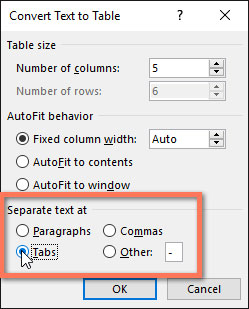
<p style="text-align: justify;">4. Một hộp thoại sẽ xuất hiện. Chọn một trong các tùy chọn bên dưới <strong>Separate text at</strong>. Đây là cách Word biết những gì cần đưa vào mỗi cột.</p>

<figure>
<div style="text-align: justify;"><img alt="Chọn một trong các tùy chọn bên dưới Separate text at" class="lazy lightbox loaded" data-i="6" data-src="https://st.quantrimang.com/photos/image/2022/02/10/word-2019-phan-22-bang-6.jpg" data-was-processed="true" height="309" src="https://st.quantrimang.com/photos/image/2022/02/10/word-2019-phan-22-bang-6.jpg" style="height: 309px; width: 249px;" width="249" /></div>

<figcaption>
<div style="text-align: justify;">Chọn một trong các tùy chọn bên dưới Separate text at</div>
</figcaption>
</figure>

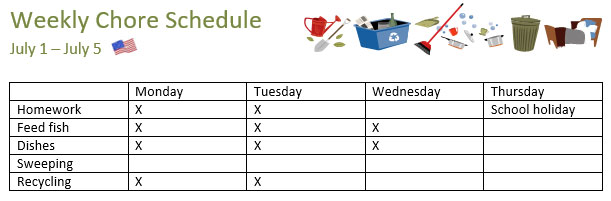
<p style="text-align: justify;">5. Bấm <strong>OK.</strong> Văn bản sẽ xuất hiện trong một bảng.</p>

<figure>
<div style="text-align: justify;"><img alt="Văn bản xuất hiện trong một bảng" class="lazy lightbox loaded" data-i="7" data-src="https://st.quantrimang.com/photos/image/2022/02/10/word-2019-phan-22-bang-7.jpg" data-was-processed="true" height="201" src="https://st.quantrimang.com/photos/image/2022/02/10/word-2019-phan-22-bang-7.jpg" style="height: 201px; width: 611px;" width="611" /></div>

<figcaption>
<div style="text-align: justify;">Văn bản xuất hiện trong một bảng</div>
</figcaption>
</figure>

<h2 style="text-align: justify;">Sửa đổi bảng</h2>

<p style="text-align: justify;">Bạn có thể dễ dàng thay đổi giao diện của bảng sau khi thêm nó vào tài liệu của mình. Có một số tùy chọn để tùy chỉnh, bao gồm thêm hàng hoặc cột và thay đổi kiểu bảng.</p>

<h3 style="text-align: justify;">Cách thêm một hàng hoặc cột vào bảng</h3>

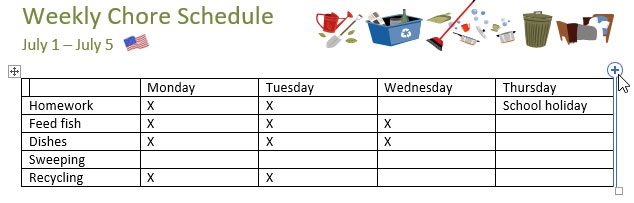
<p style="text-align: justify;">1. Di chuột ra ngoài bảng nơi bạn muốn thêm hàng hoặc cột. Nhấp vào dấu cộng xuất hiện.</p>

<figure>
<div style="text-align: justify;"><img alt="Nhấp vào dấu cộng" class="lazy lightbox loaded" data-i="8" data-src="https://st.quantrimang.com/photos/image/2022/02/10/word-2019-phan-22-bang-8.jpg" data-was-processed="true" height="203" src="https://st.quantrimang.com/photos/image/2022/02/10/word-2019-phan-22-bang-8.jpg" style="height: 203px; width: 634px;" width="634" /></div>

<figcaption>
<div style="text-align: justify;">Nhấp vào dấu cộng</div>
</figcaption>
</figure>

<div class="adbox adsense in-article" style="text-align: justify;">&nbsp;</div>

<div class="adbox adsense in-article" style="text-align: justify;"><iframe allowfullscreen="true" allowtransparency="true" data-google-container-id="a!5" data-google-query-id="CJXOtqeH9fUCFYx3KwodUDULfQ" data-load-complete="true" frameborder="0" height="0" hspace="0" id="aswift_4" marginheight="0" marginwidth="0" name="aswift_4" sandbox="allow-forms allow-popups allow-popups-to-escape-sandbox allow-same-origin allow-scripts allow-top-navigation-by-user-activation" scrolling="no" style="left: 0px; position: absolute; top: 0px; border: 0px none; width: 694px; height: 0px;" vspace="0" width="694"></iframe></div>

<p style="text-align: justify;">2. Một hàng hoặc cột mới sẽ được thêm vào bảng.</p>

<figure>
<div style="text-align: justify;"><img alt="Hàng hoặc cột mới sẽ được thêm vào bảng" class="lazy lightbox loaded" data-i="9" data-src="https://st.quantrimang.com/photos/image/2022/02/10/word-2019-phan-22-bang-9.jpg" data-was-processed="true" height="206" src="https://st.quantrimang.com/photos/image/2022/02/10/word-2019-phan-22-bang-9.jpg" style="height: 206px; width: 625px;" width="625" /></div>

<figcaption>
<div style="text-align: justify;">Hàng hoặc cột mới sẽ được thêm vào bảng</div>
</figcaption>
</figure>

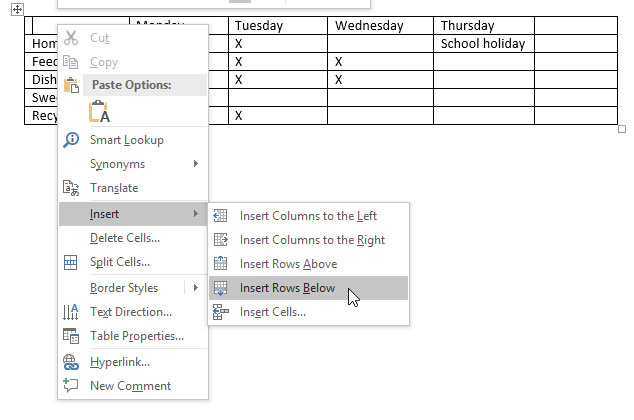
<p style="text-align: justify;">Bạn cũng có thể nhấp chuột phải vào bảng, sau đó di chuột qua <strong>Insert</strong> để xem các tùy chọn hàng và cột khác nhau.</p>

<figure>
<div style="text-align: justify;"><img alt="Xem các tùy chọn hàng và cột" class="lazy lightbox loaded" data-i="10" data-src="https://st.quantrimang.com/photos/image/2022/02/10/word-2019-phan-22-bang-10.jpg" data-was-processed="true" height="420" src="https://st.quantrimang.com/photos/image/2022/02/10/word-2019-phan-22-bang-10.jpg" style="height: 420px; width: 634px;" width="634" /></div>

<figcaption>
<div style="text-align: justify;">Xem các tùy chọn hàng và cột</div>
</figcaption>
</figure>

<h3 style="text-align: justify;">Cách xóa một hàng hoặc cột</h3>

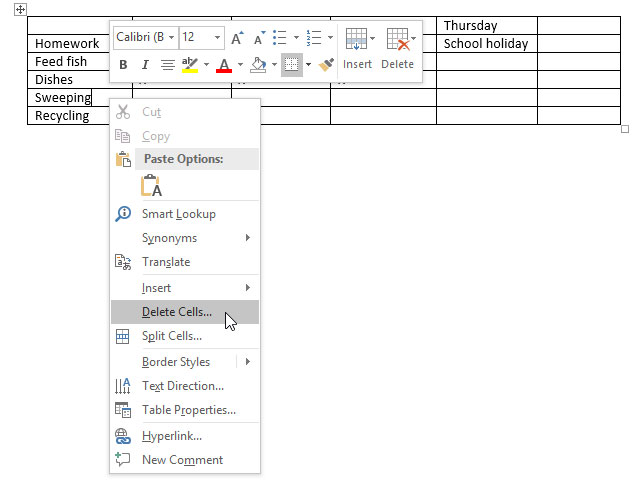
<p style="text-align: justify;">1. Đặt điểm chèn vào hàng hoặc cột bạn muốn xóa.</p>

<p style="text-align: justify;">2. Bấm chuột phải, sau đó chọn <strong>Delete Cells</strong> từ menu.</p>

<figure>
<div style="text-align: justify;"><img alt="Chọn Delete Cells từ menu" class="lazy lightbox loaded" data-i="11" data-src="https://st.quantrimang.com/photos/image/2022/02/10/word-2019-phan-22-bang-11.jpg" data-was-processed="true" height="495" src="https://st.quantrimang.com/photos/image/2022/02/10/word-2019-phan-22-bang-11.jpg" style="height: 495px; width: 643px;" width="643" /></div>

<figcaption>
<div style="text-align: justify;">Chọn Delete Cells từ menu</div>
</figcaption>
</figure>

<div class="adbox in-article adsense" style="text-align: justify;">&nbsp;</div>

<div class="adbox in-article adsense" style="text-align: justify;"><iframe allowfullscreen="true" allowtransparency="true" data-google-container-id="a!6" data-google-query-id="CJDiwqiH9fUCFUmeSwUd2O0AvQ" data-load-complete="true" frameborder="0" height="0" hspace="0" id="aswift_5" marginheight="0" marginwidth="0" name="aswift_5" sandbox="allow-forms allow-popups allow-popups-to-escape-sandbox allow-same-origin allow-scripts allow-top-navigation-by-user-activation" scrolling="no" style="left: 0px; position: absolute; top: 0px; border: 0px none; width: 694px; height: 0px;" vspace="0" width="694"></iframe></div>

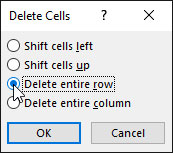
<p style="text-align: justify;">3. Một hộp thoại sẽ xuất hiện. Chọn <strong>Delete entire row</strong> hoặc <strong>Delete entire column</strong>, sau đó bấm <strong>OK.</strong></p>

<figure>
<div style="text-align: justify;"><img alt="Chọn Delete entire row hoặc Delete entire column" class="lazy loaded" data-i="12" data-src="https://st.quantrimang.com/photos/image/2022/02/10/word-2019-phan-22-bang-12.jpg" data-was-processed="true" height="153" src="https://st.quantrimang.com/photos/image/2022/02/10/word-2019-phan-22-bang-12.jpg" style="height: 153px; width: 173px;" width="173" /></div>

<figcaption>
<div style="text-align: justify;">Chọn Delete entire row hoặc Delete entire column</div>
</figcaption>
</figure>

<p style="text-align: justify;">4. Hàng hoặc cột sẽ bị xóa.</p>

<h3 style="text-align: justify;">Cách áp dụng một kiểu bảng</h3>

<p style="text-align: justify;">Các kiểu cho phép bạn thay đổi giao diện của bảng ngay lập tức. Chúng kiểm soát một số yếu tố thiết kế, bao gồm màu sắc, đường viền và phông chữ.</p>

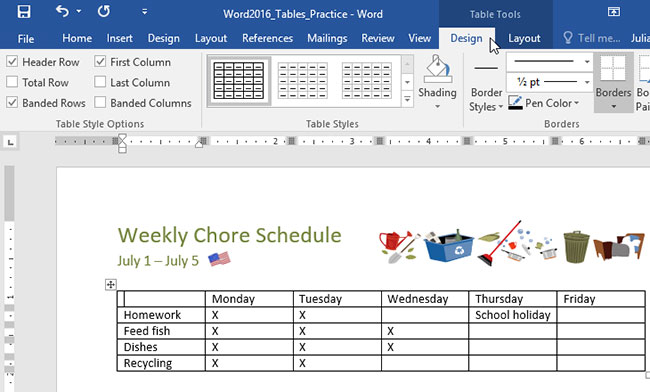
<p style="text-align: justify;">1. Bấm vào bất kỳ đâu trong bảng để chọn nó, sau đó bấm vào tab <strong>Design</strong> ở ngoài cùng bên phải của <strong>Ribbon.</strong></p>

<figure>
<div style="text-align: justify;"><img alt="Bấm vào tab Design" class="lazy lightbox loaded" data-i="13" data-src="https://st.quantrimang.com/photos/image/2022/02/10/word-2019-phan-22-bang-13.jpg" data-was-processed="true" height="392" src="https://st.quantrimang.com/photos/image/2022/02/10/word-2019-phan-22-bang-13.jpg" style="height: 392px; width: 650px;" width="650" /></div>

<figcaption>
<div style="text-align: justify;">Bấm vào tab Design</div>
</figcaption>
</figure>

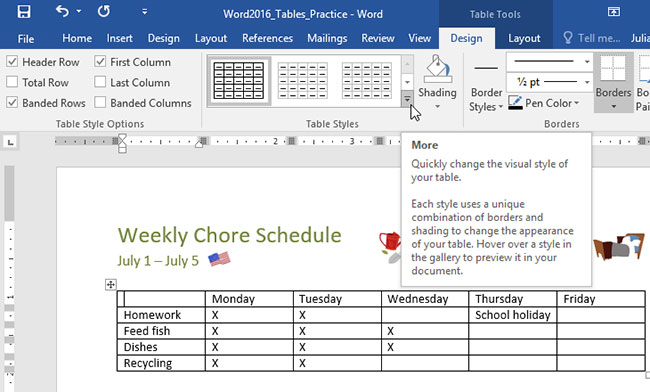
<p style="text-align: justify;">2. Định vị nhóm <strong>Table Styles</strong>, sau đó nhấp vào mũi tên drop-down <strong>More</strong> để xem danh sách đầy đủ các kiểu.</p>

<figure>
<div style="text-align: justify;"><img alt="Nhấp vào mũi tên drop-down More" class="lazy lightbox loaded" data-i="14" data-src="https://st.quantrimang.com/photos/image/2022/02/10/word-2019-phan-22-bang-14.jpg" data-was-processed="true" height="392" src="https://st.quantrimang.com/photos/image/2022/02/10/word-2019-phan-22-bang-14.jpg" style="height: 392px; width: 650px;" width="650" /></div>

<figcaption>
<div style="text-align: justify;">Nhấp vào mũi tên drop-down More</div>
</figcaption>
</figure>

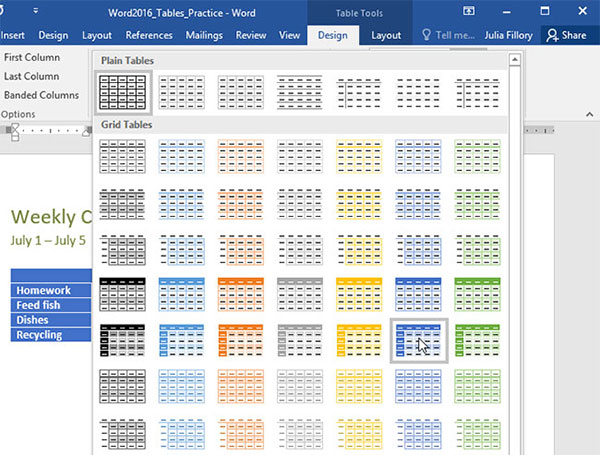
<p style="text-align: justify;">3. Chọn kiểu bảng bạn muốn.</p>

<figure>
<div style="text-align: justify;"><img alt="Chọn kiểu bảng" class="lazy lightbox loaded" data-i="15" data-src="https://st.quantrimang.com/photos/image/2022/02/10/word-2019-phan-22-bang-15.jpg" data-was-processed="true" height="455" src="https://st.quantrimang.com/photos/image/2022/02/10/word-2019-phan-22-bang-15.jpg" style="height: 455px; width: 600px;" width="600" /></div>

<figcaption>
<div style="text-align: justify;">Chọn kiểu bảng</div>
</figcaption>
</figure>

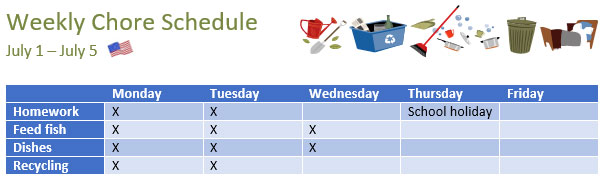
<p style="text-align: justify;">4. Kiểu bảng sẽ xuất hiện.</p>

<figure>
<div style="text-align: justify;"><img alt="Kiểu bảng sẽ xuất hiện" class="lazy lightbox loaded" data-i="16" data-src="https://st.quantrimang.com/photos/image/2022/02/10/word-2019-phan-22-bang-16.jpg" data-was-processed="true" height="184" src="https://st.quantrimang.com/photos/image/2022/02/10/word-2019-phan-22-bang-16.jpg" style="height: 184px; width: 606px;" width="606" /></div>

<figcaption>
<div style="text-align: justify;">Kiểu bảng sẽ xuất hiện</div>
</figcaption>
</figure>

<h3 style="text-align: justify;">Cách sửa đổi các tùy chọn kiểu bảng</h3>

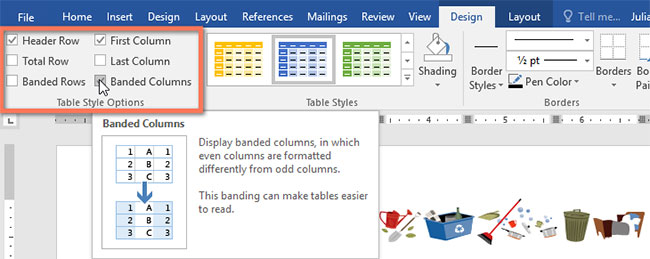
<p style="text-align: justify;">Khi đã chọn được một kiểu bảng, bạn có thể bật hoặc tắt các tùy chọn khác nhau để thay đổi giao diện của nó. Có 6 tùy chọn: <strong>Header Row, Total Row, Banded Rows, First Column, Last Column</strong> và <strong>Banded Columns</strong>.</p>

<p style="text-align: justify;">1. Nhấp vào bất kỳ đâu trong bảng của bạn, sau đó điều hướng đến tab <strong>Design.</strong></p>

<p style="text-align: justify;">2. Định vị nhóm <strong>Table Style Options</strong>, sau đó chọn hoặc bỏ chọn các tùy chọn mong muốn.</p>

<figure>
<div style="text-align: justify;"><img alt="Chọn các tùy chọn mong muốn" class="lazy lightbox loaded" data-i="17" data-src="https://st.quantrimang.com/photos/image/2022/02/10/word-2019-phan-22-bang-17.jpg" data-was-processed="true" height="259" src="https://st.quantrimang.com/photos/image/2022/02/10/word-2019-phan-22-bang-17.jpg" style="height: 259px; width: 650px;" width="650" /></div>

<figcaption>
<div style="text-align: justify;">Chọn các tùy chọn mong muốn</div>
</figcaption>
</figure>

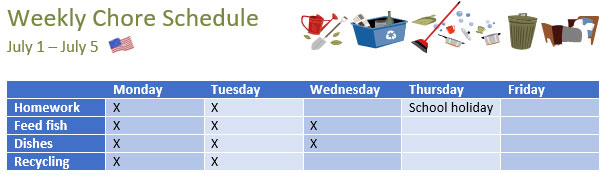
<p style="text-align: justify;">3. Kiểu bảng sẽ được sửa đổi.</p>

<figure>
<div style="text-align: justify;"><img alt="Kiểu bảng sẽ được sửa đổi" class="lazy lightbox loaded" data-i="18" data-src="https://st.quantrimang.com/photos/image/2022/02/10/word-2019-phan-22-bang-18.jpg" data-was-processed="true" height="181" src="https://st.quantrimang.com/photos/image/2022/02/10/word-2019-phan-22-bang-18.jpg" style="height: 181px; width: 607px;" width="607" /></div>

<figcaption>
<div style="text-align: justify;">Kiểu bảng sẽ được sửa đổi</div>
</figcaption>
</figure>

<p style="text-align: justify;">Tùy thuộc vào kiểu bảng bạn đã chọn, một số tùy chọn kiểu bảng nhất định có thể có tác dụng khác nhau. Bạn có thể cần phải thử nghiệm để có được giao diện như ý muốn.</p>

<h3 style="text-align: justify;">Cách áp dụng đường viền cho bảng</h3>

<p style="text-align: justify;">1. Chọn các ô bạn muốn áp dụng đường viền.</p>

<figure>
<div style="text-align: justify;"><img alt="Chọn các ô bạn muốn áp dụng đường viền" class="lazy lightbox loaded" data-i="19" data-src="https://st.quantrimang.com/photos/image/2022/02/10/word-2019-phan-22-bang-19.jpg" data-was-processed="true" height="160" src="https://st.quantrimang.com/photos/image/2022/02/10/word-2019-phan-22-bang-19.jpg" style="height: 160px; width: 650px;" width="650" /></div>

<figcaption>
<div style="text-align: justify;">Chọn các ô bạn muốn áp dụng đường viền</div>
</figcaption>
</figure>

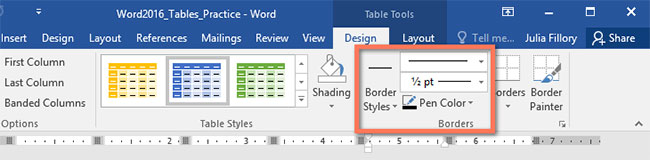
<p style="text-align: justify;">2. Sử dụng các lệnh trên tab <strong>Design</strong> để chọn <strong>Line Style, Line Weight</strong> và <strong>Pen Color</strong> mong muốn.</p>

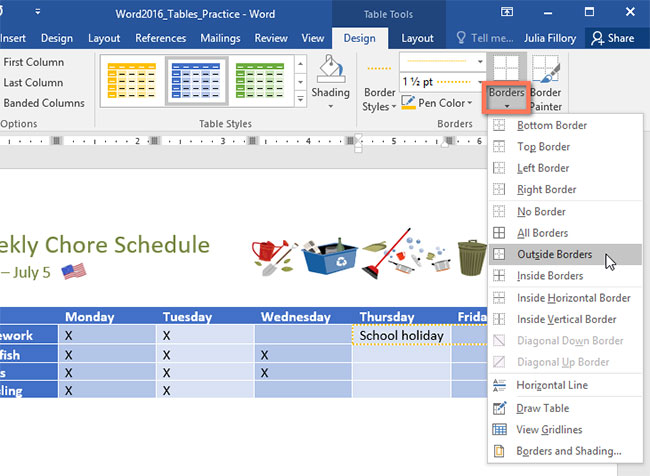
<p style="text-align: justify;">3. Nhấp vào mũi tên drop-down bên dưới lệnh <strong>Borders.</strong></p>

<figure>
<div style="text-align: justify;"><img alt="Nhấp vào mũi tên drop-down bên dưới lệnh Borders" class="lazy lightbox loaded" data-i="20" data-src="https://st.quantrimang.com/photos/image/2022/02/10/word-2019-phan-22-bang-20.jpg" data-was-processed="true" height="476" src="https://st.quantrimang.com/photos/image/2022/02/10/word-2019-phan-22-bang-20.jpg" style="height: 476px; width: 650px;" width="650" /></div>

<figcaption>
<div style="text-align: justify;">Nhấp vào mũi tên drop-down bên dưới lệnh Borders</div>
</figcaption>
</figure>

<p style="text-align: justify;">4. Chọn kiểu đường viền từ menu.</p>

<figure>
<div style="text-align: justify;"><img alt="Chọn kiểu đường viền từ menu" class="lazy lightbox loaded" data-i="21" data-src="https://st.quantrimang.com/photos/image/2022/02/10/word-2019-phan-22-bang-21.jpg" data-was-processed="true" height="196" src="https://st.quantrimang.com/photos/image/2022/02/10/word-2019-phan-22-bang-21.jpg" style="height: 196px; width: 650px;" width="650" /></div>

<figcaption>
<div style="text-align: justify;">Chọn kiểu đường viền từ menu</div>
</figcaption>
</figure>

<p style="text-align: justify;">5. Đường viền sẽ được áp dụng cho các ô đã chọn.</p>

<figure>
<div style="text-align: justify;"><img alt="Đường viền sẽ được áp dụng cho các ô đã chọn" class="lazy lightbox loaded" data-i="22" data-src="https://st.quantrimang.com/photos/image/2022/02/10/word-2019-phan-22-bang-22.jpg" data-was-processed="true" height="385" src="https://st.quantrimang.com/photos/image/2022/02/10/word-2019-phan-22-bang-22.jpg" style="height: 385px; width: 650px;" width="650" /></div>

<figcaption>
<div style="text-align: justify;">Đường viền sẽ được áp dụng cho các ô đã chọn</div>
</figcaption>
</figure>

<h2 style="text-align: justify;">Sửa đổi bảng bằng tab Layout</h2>

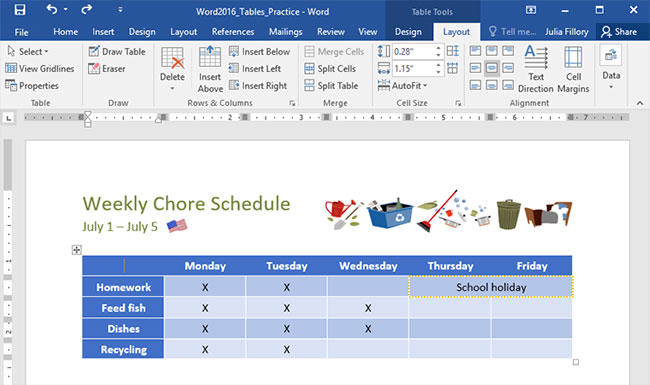
<p style="text-align: justify;">Trong Word, tab <strong>Layout</strong> xuất hiện bất cứ khi nào bạn chọn bảng của mình. Bạn có thể sử dụng các tùy chọn trên tab này để thực hiện nhiều sửa đổi.</p>

<figure>
<div style="text-align: justify;"><img alt="Sửa đổi bảng bằng tab Layout" class="lazy lightbox loaded" data-i="23" data-src="https://st.quantrimang.com/photos/image/2022/02/10/word-2019-phan-22-bang-22.jpg" data-was-processed="true" height="385" src="https://st.quantrimang.com/photos/image/2022/02/10/word-2019-phan-22-bang-22.jpg" style="height: 385px; width: 650px;" width="650" /></div>

<figcaption>
<div style="text-align: justify;">Sửa đổi bảng bằng tab Layout</div>
</figcaption>
</figure>
		</div>
				<div id="author">
						<p>
				<strong>Nguồn tin:</strong>
				Quantrimang.com
			</p>
		</div>
	</div>
	<div id="footer" class="clearfix">
		<div id="url">
			<strong>URL của bản tin này: </strong><a href="https://www.nguoicodonvn2008.info/vi/news/savefile/kien-thuc-may-tinh/word-2019-phan-22-bang-5113.html" title="Word 2019 &#40;Phần 22&#41;&#x3A; Bảng">https://www.nguoicodonvn2008.info/vi/news/savefile/kien-thuc-may-tinh/word-2019-phan-22-bang-5113.html</a>

		</div>
		<div class="clear"></div>
		<div class="copyright">
			&copy; .&#x3A; Nguoicodonvn2008.info - Cõi lòng người cô đơn &#x3A;.
		</div>
		<div id="contact">
			<a href="mailto:admin@nguoicodonvn2008.info">admin@nguoicodonvn2008.info</a>
		</div>
	</div>
</div>
        <div id="timeoutsess" class="chromeframe">
            Bạn đã không sử dụng Site, <a onclick="timeoutsesscancel();" href="https://nguoicodonvn2008.info/#">Bấm vào đây để duy trì trạng thái đăng nhập</a>. Thời gian chờ: <span id="secField"> 60 </span> giây
        </div>
        <div id="openidResult" class="nv-alert" style="display:none"></div>
        <div id="openidBt" data-result="" data-redirect=""></div>
		</script>
		<div class="car-top">
  <span><img src="https://nguoicodonvn2008.info/themes/default/images/car.png" alt=""></span>
</div>
<div id="run_cronjobs" style="visibility:hidden;display:none;"><img alt="cron" src="/index.php?second=cronjobs&amp;p=q38rU5hR" width="1" height="1" /></div>
<script src="https://nguoicodonvn2008.info/assets/js/jquery/jquery.min.js"></script>
<script>var nv_base_siteurl="/",nv_lang_data="vi",nv_lang_interface="vi",nv_name_variable="nv",nv_fc_variable="op",nv_lang_variable="language",nv_module_name="news",nv_func_name="savefile",nv_is_user=0, nv_my_ofs=-4,nv_my_abbr="EDT",nv_cookie_prefix="nv4c_e856T",nv_check_pass_mstime=1738000,nv_area_admin=0,nv_safemode=0,theme_responsive=0,nv_recaptcha_ver=2,nv_recaptcha_sitekey="",nv_recaptcha_type="image",XSSsanitize=1;</script>
<script src="https://nguoicodonvn2008.info/assets/js/language/vi.js"></script>
<script src="https://nguoicodonvn2008.info/assets/js/DOMPurify/purify3.js"></script>
<script src="https://nguoicodonvn2008.info/assets/js/global.js"></script>
<script src="https://nguoicodonvn2008.info/assets/js/site.js"></script>
<script src="https://nguoicodonvn2008.info/themes/default/js/news.js"></script>
<script src="https://nguoicodonvn2008.info/themes/default/js/main.js"></script>
<script src="https://nguoicodonvn2008.info/themes/default/js/custom.js"></script>
<script type="application/ld+json">
        {
            "@context": "https://schema.org",
            "@type": "Organization",
            "url": "https://nguoicodonvn2008.info",
            "logo": "https://nguoicodonvn2008.info/uploads/angel.gif"
        }
        </script>
<script src="https://nguoicodonvn2008.info/themes/default/js/bootstrap.min.js"></script>
<script type="text/javascript">
var $scrolltop = $('.car-top');
$scrolltop.on('click', function () {
    $('html,body').animate({
        scrollTop: 0
    }, 800);
    $(this).addClass("car-run");
    setTimeout(function(){ $scrolltop.removeClass('car-run');}, 1000);
    return false;
});
$(window).on('scroll', function ()
{ 
    if($(window).scrollTop() >= 200)
    {
        $scrolltop.addClass("show");
        $scrolltop.addClass("car-down");
    }
    else
    {
       $scrolltop.removeClass("show");
       setTimeout(function(){ $scrolltop.removeClass('car-down');}, 300);
    }
});
</script>
</body>
</html>