<!DOCTYPE html>
    <html lang="vi" xmlns="http://www.w3.org/1999/xhtml" prefix="og: http://ogp.me/ns#">
    <head>
<title>Word 2019 &#40;Phần 15&#41;&#x3A; Header và Footer</title>
<meta name="description" content="Word 2019 &#40;Phần 15&#41;&#x3A; Header và Footer - Savefile - Tin Tức -...">
<meta name="author" content=".: Nguoicodonvn2008.info - Cõi lòng người cô đơn :.">
<meta name="copyright" content=".: Nguoicodonvn2008.info - Cõi lòng người cô đơn :. [admin@nguoicodonvn2008.info]">
<meta name="robots" content="index, archive, follow, noodp">
<meta name="googlebot" content="index,archive,follow,noodp">
<meta name="msnbot" content="all,index,follow">
<meta name="generator" content="NukeViet v4.5">
<meta http-equiv="Content-Type" content="text/html; charset=utf-8">
<meta property="og:title" content="Word 2019 &#40;Phần 15&#41;&#x3A; Header và Footer">
<meta property="og:type" content="website">
<meta property="og:description" content="Savefile - Tin Tức - https&#x3A;&#x002F;&#x002F;www.nguoicodonvn2008.info&#x002F;vi&#x002F;news&#x002F;savefile&#x002F;kien-thuc-may-tinh&#x002F;word-2019-phan-15-header-va-footer-5098.html">
<meta property="og:site_name" content=".&#x3A; Nguoicodonvn2008.info - Cõi lòng người cô đơn &#x3A;.">
<meta property="og:url" content="https://www.nguoicodonvn2008.info/vi/news/savefile/kien-thuc-may-tinh/word-2019-phan-15-header-va-footer-5098.html">
<link rel="shortcut icon" href="https://nguoicodonvn2008.info/favicon.ico">
<link rel="canonical" href="https://www.nguoicodonvn2008.info/vi/news/savefile/kien-thuc-may-tinh/word-2019-phan-15-header-va-footer-5098.html">
<link rel="alternate" href="https://nguoicodonvn2008.info/vi/news/rss/" title="Tin Tức" type="application/rss+xml">
<link rel="alternate" href="https://nguoicodonvn2008.info/vi/news/rss/karaoke-dual/" title="Tin Tức - Karaoke Dual" type="application/rss+xml">
<link rel="alternate" href="https://nguoicodonvn2008.info/vi/news/rss/nhac-tre/" title="Tin Tức - Nhạc trẻ" type="application/rss+xml">
<link rel="alternate" href="https://nguoicodonvn2008.info/vi/news/rss/tru-tinh/" title="Tin Tức - Trữ tình" type="application/rss+xml">
<link rel="alternate" href="https://nguoicodonvn2008.info/vi/news/rss/nuoc-ngoai/" title="Tin Tức - Nước ngoài" type="application/rss+xml">
<link rel="alternate" href="https://nguoicodonvn2008.info/vi/news/rss/remix/" title="Tin Tức - Remix" type="application/rss+xml">
<link rel="alternate" href="https://nguoicodonvn2008.info/vi/news/rss/tam-su-tinh-yeu/" title="Tin Tức - Tâm sự tình yêu" type="application/rss+xml">
<link rel="alternate" href="https://nguoicodonvn2008.info/vi/news/rss/tho-suu-tam/" title="Tin Tức - Thơ sưu tầm" type="application/rss+xml">
<link rel="alternate" href="https://nguoicodonvn2008.info/vi/news/rss/cuoc-song/" title="Tin Tức - Cuộc sống" type="application/rss+xml">
<link rel="alternate" href="https://nguoicodonvn2008.info/vi/news/rss/phan-mem/" title="Tin Tức - Phần mềm" type="application/rss+xml">
<link rel="alternate" href="https://nguoicodonvn2008.info/vi/news/rss/kien-thuc-may-tinh/" title="Tin Tức - Kiến thức máy tính" type="application/rss+xml">
<link rel="alternate" href="https://nguoicodonvn2008.info/vi/news/rss/hoc-tap/" title="Tin Tức - Học tập" type="application/rss+xml">
<link rel="alternate" href="https://nguoicodonvn2008.info/vi/news/rss/tai-lieu/" title="Tin Tức - Tài liệu" type="application/rss+xml">
<link rel="alternate" href="https://nguoicodonvn2008.info/vi/news/rss/de-thi/" title="Tin Tức - Đề thi" type="application/rss+xml">
<link rel="preload" as="style" href="https://nguoicodonvn2008.info/assets/css/font-awesome.min.css" type="text/css">
<link rel="preload" as="style" href="https://nguoicodonvn2008.info/themes/default/css/bootstrap.non-responsive.css" type="text/css">
<link rel="preload" as="style" href="https://nguoicodonvn2008.info/themes/default/css/style.css" type="text/css">
<link rel="preload" as="style" href="https://nguoicodonvn2008.info/themes/default/css/style.non-responsive.css" type="text/css">
<link rel="preload" as="style" href="https://nguoicodonvn2008.info/themes/default/css/news.css" type="text/css">
<link rel="preload" as="style" href="https://nguoicodonvn2008.info/themes/default/css/custom.css" type="text/css">
<link rel="preload" as="script" href="https://nguoicodonvn2008.info/assets/js/jquery/jquery.min.js" type="text/javascript">
<link rel="preload" as="script" href="https://nguoicodonvn2008.info/assets/js/language/vi.js" type="text/javascript">
<link rel="preload" as="script" href="https://nguoicodonvn2008.info/assets/js/DOMPurify/purify3.js" type="text/javascript">
<link rel="preload" as="script" href="https://nguoicodonvn2008.info/assets/js/global.js" type="text/javascript">
<link rel="preload" as="script" href="https://nguoicodonvn2008.info/assets/js/site.js" type="text/javascript">
<link rel="preload" as="script" href="https://nguoicodonvn2008.info/themes/default/js/news.js" type="text/javascript">
<link rel="preload" as="script" href="https://nguoicodonvn2008.info/themes/default/js/main.js" type="text/javascript">
<link rel="preload" as="script" href="https://nguoicodonvn2008.info/themes/default/js/custom.js" type="text/javascript">
<link rel="preload" as="script" href="https://nguoicodonvn2008.info/themes/default/js/bootstrap.min.js" type="text/javascript">
<link rel="stylesheet" href="https://nguoicodonvn2008.info/assets/css/font-awesome.min.css">
<link rel="stylesheet" href="https://nguoicodonvn2008.info/themes/default/css/bootstrap.non-responsive.css">
<link rel="stylesheet" href="https://nguoicodonvn2008.info/themes/default/css/style.css">
<link rel="stylesheet" href="https://nguoicodonvn2008.info/themes/default/css/style.non-responsive.css">
<link rel="StyleSheet" href="https://nguoicodonvn2008.info/themes/default/css/news.css">
<link rel="stylesheet" href="https://nguoicodonvn2008.info/themes/default/css/custom.css">
<style type="text/css">
	body{background: #fff;}
</style>
    </head>
    <body>
<div id="print">
	<div id="hd_print">
		<h2 class="pull-left">.&#x3A; Nguoicodonvn2008.info - Cõi lòng người cô đơn &#x3A;.</h2>
		<p class="pull-right"><a title=".&#x3A; Nguoicodonvn2008.info - Cõi lòng người cô đơn &#x3A;." href="https://nguoicodonvn2008.info/">https://nguoicodonvn2008.info</a></p>
	</div>
	<div class="clear"></div>
	<hr />
	<div id="content">
		<h1>Word 2019 &#40;Phần 15&#41;&#x3A; Header và Footer</h1>
		<ul class="list-inline">
			<li>Thứ năm - 27/01/2022 23:06</li>
			<li class="hidden-print txtrequired"><em class="fa fa-print">&nbsp;</em><a title="In ra" href="javascript:;" onclick="window.print()">In ra</a></li>
			<li class="hidden-print txtrequired"><em class="fa fa-power-off">&nbsp;</em><a title="Đóng cửa sổ này" href="javascript:;" onclick="window.close()">Đóng cửa sổ này</a></li>
		</ul>
		<div class="clear"></div>
		<div id="hometext">
		</div>
				<div class="imghome">
			<img alt="Word 2019 &#40;Phần 15&#41;&#x3A; Header và Footer" src="https://st.quantrimang.com/photos/image/2022/01/28/header-va-footer-5.png" width="460" class="img-thumbnail" />
		</div>
		<div class="clear"></div>
		<div id="bodytext" class="clearfix">
			<p style="text-align: justify;">Header là phần tài liệu xuất hiện ở lề trên, trong khi footer là phần tài liệu xuất hiện ở lề dưới cùng. Header và footer thường chứa thông tin bổ sung như số trang, ngày tháng, tên tác giả và chú thích cuối trang, có thể giúp sắp xếp các tài liệu dài và làm nó dễ đọc hơn. Văn bản được nhập trong header hoặc footer sẽ xuất hiện trên mỗi trang của tài liệu.</p>

<h2 style="text-align: justify;">Cách tạo header hoặc footer</h2>

<p style="text-align: justify;">Ví dụ muốn hiển thị tên tác giả ở đầu mỗi trang, vì vậy bài viết sẽ đặt thông tin này trong header.</p>

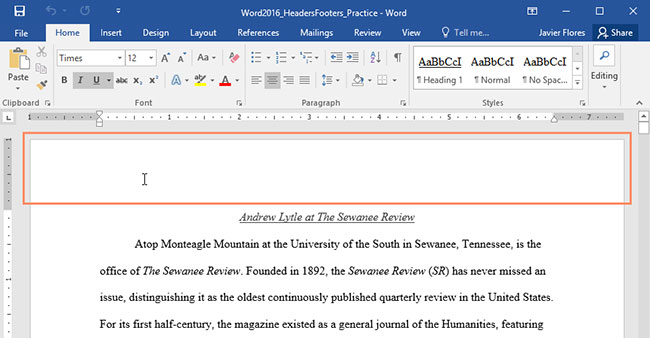
<p style="text-align: justify;">1. Nhấp đúp vào bất kỳ đâu trên lề trên hoặc lề dưới của tài liệu. Ví dụ sẽ nhấp đúp vào lề trên cùng.</p>

<figure>
<div style="text-align: justify;"><img alt="Nhấp đúp vào bất kỳ đâu trên lề trên hoặc lề dưới của tài liệu" data-i="0" data-src="https://st.quantrimang.com/photos/image/2022/01/28/header-va-footer-1.jpg" data-was-processed="true" height="338" src="https://st.quantrimang.com/photos/image/2022/01/28/header-va-footer-1.jpg" width="650" /></div>

<figcaption>
<div style="text-align: justify;">Nhấp đúp vào bất kỳ đâu trên lề trên hoặc lề dưới của tài liệu</div>
</figcaption>
</figure>

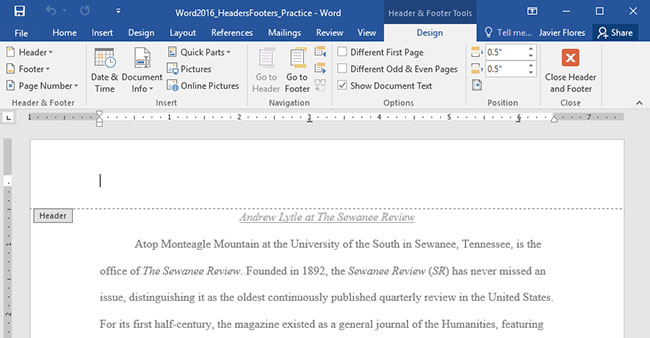
<p style="text-align: justify;">2. Header hoặc footer sẽ mở ra và tab&nbsp;<strong>Design</strong>&nbsp;sẽ xuất hiện ở phía bên phải của ribbon. Điểm chèn sẽ xuất hiện trong header hoặc footer.</p>

<figure>
<div style="text-align: justify;"><img alt="Điểm chèn sẽ xuất hiện" data-i="1" data-src="https://st.quantrimang.com/photos/image/2022/01/28/header-va-footer-2.jpg" data-was-processed="true" height="338" src="https://st.quantrimang.com/photos/image/2022/01/28/header-va-footer-2.jpg" width="650" /></div>

<figcaption>
<div style="text-align: justify;">Điểm chèn sẽ xuất hiện</div>
</figcaption>
</figure>

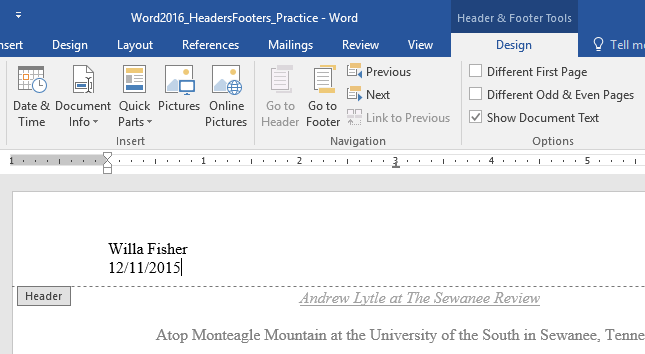
<p style="text-align: justify;">3. Nhập thông tin mong muốn vào header hoặc footer. Ví dụ sẽ nhập tên tác giả và ngày tháng.</p>

<figure>
<div style="text-align: justify;"><img alt="Nhập thông tin" data-i="2" data-src="https://st.quantrimang.com/photos/image/2022/01/28/header-va-footer-3.png" data-was-processed="true" height="354" src="https://st.quantrimang.com/photos/image/2022/01/28/header-va-footer-3.png" width="645" /></div>

<figcaption>
<div style="text-align: justify;">Nhập thông tin</div>
</figcaption>
</figure>

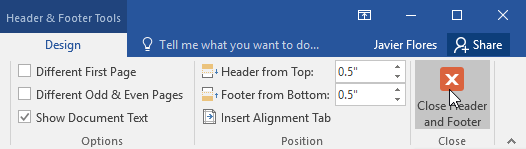
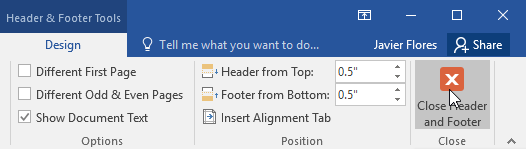
<p style="text-align: justify;">4. Khi bạn hoàn tất, hãy nhấp vào&nbsp;<strong>Close Header and Footer</strong>. Bạn cũng có thể nhấn phím&nbsp;<strong>Esc.</strong></p>

<figure>
<div style="text-align: justify;"><img alt="Nhấp vào Close Header and Footer" data-i="3" data-src="https://st.quantrimang.com/photos/image/2022/01/28/header-va-footer-4.png" data-was-processed="true" height="149" src="https://st.quantrimang.com/photos/image/2022/01/28/header-va-footer-4.png" width="526" /></div>

<figcaption>
<div style="text-align: justify;">Nhấp vào Close Header and Footer</div>
</figcaption>
</figure>

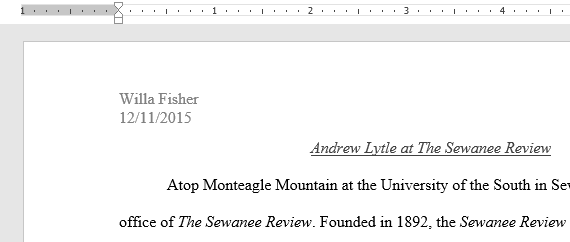
<p style="text-align: justify;">5. Văn bản trong header hoặc footer sẽ xuất hiện.</p>

<figure>
<div style="text-align: justify;"><img alt="Văn bản trong header hoặc footer sẽ xuất hiện" data-i="4" data-src="https://st.quantrimang.com/photos/image/2022/01/28/header-va-footer-5.png" data-was-processed="true" height="242" src="https://st.quantrimang.com/photos/image/2022/01/28/header-va-footer-5.png" width="570" /></div>

<figcaption>
<div style="text-align: justify;">Văn bản trong header hoặc footer sẽ xuất hiện</div>
</figcaption>
</figure>

<h2 style="text-align: justify;">Cách chèn preset header hoặc footer</h2>

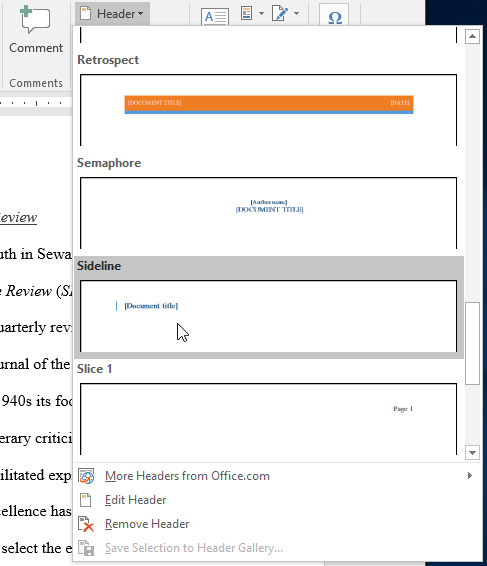
<p style="text-align: justify;">Microsoft Word&nbsp;có nhiều loại preset header và footer mà bạn có thể sử dụng để nâng cao thiết kế và bố cục tài liệu của mình. Ví dụ sẽ thêm một preset header vào tài liệu.</p>

<p style="text-align: justify;">1. Chọn tab&nbsp;<strong>Insert</strong>, sau đó bấm vào lệnh&nbsp;<strong>Header</strong>&nbsp;hoặc&nbsp;<strong>Footer.</strong>&nbsp;Ví dụ sẽ nhấp vào lệnh&nbsp;<strong>Header.</strong></p>

<figure>
<div style="text-align: justify;"><img alt="Nhấp vào lệnh Header hoặc Footer" data-i="5" data-src="https://st.quantrimang.com/photos/image/2022/01/28/header-va-footer-6.png" data-was-processed="true" height="116" src="https://st.quantrimang.com/photos/image/2022/01/28/header-va-footer-6.png" width="848" /></div>

<figcaption>
<div style="text-align: justify;">Nhấp vào lệnh Header hoặc Footer</div>
</figcaption>
</figure>

<p style="text-align: justify;">2. Trong menu xuất hiện, chọn preset header hoặc footer mong muốn.</p>

<figure>
<div style="text-align: justify;"><img alt="Chọn preset header hoặc footer mong muốn" data-i="6" data-src="https://st.quantrimang.com/photos/image/2022/01/28/header-va-footer-7.png" data-was-processed="true" height="566" src="https://st.quantrimang.com/photos/image/2022/01/28/header-va-footer-7.png" width="487" /></div>

<figcaption>
<div style="text-align: justify;">Chọn preset header hoặc footer mong muốn</div>
</figcaption>
</figure>

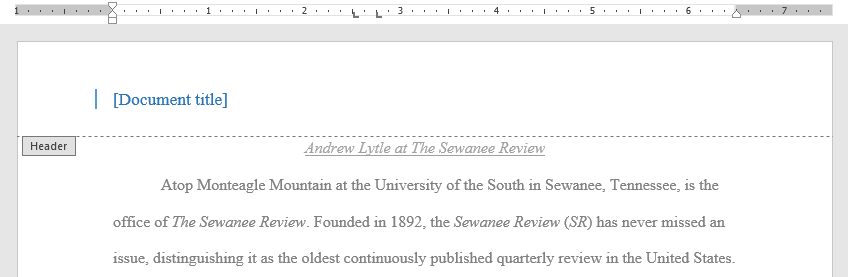
<p style="text-align: justify;">3. Header hoặc footer sẽ xuất hiện. Nhiều preset header và footer chứa những chỗ dành sẵn cho văn bản được gọi là các trường&nbsp;<strong>Content Control.</strong>&nbsp;Các trường này rất tốt để thêm thông tin như tiêu đề tài liệu, tên tác giả, ngày tháng và số trang.</p>

<figure>
<div style="text-align: justify;"><img alt="Trường Content Control" data-i="7" data-src="https://st.quantrimang.com/photos/image/2022/01/28/header-va-footer-8.png" data-was-processed="true" height="277" src="https://st.quantrimang.com/photos/image/2022/01/28/header-va-footer-8.png" width="848" /></div>

<figcaption>
<div style="text-align: justify;">Trường Content Control</div>
</figcaption>
</figure>

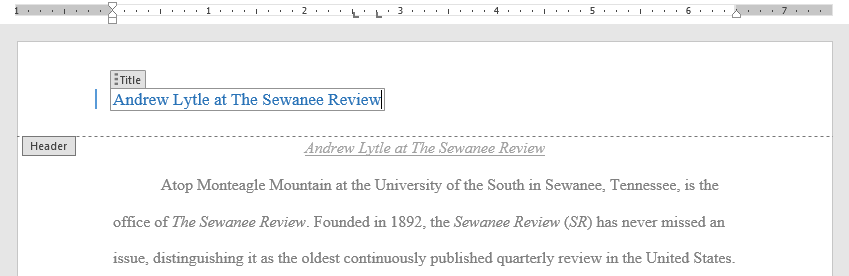
<p style="text-align: justify;">4. Để chỉnh sửa trường&nbsp;<strong>Content Control</strong>, hãy nhấp vào trường đó và nhập thông tin mong muốn.</p>

<figure>
<div style="text-align: justify;"><img alt="Nhập thông tin mong muốn" data-i="8" data-src="https://st.quantrimang.com/photos/image/2022/01/28/header-va-footer-9.png" data-was-processed="true" height="276" src="https://st.quantrimang.com/photos/image/2022/01/28/header-va-footer-9.png" width="849" /></div>

<figcaption>
<div style="text-align: justify;">Nhập thông tin mong muốn</div>
</figcaption>
</figure>

<p style="text-align: justify;">5. Khi bạn hoàn tất, hãy nhấp vào<strong>&nbsp;Close Header and Footer</strong>. Bạn cũng có thể nhấn phím&nbsp;<strong>Esc.</strong></p>

<figure>
<div style="text-align: justify;"><img alt="Nhấp vào Close Header and Footer" data-i="9" data-src="https://st.quantrimang.com/photos/image/2022/01/28/header-va-footer-10.png" data-was-processed="true" height="149" src="https://st.quantrimang.com/photos/image/2022/01/28/header-va-footer-10.png" width="526" /></div>

<figcaption>
<div style="text-align: justify;">Nhấp vào Close Header and Footer</div>
</figcaption>
</figure>

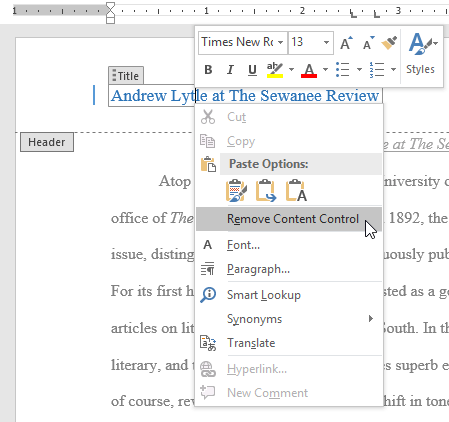
<p style="text-align: justify;">Nếu bạn muốn xóa trường&nbsp;<strong>Content Control</strong>, hãy bấm chuột phải vào trường đó và chọn&nbsp;<strong>Remove Content Control</strong>&nbsp;từ menu xuất hiện.</p>

<figure>
<div style="text-align: justify;"><img alt="Chọn Remove Content Control " data-i="10" data-src="https://st.quantrimang.com/photos/image/2022/01/28/header-va-footer-11.png" data-was-processed="true" height="422" src="https://st.quantrimang.com/photos/image/2022/01/28/header-va-footer-11.png" width="449" /></div>

<figcaption>
<div style="text-align: justify;">Chọn Remove Content Control</div>
</figcaption>
</figure>

<h2 style="text-align: justify;">Chỉnh sửa header và footer</h2>

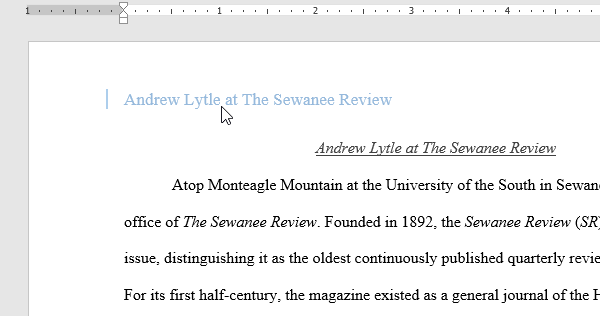
<p style="text-align: justify;">Sau khi bạn đóng header hoặc footer, nó sẽ vẫn hiển thị, nhưng bị khóa. Chỉ cần nhấp đúp vào header hoặc footer để mở khóa, thao tác này sẽ cho phép bạn chỉnh sửa chúng.</p>

<figure>
<div style="text-align: justify;"><img alt="Nhấp đúp vào header hoặc footer để mở khóa" data-i="11" data-src="https://st.quantrimang.com/photos/image/2022/01/28/header-va-footer-12.png" data-was-processed="true" height="316" src="https://st.quantrimang.com/photos/image/2022/01/28/header-va-footer-12.png" width="600" /></div>

<figcaption>
<div style="text-align: justify;">Nhấp đúp vào header hoặc footer để mở khóa</div>
</figcaption>
</figure>

<h3 style="text-align: justify;">Các tùy chọn trong tab Design</h3>

<p style="text-align: justify;">Khi header và footer của tài liệu được mở khóa, tab&nbsp;<strong>Design</strong>&nbsp;sẽ xuất hiện ở phía bên phải của Ribbon, cung cấp cho bạn nhiều tùy chọn chỉnh sửa khác nhau:</p>

<ul>
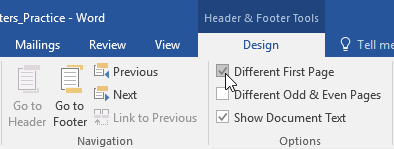
	<li style="text-align: justify;"><strong>Ẩn header và footer của trang đầu tiên</strong>: Đối với một số tài liệu, bạn có thể không muốn trang đầu tiên hiển thị header và footer. Chẳng hạn như nếu bạn có trang bìa và muốn bắt đầu đánh số trang trên trang thứ hai. Nếu bạn muốn ẩn header và footer của trang đầu tiên, hãy chọn hộp bên cạnh&nbsp;<strong>Different First Page</strong>.</li>
</ul>

<figure>
<div style="text-align: justify;"><img alt="Ẩn header và footer của trang đầu tiên" data-i="12" data-src="https://st.quantrimang.com/photos/image/2022/01/28/header-va-footer-13.png" data-was-processed="true" height="149" src="https://st.quantrimang.com/photos/image/2022/01/28/header-va-footer-13.png" width="394" /></div>

<figcaption>
<div style="text-align: justify;">Ẩn header và footer của trang đầu tiên</div>
</figcaption>
</figure>

<ul>
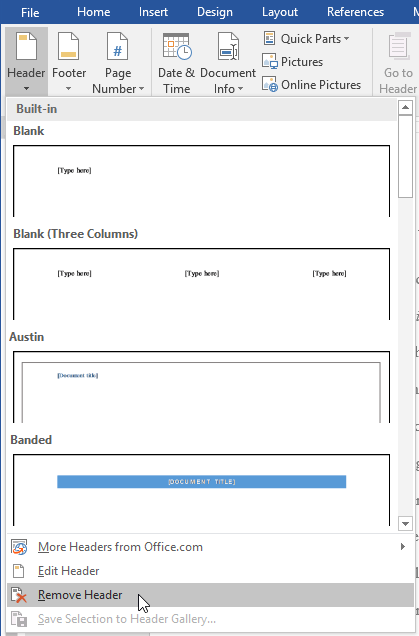
	<li style="text-align: justify;"><strong>Xóa header hoặc footer</strong>: Nếu bạn muốn xóa tất cả thông tin có trong header, hãy nhấp vào lệnh&nbsp;<strong>Header</strong>&nbsp;và chọn&nbsp;<strong>Remove Header</strong>&nbsp;từ menu xuất hiện. Tương tự, bạn có thể xóa footer bằng lệnh&nbsp;<strong>Footer.</strong></li>
</ul>

<figure>
<div style="text-align: justify;"><img alt="Xóa header hoặc footer" data-i="13" data-src="https://st.quantrimang.com/photos/image/2022/01/28/header-va-footer-14.png" data-was-processed="true" height="636" src="https://st.quantrimang.com/photos/image/2022/01/28/header-va-footer-14.png" width="419" /></div>

<figcaption>
<div style="text-align: justify;">Xóa header hoặc footer</div>
</figcaption>
</figure>

<ul>
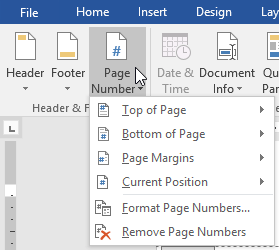
	<li style="text-align: justify;"><strong>Số trang</strong>: Bạn có thể tự động đánh số trang bằng lệnh&nbsp;<strong>Page Number</strong>.</li>
</ul>

<figure>
<div style="text-align: justify;"><img alt="Thêm số trang" data-i="14" data-src="https://st.quantrimang.com/photos/image/2022/01/28/header-va-footer-15.png" data-was-processed="true" height="250" src="https://st.quantrimang.com/photos/image/2022/01/28/header-va-footer-15.png" width="279" /></div>

<figcaption>
<div style="text-align: justify;">Thêm số trang</div>
</figcaption>
</figure>

<ul>
	<li style="text-align: justify;"><strong>Tùy chọn bổ sung</strong>: Với các lệnh có sẵn trong nhóm&nbsp;<strong>Insert</strong>, bạn có thể thêm ngày và giờ, thông tin tài liệu, hình ảnh, v.v… vào header hoặc footer của mình.</li>
</ul>

<figure>
<div style="text-align: justify;"><img alt="Tùy chọn bổ sung" data-i="15" data-src="https://st.quantrimang.com/photos/image/2022/01/28/header-va-footer-16.png" data-was-processed="true" height="115" src="https://st.quantrimang.com/photos/image/2022/01/28/header-va-footer-16.png" width="595" /></div>

<figcaption>
<div style="text-align: justify;">Tùy chọn bổ sung</div>
</figcaption>
</figure>

<h3 style="text-align: justify;">Cách chèn ngày giờ vào header hoặc footer</h3>

<p style="text-align: justify;">Đôi khi, việc đưa ngày hoặc giờ vào header hay footer sẽ rất hữu ích. Ví dụ, bạn có thể muốn tài liệu của mình hiển thị ngày khi nó được tạo.</p>

<p style="text-align: justify;">Mặt khác, bạn có thể muốn hiển thị ngày khi nó được in, điều này bạn có thể thực hiện bằng cách thiết lập việc cập nhật tự động. Điều này rất hữu ích nếu bạn thường xuyên cập nhật và in tài liệu vì bạn sẽ luôn có thể biết phiên bản nào là mới nhất.</p>

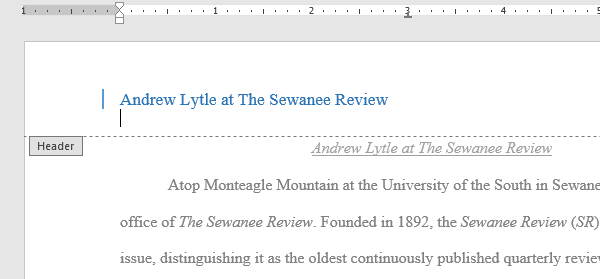
<p style="text-align: justify;">1. Nhấp đúp vào bất kỳ đâu trên header hoặc footer để mở khóa. Đặt điểm chèn ở nơi bạn muốn ngày hoặc giờ xuất hiện. Ví dụ sẽ đặt điểm chèn vào dòng bên dưới tên tác giả.</p>

<figure>
<div style="text-align: justify;"><img alt="Đặt điểm chèn ở nơi bạn muốn" data-i="16" data-src="https://st.quantrimang.com/photos/image/2022/01/28/header-va-footer-17.png" data-was-processed="true" height="279" src="https://st.quantrimang.com/photos/image/2022/01/28/header-va-footer-17.png" width="600" /></div>

<figcaption>
<div style="text-align: justify;">Đặt điểm chèn ở nơi bạn muốn</div>
</figcaption>
</figure>

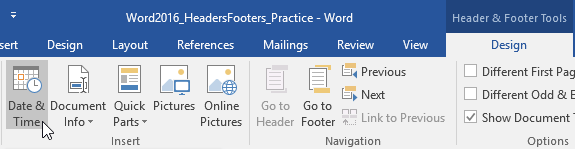
<p style="text-align: justify;">2. Tab&nbsp;<strong>Design</strong>&nbsp;sẽ xuất hiện. Nhấp vào lệnh&nbsp;<strong>Date &amp; Time</strong>.</p>

<figure>
<div style="text-align: justify;"><img alt="Nhấp vào lệnh Date &amp; Time" data-i="17" data-src="https://st.quantrimang.com/photos/image/2022/01/28/header-va-footer-18.png" data-was-processed="true" height="149" src="https://st.quantrimang.com/photos/image/2022/01/28/header-va-footer-18.png" width="575" /></div>

<figcaption>
<div style="text-align: justify;">Nhấp vào lệnh Date &amp; Time</div>
</figcaption>
</figure>

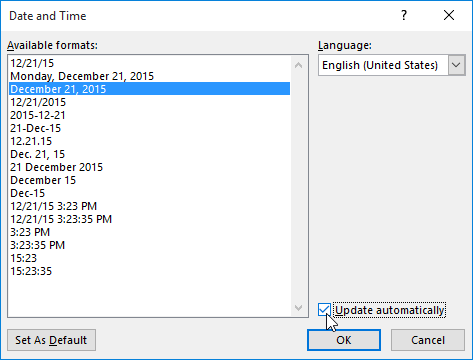
<p style="text-align: justify;">3. Hộp thoại&nbsp;<strong>Date and Time</strong>&nbsp;sẽ xuất hiện. Chọn định dạng ngày hoặc giờ mong muốn.</p>

<p style="text-align: justify;">4. Chọn hộp bên cạnh&nbsp;<strong>Update automatically</strong>&nbsp;nếu bạn muốn ngày thay đổi mỗi khi bạn mở tài liệu. Nếu bạn không muốn ngày thay đổi, hãy bỏ chọn tùy chọn này.</p>

<p style="text-align: justify;">5. Bấm&nbsp;<strong>OK.</strong></p>

<figure>
<div style="text-align: justify;"><img alt="Bấm OK" data-i="18" data-src="https://st.quantrimang.com/photos/image/2022/01/28/header-va-footer-19.png" data-was-processed="true" height="360" src="https://st.quantrimang.com/photos/image/2022/01/28/header-va-footer-19.png" width="473" /></div>

<figcaption>
<div style="text-align: justify;">Bấm OK</div>
</figcaption>
</figure>

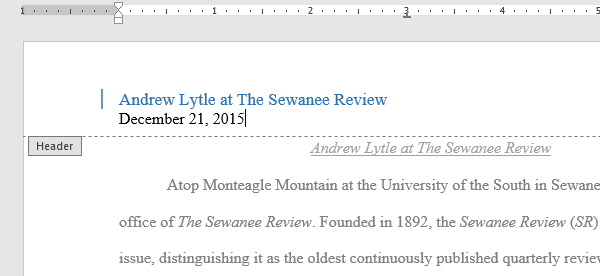
<p style="text-align: justify;">6. Ngày sẽ xuất hiện trong header.</p>

<figure>
<div style="text-align: justify;"><img alt="Ngày sẽ xuất hiện trong header" data-i="19" data-src="https://st.quantrimang.com/photos/image/2022/01/28/header-va-footer-20.png" data-was-processed="true" height="276" src="https://st.quantrimang.com/photos/image/2022/01/28/header-va-footer-20.png" width="600" /></div>

<figcaption>
<div style="text-align: justify;">Ngày sẽ xuất hiện trong header</div>
</figcaption>
</figure>
		</div>
				<div id="author">
						<p>
				<strong>Nguồn tin:</strong>
				Quantrimang.com
			</p>
		</div>
	</div>
	<div id="footer" class="clearfix">
		<div id="url">
			<strong>URL của bản tin này: </strong><a href="https://www.nguoicodonvn2008.info/vi/news/savefile/kien-thuc-may-tinh/word-2019-phan-15-header-va-footer-5098.html" title="Word 2019 &#40;Phần 15&#41;&#x3A; Header và Footer">https://www.nguoicodonvn2008.info/vi/news/savefile/kien-thuc-may-tinh/word-2019-phan-15-header-va-footer-5098.html</a>

		</div>
		<div class="clear"></div>
		<div class="copyright">
			&copy; .&#x3A; Nguoicodonvn2008.info - Cõi lòng người cô đơn &#x3A;.
		</div>
		<div id="contact">
			<a href="mailto:admin@nguoicodonvn2008.info">admin@nguoicodonvn2008.info</a>
		</div>
	</div>
</div>
        <div id="timeoutsess" class="chromeframe">
            Bạn đã không sử dụng Site, <a onclick="timeoutsesscancel();" href="https://nguoicodonvn2008.info/#">Bấm vào đây để duy trì trạng thái đăng nhập</a>. Thời gian chờ: <span id="secField"> 60 </span> giây
        </div>
        <div id="openidResult" class="nv-alert" style="display:none"></div>
        <div id="openidBt" data-result="" data-redirect=""></div>
		</script>
		<div class="car-top">
  <span><img src="https://nguoicodonvn2008.info/themes/default/images/car.png" alt=""></span>
</div>
<div id="run_cronjobs" style="visibility:hidden;display:none;"><img alt="cron" src="/index.php?second=cronjobs&amp;p=c933jG1Q" width="1" height="1" /></div>
<script src="https://nguoicodonvn2008.info/assets/js/jquery/jquery.min.js"></script>
<script>var nv_base_siteurl="/",nv_lang_data="vi",nv_lang_interface="vi",nv_name_variable="nv",nv_fc_variable="op",nv_lang_variable="language",nv_module_name="news",nv_func_name="savefile",nv_is_user=0, nv_my_ofs=-4,nv_my_abbr="EDT",nv_cookie_prefix="nv4c_e856T",nv_check_pass_mstime=1738000,nv_area_admin=0,nv_safemode=0,theme_responsive=0,nv_recaptcha_ver=2,nv_recaptcha_sitekey="",nv_recaptcha_type="image",XSSsanitize=1;</script>
<script src="https://nguoicodonvn2008.info/assets/js/language/vi.js"></script>
<script src="https://nguoicodonvn2008.info/assets/js/DOMPurify/purify3.js"></script>
<script src="https://nguoicodonvn2008.info/assets/js/global.js"></script>
<script src="https://nguoicodonvn2008.info/assets/js/site.js"></script>
<script src="https://nguoicodonvn2008.info/themes/default/js/news.js"></script>
<script src="https://nguoicodonvn2008.info/themes/default/js/main.js"></script>
<script src="https://nguoicodonvn2008.info/themes/default/js/custom.js"></script>
<script type="application/ld+json">
        {
            "@context": "https://schema.org",
            "@type": "Organization",
            "url": "https://nguoicodonvn2008.info",
            "logo": "https://nguoicodonvn2008.info/uploads/angel.gif"
        }
        </script>
<script src="https://nguoicodonvn2008.info/themes/default/js/bootstrap.min.js"></script>
<script type="text/javascript">
var $scrolltop = $('.car-top');
$scrolltop.on('click', function () {
    $('html,body').animate({
        scrollTop: 0
    }, 800);
    $(this).addClass("car-run");
    setTimeout(function(){ $scrolltop.removeClass('car-run');}, 1000);
    return false;
});
$(window).on('scroll', function ()
{ 
    if($(window).scrollTop() >= 200)
    {
        $scrolltop.addClass("show");
        $scrolltop.addClass("car-down");
    }
    else
    {
       $scrolltop.removeClass("show");
       setTimeout(function(){ $scrolltop.removeClass('car-down');}, 300);
    }
});
</script>
</body>
</html>