<!DOCTYPE html>
    <html lang="vi" xmlns="http://www.w3.org/1999/xhtml" prefix="og: http://ogp.me/ns#">
    <head>
<title>Tìm tốc độ refresh Windows 10 ở đâu? Làm thế nào để thay đổi tốc độ refresh Windows 10?</title>
<meta name="description" content="Tìm tốc độ refresh Windows 10 ở đâu? Làm thế nào để thay đổi tốc độ refresh Windows 10? - Savefile - Tin Tức -...">
<meta name="author" content=".: Nguoicodonvn2008.info - Cõi lòng người cô đơn :.">
<meta name="copyright" content=".: Nguoicodonvn2008.info - Cõi lòng người cô đơn :. [admin@nguoicodonvn2008.info]">
<meta name="robots" content="index, archive, follow, noodp">
<meta name="googlebot" content="index,archive,follow,noodp">
<meta name="msnbot" content="all,index,follow">
<meta name="generator" content="NukeViet v4.5">
<meta http-equiv="Content-Type" content="text/html; charset=utf-8">
<meta property="og:title" content="Tìm tốc độ refresh Windows 10 ở đâu? Làm thế nào để thay đổi tốc độ refresh Windows 10?">
<meta property="og:type" content="website">
<meta property="og:description" content="Savefile - Tin Tức -...">
<meta property="og:site_name" content=".&#x3A; Nguoicodonvn2008.info - Cõi lòng người cô đơn &#x3A;.">
<meta property="og:url" content="https://www.nguoicodonvn2008.info/vi/news/savefile/kien-thuc-may-tinh/tim-toc-do-refresh-windows-10-o-dau-lam-the-nao-de-thay-doi-toc-do-refresh-windows-10-4361.html">
<link rel="shortcut icon" href="https://nguoicodonvn2008.info/favicon.ico">
<link rel="canonical" href="https://www.nguoicodonvn2008.info/vi/news/savefile/kien-thuc-may-tinh/tim-toc-do-refresh-windows-10-o-dau-lam-the-nao-de-thay-doi-toc-do-refresh-windows-10-4361.html">
<link rel="alternate" href="https://nguoicodonvn2008.info/vi/news/rss/" title="Tin Tức" type="application/rss+xml">
<link rel="alternate" href="https://nguoicodonvn2008.info/vi/news/rss/karaoke-dual/" title="Tin Tức - Karaoke Dual" type="application/rss+xml">
<link rel="alternate" href="https://nguoicodonvn2008.info/vi/news/rss/nhac-tre/" title="Tin Tức - Nhạc trẻ" type="application/rss+xml">
<link rel="alternate" href="https://nguoicodonvn2008.info/vi/news/rss/tru-tinh/" title="Tin Tức - Trữ tình" type="application/rss+xml">
<link rel="alternate" href="https://nguoicodonvn2008.info/vi/news/rss/nuoc-ngoai/" title="Tin Tức - Nước ngoài" type="application/rss+xml">
<link rel="alternate" href="https://nguoicodonvn2008.info/vi/news/rss/remix/" title="Tin Tức - Remix" type="application/rss+xml">
<link rel="alternate" href="https://nguoicodonvn2008.info/vi/news/rss/tam-su-tinh-yeu/" title="Tin Tức - Tâm sự tình yêu" type="application/rss+xml">
<link rel="alternate" href="https://nguoicodonvn2008.info/vi/news/rss/tho-suu-tam/" title="Tin Tức - Thơ sưu tầm" type="application/rss+xml">
<link rel="alternate" href="https://nguoicodonvn2008.info/vi/news/rss/cuoc-song/" title="Tin Tức - Cuộc sống" type="application/rss+xml">
<link rel="alternate" href="https://nguoicodonvn2008.info/vi/news/rss/phan-mem/" title="Tin Tức - Phần mềm" type="application/rss+xml">
<link rel="alternate" href="https://nguoicodonvn2008.info/vi/news/rss/kien-thuc-may-tinh/" title="Tin Tức - Kiến thức máy tính" type="application/rss+xml">
<link rel="alternate" href="https://nguoicodonvn2008.info/vi/news/rss/hoc-tap/" title="Tin Tức - Học tập" type="application/rss+xml">
<link rel="alternate" href="https://nguoicodonvn2008.info/vi/news/rss/tai-lieu/" title="Tin Tức - Tài liệu" type="application/rss+xml">
<link rel="alternate" href="https://nguoicodonvn2008.info/vi/news/rss/de-thi/" title="Tin Tức - Đề thi" type="application/rss+xml">
<link rel="preload" as="style" href="https://nguoicodonvn2008.info/assets/css/font-awesome.min.css" type="text/css">
<link rel="preload" as="style" href="https://nguoicodonvn2008.info/themes/default/css/bootstrap.non-responsive.css" type="text/css">
<link rel="preload" as="style" href="https://nguoicodonvn2008.info/themes/default/css/style.css" type="text/css">
<link rel="preload" as="style" href="https://nguoicodonvn2008.info/themes/default/css/style.non-responsive.css" type="text/css">
<link rel="preload" as="style" href="https://nguoicodonvn2008.info/themes/default/css/news.css" type="text/css">
<link rel="preload" as="style" href="https://nguoicodonvn2008.info/themes/default/css/custom.css" type="text/css">
<link rel="preload" as="script" href="https://nguoicodonvn2008.info/assets/js/jquery/jquery.min.js" type="text/javascript">
<link rel="preload" as="script" href="https://nguoicodonvn2008.info/assets/js/language/vi.js" type="text/javascript">
<link rel="preload" as="script" href="https://nguoicodonvn2008.info/assets/js/DOMPurify/purify3.js" type="text/javascript">
<link rel="preload" as="script" href="https://nguoicodonvn2008.info/assets/js/global.js" type="text/javascript">
<link rel="preload" as="script" href="https://nguoicodonvn2008.info/assets/js/site.js" type="text/javascript">
<link rel="preload" as="script" href="https://nguoicodonvn2008.info/themes/default/js/news.js" type="text/javascript">
<link rel="preload" as="script" href="https://nguoicodonvn2008.info/themes/default/js/main.js" type="text/javascript">
<link rel="preload" as="script" href="https://nguoicodonvn2008.info/themes/default/js/custom.js" type="text/javascript">
<link rel="preload" as="script" href="https://nguoicodonvn2008.info/themes/default/js/bootstrap.min.js" type="text/javascript">
<link rel="stylesheet" href="https://nguoicodonvn2008.info/assets/css/font-awesome.min.css">
<link rel="stylesheet" href="https://nguoicodonvn2008.info/themes/default/css/bootstrap.non-responsive.css">
<link rel="stylesheet" href="https://nguoicodonvn2008.info/themes/default/css/style.css">
<link rel="stylesheet" href="https://nguoicodonvn2008.info/themes/default/css/style.non-responsive.css">
<link rel="StyleSheet" href="https://nguoicodonvn2008.info/themes/default/css/news.css">
<link rel="stylesheet" href="https://nguoicodonvn2008.info/themes/default/css/custom.css">
<style type="text/css">
	body{background: #fff;}
</style>
    </head>
    <body>
<div id="print">
	<div id="hd_print">
		<h2 class="pull-left">.&#x3A; Nguoicodonvn2008.info - Cõi lòng người cô đơn &#x3A;.</h2>
		<p class="pull-right"><a title=".&#x3A; Nguoicodonvn2008.info - Cõi lòng người cô đơn &#x3A;." href="https://nguoicodonvn2008.info/">https://nguoicodonvn2008.info</a></p>
	</div>
	<div class="clear"></div>
	<hr />
	<div id="content">
		<h1>Tìm tốc độ refresh Windows 10 ở đâu? Làm thế nào để thay đổi tốc độ refresh Windows 10?</h1>
		<ul class="list-inline">
			<li>Thứ bảy - 03/07/2021 06:54</li>
			<li class="hidden-print txtrequired"><em class="fa fa-print">&nbsp;</em><a title="In ra" href="javascript:;" onclick="window.print()">In ra</a></li>
			<li class="hidden-print txtrequired"><em class="fa fa-power-off">&nbsp;</em><a title="Đóng cửa sổ này" href="javascript:;" onclick="window.close()">Đóng cửa sổ này</a></li>
		</ul>
		<div class="clear"></div>
		<div id="hometext">
		</div>
				<div class="imghome">
			<img alt="Tìm tốc độ refresh Windows 10 ở đâu? Làm thế nào để thay đổi tốc độ refresh Windows 10?" src="https://st.quantrimang.com/photos/image/2021/07/03/dieu-chinh-toc-do-refresh-9.jpg" width="460" class="img-thumbnail" />
		</div>
		<div class="clear"></div>
		<div id="bodytext" class="clearfix">
			<p style="text-align: justify;">Bạn có cần tìm tốc độ refresh màn hình cho PC, laptop hoặc máy tính bảng chạy Windows 10 của mình không? Bạn có muốn giảm tốc độ refresh xuống 60Hz hoặc thấp hơn không? Cũng có thể bạn sở hữu một màn hình chơi game và bạn muốn tăng tốc độ refresh lên một giá trị khác như 120Hz hoặc 144Hz? Dưới đây là nơi để tìm tốc độ refresh trong&nbsp;Windows 10&nbsp;và cách thay đổi nó thành giá trị bạn muốn:</p>

<h2 style="text-align: justify;">Cách tìm và thay đổi tốc độ refresh từ ứng dụng Settings</h2>

<div style="text-align: justify;">&nbsp;</div>

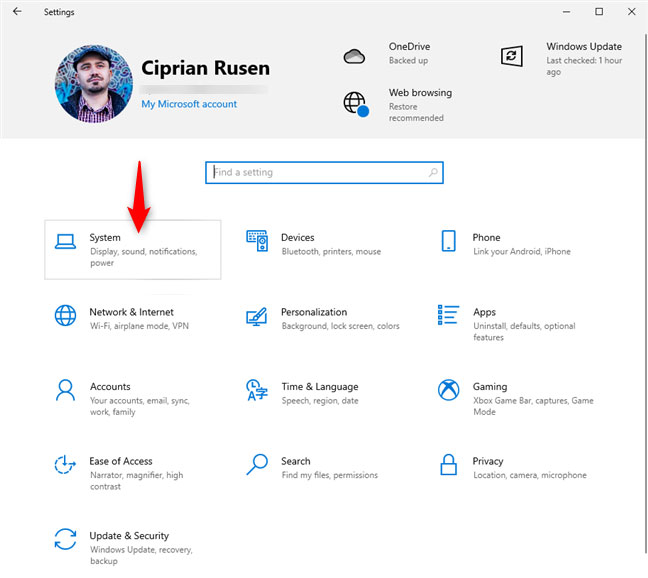
<p style="text-align: justify;">Trong Windows 10, nơi tốt nhất để xem và quản lý tốc độ refresh là ứng dụng Settings.&nbsp;Mở&nbsp;<strong>Settings.</strong>&nbsp;Sau đó, mở phần&nbsp;<strong>System.</strong></p>

<figure>
<div style="text-align: justify;"><img alt="Trong Windows 10 Settings, đi tới System" data-i="0" data-src="https://st.quantrimang.com/photos/image/2021/07/03/dieu-chinh-toc-do-refresh-1.jpg" data-was-processed="true" height="578" src="https://st.quantrimang.com/photos/image/2021/07/03/dieu-chinh-toc-do-refresh-1.jpg" width="648" /></div>

<figcaption>
<div style="text-align: justify;">Trong Windows 10 Settings, đi tới System</div>
</figcaption>
</figure>

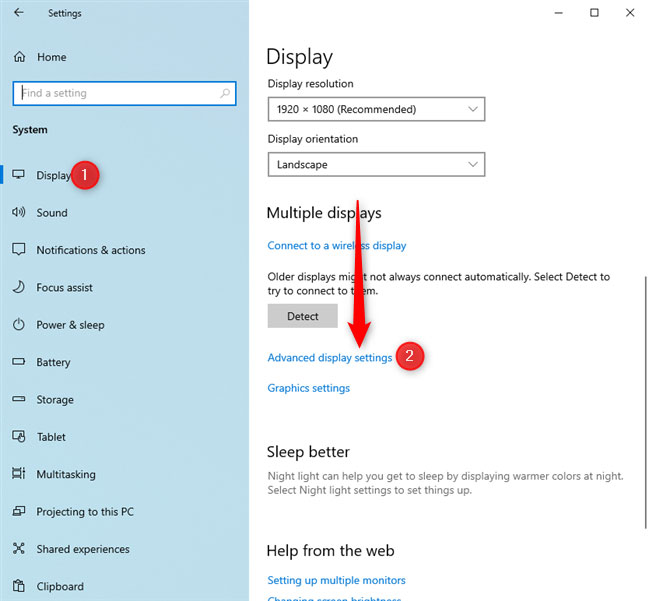
<p style="text-align: justify;">Trong cột bên trái, hãy đảm bảo rằng tab&nbsp;<strong>Display</strong>&nbsp;được chọn. Ở bên phải, cuộn xuống liên kết&nbsp;<strong>Advanced display settings</strong>&nbsp;và nhấn vào liên kết đó.</p>

<figure>
<div style="text-align: justify;"><img alt="Nhấp vào Advanced display settings" data-i="1" data-src="https://st.quantrimang.com/photos/image/2021/07/03/dieu-chinh-toc-do-refresh-2.jpg" data-was-processed="true" height="601" src="https://st.quantrimang.com/photos/image/2021/07/03/dieu-chinh-toc-do-refresh-2.jpg" width="648" /></div>

<figcaption>
<div style="text-align: justify;">Nhấp vào Advanced display settings</div>
</figcaption>
</figure>

<p style="text-align: justify;"><strong>MẸO</strong>: Bạn cũng có thể muốn biết cách thay đổi độ phân giải màn hình và làm cho văn bản và biểu tượng lớn hơn trong Windows 10.</p>

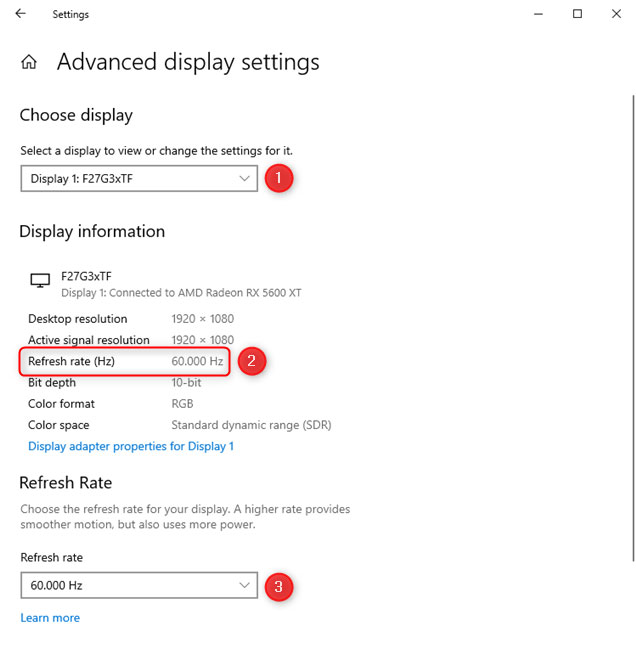
<p style="text-align: justify;">Cửa sổ&nbsp;<strong>Advanced display settings</strong>&nbsp;được mở. Nếu bạn có nhiều màn hình được kết nối với máy tính Windows 10, hãy chọn màn hình đó từ menu drop-down&nbsp;<strong>“Choose display”.</strong>&nbsp;Sau đó, trong phần&nbsp;<strong>Display information</strong>, bạn sẽ thấy tốc độ refresh hiện tại tính bằng Hz, như được highlight bên dưới.</p>

<figure>
<div style="text-align: justify;"><img alt="Xem tốc độ refresh hiện tại" data-i="2" data-src="https://st.quantrimang.com/photos/image/2021/07/03/dieu-chinh-toc-do-refresh-3.jpg" data-was-processed="true" height="648" src="https://st.quantrimang.com/photos/image/2021/07/03/dieu-chinh-toc-do-refresh-3.jpg" width="636" /></div>

<figcaption>
<div style="text-align: justify;">Xem tốc độ refresh hiện tại</div>
</figcaption>
</figure>

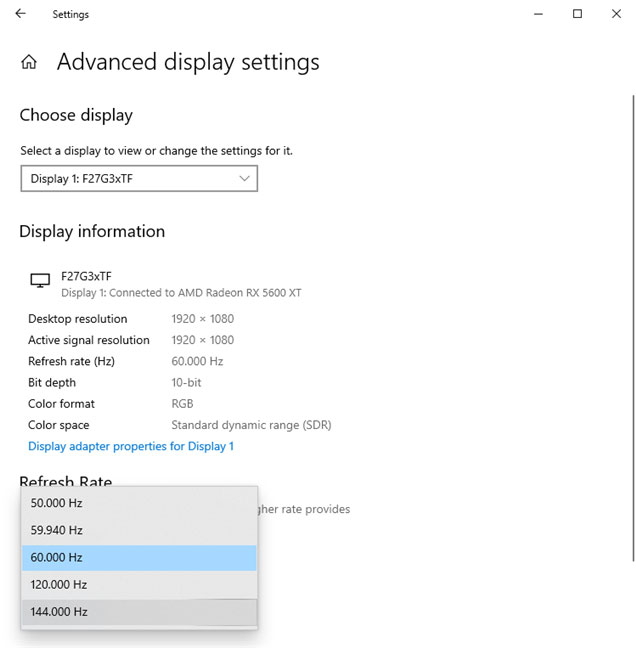
<p style="text-align: justify;">Để thay đổi tốc độ refresh, hãy nhấp hoặc nhấn vào menu drop-down&nbsp;<strong>Refresh rate</strong>&nbsp;và chọn tốc độ bạn muốn. Tùy thuộc vào màn hình của bạn, nó có thể là 144Hz, 120Hz, 60Hz hoặc thấp hơn. Các giá trị bạn thấy tùy thuộc vào model màn hình bạn đang sử dụng và&nbsp;driver&nbsp;được cài đặt trong Windows 10 cho card đồ họa và màn hình.</p>

<figure>
<div style="text-align: justify;"><img alt="Đặt tốc độ refresh" data-i="3" data-src="https://st.quantrimang.com/photos/image/2021/07/03/dieu-chinh-toc-do-refresh-4.jpg" data-was-processed="true" height="648" src="https://st.quantrimang.com/photos/image/2021/07/03/dieu-chinh-toc-do-refresh-4.jpg" width="636" /></div>

<figcaption>
<div style="text-align: justify;">Đặt tốc độ refresh</div>
</figcaption>
</figure>

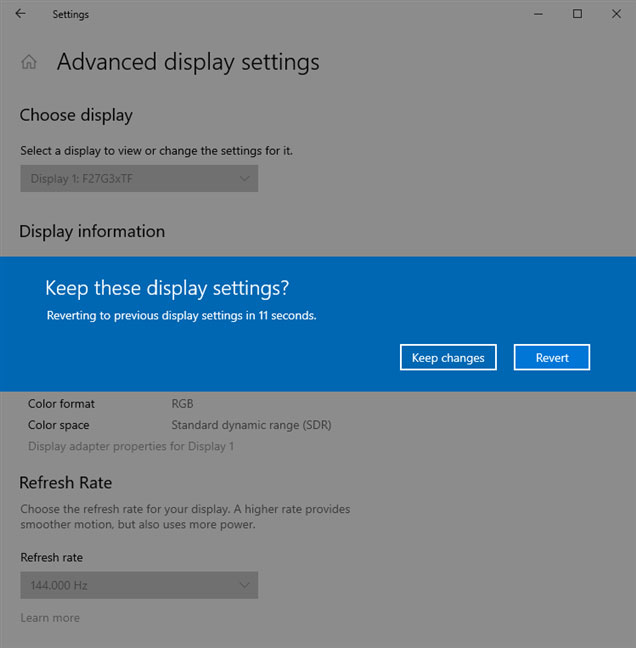
<p style="text-align: justify;">Sau khi chọn tốc độ refresh mới, bạn sẽ được hỏi có muốn giữ lại cài đặt hiển thị mới của mình hay không. Để áp dụng tốc độ refresh mới, hãy nhấn vào&nbsp;<strong>Keep changes</strong>. Nếu bạn nhấn&nbsp;<strong>Revert</strong>&nbsp;hoặc đợi hộp thoại xác nhận biến mất, màn hình sẽ tự động hoàn nguyên về tốc độ refresh trước đó.</p>

<figure>
<div style="text-align: justify;"><img alt="Xác nhận rằng bạn muốn giữ các cài đặt mới" data-i="4" data-src="https://st.quantrimang.com/photos/image/2021/07/03/dieu-chinh-toc-do-refresh-5.jpg" data-was-processed="true" height="648" src="https://st.quantrimang.com/photos/image/2021/07/03/dieu-chinh-toc-do-refresh-5.jpg" width="636" /></div>

<figcaption>
<div style="text-align: justify;">Xác nhận rằng bạn muốn giữ các cài đặt mới</div>
</figcaption>
</figure>

<h2 style="text-align: justify;">Cách xem và thay đổi tốc độ refresh từ cửa sổ Display Adapter Properties</h2>

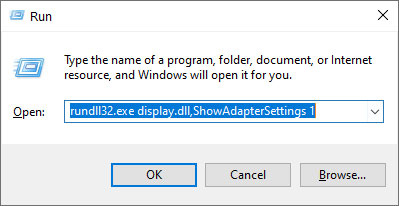
<p style="text-align: justify;">Phương pháp này đã có trong Control Panel cũ của Windows 7 và nó cũng vẫn hoạt động trong Windows 10, mặc dù đôi khi bạn không được phép thay đổi tốc độ refresh mà chỉ xem nó. Đầu tiên, mở cửa sổ&nbsp;<strong>Run</strong>&nbsp;(<strong>Windows + R</strong>), sao chép và dán lệnh sau:</p>

<pre id="pre0">
<code>rundll32.exe display.dll, ShowAdapterSettings 1</code></pre>

<p style="text-align: justify;">Sau đó, nhấp vào&nbsp;<strong>OK</strong>&nbsp;hoặc nhấn&nbsp;<strong>Enter</strong>&nbsp;trên bàn phím.</p>

<figure>
<div style="text-align: justify;"><img alt="Nhập lệnh rundll32.exe display.dll, ShowAdapterSettings 1" data-i="5" data-src="https://st.quantrimang.com/photos/image/2021/07/03/dieu-chinh-toc-do-refresh-6.jpg" data-was-processed="true" height="206" src="https://st.quantrimang.com/photos/image/2021/07/03/dieu-chinh-toc-do-refresh-6.jpg" width="399" /></div>

<figcaption>
<div style="text-align: justify;">Nhập lệnh rundll32.exe display.dll, ShowAdapterSettings 1</div>
</figcaption>
</figure>

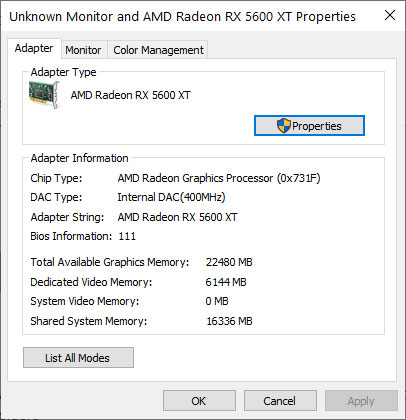
<p style="text-align: justify;">Cửa sổ thuộc tính cho card video được mở và nó sẽ trông giống như ảnh chụp màn hình bên dưới.</p>

<figure>
<div style="text-align: justify;"><img alt="Thuộc tính của card video" data-i="6" data-src="https://st.quantrimang.com/photos/image/2021/07/03/dieu-chinh-toc-do-refresh-7.jpg" data-was-processed="true" height="420" src="https://st.quantrimang.com/photos/image/2021/07/03/dieu-chinh-toc-do-refresh-7.jpg" width="406" /></div>

<figcaption>
<div style="text-align: justify;">Thuộc tính của card video</div>
</figcaption>
</figure>

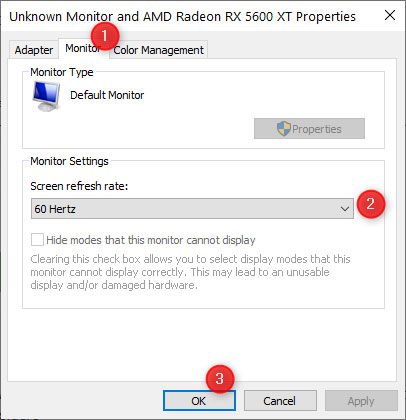
<p style="text-align: justify;">Chuyển đến tab&nbsp;<strong>Monitor</strong>, nơi bạn thấy trường&nbsp;<strong>Screen refresh rate</strong>&nbsp;hiển thị tốc độ hiện tại. Để thay đổi tốc độ refresh, hãy nhấp vào nó và chọn một giá trị mới từ danh sách drop-down. Sau đó, nhấn&nbsp;<strong>OK</strong>&nbsp;để áp dụng nó.</p>

<figure>
<div style="text-align: justify;"><img alt="Đi tới Monitor và đặt tốc độ refresh" data-i="7" data-src="https://st.quantrimang.com/photos/image/2021/07/03/dieu-chinh-toc-do-refresh-8.jpg" data-was-processed="true" height="420" src="https://st.quantrimang.com/photos/image/2021/07/03/dieu-chinh-toc-do-refresh-8.jpg" width="406" /></div>

<figcaption>
<div style="text-align: justify;">Đi tới Monitor và đặt tốc độ refresh</div>
</figcaption>
</figure>

<p style="text-align: justify;"><strong>LƯU Ý QUAN TRỌNG</strong>: Microsoft đã thực hiện một quan điểm là thay thế Control Panel cũ bằng ứng dụng Settings. Phương pháp này sẽ hoạt động trên ngày càng ít máy tính và thiết bị chạy Windows 10. Trong tương lai gần, nó có thể bị loại bỏ hoàn toàn và trở nên vô dụng.</p>

<h2 style="text-align: justify;">Cách xem tốc độ refresh Windows 10 từ CMD hoặc PowerShell</h2>

<div style="text-align: justify;">&nbsp;</div>

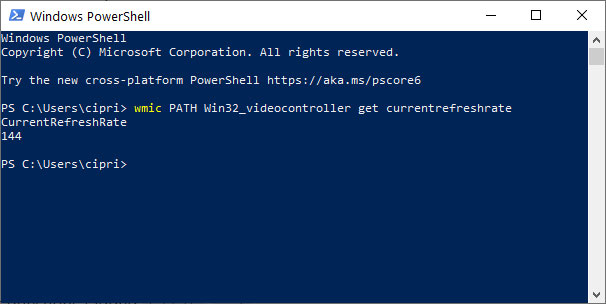
<p style="text-align: justify;">Nếu yêu thích việc sử dụng các lệnh, bạn có thể nhanh chóng xem tốc độ refresh bằng cách&nbsp;mở Command Prompt&nbsp;hoặc khởi động&nbsp;PowerShell, tùy thuộc vào những gì bạn muốn. Sau đó, chạy lệnh sau và nhấn&nbsp;<strong>Enter</strong>&nbsp;trên bàn phím:</p>

<pre id="pre1">
<code>wmic PATH Win32_videocontroller get currentrefreshrate</code></pre>

<p style="text-align: justify;">Bạn sẽ thấy giá trị&nbsp;<strong>CurrentRefreshRate</strong>&nbsp;được hiển thị như trong ảnh chụp màn hình bên dưới.</p>

<figure>
<div style="text-align: justify;"><img alt="Xem tốc độ refresh trong PowerShell" data-i="8" data-src="https://st.quantrimang.com/photos/image/2021/07/03/dieu-chinh-toc-do-refresh-9.jpg" data-was-processed="true" height="304" src="https://st.quantrimang.com/photos/image/2021/07/03/dieu-chinh-toc-do-refresh-9.jpg" width="606" /></div>

<figcaption>
<div style="text-align: justify;">Xem tốc độ refresh trong PowerShell</div>
</figcaption>
</figure>

<p style="text-align: justify;">Thật không may, Windows 10 không có lệnh mà bạn có thể chạy để đặt tốc độ refresh thành giá trị bạn muốn.</p>
		</div>
				<div id="author">
						<p>
				<strong>Nguồn tin:</strong>
				Quantrimang.com
			</p>
		</div>
	</div>
	<div id="footer" class="clearfix">
		<div id="url">
			<strong>URL của bản tin này: </strong><a href="https://www.nguoicodonvn2008.info/vi/news/savefile/kien-thuc-may-tinh/tim-toc-do-refresh-windows-10-o-dau-lam-the-nao-de-thay-doi-toc-do-refresh-windows-10-4361.html" title="Tìm tốc độ refresh Windows 10 ở đâu? Làm thế nào để thay đổi tốc độ refresh Windows 10?">https://www.nguoicodonvn2008.info/vi/news/savefile/kien-thuc-may-tinh/tim-toc-do-refresh-windows-10-o-dau-lam-the-nao-de-thay-doi-toc-do-refresh-windows-10-4361.html</a>

		</div>
		<div class="clear"></div>
		<div class="copyright">
			&copy; .&#x3A; Nguoicodonvn2008.info - Cõi lòng người cô đơn &#x3A;.
		</div>
		<div id="contact">
			<a href="mailto:admin@nguoicodonvn2008.info">admin@nguoicodonvn2008.info</a>
		</div>
	</div>
</div>
        <div id="timeoutsess" class="chromeframe">
            Bạn đã không sử dụng Site, <a onclick="timeoutsesscancel();" href="https://nguoicodonvn2008.info/#">Bấm vào đây để duy trì trạng thái đăng nhập</a>. Thời gian chờ: <span id="secField"> 60 </span> giây
        </div>
        <div id="openidResult" class="nv-alert" style="display:none"></div>
        <div id="openidBt" data-result="" data-redirect=""></div>
		</script>
		<div class="car-top">
  <span><img src="https://nguoicodonvn2008.info/themes/default/images/car.png" alt=""></span>
</div>
<script src="https://nguoicodonvn2008.info/assets/js/jquery/jquery.min.js"></script>
<script>var nv_base_siteurl="/",nv_lang_data="vi",nv_lang_interface="vi",nv_name_variable="nv",nv_fc_variable="op",nv_lang_variable="language",nv_module_name="news",nv_func_name="savefile",nv_is_user=0, nv_my_ofs=-4,nv_my_abbr="EDT",nv_cookie_prefix="nv4c_e856T",nv_check_pass_mstime=1738000,nv_area_admin=0,nv_safemode=0,theme_responsive=0,nv_recaptcha_ver=2,nv_recaptcha_sitekey="",nv_recaptcha_type="image",XSSsanitize=1;</script>
<script src="https://nguoicodonvn2008.info/assets/js/language/vi.js"></script>
<script src="https://nguoicodonvn2008.info/assets/js/DOMPurify/purify3.js"></script>
<script src="https://nguoicodonvn2008.info/assets/js/global.js"></script>
<script src="https://nguoicodonvn2008.info/assets/js/site.js"></script>
<script src="https://nguoicodonvn2008.info/themes/default/js/news.js"></script>
<script src="https://nguoicodonvn2008.info/themes/default/js/main.js"></script>
<script src="https://nguoicodonvn2008.info/themes/default/js/custom.js"></script>
<script type="application/ld+json">
        {
            "@context": "https://schema.org",
            "@type": "Organization",
            "url": "https://nguoicodonvn2008.info",
            "logo": "https://nguoicodonvn2008.info/uploads/angel.gif"
        }
        </script>
<script src="https://nguoicodonvn2008.info/themes/default/js/bootstrap.min.js"></script>
<script type="text/javascript">
var $scrolltop = $('.car-top');
$scrolltop.on('click', function () {
    $('html,body').animate({
        scrollTop: 0
    }, 800);
    $(this).addClass("car-run");
    setTimeout(function(){ $scrolltop.removeClass('car-run');}, 1000);
    return false;
});
$(window).on('scroll', function ()
{ 
    if($(window).scrollTop() >= 200)
    {
        $scrolltop.addClass("show");
        $scrolltop.addClass("car-down");
    }
    else
    {
       $scrolltop.removeClass("show");
       setTimeout(function(){ $scrolltop.removeClass('car-down');}, 300);
    }
});
</script>
</body>
</html>