<!DOCTYPE html>
    <html lang="vi" xmlns="http://www.w3.org/1999/xhtml" prefix="og: http://ogp.me/ns#">
    <head>
<title>Thiết lập biểu tượng tùy chỉnh cho ổ cứng di động trên Windows 10</title>
<meta name="description" content="Thiết lập biểu tượng tùy chỉnh cho ổ cứng di động trên Windows 10 - Savefile - Tin Tức -...">
<meta name="author" content=".: Nguoicodonvn2008.info - Cõi lòng người cô đơn :.">
<meta name="copyright" content=".: Nguoicodonvn2008.info - Cõi lòng người cô đơn :. [admin@nguoicodonvn2008.info]">
<meta name="robots" content="index, archive, follow, noodp">
<meta name="googlebot" content="index,archive,follow,noodp">
<meta name="msnbot" content="all,index,follow">
<meta name="generator" content="NukeViet v4.5">
<meta http-equiv="Content-Type" content="text/html; charset=utf-8">
<meta property="og:title" content="Thiết lập biểu tượng tùy chỉnh cho ổ cứng di động trên Windows 10">
<meta property="og:type" content="website">
<meta property="og:description" content="Savefile - Tin Tức - https&#x3A;&#x002F;&#x002F;www.nguoicodonvn2008.info&#x002F;vi&#x002F;news&#x002F;savefile&#x002F;kien-thuc-may-tinh&#x002F;thiet-lap-bieu-tuong-tuy-chinh-cho-o-cung-di-dong-tren-windows-10-2141.html">
<meta property="og:site_name" content=".&#x3A; Nguoicodonvn2008.info - Cõi lòng người cô đơn &#x3A;.">
<meta property="og:url" content="https://www.nguoicodonvn2008.info/vi/news/savefile/kien-thuc-may-tinh/thiet-lap-bieu-tuong-tuy-chinh-cho-o-cung-di-dong-tren-windows-10-2141.html">
<link rel="shortcut icon" href="https://nguoicodonvn2008.info/favicon.ico">
<link rel="canonical" href="https://www.nguoicodonvn2008.info/vi/news/savefile/kien-thuc-may-tinh/thiet-lap-bieu-tuong-tuy-chinh-cho-o-cung-di-dong-tren-windows-10-2141.html">
<link rel="alternate" href="https://nguoicodonvn2008.info/vi/news/rss/" title="Tin Tức" type="application/rss+xml">
<link rel="alternate" href="https://nguoicodonvn2008.info/vi/news/rss/karaoke-dual/" title="Tin Tức - Karaoke Dual" type="application/rss+xml">
<link rel="alternate" href="https://nguoicodonvn2008.info/vi/news/rss/nhac-tre/" title="Tin Tức - Nhạc trẻ" type="application/rss+xml">
<link rel="alternate" href="https://nguoicodonvn2008.info/vi/news/rss/tru-tinh/" title="Tin Tức - Trữ tình" type="application/rss+xml">
<link rel="alternate" href="https://nguoicodonvn2008.info/vi/news/rss/nuoc-ngoai/" title="Tin Tức - Nước ngoài" type="application/rss+xml">
<link rel="alternate" href="https://nguoicodonvn2008.info/vi/news/rss/remix/" title="Tin Tức - Remix" type="application/rss+xml">
<link rel="alternate" href="https://nguoicodonvn2008.info/vi/news/rss/tam-su-tinh-yeu/" title="Tin Tức - Tâm sự tình yêu" type="application/rss+xml">
<link rel="alternate" href="https://nguoicodonvn2008.info/vi/news/rss/tho-suu-tam/" title="Tin Tức - Thơ sưu tầm" type="application/rss+xml">
<link rel="alternate" href="https://nguoicodonvn2008.info/vi/news/rss/cuoc-song/" title="Tin Tức - Cuộc sống" type="application/rss+xml">
<link rel="alternate" href="https://nguoicodonvn2008.info/vi/news/rss/phan-mem/" title="Tin Tức - Phần mềm" type="application/rss+xml">
<link rel="alternate" href="https://nguoicodonvn2008.info/vi/news/rss/kien-thuc-may-tinh/" title="Tin Tức - Kiến thức máy tính" type="application/rss+xml">
<link rel="alternate" href="https://nguoicodonvn2008.info/vi/news/rss/hoc-tap/" title="Tin Tức - Học tập" type="application/rss+xml">
<link rel="alternate" href="https://nguoicodonvn2008.info/vi/news/rss/tai-lieu/" title="Tin Tức - Tài liệu" type="application/rss+xml">
<link rel="alternate" href="https://nguoicodonvn2008.info/vi/news/rss/de-thi/" title="Tin Tức - Đề thi" type="application/rss+xml">
<link rel="preload" as="style" href="https://nguoicodonvn2008.info/assets/css/font-awesome.min.css" type="text/css">
<link rel="preload" as="style" href="https://nguoicodonvn2008.info/themes/default/css/bootstrap.non-responsive.css" type="text/css">
<link rel="preload" as="style" href="https://nguoicodonvn2008.info/themes/default/css/style.css" type="text/css">
<link rel="preload" as="style" href="https://nguoicodonvn2008.info/themes/default/css/style.non-responsive.css" type="text/css">
<link rel="preload" as="style" href="https://nguoicodonvn2008.info/themes/default/css/news.css" type="text/css">
<link rel="preload" as="style" href="https://nguoicodonvn2008.info/themes/default/css/custom.css" type="text/css">
<link rel="preload" as="script" href="https://nguoicodonvn2008.info/assets/js/jquery/jquery.min.js" type="text/javascript">
<link rel="preload" as="script" href="https://nguoicodonvn2008.info/assets/js/language/vi.js" type="text/javascript">
<link rel="preload" as="script" href="https://nguoicodonvn2008.info/assets/js/DOMPurify/purify3.js" type="text/javascript">
<link rel="preload" as="script" href="https://nguoicodonvn2008.info/assets/js/global.js" type="text/javascript">
<link rel="preload" as="script" href="https://nguoicodonvn2008.info/assets/js/site.js" type="text/javascript">
<link rel="preload" as="script" href="https://nguoicodonvn2008.info/themes/default/js/news.js" type="text/javascript">
<link rel="preload" as="script" href="https://nguoicodonvn2008.info/themes/default/js/main.js" type="text/javascript">
<link rel="preload" as="script" href="https://nguoicodonvn2008.info/themes/default/js/custom.js" type="text/javascript">
<link rel="preload" as="script" href="https://nguoicodonvn2008.info/themes/default/js/bootstrap.min.js" type="text/javascript">
<link rel="stylesheet" href="https://nguoicodonvn2008.info/assets/css/font-awesome.min.css">
<link rel="stylesheet" href="https://nguoicodonvn2008.info/themes/default/css/bootstrap.non-responsive.css">
<link rel="stylesheet" href="https://nguoicodonvn2008.info/themes/default/css/style.css">
<link rel="stylesheet" href="https://nguoicodonvn2008.info/themes/default/css/style.non-responsive.css">
<link rel="StyleSheet" href="https://nguoicodonvn2008.info/themes/default/css/news.css">
<link rel="stylesheet" href="https://nguoicodonvn2008.info/themes/default/css/custom.css">
<style type="text/css">
	body{background: #fff;}
</style>
    </head>
    <body>
<div id="print">
	<div id="hd_print">
		<h2 class="pull-left">.&#x3A; Nguoicodonvn2008.info - Cõi lòng người cô đơn &#x3A;.</h2>
		<p class="pull-right"><a title=".&#x3A; Nguoicodonvn2008.info - Cõi lòng người cô đơn &#x3A;." href="https://nguoicodonvn2008.info/">https://nguoicodonvn2008.info</a></p>
	</div>
	<div class="clear"></div>
	<hr />
	<div id="content">
		<h1>Thiết lập biểu tượng tùy chỉnh cho ổ cứng di động trên Windows 10</h1>
		<ul class="list-inline">
			<li>Thứ ba - 02/06/2020 00:58</li>
			<li class="hidden-print txtrequired"><em class="fa fa-print">&nbsp;</em><a title="In ra" href="javascript:;" onclick="window.print()">In ra</a></li>
			<li class="hidden-print txtrequired"><em class="fa fa-power-off">&nbsp;</em><a title="Đóng cửa sổ này" href="javascript:;" onclick="window.close()">Đóng cửa sổ này</a></li>
		</ul>
		<div class="clear"></div>
		<div id="hometext">
		</div>
				<div class="imghome">
			<img alt="Thiết lập biểu tượng tùy chỉnh cho ổ cứng di động trên Windows 10" src="https://st.quantrimang.com/photos/image/2020/06/01/thay-doi-bieu-tuong-windows-5.png" width="460" class="img-thumbnail" />
		</div>
		<div class="clear"></div>
		<div id="bodytext" class="clearfix">
			<p style="text-align: justify;">Bất cứ khi nào bạn kết nối một thiết bị hoặc một ổ cứng di động (ổ USB chẳng hạn,…) trên máy tính của mình, Windows 10 sẽ nhanh chóng nhận và hiển thị tên cũng biểu tượng mặc định của thiết bị hoặc ổ cứng di động đó.</p>

<p style="text-align: justify;">Tuy nhiên, nếu cảm thấy thật tẻ nhạt khi cứ phải nhìn thấy các biểu tượng tương tự mỗi khi kết nối các thiết bị và ổ cứng di động trên máy tính của mình, và bạn muốn thay thế các biểu tượng cũ bằng các biểu tượng sinh động, vui nhộn hơn. Khi đó bạn có thể thiết lập các biểu tượng tùy chỉnh mà bạn muốn cho thiết bị hoặc một ổ cứng di động kết nối với máy tính của mình.</p>

<p style="text-align: justify;">Trong bài viết dưới đây Quản trị mạng sẽ hướng dẫn bạn các bước để thêm một biểu tượng tùy chỉnh và tên cho các ổ cứng gắn ngoài kết nối trên máy tính Windows 10 của mình.</p>

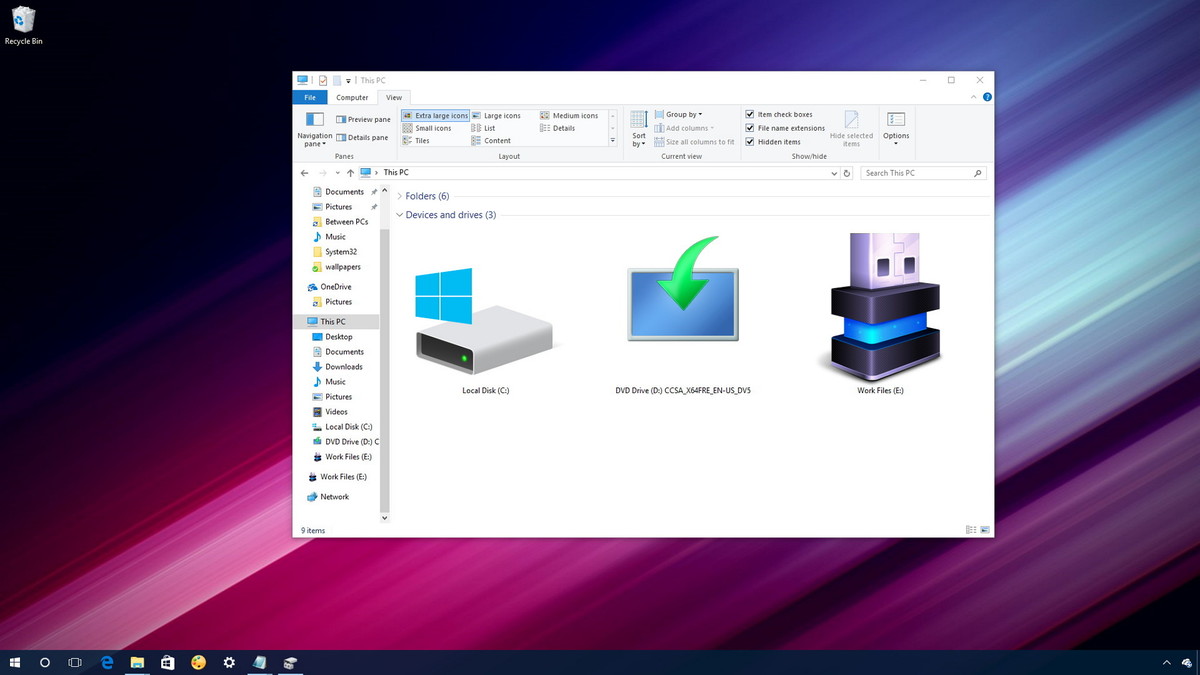
<p style="text-align: justify;"><strong><img alt="Thay đổi biểu tượng" data-i="0" data-src="https://st.quantrimang.com/photos/image/2017/01/10/bieu-tuomg.jpg" data-was-processed="true" height="366" src="https://st.quantrimang.com/photos/image/2017/01/10/bieu-tuomg.jpg" title="Thay đổi biểu tượng" width="650" /></strong></p>

<h2 style="text-align: justify;">Thiết lập biểu tượng tùy chỉnh cho ổ cứng di động</h2>

<p style="text-align: justify;">Thực hiện quá trình này để hiển thị một biểu tượng tùy chỉnh cho một ổ cứng di động, bao gồm một tập tin icon (biểu tượng) và file&nbsp;<strong>autorun.inf</strong>, mà bạn sẽ lưu trữ trên ổ cứng di động (ổ USB chẳng hạn, …).</p>

<p style="text-align: justify;">Trước khi thực hiện quá trình bạn cần phải có một tập tin icon&nbsp;<strong>(.ico)</strong>&nbsp;mà bạn muốn sử dụng. Bạn có thể tìm thấy cả “đống” biểu tượng trên các trang web, trong đó có nhiều biểu tượng miễn phí có sẵn mà bạn có thể tải về và sử dụng.</p>

<p style="text-align: justify;">Trong phần hướng dẫn dưới đây, Quản trị mạng sẽ sử dụng một biểu tượng USB từ IconArchive, nhưng bạn có thể tải các biểu tượng khác nhau trên các trang web khác nhau và sử dụng.</p>

<p style="text-align: justify;">Sau khi đã tải xong file&nbsp;<strong>.ico</strong>, bạn sẽ phải tiến hành sao chép biểu tượng này và tạo file&nbsp;<strong>autorun.inf</strong>&nbsp;trên ổ cứng di động. Để làm được điều này, thực hiện theo các bước dưới đây:</p>

<p style="text-align: justify;">1. Kết nối ổ cứng di động mà bạn muốn thiết lập biểu tượng (icon) tùy chỉnh.</p>

<p style="text-align: justify;">2. Sử dụng&nbsp;<strong>File Explorer</strong>&nbsp;để mở ổ cứng di động.</p>

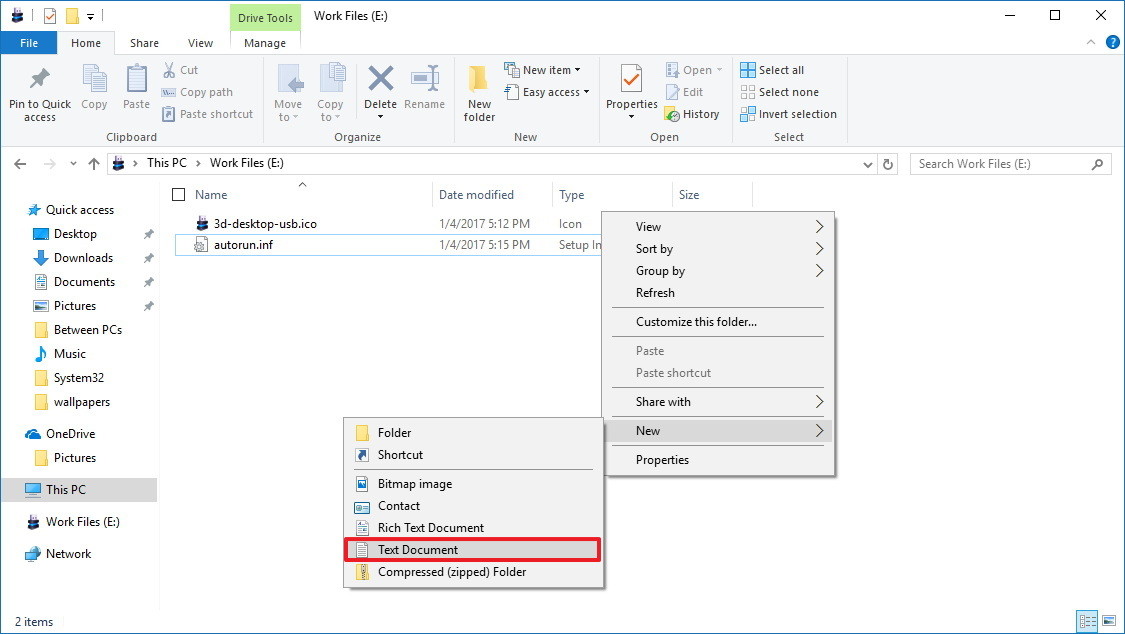
<p style="text-align: justify;">3. Trong thư mục gốc của ổ cứng di động, kích chuột phải vào đó chọn&nbsp;<strong>New</strong>&nbsp;=&gt;&nbsp;<strong>Text Document.</strong></p>

<p style="text-align: justify;"><strong><img alt="Chọn New =&gt; Text Document" data-i="1" data-src="https://st.quantrimang.com/photos/image/2017/01/10/Text-Document.jpg" data-was-processed="true" height="366" src="https://st.quantrimang.com/photos/image/2017/01/10/Text-Document.jpg" title="Chọn New =&gt; Text Document" width="650" /></strong></p>

<p style="text-align: justify;">4. Đặt tên file là&nbsp;<strong>autorun.inf</strong>&nbsp;rồi nhấn&nbsp;<strong>Enter.</strong></p>

<p style="text-align: justify;"><strong>Lưu ý:</strong></p>

<p style="text-align: justify;">Nếu hệ thống của bạn không hiển thị phần đuôi mở rộng của tập tin, mở tab&nbsp;<strong>View</strong>&nbsp;trên File Explorer, sau đó click chọn tùy chọn File name extensions để đổi tên file text autorun.inf.</p>

<p style="text-align: justify;">Nếu không, sau khi đổi xong tên file sẽ thành&nbsp;<strong>autorun.inf.txt</strong>, và tập tin này sẽ không đúng.</p>

<p style="text-align: justify;">Ngoài ra bạn đọc có thể&nbsp;<a href="https://quantrimang.com/lam-sao-de-hien-thi-file-va-thu-muc-an-trong-windows-118699" rel="noopener" target="_blank" title="Cách ẩn, hiện file, thư mục ẩn và đuôi file trên Windows 7/8/10?">tham khảo thêm các bước để hiển thị thư mục, tập tin và phần đuôi mở rộng trên Windows 7, 8 và 10 tại đây.</a></p>

<p style="text-align: justify;">5. Click chọn&nbsp;<strong>Yes</strong>&nbsp;để xác nhận đổi tên tập tin.</p>

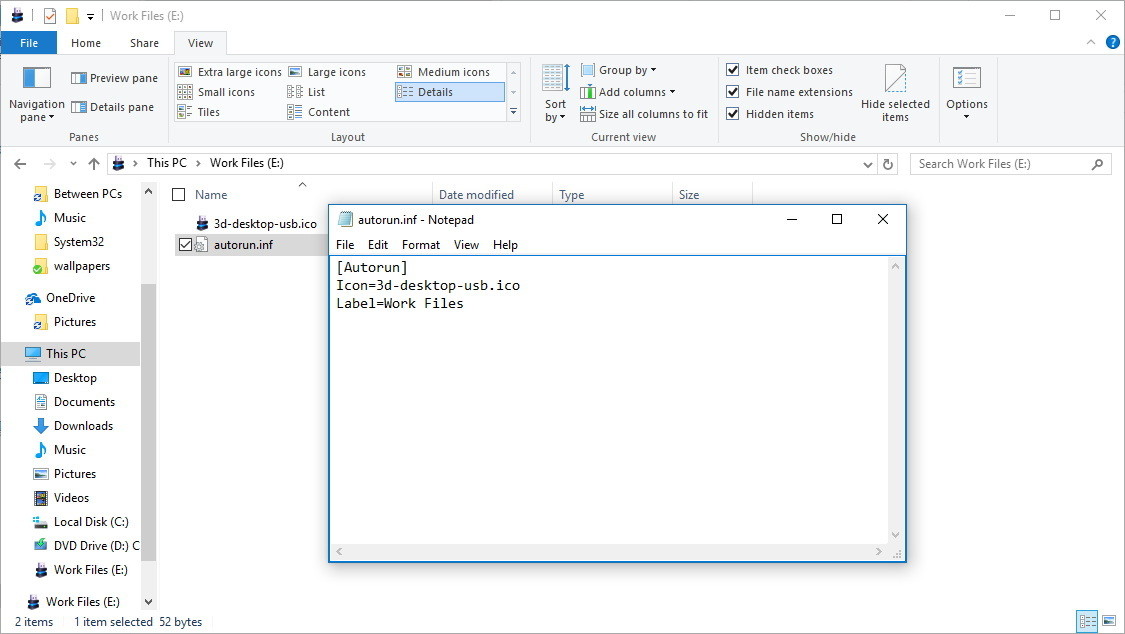
<p style="text-align: justify;">6. Kích đúp chuột vào&nbsp;<strong>autorun.inf</strong>&nbsp;để mở tập tin và sao chép, dán các dòng dưới đây vào:</p>

<blockquote>
<p style="text-align: justify;">&#91;Autorun&#93;</p>

<p style="text-align: justify;">Icon=icon-name.ico</p>

<p style="text-align: justify;">Label=drive-label</p>
</blockquote>

<p style="text-align: justify;"><img alt="Dán các dòng lệnh" data-i="2" data-src="https://st.quantrimang.com/photos/image/2017/01/10/dong-lenh.jpg" data-was-processed="true" height="366" src="https://st.quantrimang.com/photos/image/2017/01/10/dong-lenh.jpg" title="Dán các dòng lệnh" width="650" /></p>

<p style="text-align: justify;"><strong>Lưu ý:</strong></p>

<p style="text-align: justify;">Tại mục&nbsp;<strong>Icon</strong>, hãy chắc chắn rằng bạn đã thay đổi&nbsp;<strong>icon-name.ico</strong>&nbsp;bằng tên icon (biểu tượng) của bạn và mục&nbsp;<strong>Label</strong>&nbsp;bạn đã thay đổ tên ký tự ổ đĩa mà bạn muốn.</p>

<p style="text-align: justify;">7. Click chọn&nbsp;<strong>File.</strong></p>

<p style="text-align: justify;">8. Click chọn&nbsp;<strong>Save.</strong></p>

<p style="text-align: justify;">9. Đóng cửa sổ text editor lại.</p>

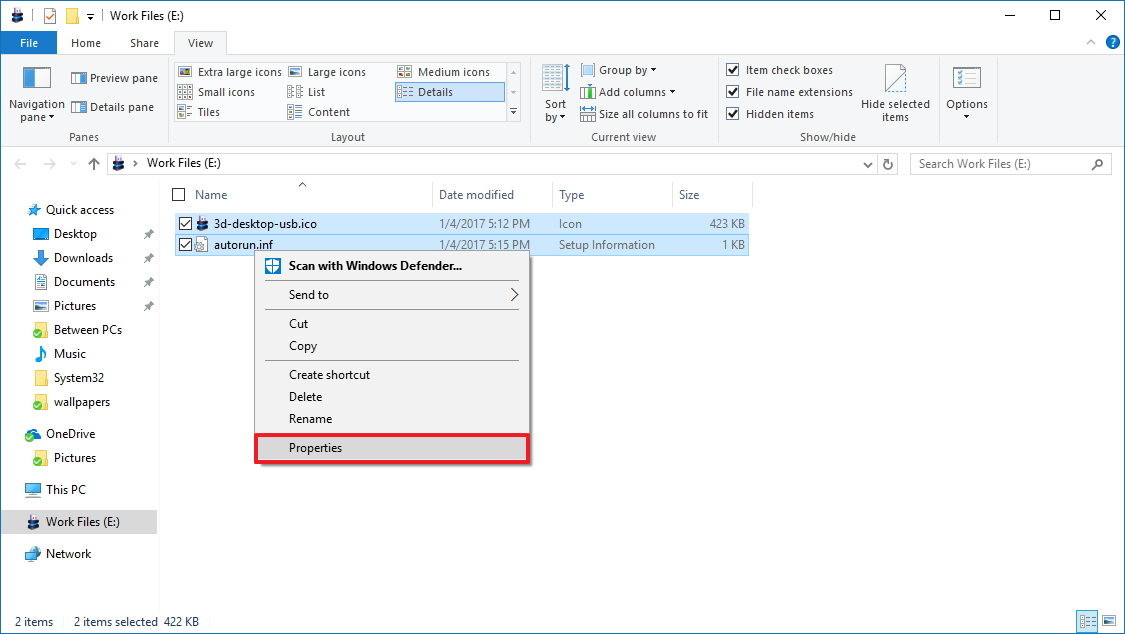
<p style="text-align: justify;">10. Chọn tập tin<strong>&nbsp;autorun.inf</strong>&nbsp;và tập tin&nbsp;<strong>icon</strong>.</p>

<p style="text-align: justify;">11. Kích chuột phải vào đó và chọn&nbsp;<strong>Properties</strong>.</p>

<p style="text-align: justify;"><img alt="Chọn Properties" data-i="3" data-src="https://st.quantrimang.com/photos/image/2017/01/10/Properties.jpg" data-was-processed="true" height="366" src="https://st.quantrimang.com/photos/image/2017/01/10/Properties.jpg" title="Chọn Properties" width="650" /></p>

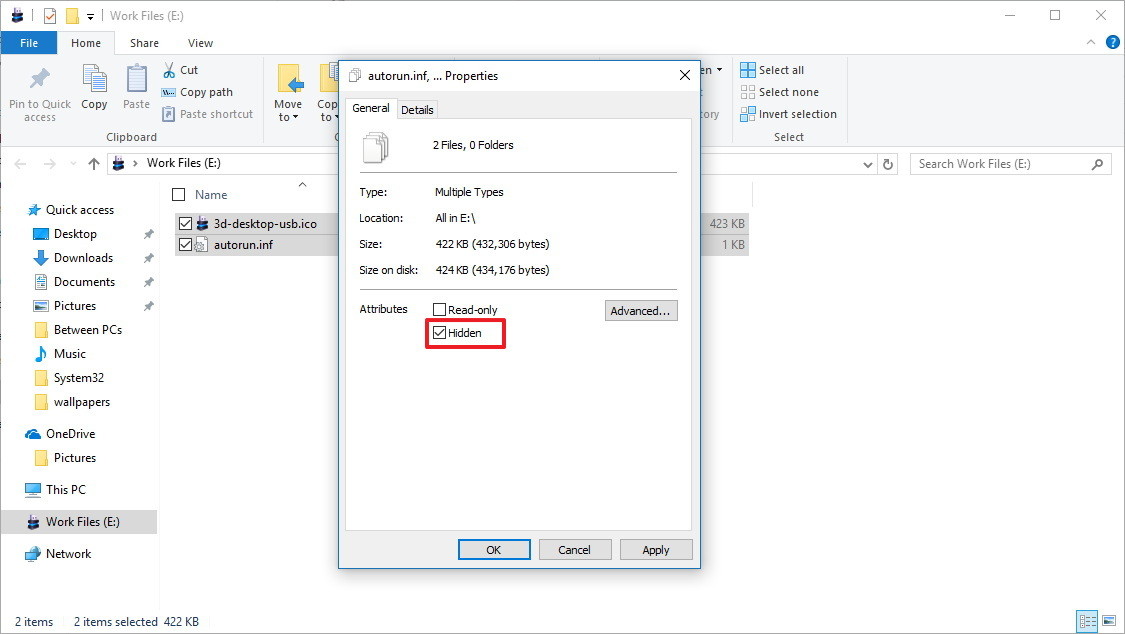
<p style="text-align: justify;">12. Trên cửa sổ Properties, tại mục&nbsp;<strong>Attributes</strong>, đánh tích chọn tùy chọn&nbsp;<strong>Hidden&nbsp;</strong>để ẩn các tập tin quan trọng trong ổ đĩa và bạn không xóa nhầm các tập tin đó đi.</p>

<p style="text-align: justify;"><img alt="Đánh tích chọn tùy chọn Hidden" data-i="4" data-src="https://st.quantrimang.com/photos/image/2017/01/10/Hidden.jpg" data-was-processed="true" height="366" src="https://st.quantrimang.com/photos/image/2017/01/10/Hidden.jpg" title="Đánh tích chọn tùy chọn Hidden" width="650" /></p>

<p style="text-align: justify;">13. Click chọn&nbsp;<strong>Apply</strong>.</p>

<p style="text-align: justify;">14. Click chọn&nbsp;<strong>OK</strong>&nbsp;để hoàn tất quá trình.</p>

<p style="text-align: justify;">Sau khi đã hoàn tất các bước, tiến hành ngắt kết nối ổ cứng di động đang kết nối với máy tính của bạn, sau đó tiến hành chèn lại ổ USB. Và trên&nbsp;<strong>File Explorer</strong>&nbsp;bạn sẽ nhìn thấy biểu tượng và tên mới cho ổ cứng di động của bạn.</p>

<div style="text-align: justify;">&nbsp;</div>

<h2 style="text-align: justify;">(Tùy chọn) Ẩn các file Drive.ico và autorun.inf</h2>

<p style="text-align: justify;">Cả hai file Drive.ico và autorun.inf đều có thể gây mất tập trung. Bạn có thể ẩn chúng để chúng không xuất hiện cùng với các file hoặc thư mục khác trong ổ USB nữa.</p>

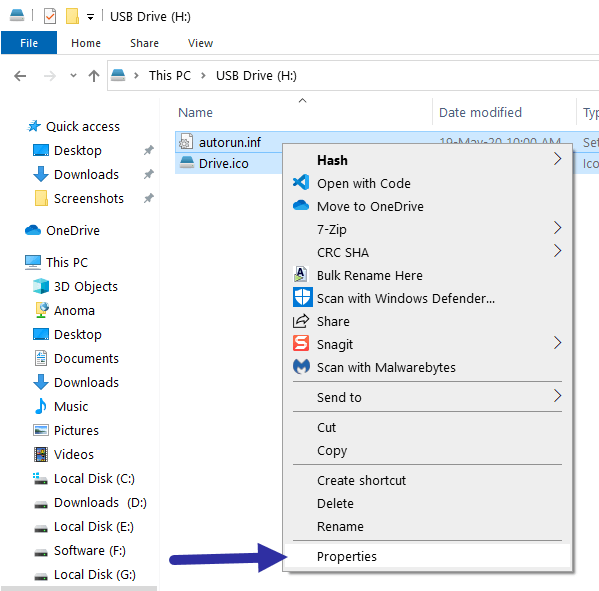
<p style="text-align: justify;">1. Chọn cả hai file&nbsp;<strong>Drive.ico</strong>&nbsp;và&nbsp;<strong>autorun.inf</strong>, nhấp chuột phải vào chúng và chọn&nbsp;<strong>Properties.</strong></p>

<figure>
<div style="text-align: justify;"><img alt="Chọn cả hai file Drive.ico và autorun.inf, nhấp chuột phải và chọn Properties" data-i="5" data-src="https://st.quantrimang.com/photos/image/2020/06/01/thay-doi-bieu-tuong-windows-1.png" data-was-processed="true" height="591" src="https://st.quantrimang.com/photos/image/2020/06/01/thay-doi-bieu-tuong-windows-1.png" width="599" /></div>

<figcaption>
<div style="text-align: justify;">Chọn cả hai file Drive.ico và autorun.inf, nhấp chuột phải và chọn Properties</div>
</figcaption>
</figure>

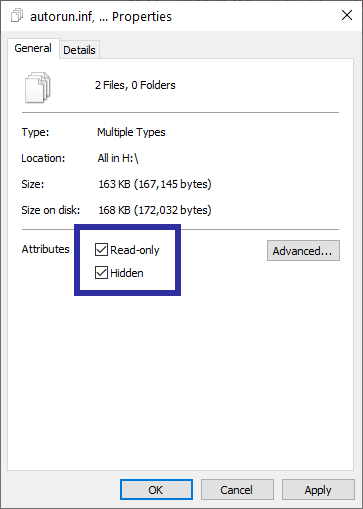
<p style="text-align: justify;">2. Trong cửa sổ&nbsp;<strong>Properties</strong>, chọn hộp kiểm&nbsp;<strong>Read-only</strong>&nbsp;và&nbsp;<strong>Hidden.</strong></p>

<p style="text-align: justify;">3. Nhấp vào nút&nbsp;<strong>Apply &gt; OK</strong>&nbsp;để lưu các thay đổi.</p>

<figure>
<div style="text-align: justify;"><img alt="Nhấp vào nút Apply &gt; OK để lưu các thay đổi" data-i="6" data-src="https://st.quantrimang.com/photos/image/2020/06/01/thay-doi-bieu-tuong-windows-2.png" data-was-processed="true" height="509" src="https://st.quantrimang.com/photos/image/2020/06/01/thay-doi-bieu-tuong-windows-2.png" width="363" /></div>

<figcaption>
<div style="text-align: justify;">Nhấp vào nút Apply &gt; OK để lưu các thay đổi</div>
</figcaption>
</figure>

<p style="text-align: justify;">Thế là xong! Cả hai file này hiện đang bị ẩn. Nếu bạn muốn xem chúng, hãy chuyển đến tab&nbsp;<strong>View</strong>&nbsp;và chọn hộp kiểm&nbsp;<strong>Hidden files.</strong></p>

<h2 style="text-align: justify;">Khôi phục biểu tượng ổ USB mặc định</h2>

<p style="text-align: justify;">Nếu không còn muốn sử dụng biểu tượng tùy chỉnh nữa, bạn có thể khôi phục biểu tượng mặc định bằng cách xóa các file&nbsp;<strong>Drive.ico</strong>&nbsp;và&nbsp;<strong>autorun.inf.</strong></p>

<p style="text-align: justify;">1. Cắm USB vào và mở nó.</p>

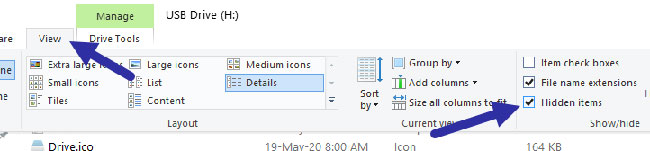
<p style="text-align: justify;">2. Chuyển đến tab&nbsp;<strong>View</strong>&nbsp;và chọn hộp kiểm&nbsp;<strong>Hidden files.</strong></p>

<figure>
<div style="text-align: justify;"><img alt="Chuyển đến tab View và chọn hộp kiểm Hidden files" data-i="7" data-src="https://st.quantrimang.com/photos/image/2020/06/01/thay-doi-bieu-tuong-windows-3.jpg" data-was-processed="true" height="151" src="https://st.quantrimang.com/photos/image/2020/06/01/thay-doi-bieu-tuong-windows-3.jpg" width="650" /></div>

<figcaption>
<div style="text-align: justify;">Chuyển đến tab View và chọn hộp kiểm Hidden files</div>
</figcaption>
</figure>

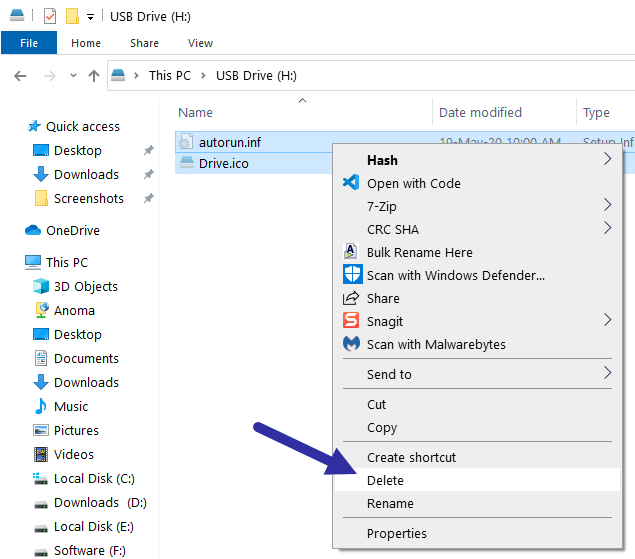
<p style="text-align: justify;">3. Điều này sẽ hiển thị các file ẩn. Chọn cả hai file&nbsp;<strong>Drive.ico</strong>&nbsp;và&nbsp;<strong>autorun.inf</strong>, nhấp chuột phải vào chúng và chọn tùy chọn&nbsp;<strong>Delete.</strong></p>

<figure>
<div style="text-align: justify;"><img alt="Chọn cả hai file Drive.ico và autorun.inf, nhấp chuột phải vào chúng và chọn tùy chọn Delete" data-i="8" data-src="https://st.quantrimang.com/photos/image/2020/06/01/thay-doi-bieu-tuong-windows-4.png" data-was-processed="true" height="559" src="https://st.quantrimang.com/photos/image/2020/06/01/thay-doi-bieu-tuong-windows-4.png" width="635" /></div>

<figcaption>
<div style="text-align: justify;">Chọn cả hai file Drive.ico và autorun.inf, nhấp chuột phải vào chúng và chọn tùy chọn Delete</div>
</figcaption>
</figure>

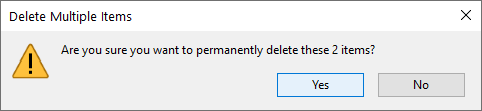
<p style="text-align: justify;">4. Bạn sẽ thấy một cảnh báo, nhấp vào&nbsp;<strong>Yes.</strong></p>

<figure>
<div style="text-align: justify;"><img alt="Khi thấy một cảnh báo, hãy nhấp vào Yes" data-i="9" data-src="https://st.quantrimang.com/photos/image/2020/06/01/thay-doi-bieu-tuong-windows-5.png" data-was-processed="true" height="111" src="https://st.quantrimang.com/photos/image/2020/06/01/thay-doi-bieu-tuong-windows-5.png" width="482" /></div>

<figcaption>
<div style="text-align: justify;">Khi thấy một cảnh báo, hãy nhấp vào Yes</div>
</figcaption>
</figure>

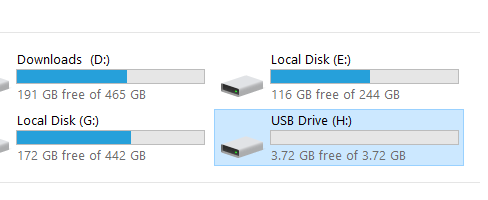
<p style="text-align: justify;">Sau khi xóa các file này, hãy chèn lại USB vào và bạn sẽ thấy biểu tượng ổ đĩa mặc định thay vì biểu tượng tùy chỉnh.</p>

<figure>
<div style="text-align: justify;"><img alt="Bạn sẽ thấy biểu tượng ổ đĩa mặc định sau khi chèn lại USB vào máy tính" data-i="10" data-src="https://st.quantrimang.com/photos/image/2020/06/01/thay-doi-bieu-tuong-windows-6.png" data-was-processed="true" height="200" src="https://st.quantrimang.com/photos/image/2020/06/01/thay-doi-bieu-tuong-windows-6.png" width="488" /></div>

<figcaption>
<div style="text-align: justify;">Bạn sẽ thấy biểu tượng ổ đĩa mặc định sau khi chèn lại USB vào máy tính</div>
</figcaption>
</figure>
		</div>
				<div id="author">
						<p>
				<strong>Nguồn tin:</strong>
				Quantrimang.com
			</p>
		</div>
	</div>
	<div id="footer" class="clearfix">
		<div id="url">
			<strong>URL của bản tin này: </strong><a href="https://www.nguoicodonvn2008.info/vi/news/savefile/kien-thuc-may-tinh/thiet-lap-bieu-tuong-tuy-chinh-cho-o-cung-di-dong-tren-windows-10-2141.html" title="Thiết lập biểu tượng tùy chỉnh cho ổ cứng di động trên Windows 10">https://www.nguoicodonvn2008.info/vi/news/savefile/kien-thuc-may-tinh/thiet-lap-bieu-tuong-tuy-chinh-cho-o-cung-di-dong-tren-windows-10-2141.html</a>

		</div>
		<div class="clear"></div>
		<div class="copyright">
			&copy; .&#x3A; Nguoicodonvn2008.info - Cõi lòng người cô đơn &#x3A;.
		</div>
		<div id="contact">
			<a href="mailto:admin@nguoicodonvn2008.info">admin@nguoicodonvn2008.info</a>
		</div>
	</div>
</div>
        <div id="timeoutsess" class="chromeframe">
            Bạn đã không sử dụng Site, <a onclick="timeoutsesscancel();" href="https://nguoicodonvn2008.info/#">Bấm vào đây để duy trì trạng thái đăng nhập</a>. Thời gian chờ: <span id="secField"> 60 </span> giây
        </div>
        <div id="openidResult" class="nv-alert" style="display:none"></div>
        <div id="openidBt" data-result="" data-redirect=""></div>
		</script>
		<div class="car-top">
  <span><img src="https://nguoicodonvn2008.info/themes/default/images/car.png" alt=""></span>
</div>
<div id="run_cronjobs" style="visibility:hidden;display:none;"><img alt="cron" src="/index.php?second=cronjobs&amp;p=a4m8CaMJ" width="1" height="1" /></div>
<script src="https://nguoicodonvn2008.info/assets/js/jquery/jquery.min.js"></script>
<script>var nv_base_siteurl="/",nv_lang_data="vi",nv_lang_interface="vi",nv_name_variable="nv",nv_fc_variable="op",nv_lang_variable="language",nv_module_name="news",nv_func_name="savefile",nv_is_user=0, nv_my_ofs=-4,nv_my_abbr="EDT",nv_cookie_prefix="nv4c_e856T",nv_check_pass_mstime=1738000,nv_area_admin=0,nv_safemode=0,theme_responsive=0,nv_recaptcha_ver=2,nv_recaptcha_sitekey="",nv_recaptcha_type="image",XSSsanitize=1;</script>
<script src="https://nguoicodonvn2008.info/assets/js/language/vi.js"></script>
<script src="https://nguoicodonvn2008.info/assets/js/DOMPurify/purify3.js"></script>
<script src="https://nguoicodonvn2008.info/assets/js/global.js"></script>
<script src="https://nguoicodonvn2008.info/assets/js/site.js"></script>
<script src="https://nguoicodonvn2008.info/themes/default/js/news.js"></script>
<script src="https://nguoicodonvn2008.info/themes/default/js/main.js"></script>
<script src="https://nguoicodonvn2008.info/themes/default/js/custom.js"></script>
<script type="application/ld+json">
        {
            "@context": "https://schema.org",
            "@type": "Organization",
            "url": "https://nguoicodonvn2008.info",
            "logo": "https://nguoicodonvn2008.info/uploads/angel.gif"
        }
        </script>
<script src="https://nguoicodonvn2008.info/themes/default/js/bootstrap.min.js"></script>
<script type="text/javascript">
var $scrolltop = $('.car-top');
$scrolltop.on('click', function () {
    $('html,body').animate({
        scrollTop: 0
    }, 800);
    $(this).addClass("car-run");
    setTimeout(function(){ $scrolltop.removeClass('car-run');}, 1000);
    return false;
});
$(window).on('scroll', function ()
{ 
    if($(window).scrollTop() >= 200)
    {
        $scrolltop.addClass("show");
        $scrolltop.addClass("car-down");
    }
    else
    {
       $scrolltop.removeClass("show");
       setTimeout(function(){ $scrolltop.removeClass('car-down');}, 300);
    }
});
</script>
</body>
</html>