<!DOCTYPE html>
    <html lang="vi" xmlns="http://www.w3.org/1999/xhtml" prefix="og: http://ogp.me/ns#">
    <head>
<title>Thay đổi template thư mục trong Windows 10 Công nghệ  Hệ thống  Windows 10</title>
<meta name="description" content="Thay đổi template thư mục trong Windows 10 Công nghệ Hệ thống Windows 10 - Savefile - Tin Tức -...">
<meta name="author" content=".: Nguoicodonvn2008.info - Cõi lòng người cô đơn :.">
<meta name="copyright" content=".: Nguoicodonvn2008.info - Cõi lòng người cô đơn :. [admin@nguoicodonvn2008.info]">
<meta name="robots" content="index, archive, follow, noodp">
<meta name="googlebot" content="index,archive,follow,noodp">
<meta name="msnbot" content="all,index,follow">
<meta name="generator" content="NukeViet v4.5">
<meta http-equiv="Content-Type" content="text/html; charset=utf-8">
<meta property="og:title" content="Thay đổi template thư mục trong Windows 10 Công nghệ  Hệ thống  Windows 10">
<meta property="og:type" content="website">
<meta property="og:description" content="Savefile - Tin Tức -...">
<meta property="og:site_name" content=".&#x3A; Nguoicodonvn2008.info - Cõi lòng người cô đơn &#x3A;.">
<meta property="og:url" content="https://www.nguoicodonvn2008.info/vi/news/savefile/kien-thuc-may-tinh/thay-doi-template-thu-muc-trong-windows-10-cong-nghe-he-thong-windows-10-1708.html">
<link rel="shortcut icon" href="https://nguoicodonvn2008.info/favicon.ico">
<link rel="canonical" href="https://www.nguoicodonvn2008.info/vi/news/savefile/kien-thuc-may-tinh/thay-doi-template-thu-muc-trong-windows-10-cong-nghe-he-thong-windows-10-1708.html">
<link rel="alternate" href="https://nguoicodonvn2008.info/vi/news/rss/" title="Tin Tức" type="application/rss+xml">
<link rel="alternate" href="https://nguoicodonvn2008.info/vi/news/rss/karaoke-dual/" title="Tin Tức - Karaoke Dual" type="application/rss+xml">
<link rel="alternate" href="https://nguoicodonvn2008.info/vi/news/rss/nhac-tre/" title="Tin Tức - Nhạc trẻ" type="application/rss+xml">
<link rel="alternate" href="https://nguoicodonvn2008.info/vi/news/rss/tru-tinh/" title="Tin Tức - Trữ tình" type="application/rss+xml">
<link rel="alternate" href="https://nguoicodonvn2008.info/vi/news/rss/nuoc-ngoai/" title="Tin Tức - Nước ngoài" type="application/rss+xml">
<link rel="alternate" href="https://nguoicodonvn2008.info/vi/news/rss/remix/" title="Tin Tức - Remix" type="application/rss+xml">
<link rel="alternate" href="https://nguoicodonvn2008.info/vi/news/rss/tam-su-tinh-yeu/" title="Tin Tức - Tâm sự tình yêu" type="application/rss+xml">
<link rel="alternate" href="https://nguoicodonvn2008.info/vi/news/rss/tho-suu-tam/" title="Tin Tức - Thơ sưu tầm" type="application/rss+xml">
<link rel="alternate" href="https://nguoicodonvn2008.info/vi/news/rss/cuoc-song/" title="Tin Tức - Cuộc sống" type="application/rss+xml">
<link rel="alternate" href="https://nguoicodonvn2008.info/vi/news/rss/phan-mem/" title="Tin Tức - Phần mềm" type="application/rss+xml">
<link rel="alternate" href="https://nguoicodonvn2008.info/vi/news/rss/kien-thuc-may-tinh/" title="Tin Tức - Kiến thức máy tính" type="application/rss+xml">
<link rel="alternate" href="https://nguoicodonvn2008.info/vi/news/rss/hoc-tap/" title="Tin Tức - Học tập" type="application/rss+xml">
<link rel="alternate" href="https://nguoicodonvn2008.info/vi/news/rss/tai-lieu/" title="Tin Tức - Tài liệu" type="application/rss+xml">
<link rel="alternate" href="https://nguoicodonvn2008.info/vi/news/rss/de-thi/" title="Tin Tức - Đề thi" type="application/rss+xml">
<link rel="preload" as="style" href="https://nguoicodonvn2008.info/assets/css/font-awesome.min.css" type="text/css">
<link rel="preload" as="style" href="https://nguoicodonvn2008.info/themes/default/css/bootstrap.non-responsive.css" type="text/css">
<link rel="preload" as="style" href="https://nguoicodonvn2008.info/themes/default/css/style.css" type="text/css">
<link rel="preload" as="style" href="https://nguoicodonvn2008.info/themes/default/css/style.non-responsive.css" type="text/css">
<link rel="preload" as="style" href="https://nguoicodonvn2008.info/themes/default/css/news.css" type="text/css">
<link rel="preload" as="style" href="https://nguoicodonvn2008.info/themes/default/css/custom.css" type="text/css">
<link rel="preload" as="script" href="https://nguoicodonvn2008.info/assets/js/jquery/jquery.min.js" type="text/javascript">
<link rel="preload" as="script" href="https://nguoicodonvn2008.info/assets/js/language/vi.js" type="text/javascript">
<link rel="preload" as="script" href="https://nguoicodonvn2008.info/assets/js/DOMPurify/purify3.js" type="text/javascript">
<link rel="preload" as="script" href="https://nguoicodonvn2008.info/assets/js/global.js" type="text/javascript">
<link rel="preload" as="script" href="https://nguoicodonvn2008.info/assets/js/site.js" type="text/javascript">
<link rel="preload" as="script" href="https://nguoicodonvn2008.info/themes/default/js/news.js" type="text/javascript">
<link rel="preload" as="script" href="https://nguoicodonvn2008.info/themes/default/js/main.js" type="text/javascript">
<link rel="preload" as="script" href="https://nguoicodonvn2008.info/themes/default/js/custom.js" type="text/javascript">
<link rel="preload" as="script" href="https://nguoicodonvn2008.info/themes/default/js/bootstrap.min.js" type="text/javascript">
<link rel="stylesheet" href="https://nguoicodonvn2008.info/assets/css/font-awesome.min.css">
<link rel="stylesheet" href="https://nguoicodonvn2008.info/themes/default/css/bootstrap.non-responsive.css">
<link rel="stylesheet" href="https://nguoicodonvn2008.info/themes/default/css/style.css">
<link rel="stylesheet" href="https://nguoicodonvn2008.info/themes/default/css/style.non-responsive.css">
<link rel="StyleSheet" href="https://nguoicodonvn2008.info/themes/default/css/news.css">
<link rel="stylesheet" href="https://nguoicodonvn2008.info/themes/default/css/custom.css">
<style type="text/css">
	body{background: #fff;}
</style>
    </head>
    <body>
<div id="print">
	<div id="hd_print">
		<h2 class="pull-left">.&#x3A; Nguoicodonvn2008.info - Cõi lòng người cô đơn &#x3A;.</h2>
		<p class="pull-right"><a title=".&#x3A; Nguoicodonvn2008.info - Cõi lòng người cô đơn &#x3A;." href="https://nguoicodonvn2008.info/">https://nguoicodonvn2008.info</a></p>
	</div>
	<div class="clear"></div>
	<hr />
	<div id="content">
		<h1>Thay đổi template thư mục trong Windows 10 Công nghệ  Hệ thống  Windows 10</h1>
		<ul class="list-inline">
			<li>Thứ sáu - 21/02/2020 23:58</li>
			<li class="hidden-print txtrequired"><em class="fa fa-print">&nbsp;</em><a title="In ra" href="javascript:;" onclick="window.print()">In ra</a></li>
			<li class="hidden-print txtrequired"><em class="fa fa-power-off">&nbsp;</em><a title="Đóng cửa sổ này" href="javascript:;" onclick="window.close()">Đóng cửa sổ này</a></li>
		</ul>
		<div class="clear"></div>
		<div id="hometext">
		</div>
				<div class="imghome">
			<img alt="Thay đổi template thư mục trong Windows 10 Công nghệ  Hệ thống  Windows 10" src="https://st.quantrimang.com/photos/image/2020/02/21/doi-template-thu-muc-wins-10-1.jpg" width="460" class="img-thumbnail" />
		</div>
		<div class="clear"></div>
		<div id="bodytext" class="clearfix">
			<p style="text-align: justify;">Windows 10&nbsp;bao gồm 5 template tích hợp mà bạn có thể chọn để tối ưu hóa chế độ xem ổ, thư mục và thư viện cho&nbsp;<strong>General Items, Documents, Pictures, Music</strong>&nbsp;hoặc<strong>&nbsp;Videos</strong>.</p>

<p style="text-align: justify;">Khi sử dụng một template, bạn vẫn có thể tùy chỉnh thêm chế độ xem theo cách bạn muốn.</p>

<p style="text-align: justify;">Hướng dẫn này sẽ chỉ cho bạn cách tối ưu template ổ, thư mục hoặc thư viện cho&nbsp;<strong>General Items, Documents, Pictures, Music</strong>&nbsp;hoặc<strong>&nbsp;Videos</strong>&nbsp;trong Windows 10.</p>

<h2 style="text-align: justify;">TÙY CHỌN 1: Thay đổi template của ổ hoặc thư mục</h2>

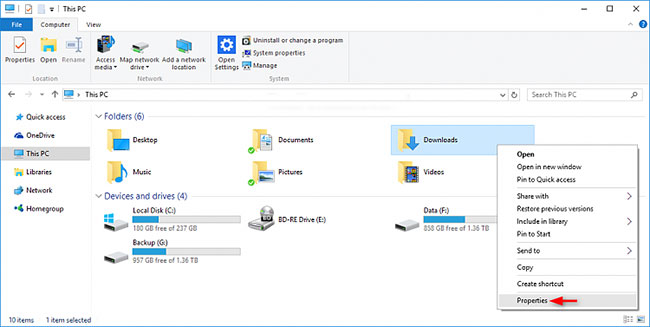
<p style="text-align: justify;">1. Mở File Explorer (<code>Win</code>+<code>E</code>) và thực hiện bước 2 hoặc bước 3 bên dưới tùy thuộc vào cách bạn muốn mở trang thuộc tính của ổ hoặc thư mục.</p>

<p style="text-align: justify;">2. Nhấp chuột phải hoặc nhấn và giữ trên một ổ (trừ ổ Windows) hoặc thư mục mà bạn muốn thay đổi template, nhấp vào&nbsp;<strong>Properties</strong>&nbsp;và chuyển đến bước 4 bên dưới.</p>

<figure>
<div style="text-align: justify;"><img alt="Nhấp vào Properties" data-i="0" data-src="https://st.quantrimang.com/photos/image/2020/02/21/doi-template-thu-muc-wins-10-1.jpg" data-was-processed="true" height="327" src="https://st.quantrimang.com/photos/image/2020/02/21/doi-template-thu-muc-wins-10-1.jpg" width="650" /></div>

<figcaption>
<div style="text-align: justify;">Nhấp vào Properties</div>
</figcaption>
</figure>

<p style="text-align: justify;">3. Mở một ổ (trừ ổ Windows) hoặc thư mục mà bạn muốn thay đổi template, nhấp chuột phải hoặc nhấn và giữ trên một vùng trống của cửa sổ chính, nhấp vào&nbsp;<strong>Customize this folder</strong>&nbsp;và đi đến bước 4 bên dưới.</p>

<figure>
<div style="text-align: justify;">https://st.quantrimang.com/photos/image/2020/02/21/doi-template-thu-muc-wins-10-2.jpg</div>

<figcaption>
<div style="text-align: justify;">Nhấp vào Customize this folder</div>
</figcaption>
</figure>

<p style="text-align: justify;">4. Nhấp vào tab&nbsp;<strong>Customize</strong>, chọn template trong menu drop-down&nbsp;<strong>Optimize this folder for</strong>&nbsp;và nhấn&nbsp;<strong>OK.</strong></p>

<p style="text-align: justify;"><strong>Lưu ý</strong>: Bạn cũng có thể tích vào hộp&nbsp;<strong>Also apply this template to all subfolders</strong>, nếu muốn nhanh chóng áp dụng template đã chọn cho tất cả các thư mục con.</p>

<div style="text-align: justify;">&nbsp;</div>

<h2 style="text-align: justify;">TÙY CHỌN 2: Thay đổi template của thư viện</h2>

<p style="text-align: justify;">Tất cả các thư mục được thêm vào trong thư viện đều có chung cài đặt chế độ xem, vì vậy khi bạn thay đổi template của thư viện, nó sẽ được áp dụng cho tất cả các thư mục trong thư viện.</p>

<p style="text-align: justify;">1. Mở File Explorer (<code>Win</code>+<code>E</code>) và thực hiện bước 2 hoặc bước 3 bên dưới, tùy thuộc vào cách bạn muốn thay đổi template của thư viện.</p>

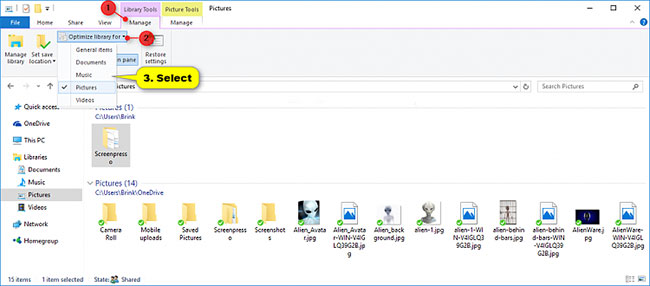
<p style="text-align: justify;">2. Để thay đổi template thư viện trong ribbon, chọn hoặc mở thư viện (ví dụ:&nbsp;<strong>Pictures</strong>) mà bạn muốn thay đổi template, nhấn vào tab&nbsp;<strong>Library Tools Manage</strong>&nbsp;và chọn template trong menu drop-down&nbsp;<strong>Optimize library for</strong>&nbsp;trên ribbon.</p>

<figure>
<div style="text-align: justify;"><img alt="Chọn template trong menu drop-down Optimize library for" data-i="2" data-src="https://st.quantrimang.com/photos/image/2020/02/21/doi-template-thu-muc-wins-10-3.jpg" data-was-processed="true" height="286" src="https://st.quantrimang.com/photos/image/2020/02/21/doi-template-thu-muc-wins-10-3.jpg" width="650" /></div>

<figcaption>
<div style="text-align: justify;">Chọn template trong menu drop-down Optimize library for</div>
</figcaption>
</figure>

<p style="text-align: justify;">3. Để thay đổi template thư viện trong phần thuộc tính:</p>

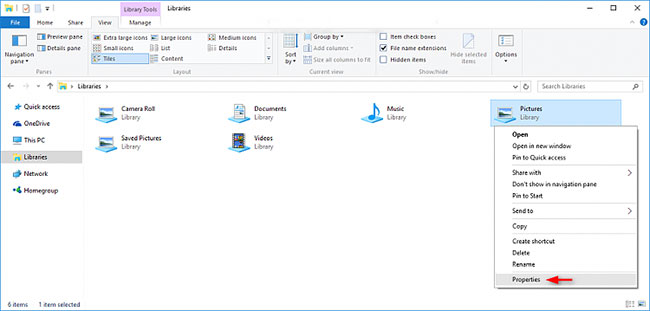
<p style="text-align: justify;">A) Nhấp chuột phải hoặc nhấn và giữ vào thư viện (ví dụ:&nbsp;<strong>Pictures</strong>) mà bạn muốn thay đổi template và nhấp vào&nbsp;<strong>Properties.</strong></p>

<figure>
<div style="text-align: justify;"><img alt="Nhấp chuột phải hoặc nhấn và giữ vào thư viện" data-i="3" data-src="https://st.quantrimang.com/photos/image/2020/02/21/doi-template-thu-muc-wins-10-4.jpg" data-was-processed="true" height="311" src="https://st.quantrimang.com/photos/image/2020/02/21/doi-template-thu-muc-wins-10-4.jpg" width="650" /></div>

<figcaption>
<div style="text-align: justify;">Nhấp chuột phải hoặc nhấn và giữ vào thư viện</div>
</figcaption>
</figure>

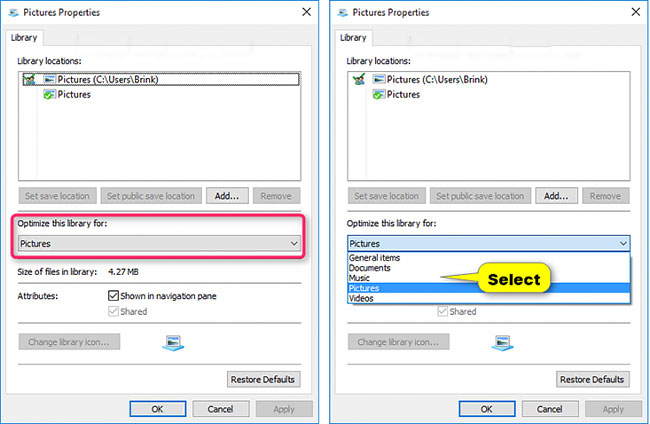
<p style="text-align: justify;">B) Chọn một template trong menu drop-down&nbsp;<strong>Optimize this library for</strong>&nbsp;và nhấn&nbsp;<strong>OK.</strong></p>

<figure>
<div style="text-align: justify;"><img alt="Chọn một template trong menu drop-down Optimize this library for" data-i="4" data-src="https://st.quantrimang.com/photos/image/2020/02/21/doi-template-thu-muc-wins-10-5.jpg" data-was-processed="true" height="424" src="https://st.quantrimang.com/photos/image/2020/02/21/doi-template-thu-muc-wins-10-5.jpg" width="650" /></div>

<figcaption>
<div style="text-align: justify;">Chọn một template trong menu drop-down Optimize this library for</div>
</figcaption>
</figure>

<h2 style="text-align: justify;">TÙY CHỌN 3: Thay đổi template của tất cả các thư mục bằng file BAT</h2>

<p style="text-align: justify;"><strong>Lưu ý</strong>: Đặt template cho tất cả các thư mục cũng sẽ vô hiệu hóa tính năng&nbsp;<strong>Automatic Folder Type Discovery</strong>. Bạn vẫn sẽ luôn có thể thay đổi thủ công template và chế độ xem của bất kỳ thư mục nào thành bất cứ thứ gì bạn thích.</p>

<p style="text-align: justify;">Tính năng&nbsp;<strong>Automatic Folder Type Discovery</strong>&nbsp;là khi Windows tự động thay đổi template của thư mục để khớp với loại file gần nhất được thêm hoặc lưu trong thư mục. Ví dụ, nếu thư mục của bạn chứa file nhạc và bạn thêm file ảnh, thì Windows có thể thay đổi template thư mục và chế độ xem thành template&nbsp;<strong>&quot;Picture&quot;</strong>&nbsp;để khớp với file ảnh mới.</p>

<p style="text-align: justify;">1. Thực hiện bước 2 (mặc định), bước 3 (cho&nbsp;<strong>General items</strong>), bước 4 (cho&nbsp;<strong>Documents</strong>), bước 5 (cho&nbsp;<strong>Pictures</strong>), bước 6 (cho&nbsp;<strong>Music</strong>) hoặc bước 7 (cho&nbsp;<strong>Videos</strong>) bên dưới, tùy theo những gì bạn muốn làm.</p>

<p style="text-align: justify;">2. Để khôi phục template mặc định cho tất cả các thư mục,&nbsp;tải xuống file BAT này&nbsp;: <span style="color:rgb(192, 57, 43);"><strong>https://www.tenforums.com/attachments/tutorials/151593d1504371266-change-folder-template-windows-10-a-reset_folder_view_settings_of_all_folders_to_default.bat&nbsp;&nbsp;</strong></span>và chuyển đến bước 8 bên dưới.</p>

<p style="text-align: justify;"><strong>Lưu ý</strong>: Đây là thiết lập mặc định.</p>

<p style="text-align: justify;">Điều này sẽ reset lại template và chế độ xem của tất cả các thư mục trở về mặc định và kích hoạt&nbsp;<strong>Automatic Folder Type Discovery</strong>.</p>

<p style="text-align: justify;">3. Để<span style="color:rgb(39, 174, 96);"> đặt template&nbsp;<strong>General items</strong>&nbsp;làm mặc định cho tất cả các thư mục,&nbsp;tải xuống file BAT này:&nbsp;<strong>https://www.tenforums.com/attachments/tutorials/28645d1438798352-folder-template-change-windows-10-a-all_folders_use_general_items_folder_template.bat</strong>&nbsp;</span>và chuyển đến bước 8 bên dưới.&nbsp;</p>

<p style="text-align: justify;">4. Để đặt template&nbsp;<strong>Documents</strong>&nbsp;làm mặc định cho tất cả các thư mục,&nbsp;tải xuống file BAT này:&nbsp;<strong>https://www.tenforums.com/attachments/tutorials/28644d1438798352-folder-template-change-windows-10-a-all_folders_use_documents_folder_template.bat</strong>&nbsp;và chuyển đến bước 8 bên dưới.&nbsp;</p>

<p style="text-align: justify;">5. Để đặt template&nbsp;<strong>Pictures</strong>&nbsp;làm mặc định cho tất cả các thư mục,&nbsp;tải xuống file BAT này:&nbsp;<span style="color:rgb(41, 128, 185);"><strong>https://www.tenforums.com/attachments/tutorials/28647d1438798352-folder-template-change-windows-10-a-all_folders_use_pictures_folder_template.bat</strong></span>&nbsp;và chuyển đến bước 8 bên dưới.&nbsp;</p>

<p style="text-align: justify;">6. Để đặt template&nbsp;<strong>Music</strong>&nbsp;làm mặc định cho tất cả các thư mục,&nbsp;tải xuống file BAT này:<strong><span style="color:rgb(211, 84, 0);">&nbsp;https://www.tenforums.com/attachments/tutorials/28646d1438798352-folder-template-change-windows-10-a-all_folders_use_music_folder_template.bat</span></strong>&nbsp;và chuyển đến bước 8 bên dưới.&nbsp;</p>

<p style="text-align: justify;">7. Để đặt template Videos làm mặc định cho tất cả các thư mục,&nbsp;tải xuống file BAT này:&nbsp;<span style="color:rgb(192, 57, 43);"><strong>https://www.tenforums.com/attachments/tutorials/28648d1438798352-folder-template-change-windows-10-a-all_folders_use_videos_folder_template.bat</strong></span>&nbsp;và chuyển đến bước 8 bên dưới.&nbsp;</p>

<p style="text-align: justify;">8. Lưu file .bat vào desktop và chạy file này.</p>

<p style="text-align: justify;">9. Bỏ chặn file .bat và chạy nó.</p>

<p style="text-align: justify;">10. Bây giờ bạn sẽ thấy màn hình nhấp nháy. Một&nbsp;Command Prompt&nbsp;nhanh chóng mở và đóng khi Explorer được khởi động lại để áp dụng các thay đổi.</p>

<p style="text-align: justify;">11. Khi hoàn tất, bạn có thể xóa file .bat đã tải xuống nếu muốn.</p>
		</div>
				<div id="author">
						<p>
				<strong>Nguồn tin:</strong>
				Quantrimang.com
			</p>
		</div>
	</div>
	<div id="footer" class="clearfix">
		<div id="url">
			<strong>URL của bản tin này: </strong><a href="https://www.nguoicodonvn2008.info/vi/news/savefile/kien-thuc-may-tinh/thay-doi-template-thu-muc-trong-windows-10-cong-nghe-he-thong-windows-10-1708.html" title="Thay đổi template thư mục trong Windows 10 Công nghệ  Hệ thống  Windows 10">https://www.nguoicodonvn2008.info/vi/news/savefile/kien-thuc-may-tinh/thay-doi-template-thu-muc-trong-windows-10-cong-nghe-he-thong-windows-10-1708.html</a>

		</div>
		<div class="clear"></div>
		<div class="copyright">
			&copy; .&#x3A; Nguoicodonvn2008.info - Cõi lòng người cô đơn &#x3A;.
		</div>
		<div id="contact">
			<a href="mailto:admin@nguoicodonvn2008.info">admin@nguoicodonvn2008.info</a>
		</div>
	</div>
</div>
        <div id="timeoutsess" class="chromeframe">
            Bạn đã không sử dụng Site, <a onclick="timeoutsesscancel();" href="https://nguoicodonvn2008.info/#">Bấm vào đây để duy trì trạng thái đăng nhập</a>. Thời gian chờ: <span id="secField"> 60 </span> giây
        </div>
        <div id="openidResult" class="nv-alert" style="display:none"></div>
        <div id="openidBt" data-result="" data-redirect=""></div>
		</script>
		<div class="car-top">
  <span><img src="https://nguoicodonvn2008.info/themes/default/images/car.png" alt=""></span>
</div>
<script src="https://nguoicodonvn2008.info/assets/js/jquery/jquery.min.js"></script>
<script>var nv_base_siteurl="/",nv_lang_data="vi",nv_lang_interface="vi",nv_name_variable="nv",nv_fc_variable="op",nv_lang_variable="language",nv_module_name="news",nv_func_name="savefile",nv_is_user=0, nv_my_ofs=-4,nv_my_abbr="EDT",nv_cookie_prefix="nv4c_e856T",nv_check_pass_mstime=1738000,nv_area_admin=0,nv_safemode=0,theme_responsive=0,nv_recaptcha_ver=2,nv_recaptcha_sitekey="",nv_recaptcha_type="image",XSSsanitize=1;</script>
<script src="https://nguoicodonvn2008.info/assets/js/language/vi.js"></script>
<script src="https://nguoicodonvn2008.info/assets/js/DOMPurify/purify3.js"></script>
<script src="https://nguoicodonvn2008.info/assets/js/global.js"></script>
<script src="https://nguoicodonvn2008.info/assets/js/site.js"></script>
<script src="https://nguoicodonvn2008.info/themes/default/js/news.js"></script>
<script src="https://nguoicodonvn2008.info/themes/default/js/main.js"></script>
<script src="https://nguoicodonvn2008.info/themes/default/js/custom.js"></script>
<script type="application/ld+json">
        {
            "@context": "https://schema.org",
            "@type": "Organization",
            "url": "https://nguoicodonvn2008.info",
            "logo": "https://nguoicodonvn2008.info/uploads/angel.gif"
        }
        </script>
<script src="https://nguoicodonvn2008.info/themes/default/js/bootstrap.min.js"></script>
<script type="text/javascript">
var $scrolltop = $('.car-top');
$scrolltop.on('click', function () {
    $('html,body').animate({
        scrollTop: 0
    }, 800);
    $(this).addClass("car-run");
    setTimeout(function(){ $scrolltop.removeClass('car-run');}, 1000);
    return false;
});
$(window).on('scroll', function ()
{ 
    if($(window).scrollTop() >= 200)
    {
        $scrolltop.addClass("show");
        $scrolltop.addClass("car-down");
    }
    else
    {
       $scrolltop.removeClass("show");
       setTimeout(function(){ $scrolltop.removeClass('car-down');}, 300);
    }
});
</script>
</body>
</html>