<!DOCTYPE html>
    <html lang="vi" xmlns="http://www.w3.org/1999/xhtml" prefix="og: http://ogp.me/ns#">
    <head>
<title>Thay đổi kích thước biểu tượng trong Windows 10</title>
<meta name="description" content="Thay đổi kích thước biểu tượng trong Windows 10 - Savefile - Tin Tức -...">
<meta name="author" content=".: Nguoicodonvn2008.info - Cõi lòng người cô đơn :.">
<meta name="copyright" content=".: Nguoicodonvn2008.info - Cõi lòng người cô đơn :. [admin@nguoicodonvn2008.info]">
<meta name="robots" content="index, archive, follow, noodp">
<meta name="googlebot" content="index,archive,follow,noodp">
<meta name="msnbot" content="all,index,follow">
<meta name="generator" content="NukeViet v4.5">
<meta http-equiv="Content-Type" content="text/html; charset=utf-8">
<meta property="og:title" content="Thay đổi kích thước biểu tượng trong Windows 10">
<meta property="og:type" content="website">
<meta property="og:description" content="Savefile - Tin Tức - https&#x3A;&#x002F;&#x002F;www.nguoicodonvn2008.info&#x002F;vi&#x002F;news&#x002F;savefile&#x002F;kien-thuc-may-tinh&#x002F;thay-doi-kich-thuoc-bieu-tuong-trong-windows-10-10552.html">
<meta property="og:site_name" content=".&#x3A; Nguoicodonvn2008.info - Cõi lòng người cô đơn &#x3A;.">
<meta property="og:url" content="https://www.nguoicodonvn2008.info/vi/news/savefile/kien-thuc-may-tinh/thay-doi-kich-thuoc-bieu-tuong-trong-windows-10-10552.html">
<link rel="shortcut icon" href="https://nguoicodonvn2008.info/favicon.ico">
<link rel="canonical" href="https://www.nguoicodonvn2008.info/vi/news/savefile/kien-thuc-may-tinh/thay-doi-kich-thuoc-bieu-tuong-trong-windows-10-10552.html">
<link rel="alternate" href="https://nguoicodonvn2008.info/vi/news/rss/" title="Tin Tức" type="application/rss+xml">
<link rel="alternate" href="https://nguoicodonvn2008.info/vi/news/rss/karaoke-dual/" title="Tin Tức - Karaoke Dual" type="application/rss+xml">
<link rel="alternate" href="https://nguoicodonvn2008.info/vi/news/rss/nhac-tre/" title="Tin Tức - Nhạc trẻ" type="application/rss+xml">
<link rel="alternate" href="https://nguoicodonvn2008.info/vi/news/rss/tru-tinh/" title="Tin Tức - Trữ tình" type="application/rss+xml">
<link rel="alternate" href="https://nguoicodonvn2008.info/vi/news/rss/nuoc-ngoai/" title="Tin Tức - Nước ngoài" type="application/rss+xml">
<link rel="alternate" href="https://nguoicodonvn2008.info/vi/news/rss/remix/" title="Tin Tức - Remix" type="application/rss+xml">
<link rel="alternate" href="https://nguoicodonvn2008.info/vi/news/rss/tam-su-tinh-yeu/" title="Tin Tức - Tâm sự tình yêu" type="application/rss+xml">
<link rel="alternate" href="https://nguoicodonvn2008.info/vi/news/rss/tho-suu-tam/" title="Tin Tức - Thơ sưu tầm" type="application/rss+xml">
<link rel="alternate" href="https://nguoicodonvn2008.info/vi/news/rss/cuoc-song/" title="Tin Tức - Cuộc sống" type="application/rss+xml">
<link rel="alternate" href="https://nguoicodonvn2008.info/vi/news/rss/phan-mem/" title="Tin Tức - Phần mềm" type="application/rss+xml">
<link rel="alternate" href="https://nguoicodonvn2008.info/vi/news/rss/kien-thuc-may-tinh/" title="Tin Tức - Kiến thức máy tính" type="application/rss+xml">
<link rel="alternate" href="https://nguoicodonvn2008.info/vi/news/rss/hoc-tap/" title="Tin Tức - Học tập" type="application/rss+xml">
<link rel="alternate" href="https://nguoicodonvn2008.info/vi/news/rss/tai-lieu/" title="Tin Tức - Tài liệu" type="application/rss+xml">
<link rel="alternate" href="https://nguoicodonvn2008.info/vi/news/rss/de-thi/" title="Tin Tức - Đề thi" type="application/rss+xml">
<link rel="preload" as="style" href="https://nguoicodonvn2008.info/assets/css/font-awesome.min.css" type="text/css">
<link rel="preload" as="style" href="https://nguoicodonvn2008.info/themes/default/css/bootstrap.non-responsive.css" type="text/css">
<link rel="preload" as="style" href="https://nguoicodonvn2008.info/themes/default/css/style.css" type="text/css">
<link rel="preload" as="style" href="https://nguoicodonvn2008.info/themes/default/css/style.non-responsive.css" type="text/css">
<link rel="preload" as="style" href="https://nguoicodonvn2008.info/themes/default/css/news.css" type="text/css">
<link rel="preload" as="style" href="https://nguoicodonvn2008.info/themes/default/css/custom.css" type="text/css">
<link rel="preload" as="script" href="https://nguoicodonvn2008.info/assets/js/jquery/jquery.min.js" type="text/javascript">
<link rel="preload" as="script" href="https://nguoicodonvn2008.info/assets/js/language/vi.js" type="text/javascript">
<link rel="preload" as="script" href="https://nguoicodonvn2008.info/assets/js/DOMPurify/purify3.js" type="text/javascript">
<link rel="preload" as="script" href="https://nguoicodonvn2008.info/assets/js/global.js" type="text/javascript">
<link rel="preload" as="script" href="https://nguoicodonvn2008.info/assets/js/site.js" type="text/javascript">
<link rel="preload" as="script" href="https://nguoicodonvn2008.info/themes/default/js/news.js" type="text/javascript">
<link rel="preload" as="script" href="https://nguoicodonvn2008.info/themes/default/js/main.js" type="text/javascript">
<link rel="preload" as="script" href="https://nguoicodonvn2008.info/themes/default/js/custom.js" type="text/javascript">
<link rel="preload" as="script" href="https://nguoicodonvn2008.info/themes/default/js/bootstrap.min.js" type="text/javascript">
<link rel="stylesheet" href="https://nguoicodonvn2008.info/assets/css/font-awesome.min.css">
<link rel="stylesheet" href="https://nguoicodonvn2008.info/themes/default/css/bootstrap.non-responsive.css">
<link rel="stylesheet" href="https://nguoicodonvn2008.info/themes/default/css/style.css">
<link rel="stylesheet" href="https://nguoicodonvn2008.info/themes/default/css/style.non-responsive.css">
<link rel="StyleSheet" href="https://nguoicodonvn2008.info/themes/default/css/news.css">
<link rel="stylesheet" href="https://nguoicodonvn2008.info/themes/default/css/custom.css">
<style type="text/css">
	body{background: #fff;}
</style>
    </head>
    <body>
<div id="print">
	<div id="hd_print">
		<h2 class="pull-left">.&#x3A; Nguoicodonvn2008.info - Cõi lòng người cô đơn &#x3A;.</h2>
		<p class="pull-right"><a title=".&#x3A; Nguoicodonvn2008.info - Cõi lòng người cô đơn &#x3A;." href="https://nguoicodonvn2008.info/">https://nguoicodonvn2008.info</a></p>
	</div>
	<div class="clear"></div>
	<hr />
	<div id="content">
		<h1>Thay đổi kích thước biểu tượng trong Windows 10</h1>
		<ul class="list-inline">
			<li>Thứ năm - 12/06/2025 23:13</li>
			<li class="hidden-print txtrequired"><em class="fa fa-print">&nbsp;</em><a title="In ra" href="javascript:;" onclick="window.print()">In ra</a></li>
			<li class="hidden-print txtrequired"><em class="fa fa-power-off">&nbsp;</em><a title="Đóng cửa sổ này" href="javascript:;" onclick="window.close()">Đóng cửa sổ này</a></li>
		</ul>
		<div class="clear"></div>
		<div id="hometext">
		</div>
				<div class="imghome">
			<img alt="Thay đổi kích thước biểu tượng trong Windows 10" src="https://st.quantrimang.com/photos/image/2019/08/27/kich-thuoc-icon-win-10-1.png" width="460" class="img-thumbnail" />
		</div>
		<div class="clear"></div>
		<div id="bodytext" class="clearfix">
			<p style="text-align: justify;">Đôi khi bạn muốn các biểu tượng trên desktop hiển thị lớn hơn để nhìn cho rõ hay muốn các tập tin ảnh hiển thị ảnh thu nhỏ lớn hơn để nhìn dễ hơn... Vậy thì với vài thao tác đơn giản dưới đây trong&nbsp;<strong>Windows 10</strong>&nbsp;bạn có thể thay đổi kích thước hiển thị của các biểu tượng, tập tin, text... trên máy tính theo nhu cầu.</p>

<h2 id="mcetoc_1dj95r4gv0" style="text-align: justify;">Thay đổi kích thước biểu tượng trên desktop</h2>

<h3 id="mcetoc_1dj95r4gv1" style="text-align: justify;">Cách 1: Thay đổi kích thước icon trên Windows 10 bằng menu content</h3>

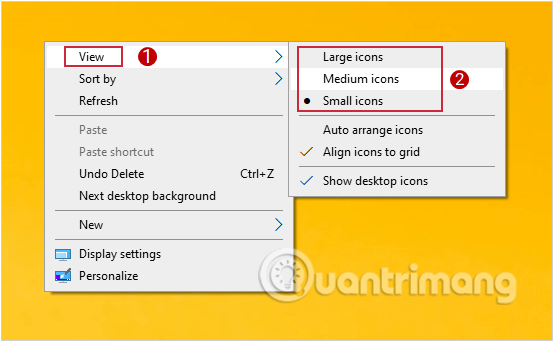
<p style="text-align: justify;">Tại màn hình desktop, các bạn click chuột phải và chọn&nbsp;<strong>View</strong>. Tại đây sẽ có 3 tuỳ chọn:</p>

<ul>
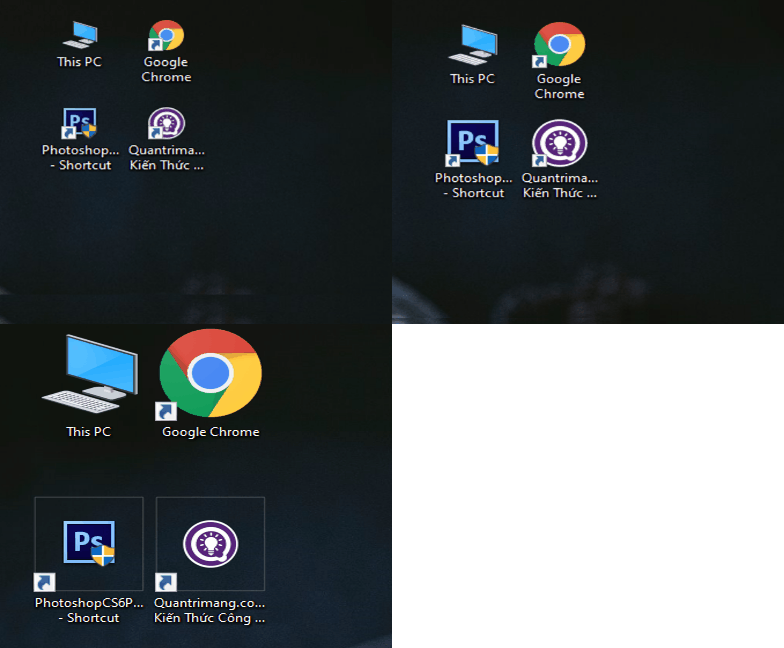
	<li style="text-align: justify;"><strong>Large icons:&nbsp;</strong>kích thước lớn.</li>
	<li style="text-align: justify;"><strong>Medium icons:&nbsp;</strong>kích thước trung bình.</li>
	<li style="text-align: justify;"><strong>Small icons:&nbsp;</strong>kích thước nhỏ.</li>
</ul>

<p style="text-align: justify;">Mặc định của Windows 10 sẽ là&nbsp;<strong>Medium icons</strong>.</p>

<figure>
<div style="text-align: justify;"><img alt="Mặc định của Windows 10 sẽ là Medium icons" data-i="0" data-src="https://st.quantrimang.com/photos/image/2019/08/27/kich-thuoc-icon-win-10-1.png" data-was-processed="true" height="342" src="https://st.quantrimang.com/photos/image/2019/08/27/kich-thuoc-icon-win-10-1.png" width="554" /></div>

<figcaption>
<div style="text-align: justify;">Mặc định của Windows 10 sẽ là Medium icons</div>
</figcaption>
</figure>

<p style="text-align: justify;">Kết quả như sau:</p>

<figure>
<div style="text-align: justify;"><img alt="3 tuỳ chọn kích thước icon trên Win 10" data-i="1" data-src="https://st.quantrimang.com/photos/image/2019/08/27/kich-thuoc-icon-win-10-4.gif" data-was-processed="true" height="324" src="https://st.quantrimang.com/photos/image/2019/08/27/kich-thuoc-icon-win-10-4.gif" width="392" /></div>

<figcaption>
<div style="text-align: justify;">3 tuỳ chọn kích thước icon trên Win 10</div>
</figcaption>
</figure>

<h3 id="mcetoc_1dj95r4gv2" style="text-align: justify;">Cách 2: Thay đổi kích thước icon trên Windows 10 sử dụng con lăn chuột</h3>

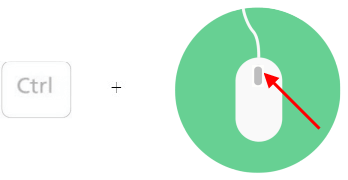
<p style="text-align: justify;">Để sử dụng con lăn chuột thay đổi kích thước các biểu tượng trên desktop, bạn thực hiện thao tác nhấn và giữ phím&nbsp;<code>Ctrl</code>&nbsp;đồng thời lăn bánh xe trên chuột máy tính để các biểu tượng thay đổi lớn nhỏ theo ý muốn.</p>

<figure>
<div style="text-align: justify;"><img alt="Sử dụng con lăn chuột thay đổi kích thước các biểu tượng trên Win 10" data-i="2" data-src="https://st.quantrimang.com/photos/image/2019/08/27/kich-thuoc-icon-win-10-3.png" data-was-processed="true" height="180" src="https://st.quantrimang.com/photos/image/2019/08/27/kich-thuoc-icon-win-10-3.png" width="348" /></div>

<figcaption>
<div style="text-align: justify;">Sử dụng con lăn chuột thay đổi kích thước các biểu tượng trên Win 10</div>
</figcaption>
</figure>

<h2 id="mcetoc_1dj95r4gv3" style="text-align: justify;">Thay đổi kích thước của các biểu tượng trên thanh Taskbar</h2>

<p style="text-align: justify;">Thông thường, các biểu tượng trên thanh taskbar phía dưới cùng màn hình rất nhỏ. Nhưng nó cũng có 2 lựa chọn size để bạn sử dụng.</p>

<p style="text-align: justify;">Để lựa chọn kích thước icon trên thanh taskbar, bạn thực hiện như sau:</p>

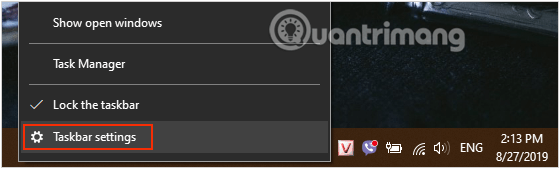
<p style="text-align: justify;"><strong>Bước 1:</strong>&nbsp;Nhấp chuột phải vào một khoảng trống trên thanh tác vụ và chọn&nbsp;<strong>Taskbar Settings.</strong></p>

<figure>
<div style="text-align: justify;"><img alt="Mở Taskbar Settings để thay đổi kích thước icon trên thanh tác vụ" data-i="3" data-src="https://st.quantrimang.com/photos/image/2019/08/27/kich-thuoc-icon-win-10-5.png" data-was-processed="true" height="169" src="https://st.quantrimang.com/photos/image/2019/08/27/kich-thuoc-icon-win-10-5.png" width="560" /></div>

<figcaption>
<div style="text-align: justify;">Mở Taskbar Settings để thay đổi kích thước icon trên thanh tác vụ</div>
</figcaption>
</figure>

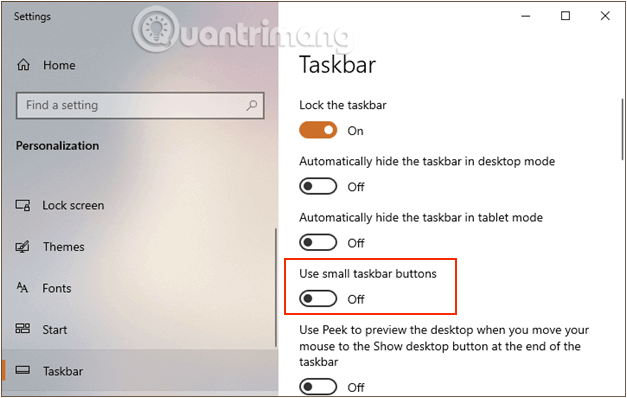
<p style="text-align: justify;"><strong>Bước 2:</strong>&nbsp;Trong cửa sổ&nbsp;<strong>Settings</strong>&nbsp;hiện ra, bạn tìm tới tùy chọn&nbsp;<strong>Use small taskbar buttons</strong>, di chuyển thanh trượt bên dưới sang bên trái nếu bạn muốn dùng icon lớn, chuyển sang phải nếu muốn sử dụng icon nhỏ.</p>

<figure>
<div style="text-align: justify;"><img alt="Sử dụng Use small taskbar buttons để thay đổi kích thước icon" data-i="4" data-src="https://st.quantrimang.com/photos/image/2019/08/27/kich-thuoc-icon-win-10-7.png" data-was-processed="true" height="398" src="https://st.quantrimang.com/photos/image/2019/08/27/kich-thuoc-icon-win-10-7.png" width="627" /></div>

<figcaption>
<div style="text-align: justify;">Sử dụng Use small taskbar buttons để thay đổi kích thước icon</div>
</figcaption>
</figure>

<p style="text-align: justify;">2 tùy chọn sẽ thay đổi như sau:</p>

<figure>
<div style="text-align: justify;"><img alt="2 lựa chọn size biểu tượng trên thanh taskbar" data-i="5" data-src="https://st.quantrimang.com/photos/image/2019/08/27/kich-thuoc-icon-win-10-6.gif" data-was-processed="true" height="61" src="https://st.quantrimang.com/photos/image/2019/08/27/kich-thuoc-icon-win-10-6.gif" width="694" /></div>

<figcaption>
<div style="text-align: justify;">2 lựa chọn size biểu tượng trên thanh taskbar</div>
</figcaption>
</figure>

<h2 id="mcetoc_1dj95r4gv4" style="text-align: justify;">Thay đổi toàn bộ kích thước các biểu tượng trên Windows 10</h2>

<p style="text-align: justify;">Trong trường hợp bạn muốn thay đổi kích thước cho tất cả các biểu tượng hiển thị Windows 10 theo ý muốn thì cách dưới đây sẽ giúp bạn. Lưu ý, phương pháp này cũng sẽ thay đổi toàn bộ kích thước của văn bản, ứng dụng và các nội dung khác trên Windows 10.</p>

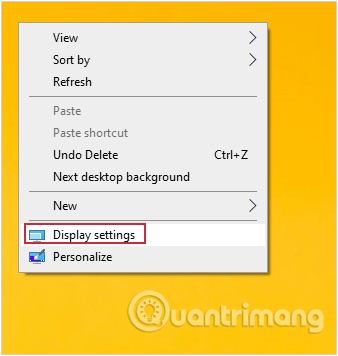
<p style="text-align: justify;"><strong>Bước 1:</strong>&nbsp;Click chuột phải tại màn hình Desktop rồi chọn&nbsp;<strong>Display Settings.</strong></p>

<figure>
<div style="text-align: justify;"><img alt="Click chuột phải tại màn hình Desktop rồi chọn Display Settings" data-i="6" data-src="https://st.quantrimang.com/photos/image/2019/08/27/kich-thuoc-icon-win-10-2.png" data-was-processed="true" height="356" src="https://st.quantrimang.com/photos/image/2019/08/27/kich-thuoc-icon-win-10-2.png" width="338" /></div>

<figcaption>
<div style="text-align: justify;">Click chuột phải tại màn hình Desktop rồi chọn Display Settings</div>
</figcaption>
</figure>

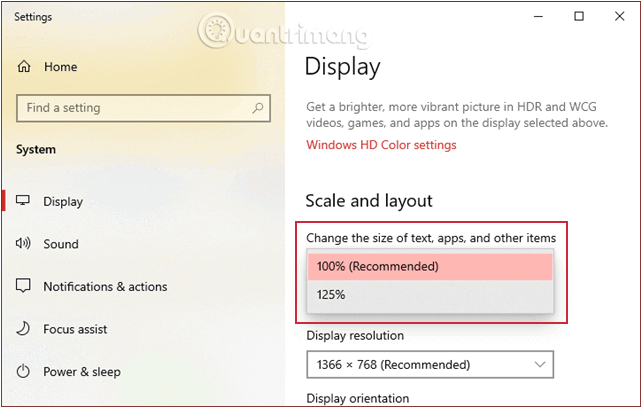
<p style="text-align: justify;"><strong>Bước 2:</strong>&nbsp;Ở cửa sổ hiện ra, bạn cuộn xuống phần&nbsp;<strong>Scale and layout</strong>, mục&nbsp;<strong>Change the size of text, app, and other items&nbsp;</strong>và click chọn tỷ lệ phần trăm ở menu thả xuống để thay đổi kích thước theo ý muốn.</p>

<figure>
<div style="text-align: justify;"><img alt="Chọn tỷ lệ phần trăm để thay đổi kích thước theo ý muốn." data-i="7" data-src="https://st.quantrimang.com/photos/image/2019/08/27/kich-thuoc-icon-win-10-8.png" data-was-processed="true" height="408" src="https://st.quantrimang.com/photos/image/2019/08/27/kich-thuoc-icon-win-10-8.png" width="642" /></div>

<figcaption>
<div style="text-align: justify;">Chọn tỷ lệ phần trăm để thay đổi kích thước theo ý muốn.</div>
</figcaption>
</figure>

<p style="text-align: justify;">Windows có thể yêu cầu bạn phải đăng xuất và đăng nhập trở lại để thay đổi được áp dụng. Thiết lập này không chỉ làm cho các biểu tượng trong thanh tác vụ lớn hơn mà nó còn áp dụng cả cho các đoạn văn bản trong một số ứng dụng như&nbsp;<strong>Microsoft Edge</strong>&nbsp;hay Calendar, và tất nhiên các cửa sổ thông báo trên Windows 10 cũng không ngoại lệ.</p>

<h2 id="mcetoc_1dj95r4gv5" style="text-align: justify;">Thay đổi kích thước của các biểu tượng trong File Explorer</h2>

<p style="text-align: justify;">Nếu bạn muốn các biểu tượng lớn hơn, nhỏ hơn hoặc hình thu nhỏ trong thư mục cụ thể ở&nbsp;<strong>File Explorer</strong>&nbsp;thì thực hiện như sau.</p>

<h3 id="mcetoc_1dj95r4gv6" style="text-align: justify;">Cách 1: Sử dụng con lăn chuột để thay đổi kích thước biểu tượng file</h3>

<p style="text-align: justify;">Truy cập vào thư mục muốn thay đổi kích thước hiển thị, bấm giữ phím&nbsp;<code><strong>Ctrl</strong></code>&nbsp;rồi sử dụng thanh cuộn của chuột để phóng to hoặc thu kích thước hiển thị của các tập tin, thư mục bên trong.</p>

<figure>
<div style="text-align: justify;"><img alt="Giữ phím Ctrl và di chuyển thanh cuộn chuột để thay đổi kích thước các biểu tượng" data-i="8" data-src="https://st.quantrimang.com/photos/image/2019/08/27/kich-thuoc-icon-win-10-9.gif" data-was-processed="true" height="302" src="https://st.quantrimang.com/photos/image/2019/08/27/kich-thuoc-icon-win-10-9.gif" width="470" /></div>

<figcaption>
<div style="text-align: justify;">Giữ phím Ctrl và di chuyển thanh cuộn chuột để thay đổi kích thước các biểu tượng</div>
</figcaption>
</figure>

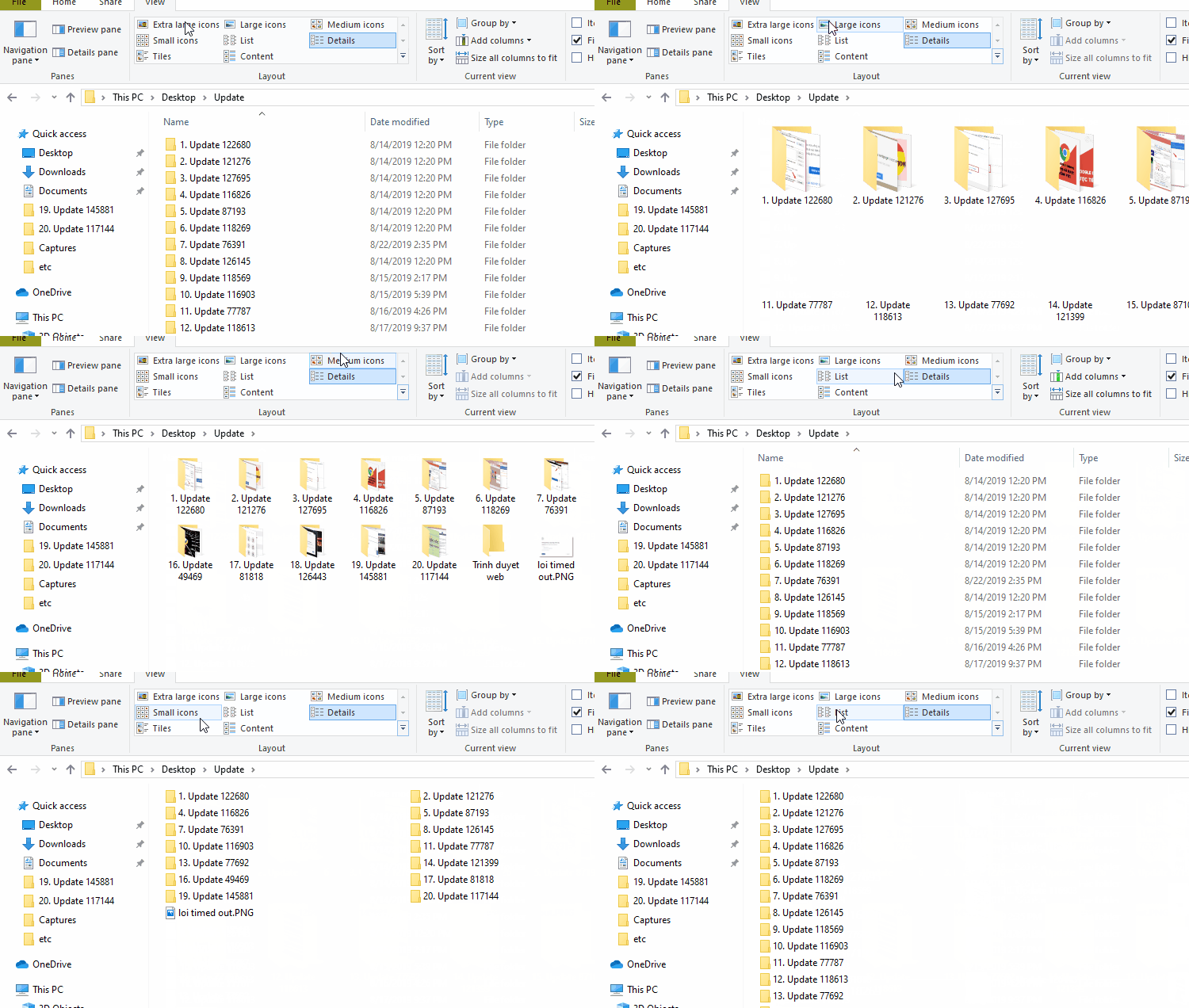
<h3 id="mcetoc_1dj95r4h07" style="text-align: justify;">Cách 2: Sử dụng tab View để thay đổi kích thước biểu tượng file Windows 10</h3>

<p style="text-align: justify;"><strong>Bước 1:</strong>&nbsp;Truy cập thư mục bạn muốn thay đổi kích thước biểu tượng.</p>

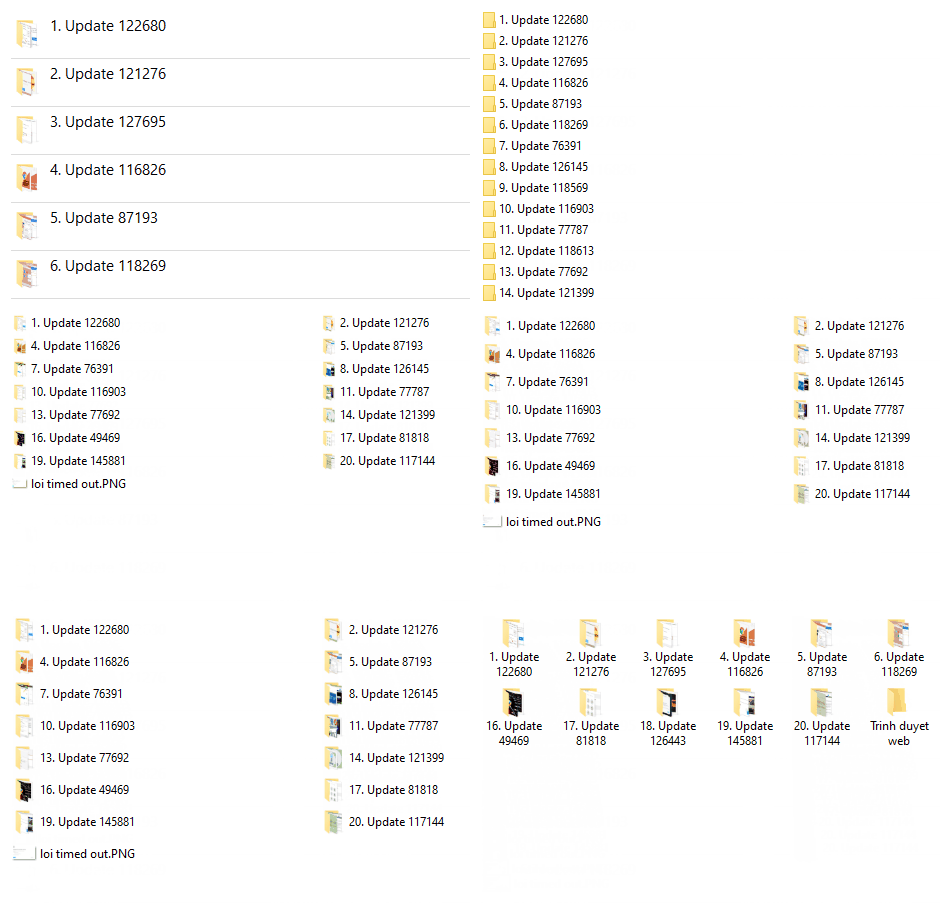
<p style="text-align: justify;"><strong>Bước 2:</strong>&nbsp;Chuyển sang tab V<strong>i</strong>ew và lựa chọn mục trong trường&nbsp;<strong>Layout.</strong>&nbsp;Một số tùy chọn bạn có thể lựa chọn là:</p>

<ul>
	<li style="text-align: justify;"><strong>Extra large icons</strong>: Hiển thị file với biểu tượng rất lớn.</li>
	<li style="text-align: justify;"><strong>Large icons:</strong>&nbsp;Hiển thị file với biểu tượng lớn.</li>
	<li style="text-align: justify;"><strong>Medium icons:</strong>&nbsp;Hiển thị file với biểu tượng trung bình.</li>
	<li style="text-align: justify;"><strong>Small icons:</strong>&nbsp;Hiển thị file với biểu tượng nhỏ.</li>
	<li style="text-align: justify;"><strong>List:</strong>&nbsp;Hiển thị file dưới dạng danh sách.</li>
	<li style="text-align: justify;"><strong>Details:</strong>&nbsp;Hiển thị file dưới dạng danh sách chi tiết.</li>
	<li style="text-align: justify;"><strong>Tiles:</strong>&nbsp;Hiển thị tên file.</li>
	<li style="text-align: justify;"><strong>Content:</strong>&nbsp;Hiển thị file chi tiết.</li>
</ul>

<figure>
<div style="text-align: justify;"><img alt="" data-i="9" data-src="https://st.quantrimang.com/photos/image/2019/08/27/kich-thuoc-icon-win-10-10.gif" data-was-processed="true" height="367" src="https://st.quantrimang.com/photos/image/2019/08/27/kich-thuoc-icon-win-10-10.gif" width="650" /></div>
</figure>

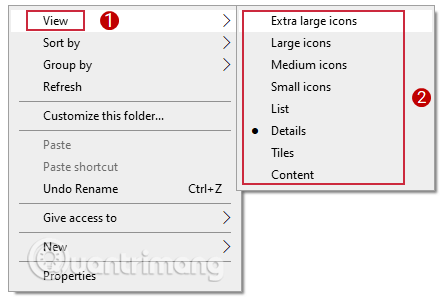
<h3 id="mcetoc_1dj95r4h08" style="text-align: justify;">Cách 3: Sử dụng nhanh menu View</h3>

<p style="text-align: justify;">Còn một cách vào&nbsp;<strong>View</strong>&nbsp;nhanh hơn, bạn nhấp chuột phải vào một khoảng trống trong thư mục muốn thay đổi kích thước các icon và chọn View.</p>

<p style="text-align: justify;">Ở menu hiện ra, các tùy chọn tương tự như ở cách 2. Lựa chọn phương án theo ý muốn của mình là xong.</p>

<figure>
<div style="text-align: justify;"><img alt="Sử dụng View để thay đổi kích thước biểu tượng file Windows 10" data-i="10" data-src="https://st.quantrimang.com/photos/image/2019/08/27/kich-thuoc-icon-win-10-11.png" data-was-processed="true" height="301" src="https://st.quantrimang.com/photos/image/2019/08/27/kich-thuoc-icon-win-10-11.png" width="447" /></div>

<figcaption>
<div style="text-align: justify;">Sử dụng View để thay đổi kích thước biểu tượng file Windows 10</div>
</figcaption>
</figure>

<p style="text-align: justify;">Lưu ý là các cài đặt kích thước trên File Explorer chỉ áp dụng cho một thư mục cụ thể. Do đó, nếu muốn thay đổi trên thư mục khác, bạn sẽ phải điều chỉnh từng mục hiển thị trên hệ thống. Nhưng nó không mất quá nhiều thời gian đâu. Hãy thử xem nhé.</p>

<h2 id="mcetoc_1dvsullnj0" style="text-align: justify;">Thay đổi kích thước văn bản cho các biểu tượng trong Windows 10</h2>

<p style="text-align: justify;">Bạn có thể làm cho văn bản của các biểu tượng trên màn hình dễ nhìn hơn bằng cách làm cho chúng lớn hơn trong khi vẫn giữ màn hình được đặt ở độ phân giải đề xuất và DPI mặc định.</p>

<p style="text-align: justify;">Điều này sẽ ảnh hưởng đến kích thước phông chữ văn bản cho các biểu tượng trong:</p>

<ul>
	<li style="text-align: justify;">Thanh địa chỉ</li>
	<li style="text-align: justify;">Desktop</li>
	<li style="text-align: justify;">Chương trình quản lý dữ liệu</li>
</ul>

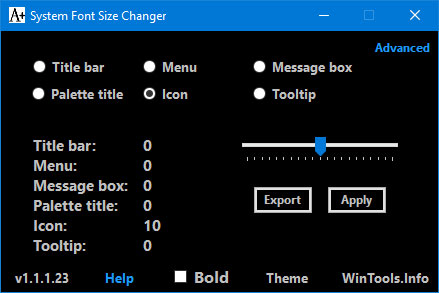
<h3 id="mcetoc_1dvsullnj1" style="text-align: justify;">Cách 1: Thay đổi kích thước văn bản cho các biểu tượng bằng cách sử dụng &quot;System Font Size Changer&quot; của WinTools</h3>

<p style="text-align: justify;">1. Nếu bạn chưa có, hãy tải xuống phiên bản mới nhất của&nbsp;System Font Size Changer&nbsp;từ WinTools.<br />
<span style="color:rgb(231, 76, 60);"><strong>https://www.wintools.info/index.php/system-font-size-changer</strong></span></p>

<p style="text-align: justify;">2. Chạy file&nbsp;<strong>changesize.exe</strong>&nbsp;đã tải xuống.</p>

<p style="text-align: justify;">Đây là một tệp .exe độc ​​lập không cài đặt bất cứ thứ gì trên hệ thống.</p>

<p style="text-align: justify;">3. Nếu thích, bạn có thể nhấn vào&nbsp;<strong>Export</strong>&nbsp;để xuất cài đặt kích thước văn bản phông chữ hiện tại sang file .reg để giúp khôi phục chúng dễ dàng nếu cần.</p>

<p style="text-align: justify;">4. Thực hiện các hành động sau:</p>

<ul>
	<li style="text-align: justify;">Chọn&nbsp;<strong>Icon.</strong></li>
	<li style="text-align: justify;">Chọn hoặc bỏ chọn&nbsp;<strong>Bold</strong>&nbsp;nếu bạn muốn văn bản in đậm hoặc không.</li>
	<li style="text-align: justify;">Điều chỉnh thanh trượt cho kích thước phông chữ bạn muốn.</li>
	<li style="text-align: justify;">Khi hoàn tất, nhấn vào&nbsp;<strong>Apply.</strong></li>
</ul>

<figure>
<div style="text-align: justify;"><img alt="Thực hiện các hành động rồi nhấn Apply" data-i="11" data-src="https://st.quantrimang.com/photos/image/2020/01/31/thay-doi-kich-thuoc-bieu-tuong-trong-windows-10-1.jpg" data-was-processed="true" height="293" src="https://st.quantrimang.com/photos/image/2020/01/31/thay-doi-kich-thuoc-bieu-tuong-trong-windows-10-1.jpg" width="439" /></div>

<figcaption>
<div style="text-align: justify;">Thực hiện các hành động rồi nhấn Apply</div>
</figcaption>
</figure>

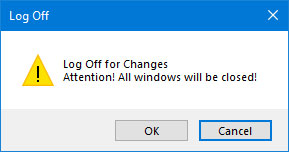
<p style="text-align: justify;">5. Nhấn vào&nbsp;<strong>OK</strong>&nbsp;khi bạn đã sẵn sàng đăng xuất khỏi Windows 10 để áp dụng thay đổi và đăng nhập lại.</p>

<figure>
<div style="text-align: justify;"><img alt="Đăng xuất rồi đăng nhập lại" data-i="12" data-src="https://st.quantrimang.com/photos/image/2020/01/31/thay-doi-kich-thuoc-bieu-tuong-trong-windows-10-2.jpg" data-was-processed="true" height="152" src="https://st.quantrimang.com/photos/image/2020/01/31/thay-doi-kich-thuoc-bieu-tuong-trong-windows-10-2.jpg" width="289" /></div>

<figcaption>
<div style="text-align: justify;">Đăng xuất rồi đăng nhập lại</div>
</figcaption>
</figure>

<h3 id="mcetoc_1dvsullnj2" style="text-align: justify;">Cách 2: Thay đổi kích thước văn bản cho các biểu tượng bằng file REG</h3>

<p style="text-align: justify;">1. Tải các file tương ứng với kích thước văn bản biểu tượng bạn muốn bên dưới và xem xét việc bạn có muốn văn bản được in đậm hay không.</p>

<table border="1" width="100%">
	<tbody>
		<tr valign="top">
			<td style="text-align: justify;"><strong>Kích thước văn bản của biểu tượng</strong></td>
			<td style="text-align: justify;"><strong>Không in đậm</strong></td>
			<td style="text-align: justify;"><strong>In đậm</strong></td>
		</tr>
		<tr valign="top">
			<td style="text-align: justify;">6</td>
			<td style="text-align: justify;"><a data-error="true" href="https://quantrimang.com/url?u=aHR0cHM6Ly93d3cudGVuZm9ydW1zLmNvbS9hdHRhY2htZW50cy90dXRvcmlhbHMvMTIxNjI4ZDE0ODczODE1MjgtaWNvbnMtdGV4dC1zaXplLWNoYW5nZS13aW5kb3dzLTEwLWEtaWNvbnNfdGV4dF9zaXplLTYucmVn" rel="nofollow noopener" target="_blank" title="Tải file kích thước 6, không in đậm">Download</a></td>
			<td style="text-align: justify;"><a data-error="true" href="https://quantrimang.com/url?u=aHR0cHM6Ly93d3cudGVuZm9ydW1zLmNvbS9hdHRhY2htZW50cy90dXRvcmlhbHMvMTIxNjI5ZDE0ODczODE1MjgtaWNvbnMtdGV4dC1zaXplLWNoYW5nZS13aW5kb3dzLTEwLWEtaWNvbnNfdGV4dF9zaXplLTYtYm9sZC5yZWc%3D" rel="nofollow noopener" target="_blank" title="Tải file kích thước 6, in đậm">Download</a></td>
		</tr>
		<tr valign="top">
			<td style="text-align: justify;">7</td>
			<td style="text-align: justify;"><a data-error="true" href="https://quantrimang.com/url?u=aHR0cHM6Ly93d3cudGVuZm9ydW1zLmNvbS9hdHRhY2htZW50cy90dXRvcmlhbHMvMTIxNjMwZDE0ODczODE1MjgtaWNvbnMtdGV4dC1zaXplLWNoYW5nZS13aW5kb3dzLTEwLWEtaWNvbnNfdGV4dF9zaXplLTcucmVn" rel="nofollow noopener" target="_blank" title="Tải file kích thước 7, không in đậm">Download</a></td>
			<td style="text-align: justify;"><a data-error="true" href="https://quantrimang.com/url?u=aHR0cHM6Ly93d3cudGVuZm9ydW1zLmNvbS9hdHRhY2htZW50cy90dXRvcmlhbHMvMTIxNjMxZDE0ODczODE1MjgtaWNvbnMtdGV4dC1zaXplLWNoYW5nZS13aW5kb3dzLTEwLWEtaWNvbnNfdGV4dF9zaXplLTctYm9sZC5yZWc%3D" rel="nofollow noopener" target="_blank" title="Tải file kích thước 7, in đậm">Download</a></td>
		</tr>
		<tr valign="top">
			<td style="text-align: justify;">8</td>
			<td style="text-align: justify;"><a data-error="true" href="https://quantrimang.com/url?u=aHR0cHM6Ly93d3cudGVuZm9ydW1zLmNvbS9hdHRhY2htZW50cy90dXRvcmlhbHMvMTIxNjMyZDE0ODczODE1NDUtaWNvbnMtdGV4dC1zaXplLWNoYW5nZS13aW5kb3dzLTEwLWEtaWNvbnNfdGV4dF9zaXplLTgucmVn" rel="nofollow noopener" target="_blank" title="Tải file kích thước 8, không in đậm">Download</a></td>
			<td style="text-align: justify;"><a data-error="true" href="https://quantrimang.com/url?u=aHR0cHM6Ly93d3cudGVuZm9ydW1zLmNvbS9hdHRhY2htZW50cy90dXRvcmlhbHMvMTIxNjMzZDE0ODczODE1NDUtaWNvbnMtdGV4dC1zaXplLWNoYW5nZS13aW5kb3dzLTEwLWEtaWNvbnNfdGV4dF9zaXplLTgtYm9sZC5yZWc%3D" rel="nofollow noopener" target="_blank" title="Tải file kích thước 8, in đậm">Download</a></td>
		</tr>
		<tr valign="top">
			<td style="text-align: justify;">9 (mặc định - không in đậm)</td>
			<td style="text-align: justify;"><a data-error="true" href="https://quantrimang.com/url?u=aHR0cHM6Ly93d3cudGVuZm9ydW1zLmNvbS9hdHRhY2htZW50cy90dXRvcmlhbHMvMTIxNjI3ZDE0ODczODE1MjgtaWNvbnMtdGV4dC1zaXplLWNoYW5nZS13aW5kb3dzLTEwLWEtaWNvbnNfZGVmYXVsdF90ZXh0X3NpemUtOS5yZWc%3D" rel="nofollow noopener" target="_blank" title="Tải file kích thước 9, không in đậm">Download</a></td>
			<td style="text-align: justify;"><a data-error="true" href="https://quantrimang.com/url?u=aHR0cHM6Ly93d3cudGVuZm9ydW1zLmNvbS9hdHRhY2htZW50cy90dXRvcmlhbHMvMTIxNjM0ZDE0ODczODE1NDUtaWNvbnMtdGV4dC1zaXplLWNoYW5nZS13aW5kb3dzLTEwLWEtaWNvbnNfdGV4dF9zaXplLTktYm9sZC5yZWc%3D" rel="nofollow noopener" target="_blank" title="Tải file kích thước 9, in đậm">Download</a></td>
		</tr>
		<tr valign="top">
			<td style="text-align: justify;">10</td>
			<td style="text-align: justify;"><a data-error="true" href="https://quantrimang.com/url?u=aHR0cHM6Ly93d3cudGVuZm9ydW1zLmNvbS9hdHRhY2htZW50cy90dXRvcmlhbHMvMTIxNjM1ZDE0ODczODE1NDUtaWNvbnMtdGV4dC1zaXplLWNoYW5nZS13aW5kb3dzLTEwLWEtaWNvbnNfdGV4dF9zaXplLTEwLnJlZw%3D%3D" rel="nofollow noopener" target="_blank" title="Tải file kích thước 10, không in đậm">Download</a></td>
			<td style="text-align: justify;"><a data-error="true" href="https://quantrimang.com/url?u=aHR0cHM6Ly93d3cudGVuZm9ydW1zLmNvbS9hdHRhY2htZW50cy90dXRvcmlhbHMvMTIxNjM2ZDE0ODczODE1NDUtaWNvbnMtdGV4dC1zaXplLWNoYW5nZS13aW5kb3dzLTEwLWEtaWNvbnNfdGV4dF9zaXplLTEwLWJvbGQucmVn" rel="nofollow noopener" target="_blank" title="Tải file kích thước 10, in đậm">Download</a></td>
		</tr>
		<tr valign="top">
			<td style="text-align: justify;">11</td>
			<td style="text-align: justify;"><a data-error="true" href="https://quantrimang.com/url?u=aHR0cHM6Ly93d3cudGVuZm9ydW1zLmNvbS9hdHRhY2htZW50cy90dXRvcmlhbHMvMTIxNjM3ZDE0ODczODE1NjItaWNvbnMtdGV4dC1zaXplLWNoYW5nZS13aW5kb3dzLTEwLWEtaWNvbnNfdGV4dF9zaXplLTExLnJlZw%3D%3D" rel="nofollow noopener" target="_blank" title="Tải file kích thước 11, không in đậm">Download</a></td>
			<td style="text-align: justify;"><a data-error="true" href="https://quantrimang.com/url?u=aHR0cHM6Ly93d3cudGVuZm9ydW1zLmNvbS9hdHRhY2htZW50cy90dXRvcmlhbHMvMTIxNjM4ZDE0ODczODE1NjItaWNvbnMtdGV4dC1zaXplLWNoYW5nZS13aW5kb3dzLTEwLWEtaWNvbnNfdGV4dF9zaXplLTExLWJvbGQucmVn" rel="nofollow noopener" target="_blank" title="Tải file kích thước 11, in đậm">Download</a></td>
		</tr>
		<tr valign="top">
			<td style="text-align: justify;">12</td>
			<td style="text-align: justify;"><a data-error="true" href="https://quantrimang.com/url?u=aHR0cHM6Ly93d3cudGVuZm9ydW1zLmNvbS9hdHRhY2htZW50cy90dXRvcmlhbHMvMTIxNjM5ZDE0ODczODE1NjItaWNvbnMtdGV4dC1zaXplLWNoYW5nZS13aW5kb3dzLTEwLWEtaWNvbnNfdGV4dF9zaXplLTEyLnJlZw%3D%3D" rel="nofollow noopener" target="_blank" title="Tải file kích thước 12, không in đậm">Download</a></td>
			<td style="text-align: justify;"><a data-error="true" href="https://quantrimang.com/url?u=aHR0cHM6Ly93d3cudGVuZm9ydW1zLmNvbS9hdHRhY2htZW50cy90dXRvcmlhbHMvMTIxNjQwZDE0ODczODE1NjItaWNvbnMtdGV4dC1zaXplLWNoYW5nZS13aW5kb3dzLTEwLWEtaWNvbnNfdGV4dF9zaXplLTEyLWJvbGQucmVn" rel="nofollow noopener" target="_blank" title="Tải file kích thước 12, in đậm">Download</a></td>
		</tr>
		<tr valign="top">
			<td style="text-align: justify;">13</td>
			<td style="text-align: justify;"><a data-error="true" href="https://quantrimang.com/url?u=aHR0cHM6Ly93d3cudGVuZm9ydW1zLmNvbS9hdHRhY2htZW50cy90dXRvcmlhbHMvMTIxNjQxZDE0ODczODE1NjItaWNvbnMtdGV4dC1zaXplLWNoYW5nZS13aW5kb3dzLTEwLWEtaWNvbnNfdGV4dF9zaXplLTEzLnJlZw%3D%3D" rel="nofollow noopener" target="_blank" title="Tải file kích thước 13, không in đậm">Download</a></td>
			<td style="text-align: justify;"><a data-error="true" href="https://quantrimang.com/url?u=aHR0cHM6Ly93d3cudGVuZm9ydW1zLmNvbS9hdHRhY2htZW50cy90dXRvcmlhbHMvMTIxNjQyZDE0ODczODE1NzctaWNvbnMtdGV4dC1zaXplLWNoYW5nZS13aW5kb3dzLTEwLWEtaWNvbnNfdGV4dF9zaXplLTEzLWJvbGQucmVn" rel="nofollow noopener" target="_blank" title="Tải file kích thước 13, in đậm">Download</a></td>
		</tr>
		<tr valign="top">
			<td style="text-align: justify;">14</td>
			<td style="text-align: justify;"><a data-error="true" href="https://quantrimang.com/url?u=aHR0cHM6Ly93d3cudGVuZm9ydW1zLmNvbS9hdHRhY2htZW50cy90dXRvcmlhbHMvMTIxNjQzZDE0ODczODE1NzctY2hhbmdlLWljb25zLXRleHQtc2l6ZS13aW5kb3dzLTEwLWEtaWNvbnNfdGV4dF9zaXplLTE0LnJlZw%3D%3D" rel="nofollow noopener" target="_blank" title="Tải file kích thước 14, không in đậm">Download</a></td>
			<td style="text-align: justify;"><a data-error="true" href="https://quantrimang.com/url?u=aHR0cHM6Ly93d3cudGVuZm9ydW1zLmNvbS9hdHRhY2htZW50cy90dXRvcmlhbHMvMTIxNjQ0ZDE0ODczODE1NzctaWNvbnMtdGV4dC1zaXplLWNoYW5nZS13aW5kb3dzLTEwLWEtaWNvbnNfdGV4dF9zaXplLTE0LWJvbGQucmVn" rel="nofollow noopener" target="_blank" title="Tải file kích thước 14, in đậm">Download</a></td>
		</tr>
		<tr valign="top">
			<td style="text-align: justify;">15</td>
			<td style="text-align: justify;"><a data-error="true" href="https://quantrimang.com/url?u=aHR0cHM6Ly93d3cudGVuZm9ydW1zLmNvbS9hdHRhY2htZW50cy90dXRvcmlhbHMvMTIxNjQ1ZDE0ODczODE1NzctaWNvbnMtdGV4dC1zaXplLWNoYW5nZS13aW5kb3dzLTEwLWEtaWNvbnNfdGV4dF9zaXplLTE1LnJlZw%3D%3D" rel="nofollow noopener" target="_blank" title="Tải file kích thước 15, không in đậm">Download</a></td>
			<td style="text-align: justify;"><a data-error="true" href="https://quantrimang.com/url?u=aHR0cHM6Ly93d3cudGVuZm9ydW1zLmNvbS9hdHRhY2htZW50cy90dXRvcmlhbHMvMTIxNjQ2ZDE0ODczODE1NzctaWNvbnMtdGV4dC1zaXplLWNoYW5nZS13aW5kb3dzLTEwLWEtaWNvbnNfdGV4dF9zaXplLTE1LWJvbGQucmVn" rel="nofollow noopener" target="_blank" title="Tải file kích thước 15, in đậm">Download</a></td>
		</tr>
		<tr valign="top">
			<td style="text-align: justify;">16</td>
			<td style="text-align: justify;"><a data-error="true" href="https://quantrimang.com/url?u=aHR0cHM6Ly93d3cudGVuZm9ydW1zLmNvbS9hdHRhY2htZW50cy90dXRvcmlhbHMvMTIxNjQ3ZDE0ODczODE1OTItaWNvbnMtdGV4dC1zaXplLWNoYW5nZS13aW5kb3dzLTEwLWEtaWNvbnNfdGV4dF9zaXplLTE2LnJlZw%3D%3D" rel="nofollow noopener" target="_blank" title="Tải file kích thước 16, không in đậm">Download</a></td>
			<td style="text-align: justify;"><a data-error="true" href="https://quantrimang.com/url?u=aHR0cHM6Ly93d3cudGVuZm9ydW1zLmNvbS9hdHRhY2htZW50cy90dXRvcmlhbHMvMTIxNjQ4ZDE0ODczODE1OTItaWNvbnMtdGV4dC1zaXplLWNoYW5nZS13aW5kb3dzLTEwLWEtaWNvbnNfdGV4dF9zaXplLTE2LWJvbGQucmVn" rel="nofollow noopener" target="_blank" title="Tải file kích thước 16, in đậm">Download</a></td>
		</tr>
		<tr valign="top">
			<td style="text-align: justify;">17</td>
			<td style="text-align: justify;"><a data-error="true" href="https://quantrimang.com/url?u=aHR0cHM6Ly93d3cudGVuZm9ydW1zLmNvbS9hdHRhY2htZW50cy90dXRvcmlhbHMvMTIxNjQ5ZDE0ODczODE1OTItaWNvbnMtdGV4dC1zaXplLWNoYW5nZS13aW5kb3dzLTEwLWEtaWNvbnNfdGV4dF9zaXplLTE3LnJlZw%3D%3D" rel="nofollow noopener" target="_blank" title="Tải file kích thước 17, không in đậm">Download</a></td>
			<td style="text-align: justify;"><a data-error="true" href="https://quantrimang.com/url?u=aHR0cHM6Ly93d3cudGVuZm9ydW1zLmNvbS9hdHRhY2htZW50cy90dXRvcmlhbHMvMTIxNjUwZDE0ODczODE1OTItaWNvbnMtdGV4dC1zaXplLWNoYW5nZS13aW5kb3dzLTEwLWEtaWNvbnNfdGV4dF9zaXplLTE3LWJvbGQucmVn" rel="nofollow noopener" target="_blank" title="Tải file kích thước 17, in đậm">Download</a></td>
		</tr>
		<tr valign="top">
			<td style="text-align: justify;">18</td>
			<td style="text-align: justify;"><a data-error="true" href="https://quantrimang.com/url?u=aHR0cHM6Ly93d3cudGVuZm9ydW1zLmNvbS9hdHRhY2htZW50cy90dXRvcmlhbHMvMTIxNjUxZDE0ODczODE1OTItaWNvbnMtdGV4dC1zaXplLWNoYW5nZS13aW5kb3dzLTEwLWEtaWNvbnNfdGV4dF9zaXplLTE4LnJlZw%3D%3D" rel="nofollow noopener" target="_blank" title="Tải file kích thước 18, không in đậm">Download</a></td>
			<td style="text-align: justify;"><a data-error="true" href="https://quantrimang.com/url?u=aHR0cHM6Ly93d3cudGVuZm9ydW1zLmNvbS9hdHRhY2htZW50cy90dXRvcmlhbHMvMTIxNjUyZDE0ODczODE2MTAtaWNvbnMtdGV4dC1zaXplLWNoYW5nZS13aW5kb3dzLTEwLWEtaWNvbnNfdGV4dF9zaXplLTE4LWJvbGQucmVn" rel="nofollow noopener" target="_blank" title="Tải file kích thước 18, in đậm">Download</a></td>
		</tr>
		<tr valign="top">
			<td style="text-align: justify;">19</td>
			<td style="text-align: justify;"><a data-error="true" href="https://quantrimang.com/url?u=aHR0cHM6Ly93d3cudGVuZm9ydW1zLmNvbS9hdHRhY2htZW50cy90dXRvcmlhbHMvMTIxNjUzZDE0ODczODE2MTAtaWNvbnMtdGV4dC1zaXplLWNoYW5nZS13aW5kb3dzLTEwLWEtaWNvbnNfdGV4dF9zaXplLTE5LnJlZw%3D%3D" rel="nofollow noopener" target="_blank" title="Tải file kích thước 19, không in đậm">Download</a></td>
			<td style="text-align: justify;"><a data-error="true" href="https://quantrimang.com/url?u=aHR0cHM6Ly93d3cudGVuZm9ydW1zLmNvbS9hdHRhY2htZW50cy90dXRvcmlhbHMvMTIxNjU0ZDE0ODczODE2MTAtaWNvbnMtdGV4dC1zaXplLWNoYW5nZS13aW5kb3dzLTEwLWEtaWNvbnNfdGV4dF9zaXplLTE5LWJvbGQucmVn" rel="nofollow noopener" target="_blank" title="Tải file kích thước 19, in đậm">Download</a></td>
		</tr>
		<tr valign="top">
			<td style="text-align: justify;">20</td>
			<td style="text-align: justify;"><a data-error="true" href="https://quantrimang.com/url?u=aHR0cHM6Ly93d3cudGVuZm9ydW1zLmNvbS9hdHRhY2htZW50cy90dXRvcmlhbHMvMTIxNjU1ZDE0ODczODE2MTAtaWNvbnMtdGV4dC1zaXplLWNoYW5nZS13aW5kb3dzLTEwLWEtaWNvbnNfdGV4dF9zaXplLTIwLnJlZw%3D%3D" rel="nofollow noopener" target="_blank" title="Tải file kích thước 20, không in đậm">Download</a></td>
			<td style="text-align: justify;"><a data-error="true" href="https://quantrimang.com/url?u=aHR0cHM6Ly93d3cudGVuZm9ydW1zLmNvbS9hdHRhY2htZW50cy90dXRvcmlhbHMvMTIxNjU2ZDE0ODczODE2MTAtaWNvbnMtdGV4dC1zaXplLWNoYW5nZS13aW5kb3dzLTEwLWEtaWNvbnNfdGV4dF9zaXplLTIwLWJvbGQucmVn" rel="nofollow noopener" target="_blank" title="Tải file kích thước 20, in đậm">Download</a></td>
		</tr>
		<tr valign="top">
			<td style="text-align: justify;">21</td>
			<td style="text-align: justify;"><a data-error="true" href="https://quantrimang.com/url?u=aHR0cHM6Ly93d3cudGVuZm9ydW1zLmNvbS9hdHRhY2htZW50cy90dXRvcmlhbHMvMTIxNjU3ZDE0ODczODE2MzMtaWNvbnMtdGV4dC1zaXplLWNoYW5nZS13aW5kb3dzLTEwLWEtaWNvbnNfdGV4dF9zaXplLTIxLnJlZw%3D%3D" rel="nofollow noopener" target="_blank" title="Tải file kích thước 21, không in đậm">Download</a></td>
			<td style="text-align: justify;"><a data-error="true" href="https://quantrimang.com/url?u=aHR0cHM6Ly93d3cudGVuZm9ydW1zLmNvbS9hdHRhY2htZW50cy90dXRvcmlhbHMvMTIxNjU4ZDE0ODczODE2MzMtaWNvbnMtdGV4dC1zaXplLWNoYW5nZS13aW5kb3dzLTEwLWEtaWNvbnNfdGV4dF9zaXplLTIxLWJvbGQucmVn" rel="nofollow noopener" target="_blank" title="Tải file kích thước 21, in đậm">Download</a></td>
		</tr>
		<tr valign="top">
			<td style="text-align: justify;">22</td>
			<td style="text-align: justify;"><a data-error="true" href="https://quantrimang.com/url?u=aHR0cHM6Ly93d3cudGVuZm9ydW1zLmNvbS9hdHRhY2htZW50cy90dXRvcmlhbHMvMTIxNjU5ZDE0ODczODE2MzMtaWNvbnMtdGV4dC1zaXplLWNoYW5nZS13aW5kb3dzLTEwLWEtaWNvbnNfdGV4dF9zaXplLTIyLnJlZw%3D%3D" rel="nofollow noopener" target="_blank" title="Tải file kích thước 22, không in đậm">Download</a></td>
			<td style="text-align: justify;"><a data-error="true" href="https://quantrimang.com/url?u=aHR0cHM6Ly93d3cudGVuZm9ydW1zLmNvbS9hdHRhY2htZW50cy90dXRvcmlhbHMvMTIxNjYwZDE0ODczODE2MzMtaWNvbnMtdGV4dC1zaXplLWNoYW5nZS13aW5kb3dzLTEwLWEtaWNvbnNfdGV4dF9zaXplLTIyLWJvbGQucmVn" rel="nofollow noopener" target="_blank" title="Tải file kích thước 22, in đậm">Download</a></td>
		</tr>
		<tr valign="top">
			<td style="text-align: justify;">23</td>
			<td style="text-align: justify;"><a data-error="true" href="https://quantrimang.com/url?u=aHR0cHM6Ly93d3cudGVuZm9ydW1zLmNvbS9hdHRhY2htZW50cy90dXRvcmlhbHMvMTIxNjYxZDE0ODczODE2MzMtaWNvbnMtdGV4dC1zaXplLWNoYW5nZS13aW5kb3dzLTEwLWEtaWNvbnNfdGV4dF9zaXplLTIzLnJlZw%3D%3D" rel="nofollow noopener" target="_blank" title="Tải file kích thước 23, không in đậm">Download</a></td>
			<td style="text-align: justify;"><a data-error="true" href="https://quantrimang.com/url?u=aHR0cHM6Ly93d3cudGVuZm9ydW1zLmNvbS9hdHRhY2htZW50cy90dXRvcmlhbHMvMTIxNjYyZDE0ODczODE2NDQtaWNvbnMtdGV4dC1zaXplLWNoYW5nZS13aW5kb3dzLTEwLWEtaWNvbnNfdGV4dF9zaXplLTIzLWJvbGQucmVn" rel="nofollow noopener" target="_blank" title="Tải file kích thước 23, in đậm">Download</a></td>
		</tr>
		<tr valign="top">
			<td style="text-align: justify;">24</td>
			<td style="text-align: justify;"><a data-error="true" href="https://quantrimang.com/url?u=aHR0cHM6Ly93d3cudGVuZm9ydW1zLmNvbS9hdHRhY2htZW50cy90dXRvcmlhbHMvMTIxNjYzZDE0ODczODE2NDQtaWNvbnMtdGV4dC1zaXplLWNoYW5nZS13aW5kb3dzLTEwLWEtaWNvbnNfdGV4dF9zaXplLTI0LnJlZw%3D%3D" rel="nofollow noopener" target="_blank" title="Tải file kích thước 24, không in đậm">Download</a></td>
			<td style="text-align: justify;"><a data-error="true" href="https://quantrimang.com/url?u=aHR0cHM6Ly93d3cudGVuZm9ydW1zLmNvbS9hdHRhY2htZW50cy90dXRvcmlhbHMvMTIxNjY2ZDE0ODczODI0MzUtaWNvbnMtdGV4dC1zaXplLWNoYW5nZS13aW5kb3dzLTEwLWEtaWNvbnNfdGV4dF9zaXplLTI0LWJvbGQucmVn" rel="nofollow noopener" target="_blank" title="Tải file kích thước 24, in đậm">Download</a></td>
		</tr>
	</tbody>
</table>

<p style="text-align: justify;">2. Lưu file .reg vào desktop.</p>

<p style="text-align: justify;">3. Nhấp đúp chuột vào file .reg đã tải xuống để hợp nhất nó.</p>

<p style="text-align: justify;">4. Khi được nhắc, bấm vào&nbsp;<strong>Run &gt; Yes (UAC) &gt; Yes &gt; OK</strong>&nbsp;để phê duyệt hợp nhất.</p>

<p style="text-align: justify;">5. Đăng xuất và đăng nhập để áp dụng thay đổi.</p>

<p style="text-align: justify;">6. Bây giờ bạn có thể xóa file .reg đã tải xuống nếu muốn.</p>

<p style="text-align: justify;">Chúc các bạn vui vẻ</p>

<div style="text-align: justify;">&nbsp;</div>
		</div>
				<div id="author">
						<p>
				<strong>Nguồn tin:</strong>
				Quantrimang.com:
			</p>
		</div>
	</div>
	<div id="footer" class="clearfix">
		<div id="url">
			<strong>URL của bản tin này: </strong><a href="https://www.nguoicodonvn2008.info/vi/news/savefile/kien-thuc-may-tinh/thay-doi-kich-thuoc-bieu-tuong-trong-windows-10-10552.html" title="Thay đổi kích thước biểu tượng trong Windows 10">https://www.nguoicodonvn2008.info/vi/news/savefile/kien-thuc-may-tinh/thay-doi-kich-thuoc-bieu-tuong-trong-windows-10-10552.html</a>

		</div>
		<div class="clear"></div>
		<div class="copyright">
			&copy; .&#x3A; Nguoicodonvn2008.info - Cõi lòng người cô đơn &#x3A;.
		</div>
		<div id="contact">
			<a href="mailto:admin@nguoicodonvn2008.info">admin@nguoicodonvn2008.info</a>
		</div>
	</div>
</div>
        <div id="timeoutsess" class="chromeframe">
            Bạn đã không sử dụng Site, <a onclick="timeoutsesscancel();" href="https://nguoicodonvn2008.info/#">Bấm vào đây để duy trì trạng thái đăng nhập</a>. Thời gian chờ: <span id="secField"> 60 </span> giây
        </div>
        <div id="openidResult" class="nv-alert" style="display:none"></div>
        <div id="openidBt" data-result="" data-redirect=""></div>
		</script>
		<div class="car-top">
  <span><img src="https://nguoicodonvn2008.info/themes/default/images/car.png" alt=""></span>
</div>
<script src="https://nguoicodonvn2008.info/assets/js/jquery/jquery.min.js"></script>
<script>var nv_base_siteurl="/",nv_lang_data="vi",nv_lang_interface="vi",nv_name_variable="nv",nv_fc_variable="op",nv_lang_variable="language",nv_module_name="news",nv_func_name="savefile",nv_is_user=0, nv_my_ofs=-4,nv_my_abbr="EDT",nv_cookie_prefix="nv4c_e856T",nv_check_pass_mstime=1738000,nv_area_admin=0,nv_safemode=0,theme_responsive=0,nv_recaptcha_ver=2,nv_recaptcha_sitekey="",nv_recaptcha_type="image",XSSsanitize=1;</script>
<script src="https://nguoicodonvn2008.info/assets/js/language/vi.js"></script>
<script src="https://nguoicodonvn2008.info/assets/js/DOMPurify/purify3.js"></script>
<script src="https://nguoicodonvn2008.info/assets/js/global.js"></script>
<script src="https://nguoicodonvn2008.info/assets/js/site.js"></script>
<script src="https://nguoicodonvn2008.info/themes/default/js/news.js"></script>
<script src="https://nguoicodonvn2008.info/themes/default/js/main.js"></script>
<script src="https://nguoicodonvn2008.info/themes/default/js/custom.js"></script>
<script type="application/ld+json">
        {
            "@context": "https://schema.org",
            "@type": "Organization",
            "url": "https://nguoicodonvn2008.info",
            "logo": "https://nguoicodonvn2008.info/uploads/angel.gif"
        }
        </script>
<script src="https://nguoicodonvn2008.info/themes/default/js/bootstrap.min.js"></script>
<script type="text/javascript">
var $scrolltop = $('.car-top');
$scrolltop.on('click', function () {
    $('html,body').animate({
        scrollTop: 0
    }, 800);
    $(this).addClass("car-run");
    setTimeout(function(){ $scrolltop.removeClass('car-run');}, 1000);
    return false;
});
$(window).on('scroll', function ()
{ 
    if($(window).scrollTop() >= 200)
    {
        $scrolltop.addClass("show");
        $scrolltop.addClass("car-down");
    }
    else
    {
       $scrolltop.removeClass("show");
       setTimeout(function(){ $scrolltop.removeClass('car-down');}, 300);
    }
});
</script>
</body>
</html>