<!DOCTYPE html>
    <html lang="vi" xmlns="http://www.w3.org/1999/xhtml" prefix="og: http://ogp.me/ns#">
    <head>
<title>Thay đổi cổng listening Remote Desktop Connection</title>
<meta name="description" content="Thay đổi cổng listening Remote Desktop Connection - Savefile - Tin Tức -...">
<meta name="author" content=".: Nguoicodonvn2008.info - Cõi lòng người cô đơn :.">
<meta name="copyright" content=".: Nguoicodonvn2008.info - Cõi lòng người cô đơn :. [admin@nguoicodonvn2008.info]">
<meta name="robots" content="index, archive, follow, noodp">
<meta name="googlebot" content="index,archive,follow,noodp">
<meta name="msnbot" content="all,index,follow">
<meta name="generator" content="NukeViet v4.5">
<meta http-equiv="Content-Type" content="text/html; charset=utf-8">
<meta property="og:title" content="Thay đổi cổng listening Remote Desktop Connection">
<meta property="og:type" content="website">
<meta property="og:description" content="Savefile - Tin Tức - https&#x3A;&#x002F;&#x002F;www.nguoicodonvn2008.info&#x002F;vi&#x002F;news&#x002F;savefile&#x002F;kien-thuc-may-tinh&#x002F;thay-doi-cong-listening-remote-desktop-connection-4274.html">
<meta property="og:site_name" content=".&#x3A; Nguoicodonvn2008.info - Cõi lòng người cô đơn &#x3A;.">
<meta property="og:url" content="https://www.nguoicodonvn2008.info/vi/news/savefile/kien-thuc-may-tinh/thay-doi-cong-listening-remote-desktop-connection-4274.html">
<link rel="shortcut icon" href="https://nguoicodonvn2008.info/favicon.ico">
<link rel="canonical" href="https://www.nguoicodonvn2008.info/vi/news/savefile/kien-thuc-may-tinh/thay-doi-cong-listening-remote-desktop-connection-4274.html">
<link rel="alternate" href="https://nguoicodonvn2008.info/vi/news/rss/" title="Tin Tức" type="application/rss+xml">
<link rel="alternate" href="https://nguoicodonvn2008.info/vi/news/rss/karaoke-dual/" title="Tin Tức - Karaoke Dual" type="application/rss+xml">
<link rel="alternate" href="https://nguoicodonvn2008.info/vi/news/rss/nhac-tre/" title="Tin Tức - Nhạc trẻ" type="application/rss+xml">
<link rel="alternate" href="https://nguoicodonvn2008.info/vi/news/rss/tru-tinh/" title="Tin Tức - Trữ tình" type="application/rss+xml">
<link rel="alternate" href="https://nguoicodonvn2008.info/vi/news/rss/nuoc-ngoai/" title="Tin Tức - Nước ngoài" type="application/rss+xml">
<link rel="alternate" href="https://nguoicodonvn2008.info/vi/news/rss/remix/" title="Tin Tức - Remix" type="application/rss+xml">
<link rel="alternate" href="https://nguoicodonvn2008.info/vi/news/rss/tam-su-tinh-yeu/" title="Tin Tức - Tâm sự tình yêu" type="application/rss+xml">
<link rel="alternate" href="https://nguoicodonvn2008.info/vi/news/rss/tho-suu-tam/" title="Tin Tức - Thơ sưu tầm" type="application/rss+xml">
<link rel="alternate" href="https://nguoicodonvn2008.info/vi/news/rss/cuoc-song/" title="Tin Tức - Cuộc sống" type="application/rss+xml">
<link rel="alternate" href="https://nguoicodonvn2008.info/vi/news/rss/phan-mem/" title="Tin Tức - Phần mềm" type="application/rss+xml">
<link rel="alternate" href="https://nguoicodonvn2008.info/vi/news/rss/kien-thuc-may-tinh/" title="Tin Tức - Kiến thức máy tính" type="application/rss+xml">
<link rel="alternate" href="https://nguoicodonvn2008.info/vi/news/rss/hoc-tap/" title="Tin Tức - Học tập" type="application/rss+xml">
<link rel="alternate" href="https://nguoicodonvn2008.info/vi/news/rss/tai-lieu/" title="Tin Tức - Tài liệu" type="application/rss+xml">
<link rel="alternate" href="https://nguoicodonvn2008.info/vi/news/rss/de-thi/" title="Tin Tức - Đề thi" type="application/rss+xml">
<link rel="preload" as="style" href="https://nguoicodonvn2008.info/assets/css/font-awesome.min.css" type="text/css">
<link rel="preload" as="style" href="https://nguoicodonvn2008.info/themes/default/css/bootstrap.non-responsive.css" type="text/css">
<link rel="preload" as="style" href="https://nguoicodonvn2008.info/themes/default/css/style.css" type="text/css">
<link rel="preload" as="style" href="https://nguoicodonvn2008.info/themes/default/css/style.non-responsive.css" type="text/css">
<link rel="preload" as="style" href="https://nguoicodonvn2008.info/themes/default/css/news.css" type="text/css">
<link rel="preload" as="style" href="https://nguoicodonvn2008.info/themes/default/css/custom.css" type="text/css">
<link rel="preload" as="script" href="https://nguoicodonvn2008.info/assets/js/jquery/jquery.min.js" type="text/javascript">
<link rel="preload" as="script" href="https://nguoicodonvn2008.info/assets/js/language/vi.js" type="text/javascript">
<link rel="preload" as="script" href="https://nguoicodonvn2008.info/assets/js/DOMPurify/purify3.js" type="text/javascript">
<link rel="preload" as="script" href="https://nguoicodonvn2008.info/assets/js/global.js" type="text/javascript">
<link rel="preload" as="script" href="https://nguoicodonvn2008.info/assets/js/site.js" type="text/javascript">
<link rel="preload" as="script" href="https://nguoicodonvn2008.info/themes/default/js/news.js" type="text/javascript">
<link rel="preload" as="script" href="https://nguoicodonvn2008.info/themes/default/js/main.js" type="text/javascript">
<link rel="preload" as="script" href="https://nguoicodonvn2008.info/themes/default/js/custom.js" type="text/javascript">
<link rel="preload" as="script" href="https://nguoicodonvn2008.info/themes/default/js/bootstrap.min.js" type="text/javascript">
<link rel="stylesheet" href="https://nguoicodonvn2008.info/assets/css/font-awesome.min.css">
<link rel="stylesheet" href="https://nguoicodonvn2008.info/themes/default/css/bootstrap.non-responsive.css">
<link rel="stylesheet" href="https://nguoicodonvn2008.info/themes/default/css/style.css">
<link rel="stylesheet" href="https://nguoicodonvn2008.info/themes/default/css/style.non-responsive.css">
<link rel="StyleSheet" href="https://nguoicodonvn2008.info/themes/default/css/news.css">
<link rel="stylesheet" href="https://nguoicodonvn2008.info/themes/default/css/custom.css">
<style type="text/css">
	body{background: #fff;}
</style>
    </head>
    <body>
<div id="print">
	<div id="hd_print">
		<h2 class="pull-left">.&#x3A; Nguoicodonvn2008.info - Cõi lòng người cô đơn &#x3A;.</h2>
		<p class="pull-right"><a title=".&#x3A; Nguoicodonvn2008.info - Cõi lòng người cô đơn &#x3A;." href="https://nguoicodonvn2008.info/">https://nguoicodonvn2008.info</a></p>
	</div>
	<div class="clear"></div>
	<hr />
	<div id="content">
		<h1>Thay đổi cổng listening Remote Desktop Connection</h1>
		<ul class="list-inline">
			<li>Thứ hai - 21/06/2021 00:51</li>
			<li class="hidden-print txtrequired"><em class="fa fa-print">&nbsp;</em><a title="In ra" href="javascript:;" onclick="window.print()">In ra</a></li>
			<li class="hidden-print txtrequired"><em class="fa fa-power-off">&nbsp;</em><a title="Đóng cửa sổ này" href="javascript:;" onclick="window.close()">Đóng cửa sổ này</a></li>
		</ul>
		<div class="clear"></div>
		<div id="hometext">
		</div>
				<div class="imghome">
			<img alt="Thay đổi cổng listening Remote Desktop Connection" src="https://st.quantrimang.com/photos/image/2021/06/21/remote-desktop-connection-11.jpg" width="460" class="img-thumbnail" />
		</div>
		<div class="clear"></div>
		<div id="bodytext" class="clearfix">
			<p style="text-align: justify;">Khi hacker tấn công vào một mục tiêu chúng không thành công một cách ngẫu nhiên. Thường thì hacker sẽ dựa vào các lỗi phổ biến của người dùng tạo ra các lỗ hổng cho chúng khai thác như vô tình mở một cổng Remote Desktop Connection (RDP) thường dùng.</p>

<p style="text-align: justify;">Trên máy tính Windows 10, các cổng 80 và 443 cần luôn mở để phục vụ truy cập internet. Trong khi đó các cổng khác như cổng 3389 cho phép các máy tính khác truy cập từ xa vào máy tính của bạn hoặc máy chủ. Nếu dang kích hoạt tính năng Remote Desktop (cho phép truy cập từ xa) thì nhiều khả năng bạn dang mở cổng RDP quen thuộc trên máy của mình (cổng 3389 TCP/UDP) để kết nối.</p>

<div style="text-align: justify;">&nbsp;</div>

<p style="text-align: justify;">Nếu muốn đảm bảo an toàn, bạn nên thay đổi cổng RDP sang một cổng khác. Trong bài viết này, Quantrimang.com sẽ hướng dẫn các bạn cách đổi cổng RDP trên máy tính Windows 10.</p>

<h2 style="text-align: justify;">Cách thay đổi cổng RDP trên Windows 10 bằng Registry</h2>

<p style="text-align: justify;">Nếu bạn muốn đổi cổng RDP mặc định từ 3389 sang một cổng tùy chỉnh thì dùng Registry là cách đơn giản nhất. Trước khi thực hiện bạn nên sao lưu Registry để tránh gặp rắc rối.</p>

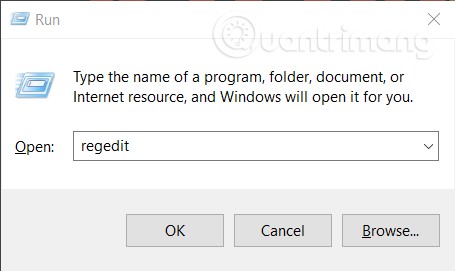
<p style="text-align: justify;"><strong>Bước 1</strong>: Mở&nbsp;<strong>Registry Editor</strong>. Có khả nhiều cách mở Registry Editor và cách đơn giản nhất là nhấn&nbsp;<strong>Windows + R</strong>&nbsp;để mở&nbsp;<strong>Run</strong>&nbsp;sau đó gõ&nbsp;<strong>regedit</strong>&nbsp;và nhấn&nbsp;<strong>Enter</strong>. Bạn cũng có thể mở&nbsp;<strong>Start menu</strong>&nbsp;sau đó gõ&nbsp;<strong>regedit</strong>&nbsp;rồi nhấp vào kết quả tìm kiếm đầu tiên</p>

<p style="text-align: justify;"><img alt="" data-i="0" data-src="https://st.quantrimang.com/photos/image/2021/06/21/remote-desktop-connection.jpg" data-was-processed="true" height="271" src="https://st.quantrimang.com/photos/image/2021/06/21/remote-desktop-connection.jpg" width="455" /></p>

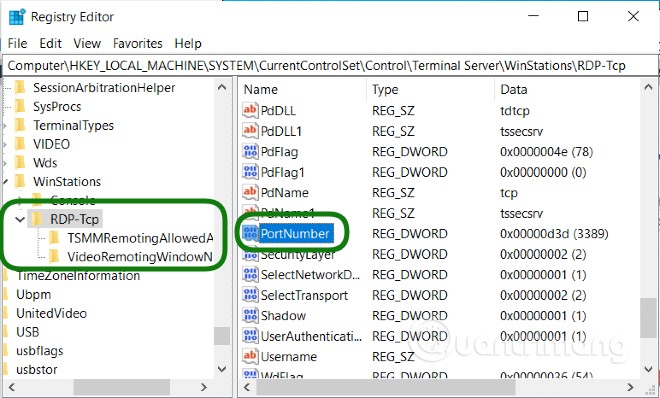
<p style="text-align: justify;"><strong>Bước 2</strong>: Truy cập vào thư mục:</p>

<pre id="pre0">
<code>HKEY_LOCAL_MACHINE\System\CurrentControlSet\Control\Terminal Server\WinStations\RDP-Tcp</code></pre>

<p style="text-align: justify;"><strong>Bước 3</strong>: Tìm kiếm key&nbsp;<strong>PortNumber</strong>&nbsp;trong thư mục&nbsp;<strong>RDP-Tcp</strong>&nbsp;rồi nhấn đúp chuột vào nó</p>

<p style="text-align: justify;"><img alt="" data-i="1" data-src="https://st.quantrimang.com/photos/image/2021/06/21/remote-desktop-connection-1.jpg" data-was-processed="true" height="398" src="https://st.quantrimang.com/photos/image/2021/06/21/remote-desktop-connection-1.jpg" width="660" /></p>

<div style="text-align: justify;">&nbsp;</div>

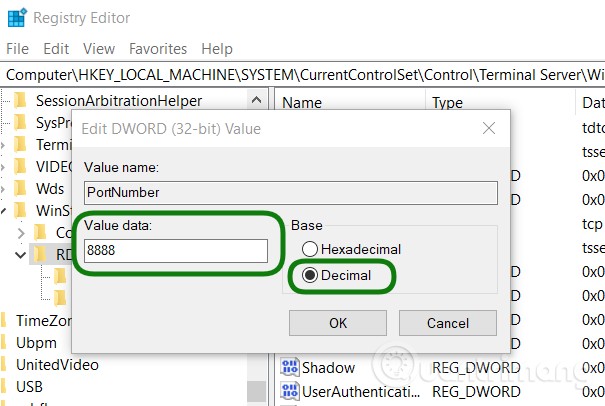
<p style="text-align: justify;"><strong>Bước 4</strong>: Trong cửa sổ&nbsp;<strong>Edit DWORD (32-bit) Value</strong>&nbsp;mới hiện ra, bạn chọn&nbsp;<strong>Decimal</strong>&nbsp;rồi chọn cổng mà bạn muốn sử dụng (từ 1 đến 65353) trong hộp&nbsp;<strong>Value data</strong>. Ở đây Quantrimang lấy cổng&nbsp;<strong>8888</strong>&nbsp;làm ví dụ</p>

<p style="text-align: justify;"><img alt="" data-i="2" data-src="https://st.quantrimang.com/photos/image/2021/06/21/remote-desktop-connection-2.jpg" data-was-processed="true" height="406" src="https://st.quantrimang.com/photos/image/2021/06/21/remote-desktop-connection-2.jpg" width="605" /></p>

<p style="text-align: justify;"><strong>Lưu ý</strong>: Bạn cần đảm bảo rằng cổng bạn chọn không trùng với các cổng chung khác. Nếu bạn chọn trùng một cổng chung (ví dụ cổng 80 cho truy cập web) bạn sẽ không thể thiết lập kết nối RDP. Sau khi chọn xong, bạn nhấn OK và khởi động lại máy tính hoặc máy chủ. Từ thời điểm này trở đi, các truy cập Remote Desktop sẽ sử dụng cổng tùy chọn mà bạn thiết lập chứ không sử dụng cổng mặc định 3389.</p>

<h2 style="text-align: justify;">Cấu hình tường lửa cho cổng RDP tùy chọn</h2>

<p style="text-align: justify;">Để cấu hình tường lửa cho RDP tùy chọn bạn làm theo hướng dẫn sau:</p>

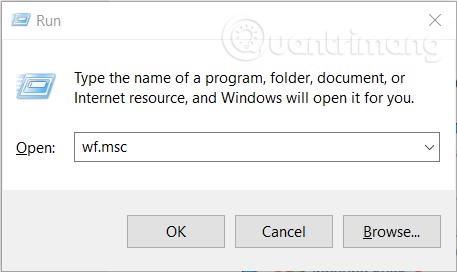
<p style="text-align: justify;"><strong>Bước 1</strong>: Nhấn&nbsp;<strong>Windows + R</strong>&nbsp;để mở&nbsp;<strong>Run</strong>&nbsp;và nhập&nbsp;<strong>wf.msc</strong>&nbsp;rồi nhấn&nbsp;<strong>Enter</strong>. Bạn cũng có thể mở nhấp chuột phải vào nút&nbsp;<strong>Start</strong>&nbsp;sau đó chọn&nbsp;<strong>Run</strong></p>

<p style="text-align: justify;"><strong><img alt="" data-i="3" data-src="https://st.quantrimang.com/photos/image/2021/06/21/remote-desktop-connection-3.jpg" data-was-processed="true" height="272" src="https://st.quantrimang.com/photos/image/2021/06/21/remote-desktop-connection-3.jpg" width="457" /></strong></p>

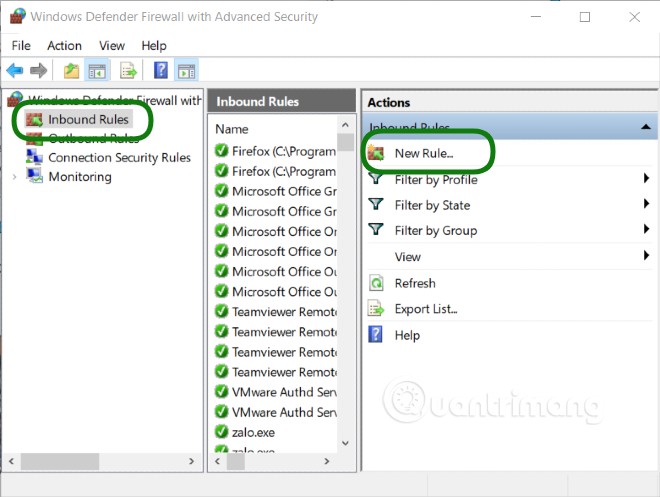
<p style="text-align: justify;"><strong>Bước 2</strong>: Trong của sổ&nbsp;<strong>Windows Defender Firewall</strong>&nbsp;<strong>with Advanced Security</strong>&nbsp;bạn chọn&nbsp;<strong>Inbound Rules</strong>&nbsp;ở menu bên tay trái</p>

<p style="text-align: justify;"><strong>Bước 3</strong>: Chọn&nbsp;<strong>New Rule</strong>&nbsp;ở thanh bên tay phải</p>

<p style="text-align: justify;">&nbsp;</p>

<div style="text-align: justify;"><br />
<img alt="" data-i="4" data-src="https://st.quantrimang.com/photos/image/2021/06/21/remote-desktop-connection-4.jpg" data-was-processed="true" height="497" src="https://st.quantrimang.com/photos/image/2021/06/21/remote-desktop-connection-4.jpg" width="660" /></div>

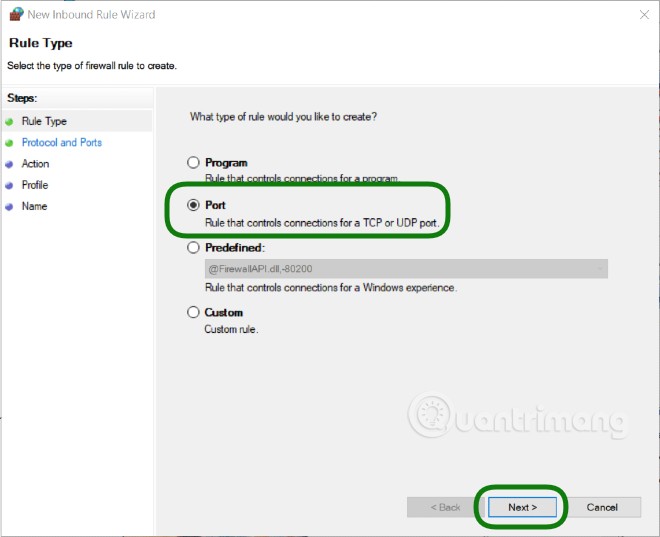
<p style="text-align: justify;"><strong>Bước 4</strong>: Trong cửa sổ&nbsp;<strong>New Inbond Rule Wizard</strong>&nbsp;bạn chọn&nbsp;<strong>Port</strong>&nbsp;và nhấn&nbsp;<strong>Next</strong>&nbsp;để tiếp tục</p>

<p style="text-align: justify;"><img alt="" data-i="5" data-src="https://st.quantrimang.com/photos/image/2021/06/21/remote-desktop-connection-5.jpg" data-was-processed="true" height="537" src="https://st.quantrimang.com/photos/image/2021/06/21/remote-desktop-connection-5.jpg" width="660" /></p>

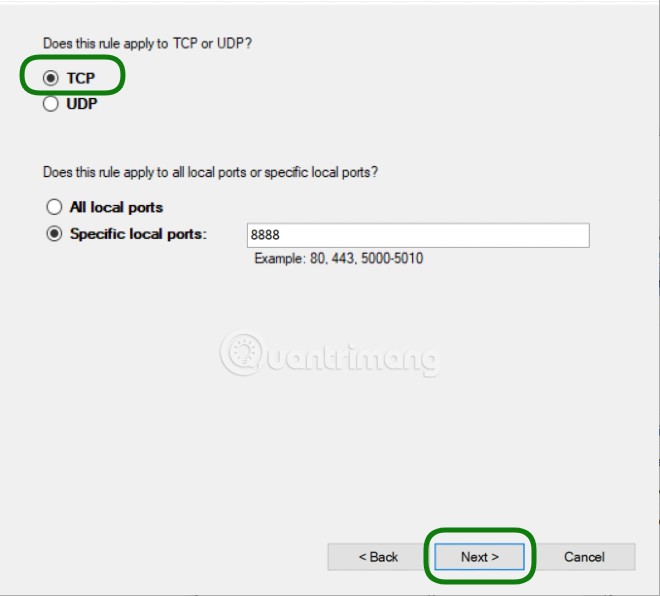
<p style="text-align: justify;"><strong>Bước 5</strong>: Tại mục&nbsp;<strong>Does this rule apply to TCP or UDP</strong>&nbsp;bạn chọn&nbsp;<strong>TCP</strong>&nbsp;trước sau đó tại mục&nbsp;<strong>Does this rule apply to all local ports or specifi local ports?</strong>&nbsp;Bạn chọn&nbsp;<strong>Select local ports</strong>&nbsp;và nhập vào ô giá trị cổng mà bạn thiết lập (8888). Nhấn&nbsp;<strong>Next</strong>&nbsp;dể tiếp tục</p>

<p style="text-align: justify;"><img alt="" data-i="6" data-src="https://st.quantrimang.com/photos/image/2021/06/21/remote-desktop-connection-6.jpg" data-was-processed="true" height="596" src="https://st.quantrimang.com/photos/image/2021/06/21/remote-desktop-connection-6.jpg" width="660" /></p>

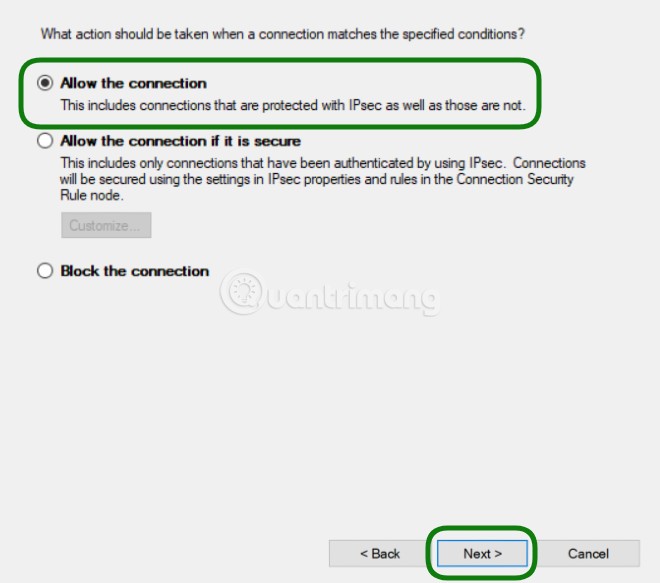
<p style="text-align: justify;"><strong>Bước 6</strong>: Tại menu&nbsp;<strong>Action</strong>, bạn chọn&nbsp;<strong>Allow the Connection</strong>&nbsp;rồi nhấn&nbsp;<strong>Next</strong></p>

<p style="text-align: justify;"><strong><img alt="" data-i="7" data-src="https://st.quantrimang.com/photos/image/2021/06/21/remote-desktop-connection-7.jpg" data-was-processed="true" height="583" src="https://st.quantrimang.com/photos/image/2021/06/21/remote-desktop-connection-7.jpg" width="660" /></strong></p>

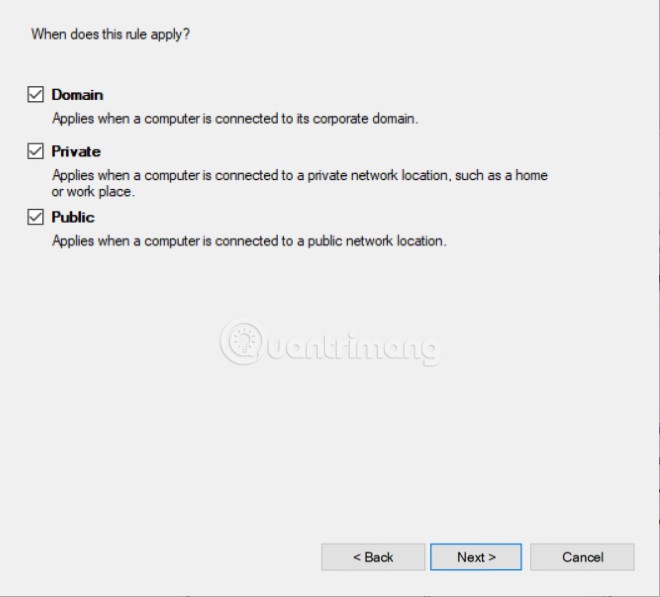
<p style="text-align: justify;"><strong>Bước 7</strong>: Trong menu&nbsp;<strong>Profile</strong>, bạn chọn tất cả các mục để tối đa khả năng truy cập hoặc bỏ chọn ở mục&nbsp;<strong>Public</strong>&nbsp;để chặn các truy cập Remote Desktop từ mạng công cộng. Nhấn&nbsp;<strong>Next</strong>&nbsp;để tiếp tục</p>

<p style="text-align: justify;"><img alt="" data-i="8" data-src="https://st.quantrimang.com/photos/image/2021/06/21/remote-desktop-connection-8.jpg" data-was-processed="true" height="597" src="https://st.quantrimang.com/photos/image/2021/06/21/remote-desktop-connection-8.jpg" width="660" /></p>

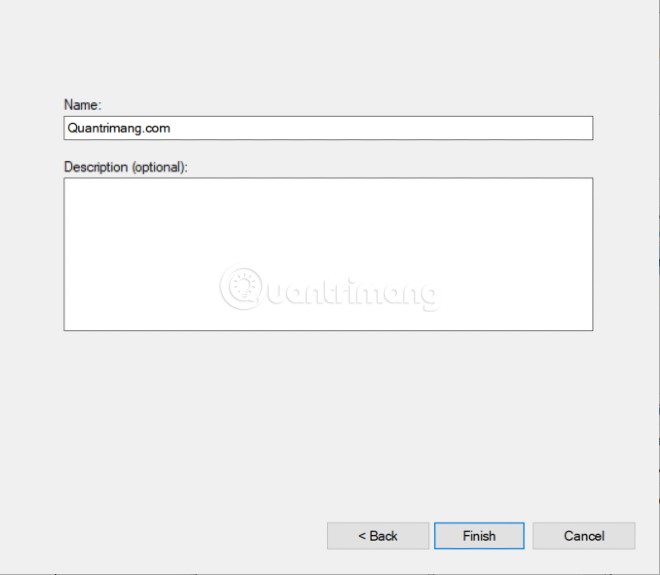
<p style="text-align: justify;"><strong>Bước 8</strong>: Bạn đặt tên cho quy tắc mới và mô tả quy tắc mới (tùy chọn) rồi nhấn&nbsp;<strong>Finish</strong>&nbsp;để hoàn thành</p>

<p style="text-align: justify;"><img alt="" data-i="9" data-src="https://st.quantrimang.com/photos/image/2021/06/21/remote-desktop-connection-9.jpg" data-was-processed="true" height="575" src="https://st.quantrimang.com/photos/image/2021/06/21/remote-desktop-connection-9.jpg" width="660" /></p>

<p style="text-align: justify;">Tiếp theo, bạn cần lặp lại tất cả các thao tác trên cho UDP nhưng chú ý thay đổi&nbsp;<strong>TCP</strong>&nbsp;sang&nbsp;<strong>UDP</strong>&nbsp;tại bước 5.</p>

<h2 style="text-align: justify;">Kết nối Remote Desktop bằng một cổng RDP tùy chỉnh</h2>

<p style="text-align: justify;">Để kết nối Remote Desktop bằng một cổng RDP tùy chỉnh bạn làm như sau:</p>

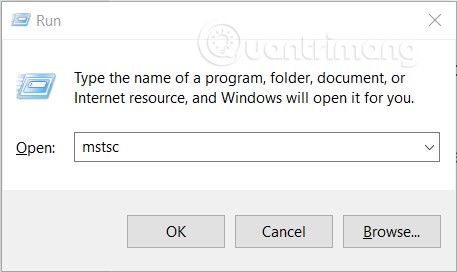
<p style="text-align: justify;"><strong>Bước 1</strong>: Mở&nbsp;<strong>Run</strong>&nbsp;nhập&nbsp;<strong>mstsc</strong>&nbsp;rồi nhấn&nbsp;<strong>Enter</strong></p>

<p style="text-align: justify;"><strong><img alt="" data-i="10" data-src="https://st.quantrimang.com/photos/image/2021/06/21/remote-desktop-connection-10.jpg" data-was-processed="true" height="272" src="https://st.quantrimang.com/photos/image/2021/06/21/remote-desktop-connection-10.jpg" width="457" /></strong></p>

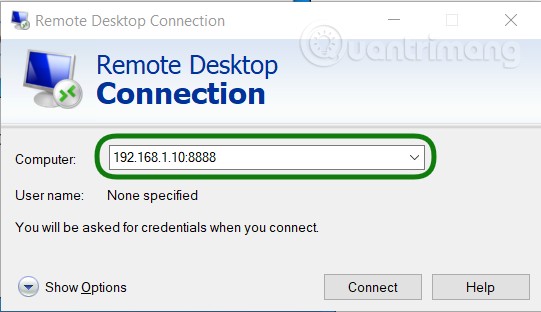
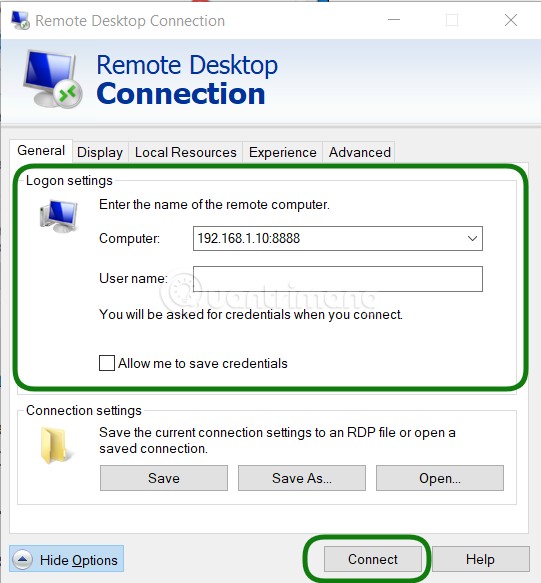
<p style="text-align: justify;"><strong>Bước 2</strong>: Trong cửa sổ&nbsp;<strong>Remote Desktop Connection</strong>, nhập địa chỉ&nbsp;<strong>IP</strong>&nbsp;của máy tính hoặc máy chủ cần kết nối từ xa vào ô&nbsp;<strong>Computer</strong>. Để dùng cổng RDP tùy chỉnh, bạn thêm cổng vào phía cuối địa chỉ IP theo cú pháp sau:&nbsp;<strong>dia-chi-ip:cong</strong>. Ví dụ:&nbsp;<strong>192.168.1.10:8888</strong>&nbsp;nếu muốn kết nối một máy tính RDP ở địa chỉ IP&nbsp;<strong>192.168.1.10</strong>&nbsp;trên mạng cục bộ sử dụng cổng RDP&nbsp;<strong>8888</strong></p>

<p style="text-align: justify;"><strong><img alt="" data-i="11" data-src="https://st.quantrimang.com/photos/image/2021/06/21/remote-desktop-connection-11.jpg" data-was-processed="true" height="312" src="https://st.quantrimang.com/photos/image/2021/06/21/remote-desktop-connection-11.jpg" width="541" /></strong></p>

<p style="text-align: justify;"><strong>Bước 3</strong>: Thiết lập thêm cho kết nối RDP của bạn trước khi kết nối bằng cách nhấn&nbsp;<strong>Show Options</strong>. Ở đây, bạn có thể thay đổi chất lượng kết nối hoặc thêm các chi tiết xác thực như tên người dùng và mật khẩu. Khi đã xong, bạn nhấn&nbsp;<strong>Connect</strong>&nbsp;để thiết lập kết nối</p>

<p style="text-align: justify;"><img alt="" data-i="12" data-src="https://st.quantrimang.com/photos/image/2021/06/21/remote-desktop-connection-12.jpg" data-was-processed="true" height="583" src="https://st.quantrimang.com/photos/image/2021/06/21/remote-desktop-connection-12.jpg" width="541" /></p>

<p style="text-align: justify;">Nếu mọi thứ đều ổn, bạn sẽ kết nối thành công tới máy tính cần điều khiển từ xa.</p>

<p style="text-align: justify;">Chúc các bạn thành công!</p>
		</div>
				<div id="author">
						<p>
				<strong>Nguồn tin:</strong>
				Quantrimang.com
			</p>
		</div>
	</div>
	<div id="footer" class="clearfix">
		<div id="url">
			<strong>URL của bản tin này: </strong><a href="https://www.nguoicodonvn2008.info/vi/news/savefile/kien-thuc-may-tinh/thay-doi-cong-listening-remote-desktop-connection-4274.html" title="Thay đổi cổng listening Remote Desktop Connection">https://www.nguoicodonvn2008.info/vi/news/savefile/kien-thuc-may-tinh/thay-doi-cong-listening-remote-desktop-connection-4274.html</a>

		</div>
		<div class="clear"></div>
		<div class="copyright">
			&copy; .&#x3A; Nguoicodonvn2008.info - Cõi lòng người cô đơn &#x3A;.
		</div>
		<div id="contact">
			<a href="mailto:admin@nguoicodonvn2008.info">admin@nguoicodonvn2008.info</a>
		</div>
	</div>
</div>
        <div id="timeoutsess" class="chromeframe">
            Bạn đã không sử dụng Site, <a onclick="timeoutsesscancel();" href="https://nguoicodonvn2008.info/#">Bấm vào đây để duy trì trạng thái đăng nhập</a>. Thời gian chờ: <span id="secField"> 60 </span> giây
        </div>
        <div id="openidResult" class="nv-alert" style="display:none"></div>
        <div id="openidBt" data-result="" data-redirect=""></div>
		</script>
		<div class="car-top">
  <span><img src="https://nguoicodonvn2008.info/themes/default/images/car.png" alt=""></span>
</div>
<script src="https://nguoicodonvn2008.info/assets/js/jquery/jquery.min.js"></script>
<script>var nv_base_siteurl="/",nv_lang_data="vi",nv_lang_interface="vi",nv_name_variable="nv",nv_fc_variable="op",nv_lang_variable="language",nv_module_name="news",nv_func_name="savefile",nv_is_user=0, nv_my_ofs=-4,nv_my_abbr="EDT",nv_cookie_prefix="nv4c_e856T",nv_check_pass_mstime=1738000,nv_area_admin=0,nv_safemode=0,theme_responsive=0,nv_recaptcha_ver=2,nv_recaptcha_sitekey="",nv_recaptcha_type="image",XSSsanitize=1;</script>
<script src="https://nguoicodonvn2008.info/assets/js/language/vi.js"></script>
<script src="https://nguoicodonvn2008.info/assets/js/DOMPurify/purify3.js"></script>
<script src="https://nguoicodonvn2008.info/assets/js/global.js"></script>
<script src="https://nguoicodonvn2008.info/assets/js/site.js"></script>
<script src="https://nguoicodonvn2008.info/themes/default/js/news.js"></script>
<script src="https://nguoicodonvn2008.info/themes/default/js/main.js"></script>
<script src="https://nguoicodonvn2008.info/themes/default/js/custom.js"></script>
<script type="application/ld+json">
        {
            "@context": "https://schema.org",
            "@type": "Organization",
            "url": "https://nguoicodonvn2008.info",
            "logo": "https://nguoicodonvn2008.info/uploads/angel.gif"
        }
        </script>
<script src="https://nguoicodonvn2008.info/themes/default/js/bootstrap.min.js"></script>
<script type="text/javascript">
var $scrolltop = $('.car-top');
$scrolltop.on('click', function () {
    $('html,body').animate({
        scrollTop: 0
    }, 800);
    $(this).addClass("car-run");
    setTimeout(function(){ $scrolltop.removeClass('car-run');}, 1000);
    return false;
});
$(window).on('scroll', function ()
{ 
    if($(window).scrollTop() >= 200)
    {
        $scrolltop.addClass("show");
        $scrolltop.addClass("car-down");
    }
    else
    {
       $scrolltop.removeClass("show");
       setTimeout(function(){ $scrolltop.removeClass('car-down');}, 300);
    }
});
</script>
</body>
</html>