<!DOCTYPE html>
    <html lang="vi" xmlns="http://www.w3.org/1999/xhtml" prefix="og: http://ogp.me/ns#">
    <head>
<title>Sửa lỗi WiFi không hoạt động trên Ubuntu</title>
<meta name="description" content="Sửa lỗi WiFi không hoạt động trên Ubuntu - Savefile - Tin Tức -...">
<meta name="author" content=".: Nguoicodonvn2008.info - Cõi lòng người cô đơn :.">
<meta name="copyright" content=".: Nguoicodonvn2008.info - Cõi lòng người cô đơn :. [admin@nguoicodonvn2008.info]">
<meta name="robots" content="index, archive, follow, noodp">
<meta name="googlebot" content="index,archive,follow,noodp">
<meta name="msnbot" content="all,index,follow">
<meta name="generator" content="NukeViet v4.5">
<meta http-equiv="Content-Type" content="text/html; charset=utf-8">
<meta property="og:title" content="Sửa lỗi WiFi không hoạt động trên Ubuntu">
<meta property="og:type" content="website">
<meta property="og:description" content="Savefile - Tin Tức - https&#x3A;&#x002F;&#x002F;www.nguoicodonvn2008.info&#x002F;vi&#x002F;news&#x002F;savefile&#x002F;kien-thuc-may-tinh&#x002F;sua-loi-wifi-khong-hoat-dong-tren-ubuntu-2791.html">
<meta property="og:site_name" content=".&#x3A; Nguoicodonvn2008.info - Cõi lòng người cô đơn &#x3A;.">
<meta property="og:url" content="https://www.nguoicodonvn2008.info/vi/news/savefile/kien-thuc-may-tinh/sua-loi-wifi-khong-hoat-dong-tren-ubuntu-2791.html">
<link rel="shortcut icon" href="https://nguoicodonvn2008.info/favicon.ico">
<link rel="canonical" href="https://www.nguoicodonvn2008.info/vi/news/savefile/kien-thuc-may-tinh/sua-loi-wifi-khong-hoat-dong-tren-ubuntu-2791.html">
<link rel="alternate" href="https://nguoicodonvn2008.info/vi/news/rss/" title="Tin Tức" type="application/rss+xml">
<link rel="alternate" href="https://nguoicodonvn2008.info/vi/news/rss/karaoke-dual/" title="Tin Tức - Karaoke Dual" type="application/rss+xml">
<link rel="alternate" href="https://nguoicodonvn2008.info/vi/news/rss/nhac-tre/" title="Tin Tức - Nhạc trẻ" type="application/rss+xml">
<link rel="alternate" href="https://nguoicodonvn2008.info/vi/news/rss/tru-tinh/" title="Tin Tức - Trữ tình" type="application/rss+xml">
<link rel="alternate" href="https://nguoicodonvn2008.info/vi/news/rss/nuoc-ngoai/" title="Tin Tức - Nước ngoài" type="application/rss+xml">
<link rel="alternate" href="https://nguoicodonvn2008.info/vi/news/rss/remix/" title="Tin Tức - Remix" type="application/rss+xml">
<link rel="alternate" href="https://nguoicodonvn2008.info/vi/news/rss/tam-su-tinh-yeu/" title="Tin Tức - Tâm sự tình yêu" type="application/rss+xml">
<link rel="alternate" href="https://nguoicodonvn2008.info/vi/news/rss/tho-suu-tam/" title="Tin Tức - Thơ sưu tầm" type="application/rss+xml">
<link rel="alternate" href="https://nguoicodonvn2008.info/vi/news/rss/cuoc-song/" title="Tin Tức - Cuộc sống" type="application/rss+xml">
<link rel="alternate" href="https://nguoicodonvn2008.info/vi/news/rss/phan-mem/" title="Tin Tức - Phần mềm" type="application/rss+xml">
<link rel="alternate" href="https://nguoicodonvn2008.info/vi/news/rss/kien-thuc-may-tinh/" title="Tin Tức - Kiến thức máy tính" type="application/rss+xml">
<link rel="alternate" href="https://nguoicodonvn2008.info/vi/news/rss/hoc-tap/" title="Tin Tức - Học tập" type="application/rss+xml">
<link rel="alternate" href="https://nguoicodonvn2008.info/vi/news/rss/tai-lieu/" title="Tin Tức - Tài liệu" type="application/rss+xml">
<link rel="alternate" href="https://nguoicodonvn2008.info/vi/news/rss/de-thi/" title="Tin Tức - Đề thi" type="application/rss+xml">
<link rel="preload" as="style" href="https://nguoicodonvn2008.info/assets/css/font-awesome.min.css" type="text/css">
<link rel="preload" as="style" href="https://nguoicodonvn2008.info/themes/default/css/bootstrap.non-responsive.css" type="text/css">
<link rel="preload" as="style" href="https://nguoicodonvn2008.info/themes/default/css/style.css" type="text/css">
<link rel="preload" as="style" href="https://nguoicodonvn2008.info/themes/default/css/style.non-responsive.css" type="text/css">
<link rel="preload" as="style" href="https://nguoicodonvn2008.info/themes/default/css/news.css" type="text/css">
<link rel="preload" as="style" href="https://nguoicodonvn2008.info/themes/default/css/custom.css" type="text/css">
<link rel="preload" as="script" href="https://nguoicodonvn2008.info/assets/js/jquery/jquery.min.js" type="text/javascript">
<link rel="preload" as="script" href="https://nguoicodonvn2008.info/assets/js/language/vi.js" type="text/javascript">
<link rel="preload" as="script" href="https://nguoicodonvn2008.info/assets/js/DOMPurify/purify3.js" type="text/javascript">
<link rel="preload" as="script" href="https://nguoicodonvn2008.info/assets/js/global.js" type="text/javascript">
<link rel="preload" as="script" href="https://nguoicodonvn2008.info/assets/js/site.js" type="text/javascript">
<link rel="preload" as="script" href="https://nguoicodonvn2008.info/themes/default/js/news.js" type="text/javascript">
<link rel="preload" as="script" href="https://nguoicodonvn2008.info/themes/default/js/main.js" type="text/javascript">
<link rel="preload" as="script" href="https://nguoicodonvn2008.info/themes/default/js/custom.js" type="text/javascript">
<link rel="preload" as="script" href="https://nguoicodonvn2008.info/themes/default/js/bootstrap.min.js" type="text/javascript">
<link rel="stylesheet" href="https://nguoicodonvn2008.info/assets/css/font-awesome.min.css">
<link rel="stylesheet" href="https://nguoicodonvn2008.info/themes/default/css/bootstrap.non-responsive.css">
<link rel="stylesheet" href="https://nguoicodonvn2008.info/themes/default/css/style.css">
<link rel="stylesheet" href="https://nguoicodonvn2008.info/themes/default/css/style.non-responsive.css">
<link rel="StyleSheet" href="https://nguoicodonvn2008.info/themes/default/css/news.css">
<link rel="stylesheet" href="https://nguoicodonvn2008.info/themes/default/css/custom.css">
<style type="text/css">
	body{background: #fff;}
</style>
    </head>
    <body>
<div id="print">
	<div id="hd_print">
		<h2 class="pull-left">.&#x3A; Nguoicodonvn2008.info - Cõi lòng người cô đơn &#x3A;.</h2>
		<p class="pull-right"><a title=".&#x3A; Nguoicodonvn2008.info - Cõi lòng người cô đơn &#x3A;." href="https://nguoicodonvn2008.info/">https://nguoicodonvn2008.info</a></p>
	</div>
	<div class="clear"></div>
	<hr />
	<div id="content">
		<h1>Sửa lỗi WiFi không hoạt động trên Ubuntu</h1>
		<ul class="list-inline">
			<li>Thứ bảy - 26/09/2020 00:52</li>
			<li class="hidden-print txtrequired"><em class="fa fa-print">&nbsp;</em><a title="In ra" href="javascript:;" onclick="window.print()">In ra</a></li>
			<li class="hidden-print txtrequired"><em class="fa fa-power-off">&nbsp;</em><a title="Đóng cửa sổ này" href="javascript:;" onclick="window.close()">Đóng cửa sổ này</a></li>
		</ul>
		<div class="clear"></div>
		<div id="hometext">
		</div>
				<div class="imghome">
			<img alt="Sửa lỗi WiFi không hoạt động trên Ubuntu" src="https://st.quantrimang.com/photos/image/2020/09/21/wifi-khong-hoat-dong-tren-ubuntu-1.jpg" width="460" class="img-thumbnail" />
		</div>
		<div class="clear"></div>
		<div id="bodytext" class="clearfix">
			<p style="text-align: justify;">Ubuntu&nbsp;là một hệ điều hành mã nguồn mở miễn phí, mạnh mẽ, phù hợp cho những người mới bắt đầu muốn khám phá Linux và các chuyên gia dày dạn kinh nghiệm, muốn có một hệ thống đáng tin cậy, an toàn cho dự án và những thứ tương tự. Tuy nhiên, bên cạnh tất cả các ưu điểm của Ubuntu, đôi khi bạn có thể gặp sự cố khi kết nối với mạng WiFi.</p>

<p style="text-align: justify;">Sự cố kết nối WiFi có thể là sự cố phần cứng hoặc phần mềm. Dưới đây là một số giải pháp hữu ích nếu người dùng thấy mình gặp sự cố khi kết nối với mạng WiFi.</p>

<p style="text-align: justify;"><strong>Lưu ý:</strong>&nbsp;Vấn đề lớn nhất mà người dùng sẽ gặp phải là có một card không dây do Broadcom sản xuất. Mặc dù nhà sản xuất này à một phần của Linux Foundation, nhưng điều này không có nghĩa là hỗ trợ driver của họ luôn tốt. Ngoài driver, một vấn đề khác là mã hóa TKIP.</p>

<h2 style="text-align: justify;">Cài đặt driver từ Ubuntu ISO</h2>

<p style="text-align: justify;">Nếu Ubuntu hoàn toàn không phát hiện ra mạng WiFi hoặc nếu gặp lỗi, thì bạn có thể thử cài đặt hoặc cài đặt lại driver WiFi từ file Ubuntu ISO. Trước tiên, bạn cần tải Ubuntu ISO tương ứng với phiên bản Ubuntu của mình (trên một thiết bị khác hoặc bằng kết nối Ethernet trên Ubuntu).</p>

<p style="text-align: justify;">Đặt Ubuntu ISO vào thư mục&nbsp;<strong>Home</strong>&nbsp;trên Ubuntu, sau đó trong Terminal, nhập chuỗi lệnh sau để mount Ubuntu ISO vào ổ ảo:</p>

<pre id="pre0">
<code>sudo mkdir /media/cdrom
 sudo mount -o loop ubuntu-*.iso /media/cdrom</code></pre>

<p style="text-align: justify;">Đi tới&nbsp;<strong>Software &amp; Updates</strong>&nbsp;từ bảng điều khiển, sau đó trong cửa sổ mới, chọn&nbsp;<strong>CDrom with Ubuntu &#91;phiên bản&#93; box</strong>&nbsp;và nhập mật khẩu khi được yêu cầu.</p>

<p style="text-align: justify;">Nhấp vào tab&nbsp;<strong>“Additional Drivers”</strong>, sau đó chọn tùy chọn&nbsp;<strong>Wireless Network Adapter</strong>&nbsp;và nhấp vào&nbsp;<strong>Apply Changes.</strong></p>

<div style="text-align: justify;">&nbsp;</div>

<h2 style="text-align: justify;">Vấn đề 1: Không phát hiện được thiết bị</h2>

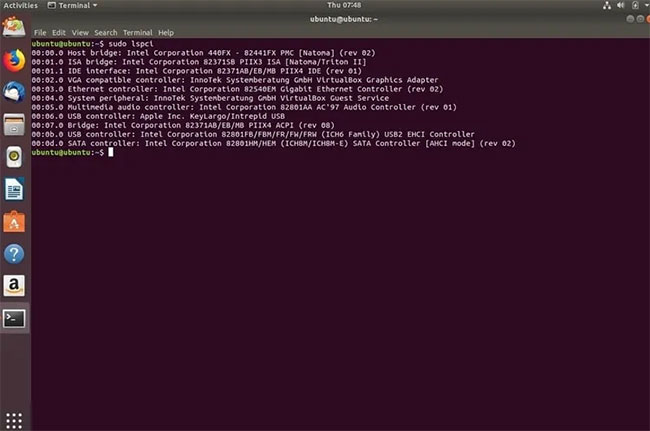
<p style="text-align: justify;">Nếu thiết bị không dây không được phát hiện bởi Ubuntu (hoặc bất kỳ bản phân phối nào), thì bạn sẽ cần truy cập vào Terminal và nhập lệnh sau:</p>

<pre id="pre1">
<code>sudo lsusb</code></pre>

<p style="text-align: justify;">...nếu bạn sử dụng USB wireless card/dongle và:</p>

<pre id="pre2">
<code>sudo lspci</code></pre>

<p style="text-align: justify;">...nếu bạn có card không dây bên trong.</p>

<p style="text-align: justify;">Nếu phản hồi từ các lệnh này tương tự như ảnh chụp màn hình bên dưới, thì bạn thật may mắn: Ubuntu có thể tìm thấy thẻ. Nó thường được xác định bằng&nbsp;<strong>Network Controller</strong>&nbsp;hoặc&nbsp;<strong>Ethernet Controller.</strong></p>

<figure>
<div style="text-align: justify;"><img alt="Đầu ra lệnh" data-i="0" data-src="https://st.quantrimang.com/photos/image/2020/09/21/wifi-khong-hoat-dong-tren-ubuntu-1.jpg" data-was-processed="true" height="431" src="https://st.quantrimang.com/photos/image/2020/09/21/wifi-khong-hoat-dong-tren-ubuntu-1.jpg" width="650" /></div>

<figcaption>
<div style="text-align: justify;">Đầu ra lệnh</div>
</figcaption>
</figure>

<p style="text-align: justify;">Trước đây, rất nhiều bản phân phối Linux gặp khó khăn trong việc tìm kiếm card không dây. Rất may, sự hỗ trợ đã trở nên tốt hơn rất nhiều, vì vậy đây là một trường hợp hiếm hoi.</p>

<h3 style="text-align: justify;">Các lệnh bổ sung</h3>

<p style="text-align: justify;">Bạn cũng có thể sử dụng lệnh sau để kiểm tra xem máy có thể nhìn thấy thiết bị không dây hay không; người dùng có thể cần cài đặt lshw trước tiên.</p>

<pre id="pre3">
<code>lshw -C network</code></pre>

<p style="text-align: justify;">Đầu ra trông giống như sau:</p>

<pre id="pre4">
<code>*-network
 description: Wireless interface
 product: PRO/Wireless 3945ABG &#91;Golan&#93; Network Connection
 vendor: Intel Corporation</code></pre>

<p style="text-align: justify;">Nếu đúng như vậy và hệ thống tìm thấy card không dây, bạn có thể tiến hành cài đặt driver/mô-đun như mô tả bên dưới.</p>

<div style="text-align: justify;">&nbsp;</div>

<h2 style="text-align: justify;">Vấn đề 2: Thiếu mô-đun driver</h2>

<p style="text-align: justify;">Tiếp theo từ các lệnh lsusb và lspci thành công, cung cấp cho Ubuntu khả năng nhìn thấy card không dây, bạn có thể giả sử rằng&nbsp;firmware&nbsp;đang hoạt động, chỉ là hệ thống không biết phải làm gì với card mà thôi. Đây là lúc cần có driver hoặc mô-đun.</p>

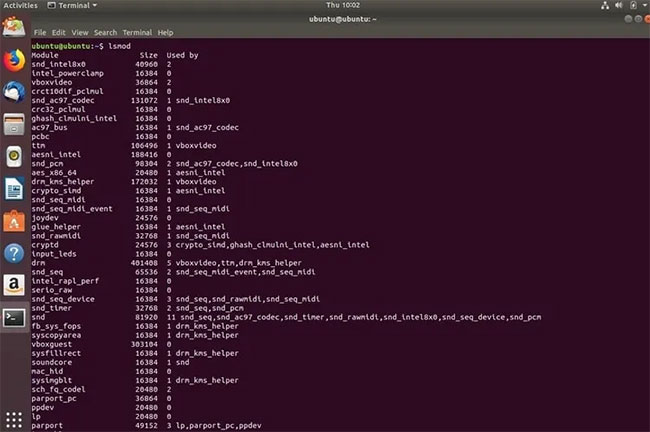
<p style="text-align: justify;">Quay lại Terminal và nhập lệnh sau:</p>

<pre id="pre5">
<code>sudo lsmod</code></pre>

<figure>
<div style="text-align: justify;"><img alt="Danh sách các mô-đun được sử dụng" data-i="1" data-src="https://st.quantrimang.com/photos/image/2020/09/21/wifi-khong-hoat-dong-tren-ubuntu-2.jpg" data-was-processed="true" height="432" src="https://st.quantrimang.com/photos/image/2020/09/21/wifi-khong-hoat-dong-tren-ubuntu-2.jpg" width="650" /></div>

<figcaption>
<div style="text-align: justify;">Danh sách các mô-đun được sử dụng</div>
</figcaption>
</figure>

<p style="text-align: justify;">Bạn sẽ thấy danh sách các mô-đun được sử dụng. Để kích hoạt mô-đun của bạn, hãy nhập lệnh sau trong đó&nbsp;<strong>modulename</strong>&nbsp;là tên chipset của bạn.</p>

<pre id="pre6">
<code>sudo modprobe modulename</code></pre>

<p style="text-align: justify;">Ví dụ, nếu chipset không dây của bạn là “RT2870”, lệnh sẽ như sau:</p>

<pre id="pre7">
<code>sudo modprobe rt2800usb</code></pre>

<p style="text-align: justify;">Sau đó, chạy lại lệnh lsmod để xem nó đã được load đúng chưa.</p>

<h3 style="text-align: justify;">Load mô-đun tự động khi boot</h3>

<p style="text-align: justify;">Đó là một trường hợp hiếm hoi, nhưng đôi khi mô-đun sẽ không cố boot. Trong trường hợp này, bạn có thể buộc nó load vĩnh viễn. Nhập lệnh dưới đây vào Terminal:</p>

<pre id="pre8">
<code>sudo nano /etc/modules</code></pre>

<p style="text-align: justify;">Trình soạn thảo Nano&nbsp;sẽ mở ra. Thêm tên mô-đun của bạn ở dưới cùng và lưu file. Bạn sẽ cần khởi động lại và kiểm tra xem liệu card không dây hiện có thể nhìn thấy các mạng để cho phép bạn kết nối như bình thường hay không.</p>

<p style="text-align: justify;">Nếu bạn gặp khó khăn, hãy lặp lại quy trình. Rất may, Ubuntu có một số trang trợ giúp hữu ích trong tài liệu trực tuyến mà bạn cũng có thể đọc qua tại:</p>

<pre id="pre9">
<code>https://help.ubuntu.com/stable/ubuntu-help/net-wireless-troubleshooting-hardware-check.html.en</code></pre>

<p style="text-align: justify;">Ngoài ra, bạn có thể sử dụng tính năng trợ giúp tích hợp trong Terminal bằng cách nhập:</p>

<pre id="pre10">
<code>man lsusb
 man lspci</code></pre>

<h2 style="text-align: justify;">Vấn đề 3: DNS</h2>

<p style="text-align: justify;">Hiếm khi&nbsp;DNS&nbsp;trở thành một vấn đề. Tuy nhiên, bạn nên xem xét nó nếu vẫn gặp sự cố kết nối. Từ Terminal, nhập lệnh sau để đánh giá DNS đến từ đâu:</p>

<pre id="pre11">
<code>nmcli device show wlan1 | grep IP4.DNS</code></pre>

<p style="text-align: justify;">Điều này sẽ hiển thị cho bạn địa chỉ LAN của router. Nếu nó không hoạt động, bạn có thể phải thay đổi&nbsp;<strong>“wlan1”</strong>&nbsp;thành bất kỳ thứ gì mạng không dây của bạn sử dụng. Lệnh sau cũng có thể được sử dụng:</p>

<pre id="pre12">
<code>ip address</code></pre>

<p style="text-align: justify;">Sau khi bạn có thông tin này, phương pháp tiếp theo là&nbsp;ping&nbsp;địa chỉ mạng LAN của router. Nếu điều này hoạt động, hãy thử ping các DNS server của Google:</p>

<pre id="pre13">
<code>ping 8.8.8.8</code></pre>

<p style="text-align: justify;">Với những kết quả này, bạn có thể xác định vấn đề DNS nằm ở đâu. Nếu tất cả các thiết bị trong nhà hoặc văn phòng gặp lỗi load trang, thì hãy thay đổi DNS của router thành Google hoặc Open DNS server. Bạn sẽ phải hỏi ý kiến ​​nhà sản xuất router để biết cách thực hiện điều này, nhưng nó thường được thực hiện trong các trang admin, phổ biến nhất là đăng nhập vào&nbsp;<strong>192.168.0.1</strong>&nbsp;hoặc tương tự.</p>

<p style="text-align: justify;">Nếu sự cố DNS chỉ xảy ra với Ubuntu, thì hãy làm theo các bước sau bằng cách sử dụng Network Manager GUI:</p>

<ul>
	<li style="text-align: justify;">Nhấp chuột phải vào&nbsp;<strong>Network Manager.</strong></li>
	<li style="text-align: justify;">Chọn&nbsp;<strong>Edit Connections.</strong></li>
	<li style="text-align: justify;">Chọn kết nối WiFi được đề cập.</li>
	<li style="text-align: justify;">Chọn&nbsp;<strong>IPv4 Settings.</strong></li>
	<li style="text-align: justify;">Thay đổi&nbsp;<strong>Method</strong>&nbsp;thành&nbsp;<strong>DHCP Addresses Only</strong>.</li>
	<li style="text-align: justify;">Thêm 8.8.8.8, 8.8.4.4 vào hộp của DNS server. Hãy nhớ dùng dấu phẩy để phân tách các IP và không dùng dấu cách.</li>
	<li style="text-align: justify;">Nhấn&nbsp;<strong>Save</strong>, sau đó chọn&nbsp;<strong>Close.</strong></li>
</ul>

<p style="text-align: justify;">Bước cuối cùng, khởi động lại máy hoặc Network Manager từ Terminal:</p>

<pre id="pre14">
<code>sudo service network-manager restart</code></pre>

<div style="text-align: justify;">&nbsp;</div>

<h2 style="text-align: justify;">Vấn đề 4: Không có Network Manager</h2>

<p style="text-align: justify;">Giả sử bạn đã gỡ bỏ&nbsp;<strong>Network Manager</strong>&nbsp;hoặc vô tình gỡ cài đặt. Đây là một tình huống thực sự rắc rối: Bạn không có Internet và không có Network Manager.</p>

<p style="text-align: justify;">Giả sử gói apt vẫn còn trong cache, thì bạn có thể đi tới Terminal và nhập:</p>

<pre id="pre15">
<code>sudo apt-get install network-manager</code></pre>

<p style="text-align: justify;">Nếu đã xóa cache này, thì bạn có thể sử dụng&nbsp;cáp Ethernet&nbsp;để kết nối bằng cách cắm cáp này vào&nbsp;cổng Ethernet&nbsp;và chạy lại lệnh trên.</p>

<p style="text-align: justify;">Bước cuối cùng, nếu không có cách nào ở trên hoạt động, bạn sẽ cần chỉnh sửa file cấu hình của mình. Bài viết đã chọn&nbsp;<strong>gedit</strong>&nbsp;làm trình soạn thảo văn bản, nhưng bạn có thể sử dụng lựa chọn ưa thích của mình và sửa đổi lệnh.</p>

<pre id="pre16">
<code>sudo gedit /etc/network/interfaces</code></pre>

<p style="text-align: justify;">Sửa đổi nó để đọc như sau:</p>

<pre id="pre17">
<code>auto lo
 iface lo inet loopback
 auto wlan0
 iface wlan0 inet dhcp
 wpa-essid myssid
 wpa-psk mypasscode</code></pre>

<p style="text-align: justify;">Sau đó, bạn có thể khởi động lại interface bằng cách nhập code dưới đây:</p>

<pre id="pre18">
<code>sudo ifdown wlan0 &amp;&amp; sudo ifup -v wlan0</code></pre>
		</div>
				<div id="author">
						<p>
				<strong>Nguồn tin:</strong>
				Quantrimang.com
			</p>
		</div>
	</div>
	<div id="footer" class="clearfix">
		<div id="url">
			<strong>URL của bản tin này: </strong><a href="https://www.nguoicodonvn2008.info/vi/news/savefile/kien-thuc-may-tinh/sua-loi-wifi-khong-hoat-dong-tren-ubuntu-2791.html" title="Sửa lỗi WiFi không hoạt động trên Ubuntu">https://www.nguoicodonvn2008.info/vi/news/savefile/kien-thuc-may-tinh/sua-loi-wifi-khong-hoat-dong-tren-ubuntu-2791.html</a>

		</div>
		<div class="clear"></div>
		<div class="copyright">
			&copy; .&#x3A; Nguoicodonvn2008.info - Cõi lòng người cô đơn &#x3A;.
		</div>
		<div id="contact">
			<a href="mailto:admin@nguoicodonvn2008.info">admin@nguoicodonvn2008.info</a>
		</div>
	</div>
</div>
        <div id="timeoutsess" class="chromeframe">
            Bạn đã không sử dụng Site, <a onclick="timeoutsesscancel();" href="https://nguoicodonvn2008.info/#">Bấm vào đây để duy trì trạng thái đăng nhập</a>. Thời gian chờ: <span id="secField"> 60 </span> giây
        </div>
        <div id="openidResult" class="nv-alert" style="display:none"></div>
        <div id="openidBt" data-result="" data-redirect=""></div>
		</script>
		<div class="car-top">
  <span><img src="https://nguoicodonvn2008.info/themes/default/images/car.png" alt=""></span>
</div>
<script src="https://nguoicodonvn2008.info/assets/js/jquery/jquery.min.js"></script>
<script>var nv_base_siteurl="/",nv_lang_data="vi",nv_lang_interface="vi",nv_name_variable="nv",nv_fc_variable="op",nv_lang_variable="language",nv_module_name="news",nv_func_name="savefile",nv_is_user=0, nv_my_ofs=-4,nv_my_abbr="EDT",nv_cookie_prefix="nv4c_e856T",nv_check_pass_mstime=1738000,nv_area_admin=0,nv_safemode=0,theme_responsive=0,nv_recaptcha_ver=2,nv_recaptcha_sitekey="",nv_recaptcha_type="image",XSSsanitize=1;</script>
<script src="https://nguoicodonvn2008.info/assets/js/language/vi.js"></script>
<script src="https://nguoicodonvn2008.info/assets/js/DOMPurify/purify3.js"></script>
<script src="https://nguoicodonvn2008.info/assets/js/global.js"></script>
<script src="https://nguoicodonvn2008.info/assets/js/site.js"></script>
<script src="https://nguoicodonvn2008.info/themes/default/js/news.js"></script>
<script src="https://nguoicodonvn2008.info/themes/default/js/main.js"></script>
<script src="https://nguoicodonvn2008.info/themes/default/js/custom.js"></script>
<script type="application/ld+json">
        {
            "@context": "https://schema.org",
            "@type": "Organization",
            "url": "https://nguoicodonvn2008.info",
            "logo": "https://nguoicodonvn2008.info/uploads/angel.gif"
        }
        </script>
<script src="https://nguoicodonvn2008.info/themes/default/js/bootstrap.min.js"></script>
<script type="text/javascript">
var $scrolltop = $('.car-top');
$scrolltop.on('click', function () {
    $('html,body').animate({
        scrollTop: 0
    }, 800);
    $(this).addClass("car-run");
    setTimeout(function(){ $scrolltop.removeClass('car-run');}, 1000);
    return false;
});
$(window).on('scroll', function ()
{ 
    if($(window).scrollTop() >= 200)
    {
        $scrolltop.addClass("show");
        $scrolltop.addClass("car-down");
    }
    else
    {
       $scrolltop.removeClass("show");
       setTimeout(function(){ $scrolltop.removeClass('car-down');}, 300);
    }
});
</script>
</body>
</html>