<!DOCTYPE html>
    <html lang="vi" xmlns="http://www.w3.org/1999/xhtml" prefix="og: http://ogp.me/ns#">
    <head>
<title>Sửa lỗi &quot;Setup was unable to create a new system partition or locate an existing system partition&quot;</title>
<meta name="description" content="Sửa lỗi &quot;Setup was unable to create a new system partition or locate an existing system partition&quot; - Savefile - Tin Tức -...">
<meta name="author" content=".: Nguoicodonvn2008.info - Cõi lòng người cô đơn :.">
<meta name="copyright" content=".: Nguoicodonvn2008.info - Cõi lòng người cô đơn :. [admin@nguoicodonvn2008.info]">
<meta name="robots" content="index, archive, follow, noodp">
<meta name="googlebot" content="index,archive,follow,noodp">
<meta name="msnbot" content="all,index,follow">
<meta name="generator" content="NukeViet v4.5">
<meta http-equiv="Content-Type" content="text/html; charset=utf-8">
<meta property="og:title" content="Sửa lỗi &quot;Setup was unable to create a new system partition or locate an existing system partition&quot;">
<meta property="og:type" content="website">
<meta property="og:description" content="Savefile - Tin Tức -...">
<meta property="og:site_name" content=".&#x3A; Nguoicodonvn2008.info - Cõi lòng người cô đơn &#x3A;.">
<meta property="og:url" content="https://www.nguoicodonvn2008.info/vi/news/savefile/kien-thuc-may-tinh/sua-loi-setup-was-unable-to-create-a-new-system-partition-or-locate-an-existing-system-partition-1621.html">
<link rel="shortcut icon" href="https://nguoicodonvn2008.info/favicon.ico">
<link rel="canonical" href="https://www.nguoicodonvn2008.info/vi/news/savefile/kien-thuc-may-tinh/sua-loi-setup-was-unable-to-create-a-new-system-partition-or-locate-an-existing-system-partition-1621.html">
<link rel="alternate" href="https://nguoicodonvn2008.info/vi/news/rss/" title="Tin Tức" type="application/rss+xml">
<link rel="alternate" href="https://nguoicodonvn2008.info/vi/news/rss/karaoke-dual/" title="Tin Tức - Karaoke Dual" type="application/rss+xml">
<link rel="alternate" href="https://nguoicodonvn2008.info/vi/news/rss/nhac-tre/" title="Tin Tức - Nhạc trẻ" type="application/rss+xml">
<link rel="alternate" href="https://nguoicodonvn2008.info/vi/news/rss/tru-tinh/" title="Tin Tức - Trữ tình" type="application/rss+xml">
<link rel="alternate" href="https://nguoicodonvn2008.info/vi/news/rss/nuoc-ngoai/" title="Tin Tức - Nước ngoài" type="application/rss+xml">
<link rel="alternate" href="https://nguoicodonvn2008.info/vi/news/rss/remix/" title="Tin Tức - Remix" type="application/rss+xml">
<link rel="alternate" href="https://nguoicodonvn2008.info/vi/news/rss/tam-su-tinh-yeu/" title="Tin Tức - Tâm sự tình yêu" type="application/rss+xml">
<link rel="alternate" href="https://nguoicodonvn2008.info/vi/news/rss/tho-suu-tam/" title="Tin Tức - Thơ sưu tầm" type="application/rss+xml">
<link rel="alternate" href="https://nguoicodonvn2008.info/vi/news/rss/cuoc-song/" title="Tin Tức - Cuộc sống" type="application/rss+xml">
<link rel="alternate" href="https://nguoicodonvn2008.info/vi/news/rss/phan-mem/" title="Tin Tức - Phần mềm" type="application/rss+xml">
<link rel="alternate" href="https://nguoicodonvn2008.info/vi/news/rss/kien-thuc-may-tinh/" title="Tin Tức - Kiến thức máy tính" type="application/rss+xml">
<link rel="alternate" href="https://nguoicodonvn2008.info/vi/news/rss/hoc-tap/" title="Tin Tức - Học tập" type="application/rss+xml">
<link rel="alternate" href="https://nguoicodonvn2008.info/vi/news/rss/tai-lieu/" title="Tin Tức - Tài liệu" type="application/rss+xml">
<link rel="alternate" href="https://nguoicodonvn2008.info/vi/news/rss/de-thi/" title="Tin Tức - Đề thi" type="application/rss+xml">
<link rel="preload" as="style" href="https://nguoicodonvn2008.info/assets/css/font-awesome.min.css" type="text/css">
<link rel="preload" as="style" href="https://nguoicodonvn2008.info/themes/default/css/bootstrap.non-responsive.css" type="text/css">
<link rel="preload" as="style" href="https://nguoicodonvn2008.info/themes/default/css/style.css" type="text/css">
<link rel="preload" as="style" href="https://nguoicodonvn2008.info/themes/default/css/style.non-responsive.css" type="text/css">
<link rel="preload" as="style" href="https://nguoicodonvn2008.info/themes/default/css/news.css" type="text/css">
<link rel="preload" as="style" href="https://nguoicodonvn2008.info/themes/default/css/custom.css" type="text/css">
<link rel="preload" as="script" href="https://nguoicodonvn2008.info/assets/js/jquery/jquery.min.js" type="text/javascript">
<link rel="preload" as="script" href="https://nguoicodonvn2008.info/assets/js/language/vi.js" type="text/javascript">
<link rel="preload" as="script" href="https://nguoicodonvn2008.info/assets/js/DOMPurify/purify3.js" type="text/javascript">
<link rel="preload" as="script" href="https://nguoicodonvn2008.info/assets/js/global.js" type="text/javascript">
<link rel="preload" as="script" href="https://nguoicodonvn2008.info/assets/js/site.js" type="text/javascript">
<link rel="preload" as="script" href="https://nguoicodonvn2008.info/themes/default/js/news.js" type="text/javascript">
<link rel="preload" as="script" href="https://nguoicodonvn2008.info/themes/default/js/main.js" type="text/javascript">
<link rel="preload" as="script" href="https://nguoicodonvn2008.info/themes/default/js/custom.js" type="text/javascript">
<link rel="preload" as="script" href="https://nguoicodonvn2008.info/themes/default/js/bootstrap.min.js" type="text/javascript">
<link rel="stylesheet" href="https://nguoicodonvn2008.info/assets/css/font-awesome.min.css">
<link rel="stylesheet" href="https://nguoicodonvn2008.info/themes/default/css/bootstrap.non-responsive.css">
<link rel="stylesheet" href="https://nguoicodonvn2008.info/themes/default/css/style.css">
<link rel="stylesheet" href="https://nguoicodonvn2008.info/themes/default/css/style.non-responsive.css">
<link rel="StyleSheet" href="https://nguoicodonvn2008.info/themes/default/css/news.css">
<link rel="stylesheet" href="https://nguoicodonvn2008.info/themes/default/css/custom.css">
<style type="text/css">
	body{background: #fff;}
</style>
    </head>
    <body>
<div id="print">
	<div id="hd_print">
		<h2 class="pull-left">.&#x3A; Nguoicodonvn2008.info - Cõi lòng người cô đơn &#x3A;.</h2>
		<p class="pull-right"><a title=".&#x3A; Nguoicodonvn2008.info - Cõi lòng người cô đơn &#x3A;." href="https://nguoicodonvn2008.info/">https://nguoicodonvn2008.info</a></p>
	</div>
	<div class="clear"></div>
	<hr />
	<div id="content">
		<h1>Sửa lỗi &quot;Setup was unable to create a new system partition or locate an existing system partition&quot;</h1>
		<ul class="list-inline">
			<li>Thứ ba - 04/02/2020 00:06</li>
			<li class="hidden-print txtrequired"><em class="fa fa-print">&nbsp;</em><a title="In ra" href="javascript:;" onclick="window.print()">In ra</a></li>
			<li class="hidden-print txtrequired"><em class="fa fa-power-off">&nbsp;</em><a title="Đóng cửa sổ này" href="javascript:;" onclick="window.close()">Đóng cửa sổ này</a></li>
		</ul>
		<div class="clear"></div>
		<div id="hometext">
		</div>
				<div class="imghome">
			<img alt="Sửa lỗi &quot;Setup was unable to create a new system partition or locate an existing system partition&quot;" src="https://st.quantrimang.com/photos/image/2020/02/03/sua-loi-setup-was-unable-to-create-a-new-system-partition-or-locate-an-existing-system-partition-2.jpg" width="460" class="img-thumbnail" />
		</div>
		<div class="clear"></div>
		<div id="bodytext" class="clearfix">
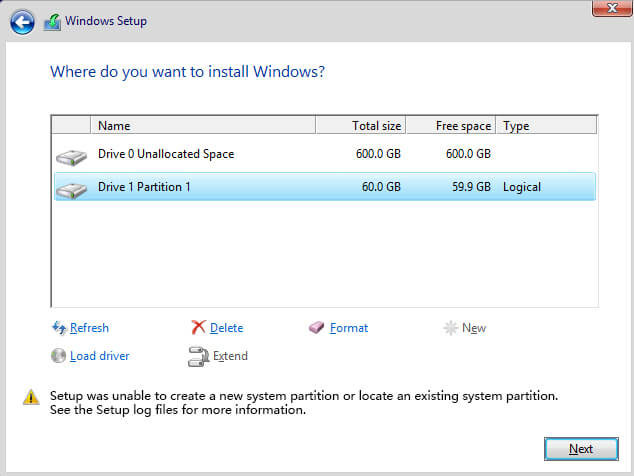
			<p style="text-align: justify;">Nếu bạn nhận được thông báo lỗi này:&nbsp;<strong>“Setup was unable to create a new system partition or locate an existing system partition”</strong>&nbsp;trong khi cài đặt Windows 7, 8/8.1, 10, thì đừng bỏ lỡ bài viết sau đây.</p>

<p style="text-align: justify;">Bài viết hôm nay sẽ cung cấp cho bạn hướng dẫn từng bước về cách khắc phục sự cố này và bắt đầu cài đặt&nbsp;Windows 7, nhưng quy trình thực hiện trên Windows 10/8/8.1 cũng sẽ tương tự. Thực hiện theo các bước được cung cấp dưới đây để khắc phục sự cố này.</p>

<p style="text-align: justify;"><strong>Cách khắc phục lỗi “Setup was unable to create a new system partition or locate an existing system partition” khi cài đặt Windows</strong></p>

<figure>
<div style="text-align: justify;"><img alt="Khắc phục lỗi “Setup was unable to create a new system partition or locate an existing system partition” khi cài đặt Windows" data-i="0" data-src="https://st.quantrimang.com/photos/image/2020/02/03/sua-loi-setup-was-unable-to-create-a-new-system-partition-or-locate-an-existing-system-partition-1.jpg" data-was-processed="true" height="476" src="https://st.quantrimang.com/photos/image/2020/02/03/sua-loi-setup-was-unable-to-create-a-new-system-partition-or-locate-an-existing-system-partition-1.jpg" width="634" /></div>

<figcaption>
<div style="text-align: justify;">Khắc phục lỗi “Setup was unable to create a new system partition or locate an existing system partition” khi cài đặt Windows</div>
</figcaption>
</figure>

<p style="text-align: justify;">1. Trước hết, hãy chắc chắn rằng mọi ổ cứng ngoài đều được rút khỏi máy tính. Nếu bạn đang cài đặt windows thông qua CD hoặc USB có khả năng boot, hãy để nguyên chúng.</p>

<p style="text-align: justify;">2. Bây giờ, nhấn phím&nbsp;<code>Shift</code>+<code>F10</code>&nbsp;để&nbsp;mở Command Prompt.</p>

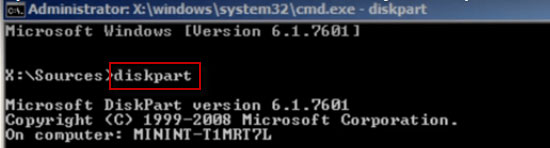
<p style="text-align: justify;">3. Trong cửa sổ&nbsp;<strong>Command</strong>&nbsp;<strong>Prompt</strong>, gõ&nbsp;<strong>“diskpart”</strong>&nbsp;và nhấn&nbsp;<code>Enter</code>.</p>

<figure>
<div style="text-align: justify;"><img alt="Gõ “diskpart”" data-i="1" data-src="https://st.quantrimang.com/photos/image/2020/02/03/sua-loi-setup-was-unable-to-create-a-new-system-partition-or-locate-an-existing-system-partition-2.jpg" data-was-processed="true" height="148" src="https://st.quantrimang.com/photos/image/2020/02/03/sua-loi-setup-was-unable-to-create-a-new-system-partition-or-locate-an-existing-system-partition-2.jpg" width="550" /></div>

<figcaption>
<div style="text-align: justify;">Gõ “diskpart”</div>
</figcaption>
</figure>

<p style="text-align: justify;">4. Sau đó, gõ&nbsp;<strong>“list disk”.</strong>&nbsp;Bước này sẽ liệt kê tất cả các ổ cứng được kết nối với PC này. Ví dụ chỉ có một ổ (bạn cũng chỉ nên có một ổ sẽ tốt hơn). Ta sẽ cài đặt Windows vào ổ cứng này.</p>

<p style="text-align: justify;">5. Chúng ta cần chọn ổ cứng bằng cách gõ&nbsp;<strong>“select disk 0“.</strong>&nbsp;Bạn có thể chọn một phân vùng khác nếu muốn.</p>

<p style="text-align: justify;">6. Bây giờ, hãy gõ&nbsp;<strong>“clean”</strong>&nbsp;để xóa sạch mọi dữ liệu trên ổ.</p>

<p style="text-align: justify;">7. Sau khi hoàn tất, hãy gõ&nbsp;<strong>“create partition primary size-10000&quot;</strong>.</p>

<p style="text-align: justify;">8. Bây giờ, hãy gõ&nbsp;<strong>“format fs=ntfs quick“.</strong></p>

<p style="text-align: justify;">9. Sau khi thực hiện xong, gõ&nbsp;<strong>“assign”</strong>&nbsp;rồi nhấn phím&nbsp;<code>Enter</code>.</p>

<p style="text-align: justify;">10. Sau đó gõ&nbsp;<strong>“active”</strong>&nbsp;và nhấn&nbsp;<code>Enter</code>.</p>

<p style="text-align: justify;">11. Bây giờ, hãy nhập&nbsp;<strong>“list volume”</strong>&nbsp;để liệt kê phân vùng hoặc ổ. Nó sẽ hiển thị phân vùng mà bạn vừa tạo.</p>

<p style="text-align: justify;">12. Bây giờ, ta sẽ sao chép nội dung ổ CD boot Windows vào ổ C.</p>

<p style="text-align: justify;">13. Gõ&nbsp;<strong>Exit</strong>&nbsp;và sau đó nhấn&nbsp;<code>Enter</code>.</p>

<p style="text-align: justify;">14. Đi tới ổ CD bằng cách gõ&nbsp;<strong>“cd e:”</strong>&nbsp;và nhấn&nbsp;<code>Enter</code>.</p>

<p style="text-align: justify;">15. Bây giờ, hãy nhập&nbsp;<strong>“xcopy e: c:/e/h/k”</strong>, sau đó nhấn&nbsp;<code>Enter</code>. Nó bắt đầu sao chép các file cài đặt từ ổ CD sang ổ đĩa C. Sẽ mất chút thời gian để sao chép.</p>

<p style="text-align: justify;">16. Sau khi thực hiện xong, gõ&nbsp;<strong>“exit”</strong>&nbsp;và nhấn&nbsp;<code>Enter</code>. Bây giờ hãy đóng tất cả các cửa sổ được mở và sau đó khởi động lại máy tính một lần. Sau khi khởi động lại, máy sẽ bắt đầu cài đặt Windows.</p>

<p style="text-align: justify;">17. Bây giờ, bạn có tùy chọn để tạo phân vùng cho không gian được cấp phát.</p>

<p style="text-align: justify;">Khi Windows đã được cài đặt, bạn cần&nbsp;chỉnh sửa boot loader. Để loại bỏ màn hình đen này khỏi quá trình khởi động, hãy làm theo các bước dưới đây.</p>

<p style="text-align: justify;">1. Để làm điều đó&nbsp;chạy Command Prompt với quyền admin.</p>

<p style="text-align: justify;">2. Gõ lệnh&nbsp;<strong>bcdedit</strong>&nbsp;và sau đó nhấn&nbsp;<code>Enter</code>.</p>

<p style="text-align: justify;">3. Xác định vị trí nội dung&nbsp;<strong>“Description”</strong>&nbsp;và&nbsp;<strong>“Identifier”.</strong></p>

<p style="text-align: justify;">4. Nhập&nbsp;<strong>“bcdedit /delete (74253dcc9-effasdrc50-3582tvple-5263tlpt-5223thpf)”</strong>, sau đó nhấn&nbsp;<code>Enter</code>.</p>

<p style="text-align: justify;">5. Khởi động lại máy tính. Lần này, bạn sẽ không nhận được một màn hình đen nữa.</p>
		</div>
				<div id="author">
						<p>
				<strong>Nguồn tin:</strong>
				Quantrimang.com
			</p>
		</div>
	</div>
	<div id="footer" class="clearfix">
		<div id="url">
			<strong>URL của bản tin này: </strong><a href="https://www.nguoicodonvn2008.info/vi/news/savefile/kien-thuc-may-tinh/sua-loi-setup-was-unable-to-create-a-new-system-partition-or-locate-an-existing-system-partition-1621.html" title="Sửa lỗi &quot;Setup was unable to create a new system partition or locate an existing system partition&quot;">https://www.nguoicodonvn2008.info/vi/news/savefile/kien-thuc-may-tinh/sua-loi-setup-was-unable-to-create-a-new-system-partition-or-locate-an-existing-system-partition-1621.html</a>

		</div>
		<div class="clear"></div>
		<div class="copyright">
			&copy; .&#x3A; Nguoicodonvn2008.info - Cõi lòng người cô đơn &#x3A;.
		</div>
		<div id="contact">
			<a href="mailto:admin@nguoicodonvn2008.info">admin@nguoicodonvn2008.info</a>
		</div>
	</div>
</div>
        <div id="timeoutsess" class="chromeframe">
            Bạn đã không sử dụng Site, <a onclick="timeoutsesscancel();" href="https://nguoicodonvn2008.info/#">Bấm vào đây để duy trì trạng thái đăng nhập</a>. Thời gian chờ: <span id="secField"> 60 </span> giây
        </div>
        <div id="openidResult" class="nv-alert" style="display:none"></div>
        <div id="openidBt" data-result="" data-redirect=""></div>
		</script>
		<div class="car-top">
  <span><img src="https://nguoicodonvn2008.info/themes/default/images/car.png" alt=""></span>
</div>
<div id="run_cronjobs" style="visibility:hidden;display:none;"><img alt="cron" src="/index.php?second=cronjobs&amp;p=y7L14pc3" width="1" height="1" /></div>
<script src="https://nguoicodonvn2008.info/assets/js/jquery/jquery.min.js"></script>
<script>var nv_base_siteurl="/",nv_lang_data="vi",nv_lang_interface="vi",nv_name_variable="nv",nv_fc_variable="op",nv_lang_variable="language",nv_module_name="news",nv_func_name="savefile",nv_is_user=0, nv_my_ofs=-4,nv_my_abbr="EDT",nv_cookie_prefix="nv4c_e856T",nv_check_pass_mstime=1738000,nv_area_admin=0,nv_safemode=0,theme_responsive=0,nv_recaptcha_ver=2,nv_recaptcha_sitekey="",nv_recaptcha_type="image",XSSsanitize=1;</script>
<script src="https://nguoicodonvn2008.info/assets/js/language/vi.js"></script>
<script src="https://nguoicodonvn2008.info/assets/js/DOMPurify/purify3.js"></script>
<script src="https://nguoicodonvn2008.info/assets/js/global.js"></script>
<script src="https://nguoicodonvn2008.info/assets/js/site.js"></script>
<script src="https://nguoicodonvn2008.info/themes/default/js/news.js"></script>
<script src="https://nguoicodonvn2008.info/themes/default/js/main.js"></script>
<script src="https://nguoicodonvn2008.info/themes/default/js/custom.js"></script>
<script type="application/ld+json">
        {
            "@context": "https://schema.org",
            "@type": "Organization",
            "url": "https://nguoicodonvn2008.info",
            "logo": "https://nguoicodonvn2008.info/uploads/angel.gif"
        }
        </script>
<script src="https://nguoicodonvn2008.info/themes/default/js/bootstrap.min.js"></script>
<script type="text/javascript">
var $scrolltop = $('.car-top');
$scrolltop.on('click', function () {
    $('html,body').animate({
        scrollTop: 0
    }, 800);
    $(this).addClass("car-run");
    setTimeout(function(){ $scrolltop.removeClass('car-run');}, 1000);
    return false;
});
$(window).on('scroll', function ()
{ 
    if($(window).scrollTop() >= 200)
    {
        $scrolltop.addClass("show");
        $scrolltop.addClass("car-down");
    }
    else
    {
       $scrolltop.removeClass("show");
       setTimeout(function(){ $scrolltop.removeClass('car-down');}, 300);
    }
});
</script>
</body>
</html>