<!DOCTYPE html>
    <html lang="vi" xmlns="http://www.w3.org/1999/xhtml" prefix="og: http://ogp.me/ns#">
    <head>
<title>Sửa lỗi MS Paint không hoạt động trên Windows</title>
<meta name="description" content="Sửa lỗi MS Paint không hoạt động trên Windows - Savefile - Tin Tức -...">
<meta name="author" content=".: Nguoicodonvn2008.info - Cõi lòng người cô đơn :.">
<meta name="copyright" content=".: Nguoicodonvn2008.info - Cõi lòng người cô đơn :. [admin@nguoicodonvn2008.info]">
<meta name="robots" content="index, archive, follow, noodp">
<meta name="googlebot" content="index,archive,follow,noodp">
<meta name="msnbot" content="all,index,follow">
<meta name="generator" content="NukeViet v4.5">
<meta http-equiv="Content-Type" content="text/html; charset=utf-8">
<meta property="og:title" content="Sửa lỗi MS Paint không hoạt động trên Windows">
<meta property="og:type" content="website">
<meta property="og:description" content="Savefile - Tin Tức - https&#x3A;&#x002F;&#x002F;www.nguoicodonvn2008.info&#x002F;vi&#x002F;news&#x002F;savefile&#x002F;kien-thuc-may-tinh&#x002F;sua-loi-ms-paint-khong-hoat-dong-tren-windows-8121.html">
<meta property="og:site_name" content=".&#x3A; Nguoicodonvn2008.info - Cõi lòng người cô đơn &#x3A;.">
<meta property="og:url" content="https://www.nguoicodonvn2008.info/vi/news/savefile/kien-thuc-may-tinh/sua-loi-ms-paint-khong-hoat-dong-tren-windows-8121.html">
<link rel="shortcut icon" href="https://nguoicodonvn2008.info/favicon.ico">
<link rel="canonical" href="https://www.nguoicodonvn2008.info/vi/news/savefile/kien-thuc-may-tinh/sua-loi-ms-paint-khong-hoat-dong-tren-windows-8121.html">
<link rel="alternate" href="https://nguoicodonvn2008.info/vi/news/rss/" title="Tin Tức" type="application/rss+xml">
<link rel="alternate" href="https://nguoicodonvn2008.info/vi/news/rss/karaoke-dual/" title="Tin Tức - Karaoke Dual" type="application/rss+xml">
<link rel="alternate" href="https://nguoicodonvn2008.info/vi/news/rss/nhac-tre/" title="Tin Tức - Nhạc trẻ" type="application/rss+xml">
<link rel="alternate" href="https://nguoicodonvn2008.info/vi/news/rss/tru-tinh/" title="Tin Tức - Trữ tình" type="application/rss+xml">
<link rel="alternate" href="https://nguoicodonvn2008.info/vi/news/rss/nuoc-ngoai/" title="Tin Tức - Nước ngoài" type="application/rss+xml">
<link rel="alternate" href="https://nguoicodonvn2008.info/vi/news/rss/remix/" title="Tin Tức - Remix" type="application/rss+xml">
<link rel="alternate" href="https://nguoicodonvn2008.info/vi/news/rss/tam-su-tinh-yeu/" title="Tin Tức - Tâm sự tình yêu" type="application/rss+xml">
<link rel="alternate" href="https://nguoicodonvn2008.info/vi/news/rss/tho-suu-tam/" title="Tin Tức - Thơ sưu tầm" type="application/rss+xml">
<link rel="alternate" href="https://nguoicodonvn2008.info/vi/news/rss/cuoc-song/" title="Tin Tức - Cuộc sống" type="application/rss+xml">
<link rel="alternate" href="https://nguoicodonvn2008.info/vi/news/rss/phan-mem/" title="Tin Tức - Phần mềm" type="application/rss+xml">
<link rel="alternate" href="https://nguoicodonvn2008.info/vi/news/rss/kien-thuc-may-tinh/" title="Tin Tức - Kiến thức máy tính" type="application/rss+xml">
<link rel="alternate" href="https://nguoicodonvn2008.info/vi/news/rss/hoc-tap/" title="Tin Tức - Học tập" type="application/rss+xml">
<link rel="alternate" href="https://nguoicodonvn2008.info/vi/news/rss/tai-lieu/" title="Tin Tức - Tài liệu" type="application/rss+xml">
<link rel="alternate" href="https://nguoicodonvn2008.info/vi/news/rss/de-thi/" title="Tin Tức - Đề thi" type="application/rss+xml">
<link rel="preload" as="style" href="https://nguoicodonvn2008.info/assets/css/font-awesome.min.css" type="text/css">
<link rel="preload" as="style" href="https://nguoicodonvn2008.info/themes/default/css/bootstrap.non-responsive.css" type="text/css">
<link rel="preload" as="style" href="https://nguoicodonvn2008.info/themes/default/css/style.css" type="text/css">
<link rel="preload" as="style" href="https://nguoicodonvn2008.info/themes/default/css/style.non-responsive.css" type="text/css">
<link rel="preload" as="style" href="https://nguoicodonvn2008.info/themes/default/css/news.css" type="text/css">
<link rel="preload" as="style" href="https://nguoicodonvn2008.info/themes/default/css/custom.css" type="text/css">
<link rel="preload" as="script" href="https://nguoicodonvn2008.info/assets/js/jquery/jquery.min.js" type="text/javascript">
<link rel="preload" as="script" href="https://nguoicodonvn2008.info/assets/js/language/vi.js" type="text/javascript">
<link rel="preload" as="script" href="https://nguoicodonvn2008.info/assets/js/DOMPurify/purify3.js" type="text/javascript">
<link rel="preload" as="script" href="https://nguoicodonvn2008.info/assets/js/global.js" type="text/javascript">
<link rel="preload" as="script" href="https://nguoicodonvn2008.info/assets/js/site.js" type="text/javascript">
<link rel="preload" as="script" href="https://nguoicodonvn2008.info/themes/default/js/news.js" type="text/javascript">
<link rel="preload" as="script" href="https://nguoicodonvn2008.info/themes/default/js/main.js" type="text/javascript">
<link rel="preload" as="script" href="https://nguoicodonvn2008.info/themes/default/js/custom.js" type="text/javascript">
<link rel="preload" as="script" href="https://nguoicodonvn2008.info/themes/default/js/bootstrap.min.js" type="text/javascript">
<link rel="stylesheet" href="https://nguoicodonvn2008.info/assets/css/font-awesome.min.css">
<link rel="stylesheet" href="https://nguoicodonvn2008.info/themes/default/css/bootstrap.non-responsive.css">
<link rel="stylesheet" href="https://nguoicodonvn2008.info/themes/default/css/style.css">
<link rel="stylesheet" href="https://nguoicodonvn2008.info/themes/default/css/style.non-responsive.css">
<link rel="StyleSheet" href="https://nguoicodonvn2008.info/themes/default/css/news.css">
<link rel="stylesheet" href="https://nguoicodonvn2008.info/themes/default/css/custom.css">
<style type="text/css">
	body{background: #fff;}
</style>
    </head>
    <body>
<div id="print">
	<div id="hd_print">
		<h2 class="pull-left">.&#x3A; Nguoicodonvn2008.info - Cõi lòng người cô đơn &#x3A;.</h2>
		<p class="pull-right"><a title=".&#x3A; Nguoicodonvn2008.info - Cõi lòng người cô đơn &#x3A;." href="https://nguoicodonvn2008.info/">https://nguoicodonvn2008.info</a></p>
	</div>
	<div class="clear"></div>
	<hr />
	<div id="content">
		<h1>Sửa lỗi MS Paint không hoạt động trên Windows</h1>
		<ul class="list-inline">
			<li>Thứ hai - 26/02/2024 23:22</li>
			<li class="hidden-print txtrequired"><em class="fa fa-print">&nbsp;</em><a title="In ra" href="javascript:;" onclick="window.print()">In ra</a></li>
			<li class="hidden-print txtrequired"><em class="fa fa-power-off">&nbsp;</em><a title="Đóng cửa sổ này" href="javascript:;" onclick="window.close()">Đóng cửa sổ này</a></li>
		</ul>
		<div class="clear"></div>
		<div id="hometext">
		</div>
				<div class="imghome">
			<img alt="Sửa lỗi MS Paint không hoạt động trên Windows" src="https://st.quantrimang.com/photos/image/2024/02/27/ms-paint-khong-hoat-dong-9.jpg" width="460" class="img-thumbnail" />
		</div>
		<div class="clear"></div>
		<div id="bodytext" class="clearfix">
			<p style="text-align: justify;">Microsoft Paint, từng là một công cụ đồ họa đơn giản, giờ đây đã trở thành một ứng dụng thiết kế theo đúng nghĩa của nó, được hỗ trợ bởi các tính năng mới hơn, chẳng hạn như Cocreator được hỗ trợ bởi AI. Ứng dụng Paint có thể gặp sự cố khi mở hoặc chạy bình thường tại một số thời điểm. Hướng dẫn này liệt kê cả các bản sửa lỗi MS Paint không hoạt động trên Windows.</p>

<h2 style="text-align: justify;">1. Khởi động sạch PC Windows</h2>

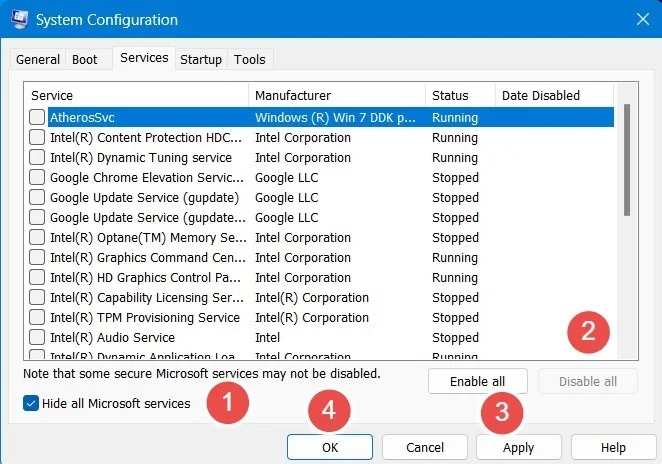
<p style="text-align: justify;">Nếu Microsoft Paint không mở được, kể cả có chạy với quyền admin, có thể có một chương trình nền đang can thiệp vào ứng dụng. Khởi động sạch, như minh họa ở đây, sẽ giải quyết các xung đột phần mềm này để mang lại cho bạn một khởi đầu mới.</p>

<p style="text-align: justify;">Mở System Configuration&nbsp;từ tìm kiếm Windows (có yêu cu quyền admin). Bạn cũng có thể mở nó bằng cách gõ&nbsp;<strong>msconfig.exe</strong>&nbsp;trong menu Run, bạn có thể&nbsp;mở Run&nbsp;bằng&nbsp;<strong>Win + R</strong>.</p>

<p style="text-align: justify;">Chuyển đến tab&nbsp;<strong>Services</strong>&nbsp;và chọn menu&nbsp;<strong>Hide all Microsoft services</strong>. Điều này sẽ đưa tất cả các service không phải của Microsoft vào cửa sổ. Bấm vào&nbsp;<strong>Disable all</strong>, theo sau là&nbsp;<strong>Apply</strong>&nbsp;&gt;&nbsp;<strong>OK</strong>.</p>

<figure>
<div style="text-align: justify;"><img alt="Vô hiệu hóa các service không phải của Windows trong System Configuration để khởi động sạch." data-i="0" data-src="https://st.quantrimang.com/photos/image/2024/02/27/ms-paint-khong-hoat-dong-1.jpg" data-was-processed="true" height="464" src="https://st.quantrimang.com/photos/image/2024/02/27/ms-paint-khong-hoat-dong-1.jpg" width="662" /></div>

<figcaption>
<div style="text-align: justify;">Vô hiệu hóa các service không phải của Windows trong System Configuration để khởi động sạch.</div>
</figcaption>
</figure>

<div style="text-align: justify;"><iframe allowtransparency="true" data-google-container-id="a!2" data-google-query-id="CKe40vLVyoQDFaA8ewcdKSsEwA" data-load-complete="true" frameborder="0" height="0" hspace="0" id="aswift_1" marginheight="0" marginwidth="0" name="aswift_1" sandbox="" scrolling="no" vspace="0" width="694"></iframe></div>

<h2 style="text-align: justify;">2. Kiểm tra các bản cập nhật Windows mới nhất</h2>

<p style="text-align: justify;">Ứng dụng MS Paint lỗi thời thường dễ bị treo. Rất dễ dàng để cập nhật Paint từ Microsoft Store để nó hoạt động bình thường.</p>

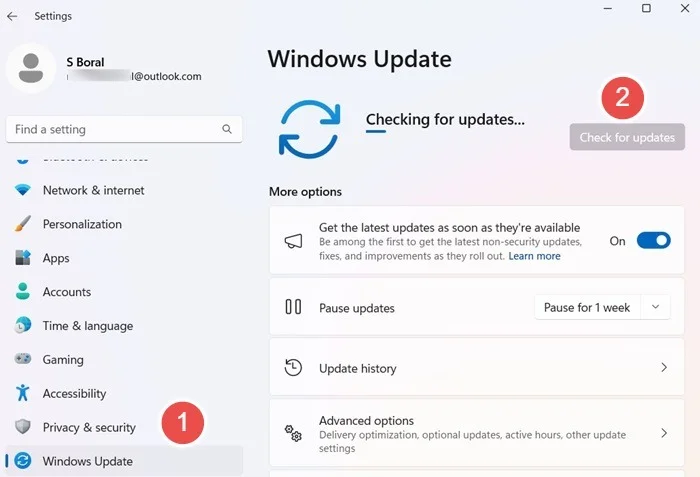
<p style="text-align: justify;">Tuy nhiên, một lý do khác là Microsoft có thể gây ra một số lỗi runtime trong nhiều ứng dụng khác nhau, bao gồm cả Paint, trong quá trình cập nhật tích lũy hoặc tùy chọn. Những sự cố này vẫn tồn tại cho đến bản cập nhật tiếp theo, bản cập nhật này thường đưa ra cách khắc phục. Giải pháp là kiểm tra các bản cập nhật trong cài đặt Windows Update.</p>

<figure>
<div style="text-align: justify;"><img alt="Kiểm tra các bản cập nhật trong Windows 11." data-adbro-processed="true" data-i="1" data-src="https://st.quantrimang.com/photos/image/2024/02/27/ms-paint-khong-hoat-dong-2.jpg" data-was-processed="true" height="477" src="https://st.quantrimang.com/photos/image/2024/02/27/ms-paint-khong-hoat-dong-2.jpg" width="700" /></div>

<figcaption>
<div style="text-align: justify;">Kiểm tra các bản cập nhật trong Windows 11.</div>
</figcaption>
</figure>

<h2 style="text-align: justify;">3. Xóa mục nhập SID cho Paint</h2>

<p style="text-align: justify;">Nếu MS Paint của bạn không hoạt động bình thường thì các mục SID của nó có thể đã bị hỏng và bạn cần phải xóa chúng. Khi bạn cài đặt lại ứng dụng, các mục SID đó sẽ có một khởi đầu mới.</p>

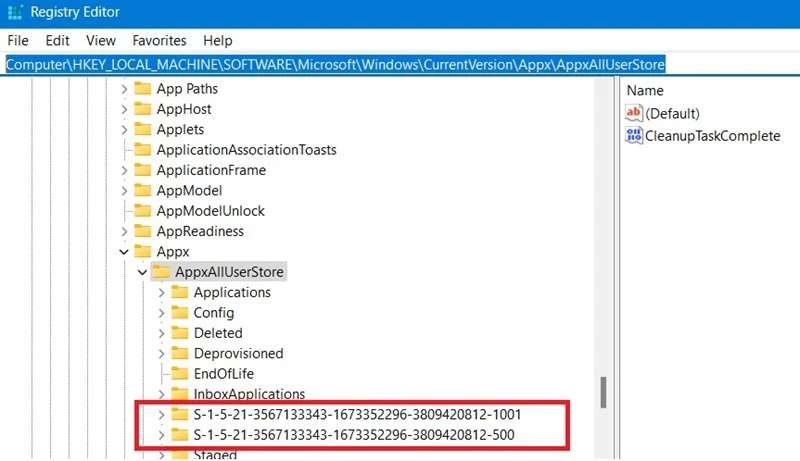
<p style="text-align: justify;">Mở Windows Register Editor, nhập&nbsp;<strong>regedit.exe</strong>&nbsp;trong Run (<strong>Win + R</strong>). Tiếp theo, điều hướng đến đường dẫn sau:</p>

<pre id="pre0">
<code>Computer\HKEY_LOCAL_MACHINE\SOFTWARE\Microsoft\Windows\CurrentVersion\Appx\AppxAllUserStore</code></pre>

<figure>
<div style="text-align: justify;"><img alt="Định vị các mục SID trong AppxAllUserStore thuộc Register Editor" data-i="2" data-src="https://st.quantrimang.com/photos/image/2024/02/27/ms-paint-khong-hoat-dong-3.jpg" data-was-processed="true" height="461" src="https://st.quantrimang.com/photos/image/2024/02/27/ms-paint-khong-hoat-dong-3.jpg" width="800" /></div>

<figcaption>
<div style="text-align: justify;">Định vị các mục SID trong AppxAllUserStore thuộc Register Editor</div>
</figcaption>
</figure>

<div style="text-align: justify;"><iframe allowtransparency="true" data-google-container-id="a!3" data-google-query-id="CPOr1fLVyoQDFacCewcdBNALKw" data-load-complete="true" frameborder="0" height="0" hspace="0" id="aswift_2" marginheight="0" marginwidth="0" name="aswift_2" sandbox="" scrolling="no" vspace="0" width="694"></iframe></div>

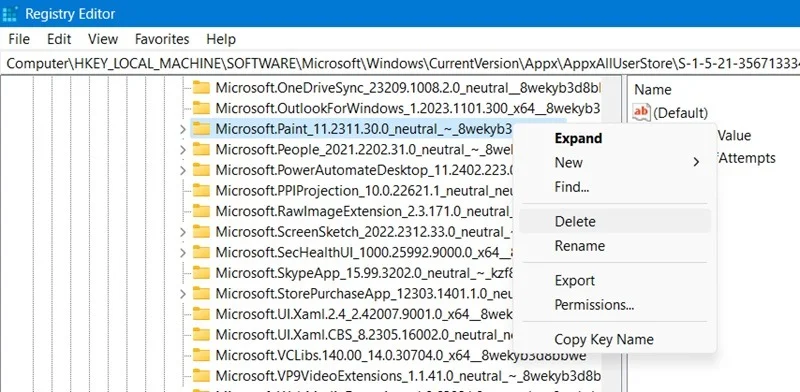
<p style="text-align: justify;">Khi bạn mở key&nbsp;<strong>AppxAllUserStore</strong>, nhiều mục SID khác nhau có thể được xác định thông qua các tiền tố, chẳng hạn như&nbsp;<strong>“S-1-S”</strong>. Mở rộng các subkey để tìm kiếm mọi mục nhập SID liên quan đến MS Paint.</p>

<p style="text-align: justify;">Khi bạn đã xác định được mục nhập SID cho Paint, hãy nhấp chuột phải vào mục nhập đó và chọn&nbsp;<strong>Delete&nbsp;</strong>để xóa mục nhập đó và đóng Register Editor. Gỡ cài đặt, sau đó cài đặt lại chương trình từ&nbsp;<a data-type="internal" href="https://quantrimang.com/cong-nghe/huong-dan-su-dung-windows-control-panel-hieu-qua-84006" title="Hướng dẫn sử dụng Windows Control Panel hiệu quả">Control Panel</a>. Cấu hình SID bị hỏng sẽ tự xóa.</p>

<figure>
<div style="text-align: justify;"><img alt="Nhấp chuột phải để xóa mục SID liên quan đến Paint trong Register Editor." data-i="3" data-src="https://st.quantrimang.com/photos/image/2024/02/27/ms-paint-khong-hoat-dong-4.jpg" data-was-processed="true" height="392" src="https://st.quantrimang.com/photos/image/2024/02/27/ms-paint-khong-hoat-dong-4.jpg" width="800" /></div>

<figcaption>
<div style="text-align: justify;">Nhấp chuột phải để xóa mục SID liên quan đến Paint trong Register Editor.</div>
</figcaption>
</figure>

<p style="text-align: justify;"><strong>Lưu ý</strong>: Trước khi thử phương pháp tiếp theo, hãy mở Paint từ&nbsp;<strong>App Settings</strong>&nbsp;trong Windows Search. Hãy thử kết hợp reset, sửa chữa và gỡ cài đặt.</p>

<h2 style="text-align: justify;">4. Xóa và cài đặt lại Paint bằng PowerShell</h2>

<p style="text-align: justify;">Bạn có thể đã thử gỡ cài đặt và cài đặt lại MS Paint để nó hoạt động trở lại nhưng không thành công. PowerShell có thể ghi đè bất kỳ chương trình hoặc tiến trình nền nào can thiệp vào ứng dụng của bạn vì nó mạnh hơn các quy trình gỡ cài đặt truyền thống. Có hai cách sử dụng PowerShell để gỡ cài đặt/cài đặt lại MS Paint.</p>

<h3 style="text-align: justify;">Phương pháp 1: Sử dụng Get-AppxPackage</h3>

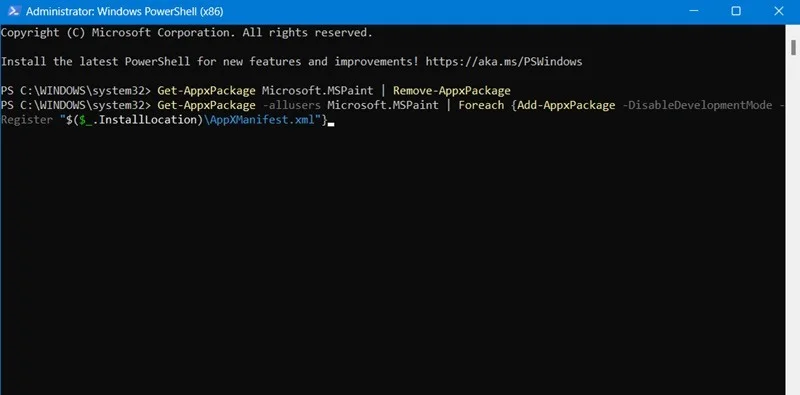
<p style="text-align: justify;"><a data-type="internal" href="https://quantrimang.com/cong-nghe/cach-mo-powershell-voi-quyen-admin-tren-windows-10-154498" title="Cách mở PowerShell với quyền Admin trên Windows 10">Mở PowerShell với quyền admin</a>&nbsp;và nhập lệnh sau.</p>

<pre id="pre1">
<code>Get-AppxPackage Microsoft.MSPaint | Remove-AppxPackage</code></pre>

<p style="text-align: justify;">Cài đặt lại gói như hiển thị ở đây.</p>

<pre id="pre2">
<code>Get-AppxPackage -allusers Microsoft.MSPaint | Foreach {Add-AppxPackage -DisableDevelopmentMode -Register &quot;$($_.InstallLocation)\AppXManifest.xml&quot;}</code></pre>

<figure>
<div style="text-align: justify;"><img alt="Xóa và cài đặt lại gói Paint trong PowerShell." data-i="4" data-src="https://st.quantrimang.com/photos/image/2024/02/27/ms-paint-khong-hoat-dong-5.jpg" data-was-processed="true" height="395" src="https://st.quantrimang.com/photos/image/2024/02/27/ms-paint-khong-hoat-dong-5.jpg" width="800" /></div>

<figcaption>
<div style="text-align: justify;">Xóa và cài đặt lại gói Paint trong PowerShell.</div>
</figcaption>
</figure>

<div style="text-align: justify;"><iframe allowtransparency="true" data-google-container-id="a!4" data-google-query-id="CJfE-fnVyoQDFa8-ewcdgV4Lfw" data-load-complete="true" frameborder="0" height="0" hspace="0" id="aswift_3" marginheight="0" marginwidth="0" name="aswift_3" sandbox="" scrolling="no" vspace="0" width="694"></iframe></div>

<h3 style="text-align: justify;">Phương pháp 2: Sử dụng Get-WmiObject và MyApp</h3>

<p style="text-align: justify;">Đây là cách truyền thống để gỡ cài đặt ứng dụng trong PowerShell. Nó phù hợp hơn cho các hệ thống Windows 10 cũ hơn.</p>

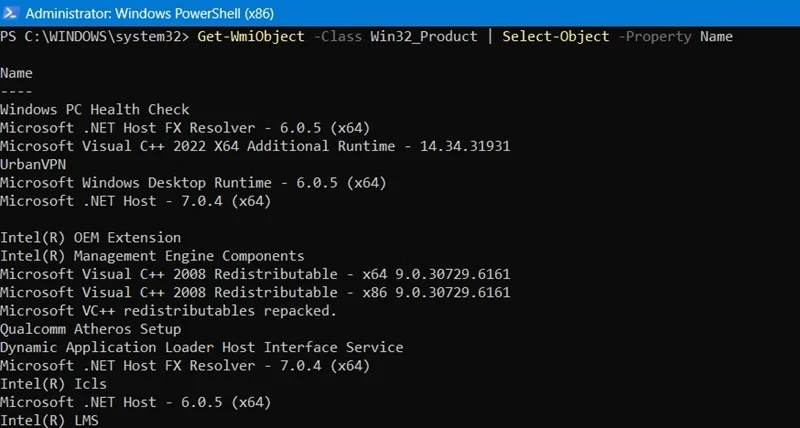
<p style="text-align: justify;">Nhập thông tin sau vào màn hình PowerShell với tất cả các ứng dụng của bạn ở chế độ Administrator.</p>

<pre id="pre3">
<code>Get-WmiObject -Class Win32_Product | Select-Object -Property Name</code></pre>

<figure>
<div style="text-align: justify;"><img alt="Liệt kê các chương trình khác nhau trong PowerShell bằng lệnh Get-WmiObject." data-i="5" data-src="https://st.quantrimang.com/photos/image/2024/02/27/ms-paint-khong-hoat-dong-6.jpg" data-was-processed="true" height="428" src="https://st.quantrimang.com/photos/image/2024/02/27/ms-paint-khong-hoat-dong-6.jpg" width="800" /></div>

<figcaption>
<div style="text-align: justify;">Liệt kê các chương trình khác nhau trong PowerShell bằng lệnh Get-WmiObject.</div>
</figcaption>
</figure>

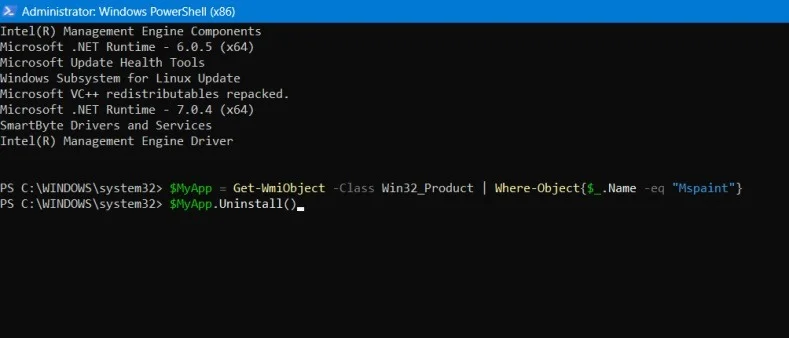
<p style="text-align: justify;">Gọi tên ứng dụng Microsoft Paint, như có thể được chỉ ra trên màn hình PowerShell.</p>

<pre id="pre4">
<code>$MyApp = Get-WmiObject -Class Win32_Product | Where-Object{$_.Name -eq &quot;Mspaint&quot;}</code></pre>

<p style="text-align: justify;">Sau khi ứng dụng được gọi thành công, hãy gỡ cài đặt nó bằng lệnh bên dưới:</p>

<pre id="pre5">
<code>$MyApp.Uninstall()</code></pre>

<figure>
<div style="text-align: justify;"><img alt="Sử dụng MyApp để gỡ cài đặt chương trình gói Paint trong PowerShell." data-i="6" data-src="https://st.quantrimang.com/photos/image/2024/02/27/ms-paint-khong-hoat-dong-7.jpg" data-was-processed="true" height="338" src="https://st.quantrimang.com/photos/image/2024/02/27/ms-paint-khong-hoat-dong-7.jpg" width="789" /></div>

<figcaption>
<div style="text-align: justify;">Sử dụng MyApp để gỡ cài đặt chương trình gói Paint trong PowerShell.</div>
</figcaption>
</figure>

<p style="text-align: justify;">Ứng dụng có thể được cài đặt lại bằng cmdlet Get-Package.</p>

<pre id="pre6">
<code>Get-Package -Provider Programs -IncludeWindowsInstaller -Name &quot;/Name convention of your Paint application/&quot;</code></pre>

<h2 style="text-align: justify;">5. Khởi tạo lại Paint</h2>

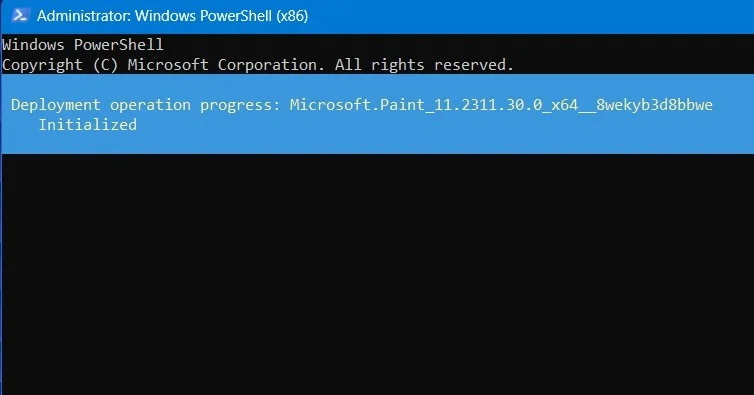
<p style="text-align: justify;">Sau khi cài đặt lại, đôi khi bạn có thể khởi động lại ứng dụng Paint trong PowerShell. Nhập lệnh sau trong PowerShell ở chế độ Administrator</p>

<pre id="pre7">
<code>Get-AppxPackage *Microsoft.Paint* | Reset-AppxPackage</code></pre>

<p style="text-align: justify;">Màn hình sẽ tự động cập nhật khi MS Paint khởi động lại, điều này sẽ đảm bảo nó mở ra mà không gặp bất kỳ sự cố nào.</p>

<figure>
<div style="text-align: justify;"><img alt="Khởi tạo lại Paint trong cửa sổ PowerShell." data-i="7" data-src="https://st.quantrimang.com/photos/image/2024/02/27/ms-paint-khong-hoat-dong-8.jpg" data-was-processed="true" height="395" src="https://st.quantrimang.com/photos/image/2024/02/27/ms-paint-khong-hoat-dong-8.jpg" width="754" /></div>

<figcaption>
<div style="text-align: justify;">Khởi tạo lại Paint trong cửa sổ PowerShell.</div>
</figcaption>
</figure>

<h2 style="text-align: justify;">6. Xóa cache Microsoft Store</h2>

<p style="text-align: justify;">Paint, là một ứng dụng của Microsoft Store, dễ bị tích tụ cache. Điều này có thể khiến nó ngừng hoạt động đột ngột. Thỉnh thoảng xóa bộ nhớ cache là điều cần thiết để giải phóng ứng dụng.</p>

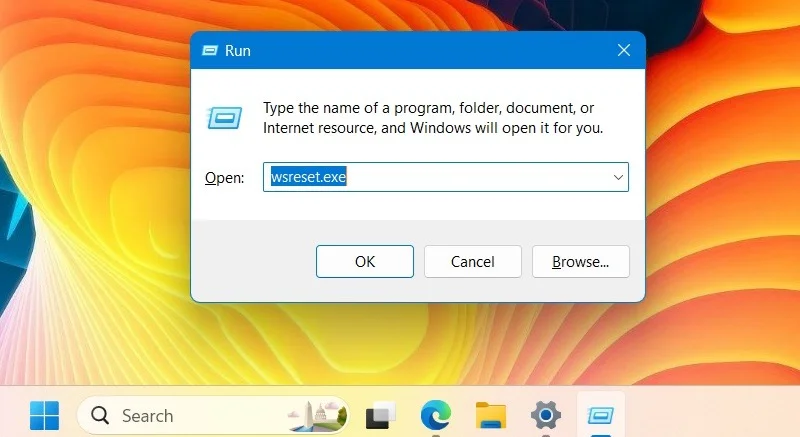
<p style="text-align: justify;">Sử dụng lệnh Run,&nbsp;<strong>Win + R</strong>&nbsp;và gõ&nbsp;<strong>wsrest.exe.</strong>&nbsp;Thao tác này ban đầu sẽ khởi chạy ứng dụng Microsoft Store. Nó cũng sẽ tự động xóa mọi cache.</p>

<div style="text-align: justify;"><iframe allowtransparency="true" data-google-container-id="a!5" data-google-query-id="CIudvPrVyoQDFZMBewcdqdEMKw" data-load-complete="true" frameborder="0" height="0" hspace="0" id="aswift_4" marginheight="0" marginwidth="0" name="aswift_4" sandbox="" scrolling="no" vspace="0" width="694"></iframe></div>

<figure>
<div style="text-align: justify;"><img alt="Xóa cache Microsoft Store bằng cách sử dụng &#039;WScache.exe&#039; trên lệnh Run." data-i="8" data-src="https://st.quantrimang.com/photos/image/2024/02/27/ms-paint-khong-hoat-dong-9.jpg" data-was-processed="true" height="437" src="https://st.quantrimang.com/photos/image/2024/02/27/ms-paint-khong-hoat-dong-9.jpg" width="800" /></div>

<figcaption>
<div style="text-align: justify;">Xóa cache Microsoft Store bằng cách sử dụng &quot;WScache.exe&quot; trên lệnh Run.</div>
</figcaption>
</figure>

<p style="text-align: justify;"><strong>Lưu ý</strong>: Nếu Microsoft Store không hoạt động vì bất kỳ lý do gì, điều đó cũng có thể khiến các ứng dụng được kết nối như Paint ngừng hoạt động.</p>

<h2 style="text-align: justify;">7. Vô hiệu hóa mọi local group policy ngăn cản Paint hoạt động</h2>

<p style="text-align: justify;">Nếu MS Paint không hoạt động hoặc không mở được, bạn sẽ gặp phải các loại lỗi hệ thống khác nhau, chẳng hạn như<em>&nbsp;“Windows cannot find C:\Windows\System32\Mspaint.exe”</em>&nbsp;hoặc&nbsp;<em>“This operation has been canceled due to restrictions in effect on this computer”</em>.</p>

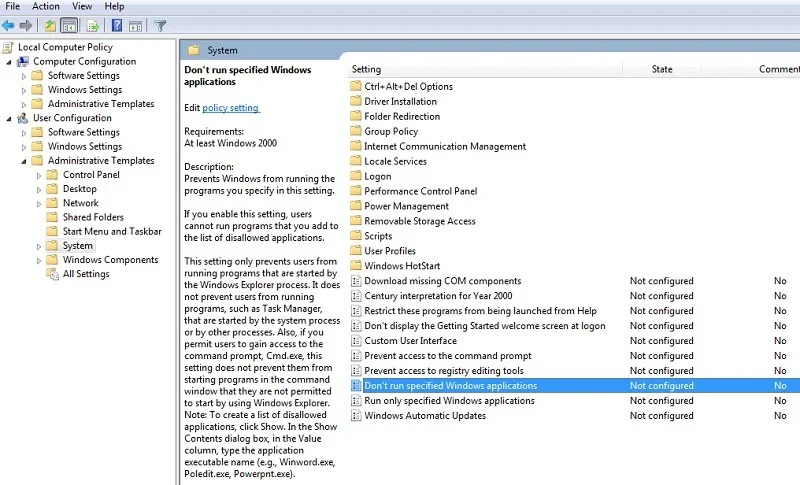
<p style="text-align: justify;">Có thể có local group policy hạn chế bạn truy cập ứng dụng. Bạn có thể liên hệ với quản trị viên hệ thống trong mạng chia sẻ hoặc trong trường hợp bạn là chủ sở hữu PC, hãy&nbsp;<a data-type="internal" href="https://quantrimang.com/cong-nghe/4-thu-thuat-don-gian-mo-local-group-policy-editor-tren-windows-881-119983" title="11 thủ thuật mở Local Group Policy Editor trên Windows">mở Local Group Policy Editor</a>&nbsp;bằng cách sử dụng&nbsp;<strong>gpedit.msc</strong>&nbsp;trong Run.</p>

<p style="text-align: justify;">Điều hướng đến&nbsp;<strong>Local Computer Policy</strong>&nbsp;-&gt;&nbsp;<strong>User Configuration</strong>&nbsp;-&gt;&nbsp;<strong>Administrative Templates</strong>&nbsp;-&gt;&nbsp;<strong>System</strong>. Nhấp đúp vào&nbsp;<strong>Don’t run specified Windows applications</strong>.</p>

<figure>
<div style="text-align: justify;"><img alt="Nhấp đúp vào &#039;Don’t run specified Windows applications&#039;." data-i="9" data-src="https://st.quantrimang.com/photos/image/2024/02/27/ms-paint-khong-hoat-dong-10.jpg" data-was-processed="true" height="485" src="https://st.quantrimang.com/photos/image/2024/02/27/ms-paint-khong-hoat-dong-10.jpg" width="800" /></div>

<figcaption>
<div style="text-align: justify;">Nhấp đúp vào &quot;Don’t run specified Windows applications&quot;.</div>
</figcaption>
</figure>

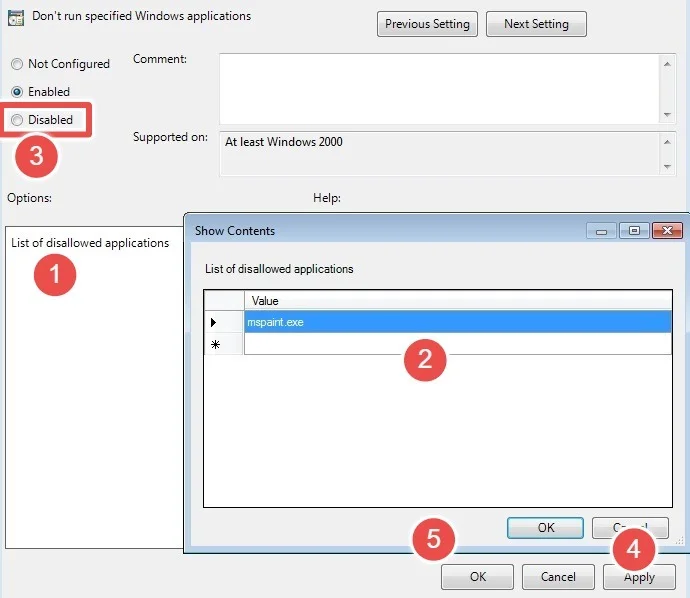
<p style="text-align: justify;">Nếu group policy được kích hoạt trong cửa sổ mới, hãy nhấp vào&nbsp;<strong>List of disallowed applications</strong>. Thao tác này sẽ mở một cửa sổ pop-up mới, nơi bạn có thể kiểm tra xem có bất kỳ hạn chế hệ thống nào đối với MS Paint hay không.</p>

<p style="text-align: justify;">Để hoàn tác những hạn chế này, hãy thay đổi cài đặt thành&nbsp;<strong>Disabled</strong>, sau đó nhấp vào&nbsp;<strong>Apply &gt; OK.</strong>&nbsp;Đóng chương trình.</p>

<figure>
<div style="text-align: justify;"><img alt="Vô hiệu hóa mọi local group policy ngăn cản Paint hoạt động" data-i="10" data-src="https://st.quantrimang.com/photos/image/2024/02/27/ms-paint-khong-hoat-dong-11.jpg" data-was-processed="true" height="598" src="https://st.quantrimang.com/photos/image/2024/02/27/ms-paint-khong-hoat-dong-11.jpg" width="690" /></div>

<figcaption>
<div style="text-align: justify;">Vô hiệu hóa mọi local group policy ngăn cản Paint hoạt động</div>
</figcaption>
</figure>

<h2 style="text-align: justify;">8. Xóa phông chữ được cài đặt gần đây</h2>

<p style="text-align: justify;">Nếu bạn đã cài đặt bất kỳ phông chữ mới nào, rất có thể chúng có thể can thiệp vào ứng dụng MS Paint ở chế độ nền, gây ra sự cố và khiến ứng dụng không thể mở được. Để tránh điều này, bạn có thể phải xóa các phông chữ được cài đặt gần đây. Đi tới Windows Settings bằng&nbsp;<strong>Win + I</strong>, theo sau là&nbsp;<strong>Personalization</strong>&nbsp;-&gt;&nbsp;<strong>Fonts</strong>. Hãy gỡ cài đặt mọi phông chữ gần đây!</p>

<p style="text-align: justify;">Một nguyên nhân nhỏ khiến MS Paint không hoạt động trên Windows là do .NET framework không hoạt động bình thường, bạn có thể khắc phục điều này bằng&nbsp;DISM&nbsp;và các lệnh bảo mật khác.</p>
		</div>
				<div id="author">
						<p>
				<strong>Nguồn tin:</strong>
				Quantrimang.com
			</p>
		</div>
	</div>
	<div id="footer" class="clearfix">
		<div id="url">
			<strong>URL của bản tin này: </strong><a href="https://www.nguoicodonvn2008.info/vi/news/savefile/kien-thuc-may-tinh/sua-loi-ms-paint-khong-hoat-dong-tren-windows-8121.html" title="Sửa lỗi MS Paint không hoạt động trên Windows">https://www.nguoicodonvn2008.info/vi/news/savefile/kien-thuc-may-tinh/sua-loi-ms-paint-khong-hoat-dong-tren-windows-8121.html</a>

		</div>
		<div class="clear"></div>
		<div class="copyright">
			&copy; .&#x3A; Nguoicodonvn2008.info - Cõi lòng người cô đơn &#x3A;.
		</div>
		<div id="contact">
			<a href="mailto:admin@nguoicodonvn2008.info">admin@nguoicodonvn2008.info</a>
		</div>
	</div>
</div>
        <div id="timeoutsess" class="chromeframe">
            Bạn đã không sử dụng Site, <a onclick="timeoutsesscancel();" href="https://nguoicodonvn2008.info/#">Bấm vào đây để duy trì trạng thái đăng nhập</a>. Thời gian chờ: <span id="secField"> 60 </span> giây
        </div>
        <div id="openidResult" class="nv-alert" style="display:none"></div>
        <div id="openidBt" data-result="" data-redirect=""></div>
		</script>
		<div class="car-top">
  <span><img src="https://nguoicodonvn2008.info/themes/default/images/car.png" alt=""></span>
</div>
<script src="https://nguoicodonvn2008.info/assets/js/jquery/jquery.min.js"></script>
<script>var nv_base_siteurl="/",nv_lang_data="vi",nv_lang_interface="vi",nv_name_variable="nv",nv_fc_variable="op",nv_lang_variable="language",nv_module_name="news",nv_func_name="savefile",nv_is_user=0, nv_my_ofs=-4,nv_my_abbr="EDT",nv_cookie_prefix="nv4c_e856T",nv_check_pass_mstime=1738000,nv_area_admin=0,nv_safemode=0,theme_responsive=0,nv_recaptcha_ver=2,nv_recaptcha_sitekey="",nv_recaptcha_type="image",XSSsanitize=1;</script>
<script src="https://nguoicodonvn2008.info/assets/js/language/vi.js"></script>
<script src="https://nguoicodonvn2008.info/assets/js/DOMPurify/purify3.js"></script>
<script src="https://nguoicodonvn2008.info/assets/js/global.js"></script>
<script src="https://nguoicodonvn2008.info/assets/js/site.js"></script>
<script src="https://nguoicodonvn2008.info/themes/default/js/news.js"></script>
<script src="https://nguoicodonvn2008.info/themes/default/js/main.js"></script>
<script src="https://nguoicodonvn2008.info/themes/default/js/custom.js"></script>
<script type="application/ld+json">
        {
            "@context": "https://schema.org",
            "@type": "Organization",
            "url": "https://nguoicodonvn2008.info",
            "logo": "https://nguoicodonvn2008.info/uploads/angel.gif"
        }
        </script>
<script src="https://nguoicodonvn2008.info/themes/default/js/bootstrap.min.js"></script>
<script type="text/javascript">
var $scrolltop = $('.car-top');
$scrolltop.on('click', function () {
    $('html,body').animate({
        scrollTop: 0
    }, 800);
    $(this).addClass("car-run");
    setTimeout(function(){ $scrolltop.removeClass('car-run');}, 1000);
    return false;
});
$(window).on('scroll', function ()
{ 
    if($(window).scrollTop() >= 200)
    {
        $scrolltop.addClass("show");
        $scrolltop.addClass("car-down");
    }
    else
    {
       $scrolltop.removeClass("show");
       setTimeout(function(){ $scrolltop.removeClass('car-down');}, 300);
    }
});
</script>
</body>
</html>