<!DOCTYPE html>
    <html lang="vi" xmlns="http://www.w3.org/1999/xhtml" prefix="og: http://ogp.me/ns#">
    <head>
<title>Sửa lỗi Mobile Hotspot không hoạt động trên Windows 10</title>
<meta name="description" content="Sửa lỗi Mobile Hotspot không hoạt động trên Windows 10 - Savefile - Tin Tức -...">
<meta name="author" content=".: Nguoicodonvn2008.info - Cõi lòng người cô đơn :.">
<meta name="copyright" content=".: Nguoicodonvn2008.info - Cõi lòng người cô đơn :. [admin@nguoicodonvn2008.info]">
<meta name="robots" content="index, archive, follow, noodp">
<meta name="googlebot" content="index,archive,follow,noodp">
<meta name="msnbot" content="all,index,follow">
<meta name="generator" content="NukeViet v4.5">
<meta http-equiv="Content-Type" content="text/html; charset=utf-8">
<meta property="og:title" content="Sửa lỗi Mobile Hotspot không hoạt động trên Windows 10">
<meta property="og:type" content="website">
<meta property="og:description" content="Savefile - Tin Tức - https&#x3A;&#x002F;&#x002F;www.nguoicodonvn2008.info&#x002F;vi&#x002F;news&#x002F;savefile&#x002F;kien-thuc-may-tinh&#x002F;sua-loi-mobile-hotspot-khong-hoat-dong-tren-windows-10-4845.html">
<meta property="og:site_name" content=".&#x3A; Nguoicodonvn2008.info - Cõi lòng người cô đơn &#x3A;.">
<meta property="og:url" content="https://www.nguoicodonvn2008.info/vi/news/savefile/kien-thuc-may-tinh/sua-loi-mobile-hotspot-khong-hoat-dong-tren-windows-10-4845.html">
<link rel="shortcut icon" href="https://nguoicodonvn2008.info/favicon.ico">
<link rel="canonical" href="https://www.nguoicodonvn2008.info/vi/news/savefile/kien-thuc-may-tinh/sua-loi-mobile-hotspot-khong-hoat-dong-tren-windows-10-4845.html">
<link rel="alternate" href="https://nguoicodonvn2008.info/vi/news/rss/" title="Tin Tức" type="application/rss+xml">
<link rel="alternate" href="https://nguoicodonvn2008.info/vi/news/rss/karaoke-dual/" title="Tin Tức - Karaoke Dual" type="application/rss+xml">
<link rel="alternate" href="https://nguoicodonvn2008.info/vi/news/rss/nhac-tre/" title="Tin Tức - Nhạc trẻ" type="application/rss+xml">
<link rel="alternate" href="https://nguoicodonvn2008.info/vi/news/rss/tru-tinh/" title="Tin Tức - Trữ tình" type="application/rss+xml">
<link rel="alternate" href="https://nguoicodonvn2008.info/vi/news/rss/nuoc-ngoai/" title="Tin Tức - Nước ngoài" type="application/rss+xml">
<link rel="alternate" href="https://nguoicodonvn2008.info/vi/news/rss/remix/" title="Tin Tức - Remix" type="application/rss+xml">
<link rel="alternate" href="https://nguoicodonvn2008.info/vi/news/rss/tam-su-tinh-yeu/" title="Tin Tức - Tâm sự tình yêu" type="application/rss+xml">
<link rel="alternate" href="https://nguoicodonvn2008.info/vi/news/rss/tho-suu-tam/" title="Tin Tức - Thơ sưu tầm" type="application/rss+xml">
<link rel="alternate" href="https://nguoicodonvn2008.info/vi/news/rss/cuoc-song/" title="Tin Tức - Cuộc sống" type="application/rss+xml">
<link rel="alternate" href="https://nguoicodonvn2008.info/vi/news/rss/phan-mem/" title="Tin Tức - Phần mềm" type="application/rss+xml">
<link rel="alternate" href="https://nguoicodonvn2008.info/vi/news/rss/kien-thuc-may-tinh/" title="Tin Tức - Kiến thức máy tính" type="application/rss+xml">
<link rel="alternate" href="https://nguoicodonvn2008.info/vi/news/rss/hoc-tap/" title="Tin Tức - Học tập" type="application/rss+xml">
<link rel="alternate" href="https://nguoicodonvn2008.info/vi/news/rss/tai-lieu/" title="Tin Tức - Tài liệu" type="application/rss+xml">
<link rel="alternate" href="https://nguoicodonvn2008.info/vi/news/rss/de-thi/" title="Tin Tức - Đề thi" type="application/rss+xml">
<link rel="preload" as="style" href="https://nguoicodonvn2008.info/assets/css/font-awesome.min.css" type="text/css">
<link rel="preload" as="style" href="https://nguoicodonvn2008.info/themes/default/css/bootstrap.non-responsive.css" type="text/css">
<link rel="preload" as="style" href="https://nguoicodonvn2008.info/themes/default/css/style.css" type="text/css">
<link rel="preload" as="style" href="https://nguoicodonvn2008.info/themes/default/css/style.non-responsive.css" type="text/css">
<link rel="preload" as="style" href="https://nguoicodonvn2008.info/themes/default/css/news.css" type="text/css">
<link rel="preload" as="style" href="https://nguoicodonvn2008.info/themes/default/css/custom.css" type="text/css">
<link rel="preload" as="script" href="https://nguoicodonvn2008.info/assets/js/jquery/jquery.min.js" type="text/javascript">
<link rel="preload" as="script" href="https://nguoicodonvn2008.info/assets/js/language/vi.js" type="text/javascript">
<link rel="preload" as="script" href="https://nguoicodonvn2008.info/assets/js/DOMPurify/purify3.js" type="text/javascript">
<link rel="preload" as="script" href="https://nguoicodonvn2008.info/assets/js/global.js" type="text/javascript">
<link rel="preload" as="script" href="https://nguoicodonvn2008.info/assets/js/site.js" type="text/javascript">
<link rel="preload" as="script" href="https://nguoicodonvn2008.info/themes/default/js/news.js" type="text/javascript">
<link rel="preload" as="script" href="https://nguoicodonvn2008.info/themes/default/js/main.js" type="text/javascript">
<link rel="preload" as="script" href="https://nguoicodonvn2008.info/themes/default/js/custom.js" type="text/javascript">
<link rel="preload" as="script" href="https://nguoicodonvn2008.info/themes/default/js/bootstrap.min.js" type="text/javascript">
<link rel="stylesheet" href="https://nguoicodonvn2008.info/assets/css/font-awesome.min.css">
<link rel="stylesheet" href="https://nguoicodonvn2008.info/themes/default/css/bootstrap.non-responsive.css">
<link rel="stylesheet" href="https://nguoicodonvn2008.info/themes/default/css/style.css">
<link rel="stylesheet" href="https://nguoicodonvn2008.info/themes/default/css/style.non-responsive.css">
<link rel="StyleSheet" href="https://nguoicodonvn2008.info/themes/default/css/news.css">
<link rel="stylesheet" href="https://nguoicodonvn2008.info/themes/default/css/custom.css">
<style type="text/css">
	body{background: #fff;}
</style>
    </head>
    <body>
<div id="print">
	<div id="hd_print">
		<h2 class="pull-left">.&#x3A; Nguoicodonvn2008.info - Cõi lòng người cô đơn &#x3A;.</h2>
		<p class="pull-right"><a title=".&#x3A; Nguoicodonvn2008.info - Cõi lòng người cô đơn &#x3A;." href="https://nguoicodonvn2008.info/">https://nguoicodonvn2008.info</a></p>
	</div>
	<div class="clear"></div>
	<hr />
	<div id="content">
		<h1>Sửa lỗi Mobile Hotspot không hoạt động trên Windows 10</h1>
		<ul class="list-inline">
			<li>Chủ nhật - 05/12/2021 23:44</li>
			<li class="hidden-print txtrequired"><em class="fa fa-print">&nbsp;</em><a title="In ra" href="javascript:;" onclick="window.print()">In ra</a></li>
			<li class="hidden-print txtrequired"><em class="fa fa-power-off">&nbsp;</em><a title="Đóng cửa sổ này" href="javascript:;" onclick="window.close()">Đóng cửa sổ này</a></li>
		</ul>
		<div class="clear"></div>
		<div id="hometext">
		</div>
				<div class="imghome">
			<img alt="Sửa lỗi Mobile Hotspot không hoạt động trên Windows 10" src="https://st.quantrimang.com/photos/image/2021/12/03/sua-loi-mobile-hotspot-khong-hoat-dong-tren-windows-10-1.jpg" width="460" class="img-thumbnail" />
		</div>
		<div class="clear"></div>
		<div id="bodytext" class="clearfix">
			<p style="text-align: justify;">Internet&nbsp;đã trở thành một phần cốt lõi trong cách chúng ta làm việc và giải trí, đến mức một số thiết bị kết nối Internet có thể chia sẻ kết nối của chúng với các thiết bị khác. Ngoài điện thoại thông minh, thiết bị Windows 10 cũng có thể là một điểm phát sóng di động (mobile hotspot) và chia sẻ kết nối Internet của nó với các máy tính khác.</p>

<p style="text-align: justify;">Tính năng Mobile Hotspot của Windows rất tiện lợi và thường dễ sử dụng. Tuy nhiên, đôi khi điểm phát sóng Windows 10 của bạn sẽ ngừng hoạt động hoặc ngăn các thiết bị khác kết nối với nó. Nếu bạn đang gặp sự cố với điểm phát sóng di động của mình trong Windows 10, dưới đây là một số bản sửa lỗi bạn có thể thử.</p>

<h2 style="text-align: justify;">Cách khắc phục sự cố Mobile Hotspot trên Windows 10</h2>

<div style="text-align: justify;"><img alt="" id="vdo_ai_cross" src="https://a.vdo.ai/core/assets/img/cross.svg" /></div>

<p style="text-align: justify;"><strong>Lưu ý quan trọng</strong>: Trước khi thử bất kỳ bản sửa lỗi nào bên dưới, bạn nên kiểm tra xem sự cố chỉ xảy ra trên một thiết bị cụ thể hay với tất cả. Nếu sự cố chỉ xảy ra trên một thiết bị, thiết bị đó có thể là sự cố chứ không phải điểm phát sóng của bạn. Ngoài ra, hãy kiểm tra kỹ xem kết nối Internet của bạn có hoạt động tốt không.</p>

<p style="text-align: justify;">Nếu bạn cho rằng sự cố xảy ra với máy tính của mình, hãy làm theo các bản sửa lỗi bên dưới.</p>

<h3 style="text-align: justify;">1. Thử tạo một kết nối mới</h3>

<p style="text-align: justify;">Nếu bạn đang gặp sự cố về điểm phát sóng di động, hãy xóa kết nối hiện tại mà thiết bị của bạn có, rồi kết nối lại với điểm phát sóng. Trong hầu hết các trường hợp, một kết nối mới có thể loại bỏ lỗi xác thực và giải quyết vấn đề.</p>

<h3 style="text-align: justify;">2. Tạm thời tắt tường lửa và phần mềm diệt virus</h3>

<p style="text-align: justify;">Chương trình&nbsp;tường lửa,&nbsp;công cụ diệt virus&nbsp;hoặc phần mềm độc hại của hệ thống đôi khi có thể chặn điểm phát sóng di động của bạn. Để xác định xem đây có phải là nguyên nhân của sự cố hay không, hãy tắt các ứng dụng này và kết nối với điểm phát sóng. Nếu bạn có thể kết nối với điểm phát sóng, hãy bật các ứng dụng này và xem ứng dụng nào đang gây ra sự cố. Nếu bạn vẫn không thể kết nối, hãy bật lại các chương trình này ngay lập tức để giữ cho hệ thống được bảo vệ.</p>

<div style="text-align: justify;">&nbsp;</div>

<h3 style="text-align: justify;">3. Tắt Bluetooth trên Windows</h3>

<p style="text-align: justify;">Kết nối Bluetooth của máy tính đôi khi có thể gây nhiễu điểm phát sóng di động. Tắt Bluetooth đôi khi có thể khắc phục sự cố. Đây là cách thực hiện:</p>

<p style="text-align: justify;"><strong>Bước 1</strong>:&nbsp;Mở Settings&nbsp;trong máy tính Windows 10 bằng cách nhấn và giữ phím&nbsp;<strong>Windows + X</strong>. Sau đó, chọn&nbsp;<strong>Settings</strong>&nbsp;trên menu.</p>

<p style="text-align: justify;"><strong>Bước 2</strong>: Trong&nbsp;<strong>Settings</strong>, chọn&nbsp;<strong>Devices &gt; Bluetooth &amp; other devices</strong>. Sau đó, đặt nó thành&nbsp;<strong>Off.</strong></p>

<p style="text-align: justify;">Kết nối với điểm phát sóng và xem nó có hoạt động không. Nếu không, hãy chuyển sang bản sửa lỗi tiếp theo.</p>

<h3 style="text-align: justify;">4. Kiểm tra WiFi adapter</h3>

<p style="text-align: justify;">Trong một số trường hợp, bạn có thể có WiFi adapter không hỗ trợ tính năng điểm phát sóng di động của Windows. Dưới đây là cách kiểm tra adapter của bạn có thể hỗ trợ tính năng này:</p>

<p style="text-align: justify;"><strong>Bước 1</strong>: Nhấn&nbsp;<strong>Win + S</strong>&nbsp;để mở&nbsp;<strong>Windows Search.</strong></p>

<p style="text-align: justify;"><strong>Bước 2</strong>: Tiếp theo, gõ&nbsp;<strong>CMD.</strong>&nbsp;Nhấp chuột phải vào kết quả tìm kiếm&nbsp;<strong>Command Prompt</strong>&nbsp;và chọn&nbsp;<strong>Run as administrator</strong>.</p>

<p style="text-align: justify;"><strong>Bước 3</strong>: Một hộp pop-up sẽ xuất hiện. Nhấp vào&nbsp;<strong>Yes.</strong></p>

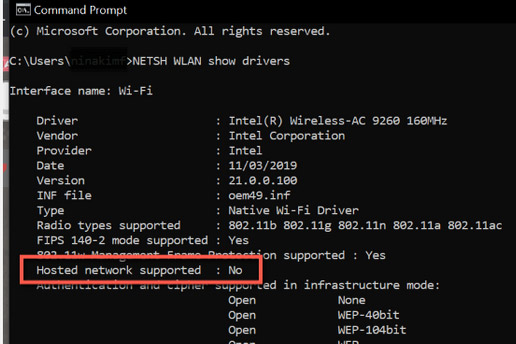
<p style="text-align: justify;"><strong>Bước 4</strong>: Trong&nbsp;<strong>Command Prompt</strong>, gõ&nbsp;<strong>NETSH WLAN show drivers</strong>. Kiểm tra dòng&nbsp;<strong>Hosted network supported</strong>&nbsp;và xem nó là&nbsp;<strong>Yes</strong>&nbsp;hay&nbsp;<strong>No.</strong></p>

<figure>
<div style="text-align: justify;"><br />
<img alt="Kiểm tra dòng Hosted network supported" data-i="0" data-inimage-loaded="true" data-src="https://st.quantrimang.com/photos/image/2021/12/03/sua-loi-mobile-hotspot-khong-hoat-dong-tren-windows-10-1.jpg" data-was-processed="true" height="344" src="https://st.quantrimang.com/photos/image/2021/12/03/sua-loi-mobile-hotspot-khong-hoat-dong-tren-windows-10-1.jpg" width="516" /></div>

<figcaption>
<div style="text-align: justify;">Kiểm tra dòng Hosted network supported</div>
</figcaption>
</figure>

<div style="text-align: justify;">&nbsp;</div>

<p style="text-align: justify;"><strong>Bước 5</strong>: Nếu kết quả là&nbsp;<strong>No</strong>, có nghĩa là WiFi adapter của bạn không hỗ trợ tính năng điểm phát sóng di động. Thật không may, cách khắc phục duy nhất cho điều này là thay đổi adapter. Tuy nhiên, nếu kết quả là&nbsp;<strong>Yes</strong>&nbsp;và các thiết bị vẫn không thể kết nối với điểm phát sóng, hãy làm theo cách khắc phục tiếp theo.</p>

<h3 style="text-align: justify;">5.&nbsp;Cập nhật tất cả các driver cần thiết</h3>

<p style="text-align: justify;">Tải xuống&nbsp;trình cập nhật driver miễn phí cho Windows&nbsp;sẽ nhanh chóng cập nhật tất cả các driver cần thiết trên máy tính. Tuy nhiên, nếu bạn không muốn cài đặt phần mềm của bên thứ ba trên máy tính, bạn có thể cập nhật chúng bằng cách sử dụng cài đặt Windows Update.</p>

<p style="text-align: justify;">Nếu không có sẵn những bản cập nhật tùy chọn, nghĩa là các driver cần thiết đã được cập nhật. Tiếp tục với phương án tiếp theo.</p>

<h3 style="text-align: justify;">6. Khắc phục sự cố với network adapter</h3>

<p style="text-align: justify;">Windows 10&nbsp;có các công cụ khắc phục sự cố tích hợp giúp tìm và khắc phục các sự cố trong thiết bị. Bạn có thể sử dụng công cụ này để khắc phục bất kỳ sự cố nào mà network adapter gặp phải. Làm theo các bước dưới đây:</p>

<p style="text-align: justify;"><strong>Bước 1</strong>: Nhấn&nbsp;<strong>Win + S</strong>&nbsp;để mở&nbsp;<strong>Windows Search.</strong></p>

<p style="text-align: justify;"><strong>Bước 2</strong>: Nhập&nbsp;<strong>Troubleshoot</strong>&nbsp;và chọn&nbsp;<strong>Troubleshoot settings</strong>&nbsp;từ kết quả.</p>

<p style="text-align: justify;"><strong>Bước 3</strong>: Trên trang&nbsp;<strong>Troubleshoot</strong>, nhấp vào&nbsp;<strong>Additional troubleshooters</strong>.</p>

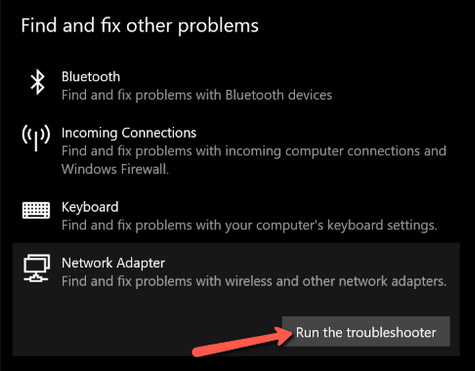
<p style="text-align: justify;"><strong>Bước 4</strong>: Trong cài đặt&nbsp;<strong>Find and fix other problems</strong>, hãy chọn&nbsp;<strong>Network Adapter</strong>. Sau đó nhấp vào&nbsp;<strong>Run the troubleshooter</strong>&nbsp;để bắt đầu quá trình phát hiện.</p>

<figure>
<div style="text-align: justify;"><img alt="Chọn Network Adapter" data-i="1" data-src="https://st.quantrimang.com/photos/image/2021/12/03/sua-loi-mobile-hotspot-khong-hoat-dong-tren-windows-10-2.jpg" data-was-processed="true" height="371" src="https://st.quantrimang.com/photos/image/2021/12/03/sua-loi-mobile-hotspot-khong-hoat-dong-tren-windows-10-2.jpg" width="475" /></div>

<figcaption>
<div style="text-align: justify;">Chọn Network Adapter</div>
</figcaption>
</figure>

<div style="text-align: justify;">&nbsp;</div>

<p style="text-align: justify;"><strong>Bước 5</strong>: Trên hộp thoại, bạn sẽ được hỏi muốn chẩn đoán network adapter nào. Chọn&nbsp;<strong>All network adapters</strong>&nbsp;và nhấp vào&nbsp;<strong>Next.</strong></p>

<p style="text-align: justify;"><strong>Bước 6</strong>: Làm theo hướng dẫn trên màn hình để sửa lỗi điểm phát sóng trên máy tính của bạn.</p>

<p style="text-align: justify;">Nếu trình khắc phục sự cố tìm thấy vấn đề với network adapter của bạn, trình khắc phục sự cố sẽ đề xuất giải pháp khắc phục hoặc tự động giải quyết. Nếu nó không thể tìm thấy bất kỳ vấn đề nào, hãy thực hiện bước tiếp theo.</p>

<h3 style="text-align: justify;">7. Liên kết Internet với hotspot adapter</h3>

<p style="text-align: justify;">Một cách khắc phục khác cho sự cố này là liên kết Internet với hotspot adapter. Để thực hiện việc này, hãy làm theo các bước bên dưới:</p>

<p style="text-align: justify;"><strong>Bước 1</strong>: Mở&nbsp;<strong>Settings</strong>&nbsp;bằng cách nhấn phím&nbsp;<strong>Win + X</strong>&nbsp;và chọn&nbsp;<strong>Settings</strong>&nbsp;trên menu.</p>

<p style="text-align: justify;"><strong>Bước 2</strong>: Trong&nbsp;<strong>Settings</strong>, đi tới<strong>&nbsp;Network &amp; Internet &gt; Mobile hotspot</strong>.</p>

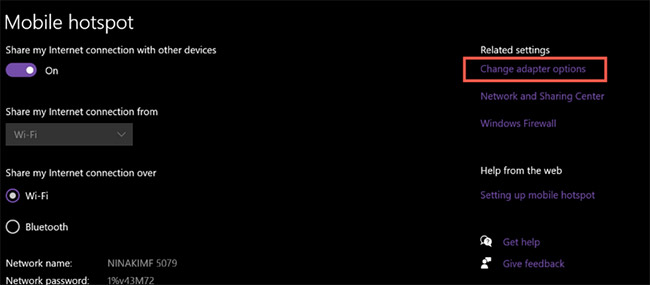
<p style="text-align: justify;"><strong>Bước 3</strong>: Đảm bảo rằng điểm phát sóng di động đang bật. Sau đó, nhấp vào&nbsp;<strong>Change adapter options</strong>&nbsp;trong&nbsp;<strong>Related Settings</strong>.</p>

<figure>
<div style="text-align: justify;"><img alt="Nhấp vào Change adapter options trong Related Settings" data-i="2" data-src="https://st.quantrimang.com/photos/image/2021/12/03/sua-loi-mobile-hotspot-khong-hoat-dong-tren-windows-10-3.jpg" data-was-processed="true" height="285" src="https://st.quantrimang.com/photos/image/2021/12/03/sua-loi-mobile-hotspot-khong-hoat-dong-tren-windows-10-3.jpg" width="650" /></div>

<figcaption>
<div style="text-align: justify;">Nhấp vào Change adapter options trong Related Settings</div>
</figcaption>
</figure>

<p style="text-align: justify;"><strong>Bước 4</strong>: Nhấp chuột phải vào adapter được kết nối với Internet. Đây có thể là WiFi hoặc&nbsp;mạng cục bộ (LAN)&nbsp;của bạn. Sau đó, nhấp vào&nbsp;<strong>Properties</strong>.</p>

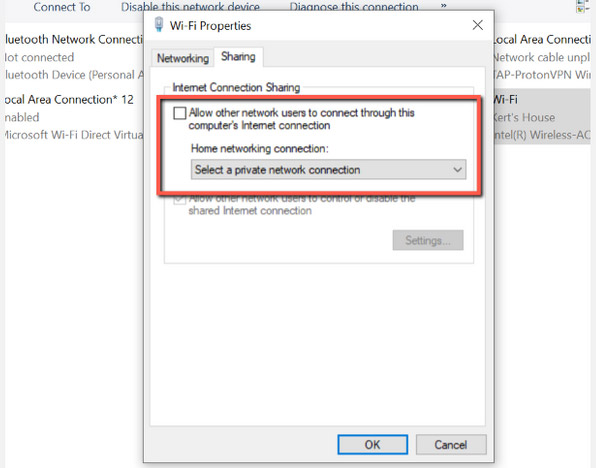
<p style="text-align: justify;"><strong>Bước 5</strong>: Tiếp theo, nhấp vào tab&nbsp;<strong>Sharing.</strong>&nbsp;Bỏ chọn tùy chọn có nội dung&nbsp;<strong>Allow other network users to connect through this computer’s internet connection</strong>&nbsp;và nhấp vào&nbsp;<strong>OK.</strong>&nbsp;(Bỏ qua bước này nếu nó đã được bỏ chọn).</p>

<figure>
<div style="text-align: justify;"><img alt="Bỏ chọn tùy chọn có nội dung Allow other network users to connect through this computer’s internet connection" data-i="3" data-src="https://st.quantrimang.com/photos/image/2021/12/03/sua-loi-mobile-hotspot-khong-hoat-dong-tren-windows-10-4.jpg" data-was-processed="true" height="468" src="https://st.quantrimang.com/photos/image/2021/12/03/sua-loi-mobile-hotspot-khong-hoat-dong-tren-windows-10-4.jpg" width="596" /></div>

<figcaption>
<div style="text-align: justify;">Bỏ chọn tùy chọn có nội dung Allow other network users to connect through this computer’s internet connection</div>
</figcaption>
</figure>

<div style="text-align: justify;">&nbsp;</div>

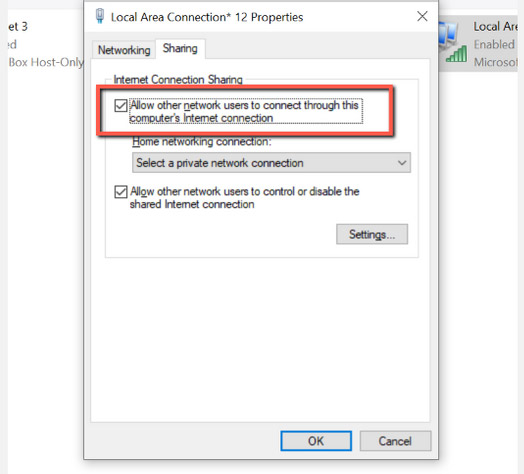
<p style="text-align: justify;"><strong>Bước 6</strong>: Sau đó, nhấp chuột phải vào adapter của điểm phát sóng di động. Nhấp vào&nbsp;<strong>Properties.</strong></p>

<p style="text-align: justify;"><strong>Bước 7</strong>: Trong tab&nbsp;<strong>Sharing</strong>, chọn tùy chọn có nội dung&nbsp;<strong>Allow other network users to connect through this computer’s Internet connection</strong>.</p>

<figure>
<div style="text-align: justify;"><img alt="Chọn tùy chọn có nội dung Allow other network users to connect through this computer’s Internet connection" data-i="4" data-src="https://st.quantrimang.com/photos/image/2021/12/03/sua-loi-mobile-hotspot-khong-hoat-dong-tren-windows-10-5.jpg" data-was-processed="true" height="474" src="https://st.quantrimang.com/photos/image/2021/12/03/sua-loi-mobile-hotspot-khong-hoat-dong-tren-windows-10-5.jpg" width="524" /></div>

<figcaption>
<div style="text-align: justify;">Chọn tùy chọn có nội dung Allow other network users to connect through this computer’s Internet connection</div>
</figcaption>
</figure>

<p style="text-align: justify;"><strong>Bước 8</strong>: Một hộp pop-up sẽ xuất hiện. Bấm&nbsp;<strong>OK.</strong></p>

<p style="text-align: justify;"><strong>Bước 9</strong>: Trong phần&nbsp;<strong>Home networking connection</strong>, hãy chọn mobile hotspot adapter của bạn.</p>

<p style="text-align: justify;"><strong>Bước 10</strong>: Cuối cùng, nhấp vào&nbsp;<strong>OK.</strong></p>

<p style="text-align: justify;">Kết nối lại với điểm phát sóng di động và xem liệu nó có đang hoạt động hay không. Nếu không, hãy thử giải pháp tiếp theo.</p>

<h3 style="text-align: justify;">8. Thực hiện Clean Boot</h3>

<p style="text-align: justify;">Các ứng dụng&nbsp;<strong>Startup</strong>&nbsp;đôi khi có thể gây ra xung đột với các service Windows khác. Vô hiệu hóa chúng có thể khắc phục sự cố điểm phát sóng. Đây là cách bạn có thể&nbsp;thực hiện Clean Boot.</p>

<p style="text-align: justify;">Clean Boot có thể làm giảm xung đột liên quan đến phần mềm, nguyên nhân gốc rễ của sự cố điểm phát sóng di động. Những xung đột này là do các ứng dụng và dịch vụ chạy ngầm bất cứ khi nào bạn khởi động máy tính của mình. Sau khi chúng bị vô hiệu hóa, điểm phát sóng di động sẽ hoạt động bình thường trở lại.</p>
		</div>
				<div id="author">
						<p>
				<strong>Nguồn tin:</strong>
				Quantrimang.com
			</p>
		</div>
	</div>
	<div id="footer" class="clearfix">
		<div id="url">
			<strong>URL của bản tin này: </strong><a href="https://www.nguoicodonvn2008.info/vi/news/savefile/kien-thuc-may-tinh/sua-loi-mobile-hotspot-khong-hoat-dong-tren-windows-10-4845.html" title="Sửa lỗi Mobile Hotspot không hoạt động trên Windows 10">https://www.nguoicodonvn2008.info/vi/news/savefile/kien-thuc-may-tinh/sua-loi-mobile-hotspot-khong-hoat-dong-tren-windows-10-4845.html</a>

		</div>
		<div class="clear"></div>
		<div class="copyright">
			&copy; .&#x3A; Nguoicodonvn2008.info - Cõi lòng người cô đơn &#x3A;.
		</div>
		<div id="contact">
			<a href="mailto:admin@nguoicodonvn2008.info">admin@nguoicodonvn2008.info</a>
		</div>
	</div>
</div>
        <div id="timeoutsess" class="chromeframe">
            Bạn đã không sử dụng Site, <a onclick="timeoutsesscancel();" href="https://nguoicodonvn2008.info/#">Bấm vào đây để duy trì trạng thái đăng nhập</a>. Thời gian chờ: <span id="secField"> 60 </span> giây
        </div>
        <div id="openidResult" class="nv-alert" style="display:none"></div>
        <div id="openidBt" data-result="" data-redirect=""></div>
		</script>
		<div class="car-top">
  <span><img src="https://nguoicodonvn2008.info/themes/default/images/car.png" alt=""></span>
</div>
<script src="https://nguoicodonvn2008.info/assets/js/jquery/jquery.min.js"></script>
<script>var nv_base_siteurl="/",nv_lang_data="vi",nv_lang_interface="vi",nv_name_variable="nv",nv_fc_variable="op",nv_lang_variable="language",nv_module_name="news",nv_func_name="savefile",nv_is_user=0, nv_my_ofs=-4,nv_my_abbr="EDT",nv_cookie_prefix="nv4c_e856T",nv_check_pass_mstime=1738000,nv_area_admin=0,nv_safemode=0,theme_responsive=0,nv_recaptcha_ver=2,nv_recaptcha_sitekey="",nv_recaptcha_type="image",XSSsanitize=1;</script>
<script src="https://nguoicodonvn2008.info/assets/js/language/vi.js"></script>
<script src="https://nguoicodonvn2008.info/assets/js/DOMPurify/purify3.js"></script>
<script src="https://nguoicodonvn2008.info/assets/js/global.js"></script>
<script src="https://nguoicodonvn2008.info/assets/js/site.js"></script>
<script src="https://nguoicodonvn2008.info/themes/default/js/news.js"></script>
<script src="https://nguoicodonvn2008.info/themes/default/js/main.js"></script>
<script src="https://nguoicodonvn2008.info/themes/default/js/custom.js"></script>
<script type="application/ld+json">
        {
            "@context": "https://schema.org",
            "@type": "Organization",
            "url": "https://nguoicodonvn2008.info",
            "logo": "https://nguoicodonvn2008.info/uploads/angel.gif"
        }
        </script>
<script src="https://nguoicodonvn2008.info/themes/default/js/bootstrap.min.js"></script>
<script type="text/javascript">
var $scrolltop = $('.car-top');
$scrolltop.on('click', function () {
    $('html,body').animate({
        scrollTop: 0
    }, 800);
    $(this).addClass("car-run");
    setTimeout(function(){ $scrolltop.removeClass('car-run');}, 1000);
    return false;
});
$(window).on('scroll', function ()
{ 
    if($(window).scrollTop() >= 200)
    {
        $scrolltop.addClass("show");
        $scrolltop.addClass("car-down");
    }
    else
    {
       $scrolltop.removeClass("show");
       setTimeout(function(){ $scrolltop.removeClass('car-down');}, 300);
    }
});
</script>
</body>
</html>