<!DOCTYPE html>
    <html lang="vi" xmlns="http://www.w3.org/1999/xhtml" prefix="og: http://ogp.me/ns#">
    <head>
<title>PowerPoint 2016&#x3A; Áp dụng theme trong PowerPoint</title>
<meta name="description" content="PowerPoint 2016&#x3A; Áp dụng theme trong PowerPoint - Savefile - Tin Tức -...">
<meta name="author" content=".: Nguoicodonvn2008.info - Cõi lòng người cô đơn :.">
<meta name="copyright" content=".: Nguoicodonvn2008.info - Cõi lòng người cô đơn :. [admin@nguoicodonvn2008.info]">
<meta name="robots" content="index, archive, follow, noodp">
<meta name="googlebot" content="index,archive,follow,noodp">
<meta name="msnbot" content="all,index,follow">
<meta name="generator" content="NukeViet v4.5">
<meta http-equiv="Content-Type" content="text/html; charset=utf-8">
<meta property="og:title" content="PowerPoint 2016&#x3A; Áp dụng theme trong PowerPoint">
<meta property="og:type" content="website">
<meta property="og:description" content="Savefile - Tin Tức - https&#x3A;&#x002F;&#x002F;www.nguoicodonvn2008.info&#x002F;vi&#x002F;news&#x002F;savefile&#x002F;kien-thuc-may-tinh&#x002F;powerpoint-2016-ap-dung-theme-trong-powerpoint-9925.html">
<meta property="og:site_name" content=".&#x3A; Nguoicodonvn2008.info - Cõi lòng người cô đơn &#x3A;.">
<meta property="og:url" content="https://www.nguoicodonvn2008.info/vi/news/savefile/kien-thuc-may-tinh/powerpoint-2016-ap-dung-theme-trong-powerpoint-9925.html">
<link rel="shortcut icon" href="https://nguoicodonvn2008.info/favicon.ico">
<link rel="canonical" href="https://www.nguoicodonvn2008.info/vi/news/savefile/kien-thuc-may-tinh/powerpoint-2016-ap-dung-theme-trong-powerpoint-9925.html">
<link rel="alternate" href="https://nguoicodonvn2008.info/vi/news/rss/" title="Tin Tức" type="application/rss+xml">
<link rel="alternate" href="https://nguoicodonvn2008.info/vi/news/rss/karaoke-dual/" title="Tin Tức - Karaoke Dual" type="application/rss+xml">
<link rel="alternate" href="https://nguoicodonvn2008.info/vi/news/rss/nhac-tre/" title="Tin Tức - Nhạc trẻ" type="application/rss+xml">
<link rel="alternate" href="https://nguoicodonvn2008.info/vi/news/rss/tru-tinh/" title="Tin Tức - Trữ tình" type="application/rss+xml">
<link rel="alternate" href="https://nguoicodonvn2008.info/vi/news/rss/nuoc-ngoai/" title="Tin Tức - Nước ngoài" type="application/rss+xml">
<link rel="alternate" href="https://nguoicodonvn2008.info/vi/news/rss/remix/" title="Tin Tức - Remix" type="application/rss+xml">
<link rel="alternate" href="https://nguoicodonvn2008.info/vi/news/rss/tam-su-tinh-yeu/" title="Tin Tức - Tâm sự tình yêu" type="application/rss+xml">
<link rel="alternate" href="https://nguoicodonvn2008.info/vi/news/rss/tho-suu-tam/" title="Tin Tức - Thơ sưu tầm" type="application/rss+xml">
<link rel="alternate" href="https://nguoicodonvn2008.info/vi/news/rss/cuoc-song/" title="Tin Tức - Cuộc sống" type="application/rss+xml">
<link rel="alternate" href="https://nguoicodonvn2008.info/vi/news/rss/phan-mem/" title="Tin Tức - Phần mềm" type="application/rss+xml">
<link rel="alternate" href="https://nguoicodonvn2008.info/vi/news/rss/kien-thuc-may-tinh/" title="Tin Tức - Kiến thức máy tính" type="application/rss+xml">
<link rel="alternate" href="https://nguoicodonvn2008.info/vi/news/rss/hoc-tap/" title="Tin Tức - Học tập" type="application/rss+xml">
<link rel="alternate" href="https://nguoicodonvn2008.info/vi/news/rss/tai-lieu/" title="Tin Tức - Tài liệu" type="application/rss+xml">
<link rel="alternate" href="https://nguoicodonvn2008.info/vi/news/rss/de-thi/" title="Tin Tức - Đề thi" type="application/rss+xml">
<link rel="preload" as="style" href="https://nguoicodonvn2008.info/assets/css/font-awesome.min.css" type="text/css">
<link rel="preload" as="style" href="https://nguoicodonvn2008.info/themes/default/css/bootstrap.non-responsive.css" type="text/css">
<link rel="preload" as="style" href="https://nguoicodonvn2008.info/themes/default/css/style.css" type="text/css">
<link rel="preload" as="style" href="https://nguoicodonvn2008.info/themes/default/css/style.non-responsive.css" type="text/css">
<link rel="preload" as="style" href="https://nguoicodonvn2008.info/themes/default/css/news.css" type="text/css">
<link rel="preload" as="style" href="https://nguoicodonvn2008.info/themes/default/css/custom.css" type="text/css">
<link rel="preload" as="script" href="https://nguoicodonvn2008.info/assets/js/jquery/jquery.min.js" type="text/javascript">
<link rel="preload" as="script" href="https://nguoicodonvn2008.info/assets/js/language/vi.js" type="text/javascript">
<link rel="preload" as="script" href="https://nguoicodonvn2008.info/assets/js/DOMPurify/purify3.js" type="text/javascript">
<link rel="preload" as="script" href="https://nguoicodonvn2008.info/assets/js/global.js" type="text/javascript">
<link rel="preload" as="script" href="https://nguoicodonvn2008.info/assets/js/site.js" type="text/javascript">
<link rel="preload" as="script" href="https://nguoicodonvn2008.info/themes/default/js/news.js" type="text/javascript">
<link rel="preload" as="script" href="https://nguoicodonvn2008.info/themes/default/js/main.js" type="text/javascript">
<link rel="preload" as="script" href="https://nguoicodonvn2008.info/themes/default/js/custom.js" type="text/javascript">
<link rel="preload" as="script" href="https://nguoicodonvn2008.info/themes/default/js/bootstrap.min.js" type="text/javascript">
<link rel="stylesheet" href="https://nguoicodonvn2008.info/assets/css/font-awesome.min.css">
<link rel="stylesheet" href="https://nguoicodonvn2008.info/themes/default/css/bootstrap.non-responsive.css">
<link rel="stylesheet" href="https://nguoicodonvn2008.info/themes/default/css/style.css">
<link rel="stylesheet" href="https://nguoicodonvn2008.info/themes/default/css/style.non-responsive.css">
<link rel="StyleSheet" href="https://nguoicodonvn2008.info/themes/default/css/news.css">
<link rel="stylesheet" href="https://nguoicodonvn2008.info/themes/default/css/custom.css">
<style type="text/css">
	body{background: #fff;}
</style>
    </head>
    <body>
<div id="print">
	<div id="hd_print">
		<h2 class="pull-left">.&#x3A; Nguoicodonvn2008.info - Cõi lòng người cô đơn &#x3A;.</h2>
		<p class="pull-right"><a title=".&#x3A; Nguoicodonvn2008.info - Cõi lòng người cô đơn &#x3A;." href="https://nguoicodonvn2008.info/">https://nguoicodonvn2008.info</a></p>
	</div>
	<div class="clear"></div>
	<hr />
	<div id="content">
		<h1>PowerPoint 2016&#x3A; Áp dụng theme trong PowerPoint</h1>
		<ul class="list-inline">
			<li>Thứ ba - 04/03/2025 21:57</li>
			<li class="hidden-print txtrequired"><em class="fa fa-print">&nbsp;</em><a title="In ra" href="javascript:;" onclick="window.print()">In ra</a></li>
			<li class="hidden-print txtrequired"><em class="fa fa-power-off">&nbsp;</em><a title="Đóng cửa sổ này" href="javascript:;" onclick="window.close()">Đóng cửa sổ này</a></li>
		</ul>
		<div class="clear"></div>
		<div id="hometext">
		</div>
				<div class="imghome">
			<img alt="PowerPoint 2016&#x3A; Áp dụng theme trong PowerPoint" src="https://st.quantrimang.com/photos/image/2018/11/20/ap-dung-theme-trong-powerpoint-2016.jpg" width="460" class="img-thumbnail" />
		</div>
		<div class="clear"></div>
		<div id="bodytext" class="clearfix">
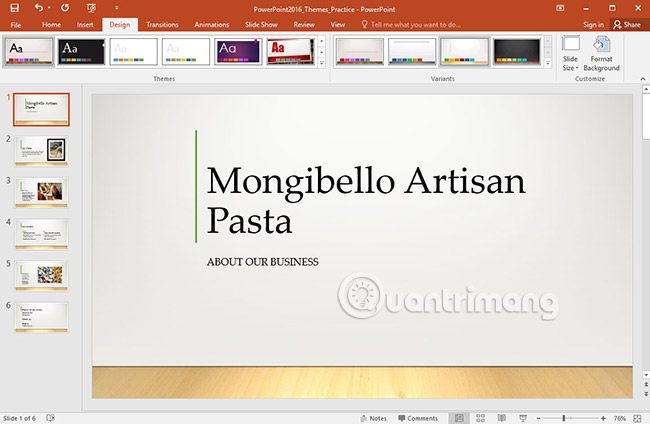
			<p style="text-align: justify;"><strong>Cách tìm theme trong PowerPoint</strong>&nbsp;như thế nào? Bài viết sẽ hướng dẫn bạn&nbsp;<strong>cách áp dụng theme quity trong PowerPoint và nhiều hơn thế nữa</strong>.</p>

<p style="text-align: justify;"><img alt="Theme trong Microsoft PowerPoint" data-i="0" data-src="https://st.quantrimang.com/photos/image/2018/11/20/ap-dung-theme-trong-powerpoint-2016.jpg" data-was-processed="true" height="335" src="https://st.quantrimang.com/photos/image/2018/11/20/ap-dung-theme-trong-powerpoint-2016.jpg" width="640" /></p>

<p style="text-align: justify;">Công ty của bạn có sử dụng PowerPoint cho các bài thuyết trình nội bộ và/hoặc bên ngoài không? Dù thích hay ghét thì PowerPoint từ lâu đã là lựa chọn phổ biến cho các bài thuyết trình dạng slide. Tuy nhiên, đừng nhầm lẫn giữa template và theme. Trước khi đi sâu và cách dùng theme trong Microsoft PowerPoint. Hãy cùng nhau tìm hiểu một chút về sự khác biệt giữa template và theme nhé.</p>

<ul>
	<li style="text-align: justify;"><strong>Theme</strong>&nbsp;cung cấp framework cho bản trình bày slide. Bố cục slide chính sẽ cung cấp cho bạn điểm khởi đầu cho từng slide và đảm bảo rằng các yếu tố như logo công ty và vị trí số slide nhất quán trong suốt bản trình bày.</li>
	<li style="text-align: justify;"><strong>Template&nbsp;</strong>thường bao gồm nội dung dành riêng cho công ty. Ví dụ: bạn có thể cung cấp mẫu slide &quot;giới thiệu về công ty&quot; cho nhân viên một số văn bản mẫu để bắt đầu. Hoặc có thể có một bộ biểu đồ mà công ty thường xuyên sử dụng được thiết lập trong mẫu. Điều này có thể tiết kiệm thời gian định dạng trong khi cho phép người dùng chỉnh sửa và cập nhật thông tin văn bản khi cần.</li>
</ul>

<p style="text-align: justify;">Theme là sự kết hợp được xác định trước giữa màu sắc, phông chữ và hiệu ứng. Các theme khác nhau cũng sử dụng bố cục slide khác nhau. Chắc chắn, bạn đã sử dụng một theme, ngay cả khi bạn không hay biết điều đó: Theme Office mặc định. Bạn có thể chọn nhiều theme mới bất kỳ lúc nào, áp dụng nó cho toàn bộ bài thuyết trình của mình để tạo cho nó một diện mạo nhất quán, chuyên nghiệp.</p>

<h2 style="text-align: justify;">&nbsp;</h2>

<h2 id="mcetoc_1cso5r3t30" style="text-align: justify;">Theme là gì?</h2>

<p style="text-align: justify;">Trong&nbsp;PowerPoint, các theme cung cấp cho người dùng một cách nhanh chóng và dễ dàng, để thay đổi thiết kế của bài thuyết trình. Theme kiểm soát bảng màu chính, phông chữ cơ bản, bố cục slide và các yếu tố quan trọng khác. Tất cả các yếu tố của một theme sẽ ăn khớp với nhau. Điều đó có nghĩa là bạn sẽ không phải mất nhiều thời gian để định dạng bài thuyết trình của mình.</p>

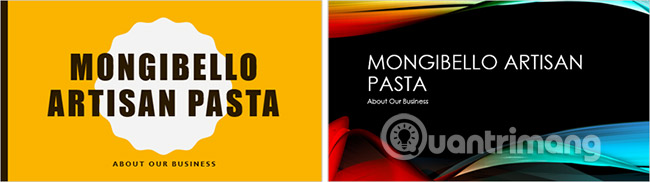
<p style="text-align: justify;">Mỗi theme sử dụng một tập hợp bố cục slide riêng của mình. Các bố cục này kiểm soát cách sắp xếp nội dung của bạn, vì vậy hiệu ứng có thể ấn tượng. Trong các ví dụ bên dưới, bạn có thể thấy rằng placeholder, phông chữ và màu sắc của các theme sẽ khác nhau.</p>

<p style="text-align: justify;"><img alt="Theme là gì?" data-i="1" data-src="https://st.quantrimang.com/photos/image/2018/11/20/ap-dung-theme-trong-powerpoint-2016-1.jpg" data-was-processed="true" height="182" src="https://st.quantrimang.com/photos/image/2018/11/20/ap-dung-theme-trong-powerpoint-2016-1.jpg" width="650" /></p>

<p style="text-align: justify;">Nếu bạn sử dụng bố cục slide duy nhất, chẳng hạn như&nbsp;<strong>Quote with Caption</strong>&nbsp;hoặc&nbsp;<strong>NameCard</strong>&nbsp;và sau đó chuyển sang một theme không bao gồm bố cục đó, nó có thể cho kết quả không mong muốn.</p>

<p style="text-align: justify;">Mỗi theme PowerPoint, bao gồm cả theme Office mặc định, có các yếu tố theme riêng biệt. Những yếu tố này là:</p>

<ul>
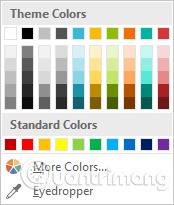
	<li style="text-align: justify;"><strong>Theme Colors:</strong>&nbsp;Có 10 màu theme chính, cùng với các biến thể tối hơn và sáng hơn, có sẵn từ menu&nbsp;<strong>Color.</strong></li>
</ul>

<p style="text-align: justify;"><strong><img alt="Theme Colors" data-i="2" data-src="https://st.quantrimang.com/photos/image/2018/11/20/ap-dung-theme-trong-powerpoint-2016-2.jpg" data-was-processed="true" height="205" src="https://st.quantrimang.com/photos/image/2018/11/20/ap-dung-theme-trong-powerpoint-2016-2.jpg" width="174" /></strong></p>

<ul>
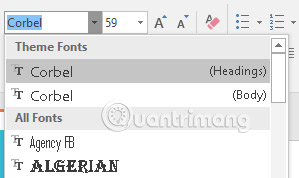
	<li style="text-align: justify;"><strong>Theme Fonts:</strong>&nbsp;Có hai phông chữ có sẵn ở đầu menu&nbsp;<strong>Font</strong>&nbsp;trong&nbsp;<strong>Theme Fonts.</strong></li>
</ul>

<p style="text-align: justify;"><strong><img alt="Theme Fonts" data-i="3" data-src="https://st.quantrimang.com/photos/image/2018/11/20/ap-dung-theme-trong-powerpoint-2016-3.jpg" data-was-processed="true" height="178" src="https://st.quantrimang.com/photos/image/2018/11/20/ap-dung-theme-trong-powerpoint-2016-3.jpg" width="299" /></strong></p>

<ul>
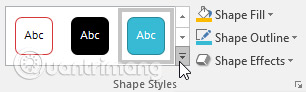
	<li style="text-align: justify;"><strong>Theme Effects:</strong>&nbsp;Các hiệu ứng này ảnh hưởng đến&nbsp;<strong>Shape Styles</strong>&nbsp;định sẵn. Bạn có thể tìm thấy các&nbsp;<strong>Shape Styles</strong>&nbsp;này trên tab&nbsp;<strong>Format</strong>&nbsp;bất cứ khi nào bạn chọn một hình dạng hoặc đồ họa&nbsp;<strong>SmartArt.</strong></li>
</ul>

<p style="text-align: justify;"><strong><img alt="Theme Effects" data-i="4" data-src="https://st.quantrimang.com/photos/image/2018/11/20/ap-dung-theme-trong-powerpoint-2016-4.jpg" data-was-processed="true" height="92" src="https://st.quantrimang.com/photos/image/2018/11/20/ap-dung-theme-trong-powerpoint-2016-4.jpg" width="306" /></strong></p>

<p style="text-align: justify;">Khi bạn chuyển sang một theme khác, tất cả các yếu tố này sẽ cập nhật theo theme mới. Bạn có thể thay đổi đáng kể giao diện bài thuyết trình của mình chỉ với một vài cú nhấp chuột.</p>

<p style="text-align: justify;">Nếu bạn áp dụng phông chữ hoặc màu không phải là một phần của theme, nó sẽ không thay đổi khi bạn chọn một theme khác. Điều này bao gồm các màu được chọn từ các tùy chọn&nbsp;<strong>Standard Colors</strong>&nbsp;hoặc&nbsp;<strong>More Colors</strong>&nbsp;và phông chữ được chọn từ&nbsp;<strong>All Fonts.</strong>&nbsp;Sử dụng các yếu tố không phải theme có thể hữu ích khi bạn muốn một văn bản nhất định có màu hoặc phông chữ cụ thể, ví dụ như logo chẳng hạn.</p>

<p style="text-align: justify;">Bạn cũng có thể tùy chỉnh theme và tự xác định các yếu tố cho theme đó.</p>

<h2 id="mcetoc_1cso5r3t31" style="text-align: justify;">Áp dụng theme</h2>

<p style="text-align: justify;">Tất cả các theme được bao gồm trong PowerPoint đều nằm trong nhóm&nbsp;<strong>Themes</strong>&nbsp;trên tab&nbsp;<strong>Design.</strong>&nbsp;Theme có thể được áp dụng hoặc thay đổi bất cứ lúc nào.</p>

<h2 id="mcetoc_1cso5r3t32" style="text-align: justify;">Cách áp dụng một theme</h2>

<p style="text-align: justify;">1. Chọn tab&nbsp;<strong>Design</strong>&nbsp;trên&nbsp;<strong>Ribbon,</strong>&nbsp;sau đó tìm nhóm&nbsp;<strong>Themes.</strong>&nbsp;Mỗi hình ảnh đại diện cho một theme.</p>

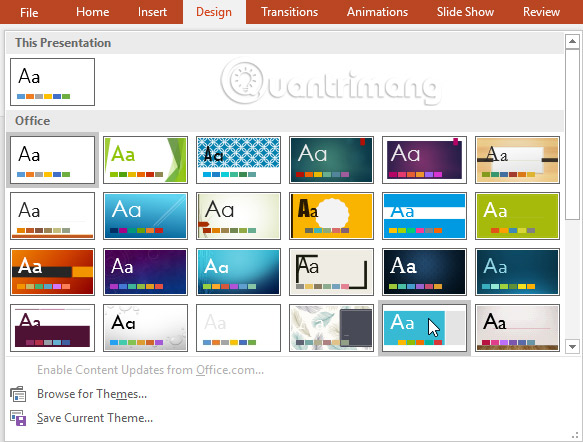
<p style="text-align: justify;">2. Nhấp vào mũi tên dropdown&nbsp;<strong>More</strong>&nbsp;để xem tất cả các theme có sẵn.</p>

<p style="text-align: justify;"><img alt="More" data-i="5" data-src="https://st.quantrimang.com/photos/image/2018/11/20/ap-dung-theme-trong-powerpoint-2016-5.jpg" data-was-processed="true" height="115" src="https://st.quantrimang.com/photos/image/2018/11/20/ap-dung-theme-trong-powerpoint-2016-5.jpg" width="587" /></p>

<p style="text-align: justify;">3. Chọn theme mong muốn.</p>

<p style="text-align: justify;"><img alt="Chọn theme" data-adbro-processed="true" data-i="6" data-src="https://st.quantrimang.com/photos/image/2018/11/20/ap-dung-theme-trong-powerpoint-2016-6.jpg" data-was-processed="true" height="442" src="https://st.quantrimang.com/photos/image/2018/11/20/ap-dung-theme-trong-powerpoint-2016-6.jpg" width="583" /></p>

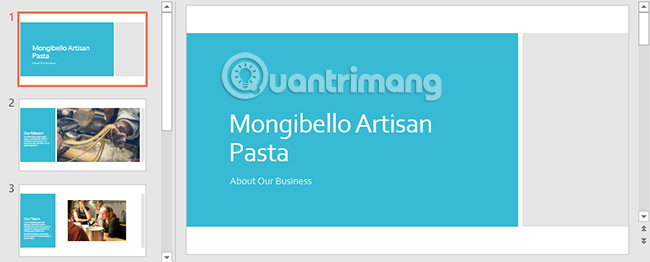
<p style="text-align: justify;">4. Theme sẽ được áp dụng cho toàn bộ bài thuyết trình. Để áp dụng một theme khác, chỉ cần chọn nó từ tab&nbsp;<strong>Design.</strong></p>

<p style="text-align: justify;"><strong><img alt="Design" data-i="7" data-src="https://st.quantrimang.com/photos/image/2018/11/20/ap-dung-theme-trong-powerpoint-2016-7.jpg" data-was-processed="true" height="262" src="https://st.quantrimang.com/photos/image/2018/11/20/ap-dung-theme-trong-powerpoint-2016-7.jpg" width="650" /></strong></p>

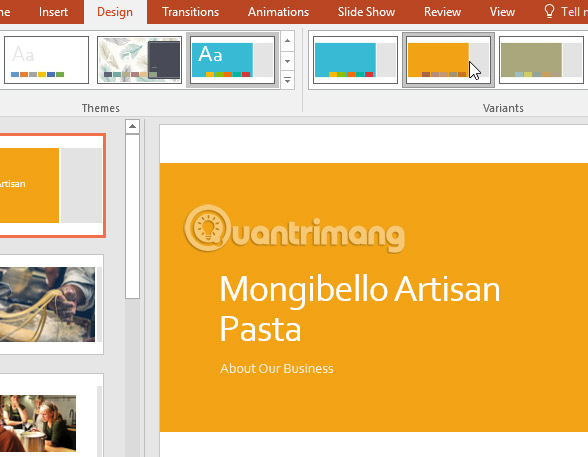
<p style="text-align: justify;">Khi bạn đã áp dụng một theme, bạn cũng có thể chọn một biến thể cho theme đó từ nhóm&nbsp;<strong>Variants.</strong>&nbsp;Các biến thể sử dụng các màu theme khác nhau trong khi vẫn giữ được dáng vẻ tổng thể của một theme.</p>

<p style="text-align: justify;"><img alt="Variants" data-i="8" data-src="https://st.quantrimang.com/photos/image/2018/11/20/ap-dung-theme-trong-powerpoint-2016-8.jpg" data-was-processed="true" height="457" src="https://st.quantrimang.com/photos/image/2018/11/20/ap-dung-theme-trong-powerpoint-2016-8.jpg" width="588" /></p>

<h2 id="mcetoc_1cso5r3t33" style="text-align: justify;">Thực hành!</h2>

<p style="text-align: justify;">1. Mở&nbsp;bài thuyết trình mẫu.</p>

<p style="text-align: justify;">2. Áp dụng theme&nbsp;<strong>Gallery,</strong>&nbsp;trong đó có nền sáng với họa tiết vân gỗ ở phía dưới.</p>

<p style="text-align: justify;"><strong>Lưu ý</strong>: Tên theme sẽ xuất hiện khi bạn di chuột qua chúng.</p>

<p style="text-align: justify;">3. Chọn một biến thể của theme.</p>

<p style="text-align: justify;">4. Dưới đây là ví dụ về việc bài thuyết trình của bạn sẽ trông như thế nào:</p>

<p style="text-align: justify;"><img alt="Ví dụ" data-i="9" data-src="https://st.quantrimang.com/photos/image/2018/11/20/ap-dung-theme-trong-powerpoint-2016-9.jpg" data-was-processed="true" height="424" src="https://st.quantrimang.com/photos/image/2018/11/20/ap-dung-theme-trong-powerpoint-2016-9.jpg" width="650" /></p>

<div style="text-align: justify;">&nbsp;</div>
		</div>
				<div id="author">
						<p>
				<strong>Nguồn tin:</strong>
				Quantrimang.com:
			</p>
		</div>
	</div>
	<div id="footer" class="clearfix">
		<div id="url">
			<strong>URL của bản tin này: </strong><a href="https://www.nguoicodonvn2008.info/vi/news/savefile/kien-thuc-may-tinh/powerpoint-2016-ap-dung-theme-trong-powerpoint-9925.html" title="PowerPoint 2016&#x3A; Áp dụng theme trong PowerPoint">https://www.nguoicodonvn2008.info/vi/news/savefile/kien-thuc-may-tinh/powerpoint-2016-ap-dung-theme-trong-powerpoint-9925.html</a>

		</div>
		<div class="clear"></div>
		<div class="copyright">
			&copy; .&#x3A; Nguoicodonvn2008.info - Cõi lòng người cô đơn &#x3A;.
		</div>
		<div id="contact">
			<a href="mailto:admin@nguoicodonvn2008.info">admin@nguoicodonvn2008.info</a>
		</div>
	</div>
</div>
        <div id="timeoutsess" class="chromeframe">
            Bạn đã không sử dụng Site, <a onclick="timeoutsesscancel();" href="https://nguoicodonvn2008.info/#">Bấm vào đây để duy trì trạng thái đăng nhập</a>. Thời gian chờ: <span id="secField"> 60 </span> giây
        </div>
        <div id="openidResult" class="nv-alert" style="display:none"></div>
        <div id="openidBt" data-result="" data-redirect=""></div>
		</script>
		<div class="car-top">
  <span><img src="https://nguoicodonvn2008.info/themes/default/images/car.png" alt=""></span>
</div>
<script src="https://nguoicodonvn2008.info/assets/js/jquery/jquery.min.js"></script>
<script>var nv_base_siteurl="/",nv_lang_data="vi",nv_lang_interface="vi",nv_name_variable="nv",nv_fc_variable="op",nv_lang_variable="language",nv_module_name="news",nv_func_name="savefile",nv_is_user=0, nv_my_ofs=-4,nv_my_abbr="EDT",nv_cookie_prefix="nv4c_e856T",nv_check_pass_mstime=1738000,nv_area_admin=0,nv_safemode=0,theme_responsive=0,nv_recaptcha_ver=2,nv_recaptcha_sitekey="",nv_recaptcha_type="image",XSSsanitize=1;</script>
<script src="https://nguoicodonvn2008.info/assets/js/language/vi.js"></script>
<script src="https://nguoicodonvn2008.info/assets/js/DOMPurify/purify3.js"></script>
<script src="https://nguoicodonvn2008.info/assets/js/global.js"></script>
<script src="https://nguoicodonvn2008.info/assets/js/site.js"></script>
<script src="https://nguoicodonvn2008.info/themes/default/js/news.js"></script>
<script src="https://nguoicodonvn2008.info/themes/default/js/main.js"></script>
<script src="https://nguoicodonvn2008.info/themes/default/js/custom.js"></script>
<script type="application/ld+json">
        {
            "@context": "https://schema.org",
            "@type": "Organization",
            "url": "https://nguoicodonvn2008.info",
            "logo": "https://nguoicodonvn2008.info/uploads/angel.gif"
        }
        </script>
<script src="https://nguoicodonvn2008.info/themes/default/js/bootstrap.min.js"></script>
<script type="text/javascript">
var $scrolltop = $('.car-top');
$scrolltop.on('click', function () {
    $('html,body').animate({
        scrollTop: 0
    }, 800);
    $(this).addClass("car-run");
    setTimeout(function(){ $scrolltop.removeClass('car-run');}, 1000);
    return false;
});
$(window).on('scroll', function ()
{ 
    if($(window).scrollTop() >= 200)
    {
        $scrolltop.addClass("show");
        $scrolltop.addClass("car-down");
    }
    else
    {
       $scrolltop.removeClass("show");
       setTimeout(function(){ $scrolltop.removeClass('car-down');}, 300);
    }
});
</script>
</body>
</html>