<!DOCTYPE html>
    <html lang="vi" xmlns="http://www.w3.org/1999/xhtml" prefix="og: http://ogp.me/ns#">
    <head>
<title>Mất quyền Admin trên Windows 10, đây là cách khắc phục</title>
<meta name="description" content="Mất quyền Admin trên Windows 10, đây là cách khắc phục - Savefile - Tin Tức -...">
<meta name="author" content=".: Nguoicodonvn2008.info - Cõi lòng người cô đơn :.">
<meta name="copyright" content=".: Nguoicodonvn2008.info - Cõi lòng người cô đơn :. [admin@nguoicodonvn2008.info]">
<meta name="robots" content="index, archive, follow, noodp">
<meta name="googlebot" content="index,archive,follow,noodp">
<meta name="msnbot" content="all,index,follow">
<meta name="generator" content="NukeViet v4.5">
<meta http-equiv="Content-Type" content="text/html; charset=utf-8">
<meta property="og:title" content="Mất quyền Admin trên Windows 10, đây là cách khắc phục">
<meta property="og:type" content="website">
<meta property="og:description" content="Savefile - Tin Tức - https&#x3A;&#x002F;&#x002F;www.nguoicodonvn2008.info&#x002F;vi&#x002F;news&#x002F;savefile&#x002F;kien-thuc-may-tinh&#x002F;mat-quyen-admin-tren-windows-10-day-la-cach-khac-phuc-2859.html">
<meta property="og:site_name" content=".&#x3A; Nguoicodonvn2008.info - Cõi lòng người cô đơn &#x3A;.">
<meta property="og:url" content="https://www.nguoicodonvn2008.info/vi/news/savefile/kien-thuc-may-tinh/mat-quyen-admin-tren-windows-10-day-la-cach-khac-phuc-2859.html">
<link rel="shortcut icon" href="https://nguoicodonvn2008.info/favicon.ico">
<link rel="canonical" href="https://www.nguoicodonvn2008.info/vi/news/savefile/kien-thuc-may-tinh/mat-quyen-admin-tren-windows-10-day-la-cach-khac-phuc-2859.html">
<link rel="alternate" href="https://nguoicodonvn2008.info/vi/news/rss/" title="Tin Tức" type="application/rss+xml">
<link rel="alternate" href="https://nguoicodonvn2008.info/vi/news/rss/karaoke-dual/" title="Tin Tức - Karaoke Dual" type="application/rss+xml">
<link rel="alternate" href="https://nguoicodonvn2008.info/vi/news/rss/nhac-tre/" title="Tin Tức - Nhạc trẻ" type="application/rss+xml">
<link rel="alternate" href="https://nguoicodonvn2008.info/vi/news/rss/tru-tinh/" title="Tin Tức - Trữ tình" type="application/rss+xml">
<link rel="alternate" href="https://nguoicodonvn2008.info/vi/news/rss/nuoc-ngoai/" title="Tin Tức - Nước ngoài" type="application/rss+xml">
<link rel="alternate" href="https://nguoicodonvn2008.info/vi/news/rss/remix/" title="Tin Tức - Remix" type="application/rss+xml">
<link rel="alternate" href="https://nguoicodonvn2008.info/vi/news/rss/tam-su-tinh-yeu/" title="Tin Tức - Tâm sự tình yêu" type="application/rss+xml">
<link rel="alternate" href="https://nguoicodonvn2008.info/vi/news/rss/tho-suu-tam/" title="Tin Tức - Thơ sưu tầm" type="application/rss+xml">
<link rel="alternate" href="https://nguoicodonvn2008.info/vi/news/rss/cuoc-song/" title="Tin Tức - Cuộc sống" type="application/rss+xml">
<link rel="alternate" href="https://nguoicodonvn2008.info/vi/news/rss/phan-mem/" title="Tin Tức - Phần mềm" type="application/rss+xml">
<link rel="alternate" href="https://nguoicodonvn2008.info/vi/news/rss/kien-thuc-may-tinh/" title="Tin Tức - Kiến thức máy tính" type="application/rss+xml">
<link rel="alternate" href="https://nguoicodonvn2008.info/vi/news/rss/hoc-tap/" title="Tin Tức - Học tập" type="application/rss+xml">
<link rel="alternate" href="https://nguoicodonvn2008.info/vi/news/rss/tai-lieu/" title="Tin Tức - Tài liệu" type="application/rss+xml">
<link rel="alternate" href="https://nguoicodonvn2008.info/vi/news/rss/de-thi/" title="Tin Tức - Đề thi" type="application/rss+xml">
<link rel="preload" as="style" href="https://nguoicodonvn2008.info/assets/css/font-awesome.min.css" type="text/css">
<link rel="preload" as="style" href="https://nguoicodonvn2008.info/themes/default/css/bootstrap.non-responsive.css" type="text/css">
<link rel="preload" as="style" href="https://nguoicodonvn2008.info/themes/default/css/style.css" type="text/css">
<link rel="preload" as="style" href="https://nguoicodonvn2008.info/themes/default/css/style.non-responsive.css" type="text/css">
<link rel="preload" as="style" href="https://nguoicodonvn2008.info/themes/default/css/news.css" type="text/css">
<link rel="preload" as="style" href="https://nguoicodonvn2008.info/themes/default/css/custom.css" type="text/css">
<link rel="preload" as="script" href="https://nguoicodonvn2008.info/assets/js/jquery/jquery.min.js" type="text/javascript">
<link rel="preload" as="script" href="https://nguoicodonvn2008.info/assets/js/language/vi.js" type="text/javascript">
<link rel="preload" as="script" href="https://nguoicodonvn2008.info/assets/js/DOMPurify/purify3.js" type="text/javascript">
<link rel="preload" as="script" href="https://nguoicodonvn2008.info/assets/js/global.js" type="text/javascript">
<link rel="preload" as="script" href="https://nguoicodonvn2008.info/assets/js/site.js" type="text/javascript">
<link rel="preload" as="script" href="https://nguoicodonvn2008.info/themes/default/js/news.js" type="text/javascript">
<link rel="preload" as="script" href="https://nguoicodonvn2008.info/themes/default/js/main.js" type="text/javascript">
<link rel="preload" as="script" href="https://nguoicodonvn2008.info/themes/default/js/custom.js" type="text/javascript">
<link rel="preload" as="script" href="https://nguoicodonvn2008.info/themes/default/js/bootstrap.min.js" type="text/javascript">
<link rel="stylesheet" href="https://nguoicodonvn2008.info/assets/css/font-awesome.min.css">
<link rel="stylesheet" href="https://nguoicodonvn2008.info/themes/default/css/bootstrap.non-responsive.css">
<link rel="stylesheet" href="https://nguoicodonvn2008.info/themes/default/css/style.css">
<link rel="stylesheet" href="https://nguoicodonvn2008.info/themes/default/css/style.non-responsive.css">
<link rel="StyleSheet" href="https://nguoicodonvn2008.info/themes/default/css/news.css">
<link rel="stylesheet" href="https://nguoicodonvn2008.info/themes/default/css/custom.css">
<style type="text/css">
	body{background: #fff;}
</style>
    </head>
    <body>
<div id="print">
	<div id="hd_print">
		<h2 class="pull-left">.&#x3A; Nguoicodonvn2008.info - Cõi lòng người cô đơn &#x3A;.</h2>
		<p class="pull-right"><a title=".&#x3A; Nguoicodonvn2008.info - Cõi lòng người cô đơn &#x3A;." href="https://nguoicodonvn2008.info/">https://nguoicodonvn2008.info</a></p>
	</div>
	<div class="clear"></div>
	<hr />
	<div id="content">
		<h1>Mất quyền Admin trên Windows 10, đây là cách khắc phục</h1>
		<ul class="list-inline">
			<li>Thứ năm - 08/10/2020 00:50</li>
			<li class="hidden-print txtrequired"><em class="fa fa-print">&nbsp;</em><a title="In ra" href="javascript:;" onclick="window.print()">In ra</a></li>
			<li class="hidden-print txtrequired"><em class="fa fa-power-off">&nbsp;</em><a title="Đóng cửa sổ này" href="javascript:;" onclick="window.close()">Đóng cửa sổ này</a></li>
		</ul>
		<div class="clear"></div>
		<div id="hometext">
		</div>
				<div class="imghome">
			<img alt="Mất quyền Admin trên Windows 10, đây là cách khắc phục" src="https://st.quantrimang.com/photos/image/2020/10/08/mat-quyen-admin-tren-windows-10-5.png" width="460" class="img-thumbnail" />
		</div>
		<div class="clear"></div>
		<div id="bodytext" class="clearfix">
			<p style="text-align: justify;">Vì một lí do nào đó mà trên máy tính Windows 10 của bạn bị mất quyền Admin, mỗi khi mở một ứng dụng nào đó trên màn hình bạn nhận được thông báo lỗi. Vậy làm sao để khôi phục lại quyền Admin đã bị mất, mời các bạn cùng tham khảo bài viết dưới đây của Quản trị mạng.</p>

<h2 style="text-align: justify;">Tùy chọn 1: Lấy lại quyền admin đã mất trong Windows 10 thông qua Safe Mode</h2>

<p style="text-align: justify;"><strong>Bước 1</strong>: Đăng nhập vào tài khoản Admin hiện tại mà bạn đã mất quyền quản trị.</p>

<p style="text-align: justify;"><strong>Bước 2</strong>:&nbsp;Mở bảng điều khiển PC Settings&nbsp;rồi chọn&nbsp;<strong>Accounts.</strong></p>

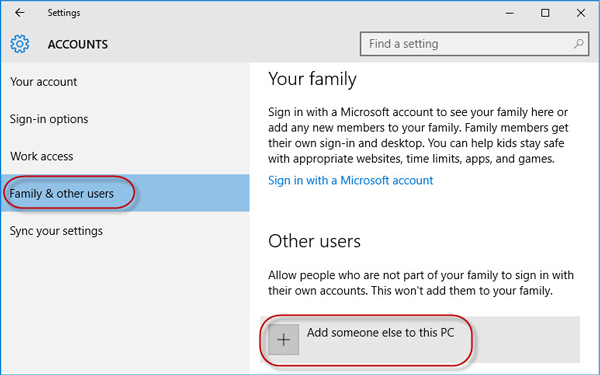
<p style="text-align: justify;"><strong>Bước 3</strong>: Chọn&nbsp;<strong>Family &amp; other users</strong>, sau đó nhấp vào&nbsp;<strong>Add someone else to this PC</strong>.</p>

<figure>
<div style="text-align: justify;"><img alt="Nhấp vào Add someone else to this PC" data-i="0" data-src="https://st.quantrimang.com/photos/image/2020/10/08/mat-quyen-admin-tren-windows-10-1.png" data-was-processed="true" height="375" src="https://st.quantrimang.com/photos/image/2020/10/08/mat-quyen-admin-tren-windows-10-1.png" width="600" /></div>

<figcaption>
<div style="text-align: justify;">Nhấp vào Add someone else to this PC</div>
</figcaption>
</figure>

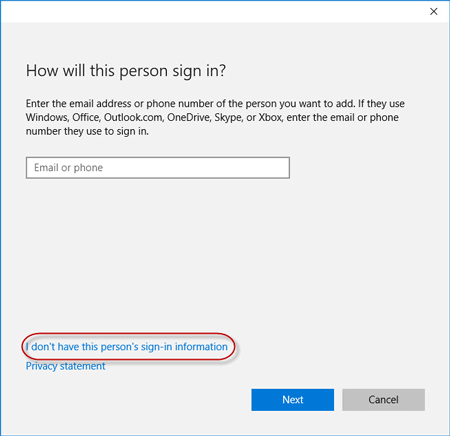
<p style="text-align: justify;"><strong>Bước 4</strong>: Nhấp vào&nbsp;<strong>I don&#039;t have this person’s sign-in information</strong>.</p>

<figure>
<div style="text-align: justify;"><img alt="Nhấp vào I don&#039;t have this person’s sign-in information" data-i="1" data-src="https://st.quantrimang.com/photos/image/2020/10/08/mat-quyen-admin-tren-windows-10-2.png" data-was-processed="true" height="436" src="https://st.quantrimang.com/photos/image/2020/10/08/mat-quyen-admin-tren-windows-10-2.png" width="450" /></div>

<figcaption>
<div style="text-align: justify;">Nhấp vào I don&#039;t have this person’s sign-in information</div>
</figcaption>
</figure>

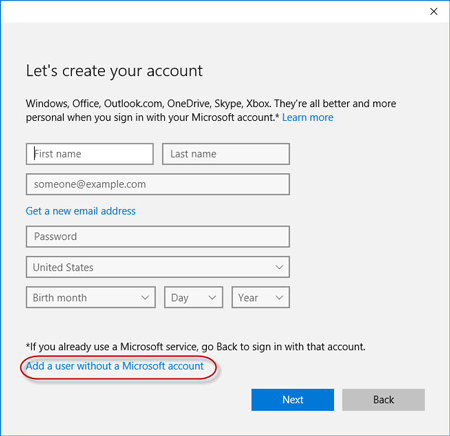
<p style="text-align: justify;"><strong>Bước 5</strong>: Nhấp vào&nbsp;<strong>Add a user without a Microsoft account.</strong></p>

<figure>
<div style="text-align: justify;"><img alt="Nhấp vào Add a user without a Microsoft account" data-i="2" data-src="https://st.quantrimang.com/photos/image/2020/10/08/mat-quyen-admin-tren-windows-10-3.png" data-was-processed="true" height="436" src="https://st.quantrimang.com/photos/image/2020/10/08/mat-quyen-admin-tren-windows-10-3.png" width="450" /></div>

<figcaption>
<div style="text-align: justify;">Nhấp vào Add a user without a Microsoft account</div>
</figcaption>
</figure>

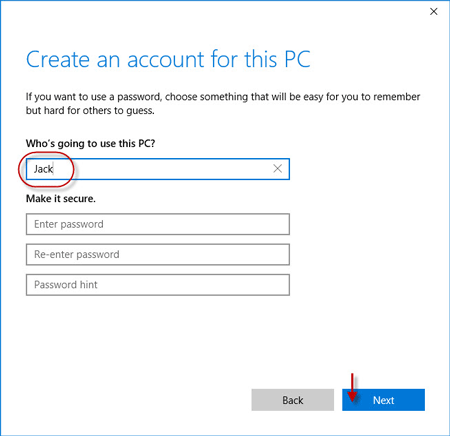
<p style="text-align: justify;"><strong>Bước 6</strong>: Nhập tên người dùng, sau đó bấm&nbsp;<strong>Next.</strong>&nbsp;Thao tác này sẽ thêm một tài khoản cục bộ mới trên PC của bạn.</p>

<figure>
<div style="text-align: justify;"><img alt="Nhập tên người dùng" data-i="3" data-src="https://st.quantrimang.com/photos/image/2020/10/08/mat-quyen-admin-tren-windows-10-4.png" data-was-processed="true" height="436" src="https://st.quantrimang.com/photos/image/2020/10/08/mat-quyen-admin-tren-windows-10-4.png" width="450" /></div>

<figcaption>
<div style="text-align: justify;">Nhập tên người dùng</div>
</figcaption>
</figure>

<p style="text-align: justify;"><strong>Bước 7</strong>: Nhấn phím&nbsp;<strong>Win + R</strong>&nbsp;để làm xuất hiện hộp thoại&nbsp;<strong>Run</strong>, gõ&nbsp;<strong>cmd</strong>&nbsp;và nhấn&nbsp;<strong>Enter.</strong></p>

<p style="text-align: justify;"><strong>Bước 8</strong>: Sau khi&nbsp;cửa sổ Command Prompt mở ra, gõ&nbsp;<strong>shutdown /r /o</strong>&nbsp;và nhấn&nbsp;<strong>Enter.</strong></p>

<div style="text-align: justify;">&nbsp;</div>

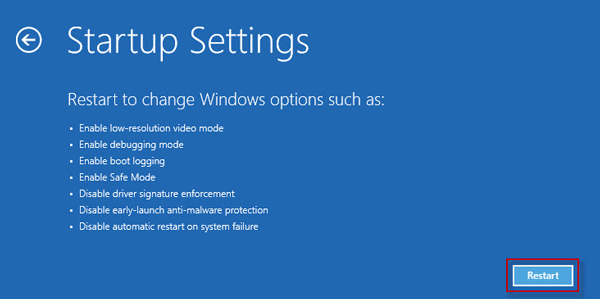
<p style="text-align: justify;"><strong>Bước 9</strong>: Sau khi Windows 10 khởi động lại vào màn hình&nbsp;<strong>&quot;Choose an option&quot;</strong>, hãy nhấp vào&nbsp;<strong>Troubleshoot &gt; Advanced options &gt; Startup Settings</strong>. Sau đó nhấp vào&nbsp;<strong>Restart.</strong></p>

<figure>
<div style="text-align: justify;"><img alt="Nhấp vào Restart" data-i="4" data-src="https://st.quantrimang.com/photos/image/2020/10/08/mat-quyen-admin-tren-windows-10-5.png" data-was-processed="true" height="299" src="https://st.quantrimang.com/photos/image/2020/10/08/mat-quyen-admin-tren-windows-10-5.png" width="600" /></div>

<figcaption>
<div style="text-align: justify;">Nhấp vào Restart</div>
</figcaption>
</figure>

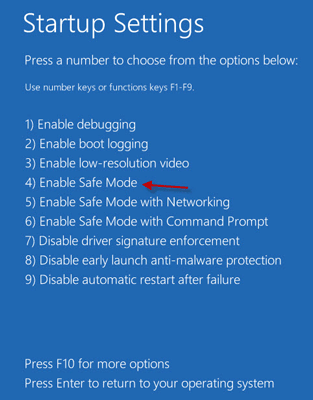
<p style="text-align: justify;"><strong>Bước 10</strong>: Trên màn hình&nbsp;<strong>Startup Settings</strong>, nhấn phím số 4 để&nbsp;bật Safe Mode.</p>

<figure>
<div style="text-align: justify;"><img alt="Nhấn phím số 4 để bật Safe Mode" data-i="5" data-src="https://st.quantrimang.com/photos/image/2020/10/08/mat-quyen-admin-tren-windows-10-6.png" data-was-processed="true" height="400" src="https://st.quantrimang.com/photos/image/2020/10/08/mat-quyen-admin-tren-windows-10-6.png" width="313" /></div>

<figcaption>
<div style="text-align: justify;">Nhấn phím số 4 để bật Safe Mode</div>
</figcaption>
</figure>

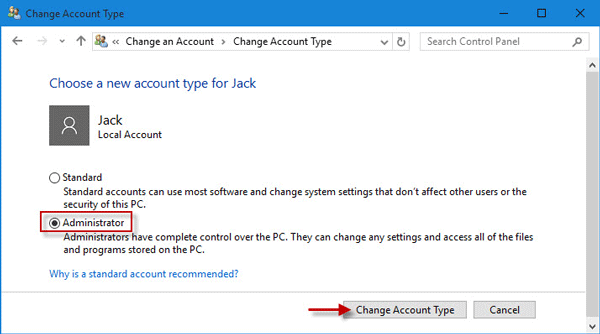
<p style="text-align: justify;"><strong>Bước 11</strong>: Sau khi Windows 10 bắt đầu ở Safe Mode, hãy&nbsp;mở Control Panel. Đi tới&nbsp;<strong>User Accounts &gt; Manage another account</strong>, chọn tài khoản cục bộ mới mà bạn đã thêm ở bước 6, sau đó nhấp vào liên kết&nbsp;<strong>Change the account type</strong>. Chọn&nbsp;<strong>Administrator</strong>&nbsp;và nhấp vào&nbsp;<strong>Change Account Type</strong>&nbsp;để thay đổi tài khoản từ người dùng tiêu chuẩn thành admin.</p>

<figure>
<div style="text-align: justify;"><img alt="Thay đổi tài khoản từ người dùng tiêu chuẩn thành admin" data-i="6" data-src="https://st.quantrimang.com/photos/image/2020/10/08/mat-quyen-admin-tren-windows-10-7.png" data-was-processed="true" height="334" src="https://st.quantrimang.com/photos/image/2020/10/08/mat-quyen-admin-tren-windows-10-7.png" width="600" /></div>

<figcaption>
<div style="text-align: justify;">Thay đổi tài khoản từ người dùng tiêu chuẩn thành admin</div>
</figcaption>
</figure>

<p style="text-align: justify;"><strong>Bước 12</strong>:&nbsp;Khởi động lại PC&nbsp;để đưa Windows 10 ra khỏi Safe Mode và quay trở lại chế độ bình thường. Đăng nhập Windows 10 bằng tài khoản admin mới. Bây giờ, bạn đã lấy lại quyền quản trị viên trong Windows 10 và có thể xóa tài khoản Admin đã cấp mà bạn làm mất quyền quản trị.</p>

<div style="text-align: justify;">&nbsp;</div>

<h2 style="text-align: justify;">Tùy chọn 2: Lấy lại quyền Admin đã mất trên Windows 10 bằng công cụ iSumsoft Windows Password Refixer</h2>

<p style="text-align: justify;">Để sử dụng tùy chọn này, bạn cần mượn một PC mà bạn có thể truy cập với tư cách admin.</p>

<p style="text-align: justify;"><strong>Bước 1</strong>: Trên một PC khác mà bạn có thể truy cập bằng quyền admin, hãy tải xuống và cài đặt&nbsp;iSumsoft Windows Password Refixer.</p>

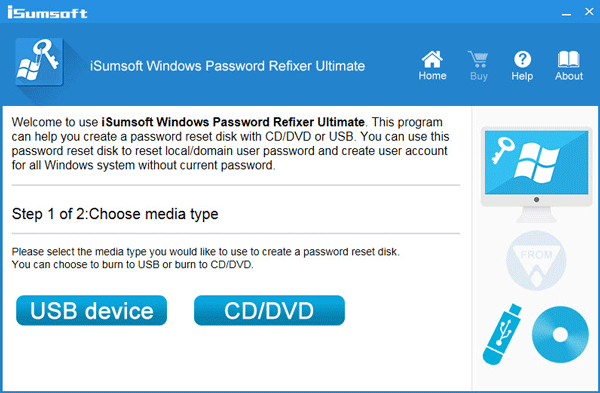
<p style="text-align: justify;"><strong>Bước 2</strong>: Khởi chạy công cụ này và làm theo các bước để ghi nó vào USB và tạo ổ đĩa boot.</p>

<figure>
<div style="text-align: justify;"><img alt="Khởi chạy công cụ và tạo ổ boot" data-i="7" data-src="https://st.quantrimang.com/photos/image/2020/10/08/mat-quyen-admin-tren-windows-10-8.png" data-was-processed="true" height="393" src="https://st.quantrimang.com/photos/image/2020/10/08/mat-quyen-admin-tren-windows-10-8.png" width="600" /></div>

<figcaption>
<div style="text-align: justify;">Khởi chạy công cụ và tạo ổ boot</div>
</figcaption>
</figure>

<p style="text-align: justify;"><strong>Bước 3</strong>: Kết nối ổ USB có thể boot với PC chạy Windows 10 mà bạn đã mất quyền admin và thiết lập để PC boot từ USB.</p>

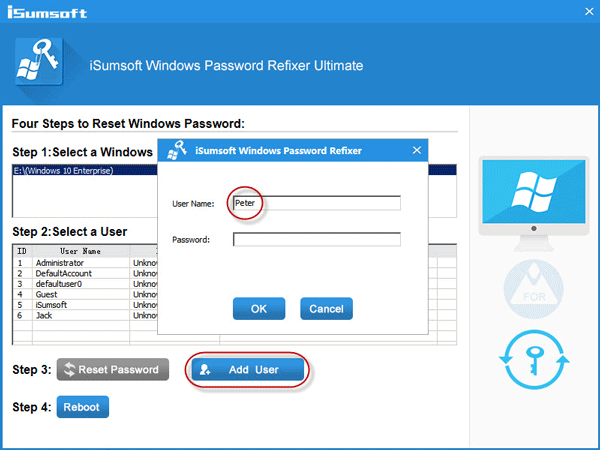
<p style="text-align: justify;"><strong>Bước 4</strong>: Sau khi màn hình &quot;<strong>Windows Password Refixer</strong>&quot; xuất hiện, nhấp vào&nbsp;<strong>Add User</strong>. Sau đó, nhập tên người dùng vào hộp thoại và nhấp vào&nbsp;<strong>OK.</strong>&nbsp;Thao tác này sẽ thêm người dùng cục bộ mới có quyền admin trên Windows 10.</p>

<figure>
<div style="text-align: justify;"><img alt="Thêm người dùng cục bộ mới có quyền admin trên Windows 10" data-i="8" data-src="https://st.quantrimang.com/photos/image/2020/10/08/mat-quyen-admin-tren-windows-10-9.png" data-was-processed="true" height="450" src="https://st.quantrimang.com/photos/image/2020/10/08/mat-quyen-admin-tren-windows-10-9.png" width="600" /></div>

<figcaption>
<div style="text-align: justify;">Thêm người dùng cục bộ mới có quyền admin trên Windows 10</div>
</figcaption>
</figure>

<p style="text-align: justify;"><strong>Bước 5</strong>: Nhấp vào&nbsp;<strong>Reboot</strong>&nbsp;và thoát khỏi ổ USB có khả năng boot để khởi động lại PC. Tài khoản admin mới sẽ xuất hiện trên màn hình đăng nhập Windows 10. Đăng nhập vào đó và bạn đã lấy lại được quyền admin.</p>

<p style="text-align: justify;">Chúc các bạn thành công!</p>
		</div>
				<div id="author">
						<p>
				<strong>Nguồn tin:</strong>
				Quantrimang.com
			</p>
		</div>
	</div>
	<div id="footer" class="clearfix">
		<div id="url">
			<strong>URL của bản tin này: </strong><a href="https://www.nguoicodonvn2008.info/vi/news/savefile/kien-thuc-may-tinh/mat-quyen-admin-tren-windows-10-day-la-cach-khac-phuc-2859.html" title="Mất quyền Admin trên Windows 10, đây là cách khắc phục">https://www.nguoicodonvn2008.info/vi/news/savefile/kien-thuc-may-tinh/mat-quyen-admin-tren-windows-10-day-la-cach-khac-phuc-2859.html</a>

		</div>
		<div class="clear"></div>
		<div class="copyright">
			&copy; .&#x3A; Nguoicodonvn2008.info - Cõi lòng người cô đơn &#x3A;.
		</div>
		<div id="contact">
			<a href="mailto:admin@nguoicodonvn2008.info">admin@nguoicodonvn2008.info</a>
		</div>
	</div>
</div>
        <div id="timeoutsess" class="chromeframe">
            Bạn đã không sử dụng Site, <a onclick="timeoutsesscancel();" href="https://nguoicodonvn2008.info/#">Bấm vào đây để duy trì trạng thái đăng nhập</a>. Thời gian chờ: <span id="secField"> 60 </span> giây
        </div>
        <div id="openidResult" class="nv-alert" style="display:none"></div>
        <div id="openidBt" data-result="" data-redirect=""></div>
		</script>
		<div class="car-top">
  <span><img src="https://nguoicodonvn2008.info/themes/default/images/car.png" alt=""></span>
</div>
<script src="https://nguoicodonvn2008.info/assets/js/jquery/jquery.min.js"></script>
<script>var nv_base_siteurl="/",nv_lang_data="vi",nv_lang_interface="vi",nv_name_variable="nv",nv_fc_variable="op",nv_lang_variable="language",nv_module_name="news",nv_func_name="savefile",nv_is_user=0, nv_my_ofs=-4,nv_my_abbr="EDT",nv_cookie_prefix="nv4c_e856T",nv_check_pass_mstime=1738000,nv_area_admin=0,nv_safemode=0,theme_responsive=0,nv_recaptcha_ver=2,nv_recaptcha_sitekey="",nv_recaptcha_type="image",XSSsanitize=1;</script>
<script src="https://nguoicodonvn2008.info/assets/js/language/vi.js"></script>
<script src="https://nguoicodonvn2008.info/assets/js/DOMPurify/purify3.js"></script>
<script src="https://nguoicodonvn2008.info/assets/js/global.js"></script>
<script src="https://nguoicodonvn2008.info/assets/js/site.js"></script>
<script src="https://nguoicodonvn2008.info/themes/default/js/news.js"></script>
<script src="https://nguoicodonvn2008.info/themes/default/js/main.js"></script>
<script src="https://nguoicodonvn2008.info/themes/default/js/custom.js"></script>
<script type="application/ld+json">
        {
            "@context": "https://schema.org",
            "@type": "Organization",
            "url": "https://nguoicodonvn2008.info",
            "logo": "https://nguoicodonvn2008.info/uploads/angel.gif"
        }
        </script>
<script src="https://nguoicodonvn2008.info/themes/default/js/bootstrap.min.js"></script>
<script type="text/javascript">
var $scrolltop = $('.car-top');
$scrolltop.on('click', function () {
    $('html,body').animate({
        scrollTop: 0
    }, 800);
    $(this).addClass("car-run");
    setTimeout(function(){ $scrolltop.removeClass('car-run');}, 1000);
    return false;
});
$(window).on('scroll', function ()
{ 
    if($(window).scrollTop() >= 200)
    {
        $scrolltop.addClass("show");
        $scrolltop.addClass("car-down");
    }
    else
    {
       $scrolltop.removeClass("show");
       setTimeout(function(){ $scrolltop.removeClass('car-down');}, 300);
    }
});
</script>
</body>
</html>