<!DOCTYPE html>
    <html lang="vi" xmlns="http://www.w3.org/1999/xhtml" prefix="og: http://ogp.me/ns#">
    <head>
<title>Lỗi Firefox chiếm dụng nhiều bộ nhớ và CPU</title>
<meta name="description" content="Lỗi Firefox chiếm dụng nhiều bộ nhớ và CPU - Savefile - Tin Tức -...">
<meta name="author" content=".: Nguoicodonvn2008.info - Cõi lòng người cô đơn :.">
<meta name="copyright" content=".: Nguoicodonvn2008.info - Cõi lòng người cô đơn :. [admin@nguoicodonvn2008.info]">
<meta name="robots" content="index, archive, follow, noodp">
<meta name="googlebot" content="index,archive,follow,noodp">
<meta name="msnbot" content="all,index,follow">
<meta name="generator" content="NukeViet v4.5">
<meta http-equiv="Content-Type" content="text/html; charset=utf-8">
<meta property="og:title" content="Lỗi Firefox chiếm dụng nhiều bộ nhớ và CPU">
<meta property="og:type" content="website">
<meta property="og:description" content="Savefile - Tin Tức - https&#x3A;&#x002F;&#x002F;www.nguoicodonvn2008.info&#x002F;vi&#x002F;news&#x002F;savefile&#x002F;kien-thuc-may-tinh&#x002F;loi-firefox-chiem-dung-nhieu-bo-nho-va-cpu-8091.html">
<meta property="og:site_name" content=".&#x3A; Nguoicodonvn2008.info - Cõi lòng người cô đơn &#x3A;.">
<meta property="og:url" content="https://www.nguoicodonvn2008.info/vi/news/savefile/kien-thuc-may-tinh/loi-firefox-chiem-dung-nhieu-bo-nho-va-cpu-8091.html">
<link rel="shortcut icon" href="https://nguoicodonvn2008.info/favicon.ico">
<link rel="canonical" href="https://www.nguoicodonvn2008.info/vi/news/savefile/kien-thuc-may-tinh/loi-firefox-chiem-dung-nhieu-bo-nho-va-cpu-8091.html">
<link rel="alternate" href="https://nguoicodonvn2008.info/vi/news/rss/" title="Tin Tức" type="application/rss+xml">
<link rel="alternate" href="https://nguoicodonvn2008.info/vi/news/rss/karaoke-dual/" title="Tin Tức - Karaoke Dual" type="application/rss+xml">
<link rel="alternate" href="https://nguoicodonvn2008.info/vi/news/rss/nhac-tre/" title="Tin Tức - Nhạc trẻ" type="application/rss+xml">
<link rel="alternate" href="https://nguoicodonvn2008.info/vi/news/rss/tru-tinh/" title="Tin Tức - Trữ tình" type="application/rss+xml">
<link rel="alternate" href="https://nguoicodonvn2008.info/vi/news/rss/nuoc-ngoai/" title="Tin Tức - Nước ngoài" type="application/rss+xml">
<link rel="alternate" href="https://nguoicodonvn2008.info/vi/news/rss/remix/" title="Tin Tức - Remix" type="application/rss+xml">
<link rel="alternate" href="https://nguoicodonvn2008.info/vi/news/rss/tam-su-tinh-yeu/" title="Tin Tức - Tâm sự tình yêu" type="application/rss+xml">
<link rel="alternate" href="https://nguoicodonvn2008.info/vi/news/rss/tho-suu-tam/" title="Tin Tức - Thơ sưu tầm" type="application/rss+xml">
<link rel="alternate" href="https://nguoicodonvn2008.info/vi/news/rss/cuoc-song/" title="Tin Tức - Cuộc sống" type="application/rss+xml">
<link rel="alternate" href="https://nguoicodonvn2008.info/vi/news/rss/phan-mem/" title="Tin Tức - Phần mềm" type="application/rss+xml">
<link rel="alternate" href="https://nguoicodonvn2008.info/vi/news/rss/kien-thuc-may-tinh/" title="Tin Tức - Kiến thức máy tính" type="application/rss+xml">
<link rel="alternate" href="https://nguoicodonvn2008.info/vi/news/rss/hoc-tap/" title="Tin Tức - Học tập" type="application/rss+xml">
<link rel="alternate" href="https://nguoicodonvn2008.info/vi/news/rss/tai-lieu/" title="Tin Tức - Tài liệu" type="application/rss+xml">
<link rel="alternate" href="https://nguoicodonvn2008.info/vi/news/rss/de-thi/" title="Tin Tức - Đề thi" type="application/rss+xml">
<link rel="preload" as="style" href="https://nguoicodonvn2008.info/assets/css/font-awesome.min.css" type="text/css">
<link rel="preload" as="style" href="https://nguoicodonvn2008.info/themes/default/css/bootstrap.non-responsive.css" type="text/css">
<link rel="preload" as="style" href="https://nguoicodonvn2008.info/themes/default/css/style.css" type="text/css">
<link rel="preload" as="style" href="https://nguoicodonvn2008.info/themes/default/css/style.non-responsive.css" type="text/css">
<link rel="preload" as="style" href="https://nguoicodonvn2008.info/themes/default/css/news.css" type="text/css">
<link rel="preload" as="style" href="https://nguoicodonvn2008.info/themes/default/css/custom.css" type="text/css">
<link rel="preload" as="script" href="https://nguoicodonvn2008.info/assets/js/jquery/jquery.min.js" type="text/javascript">
<link rel="preload" as="script" href="https://nguoicodonvn2008.info/assets/js/language/vi.js" type="text/javascript">
<link rel="preload" as="script" href="https://nguoicodonvn2008.info/assets/js/DOMPurify/purify3.js" type="text/javascript">
<link rel="preload" as="script" href="https://nguoicodonvn2008.info/assets/js/global.js" type="text/javascript">
<link rel="preload" as="script" href="https://nguoicodonvn2008.info/assets/js/site.js" type="text/javascript">
<link rel="preload" as="script" href="https://nguoicodonvn2008.info/themes/default/js/news.js" type="text/javascript">
<link rel="preload" as="script" href="https://nguoicodonvn2008.info/themes/default/js/main.js" type="text/javascript">
<link rel="preload" as="script" href="https://nguoicodonvn2008.info/themes/default/js/custom.js" type="text/javascript">
<link rel="preload" as="script" href="https://nguoicodonvn2008.info/themes/default/js/bootstrap.min.js" type="text/javascript">
<link rel="stylesheet" href="https://nguoicodonvn2008.info/assets/css/font-awesome.min.css">
<link rel="stylesheet" href="https://nguoicodonvn2008.info/themes/default/css/bootstrap.non-responsive.css">
<link rel="stylesheet" href="https://nguoicodonvn2008.info/themes/default/css/style.css">
<link rel="stylesheet" href="https://nguoicodonvn2008.info/themes/default/css/style.non-responsive.css">
<link rel="StyleSheet" href="https://nguoicodonvn2008.info/themes/default/css/news.css">
<link rel="stylesheet" href="https://nguoicodonvn2008.info/themes/default/css/custom.css">
<style type="text/css">
	body{background: #fff;}
</style>
    </head>
    <body>
<div id="print">
	<div id="hd_print">
		<h2 class="pull-left">.&#x3A; Nguoicodonvn2008.info - Cõi lòng người cô đơn &#x3A;.</h2>
		<p class="pull-right"><a title=".&#x3A; Nguoicodonvn2008.info - Cõi lòng người cô đơn &#x3A;." href="https://nguoicodonvn2008.info/">https://nguoicodonvn2008.info</a></p>
	</div>
	<div class="clear"></div>
	<hr />
	<div id="content">
		<h1>Lỗi Firefox chiếm dụng nhiều bộ nhớ và CPU</h1>
		<ul class="list-inline">
			<li>Thứ hai - 19/02/2024 22:58</li>
			<li class="hidden-print txtrequired"><em class="fa fa-print">&nbsp;</em><a title="In ra" href="javascript:;" onclick="window.print()">In ra</a></li>
			<li class="hidden-print txtrequired"><em class="fa fa-power-off">&nbsp;</em><a title="Đóng cửa sổ này" href="javascript:;" onclick="window.close()">Đóng cửa sổ này</a></li>
		</ul>
		<div class="clear"></div>
		<div id="hometext">
		</div>
				<div class="imghome">
			<img alt="Lỗi Firefox chiếm dụng nhiều bộ nhớ và CPU" src="https://st.quantrimang.com/photos/image/2024/02/19/loi-firefox-chiem-dung-nhieu-bo-nho-va-cpu-3.jpg" width="460" class="img-thumbnail" />
		</div>
		<div class="clear"></div>
		<div id="bodytext" class="clearfix">
			<p style="text-align: justify;">Firefox cũng là trình duyệt được nhiều người dùng yêu thích và sử dụng. Và vấn đề trình duyệt Firefox chiếm dụng nhiều RAM thì không còn phải bàn cãi gì nữa. Đây là một trong những lỗi phổ biến hay xảy ra nhất trên trình duyệt Firefox. Giải pháp đơn giản nhất để khắc phục lỗi là cài đặt lại trình duyệt, xóa tất cả các tập tin trên trình duyệt đi.</p>

<h2 id="mcetoc_1e5pcsknk0" style="text-align: justify;">1. Khởi động lại Firefox</h2>

<p style="text-align: justify;">Nếu bạn để Firefox mở trong một khoảng thời gian dài, nó có xu hướng sử dụng nhiều tài nguyên hệ thống hơn. Để giải quyết vấn đề này, hãy khởi động lại trình duyệt theo định kỳ. Cấu hình Firefox lưu các cửa sổ và tab để khi khởi động lại trình duyệt, bạn sẽ được đưa trở lại phiên trước đó.</p>

<p style="text-align: justify;">Để lấy lại các tab và cửa sổ của phiên trước đó, nhấp vào&nbsp;<strong>Menu &gt; Restore Previous Session</strong>.</p>

<p style="text-align: justify;">Để khởi động lại Firefox sau khi cập nhật, hãy nhấp vào&nbsp;<strong>Restart to update Firefox</strong>&nbsp;sau khi áp dụng bất kỳ bản cập nhật nào cho ứng dụng.</p>

<p style="text-align: justify;">Nếu Firefox gặp sự cố hoặc đóng đột ngột, do lỗi phần mềm, sự cố trang web hoặc mất điện bất ngờ, trang&nbsp;<strong>Restore Session</strong>&nbsp;sẽ xuất hiện khi bạn khởi chạy trình duyệt trong lần tiếp theo. Tuy nhiên, nếu vấn đề vẫn còn, hãy nhấp vào&nbsp;<strong>Start New Session</strong>.</p>

<div style="text-align: justify;"><iframe allowtransparency="true" data-google-container-id="a!2" data-google-query-id="CI7AgM-DuYQDFbEAewcdOx0DNQ" data-load-complete="true" frameborder="0" height="0" hspace="0" id="aswift_1" marginheight="0" marginwidth="0" name="aswift_1" sandbox="" scrolling="no" vspace="0" width="478"></iframe></div>

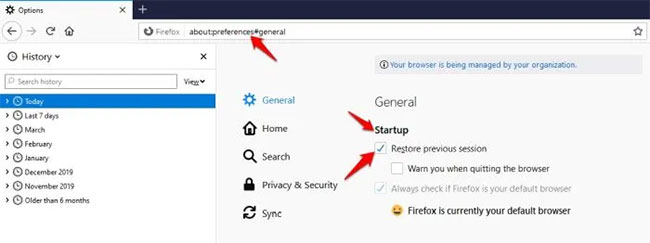
<p style="text-align: justify;">Để cấu hình tính năng khôi phục phiên và mở tất cả các tab, cũng như cửa sổ từ phiên trước đó, hãy nhấp vào&nbsp;<strong>Menu &gt; Options</strong>, và chọn&nbsp;<strong>General.</strong></p>

<p style="text-align: justify;">Trong&nbsp;<strong>Startup</strong>, bấm vào&nbsp;<strong>Restore previous session</strong>&nbsp;và đóng trang&nbsp;<strong>about:preferences.</strong>&nbsp;Thay đổi của bạn bây giờ sẽ được lưu tự động.</p>

<figure>
<div style="text-align: justify;"><img alt="Khởi động lại Firefox" data-i="0" data-src="https://st.quantrimang.com/photos/image/2020/04/13/giam-viec-su-dung-bo-nho-cua-firefox-1.jpg" data-was-processed="true" height="243" src="https://st.quantrimang.com/photos/image/2020/04/13/giam-viec-su-dung-bo-nho-cua-firefox-1.jpg" width="650" /></div>

<figcaption>
<div style="text-align: justify;">Khởi động lại Firefox</div>
</figcaption>
</figure>

<p style="text-align: justify;"><strong>Lưu ý</strong>:&nbsp;<strong>Session Restore</strong>&nbsp;có thể giúp bạn đăng nhập vào các trang web đã đăng nhập trước khi đóng trình duyệt. Điều này có nghĩa là bất kỳ ai sử dụng PC sau bạn cũng có quyền truy cập vào tài khoản trên các trang web bạn đã truy cập. Trong trường hợp này, đừng cấu hình để trình duyệt mở các tab hoặc cửa sổ phiên trước đó.</p>

<p style="text-align: justify;">Bạn cũng có thể tắt tùy chọn&nbsp;<strong>Session Restore crash recovery</strong>&nbsp;mặc định để ngăn các phiên trước đó được khôi phục khi bạn mở trình duyệt hoặc nó tự mở sau khi sự cố hoặc việc đóng trình duyệt không mong muốn diễn ra.</p>

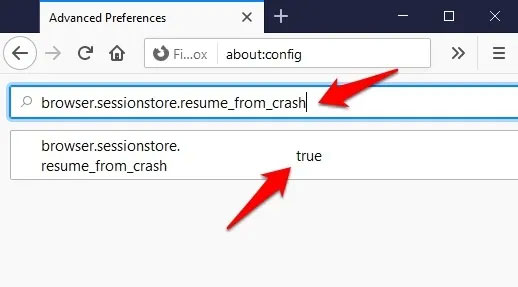
<p style="text-align: justify;">Để cấu hình cài đặt quyền riêng tư cho&nbsp;<strong>Session Restore</strong>, hãy chuyển đến thanh địa chỉ và nhập&nbsp;<strong>about:config</strong>&nbsp;và nhấn&nbsp;<code>Enter</code>. Trong trang cảnh báo, nhấp vào&nbsp;<strong>Accept the Risk and Continue</strong>.</p>

<p style="text-align: justify;">Trong hộp tìm kiếm, nhập:</p>

<pre id="pre0" style="text-align: justify;">
browser.sessionstore.resume_from_crash</pre>

<p style="text-align: justify;">… và đặt thành&nbsp;<strong>False.</strong></p>

<figure>
<div style="text-align: justify;"><img alt="Tìm kiếm browser.sessionstore.resume_from_crash" data-i="1" data-src="https://st.quantrimang.com/photos/image/2020/04/13/giam-viec-su-dung-bo-nho-cua-firefox-2.jpg" data-was-processed="true" height="287" src="https://st.quantrimang.com/photos/image/2020/04/13/giam-viec-su-dung-bo-nho-cua-firefox-2.jpg" width="518" /></div>

<figcaption>
<div style="text-align: justify;">Tìm kiếm browser.sessionstore.resume_from_crash</div>
</figcaption>
</figure>

<h2 id="mcetoc_1e5pcsknk1" style="text-align: justify;">2. Cập nhật Firefox</h2>

<div style="text-align: justify;"><iframe allowtransparency="true" data-google-container-id="a!3" data-google-query-id="CL2dg8-DuYQDFdIXewcdhm0Gkw" data-load-complete="true" frameborder="0" height="0" hspace="0" id="aswift_2" marginheight="0" marginwidth="0" name="aswift_2" sandbox="" scrolling="no" vspace="0" width="478"></iframe></div>

<p style="text-align: justify;">Firefox tự động cập nhật theo mặc định, nhưng bạn luôn có thể thực hiện việc này thủ công. Phiên bản mới nhất có thể đi kèm với các cải tiến về hiệu suất, nhưng bạn sẽ chỉ nhận được những thứ này sau khi khởi động lại Firefox để các bản cập nhật được tải xuống và có hiệu lực.</p>

<p style="text-align: justify;">Để làm điều này:</p>

<p style="text-align: justify;">1. Nhấp vào menu (biểu tượng hamburger) ở góc trên bên phải, nhấp&nbsp;<strong>Help (?)</strong>&nbsp;và chọn&nbsp;<strong>About Firefox.</strong></p>

<p style="text-align: justify;">2. Firefox sẽ kiểm tra các bản cập nhật và tự động tải chúng xuống.</p>

<p style="text-align: justify;">3. Sau khi quá trình tải xuống hoàn tất, hãy khởi động lại để cập nhật Firefox.</p>

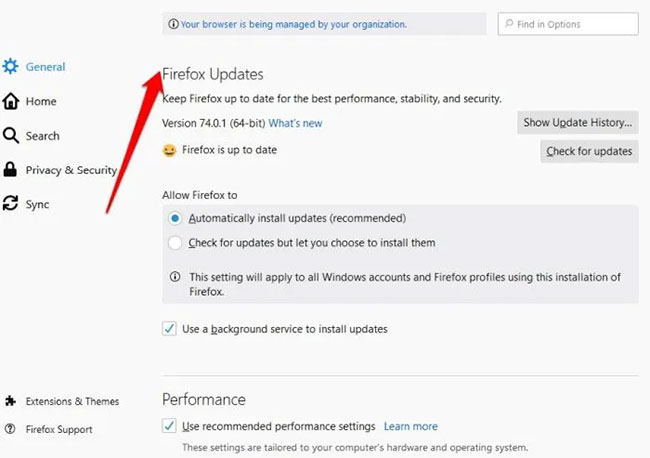
<p style="text-align: justify;">Bạn có thể thay đổi cài đặt cập nhật của mình bằng cách nhấp vào&nbsp;<strong>Menu &gt; Options</strong>&nbsp;và cuộn xuống phần&nbsp;<strong>Firefox Updates.</strong></p>

<figure>
<div style="text-align: justify;"><img alt="Cập nhật Firefox" data-i="2" data-src="https://st.quantrimang.com/photos/image/2020/04/13/giam-viec-su-dung-bo-nho-cua-firefox-3.jpg" data-was-processed="true" height="458" src="https://st.quantrimang.com/photos/image/2020/04/13/giam-viec-su-dung-bo-nho-cua-firefox-3.jpg" width="650" /></div>

<figcaption>
<div style="text-align: justify;">Cập nhật Firefox</div>
</figcaption>
</figure>

<h2 id="mcetoc_1e5pcsknk2" style="text-align: justify;">3. Vô hiệu hóa theme và tiện ích mở rộng</h2>

<p style="text-align: justify;">Các tiện ích mở rộng và theme tiêu tốn tài nguyên có thể khiến Firefox sử dụng nhiều tài nguyên bộ nhớ và hệ thống hơn bình thường. Nếu bạn muốn kiểm tra xem một theme hoặc tiện ích mở rộng có khiến trình duyệt tiêu tốn nhiều tài nguyên hay không, hãy khởi động nó ở Safe Mode, rồi kiểm tra mức sử dụng CPU và bộ nhớ.</p>

<p style="text-align: justify;">Khi ở Safe Mode, các theme và tiện ích mở rộng này bị tắt, vì vậy nếu bạn thấy bất kỳ cải thiện nào khi chúng bị vô hiệu hóa, hãy thử gỡ cài đặt hoặc vô hiệu hóa chúng.</p>

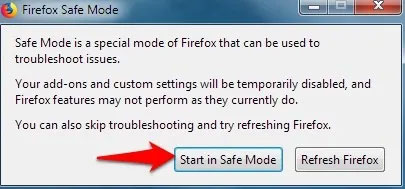
<p style="text-align: justify;">Để khởi động Firefox ở Safe Mode, hãy nhấp vào&nbsp;<strong>Menu &gt; Help</strong>&nbsp;và nhấp vào&nbsp;<strong>Restart with Add-ons disabled</strong>&nbsp;hoặc giữ phím&nbsp;<code>Shift</code>&nbsp;khi bạn khởi động trình duyệt.</p>

<p style="text-align: justify;">2 tùy chọn sẽ xuất hiện:&nbsp;<strong>Start in Safe Mode</strong>&nbsp;và<strong>&nbsp;Refresh Firefox</strong>. Tùy chọn trước sẽ khởi động Firefox với theme mặc định nhưng vô hiệu hóa các tiện ích mở rộng và tắt một số tùy chỉnh và tính năng (điều này chỉ là tạm thời). Khi bạn thoát khỏi Safe Mode, tất cả các cài đặt sẽ được khôi phục về trạng thái trước đó.</p>

<figure>
<div style="text-align: justify;"><img alt="Vô hiệu hóa theme và tiện ích mở rộng" data-i="3" data-src="https://st.quantrimang.com/photos/image/2020/04/13/giam-viec-su-dung-bo-nho-cua-firefox-4.jpg" data-was-processed="true" height="189" src="https://st.quantrimang.com/photos/image/2020/04/13/giam-viec-su-dung-bo-nho-cua-firefox-4.jpg" width="405" /></div>

<figcaption>
<div style="text-align: justify;">Vô hiệu hóa theme và tiện ích mở rộng</div>
</figcaption>
</figure>

<div style="text-align: justify;"><iframe allowtransparency="true" data-google-container-id="a!4" data-google-query-id="CKLcrNCDuYQDFa2DuQUdHtYI6Q" data-load-complete="true" frameborder="0" height="0" hspace="0" id="aswift_3" marginheight="0" marginwidth="0" name="aswift_3" sandbox="" scrolling="no" vspace="0" width="478"></iframe></div>

<p style="text-align: justify;">Nếu sự cố vẫn còn, có lẽ không phải do theme hoặc tiện ích mở rộng gây ra, nhưng có thể là do cài đặt tùy chọn hoặc plugin, vì chúng không bị vô hiệu hóa trong Safe Mode. Tuy nhiên, nếu điều đó không xảy ra ở Safe Mode thì có khả năng các tiện ích bổ sung là thủ phạm.</p>

<h2 id="mcetoc_1e5pcsknk3" style="text-align: justify;">4. Kiểm tra tính năng tăng tốc phần cứng Firefox</h2>

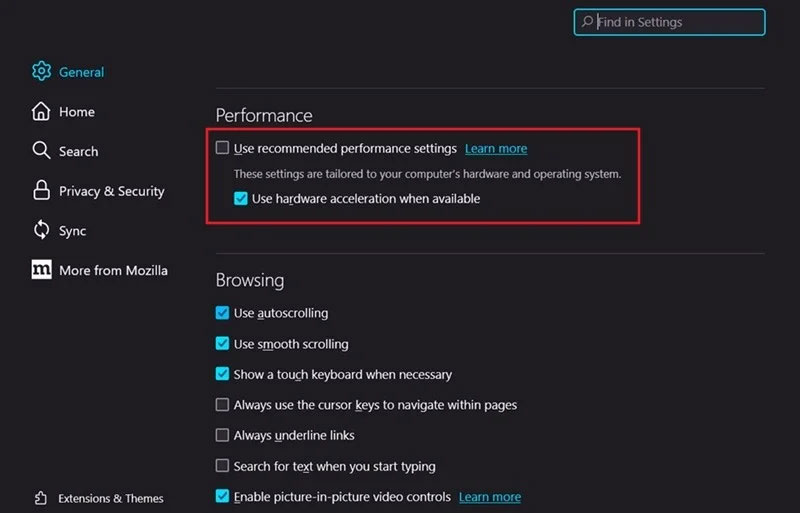
<p style="text-align: justify;">Mặc dù tùy chọn này nhắm đến hầu hết các hệ thống cũ nhưng bạn có thể muốn đảm bảo rằng tùy chọn này bị tắt trên PC của mình. Khi bật tính năng tăng tốc phần cứng, điều đó có nghĩa là Firefox sẽ giảm tải kết xuất trang và các tác vụ khác cho những thành phần, chẳng hạn như GPU, để tăng tốc các tác vụ như phát video hoặc game. Điều này có khả năng ảnh hưởng đến việc sử dụng bộ nhớ.</p>

<p style="text-align: justify;">Nhấp vào menu hamburger, sau đó nhấp vào&nbsp;<strong>Settings &gt; General</strong>. Trong phần&nbsp;<strong>Performance</strong>, bỏ chọn tùy chọn&nbsp;<strong>Use hardware acceleration when available</strong>.</p>

<figure>
<div style="text-align: justify;"><img alt="Bỏ chọn &#039;Use hardware acceleration when available&#039; trong cài đặt Firefox." data-adbro-processed="true" data-i="4" data-src="https://st.quantrimang.com/photos/image/2024/02/19/loi-firefox-chiem-dung-nhieu-bo-nho-va-cpu-1.jpg" data-was-processed="true" height="513" src="https://st.quantrimang.com/photos/image/2024/02/19/loi-firefox-chiem-dung-nhieu-bo-nho-va-cpu-1.jpg" width="800" /></div>

<figcaption>
<div style="text-align: justify;">Bỏ chọn &quot;Use hardware acceleration when available&quot; trong cài đặt Firefox.</div>
</figcaption>
</figure>

<p style="text-align: justify;">Trên PC ví dụ, tùy chọn này thậm chí không hiển thị vì&nbsp;<strong>Use recommended performance</strong>&nbsp;<strong>settings</strong>&nbsp;đã được bật thay thế. Nếu bạn không thấy tùy chọn này thì bạn không cần phải làm gì khác và có thể thoát khỏi trang.</p>

<h2 id="mcetoc_1hn0b1o12bk" style="text-align: justify;">5. Sử dụng công cụ bộ nhớ tích hợp</h2>

<p style="text-align: justify;">Firefox có một công cụ bộ nhớ tích hợp có thể khắc phục mọi sự cố cụ thể đối với bộ nhớ.</p>

<p style="text-align: justify;">Mở một tab mới và nhập&nbsp;<strong>about:memory</strong>, sau đó nhấn&nbsp;<strong>Enter</strong>. Trong&nbsp;<strong>Free memory</strong>, nhấp vào các nút&nbsp;<strong>GC, CC</strong>&nbsp;và&nbsp;<strong>Minimize memory</strong>&nbsp;<strong>usage</strong>&nbsp;để giảm mức sử dụng bộ nhớ Firefox trên PC của bạn.</p>

<figure>
<div style="text-align: justify;"><img alt="Tùy chọn Free memory trong trang about:memory trên Firefox." data-i="5" data-src="https://st.quantrimang.com/photos/image/2024/02/19/loi-firefox-chiem-dung-nhieu-bo-nho-va-cpu-2.jpg" data-was-processed="true" height="136" src="https://st.quantrimang.com/photos/image/2024/02/19/loi-firefox-chiem-dung-nhieu-bo-nho-va-cpu-2.jpg" width="800" /></div>

<figcaption>
<div style="text-align: justify;">Tùy chọn Free memory trong trang about:memory trên Firefox.</div>
</figcaption>
</figure>

<h2 id="mcetoc_1e5r4i90e2" style="text-align: justify;"><strong>6. Giảm bớt lịch sử duyệt web trên trình duyệt Firefox</strong></h2>

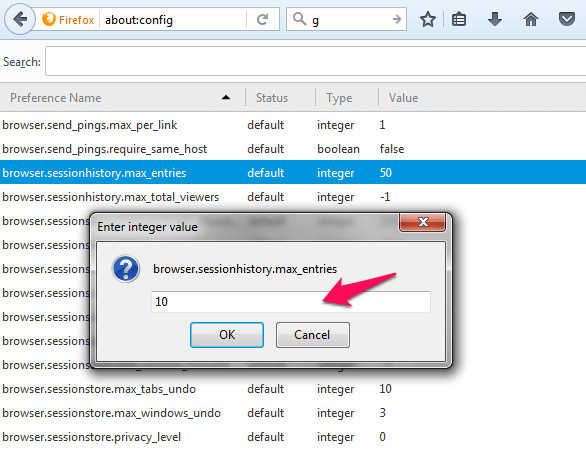
<p style="text-align: justify;">Theo mặc định có 50 trang web được lưu trữ trong bộ nhớ trình duyệt Firefox. Điều này có nghĩa là nếu truy cập vào 50 trang web trên trình duyệt Firefox, bạn có thể xem được bộ nhớ cache của các trang web này hoặc lịch sử duyệt web trên trình duyệt.</p>

<p style="text-align: justify;">Trong một số trường hợp, việc giảm bớt lịch sử duyệt web trên Firefox có thể hỗ trợ khắc phục được lỗi.</p>

<p style="text-align: justify;">Thực hiện theo các bước dưới đây:</p>

<ul>
	<li style="text-align: justify;">Đầu tiên mở trình duyệt Firefox trên máy tính của bạn, sau đó nhập about:config vào thanh địa chỉ rồi nhấn Enter.</li>
	<li style="text-align: justify;">Tiếp theo tìm tùy chọn có tên browser.sessionhistory.max_entries.</li>
	<li style="text-align: justify;">Kích chuột phải vào đó chọn Modify và thiết lập giá trị càng thấp càng tốt. Cuối cùng click chọn OK.</li>
</ul>

<p style="text-align: justify;"><img alt="Giảm bớt lịch sử duyệt web trên trình duyệt Firefox" data-i="6" data-src="https://st.quantrimang.com/photos/image/2016/11/07/loi-chiem-dung-6.jpg" data-was-processed="true" height="452" src="https://st.quantrimang.com/photos/image/2016/11/07/loi-chiem-dung-6.jpg" title="Giảm bớt lịch sử duyệt web trên trình duyệt Firefox" width="586" /></p>

<div style="text-align: justify;"><iframe allowtransparency="true" data-google-container-id="a!5" data-google-query-id="CK2x9NCDuYQDFYEIewcdhZMNQQ" data-load-complete="true" frameborder="0" height="0" hspace="0" id="aswift_4" marginheight="0" marginwidth="0" name="aswift_4" sandbox="" scrolling="no" vspace="0" width="478"></iframe></div>

<h2 id="mcetoc_1e5pcsknk4" style="text-align: justify;">7. Xóa file cài đặt trang web bị hỏng</h2>

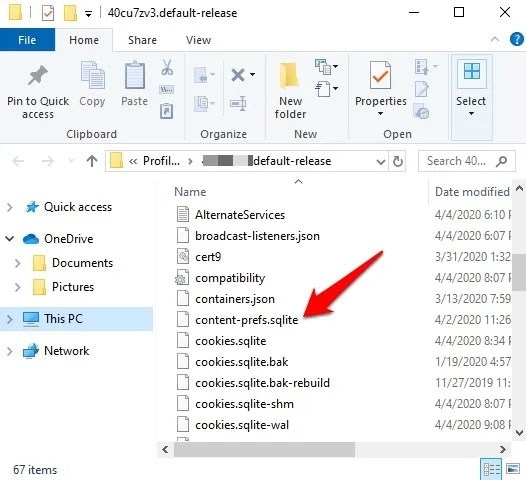
<p style="text-align: justify;">Thư mục profile chứa dữ liệu trong các file khác nhau được lưu trữ bởi Firefox. Nếu file&nbsp;<strong>content-prefs-sqlite</strong>&nbsp;có chứa các cài đặt trang web riêng lẻ bị hỏng, hãy xóa nó để giảm mức sử dụng CPU.</p>

<p style="text-align: justify;">Để làm điều này:</p>

<p style="text-align: justify;">Nhấp vào&nbsp;<strong>Menu &gt; Help &gt; Troubleshooting Information</strong>&nbsp;để mở tab tương ứng.</p>

<p style="text-align: justify;">Đi đến&nbsp;<strong>Application Basics</strong>&nbsp;và nhấp vào&nbsp;<strong>Open Folder</strong>&nbsp;bên cạnh&nbsp;<strong>Profile Folder</strong>.</p>

<p style="text-align: justify;">Nhấp vào&nbsp;<strong>Menu &gt; Exit</strong>&nbsp;và xóa file&nbsp;<strong>content-prefs.sqlite.</strong>&nbsp;Khi bạn mở Firefox trong lần tiếp theo, thư mục profile sẽ được tạo lại.</p>

<figure>
<div style="text-align: justify;"><img alt="Xóa file cài đặt trang web bị hỏng" data-i="7" data-src="https://st.quantrimang.com/photos/image/2020/04/13/giam-viec-su-dung-bo-nho-cua-firefox-5.jpg" data-was-processed="true" height="480" src="https://st.quantrimang.com/photos/image/2020/04/13/giam-viec-su-dung-bo-nho-cua-firefox-5.jpg" width="526" /></div>

<figcaption>
<div style="text-align: justify;">Xóa file cài đặt trang web bị hỏng</div>
</figcaption>
</figure>

<p style="text-align: justify;">Bạn cũng có thể khắc phục lỗi rò rỉ bộ nhớ và tối ưu hóa hiệu suất của trình duyệt bằng cách nhập&nbsp;<strong>about:memory</strong>&nbsp;vào thanh địa chỉ và trong&nbsp;<strong>Free memory</strong>, chọn&nbsp;<strong>GC, CC</strong>&nbsp;và<strong>&nbsp;Minimize Memory usage</strong>&nbsp;để hạn chế mọi rò rỉ. Bạn cũng có thể kiểm tra các cách khác để&nbsp;<a href="https://quantrimang.com/cong-nghe/lam-gi-khi-firefox-bi-loi-crash-120137" title="Làm gì khi Firefox bị lỗi Crash?">khắc phục khi Firefox gặp sự cố</a>.</p>

<h2 id="mcetoc_1hn0b1o12bl" style="text-align: justify;">8. Sử dụng các công cụ khắc phục sự cố bổ sung của Firefox</h2>

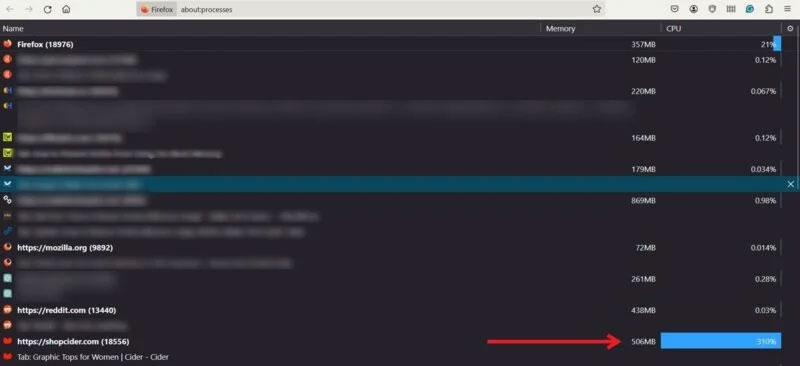
<p style="text-align: justify;">Firefox cung cấp Task Manager riêng. Hãy thử khởi chạy nó để xem liệu các tab hoặc tiện ích mở rộng có đang sử dụng quá nhiều tài nguyên hay không.</p>

<p style="text-align: justify;">Nhấp vào menu hamburger ở trên cùng bên phải và chọn &nbsp;<strong>More tools &gt; Task Manager</strong>.</p>

<p style="text-align: justify;">Khi bạn phát hiện ra tab nào đang sử dụng nhiều tài nguyên, hãy đóng các tab đó để giảm mức sử dụng tổng thể.</p>

<figure>
<div style="text-align: justify;"><img alt="Chế độ xem tab sử dụng nhiều tài nguyên trong Firefox Task Manager" data-i="8" data-src="https://st.quantrimang.com/photos/image/2024/02/19/loi-firefox-chiem-dung-nhieu-bo-nho-va-cpu-3.jpg" data-was-processed="true" height="366" src="https://st.quantrimang.com/photos/image/2024/02/19/loi-firefox-chiem-dung-nhieu-bo-nho-va-cpu-3.jpg" width="800" /></div>

<figcaption>
<div style="text-align: justify;">Chế độ xem tab sử dụng nhiều tài nguyên trong Firefox Task Manager</div>
</figcaption>
</figure>

<p style="text-align: justify;">Tham khảo phần trên để biết cách vô hiệu hóa tiện ích mở rộng.</p>

<p style="text-align: justify;">Khi trình duyệt Firefox của bạn hoạt động trơn tru trở lại, bạn có thể tiến hành điều chỉnh nó. Ví dụ, điều chỉnh tốc độ cuộn trong Firefox. Ngoài ra, bạn cũng có thể chặn một số trang web nhất định trong trình duyệt của Mozilla.</p>

<p style="text-align: justify;">Chúc các bạn thành công!</p>
		</div>
				<div id="author">
						<p>
				<strong>Nguồn tin:</strong>
				Quantrimang.com
			</p>
		</div>
	</div>
	<div id="footer" class="clearfix">
		<div id="url">
			<strong>URL của bản tin này: </strong><a href="https://www.nguoicodonvn2008.info/vi/news/savefile/kien-thuc-may-tinh/loi-firefox-chiem-dung-nhieu-bo-nho-va-cpu-8091.html" title="Lỗi Firefox chiếm dụng nhiều bộ nhớ và CPU">https://www.nguoicodonvn2008.info/vi/news/savefile/kien-thuc-may-tinh/loi-firefox-chiem-dung-nhieu-bo-nho-va-cpu-8091.html</a>

		</div>
		<div class="clear"></div>
		<div class="copyright">
			&copy; .&#x3A; Nguoicodonvn2008.info - Cõi lòng người cô đơn &#x3A;.
		</div>
		<div id="contact">
			<a href="mailto:admin@nguoicodonvn2008.info">admin@nguoicodonvn2008.info</a>
		</div>
	</div>
</div>
        <div id="timeoutsess" class="chromeframe">
            Bạn đã không sử dụng Site, <a onclick="timeoutsesscancel();" href="https://nguoicodonvn2008.info/#">Bấm vào đây để duy trì trạng thái đăng nhập</a>. Thời gian chờ: <span id="secField"> 60 </span> giây
        </div>
        <div id="openidResult" class="nv-alert" style="display:none"></div>
        <div id="openidBt" data-result="" data-redirect=""></div>
		</script>
		<div class="car-top">
  <span><img src="https://nguoicodonvn2008.info/themes/default/images/car.png" alt=""></span>
</div>
<script src="https://nguoicodonvn2008.info/assets/js/jquery/jquery.min.js"></script>
<script>var nv_base_siteurl="/",nv_lang_data="vi",nv_lang_interface="vi",nv_name_variable="nv",nv_fc_variable="op",nv_lang_variable="language",nv_module_name="news",nv_func_name="savefile",nv_is_user=0, nv_my_ofs=-4,nv_my_abbr="EDT",nv_cookie_prefix="nv4c_e856T",nv_check_pass_mstime=1738000,nv_area_admin=0,nv_safemode=0,theme_responsive=0,nv_recaptcha_ver=2,nv_recaptcha_sitekey="",nv_recaptcha_type="image",XSSsanitize=1;</script>
<script src="https://nguoicodonvn2008.info/assets/js/language/vi.js"></script>
<script src="https://nguoicodonvn2008.info/assets/js/DOMPurify/purify3.js"></script>
<script src="https://nguoicodonvn2008.info/assets/js/global.js"></script>
<script src="https://nguoicodonvn2008.info/assets/js/site.js"></script>
<script src="https://nguoicodonvn2008.info/themes/default/js/news.js"></script>
<script src="https://nguoicodonvn2008.info/themes/default/js/main.js"></script>
<script src="https://nguoicodonvn2008.info/themes/default/js/custom.js"></script>
<script type="application/ld+json">
        {
            "@context": "https://schema.org",
            "@type": "Organization",
            "url": "https://nguoicodonvn2008.info",
            "logo": "https://nguoicodonvn2008.info/uploads/angel.gif"
        }
        </script>
<script src="https://nguoicodonvn2008.info/themes/default/js/bootstrap.min.js"></script>
<script type="text/javascript">
var $scrolltop = $('.car-top');
$scrolltop.on('click', function () {
    $('html,body').animate({
        scrollTop: 0
    }, 800);
    $(this).addClass("car-run");
    setTimeout(function(){ $scrolltop.removeClass('car-run');}, 1000);
    return false;
});
$(window).on('scroll', function ()
{ 
    if($(window).scrollTop() >= 200)
    {
        $scrolltop.addClass("show");
        $scrolltop.addClass("car-down");
    }
    else
    {
       $scrolltop.removeClass("show");
       setTimeout(function(){ $scrolltop.removeClass('car-down');}, 300);
    }
});
</script>
</body>
</html>