<!DOCTYPE html>
    <html lang="vi" xmlns="http://www.w3.org/1999/xhtml" prefix="og: http://ogp.me/ns#">
    <head>
<title>Làm thế nào để kết nối với một FTP Server từ Windows Explorer?</title>
<meta name="description" content="Làm thế nào để kết nối với một FTP Server từ Windows Explorer? - Savefile - Tin Tức -...">
<meta name="author" content=".: Nguoicodonvn2008.info - Cõi lòng người cô đơn :.">
<meta name="copyright" content=".: Nguoicodonvn2008.info - Cõi lòng người cô đơn :. [admin@nguoicodonvn2008.info]">
<meta name="robots" content="index, archive, follow, noodp">
<meta name="googlebot" content="index,archive,follow,noodp">
<meta name="msnbot" content="all,index,follow">
<meta name="generator" content="NukeViet v4.5">
<meta http-equiv="Content-Type" content="text/html; charset=utf-8">
<meta property="og:title" content="Làm thế nào để kết nối với một FTP Server từ Windows Explorer?">
<meta property="og:type" content="website">
<meta property="og:description" content="Savefile - Tin Tức - https&#x3A;&#x002F;&#x002F;www.nguoicodonvn2008.info&#x002F;vi&#x002F;news&#x002F;savefile&#x002F;kien-thuc-may-tinh&#x002F;lam-the-nao-de-ket-noi-voi-mot-ftp-server-tu-windows-explorer-9165.html">
<meta property="og:site_name" content=".&#x3A; Nguoicodonvn2008.info - Cõi lòng người cô đơn &#x3A;.">
<meta property="og:url" content="https://www.nguoicodonvn2008.info/vi/news/savefile/kien-thuc-may-tinh/lam-the-nao-de-ket-noi-voi-mot-ftp-server-tu-windows-explorer-9165.html">
<link rel="shortcut icon" href="https://nguoicodonvn2008.info/favicon.ico">
<link rel="canonical" href="https://www.nguoicodonvn2008.info/vi/news/savefile/kien-thuc-may-tinh/lam-the-nao-de-ket-noi-voi-mot-ftp-server-tu-windows-explorer-9165.html">
<link rel="alternate" href="https://nguoicodonvn2008.info/vi/news/rss/" title="Tin Tức" type="application/rss+xml">
<link rel="alternate" href="https://nguoicodonvn2008.info/vi/news/rss/karaoke-dual/" title="Tin Tức - Karaoke Dual" type="application/rss+xml">
<link rel="alternate" href="https://nguoicodonvn2008.info/vi/news/rss/nhac-tre/" title="Tin Tức - Nhạc trẻ" type="application/rss+xml">
<link rel="alternate" href="https://nguoicodonvn2008.info/vi/news/rss/tru-tinh/" title="Tin Tức - Trữ tình" type="application/rss+xml">
<link rel="alternate" href="https://nguoicodonvn2008.info/vi/news/rss/nuoc-ngoai/" title="Tin Tức - Nước ngoài" type="application/rss+xml">
<link rel="alternate" href="https://nguoicodonvn2008.info/vi/news/rss/remix/" title="Tin Tức - Remix" type="application/rss+xml">
<link rel="alternate" href="https://nguoicodonvn2008.info/vi/news/rss/tam-su-tinh-yeu/" title="Tin Tức - Tâm sự tình yêu" type="application/rss+xml">
<link rel="alternate" href="https://nguoicodonvn2008.info/vi/news/rss/tho-suu-tam/" title="Tin Tức - Thơ sưu tầm" type="application/rss+xml">
<link rel="alternate" href="https://nguoicodonvn2008.info/vi/news/rss/cuoc-song/" title="Tin Tức - Cuộc sống" type="application/rss+xml">
<link rel="alternate" href="https://nguoicodonvn2008.info/vi/news/rss/phan-mem/" title="Tin Tức - Phần mềm" type="application/rss+xml">
<link rel="alternate" href="https://nguoicodonvn2008.info/vi/news/rss/kien-thuc-may-tinh/" title="Tin Tức - Kiến thức máy tính" type="application/rss+xml">
<link rel="alternate" href="https://nguoicodonvn2008.info/vi/news/rss/hoc-tap/" title="Tin Tức - Học tập" type="application/rss+xml">
<link rel="alternate" href="https://nguoicodonvn2008.info/vi/news/rss/tai-lieu/" title="Tin Tức - Tài liệu" type="application/rss+xml">
<link rel="alternate" href="https://nguoicodonvn2008.info/vi/news/rss/de-thi/" title="Tin Tức - Đề thi" type="application/rss+xml">
<link rel="preload" as="style" href="https://nguoicodonvn2008.info/assets/css/font-awesome.min.css" type="text/css">
<link rel="preload" as="style" href="https://nguoicodonvn2008.info/themes/default/css/bootstrap.non-responsive.css" type="text/css">
<link rel="preload" as="style" href="https://nguoicodonvn2008.info/themes/default/css/style.css" type="text/css">
<link rel="preload" as="style" href="https://nguoicodonvn2008.info/themes/default/css/style.non-responsive.css" type="text/css">
<link rel="preload" as="style" href="https://nguoicodonvn2008.info/themes/default/css/news.css" type="text/css">
<link rel="preload" as="style" href="https://nguoicodonvn2008.info/themes/default/css/custom.css" type="text/css">
<link rel="preload" as="script" href="https://nguoicodonvn2008.info/assets/js/jquery/jquery.min.js" type="text/javascript">
<link rel="preload" as="script" href="https://nguoicodonvn2008.info/assets/js/language/vi.js" type="text/javascript">
<link rel="preload" as="script" href="https://nguoicodonvn2008.info/assets/js/DOMPurify/purify3.js" type="text/javascript">
<link rel="preload" as="script" href="https://nguoicodonvn2008.info/assets/js/global.js" type="text/javascript">
<link rel="preload" as="script" href="https://nguoicodonvn2008.info/assets/js/site.js" type="text/javascript">
<link rel="preload" as="script" href="https://nguoicodonvn2008.info/themes/default/js/news.js" type="text/javascript">
<link rel="preload" as="script" href="https://nguoicodonvn2008.info/themes/default/js/main.js" type="text/javascript">
<link rel="preload" as="script" href="https://nguoicodonvn2008.info/themes/default/js/custom.js" type="text/javascript">
<link rel="preload" as="script" href="https://nguoicodonvn2008.info/themes/default/js/bootstrap.min.js" type="text/javascript">
<link rel="stylesheet" href="https://nguoicodonvn2008.info/assets/css/font-awesome.min.css">
<link rel="stylesheet" href="https://nguoicodonvn2008.info/themes/default/css/bootstrap.non-responsive.css">
<link rel="stylesheet" href="https://nguoicodonvn2008.info/themes/default/css/style.css">
<link rel="stylesheet" href="https://nguoicodonvn2008.info/themes/default/css/style.non-responsive.css">
<link rel="StyleSheet" href="https://nguoicodonvn2008.info/themes/default/css/news.css">
<link rel="stylesheet" href="https://nguoicodonvn2008.info/themes/default/css/custom.css">
<style type="text/css">
	body{background: #fff;}
</style>
    </head>
    <body>
<div id="print">
	<div id="hd_print">
		<h2 class="pull-left">.&#x3A; Nguoicodonvn2008.info - Cõi lòng người cô đơn &#x3A;.</h2>
		<p class="pull-right"><a title=".&#x3A; Nguoicodonvn2008.info - Cõi lòng người cô đơn &#x3A;." href="https://nguoicodonvn2008.info/">https://nguoicodonvn2008.info</a></p>
	</div>
	<div class="clear"></div>
	<hr />
	<div id="content">
		<h1>Làm thế nào để kết nối với một FTP Server từ Windows Explorer?</h1>
		<ul class="list-inline">
			<li>Thứ sáu - 11/10/2024 23:11</li>
			<li class="hidden-print txtrequired"><em class="fa fa-print">&nbsp;</em><a title="In ra" href="javascript:;" onclick="window.print()">In ra</a></li>
			<li class="hidden-print txtrequired"><em class="fa fa-power-off">&nbsp;</em><a title="Đóng cửa sổ này" href="javascript:;" onclick="window.close()">Đóng cửa sổ này</a></li>
		</ul>
		<div class="clear"></div>
		<div id="hometext">
		</div>
				<div class="imghome">
			<img alt="Làm thế nào để kết nối với một FTP Server từ Windows Explorer?" src="https://st.quantrimang.com/photos/image/2016/10/12/Lam-the-nao-de-ket-noi-voi-mot-ftb-11.jpg" width="460" class="img-thumbnail" />
		</div>
		<div class="clear"></div>
		<div id="bodytext" class="clearfix">
			<p style="text-align: justify;">Windows cho phép người dùng có thể dễ dàng kết nối với một&nbsp;<strong>FTP Server</strong>&nbsp;và thư mục&nbsp;<strong>FTP Shared</strong>&nbsp;bằng cách sử dụng&nbsp;<strong>Add Network Location wizard</strong>. Sau khi chạy wizard, bạn có thể dễ dàng quản lý (sao chép, di chuyển, xóa, tạo hoặc đổi tên....) tất cả các nội dung trên FTP server từ Windows Explorer.</p>

<p style="text-align: justify;"><img alt="FTB server" data-i="0" data-src="https://st.quantrimang.com/photos/image/2016/10/12/Lam-the-nao-de-ket-noi-voi-mot-ftb-1-b.jpg" data-was-processed="true" height="271" src="https://st.quantrimang.com/photos/image/2016/10/12/Lam-the-nao-de-ket-noi-voi-mot-ftb-1-b.jpg" title="FTB server" width="446" /></p>

<p style="text-align: justify;">Add Network Location wizard hỗ trợ bạn việc tạo một shortcut FTP Share trên Windows Explorer mà không cần phải cài đặt thêm bất kỳ một chương trình FTP Client thứ 3 nào để truy cập và quản lý các file trong thư mục Shared của FTP Server.</p>

<h2 style="text-align: justify;"><strong>1. Các bước để kết nối / truy cập FTP bằng cách sử dụng Windows Explorer</strong></h2>

<p style="text-align: justify;">Trước khi kết nối với một FTP server, đầu tiên bạn cần phải biết&nbsp;<strong>Hostname</strong>&nbsp;(URL hoặc địa chỉ IP) và các yêu cầu thông tin đăng nhập (nếu có) để truy cập các nội dung FTP chia sẻ.</p>

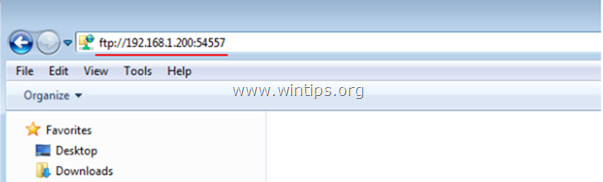
<p style="text-align: justify;">Để truy cập các nội dung chia sẻ trên FTP server thông qua Windows Explorer (hoặc File Explorer), bạn nhập vào thanh địa chỉ:</p>

<p style="text-align: justify;"><strong>ftp:// kèm theo hostname (URL hoặc địa chỉ IP) của FTP Server.</strong></p>

<p style="text-align: justify;">Ví dụ, nếu địa chỉ IP của FTP Server là &quot;192.168.1.200&quot; và số cổng FTP là 54557, bạn nhập:</p>

<p style="text-align: justify;"><a data-error="true" href="https://nguoicodonvn2008.info/ftp://192.168.1.200:54557/">ftp://192.168.1.200:54557</a></p>

<p style="text-align: justify;"><img alt="Các bước để truy cập FTP" data-i="1" data-src="https://st.quantrimang.com/photos/image/2016/10/12/Lam-the-nao-de-ket-noi-voi-mot-ftb-3-b.jpg" data-was-processed="true" height="182" src="https://st.quantrimang.com/photos/image/2016/10/12/Lam-the-nao-de-ket-noi-voi-mot-ftb-3-b.jpg" title="Các bước để truy cập FTP" width="603" /></p>

<div style="text-align: justify;">&nbsp;</div>

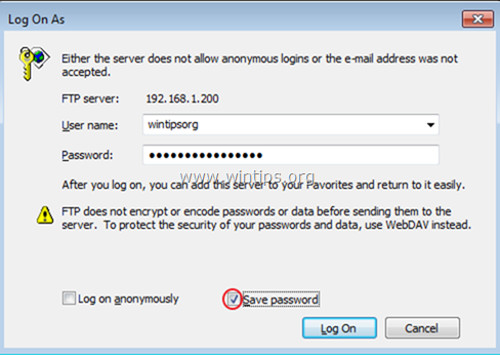
<p style="text-align: justify;">Khi được yêu cầu, bạn nhập các thông tin (tên đăng nhập FTP và mật khẩu) để kết nối với FTP server.</p>

<p style="text-align: justify;"><img alt="Đăng nhập để để kết nối với FTP server." data-i="2" data-src="https://st.quantrimang.com/photos/image/2016/10/12/Lam-the-nao-de-ket-noi-voi-mot-ftb-3.jpg" data-was-processed="true" height="355" src="https://st.quantrimang.com/photos/image/2016/10/12/Lam-the-nao-de-ket-noi-voi-mot-ftb-3.jpg" title="Đăng nhập để để kết nối với FTP server." width="500" /></p>

<p style="text-align: justify;">Sau khi hoàn tất bạn có thể làm việc với các nội dung trên FTP nếu nó được lưu trữ trên máy tính nội bộ của bạn.</p>

<p style="text-align: justify;">Khi đã hoàn tất quá trình, bạn có thể đóng cửa sổ Windows Explorer lại để ngắt kết nối với FTP Server.</p>

<p style="text-align: justify;">Tuy nhiên để không phải thao tác bằng tay, bạn có thể tạo một shortcut .</p>

<h2 style="text-align: justify;"><strong>2. Tạo shortcut FTP Share trên Windows Explorer</strong></h2>

<p style="text-align: justify;">Để tạo một shortcut FTP Share trên Windows Explorer, bạn thực hiện theo các bước dưới đây:</p>

<p style="text-align: justify;">1. Mở&nbsp;<strong>Windows Explorer</strong>.</p>

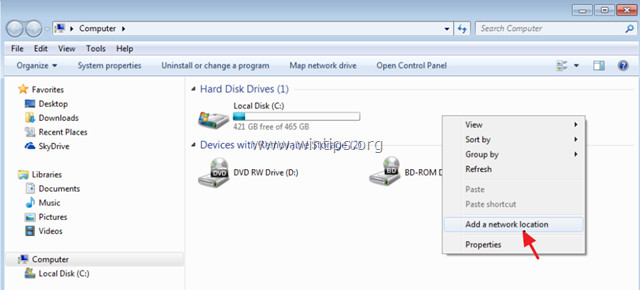
<p style="text-align: justify;">2. Trên cửa sổ Windows Explorer, kích chuột phải vào khoảng trống bất kỳ rồi chọn&nbsp;<strong>Add network location</strong>.</p>

<p style="text-align: justify;"><img alt="Tạo shortcut FTP Share trên Windows Explorer" data-i="3" data-src="https://st.quantrimang.com/photos/image/2016/10/12/Lam-the-nao-de-ket-noi-voi-mot-ftb-4-b.jpg" data-was-processed="true" height="290" src="https://st.quantrimang.com/photos/image/2016/10/12/Lam-the-nao-de-ket-noi-voi-mot-ftb-4-b.jpg" title="Tạo shortcut FTP Share trên Windows Explorer" width="640" /></p>

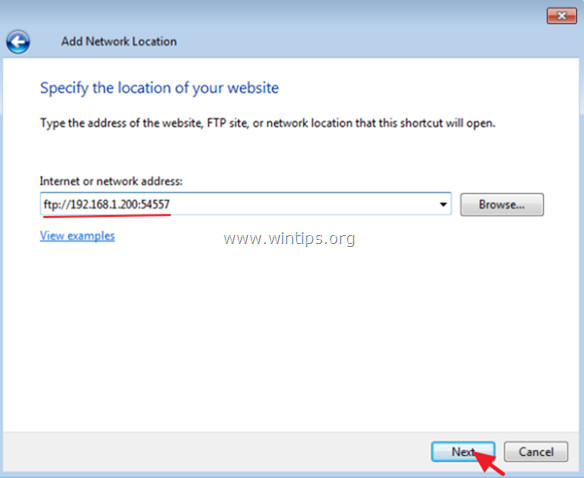
<p style="text-align: justify;">3. Click chọn&nbsp;<strong>Next 2 lần</strong>, sau đó trên cửa sổ tiếp theo bạn nhập địa chỉ IP và sổ cổng (port number) của FTP Server. Sau khi hoàn tất, click chọn&nbsp;<strong>Next</strong>.</p>

<p style="text-align: justify;"><img alt="Nhập địa chỉ IP và sổ cổng của FTP Server" data-adbro-processed="true" data-i="4" data-src="https://st.quantrimang.com/photos/image/2016/10/12/Lam-the-nao-de-ket-noi-voi-mot-ftb-5-b.jpg" data-was-processed="true" height="478" src="https://st.quantrimang.com/photos/image/2016/10/12/Lam-the-nao-de-ket-noi-voi-mot-ftb-5-b.jpg" title="Nhập địa chỉ IP và sổ cổng của FTP Server" width="584" /></p>

<div style="text-align: justify;">&nbsp;</div>

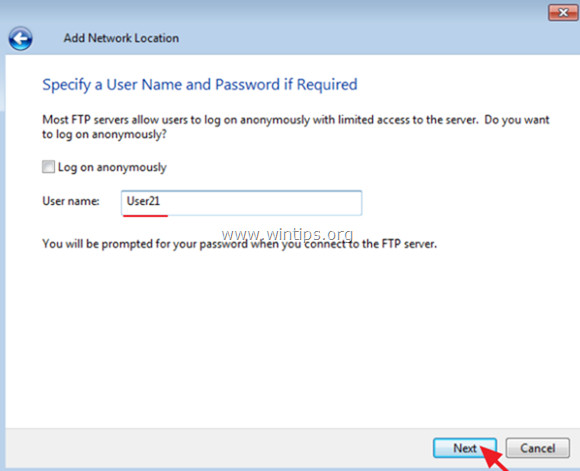
<p style="text-align: justify;">4. Bỏ tích mục&nbsp;<strong>Log on anonymously</strong>, sau đó nhập tên người dùng FTP rồi click chọn&nbsp;<strong>Next</strong>.</p>

<p style="text-align: justify;"><img alt="Bỏ tích mục Log on anonymously và nhập tên người dùng" data-i="5" data-src="https://st.quantrimang.com/photos/image/2016/10/12/Lam-the-nao-de-ket-noi-voi-mot-ftb-6.jpg" data-was-processed="true" height="471" src="https://st.quantrimang.com/photos/image/2016/10/12/Lam-the-nao-de-ket-noi-voi-mot-ftb-6.jpg" title="Bỏ tích mục Log on anonymously và nhập tên người dùng" width="580" /></p>

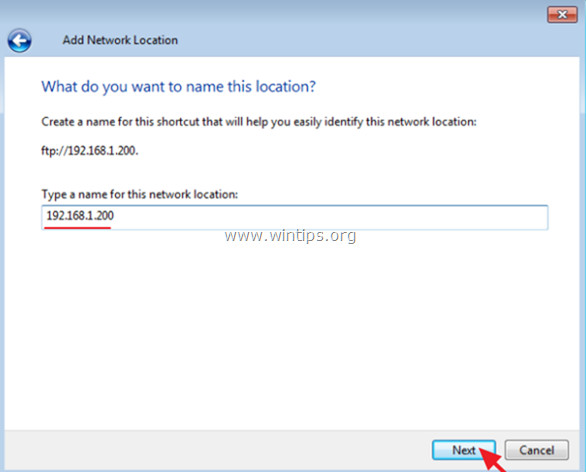
<p style="text-align: justify;">5. Bạn có thể giữ nguyên tên mặc định (hoặc nhập một tên khác) cho kết nối mới rồi click chọn Next.</p>

<p style="text-align: justify;"><img alt="Chúng ta có thể giữ nguyên tên mặc định" data-i="6" data-src="https://st.quantrimang.com/photos/image/2016/10/12/Lam-the-nao-de-ket-noi-voi-mot-ftb-7.jpg" data-was-processed="true" height="472" src="https://st.quantrimang.com/photos/image/2016/10/12/Lam-the-nao-de-ket-noi-voi-mot-ftb-7.jpg" title="Chúng ta có thể giữ nguyên tên mặc định" width="586" /></p>

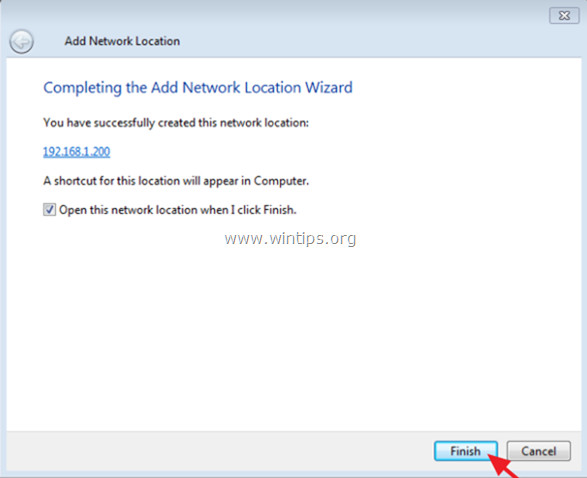
<p style="text-align: justify;">6. Tiếp theo click chọn&nbsp;<strong>Finish</strong>&nbsp;để đóng cửa sổ&nbsp;<strong>wizard</strong>&nbsp;lại.</p>

<p style="text-align: justify;"><img alt="Sau đo click chọn Finish để đóng cửa sổ wizard lại" data-i="7" data-src="https://st.quantrimang.com/photos/image/2016/10/12/Lam-the-nao-de-ket-noi-voi-mot-ftb-8-b.jpg" data-was-processed="true" height="478" src="https://st.quantrimang.com/photos/image/2016/10/12/Lam-the-nao-de-ket-noi-voi-mot-ftb-8-b.jpg" title="Sau đó click chọn Finish để đóng cửa sổ wizard lại" width="587" /></p>

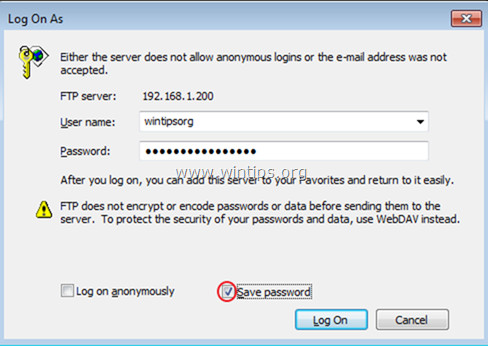
<p style="text-align: justify;">7. Cuối cùng bạn sẽ được yêu cầu nhập các thông tin đăng nhập.</p>

<p style="text-align: justify;"><img alt="Cuối cùng bạn sẽ được yêu cầu nhập các thông tin đăng nhập." data-i="8" data-src="https://st.quantrimang.com/photos/image/2016/10/12/Lam-the-nao-de-ket-noi-voi-mot-ftb-10.jpg" data-was-processed="true" height="346" src="https://st.quantrimang.com/photos/image/2016/10/12/Lam-the-nao-de-ket-noi-voi-mot-ftb-10.jpg" title="Cuối cùng bạn sẽ được yêu cầu nhập các thông tin đăng nhập." width="488" /></p>

<div style="text-align: justify;">&nbsp;</div>

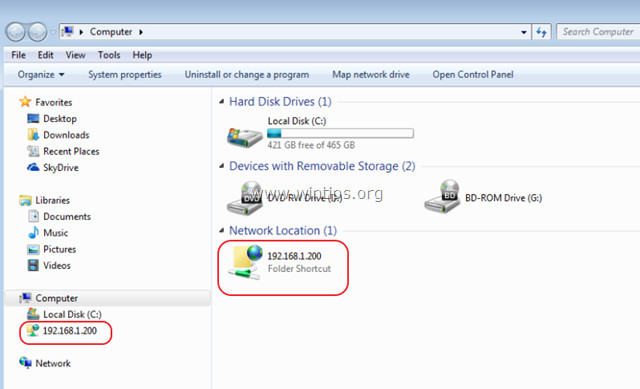
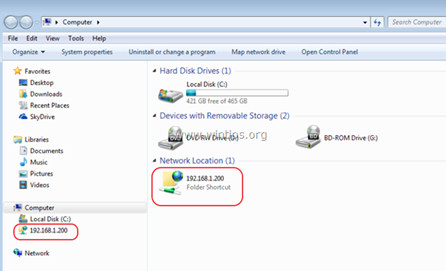
<p style="text-align: justify;">8. Sau khi đã nhập xong các thông tin đăng nhập, một shortcut FTP mới sẽ xuất hiện trên Windows Explorer.</p>

<p style="text-align: justify;"><img alt="Nhập đầy đủ các thông tin" data-i="9" data-src="https://st.quantrimang.com/photos/image/2016/10/12/Lam-the-nao-de-ket-noi-voi-mot-ftb-11.jpg" data-was-processed="true" height="389" src="https://st.quantrimang.com/photos/image/2016/10/12/Lam-the-nao-de-ket-noi-voi-mot-ftb-11.jpg" title="Nhập đầy đủ các thông tin" width="640" /></p>

<h3 style="text-align: justify;">&nbsp;</h3>

<p style="text-align: justify;"><strong>Chúc các bạn thành công!</strong></p>

<div style="text-align: justify;">&nbsp;</div>
		</div>
				<div id="author">
						<p>
				<strong>Nguồn tin:</strong>
				Quantrimang.com:
			</p>
		</div>
	</div>
	<div id="footer" class="clearfix">
		<div id="url">
			<strong>URL của bản tin này: </strong><a href="https://www.nguoicodonvn2008.info/vi/news/savefile/kien-thuc-may-tinh/lam-the-nao-de-ket-noi-voi-mot-ftp-server-tu-windows-explorer-9165.html" title="Làm thế nào để kết nối với một FTP Server từ Windows Explorer?">https://www.nguoicodonvn2008.info/vi/news/savefile/kien-thuc-may-tinh/lam-the-nao-de-ket-noi-voi-mot-ftp-server-tu-windows-explorer-9165.html</a>

		</div>
		<div class="clear"></div>
		<div class="copyright">
			&copy; .&#x3A; Nguoicodonvn2008.info - Cõi lòng người cô đơn &#x3A;.
		</div>
		<div id="contact">
			<a href="mailto:admin@nguoicodonvn2008.info">admin@nguoicodonvn2008.info</a>
		</div>
	</div>
</div>
        <div id="timeoutsess" class="chromeframe">
            Bạn đã không sử dụng Site, <a onclick="timeoutsesscancel();" href="https://nguoicodonvn2008.info/#">Bấm vào đây để duy trì trạng thái đăng nhập</a>. Thời gian chờ: <span id="secField"> 60 </span> giây
        </div>
        <div id="openidResult" class="nv-alert" style="display:none"></div>
        <div id="openidBt" data-result="" data-redirect=""></div>
		</script>
		<div class="car-top">
  <span><img src="https://nguoicodonvn2008.info/themes/default/images/car.png" alt=""></span>
</div>
<script src="https://nguoicodonvn2008.info/assets/js/jquery/jquery.min.js"></script>
<script>var nv_base_siteurl="/",nv_lang_data="vi",nv_lang_interface="vi",nv_name_variable="nv",nv_fc_variable="op",nv_lang_variable="language",nv_module_name="news",nv_func_name="savefile",nv_is_user=0, nv_my_ofs=-4,nv_my_abbr="EDT",nv_cookie_prefix="nv4c_e856T",nv_check_pass_mstime=1738000,nv_area_admin=0,nv_safemode=0,theme_responsive=0,nv_recaptcha_ver=2,nv_recaptcha_sitekey="",nv_recaptcha_type="image",XSSsanitize=1;</script>
<script src="https://nguoicodonvn2008.info/assets/js/language/vi.js"></script>
<script src="https://nguoicodonvn2008.info/assets/js/DOMPurify/purify3.js"></script>
<script src="https://nguoicodonvn2008.info/assets/js/global.js"></script>
<script src="https://nguoicodonvn2008.info/assets/js/site.js"></script>
<script src="https://nguoicodonvn2008.info/themes/default/js/news.js"></script>
<script src="https://nguoicodonvn2008.info/themes/default/js/main.js"></script>
<script src="https://nguoicodonvn2008.info/themes/default/js/custom.js"></script>
<script type="application/ld+json">
        {
            "@context": "https://schema.org",
            "@type": "Organization",
            "url": "https://nguoicodonvn2008.info",
            "logo": "https://nguoicodonvn2008.info/uploads/angel.gif"
        }
        </script>
<script src="https://nguoicodonvn2008.info/themes/default/js/bootstrap.min.js"></script>
<script type="text/javascript">
var $scrolltop = $('.car-top');
$scrolltop.on('click', function () {
    $('html,body').animate({
        scrollTop: 0
    }, 800);
    $(this).addClass("car-run");
    setTimeout(function(){ $scrolltop.removeClass('car-run');}, 1000);
    return false;
});
$(window).on('scroll', function ()
{ 
    if($(window).scrollTop() >= 200)
    {
        $scrolltop.addClass("show");
        $scrolltop.addClass("car-down");
    }
    else
    {
       $scrolltop.removeClass("show");
       setTimeout(function(){ $scrolltop.removeClass('car-down');}, 300);
    }
});
</script>
</body>
</html>