<!DOCTYPE html>
    <html lang="vi" xmlns="http://www.w3.org/1999/xhtml" prefix="og: http://ogp.me/ns#">
    <head>
<title>Làm biểu đồ Excel trông hiện đại hơn với những điều chỉnh này&#33;</title>
<meta name="description" content="Làm biểu đồ Excel trông hiện đại hơn với những điều chỉnh này&#33; - Savefile - Tin Tức -...">
<meta name="author" content=".: Nguoicodonvn2008.info - Cõi lòng người cô đơn :.">
<meta name="copyright" content=".: Nguoicodonvn2008.info - Cõi lòng người cô đơn :. [admin@nguoicodonvn2008.info]">
<meta name="robots" content="index, archive, follow, noodp">
<meta name="googlebot" content="index,archive,follow,noodp">
<meta name="msnbot" content="all,index,follow">
<meta name="generator" content="NukeViet v4.5">
<meta http-equiv="Content-Type" content="text/html; charset=utf-8">
<meta property="og:title" content="Làm biểu đồ Excel trông hiện đại hơn với những điều chỉnh này&#33;">
<meta property="og:type" content="website">
<meta property="og:description" content="Savefile - Tin Tức - https&#x3A;&#x002F;&#x002F;www.nguoicodonvn2008.info&#x002F;vi&#x002F;news&#x002F;savefile&#x002F;kien-thuc-may-tinh&#x002F;lam-bieu-do-excel-trong-hien-dai-hon-voi-nhung-dieu-chinh-nay-10261.html">
<meta property="og:site_name" content=".&#x3A; Nguoicodonvn2008.info - Cõi lòng người cô đơn &#x3A;.">
<meta property="og:url" content="https://www.nguoicodonvn2008.info/vi/news/savefile/kien-thuc-may-tinh/lam-bieu-do-excel-trong-hien-dai-hon-voi-nhung-dieu-chinh-nay-10261.html">
<link rel="shortcut icon" href="https://nguoicodonvn2008.info/favicon.ico">
<link rel="canonical" href="https://www.nguoicodonvn2008.info/vi/news/savefile/kien-thuc-may-tinh/lam-bieu-do-excel-trong-hien-dai-hon-voi-nhung-dieu-chinh-nay-10261.html">
<link rel="alternate" href="https://nguoicodonvn2008.info/vi/news/rss/" title="Tin Tức" type="application/rss+xml">
<link rel="alternate" href="https://nguoicodonvn2008.info/vi/news/rss/karaoke-dual/" title="Tin Tức - Karaoke Dual" type="application/rss+xml">
<link rel="alternate" href="https://nguoicodonvn2008.info/vi/news/rss/nhac-tre/" title="Tin Tức - Nhạc trẻ" type="application/rss+xml">
<link rel="alternate" href="https://nguoicodonvn2008.info/vi/news/rss/tru-tinh/" title="Tin Tức - Trữ tình" type="application/rss+xml">
<link rel="alternate" href="https://nguoicodonvn2008.info/vi/news/rss/nuoc-ngoai/" title="Tin Tức - Nước ngoài" type="application/rss+xml">
<link rel="alternate" href="https://nguoicodonvn2008.info/vi/news/rss/remix/" title="Tin Tức - Remix" type="application/rss+xml">
<link rel="alternate" href="https://nguoicodonvn2008.info/vi/news/rss/tam-su-tinh-yeu/" title="Tin Tức - Tâm sự tình yêu" type="application/rss+xml">
<link rel="alternate" href="https://nguoicodonvn2008.info/vi/news/rss/tho-suu-tam/" title="Tin Tức - Thơ sưu tầm" type="application/rss+xml">
<link rel="alternate" href="https://nguoicodonvn2008.info/vi/news/rss/cuoc-song/" title="Tin Tức - Cuộc sống" type="application/rss+xml">
<link rel="alternate" href="https://nguoicodonvn2008.info/vi/news/rss/phan-mem/" title="Tin Tức - Phần mềm" type="application/rss+xml">
<link rel="alternate" href="https://nguoicodonvn2008.info/vi/news/rss/kien-thuc-may-tinh/" title="Tin Tức - Kiến thức máy tính" type="application/rss+xml">
<link rel="alternate" href="https://nguoicodonvn2008.info/vi/news/rss/hoc-tap/" title="Tin Tức - Học tập" type="application/rss+xml">
<link rel="alternate" href="https://nguoicodonvn2008.info/vi/news/rss/tai-lieu/" title="Tin Tức - Tài liệu" type="application/rss+xml">
<link rel="alternate" href="https://nguoicodonvn2008.info/vi/news/rss/de-thi/" title="Tin Tức - Đề thi" type="application/rss+xml">
<link rel="preload" as="style" href="https://nguoicodonvn2008.info/assets/css/font-awesome.min.css" type="text/css">
<link rel="preload" as="style" href="https://nguoicodonvn2008.info/themes/default/css/bootstrap.non-responsive.css" type="text/css">
<link rel="preload" as="style" href="https://nguoicodonvn2008.info/themes/default/css/style.css" type="text/css">
<link rel="preload" as="style" href="https://nguoicodonvn2008.info/themes/default/css/style.non-responsive.css" type="text/css">
<link rel="preload" as="style" href="https://nguoicodonvn2008.info/themes/default/css/news.css" type="text/css">
<link rel="preload" as="style" href="https://nguoicodonvn2008.info/themes/default/css/custom.css" type="text/css">
<link rel="preload" as="script" href="https://nguoicodonvn2008.info/assets/js/jquery/jquery.min.js" type="text/javascript">
<link rel="preload" as="script" href="https://nguoicodonvn2008.info/assets/js/language/vi.js" type="text/javascript">
<link rel="preload" as="script" href="https://nguoicodonvn2008.info/assets/js/DOMPurify/purify3.js" type="text/javascript">
<link rel="preload" as="script" href="https://nguoicodonvn2008.info/assets/js/global.js" type="text/javascript">
<link rel="preload" as="script" href="https://nguoicodonvn2008.info/assets/js/site.js" type="text/javascript">
<link rel="preload" as="script" href="https://nguoicodonvn2008.info/themes/default/js/news.js" type="text/javascript">
<link rel="preload" as="script" href="https://nguoicodonvn2008.info/themes/default/js/main.js" type="text/javascript">
<link rel="preload" as="script" href="https://nguoicodonvn2008.info/themes/default/js/custom.js" type="text/javascript">
<link rel="preload" as="script" href="https://nguoicodonvn2008.info/themes/default/js/bootstrap.min.js" type="text/javascript">
<link rel="stylesheet" href="https://nguoicodonvn2008.info/assets/css/font-awesome.min.css">
<link rel="stylesheet" href="https://nguoicodonvn2008.info/themes/default/css/bootstrap.non-responsive.css">
<link rel="stylesheet" href="https://nguoicodonvn2008.info/themes/default/css/style.css">
<link rel="stylesheet" href="https://nguoicodonvn2008.info/themes/default/css/style.non-responsive.css">
<link rel="StyleSheet" href="https://nguoicodonvn2008.info/themes/default/css/news.css">
<link rel="stylesheet" href="https://nguoicodonvn2008.info/themes/default/css/custom.css">
<style type="text/css">
	body{background: #fff;}
</style>
    </head>
    <body>
<div id="print">
	<div id="hd_print">
		<h2 class="pull-left">.&#x3A; Nguoicodonvn2008.info - Cõi lòng người cô đơn &#x3A;.</h2>
		<p class="pull-right"><a title=".&#x3A; Nguoicodonvn2008.info - Cõi lòng người cô đơn &#x3A;." href="https://nguoicodonvn2008.info/">https://nguoicodonvn2008.info</a></p>
	</div>
	<div class="clear"></div>
	<hr />
	<div id="content">
		<h1>Làm biểu đồ Excel trông hiện đại hơn với những điều chỉnh này&#33;</h1>
		<ul class="list-inline">
			<li>Thứ sáu - 25/04/2025 23:28</li>
			<li class="hidden-print txtrequired"><em class="fa fa-print">&nbsp;</em><a title="In ra" href="javascript:;" onclick="window.print()">In ra</a></li>
			<li class="hidden-print txtrequired"><em class="fa fa-power-off">&nbsp;</em><a title="Đóng cửa sổ này" href="javascript:;" onclick="window.close()">Đóng cửa sổ này</a></li>
		</ul>
		<div class="clear"></div>
		<div id="hometext">
		</div>
				<div class="imghome">
			<img alt="Làm biểu đồ Excel trông hiện đại hơn với những điều chỉnh này&#33;" src="https://st.quantrimang.com/photos/image/2025/04/25/lam-bieu-do-excel-trong-hien-dai-hon-13.jpg" width="460" class="img-thumbnail" />
		</div>
		<div class="clear"></div>
		<div id="bodytext" class="clearfix">
			<p style="text-align: justify;">Bạn đã sắp xếp tất cả dữ liệu của mình, nhưng khi bạn lập biểu đồ trong&nbsp;Microsoft Excel, nó lại trông giống như thứ mà một học sinh trung học tạo ra. May mắn thay, một vài điều chỉnh tinh tế có thể giúp biểu đồ Excel của bạn trông hiện đại và hấp dẫn hơn.</p>

<h2 style="text-align: justify;">&nbsp;</h2>

<h2 id="mcetoc_1ipluoa3e14n" style="text-align: justify;">1. Bắt đầu với biểu đồ phù hợp</h2>

<p style="text-align: justify;"><strong>Không có mẹo thiết kế nào cứu vãn được loại biểu đồ sai</strong></p>

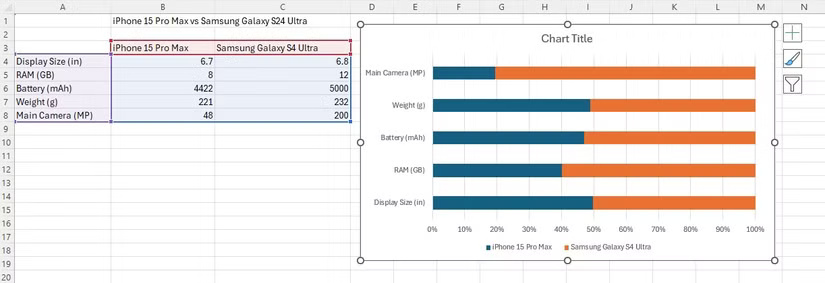
<p style="text-align: justify;">Đây không phải là mẹo thiết kế, nhưng nó là nền tảng cho những gì chúng ta đang cố gắng đạt được. Sử dụng sai loại biểu đồ chắc chắn sẽ thất bại ngay từ đầu. Bạn không thể cứu vãn một biểu đồ đường lẽ ra phải là biểu đồ thanh xếp chồng. Không có phép thuật thiết kế nào có thể sửa được biểu diễn trực quan không khớp.</p>

<figure>
<div style="text-align: justify;"><img alt="Tạo biểu đồ thanh xếp chồng trong Excel" data-i="0" data-src="https://st.quantrimang.com/photos/image/2025/04/25/lam-bieu-do-excel-trong-hien-dai-hon-1.jpg" data-was-processed="true" height="283" src="https://st.quantrimang.com/photos/image/2025/04/25/lam-bieu-do-excel-trong-hien-dai-hon-1.jpg" width="825" /></div>

<figcaption>
<div style="text-align: justify;">Tạo biểu đồ thanh xếp chồng trong Excel</div>
</figcaption>
</figure>

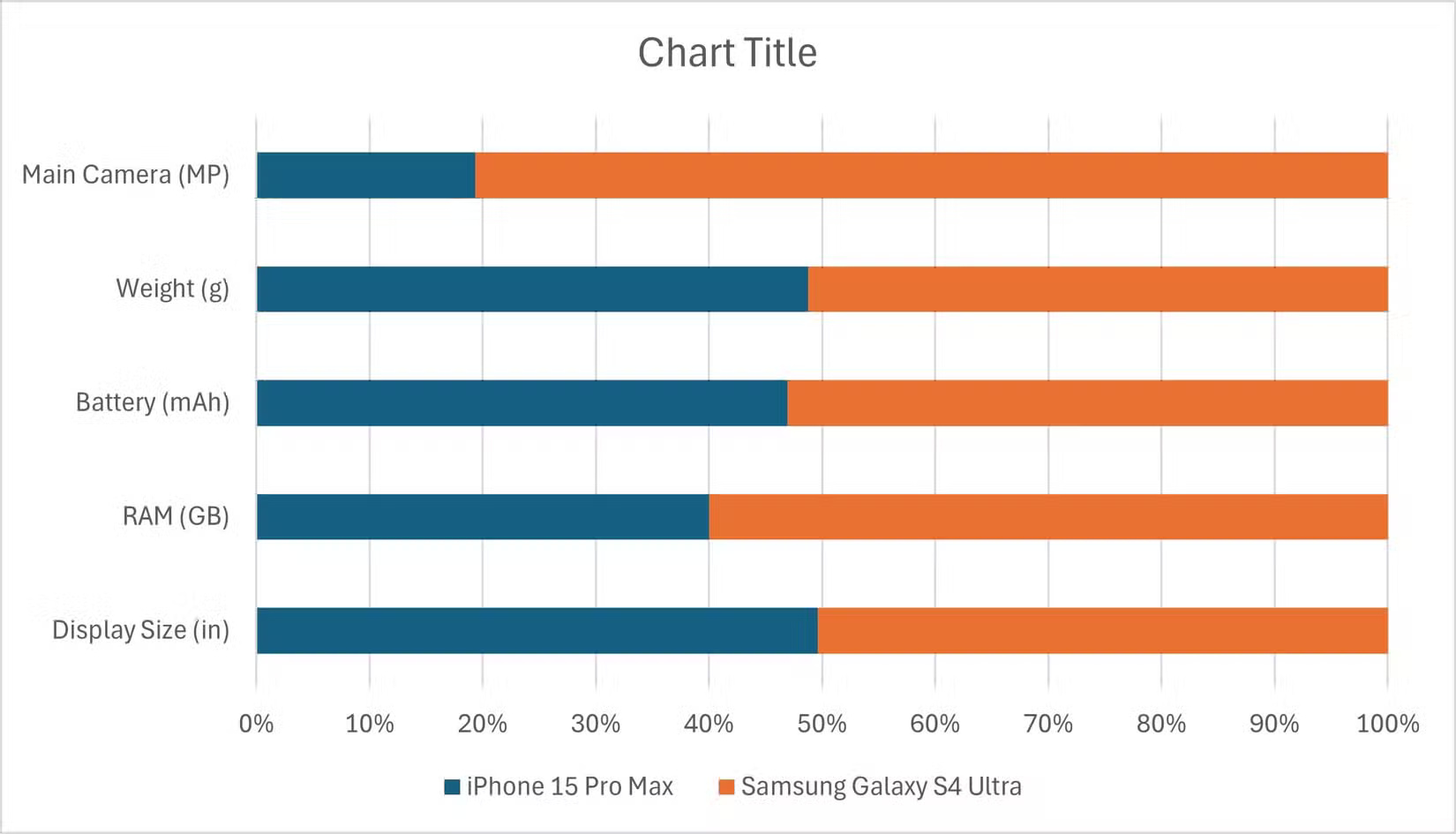
<p style="text-align: justify;">Tìm hiểu các loại biểu đồ Excel của bạn. Biết loại nào hiệu quả nhất để so sánh, phân phối, các phần của tổng thể và xu hướng theo thời gian. Trường hợp ví dụ này sẽ so sánh&nbsp;iPhone 15 Pro Max&nbsp;và&nbsp;Samsung Galaxy S25 Ultra&nbsp;bằng biểu đồ thanh xếp chồng.</p>

<h2 id="mcetoc_1ipluoa3e14o" style="text-align: justify;">2. Chọn bảng màu có mục đích</h2>

<p style="text-align: justify;"><strong>Bạn có thể chọn màu phù hợp hơn mặc định</strong></p>

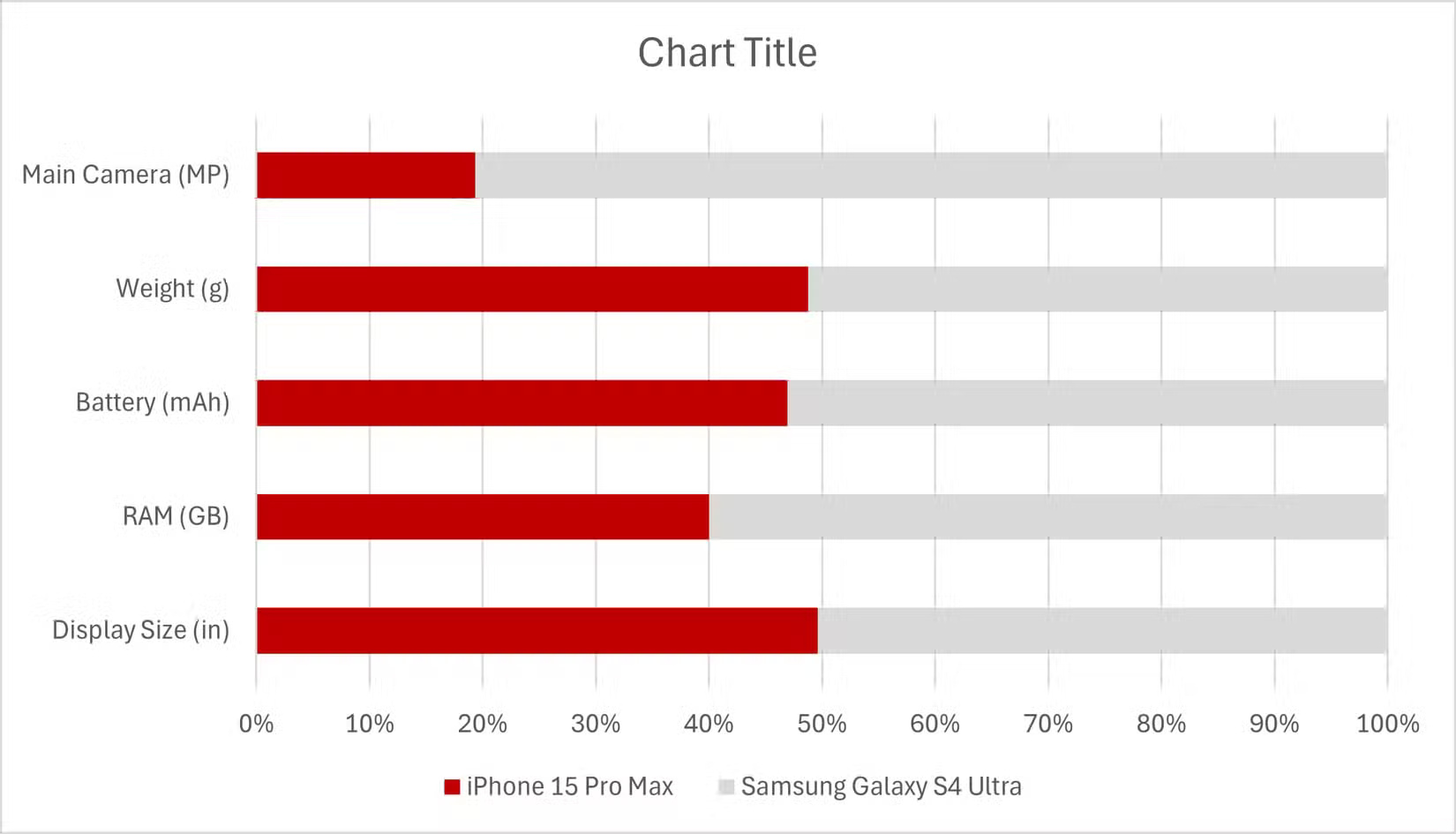
<p style="text-align: justify;">Excel tận tụy chỉ định các sắc thái tương phản, nhưng nó quan tâm đến khả năng phân biệt chứ không phải tính thẩm mỹ. Quyết định một bảng màu nhỏ: Một màu thương hiệu cho loạt phim anh hùng, một màu trung tính cho đường cơ sở, có thể là một điểm nhấn thứ hai nếu bạn có nhiều phép so sánh.</p>

<figure>
<div style="text-align: justify;"><img alt="Biểu đồ thanh xếp chồng được tạo trong Excel" data-i="1" data-src="https://st.quantrimang.com/photos/image/2025/04/25/lam-bieu-do-excel-trong-hien-dai-hon-2.jpg" data-was-processed="true" height="945" src="https://st.quantrimang.com/photos/image/2025/04/25/lam-bieu-do-excel-trong-hien-dai-hon-2.jpg" width="1650" /></div>

<figcaption>
<div style="text-align: justify;">Biểu đồ thanh xếp chồng được tạo trong Excel</div>
</figcaption>
</figure>

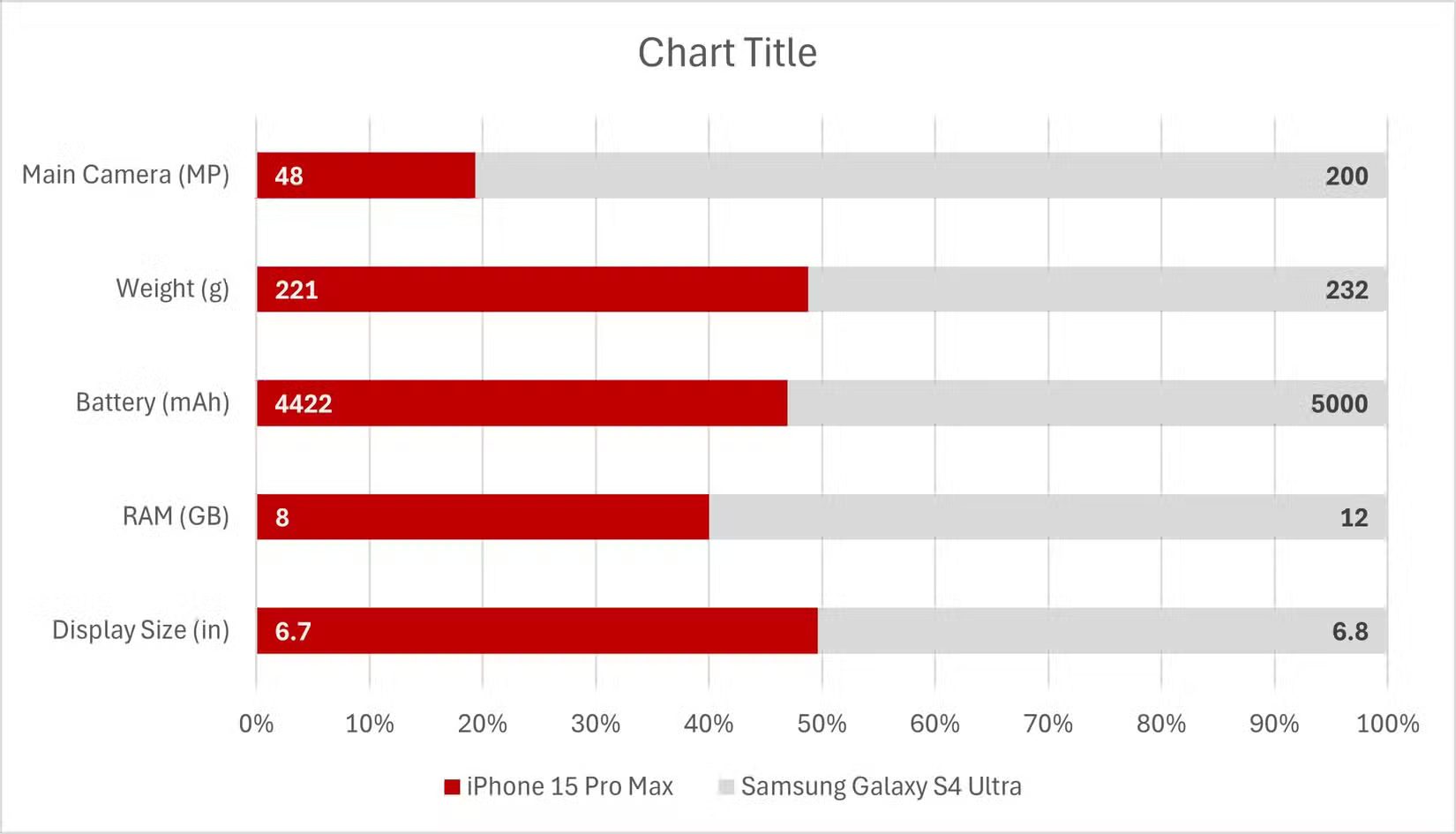
<p style="text-align: justify;">Ví dụ bên dưới sử dụng màu đỏ cho Apple và màu than chì cho Samsung. Nhấp chuột phải vào chuỗi dữ liệu và thay đổi màu theo ý thích của bạn. Chỉ cần thực hiện thao tác này sẽ tạo ra sự khác biệt lớn về khả năng đọc và tính thẩm mỹ.</p>

<figure>
<div style="text-align: justify;"><img alt="Biểu đồ thanh xếp chồng với màu tùy chỉnh" data-i="2" data-src="https://st.quantrimang.com/photos/image/2025/04/25/lam-bieu-do-excel-trong-hien-dai-hon-3.jpg" data-was-processed="true" height="945" src="https://st.quantrimang.com/photos/image/2025/04/25/lam-bieu-do-excel-trong-hien-dai-hon-3.jpg" width="1650" /></div>

<figcaption>
<div style="text-align: justify;">Biểu đồ thanh xếp chồng với màu tùy chỉnh</div>
</figcaption>
</figure>

<h2 id="mcetoc_1ipluoa3e14p" style="text-align: justify;">3. Thêm nhãn dữ liệu (hoặc chú thích)</h2>

<p style="text-align: justify;"><strong>Đừng bắt mọi người phải suy đoán</strong></p>

<p style="text-align: justify;">Không có gì làm chậm khả năng hiểu bằng việc buộc người đọc phải nhảy từ thanh này sang trục khác để giải mã một giá trị duy nhất. Nhãn dữ liệu loại bỏ sự vòng vo đó. Nhấp chuột phải vào chuỗi và chọn&nbsp;<strong>Add Data Labels</strong>. Nhưng đừng dừng lại ở đó - vị trí rất quan trọng.</p>

<figure>
<div style="text-align: justify;"><img alt="Biểu đồ thanh xếp chồng có nhãn dữ liệu" data-i="3" data-src="https://st.quantrimang.com/photos/image/2025/04/25/lam-bieu-do-excel-trong-hien-dai-hon-4.jpg" data-was-processed="true" height="945" src="https://st.quantrimang.com/photos/image/2025/04/25/lam-bieu-do-excel-trong-hien-dai-hon-4.jpg" width="1650" /></div>

<figcaption>
<div style="text-align: justify;">Biểu đồ thanh xếp chồng có nhãn dữ liệu</div>
</figcaption>
</figure>

<p style="text-align: justify;">Đối với biểu đồ thanh hai chuỗi, hãy căn chỉnh nhãn theo chức năng: Dữ liệu bên trái sẽ nằm trong&nbsp;<strong>Inside Base</strong>&nbsp;và bên phải sẽ nằm trong&nbsp;<strong>Inside End</strong>. Điều này giúp các nhãn không bị che khuất và làm cho luồng hình ảnh trở nên hợp lý. Bạn cũng có thể định dạng nhãn. Nếu phần tô có màu tối, hãy làm cho văn bản có màu trắng và đậm để các con số nổi bật.</p>

<h2 id="mcetoc_1ipluoa3e14q" style="text-align: justify;">4. Bỏ các trục thừa</h2>

<p style="text-align: justify;"><strong>Ít tốt hơn là nhiều</strong></p>

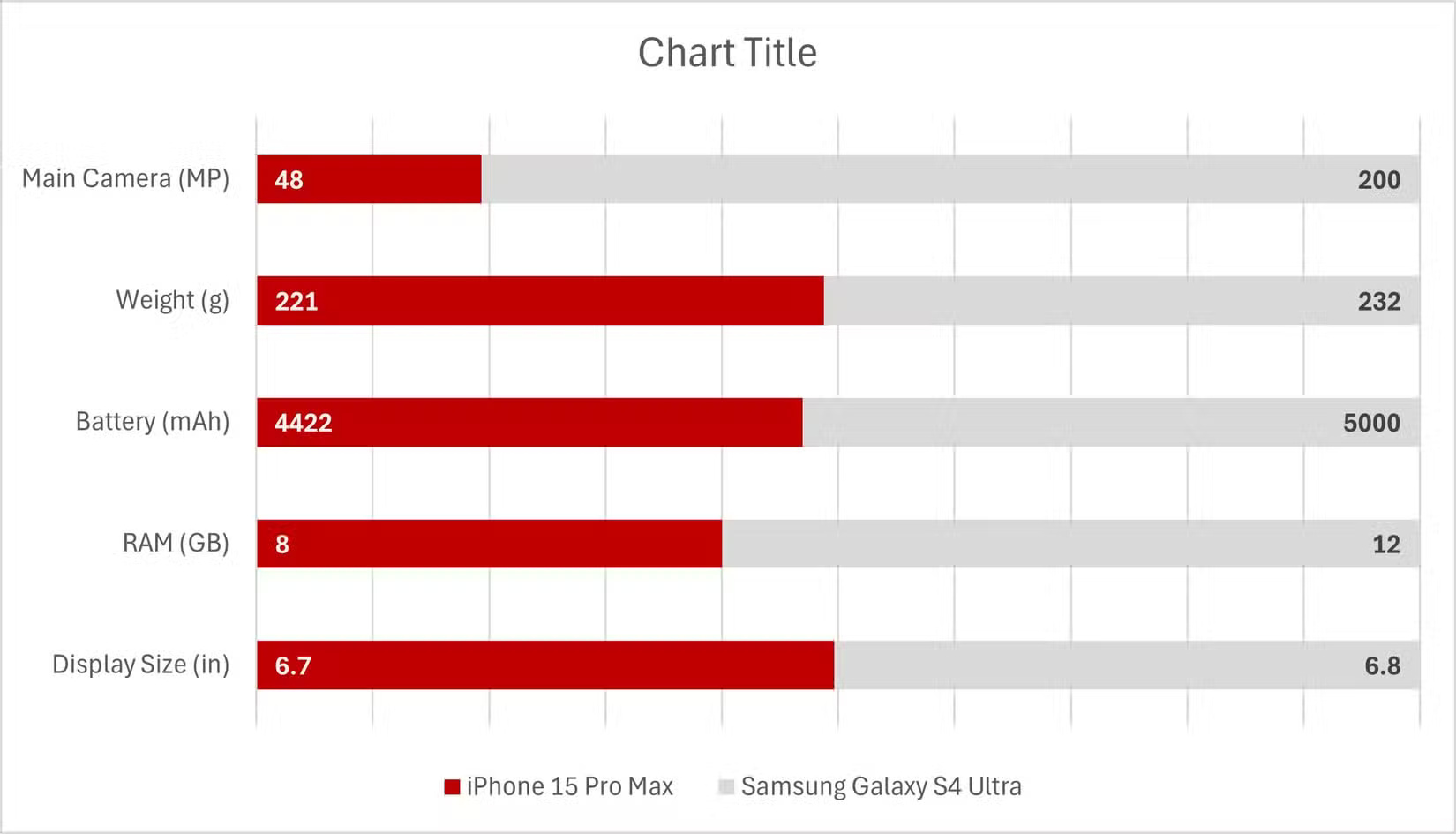
<p style="text-align: justify;">Nếu bạn đang hiển thị các giá trị tương đối hoặc phần trăm và đã thêm nhãn, có lẽ bạn không cần trục ngang. Tại sao lại làm lộn xộn biểu đồ bằng các con số mà mọi người sẽ không đọc? Nhấp vào trục và nhấn&nbsp;<strong>Delete</strong>. Hình ảnh rõ ràng sẽ chiến thắng.</p>

<figure>
<div style="text-align: justify;"><img alt="Biểu đồ thanh xếp chồng có nhãn dữ liệu được căn chỉnh" data-i="4" data-src="https://st.quantrimang.com/photos/image/2025/04/25/lam-bieu-do-excel-trong-hien-dai-hon-5.jpg" data-was-processed="true" height="945" src="https://st.quantrimang.com/photos/image/2025/04/25/lam-bieu-do-excel-trong-hien-dai-hon-5.jpg" width="1650" /></div>

<figcaption>
<div style="text-align: justify;">Biểu đồ thanh xếp chồng có nhãn dữ liệu được căn chỉnh</div>
</figcaption>
</figure>

<h2 id="mcetoc_1ipluoa3e14r" style="text-align: justify;">5. Sử dụng nhãn thủ công cho danh mục</h2>

<p style="text-align: justify;"><strong>Tiết kiệm không gian với hộp văn bản</strong></p>

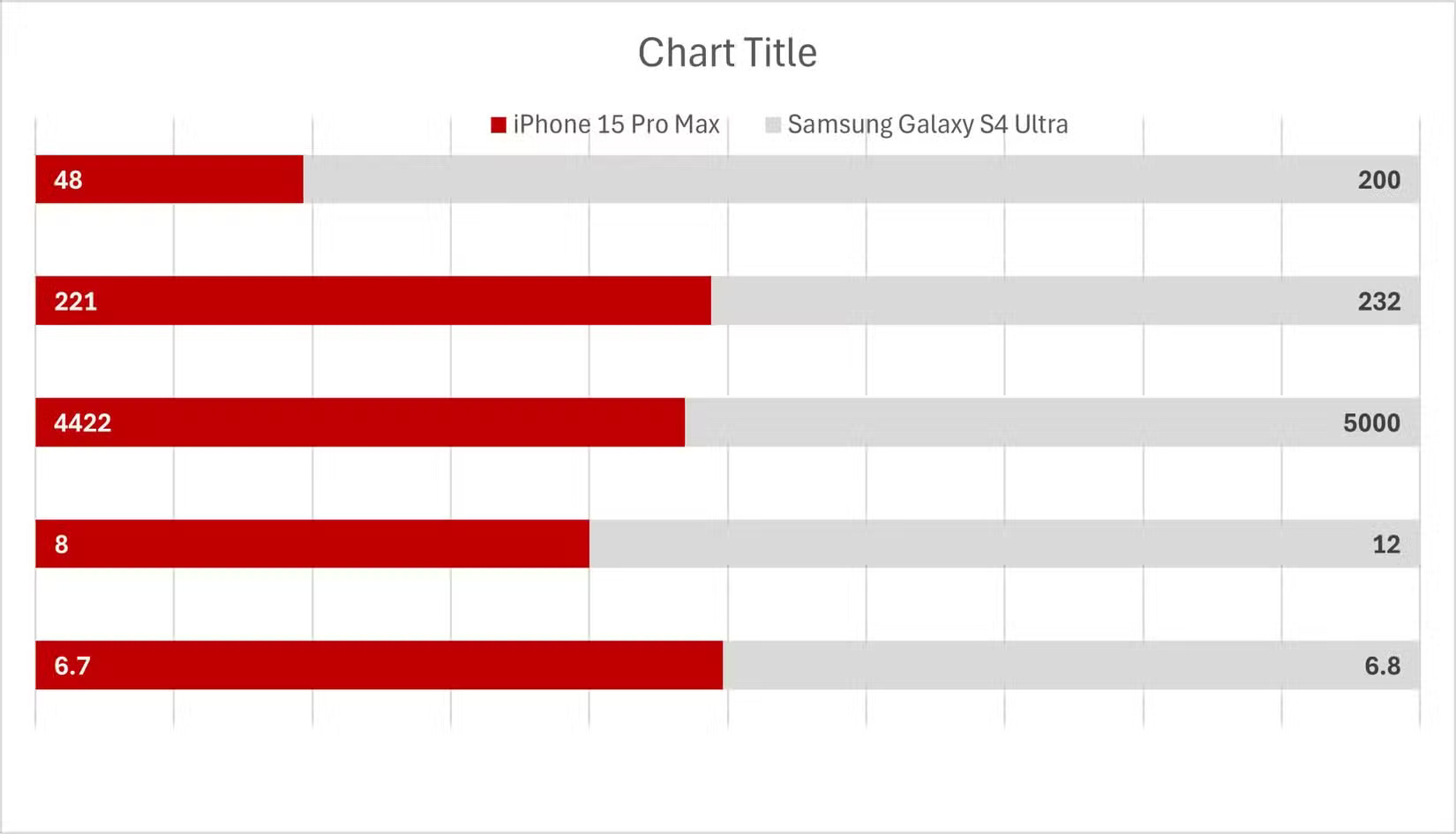
<p style="text-align: justify;">Nhãn trục dọc chiếm không gian và không phải lúc nào cũng tăng thêm giá trị. Thay vào đó, hãy sử dụng hộp văn bản làm nhãn tùy chỉnh được đặt ngay phía trên mỗi thanh. Để bắt đầu, hãy xóa trục dọc.</p>

<figure>
<div style="text-align: justify;"><img alt="Biểu đồ thanh xếp chồng không có danh mục" data-i="5" data-src="https://st.quantrimang.com/photos/image/2025/04/25/lam-bieu-do-excel-trong-hien-dai-hon-6.jpg" data-was-processed="true" height="945" src="https://st.quantrimang.com/photos/image/2025/04/25/lam-bieu-do-excel-trong-hien-dai-hon-6.jpg" width="1650" /></div>

<figcaption>
<div style="text-align: justify;">Biểu đồ thanh xếp chồng không có danh mục</div>
</figcaption>
</figure>

<p style="text-align: justify;">Sau đó, hãy vào&nbsp;<strong>Insert&nbsp;</strong>&gt;&nbsp;<strong>Text Box</strong>&nbsp;và vẽ hộp trên một thanh. Nhưng đừng nhập danh mục ngay vào đó. Sử dụng dữ liệu tĩnh là một lỗi Excel mới. Thay vào đó, hãy nhấp vào hộp văn bản, nhập<strong>&nbsp;=&nbsp;</strong>vào thanh công thức và chọn ô có liên quan từ bảng dữ liệu của bạn để liên kết.</p>

<p style="text-align: justify;">Từ đây, hãy sao chép hộp văn bản bằng cách giữ&nbsp;<strong>Ctrl</strong>&nbsp;và kéo nó qua các thanh còn lại. Nhấp vào từng hộp văn bản và cập nhật nội dung của nó cho phù hợp. Lặp lại thủ thuật cho tiêu đề biểu đồ để mọi từ hiển thị đều liên kết đến dữ liệu thực.</p>

<figure>
<div style="text-align: justify;"><img alt="Biểu đồ thanh xếp chồng có danh mục ở trên cùng" data-i="6" data-src="https://st.quantrimang.com/photos/image/2025/04/25/lam-bieu-do-excel-trong-hien-dai-hon-7.jpg" data-was-processed="true" height="945" src="https://st.quantrimang.com/photos/image/2025/04/25/lam-bieu-do-excel-trong-hien-dai-hon-7.jpg" width="1650" /></div>

<figcaption>
<div style="text-align: justify;">Biểu đồ thanh xếp chồng có danh mục ở trên cùng</div>
</figcaption>
</figure>

<h2 id="mcetoc_1ipluoa3e14s" style="text-align: justify;">6. Xóa bỏ phần biểu đồ rác</h2>

<p style="text-align: justify;"><strong>Một biểu đồ sạch sẽ sẽ rõ ràng hơn</strong></p>

<p style="text-align: justify;">Biểu đồ có mục đích cung cấp thông tin, nhưng quá nhiều thông tin sẽ làm mất đi mục đích. Hãy xem biểu đồ của bạn, xác định các thành phần chính và xóa phần còn lại. Trong trường hợp này, đường lưới là phần thừa; vì các thanh có nhãn dữ liệu nên bạn không cần chúng. Nhấp vào dấu<strong>&nbsp;+</strong>&nbsp;nhỏ bên cạnh biểu đồ, bỏ chọn&nbsp;<strong>Gridlines</strong>&nbsp;và nhiễu hình ảnh sẽ giảm ngay lập tức.</p>

<figure>
<div style="text-align: justify;"><img alt="Biểu đồ thanh xếp chồng không có đường lưới" data-i="7" data-src="https://st.quantrimang.com/photos/image/2025/04/25/lam-bieu-do-excel-trong-hien-dai-hon-8.jpg" data-was-processed="true" height="945" src="https://st.quantrimang.com/photos/image/2025/04/25/lam-bieu-do-excel-trong-hien-dai-hon-8.jpg" width="1650" /></div>

<figcaption>
<div style="text-align: justify;">Biểu đồ thanh xếp chồng không có đường lưới</div>
</figcaption>
</figure>

<h2 id="mcetoc_1ipluoa3e14t" style="text-align: justify;">7. Đổi phông chữ</h2>

<p style="text-align: justify;"><strong>Aptos không hiệu quả</strong></p>

<p style="text-align: justify;">Phông chữ mặc định của Excel, Aptos, đã bị sử dụng quá nhiều và không có gì nổi bật. Hãy chọn phông chữ sạch và hiện đại hơn - Bahnschrift là một lựa chọn tuyệt vời và đã được cài đặt sẵn. Chọn các thành phần biểu đồ (tiêu đề, nhãn, văn bản trục, v.v...), sau đó thay đổi phông chữ. Đây là một thay đổi nhỏ nhưng sẽ nâng cấp đáng kể tính cách của biểu đồ.</p>

<figure>
<div style="text-align: justify;"><img alt="Biểu đồ thanh xếp chồng với phông chữ tùy chỉnh" data-i="8" data-src="https://st.quantrimang.com/photos/image/2025/04/25/lam-bieu-do-excel-trong-hien-dai-hon-9.jpg" data-was-processed="true" height="945" src="https://st.quantrimang.com/photos/image/2025/04/25/lam-bieu-do-excel-trong-hien-dai-hon-9.jpg" width="1650" /></div>

<figcaption>
<div style="text-align: justify;">Biểu đồ thanh xếp chồng với phông chữ tùy chỉnh</div>
</figcaption>
</figure>

<h2 id="mcetoc_1ipluoa3e14u" style="text-align: justify;">8. Thêm nền tinh tế</h2>

<p style="text-align: justify;"><strong>Làm cho biểu đồ của bạn nổi bật</strong></p>

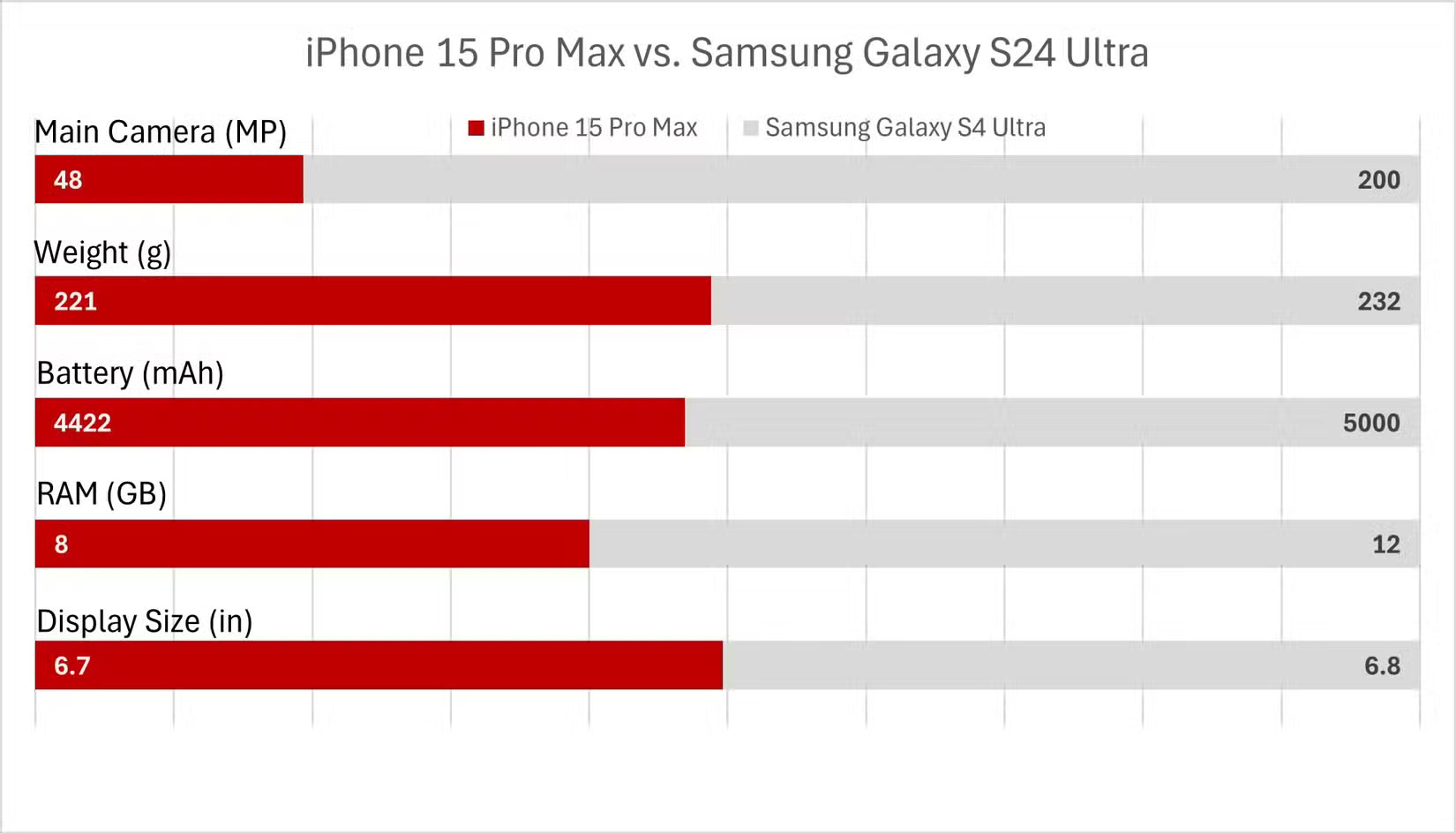
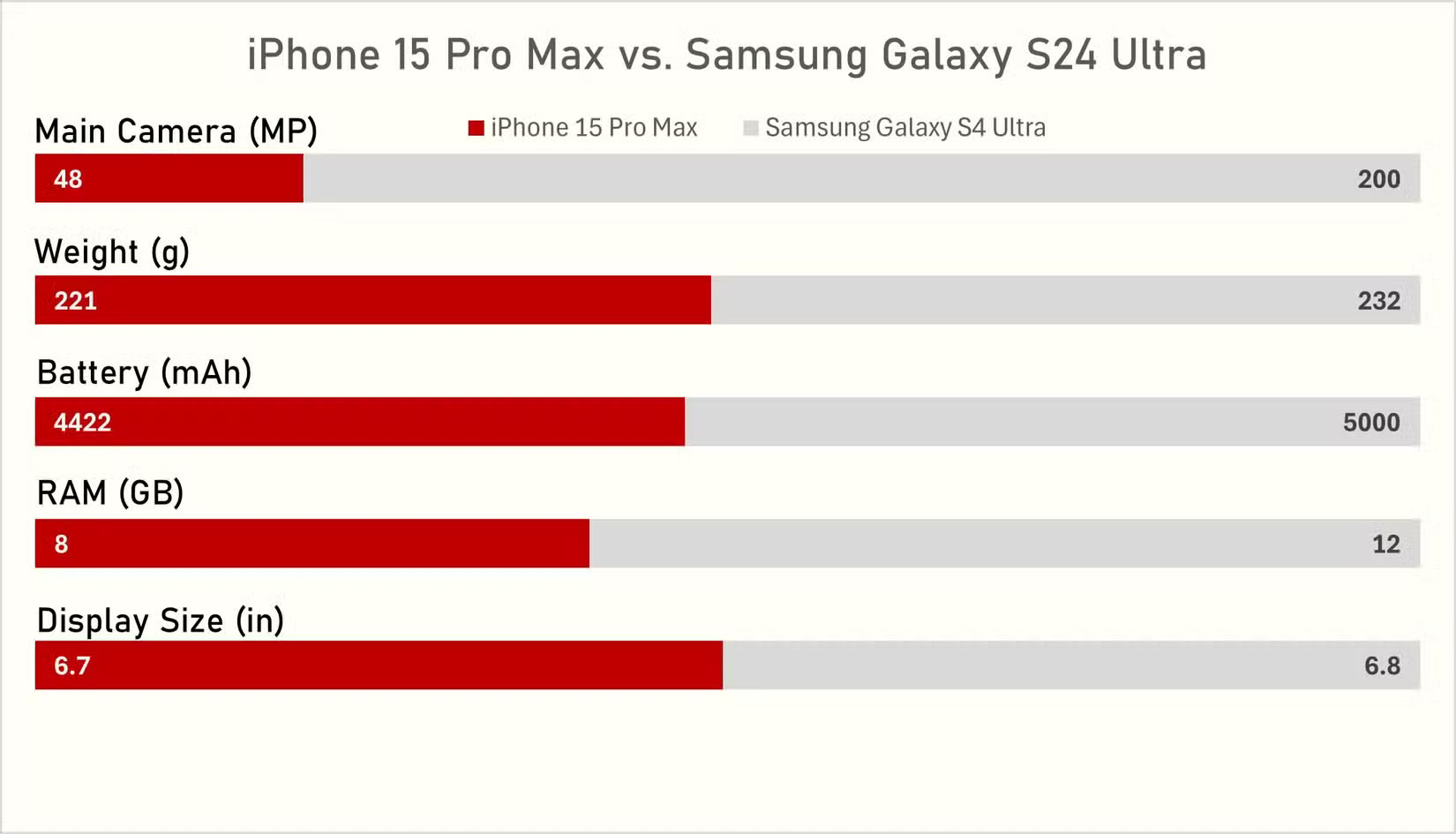
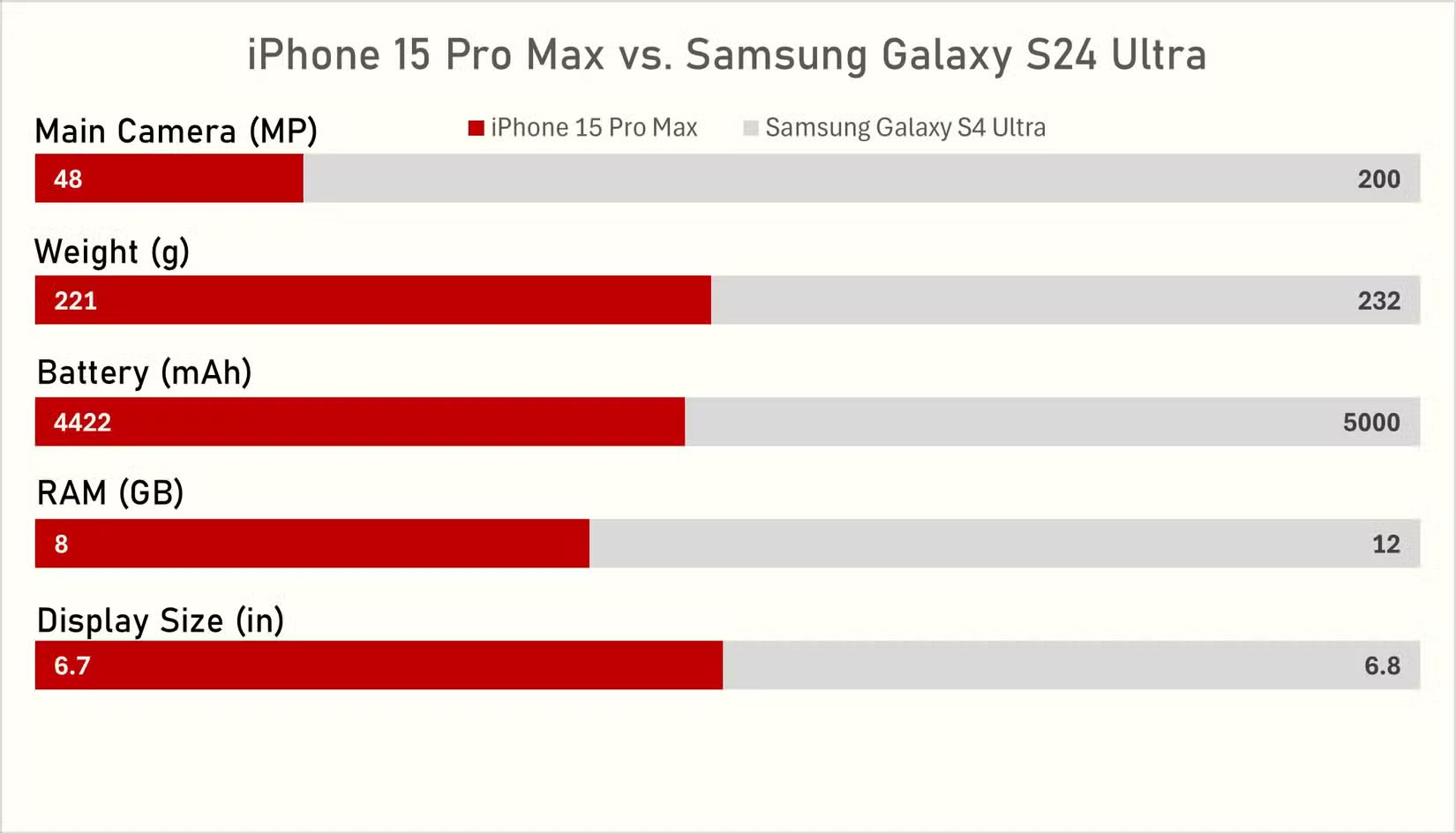
<p style="text-align: justify;">Tùy chọn, nhưng hiệu quả. Nền tinh tế giúp phân biệt biểu đồ của bạn với phần còn lại của bảng tính hoặc slide. Chọn biểu đồ và đi tới&nbsp;<strong>Format Chart Area</strong>&nbsp;&gt;&nbsp;<strong>Fill&nbsp;</strong>&gt;&nbsp;<strong>Solid Fill</strong>. Chọn màu xám rất nhạt (để có theme sáng) hoặc màu xám rất đậm (để có cảm giác chế độ tối). Tránh màu trắng hoặc đen vì chúng quá chói. Hãy chọn thứ gì đó tạo độ tương phản mà không làm lu mờ sự chú ý.</p>

<figure>
<div style="text-align: justify;"><img alt="Biểu đồ thanh xếp chồng với nền tinh tế" data-i="9" data-src="https://st.quantrimang.com/photos/image/2025/04/25/lam-bieu-do-excel-trong-hien-dai-hon-10.jpg" data-was-processed="true" height="945" src="https://st.quantrimang.com/photos/image/2025/04/25/lam-bieu-do-excel-trong-hien-dai-hon-10.jpg" width="1650" /></div>

<figcaption>
<div style="text-align: justify;">Biểu đồ thanh xếp chồng với nền tinh tế</div>
</figcaption>
</figure>

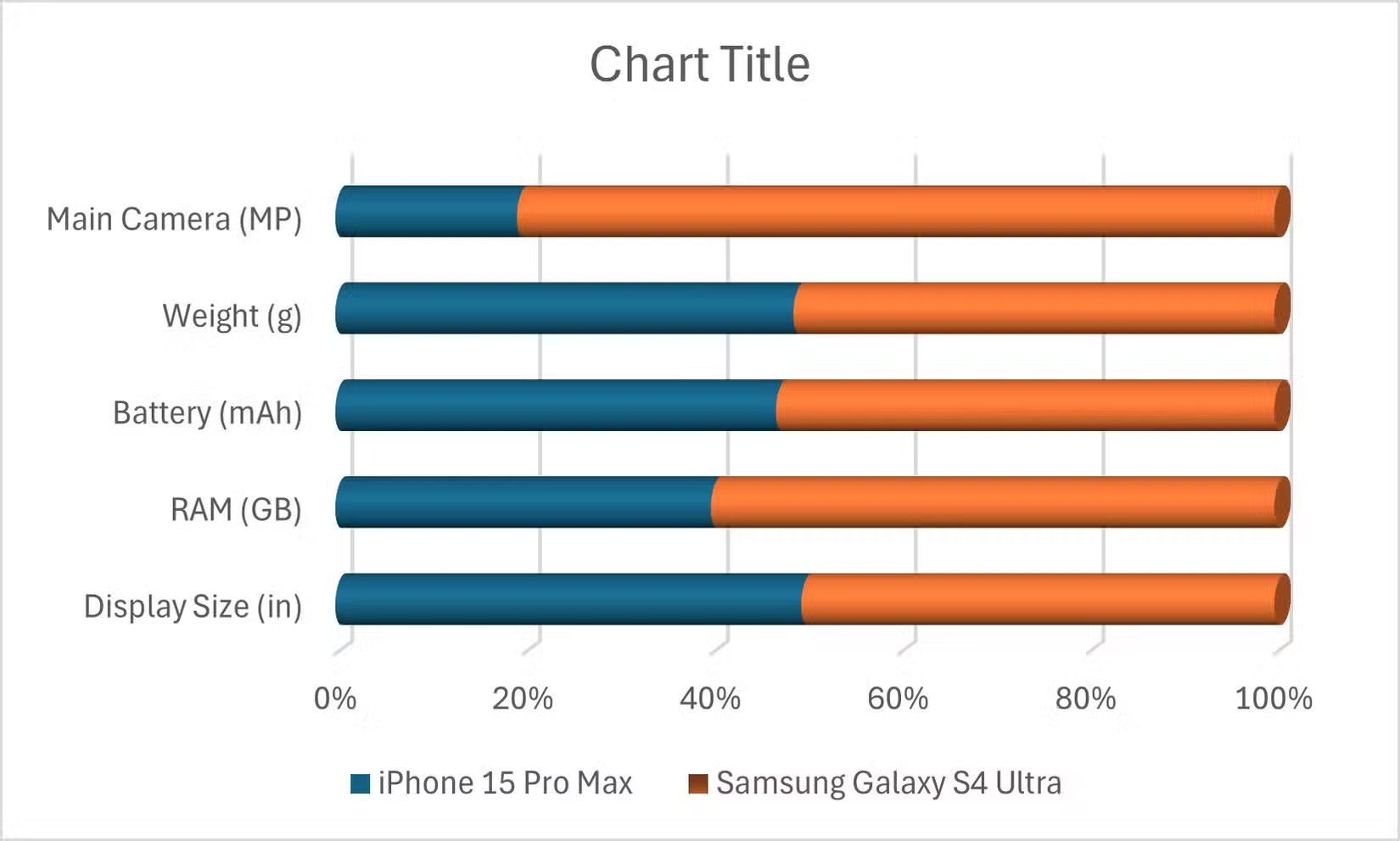
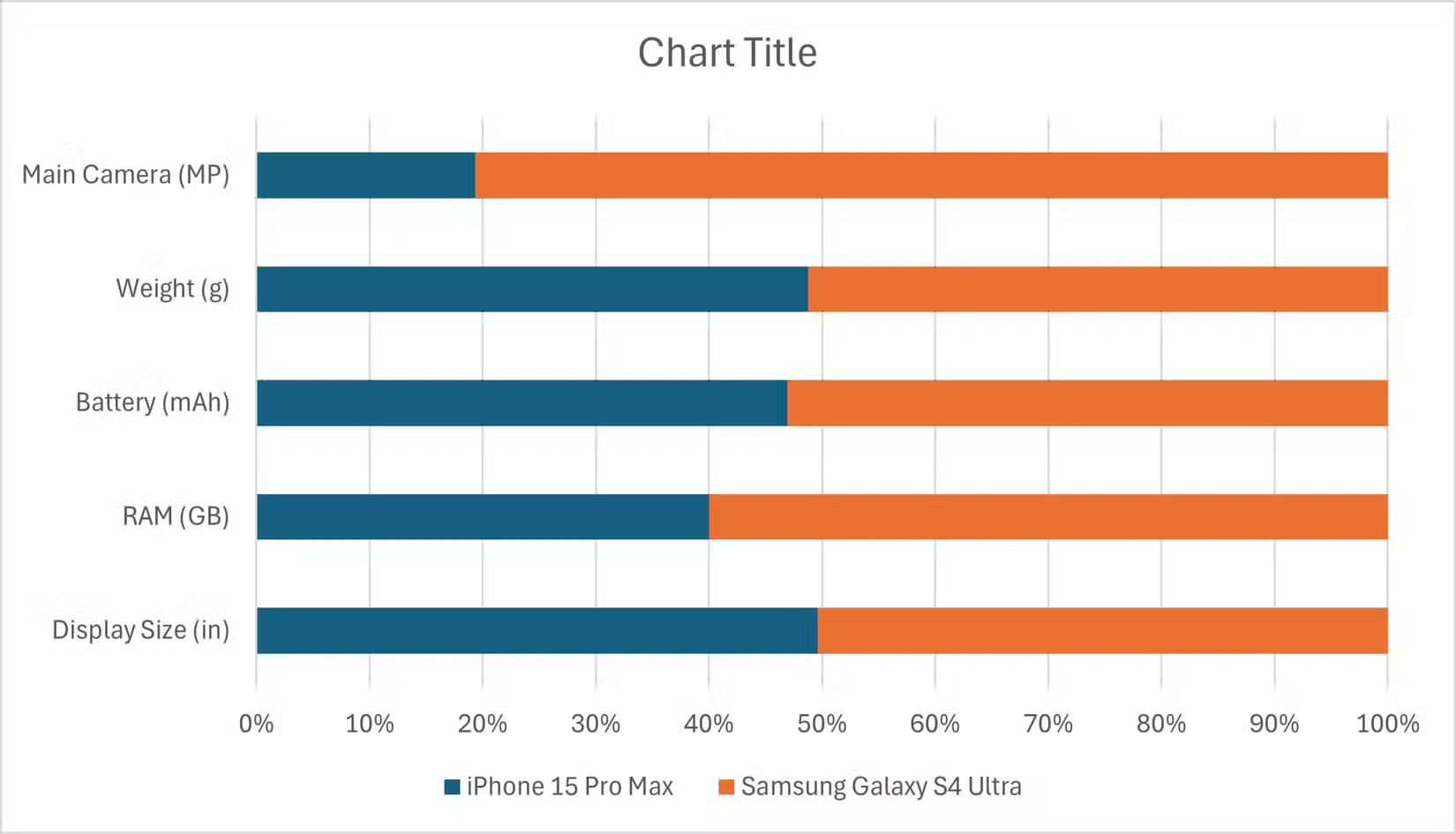
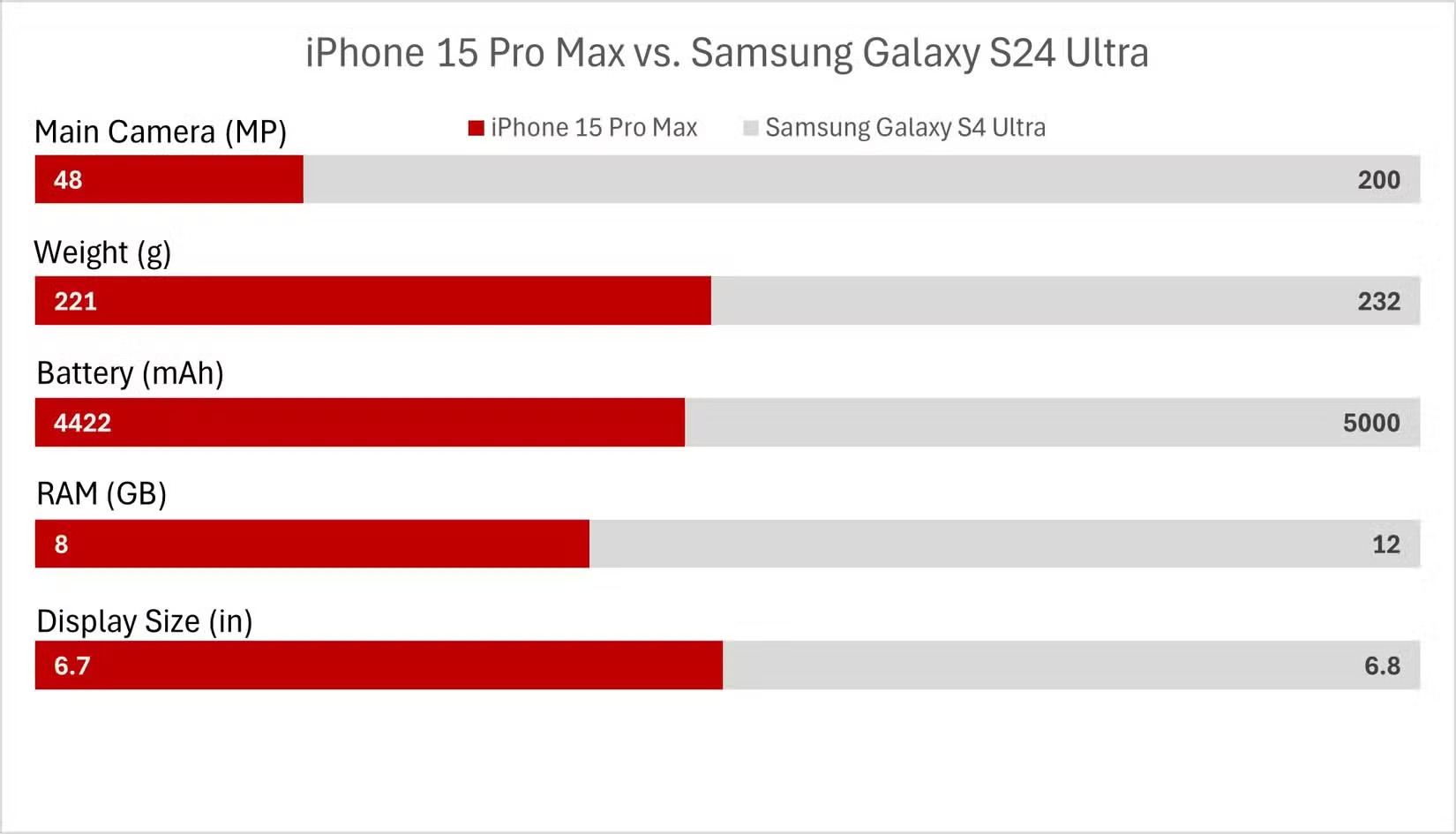
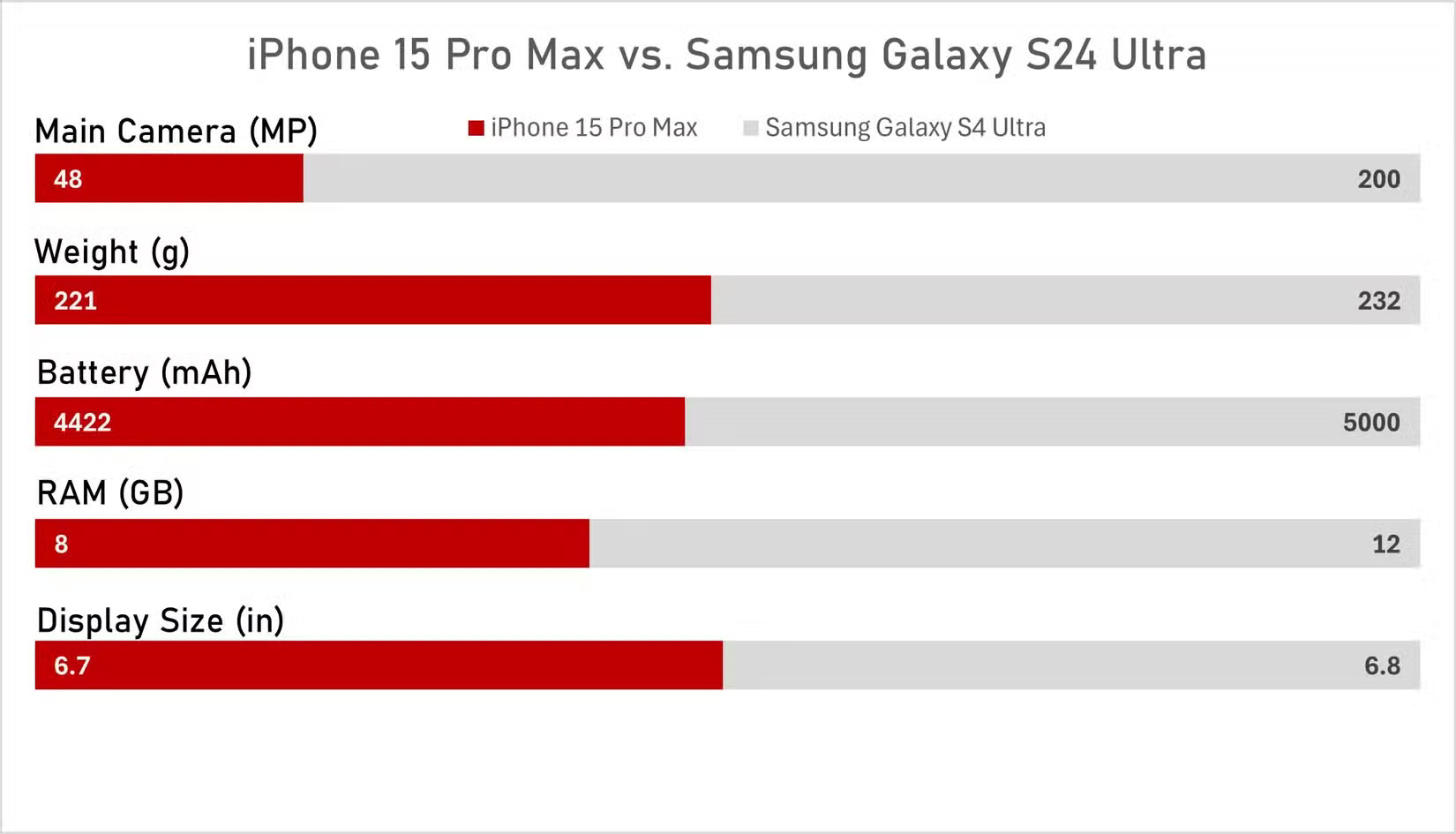
<p style="text-align: justify;">Bên dưới, bạn sẽ thấy mặc định Excel thô bên cạnh biểu đồ sau những điều chỉnh này. Bạn sẽ nhận thấy rằng một trong số chúng trông đẹp hơn đáng kể so với biểu đồ kia.</p>

<figure>
<div style="text-align: justify;"><img alt="" data-i="10" data-src="https://st.quantrimang.com/photos/image/2025/04/25/lam-bieu-do-excel-trong-hien-dai-hon-11.jpg" data-was-processed="true" height="945" src="https://st.quantrimang.com/photos/image/2025/04/25/lam-bieu-do-excel-trong-hien-dai-hon-11.jpg" width="1650" /></div>
</figure>

<figure>
<div style="text-align: justify;"><img alt="" data-i="11" data-src="https://st.quantrimang.com/photos/image/2025/04/25/lam-bieu-do-excel-trong-hien-dai-hon-12.jpg" data-was-processed="true" height="945" src="https://st.quantrimang.com/photos/image/2025/04/25/lam-bieu-do-excel-trong-hien-dai-hon-12.jpg" width="1650" /></div>
</figure>

<h2 id="mcetoc_1ipluoa3e14v" style="text-align: justify;">9. Đừng bao giờ sử dụng 3-D</h2>

<p style="text-align: justify;"><strong>Độ sâu giả giết chết dữ liệu thực</strong></p>

<p style="text-align: justify;">Không có cách nào hay để nói điều này: Biểu đồ 3-D trong Excel là một thảm họa về thiết kế. Chúng làm méo mó dữ liệu của bạn, thêm độ sâu giả và chuyển trọng tâm khỏi các giá trị thực. Chúng là di tích từ đầu những năm 2000 - khi các góc vát, độ dốc và bóng đổ được coi là tiên tiến.</p>

<figure>
<div style="text-align: justify;"><img alt="Biểu đồ thanh xếp chồng 3-D trong Excel" data-i="12" data-src="https://st.quantrimang.com/photos/image/2025/04/25/lam-bieu-do-excel-trong-hien-dai-hon-13.jpg" data-was-processed="true" height="991" src="https://st.quantrimang.com/photos/image/2025/04/25/lam-bieu-do-excel-trong-hien-dai-hon-13.jpg" width="1650" /></div>

<figcaption>
<div style="text-align: justify;">Biểu đồ thanh xếp chồng 3-D trong Excel</div>
</figcaption>
</figure>

<p style="text-align: justify;">Vấn đề với biểu đồ 3-D không chỉ là chúng trông lỗi thời. Mà là chúng về cơ bản trình bày sai dữ liệu. Các thanh trong 3-D có vẻ rộng hoặc cao hơn thực tế khiến việc so sánh những giá trị trở nên khó khăn hơn. Hãy sử dụng hình ảnh phẳng, 2D. Chúng sạch hơn, dễ diễn giải hơn và trung thực hơn.</p>

<p style="text-align: justify;">Các mặc định của Excel tồn tại để bị ghi đè. Hãy chấp nhận thực tế đó, làm theo các mẹo ở trên và biểu đồ tiếp theo của bạn sẽ trông có chủ đích, không phải ngẫu nhiên.</p>
		</div>
				<div id="author">
						<p>
				<strong>Nguồn tin:</strong>
				Quantrimang.com:
			</p>
		</div>
	</div>
	<div id="footer" class="clearfix">
		<div id="url">
			<strong>URL của bản tin này: </strong><a href="https://www.nguoicodonvn2008.info/vi/news/savefile/kien-thuc-may-tinh/lam-bieu-do-excel-trong-hien-dai-hon-voi-nhung-dieu-chinh-nay-10261.html" title="Làm biểu đồ Excel trông hiện đại hơn với những điều chỉnh này&#33;">https://www.nguoicodonvn2008.info/vi/news/savefile/kien-thuc-may-tinh/lam-bieu-do-excel-trong-hien-dai-hon-voi-nhung-dieu-chinh-nay-10261.html</a>

		</div>
		<div class="clear"></div>
		<div class="copyright">
			&copy; .&#x3A; Nguoicodonvn2008.info - Cõi lòng người cô đơn &#x3A;.
		</div>
		<div id="contact">
			<a href="mailto:admin@nguoicodonvn2008.info">admin@nguoicodonvn2008.info</a>
		</div>
	</div>
</div>
        <div id="timeoutsess" class="chromeframe">
            Bạn đã không sử dụng Site, <a onclick="timeoutsesscancel();" href="https://nguoicodonvn2008.info/#">Bấm vào đây để duy trì trạng thái đăng nhập</a>. Thời gian chờ: <span id="secField"> 60 </span> giây
        </div>
        <div id="openidResult" class="nv-alert" style="display:none"></div>
        <div id="openidBt" data-result="" data-redirect=""></div>
		</script>
		<div class="car-top">
  <span><img src="https://nguoicodonvn2008.info/themes/default/images/car.png" alt=""></span>
</div>
<script src="https://nguoicodonvn2008.info/assets/js/jquery/jquery.min.js"></script>
<script>var nv_base_siteurl="/",nv_lang_data="vi",nv_lang_interface="vi",nv_name_variable="nv",nv_fc_variable="op",nv_lang_variable="language",nv_module_name="news",nv_func_name="savefile",nv_is_user=0, nv_my_ofs=-4,nv_my_abbr="EDT",nv_cookie_prefix="nv4c_e856T",nv_check_pass_mstime=1738000,nv_area_admin=0,nv_safemode=0,theme_responsive=0,nv_recaptcha_ver=2,nv_recaptcha_sitekey="",nv_recaptcha_type="image",XSSsanitize=1;</script>
<script src="https://nguoicodonvn2008.info/assets/js/language/vi.js"></script>
<script src="https://nguoicodonvn2008.info/assets/js/DOMPurify/purify3.js"></script>
<script src="https://nguoicodonvn2008.info/assets/js/global.js"></script>
<script src="https://nguoicodonvn2008.info/assets/js/site.js"></script>
<script src="https://nguoicodonvn2008.info/themes/default/js/news.js"></script>
<script src="https://nguoicodonvn2008.info/themes/default/js/main.js"></script>
<script src="https://nguoicodonvn2008.info/themes/default/js/custom.js"></script>
<script type="application/ld+json">
        {
            "@context": "https://schema.org",
            "@type": "Organization",
            "url": "https://nguoicodonvn2008.info",
            "logo": "https://nguoicodonvn2008.info/uploads/angel.gif"
        }
        </script>
<script src="https://nguoicodonvn2008.info/themes/default/js/bootstrap.min.js"></script>
<script type="text/javascript">
var $scrolltop = $('.car-top');
$scrolltop.on('click', function () {
    $('html,body').animate({
        scrollTop: 0
    }, 800);
    $(this).addClass("car-run");
    setTimeout(function(){ $scrolltop.removeClass('car-run');}, 1000);
    return false;
});
$(window).on('scroll', function ()
{ 
    if($(window).scrollTop() >= 200)
    {
        $scrolltop.addClass("show");
        $scrolltop.addClass("car-down");
    }
    else
    {
       $scrolltop.removeClass("show");
       setTimeout(function(){ $scrolltop.removeClass('car-down');}, 300);
    }
});
</script>
</body>
</html>