<!DOCTYPE html>
    <html lang="vi" xmlns="http://www.w3.org/1999/xhtml" prefix="og: http://ogp.me/ns#">
    <head>
<title>Kiểm tra và giám sát dung lượng ổ cứng với WinDirStat</title>
<meta name="description" content="Kiểm tra và giám sát dung lượng ổ cứng với WinDirStat - Savefile - Tin Tức -...">
<meta name="author" content=".: Nguoicodonvn2008.info - Cõi lòng người cô đơn :.">
<meta name="copyright" content=".: Nguoicodonvn2008.info - Cõi lòng người cô đơn :. [admin@nguoicodonvn2008.info]">
<meta name="robots" content="index, archive, follow, noodp">
<meta name="googlebot" content="index,archive,follow,noodp">
<meta name="msnbot" content="all,index,follow">
<meta name="generator" content="NukeViet v4.5">
<meta http-equiv="Content-Type" content="text/html; charset=utf-8">
<meta property="og:title" content="Kiểm tra và giám sát dung lượng ổ cứng với WinDirStat">
<meta property="og:type" content="website">
<meta property="og:description" content="Savefile - Tin Tức - https&#x3A;&#x002F;&#x002F;www.nguoicodonvn2008.info&#x002F;vi&#x002F;news&#x002F;savefile&#x002F;kien-thuc-may-tinh&#x002F;kiem-tra-va-giam-sat-dung-luong-o-cung-voi-windirstat-2175.html">
<meta property="og:site_name" content=".&#x3A; Nguoicodonvn2008.info - Cõi lòng người cô đơn &#x3A;.">
<meta property="og:url" content="https://www.nguoicodonvn2008.info/vi/news/savefile/kien-thuc-may-tinh/kiem-tra-va-giam-sat-dung-luong-o-cung-voi-windirstat-2175.html">
<link rel="shortcut icon" href="https://nguoicodonvn2008.info/favicon.ico">
<link rel="canonical" href="https://www.nguoicodonvn2008.info/vi/news/savefile/kien-thuc-may-tinh/kiem-tra-va-giam-sat-dung-luong-o-cung-voi-windirstat-2175.html">
<link rel="alternate" href="https://nguoicodonvn2008.info/vi/news/rss/" title="Tin Tức" type="application/rss+xml">
<link rel="alternate" href="https://nguoicodonvn2008.info/vi/news/rss/karaoke-dual/" title="Tin Tức - Karaoke Dual" type="application/rss+xml">
<link rel="alternate" href="https://nguoicodonvn2008.info/vi/news/rss/nhac-tre/" title="Tin Tức - Nhạc trẻ" type="application/rss+xml">
<link rel="alternate" href="https://nguoicodonvn2008.info/vi/news/rss/tru-tinh/" title="Tin Tức - Trữ tình" type="application/rss+xml">
<link rel="alternate" href="https://nguoicodonvn2008.info/vi/news/rss/nuoc-ngoai/" title="Tin Tức - Nước ngoài" type="application/rss+xml">
<link rel="alternate" href="https://nguoicodonvn2008.info/vi/news/rss/remix/" title="Tin Tức - Remix" type="application/rss+xml">
<link rel="alternate" href="https://nguoicodonvn2008.info/vi/news/rss/tam-su-tinh-yeu/" title="Tin Tức - Tâm sự tình yêu" type="application/rss+xml">
<link rel="alternate" href="https://nguoicodonvn2008.info/vi/news/rss/tho-suu-tam/" title="Tin Tức - Thơ sưu tầm" type="application/rss+xml">
<link rel="alternate" href="https://nguoicodonvn2008.info/vi/news/rss/cuoc-song/" title="Tin Tức - Cuộc sống" type="application/rss+xml">
<link rel="alternate" href="https://nguoicodonvn2008.info/vi/news/rss/phan-mem/" title="Tin Tức - Phần mềm" type="application/rss+xml">
<link rel="alternate" href="https://nguoicodonvn2008.info/vi/news/rss/kien-thuc-may-tinh/" title="Tin Tức - Kiến thức máy tính" type="application/rss+xml">
<link rel="alternate" href="https://nguoicodonvn2008.info/vi/news/rss/hoc-tap/" title="Tin Tức - Học tập" type="application/rss+xml">
<link rel="alternate" href="https://nguoicodonvn2008.info/vi/news/rss/tai-lieu/" title="Tin Tức - Tài liệu" type="application/rss+xml">
<link rel="alternate" href="https://nguoicodonvn2008.info/vi/news/rss/de-thi/" title="Tin Tức - Đề thi" type="application/rss+xml">
<link rel="preload" as="style" href="https://nguoicodonvn2008.info/assets/css/font-awesome.min.css" type="text/css">
<link rel="preload" as="style" href="https://nguoicodonvn2008.info/themes/default/css/bootstrap.non-responsive.css" type="text/css">
<link rel="preload" as="style" href="https://nguoicodonvn2008.info/themes/default/css/style.css" type="text/css">
<link rel="preload" as="style" href="https://nguoicodonvn2008.info/themes/default/css/style.non-responsive.css" type="text/css">
<link rel="preload" as="style" href="https://nguoicodonvn2008.info/themes/default/css/news.css" type="text/css">
<link rel="preload" as="style" href="https://nguoicodonvn2008.info/themes/default/css/custom.css" type="text/css">
<link rel="preload" as="script" href="https://nguoicodonvn2008.info/assets/js/jquery/jquery.min.js" type="text/javascript">
<link rel="preload" as="script" href="https://nguoicodonvn2008.info/assets/js/language/vi.js" type="text/javascript">
<link rel="preload" as="script" href="https://nguoicodonvn2008.info/assets/js/DOMPurify/purify3.js" type="text/javascript">
<link rel="preload" as="script" href="https://nguoicodonvn2008.info/assets/js/global.js" type="text/javascript">
<link rel="preload" as="script" href="https://nguoicodonvn2008.info/assets/js/site.js" type="text/javascript">
<link rel="preload" as="script" href="https://nguoicodonvn2008.info/themes/default/js/news.js" type="text/javascript">
<link rel="preload" as="script" href="https://nguoicodonvn2008.info/themes/default/js/main.js" type="text/javascript">
<link rel="preload" as="script" href="https://nguoicodonvn2008.info/themes/default/js/custom.js" type="text/javascript">
<link rel="preload" as="script" href="https://nguoicodonvn2008.info/themes/default/js/bootstrap.min.js" type="text/javascript">
<link rel="stylesheet" href="https://nguoicodonvn2008.info/assets/css/font-awesome.min.css">
<link rel="stylesheet" href="https://nguoicodonvn2008.info/themes/default/css/bootstrap.non-responsive.css">
<link rel="stylesheet" href="https://nguoicodonvn2008.info/themes/default/css/style.css">
<link rel="stylesheet" href="https://nguoicodonvn2008.info/themes/default/css/style.non-responsive.css">
<link rel="StyleSheet" href="https://nguoicodonvn2008.info/themes/default/css/news.css">
<link rel="stylesheet" href="https://nguoicodonvn2008.info/themes/default/css/custom.css">
<style type="text/css">
	body{background: #fff;}
</style>
    </head>
    <body>
<div id="print">
	<div id="hd_print">
		<h2 class="pull-left">.&#x3A; Nguoicodonvn2008.info - Cõi lòng người cô đơn &#x3A;.</h2>
		<p class="pull-right"><a title=".&#x3A; Nguoicodonvn2008.info - Cõi lòng người cô đơn &#x3A;." href="https://nguoicodonvn2008.info/">https://nguoicodonvn2008.info</a></p>
	</div>
	<div class="clear"></div>
	<hr />
	<div id="content">
		<h1>Kiểm tra và giám sát dung lượng ổ cứng với WinDirStat</h1>
		<ul class="list-inline">
			<li>Thứ hai - 08/06/2020 01:01</li>
			<li class="hidden-print txtrequired"><em class="fa fa-print">&nbsp;</em><a title="In ra" href="javascript:;" onclick="window.print()">In ra</a></li>
			<li class="hidden-print txtrequired"><em class="fa fa-power-off">&nbsp;</em><a title="Đóng cửa sổ này" href="javascript:;" onclick="window.close()">Đóng cửa sổ này</a></li>
		</ul>
		<div class="clear"></div>
		<div id="hometext">
		</div>
				<div class="imghome">
			<img alt="Kiểm tra và giám sát dung lượng ổ cứng với WinDirStat" src="https://st.quantrimang.com/photos/image/2020/06/08/windirstat-1.jpg" width="460" class="img-thumbnail" />
		</div>
		<div class="clear"></div>
		<div id="bodytext" class="clearfix">
			<p style="text-align: justify;">Mặc dù Windows 10 có thể phân tích ổ cứng và giải phóng dung lượng, nhưng nó có một số hạn chế vì bạn không thể xem file nào chiếm nhiều dung lượng nhất và đây là lúc WinDirStat (Windows Directory Statistics) phát huy được vai trò của mình.</p>

<p style="text-align: justify;">WinDirStat là một công cụ của bên thứ ba miễn phí đã có từ rất lâu. Đây là một trình xem thống kê mức sử dụng ổ cứng, cho phép bạn xem chính xác những file nào chiếm nhiều dung lượng nhất trên thiết bị. WinDirStat thực hiện điều này bằng cách quét toàn bộ ổ đĩa và tạo một báo cáo dễ hình dung với dung lượng và vị trí của mỗi file. Đây là thông tin hữu ích mà bạn có thể sử dụng để dọn dẹp không gian trên Windows 10.</p>

<p style="text-align: justify;">Trong hướng dẫn này, bạn sẽ tìm hiểu các bước sử dụng ứng dụng WinDirStat để xem những file nào đang chiếm dung lượng ổ cứng trên Windows 10 để có hành động phù hợp.</p>

<h2 style="text-align: justify;">Sử dụng WinDirStat để xem các file đang chiếm dung lượng trên Windows 10</h2>

<p style="text-align: justify;">Để hiểu những gì đang chiếm không gian trên Windows 10, trước tiên, bạn cần tải xuống và cài đặt WinDirStat, sau đó chạy công cụ này.</p>

<div style="text-align: justify;">&nbsp;</div>

<h3 style="text-align: justify;">Cài đặt WinDirStat trên Windows 10</h3>

<p style="text-align: justify;">Để cài đặt WinDirStat trên Windows 10, hãy làm theo các bước sau:</p>

<p style="text-align: justify;">1.&nbsp;Tải WinDirStat.:<br  />
<span style="color:rgb(192, 57, 43);"><strong>https://download.com.vn/windirstat/download</strong></span></p>

<p style="text-align: justify;">2. Nhấp đúp vào file&nbsp;<strong>Windirstatx_x_x_setup.exe</strong>&nbsp;để bắt đầu cài đặt.</p>

<p style="text-align: justify;">3. Đồng ý với các điều khoản.</p>

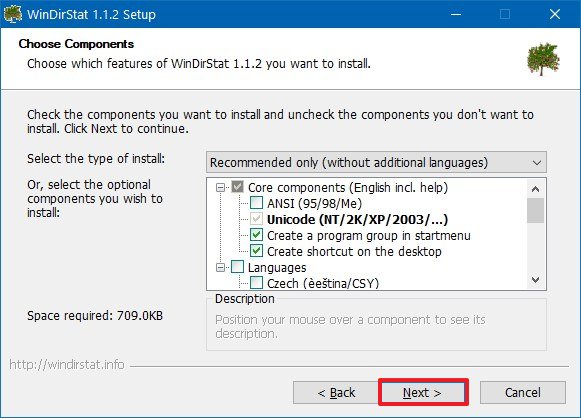
<p style="text-align: justify;">4. Nhấp vào nút&nbsp;<strong>Next.</strong></p>

<p style="text-align: justify;">5. Để nguyên các thiết lập mặc định.</p>

<p style="text-align: justify;">6. Nhấp vào nút&nbsp;<strong>Next.</strong></p>

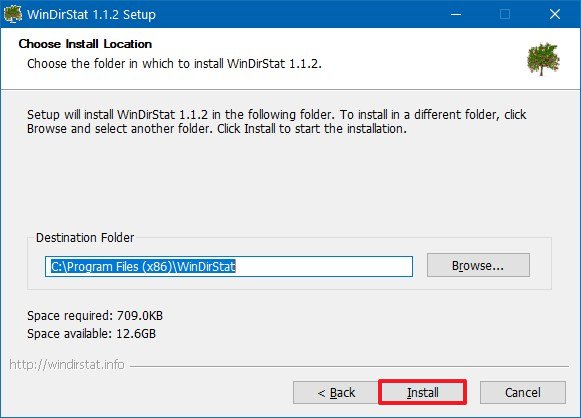
<p style="text-align: justify;">7. Nhấp vào nút&nbsp;<strong>Install.</strong></p>

<figure>
<div style="text-align: justify;"><img alt="Nhấp vào nút Install" data-i="0" data-src="https://st.quantrimang.com/photos/image/2020/06/08/windirstat-1.jpg" data-was-processed="true" height="418" src="https://st.quantrimang.com/photos/image/2020/06/08/windirstat-1.jpg" width="581" /></div>

<figcaption>
<div style="text-align: justify;">Nhấp vào nút Install</div>
</figcaption>
</figure>

<p style="text-align: justify;">8. Nhấp vào nút&nbsp;<strong>Next.</strong></p>

<figure>
<div style="text-align: justify;"><img alt="Nhấp vào nút Next" data-i="1" data-src="https://st.quantrimang.com/photos/image/2020/06/08/windirstat-2.jpg" data-was-processed="true" height="418" src="https://st.quantrimang.com/photos/image/2020/06/08/windirstat-2.jpg" width="581" /></div>

<figcaption>
<div style="text-align: justify;">Nhấp vào nút Next</div>
</figcaption>
</figure>

<p style="text-align: justify;">9. Chọn tùy chọn&nbsp;<strong>Run WinStart.</strong></p>

<p style="text-align: justify;">10. Nhấp vào nút&nbsp;<strong>Close.</strong></p>

<p style="text-align: justify;">Sau khi hoàn thành các bước, bạn có thể sử dụng ứng dụng để quét toàn bộ ổ đĩa và nhận báo cáo về việc sử dụng ổ cứng hiện tại.</p>

<h3 style="text-align: justify;">Xem các file chiếm dung lượng trên Windows 10</h3>

<p style="text-align: justify;">Để sử dụng WinDirStat và xác định file nào đang chiếm dung lượng trên Windows 10, hãy làm theo các bước sau:</p>

<p style="text-align: justify;">1. Mở&nbsp;<strong>Start</strong>&nbsp;trên Windows 10.</p>

<p style="text-align: justify;">2. Tìm kiếm&nbsp;<strong>WinDirStat</strong>&nbsp;và nhấp vào kết quả trên đầu để mở ứng dụng.</p>

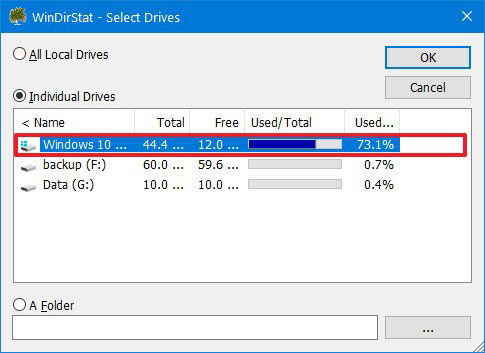
<p style="text-align: justify;">3. Chọn tùy chọn&nbsp;<strong>Individual Drives.</strong></p>

<p style="text-align: justify;">4. Chọn ổ bạn muốn xem những file nào đang chiếm không gian.</p>

<figure>
<div style="text-align: justify;"><img alt="Chọn ổ mà bạn muốn xem" data-i="2" data-src="https://st.quantrimang.com/photos/image/2020/06/08/windirstat-3.jpg" data-was-processed="true" height="353" src="https://st.quantrimang.com/photos/image/2020/06/08/windirstat-3.jpg" width="485" /></div>

<figcaption>
<div style="text-align: justify;">Chọn ổ mà bạn muốn xem</div>
</figcaption>
</figure>

<p style="text-align: justify;"><strong>Mẹo nhanh</strong>: Mặc dù có thể quét tất cả các ổ, nhưng bạn nên quét từng ổ một để giảm thiểu tác động đến tài nguyên và tăng tốc quá trình.</p>

<p style="text-align: justify;">7. Nhấp vào nút&nbsp;<strong>OK.</strong></p>

<p style="text-align: justify;"><strong>Lưu ý</strong>: Nếu thiết bị sắp hết dung lượng, khiến trải nghiệm rất chậm, bạn sẽ nhận thấy rằng ứng dụng sẽ đóng băng và hiển thị thông báo&nbsp;<strong>“Not responding</strong>”, nhưng cuối cùng, quá trình cũng sẽ kết thúc thành công.</p>

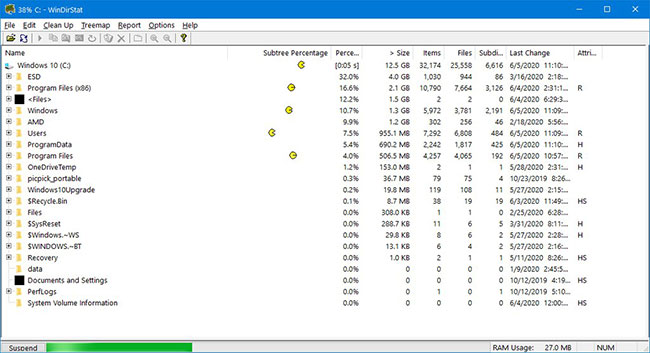
<p style="text-align: justify;">Sau khi bạn hoàn thành các bước, WinDirStat sẽ quét ổ đĩa và hiển thị một báo cáo đồ họa, giúp bạn hiểu những file nào chiếm nhiều dung lượng nhất trên ổ cứng.</p>

<figure>
<div style="text-align: justify;"><img alt="WinDirStat sẽ quét ổ đĩa và hiển thị một báo cáo đồ họa" data-i="3" data-src="https://st.quantrimang.com/photos/image/2020/06/08/windirstat-4.jpg" data-was-processed="true" height="353" src="https://st.quantrimang.com/photos/image/2020/06/08/windirstat-4.jpg" width="650" /></div>

<figcaption>
<div style="text-align: justify;">WinDirStat sẽ quét ổ đĩa và hiển thị một báo cáo đồ họa</div>
</figcaption>
</figure>

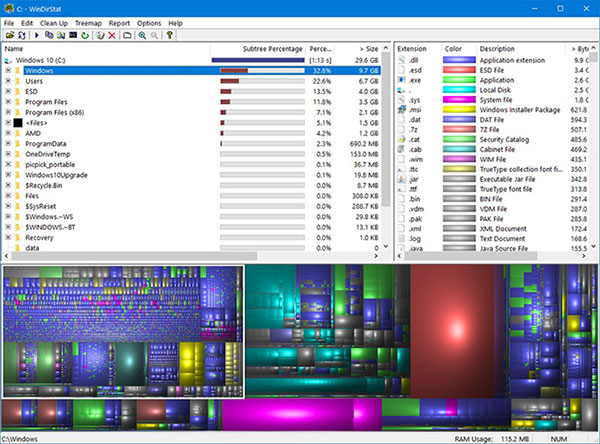
<p style="text-align: justify;">Báo cáo được chia thành 3 phần chính:</p>

<ul>
	<li style="text-align: justify;">Ở phía trên bên trái, bạn sẽ thấy cấu trúc file dạng cây, cho phép bạn xem thư mục nào đang chiếm nhiều dung lượng nhất. Bạn có thể xem chi tiết để tìm ra file đang sử dụng nhiều dung lượng nhất trên ổ cứng.</li>
</ul>

<figure>
<div style="text-align: justify;"><img alt="Báo cáo được chia thành 3 phần chính" data-i="4" data-src="https://st.quantrimang.com/photos/image/2020/06/08/windirstat-5.jpg" data-was-processed="true" height="444" src="https://st.quantrimang.com/photos/image/2020/06/08/windirstat-5.jpg" width="600" /></div>

<figcaption>
<div style="text-align: justify;">Báo cáo được chia thành 3 phần chính</div>
</figcaption>
</figure>

<ul>
	<li style="text-align: justify;">Ở phía trên bên phải, bạn có thể thấy phần mở rộng file nào đang sử dụng nhiều dung lượng nhất.</li>
	<li style="text-align: justify;">Ngoài ra, ở phía dưới, bạn sẽ tìm thấy chế độ xem đồ họa được gọi là treemap, đại diện cho mỗi file dưới dạng hình chữ nhật. Hình chữ nhật càng lớn thì file trên Windows 10 càng lớn. Màu của mỗi hình chữ nhật thể hiện loại file như trong danh sách tiện ích mở rộng.</li>
</ul>

<p style="text-align: justify;">Bạn có thể chọn một hình chữ nhật để nhanh chóng tìm ra tên file và vị trí.</p>

<p style="text-align: justify;">Nếu file sử dụng nhiều dung lượng là một trong các file cá nhân, thì bạn chỉ cần&nbsp;sử dụng File Explorer&nbsp;để tìm và xóa nó. Ngoài ra, bạn có thể nhấp chuột phải vào file trong WinDirStat để truy cập các tùy chọn để sao chép đường dẫn của file, mở vị trí thư mục bằng File Explorer hoặc&nbsp;Command Prompt&nbsp;và thậm chí còn có hai tùy chọn để xóa file.</p>

<p style="text-align: justify;">Tuy nhiên, đôi khi, các file rất lớn trên thiết bị lại là file hệ thống và thông thường, bạn có thể chỉ cần nhấp vào nút xóa để loại bỏ nó. Nếu phát hiện ra rằng đó là một file hệ thống, thì hãy ghi lại tên file và nghiên cứu trực tuyến cách loại bỏ hoặc giảm dung lượng của nó để giải phóng không gian trên Windows 10.</p>

<p style="text-align: justify;">Chẳng hạn, nếu bạn lập chỉ mục file Outlook PST, Windows 10 sẽ cố gắng lập chỉ mục cho mỗi email. Nếu không giảm số lượng email mà client tải xuống trên thiết bị của mình, cuối cùng bạn sẽ có rất nhiều file Windows.edb chiếm hết dung lượng ổ. Nếu đây là trường hợp bạn gặp phải, cách thích hợp để lấy lại không gian là xây dựng lại cơ sở dữ liệu chỉ mục và không xóa file Windows.edb.</p>

<p style="text-align: justify;">Với những tính năng cơ bản nhưng hết sức hữu ích như trên, WinDirStat có thể coi là 1 trong những tiện ích không thể thiếu trong mỗi máy tính, và với công cụ này, người sử dụng sẽ dễ dàng theo dõi và giám sát toàn bộ tình trạng lưu trữ dữ liệu cụ thể trên từng phân vùng hoặc ổ cứng. Chúc các bạn thành công!</p>
		</div>
				<div id="author">
						<p>
				<strong>Nguồn tin:</strong>
				Quantrimang.com
			</p>
		</div>
	</div>
	<div id="footer" class="clearfix">
		<div id="url">
			<strong>URL của bản tin này: </strong><a href="https://www.nguoicodonvn2008.info/vi/news/savefile/kien-thuc-may-tinh/kiem-tra-va-giam-sat-dung-luong-o-cung-voi-windirstat-2175.html" title="Kiểm tra và giám sát dung lượng ổ cứng với WinDirStat">https://www.nguoicodonvn2008.info/vi/news/savefile/kien-thuc-may-tinh/kiem-tra-va-giam-sat-dung-luong-o-cung-voi-windirstat-2175.html</a>

		</div>
		<div class="clear"></div>
		<div class="copyright">
			&copy; .&#x3A; Nguoicodonvn2008.info - Cõi lòng người cô đơn &#x3A;.
		</div>
		<div id="contact">
			<a href="mailto:admin@nguoicodonvn2008.info">admin@nguoicodonvn2008.info</a>
		</div>
	</div>
</div>
        <div id="timeoutsess" class="chromeframe">
            Bạn đã không sử dụng Site, <a onclick="timeoutsesscancel();" href="https://nguoicodonvn2008.info/#">Bấm vào đây để duy trì trạng thái đăng nhập</a>. Thời gian chờ: <span id="secField"> 60 </span> giây
        </div>
        <div id="openidResult" class="nv-alert" style="display:none"></div>
        <div id="openidBt" data-result="" data-redirect=""></div>
		</script>
		<div class="car-top">
  <span><img src="https://nguoicodonvn2008.info/themes/default/images/car.png" alt=""></span>
</div>
<script src="https://nguoicodonvn2008.info/assets/js/jquery/jquery.min.js"></script>
<script>var nv_base_siteurl="/",nv_lang_data="vi",nv_lang_interface="vi",nv_name_variable="nv",nv_fc_variable="op",nv_lang_variable="language",nv_module_name="news",nv_func_name="savefile",nv_is_user=0, nv_my_ofs=-4,nv_my_abbr="EDT",nv_cookie_prefix="nv4c_e856T",nv_check_pass_mstime=1738000,nv_area_admin=0,nv_safemode=0,theme_responsive=0,nv_recaptcha_ver=2,nv_recaptcha_sitekey="",nv_recaptcha_type="image",XSSsanitize=1;</script>
<script src="https://nguoicodonvn2008.info/assets/js/language/vi.js"></script>
<script src="https://nguoicodonvn2008.info/assets/js/DOMPurify/purify3.js"></script>
<script src="https://nguoicodonvn2008.info/assets/js/global.js"></script>
<script src="https://nguoicodonvn2008.info/assets/js/site.js"></script>
<script src="https://nguoicodonvn2008.info/themes/default/js/news.js"></script>
<script src="https://nguoicodonvn2008.info/themes/default/js/main.js"></script>
<script src="https://nguoicodonvn2008.info/themes/default/js/custom.js"></script>
<script type="application/ld+json">
        {
            "@context": "https://schema.org",
            "@type": "Organization",
            "url": "https://nguoicodonvn2008.info",
            "logo": "https://nguoicodonvn2008.info/uploads/angel.gif"
        }
        </script>
<script src="https://nguoicodonvn2008.info/themes/default/js/bootstrap.min.js"></script>
<script type="text/javascript">
var $scrolltop = $('.car-top');
$scrolltop.on('click', function () {
    $('html,body').animate({
        scrollTop: 0
    }, 800);
    $(this).addClass("car-run");
    setTimeout(function(){ $scrolltop.removeClass('car-run');}, 1000);
    return false;
});
$(window).on('scroll', function ()
{ 
    if($(window).scrollTop() >= 200)
    {
        $scrolltop.addClass("show");
        $scrolltop.addClass("car-down");
    }
    else
    {
       $scrolltop.removeClass("show");
       setTimeout(function(){ $scrolltop.removeClass('car-down');}, 300);
    }
});
</script>
</body>
</html>