<!DOCTYPE html>
    <html lang="vi" xmlns="http://www.w3.org/1999/xhtml" prefix="og: http://ogp.me/ns#">
    <head>
<title>Không cần phải cài đặt bất cứ phần mềm nào, đây là cách tìm Windows Product Key</title>
<meta name="description" content="Không cần phải cài đặt bất cứ phần mềm nào, đây là cách tìm Windows Product Key - Savefile - Tin Tức -...">
<meta name="author" content=".: Nguoicodonvn2008.info - Cõi lòng người cô đơn :.">
<meta name="copyright" content=".: Nguoicodonvn2008.info - Cõi lòng người cô đơn :. [admin@nguoicodonvn2008.info]">
<meta name="robots" content="index, archive, follow, noodp">
<meta name="googlebot" content="index,archive,follow,noodp">
<meta name="msnbot" content="all,index,follow">
<meta name="generator" content="NukeViet v4.5">
<meta http-equiv="Content-Type" content="text/html; charset=utf-8">
<meta property="og:title" content="Không cần phải cài đặt bất cứ phần mềm nào, đây là cách tìm Windows Product Key">
<meta property="og:type" content="website">
<meta property="og:description" content="Savefile - Tin Tức -...">
<meta property="og:site_name" content=".&#x3A; Nguoicodonvn2008.info - Cõi lòng người cô đơn &#x3A;.">
<meta property="og:url" content="https://www.nguoicodonvn2008.info/vi/news/savefile/kien-thuc-may-tinh/khong-can-phai-cai-dat-bat-cu-phan-mem-nao-day-la-cach-tim-windows-product-key-2126.html">
<link rel="shortcut icon" href="https://nguoicodonvn2008.info/favicon.ico">
<link rel="canonical" href="https://www.nguoicodonvn2008.info/vi/news/savefile/kien-thuc-may-tinh/khong-can-phai-cai-dat-bat-cu-phan-mem-nao-day-la-cach-tim-windows-product-key-2126.html">
<link rel="alternate" href="https://nguoicodonvn2008.info/vi/news/rss/" title="Tin Tức" type="application/rss+xml">
<link rel="alternate" href="https://nguoicodonvn2008.info/vi/news/rss/karaoke-dual/" title="Tin Tức - Karaoke Dual" type="application/rss+xml">
<link rel="alternate" href="https://nguoicodonvn2008.info/vi/news/rss/nhac-tre/" title="Tin Tức - Nhạc trẻ" type="application/rss+xml">
<link rel="alternate" href="https://nguoicodonvn2008.info/vi/news/rss/tru-tinh/" title="Tin Tức - Trữ tình" type="application/rss+xml">
<link rel="alternate" href="https://nguoicodonvn2008.info/vi/news/rss/nuoc-ngoai/" title="Tin Tức - Nước ngoài" type="application/rss+xml">
<link rel="alternate" href="https://nguoicodonvn2008.info/vi/news/rss/remix/" title="Tin Tức - Remix" type="application/rss+xml">
<link rel="alternate" href="https://nguoicodonvn2008.info/vi/news/rss/tam-su-tinh-yeu/" title="Tin Tức - Tâm sự tình yêu" type="application/rss+xml">
<link rel="alternate" href="https://nguoicodonvn2008.info/vi/news/rss/tho-suu-tam/" title="Tin Tức - Thơ sưu tầm" type="application/rss+xml">
<link rel="alternate" href="https://nguoicodonvn2008.info/vi/news/rss/cuoc-song/" title="Tin Tức - Cuộc sống" type="application/rss+xml">
<link rel="alternate" href="https://nguoicodonvn2008.info/vi/news/rss/phan-mem/" title="Tin Tức - Phần mềm" type="application/rss+xml">
<link rel="alternate" href="https://nguoicodonvn2008.info/vi/news/rss/kien-thuc-may-tinh/" title="Tin Tức - Kiến thức máy tính" type="application/rss+xml">
<link rel="alternate" href="https://nguoicodonvn2008.info/vi/news/rss/hoc-tap/" title="Tin Tức - Học tập" type="application/rss+xml">
<link rel="alternate" href="https://nguoicodonvn2008.info/vi/news/rss/tai-lieu/" title="Tin Tức - Tài liệu" type="application/rss+xml">
<link rel="alternate" href="https://nguoicodonvn2008.info/vi/news/rss/de-thi/" title="Tin Tức - Đề thi" type="application/rss+xml">
<link rel="preload" as="style" href="https://nguoicodonvn2008.info/assets/css/font-awesome.min.css" type="text/css">
<link rel="preload" as="style" href="https://nguoicodonvn2008.info/themes/default/css/bootstrap.non-responsive.css" type="text/css">
<link rel="preload" as="style" href="https://nguoicodonvn2008.info/themes/default/css/style.css" type="text/css">
<link rel="preload" as="style" href="https://nguoicodonvn2008.info/themes/default/css/style.non-responsive.css" type="text/css">
<link rel="preload" as="style" href="https://nguoicodonvn2008.info/themes/default/css/news.css" type="text/css">
<link rel="preload" as="style" href="https://nguoicodonvn2008.info/themes/default/css/custom.css" type="text/css">
<link rel="preload" as="script" href="https://nguoicodonvn2008.info/assets/js/jquery/jquery.min.js" type="text/javascript">
<link rel="preload" as="script" href="https://nguoicodonvn2008.info/assets/js/language/vi.js" type="text/javascript">
<link rel="preload" as="script" href="https://nguoicodonvn2008.info/assets/js/DOMPurify/purify3.js" type="text/javascript">
<link rel="preload" as="script" href="https://nguoicodonvn2008.info/assets/js/global.js" type="text/javascript">
<link rel="preload" as="script" href="https://nguoicodonvn2008.info/assets/js/site.js" type="text/javascript">
<link rel="preload" as="script" href="https://nguoicodonvn2008.info/themes/default/js/news.js" type="text/javascript">
<link rel="preload" as="script" href="https://nguoicodonvn2008.info/themes/default/js/main.js" type="text/javascript">
<link rel="preload" as="script" href="https://nguoicodonvn2008.info/themes/default/js/custom.js" type="text/javascript">
<link rel="preload" as="script" href="https://nguoicodonvn2008.info/themes/default/js/bootstrap.min.js" type="text/javascript">
<link rel="stylesheet" href="https://nguoicodonvn2008.info/assets/css/font-awesome.min.css">
<link rel="stylesheet" href="https://nguoicodonvn2008.info/themes/default/css/bootstrap.non-responsive.css">
<link rel="stylesheet" href="https://nguoicodonvn2008.info/themes/default/css/style.css">
<link rel="stylesheet" href="https://nguoicodonvn2008.info/themes/default/css/style.non-responsive.css">
<link rel="StyleSheet" href="https://nguoicodonvn2008.info/themes/default/css/news.css">
<link rel="stylesheet" href="https://nguoicodonvn2008.info/themes/default/css/custom.css">
<style type="text/css">
	body{background: #fff;}
</style>
    </head>
    <body>
<div id="print">
	<div id="hd_print">
		<h2 class="pull-left">.&#x3A; Nguoicodonvn2008.info - Cõi lòng người cô đơn &#x3A;.</h2>
		<p class="pull-right"><a title=".&#x3A; Nguoicodonvn2008.info - Cõi lòng người cô đơn &#x3A;." href="https://nguoicodonvn2008.info/">https://nguoicodonvn2008.info</a></p>
	</div>
	<div class="clear"></div>
	<hr />
	<div id="content">
		<h1>Không cần phải cài đặt bất cứ phần mềm nào, đây là cách tìm Windows Product Key</h1>
		<ul class="list-inline">
			<li>Thứ bảy - 30/05/2020 00:59</li>
			<li class="hidden-print txtrequired"><em class="fa fa-print">&nbsp;</em><a title="In ra" href="javascript:;" onclick="window.print()">In ra</a></li>
			<li class="hidden-print txtrequired"><em class="fa fa-power-off">&nbsp;</em><a title="Đóng cửa sổ này" href="javascript:;" onclick="window.close()">Đóng cửa sổ này</a></li>
		</ul>
		<div class="clear"></div>
		<div id="hometext">
		</div>
				<div class="imghome">
			<img alt="Không cần phải cài đặt bất cứ phần mềm nào, đây là cách tìm Windows Product Key" src="https://st.quantrimang.com/photos/image/2016/07/27/command-propmt.png" width="460" class="img-thumbnail" />
		</div>
		<div class="clear"></div>
		<div id="bodytext" class="clearfix">
			<p style="text-align: justify;">Giả sử bạn đang có ý định cài lại Windows, tuy nhiên bạn lại không biết hoặc không nhớ Product key để kích hoạt Windows sau khi cài đặt xong và bạn không thể kích hoạt được hệ điều hành vừa mới cài.</p>

<p style="text-align: justify;">Dưới đây là 3 cách đơn giản giúp bạn tìm lại Product key của mình.</p>

<h2 style="text-align: justify;">1. Sử dụng Powershell để tìm Product key của bạn</h2>

<p style="text-align: justify;">1. Mở Notepad trên máy tính của bạn.</p>

<p style="text-align: justify;">2. Sao chép và dán đoạn text dưới đây vào file Notepad:</p>

<blockquote>
<p style="text-align: justify;">function Get-WindowsKey {</p>

<p style="text-align: justify;">## function to retrieve the Windows Product Key from any PC</p>

<p style="text-align: justify;">## by Jakob Bindslet (jakob@bindslet.dk)</p>

<p style="text-align: justify;">param ($targets = &quot;.&quot;)</p>

<p style="text-align: justify;">$hklm = 2147483650</p>

<p style="text-align: justify;">$regPath = &quot;Software\Microsoft\Windows NT\CurrentVersion&quot;</p>

<p style="text-align: justify;">$regValue = &quot;DigitalProductId&quot;</p>

<p style="text-align: justify;">Foreach ($target in $targets) {</p>

<p style="text-align: justify;">$productKey = $null</p>

<p style="text-align: justify;">$win32os = $null</p>

<p style="text-align: justify;">$wmi = &#91;WMIClass&#93;&quot;\\$target\root\default:stdRegProv&quot;</p>

<p style="text-align: justify;">$data = $wmi.GetBinaryValue($hklm,$regPath,$regValue)</p>

<p style="text-align: justify;">$binArray = ($data.uValue)&#91;52..66&#93;</p>

<p style="text-align: justify;">$charsArray = &quot;B&quot;,&quot;C&quot;,&quot;D&quot;,&quot;F&quot;,&quot;G&quot;,&quot;H&quot;,&quot;J&quot;,&quot;K&quot;,&quot;M&quot;,&quot;P&quot;,&quot;Q&quot;,&quot;R&quot;,&quot;T&quot;,&quot;V&quot;,&quot;W&quot;,&quot;X&quot;,&quot;Y&quot;,&quot;2&quot;,&quot;3&quot;,&quot;4&quot;,&quot;6&quot;,&quot;7&quot;,&quot;8&quot;,&quot;9&quot;</p>

<p style="text-align: justify;">## decrypt base24 encoded binary data</p>

<p style="text-align: justify;">For ($i = 24; $i -ge 0; $i--) {</p>

<p style="text-align: justify;">$k = 0</p>

<p style="text-align: justify;">For ($j = 14; $j -ge 0; $j--) {</p>

<p style="text-align: justify;">$k = $k * 256 -bxor $binArray&#91;$j&#93;</p>

<p style="text-align: justify;">$binArray&#91;$j&#93; = &#91;math&#93;::truncate($k / 24)</p>

<p style="text-align: justify;">$k = $k % 24</p>

<p style="text-align: justify;">}</p>

<p style="text-align: justify;">$productKey = $charsArray&#91;$k&#93; + $productKey</p>

<p style="text-align: justify;">If (($i % 5 -eq 0) -and ($i -ne 0)) {</p>

<p style="text-align: justify;">$productKey = &quot;-&quot; + $productKey</p>

<p style="text-align: justify;">}</p>

<p style="text-align: justify;">}</p>

<p style="text-align: justify;">$win32os = Get-WmiObject Win32_OperatingSystem -computer $target</p>

<p style="text-align: justify;">$obj = New-Object Object</p>

<p style="text-align: justify;">$obj | Add-Member Noteproperty Computer -value $target</p>

<p style="text-align: justify;">$obj | Add-Member Noteproperty Caption -value $win32os.Caption</p>

<p style="text-align: justify;">$obj | Add-Member Noteproperty CSDVersion -value $win32os.CSDVersion</p>

<p style="text-align: justify;">$obj | Add-Member Noteproperty OSArch -value $win32os.OSArchitecture</p>

<p style="text-align: justify;">$obj | Add-Member Noteproperty BuildNumber -value $win32os.BuildNumber</p>

<p style="text-align: justify;">$obj | Add-Member Noteproperty RegisteredTo -value $win32os.RegisteredUser</p>

<p style="text-align: justify;">$obj | Add-Member Noteproperty ProductID -value $win32os.SerialNumber</p>

<p style="text-align: justify;">$obj | Add-Member Noteproperty ProductKey -value $productkey</p>

<p style="text-align: justify;">$obj</p>

<p style="text-align: justify;">}</p>

<p style="text-align: justify;">}</p>
</blockquote>

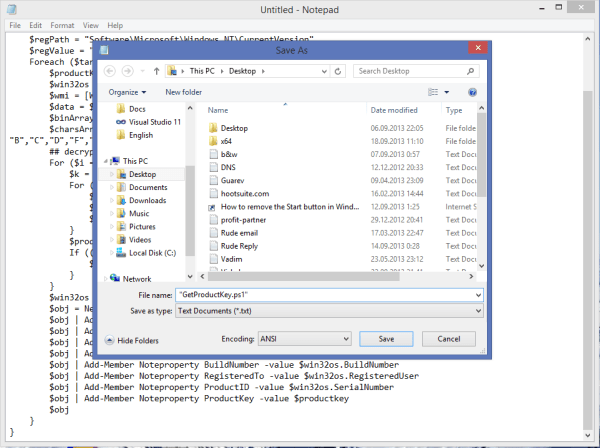
<p style="text-align: justify;">3. Lưu file Notepad lại thành 1 tên bất lý có phần đuôi mở rộng là &quot;.ps1&quot; trên màn hình Desktop của bạn để dễ dàng tìm kiếm.</p>

<p style="text-align: justify;">Chẳng hạn như bạn có thể đặt tên là GetProductKey.ps1.</p>

<p style="text-align: justify;"><img alt="đặt tên là GetProductKey.ps1" data-i="0" data-src="https://st.quantrimang.com/photos/image/2016/07/27/GetProductKey-ps1.png" data-was-processed="true" height="448" src="https://st.quantrimang.com/photos/image/2016/07/27/GetProductKey-ps1.png" title="đặt tên là GetProductKey.ps1" width="600" /></p>

<p style="text-align: justify;">4. Mở Powershell dưới quyền Admin bằng cách nhập &quot;powershell&quot; vào khung Search trên Start Menu hoặc Start Screen rồi nhấn tổ hợp phím&nbsp;<strong>Ctrl + Shift + Enter</strong>&nbsp;để mở Powershell dưới quyền Admin.</p>

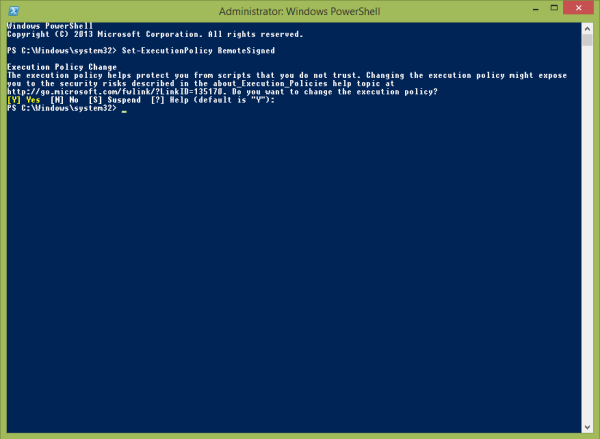
<p style="text-align: justify;">5. Kích hoạt thực thi các tập tin Local mà không cần digitally signed bằng cách nhập câu lệnh dưới đây vào cửa sổ Powershell:</p>

<blockquote>
<p style="text-align: justify;">Set-ExecutionPolicy RemoteSigned</p>
</blockquote>

<p style="text-align: justify;">Nhấn&nbsp;<strong>Enter</strong>&nbsp;để thực thi câu lệnh.</p>

<p style="text-align: justify;"><img alt="NHập câu lệnh" data-i="1" data-src="https://st.quantrimang.com/photos/image/2016/07/27/lenh.png" data-was-processed="true" height="439" src="https://st.quantrimang.com/photos/image/2016/07/27/lenh.png" title="NHập câu lệnh" width="600" /></p>

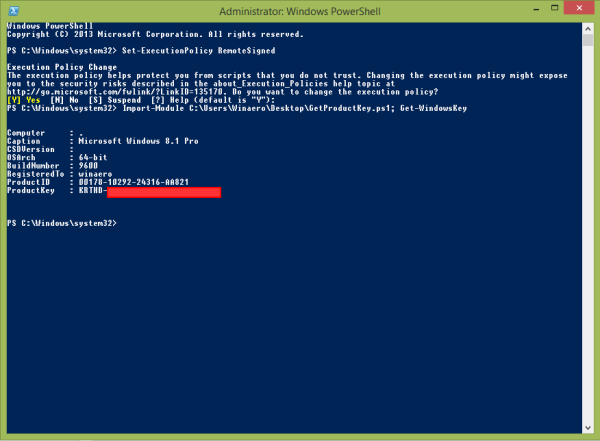
<p style="text-align: justify;">6. Tiếp theo bạn nhập tiếp câu lệnh dưới đây:</p>

<blockquote>
<p style="text-align: justify;">Import-Module C:\Users\Winaero\Desktop\GetProductKey.ps1; Get-WindowsKey</p>
</blockquote>

<p style="text-align: justify;"><strong>Lưu ý:</strong></p>

<p style="text-align: justify;">Trong câu lệnh trên, thay đổi đường dẫn file GetProductKey.ps1 mà bạn đã lưu.</p>

<p style="text-align: justify;">7. Lúc này Product key của bạn sẽ được hiển thị trên màn hình.</p>

<p style="text-align: justify;"><img alt="Product key" data-i="2" data-src="https://st.quantrimang.com/photos/image/2016/07/27/product-key.png" data-was-processed="true" height="441" src="https://st.quantrimang.com/photos/image/2016/07/27/product-key.png" title="Product key" width="600" /></p>

<p style="text-align: justify;">Ngoài ra bạn có thể tham khảo chi tiết hơn các bước thực hiện tìm Product key bằng Powershell trong video dưới đây:</p>

<p style="text-align: center;"><iframe allowfullscreen="allowfullscreen" data-src="https://www.youtube.com/embed/TDy9WLzhjM4" data-was-processed="true" frameborder="0" height="460" scrolling="no" src="https://www.youtube.com/embed/TDy9WLzhjM4" width="480"></iframe></p>

<div style="text-align: justify;">&nbsp;</div>

<h2 style="text-align: justify;">2. Tìm Product key bằng cách sử dụng Command Prompt</h2>

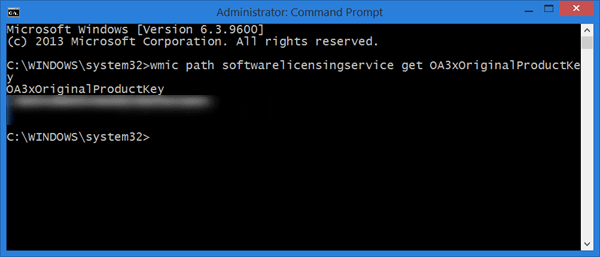
<p style="text-align: justify;">Đầu tiên bạn nhấn tổ hợp phím<strong>&nbsp;Windows + X</strong>&nbsp;để mở Menu Power User hoặc kích chuột phải vào nút&nbsp;<strong>Start</strong>&nbsp;ở góc dưới cùng bên trái Windows 10/8, sau đó chọn tùy chọn&nbsp;<strong>Command Prompt (Admin)</strong>&nbsp;để mở Command Prompt dưới quyền Admin.</p>

<p style="text-align: justify;">Tiếp theo nhập câu lệnh dưới đây vào cửa sổ Command Prompt rồi nhấn&nbsp;<strong>Enter</strong>:</p>

<blockquote>
<p style="text-align: justify;">wmic path softwarelicensingservice get OA3xOriginalProductKey</p>
</blockquote>

<p style="text-align: justify;">Lúc này trên màn hình sẽ hiển thị Product key của bạn.</p>

<p style="text-align: justify;"><img alt="Tìm Product key bằng cách sử dụng Command Prompt" data-i="3" data-src="https://st.quantrimang.com/photos/image/2016/07/27/command-propmt.png" data-was-processed="true" height="257" src="https://st.quantrimang.com/photos/image/2016/07/27/command-propmt.png" title="Tìm Product key bằng cách sử dụng Command Prompt" width="600" /></p>

<h2 style="text-align: justify;">3. Sử dụng Windows Registry để tìm Product key</h2>

<p style="text-align: justify;">Để xác định product key trong registry, đây là các bước bạn cần thực hiện.</p>

<p style="text-align: justify;">1. Nhấp chuột phải vào menu&nbsp;<strong>Start.</strong></p>

<p style="text-align: justify;">2. Chọn tùy chọn&nbsp;<strong>Search.</strong></p>

<p style="text-align: justify;">3. Tìm kiếm và&nbsp;<a href="https://quantrimang.com/cach-mo-registry-editor-tren-windows-143522" title="Cách mở Registry Editor trên Windows">mở Registry Editor</a>.</p>

<p style="text-align: justify;">4. Trong registry, sao chép và dán đường dẫn bên dưới vào thanh địa chỉ, rồi nhấn&nbsp;<code>Enter</code>.</p>

<pre id="pre0">
<code>HKEY_LOCAL_MACHINE\SOFTWARE\Microsoft\Windows NT\CurrentVersion</code></pre>

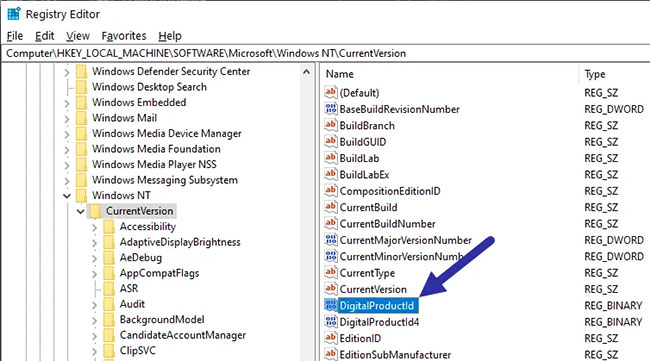
<p style="text-align: justify;">5. Trên bảng điều khiển bên phải, tìm giá trị&nbsp;<strong>DigitalProductId.</strong></p>

<figure>
<div style="text-align: justify;"><img alt="Giá trị DigitalProductId lưu trữ product key Windows 10" data-i="4" data-src="https://st.quantrimang.com/photos/image/2020/05/30/tim-windows-product-key-2.jpg" data-was-processed="true" height="361" src="https://st.quantrimang.com/photos/image/2020/05/30/tim-windows-product-key-2.jpg" width="650" /></div>

<figcaption>
<div style="text-align: justify;">Giá trị DigitalProductId lưu trữ product key Windows 10</div>
</figcaption>
</figure>

<p style="text-align: justify;">Giá trị&nbsp;<strong>DigitalProductId</strong>&nbsp;lưu trữ product key Windows 10 của bạn. Nhấp đúp vào giá trị này và bạn sẽ thấy key giấy phép được mã hóa.</p>

<div style="text-align: justify;">&nbsp;</div>

<h3 style="text-align: justify;">Giải mã giá trị HEX DigitalProductId thành key giấy phép</h3>

<p style="text-align: justify;">DigitalProductId là một giá trị nhị phân. Mọi thứ trong giá trị nhị phân sẽ tự động được chuyển đổi thành giá trị HEX. Vì ta cần product key chứ không phải giá trị HEX, nên bước tiếp theo sẽ là giải mã giá trị DigitalProductId. Để làm điều đó, bạn sẽ sử dụng một công cụ portable miễn phí, mã nguồn mở có tên WinProdKeyFinder.</p>

<p style="text-align: justify;">Để giải mã giá trị DigitalProductId, hãy làm theo các bước bên dưới.</p>

<p style="text-align: justify;">1. Đầu tiên, mở Registry Editor.</p>

<p style="text-align: justify;">2. Chuyển đến thư mục sau.</p>

<pre id="pre1">
<code>HKEY_LOCAL_MACHINE\SOFTWARE\Microsoft\Windows NT\CurrentVersion\</code></pre>

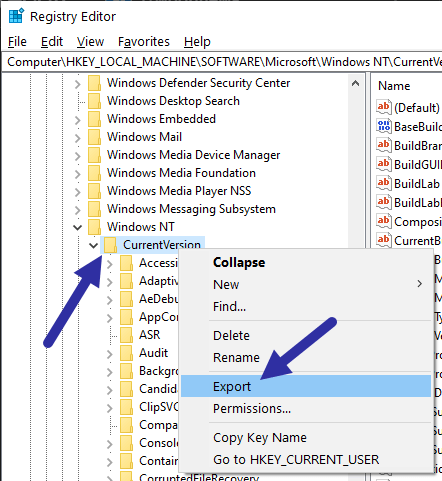
<p style="text-align: justify;">3. Nhấp chuột phải vào thư mục&nbsp;<strong>CurrentVersion</strong>&nbsp;và chọn&nbsp;<strong>Export.</strong></p>

<figure>
<div style="text-align: justify;"><img alt="Nhấp chuột phải vào thư mục CurrentVersion và chọn Export" data-i="5" data-src="https://st.quantrimang.com/photos/image/2020/05/30/tim-windows-product-key-2.png" data-was-processed="true" height="481" src="https://st.quantrimang.com/photos/image/2020/05/30/tim-windows-product-key-2.png" width="442" /></div>

<figcaption>
<div style="text-align: justify;">Nhấp chuột phải vào thư mục CurrentVersion và chọn Export</div>
</figcaption>
</figure>

<p style="text-align: justify;">4. Đặt tên cho file thành bất cứ thứ gì bạn muốn và lưu nó trên desktop.</p>

<p style="text-align: justify;">5. Đóng Registry Editor.</p>

<p style="text-align: justify;">6. Trên desktop, nhấp chuột phải vào file .reg và chọn&nbsp;<strong>Edit.</strong></p>

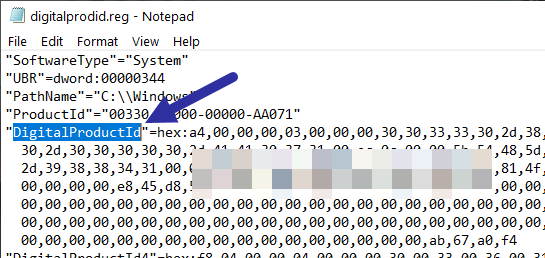
<p style="text-align: justify;">7. Trong file, tìm giá trị&nbsp;<strong>DigitalProductId.</strong></p>

<figure>
<div style="text-align: justify;"><img alt="Tìm giá trị DigitalProductId" data-i="6" data-src="https://st.quantrimang.com/photos/image/2020/05/30/tim-windows-product-key-3.png" data-was-processed="true" height="258" src="https://st.quantrimang.com/photos/image/2020/05/30/tim-windows-product-key-3.png" width="545" /></div>

<figcaption>
<div style="text-align: justify;">Tìm giá trị DigitalProductId</div>
</figcaption>
</figure>

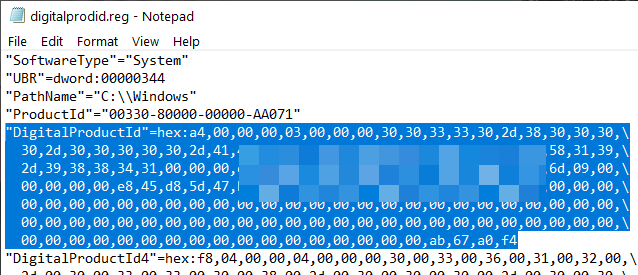
<p style="text-align: justify;">8. Sao chép code HEX đầy đủ cùng với tên giá trị của nó như trong hình bên dưới.</p>

<figure>
<div style="text-align: justify;"><img alt="Sao chép code HEX đầy đủ cùng với tên giá trị của nó" data-i="7" data-src="https://st.quantrimang.com/photos/image/2020/05/30/tim-windows-product-key-4.png" data-was-processed="true" height="275" src="https://st.quantrimang.com/photos/image/2020/05/30/tim-windows-product-key-4.png" width="638" /></div>

<figcaption>
<div style="text-align: justify;">Sao chép code HEX đầy đủ cùng với tên giá trị của nó</div>
</figcaption>
</figure>

<p style="text-align: justify;">9. Tiếp theo,&nbsp;tải WinProdKeyFinder từ Github:<strong><span style="color:rgb(192, 57, 43);">&nbsp;https://github.com/mrpeardotnet/WinProdKeyFinder/releases</span></strong></p>

<p style="text-align: justify;">10. Mở file ZIP và giải nén file EXE vào desktop.</p>

<p style="text-align: justify;">11. Nhấp đúp vào&nbsp;<strong>&quot;WinProdKeyFind.exe&quot;</strong>&nbsp;để mở.</p>

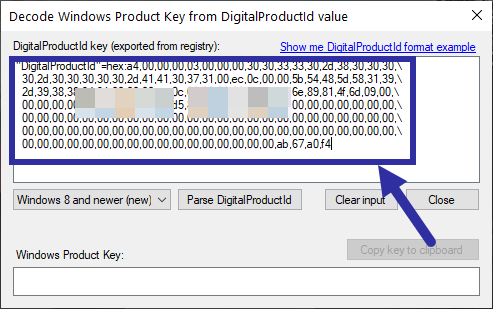
<p style="text-align: justify;">12. Trong ứng dụng, nhấp vào nút&nbsp;<strong>Decode DigitalProductID</strong>.</p>

<p style="text-align: justify;">13. Nhấn phím tắt&nbsp;<code>Ctrl</code>+<code>V</code>&nbsp;để dán code HEX đã sao chép.</p>

<figure>
<div style="text-align: justify;"><img alt="Nhấn phím tắt Ctrl+V để dán code HEX đã sao chép" data-i="8" data-src="https://st.quantrimang.com/photos/image/2020/05/30/tim-windows-product-key-5.png" data-was-processed="true" height="309" src="https://st.quantrimang.com/photos/image/2020/05/30/tim-windows-product-key-5.png" width="493" /></div>

<figcaption>
<div style="text-align: justify;">Nhấn phím tắt Ctrl+V để dán code HEX đã sao chép</div>
</figcaption>
</figure>

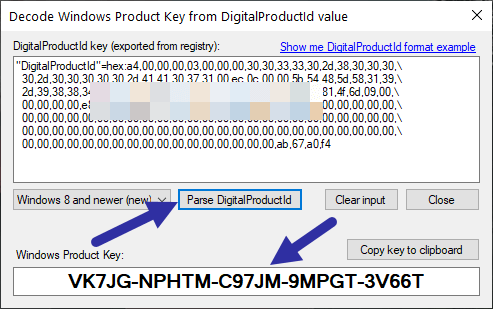
<p style="text-align: justify;">14. Nhấp vào nút&nbsp;<strong>Parse DigitalProductId</strong>.</p>

<p style="text-align: justify;">15. Ngay khi bạn nhấn nút, ứng dụng sẽ giải mã code HEX và hiển thị product key Windows 10.</p>

<figure>
<div style="text-align: justify;"><img alt="Ứng dụng sẽ giải mã code HEX và hiển thị product key" data-i="9" data-src="https://st.quantrimang.com/photos/image/2020/05/30/tim-windows-product-key-6.png" data-was-processed="true" height="309" src="https://st.quantrimang.com/photos/image/2020/05/30/tim-windows-product-key-6.png" width="493" /></div>

<figcaption>
<div style="text-align: justify;">Ứng dụng sẽ giải mã code HEX và hiển thị product key</div>
</figcaption>
</figure>

<p style="text-align: justify;">Để sao chép product key, nhấp vào nút&nbsp;<strong>Copy key to clipboard</strong>. Bạn có thể dán key đã sao chép vào file văn bản hoặc tài liệu khác để giữ an toàn.</p>

<p style="text-align: justify;">Chúc các bạn thành công!</p>
		</div>
				<div id="author">
						<p>
				<strong>Nguồn tin:</strong>
				Quantrimang.com
			</p>
		</div>
	</div>
	<div id="footer" class="clearfix">
		<div id="url">
			<strong>URL của bản tin này: </strong><a href="https://www.nguoicodonvn2008.info/vi/news/savefile/kien-thuc-may-tinh/khong-can-phai-cai-dat-bat-cu-phan-mem-nao-day-la-cach-tim-windows-product-key-2126.html" title="Không cần phải cài đặt bất cứ phần mềm nào, đây là cách tìm Windows Product Key">https://www.nguoicodonvn2008.info/vi/news/savefile/kien-thuc-may-tinh/khong-can-phai-cai-dat-bat-cu-phan-mem-nao-day-la-cach-tim-windows-product-key-2126.html</a>

		</div>
		<div class="clear"></div>
		<div class="copyright">
			&copy; .&#x3A; Nguoicodonvn2008.info - Cõi lòng người cô đơn &#x3A;.
		</div>
		<div id="contact">
			<a href="mailto:admin@nguoicodonvn2008.info">admin@nguoicodonvn2008.info</a>
		</div>
	</div>
</div>
        <div id="timeoutsess" class="chromeframe">
            Bạn đã không sử dụng Site, <a onclick="timeoutsesscancel();" href="https://nguoicodonvn2008.info/#">Bấm vào đây để duy trì trạng thái đăng nhập</a>. Thời gian chờ: <span id="secField"> 60 </span> giây
        </div>
        <div id="openidResult" class="nv-alert" style="display:none"></div>
        <div id="openidBt" data-result="" data-redirect=""></div>
		</script>
		<div class="car-top">
  <span><img src="https://nguoicodonvn2008.info/themes/default/images/car.png" alt=""></span>
</div>
<script src="https://nguoicodonvn2008.info/assets/js/jquery/jquery.min.js"></script>
<script>var nv_base_siteurl="/",nv_lang_data="vi",nv_lang_interface="vi",nv_name_variable="nv",nv_fc_variable="op",nv_lang_variable="language",nv_module_name="news",nv_func_name="savefile",nv_is_user=0, nv_my_ofs=-4,nv_my_abbr="EDT",nv_cookie_prefix="nv4c_e856T",nv_check_pass_mstime=1738000,nv_area_admin=0,nv_safemode=0,theme_responsive=0,nv_recaptcha_ver=2,nv_recaptcha_sitekey="",nv_recaptcha_type="image",XSSsanitize=1;</script>
<script src="https://nguoicodonvn2008.info/assets/js/language/vi.js"></script>
<script src="https://nguoicodonvn2008.info/assets/js/DOMPurify/purify3.js"></script>
<script src="https://nguoicodonvn2008.info/assets/js/global.js"></script>
<script src="https://nguoicodonvn2008.info/assets/js/site.js"></script>
<script src="https://nguoicodonvn2008.info/themes/default/js/news.js"></script>
<script src="https://nguoicodonvn2008.info/themes/default/js/main.js"></script>
<script src="https://nguoicodonvn2008.info/themes/default/js/custom.js"></script>
<script type="application/ld+json">
        {
            "@context": "https://schema.org",
            "@type": "Organization",
            "url": "https://nguoicodonvn2008.info",
            "logo": "https://nguoicodonvn2008.info/uploads/angel.gif"
        }
        </script>
<script src="https://nguoicodonvn2008.info/themes/default/js/bootstrap.min.js"></script>
<script type="text/javascript">
var $scrolltop = $('.car-top');
$scrolltop.on('click', function () {
    $('html,body').animate({
        scrollTop: 0
    }, 800);
    $(this).addClass("car-run");
    setTimeout(function(){ $scrolltop.removeClass('car-run');}, 1000);
    return false;
});
$(window).on('scroll', function ()
{ 
    if($(window).scrollTop() >= 200)
    {
        $scrolltop.addClass("show");
        $scrolltop.addClass("car-down");
    }
    else
    {
       $scrolltop.removeClass("show");
       setTimeout(function(){ $scrolltop.removeClass('car-down');}, 300);
    }
});
</script>
</body>
</html>