<!DOCTYPE html>
    <html lang="vi" xmlns="http://www.w3.org/1999/xhtml" prefix="og: http://ogp.me/ns#">
    <head>
<title>Khắc phục lỗi không thể xoá file hoặc thư mục OneDrive</title>
<meta name="description" content="Khắc phục lỗi không thể xoá file hoặc thư mục OneDrive - Savefile - Tin Tức -...">
<meta name="author" content=".: Nguoicodonvn2008.info - Cõi lòng người cô đơn :.">
<meta name="copyright" content=".: Nguoicodonvn2008.info - Cõi lòng người cô đơn :. [admin@nguoicodonvn2008.info]">
<meta name="robots" content="index, archive, follow, noodp">
<meta name="googlebot" content="index,archive,follow,noodp">
<meta name="msnbot" content="all,index,follow">
<meta name="generator" content="NukeViet v4.5">
<meta http-equiv="Content-Type" content="text/html; charset=utf-8">
<meta property="og:title" content="Khắc phục lỗi không thể xoá file hoặc thư mục OneDrive">
<meta property="og:type" content="website">
<meta property="og:description" content="Savefile - Tin Tức - https&#x3A;&#x002F;&#x002F;www.nguoicodonvn2008.info&#x002F;vi&#x002F;news&#x002F;savefile&#x002F;kien-thuc-may-tinh&#x002F;khac-phuc-loi-khong-the-xoa-file-hoac-thu-muc-onedrive-5706.html">
<meta property="og:site_name" content=".&#x3A; Nguoicodonvn2008.info - Cõi lòng người cô đơn &#x3A;.">
<meta property="og:url" content="https://www.nguoicodonvn2008.info/vi/news/savefile/kien-thuc-may-tinh/khac-phuc-loi-khong-the-xoa-file-hoac-thu-muc-onedrive-5706.html">
<link rel="shortcut icon" href="https://nguoicodonvn2008.info/favicon.ico">
<link rel="canonical" href="https://www.nguoicodonvn2008.info/vi/news/savefile/kien-thuc-may-tinh/khac-phuc-loi-khong-the-xoa-file-hoac-thu-muc-onedrive-5706.html">
<link rel="alternate" href="https://nguoicodonvn2008.info/vi/news/rss/" title="Tin Tức" type="application/rss+xml">
<link rel="alternate" href="https://nguoicodonvn2008.info/vi/news/rss/karaoke-dual/" title="Tin Tức - Karaoke Dual" type="application/rss+xml">
<link rel="alternate" href="https://nguoicodonvn2008.info/vi/news/rss/nhac-tre/" title="Tin Tức - Nhạc trẻ" type="application/rss+xml">
<link rel="alternate" href="https://nguoicodonvn2008.info/vi/news/rss/tru-tinh/" title="Tin Tức - Trữ tình" type="application/rss+xml">
<link rel="alternate" href="https://nguoicodonvn2008.info/vi/news/rss/nuoc-ngoai/" title="Tin Tức - Nước ngoài" type="application/rss+xml">
<link rel="alternate" href="https://nguoicodonvn2008.info/vi/news/rss/remix/" title="Tin Tức - Remix" type="application/rss+xml">
<link rel="alternate" href="https://nguoicodonvn2008.info/vi/news/rss/tam-su-tinh-yeu/" title="Tin Tức - Tâm sự tình yêu" type="application/rss+xml">
<link rel="alternate" href="https://nguoicodonvn2008.info/vi/news/rss/tho-suu-tam/" title="Tin Tức - Thơ sưu tầm" type="application/rss+xml">
<link rel="alternate" href="https://nguoicodonvn2008.info/vi/news/rss/cuoc-song/" title="Tin Tức - Cuộc sống" type="application/rss+xml">
<link rel="alternate" href="https://nguoicodonvn2008.info/vi/news/rss/phan-mem/" title="Tin Tức - Phần mềm" type="application/rss+xml">
<link rel="alternate" href="https://nguoicodonvn2008.info/vi/news/rss/kien-thuc-may-tinh/" title="Tin Tức - Kiến thức máy tính" type="application/rss+xml">
<link rel="alternate" href="https://nguoicodonvn2008.info/vi/news/rss/hoc-tap/" title="Tin Tức - Học tập" type="application/rss+xml">
<link rel="alternate" href="https://nguoicodonvn2008.info/vi/news/rss/tai-lieu/" title="Tin Tức - Tài liệu" type="application/rss+xml">
<link rel="alternate" href="https://nguoicodonvn2008.info/vi/news/rss/de-thi/" title="Tin Tức - Đề thi" type="application/rss+xml">
<link rel="preload" as="style" href="https://nguoicodonvn2008.info/assets/css/font-awesome.min.css" type="text/css">
<link rel="preload" as="style" href="https://nguoicodonvn2008.info/themes/default/css/bootstrap.non-responsive.css" type="text/css">
<link rel="preload" as="style" href="https://nguoicodonvn2008.info/themes/default/css/style.css" type="text/css">
<link rel="preload" as="style" href="https://nguoicodonvn2008.info/themes/default/css/style.non-responsive.css" type="text/css">
<link rel="preload" as="style" href="https://nguoicodonvn2008.info/themes/default/css/news.css" type="text/css">
<link rel="preload" as="style" href="https://nguoicodonvn2008.info/themes/default/css/custom.css" type="text/css">
<link rel="preload" as="script" href="https://nguoicodonvn2008.info/assets/js/jquery/jquery.min.js" type="text/javascript">
<link rel="preload" as="script" href="https://nguoicodonvn2008.info/assets/js/language/vi.js" type="text/javascript">
<link rel="preload" as="script" href="https://nguoicodonvn2008.info/assets/js/DOMPurify/purify3.js" type="text/javascript">
<link rel="preload" as="script" href="https://nguoicodonvn2008.info/assets/js/global.js" type="text/javascript">
<link rel="preload" as="script" href="https://nguoicodonvn2008.info/assets/js/site.js" type="text/javascript">
<link rel="preload" as="script" href="https://nguoicodonvn2008.info/themes/default/js/news.js" type="text/javascript">
<link rel="preload" as="script" href="https://nguoicodonvn2008.info/themes/default/js/main.js" type="text/javascript">
<link rel="preload" as="script" href="https://nguoicodonvn2008.info/themes/default/js/custom.js" type="text/javascript">
<link rel="preload" as="script" href="https://nguoicodonvn2008.info/themes/default/js/bootstrap.min.js" type="text/javascript">
<link rel="stylesheet" href="https://nguoicodonvn2008.info/assets/css/font-awesome.min.css">
<link rel="stylesheet" href="https://nguoicodonvn2008.info/themes/default/css/bootstrap.non-responsive.css">
<link rel="stylesheet" href="https://nguoicodonvn2008.info/themes/default/css/style.css">
<link rel="stylesheet" href="https://nguoicodonvn2008.info/themes/default/css/style.non-responsive.css">
<link rel="StyleSheet" href="https://nguoicodonvn2008.info/themes/default/css/news.css">
<link rel="stylesheet" href="https://nguoicodonvn2008.info/themes/default/css/custom.css">
<style type="text/css">
	body{background: #fff;}
</style>
    </head>
    <body>
<div id="print">
	<div id="hd_print">
		<h2 class="pull-left">.&#x3A; Nguoicodonvn2008.info - Cõi lòng người cô đơn &#x3A;.</h2>
		<p class="pull-right"><a title=".&#x3A; Nguoicodonvn2008.info - Cõi lòng người cô đơn &#x3A;." href="https://nguoicodonvn2008.info/">https://nguoicodonvn2008.info</a></p>
	</div>
	<div class="clear"></div>
	<hr />
	<div id="content">
		<h1>Khắc phục lỗi không thể xoá file hoặc thư mục OneDrive</h1>
		<ul class="list-inline">
			<li>Thứ sáu - 03/06/2022 00:54</li>
			<li class="hidden-print txtrequired"><em class="fa fa-print">&nbsp;</em><a title="In ra" href="javascript:;" onclick="window.print()">In ra</a></li>
			<li class="hidden-print txtrequired"><em class="fa fa-power-off">&nbsp;</em><a title="Đóng cửa sổ này" href="javascript:;" onclick="window.close()">Đóng cửa sổ này</a></li>
		</ul>
		<div class="clear"></div>
		<div id="hometext">
		</div>
				<div class="imghome">
			<img alt="Khắc phục lỗi không thể xoá file hoặc thư mục OneDrive" src="https://st.quantrimang.com/photos/image/2022/06/02/sua-loi-khong-the-xoa-file-thu-muc-onedrive-3.jpg" width="460" class="img-thumbnail" />
		</div>
		<div class="clear"></div>
		<div id="bodytext" class="clearfix">
			<p style="text-align: justify;">OneDrive&nbsp;khá phổ biến đối với người dùng Windows 10 do khả năng kết nối nhiều thiết bị và giữ các file đồng bộ giữa chúng. Tuy nhiên, đôi khi nó sẽ gặp sự cố và khiến bạn không thể xóa các file hoặc thư mục.</p>

<p style="text-align: justify;">Nếu điều này xảy ra với bạn, đừng lo lắng. Thay vào đó, hãy khám phá tất cả các giải pháp bạn có thể sử dụng để tránh lấp đầy bộ nhớ đám mây của mình bằng các file và thư mục lỗi thời hoặc không cần thiết.</p>

<h2 style="text-align: justify;">1. Trước tiên, đảm bảo rằng file đã được đóng</h2>

<p style="text-align: justify;">Có thể bạn không thể xóa file vì một chương trình hiện đang sử dụng nó. Đảm bảo rằng bạn đã đóng file trên thiết bị của mình và yêu cầu những người dùng khác trong mạng đóng file đó. Ngoài ra, hãy kiểm tra xem bạn đã chia sẻ file với người khác chưa và ngừng chia sẻ file nếu bạn cần.</p>

<h2 style="text-align: justify;">2. Kiểm tra quyền của file và thư mục</h2>

<p style="text-align: justify;">Nếu thư mục được chia sẻ với bạn bởi người khác, bạn có thể không có quyền cần thiết để xóa nó, nếu ai đó thay đổi quyền liên kết trong OneDrive. Bạn có thể yêu cầu admin cấp quyền hoặc yêu cầu xóa file cho bạn.</p>

<h2 style="text-align: justify;">3. Thử xóa file từ thiết bị khác</h2>

<p style="text-align: justify;">Nếu bạn là admin của file hoặc có quyền cần thiết nhưng vẫn không thể xóa file, bạn có thể thử xóa file đó trên một thiết bị khác. Vì tất cả các file và thư mục OneDrive đều được đồng bộ ở mọi nơi, bạn có thể xóa một file từ điện thoại của mình hoặc một laptop khác.</p>

<h2 style="text-align: justify;">4. Đổi tên hoặc di chuyển file hoặc thư mục</h2>

<p style="text-align: justify;">Đây là một thủ thuật kỳ quặc, nhưng việc thay đổi tên file đôi khi cho phép bạn xóa một file không thể xóa được. Chọn file và nhấn&nbsp;<strong>F2</strong>&nbsp;hoặc nhấp vào&nbsp;<strong>Rename</strong>&nbsp;trên thanh công cụ để thay đổi tên file. Sau đó, cố gắng xóa nó</p>

<p style="text-align: justify;">Nếu cách này không hiệu quả, bạn cũng có thể thử di chuyển file, cách này phù hợp với một số người. Cắt file mà bạn không thể xóa, dán vào bên ngoài thư mục OneDrive, sau đó thử xóa lại.</p>

<h2 style="text-align: justify;">5.&nbsp;Tạm dừng đồng bộ OneDrive</h2>

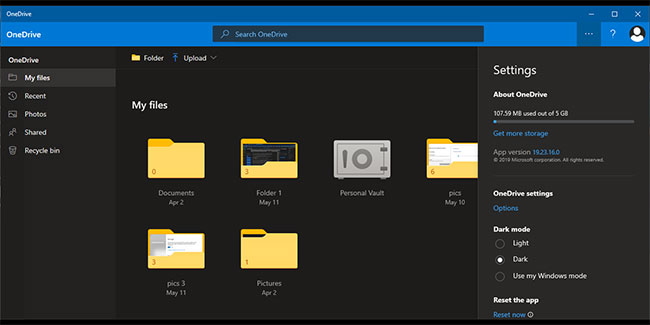
<p style="text-align: justify;">Nếu OneDrive hiện đang đồng bộ thư mục, ứng dụng sẽ ngăn bạn xóa file trong khi nó hoạt động. Tuy nhiên, bạn có thể tạm thời dừng đồng bộ và xóa file.</p>

<p style="text-align: justify;">Làm theo các bước sau để dừng đồng bộ OneDrive và xóa thư mục:</p>

<p style="text-align: justify;"><strong>B1:</strong>&nbsp;Mở OneDrive từ thanh tác vụ.</p>

<p style="text-align: justify;"><strong>B2:</strong>&nbsp;Nhấp vào biểu tượng&nbsp;<strong>Help &amp; Settings</strong>, từ góc trên cùng bên phải</p>

<p style="text-align: justify;"><strong>B3:</strong>&nbsp;Nhấp vào&nbsp;<strong>Pause syncing</strong>&nbsp;và chọn khoảng thời gian bạn muốn tạm dừng.</p>

<figure>
<div style="text-align: justify;"><img alt="Tạm dừng đồng bộ OneDrive " data-i="0" data-src="https://st.quantrimang.com/photos/image/2022/06/02/sua-loi-khong-the-xoa-file-thu-muc-onedrive-1.jpg" data-was-processed="true" height="325" src="https://st.quantrimang.com/photos/image/2022/06/02/sua-loi-khong-the-xoa-file-thu-muc-onedrive-1.jpg" width="650" /></div>

<figcaption>
<div style="text-align: justify;">Tạm dừng đồng bộ OneDrive</div>
</figcaption>
</figure>

<p style="text-align: justify;">Chờ một lát sau khi tạm dừng đồng bộ của OneDrive và cố gắng xóa file. Nếu bạn muốn tiếp tục đồng bộ sau khi xóa file, hãy mở OneDrive và nhấp vào nút&nbsp;<strong>Pause.</strong>&nbsp;Hoặc đi tới&nbsp;<strong>Help &amp; Settings &gt; Unpause sync</strong>.</p>

<h2 style="text-align: justify;">6. Tắt Files on Demand</h2>

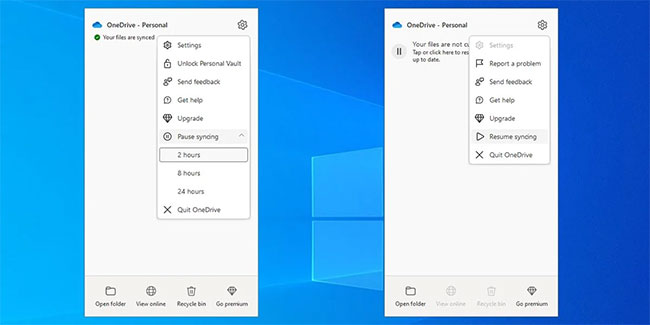
<p style="text-align: justify;">Tính năng Files on Demand của OneDrive cho phép bạn giữ các file hoặc thư mục của mình trên đám mây và truy cập chúng từ thiết bị của bạn mà không cần tải chúng xuống trước. Đây là một lựa chọn tuyệt vời nếu bạn muốn giải phóng dung lượng trên&nbsp;<a href="https://quantrimang.com/diem-khac-nhau-giua-o-cung-ssd-va-hdd-152904" title="Điểm khác nhau giữa ổ cứng SSD và HDD">ổ cứng HDD hoặc SSD</a>&nbsp;của mình: tuy nhiên, nó có thể ngăn bạn xóa file. Đây là cách tắt tính năng Files on Demand:</p>

<p style="text-align: justify;"><strong>B1:</strong>&nbsp;Bấm chuột phải vào biểu tượng&nbsp;<strong>OneDrive</strong>&nbsp;từ thanh tác vụ.</p>

<p style="text-align: justify;"><strong>B2:</strong>&nbsp;Nhấp vào&nbsp;<strong>Help &amp; Settings &gt; Settings</strong>.</p>

<p style="text-align: justify;"><strong>B3:</strong>&nbsp;Chọn tab&nbsp;<strong>Settings.</strong></p>

<p style="text-align: justify;"><strong>B4:</strong>&nbsp;Bỏ chọn&nbsp;<strong>Save space and download files as you use them</strong>. Nếu tùy chọn đã bị tắt, hãy bật và tắt nó một lần nữa.</p>

<p style="text-align: justify;"><strong>B5:</strong>&nbsp;Bấm&nbsp;<strong>OK</strong>&nbsp;để lưu các thay đổi.</p>

<figure>
<div style="text-align: justify;"><img alt="Cài đặt file OneDrive" data-i="1" data-src="https://st.quantrimang.com/photos/image/2022/06/02/sua-loi-khong-the-xoa-file-thu-muc-onedrive-2.jpg" data-was-processed="true" height="325" src="https://st.quantrimang.com/photos/image/2022/06/02/sua-loi-khong-the-xoa-file-thu-muc-onedrive-2.jpg" width="650" /></div>

<figcaption>
<div style="text-align: justify;">Cài đặt file OneDrive</div>
</figcaption>
</figure>

<p style="text-align: justify;">Khi bạn đã xóa file thành công, hãy thực hiện lại các bước và bật lại Files on Demand.</p>

<h2 style="text-align: justify;">7. Reset OneDrive</h2>

<p style="text-align: justify;">Nếu bạn vẫn không thể xóa file khỏi OneDrive của mình, bạn nên reset lại nó. May mắn thay, việc reset OneDrive sẽ không xóa bất kỳ thư mục hoặc file nào của bạn. Tuy nhiên, nó sẽ ngắt tất cả các kết nối đồng bộ hiện tại, vì vậy bạn sẽ phải thêm lại các thư mục mình muốn đồng bộ.</p>

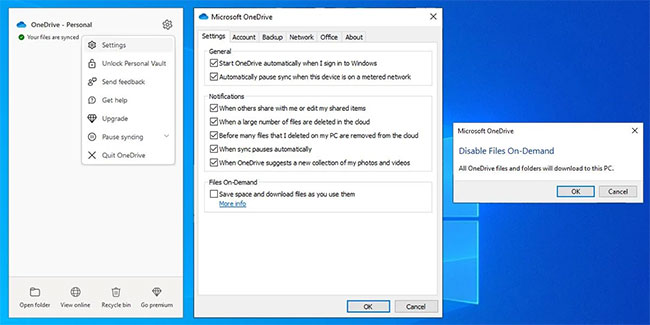
<p style="text-align: justify;">Đây là cách reset OneDrive:</p>

<p style="text-align: justify;"><strong>B1:</strong>&nbsp;Mở ứng dụng OneDrive.</p>

<p style="text-align: justify;"><strong>B2:</strong>&nbsp;Nhấp vào menu ba chấm từ góc trên bên phải.</p>

<p style="text-align: justify;"><strong>B3:</strong>&nbsp;Chọn&nbsp;<strong>Settings.</strong></p>

<p style="text-align: justify;"><strong>B4:</strong>&nbsp;Nhấp vào&nbsp;<strong>Reset now</strong>&nbsp;từ cuối menu.</p>

<figure>
<div style="text-align: justify;"><img alt="OneDrive trong Windows 10" data-i="2" data-src="https://st.quantrimang.com/photos/image/2022/06/02/sua-loi-khong-the-xoa-file-thu-muc-onedrive-3.jpg" data-was-processed="true" height="325" src="https://st.quantrimang.com/photos/image/2022/06/02/sua-loi-khong-the-xoa-file-thu-muc-onedrive-3.jpg" width="650" /></div>

<figcaption>
<div style="text-align: justify;">OneDrive trong Windows 10</div>
</figcaption>
</figure>

<p style="text-align: justify;">Nếu Windows hiển thị thông báo lỗi Windows cannot find, hãy&nbsp;khởi chạy Command Prompt với quyền admin&nbsp;và chạy dòng lệnh&nbsp;<strong>C:\Program Files\Microsoft OneDrive\onedrive.exe /reset.</strong></p>

<h2 style="text-align: justify;">Xóa file vĩnh viễn</h2>

<p style="text-align: justify;">Nếu gặp khó khăn khi xóa một file nhất định khỏi OneDrive, bạn muốn đảm bảo rằng file đó sẽ biến mất vĩnh viễn. Khi bạn đã xóa thành công các file hoặc thư mục OneDrive của mình, có một bước bổ sung cần thực hiện nếu bạn muốn xóa chúng vĩnh viễn. Khởi chạy ứng dụng OneDrive và từ menu bên trái, hãy mở&nbsp;<strong>Recycle Bin.</strong></p>

<p style="text-align: justify;">Ở đó, bạn sẽ thấy các file đã xóa của mình. Bạn có thể nhấp vào&nbsp;<strong>Empty recycle bin</strong>&nbsp;và xóa tất cả các file hoặc chọn chúng riêng lẻ trước khi xóa.</p>

<p style="text-align: justify;">Việc quản lý file OneDrive của bạn có thể khó khăn, đặc biệt nếu bạn có nhiều file và thư mục được chia sẻ với người khác.</p>

<p style="text-align: justify;">Nếu bạn có quyền thích hợp mà vẫn không thể xóa file, bạn có thể thử một trong các bản sửa lỗi bất thường và đổi tên file hoặc cắt và dán nó bên ngoài OneDrive. Trong trường hợp cách này không khắc phục được sự cố của bạn, bạn có thể reset ứng dụng hoặc cấu hình lại cài đặt của ứng dụng.</p>

<p style="text-align: justify;">Nếu sử dụng OneDrive thường xuyên, bạn nên dành chút thời gian và tìm hiểu thêm về các tính năng của nó, để bạn có thể tận dụng tối đa tài khoản của mình.</p>
		</div>
				<div id="author">
						<p>
				<strong>Nguồn tin:</strong>
				Quantrimang.com
			</p>
		</div>
	</div>
	<div id="footer" class="clearfix">
		<div id="url">
			<strong>URL của bản tin này: </strong><a href="https://www.nguoicodonvn2008.info/vi/news/savefile/kien-thuc-may-tinh/khac-phuc-loi-khong-the-xoa-file-hoac-thu-muc-onedrive-5706.html" title="Khắc phục lỗi không thể xoá file hoặc thư mục OneDrive">https://www.nguoicodonvn2008.info/vi/news/savefile/kien-thuc-may-tinh/khac-phuc-loi-khong-the-xoa-file-hoac-thu-muc-onedrive-5706.html</a>

		</div>
		<div class="clear"></div>
		<div class="copyright">
			&copy; .&#x3A; Nguoicodonvn2008.info - Cõi lòng người cô đơn &#x3A;.
		</div>
		<div id="contact">
			<a href="mailto:admin@nguoicodonvn2008.info">admin@nguoicodonvn2008.info</a>
		</div>
	</div>
</div>
        <div id="timeoutsess" class="chromeframe">
            Bạn đã không sử dụng Site, <a onclick="timeoutsesscancel();" href="https://nguoicodonvn2008.info/#">Bấm vào đây để duy trì trạng thái đăng nhập</a>. Thời gian chờ: <span id="secField"> 60 </span> giây
        </div>
        <div id="openidResult" class="nv-alert" style="display:none"></div>
        <div id="openidBt" data-result="" data-redirect=""></div>
		</script>
		<div class="car-top">
  <span><img src="https://nguoicodonvn2008.info/themes/default/images/car.png" alt=""></span>
</div>
<script src="https://nguoicodonvn2008.info/assets/js/jquery/jquery.min.js"></script>
<script>var nv_base_siteurl="/",nv_lang_data="vi",nv_lang_interface="vi",nv_name_variable="nv",nv_fc_variable="op",nv_lang_variable="language",nv_module_name="news",nv_func_name="savefile",nv_is_user=0, nv_my_ofs=-4,nv_my_abbr="EDT",nv_cookie_prefix="nv4c_e856T",nv_check_pass_mstime=1738000,nv_area_admin=0,nv_safemode=0,theme_responsive=0,nv_recaptcha_ver=2,nv_recaptcha_sitekey="",nv_recaptcha_type="image",XSSsanitize=1;</script>
<script src="https://nguoicodonvn2008.info/assets/js/language/vi.js"></script>
<script src="https://nguoicodonvn2008.info/assets/js/DOMPurify/purify3.js"></script>
<script src="https://nguoicodonvn2008.info/assets/js/global.js"></script>
<script src="https://nguoicodonvn2008.info/assets/js/site.js"></script>
<script src="https://nguoicodonvn2008.info/themes/default/js/news.js"></script>
<script src="https://nguoicodonvn2008.info/themes/default/js/main.js"></script>
<script src="https://nguoicodonvn2008.info/themes/default/js/custom.js"></script>
<script type="application/ld+json">
        {
            "@context": "https://schema.org",
            "@type": "Organization",
            "url": "https://nguoicodonvn2008.info",
            "logo": "https://nguoicodonvn2008.info/uploads/angel.gif"
        }
        </script>
<script src="https://nguoicodonvn2008.info/themes/default/js/bootstrap.min.js"></script>
<script type="text/javascript">
var $scrolltop = $('.car-top');
$scrolltop.on('click', function () {
    $('html,body').animate({
        scrollTop: 0
    }, 800);
    $(this).addClass("car-run");
    setTimeout(function(){ $scrolltop.removeClass('car-run');}, 1000);
    return false;
});
$(window).on('scroll', function ()
{ 
    if($(window).scrollTop() >= 200)
    {
        $scrolltop.addClass("show");
        $scrolltop.addClass("car-down");
    }
    else
    {
       $scrolltop.removeClass("show");
       setTimeout(function(){ $scrolltop.removeClass('car-down');}, 300);
    }
});
</script>
</body>
</html>