<!DOCTYPE html>
    <html lang="vi" xmlns="http://www.w3.org/1999/xhtml" prefix="og: http://ogp.me/ns#">
    <head>
<title>Hướng dẫn tùy chỉnh nút nguồn trong Windows 10</title>
<meta name="description" content="Hướng dẫn tùy chỉnh nút nguồn trong Windows 10 - Savefile - Tin Tức -...">
<meta name="author" content=".: Nguoicodonvn2008.info - Cõi lòng người cô đơn :.">
<meta name="copyright" content=".: Nguoicodonvn2008.info - Cõi lòng người cô đơn :. [admin@nguoicodonvn2008.info]">
<meta name="robots" content="index, archive, follow, noodp">
<meta name="googlebot" content="index,archive,follow,noodp">
<meta name="msnbot" content="all,index,follow">
<meta name="generator" content="NukeViet v4.5">
<meta http-equiv="Content-Type" content="text/html; charset=utf-8">
<meta property="og:title" content="Hướng dẫn tùy chỉnh nút nguồn trong Windows 10">
<meta property="og:type" content="website">
<meta property="og:description" content="Savefile - Tin Tức - https&#x3A;&#x002F;&#x002F;www.nguoicodonvn2008.info&#x002F;vi&#x002F;news&#x002F;savefile&#x002F;kien-thuc-may-tinh&#x002F;huong-dan-tuy-chinh-nut-nguon-trong-windows-10-3165.html">
<meta property="og:site_name" content=".&#x3A; Nguoicodonvn2008.info - Cõi lòng người cô đơn &#x3A;.">
<meta property="og:url" content="https://www.nguoicodonvn2008.info/vi/news/savefile/kien-thuc-may-tinh/huong-dan-tuy-chinh-nut-nguon-trong-windows-10-3165.html">
<link rel="shortcut icon" href="https://nguoicodonvn2008.info/favicon.ico">
<link rel="canonical" href="https://www.nguoicodonvn2008.info/vi/news/savefile/kien-thuc-may-tinh/huong-dan-tuy-chinh-nut-nguon-trong-windows-10-3165.html">
<link rel="alternate" href="https://nguoicodonvn2008.info/vi/news/rss/" title="Tin Tức" type="application/rss+xml">
<link rel="alternate" href="https://nguoicodonvn2008.info/vi/news/rss/karaoke-dual/" title="Tin Tức - Karaoke Dual" type="application/rss+xml">
<link rel="alternate" href="https://nguoicodonvn2008.info/vi/news/rss/nhac-tre/" title="Tin Tức - Nhạc trẻ" type="application/rss+xml">
<link rel="alternate" href="https://nguoicodonvn2008.info/vi/news/rss/tru-tinh/" title="Tin Tức - Trữ tình" type="application/rss+xml">
<link rel="alternate" href="https://nguoicodonvn2008.info/vi/news/rss/nuoc-ngoai/" title="Tin Tức - Nước ngoài" type="application/rss+xml">
<link rel="alternate" href="https://nguoicodonvn2008.info/vi/news/rss/remix/" title="Tin Tức - Remix" type="application/rss+xml">
<link rel="alternate" href="https://nguoicodonvn2008.info/vi/news/rss/tam-su-tinh-yeu/" title="Tin Tức - Tâm sự tình yêu" type="application/rss+xml">
<link rel="alternate" href="https://nguoicodonvn2008.info/vi/news/rss/tho-suu-tam/" title="Tin Tức - Thơ sưu tầm" type="application/rss+xml">
<link rel="alternate" href="https://nguoicodonvn2008.info/vi/news/rss/cuoc-song/" title="Tin Tức - Cuộc sống" type="application/rss+xml">
<link rel="alternate" href="https://nguoicodonvn2008.info/vi/news/rss/phan-mem/" title="Tin Tức - Phần mềm" type="application/rss+xml">
<link rel="alternate" href="https://nguoicodonvn2008.info/vi/news/rss/kien-thuc-may-tinh/" title="Tin Tức - Kiến thức máy tính" type="application/rss+xml">
<link rel="alternate" href="https://nguoicodonvn2008.info/vi/news/rss/hoc-tap/" title="Tin Tức - Học tập" type="application/rss+xml">
<link rel="alternate" href="https://nguoicodonvn2008.info/vi/news/rss/tai-lieu/" title="Tin Tức - Tài liệu" type="application/rss+xml">
<link rel="alternate" href="https://nguoicodonvn2008.info/vi/news/rss/de-thi/" title="Tin Tức - Đề thi" type="application/rss+xml">
<link rel="preload" as="style" href="https://nguoicodonvn2008.info/assets/css/font-awesome.min.css" type="text/css">
<link rel="preload" as="style" href="https://nguoicodonvn2008.info/themes/default/css/bootstrap.non-responsive.css" type="text/css">
<link rel="preload" as="style" href="https://nguoicodonvn2008.info/themes/default/css/style.css" type="text/css">
<link rel="preload" as="style" href="https://nguoicodonvn2008.info/themes/default/css/style.non-responsive.css" type="text/css">
<link rel="preload" as="style" href="https://nguoicodonvn2008.info/themes/default/css/news.css" type="text/css">
<link rel="preload" as="style" href="https://nguoicodonvn2008.info/themes/default/css/custom.css" type="text/css">
<link rel="preload" as="script" href="https://nguoicodonvn2008.info/assets/js/jquery/jquery.min.js" type="text/javascript">
<link rel="preload" as="script" href="https://nguoicodonvn2008.info/assets/js/language/vi.js" type="text/javascript">
<link rel="preload" as="script" href="https://nguoicodonvn2008.info/assets/js/DOMPurify/purify3.js" type="text/javascript">
<link rel="preload" as="script" href="https://nguoicodonvn2008.info/assets/js/global.js" type="text/javascript">
<link rel="preload" as="script" href="https://nguoicodonvn2008.info/assets/js/site.js" type="text/javascript">
<link rel="preload" as="script" href="https://nguoicodonvn2008.info/themes/default/js/news.js" type="text/javascript">
<link rel="preload" as="script" href="https://nguoicodonvn2008.info/themes/default/js/main.js" type="text/javascript">
<link rel="preload" as="script" href="https://nguoicodonvn2008.info/themes/default/js/custom.js" type="text/javascript">
<link rel="preload" as="script" href="https://nguoicodonvn2008.info/themes/default/js/bootstrap.min.js" type="text/javascript">
<link rel="stylesheet" href="https://nguoicodonvn2008.info/assets/css/font-awesome.min.css">
<link rel="stylesheet" href="https://nguoicodonvn2008.info/themes/default/css/bootstrap.non-responsive.css">
<link rel="stylesheet" href="https://nguoicodonvn2008.info/themes/default/css/style.css">
<link rel="stylesheet" href="https://nguoicodonvn2008.info/themes/default/css/style.non-responsive.css">
<link rel="StyleSheet" href="https://nguoicodonvn2008.info/themes/default/css/news.css">
<link rel="stylesheet" href="https://nguoicodonvn2008.info/themes/default/css/custom.css">
<style type="text/css">
	body{background: #fff;}
</style>
    </head>
    <body>
<div id="print">
	<div id="hd_print">
		<h2 class="pull-left">.&#x3A; Nguoicodonvn2008.info - Cõi lòng người cô đơn &#x3A;.</h2>
		<p class="pull-right"><a title=".&#x3A; Nguoicodonvn2008.info - Cõi lòng người cô đơn &#x3A;." href="https://nguoicodonvn2008.info/">https://nguoicodonvn2008.info</a></p>
	</div>
	<div class="clear"></div>
	<hr />
	<div id="content">
		<h1>Hướng dẫn tùy chỉnh nút nguồn trong Windows 10</h1>
		<ul class="list-inline">
			<li>Thứ hai - 30/11/2020 23:55</li>
			<li class="hidden-print txtrequired"><em class="fa fa-print">&nbsp;</em><a title="In ra" href="javascript:;" onclick="window.print()">In ra</a></li>
			<li class="hidden-print txtrequired"><em class="fa fa-power-off">&nbsp;</em><a title="Đóng cửa sổ này" href="javascript:;" onclick="window.close()">Đóng cửa sổ này</a></li>
		</ul>
		<div class="clear"></div>
		<div id="hometext">
		</div>
				<div class="imghome">
			<img alt="Hướng dẫn tùy chỉnh nút nguồn trong Windows 10" src="https://st.quantrimang.com/photos/image/2019/08/31/thay-doi-nut-nguon-win10-1.png" width="460" class="img-thumbnail" />
		</div>
		<div class="clear"></div>
		<div id="bodytext" class="clearfix">
			<p style="text-align: justify;">Khi tắt máy tính Windows 10, một số người dùng thích sử dụng nút nguồn vật lý thay vì nhấp chuột phải vào nút Start. Vậy phải làm sao để tùy chỉnh nút nguồn trên phần cứng máy tính của bạn? Trong bài viết này, Quantrimang.com sẽ hướng dẫn bạn cách thiết lập nút nguồn để Shutdown, Sleep, Hibernate hoặc tắt màn hình hiển thị mỗi khi nhấn bằng Control Panel, Command Prompt, Power Options và Advanced Power Options.</p>

<div style="text-align: justify;">&nbsp;</div>

<h2 style="text-align: justify;">Thay đổi chức năng của nút nguồn trong Windows 10 bằng Control Panel</h2>

<p style="text-align: justify;"><strong>Bước 1:</strong>&nbsp;Mở Control Panel.</p>

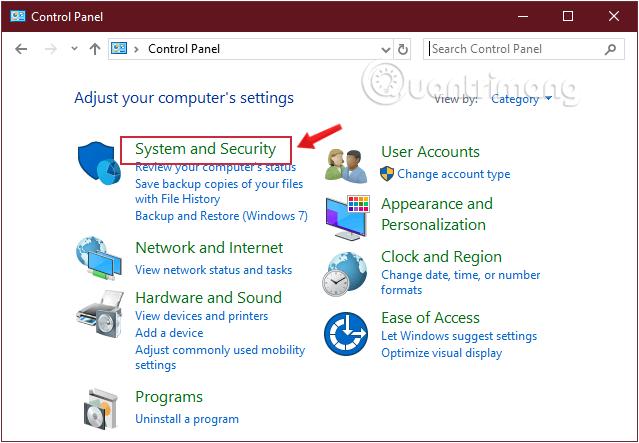
<p style="text-align: justify;"><strong>Bước 2:</strong>&nbsp;Tìm và nhấp chọn&nbsp;<strong>System and Security.</strong></p>

<figure>
<div style="text-align: justify;"><img alt="Tìm System and Security trong Control Panel" data-i="0" data-src="https://st.quantrimang.com/photos/image/2019/08/31/thay-doi-nut-nguon-win10-1.png" data-was-processed="true" height="443" src="https://st.quantrimang.com/photos/image/2019/08/31/thay-doi-nut-nguon-win10-1.png" width="639" /></div>

<figcaption>
<div style="text-align: justify;">Tìm System and Security trong Control Panel</div>
</figcaption>
</figure>

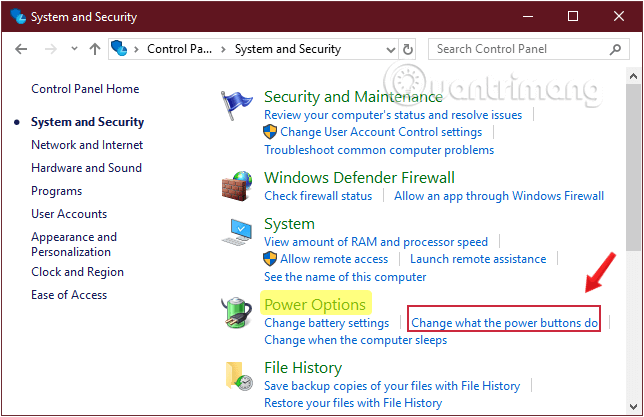
<p style="text-align: justify;"><strong>Bước 3:</strong>&nbsp;Tìm tới&nbsp;<strong>Power Options</strong>&nbsp;và click luôn vào liên kết&nbsp;<strong>Change what the power buttons do.</strong></p>

<figure>
<div style="text-align: justify;"><img alt="Click vào Change what the power buttons do trong Power Options" data-i="1" data-src="https://st.quantrimang.com/photos/image/2019/08/31/thay-doi-nut-nguon-win10-2.png" data-was-processed="true" height="417" src="https://st.quantrimang.com/photos/image/2019/08/31/thay-doi-nut-nguon-win10-2.png" width="644" /></div>

<figcaption>
<div style="text-align: justify;">Click vào Change what the power buttons do trong Power Options</div>
</figcaption>
</figure>

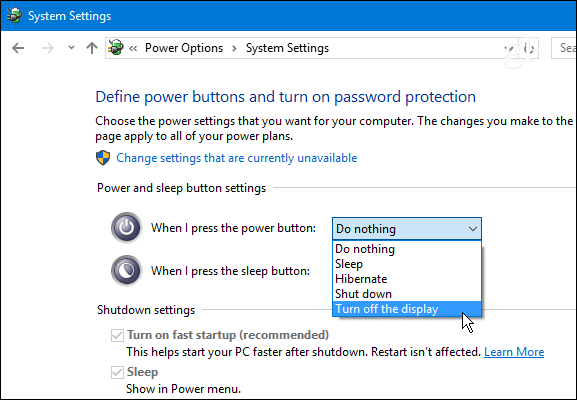
<p style="text-align: justify;"><strong>Bước 4:</strong>&nbsp;Sử dụng menu thả xuống&nbsp;<strong>When I press the power button</strong>, chọn thao tác bạn muốn nút nguồn thực hiện khi được nhấn.</p>

<figure>
<div style="text-align: justify;"><img alt="Các tùy chọn cho nút nguồn vật lý" data-i="2" data-src="https://st.quantrimang.com/photos/image/2017/08/08/tuy-chinh-nut-nguon-win10-3.png" data-was-processed="true" height="400" src="https://st.quantrimang.com/photos/image/2017/08/08/tuy-chinh-nut-nguon-win10-3.png" width="577" /></div>

<figcaption>
<div style="text-align: justify;">Các tùy chọn cho nút nguồn vật lý</div>
</figcaption>
</figure>

<ul>
	<li style="text-align: justify;"><strong>Do nothing:</strong>&nbsp;Không thực hiện gì</li>
	<li style="text-align: justify;"><strong>Sleep</strong>: chế độ ngủ</li>
	<li style="text-align: justify;"><strong>Hibernate:</strong>&nbsp;chế độ&nbsp;ngủ đông máy tính</li>
	<li style="text-align: justify;"><strong>Shut down:</strong>&nbsp;tắt máy tính hoàn toàn</li>
	<li style="text-align: justify;"><strong>Turn off the display:</strong>&nbsp;tắt màn hình</li>
</ul>

<p style="text-align: justify;"><strong>Bước 5:</strong>&nbsp;Nhấp vào nút&nbsp;<strong>Save changes</strong>&nbsp;ở dưới cùng của cửa sổ.</p>

<p style="text-align: justify;">Sau khi hoàn thành các bước trên, bây giờ bạn đã có thể sử dụng ngay nút nguồn với hành động vừa thay đổi.</p>

<p style="text-align: justify;">Lưu ý rằng các loại hệ thống khác nhau sẽ có các tùy chọn khác nhau. Ví dụ, một chiếc laptop hoặc Surface Pro sẽ có các tùy chọn bổ sung cho thiết bị khi được cắm điện hoặc chạy pin. Ngoài ra, không phải mọi hệ thống đều hỗ trợ Windows 10 Hibernation, vì vậy, nếu bạn không thấy tùy chọn này nghĩa là hệ thống không hỗ trợ.</p>

<div style="text-align: justify;">&nbsp;</div>

<h2 style="text-align: justify;">Tùy chỉnh nút nguồn trong Windows 10 bằng Command Prompt</h2>

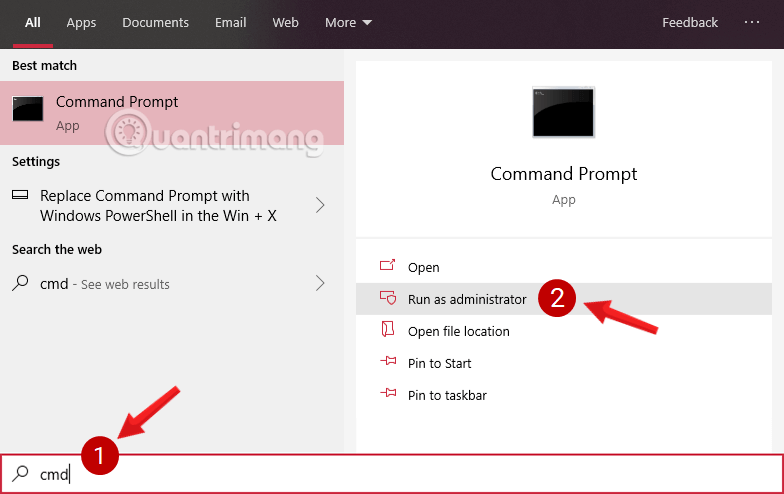
<p style="text-align: justify;"><strong>Bước 1:</strong>&nbsp;Mở<strong>&nbsp;Command Prompt,&nbsp;</strong>chạy dưới quyền admin với&nbsp;<strong>Run as administrator.</strong></p>

<p style="text-align: justify;">Nếu bạn dùng Windows 10 với các phiên bản mới nhất thì nút&nbsp;<strong>Run as administrator</strong>&nbsp;sẽ hiện ngay khi bạn search ra&nbsp;<strong>Command Prompt.</strong></p>

<figure>
<div style="text-align: justify;"><img alt="Mở Command Prompt trong Windows 10 phiên bản mới" data-i="3" data-src="https://st.quantrimang.com/photos/image/2019/08/31/thay-doi-nut-nguon-win10-3.png" data-was-processed="true" height="494" src="https://st.quantrimang.com/photos/image/2019/08/31/thay-doi-nut-nguon-win10-3.png" width="784" /></div>

<figcaption>
<div style="text-align: justify;">Mở Command Prompt trong Windows 10 phiên bản mới</div>
</figcaption>
</figure>

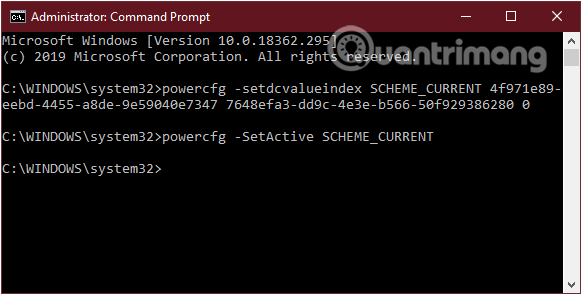
<p style="text-align: justify;"><strong>Bước 2:</strong>&nbsp;Để thay đổi tác vụ mà bạn muốn nút nguồn thực hiện khi được nhấn, nhập các lệnh dưới đây và ấn Enter.</p>

<p style="text-align: justify;"><strong>1. Với máy tính đang sử dụng nguồn điện:</strong></p>

<pre id="pre0">
<code>powercfg -setacvalueindex SCHEME_CURRENT 4f971e89-eebd-4455-a8de-9e59040e7347 7648efa3-dd9c-4e3e-b566-50f929386280 0</code></pre>

<p style="text-align: justify;"><strong>2. Với máy tính đang sử dụng pin:</strong></p>

<pre id="pre1">
<code>powercfg -setdcvalueindex SCHEME_CURRENT 4f971e89-eebd-4455-a8de-9e59040e7347 7648efa3-dd9c-4e3e-b566-50f929386280 0</code></pre>

<p style="text-align: justify;">Bạn sẽ nhận thấy trong các ví dụ, cả hai lệnh đều có giá trị nằm cuối cùng là &quot;0&quot;, đây là giá trị chỉ mục xác định thao tác nút nguồn thực hiện khi được nhấn, bạn hãy thay đổi theo mong muốn của mình. Các giá trị cụ thể như sau:</p>

<ul>
	<li style="text-align: justify;"><strong>0 -- Do nothing:</strong>&nbsp;Không thực hiện gì</li>
	<li style="text-align: justify;"><strong>1 -- Sleep:</strong>&nbsp;chế độ ngủ</li>
	<li style="text-align: justify;"><strong>2 -- Hibernate:</strong>&nbsp;chế độ ngủ đông</li>
	<li style="text-align: justify;"><strong>3 -- Shut down:</strong>&nbsp;tắt máy tính hoàn toàn</li>
	<li style="text-align: justify;"><strong>4 -- Turn off the display:</strong>&nbsp;tắt màn hình</li>
</ul>

<p style="text-align: justify;">Nếu máy tính của bạn không hỗ trợ chế độ ngủ đông, hãy nhớ không sử dụng giá trị 2.</p>

<p style="text-align: justify;"><strong>Bước 3:</strong>&nbsp;Nhập lệnh sau để áp dụng các thay đổi và nhấn Enter:</p>

<pre id="pre2">
<code>powercfg -SetActive SCHEME_CURRENT</code></pre>

<figure>
<div style="text-align: justify;"><img alt="Tùy chỉnh nút nguồn trong Windows 10 bằng Command Prompt" data-i="4" data-src="https://st.quantrimang.com/photos/image/2019/08/31/thay-doi-nut-nguon-win10-4.png" data-was-processed="true" height="295" src="https://st.quantrimang.com/photos/image/2019/08/31/thay-doi-nut-nguon-win10-4.png" width="582" /></div>

<figcaption>
<div style="text-align: justify;">Tùy chỉnh nút nguồn trong Windows 10 bằng Command Prompt</div>
</figcaption>
</figure>

<p style="text-align: justify;">Sau khi hoàn thành các bước trên, bây giờ bạn đã có thể sử dụng ngay nút nguồn với hành động mới vừa thay đổi.</p>

<h2 style="text-align: justify;">Thay đổi chức năng của nút nguồn mặc định trong Power Options</h2>

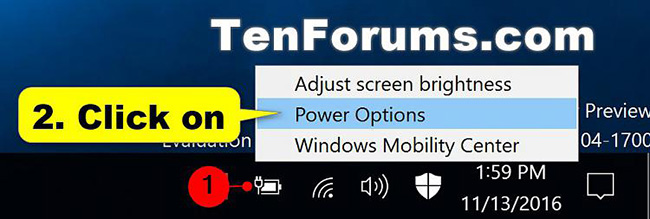
<p style="text-align: justify;"><strong>Bước 1</strong>: Mở&nbsp;<strong>Power Options.</strong></p>

<figure>
<div style="text-align: justify;"><img alt="Mở Power Options" data-i="5" data-src="https://st.quantrimang.com/photos/image/2020/08/25/tuy-chinh-nut-nguon-1.jpg" data-was-processed="true" height="219" src="https://st.quantrimang.com/photos/image/2020/08/25/tuy-chinh-nut-nguon-1.jpg" width="650" /></div>

<figcaption>
<div style="text-align: justify;">Mở Power Options</div>
</figcaption>
</figure>

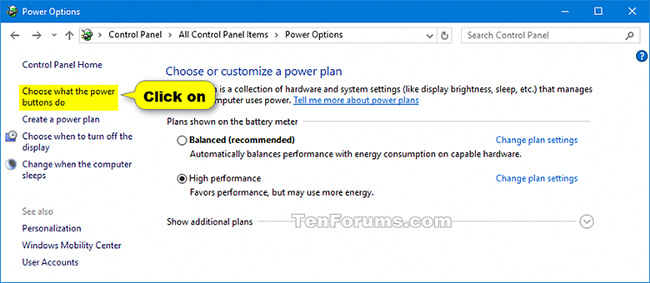
<p style="text-align: justify;"><strong>Bước 2</strong>: Nhấp vào liên kết&nbsp;<strong>Choose what the power buttons do</strong>&nbsp;hoặc&nbsp;<strong>Choose what the power button does</strong>&nbsp;ở phía bên trái.</p>

<figure>
<div style="text-align: justify;"><img alt="Nhấp vào liên kết Choose what the power buttons do ở phía bên trái" data-i="6" data-src="https://st.quantrimang.com/photos/image/2020/08/25/tuy-chinh-nut-nguon-2.jpg" data-was-processed="true" height="283" src="https://st.quantrimang.com/photos/image/2020/08/25/tuy-chinh-nut-nguon-2.jpg" width="650" /></div>

<figcaption>
<div style="text-align: justify;">Nhấp vào liên kết Choose what the power buttons do ở phía bên trái</div>
</figcaption>
</figure>

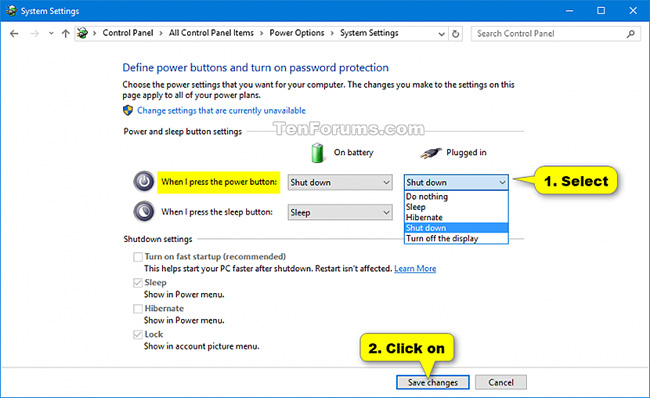
<p style="text-align: justify;"><strong>Bước 3</strong>: Trong phần&nbsp;<strong>Power and sleep buttons settings</strong>, hãy chọn tác vụ mong muốn cho nút nguồn của mình. Trong menu drop-down&nbsp;<strong>When I press the power button</strong>, hãy chọn hành động bạn muốn và nhấp vào&nbsp;<strong>Save changes</strong>&nbsp;để lưu thay đổi.</p>

<figure>
<div style="text-align: justify;"><img alt="Chọn hành động bạn muốn trong menu drop-down When I press the power button" data-i="7" data-src="https://st.quantrimang.com/photos/image/2020/08/25/tuy-chinh-nut-nguon-3.jpg" data-was-processed="true" height="398" src="https://st.quantrimang.com/photos/image/2020/08/25/tuy-chinh-nut-nguon-3.jpg" width="650" /></div>

<figcaption>
<div style="text-align: justify;">Chọn hành động bạn muốn trong menu drop-down When I press the power button</div>
</figcaption>
</figure>

<p style="text-align: justify;"><strong>When I press the power button</strong>&nbsp;cho phép bạn thay đổi chức năng của nút vật lý trên máy tính. Theo mặc định, nó được đặt thành&nbsp;<strong>Shut down</strong>&nbsp;- vì vậy nếu bạn nhấn nút, việc đó cũng giống như việc ra lệnh&nbsp;<strong>Shut down</strong>&nbsp;qua menu&nbsp;<strong>Start.</strong>&nbsp;Bạn có thể thay đổi tùy chọn này thành&nbsp;<strong>Sleep, Hibernate, Turn off the display</strong>&nbsp;hoặc<strong>&nbsp;Do nothing</strong>&nbsp;ở đây.</p>

<p style="text-align: justify;">Lưu ý rằng bất kể bạn chọn gì ở đây, việc nhấn và giữ nút nguồn trong vài giây vẫn sẽ gây ra quá trình buộc tắt máy, giống như rùt phích cắm.</p>

<p style="text-align: justify;"><strong>Bước 4</strong>:&nbsp;Khởi động lại máy tính&nbsp;để áp dụng thay đổi.</p>

<div style="text-align: justify;">&nbsp;</div>

<h2 style="text-align: justify;">Thay đổi chức năng của nút nguồn mặc định trong Advanced Power Options</h2>

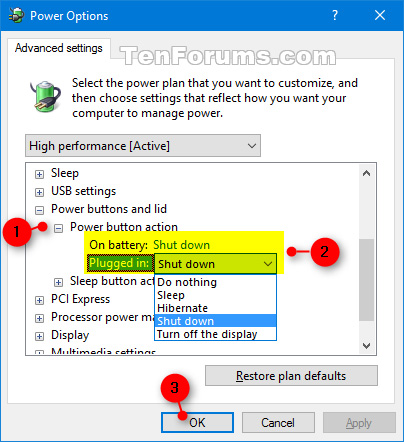
<p style="text-align: justify;"><strong>Bước 1</strong>:&nbsp;Mở Advanced Power Options.</p>

<p style="text-align: justify;"><strong>Bước 2</strong>: Mở rộng phần&nbsp;<strong>Power buttons and lid</strong>&nbsp;và<strong>&nbsp;Power button action</strong>.</p>

<p style="text-align: justify;"><strong>Bước 3</strong>: Chọn hành động bạn muốn và nhấp vào&nbsp;<strong>OK.</strong></p>

<p style="text-align: justify;"><strong>Bước 4</strong>: Khởi động lại máy tính để áp dụng thay đổi.</p>

<figure>
<div style="text-align: justify;"><img alt="Thay đổi chức năng của nút nguồn mặc định trong Advanced Power Options" data-i="8" data-src="https://st.quantrimang.com/photos/image/2020/08/25/tuy-chinh-nut-nguon-4.jpg" data-was-processed="true" height="442" src="https://st.quantrimang.com/photos/image/2020/08/25/tuy-chinh-nut-nguon-4.jpg" width="404" /></div>

<figcaption>
<div style="text-align: justify;">Thay đổi chức năng của nút nguồn mặc định trong Advanced Power Options</div>
</figcaption>
</figure>

<h2 style="text-align: justify;">Chỉ định hành động nút nguồn mặc định trong Local Group Policy Editor</h2>

<p style="text-align: justify;"><strong>Lưu ý:</strong></p>

<ul>
	<li style="text-align: justify;">Bạn phải đăng nhập với tư cách admin để thực hiện tùy chọn này.</li>
	<li style="text-align: justify;">Local Group Policy Editor chỉ khả dụng trong các phiên bản Windows 10 Pro, Enterprise và Education.</li>
</ul>

<p style="text-align: justify;">1.&nbsp;Mở Local Group Policy Editor.</p>

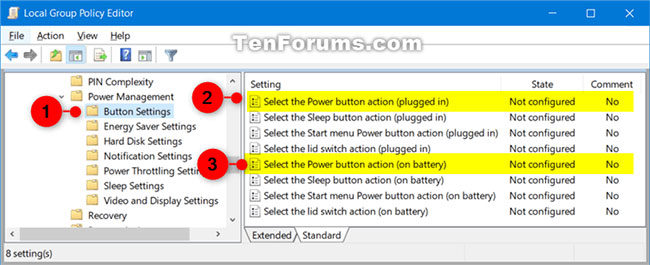
<p style="text-align: justify;">2. Ở bên trái của<strong>&nbsp;Local Group Policy Editor</strong>, hãy nhấp vào để mở rộng&nbsp;<strong>Computer Configuration, Administrative Templates, System, Power Management</strong>&nbsp;và<strong>&nbsp;Button Settings</strong>.</p>

<figure>
<div style="text-align: justify;"><img alt="Mở rộng Computer Configuration, Administrative Templates, System, Power Management và Button Settings" data-i="9" data-src="https://st.quantrimang.com/photos/image/2020/11/30/thay-doi-nut-nguon-1.jpg" data-was-processed="true" height="265" src="https://st.quantrimang.com/photos/image/2020/11/30/thay-doi-nut-nguon-1.jpg" width="650" /></div>

<figcaption>
<div style="text-align: justify;">Mở rộng Computer Configuration, Administrative Templates, System, Power Management và Button Settings</div>
</figcaption>
</figure>

<p style="text-align: justify;">3. Ở bên phải của&nbsp;<strong>Button Settings</strong>, nhấp đúp vào policy&nbsp;<strong>Select the Power button action (plugged in)</strong>&nbsp;và/hoặc<strong>&nbsp;Select the Power button action (on battery)</strong>&nbsp;mà bạn muốn chỉnh sửa.</p>

<p style="text-align: justify;">4. Thực hiện bước 5 (mặc định), bước 6 (ngủ đông), bước 7 (tắt), bước 8 (ngủ) hoặc bước 9 (Không thực hiện hành động) bên dưới cho hành động mặc định bạn muốn chỉ định.</p>

<p style="text-align: justify;">5. Lựa chọn mặc định của người dùng cho hành động nút nguồn: Chọn&nbsp;<strong>Not Configured</strong>, nhấp&nbsp;<strong>OK</strong>&nbsp;và chuyển sang bước 10 bên dưới.</p>

<p style="text-align: justify;">6. Để chỉ định chức năng&nbsp;<strong>&quot;Hibernate&quot;</strong>&nbsp;(ngủ đông) làm hành động của nút nguồn, chọn&nbsp;<strong>Enabled</strong>, kích vào&nbsp;<strong>Hibernate</strong>&nbsp;trong menu drop-down&nbsp;<strong>Power Button Action</strong>&nbsp;bên dưới&nbsp;<strong>Options</strong>, nhấn&nbsp;<strong>OK</strong>&nbsp;và chuyển đến bước 10 bên dưới.</p>

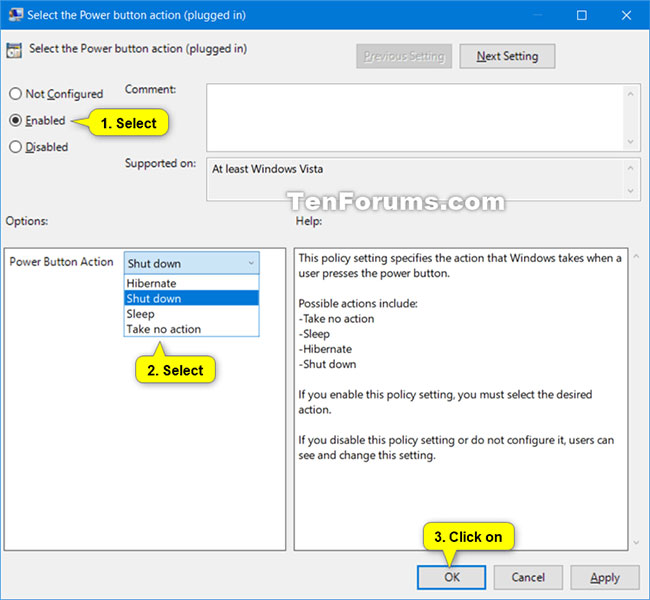
<p style="text-align: justify;">7. Để chỉ định chức năng&nbsp;<strong>&quot;Shut</strong>&nbsp;<strong>down&quot;</strong>&nbsp;(tắt nguồn) làm hành động của nút nguồn, chọn&nbsp;<strong>Enabled</strong>, kích vào&nbsp;<strong>Shut down</strong>&nbsp;trong menu drop-down&nbsp;<strong>Power Button Action</strong>&nbsp;bên dưới&nbsp;<strong>Options</strong>, nhấn&nbsp;<strong>OK</strong>&nbsp;và chuyển đến bước 10 bên dưới.</p>

<figure>
<div style="text-align: justify;"><img alt="Chỉ định chức năng &#039;Shut down&#039; (tắt nguồn) làm hành động của nút nguồn" data-i="10" data-src="https://st.quantrimang.com/photos/image/2020/11/30/thay-doi-nut-nguon-2.jpg" data-was-processed="true" height="600" src="https://st.quantrimang.com/photos/image/2020/11/30/thay-doi-nut-nguon-2.jpg" width="650" /></div>

<figcaption>
<div style="text-align: justify;">Chỉ định chức năng &quot;Shut&nbsp;down&quot; (tắt nguồn) làm hành động của nút nguồn</div>
</figcaption>
</figure>

<p style="text-align: justify;">8. Để chỉ định chức năng&nbsp;<strong>&quot;Sleep&quot;</strong>&nbsp;(ngủ) làm hành động của nút nguồn, chọn&nbsp;<strong>Enabled</strong>, kích vào&nbsp;<strong>Sleep</strong>&nbsp;trong menu drop-down&nbsp;<strong>Power Button Action</strong>&nbsp;bên dưới&nbsp;<strong>Options</strong>, nhấn&nbsp;<strong>OK</strong>&nbsp;và chuyển đến bước 10 bên dưới.</p>

<p style="text-align: justify;">9. Để chỉ định&nbsp;<strong>&quot;Take no action&quot;</strong>&nbsp;(Không thực hiện hành động) làm hành động cho nút nguồn, chọn&nbsp;<strong>Enabled</strong>, kích vào&nbsp;<strong>Take no action</strong>&nbsp;trong menu drop-down&nbsp;<strong>Power Button Action</strong>&nbsp;bên dưới&nbsp;<strong>Options</strong>, nhấn&nbsp;<strong>OK</strong>&nbsp;và chuyển đến bước 10 bên dưới.</p>

<p style="text-align: justify;">10. Khi hoàn tất, bạn có thể đóng&nbsp;<strong>Local Group Policy Editor</strong>&nbsp;nếu muốn.</p>

<p style="text-align: justify;">Một trong những sai lầm lớn nhất của Microsoft khi phát hành Windows 8 là gỡ bỏ nút&nbsp;<strong>Start.</strong>&nbsp;Điều này gây khó khăn cho người dùng khi muốn tắt PC. Tuy nhiên, may mắn là hãng đã mang nút Start trở lại Windows 10 và cung cấp nhiều cách tắt máy tính đơn giản từ bên trong hệ điều hành hoặc sử dụng nút nguồn trên thiết bị.</p>
		</div>
				<div id="author">
						<p>
				<strong>Nguồn tin:</strong>
				Quantrimang.com
			</p>
		</div>
	</div>
	<div id="footer" class="clearfix">
		<div id="url">
			<strong>URL của bản tin này: </strong><a href="https://www.nguoicodonvn2008.info/vi/news/savefile/kien-thuc-may-tinh/huong-dan-tuy-chinh-nut-nguon-trong-windows-10-3165.html" title="Hướng dẫn tùy chỉnh nút nguồn trong Windows 10">https://www.nguoicodonvn2008.info/vi/news/savefile/kien-thuc-may-tinh/huong-dan-tuy-chinh-nut-nguon-trong-windows-10-3165.html</a>

		</div>
		<div class="clear"></div>
		<div class="copyright">
			&copy; .&#x3A; Nguoicodonvn2008.info - Cõi lòng người cô đơn &#x3A;.
		</div>
		<div id="contact">
			<a href="mailto:admin@nguoicodonvn2008.info">admin@nguoicodonvn2008.info</a>
		</div>
	</div>
</div>
        <div id="timeoutsess" class="chromeframe">
            Bạn đã không sử dụng Site, <a onclick="timeoutsesscancel();" href="https://nguoicodonvn2008.info/#">Bấm vào đây để duy trì trạng thái đăng nhập</a>. Thời gian chờ: <span id="secField"> 60 </span> giây
        </div>
        <div id="openidResult" class="nv-alert" style="display:none"></div>
        <div id="openidBt" data-result="" data-redirect=""></div>
		</script>
		<div class="car-top">
  <span><img src="https://nguoicodonvn2008.info/themes/default/images/car.png" alt=""></span>
</div>
<div id="run_cronjobs" style="visibility:hidden;display:none;"><img alt="cron" src="/index.php?second=cronjobs&amp;p=s1jN8G2L" width="1" height="1" /></div>
<script src="https://nguoicodonvn2008.info/assets/js/jquery/jquery.min.js"></script>
<script>var nv_base_siteurl="/",nv_lang_data="vi",nv_lang_interface="vi",nv_name_variable="nv",nv_fc_variable="op",nv_lang_variable="language",nv_module_name="news",nv_func_name="savefile",nv_is_user=0, nv_my_ofs=-4,nv_my_abbr="EDT",nv_cookie_prefix="nv4c_e856T",nv_check_pass_mstime=1738000,nv_area_admin=0,nv_safemode=0,theme_responsive=0,nv_recaptcha_ver=2,nv_recaptcha_sitekey="",nv_recaptcha_type="image",XSSsanitize=1;</script>
<script src="https://nguoicodonvn2008.info/assets/js/language/vi.js"></script>
<script src="https://nguoicodonvn2008.info/assets/js/DOMPurify/purify3.js"></script>
<script src="https://nguoicodonvn2008.info/assets/js/global.js"></script>
<script src="https://nguoicodonvn2008.info/assets/js/site.js"></script>
<script src="https://nguoicodonvn2008.info/themes/default/js/news.js"></script>
<script src="https://nguoicodonvn2008.info/themes/default/js/main.js"></script>
<script src="https://nguoicodonvn2008.info/themes/default/js/custom.js"></script>
<script type="application/ld+json">
        {
            "@context": "https://schema.org",
            "@type": "Organization",
            "url": "https://nguoicodonvn2008.info",
            "logo": "https://nguoicodonvn2008.info/uploads/angel.gif"
        }
        </script>
<script src="https://nguoicodonvn2008.info/themes/default/js/bootstrap.min.js"></script>
<script type="text/javascript">
var $scrolltop = $('.car-top');
$scrolltop.on('click', function () {
    $('html,body').animate({
        scrollTop: 0
    }, 800);
    $(this).addClass("car-run");
    setTimeout(function(){ $scrolltop.removeClass('car-run');}, 1000);
    return false;
});
$(window).on('scroll', function ()
{ 
    if($(window).scrollTop() >= 200)
    {
        $scrolltop.addClass("show");
        $scrolltop.addClass("car-down");
    }
    else
    {
       $scrolltop.removeClass("show");
       setTimeout(function(){ $scrolltop.removeClass('car-down');}, 300);
    }
});
</script>
</body>
</html>