<!DOCTYPE html>
    <html lang="vi" xmlns="http://www.w3.org/1999/xhtml" prefix="og: http://ogp.me/ns#">
    <head>
<title>Hướng dẫn toàn tập về quản lý tab trong Google Chrome</title>
<meta name="description" content="Hướng dẫn toàn tập về quản lý tab trong Google Chrome - Savefile - Tin Tức -...">
<meta name="author" content=".: Nguoicodonvn2008.info - Cõi lòng người cô đơn :.">
<meta name="copyright" content=".: Nguoicodonvn2008.info - Cõi lòng người cô đơn :. [admin@nguoicodonvn2008.info]">
<meta name="robots" content="index, archive, follow, noodp">
<meta name="googlebot" content="index,archive,follow,noodp">
<meta name="msnbot" content="all,index,follow">
<meta name="generator" content="NukeViet v4.5">
<meta http-equiv="Content-Type" content="text/html; charset=utf-8">
<meta property="og:title" content="Hướng dẫn toàn tập về quản lý tab trong Google Chrome">
<meta property="og:type" content="website">
<meta property="og:description" content="Savefile - Tin Tức - https&#x3A;&#x002F;&#x002F;www.nguoicodonvn2008.info&#x002F;vi&#x002F;news&#x002F;savefile&#x002F;kien-thuc-may-tinh&#x002F;huong-dan-toan-tap-ve-quan-ly-tab-trong-google-chrome-7800.html">
<meta property="og:site_name" content=".&#x3A; Nguoicodonvn2008.info - Cõi lòng người cô đơn &#x3A;.">
<meta property="og:url" content="https://www.nguoicodonvn2008.info/vi/news/savefile/kien-thuc-may-tinh/huong-dan-toan-tap-ve-quan-ly-tab-trong-google-chrome-7800.html">
<link rel="shortcut icon" href="https://nguoicodonvn2008.info/favicon.ico">
<link rel="canonical" href="https://www.nguoicodonvn2008.info/vi/news/savefile/kien-thuc-may-tinh/huong-dan-toan-tap-ve-quan-ly-tab-trong-google-chrome-7800.html">
<link rel="alternate" href="https://nguoicodonvn2008.info/vi/news/rss/" title="Tin Tức" type="application/rss+xml">
<link rel="alternate" href="https://nguoicodonvn2008.info/vi/news/rss/karaoke-dual/" title="Tin Tức - Karaoke Dual" type="application/rss+xml">
<link rel="alternate" href="https://nguoicodonvn2008.info/vi/news/rss/nhac-tre/" title="Tin Tức - Nhạc trẻ" type="application/rss+xml">
<link rel="alternate" href="https://nguoicodonvn2008.info/vi/news/rss/tru-tinh/" title="Tin Tức - Trữ tình" type="application/rss+xml">
<link rel="alternate" href="https://nguoicodonvn2008.info/vi/news/rss/nuoc-ngoai/" title="Tin Tức - Nước ngoài" type="application/rss+xml">
<link rel="alternate" href="https://nguoicodonvn2008.info/vi/news/rss/remix/" title="Tin Tức - Remix" type="application/rss+xml">
<link rel="alternate" href="https://nguoicodonvn2008.info/vi/news/rss/tam-su-tinh-yeu/" title="Tin Tức - Tâm sự tình yêu" type="application/rss+xml">
<link rel="alternate" href="https://nguoicodonvn2008.info/vi/news/rss/tho-suu-tam/" title="Tin Tức - Thơ sưu tầm" type="application/rss+xml">
<link rel="alternate" href="https://nguoicodonvn2008.info/vi/news/rss/cuoc-song/" title="Tin Tức - Cuộc sống" type="application/rss+xml">
<link rel="alternate" href="https://nguoicodonvn2008.info/vi/news/rss/phan-mem/" title="Tin Tức - Phần mềm" type="application/rss+xml">
<link rel="alternate" href="https://nguoicodonvn2008.info/vi/news/rss/kien-thuc-may-tinh/" title="Tin Tức - Kiến thức máy tính" type="application/rss+xml">
<link rel="alternate" href="https://nguoicodonvn2008.info/vi/news/rss/hoc-tap/" title="Tin Tức - Học tập" type="application/rss+xml">
<link rel="alternate" href="https://nguoicodonvn2008.info/vi/news/rss/tai-lieu/" title="Tin Tức - Tài liệu" type="application/rss+xml">
<link rel="alternate" href="https://nguoicodonvn2008.info/vi/news/rss/de-thi/" title="Tin Tức - Đề thi" type="application/rss+xml">
<link rel="preload" as="style" href="https://nguoicodonvn2008.info/assets/css/font-awesome.min.css" type="text/css">
<link rel="preload" as="style" href="https://nguoicodonvn2008.info/themes/default/css/bootstrap.non-responsive.css" type="text/css">
<link rel="preload" as="style" href="https://nguoicodonvn2008.info/themes/default/css/style.css" type="text/css">
<link rel="preload" as="style" href="https://nguoicodonvn2008.info/themes/default/css/style.non-responsive.css" type="text/css">
<link rel="preload" as="style" href="https://nguoicodonvn2008.info/themes/default/css/news.css" type="text/css">
<link rel="preload" as="style" href="https://nguoicodonvn2008.info/themes/default/css/custom.css" type="text/css">
<link rel="preload" as="script" href="https://nguoicodonvn2008.info/assets/js/jquery/jquery.min.js" type="text/javascript">
<link rel="preload" as="script" href="https://nguoicodonvn2008.info/assets/js/language/vi.js" type="text/javascript">
<link rel="preload" as="script" href="https://nguoicodonvn2008.info/assets/js/DOMPurify/purify3.js" type="text/javascript">
<link rel="preload" as="script" href="https://nguoicodonvn2008.info/assets/js/global.js" type="text/javascript">
<link rel="preload" as="script" href="https://nguoicodonvn2008.info/assets/js/site.js" type="text/javascript">
<link rel="preload" as="script" href="https://nguoicodonvn2008.info/themes/default/js/news.js" type="text/javascript">
<link rel="preload" as="script" href="https://nguoicodonvn2008.info/themes/default/js/main.js" type="text/javascript">
<link rel="preload" as="script" href="https://nguoicodonvn2008.info/themes/default/js/custom.js" type="text/javascript">
<link rel="preload" as="script" href="https://nguoicodonvn2008.info/themes/default/js/bootstrap.min.js" type="text/javascript">
<link rel="stylesheet" href="https://nguoicodonvn2008.info/assets/css/font-awesome.min.css">
<link rel="stylesheet" href="https://nguoicodonvn2008.info/themes/default/css/bootstrap.non-responsive.css">
<link rel="stylesheet" href="https://nguoicodonvn2008.info/themes/default/css/style.css">
<link rel="stylesheet" href="https://nguoicodonvn2008.info/themes/default/css/style.non-responsive.css">
<link rel="StyleSheet" href="https://nguoicodonvn2008.info/themes/default/css/news.css">
<link rel="stylesheet" href="https://nguoicodonvn2008.info/themes/default/css/custom.css">
<style type="text/css">
	body{background: #fff;}
</style>
    </head>
    <body>
<div id="print">
	<div id="hd_print">
		<h2 class="pull-left">.&#x3A; Nguoicodonvn2008.info - Cõi lòng người cô đơn &#x3A;.</h2>
		<p class="pull-right"><a title=".&#x3A; Nguoicodonvn2008.info - Cõi lòng người cô đơn &#x3A;." href="https://nguoicodonvn2008.info/">https://nguoicodonvn2008.info</a></p>
	</div>
	<div class="clear"></div>
	<hr />
	<div id="content">
		<h1>Hướng dẫn toàn tập về quản lý tab trong Google Chrome</h1>
		<ul class="list-inline">
			<li>Thứ năm - 23/11/2023 09:11</li>
			<li class="hidden-print txtrequired"><em class="fa fa-print">&nbsp;</em><a title="In ra" href="javascript:;" onclick="window.print()">In ra</a></li>
			<li class="hidden-print txtrequired"><em class="fa fa-power-off">&nbsp;</em><a title="Đóng cửa sổ này" href="javascript:;" onclick="window.close()">Đóng cửa sổ này</a></li>
		</ul>
		<div class="clear"></div>
		<div id="hometext">
		</div>
				<div class="imghome">
			<img alt="Hướng dẫn toàn tập về quản lý tab trong Google Chrome" src="https://st.quantrimang.com/photos/image/2023/11/23/quan-ly-tab-trong-google-chrome-7.jpg" width="460" class="img-thumbnail" />
		</div>
		<div class="clear"></div>
		<div id="bodytext" class="clearfix">
			<p style="text-align: justify;">Bạn có gặp khó khăn khi sắp xếp các tab của mình trong&nbsp;Google Chrome&nbsp;không? Trong hướng dẫn này, chúng ta sẽ khám phá một số giải pháp để luôn nắm bắt được các tab Google Chrome và nâng cấp năng suất trực tuyến của bạn. Cùng tìm hiểu cách quản lý tab Chrome tốt hơn qua hướng dẫn hữu ích này.</p>

<h2 style="text-align: justify;">1. Tìm hiểu phím tắt tab</h2>

<figure>
<div style="text-align: justify;"><img alt="Trình duyệt Google Chrome có các tab đang mở" data-i="0" data-src="https://st.quantrimang.com/photos/image/2023/11/23/quan-ly-tab-trong-google-chrome-1.jpg" data-was-processed="true" height="596" src="https://st.quantrimang.com/photos/image/2023/11/23/quan-ly-tab-trong-google-chrome-1.jpg" width="1366" /></div>

<figcaption>
<div style="text-align: justify;">Trình duyệt Google Chrome có các tab đang mở</div>
</figcaption>
</figure>

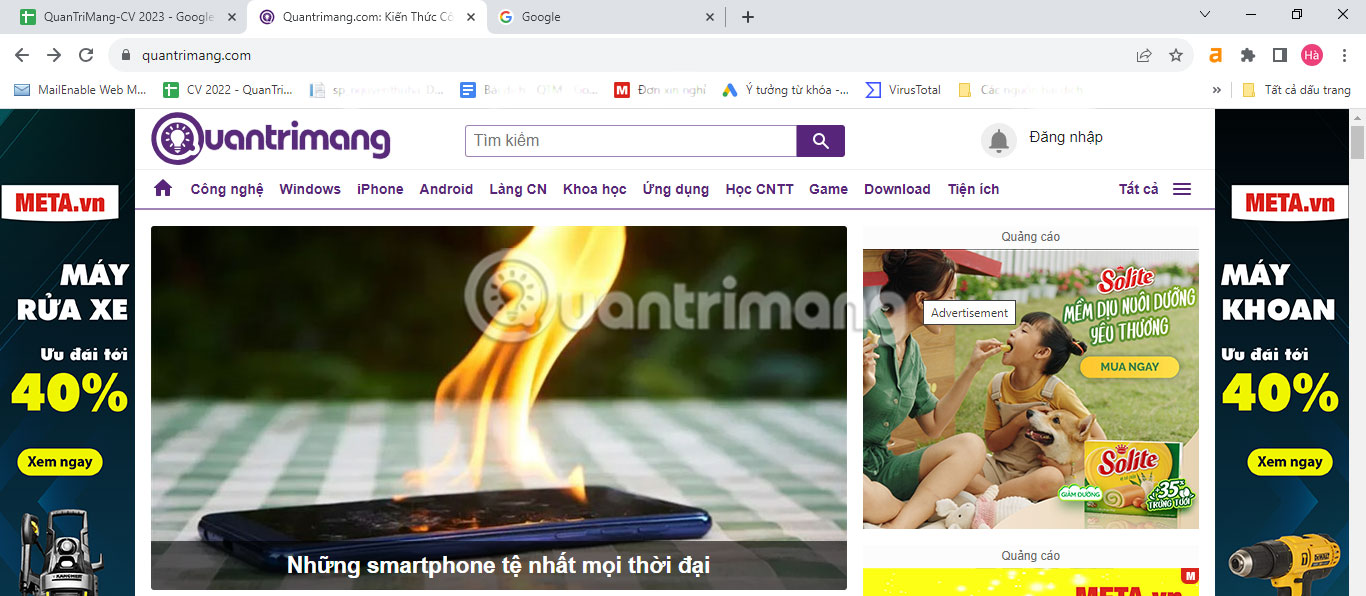
<p style="text-align: justify;">Phím tắt tab là một trong những cách nhanh nhất để sử dụng Chrome. Chúng làm cho việc đa nhiệm trực tuyến trở nên dễ dàng hơn và có thể giúp bạn giải quyết tình trạng quá tải tab. Dưới đây là các phím tắt tab cơ bản trong Chrome:</p>

<ul>
	<li style="text-align: justify;"><strong>Ctrl + T</strong>: Mở tab mới</li>
	<li style="text-align: justify;"><strong>Ctrl + W</strong>: Đóng tab hiện tại</li>
	<li style="text-align: justify;"><strong>Ctrl + Tab</strong>: Chuyển tab (tiến về phía trước)</li>
	<li style="text-align: justify;"><strong>Shift + Ctrl + Tab</strong>: Chuyển tab (lùi về sau)</li>
</ul>

<div style="text-align: justify;">&nbsp;</div>

<p style="text-align: justify;">Một cách thuận tiện khác để chuyển tab là sử dụng phím tắt được đánh số của Chrome. Giữ phím&nbsp;<strong>Ctrl</strong>, sau đó nhấn số vị trí của tab mà bạn muốn điều hướng tới. Ví dụ, phím tắt&nbsp;<strong>Ctrl + 2</strong>&nbsp;sẽ đưa bạn đến tab thứ hai trong cửa sổ trình duyệt.</p>

<h2 style="text-align: justify;">2. Đóng nhiều tab</h2>

<figure>
<div style="text-align: justify;"><img alt="Tùy chọn Đóng các thẻ khác trong Chrome" data-adbro-processed="true" data-i="1" data-src="https://st.quantrimang.com/photos/image/2023/11/23/quan-ly-tab-trong-google-chrome-2.jpg" data-was-processed="true" height="600" src="https://st.quantrimang.com/photos/image/2023/11/23/quan-ly-tab-trong-google-chrome-2.jpg" width="1366" /></div>

<figcaption>
<div style="text-align: justify;">Tùy chọn Đóng các thẻ khác trong Chrome</div>
</figcaption>
</figure>

<p style="text-align: justify;">Việc tích hợp nhiều tab có thể gây ra tình trạng quá tải hàng ngày và khiến thông tin khó tìm thấy. Rất may, Chrome cung cấp một số cách độc đáo để loại bỏ nhiều tab nhanh chóng, do đó bạn có thể luôn cập nhật và chỉ tập trung vào các tab có liên quan.</p>

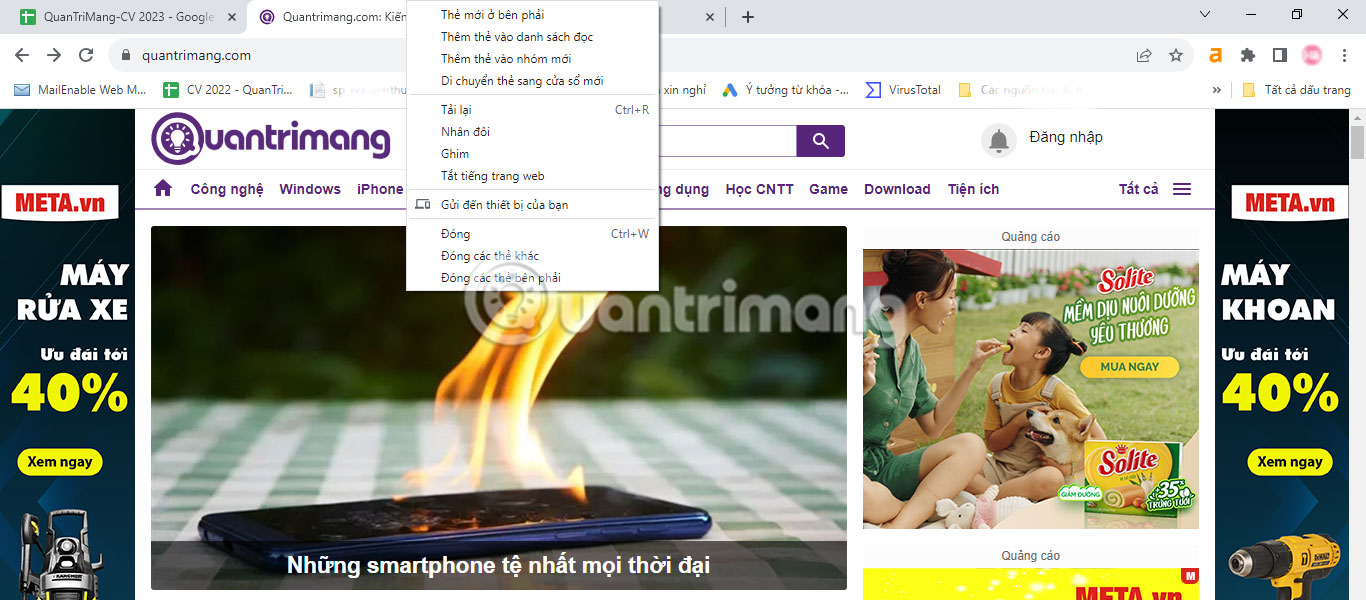
<p style="text-align: justify;">Phương pháp đầu tiên là truy cập các tùy chọn nhấp chuột phải của Chrome. Để xem trước các tùy chọn này, nhấp chuột phải vào bất kỳ tab nào. Tùy chọn&nbsp;<strong>Đóng các thẻ khác</strong>&nbsp;sẽ đóng tất cả các tab trong cửa sổ trình duyệt của bạn ngoại trừ tab hiện tại. Bạn cũng có thể nhấp vào&nbsp;<strong>Đóng các thẻ bên phải</strong>. Tùy chọn này giúp đóng các tab sau thời gian nghiên cứu bổ sung.</p>

<h2 style="text-align: justify;">3. Sử dụng nhóm tab</h2>

<figure>
<div style="text-align: justify;"><img alt="Nhóm tab công việc Google Chrome" data-i="2" data-src="https://st.quantrimang.com/photos/image/2023/11/23/quan-ly-tab-trong-google-chrome-3.jpg" data-was-processed="true" height="592" src="https://st.quantrimang.com/photos/image/2023/11/23/quan-ly-tab-trong-google-chrome-3.jpg" width="1366" /></div>

<figcaption>
<div style="text-align: justify;">Nhóm tab công việc Google Chrome</div>
</figcaption>
</figure>

<div style="text-align: justify;"><iframe allowtransparency="true" data-google-container-id="a!3" data-google-query-id="CJzTmJWm2oIDFUxpDwIdpE8M-w" data-load-complete="true" frameborder="0" height="174" hspace="0" id="aswift_2" marginheight="0" marginwidth="0" name="aswift_2" sandbox="" scrolling="no" vspace="0" width="694"></iframe></div>

<p style="text-align: justify;">Nếu bạn cần trợ giúp sắp xếp các tab của mình, bạn có thể&nbsp;<a data-type="internal" href="https://quantrimang.com/cong-nghe/tab-grouping-tinh-nang-moi-giup-gop-cac-tab-thanh-mot-nhom-tren-google-chrome-161195" title="Cách bật Tab Groups để nhóm tab Chrome theo màu">sử dụng nhóm tab</a>&nbsp;để đặt các tab vào những danh mục tùy chỉnh.</p>

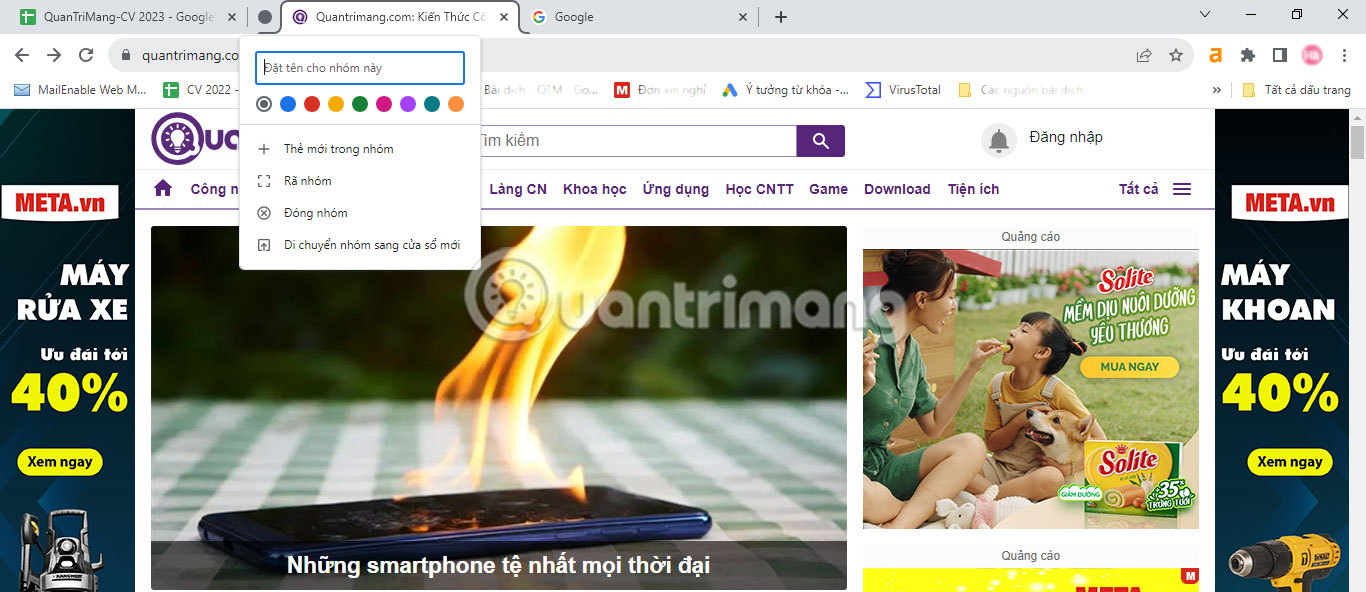
<p style="text-align: justify;">Để tạo nhóm tab mới, nhấp chuột phải vào tab và nhấn Thêm thẻ vào nhóm mới. Từ đây, bạn có thể đặt tên cho nhóm và gán màu tùy chỉnh cho nhóm. Bạn cũng có thể nhấn nút dấu cộng để thêm tab mới vào nhóm bất kỳ lúc nào. Để mở và đóng một nhóm tab, hãy nhấp vào nhãn trên thanh tab.</p>

<p style="text-align: justify;">Để đưa tổ chức của bạn lên một tầm cao mới, bạn có thể đặt từng nhóm tab vào một cửa sổ riêng biệt, tách chúng khỏi mọi tab không liên quan khác. Nhấp chuột phải vào nhãn nhóm, sau đó chọn&nbsp;<strong>Di chuyển nhóm sang cửa sổ mới</strong>. Để xóa một nhóm, hãy chọn tùy chọn&nbsp;<strong>Đóng nhóm</strong>&nbsp;từ menu tùy chọn.</p>

<h2 style="text-align: justify;">4. Gửi tab tới các thiết bị khác</h2>

<p style="text-align: justify;">Nếu bạn di chuyển giữa nhà và nơi làm việc, việc chuyển đổi nhanh giữa máy tính xách tay và thiết bị di động sẽ rất hữu ích. Rất may, Chrome cung cấp một tính năng tiện dụng cho phép bạn gửi liên kết đến thiết bị di động của mình chỉ bằng một cú nhấp chuột.</p>

<p style="text-align: justify;">Trước khi sử dụng tính năng này, bạn cần đảm bảo rằng bạn đã đăng nhập vào Google Chrome trên điện thoại di động của mình. Bạn có thể truy cập profile của mình bằng cách nhấp vào biểu tượng ở góc trên cùng bên trái của ứng dụng. Đảm bảo tùy chọn Đồng bộ hóa được bật.</p>

<p style="text-align: justify;">Bây giờ, từ máy tính của bạn, hãy làm theo các bước dưới đây:</p>

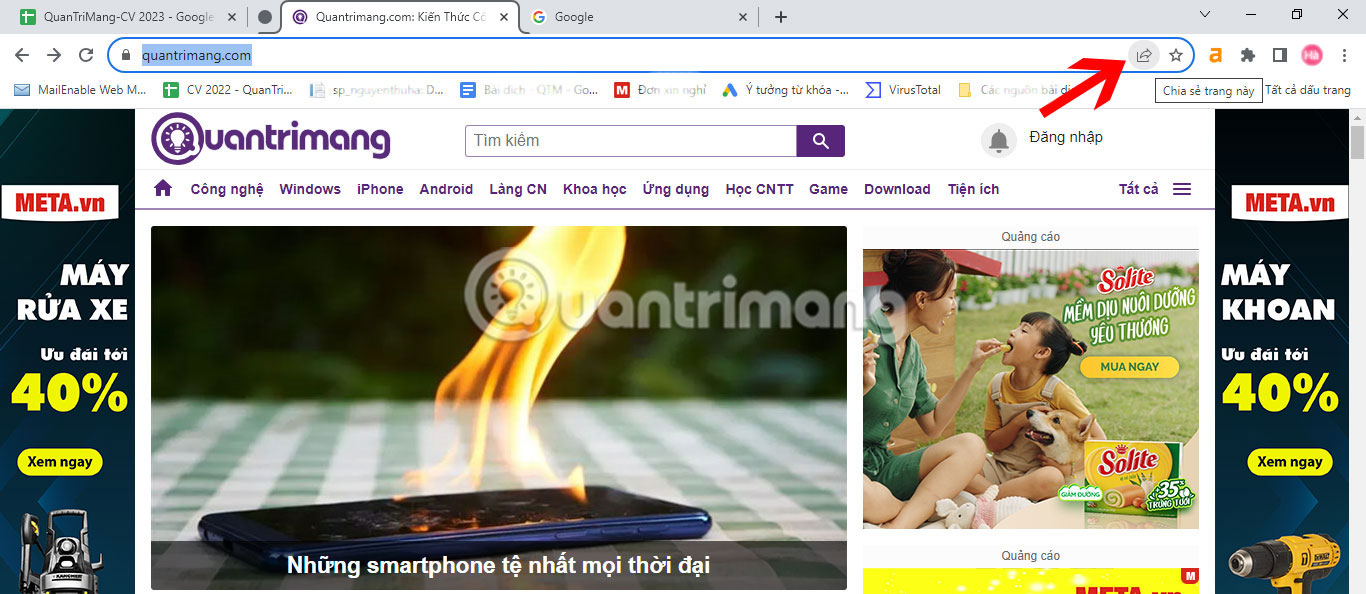
<p style="text-align: justify;">1. Nhấp vào thanh địa chỉ trên trang web bạn muốn gửi tới điện thoại di động của mình.</p>

<p style="text-align: justify;">2. Nhấn biểu tượng&nbsp;<strong>Chia sẻ</strong>&nbsp;ở phía bên phải.</p>

<figure>
<div style="text-align: justify;"><img alt="Nút chia sẻ trên thanh địa chỉ Chrome" data-i="3" data-src="https://st.quantrimang.com/photos/image/2023/11/23/quan-ly-tab-trong-google-chrome-4.jpg" data-was-processed="true" height="594" src="https://st.quantrimang.com/photos/image/2023/11/23/quan-ly-tab-trong-google-chrome-4.jpg" width="1366" /></div>

<figcaption>
<div style="text-align: justify;">Nút chia sẻ trên thanh địa chỉ Chrome</div>
</figcaption>
</figure>

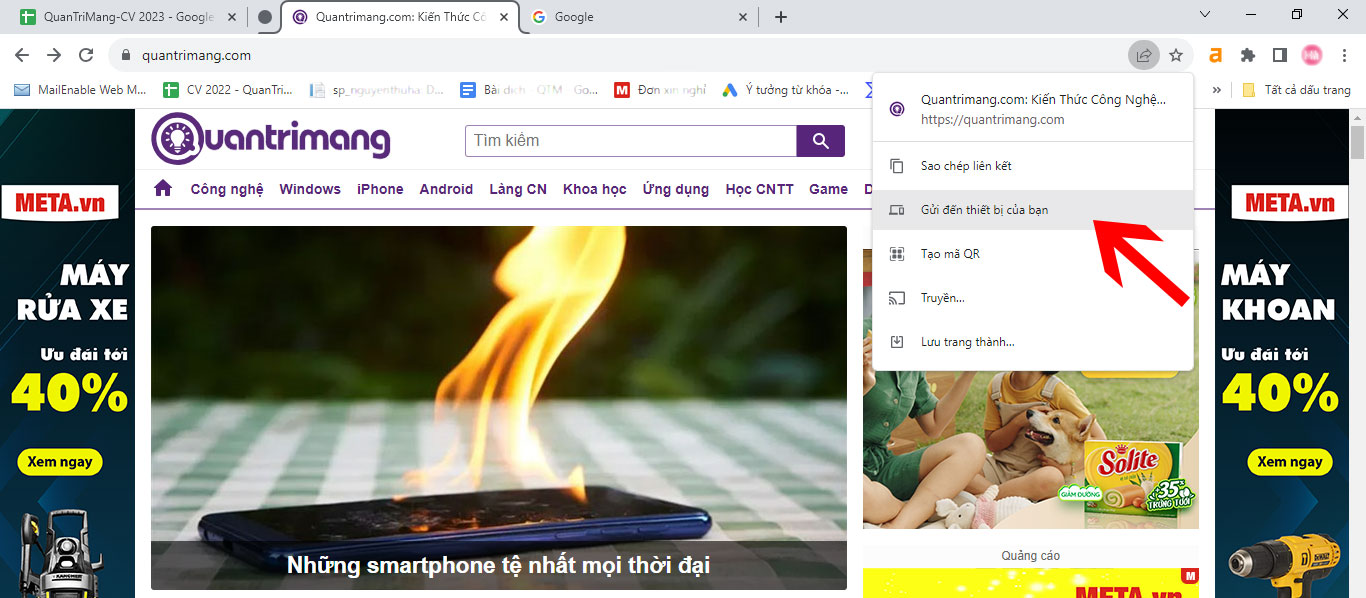
<p style="text-align: justify;">3. Chọn&nbsp;<strong>Gửi tới thiết bị của bạn</strong>.</p>

<figure>
<div style="text-align: justify;"><img alt="Nút Gửi tới thiết bị của bạn Chrome" data-i="4" data-src="https://st.quantrimang.com/photos/image/2023/11/23/quan-ly-tab-trong-google-chrome-5.jpg" data-was-processed="true" height="598" src="https://st.quantrimang.com/photos/image/2023/11/23/quan-ly-tab-trong-google-chrome-5.jpg" width="1366" /></div>

<figcaption>
<div style="text-align: justify;">Nút Gửi tới thiết bị của bạn Chrome</div>
</figcaption>
</figure>

<div style="text-align: justify;">&nbsp;</div>

<h2 style="text-align: justify;">5. Tìm kiếm Tab</h2>

<figure>
<div style="text-align: justify;"><img alt="Công cụ Tìm kiếm tab Chrome" data-i="5" data-src="https://st.quantrimang.com/photos/image/2023/11/23/quan-ly-tab-trong-google-chrome-6.jpg" data-was-processed="true" height="592" src="https://st.quantrimang.com/photos/image/2023/11/23/quan-ly-tab-trong-google-chrome-6.jpg" width="1366" /></div>

<figcaption>
<div style="text-align: justify;">Công cụ Tìm kiếm tab Chrome</div>
</figcaption>
</figure>

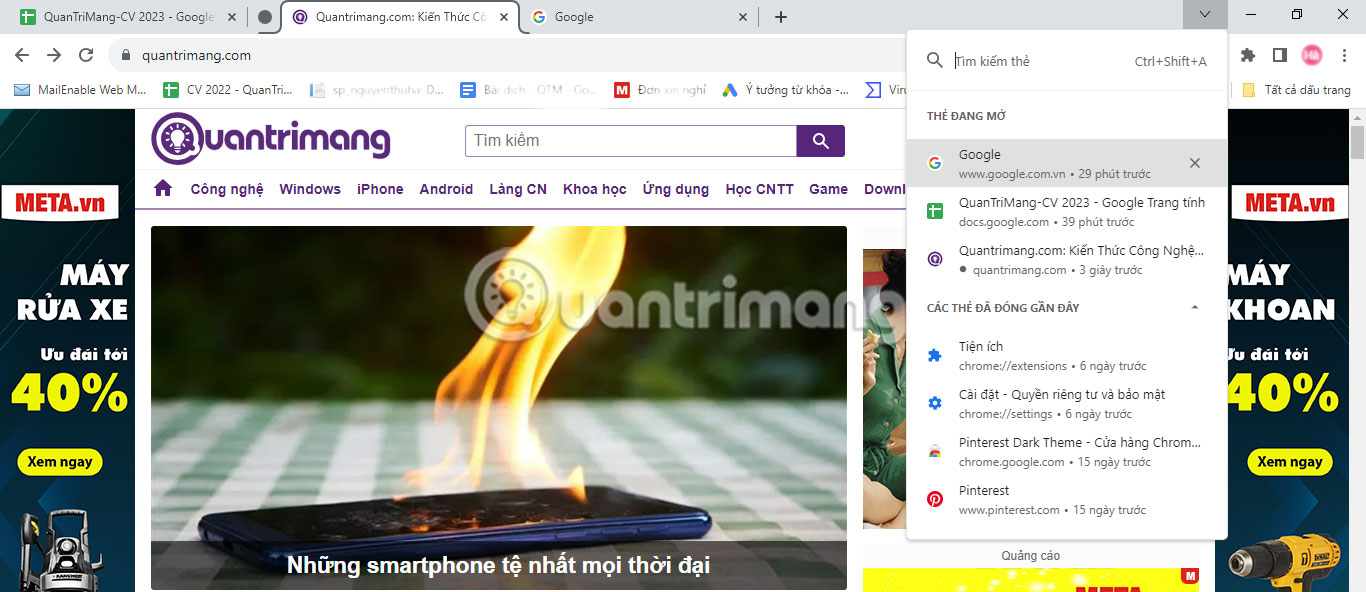
<p style="text-align: justify;">Tìm kiếm tab có thể là một cơn ác mộng, đặc biệt nếu thanh tab của bạn có quá nhiều thử đang cùng hoạt động. Thay vì lãng phí thời gian tìm kiếm, bạn có thể tìm kiếm một tab theo tên của nó.</p>

<p style="text-align: justify;">Có hai cách để tìm tính năng tìm kiếm tab của Chrome. Nhấn vào mũi tên hướng xuống bên cạnh nút thu nhỏ hoặc sử dụng phím tắt&nbsp;<strong>Ctrl + Shift + A</strong>. Tính năng độc đáo này hiển thị danh sách các tab hiện đang mở của bạn cũng như danh sách các tab đã đóng gần đây.</p>

<p style="text-align: justify;">Tìm kiếm tab theo tên của nó và nhấn&nbsp;<strong>Enter</strong>&nbsp;để chuyển trực tiếp đến tab đó. Công cụ này đồng bộ với tất cả các cửa sổ đang mở trong Chrome, do đó bạn có thể truy cập các tab quan trọng từ mọi nơi.</p>

<h2 style="text-align: justify;">6. Sử dụng Danh sách đọc của Chrome để giảm bớt sự lộn xộn</h2>

<p style="text-align: justify;">Trong các buổi nghiên cứu, bạn có thể gặp những bài viết đáng đọc nhưng hiện tại bạn không có thời gian để nghiên cứu chúng. Thay vì giữ các tab mở trên máy tính, bạn có thể sử dụng Danh sách đọc của Chrome để lưu bài viết cho lần sau. Đây là&nbsp;cách thêm bài viết vào Danh sách đọc của Chrome.</p>

<h2 style="text-align: justify;">7. Sử dụng dấu trang cho các tab thường xuyên truy cập</h2>

<figure>
<div style="text-align: justify;"><img alt="Trình quản lý dấu trang Chrome" data-i="6" data-src="https://st.quantrimang.com/photos/image/2023/11/23/quan-ly-tab-trong-google-chrome-7.jpg" data-was-processed="true" height="618" src="https://st.quantrimang.com/photos/image/2023/11/23/quan-ly-tab-trong-google-chrome-7.jpg" width="1364" /></div>

<figcaption>
<div style="text-align: justify;">Trình quản lý dấu trang Chrome</div>
</figcaption>
</figure>

<p style="text-align: justify;">Dấu trang là cách thuận tiện để truy cập các trang web bạn truy cập nhiều nhất mà không cần phải tìm kiếm chúng. Tính năng đánh dấu trang của Chrome là một trong những tính năng tốt nhất được cung cấp bởi trình duyệt và rất dễ truy cập.</p>

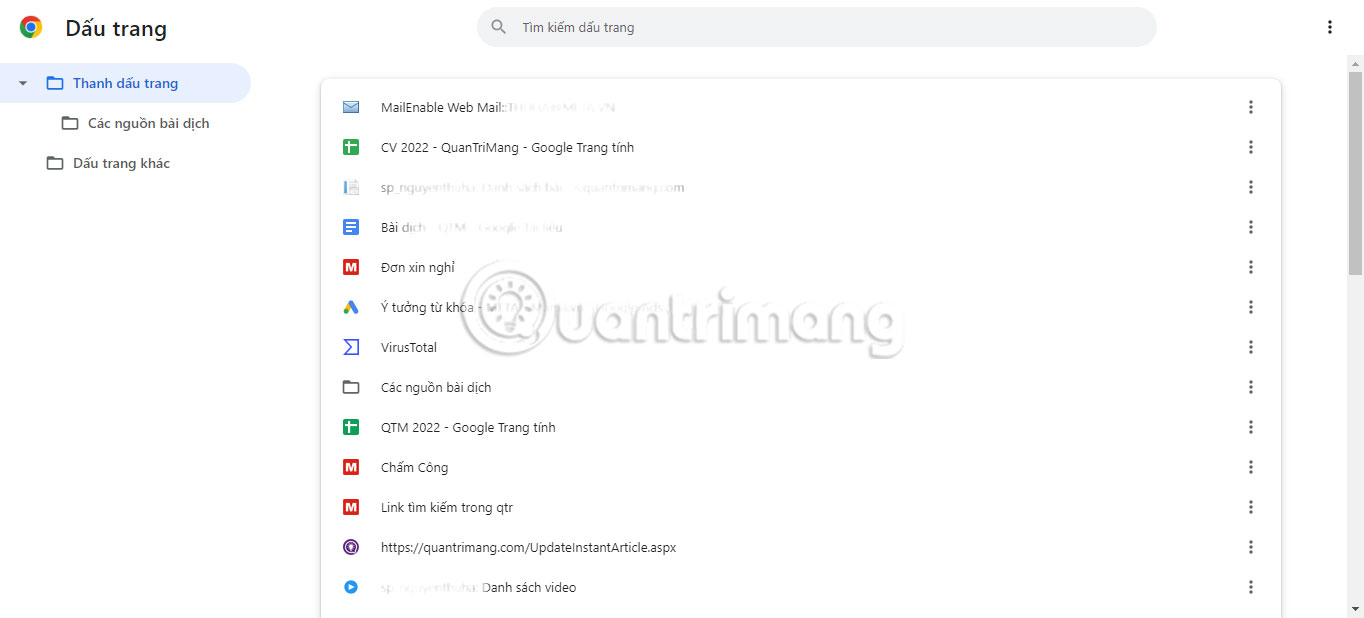
<p style="text-align: justify;">Một cách để xem dấu trang là thông qua bảng điều khiển bên. Nhấp vào biểu tượng bảng điều khiển bên và chọn&nbsp;<strong>Dấu trang</strong>&nbsp;từ các tùy chọn để xem dấu trang của bạn ở chế độ danh sách. Bạn có thể sắp xếp dấu trang theo tên, ngày tạo hoặc theo thứ tự bảng chữ cái.</p>

<div style="text-align: justify;">&nbsp;</div>

<p style="text-align: justify;">Một phương pháp quản lý dấu trang thay thế là sử dụng Trình quản lý dấu trang của Chrome. Điều này bao gồm một hệ thống phân cấp thư mục gọn gàng gồm các dấu trang đã lưu, với những tùy chọn để thêm thư mục và xuất dấu trang. Để truy cập trình quản lý dấu trang, hãy sử dụng phím tắt&nbsp;<strong>Ctrl + Shift + O&nbsp;</strong>hoặc nhập&nbsp;<em>chrome://bookmarks</em>&nbsp;vào thanh địa chỉ.</p>

<h2 style="text-align: justify;">8. Tải xuống tiện ích mở rộng quản lý tab</h2>

<figure>
<div style="text-align: justify;"><img alt="Tiện ích mở rộng Save for later của Chrome" data-i="7" data-src="https://st.quantrimang.com/photos/image/2023/11/23/quan-ly-tab-trong-google-chrome-8.jpg" data-was-processed="true" height="590" src="https://st.quantrimang.com/photos/image/2023/11/23/quan-ly-tab-trong-google-chrome-8.jpg" width="1366" /></div>

<figcaption>
<div style="text-align: justify;">Tiện ích mở rộng Save for later của Chrome</div>
</figcaption>
</figure>

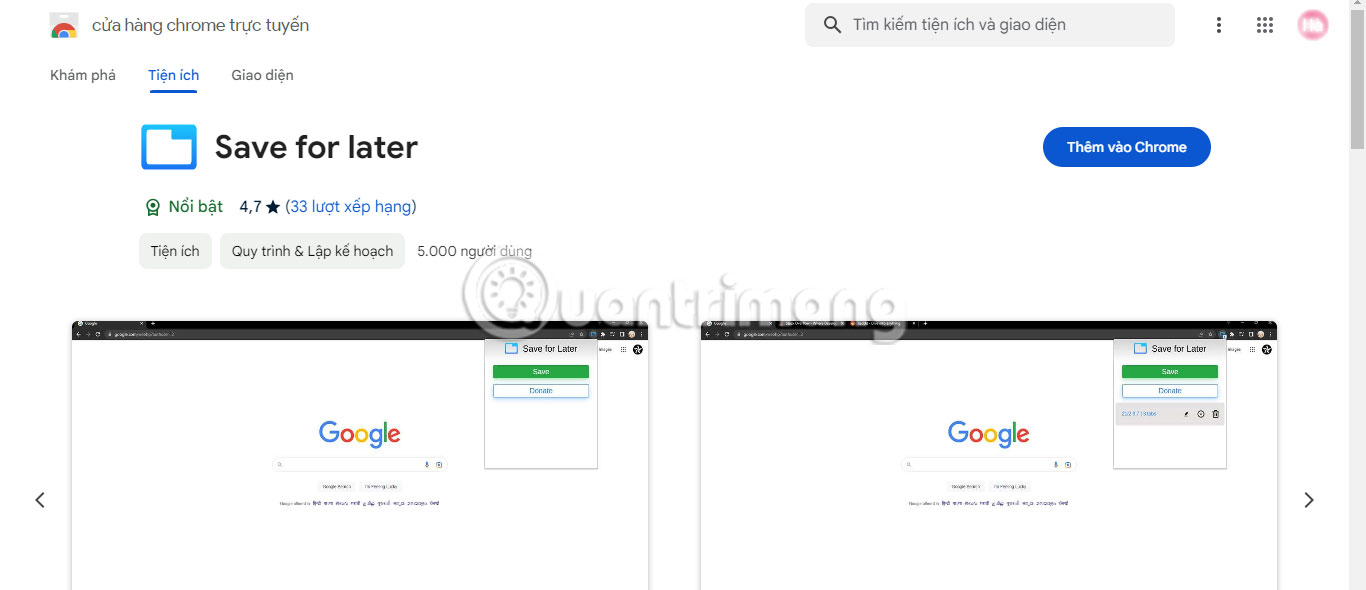
<p style="text-align: justify;">Để được trợ giúp thêm trong việc sắp xếp các tab của mình, bạn có thể khám phá các tiện ích mở rộng cho Google Chrome để quản lý tab. Nếu tình trạng quá tải các tab ảnh hưởng đến bộ nhớ của bạn thì việc sử dụng tiện ích mở rộng có thể làm giảm sự lộn xộn và giúp bạn duyệt web dễ dàng.</p>

<p style="text-align: justify;">Save for Later là một tiện ích mở rộng có thể lưu trữ nhiều tab, cho phép bạn mở chúng chỉ bằng một nút bấm. Bạn có thể lưu tất cả các tab trong cửa sổ duyệt hiện tại của mình bằng cách nhấp vào tiện ích mở rộng rồi nhấn&nbsp;<strong>Lưu</strong>.</p>

<p style="text-align: justify;">Công cụ này lưu trữ tất cả các tab trong một nhóm có thể được đổi tên và quản lý bất kỳ lúc nào. Sau đó, bạn có thể truy cập tất cả các tab cùng một lúc hoặc mở từng tab bằng cách nhấp vào menu drop-down.</p>

<ul>
	<li style="text-align: justify;">Tải&nbsp;Save for later&nbsp;(Miễn phí)<br />
	<span style="color:rgb(192, 57, 43);"><strong>https://chromewebstore.google.com/detail/save-for-later/nkphlkgkhmdaecflflapohlkkchmcacc</strong></span></li>
</ul>

<div style="text-align: justify;">&nbsp;</div>
		</div>
				<div id="author">
						<p>
				<strong>Nguồn tin:</strong>
				Quantrimang.com
			</p>
		</div>
	</div>
	<div id="footer" class="clearfix">
		<div id="url">
			<strong>URL của bản tin này: </strong><a href="https://www.nguoicodonvn2008.info/vi/news/savefile/kien-thuc-may-tinh/huong-dan-toan-tap-ve-quan-ly-tab-trong-google-chrome-7800.html" title="Hướng dẫn toàn tập về quản lý tab trong Google Chrome">https://www.nguoicodonvn2008.info/vi/news/savefile/kien-thuc-may-tinh/huong-dan-toan-tap-ve-quan-ly-tab-trong-google-chrome-7800.html</a>

		</div>
		<div class="clear"></div>
		<div class="copyright">
			&copy; .&#x3A; Nguoicodonvn2008.info - Cõi lòng người cô đơn &#x3A;.
		</div>
		<div id="contact">
			<a href="mailto:admin@nguoicodonvn2008.info">admin@nguoicodonvn2008.info</a>
		</div>
	</div>
</div>
        <div id="timeoutsess" class="chromeframe">
            Bạn đã không sử dụng Site, <a onclick="timeoutsesscancel();" href="https://nguoicodonvn2008.info/#">Bấm vào đây để duy trì trạng thái đăng nhập</a>. Thời gian chờ: <span id="secField"> 60 </span> giây
        </div>
        <div id="openidResult" class="nv-alert" style="display:none"></div>
        <div id="openidBt" data-result="" data-redirect=""></div>
		</script>
		<div class="car-top">
  <span><img src="https://nguoicodonvn2008.info/themes/default/images/car.png" alt=""></span>
</div>
<script src="https://nguoicodonvn2008.info/assets/js/jquery/jquery.min.js"></script>
<script>var nv_base_siteurl="/",nv_lang_data="vi",nv_lang_interface="vi",nv_name_variable="nv",nv_fc_variable="op",nv_lang_variable="language",nv_module_name="news",nv_func_name="savefile",nv_is_user=0, nv_my_ofs=-4,nv_my_abbr="EDT",nv_cookie_prefix="nv4c_e856T",nv_check_pass_mstime=1738000,nv_area_admin=0,nv_safemode=0,theme_responsive=0,nv_recaptcha_ver=2,nv_recaptcha_sitekey="",nv_recaptcha_type="image",XSSsanitize=1;</script>
<script src="https://nguoicodonvn2008.info/assets/js/language/vi.js"></script>
<script src="https://nguoicodonvn2008.info/assets/js/DOMPurify/purify3.js"></script>
<script src="https://nguoicodonvn2008.info/assets/js/global.js"></script>
<script src="https://nguoicodonvn2008.info/assets/js/site.js"></script>
<script src="https://nguoicodonvn2008.info/themes/default/js/news.js"></script>
<script src="https://nguoicodonvn2008.info/themes/default/js/main.js"></script>
<script src="https://nguoicodonvn2008.info/themes/default/js/custom.js"></script>
<script type="application/ld+json">
        {
            "@context": "https://schema.org",
            "@type": "Organization",
            "url": "https://nguoicodonvn2008.info",
            "logo": "https://nguoicodonvn2008.info/uploads/angel.gif"
        }
        </script>
<script src="https://nguoicodonvn2008.info/themes/default/js/bootstrap.min.js"></script>
<script type="text/javascript">
var $scrolltop = $('.car-top');
$scrolltop.on('click', function () {
    $('html,body').animate({
        scrollTop: 0
    }, 800);
    $(this).addClass("car-run");
    setTimeout(function(){ $scrolltop.removeClass('car-run');}, 1000);
    return false;
});
$(window).on('scroll', function ()
{ 
    if($(window).scrollTop() >= 200)
    {
        $scrolltop.addClass("show");
        $scrolltop.addClass("car-down");
    }
    else
    {
       $scrolltop.removeClass("show");
       setTimeout(function(){ $scrolltop.removeClass('car-down');}, 300);
    }
});
</script>
</body>
</html>