<!DOCTYPE html>
    <html lang="vi" xmlns="http://www.w3.org/1999/xhtml" prefix="og: http://ogp.me/ns#">
    <head>
<title>Hướng dẫn tắt thumbnail File Explorer Windows 11</title>
<meta name="description" content="Hướng dẫn tắt thumbnail File Explorer Windows 11 - Savefile - Tin Tức -...">
<meta name="author" content=".: Nguoicodonvn2008.info - Cõi lòng người cô đơn :.">
<meta name="copyright" content=".: Nguoicodonvn2008.info - Cõi lòng người cô đơn :. [admin@nguoicodonvn2008.info]">
<meta name="robots" content="index, archive, follow, noodp">
<meta name="googlebot" content="index,archive,follow,noodp">
<meta name="msnbot" content="all,index,follow">
<meta name="generator" content="NukeViet v4.5">
<meta http-equiv="Content-Type" content="text/html; charset=utf-8">
<meta property="og:title" content="Hướng dẫn tắt thumbnail File Explorer Windows 11">
<meta property="og:type" content="website">
<meta property="og:description" content="Savefile - Tin Tức - https&#x3A;&#x002F;&#x002F;www.nguoicodonvn2008.info&#x002F;vi&#x002F;news&#x002F;savefile&#x002F;kien-thuc-may-tinh&#x002F;huong-dan-tat-thumbnail-file-explorer-windows-11-9652.html">
<meta property="og:site_name" content=".&#x3A; Nguoicodonvn2008.info - Cõi lòng người cô đơn &#x3A;.">
<meta property="og:url" content="https://www.nguoicodonvn2008.info/vi/news/savefile/kien-thuc-may-tinh/huong-dan-tat-thumbnail-file-explorer-windows-11-9652.html">
<link rel="shortcut icon" href="https://nguoicodonvn2008.info/favicon.ico">
<link rel="canonical" href="https://www.nguoicodonvn2008.info/vi/news/savefile/kien-thuc-may-tinh/huong-dan-tat-thumbnail-file-explorer-windows-11-9652.html">
<link rel="alternate" href="https://nguoicodonvn2008.info/vi/news/rss/" title="Tin Tức" type="application/rss+xml">
<link rel="alternate" href="https://nguoicodonvn2008.info/vi/news/rss/karaoke-dual/" title="Tin Tức - Karaoke Dual" type="application/rss+xml">
<link rel="alternate" href="https://nguoicodonvn2008.info/vi/news/rss/nhac-tre/" title="Tin Tức - Nhạc trẻ" type="application/rss+xml">
<link rel="alternate" href="https://nguoicodonvn2008.info/vi/news/rss/tru-tinh/" title="Tin Tức - Trữ tình" type="application/rss+xml">
<link rel="alternate" href="https://nguoicodonvn2008.info/vi/news/rss/nuoc-ngoai/" title="Tin Tức - Nước ngoài" type="application/rss+xml">
<link rel="alternate" href="https://nguoicodonvn2008.info/vi/news/rss/remix/" title="Tin Tức - Remix" type="application/rss+xml">
<link rel="alternate" href="https://nguoicodonvn2008.info/vi/news/rss/tam-su-tinh-yeu/" title="Tin Tức - Tâm sự tình yêu" type="application/rss+xml">
<link rel="alternate" href="https://nguoicodonvn2008.info/vi/news/rss/tho-suu-tam/" title="Tin Tức - Thơ sưu tầm" type="application/rss+xml">
<link rel="alternate" href="https://nguoicodonvn2008.info/vi/news/rss/cuoc-song/" title="Tin Tức - Cuộc sống" type="application/rss+xml">
<link rel="alternate" href="https://nguoicodonvn2008.info/vi/news/rss/phan-mem/" title="Tin Tức - Phần mềm" type="application/rss+xml">
<link rel="alternate" href="https://nguoicodonvn2008.info/vi/news/rss/kien-thuc-may-tinh/" title="Tin Tức - Kiến thức máy tính" type="application/rss+xml">
<link rel="alternate" href="https://nguoicodonvn2008.info/vi/news/rss/hoc-tap/" title="Tin Tức - Học tập" type="application/rss+xml">
<link rel="alternate" href="https://nguoicodonvn2008.info/vi/news/rss/tai-lieu/" title="Tin Tức - Tài liệu" type="application/rss+xml">
<link rel="alternate" href="https://nguoicodonvn2008.info/vi/news/rss/de-thi/" title="Tin Tức - Đề thi" type="application/rss+xml">
<link rel="preload" as="style" href="https://nguoicodonvn2008.info/assets/css/font-awesome.min.css" type="text/css">
<link rel="preload" as="style" href="https://nguoicodonvn2008.info/themes/default/css/bootstrap.non-responsive.css" type="text/css">
<link rel="preload" as="style" href="https://nguoicodonvn2008.info/themes/default/css/style.css" type="text/css">
<link rel="preload" as="style" href="https://nguoicodonvn2008.info/themes/default/css/style.non-responsive.css" type="text/css">
<link rel="preload" as="style" href="https://nguoicodonvn2008.info/themes/default/css/news.css" type="text/css">
<link rel="preload" as="style" href="https://nguoicodonvn2008.info/themes/default/css/custom.css" type="text/css">
<link rel="preload" as="script" href="https://nguoicodonvn2008.info/assets/js/jquery/jquery.min.js" type="text/javascript">
<link rel="preload" as="script" href="https://nguoicodonvn2008.info/assets/js/language/vi.js" type="text/javascript">
<link rel="preload" as="script" href="https://nguoicodonvn2008.info/assets/js/DOMPurify/purify3.js" type="text/javascript">
<link rel="preload" as="script" href="https://nguoicodonvn2008.info/assets/js/global.js" type="text/javascript">
<link rel="preload" as="script" href="https://nguoicodonvn2008.info/assets/js/site.js" type="text/javascript">
<link rel="preload" as="script" href="https://nguoicodonvn2008.info/themes/default/js/news.js" type="text/javascript">
<link rel="preload" as="script" href="https://nguoicodonvn2008.info/themes/default/js/main.js" type="text/javascript">
<link rel="preload" as="script" href="https://nguoicodonvn2008.info/themes/default/js/custom.js" type="text/javascript">
<link rel="preload" as="script" href="https://nguoicodonvn2008.info/themes/default/js/bootstrap.min.js" type="text/javascript">
<link rel="stylesheet" href="https://nguoicodonvn2008.info/assets/css/font-awesome.min.css">
<link rel="stylesheet" href="https://nguoicodonvn2008.info/themes/default/css/bootstrap.non-responsive.css">
<link rel="stylesheet" href="https://nguoicodonvn2008.info/themes/default/css/style.css">
<link rel="stylesheet" href="https://nguoicodonvn2008.info/themes/default/css/style.non-responsive.css">
<link rel="StyleSheet" href="https://nguoicodonvn2008.info/themes/default/css/news.css">
<link rel="stylesheet" href="https://nguoicodonvn2008.info/themes/default/css/custom.css">
<style type="text/css">
	body{background: #fff;}
</style>
    </head>
    <body>
<div id="print">
	<div id="hd_print">
		<h2 class="pull-left">.&#x3A; Nguoicodonvn2008.info - Cõi lòng người cô đơn &#x3A;.</h2>
		<p class="pull-right"><a title=".&#x3A; Nguoicodonvn2008.info - Cõi lòng người cô đơn &#x3A;." href="https://nguoicodonvn2008.info/">https://nguoicodonvn2008.info</a></p>
	</div>
	<div class="clear"></div>
	<hr />
	<div id="content">
		<h1>Hướng dẫn tắt thumbnail File Explorer Windows 11</h1>
		<ul class="list-inline">
			<li>Thứ bảy - 11/01/2025 00:23</li>
			<li class="hidden-print txtrequired"><em class="fa fa-print">&nbsp;</em><a title="In ra" href="javascript:;" onclick="window.print()">In ra</a></li>
			<li class="hidden-print txtrequired"><em class="fa fa-power-off">&nbsp;</em><a title="Đóng cửa sổ này" href="javascript:;" onclick="window.close()">Đóng cửa sổ này</a></li>
		</ul>
		<div class="clear"></div>
		<div id="hometext">
		</div>
				<div class="imghome">
			<img alt="Hướng dẫn tắt thumbnail File Explorer Windows 11" src="https://st.quantrimang.com/photos/image/2025/01/09/tat-thumbnail-File-Explorer-Windows-11-4.jpg" width="460" class="img-thumbnail" />
		</div>
		<div class="clear"></div>
		<div id="bodytext" class="clearfix">
			<p style="text-align: justify;">Cũng như những bản Windows trước, thì Windows 11 hiển thị hình thu nhỏ để xem trước nội dung của tệp, thư mục, tài liệu, hình ảnh hoặc video. Do tính riêng tư cá nhân hoặc lý do nào đó mà nhiều người muốn tắt thumbnail File Explorer trên Windows 11. Dưới đây là hướng dẫn tắt thumbnail File Explorer trên Windows 11.</p>

<h2 style="text-align: justify;">Cách tắt thumbnail File Explorer Windows 11</h2>

<p style="text-align: justify;"><strong>Bước 1:</strong></p>

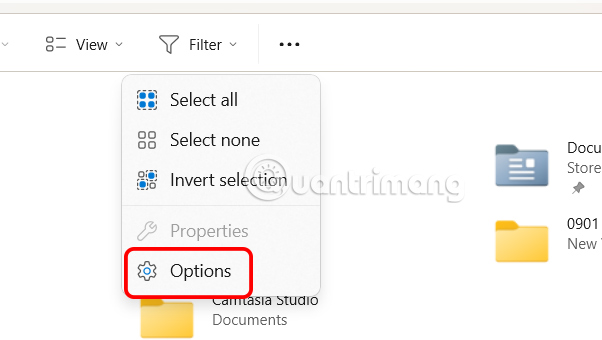
<p style="text-align: justify;">Trước hết bạn<strong>&nbsp;truy cập File Explorer trên Windows 11</strong>, sau đó nhấn vào&nbsp;<strong>biểu tượng 3 chấm rồi chọn Options</strong>.</p>

<p style="text-align: justify;"><img alt="Chỉnh File Explorer Windows 11" data-i="0" data-src="https://st.quantrimang.com/photos/image/2025/01/09/tat-thumbnail-File-Explorer-Windows-11-1.jpg" data-was-processed="true" height="328" src="https://st.quantrimang.com/photos/image/2025/01/09/tat-thumbnail-File-Explorer-Windows-11-1.jpg" width="580" /></p>

<p style="text-align: justify;"><strong>Bước 2:</strong></p>

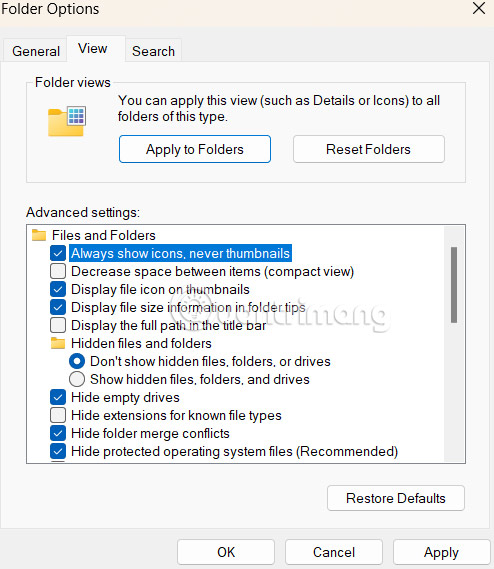
<p style="text-align: justify;">Hiển thị giao diện tùy chỉnh mới, chúng ta nhấn vào<strong>&nbsp;tab View&nbsp;</strong>sau đó&nbsp;<strong>tích chọn vào tùy chọn bên dưới Always show icons, never thumbnails</strong>.</p>

<p style="text-align: justify;">Cuối cùng bạn&nbsp;<strong>nhấn Apply</strong>&nbsp;để áp dụng thay đổi này.</p>

<p style="text-align: justify;"><img alt="Tắt thumbnail File Explorer Windows 11" data-i="1" data-src="https://st.quantrimang.com/photos/image/2025/01/09/tat-thumbnail-File-Explorer-Windows-11-2.jpg" data-was-processed="true" height="461" src="https://st.quantrimang.com/photos/image/2025/01/09/tat-thumbnail-File-Explorer-Windows-11-2.jpg" width="400" /></p>

<div style="text-align: justify;">&nbsp;</div>

<h2 style="text-align: justify;">Cách tắt thumbnail File Explorer Windows qua Settings</h2>

<p style="text-align: justify;"><strong>Bước 1:</strong></p>

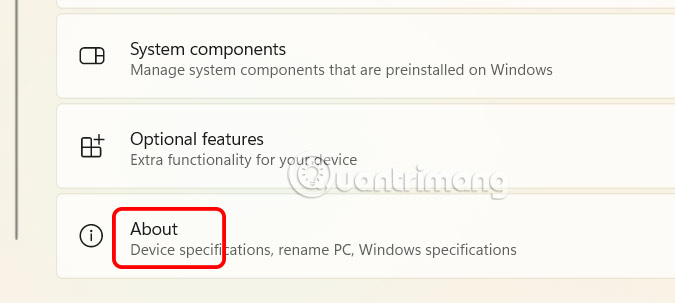
<p style="text-align: justify;">Nhấn tổ hợp phím Windows + I để mở Settings trên Windows 11. Tiếp đến bạn nhấn chọn&nbsp;<strong>System</strong>&nbsp;ở menu bên trái rồi nhìn sang phải,&nbsp;<strong>nhấn vào About</strong>.</p>

<p style="text-align: justify;"><img alt="Chỉnh hệ thống Windows 11" data-i="2" data-src="https://st.quantrimang.com/photos/image/2025/01/09/tat-thumbnail-File-Explorer-Windows-11-3.jpg" data-was-processed="true" height="269" src="https://st.quantrimang.com/photos/image/2025/01/09/tat-thumbnail-File-Explorer-Windows-11-3.jpg" width="600" /></p>

<p style="text-align: justify;"><strong>Bước 2:</strong></p>

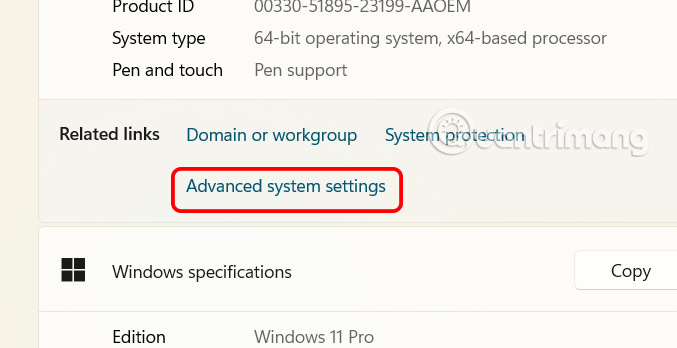
<p style="text-align: justify;">Chuyển sang giao diện mới, người dùng nhấn vào<strong>&nbsp;tùy chọn Advanced system settings</strong>.</p>

<p style="text-align: justify;"><img alt="Chỉnh hệ thống nâng cao Windows 11" data-adbro-processed="true" data-i="3" data-src="https://st.quantrimang.com/photos/image/2025/01/09/tat-thumbnail-File-Explorer-Windows-11-4.jpg" data-was-processed="true" height="308" src="https://st.quantrimang.com/photos/image/2025/01/09/tat-thumbnail-File-Explorer-Windows-11-4.jpg" width="600" /></p>

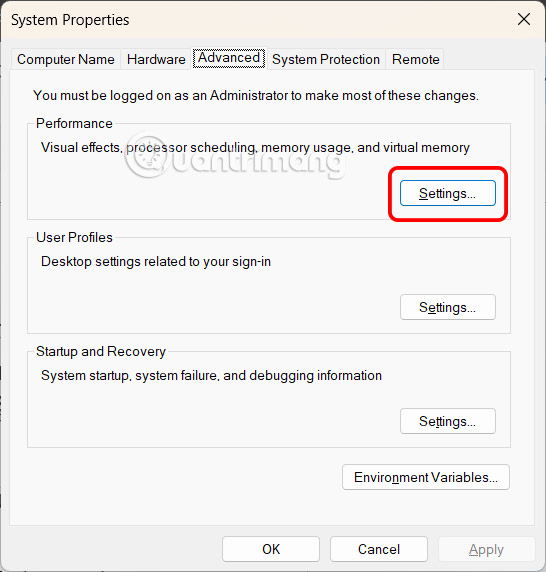
<p style="text-align: justify;">Trong giao diện mới như hình, người dùng nhấn chọn vào&nbsp;<strong>tab Advanced</strong>&nbsp;rồi nhấn tiếp vào&nbsp;<strong>Settings</strong>.</p>

<p style="text-align: justify;"><img alt="Cài đặt nâng cao Windows 11" data-i="4" data-src="https://st.quantrimang.com/photos/image/2025/01/09/tat-thumbnail-File-Explorer-Windows-11-5.jpg" data-was-processed="true" height="545" src="https://st.quantrimang.com/photos/image/2025/01/09/tat-thumbnail-File-Explorer-Windows-11-5.jpg" width="520" /></p>

<div style="text-align: justify;">&nbsp;</div>

<p style="text-align: justify;"><strong>Bước 3:</strong></p>

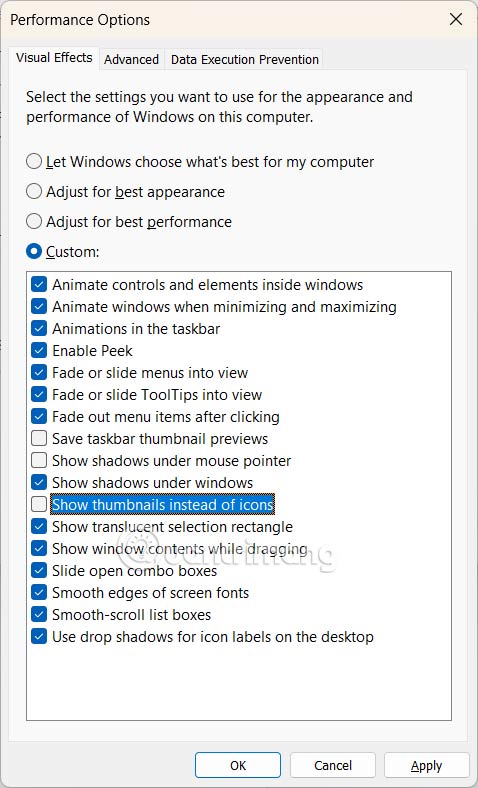
<p style="text-align: justify;">Tiếp tục bạn nhấn vào&nbsp;<strong>tab Visual Effects</strong>&nbsp;rồi&nbsp;<strong>bỏ tích Show thumbnails instead of icons</strong>&nbsp;là được.</p>

<p style="text-align: justify;"><img alt="Tắt thumbnail File Explorer Windows 11" data-i="5" data-src="https://st.quantrimang.com/photos/image/2025/01/09/tat-thumbnail-File-Explorer-Windows-11-6.jpg" data-was-processed="true" height="626" src="https://st.quantrimang.com/photos/image/2025/01/09/tat-thumbnail-File-Explorer-Windows-11-6.jpg" width="380" /></p>

<p style="text-align: justify;">Sau khi bạn hoàn tất các bước, File Explorer sẽ không còn hiển thị bản xem trước cho các tệp và thư mục nữa.</p>
		</div>
				<div id="author">
						<p>
				<strong>Nguồn tin:</strong>
				quantrimnang.com:
			</p>
		</div>
	</div>
	<div id="footer" class="clearfix">
		<div id="url">
			<strong>URL của bản tin này: </strong><a href="https://www.nguoicodonvn2008.info/vi/news/savefile/kien-thuc-may-tinh/huong-dan-tat-thumbnail-file-explorer-windows-11-9652.html" title="Hướng dẫn tắt thumbnail File Explorer Windows 11">https://www.nguoicodonvn2008.info/vi/news/savefile/kien-thuc-may-tinh/huong-dan-tat-thumbnail-file-explorer-windows-11-9652.html</a>

		</div>
		<div class="clear"></div>
		<div class="copyright">
			&copy; .&#x3A; Nguoicodonvn2008.info - Cõi lòng người cô đơn &#x3A;.
		</div>
		<div id="contact">
			<a href="mailto:admin@nguoicodonvn2008.info">admin@nguoicodonvn2008.info</a>
		</div>
	</div>
</div>
        <div id="timeoutsess" class="chromeframe">
            Bạn đã không sử dụng Site, <a onclick="timeoutsesscancel();" href="https://nguoicodonvn2008.info/#">Bấm vào đây để duy trì trạng thái đăng nhập</a>. Thời gian chờ: <span id="secField"> 60 </span> giây
        </div>
        <div id="openidResult" class="nv-alert" style="display:none"></div>
        <div id="openidBt" data-result="" data-redirect=""></div>
		</script>
		<div class="car-top">
  <span><img src="https://nguoicodonvn2008.info/themes/default/images/car.png" alt=""></span>
</div>
<script src="https://nguoicodonvn2008.info/assets/js/jquery/jquery.min.js"></script>
<script>var nv_base_siteurl="/",nv_lang_data="vi",nv_lang_interface="vi",nv_name_variable="nv",nv_fc_variable="op",nv_lang_variable="language",nv_module_name="news",nv_func_name="savefile",nv_is_user=0, nv_my_ofs=-4,nv_my_abbr="EDT",nv_cookie_prefix="nv4c_e856T",nv_check_pass_mstime=1738000,nv_area_admin=0,nv_safemode=0,theme_responsive=0,nv_recaptcha_ver=2,nv_recaptcha_sitekey="",nv_recaptcha_type="image",XSSsanitize=1;</script>
<script src="https://nguoicodonvn2008.info/assets/js/language/vi.js"></script>
<script src="https://nguoicodonvn2008.info/assets/js/DOMPurify/purify3.js"></script>
<script src="https://nguoicodonvn2008.info/assets/js/global.js"></script>
<script src="https://nguoicodonvn2008.info/assets/js/site.js"></script>
<script src="https://nguoicodonvn2008.info/themes/default/js/news.js"></script>
<script src="https://nguoicodonvn2008.info/themes/default/js/main.js"></script>
<script src="https://nguoicodonvn2008.info/themes/default/js/custom.js"></script>
<script type="application/ld+json">
        {
            "@context": "https://schema.org",
            "@type": "Organization",
            "url": "https://nguoicodonvn2008.info",
            "logo": "https://nguoicodonvn2008.info/uploads/angel.gif"
        }
        </script>
<script src="https://nguoicodonvn2008.info/themes/default/js/bootstrap.min.js"></script>
<script type="text/javascript">
var $scrolltop = $('.car-top');
$scrolltop.on('click', function () {
    $('html,body').animate({
        scrollTop: 0
    }, 800);
    $(this).addClass("car-run");
    setTimeout(function(){ $scrolltop.removeClass('car-run');}, 1000);
    return false;
});
$(window).on('scroll', function ()
{ 
    if($(window).scrollTop() >= 200)
    {
        $scrolltop.addClass("show");
        $scrolltop.addClass("car-down");
    }
    else
    {
       $scrolltop.removeClass("show");
       setTimeout(function(){ $scrolltop.removeClass('car-down');}, 300);
    }
});
</script>
</body>
</html>