<!DOCTYPE html>
    <html lang="vi" xmlns="http://www.w3.org/1999/xhtml" prefix="og: http://ogp.me/ns#">
    <head>
<title>Hướng dẫn mở thư mục trên máy Mac bằng lệnh trong Terminal</title>
<meta name="description" content="Hướng dẫn mở thư mục trên máy Mac bằng lệnh trong Terminal - Savefile - Tin Tức -...">
<meta name="author" content=".: Nguoicodonvn2008.info - Cõi lòng người cô đơn :.">
<meta name="copyright" content=".: Nguoicodonvn2008.info - Cõi lòng người cô đơn :. [admin@nguoicodonvn2008.info]">
<meta name="robots" content="index, archive, follow, noodp">
<meta name="googlebot" content="index,archive,follow,noodp">
<meta name="msnbot" content="all,index,follow">
<meta name="generator" content="NukeViet v4.5">
<meta http-equiv="Content-Type" content="text/html; charset=utf-8">
<meta property="og:title" content="Hướng dẫn mở thư mục trên máy Mac bằng lệnh trong Terminal">
<meta property="og:type" content="website">
<meta property="og:description" content="Savefile - Tin Tức - https&#x3A;&#x002F;&#x002F;www.nguoicodonvn2008.info&#x002F;vi&#x002F;news&#x002F;savefile&#x002F;kien-thuc-may-tinh&#x002F;huong-dan-mo-thu-muc-tren-may-mac-bang-lenh-trong-terminal-8338.html">
<meta property="og:site_name" content=".&#x3A; Nguoicodonvn2008.info - Cõi lòng người cô đơn &#x3A;.">
<meta property="og:url" content="https://www.nguoicodonvn2008.info/vi/news/savefile/kien-thuc-may-tinh/huong-dan-mo-thu-muc-tren-may-mac-bang-lenh-trong-terminal-8338.html">
<link rel="shortcut icon" href="https://nguoicodonvn2008.info/favicon.ico">
<link rel="canonical" href="https://www.nguoicodonvn2008.info/vi/news/savefile/kien-thuc-may-tinh/huong-dan-mo-thu-muc-tren-may-mac-bang-lenh-trong-terminal-8338.html">
<link rel="alternate" href="https://nguoicodonvn2008.info/vi/news/rss/" title="Tin Tức" type="application/rss+xml">
<link rel="alternate" href="https://nguoicodonvn2008.info/vi/news/rss/karaoke-dual/" title="Tin Tức - Karaoke Dual" type="application/rss+xml">
<link rel="alternate" href="https://nguoicodonvn2008.info/vi/news/rss/nhac-tre/" title="Tin Tức - Nhạc trẻ" type="application/rss+xml">
<link rel="alternate" href="https://nguoicodonvn2008.info/vi/news/rss/tru-tinh/" title="Tin Tức - Trữ tình" type="application/rss+xml">
<link rel="alternate" href="https://nguoicodonvn2008.info/vi/news/rss/nuoc-ngoai/" title="Tin Tức - Nước ngoài" type="application/rss+xml">
<link rel="alternate" href="https://nguoicodonvn2008.info/vi/news/rss/remix/" title="Tin Tức - Remix" type="application/rss+xml">
<link rel="alternate" href="https://nguoicodonvn2008.info/vi/news/rss/tam-su-tinh-yeu/" title="Tin Tức - Tâm sự tình yêu" type="application/rss+xml">
<link rel="alternate" href="https://nguoicodonvn2008.info/vi/news/rss/tho-suu-tam/" title="Tin Tức - Thơ sưu tầm" type="application/rss+xml">
<link rel="alternate" href="https://nguoicodonvn2008.info/vi/news/rss/cuoc-song/" title="Tin Tức - Cuộc sống" type="application/rss+xml">
<link rel="alternate" href="https://nguoicodonvn2008.info/vi/news/rss/phan-mem/" title="Tin Tức - Phần mềm" type="application/rss+xml">
<link rel="alternate" href="https://nguoicodonvn2008.info/vi/news/rss/kien-thuc-may-tinh/" title="Tin Tức - Kiến thức máy tính" type="application/rss+xml">
<link rel="alternate" href="https://nguoicodonvn2008.info/vi/news/rss/hoc-tap/" title="Tin Tức - Học tập" type="application/rss+xml">
<link rel="alternate" href="https://nguoicodonvn2008.info/vi/news/rss/tai-lieu/" title="Tin Tức - Tài liệu" type="application/rss+xml">
<link rel="alternate" href="https://nguoicodonvn2008.info/vi/news/rss/de-thi/" title="Tin Tức - Đề thi" type="application/rss+xml">
<link rel="preload" as="style" href="https://nguoicodonvn2008.info/assets/css/font-awesome.min.css" type="text/css">
<link rel="preload" as="style" href="https://nguoicodonvn2008.info/themes/default/css/bootstrap.non-responsive.css" type="text/css">
<link rel="preload" as="style" href="https://nguoicodonvn2008.info/themes/default/css/style.css" type="text/css">
<link rel="preload" as="style" href="https://nguoicodonvn2008.info/themes/default/css/style.non-responsive.css" type="text/css">
<link rel="preload" as="style" href="https://nguoicodonvn2008.info/themes/default/css/news.css" type="text/css">
<link rel="preload" as="style" href="https://nguoicodonvn2008.info/themes/default/css/custom.css" type="text/css">
<link rel="preload" as="script" href="https://nguoicodonvn2008.info/assets/js/jquery/jquery.min.js" type="text/javascript">
<link rel="preload" as="script" href="https://nguoicodonvn2008.info/assets/js/language/vi.js" type="text/javascript">
<link rel="preload" as="script" href="https://nguoicodonvn2008.info/assets/js/DOMPurify/purify3.js" type="text/javascript">
<link rel="preload" as="script" href="https://nguoicodonvn2008.info/assets/js/global.js" type="text/javascript">
<link rel="preload" as="script" href="https://nguoicodonvn2008.info/assets/js/site.js" type="text/javascript">
<link rel="preload" as="script" href="https://nguoicodonvn2008.info/themes/default/js/news.js" type="text/javascript">
<link rel="preload" as="script" href="https://nguoicodonvn2008.info/themes/default/js/main.js" type="text/javascript">
<link rel="preload" as="script" href="https://nguoicodonvn2008.info/themes/default/js/custom.js" type="text/javascript">
<link rel="preload" as="script" href="https://nguoicodonvn2008.info/themes/default/js/bootstrap.min.js" type="text/javascript">
<link rel="stylesheet" href="https://nguoicodonvn2008.info/assets/css/font-awesome.min.css">
<link rel="stylesheet" href="https://nguoicodonvn2008.info/themes/default/css/bootstrap.non-responsive.css">
<link rel="stylesheet" href="https://nguoicodonvn2008.info/themes/default/css/style.css">
<link rel="stylesheet" href="https://nguoicodonvn2008.info/themes/default/css/style.non-responsive.css">
<link rel="StyleSheet" href="https://nguoicodonvn2008.info/themes/default/css/news.css">
<link rel="stylesheet" href="https://nguoicodonvn2008.info/themes/default/css/custom.css">
<style type="text/css">
	body{background: #fff;}
</style>
    </head>
    <body>
<div id="print">
	<div id="hd_print">
		<h2 class="pull-left">.&#x3A; Nguoicodonvn2008.info - Cõi lòng người cô đơn &#x3A;.</h2>
		<p class="pull-right"><a title=".&#x3A; Nguoicodonvn2008.info - Cõi lòng người cô đơn &#x3A;." href="https://nguoicodonvn2008.info/">https://nguoicodonvn2008.info</a></p>
	</div>
	<div class="clear"></div>
	<hr />
	<div id="content">
		<h1>Hướng dẫn mở thư mục trên máy Mac bằng lệnh trong Terminal</h1>
		<ul class="list-inline">
			<li>Thứ năm - 09/05/2024 23:19</li>
			<li class="hidden-print txtrequired"><em class="fa fa-print">&nbsp;</em><a title="In ra" href="javascript:;" onclick="window.print()">In ra</a></li>
			<li class="hidden-print txtrequired"><em class="fa fa-power-off">&nbsp;</em><a title="Đóng cửa sổ này" href="javascript:;" onclick="window.close()">Đóng cửa sổ này</a></li>
		</ul>
		<div class="clear"></div>
		<div id="hometext">
		</div>
				<div class="imghome">
			<img alt="Hướng dẫn mở thư mục trên máy Mac bằng lệnh trong Terminal" src="https://st.quantrimang.com/photos/image/2021/03/24/mo-thu-muc-tu-terminal-tren-may-mac6.jpg" width="460" class="img-thumbnail" />
		</div>
		<div class="clear"></div>
		<div id="bodytext" class="clearfix">
			<p style="text-align: justify;">Cách thông thường và cơ bản nhất để mở bất kỳ thư mục nào trong macOS là&nbsp;truy cập Finder&nbsp;và điều hướng đến vị trí cụ thể của thư mục đó trên ổ cứng của bạn.</p>

<p style="text-align: justify;">Ngoài ra, còn có một cách khác để bạn mở bất cứ thư mục nào mà mình muốn trên máy Mac: sử dụng Terminal.</p>

<p style="text-align: justify;">Phải thừa nhận rằng truy cập thư mục bằng Terminal sẽ phức tạp hơn so với điều hướng trong Finder. Vậy tại sao phải bỏ ra nhiều công sức hơn để làm cùng một công việc tương tự? Sẽ có một vài lợi ích chính khi bạn sử dụng Terminal để mở thư mục - những điều mà Finder không thể cung cấp - ít nhất là trong một số tình huống đặc thù.</p>

<h2 style="text-align: justify;">Cách mở thư mục từ Terminal</h2>

<p style="text-align: justify;">Để bắt đầu, hãy mở Terminal bằng cách điều hướng đến thư mục “<strong>Application -&gt; Utilities</strong>”, hoặc bằng cách nhập “Terminal” trong Spotlight.</p>

<p style="text-align: justify;"><img alt="Mở Terminal" data-i="0" data-src="https://st.quantrimang.com/photos/image/2021/03/24/mo-thu-muc-tu-terminal-tren-may-mac1.jpg" data-was-processed="true" height="361" src="https://st.quantrimang.com/photos/image/2021/03/24/mo-thu-muc-tu-terminal-tren-may-mac1.jpg" width="640" /></p>

<p style="text-align: justify;">Sau khi Terminal mở ra, về cơ bản, bạn sẽ có thể mở bất kỳ thư mục nào từ Mac Terminal bằng các lệnh đặc thù. Cú pháp chung như sau:</p>

<pre id="pre0" style="text-align: justify;">
open /đường dẫn/đến/thư mục/</pre>

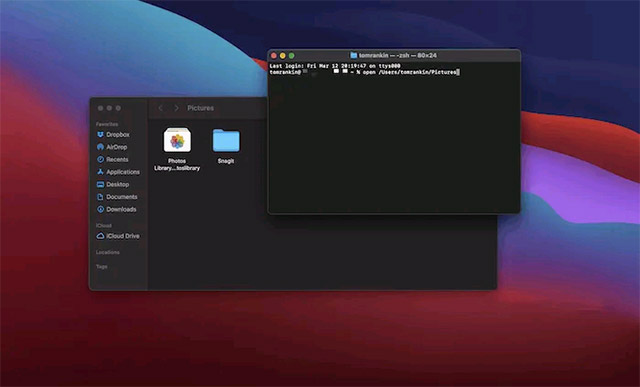
<p style="text-align: justify;">Ví dụ, để mở thư mục Pictures, lệnh mà bạn sẽ sử dụng như sau:</p>

<div style="text-align: justify;"><iframe allowtransparency="true" aria-label="Advertisement" data-google-container-id="a!2" data-google-query-id="CKaO54CQgoYDFYvIFgUdphIAFQ" data-load-complete="true" frameborder="0" height="0" hspace="0" id="aswift_1" marginheight="0" marginwidth="0" name="aswift_1" sandbox="" scrolling="no" tabindex="0" title="Advertisement" vspace="0" width="694"></iframe></div>

<pre id="pre1" style="text-align: justify;">
open /Users/&lt;tênngườidùng&gt;/Pictures</pre>

<p style="text-align: justify;">Lệnh này sẽ mở thư mục Pictures trong cửa sổ Finder. Sau đó, bạn có thể sử dụng để truy cập các file có trong thư mục.</p>

<p style="text-align: justify;">&nbsp;</p>

<div style="text-align: justify;"><br />
<img alt="Mở thư mục Pictures" data-adbro-processed="true" data-i="1" data-src="https://st.quantrimang.com/photos/image/2021/03/24/mo-thu-muc-tu-terminal-tren-may-mac2.jpg" data-was-processed="true" height="387" src="https://st.quantrimang.com/photos/image/2021/03/24/mo-thu-muc-tu-terminal-tren-may-mac2.jpg" width="640" /></div>

<p style="text-align: justify;">Còn có một loạt các lệnh ngắn khác mà bạn có thể sử dụng để truy cập vào từng thư mục cụ thể. Ví dụ:</p>

<p style="text-align: justify;">Để mở thư mục Root, hãy sử dụng lệnh:</p>

<pre id="pre2" style="text-align: justify;">
open /</pre>

<p style="text-align: justify;">Đối với thư mục Home của bạn (tức là thư mục chứa Desktop, Documents và các thư mục khác dành riêng cho người dùng), hãy nhập:</p>

<pre id="pre3" style="text-align: justify;">
open ~</pre>

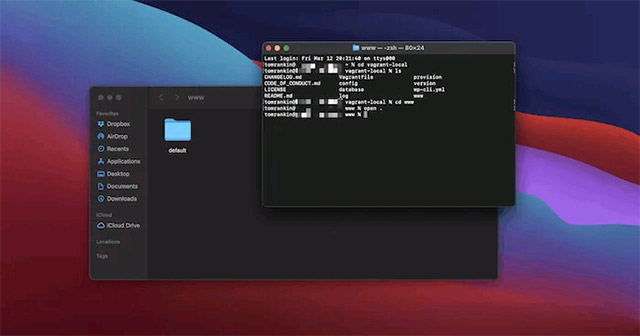
<p style="text-align: justify;">Để mở thư mục làm việc hiện tại trong Finder, hãy sử dụng lệnh:</p>

<pre id="pre4" style="text-align: justify;">
open .</pre>

<p style="text-align: justify;"><img alt="Thư mục làm việc hiện tại trong Finder" data-i="2" data-src="https://st.quantrimang.com/photos/image/2021/03/24/mo-thu-muc-tu-terminal-tren-may-mac3.jpg" data-was-processed="true" height="336" src="https://st.quantrimang.com/photos/image/2021/03/24/mo-thu-muc-tu-terminal-tren-may-mac3.jpg" width="640" /></p>

<p style="text-align: justify;">Ngoài ra, bạn cũng có thể khởi chạy và&nbsp;cập nhật các ứng dụng Mac&nbsp;từ Terminal mà không cần sử dụng Finder. Ví dụ, để mở Safari, hãy nhập:</p>

<pre id="pre5" style="text-align: justify;">
open /Applications/Safari.app</pre>

<p style="text-align: justify;">Tất nhiên, bạn có thể thay thế Safari bằng bất kỳ ứng dụng nào trên hệ thống của mình miễn là bạn biết tên file tương ứng của nó.</p>

<h2 style="text-align: justify;">Mở một thư mục trong Terminal từ Menu Shortcut</h2>

<p style="text-align: justify;">Có thể bạn muốn “đảo ngược tình thế” và mở một thư mục Finder trong Terminal. Hay nói cách khác là biến nó thành thư mục làm việc hiện tại. Có thể thực hiện việc này bằng cách thêm một shortcut sẽ hiện ra khi bạn nhấp chuột phải.</p>

<div style="text-align: justify;"><iframe allowtransparency="true" aria-label="Advertisement" data-google-container-id="a!3" data-google-query-id="CJ6U6YCQgoYDFUjSFgUdCloI6g" data-load-complete="true" frameborder="0" height="174" hspace="0" id="aswift_2" marginheight="0" marginwidth="0" name="aswift_2" sandbox="" scrolling="no" tabindex="0" title="Advertisement" vspace="0" width="694"></iframe></div>

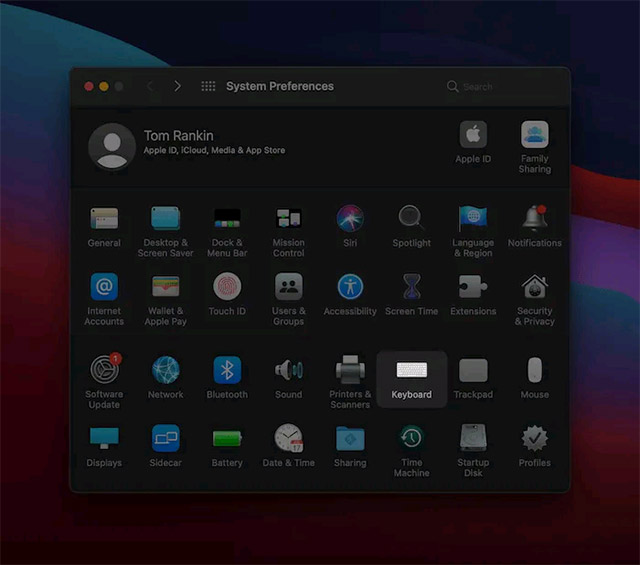
<p style="text-align: justify;">Hãy điều hướng đến System “<strong>Preferences -&gt; Keyboard</strong>”.</p>

<p style="text-align: justify;"><img alt="Điều hướng đến System “Preferences -&gt; Keyboard”" data-i="3" data-src="https://st.quantrimang.com/photos/image/2021/03/24/mo-thu-muc-tu-terminal-tren-may-mac4.jpg" data-was-processed="true" height="565" src="https://st.quantrimang.com/photos/image/2021/03/24/mo-thu-muc-tu-terminal-tren-may-mac4.jpg" width="640" /></p>

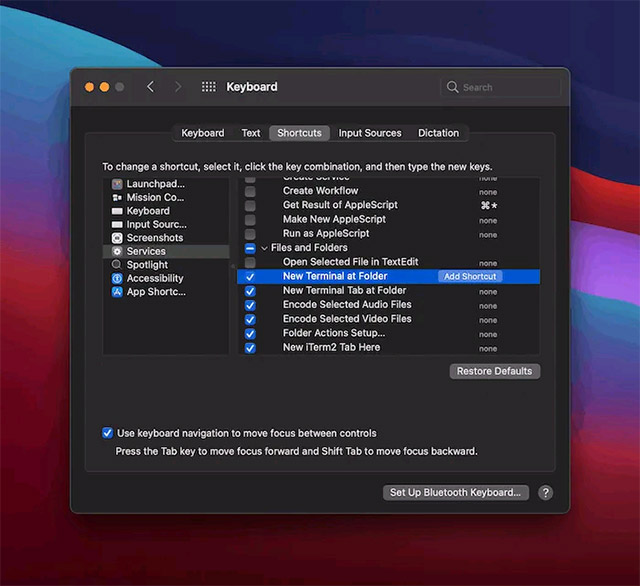
<p style="text-align: justify;">Tiếp theo, điều hướng đến tab&nbsp;<strong>Shortcuts</strong>. Tại đây, bấm chọn menu&nbsp;<strong>Services</strong>&nbsp;và cuộn xuống để tìm tùy chọn “<strong>New Terminal at Folder</strong>”.</p>

<p style="text-align: justify;"><img alt="Chọn tùy chọn “New Terminal at Folder”" data-i="4" data-src="https://st.quantrimang.com/photos/image/2021/03/24/mo-thu-muc-tu-terminal-tren-may-mac5.jpg" data-was-processed="true" height="586" src="https://st.quantrimang.com/photos/image/2021/03/24/mo-thu-muc-tu-terminal-tren-may-mac5.jpg" width="640" /></p>

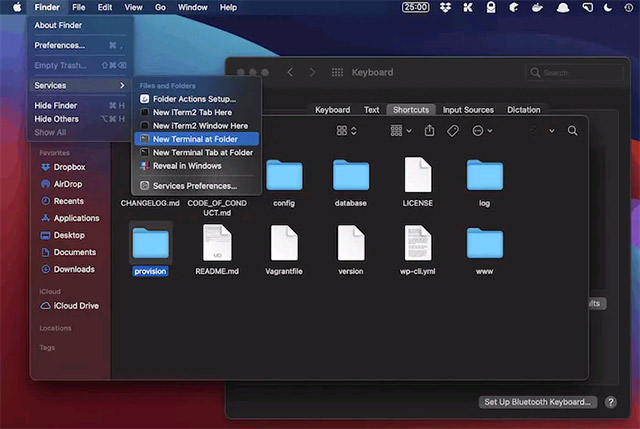
<p style="text-align: justify;">Nếu bạn chọn bất kỳ thư mục nào trong Finder, hãy mở menu Services từ Toolbar và chọn “<strong>New Terminal at Folder</strong>”.</p>

<p style="text-align: justify;"><img alt="Chọn “New Terminal at Folder”" data-i="5" data-src="https://st.quantrimang.com/photos/image/2021/03/24/mo-thu-muc-tu-terminal-tren-may-mac6.jpg" data-was-processed="true" height="429" src="https://st.quantrimang.com/photos/image/2021/03/24/mo-thu-muc-tu-terminal-tren-may-mac6.jpg" width="640" /></p>

<div style="text-align: justify;"><iframe allowtransparency="true" aria-label="Advertisement" data-google-container-id="a!4" data-google-query-id="COrX0oOQgoYDFRPHFgUdpIEPUQ" data-load-complete="true" frameborder="0" height="0" hspace="0" id="aswift_3" marginheight="0" marginwidth="0" name="aswift_3" sandbox="" scrolling="no" tabindex="0" title="Advertisement" vspace="0" width="694"></iframe></div>

<p style="text-align: justify;">Cách làm này sẽ đặc biệt hữu ích nếu bạn thường xuyên phải chuyển đổi giữa GUI và Terminal.</p>

<h2 style="text-align: justify;">Tại sao bạn lại muốn mở một thư mục từ Mac Terminal?</h2>

<p style="text-align: justify;">Như đã lưu ý, cách mở thư mục ưa thích là sử dụng Finder. Đây là giao diện người dùng đồ họa (GUI) và là cách điều hướng thư mục mặc định của macOS. Nhưng đó không phải là cách duy nhất để truy cập các file hoặc thư mục trong macOS.</p>

<p style="text-align: justify;">Phải thừa nhận rằng việc sử dụng Terminal để mở các thư mục không phải là cách tự nhiên để sử dụng macOS. Tuy nhiên, bạn sẽ thấy nó hữu ích trong các tình huống sau:</p>

<ul>
	<li style="text-align: justify;">Nó có thể là kỹ năng cần có trong hộp công cụ nếu bạn là người dùng dòng lệnh.</li>
	<li style="text-align: justify;">Phát triển cho Mac thường có nghĩa là làm việc trong Terminal. Và việc mở một thư mục từ Mac Terminal là một trong những nhiệm vụ thường phải làm.</li>
	<li style="text-align: justify;">Trong một trường hợp hiếm gặp khi macOS hoạt động như phần mềm máy chủ, bạn chỉ có thể sử dụng Terminal để điều hướng hệ điều hành (OS).</li>
</ul>

<p style="text-align: justify;">Mac Terminal không phải là thứ thường xuyên phải làm việc, trừ khi bạn là nhà phát triển hoặc quản trị viên hệ thống. Tuy nhiên, mở một thư mục là một nhiệm vụ cơ bản có thể giúp bạn ở lại dòng lệnh lâu nhất có thể. Tất cả những gì cần có là lệnh open và đường dẫn đến thư mục. Nhưng hầu hết người dùng Mac sẽ chỉ mở một thư mục theo cách cổ điển, bằng cách nhấp vào nó.</p>

<p style="text-align: justify;">Nếu bạn đang tìm kiếm nhiều thứ hơn để làm với Terminal, hãy thử tìm kiếm trên web mà không cần trình duyệt, trực tiếp từ dòng lệnh.</p>
		</div>
				<div id="author">
						<p>
				<strong>Nguồn tin:</strong>
				Quantrimang.com
			</p>
		</div>
	</div>
	<div id="footer" class="clearfix">
		<div id="url">
			<strong>URL của bản tin này: </strong><a href="https://www.nguoicodonvn2008.info/vi/news/savefile/kien-thuc-may-tinh/huong-dan-mo-thu-muc-tren-may-mac-bang-lenh-trong-terminal-8338.html" title="Hướng dẫn mở thư mục trên máy Mac bằng lệnh trong Terminal">https://www.nguoicodonvn2008.info/vi/news/savefile/kien-thuc-may-tinh/huong-dan-mo-thu-muc-tren-may-mac-bang-lenh-trong-terminal-8338.html</a>

		</div>
		<div class="clear"></div>
		<div class="copyright">
			&copy; .&#x3A; Nguoicodonvn2008.info - Cõi lòng người cô đơn &#x3A;.
		</div>
		<div id="contact">
			<a href="mailto:admin@nguoicodonvn2008.info">admin@nguoicodonvn2008.info</a>
		</div>
	</div>
</div>
        <div id="timeoutsess" class="chromeframe">
            Bạn đã không sử dụng Site, <a onclick="timeoutsesscancel();" href="https://nguoicodonvn2008.info/#">Bấm vào đây để duy trì trạng thái đăng nhập</a>. Thời gian chờ: <span id="secField"> 60 </span> giây
        </div>
        <div id="openidResult" class="nv-alert" style="display:none"></div>
        <div id="openidBt" data-result="" data-redirect=""></div>
		</script>
		<div class="car-top">
  <span><img src="https://nguoicodonvn2008.info/themes/default/images/car.png" alt=""></span>
</div>
<div id="run_cronjobs" style="visibility:hidden;display:none;"><img alt="cron" src="/index.php?second=cronjobs&amp;p=u0AZpq17" width="1" height="1" /></div>
<script src="https://nguoicodonvn2008.info/assets/js/jquery/jquery.min.js"></script>
<script>var nv_base_siteurl="/",nv_lang_data="vi",nv_lang_interface="vi",nv_name_variable="nv",nv_fc_variable="op",nv_lang_variable="language",nv_module_name="news",nv_func_name="savefile",nv_is_user=0, nv_my_ofs=-4,nv_my_abbr="EDT",nv_cookie_prefix="nv4c_e856T",nv_check_pass_mstime=1738000,nv_area_admin=0,nv_safemode=0,theme_responsive=0,nv_recaptcha_ver=2,nv_recaptcha_sitekey="",nv_recaptcha_type="image",XSSsanitize=1;</script>
<script src="https://nguoicodonvn2008.info/assets/js/language/vi.js"></script>
<script src="https://nguoicodonvn2008.info/assets/js/DOMPurify/purify3.js"></script>
<script src="https://nguoicodonvn2008.info/assets/js/global.js"></script>
<script src="https://nguoicodonvn2008.info/assets/js/site.js"></script>
<script src="https://nguoicodonvn2008.info/themes/default/js/news.js"></script>
<script src="https://nguoicodonvn2008.info/themes/default/js/main.js"></script>
<script src="https://nguoicodonvn2008.info/themes/default/js/custom.js"></script>
<script type="application/ld+json">
        {
            "@context": "https://schema.org",
            "@type": "Organization",
            "url": "https://nguoicodonvn2008.info",
            "logo": "https://nguoicodonvn2008.info/uploads/angel.gif"
        }
        </script>
<script src="https://nguoicodonvn2008.info/themes/default/js/bootstrap.min.js"></script>
<script type="text/javascript">
var $scrolltop = $('.car-top');
$scrolltop.on('click', function () {
    $('html,body').animate({
        scrollTop: 0
    }, 800);
    $(this).addClass("car-run");
    setTimeout(function(){ $scrolltop.removeClass('car-run');}, 1000);
    return false;
});
$(window).on('scroll', function ()
{ 
    if($(window).scrollTop() >= 200)
    {
        $scrolltop.addClass("show");
        $scrolltop.addClass("car-down");
    }
    else
    {
       $scrolltop.removeClass("show");
       setTimeout(function(){ $scrolltop.removeClass('car-down');}, 300);
    }
});
</script>
</body>
</html>