<!DOCTYPE html>
    <html lang="vi" xmlns="http://www.w3.org/1999/xhtml" prefix="og: http://ogp.me/ns#">
    <head>
<title>Hướng dẫn kích hoạt hoặc vô hiệu hóa bộ lọc SmartScreen trên Windows</title>
<meta name="description" content="Hướng dẫn kích hoạt hoặc vô hiệu hóa bộ lọc SmartScreen trên Windows - Savefile - Tin Tức -...">
<meta name="author" content=".: Nguoicodonvn2008.info - Cõi lòng người cô đơn :.">
<meta name="copyright" content=".: Nguoicodonvn2008.info - Cõi lòng người cô đơn :. [admin@nguoicodonvn2008.info]">
<meta name="robots" content="index, archive, follow, noodp">
<meta name="googlebot" content="index,archive,follow,noodp">
<meta name="msnbot" content="all,index,follow">
<meta name="generator" content="NukeViet v4.5">
<meta http-equiv="Content-Type" content="text/html; charset=utf-8">
<meta property="og:title" content="Hướng dẫn kích hoạt hoặc vô hiệu hóa bộ lọc SmartScreen trên Windows">
<meta property="og:type" content="website">
<meta property="og:description" content="Savefile - Tin Tức - https&#x3A;&#x002F;&#x002F;www.nguoicodonvn2008.info&#x002F;vi&#x002F;news&#x002F;savefile&#x002F;kien-thuc-may-tinh&#x002F;huong-dan-kich-hoat-hoac-vo-hieu-hoa-bo-loc-smartscreen-tren-windows-7782.html">
<meta property="og:site_name" content=".&#x3A; Nguoicodonvn2008.info - Cõi lòng người cô đơn &#x3A;.">
<meta property="og:url" content="https://www.nguoicodonvn2008.info/vi/news/savefile/kien-thuc-may-tinh/huong-dan-kich-hoat-hoac-vo-hieu-hoa-bo-loc-smartscreen-tren-windows-7782.html">
<link rel="shortcut icon" href="https://nguoicodonvn2008.info/favicon.ico">
<link rel="canonical" href="https://www.nguoicodonvn2008.info/vi/news/savefile/kien-thuc-may-tinh/huong-dan-kich-hoat-hoac-vo-hieu-hoa-bo-loc-smartscreen-tren-windows-7782.html">
<link rel="alternate" href="https://nguoicodonvn2008.info/vi/news/rss/" title="Tin Tức" type="application/rss+xml">
<link rel="alternate" href="https://nguoicodonvn2008.info/vi/news/rss/karaoke-dual/" title="Tin Tức - Karaoke Dual" type="application/rss+xml">
<link rel="alternate" href="https://nguoicodonvn2008.info/vi/news/rss/nhac-tre/" title="Tin Tức - Nhạc trẻ" type="application/rss+xml">
<link rel="alternate" href="https://nguoicodonvn2008.info/vi/news/rss/tru-tinh/" title="Tin Tức - Trữ tình" type="application/rss+xml">
<link rel="alternate" href="https://nguoicodonvn2008.info/vi/news/rss/nuoc-ngoai/" title="Tin Tức - Nước ngoài" type="application/rss+xml">
<link rel="alternate" href="https://nguoicodonvn2008.info/vi/news/rss/remix/" title="Tin Tức - Remix" type="application/rss+xml">
<link rel="alternate" href="https://nguoicodonvn2008.info/vi/news/rss/tam-su-tinh-yeu/" title="Tin Tức - Tâm sự tình yêu" type="application/rss+xml">
<link rel="alternate" href="https://nguoicodonvn2008.info/vi/news/rss/tho-suu-tam/" title="Tin Tức - Thơ sưu tầm" type="application/rss+xml">
<link rel="alternate" href="https://nguoicodonvn2008.info/vi/news/rss/cuoc-song/" title="Tin Tức - Cuộc sống" type="application/rss+xml">
<link rel="alternate" href="https://nguoicodonvn2008.info/vi/news/rss/phan-mem/" title="Tin Tức - Phần mềm" type="application/rss+xml">
<link rel="alternate" href="https://nguoicodonvn2008.info/vi/news/rss/kien-thuc-may-tinh/" title="Tin Tức - Kiến thức máy tính" type="application/rss+xml">
<link rel="alternate" href="https://nguoicodonvn2008.info/vi/news/rss/hoc-tap/" title="Tin Tức - Học tập" type="application/rss+xml">
<link rel="alternate" href="https://nguoicodonvn2008.info/vi/news/rss/tai-lieu/" title="Tin Tức - Tài liệu" type="application/rss+xml">
<link rel="alternate" href="https://nguoicodonvn2008.info/vi/news/rss/de-thi/" title="Tin Tức - Đề thi" type="application/rss+xml">
<link rel="preload" as="style" href="https://nguoicodonvn2008.info/assets/css/font-awesome.min.css" type="text/css">
<link rel="preload" as="style" href="https://nguoicodonvn2008.info/themes/default/css/bootstrap.non-responsive.css" type="text/css">
<link rel="preload" as="style" href="https://nguoicodonvn2008.info/themes/default/css/style.css" type="text/css">
<link rel="preload" as="style" href="https://nguoicodonvn2008.info/themes/default/css/style.non-responsive.css" type="text/css">
<link rel="preload" as="style" href="https://nguoicodonvn2008.info/themes/default/css/news.css" type="text/css">
<link rel="preload" as="style" href="https://nguoicodonvn2008.info/themes/default/css/custom.css" type="text/css">
<link rel="preload" as="script" href="https://nguoicodonvn2008.info/assets/js/jquery/jquery.min.js" type="text/javascript">
<link rel="preload" as="script" href="https://nguoicodonvn2008.info/assets/js/language/vi.js" type="text/javascript">
<link rel="preload" as="script" href="https://nguoicodonvn2008.info/assets/js/DOMPurify/purify3.js" type="text/javascript">
<link rel="preload" as="script" href="https://nguoicodonvn2008.info/assets/js/global.js" type="text/javascript">
<link rel="preload" as="script" href="https://nguoicodonvn2008.info/assets/js/site.js" type="text/javascript">
<link rel="preload" as="script" href="https://nguoicodonvn2008.info/themes/default/js/news.js" type="text/javascript">
<link rel="preload" as="script" href="https://nguoicodonvn2008.info/themes/default/js/main.js" type="text/javascript">
<link rel="preload" as="script" href="https://nguoicodonvn2008.info/themes/default/js/custom.js" type="text/javascript">
<link rel="preload" as="script" href="https://nguoicodonvn2008.info/themes/default/js/bootstrap.min.js" type="text/javascript">
<link rel="stylesheet" href="https://nguoicodonvn2008.info/assets/css/font-awesome.min.css">
<link rel="stylesheet" href="https://nguoicodonvn2008.info/themes/default/css/bootstrap.non-responsive.css">
<link rel="stylesheet" href="https://nguoicodonvn2008.info/themes/default/css/style.css">
<link rel="stylesheet" href="https://nguoicodonvn2008.info/themes/default/css/style.non-responsive.css">
<link rel="StyleSheet" href="https://nguoicodonvn2008.info/themes/default/css/news.css">
<link rel="stylesheet" href="https://nguoicodonvn2008.info/themes/default/css/custom.css">
<style type="text/css">
	body{background: #fff;}
</style>
    </head>
    <body>
<div id="print">
	<div id="hd_print">
		<h2 class="pull-left">.&#x3A; Nguoicodonvn2008.info - Cõi lòng người cô đơn &#x3A;.</h2>
		<p class="pull-right"><a title=".&#x3A; Nguoicodonvn2008.info - Cõi lòng người cô đơn &#x3A;." href="https://nguoicodonvn2008.info/">https://nguoicodonvn2008.info</a></p>
	</div>
	<div class="clear"></div>
	<hr />
	<div id="content">
		<h1>Hướng dẫn kích hoạt hoặc vô hiệu hóa bộ lọc SmartScreen trên Windows</h1>
		<ul class="list-inline">
			<li>Thứ sáu - 17/11/2023 09:27</li>
			<li class="hidden-print txtrequired"><em class="fa fa-print">&nbsp;</em><a title="In ra" href="javascript:;" onclick="window.print()">In ra</a></li>
			<li class="hidden-print txtrequired"><em class="fa fa-power-off">&nbsp;</em><a title="Đóng cửa sổ này" href="javascript:;" onclick="window.close()">Đóng cửa sổ này</a></li>
		</ul>
		<div class="clear"></div>
		<div id="hometext">
		</div>
				<div class="imghome">
			<img alt="Hướng dẫn kích hoạt hoặc vô hiệu hóa bộ lọc SmartScreen trên Windows" src="https://st.quantrimang.com/photos/image/2023/11/17/vo-hieu-hoa-smartscreen-18.jpg" width="460" class="img-thumbnail" />
		</div>
		<div class="clear"></div>
		<div id="bodytext" class="clearfix">
			<p style="text-align: justify;">Về cơ bản,&nbsp;Windows SmartScreen&nbsp;là công cụ, tính năng kiểm tra độ an toàn một file hoặc ứng dụng có thể gây hại trên hệ thống Windows. Tính năng này được tích hợp từ Windows 8. Khi bạn chạy một file hoặc một ứng dụng không rõ nguồn gốc, Windows sẽ chặn ứng dụng này là lại và hiển thị màn hình hỏi bạn không chạy hay có chạy ứng dụng này.</p>

<p style="text-align: justify;">Có thể nói tính năng này cực kỳ hữu ích, tuy nhiên nếu xuất hiện nhiều thông báo này khi chạy ứng dụng sẽ khiến nhiều người cảm thấy khó chịu. Do đó bạn có thể tiến hành vô hiệu hóa Windows SmartScreen trên Windows đi.</p>

<h2 style="text-align: justify;">Bộ lọc SmartScreen là gì?</h2>

<p style="text-align: justify;">SmartScreen hoạt động như một hệ thống cảnh báo sớm để cho người dùng biết liệu một trang web hoặc ứng dụng đáng ngờ không hoặc không tìm thấy file đã tải xuống trong danh sách các chương trình phần mềm an toàn. Về cơ bản, SmartScreen sử dụng một cơ sở dữ liệu lớn về các trang web nằm trong danh sách trắng và danh sách đen để phân tích xem một thứ nhất định có an toàn để mở hay không.</p>

<p style="text-align: justify;">SmartScreen chạy ở chế độ nền trên Windows và thường sẽ hiển thị dưới dạng một hộp lớn màu xanh lam cho biết&nbsp;<strong>“Windows protected your PC”</strong>&nbsp;(Windows đã bảo vệ PC của bạn) bằng cách chặn một chương trình hoặc trang web nhất định. Nếu đó là một chương trình, bạn thường sẽ có tùy chọn&nbsp;<strong>“Run Anyway”.</strong>&nbsp;Nếu SmartScreen xuất hiện trên một trang web mà bạn biết là an toàn, bạn có thể nhấp vào “More Information” và báo cáo đó là một trang web an toàn.</p>

<p style="text-align: justify;">Nhìn chung, SmartScreen là một lớp bảo mật hữu ích mà bạn nên để lại. Tuy nhiên, đôi khi nó cản trở bạn truy cập các trang web hoặc tải xuống những thứ mà bạn biết là an toàn, nhưng chưa được SmartScreen xác minh. Những lúc như thế này, bạn nên vô hiệu hóa SmartScreen.</p>

<div style="text-align: justify;">&nbsp;</div>

<h2 style="text-align: justify;">Cách tắt SmartScreen bằng cài đặt bảo mật của Windows</h2>

<p style="text-align: justify;">Cách dễ nhất để tắt SmartScreen là thông qua Windows Settings. Bạn có thể cấu hình tất cả các khía cạnh bảo mật hệ thống của mình từ Windows Security. Đây là cách để làm điều đó.</p>

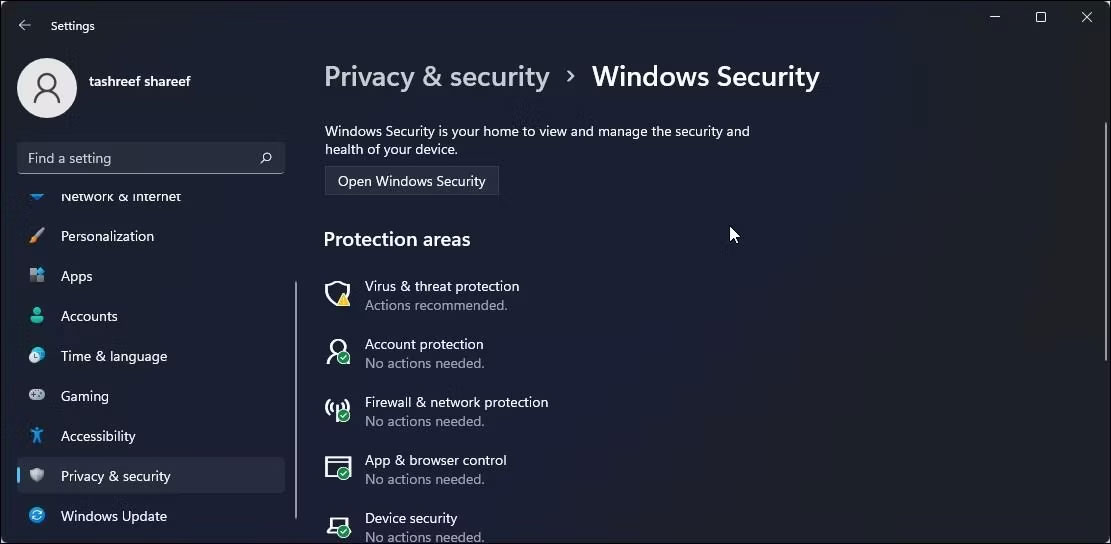
<p style="text-align: justify;">1. Nhấn&nbsp;<strong>Win + I&nbsp;</strong>để&nbsp;mở Settings.</p>

<p style="text-align: justify;">2. Mở tab&nbsp;<strong>Privacy and Security</strong>&nbsp;ở khung bên trái.</p>

<p style="text-align: justify;">3. Nhấp vào&nbsp;<strong>Windows Security</strong>.</p>

<figure>
<div style="text-align: justify;"><img alt="Mở Windows Security" data-i="0" data-src="https://st.quantrimang.com/photos/image/2023/11/17/vo-hieu-hoa-smartscreen-1.jpg" data-was-processed="true" height="544" src="https://st.quantrimang.com/photos/image/2023/11/17/vo-hieu-hoa-smartscreen-1.jpg" width="1111" /></div>

<figcaption>
<div style="text-align: justify;">Mở Windows Security</div>
</figcaption>
</figure>

<p style="text-align: justify;">4. Tiếp theo, nhấp vào&nbsp;<strong>Open Windows Security</strong>.</p>

<figure>
<div style="text-align: justify;"><br />
<img alt="Windows Security kiểm soát ứng dụng và trình duyệt" data-adbro-processed="true" data-i="1" data-src="https://st.quantrimang.com/photos/image/2023/11/17/vo-hieu-hoa-smartscreen-2.jpg" data-was-processed="true" height="502" src="https://st.quantrimang.com/photos/image/2023/11/17/vo-hieu-hoa-smartscreen-2.jpg" width="1104" /></div>

<figcaption>
<div style="text-align: justify;">Windows Security kiểm soát ứng dụng và trình duyệt</div>
</figcaption>
</figure>

<div style="text-align: justify;">&nbsp;</div>

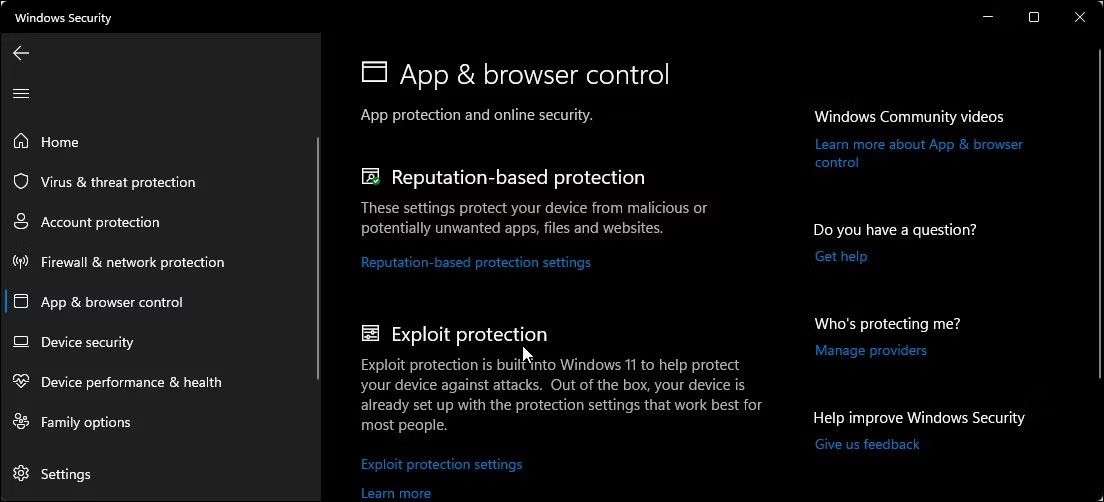
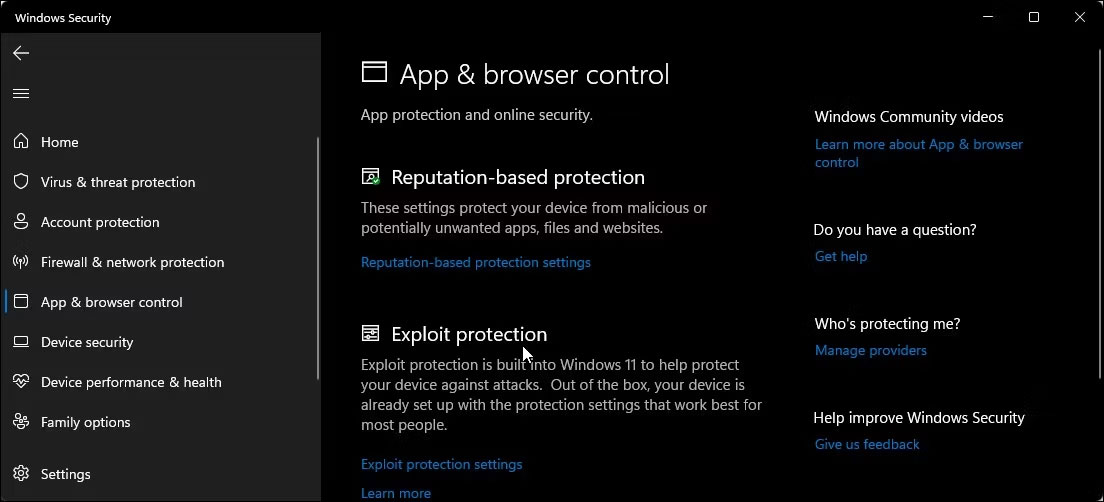
<p style="text-align: justify;">5. Mở tab&nbsp;<strong>App &amp; browser control</strong>&nbsp;ở khung bên trái.</p>

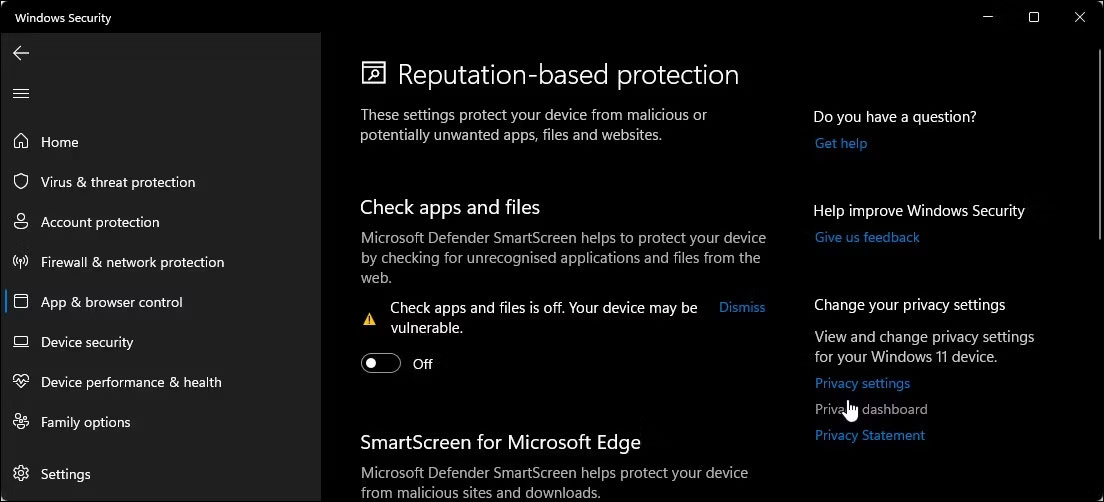
<p style="text-align: justify;">6. Nhấp vào&nbsp;<strong>Reputation-based protection settings</strong>&nbsp;trong<strong>&nbsp;Reputation-based protection</strong>.</p>

<figure>
<div style="text-align: justify;"><img alt="Nhấp vào Reputation-based protection settings" data-i="2" data-src="https://st.quantrimang.com/photos/image/2023/11/17/vo-hieu-hoa-smartscreen-3.jpg" data-was-processed="true" height="502" src="https://st.quantrimang.com/photos/image/2023/11/17/vo-hieu-hoa-smartscreen-3.jpg" width="1104" /></div>

<figcaption>
<div style="text-align: justify;">Nhấp vào Reputation-based protection settings</div>
</figcaption>
</figure>

<p style="text-align: justify;">7. Tại đây, bạn sẽ tìm thấy 4 bộ lọc SmartScreen khác nhau mà bạn có thể bật hoặc tắt riêng lẻ. Nếu bạn muốn tắt bộ lọc file và file thực thi, hãy tắt các bộ lọc&nbsp;<strong>Check apps and files</strong>&nbsp;và&nbsp;<strong>&nbsp;Potentially unwanted app blocking</strong>. Hai bộ lọc còn lại dành cho&nbsp;<strong>Microsoft Edge</strong>&nbsp;và&nbsp;<strong>Microsoft Store apps</strong>.</p>

<figure>
<div style="text-align: justify;"><img alt="Tắt bộ lọc file và file thực thi" data-i="3" data-src="https://st.quantrimang.com/photos/image/2023/11/17/vo-hieu-hoa-smartscreen-4.jpg" data-was-processed="true" height="502" src="https://st.quantrimang.com/photos/image/2023/11/17/vo-hieu-hoa-smartscreen-4.jpg" width="1104" /></div>

<figcaption>
<div style="text-align: justify;">Tắt bộ lọc file và file thực thi</div>
</figcaption>
</figure>

<p style="text-align: justify;">8. Nếu bạn muốn tắt hoàn toàn SmartScreen, hãy tắt cả 4 bộ lọc.</p>

<p style="text-align: justify;">Nếu bất kỳ bộ lọc SmartScreen nào chuyển sang màu xám với thông báo&nbsp;<em>&quot;this setting is managed by your administrator&quot;</em>&nbsp;(cài đặt này được quản lý bởi quản trị viên của bạn), bạn phải liên hệ với quản trị viên hoặc thử phương pháp khác.</p>

<h2 style="text-align: justify;">Cách tắt SmartScreen cho Microsoft Edge</h2>

<figure>
<div style="text-align: justify;"><img alt="Tắt bộ lọc SmartScreen cho Microsoft Edge" data-i="4" data-src="https://st.quantrimang.com/photos/image/2023/11/17/vo-hieu-hoa-smartscreen-5.jpg" data-was-processed="true" height="631" src="https://st.quantrimang.com/photos/image/2023/11/17/vo-hieu-hoa-smartscreen-5.jpg" width="1204" /></div>

<figcaption>
<div style="text-align: justify;">Tắt bộ lọc SmartScreen cho Microsoft Edge</div>
</figcaption>
</figure>

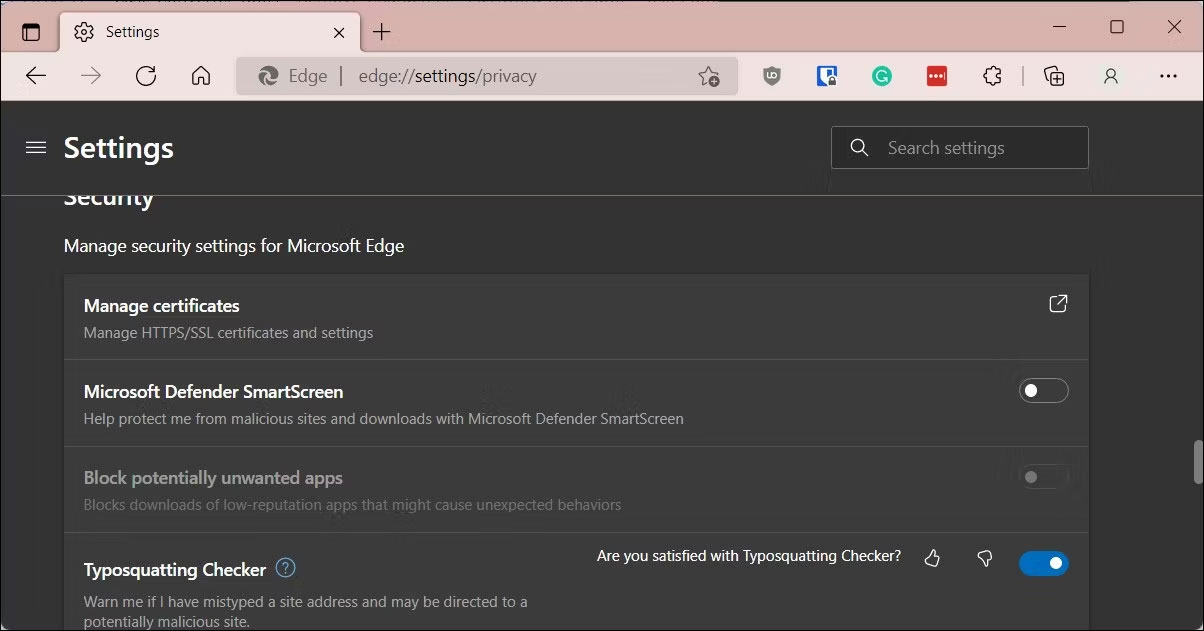
<p style="text-align: justify;">Microsoft Edge có tùy chọn tích hợp để bật và tắt SmartScreen của Microsoft Defender. Đây là cách truy cập nó:</p>

<ol>
	<li style="text-align: justify;">Khởi chạy Microsoft Edge và nhấp vào biểu tượng menu ba chấm ở góc trên cùng bên phải.</li>
	<li style="text-align: justify;">Nhấp vào&nbsp;<strong>Settings</strong>.</li>
	<li style="text-align: justify;">Mở tab&nbsp;<strong>Privacy</strong>&nbsp;,&nbsp;<strong>search, and services</strong>&nbsp;ở ngăn bên trái.</li>
	<li style="text-align: justify;">Cuộn xuống phần&nbsp;<strong>Security</strong>.</li>
	<li style="text-align: justify;">Tắt công tắc chuyển đổi&nbsp;<strong>Microsoft Defender SmartScreen</strong>. Điều này cũng sẽ vô hiệu hóa tùy chọn&nbsp;<strong>Block potentially unwanted apps</strong>.</li>
	<li style="text-align: justify;">Nếu chọn bật lại SmartScreen, bạn phải bật tính năng&nbsp;<strong>Block potentially unwanted apps</strong>&nbsp;theo cách thủ công.</li>
</ol>

<p style="text-align: justify;">Ngoài ra, bạn có thể tắt SmartScreen cho Microsoft Edge bằng ứng dụng Windows Security và Registry Editor. Đây là cách thực hiện.</p>

<h3 style="text-align: justify;">Vô hiệu hóa Microsoft Edge SmartScreen bằng Windows Security</h3>

<p style="text-align: justify;">Microsoft Edge SmartScreen giúp bạn duyệt web an toàn trước các trang web phishing và phần mềm độc hại mà bạn tải xuống. Trừ khi quản trị viên quản lý, bằng không bạn có thể tắt nó đi.</p>

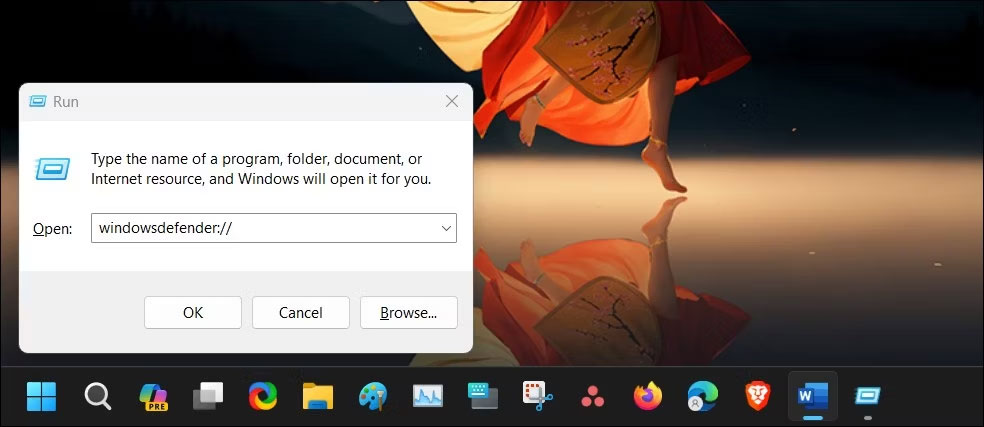
<p style="text-align: justify;">1. Nhấn&nbsp;<strong>Win + R&nbsp;</strong>để&nbsp;mở Run.</p>

<p style="text-align: justify;">2. Nhập&nbsp;<strong>windowsdefender://</strong>&nbsp;và nhấp vào&nbsp;<strong>OK</strong>&nbsp;để&nbsp;mở ứng dụng Windows Security.</p>

<figure>
<div style="text-align: justify;"><img alt="Mở Windows Security" data-i="5" data-src="https://st.quantrimang.com/photos/image/2023/11/17/vo-hieu-hoa-smartscreen-6.jpg" data-was-processed="true" height="427" src="https://st.quantrimang.com/photos/image/2023/11/17/vo-hieu-hoa-smartscreen-6.jpg" width="984" /></div>

<figcaption>
<div style="text-align: justify;">Mở Windows Security</div>
</figcaption>
</figure>

<p style="text-align: justify;">3. Mở tab&nbsp;<strong>App &amp; browser control</strong>&nbsp;ở khung bên trái.</p>

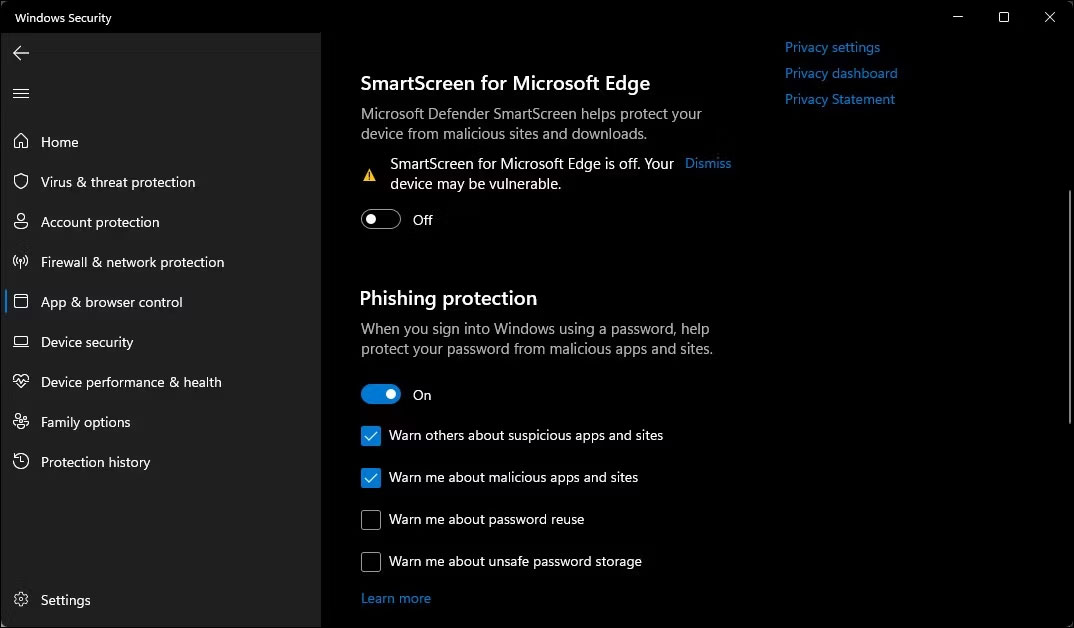
<p style="text-align: justify;">4. Tiếp theo, nhấp vào liên kết&nbsp;<strong>Reputation-based protection settings</strong>&nbsp;trong&nbsp;<strong>Reputation-based protection</strong>.</p>

<figure>
<div style="text-align: justify;"><img alt="SmartScreen bị vô hiệu hóa Microsoft Edge Windows Security" data-i="6" data-src="https://st.quantrimang.com/photos/image/2023/11/17/vo-hieu-hoa-smartscreen-7.jpg" data-was-processed="true" height="628" src="https://st.quantrimang.com/photos/image/2023/11/17/vo-hieu-hoa-smartscreen-7.jpg" width="1074" /></div>

<figcaption>
<div style="text-align: justify;">SmartScreen bị vô hiệu hóa Microsoft Edge Windows Security</div>
</figcaption>
</figure>

<p style="text-align: justify;">5. Tắt công tắc chuyển đổi&nbsp;<strong>SmartScreen for Microsoft Edge</strong>&nbsp;để vô hiệu hóa SmartScreen của Microsoft Defender cho trình duyệt Edge.</p>

<h3 style="text-align: justify;">Vô hiệu hóa SmartScreen cho Microsoft Edge bằng Registry Editor</h3>

<p style="text-align: justify;">Chỉnh sửa registry là một phương pháp thay thế (nhưng phức tạp hơn) để tắt vĩnh viễn SmartScreen cho trình duyệt Edge.</p>

<p style="text-align: justify;">1. Nhấn&nbsp;<strong>Win + R</strong>&nbsp;để mở Run.</p>

<p style="text-align: justify;">2. Gõ&nbsp;<strong>regedit</strong>&nbsp;và nhấn&nbsp;<strong>OK</strong>&nbsp;để&nbsp;<a data-type="internal" href="https://quantrimang.com/cong-nghe/cach-mo-registry-editor-tren-windows-143522" title="Cách mở Registry Editor trên Windows">mở Registry Editor</a>.</p>

<p style="text-align: justify;">3. Tiếp theo, điều hướng đến vị trí sau:</p>

<pre id="pre0">
<code>HKEY_CURRENT_USER\Software\Microsoft\Edge\SmartScreenEnabled</code></pre>

<div style="text-align: justify;"><iframe allowtransparency="true" data-google-container-id="a!5" data-google-query-id="COTTwo-fy4IDFbZfDwIdjO0GUg" data-load-complete="true" frameborder="0" height="174" hspace="0" id="aswift_4" marginheight="0" marginwidth="0" name="aswift_4" sandbox="" scrolling="no" vspace="0" width="694"></iframe></div>

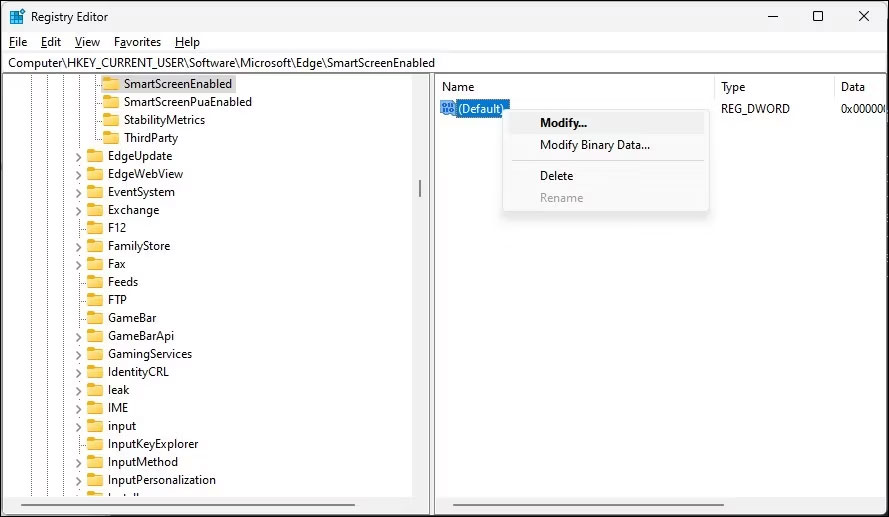
<p style="text-align: justify;">4. Ở khung bên phải, nhấp chuột phải vào giá trị&nbsp;<strong>Default value</strong>&nbsp;và chọn&nbsp;<strong>Modify</strong>.</p>

<figure>
<div style="text-align: justify;"><img alt="Thay đổi giá trị mặc định" data-i="7" data-src="https://st.quantrimang.com/photos/image/2023/11/17/vo-hieu-hoa-smartscreen-8.jpg" data-was-processed="true" height="517" src="https://st.quantrimang.com/photos/image/2023/11/17/vo-hieu-hoa-smartscreen-8.jpg" width="889" /></div>

<figcaption>
<div style="text-align: justify;">Thay đổi giá trị mặc định</div>
</figcaption>
</figure>

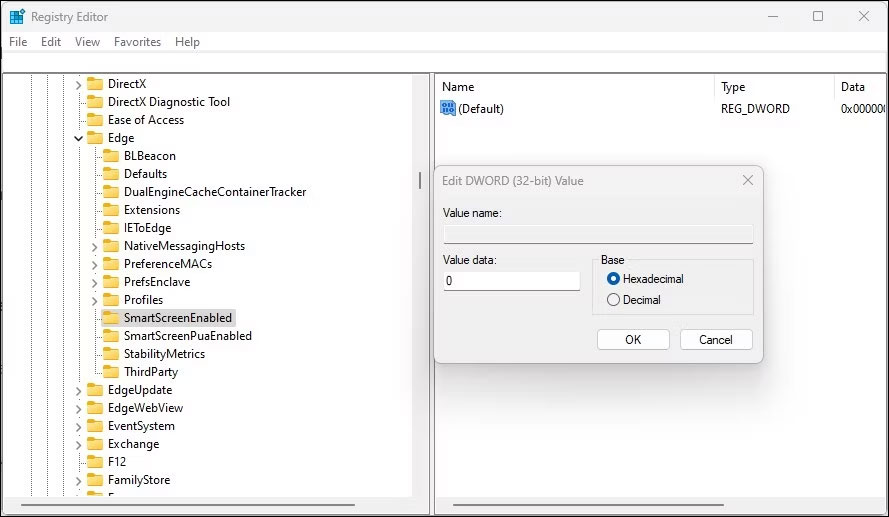
<p style="text-align: justify;">5. Nhập&nbsp;<strong>1</strong>&nbsp;vào trường&nbsp;<strong>Value data</strong>&nbsp;và nhấp vào&nbsp;<strong>OK</strong>&nbsp;để lưu các thay đổi.</p>

<figure>
<div style="text-align: justify;"><img alt="SmartScreen Edge bị vô hiệu hóa" data-i="8" data-src="https://st.quantrimang.com/photos/image/2023/11/17/vo-hieu-hoa-smartscreen-9.jpg" data-was-processed="true" height="517" src="https://st.quantrimang.com/photos/image/2023/11/17/vo-hieu-hoa-smartscreen-9.jpg" width="889" /></div>

<figcaption>
<div style="text-align: justify;">SmartScreen Edge bị vô hiệu hóa</div>
</figcaption>
</figure>

<p style="text-align: justify;">6. Bạn có thể cần phải&nbsp;khởi động lại máy tính&nbsp;để xem trực tiếp các thay đổi.</p>

<h2 style="text-align: justify;">Cách tắt SmartScreen của Windows Defender bằng Internet Properties</h2>

<p style="text-align: justify;">Bạn có thể bật hoặc tắt Windows Defender SmartScreen bằng hộp thoại Internet Properties trong Windows 10. Còn được gọi là Internet Options, nó cho phép bạn cấu hình cài đặt bảo mật và quyền truy cập, tiện ích bổ sung, điều khiển Active-X, v.v...</p>

<p style="text-align: justify;">Thực hiện theo các bước sau để tắt SmartScreen bằng Internet Options:</p>

<p style="text-align: justify;">1. Nhấn&nbsp;<strong>Win + R</strong>&nbsp;để mở Run.</p>

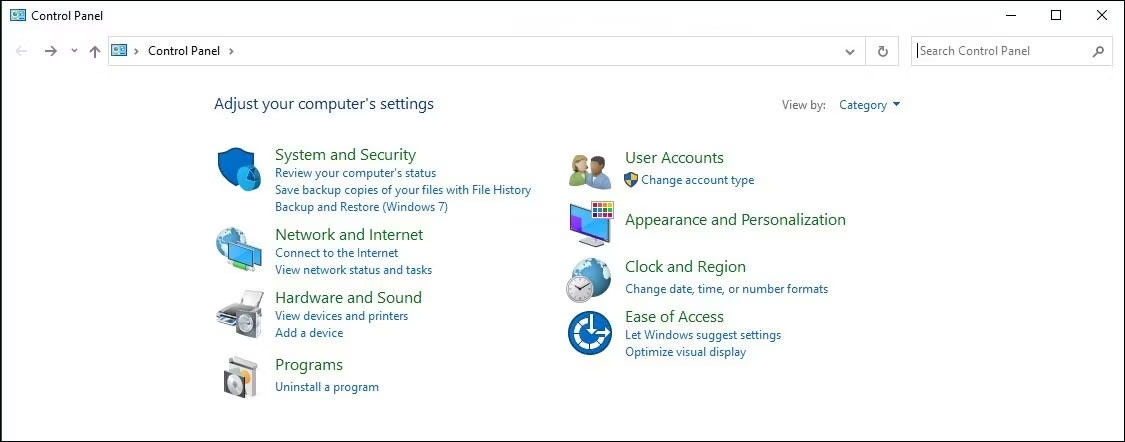
<p style="text-align: justify;">2. Gõ&nbsp;<strong>control</strong>&nbsp;và nhấn&nbsp;<strong>OK</strong>&nbsp;để&nbsp;<a data-type="internal" href="https://quantrimang.com/cong-nghe/cach-mo-control-panel-tren-windows-10-8-7-vista-va-xp-152771" title="Cách mở Control Panel trên Windows 10, 8.1, 7">mở Control Panel</a>.</p>

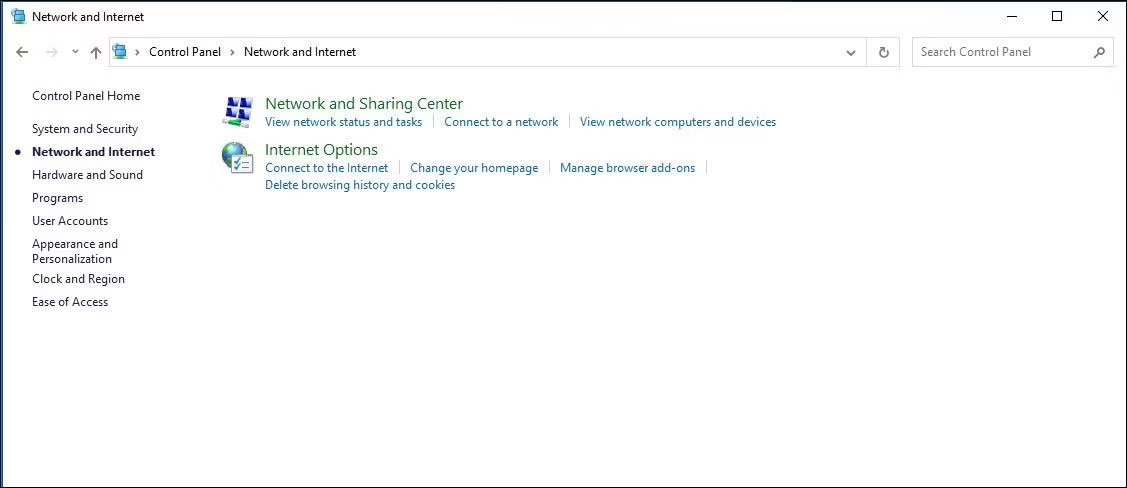
<p style="text-align: justify;">3. Nhấp vào&nbsp;<strong>Network and Internet</strong>.</p>

<figure>
<div style="text-align: justify;"><img alt="Windows Control Panel" data-i="9" data-src="https://st.quantrimang.com/photos/image/2023/11/17/vo-hieu-hoa-smartscreen-10.jpg" data-was-processed="true" height="442" src="https://st.quantrimang.com/photos/image/2023/11/17/vo-hieu-hoa-smartscreen-10.jpg" width="1125" /></div>

<figcaption>
<div style="text-align: justify;">Windows Control Panel</div>
</figcaption>
</figure>

<p style="text-align: justify;">4. Tiếp theo, nhấp vào&nbsp;<strong>Internet Options.</strong></p>

<p style="text-align: justify;">5. Trong cửa sổ&nbsp;<strong>Internet Properties</strong>, mở tab&nbsp;<strong>Advanced</strong>.</p>

<figure>
<div style="text-align: justify;"><img alt="Tùy chọn mạng của Windows Control Panel" data-i="10" data-src="https://st.quantrimang.com/photos/image/2023/11/17/vo-hieu-hoa-smartscreen-11.jpg" data-was-processed="true" height="488" src="https://st.quantrimang.com/photos/image/2023/11/17/vo-hieu-hoa-smartscreen-11.jpg" width="1127" /></div>

<figcaption>
<div style="text-align: justify;">Tùy chọn mạng của Windows Control Panel</div>
</figcaption>
</figure>

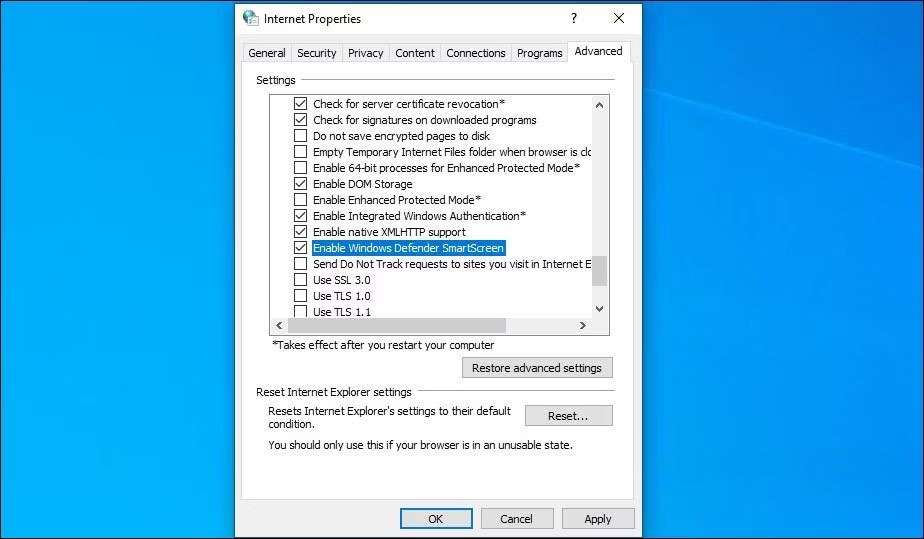
<p style="text-align: justify;">6. Cuộn xuống phần&nbsp;<strong>Security</strong>.</p>

<figure>
<div style="text-align: justify;"><img alt="Tìm Enable Windows Defender SmartScreen" data-i="11" data-src="https://st.quantrimang.com/photos/image/2023/11/17/vo-hieu-hoa-smartscreen-12.jpg" data-was-processed="true" height="539" src="https://st.quantrimang.com/photos/image/2023/11/17/vo-hieu-hoa-smartscreen-12.jpg" width="924" /></div>

<figcaption>
<div style="text-align: justify;">Tìm Enable Windows Defender SmartScreen</div>
</figcaption>
</figure>

<div style="text-align: justify;">&nbsp;</div>

<p style="text-align: justify;">7. Bỏ chọn tùy chọn&nbsp;<strong>Enable Windows Defender SmartScreen</strong>.</p>

<p style="text-align: justify;">8. Nhấp vào&nbsp;<strong>Apply &gt;</strong>&nbsp;<strong>OK</strong>&nbsp;để lưu các thay đổi.</p>

<p style="text-align: justify;">Trên phiên bản Windows mới hơn, bao gồm cả&nbsp;Windows 111, bạn có thể không tìm thấy bất kỳ tùy chọn nào để bật hoặc tắt Windows Defender SmartScreen trong Internet Properties.</p>

<h2 style="text-align: justify;">Cách bật hoặc tắt SmartScreen bằng Registry Editor</h2>

<p style="text-align: justify;">Bạn cũng có thể bật hoặc tắt Windows Defender SmartScreen bằng Registry Editor. Cách này hữu ích nếu bạn không thể truy cập nó từ ứng dụng Settings hoặc Internet Properties.</p>

<p style="text-align: justify;">Lưu ý rằng việc sửa đổi không chính xác các registry có thể gây ra trục trặc cho hệ thống. Do đó, hãy&nbsp;<a data-type="internal" href="https://quantrimang.com/lang-cong-nghe/tao-diem-khoi-phuc-he-thong-77499" title="Tạo điểm khôi phục hệ thống ">tạo điểm khôi phục</a>&nbsp;trước khi tiến hành các bước bên dưới.</p>

<p style="text-align: justify;">1. Nhấn<strong>&nbsp;Win + R&nbsp;</strong>để mở Run.</p>

<p style="text-align: justify;">2. Gõ&nbsp;<strong>regedit</strong>&nbsp;và nhấn&nbsp;<strong>OK</strong>&nbsp;để mở Registry Editor. Nhấp vào&nbsp;<strong>Yes</strong>&nbsp;nếu được UAC nhắc cấp quyền admin.</p>

<p style="text-align: justify;">3. Trong Registry Editor, điều hướng đến vị trí sau:</p>

<pre id="pre1">
<code>HKEY_LOCAL_MACHINE\SOFTWARE\Policies\Microsoft\Windows\System</code></pre>

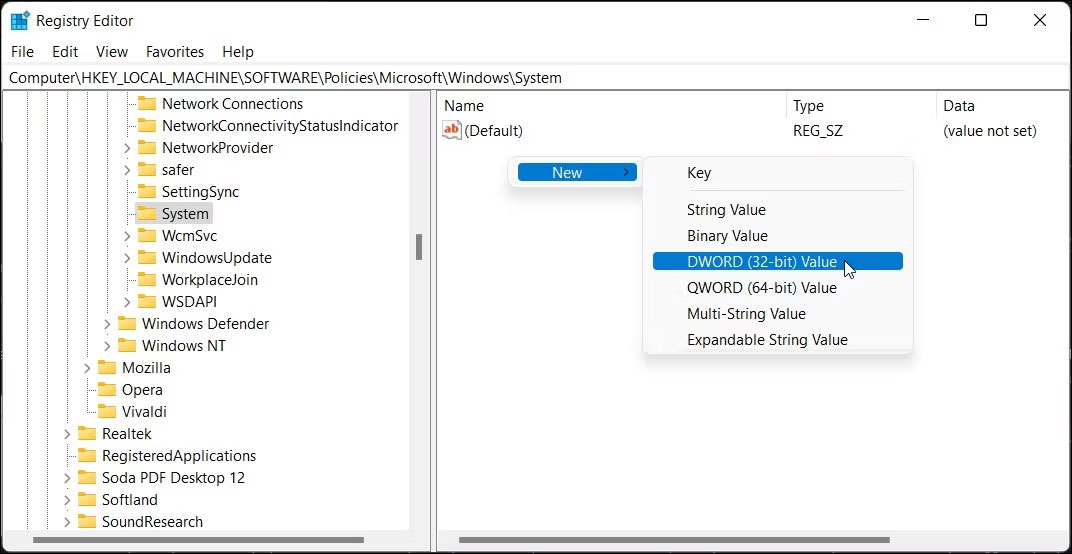
<p style="text-align: justify;">4. Trong ngăn bên phải, xác định giá trị bộ lọc&nbsp;<strong>EnableSmartScreen.</strong>&nbsp;Bạn sẽ cần tạo một giá trị mới nếu không tìm thấy giá trị nào.</p>

<figure>
<div style="text-align: justify;"><img alt="Tạo giá trị mới kích hoạt Registry Editor SmartScreen" data-i="12" data-src="https://st.quantrimang.com/photos/image/2023/11/17/vo-hieu-hoa-smartscreen-13.jpg" data-was-processed="true" height="554" src="https://st.quantrimang.com/photos/image/2023/11/17/vo-hieu-hoa-smartscreen-13.jpg" width="1072" /></div>

<figcaption>
<div style="text-align: justify;">Tạo giá trị mới kích hoạt Registry Editor SmartScreen</div>
</figcaption>
</figure>

<p style="text-align: justify;">5. Để tạo giá trị mới, nhấp chuột phải vào key&nbsp;<strong>System</strong>&nbsp;và chọn&nbsp;<strong>New &gt; DWORD (32-bit) Value.</strong></p>

<p style="text-align: justify;">6. Đổi tên giá trị thành&nbsp;<strong>EnableSmartScreen.</strong></p>

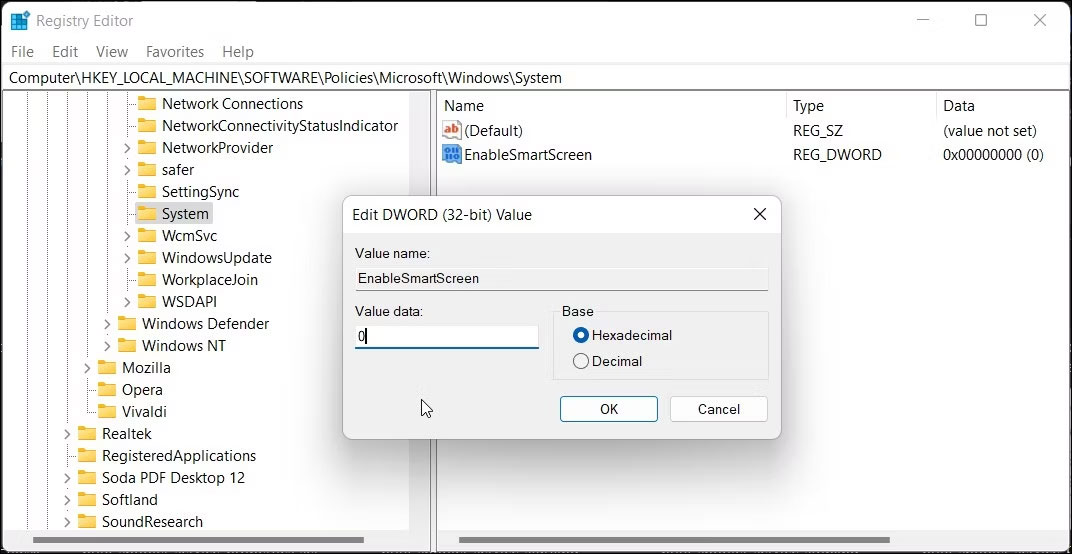
<p style="text-align: justify;">7. Tiếp theo, nhấp chuột phải vào giá trị&nbsp;<strong>EnableSmartScreen</strong>&nbsp;và chọn&nbsp;<strong>Modify</strong>.</p>

<figure>
<div style="text-align: justify;"><img alt="Thay đổi giá trị EnableSmartScreen" data-i="13" data-src="https://st.quantrimang.com/photos/image/2023/11/17/vo-hieu-hoa-smartscreen-14.jpg" data-was-processed="true" height="554" src="https://st.quantrimang.com/photos/image/2023/11/17/vo-hieu-hoa-smartscreen-14.jpg" width="1072" /></div>

<figcaption>
<div style="text-align: justify;">Thay đổi giá trị EnableSmartScreen</div>
</figcaption>
</figure>

<p style="text-align: justify;">8. Nhập&nbsp;<strong>0&nbsp;</strong>vào trường&nbsp;<strong>Value data</strong>&nbsp;và nhấp vào&nbsp;<strong>OK</strong>&nbsp;để lưu các thay đổi.</p>

<p style="text-align: justify;">9. Để bật bộ lọc SmartScreen, hãy nhập&nbsp;<strong>1</strong>&nbsp;vào trường&nbsp;<strong>Value data</strong>&nbsp;và nhấp vào&nbsp;<strong>OK</strong>.</p>

<p style="text-align: justify;">10. Đóng Registry Editor và khởi động lại PC của bạn để áp dụng các thay đổi.</p>

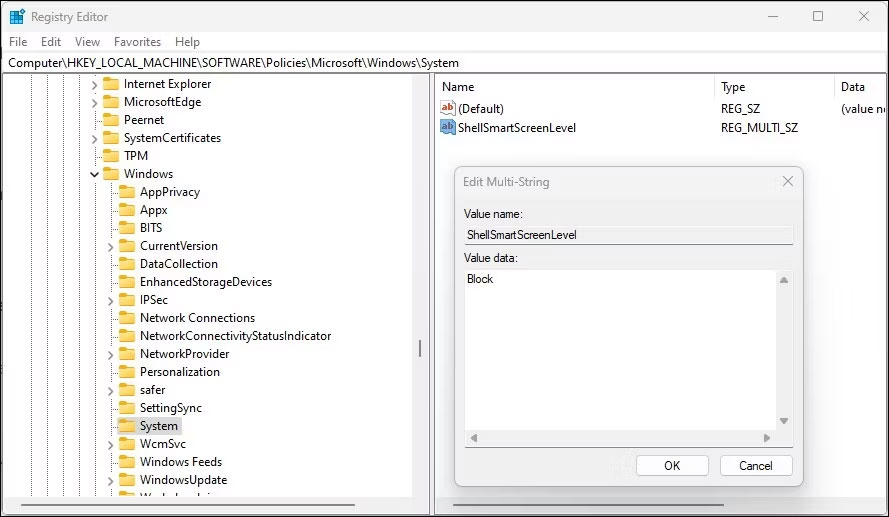
<p style="text-align: justify;">Bạn có thể điều chỉnh thêm registry để tạo&nbsp;<strong>String Value</strong>&nbsp;mới nhằm đặt mức chặn thành&nbsp;<strong>Warn</strong>&nbsp;hoặc&nbsp;<strong>Block</strong>. Sử dụng&nbsp;<strong>Warn</strong>&nbsp;sẽ hiển thị cảnh báo SmartScreen với tùy chọn để tiếp tục. Ngược lại, tùy chọn&nbsp;<strong>Block</strong>&nbsp;sẽ hiển thị cảnh báo và chặn ứng dụng chạy trên máy tính của bạn.</p>

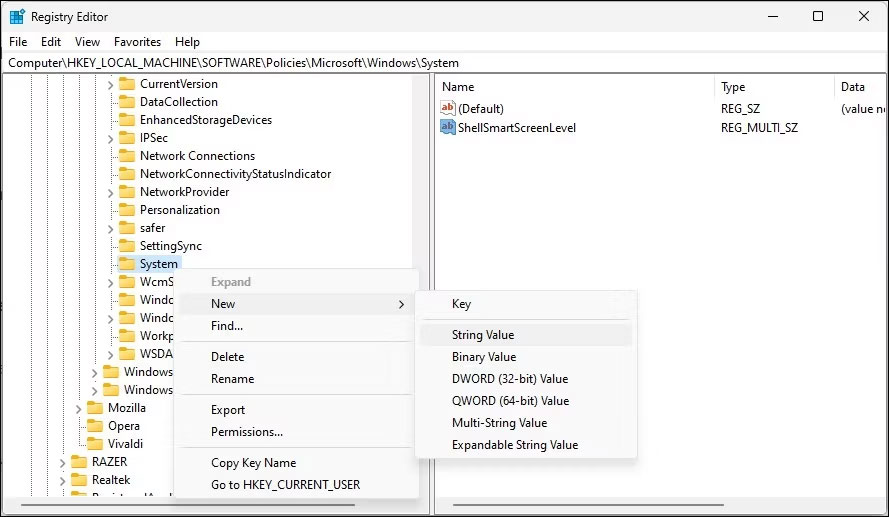
<p style="text-align: justify;">Để đặt giá trị chuỗi ShellSmartScreenLevel mới trong Registry Editor:</p>

<p style="text-align: justify;">1. Nhấp chuột phải vào subkey&nbsp;<strong>System</strong>&nbsp;và chọn&nbsp;<strong>New &gt; String Value</strong>. Đổi tên giá trị thành&nbsp;<strong>ShellSmartScreenLevel.</strong></p>

<figure>
<div style="text-align: justify;"><img alt="Tạo chuỗi mới ShellSmartScreenLevel" data-i="14" data-src="https://st.quantrimang.com/photos/image/2023/11/17/vo-hieu-hoa-smartscreen-15.jpg" data-was-processed="true" height="517" src="https://st.quantrimang.com/photos/image/2023/11/17/vo-hieu-hoa-smartscreen-15.jpg" width="889" /></div>

<figcaption>
<div style="text-align: justify;">Tạo chuỗi mới ShellSmartScreenLevel</div>
</figcaption>
</figure>

<p style="text-align: justify;">2. Tiếp theo, nhấp chuột phải vào&nbsp;<strong>ShellSmartScreenLevel</strong>&nbsp;và chọn&nbsp;<strong>Modify.</strong></p>

<figure>
<div style="text-align: justify;"><img alt="Thay đổi ShellSmartScreenLevel" data-i="15" data-src="https://st.quantrimang.com/photos/image/2023/11/17/vo-hieu-hoa-smartscreen-16.jpg" data-was-processed="true" height="517" src="https://st.quantrimang.com/photos/image/2023/11/17/vo-hieu-hoa-smartscreen-16.jpg" width="889" /></div>

<figcaption>
<div style="text-align: justify;">Thay đổi ShellSmartScreenLevel</div>
</figcaption>
</figure>

<p style="text-align: justify;">3. Nhập&nbsp;<strong>Warn</strong>&nbsp;hoặc&nbsp;<strong>Block</strong>&nbsp;tùy thuộc vào những gì bạn muốn&nbsp;<strong>SmartScreen Level</strong>&nbsp;thực hiện. Nhấn&nbsp;<strong>OK</strong>&nbsp;để lưu các thay đổi và thoát khỏi Registry Editor.</p>

<h2 style="text-align: justify;">Cách bật hoặc tắt bộ lọc SmartScreen bằng Group Policy Editor</h2>

<p style="text-align: justify;">Nếu muốn quản lý bộ lọc SmartScreen cho nhiều máy tính trong tổ chức của mình, bạn có thể sử dụng Group Policy Editor để thực hiện tác vụ này.</p>

<div style="text-align: justify;">&nbsp;</div>

<p style="text-align: justify;">Lưu ý rằng Group Policy Editor chỉ khả dụng trên các phiên bản Windows Pro, Edu và Enterprise của hệ điều hành. Nếu bạn đang sử dụng Home, hãy khám phá hướng dẫn của Quantrimang.com để&nbsp;bật Group Policy Editor trên phiên bản Windows Home.</p>

<p style="text-align: justify;">Để cấu hình bộ lọc SmartScreen bằng GPEdit:</p>

<p style="text-align: justify;">1. Nhấn&nbsp;<strong>Win + R</strong>&nbsp;để mở Run.</p>

<p style="text-align: justify;">2. Nhập&nbsp;<strong>gpedit.msc</strong>&nbsp;và nhấp vào&nbsp;<strong>OK</strong>&nbsp;để mở Group Policy Editor.</p>

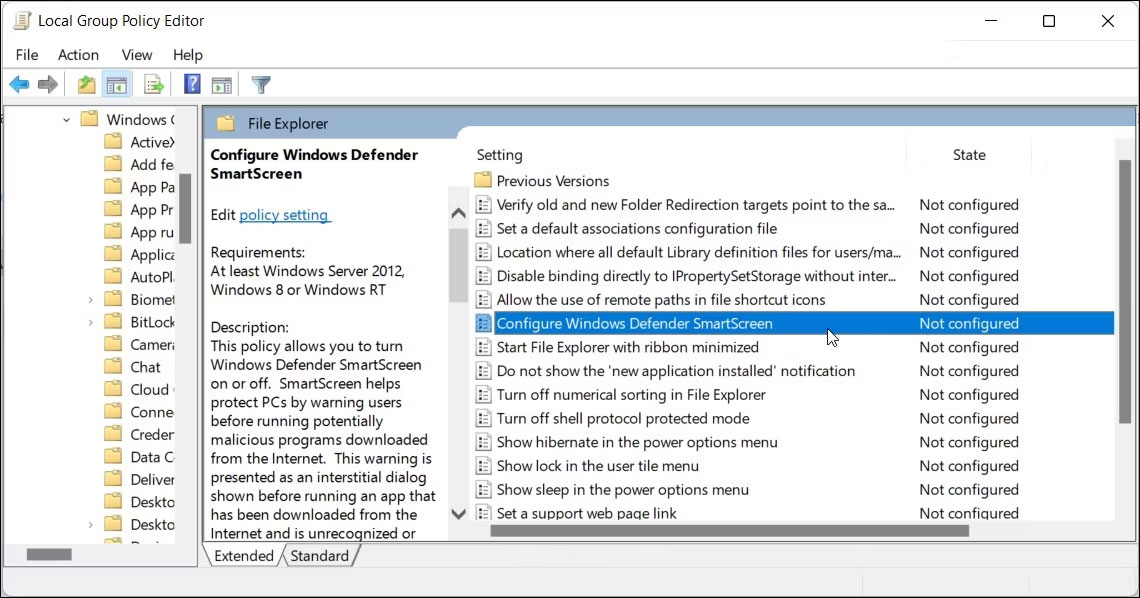
<p style="text-align: justify;">3. Tiếp theo, điều hướng đến vị trí sau trong Group Policy Editor:</p>

<pre id="pre2">
<code>Computer Configuration &gt; Administrative Templates &gt; Windows Components &gt; File Explorer.</code></pre>

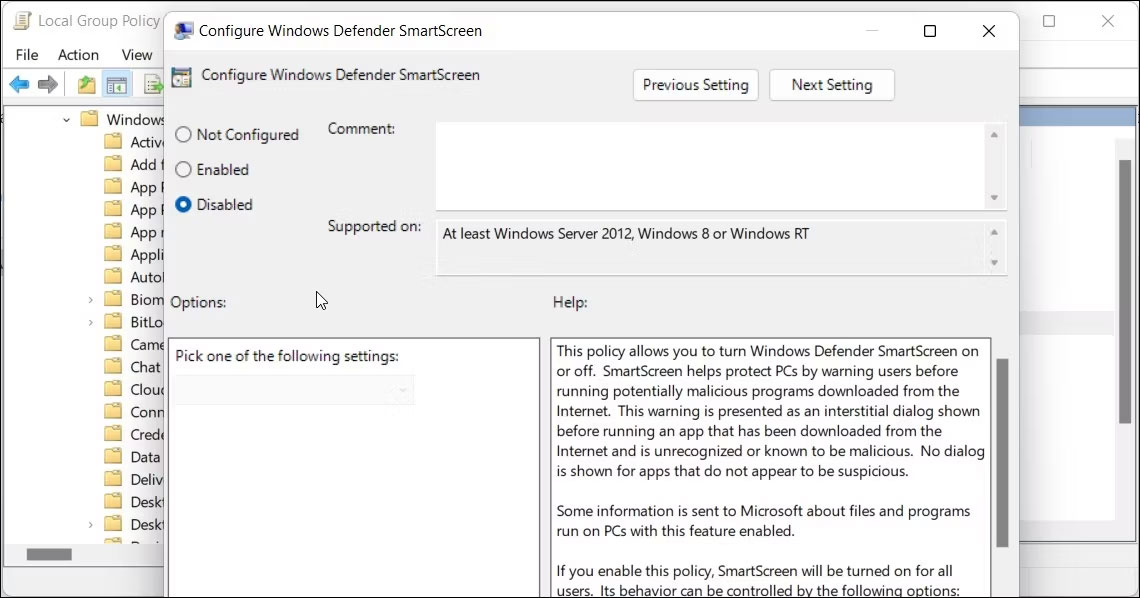
<p style="text-align: justify;">4. Trong khung bên phải, nhấp chuột phải vào policy&nbsp;<strong>Configure Windows Defender SmartScreen</strong>&nbsp;và chọn&nbsp;<strong>Edit</strong>.</p>

<figure>
<div style="text-align: justify;"><img alt="Cấu hình Windows Defender Smartscreen bằng Gpeditor" data-i="16" data-src="https://st.quantrimang.com/photos/image/2023/11/17/vo-hieu-hoa-smartscreen-17.jpg" data-was-processed="true" height="598" src="https://st.quantrimang.com/photos/image/2023/11/17/vo-hieu-hoa-smartscreen-17.jpg" width="1140" /></div>

<figcaption>
<div style="text-align: justify;">Cấu hình Windows Defender Smartscreen bằng Gpeditor</div>
</figcaption>
</figure>

<p style="text-align: justify;">5. Để tắt SmartScreen, chọn&nbsp;<strong>Disabled</strong>.</p>

<p style="text-align: justify;">6. Nếu bạn muốn bật SmartScreen, hãy chọn&nbsp;<strong>Not Configured</strong>&nbsp;hoặc&nbsp;<strong>Enabled</strong>.</p>

<figure>
<div style="text-align: justify;"><img alt="Bật SmartScreen" data-i="17" data-src="https://st.quantrimang.com/photos/image/2023/11/17/vo-hieu-hoa-smartscreen-18.jpg" data-was-processed="true" height="598" src="https://st.quantrimang.com/photos/image/2023/11/17/vo-hieu-hoa-smartscreen-18.jpg" width="1140" /></div>

<figcaption>
<div style="text-align: justify;">Bật SmartScreen</div>
</figcaption>
</figure>

<p style="text-align: justify;">7. Nhấp vào&nbsp;<strong>Apply&nbsp;</strong>&gt;&nbsp;<strong>OK</strong>&nbsp;để lưu các thay đổi.</p>

<p style="text-align: justify;">8. Đóng Group Policy Editor và khởi động lại PC.</p>

<p style="text-align: justify;">Chúc các bạn thành công!</p>
		</div>
				<div id="author">
						<p>
				<strong>Nguồn tin:</strong>
				Quantrimang.com
			</p>
		</div>
	</div>
	<div id="footer" class="clearfix">
		<div id="url">
			<strong>URL của bản tin này: </strong><a href="https://www.nguoicodonvn2008.info/vi/news/savefile/kien-thuc-may-tinh/huong-dan-kich-hoat-hoac-vo-hieu-hoa-bo-loc-smartscreen-tren-windows-7782.html" title="Hướng dẫn kích hoạt hoặc vô hiệu hóa bộ lọc SmartScreen trên Windows">https://www.nguoicodonvn2008.info/vi/news/savefile/kien-thuc-may-tinh/huong-dan-kich-hoat-hoac-vo-hieu-hoa-bo-loc-smartscreen-tren-windows-7782.html</a>

		</div>
		<div class="clear"></div>
		<div class="copyright">
			&copy; .&#x3A; Nguoicodonvn2008.info - Cõi lòng người cô đơn &#x3A;.
		</div>
		<div id="contact">
			<a href="mailto:admin@nguoicodonvn2008.info">admin@nguoicodonvn2008.info</a>
		</div>
	</div>
</div>
        <div id="timeoutsess" class="chromeframe">
            Bạn đã không sử dụng Site, <a onclick="timeoutsesscancel();" href="https://nguoicodonvn2008.info/#">Bấm vào đây để duy trì trạng thái đăng nhập</a>. Thời gian chờ: <span id="secField"> 60 </span> giây
        </div>
        <div id="openidResult" class="nv-alert" style="display:none"></div>
        <div id="openidBt" data-result="" data-redirect=""></div>
		</script>
		<div class="car-top">
  <span><img src="https://nguoicodonvn2008.info/themes/default/images/car.png" alt=""></span>
</div>
<script src="https://nguoicodonvn2008.info/assets/js/jquery/jquery.min.js"></script>
<script>var nv_base_siteurl="/",nv_lang_data="vi",nv_lang_interface="vi",nv_name_variable="nv",nv_fc_variable="op",nv_lang_variable="language",nv_module_name="news",nv_func_name="savefile",nv_is_user=0, nv_my_ofs=-4,nv_my_abbr="EDT",nv_cookie_prefix="nv4c_e856T",nv_check_pass_mstime=1738000,nv_area_admin=0,nv_safemode=0,theme_responsive=0,nv_recaptcha_ver=2,nv_recaptcha_sitekey="",nv_recaptcha_type="image",XSSsanitize=1;</script>
<script src="https://nguoicodonvn2008.info/assets/js/language/vi.js"></script>
<script src="https://nguoicodonvn2008.info/assets/js/DOMPurify/purify3.js"></script>
<script src="https://nguoicodonvn2008.info/assets/js/global.js"></script>
<script src="https://nguoicodonvn2008.info/assets/js/site.js"></script>
<script src="https://nguoicodonvn2008.info/themes/default/js/news.js"></script>
<script src="https://nguoicodonvn2008.info/themes/default/js/main.js"></script>
<script src="https://nguoicodonvn2008.info/themes/default/js/custom.js"></script>
<script type="application/ld+json">
        {
            "@context": "https://schema.org",
            "@type": "Organization",
            "url": "https://nguoicodonvn2008.info",
            "logo": "https://nguoicodonvn2008.info/uploads/angel.gif"
        }
        </script>
<script src="https://nguoicodonvn2008.info/themes/default/js/bootstrap.min.js"></script>
<script type="text/javascript">
var $scrolltop = $('.car-top');
$scrolltop.on('click', function () {
    $('html,body').animate({
        scrollTop: 0
    }, 800);
    $(this).addClass("car-run");
    setTimeout(function(){ $scrolltop.removeClass('car-run');}, 1000);
    return false;
});
$(window).on('scroll', function ()
{ 
    if($(window).scrollTop() >= 200)
    {
        $scrolltop.addClass("show");
        $scrolltop.addClass("car-down");
    }
    else
    {
       $scrolltop.removeClass("show");
       setTimeout(function(){ $scrolltop.removeClass('car-down');}, 300);
    }
});
</script>
</body>
</html>