<!DOCTYPE html>
    <html lang="vi" xmlns="http://www.w3.org/1999/xhtml" prefix="og: http://ogp.me/ns#">
    <head>
<title>Hướng dẫn đổi tên máy in trên Windows 10</title>
<meta name="description" content="Hướng dẫn đổi tên máy in trên Windows 10 - Savefile - Tin Tức -...">
<meta name="author" content=".: Nguoicodonvn2008.info - Cõi lòng người cô đơn :.">
<meta name="copyright" content=".: Nguoicodonvn2008.info - Cõi lòng người cô đơn :. [admin@nguoicodonvn2008.info]">
<meta name="robots" content="index, archive, follow, noodp">
<meta name="googlebot" content="index,archive,follow,noodp">
<meta name="msnbot" content="all,index,follow">
<meta name="generator" content="NukeViet v4.5">
<meta http-equiv="Content-Type" content="text/html; charset=utf-8">
<meta property="og:title" content="Hướng dẫn đổi tên máy in trên Windows 10">
<meta property="og:type" content="website">
<meta property="og:description" content="Savefile - Tin Tức - https&#x3A;&#x002F;&#x002F;www.nguoicodonvn2008.info&#x002F;vi&#x002F;news&#x002F;savefile&#x002F;kien-thuc-may-tinh&#x002F;huong-dan-doi-ten-may-in-tren-windows-10-8034.html">
<meta property="og:site_name" content=".&#x3A; Nguoicodonvn2008.info - Cõi lòng người cô đơn &#x3A;.">
<meta property="og:url" content="https://www.nguoicodonvn2008.info/vi/news/savefile/kien-thuc-may-tinh/huong-dan-doi-ten-may-in-tren-windows-10-8034.html">
<link rel="shortcut icon" href="https://nguoicodonvn2008.info/favicon.ico">
<link rel="canonical" href="https://www.nguoicodonvn2008.info/vi/news/savefile/kien-thuc-may-tinh/huong-dan-doi-ten-may-in-tren-windows-10-8034.html">
<link rel="alternate" href="https://nguoicodonvn2008.info/vi/news/rss/" title="Tin Tức" type="application/rss+xml">
<link rel="alternate" href="https://nguoicodonvn2008.info/vi/news/rss/karaoke-dual/" title="Tin Tức - Karaoke Dual" type="application/rss+xml">
<link rel="alternate" href="https://nguoicodonvn2008.info/vi/news/rss/nhac-tre/" title="Tin Tức - Nhạc trẻ" type="application/rss+xml">
<link rel="alternate" href="https://nguoicodonvn2008.info/vi/news/rss/tru-tinh/" title="Tin Tức - Trữ tình" type="application/rss+xml">
<link rel="alternate" href="https://nguoicodonvn2008.info/vi/news/rss/nuoc-ngoai/" title="Tin Tức - Nước ngoài" type="application/rss+xml">
<link rel="alternate" href="https://nguoicodonvn2008.info/vi/news/rss/remix/" title="Tin Tức - Remix" type="application/rss+xml">
<link rel="alternate" href="https://nguoicodonvn2008.info/vi/news/rss/tam-su-tinh-yeu/" title="Tin Tức - Tâm sự tình yêu" type="application/rss+xml">
<link rel="alternate" href="https://nguoicodonvn2008.info/vi/news/rss/tho-suu-tam/" title="Tin Tức - Thơ sưu tầm" type="application/rss+xml">
<link rel="alternate" href="https://nguoicodonvn2008.info/vi/news/rss/cuoc-song/" title="Tin Tức - Cuộc sống" type="application/rss+xml">
<link rel="alternate" href="https://nguoicodonvn2008.info/vi/news/rss/phan-mem/" title="Tin Tức - Phần mềm" type="application/rss+xml">
<link rel="alternate" href="https://nguoicodonvn2008.info/vi/news/rss/kien-thuc-may-tinh/" title="Tin Tức - Kiến thức máy tính" type="application/rss+xml">
<link rel="alternate" href="https://nguoicodonvn2008.info/vi/news/rss/hoc-tap/" title="Tin Tức - Học tập" type="application/rss+xml">
<link rel="alternate" href="https://nguoicodonvn2008.info/vi/news/rss/tai-lieu/" title="Tin Tức - Tài liệu" type="application/rss+xml">
<link rel="alternate" href="https://nguoicodonvn2008.info/vi/news/rss/de-thi/" title="Tin Tức - Đề thi" type="application/rss+xml">
<link rel="preload" as="style" href="https://nguoicodonvn2008.info/assets/css/font-awesome.min.css" type="text/css">
<link rel="preload" as="style" href="https://nguoicodonvn2008.info/themes/default/css/bootstrap.non-responsive.css" type="text/css">
<link rel="preload" as="style" href="https://nguoicodonvn2008.info/themes/default/css/style.css" type="text/css">
<link rel="preload" as="style" href="https://nguoicodonvn2008.info/themes/default/css/style.non-responsive.css" type="text/css">
<link rel="preload" as="style" href="https://nguoicodonvn2008.info/themes/default/css/news.css" type="text/css">
<link rel="preload" as="style" href="https://nguoicodonvn2008.info/themes/default/css/custom.css" type="text/css">
<link rel="preload" as="script" href="https://nguoicodonvn2008.info/assets/js/jquery/jquery.min.js" type="text/javascript">
<link rel="preload" as="script" href="https://nguoicodonvn2008.info/assets/js/language/vi.js" type="text/javascript">
<link rel="preload" as="script" href="https://nguoicodonvn2008.info/assets/js/DOMPurify/purify3.js" type="text/javascript">
<link rel="preload" as="script" href="https://nguoicodonvn2008.info/assets/js/global.js" type="text/javascript">
<link rel="preload" as="script" href="https://nguoicodonvn2008.info/assets/js/site.js" type="text/javascript">
<link rel="preload" as="script" href="https://nguoicodonvn2008.info/themes/default/js/news.js" type="text/javascript">
<link rel="preload" as="script" href="https://nguoicodonvn2008.info/themes/default/js/main.js" type="text/javascript">
<link rel="preload" as="script" href="https://nguoicodonvn2008.info/themes/default/js/custom.js" type="text/javascript">
<link rel="preload" as="script" href="https://nguoicodonvn2008.info/themes/default/js/bootstrap.min.js" type="text/javascript">
<link rel="stylesheet" href="https://nguoicodonvn2008.info/assets/css/font-awesome.min.css">
<link rel="stylesheet" href="https://nguoicodonvn2008.info/themes/default/css/bootstrap.non-responsive.css">
<link rel="stylesheet" href="https://nguoicodonvn2008.info/themes/default/css/style.css">
<link rel="stylesheet" href="https://nguoicodonvn2008.info/themes/default/css/style.non-responsive.css">
<link rel="StyleSheet" href="https://nguoicodonvn2008.info/themes/default/css/news.css">
<link rel="stylesheet" href="https://nguoicodonvn2008.info/themes/default/css/custom.css">
<style type="text/css">
	body{background: #fff;}
</style>
    </head>
    <body>
<div id="print">
	<div id="hd_print">
		<h2 class="pull-left">.&#x3A; Nguoicodonvn2008.info - Cõi lòng người cô đơn &#x3A;.</h2>
		<p class="pull-right"><a title=".&#x3A; Nguoicodonvn2008.info - Cõi lòng người cô đơn &#x3A;." href="https://nguoicodonvn2008.info/">https://nguoicodonvn2008.info</a></p>
	</div>
	<div class="clear"></div>
	<hr />
	<div id="content">
		<h1>Hướng dẫn đổi tên máy in trên Windows 10</h1>
		<ul class="list-inline">
			<li>Thứ sáu - 02/02/2024 23:01</li>
			<li class="hidden-print txtrequired"><em class="fa fa-print">&nbsp;</em><a title="In ra" href="javascript:;" onclick="window.print()">In ra</a></li>
			<li class="hidden-print txtrequired"><em class="fa fa-power-off">&nbsp;</em><a title="Đóng cửa sổ này" href="javascript:;" onclick="window.close()">Đóng cửa sổ này</a></li>
		</ul>
		<div class="clear"></div>
		<div id="hometext">
		</div>
				<div class="imghome">
			<img alt="Hướng dẫn đổi tên máy in trên Windows 10" src="https://st.quantrimang.com/photos/image/2018/03/17/doi-ten-may-in-tren-Windows-10-Devices.jpg" width="460" class="img-thumbnail" />
		</div>
		<div class="clear"></div>
		<div id="bodytext" class="clearfix">
			<p style="text-align: justify;">Khi kết nối máy in với máy tính, theo mặc định hệ thống sẽ hiển thị tên đầy đủ toàn bộ những máy in đang kết nối với máy tính cũng như đã kết nối trước đây. Trong trường hợp người dùng sử dụng nhiều máy in trên 1 máy tính, thì việc đổi tên máy in sẽ dễ dàng hơn trong khi sử dụng. Chúng ta có thể đặt tên riêng biệt cho từng loại máy để không sử dụng nhầm giữa các máy với nhau. Bài viết dưới đây sẽ hướng dẫn bạn đọc cách đổi tên máy in trên Windows 10.</p>

<h2 id="mcetoc_1hlkjoi0484" style="text-align: justify;">Cách 1: Đổi tên máy in qua Settings</h2>

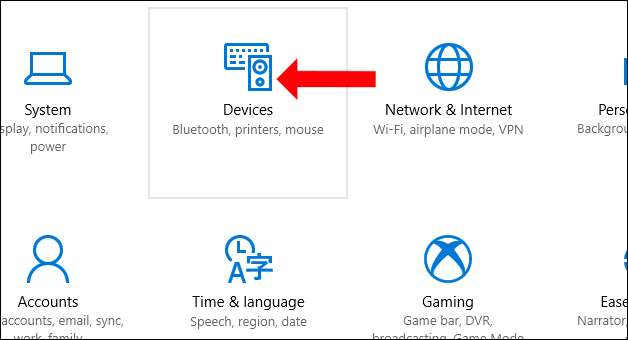
<p style="text-align: justify;"><strong>Bước 1:&nbsp;</strong></p>

<p style="text-align: justify;">Chúng ta nhấn vào<strong>&nbsp;nút Settings</strong>&nbsp;trên giao diện rồi nhấn chọn tiếp vào<strong>&nbsp;mục Devices</strong>. Hoặc có thể nhấn tổ hợp Windows + I để mở giao diện Windows Settings.</p>

<p style="text-align: justify;"><img alt="Mục Devices " data-i="0" data-src="https://st.quantrimang.com/photos/image/2018/03/17/doi-ten-may-in-tren-Windows-10-Devices.jpg" data-was-processed="true" height="340" src="https://st.quantrimang.com/photos/image/2018/03/17/doi-ten-may-in-tren-Windows-10-Devices.jpg" width="628" /></p>

<p style="text-align: justify;"><strong>Bước 2:</strong></p>

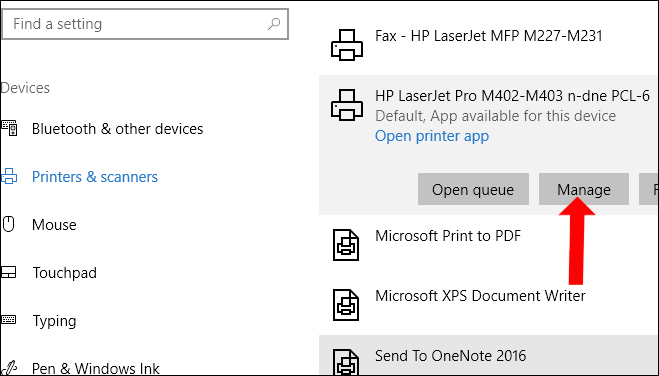
<p style="text-align: justify;">Xuất hiện giao diện mới nhìn xuống mục&nbsp;<strong>Printers &amp; scanners</strong>, rồi nhìn sang bên phải chúng ta sẽ thấy toàn bộ những máy in đang liên kết với máy tính. Click chọn vào máy in muốn đổi tên, rồi nhấn vào&nbsp;<strong>nút Manage</strong>.</p>

<div style="text-align: justify;"><iframe allowtransparency="true" data-google-container-id="a!2" data-google-query-id="CJ_5_MOkjoQDFWRPDwIdM68CXg" data-load-complete="true" frameborder="0" height="0" hspace="0" id="aswift_1" marginheight="0" marginwidth="0" name="aswift_1" sandbox="" scrolling="no" vspace="0" width="694"></iframe></div>

<p style="text-align: justify;"><img alt="Nhấn chọn Manage " data-adbro-processed="true" data-i="1" data-src="https://st.quantrimang.com/photos/image/2018/03/17/doi-ten-may-in-tren-Windows-10-Manage.jpg" data-was-processed="true" height="365" src="https://st.quantrimang.com/photos/image/2018/03/17/doi-ten-may-in-tren-Windows-10-Manage.jpg" width="640" /></p>

<p style="text-align: justify;"><strong>Bước 3:</strong></p>

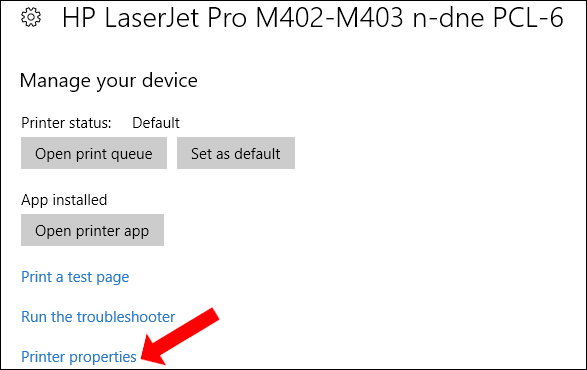
<p style="text-align: justify;">Chuyển sang giao diện mới nhấn chọn vào&nbsp;<strong>Printer Properties</strong>.</p>

<p style="text-align: justify;"><img alt="Nhấn chọn Print Properties " data-i="2" data-src="https://st.quantrimang.com/photos/image/2018/03/17/doi-ten-may-in-tren-Windows-10-Properties.jpg" data-was-processed="true" height="370" src="https://st.quantrimang.com/photos/image/2018/03/17/doi-ten-may-in-tren-Windows-10-Properties.jpg" width="587" /></p>

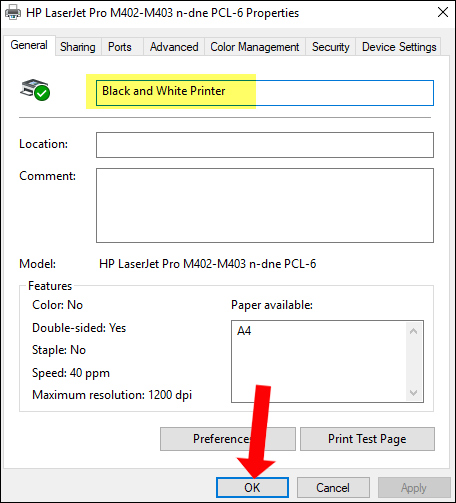
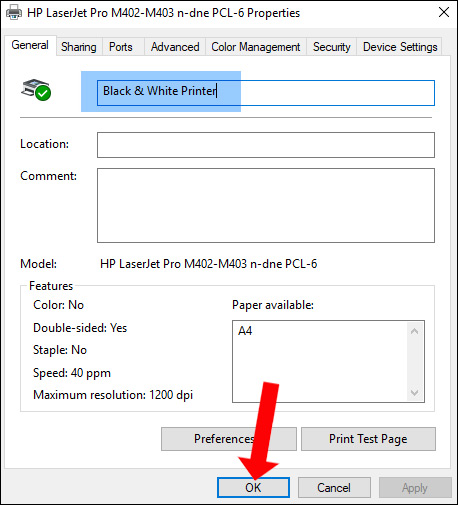
<p style="text-align: justify;">Click tiếp vào&nbsp;<strong>tab Genetal</strong>&nbsp;để tiến hành&nbsp;<strong>chỉnh sửa tên máy in</strong>&nbsp;ngay tại dòng trên cùng. Cuối cùng&nbsp;<strong>nhấn OK</strong>&nbsp;để lưu lại thay đổi.</p>

<p style="text-align: justify;"><img alt="Nhập tên mới " data-i="3" data-src="https://st.quantrimang.com/photos/image/2018/03/17/doi-ten-may-in-tren-Windows-10-ten-moi.jpg" data-was-processed="true" height="503" src="https://st.quantrimang.com/photos/image/2018/03/17/doi-ten-may-in-tren-Windows-10-ten-moi.jpg" width="456" /></p>

<div style="text-align: justify;"><iframe allowtransparency="true" data-google-container-id="a!3" data-google-query-id="CJfQ_cOkjoQDFR5HDwIdMSwJIw" data-load-complete="true" frameborder="0" height="0" hspace="0" id="aswift_2" marginheight="0" marginwidth="0" name="aswift_2" sandbox="" scrolling="no" vspace="0" width="694"></iframe></div>

<h2 id="mcetoc_1hlkjoi0485" style="text-align: justify;">Cách 2: Đổi tên máy tính qua Control Panel</h2>

<p style="text-align: justify;"><strong>Bước 1:</strong></p>

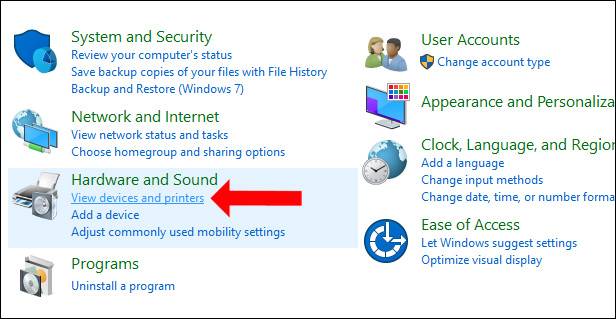
<p style="text-align: justify;">Mở giao diện&nbsp;<strong>Control Panel</strong>&nbsp;rồi tại mục&nbsp;<strong>Hardware and Sound</strong>, nhấn chọn vào mục&nbsp;<strong>View devices and printers</strong>.</p>

<p style="text-align: justify;"><img alt="Nhấn chọn Control Panel" data-i="4" data-src="https://st.quantrimang.com/photos/image/2018/03/17/doi-ten-may-in-tren-Windows-10-Control-Panel.jpg" data-was-processed="true" height="319" src="https://st.quantrimang.com/photos/image/2018/03/17/doi-ten-may-in-tren-Windows-10-Control-Panel.jpg" width="616" /></p>

<p style="text-align: justify;"><strong>Bước 2:</strong></p>

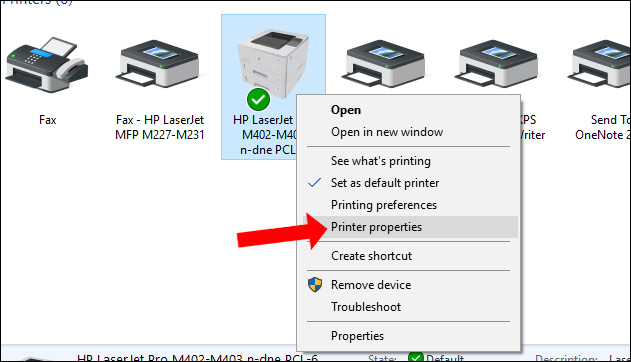
<p style="text-align: justify;">Tại giao diện mới, người dùng click chuột phải lên máy in muốn đổi tên rồi nhấn vào tùy chọn&nbsp;<strong>Printer Properties</strong>&nbsp;trong menu chuột phải.</p>

<p style="text-align: justify;"><img alt="Chọn máy in muốn đổi tên" data-i="5" data-src="https://st.quantrimang.com/photos/image/2018/03/17/doi-ten-may-in-tren-Windows-10-chon-may-in.jpg" data-was-processed="true" height="362" src="https://st.quantrimang.com/photos/image/2018/03/17/doi-ten-may-in-tren-Windows-10-chon-may-in.jpg" width="631" /></p>

<p style="text-align: justify;"><strong>Bước 3:</strong></p>

<p style="text-align: justify;">Cũng xuất hiện hộp thoại tương tự như Cách 1. Tại Tab General, người dùng chỉ cần đổi tên máy in sang tên mới muốn đặt rồi nhấn OK để lưu lại tên mới là xong.</p>

<p style="text-align: justify;"><img alt="Thay tên mới cho máy in" data-i="6" data-src="https://st.quantrimang.com/photos/image/2018/03/17/doi-ten-may-in-tren-Windows-10.jpg" data-was-processed="true" height="505" src="https://st.quantrimang.com/photos/image/2018/03/17/doi-ten-may-in-tren-Windows-10.jpg" width="458" /></p>

<h2 id="mcetoc_1hlkjoi0486" style="text-align: justify;">Cách 3: Đổi tên máy in bằng PowerShell</h2>

<p style="text-align: justify;">Để thay đổi tên máy in bằng lệnh PowerShell, hãy làm theo các bước sau:</p>

<p style="text-align: justify;">1. Mở&nbsp;<strong>Start</strong>.</p>

<p style="text-align: justify;">2. Tìm kiếm&nbsp;<strong>PowerShell</strong>, nhấp chuột phải vào kết quả trên cùng và chọn tùy chọn&nbsp;<strong>Run as administrator</strong>.</p>

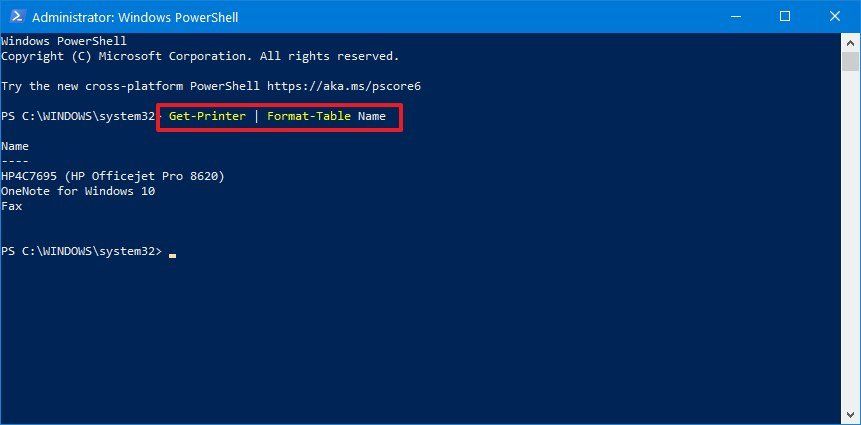
<p style="text-align: justify;">3. Nhập lệnh sau để liệt kê các máy in khả dụng và nhấn&nbsp;<strong>Enter</strong>:</p>

<pre id="pre0">
<code>Get-Printer | Format-Table Name</code></pre>

<div style="text-align: justify;"><iframe allowtransparency="true" data-google-container-id="a!4" data-google-query-id="CJOimsekjoQDFXtGDwIdM6ICBQ" data-load-complete="true" frameborder="0" height="0" hspace="0" id="aswift_3" marginheight="0" marginwidth="0" name="aswift_3" sandbox="" scrolling="no" vspace="0" width="694"></iframe></div>

<figure>
<div style="text-align: justify;"><img alt="Lệnh PowerShell để liệt kê máy in" data-i="7" data-src="https://st.quantrimang.com/photos/image/2024/02/02/doi-ten-may-in-tren-windows-1.jpg" data-was-processed="true" height="425" src="https://st.quantrimang.com/photos/image/2024/02/02/doi-ten-may-in-tren-windows-1.jpg" width="861" /></div>

<figcaption>
<div style="text-align: justify;">Lệnh PowerShell để liệt kê máy in</div>
</figcaption>
</figure>

<p style="text-align: justify;">4. Nhập lệnh sau để đổi tên máy in và nhấn&nbsp;<strong>Enter</strong>:</p>

<pre id="pre1">
<code>Rename-Printer -Name &quot;CURRENT-PRINTER-NAME&quot; -NewName &quot;NEW-PRINTER-NAME&quot;</code></pre>

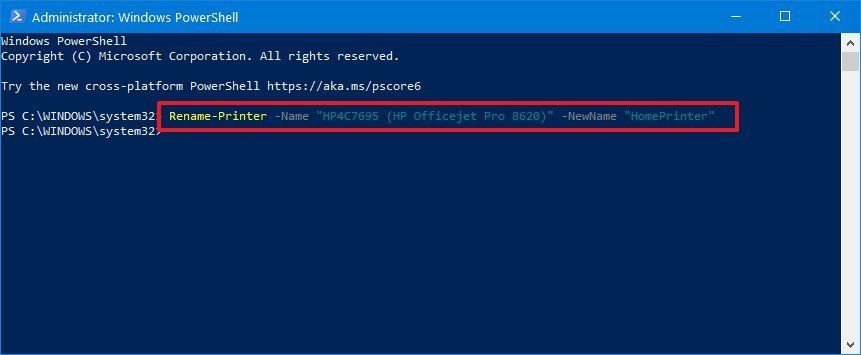
<p style="text-align: justify;">Ví dụ, lệnh sau đổi tên máy in thành&nbsp;<strong>&quot;HomePrinter&quot;:</strong></p>

<pre id="pre2">
<code>Rename-Printer -Name &quot;HP4C7695 (HP Officejet Pro 8620)&quot; -NewName &quot;HomePrinter&quot;</code></pre>

<figure>
<div style="text-align: justify;"><img alt="Lệnh đổi tên máy in trong PowerShell" data-i="8" data-src="https://st.quantrimang.com/photos/image/2024/02/02/doi-ten-may-in-tren-windows-2.jpg" data-was-processed="true" height="355" src="https://st.quantrimang.com/photos/image/2024/02/02/doi-ten-may-in-tren-windows-2.jpg" width="861" /></div>

<figcaption>
<div style="text-align: justify;">Lệnh đổi tên máy in trong PowerShell</div>
</figcaption>
</figure>

<p style="text-align: justify;">Sau khi bạn hoàn thành các bước, lệnh PowerShell sẽ thay đổi tên máy in thành tên bạn đã chỉ định.</p>

<h2 id="mcetoc_1hlkjoi0487" style="text-align: justify;">Cách 4: Đổi tên máy in bằng Command Prompt</h2>

<p style="text-align: justify;">Mặc dù các bước không mấy dễ dàng, nhưng nếu bạn muốn làm như vậy, Command Prompt sẽ cung cấp cách thay đổi tên máy in bằng cách sử dụng script &quot;prncnfg.vbs&quot; trên Windows 10.</p>

<p style="text-align: justify;">Để thay đổi tên máy in bằng Command Prompt, hãy làm theo các bước sau:</p>

<p style="text-align: justify;">1. Mở&nbsp;<strong>Start</strong>.</p>

<p style="text-align: justify;">2. Tìm kiếm&nbsp;<strong>PowerShell</strong>, nhấp chuột phải vào kết quả trên cùng và chọn tùy chọn&nbsp;<strong>Run as administrator</strong>.</p>

<p style="text-align: justify;">3. Nhập lệnh sau để thay đổi tên máy in và nhấn&nbsp;<strong>Enter</strong>:</p>

<pre id="pre3">
<code>cscript %WINDIR%\System32\Printing_Admin_Scripts\en-US\prncnfg.vbs -x -p &quot;CURRENT-PRINTER-NAME&quot; -z &quot;NEW-PRINTER-NAME&quot;</code></pre>

<p style="text-align: justify;">Ví dụ, lệnh sau thay đổi tên máy in thành &quot;HomePrinter&quot;:</p>

<pre id="pre4">
<code>cscript %WINDIR%\System32\Printing_Admin_Scripts\en-US\prncnfg.vbs -x -p &quot;HP4C7695 (HP Officejet Pro 8620)&quot; -z &quot;HomePrinter&quot;</code></pre>

<figure>
<div style="text-align: justify;"><img alt="Lệnh CMD thay đổi tên máy in" data-i="9" data-src="https://st.quantrimang.com/photos/image/2024/02/02/doi-ten-may-in-tren-windows-3.jpg" data-was-processed="true" height="439" src="https://st.quantrimang.com/photos/image/2024/02/02/doi-ten-may-in-tren-windows-3.jpg" width="970" /></div>

<figcaption>
<div style="text-align: justify;">Lệnh CMD thay đổi tên máy in</div>
</figcaption>
</figure>

<p style="text-align: justify;">Sau khi bạn hoàn thành các bước, script sẽ chạy và thay đổi tên máy in bằng tên bạn đã chỉ định trong lệnh.</p>

<p style="text-align: justify;">Với việc thay đổi tên máy in vô cùng dễ dàng, chúng ta có thể liên kết với máy in cần làm việc nhanh chóng, tránh trường hợp kết nối nhầm với máy in khác. 4 cách đổi tên máy in trên bạn có thể áp dụng với các phiên bản hệ điều hành khác nhau.</p>
		</div>
				<div id="author">
						<p>
				<strong>Nguồn tin:</strong>
				Quantrimang.com
			</p>
		</div>
	</div>
	<div id="footer" class="clearfix">
		<div id="url">
			<strong>URL của bản tin này: </strong><a href="https://www.nguoicodonvn2008.info/vi/news/savefile/kien-thuc-may-tinh/huong-dan-doi-ten-may-in-tren-windows-10-8034.html" title="Hướng dẫn đổi tên máy in trên Windows 10">https://www.nguoicodonvn2008.info/vi/news/savefile/kien-thuc-may-tinh/huong-dan-doi-ten-may-in-tren-windows-10-8034.html</a>

		</div>
		<div class="clear"></div>
		<div class="copyright">
			&copy; .&#x3A; Nguoicodonvn2008.info - Cõi lòng người cô đơn &#x3A;.
		</div>
		<div id="contact">
			<a href="mailto:admin@nguoicodonvn2008.info">admin@nguoicodonvn2008.info</a>
		</div>
	</div>
</div>
        <div id="timeoutsess" class="chromeframe">
            Bạn đã không sử dụng Site, <a onclick="timeoutsesscancel();" href="https://nguoicodonvn2008.info/#">Bấm vào đây để duy trì trạng thái đăng nhập</a>. Thời gian chờ: <span id="secField"> 60 </span> giây
        </div>
        <div id="openidResult" class="nv-alert" style="display:none"></div>
        <div id="openidBt" data-result="" data-redirect=""></div>
		</script>
		<div class="car-top">
  <span><img src="https://nguoicodonvn2008.info/themes/default/images/car.png" alt=""></span>
</div>
<div id="run_cronjobs" style="visibility:hidden;display:none;"><img alt="cron" src="/index.php?second=cronjobs&amp;p=a6O7QA7N" width="1" height="1" /></div>
<script src="https://nguoicodonvn2008.info/assets/js/jquery/jquery.min.js"></script>
<script>var nv_base_siteurl="/",nv_lang_data="vi",nv_lang_interface="vi",nv_name_variable="nv",nv_fc_variable="op",nv_lang_variable="language",nv_module_name="news",nv_func_name="savefile",nv_is_user=0, nv_my_ofs=-4,nv_my_abbr="EDT",nv_cookie_prefix="nv4c_e856T",nv_check_pass_mstime=1738000,nv_area_admin=0,nv_safemode=0,theme_responsive=0,nv_recaptcha_ver=2,nv_recaptcha_sitekey="",nv_recaptcha_type="image",XSSsanitize=1;</script>
<script src="https://nguoicodonvn2008.info/assets/js/language/vi.js"></script>
<script src="https://nguoicodonvn2008.info/assets/js/DOMPurify/purify3.js"></script>
<script src="https://nguoicodonvn2008.info/assets/js/global.js"></script>
<script src="https://nguoicodonvn2008.info/assets/js/site.js"></script>
<script src="https://nguoicodonvn2008.info/themes/default/js/news.js"></script>
<script src="https://nguoicodonvn2008.info/themes/default/js/main.js"></script>
<script src="https://nguoicodonvn2008.info/themes/default/js/custom.js"></script>
<script type="application/ld+json">
        {
            "@context": "https://schema.org",
            "@type": "Organization",
            "url": "https://nguoicodonvn2008.info",
            "logo": "https://nguoicodonvn2008.info/uploads/angel.gif"
        }
        </script>
<script src="https://nguoicodonvn2008.info/themes/default/js/bootstrap.min.js"></script>
<script type="text/javascript">
var $scrolltop = $('.car-top');
$scrolltop.on('click', function () {
    $('html,body').animate({
        scrollTop: 0
    }, 800);
    $(this).addClass("car-run");
    setTimeout(function(){ $scrolltop.removeClass('car-run');}, 1000);
    return false;
});
$(window).on('scroll', function ()
{ 
    if($(window).scrollTop() >= 200)
    {
        $scrolltop.addClass("show");
        $scrolltop.addClass("car-down");
    }
    else
    {
       $scrolltop.removeClass("show");
       setTimeout(function(){ $scrolltop.removeClass('car-down');}, 300);
    }
});
</script>
</body>
</html>