<!DOCTYPE html>
    <html lang="vi" xmlns="http://www.w3.org/1999/xhtml" prefix="og: http://ogp.me/ns#">
    <head>
<title>Hướng dẫn chặn cài đặt driver tự động trên Windows 11</title>
<meta name="description" content="Hướng dẫn chặn cài đặt driver tự động trên Windows 11 - Savefile - Tin Tức -...">
<meta name="author" content=".: Nguoicodonvn2008.info - Cõi lòng người cô đơn :.">
<meta name="copyright" content=".: Nguoicodonvn2008.info - Cõi lòng người cô đơn :. [admin@nguoicodonvn2008.info]">
<meta name="robots" content="index, archive, follow, noodp">
<meta name="googlebot" content="index,archive,follow,noodp">
<meta name="msnbot" content="all,index,follow">
<meta name="generator" content="NukeViet v4.5">
<meta http-equiv="Content-Type" content="text/html; charset=utf-8">
<meta property="og:title" content="Hướng dẫn chặn cài đặt driver tự động trên Windows 11">
<meta property="og:type" content="website">
<meta property="og:description" content="Savefile - Tin Tức - https&#x3A;&#x002F;&#x002F;www.nguoicodonvn2008.info&#x002F;vi&#x002F;news&#x002F;savefile&#x002F;kien-thuc-may-tinh&#x002F;huong-dan-chan-cai-dat-driver-tu-dong-tren-windows-11-10935.html">
<meta property="og:site_name" content=".&#x3A; Nguoicodonvn2008.info - Cõi lòng người cô đơn &#x3A;.">
<meta property="og:url" content="https://www.nguoicodonvn2008.info/vi/news/savefile/kien-thuc-may-tinh/huong-dan-chan-cai-dat-driver-tu-dong-tren-windows-11-10935.html">
<link rel="shortcut icon" href="https://nguoicodonvn2008.info/favicon.ico">
<link rel="canonical" href="https://www.nguoicodonvn2008.info/vi/news/savefile/kien-thuc-may-tinh/huong-dan-chan-cai-dat-driver-tu-dong-tren-windows-11-10935.html">
<link rel="alternate" href="https://nguoicodonvn2008.info/vi/news/rss/" title="Tin Tức" type="application/rss+xml">
<link rel="alternate" href="https://nguoicodonvn2008.info/vi/news/rss/karaoke-dual/" title="Tin Tức - Karaoke Dual" type="application/rss+xml">
<link rel="alternate" href="https://nguoicodonvn2008.info/vi/news/rss/nhac-tre/" title="Tin Tức - Nhạc trẻ" type="application/rss+xml">
<link rel="alternate" href="https://nguoicodonvn2008.info/vi/news/rss/tru-tinh/" title="Tin Tức - Trữ tình" type="application/rss+xml">
<link rel="alternate" href="https://nguoicodonvn2008.info/vi/news/rss/nuoc-ngoai/" title="Tin Tức - Nước ngoài" type="application/rss+xml">
<link rel="alternate" href="https://nguoicodonvn2008.info/vi/news/rss/remix/" title="Tin Tức - Remix" type="application/rss+xml">
<link rel="alternate" href="https://nguoicodonvn2008.info/vi/news/rss/tam-su-tinh-yeu/" title="Tin Tức - Tâm sự tình yêu" type="application/rss+xml">
<link rel="alternate" href="https://nguoicodonvn2008.info/vi/news/rss/tho-suu-tam/" title="Tin Tức - Thơ sưu tầm" type="application/rss+xml">
<link rel="alternate" href="https://nguoicodonvn2008.info/vi/news/rss/cuoc-song/" title="Tin Tức - Cuộc sống" type="application/rss+xml">
<link rel="alternate" href="https://nguoicodonvn2008.info/vi/news/rss/phan-mem/" title="Tin Tức - Phần mềm" type="application/rss+xml">
<link rel="alternate" href="https://nguoicodonvn2008.info/vi/news/rss/kien-thuc-may-tinh/" title="Tin Tức - Kiến thức máy tính" type="application/rss+xml">
<link rel="alternate" href="https://nguoicodonvn2008.info/vi/news/rss/hoc-tap/" title="Tin Tức - Học tập" type="application/rss+xml">
<link rel="alternate" href="https://nguoicodonvn2008.info/vi/news/rss/tai-lieu/" title="Tin Tức - Tài liệu" type="application/rss+xml">
<link rel="alternate" href="https://nguoicodonvn2008.info/vi/news/rss/de-thi/" title="Tin Tức - Đề thi" type="application/rss+xml">
<link rel="preload" as="style" href="https://nguoicodonvn2008.info/assets/css/font-awesome.min.css" type="text/css">
<link rel="preload" as="style" href="https://nguoicodonvn2008.info/themes/default/css/bootstrap.non-responsive.css" type="text/css">
<link rel="preload" as="style" href="https://nguoicodonvn2008.info/themes/default/css/style.css" type="text/css">
<link rel="preload" as="style" href="https://nguoicodonvn2008.info/themes/default/css/style.non-responsive.css" type="text/css">
<link rel="preload" as="style" href="https://nguoicodonvn2008.info/themes/default/css/news.css" type="text/css">
<link rel="preload" as="style" href="https://nguoicodonvn2008.info/themes/default/css/custom.css" type="text/css">
<link rel="preload" as="script" href="https://nguoicodonvn2008.info/assets/js/jquery/jquery.min.js" type="text/javascript">
<link rel="preload" as="script" href="https://nguoicodonvn2008.info/assets/js/language/vi.js" type="text/javascript">
<link rel="preload" as="script" href="https://nguoicodonvn2008.info/assets/js/DOMPurify/purify3.js" type="text/javascript">
<link rel="preload" as="script" href="https://nguoicodonvn2008.info/assets/js/global.js" type="text/javascript">
<link rel="preload" as="script" href="https://nguoicodonvn2008.info/assets/js/site.js" type="text/javascript">
<link rel="preload" as="script" href="https://nguoicodonvn2008.info/themes/default/js/news.js" type="text/javascript">
<link rel="preload" as="script" href="https://nguoicodonvn2008.info/themes/default/js/main.js" type="text/javascript">
<link rel="preload" as="script" href="https://nguoicodonvn2008.info/themes/default/js/custom.js" type="text/javascript">
<link rel="preload" as="script" href="https://nguoicodonvn2008.info/themes/default/js/bootstrap.min.js" type="text/javascript">
<link rel="stylesheet" href="https://nguoicodonvn2008.info/assets/css/font-awesome.min.css">
<link rel="stylesheet" href="https://nguoicodonvn2008.info/themes/default/css/bootstrap.non-responsive.css">
<link rel="stylesheet" href="https://nguoicodonvn2008.info/themes/default/css/style.css">
<link rel="stylesheet" href="https://nguoicodonvn2008.info/themes/default/css/style.non-responsive.css">
<link rel="StyleSheet" href="https://nguoicodonvn2008.info/themes/default/css/news.css">
<link rel="stylesheet" href="https://nguoicodonvn2008.info/themes/default/css/custom.css">
<style type="text/css">
	body{background: #fff;}
</style>
    </head>
    <body>
<div id="print">
	<div id="hd_print">
		<h2 class="pull-left">.&#x3A; Nguoicodonvn2008.info - Cõi lòng người cô đơn &#x3A;.</h2>
		<p class="pull-right"><a title=".&#x3A; Nguoicodonvn2008.info - Cõi lòng người cô đơn &#x3A;." href="https://nguoicodonvn2008.info/">https://nguoicodonvn2008.info</a></p>
	</div>
	<div class="clear"></div>
	<hr />
	<div id="content">
		<h1>Hướng dẫn chặn cài đặt driver tự động trên Windows 11</h1>
		<ul class="list-inline">
			<li>Thứ sáu - 08/08/2025 00:15</li>
			<li class="hidden-print txtrequired"><em class="fa fa-print">&nbsp;</em><a title="In ra" href="javascript:;" onclick="window.print()">In ra</a></li>
			<li class="hidden-print txtrequired"><em class="fa fa-power-off">&nbsp;</em><a title="Đóng cửa sổ này" href="javascript:;" onclick="window.close()">Đóng cửa sổ này</a></li>
		</ul>
		<div class="clear"></div>
		<div id="hometext">
		</div>
				<div class="imghome">
			<img alt="Hướng dẫn chặn cài đặt driver tự động trên Windows 11" src="https://st.quantrimang.com/photos/image/2025/08/06/chan-cai-dat-tu-dong-driver-Windows-11.jpg" width="460" class="img-thumbnail" />
		</div>
		<div class="clear"></div>
		<div id="bodytext" class="clearfix">
			<p style="text-align: justify;">Mặc dù Windows 11 có thể tải xuống trình driver cho máy tính mà không cần sự can thiệp của người dùng, nhưng không phải lúc nào bạn cũng muốn cài đặt driver tự động, tránh xảy ra những sự cố không mong muốn. Dưới đây là hướng dẫn chặn update driver tự động trên Windows.</p>

<div style="text-align: justify;">&nbsp;</div>

<h2 style="text-align: justify;">Cách chặn cài đặt driver tự động trên Windows</h2>

<p style="text-align: justify;"><strong>Bước 1:</strong></p>

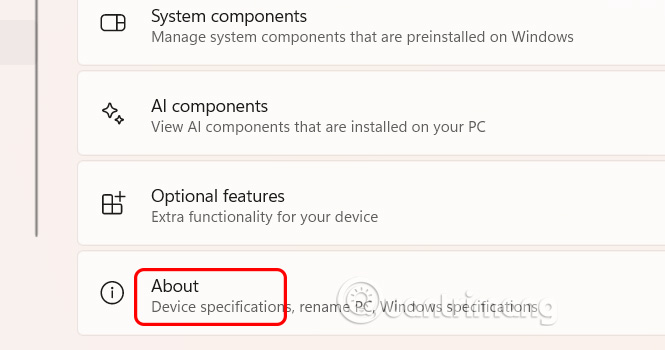
<p style="text-align: justify;">Bạn mở<strong>&nbsp;Settings&nbsp;</strong>trên Windows, sau đó&nbsp;<strong>nhấn chọn System rồi nhấn About&nbsp;</strong>để tiếp tục.</p>

<p style="text-align: justify;"><img alt="Chỉnh hệ thống Windows " data-i="0" data-src="https://st.quantrimang.com/photos/image/2025/08/06/chan-cai-dat-tu-dong-driver-Windows-1.jpg" data-was-processed="true" height="316" src="https://st.quantrimang.com/photos/image/2025/08/06/chan-cai-dat-tu-dong-driver-Windows-1.jpg" width="600" /></p>

<p style="text-align: justify;"><strong>Bước 2:</strong></p>

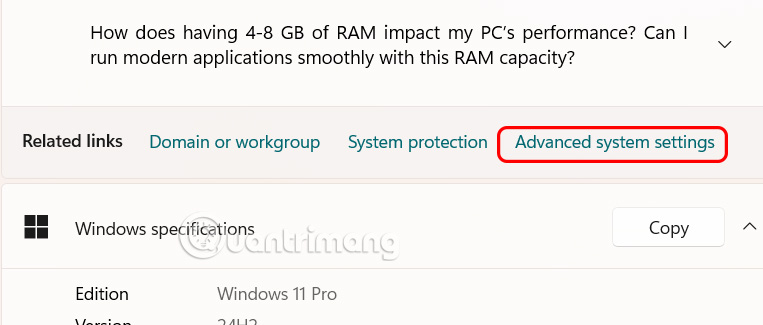
<p style="text-align: justify;">Ở giao diện mới bạn<strong>&nbsp;nhấn vào Advanced system settings</strong>&nbsp;như hình dưới đây.</p>

<p style="text-align: justify;"><img alt="Advanced system settings" data-i="1" data-src="https://st.quantrimang.com/photos/image/2025/08/06/chan-cai-dat-tu-dong-driver-Windows-2.jpg" data-was-processed="true" height="256" src="https://st.quantrimang.com/photos/image/2025/08/06/chan-cai-dat-tu-dong-driver-Windows-2.jpg" width="600" /></p>

<p style="text-align: justify;"><strong>Bước 3:</strong></p>

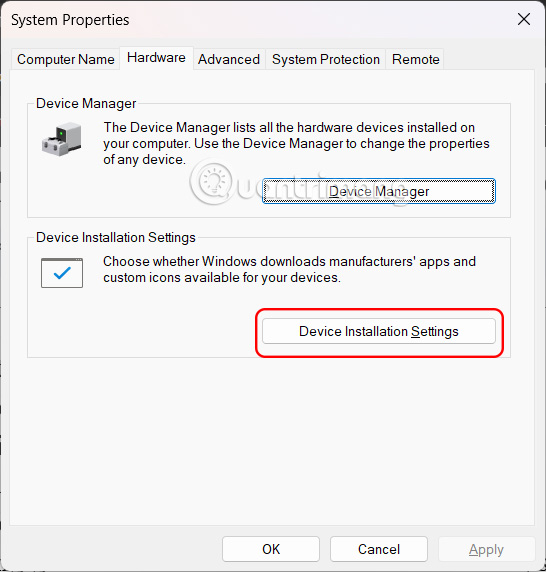
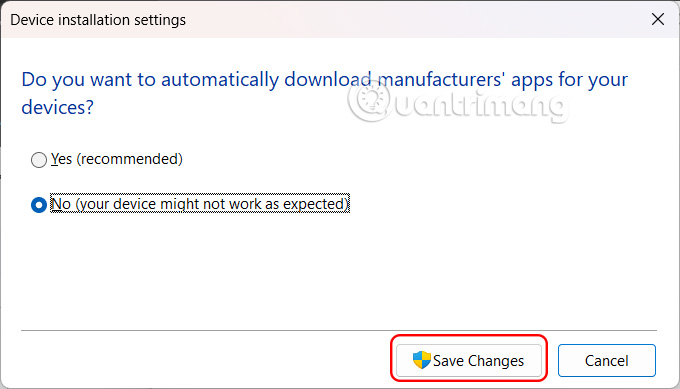
<p style="text-align: justify;">Trong giao diện mới bạn nhấn vào<strong>&nbsp;tab Hardware</strong>, sau đó<strong>&nbsp;nhấn vào Device Installation Settings</strong>.</p>

<p style="text-align: justify;"><img alt="Device Installation Settings" data-i="2" data-src="https://st.quantrimang.com/photos/image/2025/08/06/chan-cai-dat-tu-dong-driver-Windows-3.jpg" data-was-processed="true" src="https://st.quantrimang.com/photos/image/2025/08/06/chan-cai-dat-tu-dong-driver-Windows-3.jpg" width="400" /></p>

<p style="text-align: justify;">Lúc này bạn chỉ cần&nbsp;<strong>nhấn No (your device might not work as expected)</strong>&nbsp;rồi&nbsp;<strong>nhấn tiếp Save Changes</strong>&nbsp;để lưu lại thay đổi.</p>

<div style="text-align: justify;">&nbsp;</div>

<p style="text-align: justify;"><img alt="Cách chặn cài đặt driver tự động trên Windows" data-adbro-processed="true" data-i="3" data-src="https://st.quantrimang.com/photos/image/2025/08/06/chan-cai-dat-tu-dong-driver-Windows-4.jpg" data-was-processed="true" height="314" src="https://st.quantrimang.com/photos/image/2025/08/06/chan-cai-dat-tu-dong-driver-Windows-4.jpg" width="550" /></p>

<p style="text-align: justify;">Sau đó Windows sẽ không tự động cài đặt driver. Nếu bạn thêm card đồ họa hoặc máy in mới, bạn sẽ cài đặt driver thủ công.</p>

<h2 style="text-align: justify;">Cách chặn cài đặt driver tự động qua Group Policy</h2>

<p style="text-align: justify;"><strong>Bước 1:</strong></p>

<p style="text-align: justify;">Bạn<strong>&nbsp;nhập gpedit trong thanh tìm kiếm&nbsp;</strong>và sau đó nhấn&nbsp;<strong>Local Group Policy Editor</strong>&nbsp;để truy cập.</p>

<p style="text-align: justify;"><img alt="Local Group Policy Editor" data-i="4" data-src="https://st.quantrimang.com/photos/image/2025/08/06/chan-cai-dat-tu-dong-driver-Windows-5.jpg" data-was-processed="true" height="765" src="https://st.quantrimang.com/photos/image/2025/08/06/chan-cai-dat-tu-dong-driver-Windows-5.jpg" width="380" /></p>

<p style="text-align: justify;"><strong>Bước 2:</strong></p>

<p style="text-align: justify;">Lúc này bạn cần truy cập theo đường dẫn dưới đây.</p>

<pre id="pre0">
<code>Computer Configuration &gt; Administrative Templates &gt; Windows Components &gt; Windows Update &gt; Manage updates offered from Windows Update</code></pre>

<div style="text-align: justify;">&nbsp;</div>

<p style="text-align: justify;"><img alt="Truy cập thư mục Local Group Policy Editor" data-i="5" data-src="https://st.quantrimang.com/photos/image/2025/08/06/chan-cai-dat-tu-dong-driver-Windows-6.jpg" data-was-processed="true" height="335" src="https://st.quantrimang.com/photos/image/2025/08/06/chan-cai-dat-tu-dong-driver-Windows-6.jpg" width="550" /></p>

<p style="text-align: justify;"><strong>Bước 2:</strong></p>

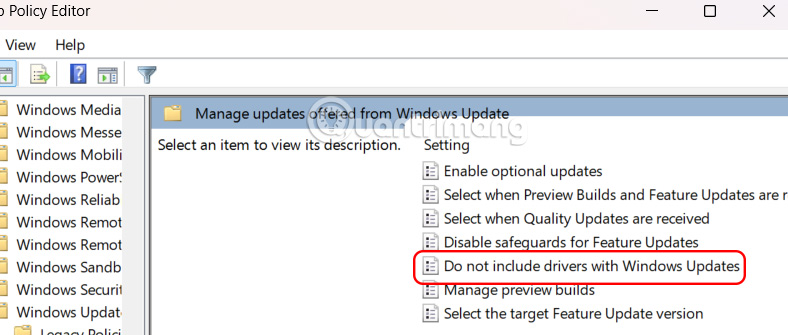
<p style="text-align: justify;">Nhìn sang bên cạnh bạn nhấn chọn tiếp vào<strong>&nbsp;Do not include driver with Windows Update</strong>.</p>

<p style="text-align: justify;"><img alt="Do not include driver with Windows Update" data-i="6" data-src="https://st.quantrimang.com/photos/image/2025/08/06/chan-cai-dat-tu-dong-driver-Windows-7.jpg" data-was-processed="true" height="255" src="https://st.quantrimang.com/photos/image/2025/08/06/chan-cai-dat-tu-dong-driver-Windows-7.jpg" width="600" /></p>

<p style="text-align: justify;"><strong>Bước 3:</strong></p>

<p style="text-align: justify;">Cuối cùng bạn&nbsp;<strong>nhấn vào Enabled&nbsp;</strong>để bật chặn cài đặt driver tự động trên Windows.</p>

<p style="text-align: justify;"><img alt="Cách chặn cài đặt driver tự động qua Group Policy" data-i="7" data-src="https://st.quantrimang.com/photos/image/2025/08/06/chan-cai-dat-tu-dong-driver-Windows-8.jpg" data-was-processed="true" height="461" src="https://st.quantrimang.com/photos/image/2025/08/06/chan-cai-dat-tu-dong-driver-Windows-8.jpg" width="500" /></p>

<h2 style="text-align: justify;">Cách chặn cài đặt driver tự động qua Windows Registry</h2>

<p style="text-align: justify;"><strong>Bước 1:</strong></p>

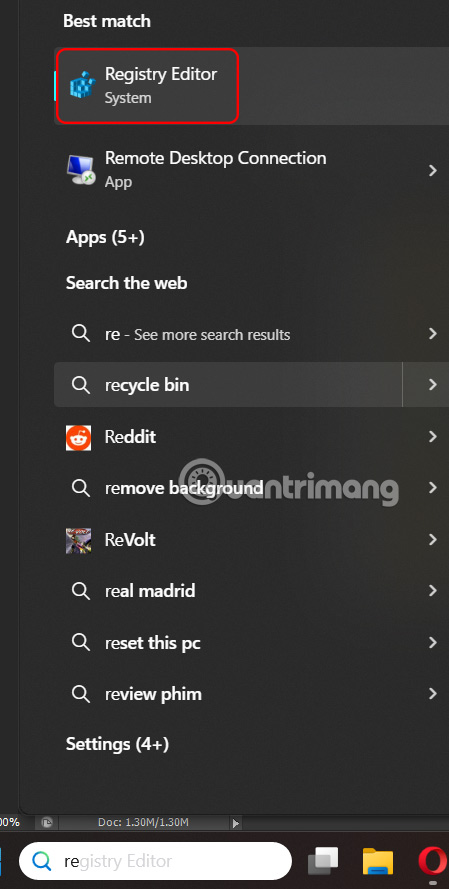
<p style="text-align: justify;">Bạn nhập&nbsp;<strong>regedit vào thanh tìm kiếm</strong>, sau đó nhấn chọn&nbsp;<strong>Registry Editor</strong>&nbsp;để truy cập.</p>

<p style="text-align: justify;"><img alt="Registry Editor" data-i="8" data-src="https://st.quantrimang.com/photos/image/2025/08/06/chan-cai-dat-tu-dong-driver-Windows-9.jpg" data-was-processed="true" height="693" src="https://st.quantrimang.com/photos/image/2025/08/06/chan-cai-dat-tu-dong-driver-Windows-9.jpg" width="350" /></p>

<div style="text-align: justify;">&nbsp;</div>

<p style="text-align: justify;"><strong>Bước 2:</strong></p>

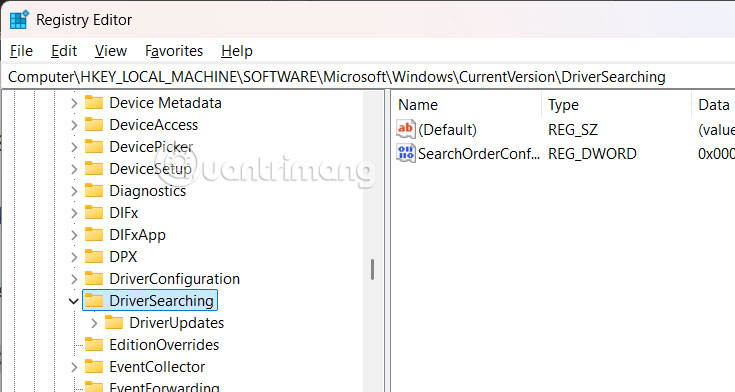
<p style="text-align: justify;">Sau đó bạn truy cập theo đường dẫn dưới đây.</p>

<pre id="pre1">
<code>HKEY_LOCAL_MACHINE\SOFTWARE\Microsoft\Windows\CurrentVersion\DriverSearching</code></pre>

<p style="text-align: justify;"><img alt="Windows Registry" data-i="9" data-src="https://st.quantrimang.com/photos/image/2025/08/06/chan-cai-dat-tu-dong-driver-Windows-10.jpg" data-was-processed="true" height="320" src="https://st.quantrimang.com/photos/image/2025/08/06/chan-cai-dat-tu-dong-driver-Windows-10.jpg" width="600" /></p>

<p style="text-align: justify;"><strong>Bước 3:</strong></p>

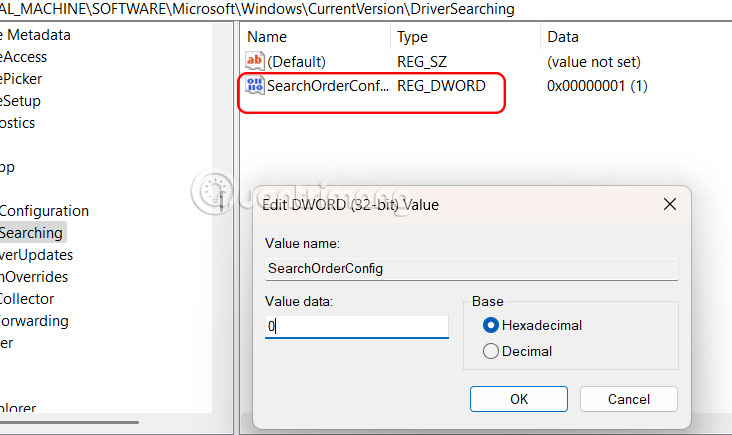
<p style="text-align: justify;">Nhìn sang bên cạnh và&nbsp;<strong>click đúp vào giá trị SearchOrderConfig</strong>&nbsp;rồi&nbsp;<strong>thay đổi từ 1 sang 0</strong>.</p>

<p style="text-align: justify;"><img alt="Chặn cài đặt driver tự động qua Windows Registry" data-i="10" data-src="https://st.quantrimang.com/photos/image/2025/08/06/chan-cai-dat-tu-dong-driver-Windows-11.jpg" data-was-processed="true" height="381" src="https://st.quantrimang.com/photos/image/2025/08/06/chan-cai-dat-tu-dong-driver-Windows-11.jpg" width="640" /></p>

<p style="text-align: justify;">Khởi động lại máy tính để thay đổi được áp dụng.</p>

<p style="text-align: justify;">Sau khi hoàn tất các bước, việc đặt SearchOrderConfig thành 0 sẽ chặn trình điều khiển cập nhật mỗi khi Windows 11 kiểm tra bản cập nhật mới.</p>
		</div>
				<div id="author">
						<p>
				<strong>Nguồn tin:</strong>
				Quantrimang.com:
			</p>
		</div>
	</div>
	<div id="footer" class="clearfix">
		<div id="url">
			<strong>URL của bản tin này: </strong><a href="https://www.nguoicodonvn2008.info/vi/news/savefile/kien-thuc-may-tinh/huong-dan-chan-cai-dat-driver-tu-dong-tren-windows-11-10935.html" title="Hướng dẫn chặn cài đặt driver tự động trên Windows 11">https://www.nguoicodonvn2008.info/vi/news/savefile/kien-thuc-may-tinh/huong-dan-chan-cai-dat-driver-tu-dong-tren-windows-11-10935.html</a>

		</div>
		<div class="clear"></div>
		<div class="copyright">
			&copy; .&#x3A; Nguoicodonvn2008.info - Cõi lòng người cô đơn &#x3A;.
		</div>
		<div id="contact">
			<a href="mailto:admin@nguoicodonvn2008.info">admin@nguoicodonvn2008.info</a>
		</div>
	</div>
</div>
        <div id="timeoutsess" class="chromeframe">
            Bạn đã không sử dụng Site, <a onclick="timeoutsesscancel();" href="https://nguoicodonvn2008.info/#">Bấm vào đây để duy trì trạng thái đăng nhập</a>. Thời gian chờ: <span id="secField"> 60 </span> giây
        </div>
        <div id="openidResult" class="nv-alert" style="display:none"></div>
        <div id="openidBt" data-result="" data-redirect=""></div>
		</script>
		<div class="car-top">
  <span><img src="https://nguoicodonvn2008.info/themes/default/images/car.png" alt=""></span>
</div>
<script src="https://nguoicodonvn2008.info/assets/js/jquery/jquery.min.js"></script>
<script>var nv_base_siteurl="/",nv_lang_data="vi",nv_lang_interface="vi",nv_name_variable="nv",nv_fc_variable="op",nv_lang_variable="language",nv_module_name="news",nv_func_name="savefile",nv_is_user=0, nv_my_ofs=-4,nv_my_abbr="EDT",nv_cookie_prefix="nv4c_e856T",nv_check_pass_mstime=1738000,nv_area_admin=0,nv_safemode=0,theme_responsive=0,nv_recaptcha_ver=2,nv_recaptcha_sitekey="",nv_recaptcha_type="image",XSSsanitize=1;</script>
<script src="https://nguoicodonvn2008.info/assets/js/language/vi.js"></script>
<script src="https://nguoicodonvn2008.info/assets/js/DOMPurify/purify3.js"></script>
<script src="https://nguoicodonvn2008.info/assets/js/global.js"></script>
<script src="https://nguoicodonvn2008.info/assets/js/site.js"></script>
<script src="https://nguoicodonvn2008.info/themes/default/js/news.js"></script>
<script src="https://nguoicodonvn2008.info/themes/default/js/main.js"></script>
<script src="https://nguoicodonvn2008.info/themes/default/js/custom.js"></script>
<script type="application/ld+json">
        {
            "@context": "https://schema.org",
            "@type": "Organization",
            "url": "https://nguoicodonvn2008.info",
            "logo": "https://nguoicodonvn2008.info/uploads/angel.gif"
        }
        </script>
<script src="https://nguoicodonvn2008.info/themes/default/js/bootstrap.min.js"></script>
<script type="text/javascript">
var $scrolltop = $('.car-top');
$scrolltop.on('click', function () {
    $('html,body').animate({
        scrollTop: 0
    }, 800);
    $(this).addClass("car-run");
    setTimeout(function(){ $scrolltop.removeClass('car-run');}, 1000);
    return false;
});
$(window).on('scroll', function ()
{ 
    if($(window).scrollTop() >= 200)
    {
        $scrolltop.addClass("show");
        $scrolltop.addClass("car-down");
    }
    else
    {
       $scrolltop.removeClass("show");
       setTimeout(function(){ $scrolltop.removeClass('car-down');}, 300);
    }
});
</script>
</body>
</html>