<!DOCTYPE html>
    <html lang="vi" xmlns="http://www.w3.org/1999/xhtml" prefix="og: http://ogp.me/ns#">
    <head>
<title>Hướng dẫn cài win 11 trên máy ảo, cài windows 11 trên VMware</title>
<meta name="description" content="Hướng dẫn cài win 11 trên máy ảo, cài windows 11 trên VMware - Savefile - Tin Tức -...">
<meta name="author" content=".: Nguoicodonvn2008.info - Cõi lòng người cô đơn :.">
<meta name="copyright" content=".: Nguoicodonvn2008.info - Cõi lòng người cô đơn :. [admin@nguoicodonvn2008.info]">
<meta name="robots" content="index, archive, follow, noodp">
<meta name="googlebot" content="index,archive,follow,noodp">
<meta name="msnbot" content="all,index,follow">
<meta name="generator" content="NukeViet v4.5">
<meta http-equiv="Content-Type" content="text/html; charset=utf-8">
<meta property="og:title" content="Hướng dẫn cài win 11 trên máy ảo, cài windows 11 trên VMware">
<meta property="og:type" content="website">
<meta property="og:description" content="Savefile - Tin Tức - https&#x3A;&#x002F;&#x002F;www.nguoicodonvn2008.info&#x002F;vi&#x002F;news&#x002F;savefile&#x002F;kien-thuc-may-tinh&#x002F;huong-dan-cai-win-11-tren-may-ao-cai-windows-11-tren-vmware-6750.html">
<meta property="og:site_name" content=".&#x3A; Nguoicodonvn2008.info - Cõi lòng người cô đơn &#x3A;.">
<meta property="og:url" content="https://www.nguoicodonvn2008.info/vi/news/savefile/kien-thuc-may-tinh/huong-dan-cai-win-11-tren-may-ao-cai-windows-11-tren-vmware-6750.html">
<link rel="shortcut icon" href="https://nguoicodonvn2008.info/favicon.ico">
<link rel="canonical" href="https://www.nguoicodonvn2008.info/vi/news/savefile/kien-thuc-may-tinh/huong-dan-cai-win-11-tren-may-ao-cai-windows-11-tren-vmware-6750.html">
<link rel="alternate" href="https://nguoicodonvn2008.info/vi/news/rss/" title="Tin Tức" type="application/rss+xml">
<link rel="alternate" href="https://nguoicodonvn2008.info/vi/news/rss/karaoke-dual/" title="Tin Tức - Karaoke Dual" type="application/rss+xml">
<link rel="alternate" href="https://nguoicodonvn2008.info/vi/news/rss/nhac-tre/" title="Tin Tức - Nhạc trẻ" type="application/rss+xml">
<link rel="alternate" href="https://nguoicodonvn2008.info/vi/news/rss/tru-tinh/" title="Tin Tức - Trữ tình" type="application/rss+xml">
<link rel="alternate" href="https://nguoicodonvn2008.info/vi/news/rss/nuoc-ngoai/" title="Tin Tức - Nước ngoài" type="application/rss+xml">
<link rel="alternate" href="https://nguoicodonvn2008.info/vi/news/rss/remix/" title="Tin Tức - Remix" type="application/rss+xml">
<link rel="alternate" href="https://nguoicodonvn2008.info/vi/news/rss/tam-su-tinh-yeu/" title="Tin Tức - Tâm sự tình yêu" type="application/rss+xml">
<link rel="alternate" href="https://nguoicodonvn2008.info/vi/news/rss/tho-suu-tam/" title="Tin Tức - Thơ sưu tầm" type="application/rss+xml">
<link rel="alternate" href="https://nguoicodonvn2008.info/vi/news/rss/cuoc-song/" title="Tin Tức - Cuộc sống" type="application/rss+xml">
<link rel="alternate" href="https://nguoicodonvn2008.info/vi/news/rss/phan-mem/" title="Tin Tức - Phần mềm" type="application/rss+xml">
<link rel="alternate" href="https://nguoicodonvn2008.info/vi/news/rss/kien-thuc-may-tinh/" title="Tin Tức - Kiến thức máy tính" type="application/rss+xml">
<link rel="alternate" href="https://nguoicodonvn2008.info/vi/news/rss/hoc-tap/" title="Tin Tức - Học tập" type="application/rss+xml">
<link rel="alternate" href="https://nguoicodonvn2008.info/vi/news/rss/tai-lieu/" title="Tin Tức - Tài liệu" type="application/rss+xml">
<link rel="alternate" href="https://nguoicodonvn2008.info/vi/news/rss/de-thi/" title="Tin Tức - Đề thi" type="application/rss+xml">
<link rel="preload" as="style" href="https://nguoicodonvn2008.info/assets/css/font-awesome.min.css" type="text/css">
<link rel="preload" as="style" href="https://nguoicodonvn2008.info/themes/default/css/bootstrap.non-responsive.css" type="text/css">
<link rel="preload" as="style" href="https://nguoicodonvn2008.info/themes/default/css/style.css" type="text/css">
<link rel="preload" as="style" href="https://nguoicodonvn2008.info/themes/default/css/style.non-responsive.css" type="text/css">
<link rel="preload" as="style" href="https://nguoicodonvn2008.info/themes/default/css/news.css" type="text/css">
<link rel="preload" as="style" href="https://nguoicodonvn2008.info/themes/default/css/custom.css" type="text/css">
<link rel="preload" as="script" href="https://nguoicodonvn2008.info/assets/js/jquery/jquery.min.js" type="text/javascript">
<link rel="preload" as="script" href="https://nguoicodonvn2008.info/assets/js/language/vi.js" type="text/javascript">
<link rel="preload" as="script" href="https://nguoicodonvn2008.info/assets/js/DOMPurify/purify3.js" type="text/javascript">
<link rel="preload" as="script" href="https://nguoicodonvn2008.info/assets/js/global.js" type="text/javascript">
<link rel="preload" as="script" href="https://nguoicodonvn2008.info/assets/js/site.js" type="text/javascript">
<link rel="preload" as="script" href="https://nguoicodonvn2008.info/themes/default/js/news.js" type="text/javascript">
<link rel="preload" as="script" href="https://nguoicodonvn2008.info/themes/default/js/main.js" type="text/javascript">
<link rel="preload" as="script" href="https://nguoicodonvn2008.info/themes/default/js/custom.js" type="text/javascript">
<link rel="preload" as="script" href="https://nguoicodonvn2008.info/themes/default/js/bootstrap.min.js" type="text/javascript">
<link rel="stylesheet" href="https://nguoicodonvn2008.info/assets/css/font-awesome.min.css">
<link rel="stylesheet" href="https://nguoicodonvn2008.info/themes/default/css/bootstrap.non-responsive.css">
<link rel="stylesheet" href="https://nguoicodonvn2008.info/themes/default/css/style.css">
<link rel="stylesheet" href="https://nguoicodonvn2008.info/themes/default/css/style.non-responsive.css">
<link rel="StyleSheet" href="https://nguoicodonvn2008.info/themes/default/css/news.css">
<link rel="stylesheet" href="https://nguoicodonvn2008.info/themes/default/css/custom.css">
<style type="text/css">
	body{background: #fff;}
</style>
    </head>
    <body>
<div id="print">
	<div id="hd_print">
		<h2 class="pull-left">.&#x3A; Nguoicodonvn2008.info - Cõi lòng người cô đơn &#x3A;.</h2>
		<p class="pull-right"><a title=".&#x3A; Nguoicodonvn2008.info - Cõi lòng người cô đơn &#x3A;." href="https://nguoicodonvn2008.info/">https://nguoicodonvn2008.info</a></p>
	</div>
	<div class="clear"></div>
	<hr />
	<div id="content">
		<h1>Hướng dẫn cài win 11 trên máy ảo, cài windows 11 trên VMware</h1>
		<ul class="list-inline">
			<li>Thứ sáu - 17/02/2023 23:50</li>
			<li class="hidden-print txtrequired"><em class="fa fa-print">&nbsp;</em><a title="In ra" href="javascript:;" onclick="window.print()">In ra</a></li>
			<li class="hidden-print txtrequired"><em class="fa fa-power-off">&nbsp;</em><a title="Đóng cửa sổ này" href="javascript:;" onclick="window.close()">Đóng cửa sổ này</a></li>
		</ul>
		<div class="clear"></div>
		<div id="hometext">
		</div>
				<div class="imghome">
			<img alt="Hướng dẫn cài win 11 trên máy ảo, cài windows 11 trên VMware" src="https://st.quantrimang.com/photos/image/2023/02/17/cai-windows-11-tren-vmware-9.jpg" width="460" class="img-thumbnail" />
		</div>
		<div class="clear"></div>
		<div id="bodytext" class="clearfix">
			<p style="text-align: justify;">Trong bài này, Quản Trị Mạng sẽ hướng dẫn các bạn cách cài và trải nghiệm Windows 11 trên máy ảo VMWare. Phương thức cài đặt này giúp các bạn có một bản Windows 11 hoạt động mượt, có kết nối internet.</p>

<h2 style="text-align: justify;">Điều kiện tiên quyết để cài đặt Windows 11 trên VMware</h2>

<p style="text-align: justify;">Đây là những gì bạn cần để cài đặt Windows 11 với hỗ trợ TPM trong VMware Workstation 17 Player:</p>

<ul>
	<li style="text-align: justify;">File image ISO của Windows 11. Kiểm tra hướng dẫn chi tiết của Quantrimang.com về&nbsp;cách tải xuống file ISO Windows 11.:&nbsp;<span style="color:rgb(192, 57, 43);"><strong>https://quantrimang.com/cong-nghe/tai-windows-11-download-iso-win-11-182407</strong></span></li>
	<li style="text-align: justify;">Hệ điều hành Windows 10 trở lên có TPM 2.0 và hỗ trợ ảo hóa.</li>
	<li style="text-align: justify;">Phiên bản mới nhất của VMware Workstation 17 Player phải được cài đặt sẵn trên hệ thống host.</li>
	<li style="text-align: justify;">Đủ tài nguyên máy tính để chạy Windows 11 dưới dạng máy ảo. Danh sách này bao gồm dung lượng ổ đĩa 64GB, RAM 4GB và bộ xử lý lõi kép x64.</li>
</ul>

<p style="text-align: justify;">Khi bạn có file ISO cần thiết và bản sao VMware mới nhất trên hệ thống của mình, bạn có thể tiến hành tạo máy ảo và cài đặt Windows 11.</p>

<h2 style="text-align: justify;">Cách cài đặt Windows 11 trong VMware Workstation 17 Player</h2>

<p style="text-align: justify;">Đầu tiên, chúng ta sẽ tạo một máy ảo trong VMware cho Windows 11. Sau đó, ta sẽ cài đặt Windows 11 trên máy ảo. Cuối cùng, chúng ta sẽ cài đặt các công cụ VMware để hoàn tất việc thiết lập máy ảo.</p>

<h3 style="text-align: justify;">1. Tạo máy ảo Windows 11</h3>

<p style="text-align: justify;">Đây là cách tạo máy ảo cho Windows 11 trong VMware:</p>

<p style="text-align: justify;">1. Khởi chạy VMware Player trên hệ thống. Trên trang chủ, nhấp vào tùy chọn&nbsp;<strong>Create a new virtual machine</strong>.</p>

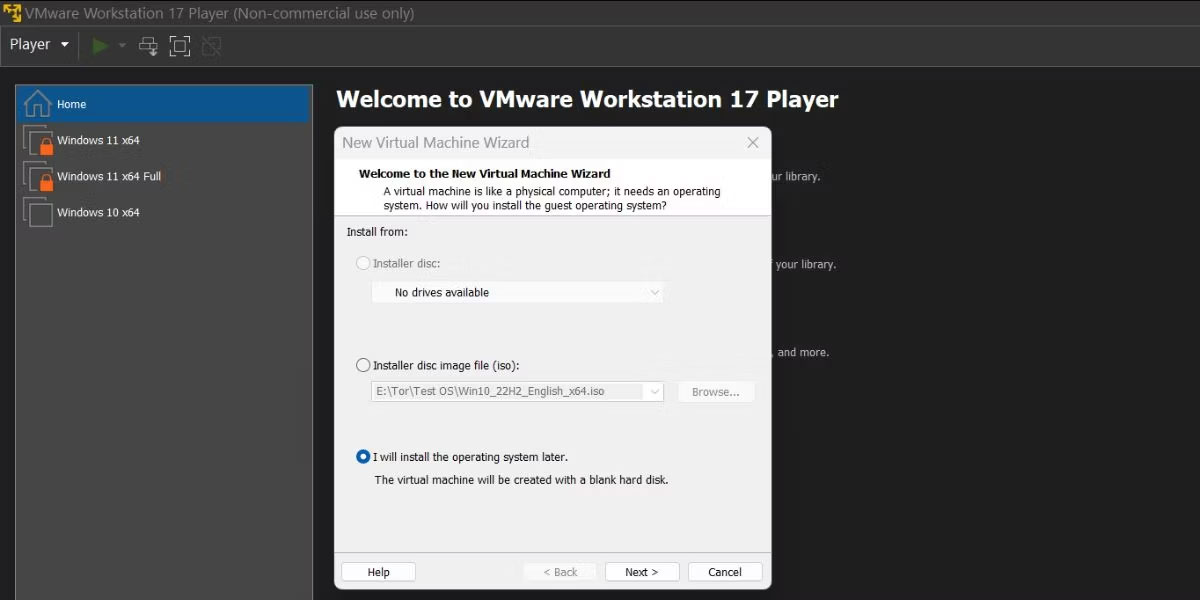
<p style="text-align: justify;">2. Chọn&nbsp;<strong>I will install the operating system later</strong>&nbsp;và nhấp vào nút&nbsp;<strong>Next.</strong></p>

<figure>
<div style="text-align: justify;"><img alt="Tạo máy ảo Windows 11 Trong VMware Workstation 17 Player" data-i="0" data-src="https://st.quantrimang.com/photos/image/2023/02/17/cai-windows-11-tren-vmware-1.jpg" data-was-processed="true" height="600" src="https://st.quantrimang.com/photos/image/2023/02/17/cai-windows-11-tren-vmware-1.jpg" width="1200" /></div>

<figcaption>
<div style="text-align: justify;">Tạo máy ảo Windows 11 Trong VMware Workstation 17 Player</div>
</figcaption>
</figure>

<p style="text-align: justify;">3. Giữ tùy chọn&nbsp;<strong>Guest Operating System</strong>&nbsp;là&nbsp;<strong>Windows</strong>&nbsp;và sau đó nhấp vào menu drop-down. Chọn tùy chọn&nbsp;<strong>Windows 11 x64</strong>&nbsp;và nhấp vào nút&nbsp;<strong>Next.</strong></p>

<p style="text-align: justify;">4. Nhập tên thích hợp cho máy ảo Windows 11 mới. Sau đó, nhấp vào nút&nbsp;<strong>Browse</strong>&nbsp;để chọn một vị trí trên ổ để tạo đĩa ảo. Nhấp vào&nbsp;<strong>Next.</strong></p>

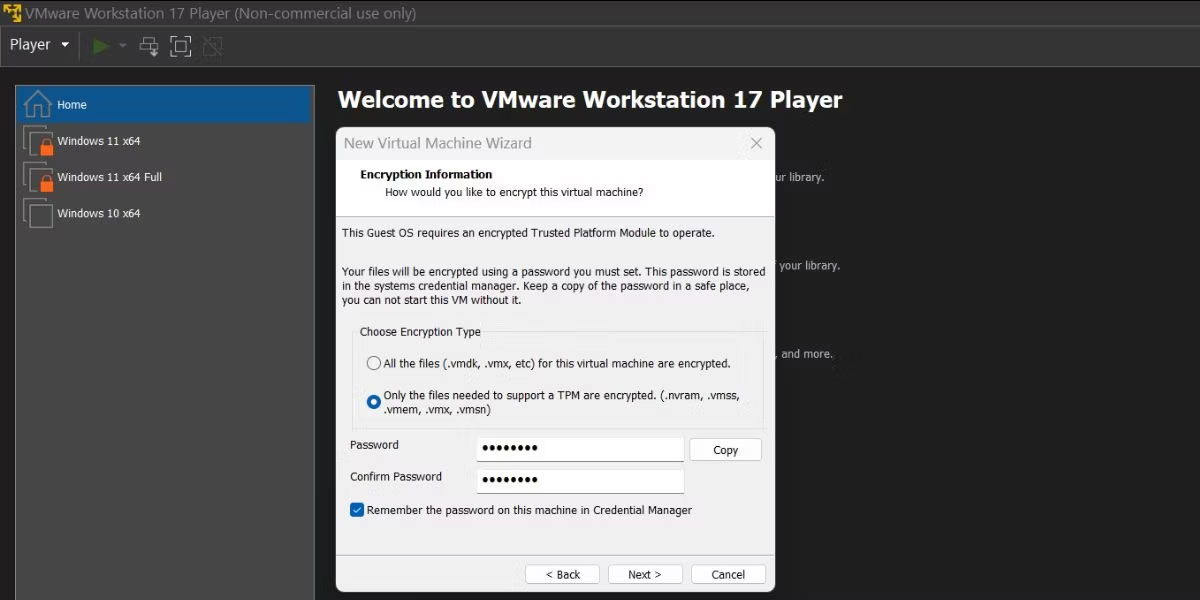
<p style="text-align: justify;">5. Trên trang&nbsp;<strong>Encryption information</strong>, chọn loại mã hóa là&nbsp;<strong>Only the files needed to support a TPM are encrypted</strong>.</p>

<figure>
<div style="text-align: justify;"><img alt="Kích hoạt mã hóa trong máy ảo Windows 11 trong VMware Workstation 17 Player" data-i="1" data-src="https://st.quantrimang.com/photos/image/2023/02/17/cai-windows-11-tren-vmware-2.jpg" data-was-processed="true" height="600" src="https://st.quantrimang.com/photos/image/2023/02/17/cai-windows-11-tren-vmware-2.jpg" width="1200" /></div>

<figcaption>
<div style="text-align: justify;">Kích hoạt mã hóa trong máy ảo Windows 11 trong VMware Workstation 17 Player</div>
</figcaption>
</figure>

<p style="text-align: justify;">6. Bạn cần tạo một mật khẩu gồm 8 ký tự để mã hóa máy ảo. Luôn chọn hộp kiểm&nbsp;<strong>Remember the password on this machine in Credential Manager</strong>. Nhấp vào nút&nbsp;<strong>Next</strong>&nbsp;để tiếp tục.</p>

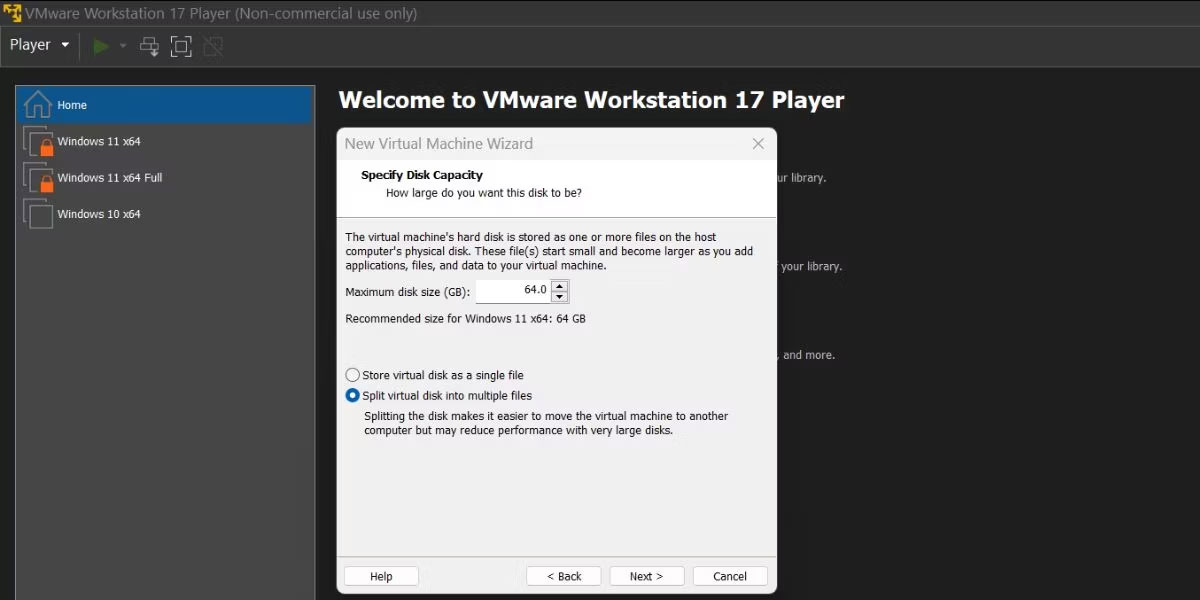
<p style="text-align: justify;">7. Bây giờ, chỉ định dung lượng ổ đĩa và đặt kích thước ổ đĩa tối đa thành&nbsp;<strong>64GB.</strong>&nbsp;Tăng dung lượng nếu bạn muốn cài đặt nhiều chương trình trong máy ảo.</p>

<p style="text-align: justify;">8. Chọn tùy chọn&nbsp;<strong>Split virtual disk into multiple files</strong>&nbsp;và nhấp vào&nbsp;<strong>Next.</strong></p>

<figure>
<div style="text-align: justify;"><img alt="Điều chỉnh dung lượng ổ đĩa máy ảo Windows 11 trong VMware Workstation 17 Player" data-i="2" data-src="https://st.quantrimang.com/photos/image/2023/02/17/cai-windows-11-tren-vmware-3.jpg" data-was-processed="true" height="600" src="https://st.quantrimang.com/photos/image/2023/02/17/cai-windows-11-tren-vmware-3.jpg" width="1200" /></div>

<figcaption>
<div style="text-align: justify;">Điều chỉnh dung lượng ổ đĩa máy ảo Windows 11 trong VMware Workstation 17 Player</div>
</figcaption>
</figure>

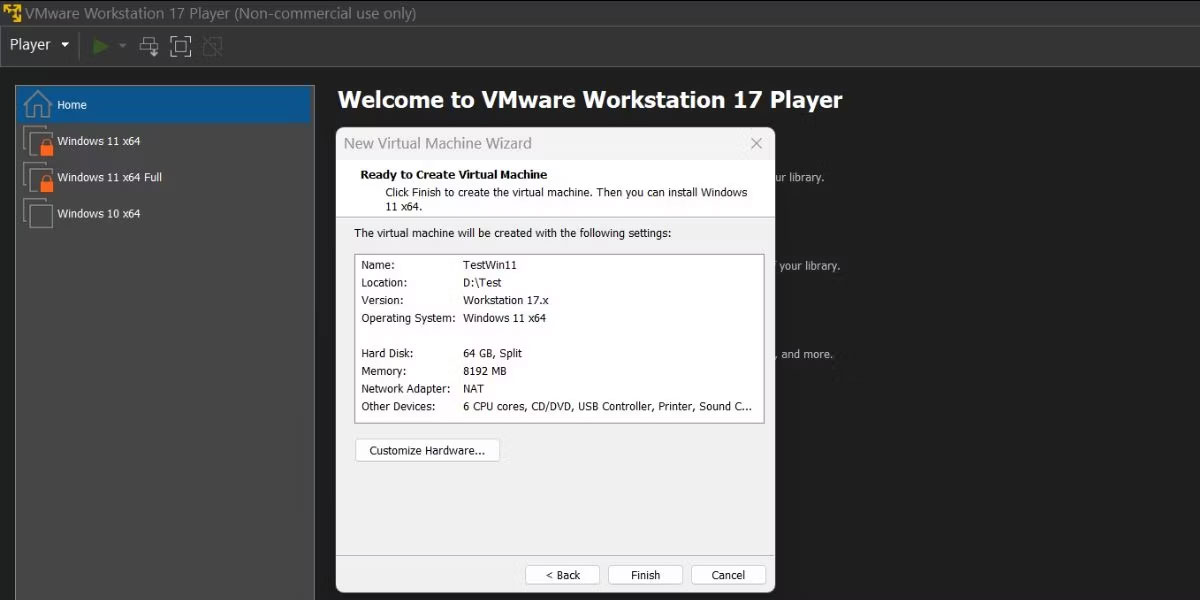
<p style="text-align: justify;">VMware sẽ hiển thị một bản tóm tắt tất cả các cài đặt bạn đã chọn cho máy ảo Windows 11. Nhưng vẫn còn thiếu một thứ: bạn chưa tùy chỉnh các tùy chọn phần cứng hoặc thêm file ISO Windows 11 vào máy ảo.</p>

<figure>
<div style="text-align: justify;"><img alt="Cấu hình tài nguyên máy ảo Windows 11 trong VMware Workstation 17 Player" data-i="3" data-src="https://st.quantrimang.com/photos/image/2023/02/17/cai-windows-11-tren-vmware-4.jpg" data-was-processed="true" height="600" src="https://st.quantrimang.com/photos/image/2023/02/17/cai-windows-11-tren-vmware-4.jpg" width="1200" /></div>

<figcaption>
<div style="text-align: justify;">Cấu hình tài nguyên máy ảo Windows 11 trong VMware Workstation 17 Player</div>
</figcaption>
</figure>

<p style="text-align: justify;">1. Nhấp vào nút&nbsp;<strong>Customize Hardware.</strong>&nbsp;Trong tab&nbsp;<strong>Memory</strong>, hãy tăng mức phân bổ RAM lên&nbsp;<strong>6GB</strong>&nbsp;trở lên để tránh trải nghiệm Windows 11 chậm chạp.</p>

<p style="text-align: justify;">2. Chuyển sang tab&nbsp;<strong>Processors</strong>&nbsp;và phân bổ 4 lõi trở lên cho máy ảo Windows.</p>

<p style="text-align: justify;">3. Tiếp theo, di chuyển đến tab&nbsp;<strong>New CD/DVD (SATA)</strong>&nbsp;và nhấp vào tùy chọn&nbsp;<strong>Use ISO image file</strong>&nbsp;nằm trong phần&nbsp;<strong>Connection.</strong></p>

<p style="text-align: justify;">4. Nhấp vào nút&nbsp;<strong>Browse</strong>&nbsp;và chọn file image ISO Windows 11 mà bạn đã tải xuống trước đó. Nhấp vào nút&nbsp;<strong>Open.</strong></p>

<p style="text-align: justify;">5. Bây giờ, hãy đóng cửa sổ&nbsp;<strong>Hardware</strong>&nbsp;và nhấp vào nút&nbsp;<strong>Finish</strong>&nbsp;để tạo máy ảo mới.</p>

<h3 style="text-align: justify;">2. Cài đặt Windows 11 trên máy ảo</h3>

<p style="text-align: justify;">Lặp lại các bước sau để cài đặt Windows 11 trên máy ảo mới tạo:</p>

<p style="text-align: justify;">1. Điều hướng đến menu bên trái và chọn máy ảo Windows 11. Nhấp vào tùy chọn&nbsp;<strong>Play virtual machine</strong>.</p>

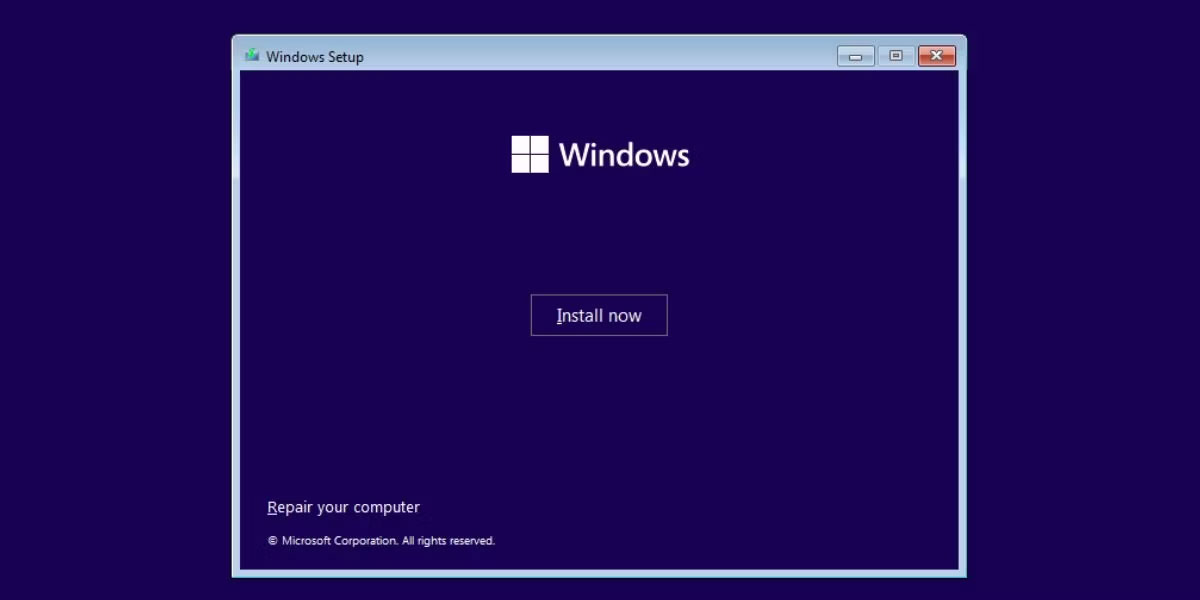
<p style="text-align: justify;">2. Nhấn bất kỳ phím nào trên bàn phím để khởi động từ file ISO. Chọn ngôn ngữ và khu vực thích hợp, rồi nhấp vào nút&nbsp;<strong>Next.</strong>&nbsp;Sau đó, nhấp vào nút&nbsp;<strong>Install now.</strong></p>

<figure>
<div style="text-align: justify;"><img alt="Cài đặt máy ảo Windows 11 trong VMware Workstation 17 Player" data-i="4" data-src="https://st.quantrimang.com/photos/image/2023/02/17/cai-windows-11-tren-vmware-5.jpg" data-was-processed="true" height="600" src="https://st.quantrimang.com/photos/image/2023/02/17/cai-windows-11-tren-vmware-5.jpg" width="1200" /></div>

<figcaption>
<div style="text-align: justify;">Cài đặt máy ảo Windows 11 trong VMware Workstation 17 Player</div>
</figcaption>
</figure>

<p style="text-align: justify;">3. Trong cửa sổ thiết lập Windows, nhấp vào tùy chọn<strong>&nbsp;I don’t have a product key</strong>.</p>

<p style="text-align: justify;">4. Chọn phiên bản Windows 11 (Home, Pro hoặc Education) và nhấp vào nút&nbsp;<strong>Next.</strong></p>

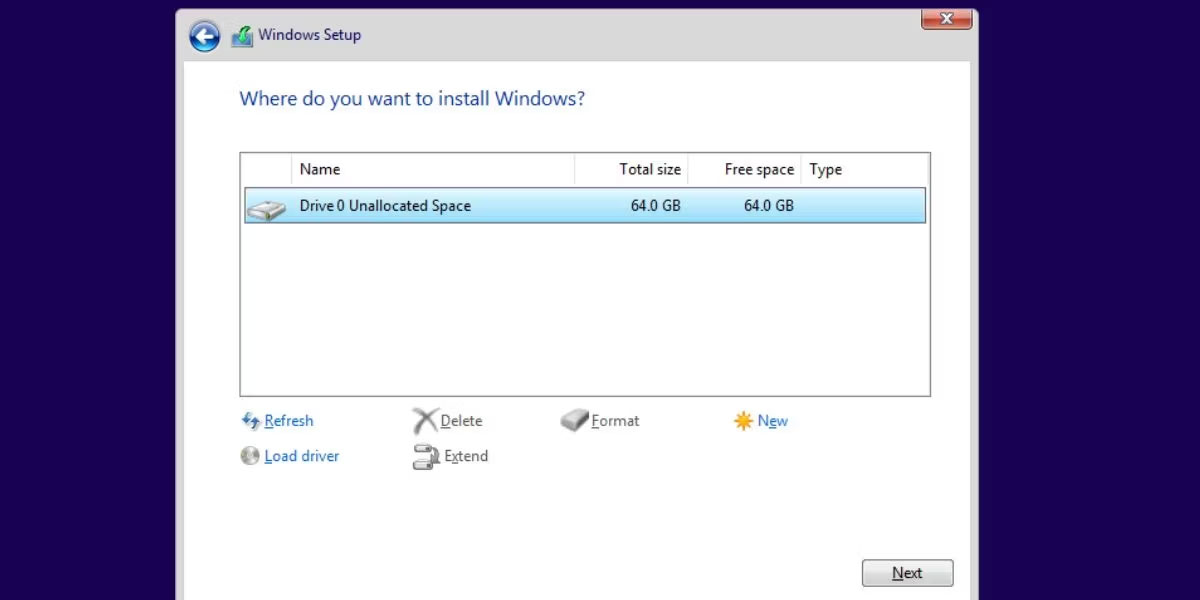
<p style="text-align: justify;">5. Chấp nhận&nbsp;<strong>End User License Agreement</strong>&nbsp;và chọn tùy chọn&nbsp;<strong>Custom installation.</strong></p>

<p style="text-align: justify;">6. Nhấp vào nút&nbsp;<strong>Next.</strong>&nbsp;Thiết lập sẽ bắt đầu cài đặt Windows 11. Máy ảo sẽ khởi động lại một vài lần.</p>

<figure>
<div style="text-align: justify;"><img alt="Cài đặt máy ảo Windows 11 trong VMware Workstation 17 Player 2" data-i="5" data-src="https://st.quantrimang.com/photos/image/2023/02/17/cai-windows-11-tren-vmware-6.jpg" data-was-processed="true" height="600" src="https://st.quantrimang.com/photos/image/2023/02/17/cai-windows-11-tren-vmware-6.jpg" width="1200" /></div>

<figcaption>
<div style="text-align: justify;">Cài đặt máy ảo Windows 11 trong VMware Workstation 17 Player 2</div>
</figcaption>
</figure>

<p style="text-align: justify;">7. Sau khi máy khởi động, chọn đúng vùng và nhấp vào nút&nbsp;<strong>Yes.</strong>&nbsp;Chọn cách bố trí bàn phím phù hợp.</p>

<p style="text-align: justify;">8. Windows 11 sẽ buộc bạn phải thêm tài khoản Microsoft. Để tránh điều này, hãy nhấn&nbsp;<strong>Shift + F10</strong>, nhập lệnh&nbsp;<strong>oobe\bypassnro</strong>&nbsp;và nhấn phím&nbsp;<strong>Enter.</strong></p>

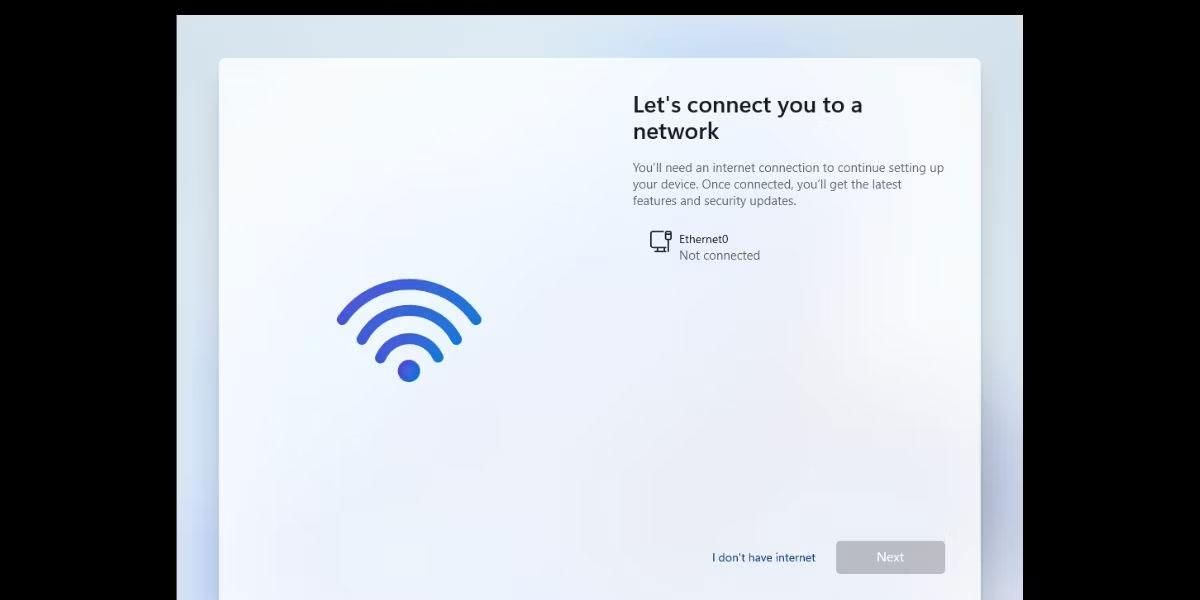
<p style="text-align: justify;">9. Máy ảo sẽ khởi động lại. Nhấp vào tùy chọn&nbsp;<strong>I don’t have internet</strong>.</p>

<figure>
<div style="text-align: justify;"><img alt="Thiết lập máy ảo Windows 11 trong VMware Workstation 17 Player" data-i="6" data-src="https://st.quantrimang.com/photos/image/2023/02/17/cai-windows-11-tren-vmware-7.jpg" data-was-processed="true" height="600" src="https://st.quantrimang.com/photos/image/2023/02/17/cai-windows-11-tren-vmware-7.jpg" width="1200" /></div>

<figcaption>
<div style="text-align: justify;">Thiết lập máy ảo Windows 11 trong VMware Workstation 17 Player</div>
</figcaption>
</figure>

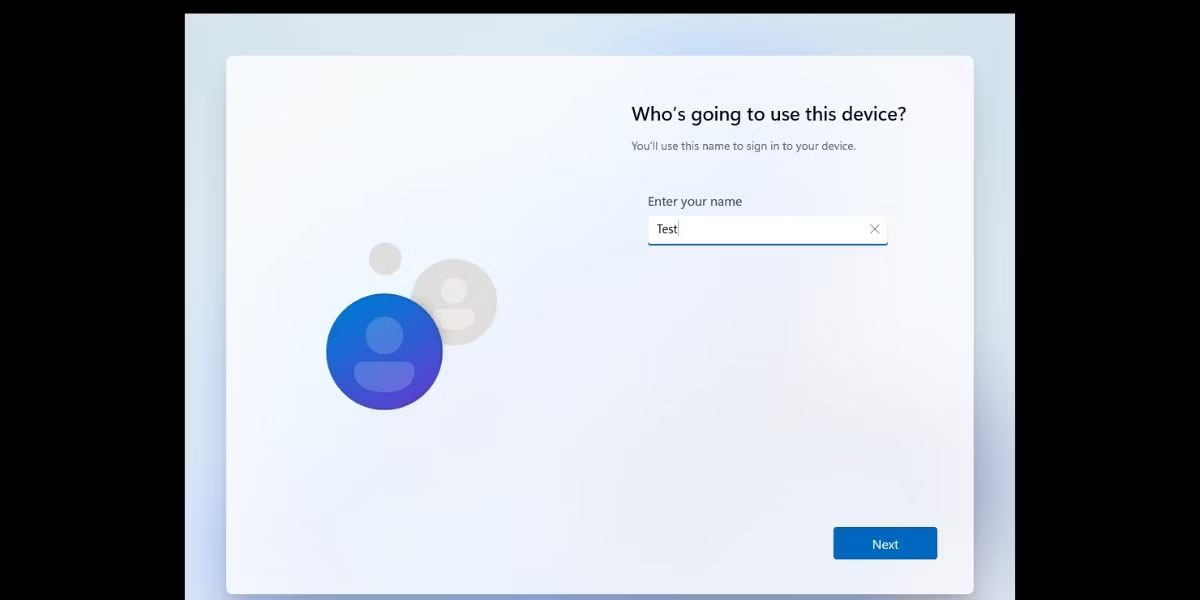
<p style="text-align: justify;">10. Nhập tên cho PC Windows của bạn và gán mật khẩu. Chọn 3 câu hỏi bảo mật và tiếp tục.</p>

<figure>
<div style="text-align: justify;"><img alt="Thiết lập máy ảo Windows 11 trong VMware Workstation 17 Player 2" data-i="7" data-src="https://st.quantrimang.com/photos/image/2023/02/17/cai-windows-11-tren-vmware-8.jpg" data-was-processed="true" height="600" src="https://st.quantrimang.com/photos/image/2023/02/17/cai-windows-11-tren-vmware-8.jpg" width="1200" /></div>

<figcaption>
<div style="text-align: justify;">Thiết lập máy ảo Windows 11 trong VMware Workstation 17 Player 2</div>
</figcaption>
</figure>

<p style="text-align: justify;">11. Bỏ chọn tất cả các tùy chọn theo dõi trên trang&nbsp;<strong>Privacy settings</strong>&nbsp;và nhấp vào nút&nbsp;<strong>Accept.</strong></p>

<p style="text-align: justify;">12. Đợi quá trình thiết lập hoàn tất các thay đổi và khởi động máy tính.</p>

<h3 style="text-align: justify;">3. Cài đặt các công cụ VMware</h3>

<p style="text-align: justify;">Máy ảo Windows 11 đang hoạt động trong VMware. Nhưng nó chưa hoàn thiện. Nhiều tính năng hữu ích sẽ không kích hoạt cho đến khi bạn cài đặt các công cụ VMware trong máy ảo Windows 11. Hãy thực hiện các bước sau:</p>

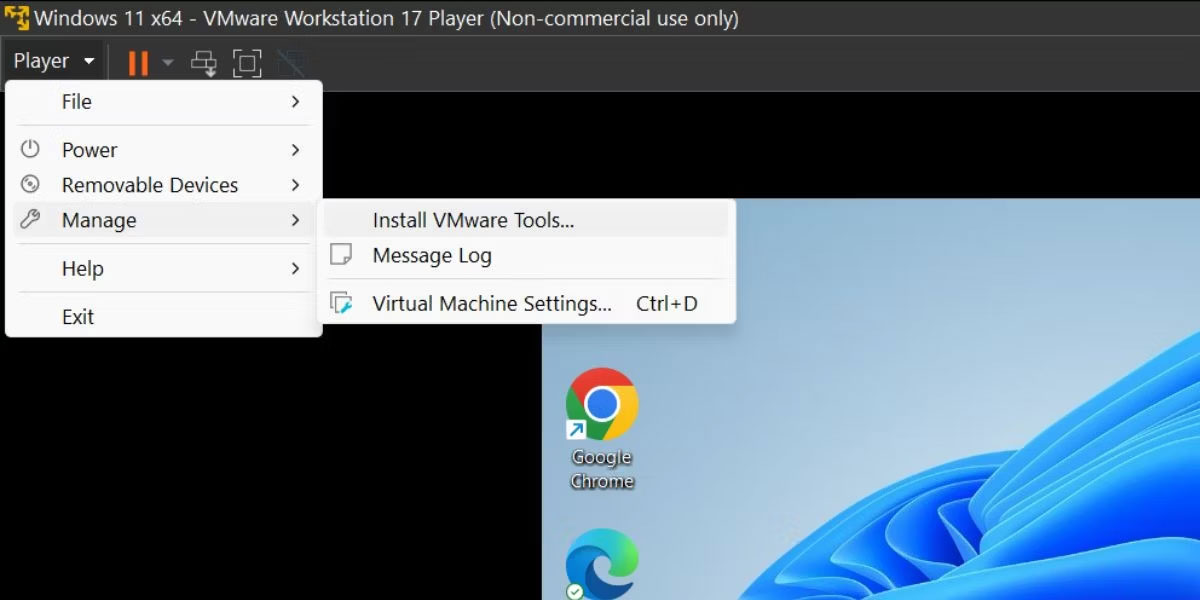
<p style="text-align: justify;">1. Chuyển đến menu trên cùng của VMware Player và nhấp vào nút&nbsp;<strong>Player.</strong></p>

<p style="text-align: justify;">2. Chọn tùy chọn&nbsp;<strong>Manage</strong>&nbsp;từ menu drop-down và nhấp vào tùy chọn&nbsp;<strong>Install VMware tools</strong>. Nó sẽ mount file image thiết lập công cụ VMware trong Windows File Explorer.</p>

<figure>
<div style="text-align: justify;"><img alt="Cài đặt các công cụ VMware " data-i="8" data-src="https://st.quantrimang.com/photos/image/2023/02/17/cai-windows-11-tren-vmware-9.jpg" data-was-processed="true" height="600" src="https://st.quantrimang.com/photos/image/2023/02/17/cai-windows-11-tren-vmware-9.jpg" width="1200" /></div>

<figcaption>
<div style="text-align: justify;">Cài đặt các công cụ VMware</div>
</figcaption>
</figure>

<p style="text-align: justify;">3. Nhấn&nbsp;<strong>Win + E</strong>&nbsp;để&nbsp;<a href="https://quantrimang.com/cong-nghe/cach-mo-file-explorer-tren-windows-11-184094" title="Tổng hợp các cách mở File Explorer trên Windows 11">khởi chạy File Explorer</a>&nbsp;và mở ổ file ISO được mount.</p>

<p style="text-align: justify;">4. Định vị và chọn file&nbsp;<strong>setup64.exe.</strong>&nbsp;Nhấn&nbsp;<strong>Ctrl + Shift + Enter&nbsp;</strong>để khởi chạy thiết lập với quyền admin.</p>

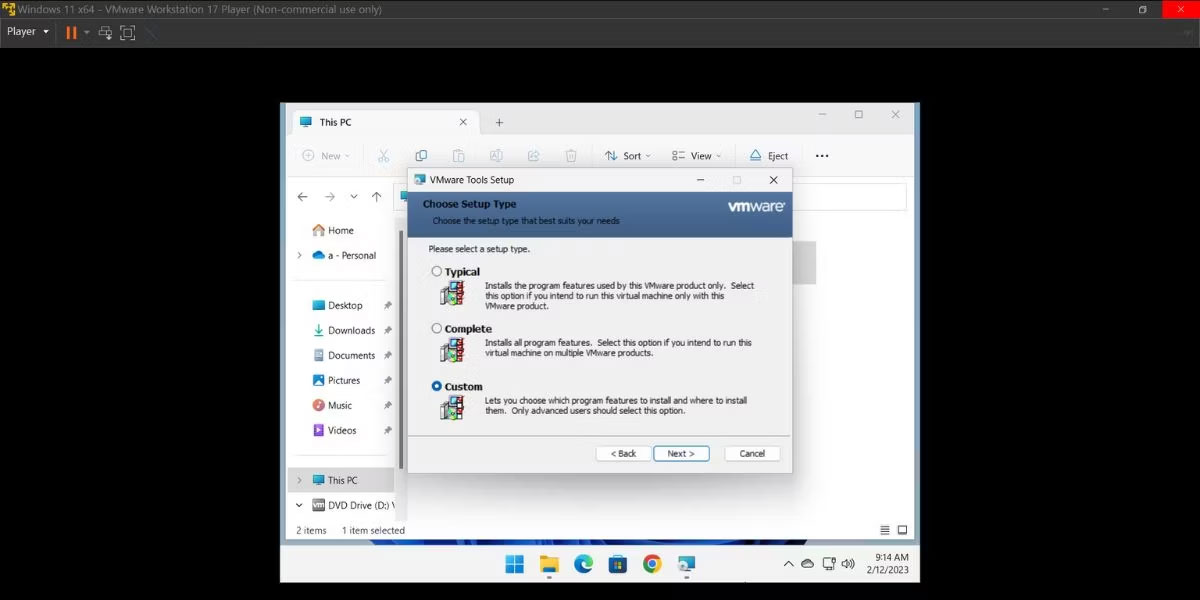
<p style="text-align: justify;">5. Trong cửa sổ cài đặt các công cụ VMware, nhấp vào nút&nbsp;<strong>Next</strong>&nbsp;và chọn tùy chọn&nbsp;<strong>Complete installation.</strong></p>

<figure>
<div style="text-align: justify;"><img alt="Chọn tùy chọn Complete installation" data-i="9" data-src="https://st.quantrimang.com/photos/image/2023/02/17/cai-windows-11-tren-vmware-10.jpg" data-was-processed="true" height="600" src="https://st.quantrimang.com/photos/image/2023/02/17/cai-windows-11-tren-vmware-10.jpg" width="1200" /></div>

<figcaption>
<div style="text-align: justify;">Chọn tùy chọn Complete installation</div>
</figcaption>
</figure>

<p style="text-align: justify;">6. Sau đó bấm vào nút&nbsp;<strong>Install.</strong>&nbsp;Sau khi cài đặt hoàn tất, nhấp vào nút&nbsp;<strong>Finish.</strong></p>

<p style="text-align: justify;">7. Cuối cùng, nhấp vào nút&nbsp;<strong>Yes</strong>&nbsp;để khởi động lại máy ảo và áp dụng các thay đổi.</p>

<figure>
<div style="text-align: justify;"><img alt="Windows 11 VM trong VMware Workstation 17 Player" data-i="10" data-src="https://st.quantrimang.com/photos/image/2023/02/17/cai-windows-11-tren-vmware-11.jpg" data-was-processed="true" height="600" src="https://st.quantrimang.com/photos/image/2023/02/17/cai-windows-11-tren-vmware-11.jpg" width="1200" /></div>

<figcaption>
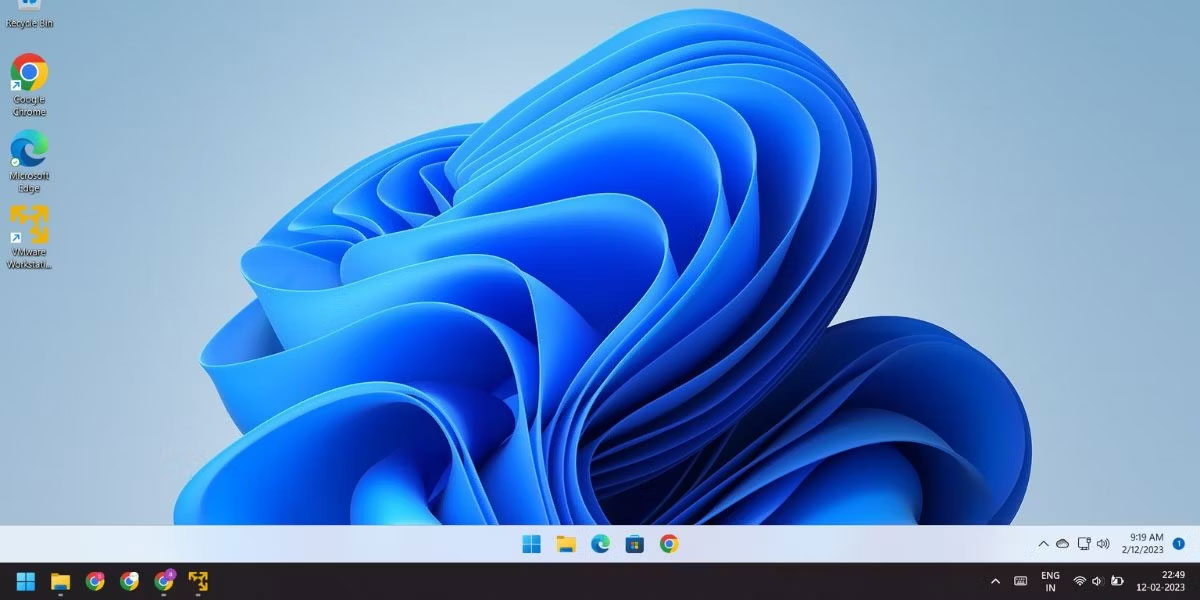
<div style="text-align: justify;">Windows 11 VM trong VMware Workstation 17 Player</div>
</figcaption>
</figure>

<p style="text-align: justify;">Máy ảo Windows 11 đã sẵn sàng để sử dụng. Bạn thậm chí có thể chạy các tính năng của Windows như Hyper V, Windows MDAG và Sandbox bên trong máy này.</p>
		</div>
				<div id="author">
						<p>
				<strong>Nguồn tin:</strong>
				Quantrimang.com
			</p>
		</div>
	</div>
	<div id="footer" class="clearfix">
		<div id="url">
			<strong>URL của bản tin này: </strong><a href="https://www.nguoicodonvn2008.info/vi/news/savefile/kien-thuc-may-tinh/huong-dan-cai-win-11-tren-may-ao-cai-windows-11-tren-vmware-6750.html" title="Hướng dẫn cài win 11 trên máy ảo, cài windows 11 trên VMware">https://www.nguoicodonvn2008.info/vi/news/savefile/kien-thuc-may-tinh/huong-dan-cai-win-11-tren-may-ao-cai-windows-11-tren-vmware-6750.html</a>

		</div>
		<div class="clear"></div>
		<div class="copyright">
			&copy; .&#x3A; Nguoicodonvn2008.info - Cõi lòng người cô đơn &#x3A;.
		</div>
		<div id="contact">
			<a href="mailto:admin@nguoicodonvn2008.info">admin@nguoicodonvn2008.info</a>
		</div>
	</div>
</div>
        <div id="timeoutsess" class="chromeframe">
            Bạn đã không sử dụng Site, <a onclick="timeoutsesscancel();" href="https://nguoicodonvn2008.info/#">Bấm vào đây để duy trì trạng thái đăng nhập</a>. Thời gian chờ: <span id="secField"> 60 </span> giây
        </div>
        <div id="openidResult" class="nv-alert" style="display:none"></div>
        <div id="openidBt" data-result="" data-redirect=""></div>
		</script>
		<div class="car-top">
  <span><img src="https://nguoicodonvn2008.info/themes/default/images/car.png" alt=""></span>
</div>
<script src="https://nguoicodonvn2008.info/assets/js/jquery/jquery.min.js"></script>
<script>var nv_base_siteurl="/",nv_lang_data="vi",nv_lang_interface="vi",nv_name_variable="nv",nv_fc_variable="op",nv_lang_variable="language",nv_module_name="news",nv_func_name="savefile",nv_is_user=0, nv_my_ofs=-4,nv_my_abbr="EDT",nv_cookie_prefix="nv4c_e856T",nv_check_pass_mstime=1738000,nv_area_admin=0,nv_safemode=0,theme_responsive=0,nv_recaptcha_ver=2,nv_recaptcha_sitekey="",nv_recaptcha_type="image",XSSsanitize=1;</script>
<script src="https://nguoicodonvn2008.info/assets/js/language/vi.js"></script>
<script src="https://nguoicodonvn2008.info/assets/js/DOMPurify/purify3.js"></script>
<script src="https://nguoicodonvn2008.info/assets/js/global.js"></script>
<script src="https://nguoicodonvn2008.info/assets/js/site.js"></script>
<script src="https://nguoicodonvn2008.info/themes/default/js/news.js"></script>
<script src="https://nguoicodonvn2008.info/themes/default/js/main.js"></script>
<script src="https://nguoicodonvn2008.info/themes/default/js/custom.js"></script>
<script type="application/ld+json">
        {
            "@context": "https://schema.org",
            "@type": "Organization",
            "url": "https://nguoicodonvn2008.info",
            "logo": "https://nguoicodonvn2008.info/uploads/angel.gif"
        }
        </script>
<script src="https://nguoicodonvn2008.info/themes/default/js/bootstrap.min.js"></script>
<script type="text/javascript">
var $scrolltop = $('.car-top');
$scrolltop.on('click', function () {
    $('html,body').animate({
        scrollTop: 0
    }, 800);
    $(this).addClass("car-run");
    setTimeout(function(){ $scrolltop.removeClass('car-run');}, 1000);
    return false;
});
$(window).on('scroll', function ()
{ 
    if($(window).scrollTop() >= 200)
    {
        $scrolltop.addClass("show");
        $scrolltop.addClass("car-down");
    }
    else
    {
       $scrolltop.removeClass("show");
       setTimeout(function(){ $scrolltop.removeClass('car-down');}, 300);
    }
});
</script>
</body>
</html>