<!DOCTYPE html>
    <html lang="vi" xmlns="http://www.w3.org/1999/xhtml" prefix="og: http://ogp.me/ns#">
    <head>
<title>Hướng dẫn 5 cách chuyển số thành chữ trong Excel</title>
<meta name="description" content="Hướng dẫn 5 cách chuyển số thành chữ trong Excel - Savefile - Tin Tức -...">
<meta name="author" content=".: Nguoicodonvn2008.info - Cõi lòng người cô đơn :.">
<meta name="copyright" content=".: Nguoicodonvn2008.info - Cõi lòng người cô đơn :. [admin@nguoicodonvn2008.info]">
<meta name="robots" content="index, archive, follow, noodp">
<meta name="googlebot" content="index,archive,follow,noodp">
<meta name="msnbot" content="all,index,follow">
<meta name="generator" content="NukeViet v4.5">
<meta http-equiv="Content-Type" content="text/html; charset=utf-8">
<meta property="og:title" content="Hướng dẫn 5 cách chuyển số thành chữ trong Excel">
<meta property="og:type" content="website">
<meta property="og:description" content="Savefile - Tin Tức - https&#x3A;&#x002F;&#x002F;www.nguoicodonvn2008.info&#x002F;vi&#x002F;news&#x002F;savefile&#x002F;kien-thuc-may-tinh&#x002F;huong-dan-5-cach-chuyen-so-thanh-chu-trong-excel-10105.html">
<meta property="og:site_name" content=".&#x3A; Nguoicodonvn2008.info - Cõi lòng người cô đơn &#x3A;.">
<meta property="og:url" content="https://www.nguoicodonvn2008.info/vi/news/savefile/kien-thuc-may-tinh/huong-dan-5-cach-chuyen-so-thanh-chu-trong-excel-10105.html">
<link rel="shortcut icon" href="https://nguoicodonvn2008.info/favicon.ico">
<link rel="canonical" href="https://www.nguoicodonvn2008.info/vi/news/savefile/kien-thuc-may-tinh/huong-dan-5-cach-chuyen-so-thanh-chu-trong-excel-10105.html">
<link rel="alternate" href="https://nguoicodonvn2008.info/vi/news/rss/" title="Tin Tức" type="application/rss+xml">
<link rel="alternate" href="https://nguoicodonvn2008.info/vi/news/rss/karaoke-dual/" title="Tin Tức - Karaoke Dual" type="application/rss+xml">
<link rel="alternate" href="https://nguoicodonvn2008.info/vi/news/rss/nhac-tre/" title="Tin Tức - Nhạc trẻ" type="application/rss+xml">
<link rel="alternate" href="https://nguoicodonvn2008.info/vi/news/rss/tru-tinh/" title="Tin Tức - Trữ tình" type="application/rss+xml">
<link rel="alternate" href="https://nguoicodonvn2008.info/vi/news/rss/nuoc-ngoai/" title="Tin Tức - Nước ngoài" type="application/rss+xml">
<link rel="alternate" href="https://nguoicodonvn2008.info/vi/news/rss/remix/" title="Tin Tức - Remix" type="application/rss+xml">
<link rel="alternate" href="https://nguoicodonvn2008.info/vi/news/rss/tam-su-tinh-yeu/" title="Tin Tức - Tâm sự tình yêu" type="application/rss+xml">
<link rel="alternate" href="https://nguoicodonvn2008.info/vi/news/rss/tho-suu-tam/" title="Tin Tức - Thơ sưu tầm" type="application/rss+xml">
<link rel="alternate" href="https://nguoicodonvn2008.info/vi/news/rss/cuoc-song/" title="Tin Tức - Cuộc sống" type="application/rss+xml">
<link rel="alternate" href="https://nguoicodonvn2008.info/vi/news/rss/phan-mem/" title="Tin Tức - Phần mềm" type="application/rss+xml">
<link rel="alternate" href="https://nguoicodonvn2008.info/vi/news/rss/kien-thuc-may-tinh/" title="Tin Tức - Kiến thức máy tính" type="application/rss+xml">
<link rel="alternate" href="https://nguoicodonvn2008.info/vi/news/rss/hoc-tap/" title="Tin Tức - Học tập" type="application/rss+xml">
<link rel="alternate" href="https://nguoicodonvn2008.info/vi/news/rss/tai-lieu/" title="Tin Tức - Tài liệu" type="application/rss+xml">
<link rel="alternate" href="https://nguoicodonvn2008.info/vi/news/rss/de-thi/" title="Tin Tức - Đề thi" type="application/rss+xml">
<link rel="preload" as="style" href="https://nguoicodonvn2008.info/assets/css/font-awesome.min.css" type="text/css">
<link rel="preload" as="style" href="https://nguoicodonvn2008.info/themes/default/css/bootstrap.non-responsive.css" type="text/css">
<link rel="preload" as="style" href="https://nguoicodonvn2008.info/themes/default/css/style.css" type="text/css">
<link rel="preload" as="style" href="https://nguoicodonvn2008.info/themes/default/css/style.non-responsive.css" type="text/css">
<link rel="preload" as="style" href="https://nguoicodonvn2008.info/themes/default/css/news.css" type="text/css">
<link rel="preload" as="style" href="https://nguoicodonvn2008.info/themes/default/css/custom.css" type="text/css">
<link rel="preload" as="script" href="https://nguoicodonvn2008.info/assets/js/jquery/jquery.min.js" type="text/javascript">
<link rel="preload" as="script" href="https://nguoicodonvn2008.info/assets/js/language/vi.js" type="text/javascript">
<link rel="preload" as="script" href="https://nguoicodonvn2008.info/assets/js/DOMPurify/purify3.js" type="text/javascript">
<link rel="preload" as="script" href="https://nguoicodonvn2008.info/assets/js/global.js" type="text/javascript">
<link rel="preload" as="script" href="https://nguoicodonvn2008.info/assets/js/site.js" type="text/javascript">
<link rel="preload" as="script" href="https://nguoicodonvn2008.info/themes/default/js/news.js" type="text/javascript">
<link rel="preload" as="script" href="https://nguoicodonvn2008.info/themes/default/js/main.js" type="text/javascript">
<link rel="preload" as="script" href="https://nguoicodonvn2008.info/themes/default/js/custom.js" type="text/javascript">
<link rel="preload" as="script" href="https://nguoicodonvn2008.info/themes/default/js/bootstrap.min.js" type="text/javascript">
<link rel="stylesheet" href="https://nguoicodonvn2008.info/assets/css/font-awesome.min.css">
<link rel="stylesheet" href="https://nguoicodonvn2008.info/themes/default/css/bootstrap.non-responsive.css">
<link rel="stylesheet" href="https://nguoicodonvn2008.info/themes/default/css/style.css">
<link rel="stylesheet" href="https://nguoicodonvn2008.info/themes/default/css/style.non-responsive.css">
<link rel="StyleSheet" href="https://nguoicodonvn2008.info/themes/default/css/news.css">
<link rel="stylesheet" href="https://nguoicodonvn2008.info/themes/default/css/custom.css">
<style type="text/css">
	body{background: #fff;}
</style>
    </head>
    <body>
<div id="print">
	<div id="hd_print">
		<h2 class="pull-left">.&#x3A; Nguoicodonvn2008.info - Cõi lòng người cô đơn &#x3A;.</h2>
		<p class="pull-right"><a title=".&#x3A; Nguoicodonvn2008.info - Cõi lòng người cô đơn &#x3A;." href="https://nguoicodonvn2008.info/">https://nguoicodonvn2008.info</a></p>
	</div>
	<div class="clear"></div>
	<hr />
	<div id="content">
		<h1>Hướng dẫn 5 cách chuyển số thành chữ trong Excel</h1>
		<ul class="list-inline">
			<li>Thứ tư - 02/04/2025 00:06</li>
			<li class="hidden-print txtrequired"><em class="fa fa-print">&nbsp;</em><a title="In ra" href="javascript:;" onclick="window.print()">In ra</a></li>
			<li class="hidden-print txtrequired"><em class="fa fa-power-off">&nbsp;</em><a title="Đóng cửa sổ này" href="javascript:;" onclick="window.close()">Đóng cửa sổ này</a></li>
		</ul>
		<div class="clear"></div>
		<div id="hometext">
		</div>
				<div class="imghome">
			<img alt="Hướng dẫn 5 cách chuyển số thành chữ trong Excel" src="https://st.quantrimang.com/photos/image/2023/01/06/chuyen-so-thanh-chu-excel-4.jpg" width="460" class="img-thumbnail" />
		</div>
		<div class="clear"></div>
		<div id="bodytext" class="clearfix">
			<p style="text-align: justify;">Trong quá trình xử lý và nhập liệu bảng dữ liệu Excel, sẽ có những dữ liệu bạn cần chuyển từ số thành chữ. Để thực hiện thao tác này nhanh chóng, thay vì phải gõ tay kiểu thủ công thì bạn có thể sử dụng một vài công cụ trong bài viết dưới đây.</p>

<h2 style="text-align: justify;">&nbsp;</h2>

<h2 id="mcetoc_1ino3vrmd5f" style="text-align: justify;">1. Cách chuyển số thành chữ trong Excel bằng vnTools</h2>

<p style="text-align: justify;"><strong>Bước 1:</strong></p>

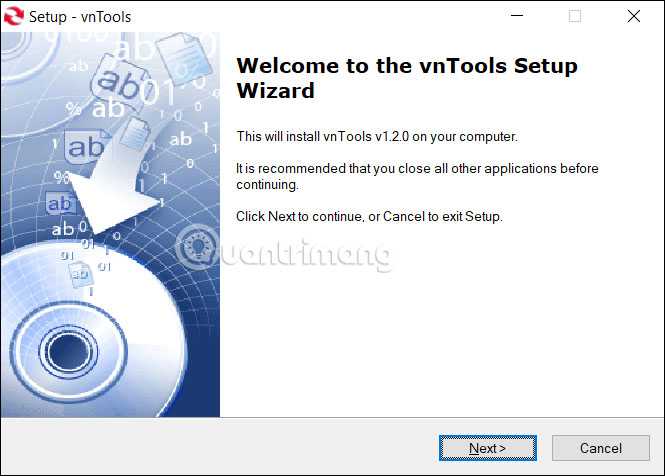
<p style="text-align: justify;">Đầu tiên chúng ta tải phần mềm vnTools xuống&nbsp;&nbsp;máy tính&nbsp;theo link dưới đây rồi tiến hành cài đặt trên máy tính như bình thường.</p>

<div style="text-align: justify;">Phụ kiện máy tính</div>

<ul>
	<li style="text-align: justify;">Tải phần mềm vnTools</li>
</ul>

<div style="text-align: justify;"><span style="color:rgb(192, 57, 43);"><strong>https://www.fshare.vn/file/GUPQAVCTR52M?token=1672978369</strong></span></div>

<p style="text-align: justify;"><img alt="Cài phần mèm vnTools" data-i="0" data-src="https://st.quantrimang.com/photos/image/2023/01/06/chuyen-so-thanh-chu-excel-1.jpg" data-was-processed="true" height="429" src="https://st.quantrimang.com/photos/image/2023/01/06/chuyen-so-thanh-chu-excel-1.jpg" width="600" /></p>

<p style="text-align: justify;"><strong>Bước 2:</strong></p>

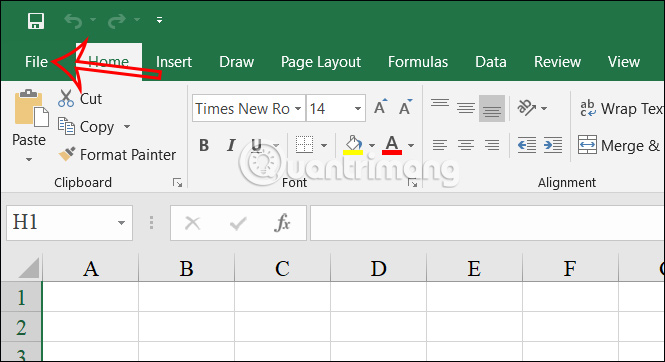
<p style="text-align: justify;">Sau khi bạn đã cài đặt xong phần mềm thì mở Excel, nhấn chọn vào<strong>&nbsp;mục File</strong>&nbsp;ở góc trái trên cùng màn hình.</p>

<p style="text-align: justify;"><img alt="File trên Excel" data-i="1" data-src="https://st.quantrimang.com/photos/image/2023/01/06/chuyen-so-thanh-chu-excel-2.jpg" data-was-processed="true" height="327" src="https://st.quantrimang.com/photos/image/2023/01/06/chuyen-so-thanh-chu-excel-2.jpg" width="600" /></p>

<p style="text-align: justify;"><strong>Bước 3:</strong></p>

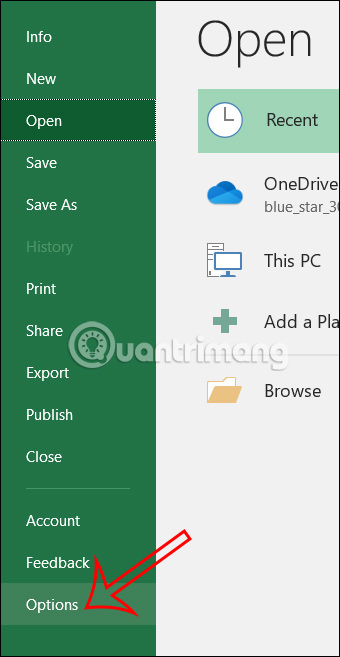
<p style="text-align: justify;">Tiếp đến bạn sẽ&nbsp;<strong>nhấn vào Options</strong>&nbsp;để mở danh sách các tùy chỉnh cho Excel.</p>

<p style="text-align: justify;"><strong><img alt="Nhấn chọn Options Excel" data-i="2" data-src="https://st.quantrimang.com/photos/image/2023/01/06/chuyen-so-thanh-chu-excel-3.jpg" data-was-processed="true" height="580" src="https://st.quantrimang.com/photos/image/2023/01/06/chuyen-so-thanh-chu-excel-3.jpg" width="300" /></strong></p>

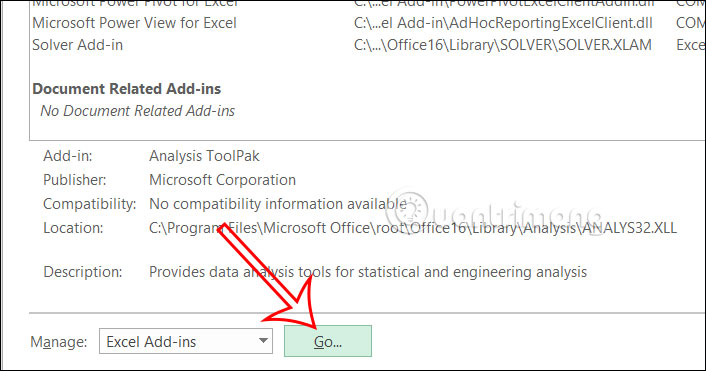
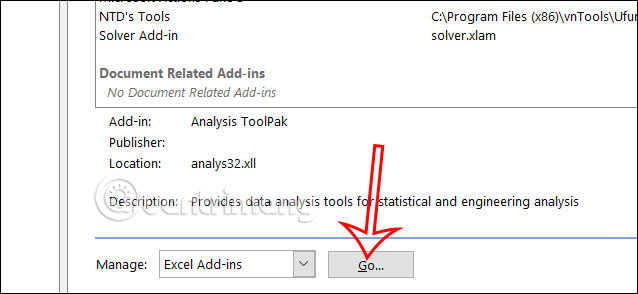
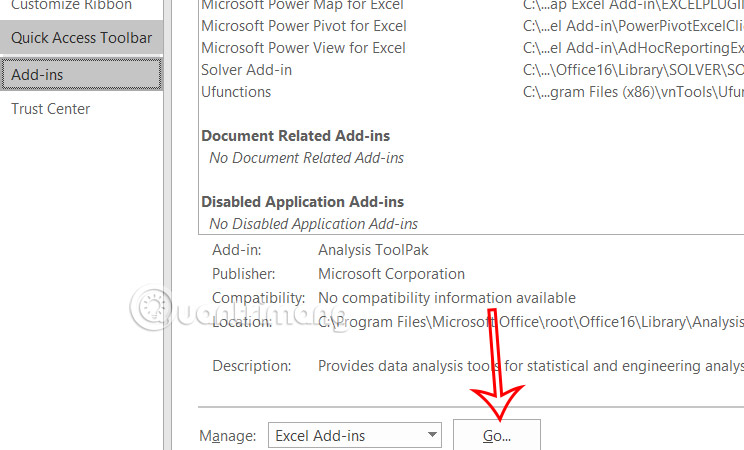
<p style="text-align: justify;">Trong danh sách các tùy chỉnh chúng ta&nbsp;<strong>nhấn vào mục Add-ins</strong>. Nhìn tiếp sang nội dung bên cạnh, ở&nbsp;<strong>phần Manage</strong>&nbsp;chúng ta sẽ nhấn chọn vào&nbsp;<strong>mục Go…</strong></p>

<p style="text-align: justify;"><strong><img alt="Thêm add-ins vào Excel" data-i="3" data-src="https://st.quantrimang.com/photos/image/2023/01/06/chuyen-so-thanh-chu-excel-4.jpg" data-was-processed="true" height="336" src="https://st.quantrimang.com/photos/image/2023/01/06/chuyen-so-thanh-chu-excel-4.jpg" width="640" /></strong></p>

<p style="text-align: justify;"><strong>Bước 4:</strong></p>

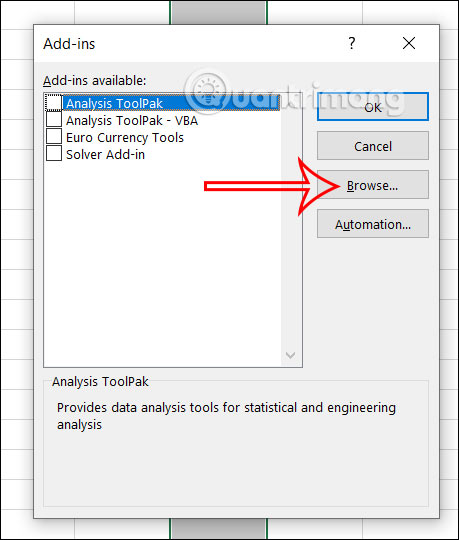
<p style="text-align: justify;">Lúc này hiển thị giao diện cửa sổ Add-Ins hiện lên chúng ta sẽ&nbsp;<strong>nhấn chọn Browse</strong>.</p>

<p style="text-align: justify;"><strong><img alt="Nhập add-ins vào Excel" data-i="4" data-src="https://st.quantrimang.com/photos/image/2023/01/06/chuyen-so-thanh-chu-excel-5.jpg" data-was-processed="true" height="471" src="https://st.quantrimang.com/photos/image/2023/01/06/chuyen-so-thanh-chu-excel-5.jpg" width="400" /></strong></p>

<p style="text-align: justify;"><strong>Bước 5:</strong></p>

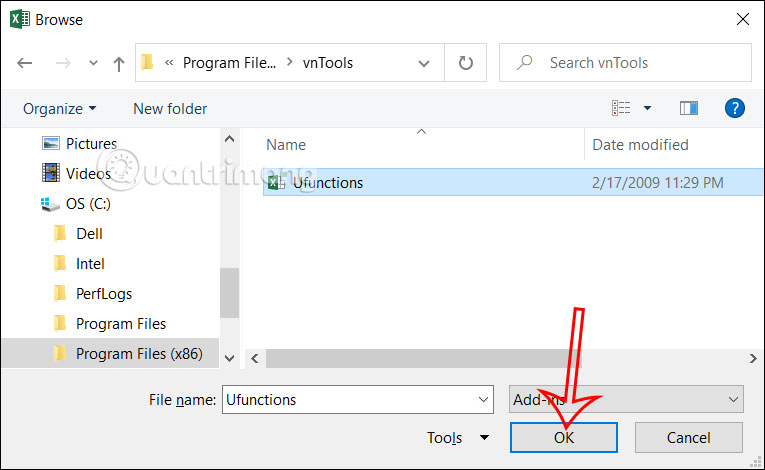
<p style="text-align: justify;">Bạn tìm tới thư mục phần mềm vnTools rồi&nbsp;<strong>nhấp chọn file Ufunctions&nbsp;</strong>rồi nhấn tiếp vào mục OK.</p>

<p style="text-align: justify;"><strong><img alt="Cài add-ins vào Excel" data-i="5" data-src="https://st.quantrimang.com/photos/image/2023/01/06/chuyen-so-thanh-chu-excel-6.jpg" data-was-processed="true" height="369" src="https://st.quantrimang.com/photos/image/2023/01/06/chuyen-so-thanh-chu-excel-6.jpg" width="600" /></strong></p>

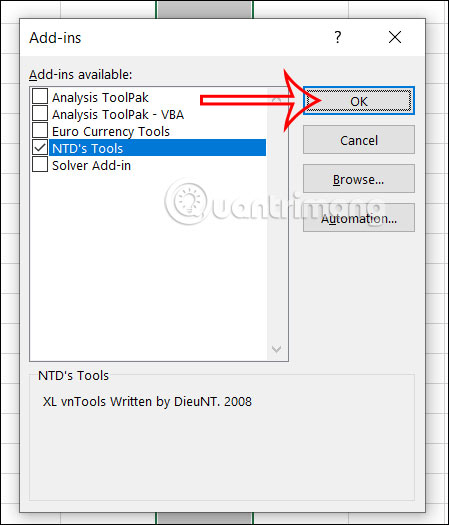
<p style="text-align: justify;">Lúc này bạn sẽ nhìn thấy&nbsp;<strong>add-ins Ufunctions</strong>. Chúng ta sẽ nhấn chọn rồi nhấn OK để sử dụng add-ins này trong Excel.</p>

<p style="text-align: justify;"><strong><img alt="Chọn add-ins trong Excel" data-i="6" data-src="https://st.quantrimang.com/photos/image/2023/01/06/chuyen-so-thanh-chu-excel-7.jpg" data-was-processed="true" height="468" src="https://st.quantrimang.com/photos/image/2023/01/06/chuyen-so-thanh-chu-excel-7.jpg" width="400" /></strong></p>

<p style="text-align: justify;"><strong>Bước 6:</strong></p>

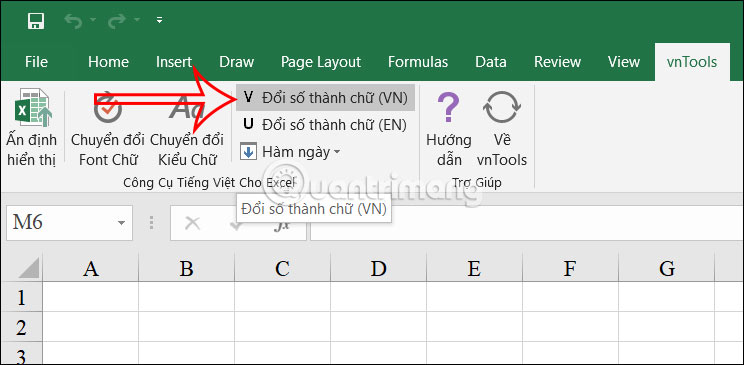
<p style="text-align: justify;">Quay lại giao diện Excel,&nbsp;<strong>nhấn vào công cụ vnTools</strong>&nbsp;vừa thêm vào rồi nhìn xuống bên dưới&nbsp;<strong>nhấn chọn vào Đổi số thành chữ</strong>.</p>

<p style="text-align: justify;"><strong><img alt="Công cụ vnTools chuyển số thành chữ Excel" data-i="7" data-src="https://st.quantrimang.com/photos/image/2023/01/06/chuyen-so-thanh-chu-excel-8.jpg" data-was-processed="true" height="294" src="https://st.quantrimang.com/photos/image/2023/01/06/chuyen-so-thanh-chu-excel-8.jpg" width="600" /></strong></p>

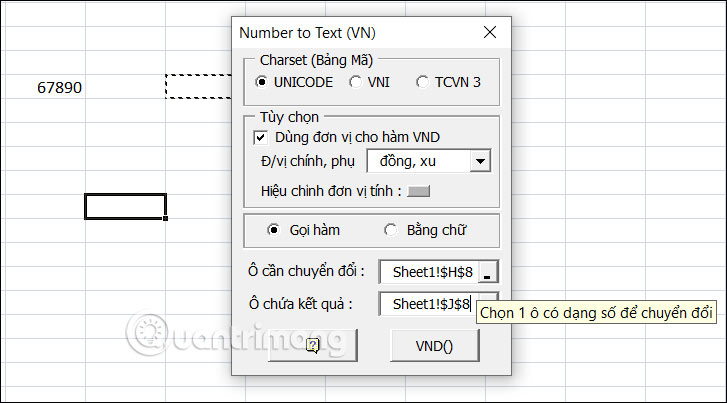
<p style="text-align: justify;">Khi đó hiển thị bảng để chúng ta chọn lựa nội dung cần chuyển. Tại&nbsp;<strong>Ô cần chuyển đổi bạn sẽ nhấn vào ô chứa giá trị số cần chuyển thành chữ và Ô chứa kết quả là ô chứa kết quả sau khi dịch từ số ra chữ</strong>.</p>

<p style="text-align: justify;">Nhập sau thì&nbsp;<strong>nhấn VND</strong>&nbsp;để chuyển số thành chữ.</p>

<p style="text-align: justify;"><strong><img alt="Điền ô chuyển số thành chữ Excel" data-i="8" data-src="https://st.quantrimang.com/photos/image/2023/01/06/chuyen-so-thanh-chu-excel-9.jpg" data-was-processed="true" height="333" src="https://st.quantrimang.com/photos/image/2023/01/06/chuyen-so-thanh-chu-excel-9.jpg" width="600" /></strong></p>

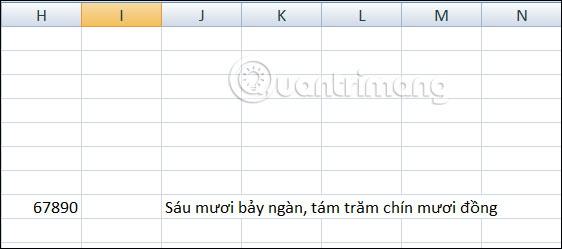
<p style="text-align: justify;">Kết quả chúng ta được số chuyển thành chữ như hình dưới đây.</p>

<p style="text-align: justify;"><strong><img alt="Chuyển số thành chữ Excel" data-i="9" data-src="https://st.quantrimang.com/photos/image/2023/01/06/chuyen-so-thanh-chu-excel-10.jpg" data-was-processed="true" height="249" src="https://st.quantrimang.com/photos/image/2023/01/06/chuyen-so-thanh-chu-excel-10.jpg" width="562" /></strong></p>

<h2 id="mcetoc_1ino3vrmd5g" style="text-align: justify;">2. Cách đổi số thành chữ trong Excel bằng hàm =VND</h2>

<p style="text-align: justify;"><strong>Bước 1:</strong></p>

<p style="text-align: justify;">Đầu tiên bạn tải file Excel theo link dưới đây xuống máy tính như bình thường.</p>

<div style="text-align: justify;">Phụ kiện máy tính</div>

<ul>
	<li style="text-align: justify;">Tải file add-ins VND</li>
</ul>

<div style="text-align: justify;"><span style="color:rgb(192, 57, 43);"><strong>https://www.fshare.vn/file/E6FAWHC2V3HV?token=1673237465</strong></span></div>

<p style="text-align: justify;"><strong>Bước 2:</strong></p>

<p style="text-align: justify;">Mở Excel rồi nhấn vào Options, chọn tiếp Add-Ins. Tiếp đến nhìn sang nội dung bên cạnh, nhấn chọn Add-Ins. Nhìn tiếp sang nội dung bên cạnh, tại Manage chọn Go…</p>

<p style="text-align: justify;"><strong><img alt="File add-ins trong Excel" data-i="10" data-src="https://st.quantrimang.com/photos/image/2023/01/06/chuyen-so-thanh-chu-excel-11.jpg" data-was-processed="true" height="276" src="https://st.quantrimang.com/photos/image/2023/01/06/chuyen-so-thanh-chu-excel-11.jpg" width="600" /></strong></p>

<p style="text-align: justify;"><strong>Bước 3:</strong></p>

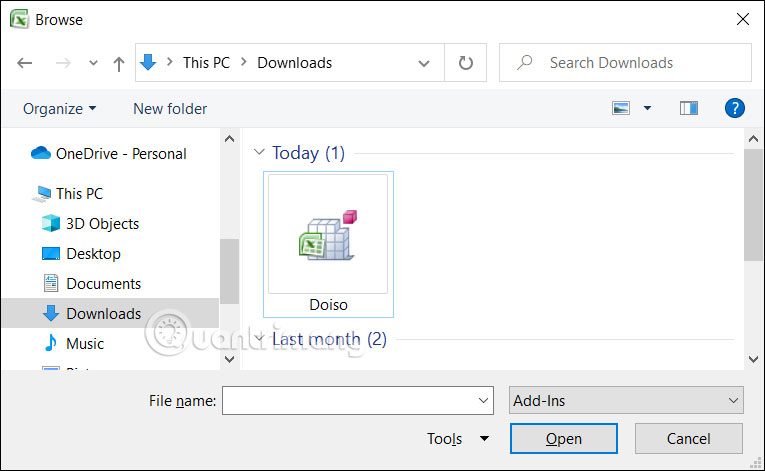
<p style="text-align: justify;">Hiển thị giao diện cửa sổ mới, bạn nhấn&nbsp;<strong>chọn Browse để tải file add-ins lên</strong>. Chúng ta sẽ nhấn chọn vào<strong>&nbsp;file Doiso</strong>.</p>

<p style="text-align: justify;"><strong><img alt="Tải file Doiso trong Excel" data-i="11" data-src="https://st.quantrimang.com/photos/image/2023/01/06/chuyen-so-thanh-chu-excel-12.jpg" data-was-processed="true" height="369" src="https://st.quantrimang.com/photos/image/2023/01/06/chuyen-so-thanh-chu-excel-12.jpg" width="600" /></strong></p>

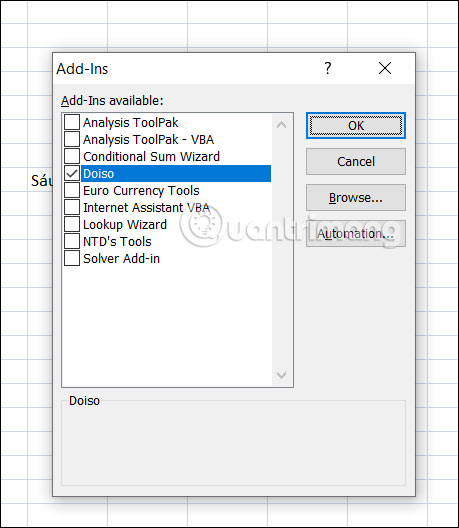
<p style="text-align: justify;">Lúc này bạn&nbsp;<strong>nhấn vào file Doiso ở cửa sổ Add-Ins&nbsp;</strong>rồi nhấn OK.</p>

<p style="text-align: justify;"><strong><img alt="Dùng add-ins Doiso trong Excel" data-i="12" data-src="https://st.quantrimang.com/photos/image/2023/01/06/chuyen-so-thanh-chu-excel-13.jpg" data-was-processed="true" height="460" src="https://st.quantrimang.com/photos/image/2023/01/06/chuyen-so-thanh-chu-excel-13.jpg" width="400" /></strong></p>

<p style="text-align: justify;"><strong>Bước 4:</strong></p>

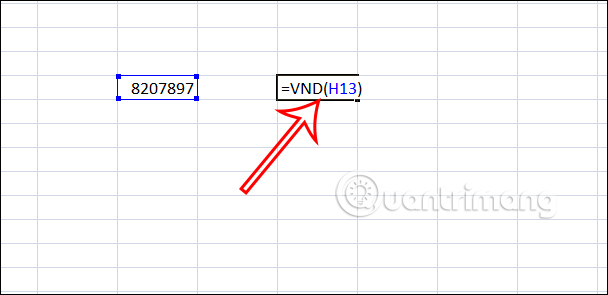
<p style="text-align: justify;">Sau khi đã Add-Ins xong bạn nhập hàm sau để chuyển đổi số thành tiền: Cú pháp của hàm:&nbsp;<strong>=VND(Số_cần_đổi)</strong>.</p>

<p style="text-align: justify;"><strong><img alt="Hàm đổi số thành chữ trong Excel" data-i="13" data-src="https://st.quantrimang.com/photos/image/2023/01/06/chuyen-so-thanh-chu-excel-14.jpg" data-was-processed="true" height="295" src="https://st.quantrimang.com/photos/image/2023/01/06/chuyen-so-thanh-chu-excel-14.jpg" width="608" /></strong></p>

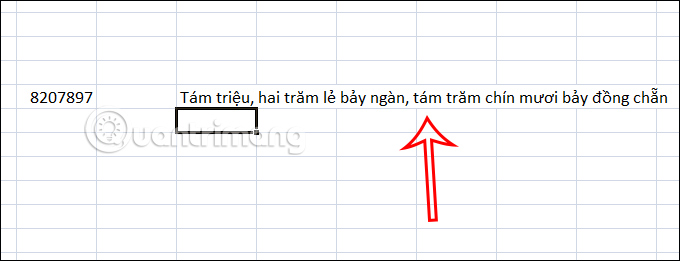
<p style="text-align: justify;">Sau đó bạn cũng được số tiền bằng chữ như hình dưới đây.</p>

<p style="text-align: justify;"><strong><img alt="Số thành chữ trong Excel" data-i="14" data-src="https://st.quantrimang.com/photos/image/2023/01/06/chuyen-so-thanh-chu-excel-15.jpg" data-was-processed="true" height="230" src="https://st.quantrimang.com/photos/image/2023/01/06/chuyen-so-thanh-chu-excel-15.jpg" width="600" /></strong></p>

<h2 id="mcetoc_1ino3vrmd5h" style="text-align: justify;">3. Dùng Add-ins chuyển số thành chữ trong Excel</h2>

<p style="text-align: justify;"><strong>Bước 1:</strong></p>

<p style="text-align: justify;">Bạn tải add-in theo link dưới đây</p>

<pre id="pre0">
<code>https://www.fshare.vn/file/GUPQAVCTR52M?token=1743407251</code></pre>

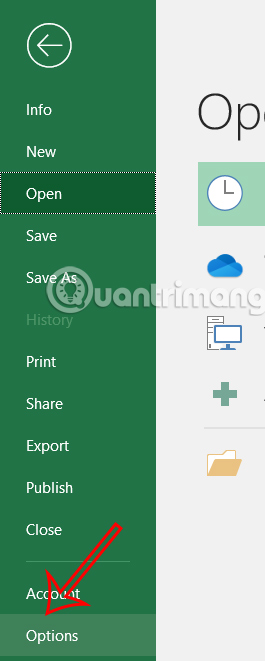
<p style="text-align: justify;">Tiếp đến, trong giao diện Excel người dùng&nbsp;<strong>nhấn chọn vào File</strong>&nbsp;rồi nhấn tiếp vào<strong>&nbsp;More</strong>, sau đó chọn&nbsp;<strong>Options</strong>.</p>

<p style="text-align: justify;"><img alt="Cài đặt Excel" data-i="15" data-src="https://st.quantrimang.com/photos/image/2025/03/31/excel-chuyen-so-thanh-chu-1.jpg" data-was-processed="true" height="661" src="https://st.quantrimang.com/photos/image/2025/03/31/excel-chuyen-so-thanh-chu-1.jpg" width="265" /></p>

<p style="text-align: justify;"><strong>Bước 2:</strong></p>

<p style="text-align: justify;">Chuyển vào giao diện tiếp theo, người dùng<strong>&nbsp;nhấn chọn Add-In</strong>&nbsp;ở menu bên trái rồi nhìn sang cạnh phải, ở&nbsp;<strong>phần Manage nhấn chọn Go…</strong></p>

<p style="text-align: justify;"><strong><img alt="Cài đặt add-ins Excel" data-i="16" data-src="https://st.quantrimang.com/photos/image/2025/03/31/excel-chuyen-so-thanh-chu-2.jpg" data-was-processed="true" height="333" src="https://st.quantrimang.com/photos/image/2025/03/31/excel-chuyen-so-thanh-chu-2.jpg" width="550" /></strong></p>

<p style="text-align: justify;"><strong>Bước 3:</strong></p>

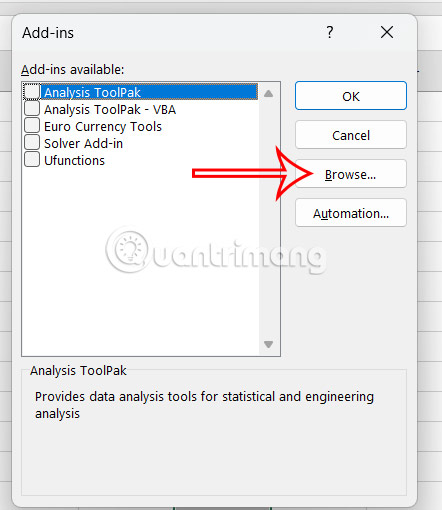
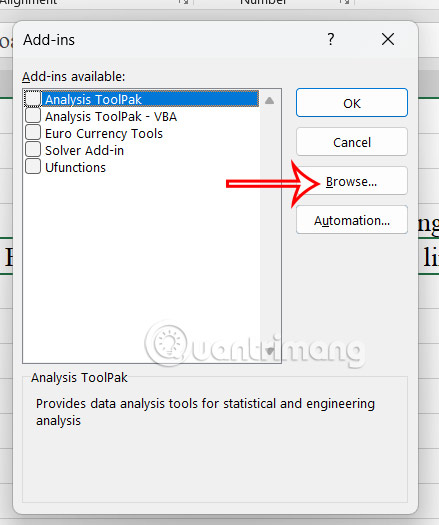
<p style="text-align: justify;">Hiển thị giao diện trong thư mục, người dùng<strong>&nbsp;nhấn Browse và tìm đến file Add-Ins</strong>&nbsp;vừa mới tải về máy để tiến hành cài đặt.</p>

<p style="text-align: justify;"><strong><img alt="Tải file add-ins Excel" data-i="17" data-src="https://st.quantrimang.com/photos/image/2025/03/31/excel-chuyen-so-thanh-chu-3.jpg" data-was-processed="true" height="510" src="https://st.quantrimang.com/photos/image/2025/03/31/excel-chuyen-so-thanh-chu-3.jpg" width="442" /></strong></p>

<p style="text-align: justify;"><strong>Bước 4:</strong></p>

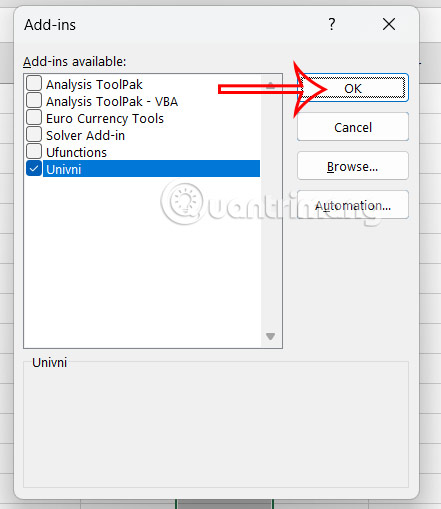
<p style="text-align: justify;">Nhấn&nbsp;<strong>chọn add-ins</strong>&nbsp;rồi nhấn OK để lưu lại và sử dụng.</p>

<p style="text-align: justify;"><strong><img alt="Cài add-ins vào Excel" data-i="18" data-src="https://st.quantrimang.com/photos/image/2025/03/31/excel-chuyen-so-thanh-chu-4.jpg" data-was-processed="true" height="509" src="https://st.quantrimang.com/photos/image/2025/03/31/excel-chuyen-so-thanh-chu-4.jpg" width="441" /></strong></p>

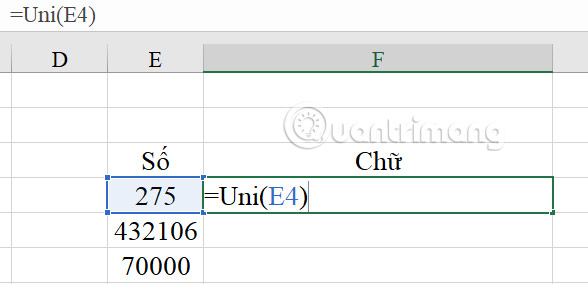
<p style="text-align: justify;">Bây giờ bạn cần sử dụng những hàm sau để tiến hành đổi số thành chữ trong Excel:</p>

<div style="text-align: justify;">Phụ kiện máy tính</div>

<ul>
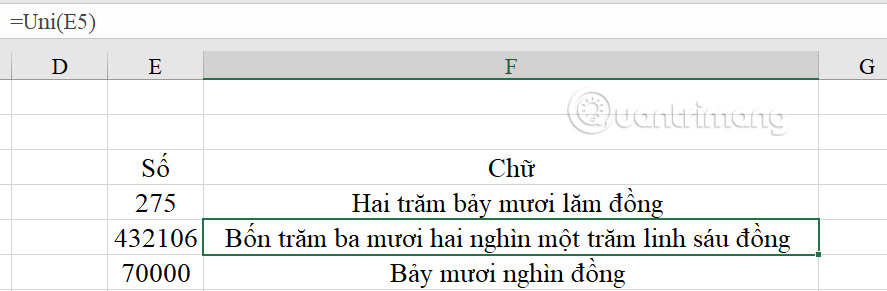
	<li style="text-align: justify;">Nếu&nbsp;<a data-google-interstitial="false" data-google-vignette="false" href="https://quantrimang.com/cong-nghe/lam-the-nao-de-chuyen-so-thanh-chu-trong-excel-116985#">&nbsp;máy tính</a>&nbsp;của bạn dùng font chữ Unicode thì dùng hàm: =UNI(Số_Tiền)</li>
	<li style="text-align: justify;">Nếu máy tính của bạn dùng font chữ VNI thì dùng hàm: =VNI(Số_Tiền)</li>
</ul>

<p style="text-align: justify;"><strong><img alt="Hàm chuyển số thành chữ trên Excel" data-i="19" data-src="https://st.quantrimang.com/photos/image/2025/03/31/excel-chuyen-so-thanh-chu-5.jpg" data-was-processed="true" height="266" src="https://st.quantrimang.com/photos/image/2025/03/31/excel-chuyen-so-thanh-chu-5.jpg" width="550" /></strong></p>

<p style="text-align: justify;">Kết quả chúng ta có được dữ liệu từ số chuyển sang chữ dưới đây.</p>

<p style="text-align: justify;"><strong><img alt="Chuyển số thành chữ trên Excel" data-i="20" data-src="https://st.quantrimang.com/photos/image/2025/03/31/excel-chuyen-so-thanh-chu-6.jpg" data-was-processed="true" height="210" src="https://st.quantrimang.com/photos/image/2025/03/31/excel-chuyen-so-thanh-chu-6.jpg" width="640" /></strong></p>

<p style="text-align: justify;"><strong>Bước 5:</strong></p>

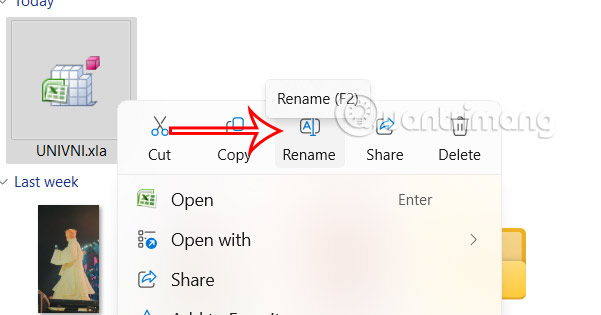
<p style="text-align: justify;">Để<strong>&nbsp;bỏ Add-ins cài trong Excel</strong>, bạn&nbsp;<strong>mở file Add-Ins</strong>&nbsp;muốn xóa rồi tiến hành&nbsp;<strong>đổi tên hoặc chuyển file sang thư mục khác</strong>.</p>

<p style="text-align: justify;"><strong><img alt="Đổi tên Add-ins trên Excel" data-i="21" data-src="https://st.quantrimang.com/photos/image/2025/03/31/excel-chuyen-so-thanh-chu-7.jpg" data-was-processed="true" height="304" src="https://st.quantrimang.com/photos/image/2025/03/31/excel-chuyen-so-thanh-chu-7.jpg" width="580" /></strong></p>

<p style="text-align: justify;"><strong>Bước 6:</strong></p>

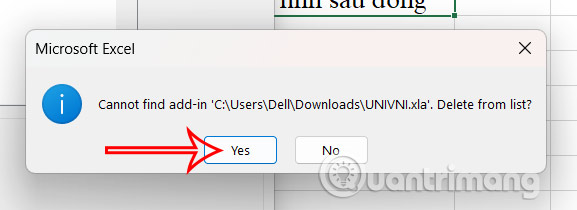
<p style="text-align: justify;">Tiếp đến mở file Excel, di chuyển chuột đến mục quản lý file Add-Ins trong Options, bạn hãy&nbsp;<strong>tick bỏ Add-Ins để xóa vĩnh viễn</strong>. Nhấn&nbsp;<strong>Yes</strong>&nbsp;để xóa bỏ hoàn toàn file.</p>

<p style="text-align: justify;"><strong><img alt="Xóa Add-ins trên Excel" data-i="22" data-src="https://st.quantrimang.com/photos/image/2025/03/31/excel-chuyen-so-thanh-chu-8.jpg" data-was-processed="true" height="210" src="https://st.quantrimang.com/photos/image/2025/03/31/excel-chuyen-so-thanh-chu-8.jpg" width="577" /></strong></p>

<h2 id="mcetoc_1ino3vrmd5i" style="text-align: justify;">4. Chuyển số thành chữ bằng ứng dụng Acchelper</h2>

<p style="text-align: justify;"><strong>Bước 1:</strong></p>

<p style="text-align: justify;">Chúng ta cũng tải ứng dụng Acchelper theo đường link dưới đây. Sau khi tải xuống bạn tiến hành cài đặt như bình thường</p>

<pre id="pre1">
<code>https://www.mediafire.com/file/xk8kz15hfn8kyq1/AccHelper.zip/file</code></pre>

<p style="text-align: justify;"><strong>Bước 2:</strong></p>

<p style="text-align: justify;">Tại Excel bạn nhấn vào File, chọn tiếp&nbsp;<strong>More &gt; Options</strong>. Sau đó, nhấn vào&nbsp;<strong>mục Add-Ins</strong>&nbsp;ở cạnh trái rồi nhìn sang cạnh phải bạn nhấn<strong>&nbsp;Manage &gt; Go &gt; Browse</strong>.</p>

<p style="text-align: justify;"><strong><img alt="Phần mềm AccHelper Excel" data-i="23" data-src="https://st.quantrimang.com/photos/image/2025/03/31/excel-chuyen-so-thanh-chu-9.jpg" data-was-processed="true" height="478" src="https://st.quantrimang.com/photos/image/2025/03/31/excel-chuyen-so-thanh-chu-9.jpg" width="400" /></strong></p>

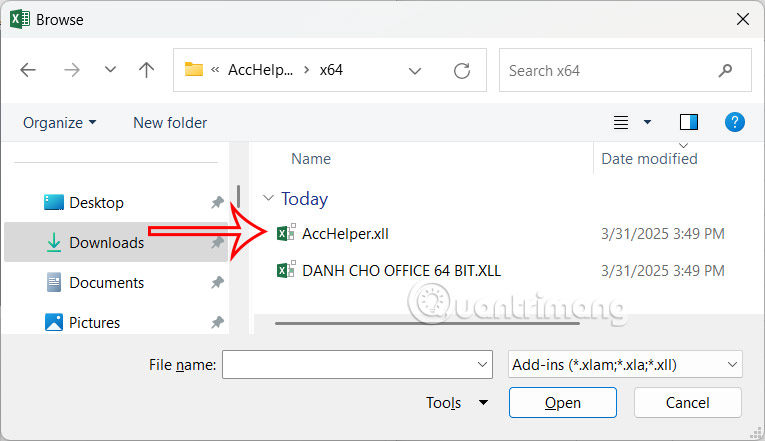
<p style="text-align: justify;">Chọn vào&nbsp;<strong>file AccHelper&nbsp;</strong>và nhấn OK. Nếu bạn sử dụng&nbsp;<a data-google-interstitial="false" data-google-vignette="false" href="https://quantrimang.com/cong-nghe/lam-the-nao-de-chuyen-so-thanh-chu-trong-excel-116985#">&nbsp;Office</a>&nbsp;64 bit thì hãy chọn thư mục x64.</p>

<p style="text-align: justify;"><strong><img alt="Cài AccHelper vào Excel" data-i="24" data-src="https://st.quantrimang.com/photos/image/2025/03/31/excel-chuyen-so-thanh-chu-10.jpg" data-was-processed="true" height="317" src="https://st.quantrimang.com/photos/image/2025/03/31/excel-chuyen-so-thanh-chu-10.jpg" width="550" /></strong></p>

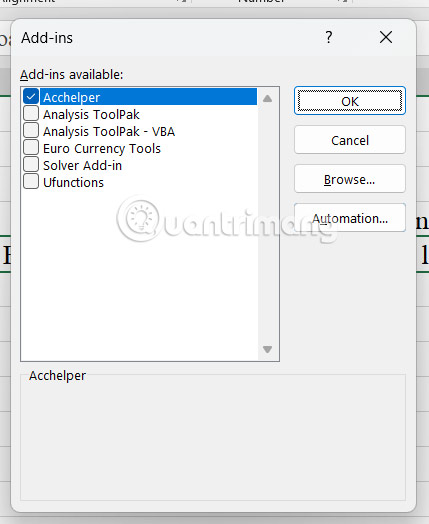
<p style="text-align: justify;">Tích chọn vào file Acchelper và nhấn OK.</p>

<p style="text-align: justify;"><strong><img alt="Sử dụng phần mềm AccHelper vào Excel" data-i="25" data-src="https://st.quantrimang.com/photos/image/2025/03/31/excel-chuyen-so-thanh-chu-11.jpg" data-was-processed="true" height="464" src="https://st.quantrimang.com/photos/image/2025/03/31/excel-chuyen-so-thanh-chu-11.jpg" width="380" /></strong></p>

<p style="text-align: justify;"><strong>Bước 3:</strong></p>

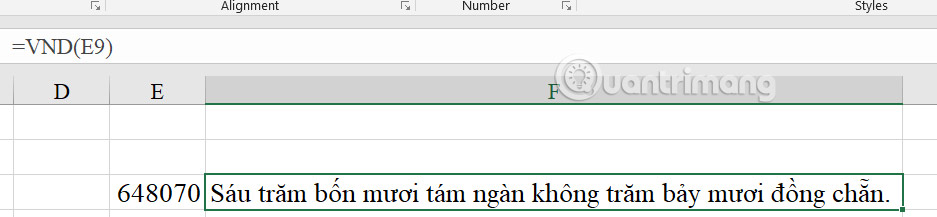
<p style="text-align: justify;">Tại đây, bạn dùng hàm =VND (số cần đổi) là được.</p>

<p style="text-align: justify;"><strong><img alt="Chuyển số sang chữ trên AccHelper Excel" data-i="26" data-src="https://st.quantrimang.com/photos/image/2025/03/31/excel-chuyen-so-thanh-chu-12.jpg" data-was-processed="true" height="148" src="https://st.quantrimang.com/photos/image/2025/03/31/excel-chuyen-so-thanh-chu-12.jpg" width="640" /></strong></p>

<h2 id="mcetoc_1ino3vrmd5j" style="text-align: justify;">5. Hướng dẫn đổi số thành chữ trong Excel không cần add-ins</h2>

<p style="text-align: justify;">Cũng có một cách khác để bạn có thể chuyển số thành chữ mà không cần dùng đến add-ins. Bạn thực hiện theo hướng dẫn chi tiết trong bài viết dưới đây.</p>

<div style="text-align: justify;">&nbsp;</div>
		</div>
				<div id="author">
						<p>
				<strong>Nguồn tin:</strong>
				Quantrimang.com:
			</p>
		</div>
	</div>
	<div id="footer" class="clearfix">
		<div id="url">
			<strong>URL của bản tin này: </strong><a href="https://www.nguoicodonvn2008.info/vi/news/savefile/kien-thuc-may-tinh/huong-dan-5-cach-chuyen-so-thanh-chu-trong-excel-10105.html" title="Hướng dẫn 5 cách chuyển số thành chữ trong Excel">https://www.nguoicodonvn2008.info/vi/news/savefile/kien-thuc-may-tinh/huong-dan-5-cach-chuyen-so-thanh-chu-trong-excel-10105.html</a>

		</div>
		<div class="clear"></div>
		<div class="copyright">
			&copy; .&#x3A; Nguoicodonvn2008.info - Cõi lòng người cô đơn &#x3A;.
		</div>
		<div id="contact">
			<a href="mailto:admin@nguoicodonvn2008.info">admin@nguoicodonvn2008.info</a>
		</div>
	</div>
</div>
        <div id="timeoutsess" class="chromeframe">
            Bạn đã không sử dụng Site, <a onclick="timeoutsesscancel();" href="https://nguoicodonvn2008.info/#">Bấm vào đây để duy trì trạng thái đăng nhập</a>. Thời gian chờ: <span id="secField"> 60 </span> giây
        </div>
        <div id="openidResult" class="nv-alert" style="display:none"></div>
        <div id="openidBt" data-result="" data-redirect=""></div>
		</script>
		<div class="car-top">
  <span><img src="https://nguoicodonvn2008.info/themes/default/images/car.png" alt=""></span>
</div>
<script src="https://nguoicodonvn2008.info/assets/js/jquery/jquery.min.js"></script>
<script>var nv_base_siteurl="/",nv_lang_data="vi",nv_lang_interface="vi",nv_name_variable="nv",nv_fc_variable="op",nv_lang_variable="language",nv_module_name="news",nv_func_name="savefile",nv_is_user=0, nv_my_ofs=-4,nv_my_abbr="EDT",nv_cookie_prefix="nv4c_e856T",nv_check_pass_mstime=1738000,nv_area_admin=0,nv_safemode=0,theme_responsive=0,nv_recaptcha_ver=2,nv_recaptcha_sitekey="",nv_recaptcha_type="image",XSSsanitize=1;</script>
<script src="https://nguoicodonvn2008.info/assets/js/language/vi.js"></script>
<script src="https://nguoicodonvn2008.info/assets/js/DOMPurify/purify3.js"></script>
<script src="https://nguoicodonvn2008.info/assets/js/global.js"></script>
<script src="https://nguoicodonvn2008.info/assets/js/site.js"></script>
<script src="https://nguoicodonvn2008.info/themes/default/js/news.js"></script>
<script src="https://nguoicodonvn2008.info/themes/default/js/main.js"></script>
<script src="https://nguoicodonvn2008.info/themes/default/js/custom.js"></script>
<script type="application/ld+json">
        {
            "@context": "https://schema.org",
            "@type": "Organization",
            "url": "https://nguoicodonvn2008.info",
            "logo": "https://nguoicodonvn2008.info/uploads/angel.gif"
        }
        </script>
<script src="https://nguoicodonvn2008.info/themes/default/js/bootstrap.min.js"></script>
<script type="text/javascript">
var $scrolltop = $('.car-top');
$scrolltop.on('click', function () {
    $('html,body').animate({
        scrollTop: 0
    }, 800);
    $(this).addClass("car-run");
    setTimeout(function(){ $scrolltop.removeClass('car-run');}, 1000);
    return false;
});
$(window).on('scroll', function ()
{ 
    if($(window).scrollTop() >= 200)
    {
        $scrolltop.addClass("show");
        $scrolltop.addClass("car-down");
    }
    else
    {
       $scrolltop.removeClass("show");
       setTimeout(function(){ $scrolltop.removeClass('car-down');}, 300);
    }
});
</script>
</body>
</html>