<!DOCTYPE html>
    <html lang="vi" xmlns="http://www.w3.org/1999/xhtml" prefix="og: http://ogp.me/ns#">
    <head>
<title>Hướng dẫn 3 cách thay đổi chữ thường thành chữ hoa và ngược lại trong Excel 2016, 2013, 2010</title>
<meta name="description" content="Hướng dẫn 3 cách thay đổi chữ thường thành chữ hoa và ngược lại trong Excel 2016, 2013, 2010 - Savefile - Tin Tức -...">
<meta name="author" content=".: Nguoicodonvn2008.info - Cõi lòng người cô đơn :.">
<meta name="copyright" content=".: Nguoicodonvn2008.info - Cõi lòng người cô đơn :. [admin@nguoicodonvn2008.info]">
<meta name="robots" content="index, archive, follow, noodp">
<meta name="googlebot" content="index,archive,follow,noodp">
<meta name="msnbot" content="all,index,follow">
<meta name="generator" content="NukeViet v4.5">
<meta http-equiv="Content-Type" content="text/html; charset=utf-8">
<meta property="og:title" content="Hướng dẫn 3 cách thay đổi chữ thường thành chữ hoa và ngược lại trong Excel 2016, 2013, 2010">
<meta property="og:type" content="website">
<meta property="og:description" content="Savefile - Tin Tức -...">
<meta property="og:site_name" content=".&#x3A; Nguoicodonvn2008.info - Cõi lòng người cô đơn &#x3A;.">
<meta property="og:url" content="https://www.nguoicodonvn2008.info/vi/news/savefile/kien-thuc-may-tinh/huong-dan-3-cach-thay-doi-chu-thuong-thanh-chu-hoa-va-nguoc-lai-trong-excel-2016-2013-2010-5196.html">
<link rel="shortcut icon" href="https://nguoicodonvn2008.info/favicon.ico">
<link rel="canonical" href="https://www.nguoicodonvn2008.info/vi/news/savefile/kien-thuc-may-tinh/huong-dan-3-cach-thay-doi-chu-thuong-thanh-chu-hoa-va-nguoc-lai-trong-excel-2016-2013-2010-5196.html">
<link rel="alternate" href="https://nguoicodonvn2008.info/vi/news/rss/" title="Tin Tức" type="application/rss+xml">
<link rel="alternate" href="https://nguoicodonvn2008.info/vi/news/rss/karaoke-dual/" title="Tin Tức - Karaoke Dual" type="application/rss+xml">
<link rel="alternate" href="https://nguoicodonvn2008.info/vi/news/rss/nhac-tre/" title="Tin Tức - Nhạc trẻ" type="application/rss+xml">
<link rel="alternate" href="https://nguoicodonvn2008.info/vi/news/rss/tru-tinh/" title="Tin Tức - Trữ tình" type="application/rss+xml">
<link rel="alternate" href="https://nguoicodonvn2008.info/vi/news/rss/nuoc-ngoai/" title="Tin Tức - Nước ngoài" type="application/rss+xml">
<link rel="alternate" href="https://nguoicodonvn2008.info/vi/news/rss/remix/" title="Tin Tức - Remix" type="application/rss+xml">
<link rel="alternate" href="https://nguoicodonvn2008.info/vi/news/rss/tam-su-tinh-yeu/" title="Tin Tức - Tâm sự tình yêu" type="application/rss+xml">
<link rel="alternate" href="https://nguoicodonvn2008.info/vi/news/rss/tho-suu-tam/" title="Tin Tức - Thơ sưu tầm" type="application/rss+xml">
<link rel="alternate" href="https://nguoicodonvn2008.info/vi/news/rss/cuoc-song/" title="Tin Tức - Cuộc sống" type="application/rss+xml">
<link rel="alternate" href="https://nguoicodonvn2008.info/vi/news/rss/phan-mem/" title="Tin Tức - Phần mềm" type="application/rss+xml">
<link rel="alternate" href="https://nguoicodonvn2008.info/vi/news/rss/kien-thuc-may-tinh/" title="Tin Tức - Kiến thức máy tính" type="application/rss+xml">
<link rel="alternate" href="https://nguoicodonvn2008.info/vi/news/rss/hoc-tap/" title="Tin Tức - Học tập" type="application/rss+xml">
<link rel="alternate" href="https://nguoicodonvn2008.info/vi/news/rss/tai-lieu/" title="Tin Tức - Tài liệu" type="application/rss+xml">
<link rel="alternate" href="https://nguoicodonvn2008.info/vi/news/rss/de-thi/" title="Tin Tức - Đề thi" type="application/rss+xml">
<link rel="preload" as="style" href="https://nguoicodonvn2008.info/assets/css/font-awesome.min.css" type="text/css">
<link rel="preload" as="style" href="https://nguoicodonvn2008.info/themes/default/css/bootstrap.non-responsive.css" type="text/css">
<link rel="preload" as="style" href="https://nguoicodonvn2008.info/themes/default/css/style.css" type="text/css">
<link rel="preload" as="style" href="https://nguoicodonvn2008.info/themes/default/css/style.non-responsive.css" type="text/css">
<link rel="preload" as="style" href="https://nguoicodonvn2008.info/themes/default/css/news.css" type="text/css">
<link rel="preload" as="style" href="https://nguoicodonvn2008.info/themes/default/css/custom.css" type="text/css">
<link rel="preload" as="script" href="https://nguoicodonvn2008.info/assets/js/jquery/jquery.min.js" type="text/javascript">
<link rel="preload" as="script" href="https://nguoicodonvn2008.info/assets/js/language/vi.js" type="text/javascript">
<link rel="preload" as="script" href="https://nguoicodonvn2008.info/assets/js/DOMPurify/purify3.js" type="text/javascript">
<link rel="preload" as="script" href="https://nguoicodonvn2008.info/assets/js/global.js" type="text/javascript">
<link rel="preload" as="script" href="https://nguoicodonvn2008.info/assets/js/site.js" type="text/javascript">
<link rel="preload" as="script" href="https://nguoicodonvn2008.info/themes/default/js/news.js" type="text/javascript">
<link rel="preload" as="script" href="https://nguoicodonvn2008.info/themes/default/js/main.js" type="text/javascript">
<link rel="preload" as="script" href="https://nguoicodonvn2008.info/themes/default/js/custom.js" type="text/javascript">
<link rel="preload" as="script" href="https://nguoicodonvn2008.info/themes/default/js/bootstrap.min.js" type="text/javascript">
<link rel="stylesheet" href="https://nguoicodonvn2008.info/assets/css/font-awesome.min.css">
<link rel="stylesheet" href="https://nguoicodonvn2008.info/themes/default/css/bootstrap.non-responsive.css">
<link rel="stylesheet" href="https://nguoicodonvn2008.info/themes/default/css/style.css">
<link rel="stylesheet" href="https://nguoicodonvn2008.info/themes/default/css/style.non-responsive.css">
<link rel="StyleSheet" href="https://nguoicodonvn2008.info/themes/default/css/news.css">
<link rel="stylesheet" href="https://nguoicodonvn2008.info/themes/default/css/custom.css">
<style type="text/css">
	body{background: #fff;}
</style>
    </head>
    <body>
<div id="print">
	<div id="hd_print">
		<h2 class="pull-left">.&#x3A; Nguoicodonvn2008.info - Cõi lòng người cô đơn &#x3A;.</h2>
		<p class="pull-right"><a title=".&#x3A; Nguoicodonvn2008.info - Cõi lòng người cô đơn &#x3A;." href="https://nguoicodonvn2008.info/">https://nguoicodonvn2008.info</a></p>
	</div>
	<div class="clear"></div>
	<hr />
	<div id="content">
		<h1>Hướng dẫn 3 cách thay đổi chữ thường thành chữ hoa và ngược lại trong Excel 2016, 2013, 2010</h1>
		<ul class="list-inline">
			<li>Thứ ba - 01/03/2022 23:06</li>
			<li class="hidden-print txtrequired"><em class="fa fa-print">&nbsp;</em><a title="In ra" href="javascript:;" onclick="window.print()">In ra</a></li>
			<li class="hidden-print txtrequired"><em class="fa fa-power-off">&nbsp;</em><a title="Đóng cửa sổ này" href="javascript:;" onclick="window.close()">Đóng cửa sổ này</a></li>
		</ul>
		<div class="clear"></div>
		<div id="hometext">
		</div>
				<div class="imghome">
			<img alt="Hướng dẫn 3 cách thay đổi chữ thường thành chữ hoa và ngược lại trong Excel 2016, 2013, 2010" src="https://blog.hocexcel.online/wp-content/uploads/img-blog/changing-case-formula.png" width="460" class="img-thumbnail" />
		</div>
		<div class="clear"></div>
		<div id="bodytext" class="clearfix">
			<h2 style="text-align: justify;"><strong>Hàm thay đổi cách viết hoa thành viết thường và ngược lại trong Excel:</strong></h2>

<p style="text-align: justify;">Microsoft Excel có ba hàm đặc biệt để thay đổi cách viết hoa/viết thường. Chúng là&nbsp;<strong>UPPER</strong>,&nbsp;<strong>LOWER&nbsp;</strong>VÀ&nbsp;<strong>PROPER.&nbsp;</strong>Hàm&nbsp;<strong>UPPER&nbsp;</strong>cho phép bạn chuyển đổi tất cả chữ in thường thành chữ in hoa.&nbsp;Hàm&nbsp;<strong>LOWER</strong>&nbsp;cho phép bạn chuyển đổi tất cả chữ in hoa thành chữ in thường. Hàm&nbsp;<strong>PROPER</strong>&nbsp;giúp bạn viết hoa chữ cái đầu tiên của mỗi từ và các chữ cái khác trong từ được in thường.</p>

<p style="text-align: justify;">Tất cả ba tùy chọn đều hoạt động trên cùng một nguyên lý, vậy nên tôi chỉ trình bày cách sử dụng một trong ba công thức trên. Hãy lấy hàm&nbsp;<strong>UPPER&nbsp;</strong>là một ví dụ.</p>

<h3 style="text-align: justify;">Nhập công thức Excel</h3>

<ol>
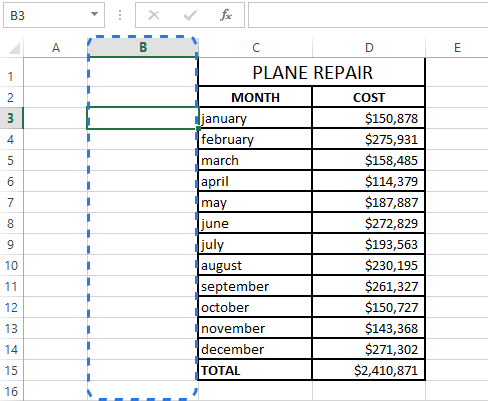
	<li style="text-align: justify;">Chèn một cột phụ kế bên cột chứa nội dung bạn muốn chuyển đổi.</li>
</ol>

<p style="text-align: justify;"><strong>Chú ý</strong>. Bước này có thể thực hiện hoặc không. Nếu bảng của bạn không đủ lớn, bạn có thể sử dụng bất kỳ cột trống liền kề nào.</p>

<p style="text-align: justify;"><img alt="Insert a new column to enter formulas in the adjacent blank cells" src="https://blog.hocexcel.online/wp-content/uploads/img-blog/helper-column.png" /></p>

<ol start="2">
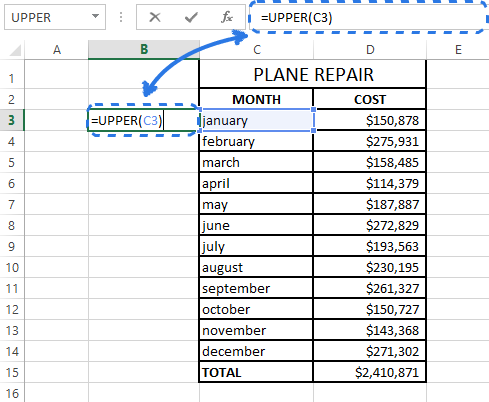
	<li style="text-align: justify;">Gõ dấu<strong>&nbsp;“=”</strong>&nbsp;và hàm&nbsp;<strong>UPPER&nbsp;</strong>trong ô kế bên của cột mới (B3)</li>
	<li style="text-align: justify;">Gõ tham chiếu ô phù hợp vào dấu ngoặc đơn sau tên hàm, ví dụ (C3)</li>
</ol>

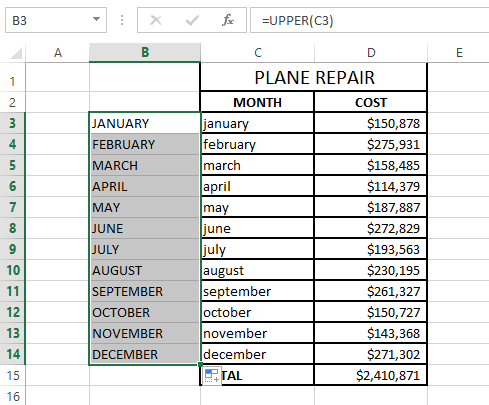
<p style="text-align: justify;">Công thức của bạn sẽ trông như sau&nbsp;<strong><em>=UPPER(C3)</em></strong>, C3 là ô ở cột gốc chứa nội dung cần chuyển đổi.</p>

<p style="text-align: justify;"><img alt="Enter the equal sign, function name and cell reference to apply the formula to the adjacent cell" src="https://blog.hocexcel.online/wp-content/uploads/img-blog/changing-case-formula.png" /></p>

<div style="text-align: justify;"><a href="https://hocexcel.online/course/preview/vba101-tu-dong-hoa-excel-voi-lap-trinh-vba-cho-nguoi-moi-bat-dau"><img alt="" src="https://blog.hocexcel.online/wp-content/uploads/2019/09/VBA101_92019-nho.gif" /></a><br />
<a href="https://hocexcel.online/course/preview/ex101-excel-tu-co-ban-den-chuyen-gia-danh-cho-nguoi-di-lam"><img alt="" src="https://blog.hocexcel.online/wp-content/uploads/2019/09/EX101_92019-nho.gif" /></a></div>

<ol start="4">
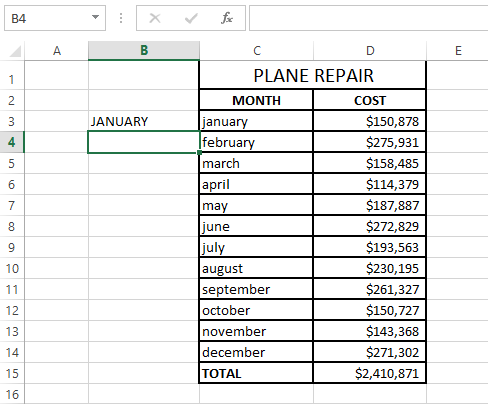
	<li style="text-align: justify;">Nhấn&nbsp;<strong>Enter.</strong></li>
</ol>

<p style="text-align: justify;"><img alt="Click Enter to see the converted text value" src="https://blog.hocexcel.online/wp-content/uploads/img-blog/converted-text.png" /></p>

<p style="text-align: justify;">Như trong hình, nội dung của ô B3 đã được in hoa.</p>

<h3 style="text-align: justify;">Sao chép công thức xuống các ô khác trong cột</h3>

<p style="text-align: justify;">Bây giờ bạn cần sao chép công thức sang các ô khác trong cột phụ.</p>

<ol start="5">
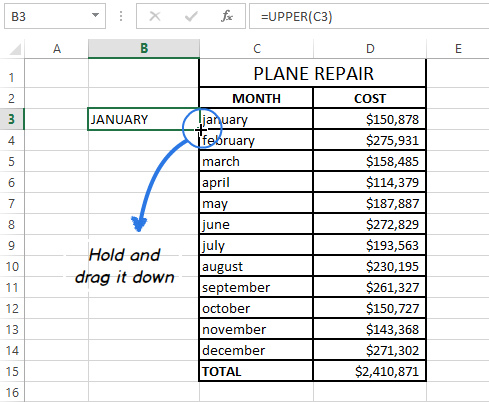
	<li style="text-align: justify;">Chọn ô tính chứa công thức.</li>
	<li style="text-align: justify;">Di chuyển con chuột đến góc phải bên dưới ô được chọn đến khi hiển thị dấu thập màu đen.</li>
</ol>

<p style="text-align: justify;"><img alt="Select the cell and drag the fill handle down to copy the formula" src="https://blog.hocexcel.online/wp-content/uploads/img-blog/copy-formula.png" /></p>

<ol start="7">
	<li style="text-align: justify;">Nhấn giữ chuột và kéo công thức dọc xuống các ô.</li>
	<li style="text-align: justify;">Thả chuột.</li>
</ol>

<p style="text-align: justify;"><img alt="Release the mouse button to fill the column with the text in uppercase" src="https://blog.hocexcel.online/wp-content/uploads/img-blog/excel-uppercase.png" /></p>

<p style="text-align: justify;"><strong>Chú ý.&nbsp;</strong>Nếu bạn cần điền công thức vào tất cả các ô đến cuối bảng, bạn có thể bỏ bước 5-7 và chỉ cần nhấn đúp chuột vào&nbsp;<strong><em>fill handle&nbsp;</em></strong><em>(fill handle là ô vuông nhỏ ở góc dưới, bên phải khi bạn chọn một ô hoặc một vùng dữ liệu)</em></p>

<h3 style="text-align: justify;">Xóa cột phụ</h3>

<p style="text-align: justify;">Như vậy, bạn đã có hai cột chứa dữ liệu giống nhau. Giả sử rằng bạn chỉ muốn chừa lại một cột, hãy sao chép các giá trị từ cột phụ sau đó xóa nó.</p>

<ol>
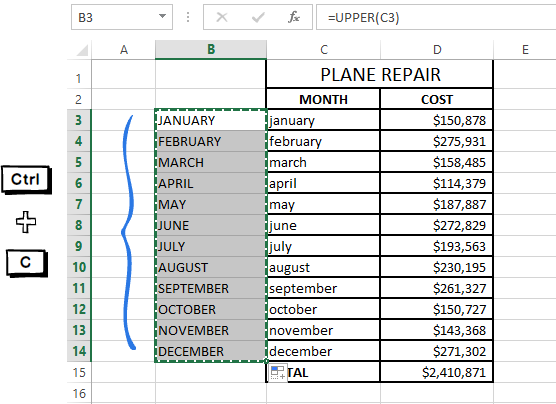
	<li style="text-align: justify;">Chọn các ô tính chứa công thức và nhấn&nbsp;<strong><em>Ctrl + C&nbsp;</em></strong>để sao chép.</li>
</ol>

<p style="text-align: justify;"><img alt="Press Ctrl + C to copy the values from the selected cells" src="https://blog.hocexcel.online/wp-content/uploads/img-blog/copy-text-values.png" /></p>

<ol start="2">
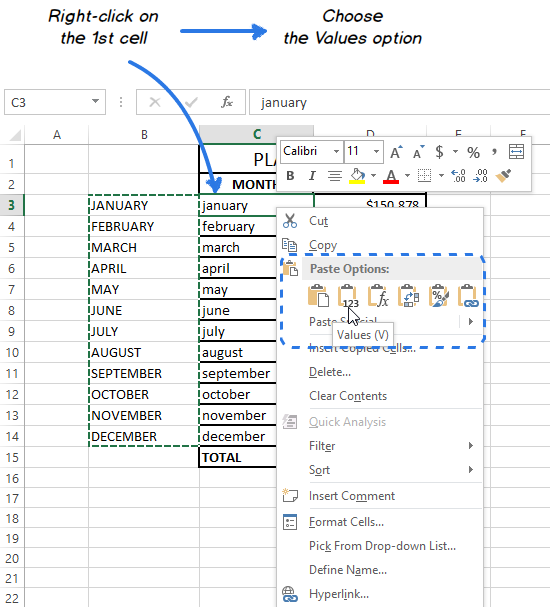
	<li style="text-align: justify;">Nhấp phải vào ô tính đầu tiên trong cột gốc.</li>
	<li style="text-align: justify;">Nhấn vào biểu tượng&nbsp;<strong><em>Values&nbsp;</em></strong>dưới&nbsp;<strong><em>Paste Options&nbsp;</em></strong>trong danh sách tùy chọn.</li>
</ol>

<p style="text-align: justify;"><img alt=" Choose Values from the Paste Options in the context menu to insert the text without the formula" src="https://blog.hocexcel.online/wp-content/uploads/img-blog/paste-values.png" /></p>

<p style="text-align: justify;">Vì bạn chỉ cần giá trị văn bản, hãy chọn tùy chọn này để tránh lỗi công thức.</p>

<ol start="4">
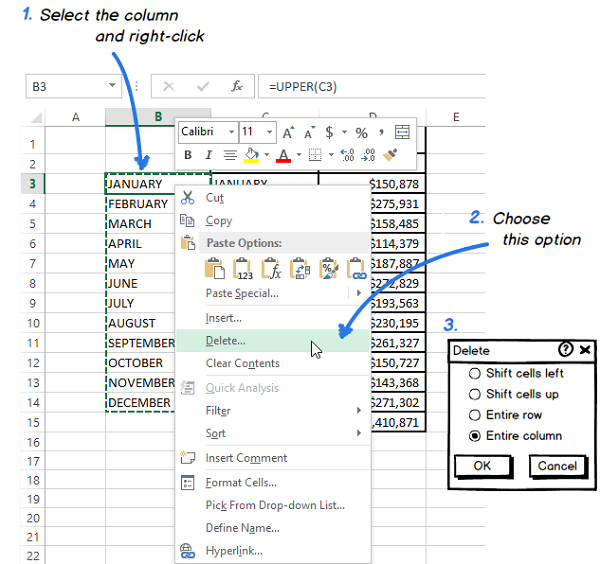
	<li style="text-align: justify;">Nhấp phải vào cột phụ và chọn&nbsp;<strong><em>Delete..</em></strong>.</li>
	<li style="text-align: justify;">Chọn&nbsp;<strong><em>Entire column</em></strong>&nbsp;trong hộp thoại&nbsp;<strong><em>Delete</em></strong>&nbsp;và nhấn OK.</li>
</ol>

<p style="text-align: justify;"><img alt="" height="564" sizes="(max-width: 600px) 100vw, 600px" src="https://blog.hocexcel.online/wp-content/uploads/2017/05/excel-dialog-box-launcher-1-101.png" srcset="https://blog.hocexcel.online/wp-content/uploads/2017/05/excel-dialog-box-launcher-1-101.png 600w, https://blog.hocexcel.online/wp-content/uploads/2017/05/excel-dialog-box-launcher-1-101-300x282.png 300w" width="600" /></p>

<p style="text-align: justify;">Và đây là kết quả:</p>

<p style="text-align: justify;"><img alt="Delete the helper column to get the table with the converted text case" src="https://blog.hocexcel.online/wp-content/uploads/img-blog/converted-text-case.png" /></p>

<p style="text-align: justify;">Nếu bạn chưa hiểu rõ các ví dụ trên thì tôi khuyên bạn nên đọc bài viết này trước nhé:&nbsp;<strong>Hướng dẫn&nbsp;<a href="https://blog.hocexcel.online/huong-dan-cach-su-dung-ham-upper-trong-excel.html">cách sử dụng hàm UPPER</a>&nbsp;trong Excel.&nbsp;</strong>Sau khi đã hiểu nguyên tắc hoạt động của hàm thì hãy quay lại bài này nhé!</p>

<h2 style="text-align: justify;"><strong>Sử dụng Microsoft Word để thay đổi viết hoa/viết thường trong Excel:</strong></h2>

<p style="text-align: justify;">Nếu bạn không muốn sử dụng công thức, bạn có thể sử dụng lệnh đặc biệt để thay đổi viết hoa/viết thường trong Word.</p>

<ol>
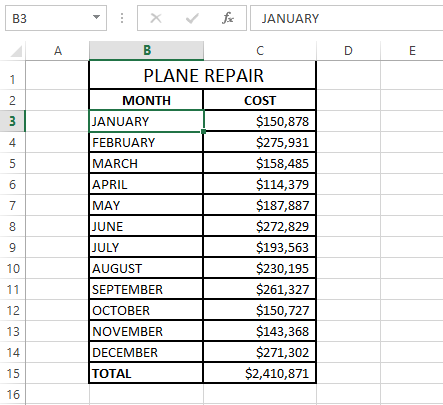
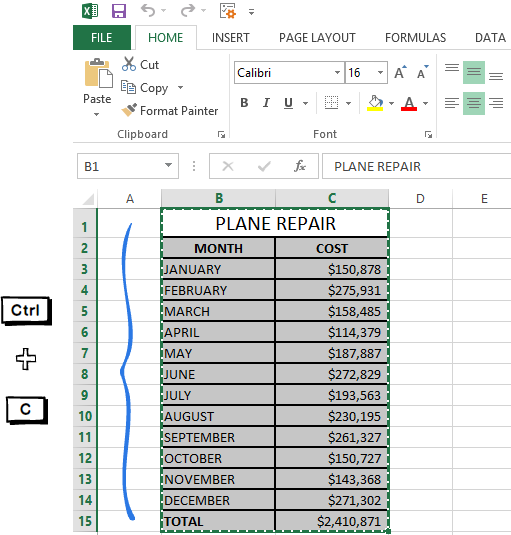
	<li style="text-align: justify;">Chọn vùng dữ liệu bạn muốn chuyển đổi.</li>
	<li style="text-align: justify;">Nhấn&nbsp;<strong><em>Ctrl + C&nbsp;</em></strong>và nhấp phải vào vùng đã chọn, chọn tùy chọn&nbsp;<strong><em>Copy&nbsp;</em></strong>từ danh sách tùy chọn.</li>
</ol>

<p style="text-align: justify;"><img alt="Click Copy or press Ctrl + C to copy the table from Excel to Word" src="https://blog.hocexcel.online/wp-content/uploads/img-blog/copy-excel-table.png" /></p>

<ol start="3">
	<li style="text-align: justify;">Mở trang Word mới.</li>
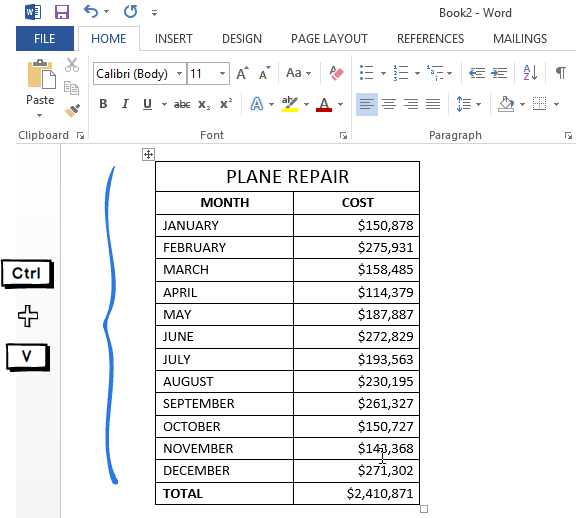
	<li style="text-align: justify;">Nhấn&nbsp;<strong><em>Ctrl + V</em></strong>&nbsp;hoặc nhấp phải chuột vào trang trống và chọn&nbsp;<strong><em>Paste</em></strong>.</li>
</ol>

<p style="text-align: justify;"><img alt=" Click Paste or press Ctrl + V to paste the table in Word" src="https://blog.hocexcel.online/wp-content/uploads/img-blog/paste-table-word.png" /></p>

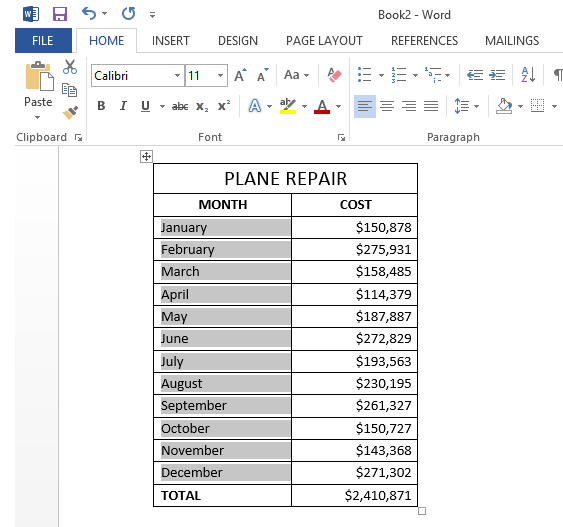
<p style="text-align: justify;">Bảng Excel bây giờ hiển thị trong bảng Word.</p>

<ol start="5">
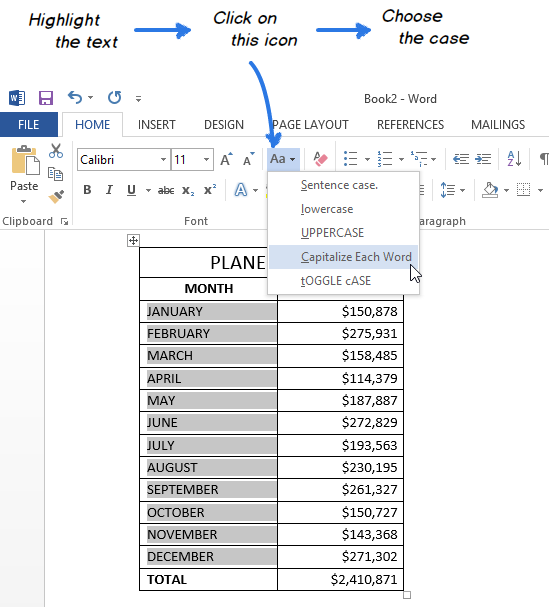
	<li style="text-align: justify;">Bôi đen nội dung bạn muốn chuyển đổi trong bảng.</li>
	<li style="text-align: justify;">Di chuyển đến nhóm&nbsp;<strong><em>Font&nbsp;</em></strong>ở thẻ&nbsp;<strong><em>HOME&nbsp;</em></strong>và nhấp vào biểu tượng&nbsp;<strong><em>Change Case</em></strong>.</li>
	<li style="text-align: justify;">Chọn một trong 5 trường hợp sau từ danh sách tùy chọn.</li>
</ol>

<p style="text-align: justify;"><img alt="Click on the Change Case icon to pick the case you want" src="https://blog.hocexcel.online/wp-content/uploads/img-blog/word-change-case-command.png" /></p>

<p style="text-align: justify;"><strong>Chú ý.&nbsp;</strong>Bạn cũng có thể chọn phần nội dung rồi nhấn&nbsp;<strong><em>Shift + F3&nbsp;</em></strong>đến khi nội dung hiển thị theo đúng ý bạn. Sử dụng phím tắt chỉ có thể chuyển đổi thành in hoa, in thường hoặc viết hoa chữ cái đầu tiên.</p>

<p style="text-align: justify;">&nbsp;</p>

<p style="text-align: justify;"><img alt="Select the changed table or columns to copy back to Excel" src="https://blog.hocexcel.online/wp-content/uploads/img-blog/change-text-case-word.png" /></p>

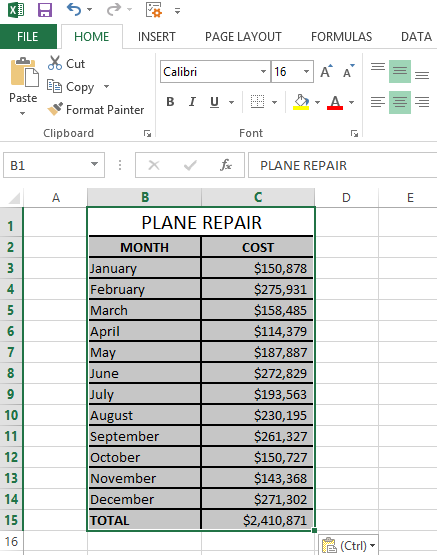
<p style="text-align: justify;">Bây giờ bạn chỉ cần sao chép bảng dữ liệu và dán nó qua Excel.</p>

<p style="text-align: justify;"><img alt=" Click Paste or press Ctrl + V to paste the changed table back in Excel" src="https://blog.hocexcel.online/wp-content/uploads/img-blog/paste-table-excel.png" /></p>

<h3 style="text-align: justify;"><strong>Chuyển đổi viết hoa/viết thường bằng VBA macro</strong></h3>

<p style="text-align: justify;">Bạn cũng có thể sử dụng&nbsp;<strong>Macro VBA</strong>&nbsp;để thay đổi trong Excel 2010/2013. Tôi sẽ không hướng dẫn lại&nbsp;cách chèn và chạy mã&nbsp;<strong><em>VBA</em></strong>&nbsp;trong Excel&nbsp;vì nó đã được mô tả chi tiết trong những bài viết trước. Tôi chỉ trình bày&nbsp;<strong><em>Macro</em></strong>&nbsp;mà bạn có thể sao chép và dán vào mã&nbsp;<strong><em>Module</em></strong>.</p>

<p style="text-align: justify;">Nếu bạn muốn chuyển đổi văn bản sang chữ hoa, bạn có thể sử dụng&nbsp;<em>VBA Macro</em>&nbsp;sau đây:</p>

<div style="text-align: justify;"><code>Sub</code>&nbsp;<code>Uppercase()</code><br />
<code>&nbsp;&nbsp;&nbsp;&nbsp;</code><code>For</code>&nbsp;<code>Each</code>&nbsp;<code>Cell&nbsp;</code><code>In</code>&nbsp;<code>Selection</code><br />
<code>&nbsp;&nbsp;&nbsp;&nbsp;&nbsp;&nbsp;&nbsp;&nbsp;</code><code>If</code>&nbsp;<code>Not</code>&nbsp;<code>Cell.HasFormula&nbsp;</code><code>Then</code><br />
<code>&nbsp;&nbsp;&nbsp;&nbsp;&nbsp;&nbsp;&nbsp;&nbsp;&nbsp;&nbsp;&nbsp;&nbsp;</code><code>Cell.Value = UCase(Cell.Value)</code><br />
<code>&nbsp;&nbsp;&nbsp;&nbsp;&nbsp;&nbsp;&nbsp;&nbsp;</code><code>End</code>&nbsp;<code>If</code><br />
<code>&nbsp;&nbsp;&nbsp;&nbsp;</code><code>Next</code>&nbsp;<code>Cell</code><br />
<code>End</code>&nbsp;<code>Sub</code></div>

<p style="text-align: justify;">Để chuyển sang chữ thường, chèn dòng mã sau:</p>

<table border="0" cellpadding="0" cellspacing="0">
	<tbody>
		<tr>
			<td style="text-align: justify;"><code>Sub</code>&nbsp;<code>Lowercase()</code><br />
			<code>&nbsp;&nbsp;&nbsp;&nbsp;</code><code>For</code>&nbsp;<code>Each</code>&nbsp;<code>Cell&nbsp;</code><code>In</code>&nbsp;<code>Selection</code><br />
			<code>&nbsp;&nbsp;&nbsp;&nbsp;&nbsp;&nbsp;&nbsp;&nbsp;</code><code>If</code>&nbsp;<code>Not</code>&nbsp;<code>Cell.HasFormula&nbsp;</code><code>Then</code><br />
			<code>&nbsp;&nbsp;&nbsp;&nbsp;&nbsp;&nbsp;&nbsp;&nbsp;&nbsp;&nbsp;&nbsp;&nbsp;</code><code>Cell.Value = LCase(Cell.Value)</code><br />
			<code>&nbsp;&nbsp;&nbsp;&nbsp;&nbsp;&nbsp;&nbsp;&nbsp;</code><code>End</code>&nbsp;<code>If</code><br />
			<code>&nbsp;&nbsp;&nbsp;&nbsp;</code><code>Next</code>&nbsp;<code>Cell</code><br />
			<code>End</code>&nbsp;<code>Sub</code></td>
		</tr>
	</tbody>
</table>

<p style="text-align: justify;">Nếu muốn chuyển đổi giá trị nội dung được viết hoa chữ cái đầu tiên, chèn dòng mã sau:</p>

<table border="0" cellpadding="0" cellspacing="0">
	<tbody>
		<tr>
			<td style="text-align: justify;"><code>Sub</code>&nbsp;<code>Propercase()</code><br />
			<code>&nbsp;&nbsp;&nbsp;&nbsp;</code><code>For</code>&nbsp;<code>Each</code>&nbsp;<code>Cell&nbsp;</code><code>In</code>&nbsp;<code>Selection</code><br />
			<code>&nbsp;&nbsp;&nbsp;&nbsp;&nbsp;&nbsp;&nbsp;&nbsp;</code><code>If</code>&nbsp;<code>Not</code>&nbsp;<code>Cell.HasFormula&nbsp;</code><code>Then</code><br />
			<code>&nbsp;&nbsp;&nbsp;&nbsp;&nbsp;&nbsp;&nbsp;&nbsp;&nbsp;&nbsp;&nbsp;&nbsp;</code><code>Cell.Value = _</code><br />
			<code>&nbsp;&nbsp;&nbsp;&nbsp;&nbsp;&nbsp;&nbsp;&nbsp;&nbsp;&nbsp;&nbsp;&nbsp;</code><code>Application _</code><br />
			<code>&nbsp;&nbsp;&nbsp;&nbsp;&nbsp;&nbsp;&nbsp;&nbsp;&nbsp;&nbsp;&nbsp;&nbsp;</code><code>.WorksheetFunction _</code><br />
			<code>&nbsp;&nbsp;&nbsp;&nbsp;&nbsp;&nbsp;&nbsp;&nbsp;&nbsp;&nbsp;&nbsp;&nbsp;</code><code>.Proper(Cell.Value)</code><br />
			<code>&nbsp;&nbsp;&nbsp;&nbsp;&nbsp;&nbsp;&nbsp;&nbsp;</code><code>End</code>&nbsp;<code>If</code><br />
			<code>&nbsp;&nbsp;&nbsp;&nbsp;</code><code>Next</code>&nbsp;<code>Cell</code><br />
			<code>End</code>&nbsp;<code>Sub</code></td>
		</tr>
	</tbody>
</table>
		</div>
				<div id="author">
						<p>
				<strong>Nguồn tin:</strong>
				Quantrimang.com
			</p>
		</div>
	</div>
	<div id="footer" class="clearfix">
		<div id="url">
			<strong>URL của bản tin này: </strong><a href="https://www.nguoicodonvn2008.info/vi/news/savefile/kien-thuc-may-tinh/huong-dan-3-cach-thay-doi-chu-thuong-thanh-chu-hoa-va-nguoc-lai-trong-excel-2016-2013-2010-5196.html" title="Hướng dẫn 3 cách thay đổi chữ thường thành chữ hoa và ngược lại trong Excel 2016, 2013, 2010">https://www.nguoicodonvn2008.info/vi/news/savefile/kien-thuc-may-tinh/huong-dan-3-cach-thay-doi-chu-thuong-thanh-chu-hoa-va-nguoc-lai-trong-excel-2016-2013-2010-5196.html</a>

		</div>
		<div class="clear"></div>
		<div class="copyright">
			&copy; .&#x3A; Nguoicodonvn2008.info - Cõi lòng người cô đơn &#x3A;.
		</div>
		<div id="contact">
			<a href="mailto:admin@nguoicodonvn2008.info">admin@nguoicodonvn2008.info</a>
		</div>
	</div>
</div>
        <div id="timeoutsess" class="chromeframe">
            Bạn đã không sử dụng Site, <a onclick="timeoutsesscancel();" href="https://nguoicodonvn2008.info/#">Bấm vào đây để duy trì trạng thái đăng nhập</a>. Thời gian chờ: <span id="secField"> 60 </span> giây
        </div>
        <div id="openidResult" class="nv-alert" style="display:none"></div>
        <div id="openidBt" data-result="" data-redirect=""></div>
		</script>
		<div class="car-top">
  <span><img src="https://nguoicodonvn2008.info/themes/default/images/car.png" alt=""></span>
</div>
<script src="https://nguoicodonvn2008.info/assets/js/jquery/jquery.min.js"></script>
<script>var nv_base_siteurl="/",nv_lang_data="vi",nv_lang_interface="vi",nv_name_variable="nv",nv_fc_variable="op",nv_lang_variable="language",nv_module_name="news",nv_func_name="savefile",nv_is_user=0, nv_my_ofs=-4,nv_my_abbr="EDT",nv_cookie_prefix="nv4c_e856T",nv_check_pass_mstime=1738000,nv_area_admin=0,nv_safemode=0,theme_responsive=0,nv_recaptcha_ver=2,nv_recaptcha_sitekey="",nv_recaptcha_type="image",XSSsanitize=1;</script>
<script src="https://nguoicodonvn2008.info/assets/js/language/vi.js"></script>
<script src="https://nguoicodonvn2008.info/assets/js/DOMPurify/purify3.js"></script>
<script src="https://nguoicodonvn2008.info/assets/js/global.js"></script>
<script src="https://nguoicodonvn2008.info/assets/js/site.js"></script>
<script src="https://nguoicodonvn2008.info/themes/default/js/news.js"></script>
<script src="https://nguoicodonvn2008.info/themes/default/js/main.js"></script>
<script src="https://nguoicodonvn2008.info/themes/default/js/custom.js"></script>
<script type="application/ld+json">
        {
            "@context": "https://schema.org",
            "@type": "Organization",
            "url": "https://nguoicodonvn2008.info",
            "logo": "https://nguoicodonvn2008.info/uploads/angel.gif"
        }
        </script>
<script src="https://nguoicodonvn2008.info/themes/default/js/bootstrap.min.js"></script>
<script type="text/javascript">
var $scrolltop = $('.car-top');
$scrolltop.on('click', function () {
    $('html,body').animate({
        scrollTop: 0
    }, 800);
    $(this).addClass("car-run");
    setTimeout(function(){ $scrolltop.removeClass('car-run');}, 1000);
    return false;
});
$(window).on('scroll', function ()
{ 
    if($(window).scrollTop() >= 200)
    {
        $scrolltop.addClass("show");
        $scrolltop.addClass("car-down");
    }
    else
    {
       $scrolltop.removeClass("show");
       setTimeout(function(){ $scrolltop.removeClass('car-down');}, 300);
    }
});
</script>
</body>
</html>