<!DOCTYPE html>
    <html lang="vi" xmlns="http://www.w3.org/1999/xhtml" prefix="og: http://ogp.me/ns#">
    <head>
<title>Format thẻ SD để sử dụng với Raspberry Pi</title>
<meta name="description" content="Format thẻ SD để sử dụng với Raspberry Pi - Savefile - Tin Tức -...">
<meta name="author" content=".: Nguoicodonvn2008.info - Cõi lòng người cô đơn :.">
<meta name="copyright" content=".: Nguoicodonvn2008.info - Cõi lòng người cô đơn :. [admin@nguoicodonvn2008.info]">
<meta name="robots" content="index, archive, follow, noodp">
<meta name="googlebot" content="index,archive,follow,noodp">
<meta name="msnbot" content="all,index,follow">
<meta name="generator" content="NukeViet v4.5">
<meta http-equiv="Content-Type" content="text/html; charset=utf-8">
<meta property="og:title" content="Format thẻ SD để sử dụng với Raspberry Pi">
<meta property="og:type" content="website">
<meta property="og:description" content="Savefile - Tin Tức - https&#x3A;&#x002F;&#x002F;www.nguoicodonvn2008.info&#x002F;vi&#x002F;news&#x002F;savefile&#x002F;kien-thuc-may-tinh&#x002F;format-the-sd-de-su-dung-voi-raspberry-pi-1290.html">
<meta property="og:site_name" content=".&#x3A; Nguoicodonvn2008.info - Cõi lòng người cô đơn &#x3A;.">
<meta property="og:url" content="https://www.nguoicodonvn2008.info/vi/news/savefile/kien-thuc-may-tinh/format-the-sd-de-su-dung-voi-raspberry-pi-1290.html">
<link rel="shortcut icon" href="https://nguoicodonvn2008.info/favicon.ico">
<link rel="canonical" href="https://www.nguoicodonvn2008.info/vi/news/savefile/kien-thuc-may-tinh/format-the-sd-de-su-dung-voi-raspberry-pi-1290.html">
<link rel="alternate" href="https://nguoicodonvn2008.info/vi/news/rss/" title="Tin Tức" type="application/rss+xml">
<link rel="alternate" href="https://nguoicodonvn2008.info/vi/news/rss/karaoke-dual/" title="Tin Tức - Karaoke Dual" type="application/rss+xml">
<link rel="alternate" href="https://nguoicodonvn2008.info/vi/news/rss/nhac-tre/" title="Tin Tức - Nhạc trẻ" type="application/rss+xml">
<link rel="alternate" href="https://nguoicodonvn2008.info/vi/news/rss/tru-tinh/" title="Tin Tức - Trữ tình" type="application/rss+xml">
<link rel="alternate" href="https://nguoicodonvn2008.info/vi/news/rss/nuoc-ngoai/" title="Tin Tức - Nước ngoài" type="application/rss+xml">
<link rel="alternate" href="https://nguoicodonvn2008.info/vi/news/rss/remix/" title="Tin Tức - Remix" type="application/rss+xml">
<link rel="alternate" href="https://nguoicodonvn2008.info/vi/news/rss/tam-su-tinh-yeu/" title="Tin Tức - Tâm sự tình yêu" type="application/rss+xml">
<link rel="alternate" href="https://nguoicodonvn2008.info/vi/news/rss/tho-suu-tam/" title="Tin Tức - Thơ sưu tầm" type="application/rss+xml">
<link rel="alternate" href="https://nguoicodonvn2008.info/vi/news/rss/cuoc-song/" title="Tin Tức - Cuộc sống" type="application/rss+xml">
<link rel="alternate" href="https://nguoicodonvn2008.info/vi/news/rss/phan-mem/" title="Tin Tức - Phần mềm" type="application/rss+xml">
<link rel="alternate" href="https://nguoicodonvn2008.info/vi/news/rss/kien-thuc-may-tinh/" title="Tin Tức - Kiến thức máy tính" type="application/rss+xml">
<link rel="alternate" href="https://nguoicodonvn2008.info/vi/news/rss/hoc-tap/" title="Tin Tức - Học tập" type="application/rss+xml">
<link rel="alternate" href="https://nguoicodonvn2008.info/vi/news/rss/tai-lieu/" title="Tin Tức - Tài liệu" type="application/rss+xml">
<link rel="alternate" href="https://nguoicodonvn2008.info/vi/news/rss/de-thi/" title="Tin Tức - Đề thi" type="application/rss+xml">
<link rel="preload" as="style" href="https://nguoicodonvn2008.info/assets/css/font-awesome.min.css" type="text/css">
<link rel="preload" as="style" href="https://nguoicodonvn2008.info/themes/default/css/bootstrap.non-responsive.css" type="text/css">
<link rel="preload" as="style" href="https://nguoicodonvn2008.info/themes/default/css/style.css" type="text/css">
<link rel="preload" as="style" href="https://nguoicodonvn2008.info/themes/default/css/style.non-responsive.css" type="text/css">
<link rel="preload" as="style" href="https://nguoicodonvn2008.info/themes/default/css/news.css" type="text/css">
<link rel="preload" as="style" href="https://nguoicodonvn2008.info/themes/default/css/custom.css" type="text/css">
<link rel="preload" as="script" href="https://nguoicodonvn2008.info/assets/js/jquery/jquery.min.js" type="text/javascript">
<link rel="preload" as="script" href="https://nguoicodonvn2008.info/assets/js/language/vi.js" type="text/javascript">
<link rel="preload" as="script" href="https://nguoicodonvn2008.info/assets/js/DOMPurify/purify3.js" type="text/javascript">
<link rel="preload" as="script" href="https://nguoicodonvn2008.info/assets/js/global.js" type="text/javascript">
<link rel="preload" as="script" href="https://nguoicodonvn2008.info/assets/js/site.js" type="text/javascript">
<link rel="preload" as="script" href="https://nguoicodonvn2008.info/themes/default/js/news.js" type="text/javascript">
<link rel="preload" as="script" href="https://nguoicodonvn2008.info/themes/default/js/main.js" type="text/javascript">
<link rel="preload" as="script" href="https://nguoicodonvn2008.info/themes/default/js/custom.js" type="text/javascript">
<link rel="preload" as="script" href="https://nguoicodonvn2008.info/themes/default/js/bootstrap.min.js" type="text/javascript">
<link rel="stylesheet" href="https://nguoicodonvn2008.info/assets/css/font-awesome.min.css">
<link rel="stylesheet" href="https://nguoicodonvn2008.info/themes/default/css/bootstrap.non-responsive.css">
<link rel="stylesheet" href="https://nguoicodonvn2008.info/themes/default/css/style.css">
<link rel="stylesheet" href="https://nguoicodonvn2008.info/themes/default/css/style.non-responsive.css">
<link rel="StyleSheet" href="https://nguoicodonvn2008.info/themes/default/css/news.css">
<link rel="stylesheet" href="https://nguoicodonvn2008.info/themes/default/css/custom.css">
<style type="text/css">
	body{background: #fff;}
</style>
    </head>
    <body>
<div id="print">
	<div id="hd_print">
		<h2 class="pull-left">.&#x3A; Nguoicodonvn2008.info - Cõi lòng người cô đơn &#x3A;.</h2>
		<p class="pull-right"><a title=".&#x3A; Nguoicodonvn2008.info - Cõi lòng người cô đơn &#x3A;." href="https://nguoicodonvn2008.info/">https://nguoicodonvn2008.info</a></p>
	</div>
	<div class="clear"></div>
	<hr />
	<div id="content">
		<h1>Format thẻ SD để sử dụng với Raspberry Pi</h1>
		<ul class="list-inline">
			<li>Thứ năm - 07/11/2019 05:53</li>
			<li class="hidden-print txtrequired"><em class="fa fa-print">&nbsp;</em><a title="In ra" href="javascript:;" onclick="window.print()">In ra</a></li>
			<li class="hidden-print txtrequired"><em class="fa fa-power-off">&nbsp;</em><a title="Đóng cửa sổ này" href="javascript:;" onclick="window.close()">Đóng cửa sổ này</a></li>
		</ul>
		<div class="clear"></div>
		<div id="hometext">
		</div>
				<div class="imghome">
			<img alt="Format thẻ SD để sử dụng với Raspberry Pi" src="https://st.quantrimang.com/photos/image/2019/11/07/format-the-sd-de-su-dung-voi-raspberry-pi-3.jpg" width="460" class="img-thumbnail" />
		</div>
		<div class="clear"></div>
		<div id="bodytext" class="clearfix">
			<p style="text-align: justify;">Sở hữu một&nbsp;Raspberry Pi&nbsp;hoàn toàn mới nghĩa là bạn sẽ có một bản cài đặt hệ điều hành yêu thích mới 100%. Cho dù đó là Raspbian được khuyến nghị hay một nền tảng&nbsp;IOT&nbsp;như&nbsp;Windows 10 IOT Core, bạn sẽ cần phải chuẩn bị thẻ SD để sử dụng với Raspberry Pi của mình trước khi khởi động.</p>

<p style="text-align: justify;">Trước tiên, bạn sẽ cần một thẻ SD có dung lượng đủ lớn cho hệ điều hành - thường là 8GB hoặc lớn hơn. Đây là cách bạn có thể format thẻ SD cho Raspberry Pi.</p>

<h2 style="text-align: justify;">&nbsp;</h2>

<h2 id="mcetoc_1dp2kh87n0" style="text-align: justify;">Sử dụng Etcher để format và flash thẻ SD</h2>

<p style="text-align: justify;">Tùy chọn đơn giản nhất là sử dụng balenaEtcher để flash và format thẻ SD. Nó sẽ flash các file ISO của hệ điều hành, tạo bảng phân vùng chính xác trên thẻ SD giống như vậy. balenaEtcher có sẵn cho macOS, Linux và Windows.</p>

<p style="text-align: justify;">1. Đầu tiên, tải xuống và cài đặt&nbsp;balenaEtcher. Bạn cũng cần chuẩn bị sẵn file ISO đã chọn. Bạn có thể tải xuống Raspbian từ Raspberry Pi Foundation.</p>

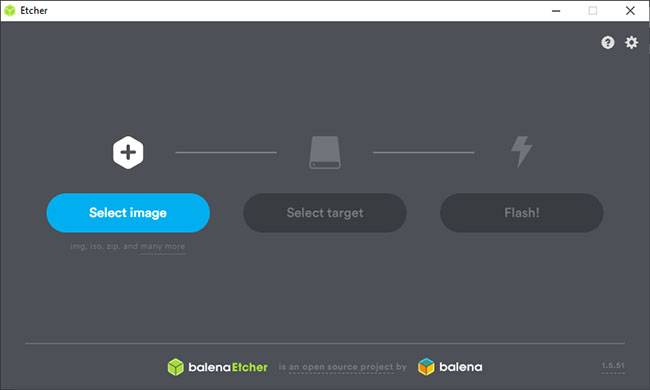
<p style="text-align: justify;">2. Mở balenaEtcher sau khi cài đặt. Trước tiên, chọn ISO hệ điều hành bằng cách nhấp vào&nbsp;<strong>“SelectImage”</strong>, sau đó chọn file ISO.</p>

<p style="text-align: justify;"><img alt="Mở balenaEtcher sau khi cài đặt" data-i="0" data-src="https://st.quantrimang.com/photos/image/2019/11/07/format-the-sd-de-su-dung-voi-raspberry-pi-1.jpg" data-was-processed="true" height="390" src="https://st.quantrimang.com/photos/image/2019/11/07/format-the-sd-de-su-dung-voi-raspberry-pi-1.jpg" width="650" /></p>

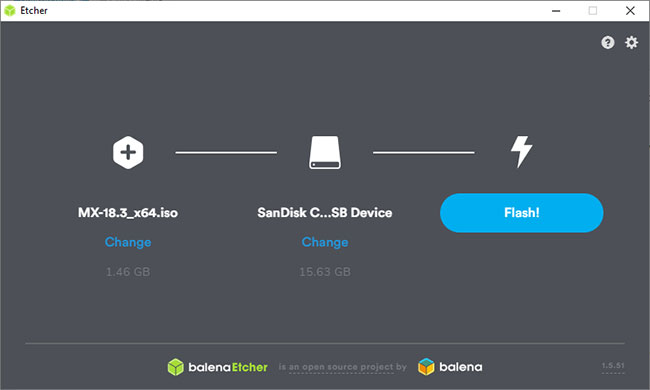
<p style="text-align: justify;">3. Nhấp vào&nbsp;<strong>“Select</strong>&nbsp;<strong>Target”</strong>&nbsp;và chọn thẻ SD.</p>

<p style="text-align: justify;"><img alt="Nhấp vào “Select Target” và chọn thẻ SD" data-i="1" data-src="https://st.quantrimang.com/photos/image/2019/11/07/format-the-sd-de-su-dung-voi-raspberry-pi-2.jpg" data-was-processed="true" height="390" src="https://st.quantrimang.com/photos/image/2019/11/07/format-the-sd-de-su-dung-voi-raspberry-pi-2.jpg" width="650" /></p>

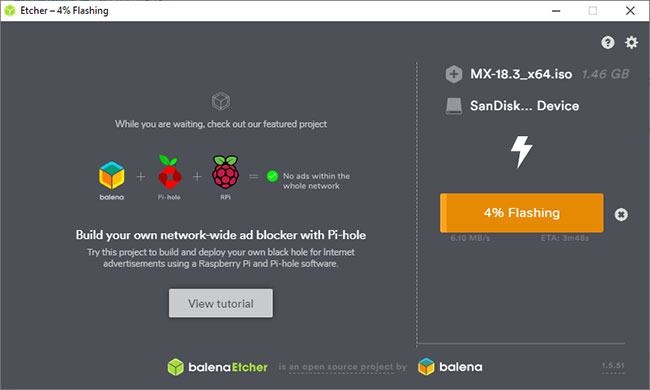
<p style="text-align: justify;">4. Nhấp vào&nbsp;<strong>Flash</strong>&nbsp;và chờ balenaEtcher hoàn tất quá trình tạo phân vùng, sao chép file và quá trình flash.</p>

<p style="text-align: justify;"><img alt="Nhấp vào Flash và chờ balenaEtcher hoàn tất quá trình" data-i="2" data-src="https://st.quantrimang.com/photos/image/2019/11/07/format-the-sd-de-su-dung-voi-raspberry-pi-3.jpg" data-was-processed="true" height="390" src="https://st.quantrimang.com/photos/image/2019/11/07/format-the-sd-de-su-dung-voi-raspberry-pi-3.jpg" width="650" /></p>

<p style="text-align: justify;">Bảng phân vùng hiện có của thẻ SD cũng bị xóa hoàn toàn. Dù mới hay cũ, nếu bạn muốn cài đặt hệ điều hành trên Raspberry Pi một cách dễ dàng, balenaEtcher là phương pháp tốt nhất.</p>

<h2 id="mcetoc_1dp2kh87n1" style="text-align: justify;">Sử dụng dd để format và flash thẻ SD</h2>

<p style="text-align: justify;">Nếu đang chạy Linux hoặc macOS, bạn cũng có thể flash hệ điều hành của mình từ terminal bằng dd.</p>

<p style="text-align: justify;">Để bắt đầu, xác nhận rằng thẻ SD được phát hiện. Mở một terminal và trên macOS, nhập&nbsp;<code>diskutil list</code>&nbsp;và định vị thẻ SD (ví dụ,&nbsp;<strong>disk4</strong>). Trên Linux, nhập&nbsp;<code>lsblk</code>&nbsp;và tìm thẻ SD (ví dụ:&nbsp;<strong>/dev/sdb</strong>), cũng như tất cả các phân vùng hiện tại trên ổ đĩa đó (ví dụ:&nbsp;<strong>/dev/sdb1, /dev/sdb2</strong>, v.v...).</p>

<p style="text-align: justify;">Ngắt kết nối các thiết bị. Trên macOS, hãy nhập:</p>

<pre id="pre0">
<code>diskutil unmountDisk /dev/diskX</code></pre>

<p style="text-align: justify;">Thay thế&nbsp;<strong>“X”</strong>&nbsp;bằng số ổ đĩa, được định vị bằng&nbsp;<strong>diskutil.</strong>&nbsp;Trên Linux, hãy nhập:</p>

<pre id="pre1">
<code>sudo umount /dev/sdbX</code></pre>

<p style="text-align: justify;">Thay thế&nbsp;<strong>sdb</strong>&nbsp;bằng thẻ SD và&nbsp;<strong>X</strong>&nbsp;bằng số phân vùng.</p>

<p style="text-align: justify;">Thực hiện hành động cho mọi phân vùng trên ổ đĩa đó (ví dụ:&nbsp;<strong>“/dev/sdb1,” “/dev/sdb2.”,</strong>v.v...).</p>

<p style="text-align: justify;">Nếu có file ISO, trước tiên bạn cần tạo file IMG. Bạn có thể sử dụng dd để làm điều này. Trên macOS, hãy nhập:</p>

<pre id="pre2">
<code>hdiutil convert iso-file.iso -format UDRW -o img-file.img</code></pre>

<p style="text-align: justify;">Trên Linux, hãy nhập:</p>

<pre id="pre3">
<code>sudo dd if=iso-file.iso of=img-file.img</code></pre>

<p style="text-align: justify;">Đợi quá trình hoàn thành trước khi tiếp tục.</p>

<p style="text-align: justify;">Sao chép nội dung của file IMG bằng dd. Đối với macOS, hãy nhập:</p>

<pre id="pre4">
<code>sudo dd bs=1m if=iso.img of=/dev/rdiskX conv=sync</code></pre>

<p style="text-align: justify;">Thay thế&nbsp;<strong>“rdiskX”</strong>&nbsp;bằng số ổ đĩa bạn đã tìm được bằng&nbsp;<strong>diskutil</strong>&nbsp;(và nhớ sử dụng&nbsp;<strong>rdisk</strong>thay vì&nbsp;<strong>disk</strong>&nbsp;ở đây). Đối với Linux, hãy nhập:</p>

<pre id="pre5">
<code>sudo dd bs=1m if=iso.img of=/dev/sdX conv=fsync</code></pre>

<p style="text-align: justify;">Thay thế&nbsp;<strong>sdX</strong>&nbsp;bằng chữ cái đại diện cho thẻ SD (ví dụ:&nbsp;<strong>sdb</strong>).</p>

<p style="text-align: justify;">Sau khi hoàn thành, hãy ngắt kết nối các ổ bằng những hướng dẫn ở trên và thẻ SD sẽ sẵn sàng để sử dụng.</p>

<div style="text-align: justify;">&nbsp;</div>

<h2 id="mcetoc_1dp2kh87n2" style="text-align: justify;">Format thẻ SD theo cách thủ công trên Windows và macOS</h2>

<p style="text-align: justify;">Một cách tiếp cận khác là format thủ công thẻ SD và sử dụng trình cài đặt đơn giản như&nbsp;NOOBS&nbsp;để cài đặt trực tiếp hệ điều hành. Bạn có thể làm điều đó bằng cách sử dụng công cụ SD Memory Card Formatter trên Windows và macOS.</p>

<p style="text-align: justify;">1. Tải xuống và cài đặt&nbsp;SD Memory Card Formatter&nbsp;cho hệ điều hành cụ thể của bạn, sau đó mở nó.</p>

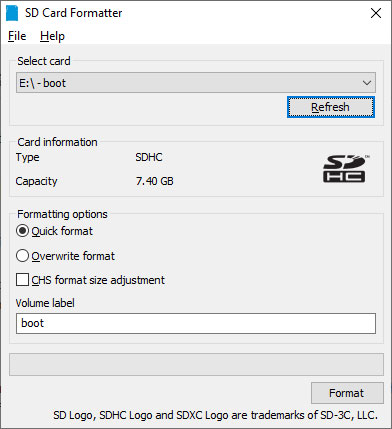
<p style="text-align: justify;">2. Chọn thẻ SD và nhấp vào&nbsp;<strong>“Format”,</strong>&nbsp;Chế độ nhấp vào&nbsp;<strong>“Yes”</strong>&nbsp;để xác nhận.</p>

<p style="text-align: justify;"><img alt="Chọn thẻ SD và nhấp vào “Format”" data-i="3" data-src="https://st.quantrimang.com/photos/image/2019/11/07/format-the-sd-de-su-dung-voi-raspberry-pi-4.jpg" data-was-processed="true" height="429" src="https://st.quantrimang.com/photos/image/2019/11/07/format-the-sd-de-su-dung-voi-raspberry-pi-4.jpg" width="392" /></p>

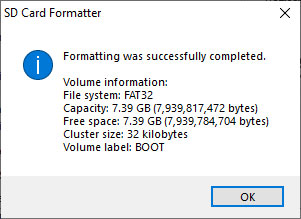
<p style="text-align: justify;">3. Sau khi hoàn tất các bước, bạn sẽ nhận được thông báo hoàn thành. Nhấp vào&nbsp;<strong>OK</strong>&nbsp;để thoát.</p>

<p style="text-align: justify;"><img alt="Nhấp vào OK" data-i="4" data-src="https://st.quantrimang.com/photos/image/2019/11/07/format-the-sd-de-su-dung-voi-raspberry-pi-5.jpg" data-was-processed="true" height="219" src="https://st.quantrimang.com/photos/image/2019/11/07/format-the-sd-de-su-dung-voi-raspberry-pi-5.jpg" width="301" /></p>

<p style="text-align: justify;">Sau đó, bạn có thể sao chép nội dung của kho lưu trữ zip NOOBS vào thẻ được định dạng FAT32. Lắp thẻ SD vào Raspberry Pi và cấp nguồn cho nó, sau đó làm theo các hướng dẫn trên màn hình để cài đặt hệ điều hành.</p>

<h2 id="mcetoc_1dp2kh87n3" style="text-align: justify;">Format thẻ SD theo cách thủ công trên Linux</h2>

<p style="text-align: justify;">Cách tiếp cận tốt nhất để format thủ công trên Linux (nhằm sử dụng trình cài đặt NOOBs) là sử dụng GParted để tạo phân vùng.</p>

<p style="text-align: justify;">1. Tải xuống và cài đặt&nbsp;GParted, rồi mở nó sau khi cài đặt. Từ menu drop-down ở góc bên phải, chọn thẻ SD.</p>

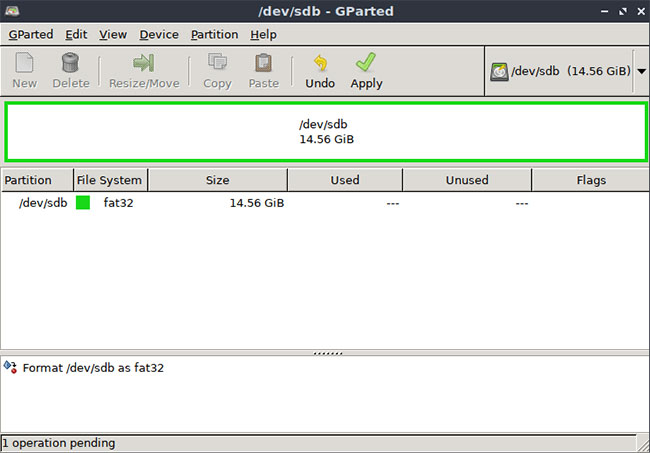
<p style="text-align: justify;">2. Nếu bạn có nhiều hơn một phân vùng, chọn từng cái một, sau đó bấm vào nút&nbsp;<strong>“Delete”,</strong>&nbsp;sau đó chọn&nbsp;<strong>“Apply”.</strong>&nbsp;Kích vào&nbsp;<strong>“New”</strong>&nbsp;và chọn&nbsp;<strong>FAT32</strong>&nbsp;làm hệ thống file của bạn, bấm vào nút&nbsp;<strong>“Add”,</strong>&nbsp;sau đó chọn&nbsp;<strong>“Apply”</strong>&nbsp;và xác nhận thay đổi.</p>

<p style="text-align: justify;"><img alt="Chọn “Apply”" data-i="5" data-src="https://st.quantrimang.com/photos/image/2019/11/07/format-the-sd-de-su-dung-voi-raspberry-pi-6.jpg" data-was-processed="true" height="453" src="https://st.quantrimang.com/photos/image/2019/11/07/format-the-sd-de-su-dung-voi-raspberry-pi-6.jpg" width="650" /></p>

<p style="text-align: justify;">3. Nếu không, nhấp chuột phải, chuyển đến&nbsp;<strong>“Format to”</strong>&nbsp;và chọn&nbsp;<strong>FAT32,</strong>&nbsp;sau đó nhấp vào&nbsp;<strong>“Apply”.</strong></p>

<p style="text-align: justify;">Bây giờ, thẻ sẽ được định dạng là FAT32, sẵn sàng để bạn chuyển các file NOOBS sang đó theo cách thủ công.</p>

<h2 id="mcetoc_1dp2kh87n4" style="text-align: justify;">Chuẩn bị Pi</h2>

<p style="text-align: justify;">Khi thẻ SD đã được format và flash, bạn có thể chuyển sang thiết lập Raspberry Pi. Sau đó, bạn có thể sử dụng nó làm trung tâm cho tất cả các loại dự án, từ game retro console đến máy chủ tự động hóa gia đình.</p>

<p style="text-align: justify;">Bạn dự định sử dụng Raspberry Pi để làm gì? Hãy cho mọi người biết ý tưởng dự án trong phần bình luận dưới đây nhé!</p>

<p style="text-align: justify;">Chúc bạn thực hiện thành công!</p>
		</div>
				<div id="author">
						<p>
				<strong>Nguồn tin:</strong>
				Quantrimang.com
			</p>
		</div>
	</div>
	<div id="footer" class="clearfix">
		<div id="url">
			<strong>URL của bản tin này: </strong><a href="https://www.nguoicodonvn2008.info/vi/news/savefile/kien-thuc-may-tinh/format-the-sd-de-su-dung-voi-raspberry-pi-1290.html" title="Format thẻ SD để sử dụng với Raspberry Pi">https://www.nguoicodonvn2008.info/vi/news/savefile/kien-thuc-may-tinh/format-the-sd-de-su-dung-voi-raspberry-pi-1290.html</a>

		</div>
		<div class="clear"></div>
		<div class="copyright">
			&copy; .&#x3A; Nguoicodonvn2008.info - Cõi lòng người cô đơn &#x3A;.
		</div>
		<div id="contact">
			<a href="mailto:admin@nguoicodonvn2008.info">admin@nguoicodonvn2008.info</a>
		</div>
	</div>
</div>
        <div id="timeoutsess" class="chromeframe">
            Bạn đã không sử dụng Site, <a onclick="timeoutsesscancel();" href="https://nguoicodonvn2008.info/#">Bấm vào đây để duy trì trạng thái đăng nhập</a>. Thời gian chờ: <span id="secField"> 60 </span> giây
        </div>
        <div id="openidResult" class="nv-alert" style="display:none"></div>
        <div id="openidBt" data-result="" data-redirect=""></div>
		</script>
		<div class="car-top">
  <span><img src="https://nguoicodonvn2008.info/themes/default/images/car.png" alt=""></span>
</div>
<div id="run_cronjobs" style="visibility:hidden;display:none;"><img alt="cron" src="/index.php?second=cronjobs&amp;p=m9YMmbAU" width="1" height="1" /></div>
<script src="https://nguoicodonvn2008.info/assets/js/jquery/jquery.min.js"></script>
<script>var nv_base_siteurl="/",nv_lang_data="vi",nv_lang_interface="vi",nv_name_variable="nv",nv_fc_variable="op",nv_lang_variable="language",nv_module_name="news",nv_func_name="savefile",nv_is_user=0, nv_my_ofs=-4,nv_my_abbr="EDT",nv_cookie_prefix="nv4c_e856T",nv_check_pass_mstime=1738000,nv_area_admin=0,nv_safemode=0,theme_responsive=0,nv_recaptcha_ver=2,nv_recaptcha_sitekey="",nv_recaptcha_type="image",XSSsanitize=1;</script>
<script src="https://nguoicodonvn2008.info/assets/js/language/vi.js"></script>
<script src="https://nguoicodonvn2008.info/assets/js/DOMPurify/purify3.js"></script>
<script src="https://nguoicodonvn2008.info/assets/js/global.js"></script>
<script src="https://nguoicodonvn2008.info/assets/js/site.js"></script>
<script src="https://nguoicodonvn2008.info/themes/default/js/news.js"></script>
<script src="https://nguoicodonvn2008.info/themes/default/js/main.js"></script>
<script src="https://nguoicodonvn2008.info/themes/default/js/custom.js"></script>
<script type="application/ld+json">
        {
            "@context": "https://schema.org",
            "@type": "Organization",
            "url": "https://nguoicodonvn2008.info",
            "logo": "https://nguoicodonvn2008.info/uploads/angel.gif"
        }
        </script>
<script src="https://nguoicodonvn2008.info/themes/default/js/bootstrap.min.js"></script>
<script type="text/javascript">
var $scrolltop = $('.car-top');
$scrolltop.on('click', function () {
    $('html,body').animate({
        scrollTop: 0
    }, 800);
    $(this).addClass("car-run");
    setTimeout(function(){ $scrolltop.removeClass('car-run');}, 1000);
    return false;
});
$(window).on('scroll', function ()
{ 
    if($(window).scrollTop() >= 200)
    {
        $scrolltop.addClass("show");
        $scrolltop.addClass("car-down");
    }
    else
    {
       $scrolltop.removeClass("show");
       setTimeout(function(){ $scrolltop.removeClass('car-down');}, 300);
    }
});
</script>
</body>
</html>