<!DOCTYPE html>
    <html lang="vi" xmlns="http://www.w3.org/1999/xhtml" prefix="og: http://ogp.me/ns#">
    <head>
<title>Đây là &quot;thủ phạm&quot; khiến máy tính Windows 10 khởi động chậm</title>
<meta name="description" content="Đây là &quot;thủ phạm&quot; khiến máy tính Windows 10 khởi động chậm - Savefile - Tin Tức -...">
<meta name="author" content=".: Nguoicodonvn2008.info - Cõi lòng người cô đơn :.">
<meta name="copyright" content=".: Nguoicodonvn2008.info - Cõi lòng người cô đơn :. [admin@nguoicodonvn2008.info]">
<meta name="robots" content="index, archive, follow, noodp">
<meta name="googlebot" content="index,archive,follow,noodp">
<meta name="msnbot" content="all,index,follow">
<meta name="generator" content="NukeViet v4.5">
<meta http-equiv="Content-Type" content="text/html; charset=utf-8">
<meta property="og:title" content="Đây là &quot;thủ phạm&quot; khiến máy tính Windows 10 khởi động chậm">
<meta property="og:type" content="website">
<meta property="og:description" content="Savefile - Tin Tức - https&#x3A;&#x002F;&#x002F;www.nguoicodonvn2008.info&#x002F;vi&#x002F;news&#x002F;savefile&#x002F;kien-thuc-may-tinh&#x002F;day-la-thu-pham-khien-may-tinh-windows-10-khoi-dong-cham-8690.html">
<meta property="og:site_name" content=".&#x3A; Nguoicodonvn2008.info - Cõi lòng người cô đơn &#x3A;.">
<meta property="og:url" content="https://www.nguoicodonvn2008.info/vi/news/savefile/kien-thuc-may-tinh/day-la-thu-pham-khien-may-tinh-windows-10-khoi-dong-cham-8690.html">
<link rel="shortcut icon" href="https://nguoicodonvn2008.info/favicon.ico">
<link rel="canonical" href="https://www.nguoicodonvn2008.info/vi/news/savefile/kien-thuc-may-tinh/day-la-thu-pham-khien-may-tinh-windows-10-khoi-dong-cham-8690.html">
<link rel="alternate" href="https://nguoicodonvn2008.info/vi/news/rss/" title="Tin Tức" type="application/rss+xml">
<link rel="alternate" href="https://nguoicodonvn2008.info/vi/news/rss/karaoke-dual/" title="Tin Tức - Karaoke Dual" type="application/rss+xml">
<link rel="alternate" href="https://nguoicodonvn2008.info/vi/news/rss/nhac-tre/" title="Tin Tức - Nhạc trẻ" type="application/rss+xml">
<link rel="alternate" href="https://nguoicodonvn2008.info/vi/news/rss/tru-tinh/" title="Tin Tức - Trữ tình" type="application/rss+xml">
<link rel="alternate" href="https://nguoicodonvn2008.info/vi/news/rss/nuoc-ngoai/" title="Tin Tức - Nước ngoài" type="application/rss+xml">
<link rel="alternate" href="https://nguoicodonvn2008.info/vi/news/rss/remix/" title="Tin Tức - Remix" type="application/rss+xml">
<link rel="alternate" href="https://nguoicodonvn2008.info/vi/news/rss/tam-su-tinh-yeu/" title="Tin Tức - Tâm sự tình yêu" type="application/rss+xml">
<link rel="alternate" href="https://nguoicodonvn2008.info/vi/news/rss/tho-suu-tam/" title="Tin Tức - Thơ sưu tầm" type="application/rss+xml">
<link rel="alternate" href="https://nguoicodonvn2008.info/vi/news/rss/cuoc-song/" title="Tin Tức - Cuộc sống" type="application/rss+xml">
<link rel="alternate" href="https://nguoicodonvn2008.info/vi/news/rss/phan-mem/" title="Tin Tức - Phần mềm" type="application/rss+xml">
<link rel="alternate" href="https://nguoicodonvn2008.info/vi/news/rss/kien-thuc-may-tinh/" title="Tin Tức - Kiến thức máy tính" type="application/rss+xml">
<link rel="alternate" href="https://nguoicodonvn2008.info/vi/news/rss/hoc-tap/" title="Tin Tức - Học tập" type="application/rss+xml">
<link rel="alternate" href="https://nguoicodonvn2008.info/vi/news/rss/tai-lieu/" title="Tin Tức - Tài liệu" type="application/rss+xml">
<link rel="alternate" href="https://nguoicodonvn2008.info/vi/news/rss/de-thi/" title="Tin Tức - Đề thi" type="application/rss+xml">
<link rel="preload" as="style" href="https://nguoicodonvn2008.info/assets/css/font-awesome.min.css" type="text/css">
<link rel="preload" as="style" href="https://nguoicodonvn2008.info/themes/default/css/bootstrap.non-responsive.css" type="text/css">
<link rel="preload" as="style" href="https://nguoicodonvn2008.info/themes/default/css/style.css" type="text/css">
<link rel="preload" as="style" href="https://nguoicodonvn2008.info/themes/default/css/style.non-responsive.css" type="text/css">
<link rel="preload" as="style" href="https://nguoicodonvn2008.info/themes/default/css/news.css" type="text/css">
<link rel="preload" as="style" href="https://nguoicodonvn2008.info/themes/default/css/custom.css" type="text/css">
<link rel="preload" as="script" href="https://nguoicodonvn2008.info/assets/js/jquery/jquery.min.js" type="text/javascript">
<link rel="preload" as="script" href="https://nguoicodonvn2008.info/assets/js/language/vi.js" type="text/javascript">
<link rel="preload" as="script" href="https://nguoicodonvn2008.info/assets/js/DOMPurify/purify3.js" type="text/javascript">
<link rel="preload" as="script" href="https://nguoicodonvn2008.info/assets/js/global.js" type="text/javascript">
<link rel="preload" as="script" href="https://nguoicodonvn2008.info/assets/js/site.js" type="text/javascript">
<link rel="preload" as="script" href="https://nguoicodonvn2008.info/themes/default/js/news.js" type="text/javascript">
<link rel="preload" as="script" href="https://nguoicodonvn2008.info/themes/default/js/main.js" type="text/javascript">
<link rel="preload" as="script" href="https://nguoicodonvn2008.info/themes/default/js/custom.js" type="text/javascript">
<link rel="preload" as="script" href="https://nguoicodonvn2008.info/themes/default/js/bootstrap.min.js" type="text/javascript">
<link rel="stylesheet" href="https://nguoicodonvn2008.info/assets/css/font-awesome.min.css">
<link rel="stylesheet" href="https://nguoicodonvn2008.info/themes/default/css/bootstrap.non-responsive.css">
<link rel="stylesheet" href="https://nguoicodonvn2008.info/themes/default/css/style.css">
<link rel="stylesheet" href="https://nguoicodonvn2008.info/themes/default/css/style.non-responsive.css">
<link rel="StyleSheet" href="https://nguoicodonvn2008.info/themes/default/css/news.css">
<link rel="stylesheet" href="https://nguoicodonvn2008.info/themes/default/css/custom.css">
<style type="text/css">
	body{background: #fff;}
</style>
    </head>
    <body>
<div id="print">
	<div id="hd_print">
		<h2 class="pull-left">.&#x3A; Nguoicodonvn2008.info - Cõi lòng người cô đơn &#x3A;.</h2>
		<p class="pull-right"><a title=".&#x3A; Nguoicodonvn2008.info - Cõi lòng người cô đơn &#x3A;." href="https://nguoicodonvn2008.info/">https://nguoicodonvn2008.info</a></p>
	</div>
	<div class="clear"></div>
	<hr />
	<div id="content">
		<h1>Đây là &quot;thủ phạm&quot; khiến máy tính Windows 10 khởi động chậm</h1>
		<ul class="list-inline">
			<li>Thứ ba - 16/07/2024 23:48</li>
			<li class="hidden-print txtrequired"><em class="fa fa-print">&nbsp;</em><a title="In ra" href="javascript:;" onclick="window.print()">In ra</a></li>
			<li class="hidden-print txtrequired"><em class="fa fa-power-off">&nbsp;</em><a title="Đóng cửa sổ này" href="javascript:;" onclick="window.close()">Đóng cửa sổ này</a></li>
		</ul>
		<div class="clear"></div>
		<div id="hometext">
		</div>
				<div class="imghome">
			<img alt="Đây là &quot;thủ phạm&quot; khiến máy tính Windows 10 khởi động chậm" src="https://st.quantrimang.com/photos/image/2018/01/29/ung-dung-khoi-dong-cung-he-thong-9.jpg" width="460" class="img-thumbnail" />
		</div>
		<div class="clear"></div>
		<div id="bodytext" class="clearfix">
			<p style="text-align: justify;">Nếu nhận thấy rằng hệ thống Windows 10 của mình mất nhiều thời gian để khởi động hơn bình thường thì các chương trình khởi chạy cùng hệ thống có thể chính là thủ phạm. Bài viết này sẽ chỉ cho bạn cách kiểm tra những chương trình nào đang tự động khởi động cùng hệ thống Windows 10 và cách tắt chúng.</p>

<p style="text-align: justify;">Một số chương trình sẽ không yêu cầu sự cho phép của người dùng để khởi động cùng hệ hống và một số chương trình khác có thể đã có trong máy tính là bloatware.</p>

<h2 style="text-align: justify;">Xác định vị trí và vô hiệu hoá chương trình khởi động</h2>

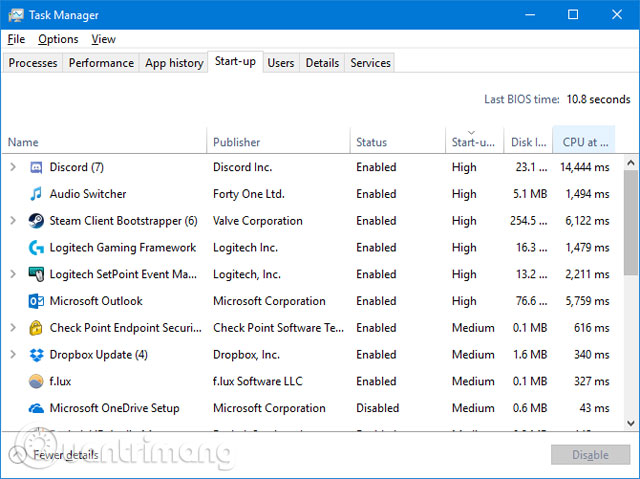
<p style="text-align: justify;">Người dùng có thể xem chương trình khởi chạy cùng hệ thống trong Windows Task Manage bằng cách nhấn&nbsp;<strong>Ctrl + Shift + Esc</strong>. Nếu thấy&nbsp;<strong>Expand details</strong>&nbsp;ở cuối cửa sổ, hãy nhấp vào đó, sau đó chuyển sang tab&nbsp;<strong>Start-up</strong>. Để biết thêm thông tin, kích chuột phải vào một trong các tiêu đề bảng (như&nbsp;<strong>Name</strong>) và đánh dấu vào cả&nbsp;<strong>Disk I/O at start-up</strong>&nbsp;và&nbsp;<strong>CPU at start-up</strong>.</p>

<p style="text-align: justify;"><img alt="Xem các chương trình khởi động cùng hệ thống " data-i="0" data-src="https://st.quantrimang.com/photos/image/2018/01/29/ung-dung-khoi-dong-cung-he-thong-1.jpg" data-was-processed="true" height="479" src="https://st.quantrimang.com/photos/image/2018/01/29/ung-dung-khoi-dong-cung-he-thong-1.jpg" width="640" /></p>

<div style="text-align: justify;"><iframe allow="autoplay" allowtransparency="true" aria-label="Advertisement" data-google-container-id="a!2" data-google-query-id="CJyj27GVrYcDFe6Q6QUdWMUsEw" data-load-complete="true" frameborder="0" height="0" hspace="0" id="aswift_1" marginheight="0" marginwidth="0" name="aswift_1" sandbox="allow-scripts allow-same-origin allow-forms allow-presentation" scrolling="no" tabindex="0" title="Advertisement" vspace="0" width="694"></iframe></div>

<p style="text-align: justify;">Nhấp chuột trái vào các tiêu đề&nbsp;<strong>Start-up</strong>&nbsp;để sắp xếp các chương trình tác động từ cao đến thấp. Đây là những chương trình gây &quot;căng thẳng&quot; hơn cho&nbsp;ổ cứng&nbsp;và&nbsp;CPU, có thể làm máy tính của bạn mất nhiều thời gian để tải đầy đủ. Đây là thời gian để xác định những chương trình muốn vô hiệu hóa tự động tải khi khởi động. Hy vọng rằng, bạn biết tất cả các chương trình này. Nếu không, hãy nhấp chuột phải vào nó và nhấp&nbsp;<strong>Search</strong>&nbsp;<strong>online</strong>&nbsp;để tìm hiểu thêm.</p>

<p style="text-align: justify;"><img alt="Vô hiệu hóa chương trình khởi động cùng hệ thống" data-i="1" data-src="https://st.quantrimang.com/photos/image/2018/01/29/ung-dung-khoi-dong-cung-he-thong-2.jpg" data-was-processed="true" height="139" src="https://st.quantrimang.com/photos/image/2018/01/29/ung-dung-khoi-dong-cung-he-thong-2.jpg" width="358" /></p>

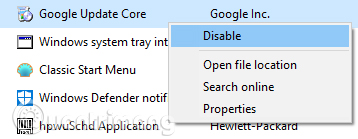
<p style="text-align: justify;">Để vô hiệu hoá một chương trình tải khi khởi động, hãy nhấp chuột phải vào nó từ danh sách và nhấp vào&nbsp;<strong>Disable</strong>. Bạn có thể thêm chương trình sau bằng cách nhập nhấp chuột phải vào chương trình và click vào&nbsp;<strong>Enable</strong>. Vô hiệu hoá những chương trình có tác động cao hoặc trung bình để tăng tốc khởi động hơn là các chương trình ở mức thấp, nhưng mọi thứ đều hữu ích, do vậy bạn nên dành thời gian xem hết các chương trình này và vô hiệu hóa nó nếu không cần thiết.</p>

<div style="text-align: justify;">&nbsp;</div>

<h2 style="text-align: justify;">Các chương trình khởi động ẩn</h2>

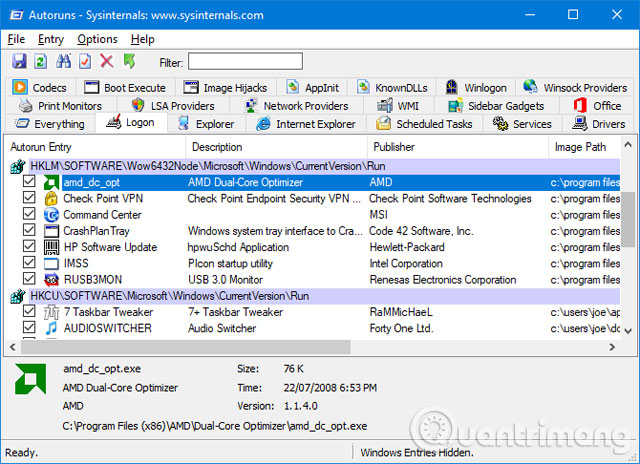
<p style="text-align: justify;">Trong khi&nbsp;<strong>Task Manager</strong>&nbsp;là một cách tuyệt vời và đơn giản để xem các chương trình khởi động, nhưng nó sẽ không hiển thị tất cả. Cách tốt nhất để đảm bảo thấy hết các chương trình này là sử dụng tiện ích chính thức của Microsoft được gọi là&nbsp;<a href="https://quantrimang.com/url?q=aHR0cHM6Ly9kb3dubG9hZC5jb20udm4vYXV0b3J1bnMtOTIwNQ%3D%3D" rel="nofollow noopener" target="_blank" title="Tải Autoruns cho Windows">Autoruns cho Windows</a>.</p>

<p style="text-align: justify;"><img alt="Chương trình Autoruns" data-adbro-processed="true" data-i="2" data-src="https://st.quantrimang.com/photos/image/2018/01/29/ung-dung-khoi-dong-cung-he-thong-3.jpg" data-was-processed="true" height="464" src="https://st.quantrimang.com/photos/image/2018/01/29/ung-dung-khoi-dong-cung-he-thong-3.jpg" width="640" /></p>

<div style="text-align: justify;"><iframe allow="autoplay" allowtransparency="true" aria-label="Advertisement" data-google-container-id="a!3" data-google-query-id="CLrA3bGVrYcDFZWU6QUdyyUx8g" data-load-complete="true" frameborder="0" height="0" hspace="0" id="aswift_2" marginheight="0" marginwidth="0" name="aswift_2" sandbox="allow-scripts allow-same-origin allow-forms allow-presentation" scrolling="no" tabindex="0" title="Advertisement" vspace="0" width="694"></iframe></div>

<p style="text-align: justify;">Tải về nó, khởi chạy ứng dụng và chuyển sang tab&nbsp;<strong>Logon</strong>. Bạn có thể nhấp vào một chương trình trong danh sách để xem thêm chi tiết về nó trong khung bên dưới, bao gồm tên và kích thước tệp tin. Để vô hiệu hóa khởi động cùng hệ thống, bạn chỉ cần bỏ chọn hộp và sau đó có thể cần xác nhận hành động bằng cách nhấp vào&nbsp;<strong>Run as administrator.</strong></p>

<h2 style="text-align: justify;">Những “thủ phạm” khiến máy tính khởi động chậm phổ biến</h2>

<h3 style="text-align: justify;">1. Game client</h3>

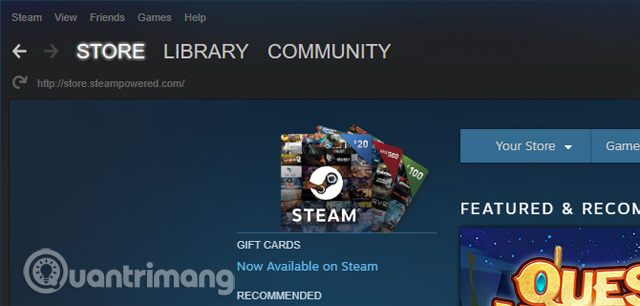
<p style="text-align: justify;">Nếu sử dụng các game client như&nbsp;Steam, Origin hoặc GOG Galaxy, nó sẽ mặc định bạn muốn khởi động cùng với hệ thống. Bởi vì trong khi chạy dưới nền những chương trình này vẫn có thể cập nhật được, do đó bạn sẽ không phải chờ đợi trong khi chơi.</p>

<p style="text-align: justify;"><img alt="Ứng dụng Steam" data-i="3" data-src="https://st.quantrimang.com/photos/image/2018/01/29/ung-dung-khoi-dong-cung-he-thong-4.jpg" data-was-processed="true" height="306" src="https://st.quantrimang.com/photos/image/2018/01/29/ung-dung-khoi-dong-cung-he-thong-4.jpg" width="640" /></p>

<p style="text-align: justify;">Vấn đề duy nhất là nó sẽ làm chậm quá trình khởi động. Nếu là một game thủ, bạn có thể cho phép một game client sử dụng nhiều nhất khởi động cùng hệ thống còn những client khác thì nên vô hiệu hóa chúng.</p>

<h3 style="text-align: justify;">2. Các ứng dụng chat</h3>

<p style="text-align: justify;"><img alt="Ứng dụng chat" data-i="4" data-src="https://st.quantrimang.com/photos/image/2018/01/29/ung-dung-khoi-dong-cung-he-thong-5.jpg" data-was-processed="true" height="306" src="https://st.quantrimang.com/photos/image/2018/01/29/ung-dung-khoi-dong-cung-he-thong-5.jpg" width="640" /></p>

<p style="text-align: justify;">Một số ứng dụng trò chuyện như Skype hoặc Discord khi khởi động cùng hệ thống sẽ ngay lập tức cho phép bạn bè của bạn biết bạn đang trực tuyến và có thể trò chuyện. Vấn đề là, nó cũng làm chậm quá trình khởi động. Skype đặc biệt được biết đến là một chương trình có nhiều lỗi. Người dùng nên xem xét việc vô hiệu hóa chúng.</p>

<div style="text-align: justify;">&nbsp;</div>

<h3 style="text-align: justify;">3. Các chương trình Adobe</h3>

<p style="text-align: justify;">Adobe Reader là chương trình nặng và không cần thiết, và bạn có thể tìm thấy nó được khởi động cùng hệ thống. Nếu không dùng đến nó có thể gỡ cài đặt hoặc nếu muốn giữ lại bạn nên vô hiệu hóa nó từ khởi động.</p>

<p style="text-align: justify;"><img alt="Các chương trình Adobe" data-i="5" data-src="https://st.quantrimang.com/photos/image/2018/01/29/ung-dung-khoi-dong-cung-he-thong-6.jpg" data-was-processed="true" height="320" src="https://st.quantrimang.com/photos/image/2018/01/29/ung-dung-khoi-dong-cung-he-thong-6.jpg" width="640" /></p>

<div style="text-align: justify;"><iframe allow="autoplay" allowtransparency="true" aria-label="Advertisement" data-google-container-id="a!4" data-google-query-id="CO6zgreVrYcDFQWK6QUdgVwNJw" data-load-complete="true" frameborder="0" height="0" hspace="0" id="aswift_3" marginheight="0" marginwidth="0" name="aswift_3" sandbox="allow-scripts allow-same-origin allow-forms allow-presentation" scrolling="no" tabindex="0" title="Advertisement" vspace="0" width="694"></iframe></div>

<p style="text-align: justify;">Bạn cũng có thể tìm thấy phần mềm Adobe ARM được liệt kê trong danh sách khởi động, phần mềm này được sử dụng để tự động cập nhật các chương trình của Adobe. Chương trình này có vẻ hữu ích hơn, nhưng vẫn là một chương trình khởi động không cần thiết.</p>

<h3 style="text-align: justify;">4. Lưu trữ đám mây</h3>

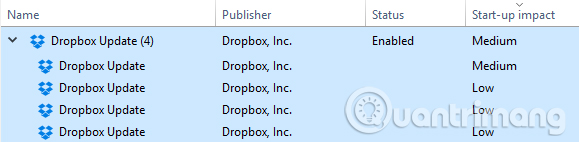
<p style="text-align: justify;">Thủ phạm phổ biến khác là các&nbsp;chương trình lưu trữ đám mây&nbsp;như OneDrive, Dropbox và Google Drive. Lý do chúng khởi chạy cùng Windows là để có thể tự động đồng bộ hóa các tệp của người dùng. Không có nghi ngờ gì đây là việc hữu ích nếu bạn thường xuyên sử dụng các dịch vụ lưu trữ đám mây.</p>

<p style="text-align: justify;"><img alt="Dịch vụ lưu trữ đám mây khởi động cùng hệ thống" data-i="6" data-src="https://st.quantrimang.com/photos/image/2018/01/29/ung-dung-khoi-dong-cung-he-thong-7.jpg" data-was-processed="true" height="142" src="https://st.quantrimang.com/photos/image/2018/01/29/ung-dung-khoi-dong-cung-he-thong-7.jpg" width="579" /></p>

<p style="text-align: justify;">Tuy nhiên, nếu không “đầu tư” vào hệ sinh thái lưu trữ trên đám mây và không yêu cầu đồng bộ hóa ngay lập tức, bạn nên vô hiệu hóa chúng khi khởi động. Hãy nhớ rằng, các tệp của bạn sẽ đồng bộ từ các thiết bị khác, nhưng bây giờ chỉ đồng bộ khi bạn mở thư mục đám mây ra.</p>

<h3 style="text-align: justify;">5. Tiện ích của Apple</h3>

<p style="text-align: justify;">Apple là một thủ phạm lớn khi nói đến các chương trình khởi động vô nghĩa. Nếu QuickTime “góp mặt” trong danh sách khởi động, bạn nên gỡ bỏ nó hoàn toàn. Apple không hỗ trợ và trình duyệt Internet của người dùng làm việc tốt hơn khi chơi video trực tiếp hơn so với QuickTime.</p>

<p style="text-align: justify;"><img alt="Tiện ích của Apple " data-i="7" data-src="https://st.quantrimang.com/photos/image/2018/01/29/ung-dung-khoi-dong-cung-he-thong-8.jpg" data-was-processed="true" height="320" src="https://st.quantrimang.com/photos/image/2018/01/29/ung-dung-khoi-dong-cung-he-thong-8.jpg" width="640" /></p>

<p style="text-align: justify;">iTunes Helper và Apple Push cũng có thể có ở đó, đặc biệt nếu bạn đã từng kết nối thiết bị iOS với máy tính. iTunes Helper đảm bảo rằng iTunes sẽ tự động khởi chạy khi cắm thiết bị iOS. Apple Push nhằm giúp hệ thống của người dùng giao tiếp với iCloud, cả hai đều có thể bị vô hiệu hóa.</p>

<h3 style="text-align: justify;">Những điều cần giữ</h3>

<p style="text-align: justify;">Những chương trình người dùng không nên vô hiệu hóa bao gồm&nbsp;phần mềm diệt virus&nbsp;và các chương trình hỗ trợ phần cứng hoặc thiết bị ngoại vi, như card đồ họa và chuột. Vô hiệu hoá những chương trình này khi khởi động có thể làm chúng hoạt động không đúng.</p>

<h2 style="text-align: justify;">Gỡ cài đặt chương trình</h2>

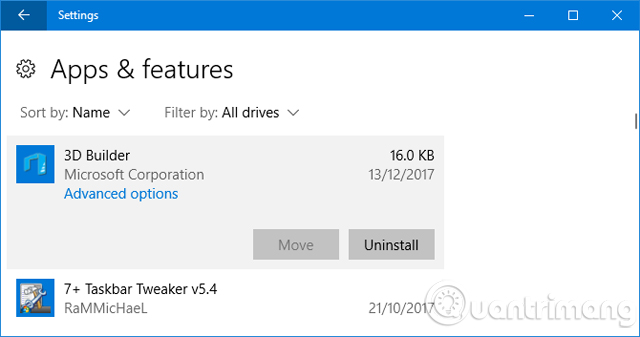
<p style="text-align: justify;">Nếu muốn thoát khỏi một chương trình hoàn toàn từ hệ thống, không cho khởi động, có một cách dễ dàng là gỡ cài đặt chương trình.</p>

<p style="text-align: justify;"><img alt="Gỡ cài đặt chương trình " data-i="8" data-src="https://st.quantrimang.com/photos/image/2018/01/29/ung-dung-khoi-dong-cung-he-thong-9.jpg" data-was-processed="true" height="337" src="https://st.quantrimang.com/photos/image/2018/01/29/ung-dung-khoi-dong-cung-he-thong-9.jpg" width="640" /></p>

<p style="text-align: justify;">Nhấn phím<strong>&nbsp;Windows + I</strong>&nbsp;để mở&nbsp;<strong>Settings</strong>&nbsp;và nhấp vào&nbsp;<strong>Apps</strong>. Sử dụng trường&nbsp;<strong>Search this list</strong>&nbsp;này để nhanh chóng lọc danh sách. Khi bạn đã tìm chương trình muốn xóa, hãy nhấp vào chương trình và nhấp vào&nbsp;<strong>Uninstall</strong>.</p>

<div style="text-align: justify;">&nbsp;</div>

<p style="text-align: justify;">Hy vọng rằng bài hướng dẫn này đã giúp bạn kiểm soát các chương trình khởi động cùng hệ thống, chỉ để lại những chương trình cần thiết. Nếu muốn tăng tốc máy tính Windows 10, bạn có xem bài hướng dẫn về&nbsp;Tăng tốc Windows 10 từ quá trình khởi động cho đến quá trình tắt máy</p>
		</div>
				<div id="author">
						<p>
				<strong>Nguồn tin:</strong>
				Quantrimang.com:
			</p>
		</div>
	</div>
	<div id="footer" class="clearfix">
		<div id="url">
			<strong>URL của bản tin này: </strong><a href="https://www.nguoicodonvn2008.info/vi/news/savefile/kien-thuc-may-tinh/day-la-thu-pham-khien-may-tinh-windows-10-khoi-dong-cham-8690.html" title="Đây là &quot;thủ phạm&quot; khiến máy tính Windows 10 khởi động chậm">https://www.nguoicodonvn2008.info/vi/news/savefile/kien-thuc-may-tinh/day-la-thu-pham-khien-may-tinh-windows-10-khoi-dong-cham-8690.html</a>

		</div>
		<div class="clear"></div>
		<div class="copyright">
			&copy; .&#x3A; Nguoicodonvn2008.info - Cõi lòng người cô đơn &#x3A;.
		</div>
		<div id="contact">
			<a href="mailto:admin@nguoicodonvn2008.info">admin@nguoicodonvn2008.info</a>
		</div>
	</div>
</div>
        <div id="timeoutsess" class="chromeframe">
            Bạn đã không sử dụng Site, <a onclick="timeoutsesscancel();" href="https://nguoicodonvn2008.info/#">Bấm vào đây để duy trì trạng thái đăng nhập</a>. Thời gian chờ: <span id="secField"> 60 </span> giây
        </div>
        <div id="openidResult" class="nv-alert" style="display:none"></div>
        <div id="openidBt" data-result="" data-redirect=""></div>
		</script>
		<div class="car-top">
  <span><img src="https://nguoicodonvn2008.info/themes/default/images/car.png" alt=""></span>
</div>
<script src="https://nguoicodonvn2008.info/assets/js/jquery/jquery.min.js"></script>
<script>var nv_base_siteurl="/",nv_lang_data="vi",nv_lang_interface="vi",nv_name_variable="nv",nv_fc_variable="op",nv_lang_variable="language",nv_module_name="news",nv_func_name="savefile",nv_is_user=0, nv_my_ofs=-4,nv_my_abbr="EDT",nv_cookie_prefix="nv4c_e856T",nv_check_pass_mstime=1738000,nv_area_admin=0,nv_safemode=0,theme_responsive=0,nv_recaptcha_ver=2,nv_recaptcha_sitekey="",nv_recaptcha_type="image",XSSsanitize=1;</script>
<script src="https://nguoicodonvn2008.info/assets/js/language/vi.js"></script>
<script src="https://nguoicodonvn2008.info/assets/js/DOMPurify/purify3.js"></script>
<script src="https://nguoicodonvn2008.info/assets/js/global.js"></script>
<script src="https://nguoicodonvn2008.info/assets/js/site.js"></script>
<script src="https://nguoicodonvn2008.info/themes/default/js/news.js"></script>
<script src="https://nguoicodonvn2008.info/themes/default/js/main.js"></script>
<script src="https://nguoicodonvn2008.info/themes/default/js/custom.js"></script>
<script type="application/ld+json">
        {
            "@context": "https://schema.org",
            "@type": "Organization",
            "url": "https://nguoicodonvn2008.info",
            "logo": "https://nguoicodonvn2008.info/uploads/angel.gif"
        }
        </script>
<script src="https://nguoicodonvn2008.info/themes/default/js/bootstrap.min.js"></script>
<script type="text/javascript">
var $scrolltop = $('.car-top');
$scrolltop.on('click', function () {
    $('html,body').animate({
        scrollTop: 0
    }, 800);
    $(this).addClass("car-run");
    setTimeout(function(){ $scrolltop.removeClass('car-run');}, 1000);
    return false;
});
$(window).on('scroll', function ()
{ 
    if($(window).scrollTop() >= 200)
    {
        $scrolltop.addClass("show");
        $scrolltop.addClass("car-down");
    }
    else
    {
       $scrolltop.removeClass("show");
       setTimeout(function(){ $scrolltop.removeClass('car-down');}, 300);
    }
});
</script>
</body>
</html>