<!DOCTYPE html>
    <html lang="vi" xmlns="http://www.w3.org/1999/xhtml" prefix="og: http://ogp.me/ns#">
    <head>
<title>Cài đặt CentOS trên WSL Windows 10</title>
<meta name="description" content="Cài đặt CentOS trên WSL Windows 10 - Savefile - Tin Tức -...">
<meta name="author" content=".: Nguoicodonvn2008.info - Cõi lòng người cô đơn :.">
<meta name="copyright" content=".: Nguoicodonvn2008.info - Cõi lòng người cô đơn :. [admin@nguoicodonvn2008.info]">
<meta name="robots" content="index, archive, follow, noodp">
<meta name="googlebot" content="index,archive,follow,noodp">
<meta name="msnbot" content="all,index,follow">
<meta name="generator" content="NukeViet v4.5">
<meta http-equiv="Content-Type" content="text/html; charset=utf-8">
<meta property="og:title" content="Cài đặt CentOS trên WSL Windows 10">
<meta property="og:type" content="website">
<meta property="og:description" content="Savefile - Tin Tức - https&#x3A;&#x002F;&#x002F;www.nguoicodonvn2008.info&#x002F;vi&#x002F;news&#x002F;savefile&#x002F;kien-thuc-may-tinh&#x002F;cai-dat-centos-tren-wsl-windows-10-378.html">
<meta property="og:site_name" content=".&#x3A; Nguoicodonvn2008.info - Cõi lòng người cô đơn &#x3A;.">
<meta property="og:url" content="https://www.nguoicodonvn2008.info/vi/news/savefile/kien-thuc-may-tinh/cai-dat-centos-tren-wsl-windows-10-378.html">
<link rel="shortcut icon" href="https://nguoicodonvn2008.info/favicon.ico">
<link rel="canonical" href="https://www.nguoicodonvn2008.info/vi/news/savefile/kien-thuc-may-tinh/cai-dat-centos-tren-wsl-windows-10-378.html">
<link rel="alternate" href="https://nguoicodonvn2008.info/vi/news/rss/" title="Tin Tức" type="application/rss+xml">
<link rel="alternate" href="https://nguoicodonvn2008.info/vi/news/rss/karaoke-dual/" title="Tin Tức - Karaoke Dual" type="application/rss+xml">
<link rel="alternate" href="https://nguoicodonvn2008.info/vi/news/rss/nhac-tre/" title="Tin Tức - Nhạc trẻ" type="application/rss+xml">
<link rel="alternate" href="https://nguoicodonvn2008.info/vi/news/rss/tru-tinh/" title="Tin Tức - Trữ tình" type="application/rss+xml">
<link rel="alternate" href="https://nguoicodonvn2008.info/vi/news/rss/nuoc-ngoai/" title="Tin Tức - Nước ngoài" type="application/rss+xml">
<link rel="alternate" href="https://nguoicodonvn2008.info/vi/news/rss/remix/" title="Tin Tức - Remix" type="application/rss+xml">
<link rel="alternate" href="https://nguoicodonvn2008.info/vi/news/rss/tam-su-tinh-yeu/" title="Tin Tức - Tâm sự tình yêu" type="application/rss+xml">
<link rel="alternate" href="https://nguoicodonvn2008.info/vi/news/rss/tho-suu-tam/" title="Tin Tức - Thơ sưu tầm" type="application/rss+xml">
<link rel="alternate" href="https://nguoicodonvn2008.info/vi/news/rss/cuoc-song/" title="Tin Tức - Cuộc sống" type="application/rss+xml">
<link rel="alternate" href="https://nguoicodonvn2008.info/vi/news/rss/phan-mem/" title="Tin Tức - Phần mềm" type="application/rss+xml">
<link rel="alternate" href="https://nguoicodonvn2008.info/vi/news/rss/kien-thuc-may-tinh/" title="Tin Tức - Kiến thức máy tính" type="application/rss+xml">
<link rel="alternate" href="https://nguoicodonvn2008.info/vi/news/rss/hoc-tap/" title="Tin Tức - Học tập" type="application/rss+xml">
<link rel="alternate" href="https://nguoicodonvn2008.info/vi/news/rss/tai-lieu/" title="Tin Tức - Tài liệu" type="application/rss+xml">
<link rel="alternate" href="https://nguoicodonvn2008.info/vi/news/rss/de-thi/" title="Tin Tức - Đề thi" type="application/rss+xml">
<link rel="preload" as="style" href="https://nguoicodonvn2008.info/assets/css/font-awesome.min.css" type="text/css">
<link rel="preload" as="style" href="https://nguoicodonvn2008.info/themes/default/css/bootstrap.non-responsive.css" type="text/css">
<link rel="preload" as="style" href="https://nguoicodonvn2008.info/themes/default/css/style.css" type="text/css">
<link rel="preload" as="style" href="https://nguoicodonvn2008.info/themes/default/css/style.non-responsive.css" type="text/css">
<link rel="preload" as="style" href="https://nguoicodonvn2008.info/themes/default/css/news.css" type="text/css">
<link rel="preload" as="style" href="https://nguoicodonvn2008.info/themes/default/css/custom.css" type="text/css">
<link rel="preload" as="script" href="https://nguoicodonvn2008.info/assets/js/jquery/jquery.min.js" type="text/javascript">
<link rel="preload" as="script" href="https://nguoicodonvn2008.info/assets/js/language/vi.js" type="text/javascript">
<link rel="preload" as="script" href="https://nguoicodonvn2008.info/assets/js/DOMPurify/purify3.js" type="text/javascript">
<link rel="preload" as="script" href="https://nguoicodonvn2008.info/assets/js/global.js" type="text/javascript">
<link rel="preload" as="script" href="https://nguoicodonvn2008.info/assets/js/site.js" type="text/javascript">
<link rel="preload" as="script" href="https://nguoicodonvn2008.info/themes/default/js/news.js" type="text/javascript">
<link rel="preload" as="script" href="https://nguoicodonvn2008.info/themes/default/js/main.js" type="text/javascript">
<link rel="preload" as="script" href="https://nguoicodonvn2008.info/themes/default/js/custom.js" type="text/javascript">
<link rel="preload" as="script" href="https://nguoicodonvn2008.info/themes/default/js/bootstrap.min.js" type="text/javascript">
<link rel="stylesheet" href="https://nguoicodonvn2008.info/assets/css/font-awesome.min.css">
<link rel="stylesheet" href="https://nguoicodonvn2008.info/themes/default/css/bootstrap.non-responsive.css">
<link rel="stylesheet" href="https://nguoicodonvn2008.info/themes/default/css/style.css">
<link rel="stylesheet" href="https://nguoicodonvn2008.info/themes/default/css/style.non-responsive.css">
<link rel="StyleSheet" href="https://nguoicodonvn2008.info/themes/default/css/news.css">
<link rel="stylesheet" href="https://nguoicodonvn2008.info/themes/default/css/custom.css">
<style type="text/css">
	body{background: #fff;}
</style>
    </head>
    <body>
<div id="print">
	<div id="hd_print">
		<h2 class="pull-left">.&#x3A; Nguoicodonvn2008.info - Cõi lòng người cô đơn &#x3A;.</h2>
		<p class="pull-right"><a title=".&#x3A; Nguoicodonvn2008.info - Cõi lòng người cô đơn &#x3A;." href="https://nguoicodonvn2008.info/">https://nguoicodonvn2008.info</a></p>
	</div>
	<div class="clear"></div>
	<hr />
	<div id="content">
		<h1>Cài đặt CentOS trên WSL Windows 10</h1>
		<ul class="list-inline">
			<li>Thứ sáu - 05/07/2019 01:21</li>
			<li class="hidden-print txtrequired"><em class="fa fa-print">&nbsp;</em><a title="In ra" href="javascript:;" onclick="window.print()">In ra</a></li>
			<li class="hidden-print txtrequired"><em class="fa fa-power-off">&nbsp;</em><a title="Đóng cửa sổ này" href="javascript:;" onclick="window.close()">Đóng cửa sổ này</a></li>
		</ul>
		<div class="clear"></div>
		<div id="hometext">
		</div>
				<div class="imghome">
			<img alt="Cài đặt CentOS trên WSL Windows 10" src="https://st.quantrimang.com/photos/image/2019/07/04/cai-dat-centos-tren-wsl-wins-10-7.jpg" width="460" class="img-thumbnail" />
		</div>
		<div class="clear"></div>
		<div id="bodytext" class="clearfix">
			<p><em>Hãy cùng&nbsp;<strong>Quantrimang.com</strong>&nbsp;tìm hiểu cách đơn giản để cài đặt thủ công CentOS trên Windows 10 Subsystem for Linux và chạy các lệnh trong kho lưu trữ YUM hoặc RPM của RHEL.</em></p>

<p>Windows Subsystem for Linux là một tính năng tiên tiến cho người dùng Windows. Windows Subsystem for Linux cho phép bạn thực hành và tìm hiểu các lệnh của hệ điều hành Linux trực tiếp trên hệ thống&nbsp;Windows 10&nbsp;mà không cần sử dụng&nbsp;phần mềm máy ảo như VirtualBox.</p>

<p>Windows Subsystem for Linux, còn được gọi ngắn gọn là WSL, được Microsoft triển khai trong các hệ điều hành Windows 10 và Windows Server 2019, nhằm cung cấp khả năng tương thích và thực thi các file nhị phân của&nbsp;<a href="https://quantrimang.com/linux-os" title="Chuyên mục Linux">Linux</a>.</p>

<p>Để cài đặt image Linux Distro nói chung, người dùng phải phụ thuộc vào Microsoft Store, nơi có một số image gọn nhẹ được biên dịch sẵn. Hiện tại, image Linux WSL có sẵn là&nbsp;Ubuntu,&nbsp;Kali Linux, Debian, AlpinLinux, OpenSUSE và SUSE Enterprise Server. Do đó, nếu bạn muốn dùng thử một số hệ điều hành Linux như CentOS/RHEL (Red Hat Enterprise Linux) và&nbsp;Arch Linux&nbsp;thì phải tự cài đặt chúng trên Windows 10 Subsystem for Linux. Bài viết hôm nay sẽ chỉ cho bạn cách làm điều đó.</p>

<p><strong>Lưu ý</strong>: Trước khi cài đặt CentOS trên WSL, bạn phải kích hoạt Windows Subsystem for Linux. Nếu bạn không biết cách làm điều đó thì hãy đọc bài viết:&nbsp;<a href="https://quantrimang.com/chay-linux-tren-windows-10-khong-can-may-ao-day-la-18-dieu-ban-nen-biet-133727" title="Chạy Linux trên Windows 10 không cần máy ảo, đây là 18 điều bạn nên biết">Chạy Linux trên Windows 10 không cần máy ảo, đây là 18 điều bạn nên biết</a>&nbsp;để biết thêm chi tiết.</p>

<h2>Cách cài đặt CentOS trên Windows 10 Subsystem for Linux</h2>

<h3>Bước 1: Tải CentOS WSL</h3>

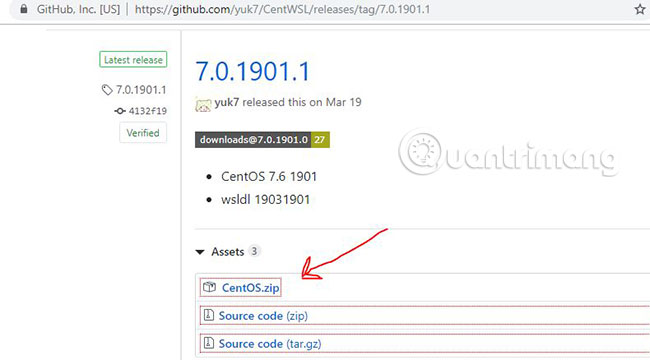
<p>Điều đầu tiên cần có là một CentOS trên WSL (Windows 10 FCU trở lên), dựa trên WSldl. Về cơ bản, đó là một file nén có chứa rootfs và một số file khác. CentOS dưới dạng WSL Instance là một dự án mã nguồn mở có sẵn trên Github, vì vậy hãy tải nó&nbsp;<a href="https://quantrimang.com/url?q=aHR0cHM6Ly9naXRodWIuY29tL3l1azcvQ2VudFdTTA%3D%3D" rel="nofollow noopener" target="_blank" title="Tải CentWSL">tại đây</a>. Phiên bản mới nhất tại thời điểm bài viết là CentOS 7.6.</p>

<p><img alt="Tải CentOS WSL" data-i="0" data-src="https://st.quantrimang.com/photos/image/2019/07/04/cai-dat-centos-tren-wsl-wins-10-1.jpg" data-was-processed="true" height="305" src="https://st.quantrimang.com/photos/image/2019/07/04/cai-dat-centos-tren-wsl-wins-10-1.jpg" width="550" /></p>

<h3>Bước 2: Giải nén thư mục WSL CentOS 7.x</h3>

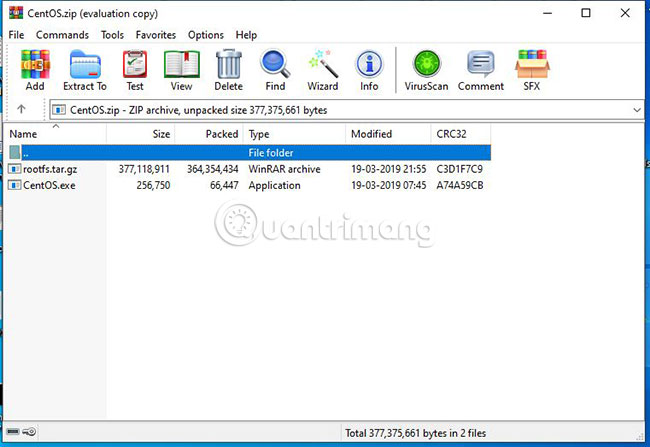
<p>Dung lượng của thư mục đã tải xuống sẽ vào khoảng 300MB và sau khi tải xuống, hãy nhấp chuột phải để giải nén thư mục này. Ở đây, bài viết đang sử dụng WinRAR để giải nén các file. Tuy nhiên, bạn có thể sử dụng chương trình Windows mặc định hoặc bất kỳ tùy chọn nào khác để giải nén nó.</p>

<p><img alt="Giải nén thư mục WSL CentOS 7.x" data-i="1" data-src="https://st.quantrimang.com/photos/image/2019/07/04/cai-dat-centos-tren-wsl-wins-10-2.jpg" data-was-processed="true" height="378" src="https://st.quantrimang.com/photos/image/2019/07/04/cai-dat-centos-tren-wsl-wins-10-2.jpg" width="550" /></p>

<h3>Bước 3: Chạy CentOS.exe để cài đặt CentOS trên Windows 10 Subsystem for Linux</h3>

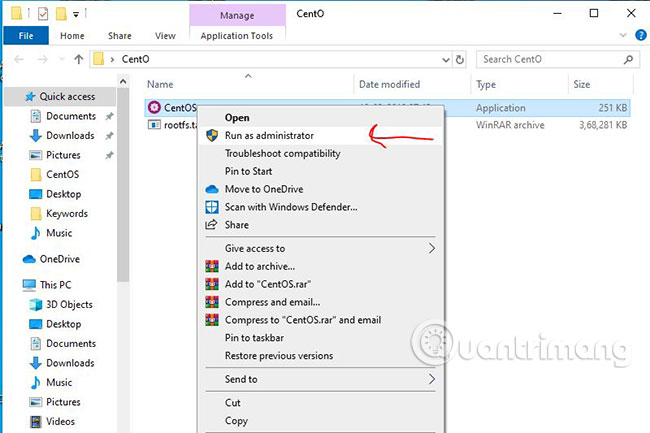
<p>Sau khi giải nén thư mục, bạn sẽ thấy 2 file trong đó: File thứ nhất là&nbsp;<strong>rootfs.tar.gz</strong>&nbsp;và file thứ hai là&nbsp;<strong>CentOS.exe.</strong>&nbsp;Bạn cần chạy CentOS.exe để giải nén các file và đăng ký chúng trên WSL. Nhấp chuột phải vào file và chọn&nbsp;<strong>Run as administrator</strong>.</p>

<p><img alt="Chạy CentOS.exe để cài đặt CentOS trên Windows 10 Subsystem for Linux" data-i="2" data-src="https://st.quantrimang.com/photos/image/2019/07/04/cai-dat-centos-tren-wsl-wins-10-3.jpg" data-was-processed="true" height="366" src="https://st.quantrimang.com/photos/image/2019/07/04/cai-dat-centos-tren-wsl-wins-10-3.jpg" width="550" /></p>
&nbsp;

<h3>Bước 4: Hoàn tất cài đặt</h3>

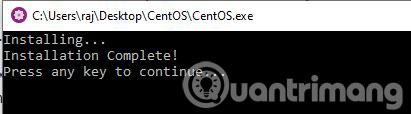
<p>Sau khi việc cài đặt hoàn tất, bạn sẽ nhận được một thông báo trên màn hình lệnh CentOS. Bây giờ, nhấn phím&nbsp;<code>Enter</code>&nbsp;để thoát khỏi thiết lập.</p>

<p><img alt="Hoàn tất cài đặt" data-i="3" data-src="https://st.quantrimang.com/photos/image/2019/07/04/cai-dat-centos-tren-wsl-wins-10-4.jpg" data-was-processed="true" height="114" src="https://st.quantrimang.com/photos/image/2019/07/04/cai-dat-centos-tren-wsl-wins-10-4.jpg" width="411" /></p>

<h3>Bước 5: Chạy CentOS 7 trên WSL</h3>

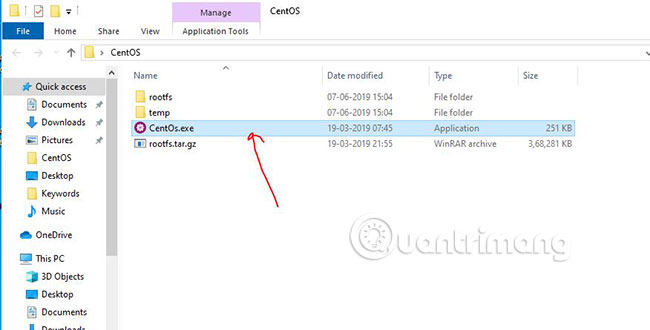
<p>Để chạy CentOS 7, một lần nữa hãy vào thư mục giải nén của CentOS cho WSL và lần này, bạn sẽ thấy 4 file. Một lần nữa, nhấp chuột phải vào&nbsp;<strong>Centos.exe</strong>&nbsp;và chọn&nbsp;<strong>Run as administrator</strong>.</p>

<p><img alt="Chạy CentOS 7 trên WSL" data-i="4" data-src="https://st.quantrimang.com/photos/image/2019/07/04/cai-dat-centos-tren-wsl-wins-10-5.jpg" data-was-processed="true" height="279" src="https://st.quantrimang.com/photos/image/2019/07/04/cai-dat-centos-tren-wsl-wins-10-5.jpg" width="550" /></p>

<p>Cuối cùng, hệ thống con Linux được cài đặt thủ công cho CentOS đã xuất hiện ở đây.</p>

<p><img alt="hệ thống con Linux được cài đặt thủ công cho CentOS đã xuất hiện" data-i="5" data-src="https://st.quantrimang.com/photos/image/2019/07/04/cai-dat-centos-tren-wsl-wins-10-6.jpg" data-was-processed="true" height="78" src="https://st.quantrimang.com/photos/image/2019/07/04/cai-dat-centos-tren-wsl-wins-10-6.jpg" width="455" /></p>

<h3>Bước 6: Lệnh cập nhật CentOS trên WSL</h3>

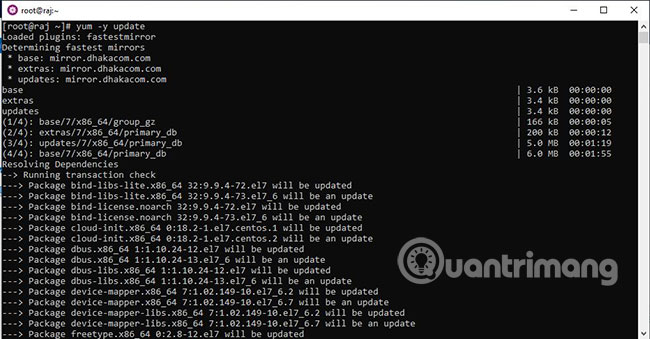
<p>Bạn có thể chạy bất kỳ lệnh nào muốn thực thi trên CentOS, chỉ để kiểm tra xem nó có hoạt động tốt hay không. Ví dụ đang chạy lệnh cập nhật CentOS bằng YUM.</p>

<pre id="pre0">
<code>yum -y update</code></pre>

<h3><img alt="Cập nhật CentOS" data-i="6" data-src="https://st.quantrimang.com/photos/image/2019/07/04/cai-dat-centos-tren-wsl-wins-10-7.jpg" data-was-processed="true" height="287" src="https://st.quantrimang.com/photos/image/2019/07/04/cai-dat-centos-tren-wsl-wins-10-7.jpg" width="550" /></h3>

<h3>Bước 7: Gỡ cài đặt CentOS 7 WSL</h3>

<p>Nếu trong tương lai bạn vô tình xóa thư mục CentOS WSL và muốn cài đặt lại, thì trước tiên, cần xóa cài đặt hiện có.</p>

<p>Để gỡ cài đặt CentOS 7 WSL, chỉ cần sử dụng lệnh đơn dưới đây:</p>

<pre id="pre1">
<code>CentOS.exe clean</code></pre>

<p>Sau đó, một lần nữa giải nén các file từ thư mục nén của CentOS mà bạn đã tải xuống ở trên và sau đó chạy&nbsp;<a href="https://quantrimang.com/cach-mo-powershell-voi-quyen-admin-tren-windows-10-154498" title="Cách mở PowerShell với quyền Admin trên Windows 10">Windows 10 PowerShell với quyền admin</a>, điều hướng đến thư mục được giải nén rồi chạy lệnh bên dưới:</p>

<pre id="pre2">
<code>./CentOS.exe clean</code></pre>

<p><img alt="Gỡ cài đặt CentOS 7 WSL" data-i="7" data-src="https://st.quantrimang.com/photos/image/2019/07/04/cai-dat-centos-tren-wsl-wins-10-8.jpg" data-was-processed="true" height="98" src="https://st.quantrimang.com/photos/image/2019/07/04/cai-dat-centos-tren-wsl-wins-10-8.jpg" width="550" /></p>

<p>Để cài đặt lại, hãy chạy file thực thi&nbsp;<strong>CentOS.exe</strong>&nbsp;trong cùng một thư mục được trích xuất để đăng ký các file vào Windows 10 Subsystem for Linux.</p>

<p>Chúc bạn thực hiện thành công!</p>
		</div>
				<div id="author">
						<p>
				<strong>Nguồn tin:</strong>
				Quantrimang.com
			</p>
		</div>
	</div>
	<div id="footer" class="clearfix">
		<div id="url">
			<strong>URL của bản tin này: </strong><a href="https://www.nguoicodonvn2008.info/vi/news/savefile/kien-thuc-may-tinh/cai-dat-centos-tren-wsl-windows-10-378.html" title="Cài đặt CentOS trên WSL Windows 10">https://www.nguoicodonvn2008.info/vi/news/savefile/kien-thuc-may-tinh/cai-dat-centos-tren-wsl-windows-10-378.html</a>

		</div>
		<div class="clear"></div>
		<div class="copyright">
			&copy; .&#x3A; Nguoicodonvn2008.info - Cõi lòng người cô đơn &#x3A;.
		</div>
		<div id="contact">
			<a href="mailto:admin@nguoicodonvn2008.info">admin@nguoicodonvn2008.info</a>
		</div>
	</div>
</div>
        <div id="timeoutsess" class="chromeframe">
            Bạn đã không sử dụng Site, <a onclick="timeoutsesscancel();" href="https://nguoicodonvn2008.info/#">Bấm vào đây để duy trì trạng thái đăng nhập</a>. Thời gian chờ: <span id="secField"> 60 </span> giây
        </div>
        <div id="openidResult" class="nv-alert" style="display:none"></div>
        <div id="openidBt" data-result="" data-redirect=""></div>
		</script>
		<div class="car-top">
  <span><img src="https://nguoicodonvn2008.info/themes/default/images/car.png" alt=""></span>
</div>
<script src="https://nguoicodonvn2008.info/assets/js/jquery/jquery.min.js"></script>
<script>var nv_base_siteurl="/",nv_lang_data="vi",nv_lang_interface="vi",nv_name_variable="nv",nv_fc_variable="op",nv_lang_variable="language",nv_module_name="news",nv_func_name="savefile",nv_is_user=0, nv_my_ofs=-4,nv_my_abbr="EDT",nv_cookie_prefix="nv4c_e856T",nv_check_pass_mstime=1738000,nv_area_admin=0,nv_safemode=0,theme_responsive=0,nv_recaptcha_ver=2,nv_recaptcha_sitekey="",nv_recaptcha_type="image",XSSsanitize=1;</script>
<script src="https://nguoicodonvn2008.info/assets/js/language/vi.js"></script>
<script src="https://nguoicodonvn2008.info/assets/js/DOMPurify/purify3.js"></script>
<script src="https://nguoicodonvn2008.info/assets/js/global.js"></script>
<script src="https://nguoicodonvn2008.info/assets/js/site.js"></script>
<script src="https://nguoicodonvn2008.info/themes/default/js/news.js"></script>
<script src="https://nguoicodonvn2008.info/themes/default/js/main.js"></script>
<script src="https://nguoicodonvn2008.info/themes/default/js/custom.js"></script>
<script type="application/ld+json">
        {
            "@context": "https://schema.org",
            "@type": "Organization",
            "url": "https://nguoicodonvn2008.info",
            "logo": "https://nguoicodonvn2008.info/uploads/angel.gif"
        }
        </script>
<script src="https://nguoicodonvn2008.info/themes/default/js/bootstrap.min.js"></script>
<script type="text/javascript">
var $scrolltop = $('.car-top');
$scrolltop.on('click', function () {
    $('html,body').animate({
        scrollTop: 0
    }, 800);
    $(this).addClass("car-run");
    setTimeout(function(){ $scrolltop.removeClass('car-run');}, 1000);
    return false;
});
$(window).on('scroll', function ()
{ 
    if($(window).scrollTop() >= 200)
    {
        $scrolltop.addClass("show");
        $scrolltop.addClass("car-down");
    }
    else
    {
       $scrolltop.removeClass("show");
       setTimeout(function(){ $scrolltop.removeClass('car-down');}, 300);
    }
});
</script>
</body>
</html>