<!DOCTYPE html>
    <html lang="vi" xmlns="http://www.w3.org/1999/xhtml" prefix="og: http://ogp.me/ns#">
    <head>
<title>Cách xóa trang Home khỏi ứng dụng Settings trong Windows 11</title>
<meta name="description" content="Cách xóa trang Home khỏi ứng dụng Settings trong Windows 11 - Savefile - Tin Tức -...">
<meta name="author" content=".: Nguoicodonvn2008.info - Cõi lòng người cô đơn :.">
<meta name="copyright" content=".: Nguoicodonvn2008.info - Cõi lòng người cô đơn :. [admin@nguoicodonvn2008.info]">
<meta name="robots" content="index, archive, follow, noodp">
<meta name="googlebot" content="index,archive,follow,noodp">
<meta name="msnbot" content="all,index,follow">
<meta name="generator" content="NukeViet v4.5">
<meta http-equiv="Content-Type" content="text/html; charset=utf-8">
<meta property="og:title" content="Cách xóa trang Home khỏi ứng dụng Settings trong Windows 11">
<meta property="og:type" content="website">
<meta property="og:description" content="Savefile - Tin Tức - https&#x3A;&#x002F;&#x002F;www.nguoicodonvn2008.info&#x002F;vi&#x002F;news&#x002F;savefile&#x002F;kien-thuc-may-tinh&#x002F;cach-xoa-trang-home-khoi-ung-dung-settings-trong-windows-11-7752.html">
<meta property="og:site_name" content=".&#x3A; Nguoicodonvn2008.info - Cõi lòng người cô đơn &#x3A;.">
<meta property="og:url" content="https://www.nguoicodonvn2008.info/vi/news/savefile/kien-thuc-may-tinh/cach-xoa-trang-home-khoi-ung-dung-settings-trong-windows-11-7752.html">
<link rel="shortcut icon" href="https://nguoicodonvn2008.info/favicon.ico">
<link rel="canonical" href="https://www.nguoicodonvn2008.info/vi/news/savefile/kien-thuc-may-tinh/cach-xoa-trang-home-khoi-ung-dung-settings-trong-windows-11-7752.html">
<link rel="alternate" href="https://nguoicodonvn2008.info/vi/news/rss/" title="Tin Tức" type="application/rss+xml">
<link rel="alternate" href="https://nguoicodonvn2008.info/vi/news/rss/karaoke-dual/" title="Tin Tức - Karaoke Dual" type="application/rss+xml">
<link rel="alternate" href="https://nguoicodonvn2008.info/vi/news/rss/nhac-tre/" title="Tin Tức - Nhạc trẻ" type="application/rss+xml">
<link rel="alternate" href="https://nguoicodonvn2008.info/vi/news/rss/tru-tinh/" title="Tin Tức - Trữ tình" type="application/rss+xml">
<link rel="alternate" href="https://nguoicodonvn2008.info/vi/news/rss/nuoc-ngoai/" title="Tin Tức - Nước ngoài" type="application/rss+xml">
<link rel="alternate" href="https://nguoicodonvn2008.info/vi/news/rss/remix/" title="Tin Tức - Remix" type="application/rss+xml">
<link rel="alternate" href="https://nguoicodonvn2008.info/vi/news/rss/tam-su-tinh-yeu/" title="Tin Tức - Tâm sự tình yêu" type="application/rss+xml">
<link rel="alternate" href="https://nguoicodonvn2008.info/vi/news/rss/tho-suu-tam/" title="Tin Tức - Thơ sưu tầm" type="application/rss+xml">
<link rel="alternate" href="https://nguoicodonvn2008.info/vi/news/rss/cuoc-song/" title="Tin Tức - Cuộc sống" type="application/rss+xml">
<link rel="alternate" href="https://nguoicodonvn2008.info/vi/news/rss/phan-mem/" title="Tin Tức - Phần mềm" type="application/rss+xml">
<link rel="alternate" href="https://nguoicodonvn2008.info/vi/news/rss/kien-thuc-may-tinh/" title="Tin Tức - Kiến thức máy tính" type="application/rss+xml">
<link rel="alternate" href="https://nguoicodonvn2008.info/vi/news/rss/hoc-tap/" title="Tin Tức - Học tập" type="application/rss+xml">
<link rel="alternate" href="https://nguoicodonvn2008.info/vi/news/rss/tai-lieu/" title="Tin Tức - Tài liệu" type="application/rss+xml">
<link rel="alternate" href="https://nguoicodonvn2008.info/vi/news/rss/de-thi/" title="Tin Tức - Đề thi" type="application/rss+xml">
<link rel="preload" as="style" href="https://nguoicodonvn2008.info/assets/css/font-awesome.min.css" type="text/css">
<link rel="preload" as="style" href="https://nguoicodonvn2008.info/themes/default/css/bootstrap.non-responsive.css" type="text/css">
<link rel="preload" as="style" href="https://nguoicodonvn2008.info/themes/default/css/style.css" type="text/css">
<link rel="preload" as="style" href="https://nguoicodonvn2008.info/themes/default/css/style.non-responsive.css" type="text/css">
<link rel="preload" as="style" href="https://nguoicodonvn2008.info/themes/default/css/news.css" type="text/css">
<link rel="preload" as="style" href="https://nguoicodonvn2008.info/themes/default/css/custom.css" type="text/css">
<link rel="preload" as="script" href="https://nguoicodonvn2008.info/assets/js/jquery/jquery.min.js" type="text/javascript">
<link rel="preload" as="script" href="https://nguoicodonvn2008.info/assets/js/language/vi.js" type="text/javascript">
<link rel="preload" as="script" href="https://nguoicodonvn2008.info/assets/js/DOMPurify/purify3.js" type="text/javascript">
<link rel="preload" as="script" href="https://nguoicodonvn2008.info/assets/js/global.js" type="text/javascript">
<link rel="preload" as="script" href="https://nguoicodonvn2008.info/assets/js/site.js" type="text/javascript">
<link rel="preload" as="script" href="https://nguoicodonvn2008.info/themes/default/js/news.js" type="text/javascript">
<link rel="preload" as="script" href="https://nguoicodonvn2008.info/themes/default/js/main.js" type="text/javascript">
<link rel="preload" as="script" href="https://nguoicodonvn2008.info/themes/default/js/custom.js" type="text/javascript">
<link rel="preload" as="script" href="https://nguoicodonvn2008.info/themes/default/js/bootstrap.min.js" type="text/javascript">
<link rel="stylesheet" href="https://nguoicodonvn2008.info/assets/css/font-awesome.min.css">
<link rel="stylesheet" href="https://nguoicodonvn2008.info/themes/default/css/bootstrap.non-responsive.css">
<link rel="stylesheet" href="https://nguoicodonvn2008.info/themes/default/css/style.css">
<link rel="stylesheet" href="https://nguoicodonvn2008.info/themes/default/css/style.non-responsive.css">
<link rel="StyleSheet" href="https://nguoicodonvn2008.info/themes/default/css/news.css">
<link rel="stylesheet" href="https://nguoicodonvn2008.info/themes/default/css/custom.css">
<style type="text/css">
	body{background: #fff;}
</style>
    </head>
    <body>
<div id="print">
	<div id="hd_print">
		<h2 class="pull-left">.&#x3A; Nguoicodonvn2008.info - Cõi lòng người cô đơn &#x3A;.</h2>
		<p class="pull-right"><a title=".&#x3A; Nguoicodonvn2008.info - Cõi lòng người cô đơn &#x3A;." href="https://nguoicodonvn2008.info/">https://nguoicodonvn2008.info</a></p>
	</div>
	<div class="clear"></div>
	<hr />
	<div id="content">
		<h1>Cách xóa trang Home khỏi ứng dụng Settings trong Windows 11</h1>
		<ul class="list-inline">
			<li>Thứ sáu - 10/11/2023 09:08</li>
			<li class="hidden-print txtrequired"><em class="fa fa-print">&nbsp;</em><a title="In ra" href="javascript:;" onclick="window.print()">In ra</a></li>
			<li class="hidden-print txtrequired"><em class="fa fa-power-off">&nbsp;</em><a title="Đóng cửa sổ này" href="javascript:;" onclick="window.close()">Đóng cửa sổ này</a></li>
		</ul>
		<div class="clear"></div>
		<div id="hometext">
		</div>
				<div class="imghome">
			<img alt="Cách xóa trang Home khỏi ứng dụng Settings trong Windows 11" src="https://st.quantrimang.com/photos/image/2023/11/10/xoa-trang-home-khoi-settings-2.jpg" width="460" class="img-thumbnail" />
		</div>
		<div class="clear"></div>
		<div id="bodytext" class="clearfix">
			<p style="text-align: justify;">Trang Home trong ứng dụng Settings hiển thị các thẻ tương tác cung cấp thông tin về hệ thống và cung cấp những shortcut đến các cài đặt phổ biến. Tuy nhiên, nếu không phải là người yêu thích phần trang Home mới, bạn có thể xóa nó khỏi ứng dụng Settings bằng hai phương pháp nhanh chóng.</p>

<p style="text-align: justify;">Bạn có thể ẩn trang Home bằng Group Policy Editor hoặc Registry Editor. Hướng dẫn này sẽ hướng dẫn bạn thực hiện cả hai phương pháp.</p>

<h2 style="text-align: justify;">1. Sử dụng Group Policy Editor để xóa trang Home</h2>

<p style="text-align: justify;">Local Group Policy Editor trên Windows giúp việc sửa đổi các cài đặt hệ thống nâng cao khác nhau trở nên dễ dàng. Trong số nhiều tùy chọn, nó cho phép bạn quản lý các trang được hiển thị trong ứng dụng Settings. Vì vậy, bạn có thể sử dụng Local Group Policy Editor để ẩn tab Home khỏi ứng dụng Settings Windows 11.</p>

<p style="text-align: justify;"><strong>Lưu ý</strong>: Group Policy Editor chỉ có thể truy cập được trên các phiên bản Windows Professional, Education và Enterprise. Nếu đang sử dụng Windows Home, bạn có thể&nbsp;bật Local Group Policy Editor trong Windows&nbsp;theo cách này.</p>

<ol>
	<li style="text-align: justify;">Nhấn&nbsp;<strong>Win + S</strong>&nbsp;để truy cập menu tìm kiếm.</li>
	<li style="text-align: justify;">Nhập&nbsp;<strong>gpedit.msc</strong>&nbsp;vào hộp và chọn kết quả đầu tiên xuất hiện.</li>
	<li style="text-align: justify;">Chọn&nbsp;<strong>Yes</strong>&nbsp;khi lời nhắc User Account Control (UAC) xuất hiện.</li>
	<li style="text-align: justify;">Trong cửa sổ Group Policy Editor cục bộ, sử dụng khung bên trái để điều hướng đến&nbsp;<strong>Computer Configuration &gt; Administrative Templates &gt; Control Panel</strong>.</li>
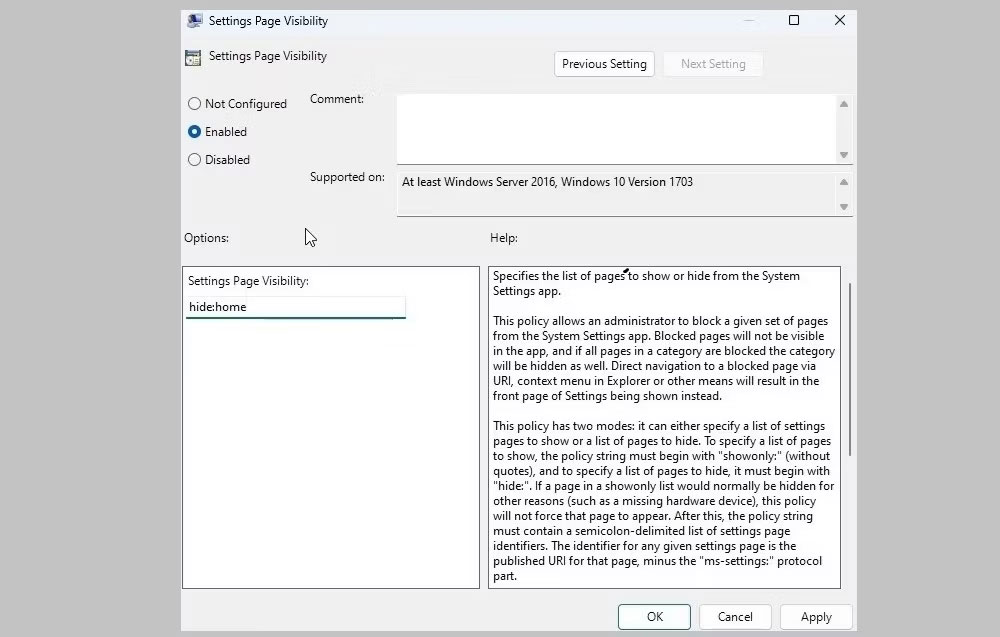
	<li style="text-align: justify;">Nhấp đúp vào policy&nbsp;<strong>Settings Page Visibility</strong>&nbsp;ở khung bên phải.</li>
	<li style="text-align: justify;">Chọn tùy chọn&nbsp;<strong>Enabled</strong>.</li>
	<li style="text-align: justify;">Trong hộp&nbsp;<strong>Options</strong>, nhập&nbsp;<strong>hide:home</strong>&nbsp;vào trường văn bản bên cạnh&nbsp;<strong>Settings Page Visibility</strong>.</li>
	<li style="text-align: justify;">Nhấp vào&nbsp;<strong>Apply &gt; OK</strong>.</li>
</ol>

<figure>
<div style="text-align: justify;"><img alt="Settings Page Visibility trên Windows" data-i="0" data-src="https://st.quantrimang.com/photos/image/2023/11/10/xoa-trang-home-khoi-settings-1.jpg" data-was-processed="true" height="637" src="https://st.quantrimang.com/photos/image/2023/11/10/xoa-trang-home-khoi-settings-1.jpg" width="1000" /></div>

<figcaption>
<div style="text-align: justify;">Settings Page Visibility trên Windows</div>
</figcaption>
</figure>

<p style="text-align: justify;">Trang Home sẽ bị ẩn trên ứng dụng Settings. Nếu bạn muốn xem tab Home bất kỳ lúc nào, hãy lặp lại các bước trên và đặt policy&nbsp;<strong>Settings Page Visibility</strong>&nbsp;thành&nbsp;<strong>Disabled</strong>&nbsp;hoặc&nbsp;<strong>Not</strong>&nbsp;<strong>configured</strong>.</p>

<h2 style="text-align: justify;">2. Sử dụng Registry Editor để xóa trang Home</h2>

<p style="text-align: justify;">Nếu không thể truy cập Group Policy Editor trên PC Windows, bạn cũng có thể xóa tab Home khỏi ứng dụng Settings Windows 11 bằng cách thực hiện một số thay đổi đối với file registry.</p>

<p style="text-align: justify;">Như bạn có thể đã biết, file registry lưu trữ các Settings quan trọng cho Windows và ứng dụng của bạn. Thực hiện các thay đổi không chính xác đối với registry có thể dẫn đến những vấn đề nghiêm trọng. Do đó, bạn nên sao lưu tất cả các file registry hoặc tạo điểm khôi phục trước khi tiếp tục. Điều này sẽ cho phép bạn khôi phục registry Windows về trạng thái trước đó nếu có sự cố.</p>

<p style="text-align: justify;">Để ẩn tab Home khỏi ứng dụng Settings bằng Registry Editor, hãy làm theo các bước sau:</p>

<ol>
	<li style="text-align: justify;">Nhấn&nbsp;<strong>Win + R</strong>&nbsp;để&nbsp;mở hộp thoại Run.</li>
	<li style="text-align: justify;">Nhập&nbsp;<strong>regedit</strong>&nbsp;vào hộp văn bản và nhấn&nbsp;<strong>Enter</strong>.</li>
	<li style="text-align: justify;">Chọn&nbsp;<strong>Yes</strong>&nbsp;khi lời nhắc User Account Control (UAC) xuất hiện.</li>
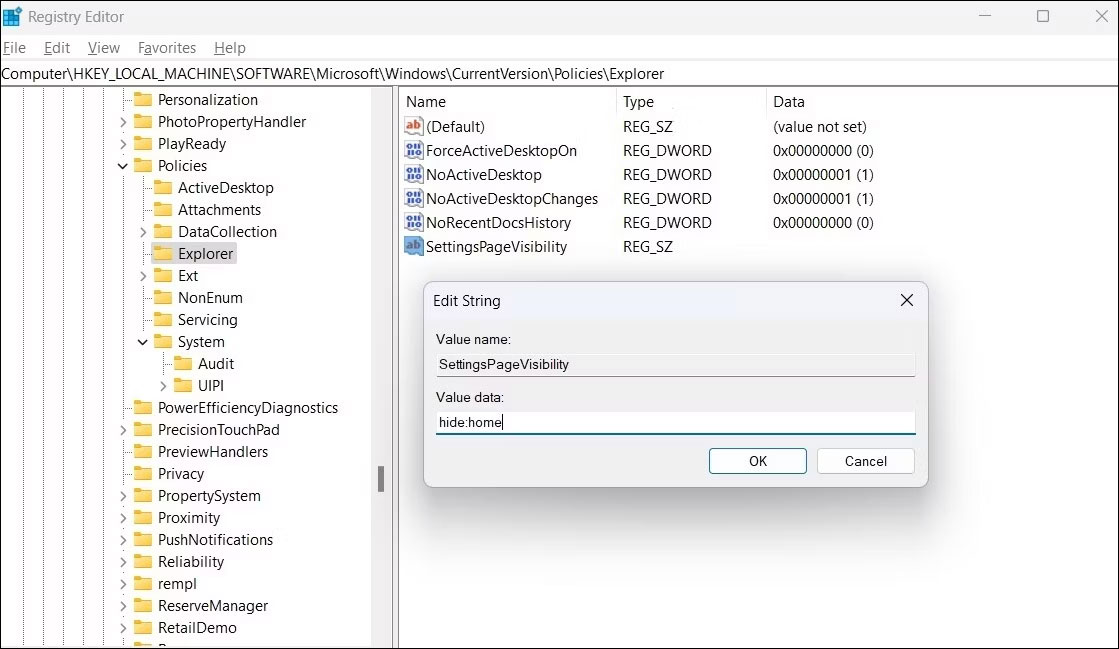
	<li style="text-align: justify;">Sử dụng ngăn bên trái để điều hướng đến&nbsp;<strong>HKEY_LOCAL_MACHINE &gt; SOFTWARE &gt; Microsoft &gt; Windows &gt; CurrentVersion &gt; Policies &gt; Explorer</strong>.</li>
	<li style="text-align: justify;">Nhấp chuột phải vào key&nbsp;<strong>Explorer</strong>, nhấp vào&nbsp;<strong>New</strong>&nbsp;và chọn&nbsp;<strong>String Value</strong>&nbsp;từ menu phụ. Đổi tên nó thành&nbsp;<strong>SettingsPageVisibility.</strong></li>
	<li style="text-align: justify;">Nhấp đúp vào giá trị&nbsp;<strong>SettingsPageVisibility</strong>&nbsp;để chỉnh sửa nó.</li>
	<li style="text-align: justify;">Nhập&nbsp;<strong>hide:home</strong>&nbsp;vào trường&nbsp;<strong>Value data</strong>&nbsp;và nhấp vào&nbsp;<strong>OK</strong>.</li>
</ol>

<figure>
<div style="text-align: justify;"><br />
<img alt="Chỉnh sửa giá trị chuỗi trong Registry Editor" data-adbro-processed="true" data-i="1" data-src="https://st.quantrimang.com/photos/image/2023/11/10/xoa-trang-home-khoi-settings-2.jpg" data-was-processed="true" height="649" src="https://st.quantrimang.com/photos/image/2023/11/10/xoa-trang-home-khoi-settings-2.jpg" width="1119" /></div>

<figcaption>
<div style="text-align: justify;">Chỉnh sửa giá trị chuỗi trong Registry Editor</div>
</figcaption>
</figure>

<p style="text-align: justify;">Khởi động lại PC&nbsp;của bạn sau khi hoàn thành các bước trên. Sau đó,&nbsp;mở Settings&nbsp;để xác nhận trang Home đã bị ẩn. Để khôi phục tab Home đã xóa sau này, hãy lặp lại các bước trên và xóa giá trị chuỗi&nbsp;<strong>SettingsPageVisibility.</strong></p>

<p style="text-align: justify;">Mặc dù màn hình Home cung cấp quyền truy cập nhanh chóng và dễ dàng vào các cài đặt được sử dụng thường xuyên nhưng bạn có thể thích chế độ xem cổ điển cũ hơn. Vì vậy, hãy ẩn nó khỏi chế độ xem và khôi phục khi cần thiết.</p>

<div style="text-align: justify;">&nbsp;</div>
		</div>
				<div id="author">
						<p>
				<strong>Nguồn tin:</strong>
				Quantrimang.com
			</p>
		</div>
	</div>
	<div id="footer" class="clearfix">
		<div id="url">
			<strong>URL của bản tin này: </strong><a href="https://www.nguoicodonvn2008.info/vi/news/savefile/kien-thuc-may-tinh/cach-xoa-trang-home-khoi-ung-dung-settings-trong-windows-11-7752.html" title="Cách xóa trang Home khỏi ứng dụng Settings trong Windows 11">https://www.nguoicodonvn2008.info/vi/news/savefile/kien-thuc-may-tinh/cach-xoa-trang-home-khoi-ung-dung-settings-trong-windows-11-7752.html</a>

		</div>
		<div class="clear"></div>
		<div class="copyright">
			&copy; .&#x3A; Nguoicodonvn2008.info - Cõi lòng người cô đơn &#x3A;.
		</div>
		<div id="contact">
			<a href="mailto:admin@nguoicodonvn2008.info">admin@nguoicodonvn2008.info</a>
		</div>
	</div>
</div>
        <div id="timeoutsess" class="chromeframe">
            Bạn đã không sử dụng Site, <a onclick="timeoutsesscancel();" href="https://nguoicodonvn2008.info/#">Bấm vào đây để duy trì trạng thái đăng nhập</a>. Thời gian chờ: <span id="secField"> 60 </span> giây
        </div>
        <div id="openidResult" class="nv-alert" style="display:none"></div>
        <div id="openidBt" data-result="" data-redirect=""></div>
		</script>
		<div class="car-top">
  <span><img src="https://nguoicodonvn2008.info/themes/default/images/car.png" alt=""></span>
</div>
<script src="https://nguoicodonvn2008.info/assets/js/jquery/jquery.min.js"></script>
<script>var nv_base_siteurl="/",nv_lang_data="vi",nv_lang_interface="vi",nv_name_variable="nv",nv_fc_variable="op",nv_lang_variable="language",nv_module_name="news",nv_func_name="savefile",nv_is_user=0, nv_my_ofs=-4,nv_my_abbr="EDT",nv_cookie_prefix="nv4c_e856T",nv_check_pass_mstime=1738000,nv_area_admin=0,nv_safemode=0,theme_responsive=0,nv_recaptcha_ver=2,nv_recaptcha_sitekey="",nv_recaptcha_type="image",XSSsanitize=1;</script>
<script src="https://nguoicodonvn2008.info/assets/js/language/vi.js"></script>
<script src="https://nguoicodonvn2008.info/assets/js/DOMPurify/purify3.js"></script>
<script src="https://nguoicodonvn2008.info/assets/js/global.js"></script>
<script src="https://nguoicodonvn2008.info/assets/js/site.js"></script>
<script src="https://nguoicodonvn2008.info/themes/default/js/news.js"></script>
<script src="https://nguoicodonvn2008.info/themes/default/js/main.js"></script>
<script src="https://nguoicodonvn2008.info/themes/default/js/custom.js"></script>
<script type="application/ld+json">
        {
            "@context": "https://schema.org",
            "@type": "Organization",
            "url": "https://nguoicodonvn2008.info",
            "logo": "https://nguoicodonvn2008.info/uploads/angel.gif"
        }
        </script>
<script src="https://nguoicodonvn2008.info/themes/default/js/bootstrap.min.js"></script>
<script type="text/javascript">
var $scrolltop = $('.car-top');
$scrolltop.on('click', function () {
    $('html,body').animate({
        scrollTop: 0
    }, 800);
    $(this).addClass("car-run");
    setTimeout(function(){ $scrolltop.removeClass('car-run');}, 1000);
    return false;
});
$(window).on('scroll', function ()
{ 
    if($(window).scrollTop() >= 200)
    {
        $scrolltop.addClass("show");
        $scrolltop.addClass("car-down");
    }
    else
    {
       $scrolltop.removeClass("show");
       setTimeout(function(){ $scrolltop.removeClass('car-down');}, 300);
    }
});
</script>
</body>
</html>