<!DOCTYPE html>
    <html lang="vi" xmlns="http://www.w3.org/1999/xhtml" prefix="og: http://ogp.me/ns#">
    <head>
<title>Cách xóa thư mục Camera Roll và Saved Pictures trong Windows 10</title>
<meta name="description" content="Cách xóa thư mục Camera Roll và Saved Pictures trong Windows 10 - Savefile - Tin Tức -...">
<meta name="author" content=".: Nguoicodonvn2008.info - Cõi lòng người cô đơn :.">
<meta name="copyright" content=".: Nguoicodonvn2008.info - Cõi lòng người cô đơn :. [admin@nguoicodonvn2008.info]">
<meta name="robots" content="index, archive, follow, noodp">
<meta name="googlebot" content="index,archive,follow,noodp">
<meta name="msnbot" content="all,index,follow">
<meta name="generator" content="NukeViet v4.5">
<meta http-equiv="Content-Type" content="text/html; charset=utf-8">
<meta property="og:title" content="Cách xóa thư mục Camera Roll và Saved Pictures trong Windows 10">
<meta property="og:type" content="website">
<meta property="og:description" content="Savefile - Tin Tức - https&#x3A;&#x002F;&#x002F;www.nguoicodonvn2008.info&#x002F;vi&#x002F;news&#x002F;savefile&#x002F;kien-thuc-may-tinh&#x002F;cach-xoa-thu-muc-camera-roll-va-saved-pictures-trong-windows-10-1625.html">
<meta property="og:site_name" content=".&#x3A; Nguoicodonvn2008.info - Cõi lòng người cô đơn &#x3A;.">
<meta property="og:url" content="https://www.nguoicodonvn2008.info/vi/news/savefile/kien-thuc-may-tinh/cach-xoa-thu-muc-camera-roll-va-saved-pictures-trong-windows-10-1625.html">
<link rel="shortcut icon" href="https://nguoicodonvn2008.info/favicon.ico">
<link rel="canonical" href="https://www.nguoicodonvn2008.info/vi/news/savefile/kien-thuc-may-tinh/cach-xoa-thu-muc-camera-roll-va-saved-pictures-trong-windows-10-1625.html">
<link rel="alternate" href="https://nguoicodonvn2008.info/vi/news/rss/" title="Tin Tức" type="application/rss+xml">
<link rel="alternate" href="https://nguoicodonvn2008.info/vi/news/rss/karaoke-dual/" title="Tin Tức - Karaoke Dual" type="application/rss+xml">
<link rel="alternate" href="https://nguoicodonvn2008.info/vi/news/rss/nhac-tre/" title="Tin Tức - Nhạc trẻ" type="application/rss+xml">
<link rel="alternate" href="https://nguoicodonvn2008.info/vi/news/rss/tru-tinh/" title="Tin Tức - Trữ tình" type="application/rss+xml">
<link rel="alternate" href="https://nguoicodonvn2008.info/vi/news/rss/nuoc-ngoai/" title="Tin Tức - Nước ngoài" type="application/rss+xml">
<link rel="alternate" href="https://nguoicodonvn2008.info/vi/news/rss/remix/" title="Tin Tức - Remix" type="application/rss+xml">
<link rel="alternate" href="https://nguoicodonvn2008.info/vi/news/rss/tam-su-tinh-yeu/" title="Tin Tức - Tâm sự tình yêu" type="application/rss+xml">
<link rel="alternate" href="https://nguoicodonvn2008.info/vi/news/rss/tho-suu-tam/" title="Tin Tức - Thơ sưu tầm" type="application/rss+xml">
<link rel="alternate" href="https://nguoicodonvn2008.info/vi/news/rss/cuoc-song/" title="Tin Tức - Cuộc sống" type="application/rss+xml">
<link rel="alternate" href="https://nguoicodonvn2008.info/vi/news/rss/phan-mem/" title="Tin Tức - Phần mềm" type="application/rss+xml">
<link rel="alternate" href="https://nguoicodonvn2008.info/vi/news/rss/kien-thuc-may-tinh/" title="Tin Tức - Kiến thức máy tính" type="application/rss+xml">
<link rel="alternate" href="https://nguoicodonvn2008.info/vi/news/rss/hoc-tap/" title="Tin Tức - Học tập" type="application/rss+xml">
<link rel="alternate" href="https://nguoicodonvn2008.info/vi/news/rss/tai-lieu/" title="Tin Tức - Tài liệu" type="application/rss+xml">
<link rel="alternate" href="https://nguoicodonvn2008.info/vi/news/rss/de-thi/" title="Tin Tức - Đề thi" type="application/rss+xml">
<link rel="preload" as="style" href="https://nguoicodonvn2008.info/assets/css/font-awesome.min.css" type="text/css">
<link rel="preload" as="style" href="https://nguoicodonvn2008.info/themes/default/css/bootstrap.non-responsive.css" type="text/css">
<link rel="preload" as="style" href="https://nguoicodonvn2008.info/themes/default/css/style.css" type="text/css">
<link rel="preload" as="style" href="https://nguoicodonvn2008.info/themes/default/css/style.non-responsive.css" type="text/css">
<link rel="preload" as="style" href="https://nguoicodonvn2008.info/themes/default/css/news.css" type="text/css">
<link rel="preload" as="style" href="https://nguoicodonvn2008.info/themes/default/css/custom.css" type="text/css">
<link rel="preload" as="script" href="https://nguoicodonvn2008.info/assets/js/jquery/jquery.min.js" type="text/javascript">
<link rel="preload" as="script" href="https://nguoicodonvn2008.info/assets/js/language/vi.js" type="text/javascript">
<link rel="preload" as="script" href="https://nguoicodonvn2008.info/assets/js/DOMPurify/purify3.js" type="text/javascript">
<link rel="preload" as="script" href="https://nguoicodonvn2008.info/assets/js/global.js" type="text/javascript">
<link rel="preload" as="script" href="https://nguoicodonvn2008.info/assets/js/site.js" type="text/javascript">
<link rel="preload" as="script" href="https://nguoicodonvn2008.info/themes/default/js/news.js" type="text/javascript">
<link rel="preload" as="script" href="https://nguoicodonvn2008.info/themes/default/js/main.js" type="text/javascript">
<link rel="preload" as="script" href="https://nguoicodonvn2008.info/themes/default/js/custom.js" type="text/javascript">
<link rel="preload" as="script" href="https://nguoicodonvn2008.info/themes/default/js/bootstrap.min.js" type="text/javascript">
<link rel="stylesheet" href="https://nguoicodonvn2008.info/assets/css/font-awesome.min.css">
<link rel="stylesheet" href="https://nguoicodonvn2008.info/themes/default/css/bootstrap.non-responsive.css">
<link rel="stylesheet" href="https://nguoicodonvn2008.info/themes/default/css/style.css">
<link rel="stylesheet" href="https://nguoicodonvn2008.info/themes/default/css/style.non-responsive.css">
<link rel="StyleSheet" href="https://nguoicodonvn2008.info/themes/default/css/news.css">
<link rel="stylesheet" href="https://nguoicodonvn2008.info/themes/default/css/custom.css">
<style type="text/css">
	body{background: #fff;}
</style>
    </head>
    <body>
<div id="print">
	<div id="hd_print">
		<h2 class="pull-left">.&#x3A; Nguoicodonvn2008.info - Cõi lòng người cô đơn &#x3A;.</h2>
		<p class="pull-right"><a title=".&#x3A; Nguoicodonvn2008.info - Cõi lòng người cô đơn &#x3A;." href="https://nguoicodonvn2008.info/">https://nguoicodonvn2008.info</a></p>
	</div>
	<div class="clear"></div>
	<hr />
	<div id="content">
		<h1>Cách xóa thư mục Camera Roll và Saved Pictures trong Windows 10</h1>
		<ul class="list-inline">
			<li>Thứ ba - 04/02/2020 23:59</li>
			<li class="hidden-print txtrequired"><em class="fa fa-print">&nbsp;</em><a title="In ra" href="javascript:;" onclick="window.print()">In ra</a></li>
			<li class="hidden-print txtrequired"><em class="fa fa-power-off">&nbsp;</em><a title="Đóng cửa sổ này" href="javascript:;" onclick="window.close()">Đóng cửa sổ này</a></li>
		</ul>
		<div class="clear"></div>
		<div id="hometext">
		</div>
				<div class="imghome">
			<img alt="Cách xóa thư mục Camera Roll và Saved Pictures trong Windows 10" src="https://st.quantrimang.com/photos/image/2020/01/30/xoa-camera-roll-va-saved-pictures-trong-wins-10-2.jpg" width="460" class="img-thumbnail" />
		</div>
		<div class="clear"></div>
		<div id="bodytext" class="clearfix">
			<p style="text-align: justify;">Các thư mục&nbsp;<strong>Camera Roll</strong>&nbsp;và<strong>&nbsp;Saved Pictures</strong>&nbsp;đi kèm với&nbsp;<a href="https://quantrimang.com/windows-10-os" title="Chuyên mục Windows 10">Windows 10</a>&nbsp;theo mặc định. Nhưng nếu bạn không sử dụng, chúng sẽ chẳng có ý nghĩa gì cả. Vấn đề là bạn không thể xóa chúng theo cách thông thường.</p>

<p style="text-align: justify;">Bài viết sau đây sẽ chỉ cho bạn cách di chuyển, ẩn hoặc xóa các thư mục này để chúng không gây cản trở, cũng như cách ẩn các thư viện liên quan.</p>

<h2 style="text-align: justify;">Di chuyển thư mục Camera Roll và Saved Pictures</h2>

<p style="text-align: justify;">Theo mặc định, thư mục&nbsp;<strong>Camera Roll</strong>&nbsp;và<strong>&nbsp;Saved Pictures</strong>&nbsp;sẽ nằm trong thư mục&nbsp;<strong>Pictures.</strong>&nbsp;Bạn có thể dễ dàng di chuyển chúng đến bất kỳ thư mục nào khác.</p>

<figure>
<div style="text-align: justify;"><img alt="Di chuyển thư mục Camera Roll và Saved Pictures" data-i="0" data-src="https://st.quantrimang.com/photos/image/2020/01/30/xoa-camera-roll-va-saved-pictures-trong-wins-10-1.jpg" data-was-processed="true" height="342" src="https://st.quantrimang.com/photos/image/2020/01/30/xoa-camera-roll-va-saved-pictures-trong-wins-10-1.jpg" width="363" /></div>

<figcaption>
<div style="text-align: justify;">Di chuyển thư mục Camera Roll và Saved Pictures</div>
</figcaption>
</figure>

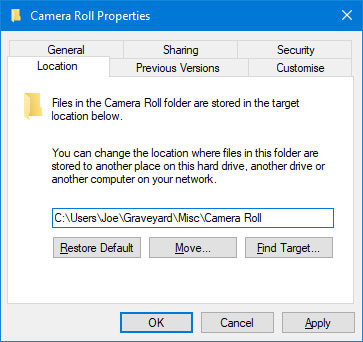
<p style="text-align: justify;">Bạn cần phải giải quyết lần lượt từng thư mục. Nhấp chuột phải vào thư mục và chọn&nbsp;<strong>Properties.</strong>&nbsp;Chuyển sang tab&nbsp;<strong>Location.</strong></p>

<p style="text-align: justify;">Ở đây có một trường mà bạn có thể nhập đường dẫn thư mục cho nơi bạn muốn thư mục được chuyển đến.</p>

<p style="text-align: justify;">Đừng lo lắng nếu bạn không biết đường dẫn này! Chỉ cần nhấp vào&nbsp;<strong>Move…</strong>, điều hướng trong thư mục đích bạn chọn và nhấp vào&nbsp;<strong>Select Folder</strong>. Cuối cùng, nhấn&nbsp;<strong>OK</strong>&nbsp;để xác nhận việc di chuyển.</p>

<p style="text-align: justify;">Bạn có thể quay lại màn hình này và nhấn&nbsp;<strong>Restore Default &gt; OK</strong>&nbsp;nếu bạn muốn thư mục trở lại trong&nbsp;<strong>Pictures</strong>&nbsp;của mình.</p>

<p style="text-align: justify;">Ngoài ra, bạn có thể chỉ cần cắt (<code>Ctrl</code>+<code>X</code>) và dán (<code>Ctrl</code>+<code>V</code>) thư mục ở đâu đó bằng&nbsp;<strong>File Explorer.</strong></p>

<div style="text-align: justify;">&nbsp;</div>

<h2 style="text-align: justify;">Ẩn thư mục Camera Roll và Saved Pictures</h2>

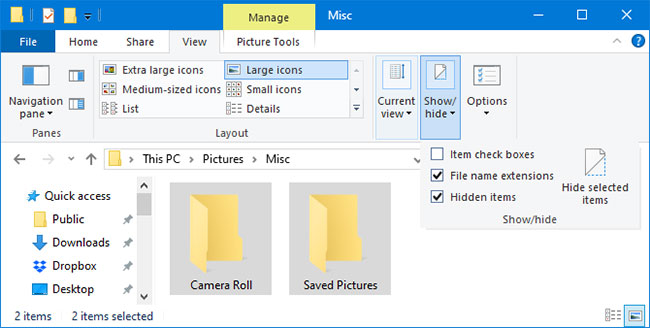
<p style="text-align: justify;">Nếu không muốn di chuyển các thư mục hoặc xóa chúng vĩnh viễn, bạn có thể ẩn chúng khỏi tầm nhìn.</p>

<figure>
<div style="text-align: justify;"><img alt="Ẩn thư mục Camera Roll và Saved Pictures" data-i="1" data-src="https://st.quantrimang.com/photos/image/2020/01/30/xoa-camera-roll-va-saved-pictures-trong-wins-10-2.jpg" data-was-processed="true" height="328" src="https://st.quantrimang.com/photos/image/2020/01/30/xoa-camera-roll-va-saved-pictures-trong-wins-10-2.jpg" width="650" /></div>

<figcaption>
<div style="text-align: justify;">Ẩn thư mục Camera Roll và Saved Pictures</div>
</figcaption>
</figure>

<p style="text-align: justify;">Để thực hiện việc này, hãy highlight cả hai thư mục (hoặc giữ&nbsp;<code>Ctrl</code>&nbsp;khi bạn nhấp lần lượt từng thư mục) và chuyển sang tab&nbsp;<strong>View</strong>&nbsp;trên ribbon. Trong phần&nbsp;<strong>Show/hide</strong>, bấm&nbsp;<strong>Hide selected items</strong>.</p>

<p style="text-align: justify;">Nếu bạn vẫn nhìn thấy thư mục nhưng với biểu tượng bị mờ, điều đó có nghĩa là bạn đã bật cài đặt để xem các mục bị ẩn. Để tắt tính năng này, vẫn ở trên tab&nbsp;<strong>View</strong>, hãy bỏ chọn&nbsp;<strong>Hidden items.</strong></p>

<p style="text-align: justify;">Đảo ngược các hướng dẫn này sẽ cho phép các thư mục hiển thị lại.</p>

<h2 style="text-align: justify;">Xóa thư mục Camera Roll và Saved Pictures</h2>

<p style="text-align: justify;">Vì các thư mục&nbsp;<strong>Camera Roll</strong>&nbsp;và<strong>&nbsp;Saved Pictures</strong>&nbsp;được gắn với ứng dụng&nbsp;<strong>Camera</strong>&nbsp;và&nbsp;<strong>Photos</strong>, cách duy nhất để xóa vĩnh viễn những thư mục này là gỡ cài đặt các ứng dụng.</p>

<p style="text-align: justify;">Các ứng dụng này đi kèm với Windows 10 và không thể gỡ cài đặt như một chương trình thông thường. Thay vào đó, bạn cần sử dụng&nbsp;PowerShell&nbsp;để gỡ cài đặt.</p>

<p style="text-align: justify;">Để bắt đầu, hãy thực hiện tìm kiếm&nbsp;<strong>PowerShell.</strong>&nbsp;Tiếp theo, nhấp chuột phải vào kết quả và chọn&nbsp;<strong>Run as administrator</strong>.</p>

<p style="text-align: justify;">Sao chép (<code>Ctrl</code>+<code>C</code>), dán (<code>Ctrl</code>+<code>V</code>) và nhấn&nbsp;<code>Enter</code>&nbsp;trên bàn phím cho mỗi lệnh.</p>

<p style="text-align: justify;">Để gỡ cài đặt Camera:</p>

<pre id="pre0">
<code>Get-AppxPackage *windowscamera* | Remove-AppxPackage</code></pre>

<p style="text-align: justify;">Để gỡ cài đặt Photos:</p>

<pre id="pre1">
<code>Get-AppxPackage *photos* | Remove-AppxPackage</code></pre>

<p style="text-align: justify;">Lưu ý rằng bạn có thể sử dụng ứng dụng&nbsp;<strong>Photos</strong>&nbsp;để duyệt ảnh trên máy tính mà không nhận ra điều đó. Một lựa chọn thay thế phù hợp là&nbsp;<strong>Windows Photo Viewer</strong>.</p>

<p style="text-align: justify;">Nếu bạn muốn cài đặt lại các ứng dụng đó hoặc bất kỳ ứng dụng Windows nào khác đã xóa, hãy sử dụng lệnh này trong PowerShell:</p>

<pre id="pre2">
<code>Get-AppxPackage -AllUsers| Foreach {Add-AppxPackage -DisableDevelopmentMode -</code></pre>
		</div>
				<div id="author">
						<p>
				<strong>Nguồn tin:</strong>
				Quantrimang.com
			</p>
		</div>
	</div>
	<div id="footer" class="clearfix">
		<div id="url">
			<strong>URL của bản tin này: </strong><a href="https://www.nguoicodonvn2008.info/vi/news/savefile/kien-thuc-may-tinh/cach-xoa-thu-muc-camera-roll-va-saved-pictures-trong-windows-10-1625.html" title="Cách xóa thư mục Camera Roll và Saved Pictures trong Windows 10">https://www.nguoicodonvn2008.info/vi/news/savefile/kien-thuc-may-tinh/cach-xoa-thu-muc-camera-roll-va-saved-pictures-trong-windows-10-1625.html</a>

		</div>
		<div class="clear"></div>
		<div class="copyright">
			&copy; .&#x3A; Nguoicodonvn2008.info - Cõi lòng người cô đơn &#x3A;.
		</div>
		<div id="contact">
			<a href="mailto:admin@nguoicodonvn2008.info">admin@nguoicodonvn2008.info</a>
		</div>
	</div>
</div>
        <div id="timeoutsess" class="chromeframe">
            Bạn đã không sử dụng Site, <a onclick="timeoutsesscancel();" href="https://nguoicodonvn2008.info/#">Bấm vào đây để duy trì trạng thái đăng nhập</a>. Thời gian chờ: <span id="secField"> 60 </span> giây
        </div>
        <div id="openidResult" class="nv-alert" style="display:none"></div>
        <div id="openidBt" data-result="" data-redirect=""></div>
		</script>
		<div class="car-top">
  <span><img src="https://nguoicodonvn2008.info/themes/default/images/car.png" alt=""></span>
</div>
<script src="https://nguoicodonvn2008.info/assets/js/jquery/jquery.min.js"></script>
<script>var nv_base_siteurl="/",nv_lang_data="vi",nv_lang_interface="vi",nv_name_variable="nv",nv_fc_variable="op",nv_lang_variable="language",nv_module_name="news",nv_func_name="savefile",nv_is_user=0, nv_my_ofs=-4,nv_my_abbr="EDT",nv_cookie_prefix="nv4c_e856T",nv_check_pass_mstime=1738000,nv_area_admin=0,nv_safemode=0,theme_responsive=0,nv_recaptcha_ver=2,nv_recaptcha_sitekey="",nv_recaptcha_type="image",XSSsanitize=1;</script>
<script src="https://nguoicodonvn2008.info/assets/js/language/vi.js"></script>
<script src="https://nguoicodonvn2008.info/assets/js/DOMPurify/purify3.js"></script>
<script src="https://nguoicodonvn2008.info/assets/js/global.js"></script>
<script src="https://nguoicodonvn2008.info/assets/js/site.js"></script>
<script src="https://nguoicodonvn2008.info/themes/default/js/news.js"></script>
<script src="https://nguoicodonvn2008.info/themes/default/js/main.js"></script>
<script src="https://nguoicodonvn2008.info/themes/default/js/custom.js"></script>
<script type="application/ld+json">
        {
            "@context": "https://schema.org",
            "@type": "Organization",
            "url": "https://nguoicodonvn2008.info",
            "logo": "https://nguoicodonvn2008.info/uploads/angel.gif"
        }
        </script>
<script src="https://nguoicodonvn2008.info/themes/default/js/bootstrap.min.js"></script>
<script type="text/javascript">
var $scrolltop = $('.car-top');
$scrolltop.on('click', function () {
    $('html,body').animate({
        scrollTop: 0
    }, 800);
    $(this).addClass("car-run");
    setTimeout(function(){ $scrolltop.removeClass('car-run');}, 1000);
    return false;
});
$(window).on('scroll', function ()
{ 
    if($(window).scrollTop() >= 200)
    {
        $scrolltop.addClass("show");
        $scrolltop.addClass("car-down");
    }
    else
    {
       $scrolltop.removeClass("show");
       setTimeout(function(){ $scrolltop.removeClass('car-down');}, 300);
    }
});
</script>
</body>
</html>