<!DOCTYPE html>
    <html lang="vi" xmlns="http://www.w3.org/1999/xhtml" prefix="og: http://ogp.me/ns#">
    <head>
<title>Cách xóa smart tag trong Excel</title>
<meta name="description" content="Cách xóa smart tag trong Excel - Savefile - Tin Tức - https&#x3A;&#x002F;&#x002F;www.nguoicodonvn2008.info&#x002F;vi&#x002F;news&#x002F;savefile&#x002F;kien-thuc-may-tinh&#x002F;cach-xoa-smart-tag-trong-excel-1205.html">
<meta name="author" content=".: Nguoicodonvn2008.info - Cõi lòng người cô đơn :.">
<meta name="copyright" content=".: Nguoicodonvn2008.info - Cõi lòng người cô đơn :. [admin@nguoicodonvn2008.info]">
<meta name="robots" content="index, archive, follow, noodp">
<meta name="googlebot" content="index,archive,follow,noodp">
<meta name="msnbot" content="all,index,follow">
<meta name="generator" content="NukeViet v4.5">
<meta http-equiv="Content-Type" content="text/html; charset=utf-8">
<meta property="og:title" content="Cách xóa smart tag trong Excel">
<meta property="og:type" content="website">
<meta property="og:description" content="Savefile - Tin Tức - https&#x3A;&#x002F;&#x002F;www.nguoicodonvn2008.info&#x002F;vi&#x002F;news&#x002F;savefile&#x002F;kien-thuc-may-tinh&#x002F;cach-xoa-smart-tag-trong-excel-1205.html">
<meta property="og:site_name" content=".&#x3A; Nguoicodonvn2008.info - Cõi lòng người cô đơn &#x3A;.">
<meta property="og:url" content="https://www.nguoicodonvn2008.info/vi/news/savefile/kien-thuc-may-tinh/cach-xoa-smart-tag-trong-excel-1205.html">
<link rel="shortcut icon" href="https://nguoicodonvn2008.info/favicon.ico">
<link rel="canonical" href="https://www.nguoicodonvn2008.info/vi/news/savefile/kien-thuc-may-tinh/cach-xoa-smart-tag-trong-excel-1205.html">
<link rel="alternate" href="https://nguoicodonvn2008.info/vi/news/rss/" title="Tin Tức" type="application/rss+xml">
<link rel="alternate" href="https://nguoicodonvn2008.info/vi/news/rss/karaoke-dual/" title="Tin Tức - Karaoke Dual" type="application/rss+xml">
<link rel="alternate" href="https://nguoicodonvn2008.info/vi/news/rss/nhac-tre/" title="Tin Tức - Nhạc trẻ" type="application/rss+xml">
<link rel="alternate" href="https://nguoicodonvn2008.info/vi/news/rss/tru-tinh/" title="Tin Tức - Trữ tình" type="application/rss+xml">
<link rel="alternate" href="https://nguoicodonvn2008.info/vi/news/rss/nuoc-ngoai/" title="Tin Tức - Nước ngoài" type="application/rss+xml">
<link rel="alternate" href="https://nguoicodonvn2008.info/vi/news/rss/remix/" title="Tin Tức - Remix" type="application/rss+xml">
<link rel="alternate" href="https://nguoicodonvn2008.info/vi/news/rss/tam-su-tinh-yeu/" title="Tin Tức - Tâm sự tình yêu" type="application/rss+xml">
<link rel="alternate" href="https://nguoicodonvn2008.info/vi/news/rss/tho-suu-tam/" title="Tin Tức - Thơ sưu tầm" type="application/rss+xml">
<link rel="alternate" href="https://nguoicodonvn2008.info/vi/news/rss/cuoc-song/" title="Tin Tức - Cuộc sống" type="application/rss+xml">
<link rel="alternate" href="https://nguoicodonvn2008.info/vi/news/rss/phan-mem/" title="Tin Tức - Phần mềm" type="application/rss+xml">
<link rel="alternate" href="https://nguoicodonvn2008.info/vi/news/rss/kien-thuc-may-tinh/" title="Tin Tức - Kiến thức máy tính" type="application/rss+xml">
<link rel="alternate" href="https://nguoicodonvn2008.info/vi/news/rss/hoc-tap/" title="Tin Tức - Học tập" type="application/rss+xml">
<link rel="alternate" href="https://nguoicodonvn2008.info/vi/news/rss/tai-lieu/" title="Tin Tức - Tài liệu" type="application/rss+xml">
<link rel="alternate" href="https://nguoicodonvn2008.info/vi/news/rss/de-thi/" title="Tin Tức - Đề thi" type="application/rss+xml">
<link rel="preload" as="style" href="https://nguoicodonvn2008.info/assets/css/font-awesome.min.css" type="text/css">
<link rel="preload" as="style" href="https://nguoicodonvn2008.info/themes/default/css/bootstrap.non-responsive.css" type="text/css">
<link rel="preload" as="style" href="https://nguoicodonvn2008.info/themes/default/css/style.css" type="text/css">
<link rel="preload" as="style" href="https://nguoicodonvn2008.info/themes/default/css/style.non-responsive.css" type="text/css">
<link rel="preload" as="style" href="https://nguoicodonvn2008.info/themes/default/css/news.css" type="text/css">
<link rel="preload" as="style" href="https://nguoicodonvn2008.info/themes/default/css/custom.css" type="text/css">
<link rel="preload" as="script" href="https://nguoicodonvn2008.info/assets/js/jquery/jquery.min.js" type="text/javascript">
<link rel="preload" as="script" href="https://nguoicodonvn2008.info/assets/js/language/vi.js" type="text/javascript">
<link rel="preload" as="script" href="https://nguoicodonvn2008.info/assets/js/DOMPurify/purify3.js" type="text/javascript">
<link rel="preload" as="script" href="https://nguoicodonvn2008.info/assets/js/global.js" type="text/javascript">
<link rel="preload" as="script" href="https://nguoicodonvn2008.info/assets/js/site.js" type="text/javascript">
<link rel="preload" as="script" href="https://nguoicodonvn2008.info/themes/default/js/news.js" type="text/javascript">
<link rel="preload" as="script" href="https://nguoicodonvn2008.info/themes/default/js/main.js" type="text/javascript">
<link rel="preload" as="script" href="https://nguoicodonvn2008.info/themes/default/js/custom.js" type="text/javascript">
<link rel="preload" as="script" href="https://nguoicodonvn2008.info/themes/default/js/bootstrap.min.js" type="text/javascript">
<link rel="stylesheet" href="https://nguoicodonvn2008.info/assets/css/font-awesome.min.css">
<link rel="stylesheet" href="https://nguoicodonvn2008.info/themes/default/css/bootstrap.non-responsive.css">
<link rel="stylesheet" href="https://nguoicodonvn2008.info/themes/default/css/style.css">
<link rel="stylesheet" href="https://nguoicodonvn2008.info/themes/default/css/style.non-responsive.css">
<link rel="StyleSheet" href="https://nguoicodonvn2008.info/themes/default/css/news.css">
<link rel="stylesheet" href="https://nguoicodonvn2008.info/themes/default/css/custom.css">
<style type="text/css">
	body{background: #fff;}
</style>
    </head>
    <body>
<div id="print">
	<div id="hd_print">
		<h2 class="pull-left">.&#x3A; Nguoicodonvn2008.info - Cõi lòng người cô đơn &#x3A;.</h2>
		<p class="pull-right"><a title=".&#x3A; Nguoicodonvn2008.info - Cõi lòng người cô đơn &#x3A;." href="https://nguoicodonvn2008.info/">https://nguoicodonvn2008.info</a></p>
	</div>
	<div class="clear"></div>
	<hr />
	<div id="content">
		<h1>Cách xóa smart tag trong Excel</h1>
		<ul class="list-inline">
			<li>Thứ tư - 23/10/2019 08:39</li>
			<li class="hidden-print txtrequired"><em class="fa fa-print">&nbsp;</em><a title="In ra" href="javascript:;" onclick="window.print()">In ra</a></li>
			<li class="hidden-print txtrequired"><em class="fa fa-power-off">&nbsp;</em><a title="Đóng cửa sổ này" href="javascript:;" onclick="window.close()">Đóng cửa sổ này</a></li>
		</ul>
		<div class="clear"></div>
		<div id="hometext">
		</div>
				<div class="imghome">
			<img alt="Cách xóa smart tag trong Excel" src="https://st.quantrimang.com/photos/image/2019/10/23/xoa-smart-tag-trong-excel-10.png" width="460" class="img-thumbnail" />
		</div>
		<div class="clear"></div>
		<div id="bodytext" class="clearfix">
			<p style="text-align: justify;">Smart tag có thể rất hữu ích trong Excel để nhanh chóng thay đổi hành động mà bảng tính thực hiện trên dữ liệu. Nó xuất hiện tự động khi làm việc trong Excel nhưng bạn có thể xóa từng smart tag này nếu không sử dụng đến.</p>

<div style="text-align: justify;">&nbsp;</div>

<h2 style="text-align: justify;">Smart tag là gì?</h2>

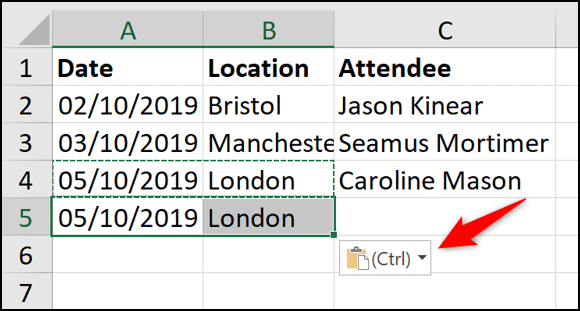
<p style="text-align: justify;">Smart tag là một nút nhỏ xuất hiện khi nhập hoặc chọn dữ liệu trên một bảng tính. Nút này cung cấp các hành động dựa trên dữ liệu trong các ô. Hình ảnh bên dưới là smart tag cho Paste Options xuất hiện khi dán dữ liệu.</p>

<p style="text-align: justify;"><img alt="Smart tag cho Paste Options" data-i="0" data-src="https://st.quantrimang.com/photos/image/2019/10/23/xoa-smart-tag-trong-excel-1.png" data-was-processed="true" height="311" src="https://st.quantrimang.com/photos/image/2019/10/23/xoa-smart-tag-trong-excel-1.png" width="580" /></p>

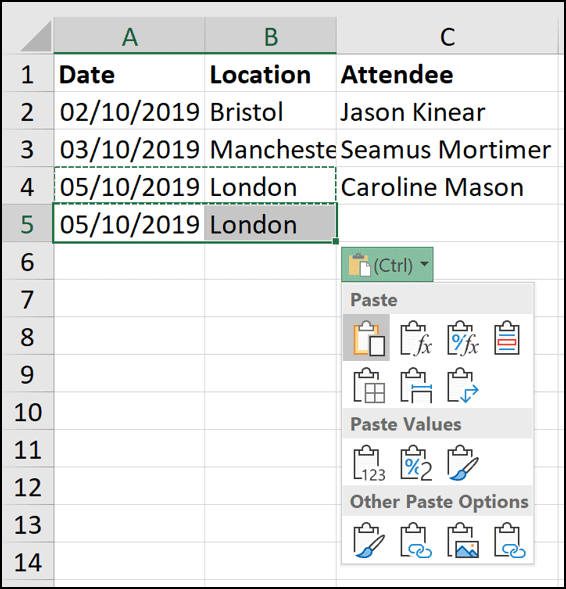
<p style="text-align: justify;">Khi click vào smart tag, bạn sẽ thấy các tùy chọn dán khác.</p>

<p style="text-align: justify;"><img alt="Các tùy chọn dán khác" data-i="1" data-src="https://st.quantrimang.com/photos/image/2019/10/23/xoa-smart-tag-trong-excel-2.png" data-was-processed="true" height="589" src="https://st.quantrimang.com/photos/image/2019/10/23/xoa-smart-tag-trong-excel-2.png" width="566" /></p>

<p style="text-align: justify;">Tất cả các smart tag hoạt động theo cùng một cách. Tùy chọn bạn thấy sẽ phụ thuộc vào smart tag và dữ liệu trong ô.</p>

<p style="text-align: justify;">Chúng cung cấp một cách nhanh chóng để thay đổi hành động Excel thực hiện trên dữ liệu. Excel có một số smart tag: Paste Options, AutoFill, Flash Fill, Error checking và Quick Analysis.</p>

<p style="text-align: justify;">Smart tag chỉ là tạm thời. Chúng xuất hiện ngay lập tức khi bạn chọn, gõ hoặc dán dữ liệu vào một ô và biến mất ngay khi thực hiện một tác vụ khác.</p>

<div style="text-align: justify;">&nbsp;</div>

<h2 style="text-align: justify;">Cách xóa smart tag trong Excel</h2>

<p style="text-align: justify;">Nếu không sử dụng smart tag, bạn có thể xóa nó đi. Xóa smart tag sẽ ngăn chúng không xuất hiện trong Excel cho đến khi được bật lại. Thay đổi này sẽ ảnh hưởng đến tất cả workbook, không phải chỉ workbook hiện tại.</p>

<p style="text-align: justify;">Mỗi smart tag trong Excel có cài đặt riêng cần vô hiệu hóa. Điều này thật tuyệt vì bạn có thể vô hiệu hóa smart tag cụ thể không sử dụng mà không cần xóa tất cả smart tag.</p>

<p style="text-align: justify;">Bạn có thể xóa tất cả các smart tag từ cửa sổ tùy chọn trong Excel. Để mở cửa sổ này, click vào<strong>&nbsp;File &gt; Options</strong>.</p>

<p style="text-align: justify;"><strong>Paste Options và AutoFill</strong></p>

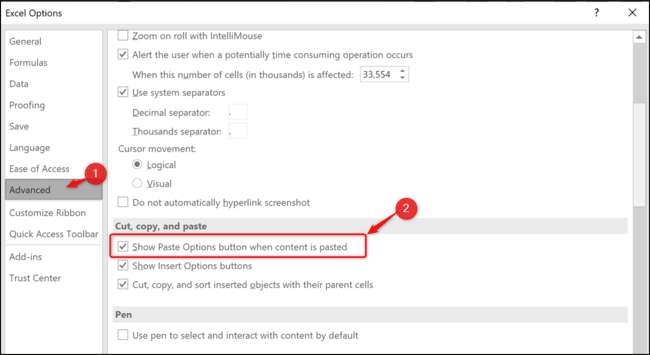
<p style="text-align: justify;">Để loại bỏ nút Paste Options, click vào&nbsp;<strong>Advanced</strong>&nbsp;và bỏ chọn&nbsp;<strong>Show Paste Options Button When Content Is Pasted</strong>.</p>

<p style="text-align: justify;"><img alt="Bỏ chọn Show Paste Options Button When Content Is Pasted" data-i="2" data-src="https://st.quantrimang.com/photos/image/2019/10/23/xoa-smart-tag-trong-excel-3.png" data-was-processed="true" height="350" src="https://st.quantrimang.com/photos/image/2019/10/23/xoa-smart-tag-trong-excel-3.png" width="640" /></p>

<p style="text-align: justify;">Cài đặt này sẽ xóa smart tag cho cả hai tùy chọn dán và tự động điền.</p>

<p style="text-align: justify;"><strong>Flash Fill</strong></p>

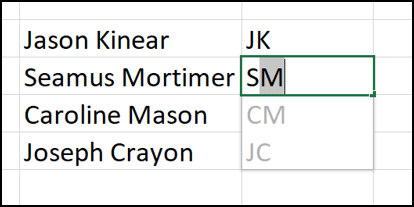
<p style="text-align: justify;">Theo mặc định, khi gõ, Flash Fill có thể cung cấp các đề xuất về mục nhập dữ liệu.</p>

<p style="text-align: justify;"><img alt="Tùy chọn Flash Fill" data-i="3" data-src="https://st.quantrimang.com/photos/image/2019/10/23/xoa-smart-tag-trong-excel-4.png" data-was-processed="true" height="207" src="https://st.quantrimang.com/photos/image/2019/10/23/xoa-smart-tag-trong-excel-4.png" width="414" /></p>

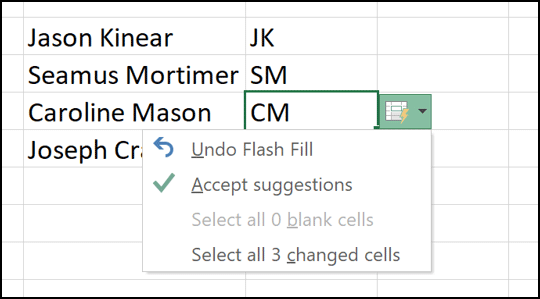
<p style="text-align: justify;">Khi Flash Fill thực hiện hành động, smart tag xuất hiện để bạn có thể hoàn tác đề xuất.</p>

<p style="text-align: justify;"><img alt="Smart tag cho Flash Fill" data-i="4" data-src="https://st.quantrimang.com/photos/image/2019/10/23/xoa-smart-tag-trong-excel-5.png" data-was-processed="true" height="299" src="https://st.quantrimang.com/photos/image/2019/10/23/xoa-smart-tag-trong-excel-5.png" width="540" /></p>

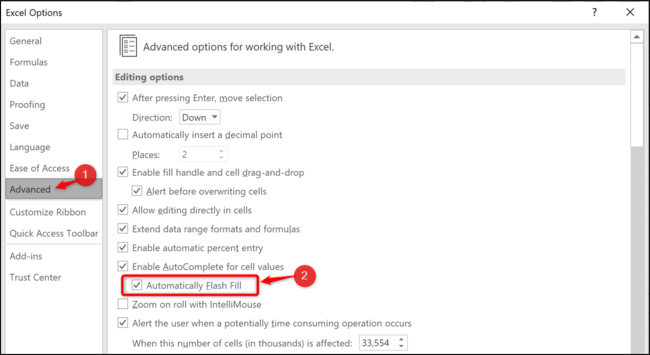
<p style="text-align: justify;">Nếu không muốn hành động Flash Fill tự động này, bạn có thể tắt nó đi. Từ danh mục&nbsp;<strong>Advanced</strong>, bỏ chọn&nbsp;<strong>Automatically Flash Fill</strong>.</p>

<p style="text-align: justify;"><img alt="Bỏ chọn Automatically Flash Fill" data-i="5" data-src="https://st.quantrimang.com/photos/image/2019/10/23/xoa-smart-tag-trong-excel-6.png" data-was-processed="true" height="350" src="https://st.quantrimang.com/photos/image/2019/10/23/xoa-smart-tag-trong-excel-6.png" width="640" /></p>

<p style="text-align: justify;"><strong>Error Checking</strong></p>

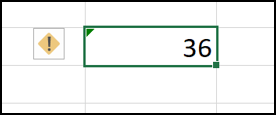
<p style="text-align: justify;">Excel chạy một số kiểm tra lỗi cơ bản khi viết công thức và nếu nó tin bạn thực hiện lỗi, smart tag và mũi tên xanh sẽ xuất hiện.</p>

<p style="text-align: justify;"><img alt="Kiểm tra lỗi" data-i="6" data-src="https://st.quantrimang.com/photos/image/2019/10/23/xoa-smart-tag-trong-excel-7.png" data-was-processed="true" height="115" src="https://st.quantrimang.com/photos/image/2019/10/23/xoa-smart-tag-trong-excel-7.png" width="276" /></p>

<p style="text-align: justify;">Điều này không có nghĩa là bạn thực hiện lỗi. Excel đang truy vấn công thức bởi vì nó có thể không nhất quán hoặc bất thường trong cách sử dụng.</p>

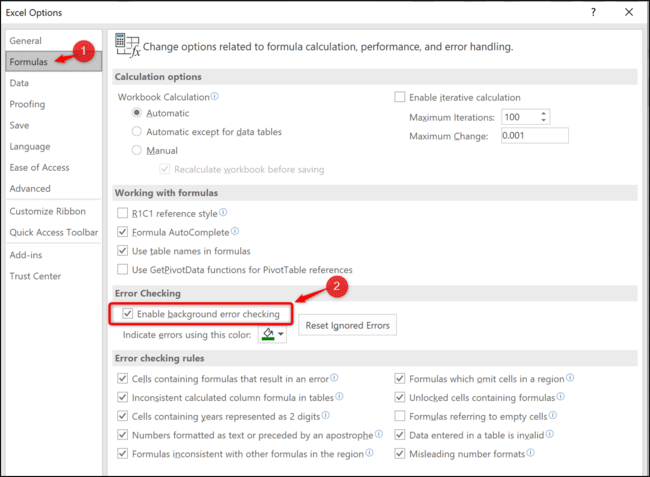
<p style="text-align: justify;">Từ danh mục&nbsp;<strong>Formulas</strong>, bỏ chọn&nbsp;<strong>Enable Background Error Checking</strong>.</p>

<p style="text-align: justify;"><img alt="Bỏ chọn Enable Background Error Checking" data-i="7" data-src="https://st.quantrimang.com/photos/image/2019/10/23/xoa-smart-tag-trong-excel-8.png" data-was-processed="true" height="470" src="https://st.quantrimang.com/photos/image/2019/10/23/xoa-smart-tag-trong-excel-8.png" width="640" /></p>

<p style="text-align: justify;"><strong>Quick Analysis Tools</strong></p>

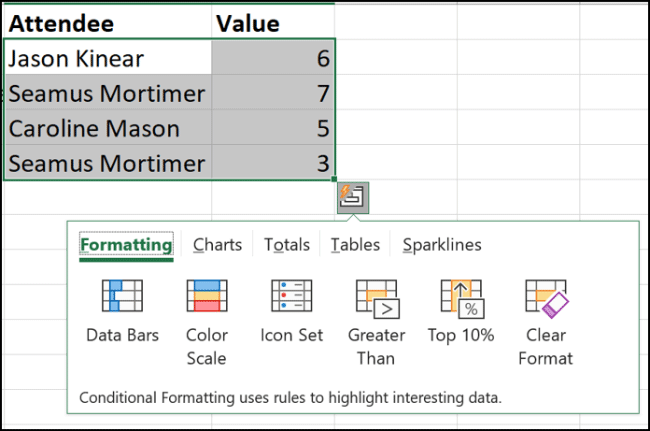
<p style="text-align: justify;">Smart tag tùy chọn Quick Analysis xuất hiện khi chọn một phạm vi giá trị trên bảng tính. Nó cung cấp cách nhanh chóng để tạo một biểu đồ, áp dụng&nbsp;<a href="https://quantrimang.com/cach-su-dung-dinh-dang-co-dieu-kien-trong-microsoft-excel-2016-154365" title="Cách sử dụng định dạng có điều kiện trong Microsoft Excel 2016">quy tắc Conditional Formatting trong Excel</a>&nbsp;hoặc sử dụng tính năng phân tích khác.</p>

<p style="text-align: justify;"><img alt="Smart tag cho Quick Analysis Tools" data-i="8" data-src="https://st.quantrimang.com/photos/image/2019/10/23/xoa-smart-tag-trong-excel-9.png" data-was-processed="true" height="424" src="https://st.quantrimang.com/photos/image/2019/10/23/xoa-smart-tag-trong-excel-9.png" width="640" /></p>

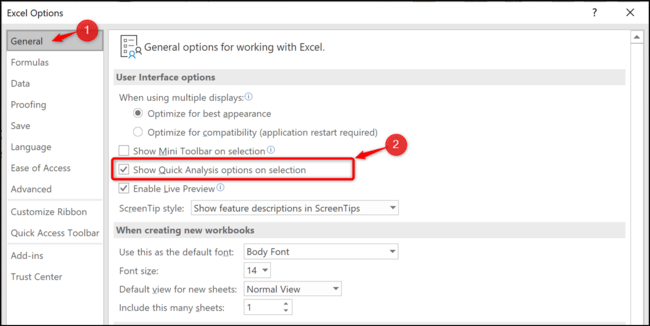
<p style="text-align: justify;">Nếu không sử dụng tính năng này, bạn có thể xóa nó đi. Trong&nbsp;<strong>General</strong>, bỏ chọn&nbsp;<strong>Show Quick Analysis Options on Selection</strong>.</p>

<p style="text-align: justify;"><img alt="Bỏ chọn Show Quick Analysis Options on Selection" data-i="9" data-src="https://st.quantrimang.com/photos/image/2019/10/23/xoa-smart-tag-trong-excel-10.png" data-was-processed="true" height="321" src="https://st.quantrimang.com/photos/image/2019/10/23/xoa-smart-tag-trong-excel-10.png" width="640" /></p>

<p style="text-align: justify;">Chúc các bạn thực hiện thành công!</p>
		</div>
				<div id="author">
						<p>
				<strong>Nguồn tin:</strong>
				Quantrimang.com
			</p>
		</div>
	</div>
	<div id="footer" class="clearfix">
		<div id="url">
			<strong>URL của bản tin này: </strong><a href="https://www.nguoicodonvn2008.info/vi/news/savefile/kien-thuc-may-tinh/cach-xoa-smart-tag-trong-excel-1205.html" title="Cách xóa smart tag trong Excel">https://www.nguoicodonvn2008.info/vi/news/savefile/kien-thuc-may-tinh/cach-xoa-smart-tag-trong-excel-1205.html</a>

		</div>
		<div class="clear"></div>
		<div class="copyright">
			&copy; .&#x3A; Nguoicodonvn2008.info - Cõi lòng người cô đơn &#x3A;.
		</div>
		<div id="contact">
			<a href="mailto:admin@nguoicodonvn2008.info">admin@nguoicodonvn2008.info</a>
		</div>
	</div>
</div>
        <div id="timeoutsess" class="chromeframe">
            Bạn đã không sử dụng Site, <a onclick="timeoutsesscancel();" href="https://nguoicodonvn2008.info/#">Bấm vào đây để duy trì trạng thái đăng nhập</a>. Thời gian chờ: <span id="secField"> 60 </span> giây
        </div>
        <div id="openidResult" class="nv-alert" style="display:none"></div>
        <div id="openidBt" data-result="" data-redirect=""></div>
		</script>
		<div class="car-top">
  <span><img src="https://nguoicodonvn2008.info/themes/default/images/car.png" alt=""></span>
</div>
<script src="https://nguoicodonvn2008.info/assets/js/jquery/jquery.min.js"></script>
<script>var nv_base_siteurl="/",nv_lang_data="vi",nv_lang_interface="vi",nv_name_variable="nv",nv_fc_variable="op",nv_lang_variable="language",nv_module_name="news",nv_func_name="savefile",nv_is_user=0, nv_my_ofs=-4,nv_my_abbr="EDT",nv_cookie_prefix="nv4c_e856T",nv_check_pass_mstime=1738000,nv_area_admin=0,nv_safemode=0,theme_responsive=0,nv_recaptcha_ver=2,nv_recaptcha_sitekey="",nv_recaptcha_type="image",XSSsanitize=1;</script>
<script src="https://nguoicodonvn2008.info/assets/js/language/vi.js"></script>
<script src="https://nguoicodonvn2008.info/assets/js/DOMPurify/purify3.js"></script>
<script src="https://nguoicodonvn2008.info/assets/js/global.js"></script>
<script src="https://nguoicodonvn2008.info/assets/js/site.js"></script>
<script src="https://nguoicodonvn2008.info/themes/default/js/news.js"></script>
<script src="https://nguoicodonvn2008.info/themes/default/js/main.js"></script>
<script src="https://nguoicodonvn2008.info/themes/default/js/custom.js"></script>
<script type="application/ld+json">
        {
            "@context": "https://schema.org",
            "@type": "Organization",
            "url": "https://nguoicodonvn2008.info",
            "logo": "https://nguoicodonvn2008.info/uploads/angel.gif"
        }
        </script>
<script src="https://nguoicodonvn2008.info/themes/default/js/bootstrap.min.js"></script>
<script type="text/javascript">
var $scrolltop = $('.car-top');
$scrolltop.on('click', function () {
    $('html,body').animate({
        scrollTop: 0
    }, 800);
    $(this).addClass("car-run");
    setTimeout(function(){ $scrolltop.removeClass('car-run');}, 1000);
    return false;
});
$(window).on('scroll', function ()
{ 
    if($(window).scrollTop() >= 200)
    {
        $scrolltop.addClass("show");
        $scrolltop.addClass("car-down");
    }
    else
    {
       $scrolltop.removeClass("show");
       setTimeout(function(){ $scrolltop.removeClass('car-down');}, 300);
    }
});
</script>
</body>
</html>