<!DOCTYPE html>
    <html lang="vi" xmlns="http://www.w3.org/1999/xhtml" prefix="og: http://ogp.me/ns#">
    <head>
<title>Cách xóa mật khẩu file PDF trên máy Mac</title>
<meta name="description" content="Cách xóa mật khẩu file PDF trên máy Mac - Savefile - Tin Tức -...">
<meta name="author" content=".: Nguoicodonvn2008.info - Cõi lòng người cô đơn :.">
<meta name="copyright" content=".: Nguoicodonvn2008.info - Cõi lòng người cô đơn :. [admin@nguoicodonvn2008.info]">
<meta name="robots" content="index, archive, follow, noodp">
<meta name="googlebot" content="index,archive,follow,noodp">
<meta name="msnbot" content="all,index,follow">
<meta name="generator" content="NukeViet v4.5">
<meta http-equiv="Content-Type" content="text/html; charset=utf-8">
<meta property="og:title" content="Cách xóa mật khẩu file PDF trên máy Mac">
<meta property="og:type" content="website">
<meta property="og:description" content="Savefile - Tin Tức - https&#x3A;&#x002F;&#x002F;www.nguoicodonvn2008.info&#x002F;vi&#x002F;news&#x002F;savefile&#x002F;kien-thuc-may-tinh&#x002F;cach-xoa-mat-khau-file-pdf-tren-may-mac-8305.html">
<meta property="og:site_name" content=".&#x3A; Nguoicodonvn2008.info - Cõi lòng người cô đơn &#x3A;.">
<meta property="og:url" content="https://www.nguoicodonvn2008.info/vi/news/savefile/kien-thuc-may-tinh/cach-xoa-mat-khau-file-pdf-tren-may-mac-8305.html">
<link rel="shortcut icon" href="https://nguoicodonvn2008.info/favicon.ico">
<link rel="canonical" href="https://www.nguoicodonvn2008.info/vi/news/savefile/kien-thuc-may-tinh/cach-xoa-mat-khau-file-pdf-tren-may-mac-8305.html">
<link rel="alternate" href="https://nguoicodonvn2008.info/vi/news/rss/" title="Tin Tức" type="application/rss+xml">
<link rel="alternate" href="https://nguoicodonvn2008.info/vi/news/rss/karaoke-dual/" title="Tin Tức - Karaoke Dual" type="application/rss+xml">
<link rel="alternate" href="https://nguoicodonvn2008.info/vi/news/rss/nhac-tre/" title="Tin Tức - Nhạc trẻ" type="application/rss+xml">
<link rel="alternate" href="https://nguoicodonvn2008.info/vi/news/rss/tru-tinh/" title="Tin Tức - Trữ tình" type="application/rss+xml">
<link rel="alternate" href="https://nguoicodonvn2008.info/vi/news/rss/nuoc-ngoai/" title="Tin Tức - Nước ngoài" type="application/rss+xml">
<link rel="alternate" href="https://nguoicodonvn2008.info/vi/news/rss/remix/" title="Tin Tức - Remix" type="application/rss+xml">
<link rel="alternate" href="https://nguoicodonvn2008.info/vi/news/rss/tam-su-tinh-yeu/" title="Tin Tức - Tâm sự tình yêu" type="application/rss+xml">
<link rel="alternate" href="https://nguoicodonvn2008.info/vi/news/rss/tho-suu-tam/" title="Tin Tức - Thơ sưu tầm" type="application/rss+xml">
<link rel="alternate" href="https://nguoicodonvn2008.info/vi/news/rss/cuoc-song/" title="Tin Tức - Cuộc sống" type="application/rss+xml">
<link rel="alternate" href="https://nguoicodonvn2008.info/vi/news/rss/phan-mem/" title="Tin Tức - Phần mềm" type="application/rss+xml">
<link rel="alternate" href="https://nguoicodonvn2008.info/vi/news/rss/kien-thuc-may-tinh/" title="Tin Tức - Kiến thức máy tính" type="application/rss+xml">
<link rel="alternate" href="https://nguoicodonvn2008.info/vi/news/rss/hoc-tap/" title="Tin Tức - Học tập" type="application/rss+xml">
<link rel="alternate" href="https://nguoicodonvn2008.info/vi/news/rss/tai-lieu/" title="Tin Tức - Tài liệu" type="application/rss+xml">
<link rel="alternate" href="https://nguoicodonvn2008.info/vi/news/rss/de-thi/" title="Tin Tức - Đề thi" type="application/rss+xml">
<link rel="preload" as="style" href="https://nguoicodonvn2008.info/assets/css/font-awesome.min.css" type="text/css">
<link rel="preload" as="style" href="https://nguoicodonvn2008.info/themes/default/css/bootstrap.non-responsive.css" type="text/css">
<link rel="preload" as="style" href="https://nguoicodonvn2008.info/themes/default/css/style.css" type="text/css">
<link rel="preload" as="style" href="https://nguoicodonvn2008.info/themes/default/css/style.non-responsive.css" type="text/css">
<link rel="preload" as="style" href="https://nguoicodonvn2008.info/themes/default/css/news.css" type="text/css">
<link rel="preload" as="style" href="https://nguoicodonvn2008.info/themes/default/css/custom.css" type="text/css">
<link rel="preload" as="script" href="https://nguoicodonvn2008.info/assets/js/jquery/jquery.min.js" type="text/javascript">
<link rel="preload" as="script" href="https://nguoicodonvn2008.info/assets/js/language/vi.js" type="text/javascript">
<link rel="preload" as="script" href="https://nguoicodonvn2008.info/assets/js/DOMPurify/purify3.js" type="text/javascript">
<link rel="preload" as="script" href="https://nguoicodonvn2008.info/assets/js/global.js" type="text/javascript">
<link rel="preload" as="script" href="https://nguoicodonvn2008.info/assets/js/site.js" type="text/javascript">
<link rel="preload" as="script" href="https://nguoicodonvn2008.info/themes/default/js/news.js" type="text/javascript">
<link rel="preload" as="script" href="https://nguoicodonvn2008.info/themes/default/js/main.js" type="text/javascript">
<link rel="preload" as="script" href="https://nguoicodonvn2008.info/themes/default/js/custom.js" type="text/javascript">
<link rel="preload" as="script" href="https://nguoicodonvn2008.info/themes/default/js/bootstrap.min.js" type="text/javascript">
<link rel="stylesheet" href="https://nguoicodonvn2008.info/assets/css/font-awesome.min.css">
<link rel="stylesheet" href="https://nguoicodonvn2008.info/themes/default/css/bootstrap.non-responsive.css">
<link rel="stylesheet" href="https://nguoicodonvn2008.info/themes/default/css/style.css">
<link rel="stylesheet" href="https://nguoicodonvn2008.info/themes/default/css/style.non-responsive.css">
<link rel="StyleSheet" href="https://nguoicodonvn2008.info/themes/default/css/news.css">
<link rel="stylesheet" href="https://nguoicodonvn2008.info/themes/default/css/custom.css">
<style type="text/css">
	body{background: #fff;}
</style>
    </head>
    <body>
<div id="print">
	<div id="hd_print">
		<h2 class="pull-left">.&#x3A; Nguoicodonvn2008.info - Cõi lòng người cô đơn &#x3A;.</h2>
		<p class="pull-right"><a title=".&#x3A; Nguoicodonvn2008.info - Cõi lòng người cô đơn &#x3A;." href="https://nguoicodonvn2008.info/">https://nguoicodonvn2008.info</a></p>
	</div>
	<div class="clear"></div>
	<hr />
	<div id="content">
		<h1>Cách xóa mật khẩu file PDF trên máy Mac</h1>
		<ul class="list-inline">
			<li>Thứ sáu - 12/04/2024 23:19</li>
			<li class="hidden-print txtrequired"><em class="fa fa-print">&nbsp;</em><a title="In ra" href="javascript:;" onclick="window.print()">In ra</a></li>
			<li class="hidden-print txtrequired"><em class="fa fa-power-off">&nbsp;</em><a title="Đóng cửa sổ này" href="javascript:;" onclick="window.close()">Đóng cửa sổ này</a></li>
		</ul>
		<div class="clear"></div>
		<div id="hometext">
		</div>
				<div class="imghome">
			<img alt="Cách xóa mật khẩu file PDF trên máy Mac" src="https://st.quantrimang.com/photos/image/2024/04/12/xoa-mat-khau-tep-pdf-tren-may-mac-3.jpg" width="460" class="img-thumbnail" />
		</div>
		<div class="clear"></div>
		<div id="bodytext" class="clearfix">
			<p style="text-align: justify;">Một trong những cách tốt nhất để bạn bảo mật thông tin trong bất cứ loại file tài liệu nào là đặt mật khẩu hạn chế truy cập, và PDF cũng không phải ngoại lệ.</p>

<p style="text-align: justify;">Sau khi mật khẩu được thiết lập, bất cứ ai muốn đọc nội dung trong file của bạn đều phải cung cấp chính xác mật khẩu xác thực mà chỉ bạn và người nhận được ủy quyền mới biết. Điều này giúp bạn ngăn chặn mọi hành vi truy cập trái phép vào các file tài liệu PDF của mình.</p>

<p style="text-align: justify;">Mặt khác, đôi khi bạn cũng cần xóa mật khẩu bảo vệ file PDF của mình để mọi người có thể truy cập và xem không giới hạn. Nhìn chung, việc xóa mật khẩu bảo vệ khỏi file PDF trên máy Mac rất đơn giản, bản chỉ cần làm theo các bước dưới đây.</p>

<h2 style="text-align: justify;">Xóa mật khẩu khỏi file PDF trên máy Mac bằng Adobe Pro</h2>

<p style="text-align: justify;">Adobe Acrobat chịu trách nhiệm tạo định dạng file PDF (công ty đã phát hành định dạng PDF vào năm 1993), do đó, việc xóa mật khẩu khỏi file PDF trên máy Mac của bạn bằng phần mềm của họ là điều hợp lý. Lưu ý duy nhất là bạn cần có Acrobat Pro, đây là phần mềm trả phí. Tuy nhiên, có bản dùng thử miễn phí cho phép bạn sử dụng nó mà không phải trả tiền trong tối đa 7 ngày – quá đủ để xóa mật khẩu.</p>

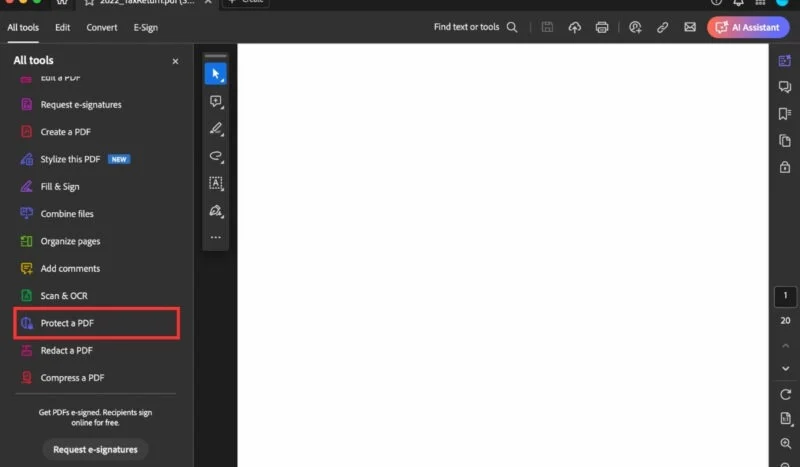
<p style="text-align: justify;">Để xóa mật khẩu khỏi file PDF trên máy Mac bằng Adobe Pro, hãy tải xuống, cài đặt và khởi chạy phần mềm trên máy Mac của bạn. Chọn&nbsp;<strong>Tools</strong>&nbsp;-&gt;&nbsp;<strong>Protect a PDF</strong>.</p>

<figure>
<div style="text-align: justify;"><img alt="Chọn Protect a PDF" data-i="0" data-src="https://st.quantrimang.com/photos/image/2024/04/12/xoa-mat-khau-tep-pdf-tren-may-mac-1.jpg" data-was-processed="true" height="467" src="https://st.quantrimang.com/photos/image/2024/04/12/xoa-mat-khau-tep-pdf-tren-may-mac-1.jpg" width="800" /></div>

<figcaption>
<div style="text-align: justify;">Chọn Protect a PDF</div>
</figcaption>
</figure>

<div style="text-align: justify;"><iframe allowtransparency="true" aria-label="Advertisement" data-google-container-id="a!2" data-google-query-id="CMzp3POcvoUDFYVMwgUdwoUIIw" data-load-complete="true" frameborder="0" height="0" hspace="0" id="aswift_1" marginheight="0" marginwidth="0" name="aswift_1" sandbox="" scrolling="no" tabindex="0" title="Advertisement" vspace="0" width="694"></iframe></div>

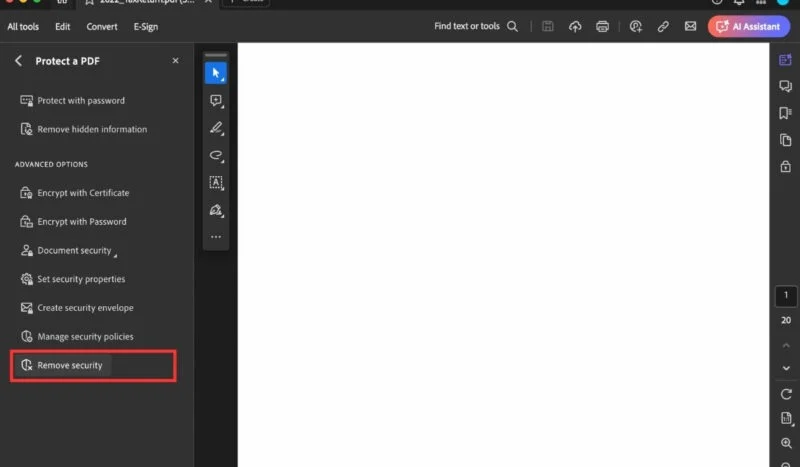
<p style="text-align: justify;">Chọn&nbsp;<strong>Remove Security</strong>&nbsp;để xóa mật khẩu.</p>

<figure>
<ul>
	<li data-block-reason="4" data-trans-vn="Che nội dung" style="text-align: justify;">&nbsp;</li>
	<li data-block-reason="2" data-trans-vn="Không quan tâm" style="text-align: justify;">&nbsp;</li>
	<li data-block-reason="3" data-trans-vn="Không phù hợp" style="text-align: justify;">&nbsp;</li>
	<li data-block-reason="1" data-trans-vn="Thấy quá nhiều" style="text-align: justify;">&nbsp;</li>
</ul>

<div style="text-align: justify;"><br />
<img alt="Xóa mật khẩu PDF bằng Adobe Pro" data-adbro-processed="true" data-i="1" data-src="https://st.quantrimang.com/photos/image/2024/04/12/xoa-mat-khau-tep-pdf-tren-may-mac-2.jpg" data-was-processed="true" height="467" src="https://st.quantrimang.com/photos/image/2024/04/12/xoa-mat-khau-tep-pdf-tren-may-mac-2.jpg" width="800" /></div>

<figcaption>
<div style="text-align: justify;">Xóa mật khẩu PDF bằng Adobe Pro</div>
</figcaption>
</figure>

<p style="text-align: justify;">Nếu tài liệu có mật khẩu Document Open thì nhấn&nbsp;<strong>OK</strong>&nbsp;để xóa. Nếu tài liệu có mật khẩu quyền, hãy nhập mật khẩu chính xác vào hộp&nbsp;<strong>Enter</strong>&nbsp;<strong>Password</strong>&nbsp;và bấm&nbsp;<strong>OK</strong>.</p>

<p style="text-align: justify;">Sau khi file PDF được mở khóa, hãy nhớ lưu tài liệu để những người khác cũng có thể truy cập được.</p>

<h2 style="text-align: justify;">Xóa mật khẩu khỏi file PDF trên Mac bằng công cụ Preview</h2>

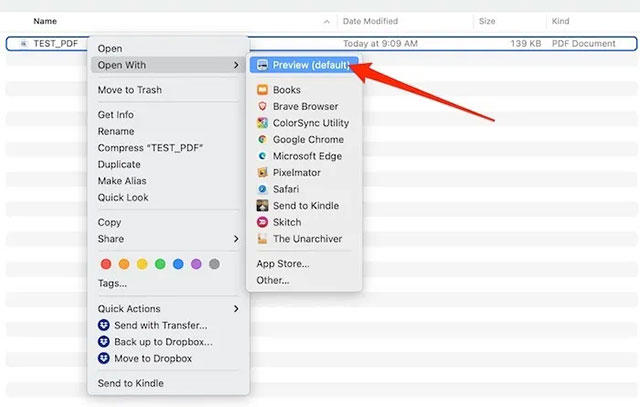
<p style="text-align: justify;">Bước đầu tiên, bạn cần sử dụng Preview để mở file PDF đang được bảo vệ bằng mật khẩu.</p>

<p style="text-align: justify;">Để làm điều này, bạn chỉ cần nhấp chuột phải vào file PDF mà mình muốn xóa mật khẩu và chọn Open With &gt; Preview. Ngoài ra, bạn cũng có thể nhấp đúp vào file để mở nó với Preview. Sử dụng phương pháp nào cũng được.</p>

<p style="text-align: justify;"><img alt="Mở tệp trong Preview" data-i="2" data-src="https://st.quantrimang.com/photos/image/2021/05/19/xoa-mat-khau-tep-pdf-tren-may-mac1.jpg" data-was-processed="true" height="407" src="https://st.quantrimang.com/photos/image/2021/05/19/xoa-mat-khau-tep-pdf-tren-may-mac1.jpg" width="640" /></p>

<div style="text-align: justify;"><iframe allowtransparency="true" aria-label="Advertisement" data-google-container-id="a!3" data-google-query-id="CN-A3vOcvoUDFelLwgUdhUkDAg" data-load-complete="true" frameborder="0" height="0" hspace="0" id="aswift_2" marginheight="0" marginwidth="0" name="aswift_2" sandbox="" scrolling="no" tabindex="0" title="Advertisement" vspace="0" width="694"></iframe></div>

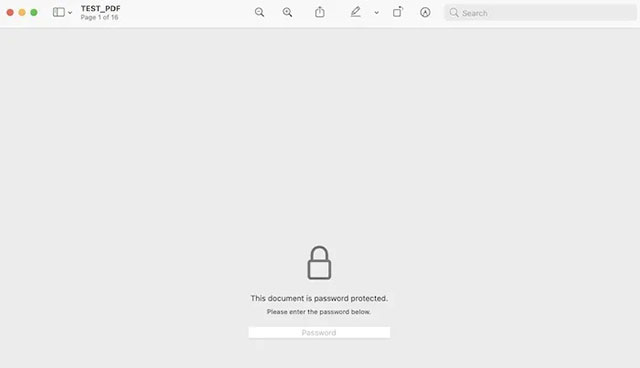
<p style="text-align: justify;">Vì file đang được bảo vệ bằng mật khẩu, Preview sẽ yêu cầu bạn nhập chính xác mã xác thực trước khi có thể xem bất kỳ nội dung nào bên trong.</p>

<p style="text-align: justify;"><img alt="Nhập mật khẩu" data-i="3" data-src="https://st.quantrimang.com/photos/image/2021/05/19/xoa-mat-khau-tep-pdf-tren-may-mac3.jpg" data-was-processed="true" height="368" src="https://st.quantrimang.com/photos/image/2021/05/19/xoa-mat-khau-tep-pdf-tren-may-mac3.jpg" width="640" /></p>

<p style="text-align: justify;">Chỉ cần nhập mật khẩu của bạn vào ô đã cho và nhấn Enter. Nếu mật khẩu chính xác, bạn sẽ có thể xem file PDF này ở chế độ Preview.</p>

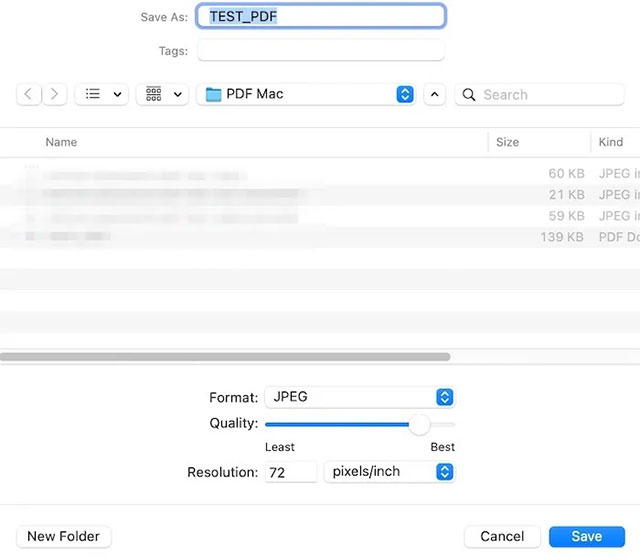
<p style="text-align: justify;">Sau khi file được mở, hãy nhấp vào menu “File” &gt; “Save…” hoặc nhấn tổ hợp phím tắt Command + S. Bây giờ bạn có thể lưu file PDF của mình dưới dạng tài liệu mới và đổi tên nó. Nói cách khác, thao tác này sẽ cho phép tạo một bản của file PDF này - nhưng hoàn toàn công còn có mật khẩu. Ngoài ra, bạn cũng có thể chọn một vị trí lưu mới cho file - chẳng hạn như thư mục download hoặc vị trí nào đó trong iCloud để tiện truy cập nhanh trong tương lai.</p>

<p style="text-align: justify;"><img alt="Lưu tệp mới" data-i="4" data-src="https://st.quantrimang.com/photos/image/2021/05/19/xoa-mat-khau-tep-pdf-tren-may-mac4.jpg" data-was-processed="true" height="558" src="https://st.quantrimang.com/photos/image/2021/05/19/xoa-mat-khau-tep-pdf-tren-may-mac4.jpg" width="640" /></p>

<p style="text-align: justify;">Bạn sẽ thấy file PDF mới được lưu trong thư mục đính mà mình đã chọn phía trên. Khi khởi chạy file này trong bất kỳ trình đọc PDF nào, bao gồm cả Preview, bạn sẽ thấy rằng nó không yêu cầu mật khẩu nữa. Bạn có thể gửi file cho bất kỳ ai và họ sẽ hoàn toàn có thể thoải mái truy cập không hạn chế vào nội dung file.</p>

<h2 style="text-align: justify;">Xóa mật khẩu khỏi file PDF bằng trình duyệt web</h2>

<p style="text-align: justify;">Xóa mật khẩu khỏi file PDF bằng trình duyệt web của bạn là một giải pháp thông minh sử dụng tính năng Print-to-PDF có sẵn trong hầu hết các trình duyệt hiện đại, như Safari, Chrome và Firefox trên máy Mac. Phương pháp này không yêu cầu cài đặt phần mềm bổ sung.</p>

<div style="text-align: justify;"><iframe allowtransparency="true" aria-label="Advertisement" data-google-container-id="a!4" data-google-query-id="CKHwvNKdvoUDFatMwgUdf80N2Q" data-load-complete="true" frameborder="0" height="0" hspace="0" id="aswift_3" marginheight="0" marginwidth="0" name="aswift_3" sandbox="" scrolling="no" tabindex="0" title="Advertisement" vspace="0" width="694"></iframe></div>

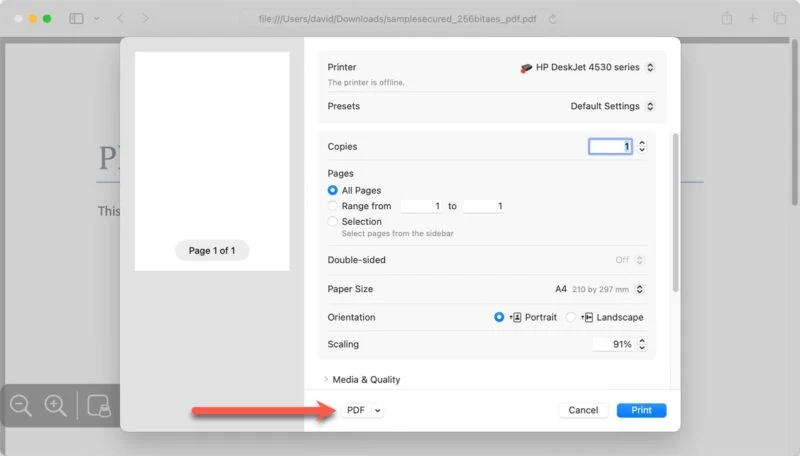
<p style="text-align: justify;">Mở file PDF được bảo vệ bằng mật khẩu trong trình duyệt web của bạn bằng cách kéo file vào thanh URL của cửa sổ trình duyệt đang mở hoặc bằng cách sử dụng tùy chọn&nbsp;<strong>Open File</strong>&nbsp;của trình duyệt, thường thấy trong menu File. Bạn sẽ được nhắc nhập mật khẩu.</p>

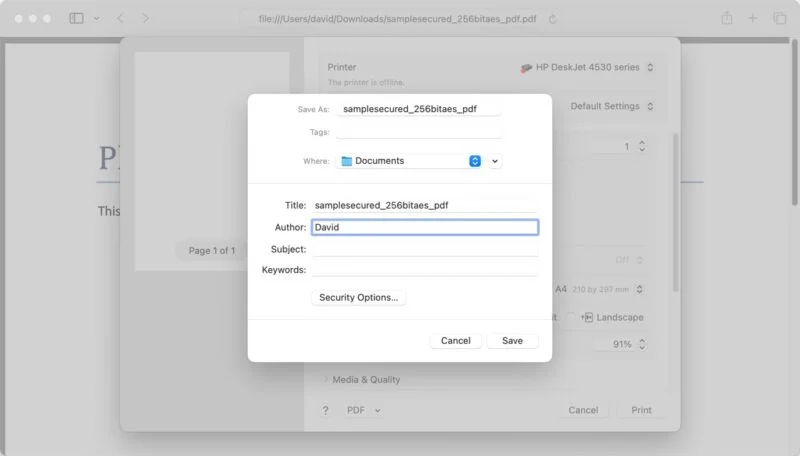
<p style="text-align: justify;">Khi file PDF được mở, hãy chọn tùy chọn&nbsp;<strong>Print</strong>&nbsp;từ menu File (hoặc nhấn&nbsp;<strong>Command + P</strong>). Nhấp vào nút&nbsp;<strong>PDF</strong>&nbsp;ở cuối cửa sổ hộp thoại in.</p>

<figure>
<div style="text-align: justify;"><img alt="Tùy chọn in dưới dạng PDF trên máy Mac" data-i="5" data-src="https://st.quantrimang.com/photos/image/2024/04/12/xoa-mat-khau-tep-pdf-tren-may-mac-3.jpg" data-was-processed="true" height="456" src="https://st.quantrimang.com/photos/image/2024/04/12/xoa-mat-khau-tep-pdf-tren-may-mac-3.jpg" width="800" /></div>

<figcaption>
<div style="text-align: justify;">Tùy chọn in dưới dạng PDF trên máy Mac</div>
</figcaption>
</figure>

<p style="text-align: justify;">Đặt tên cho tài liệu và chọn nơi bạn muốn lưu nó, sau đó nhấp vào nút&nbsp;<strong>Save</strong>.</p>

<figure>
<div style="text-align: justify;"><img alt="Chọn vị trí lưu file PDF trên máy Mac" data-i="6" data-src="https://st.quantrimang.com/photos/image/2024/04/12/xoa-mat-khau-tep-pdf-tren-may-mac-4.jpg" data-was-processed="true" height="456" src="https://st.quantrimang.com/photos/image/2024/04/12/xoa-mat-khau-tep-pdf-tren-may-mac-4.jpg" width="800" /></div>

<figcaption>
<div style="text-align: justify;">Chọn vị trí lưu file PDF trên máy Mac</div>
</figcaption>
</figure>

<div style="text-align: justify;">&nbsp;</div>
		</div>
				<div id="author">
						<p>
				<strong>Nguồn tin:</strong>
				Quantrimang.com
			</p>
		</div>
	</div>
	<div id="footer" class="clearfix">
		<div id="url">
			<strong>URL của bản tin này: </strong><a href="https://www.nguoicodonvn2008.info/vi/news/savefile/kien-thuc-may-tinh/cach-xoa-mat-khau-file-pdf-tren-may-mac-8305.html" title="Cách xóa mật khẩu file PDF trên máy Mac">https://www.nguoicodonvn2008.info/vi/news/savefile/kien-thuc-may-tinh/cach-xoa-mat-khau-file-pdf-tren-may-mac-8305.html</a>

		</div>
		<div class="clear"></div>
		<div class="copyright">
			&copy; .&#x3A; Nguoicodonvn2008.info - Cõi lòng người cô đơn &#x3A;.
		</div>
		<div id="contact">
			<a href="mailto:admin@nguoicodonvn2008.info">admin@nguoicodonvn2008.info</a>
		</div>
	</div>
</div>
        <div id="timeoutsess" class="chromeframe">
            Bạn đã không sử dụng Site, <a onclick="timeoutsesscancel();" href="https://nguoicodonvn2008.info/#">Bấm vào đây để duy trì trạng thái đăng nhập</a>. Thời gian chờ: <span id="secField"> 60 </span> giây
        </div>
        <div id="openidResult" class="nv-alert" style="display:none"></div>
        <div id="openidBt" data-result="" data-redirect=""></div>
		</script>
		<div class="car-top">
  <span><img src="https://nguoicodonvn2008.info/themes/default/images/car.png" alt=""></span>
</div>
<div id="run_cronjobs" style="visibility:hidden;display:none;"><img alt="cron" src="/index.php?second=cronjobs&amp;p=k8fypgy5" width="1" height="1" /></div>
<script src="https://nguoicodonvn2008.info/assets/js/jquery/jquery.min.js"></script>
<script>var nv_base_siteurl="/",nv_lang_data="vi",nv_lang_interface="vi",nv_name_variable="nv",nv_fc_variable="op",nv_lang_variable="language",nv_module_name="news",nv_func_name="savefile",nv_is_user=0, nv_my_ofs=-4,nv_my_abbr="EDT",nv_cookie_prefix="nv4c_e856T",nv_check_pass_mstime=1738000,nv_area_admin=0,nv_safemode=0,theme_responsive=0,nv_recaptcha_ver=2,nv_recaptcha_sitekey="",nv_recaptcha_type="image",XSSsanitize=1;</script>
<script src="https://nguoicodonvn2008.info/assets/js/language/vi.js"></script>
<script src="https://nguoicodonvn2008.info/assets/js/DOMPurify/purify3.js"></script>
<script src="https://nguoicodonvn2008.info/assets/js/global.js"></script>
<script src="https://nguoicodonvn2008.info/assets/js/site.js"></script>
<script src="https://nguoicodonvn2008.info/themes/default/js/news.js"></script>
<script src="https://nguoicodonvn2008.info/themes/default/js/main.js"></script>
<script src="https://nguoicodonvn2008.info/themes/default/js/custom.js"></script>
<script type="application/ld+json">
        {
            "@context": "https://schema.org",
            "@type": "Organization",
            "url": "https://nguoicodonvn2008.info",
            "logo": "https://nguoicodonvn2008.info/uploads/angel.gif"
        }
        </script>
<script src="https://nguoicodonvn2008.info/themes/default/js/bootstrap.min.js"></script>
<script type="text/javascript">
var $scrolltop = $('.car-top');
$scrolltop.on('click', function () {
    $('html,body').animate({
        scrollTop: 0
    }, 800);
    $(this).addClass("car-run");
    setTimeout(function(){ $scrolltop.removeClass('car-run');}, 1000);
    return false;
});
$(window).on('scroll', function ()
{ 
    if($(window).scrollTop() >= 200)
    {
        $scrolltop.addClass("show");
        $scrolltop.addClass("car-down");
    }
    else
    {
       $scrolltop.removeClass("show");
       setTimeout(function(){ $scrolltop.removeClass('car-down');}, 300);
    }
});
</script>
</body>
</html>