<!DOCTYPE html>
    <html lang="vi" xmlns="http://www.w3.org/1999/xhtml" prefix="og: http://ogp.me/ns#">
    <head>
<title>Cách xóa lịch sử tìm kiếm thư mục, tập tin trên File Explorer</title>
<meta name="description" content="Cách xóa lịch sử tìm kiếm thư mục, tập tin trên File Explorer - Savefile - Tin Tức -...">
<meta name="author" content=".: Nguoicodonvn2008.info - Cõi lòng người cô đơn :.">
<meta name="copyright" content=".: Nguoicodonvn2008.info - Cõi lòng người cô đơn :. [admin@nguoicodonvn2008.info]">
<meta name="robots" content="index, archive, follow, noodp">
<meta name="googlebot" content="index,archive,follow,noodp">
<meta name="msnbot" content="all,index,follow">
<meta name="generator" content="NukeViet v4.5">
<meta http-equiv="Content-Type" content="text/html; charset=utf-8">
<meta property="og:title" content="Cách xóa lịch sử tìm kiếm thư mục, tập tin trên File Explorer">
<meta property="og:type" content="website">
<meta property="og:description" content="Savefile - Tin Tức - https&#x3A;&#x002F;&#x002F;www.nguoicodonvn2008.info&#x002F;vi&#x002F;news&#x002F;savefile&#x002F;kien-thuc-may-tinh&#x002F;cach-xoa-lich-su-tim-kiem-thu-muc-tap-tin-tren-file-explorer-9697.html">
<meta property="og:site_name" content=".&#x3A; Nguoicodonvn2008.info - Cõi lòng người cô đơn &#x3A;.">
<meta property="og:url" content="https://www.nguoicodonvn2008.info/vi/news/savefile/kien-thuc-may-tinh/cach-xoa-lich-su-tim-kiem-thu-muc-tap-tin-tren-file-explorer-9697.html">
<link rel="shortcut icon" href="https://nguoicodonvn2008.info/favicon.ico">
<link rel="canonical" href="https://www.nguoicodonvn2008.info/vi/news/savefile/kien-thuc-may-tinh/cach-xoa-lich-su-tim-kiem-thu-muc-tap-tin-tren-file-explorer-9697.html">
<link rel="alternate" href="https://nguoicodonvn2008.info/vi/news/rss/" title="Tin Tức" type="application/rss+xml">
<link rel="alternate" href="https://nguoicodonvn2008.info/vi/news/rss/karaoke-dual/" title="Tin Tức - Karaoke Dual" type="application/rss+xml">
<link rel="alternate" href="https://nguoicodonvn2008.info/vi/news/rss/nhac-tre/" title="Tin Tức - Nhạc trẻ" type="application/rss+xml">
<link rel="alternate" href="https://nguoicodonvn2008.info/vi/news/rss/tru-tinh/" title="Tin Tức - Trữ tình" type="application/rss+xml">
<link rel="alternate" href="https://nguoicodonvn2008.info/vi/news/rss/nuoc-ngoai/" title="Tin Tức - Nước ngoài" type="application/rss+xml">
<link rel="alternate" href="https://nguoicodonvn2008.info/vi/news/rss/remix/" title="Tin Tức - Remix" type="application/rss+xml">
<link rel="alternate" href="https://nguoicodonvn2008.info/vi/news/rss/tam-su-tinh-yeu/" title="Tin Tức - Tâm sự tình yêu" type="application/rss+xml">
<link rel="alternate" href="https://nguoicodonvn2008.info/vi/news/rss/tho-suu-tam/" title="Tin Tức - Thơ sưu tầm" type="application/rss+xml">
<link rel="alternate" href="https://nguoicodonvn2008.info/vi/news/rss/cuoc-song/" title="Tin Tức - Cuộc sống" type="application/rss+xml">
<link rel="alternate" href="https://nguoicodonvn2008.info/vi/news/rss/phan-mem/" title="Tin Tức - Phần mềm" type="application/rss+xml">
<link rel="alternate" href="https://nguoicodonvn2008.info/vi/news/rss/kien-thuc-may-tinh/" title="Tin Tức - Kiến thức máy tính" type="application/rss+xml">
<link rel="alternate" href="https://nguoicodonvn2008.info/vi/news/rss/hoc-tap/" title="Tin Tức - Học tập" type="application/rss+xml">
<link rel="alternate" href="https://nguoicodonvn2008.info/vi/news/rss/tai-lieu/" title="Tin Tức - Tài liệu" type="application/rss+xml">
<link rel="alternate" href="https://nguoicodonvn2008.info/vi/news/rss/de-thi/" title="Tin Tức - Đề thi" type="application/rss+xml">
<link rel="preload" as="style" href="https://nguoicodonvn2008.info/assets/css/font-awesome.min.css" type="text/css">
<link rel="preload" as="style" href="https://nguoicodonvn2008.info/themes/default/css/bootstrap.non-responsive.css" type="text/css">
<link rel="preload" as="style" href="https://nguoicodonvn2008.info/themes/default/css/style.css" type="text/css">
<link rel="preload" as="style" href="https://nguoicodonvn2008.info/themes/default/css/style.non-responsive.css" type="text/css">
<link rel="preload" as="style" href="https://nguoicodonvn2008.info/themes/default/css/news.css" type="text/css">
<link rel="preload" as="style" href="https://nguoicodonvn2008.info/themes/default/css/custom.css" type="text/css">
<link rel="preload" as="script" href="https://nguoicodonvn2008.info/assets/js/jquery/jquery.min.js" type="text/javascript">
<link rel="preload" as="script" href="https://nguoicodonvn2008.info/assets/js/language/vi.js" type="text/javascript">
<link rel="preload" as="script" href="https://nguoicodonvn2008.info/assets/js/DOMPurify/purify3.js" type="text/javascript">
<link rel="preload" as="script" href="https://nguoicodonvn2008.info/assets/js/global.js" type="text/javascript">
<link rel="preload" as="script" href="https://nguoicodonvn2008.info/assets/js/site.js" type="text/javascript">
<link rel="preload" as="script" href="https://nguoicodonvn2008.info/themes/default/js/news.js" type="text/javascript">
<link rel="preload" as="script" href="https://nguoicodonvn2008.info/themes/default/js/main.js" type="text/javascript">
<link rel="preload" as="script" href="https://nguoicodonvn2008.info/themes/default/js/custom.js" type="text/javascript">
<link rel="preload" as="script" href="https://nguoicodonvn2008.info/themes/default/js/bootstrap.min.js" type="text/javascript">
<link rel="stylesheet" href="https://nguoicodonvn2008.info/assets/css/font-awesome.min.css">
<link rel="stylesheet" href="https://nguoicodonvn2008.info/themes/default/css/bootstrap.non-responsive.css">
<link rel="stylesheet" href="https://nguoicodonvn2008.info/themes/default/css/style.css">
<link rel="stylesheet" href="https://nguoicodonvn2008.info/themes/default/css/style.non-responsive.css">
<link rel="StyleSheet" href="https://nguoicodonvn2008.info/themes/default/css/news.css">
<link rel="stylesheet" href="https://nguoicodonvn2008.info/themes/default/css/custom.css">
<style type="text/css">
	body{background: #fff;}
</style>
    </head>
    <body>
<div id="print">
	<div id="hd_print">
		<h2 class="pull-left">.&#x3A; Nguoicodonvn2008.info - Cõi lòng người cô đơn &#x3A;.</h2>
		<p class="pull-right"><a title=".&#x3A; Nguoicodonvn2008.info - Cõi lòng người cô đơn &#x3A;." href="https://nguoicodonvn2008.info/">https://nguoicodonvn2008.info</a></p>
	</div>
	<div class="clear"></div>
	<hr />
	<div id="content">
		<h1>Cách xóa lịch sử tìm kiếm thư mục, tập tin trên File Explorer</h1>
		<ul class="list-inline">
			<li>Thứ bảy - 18/01/2025 00:59</li>
			<li class="hidden-print txtrequired"><em class="fa fa-print">&nbsp;</em><a title="In ra" href="javascript:;" onclick="window.print()">In ra</a></li>
			<li class="hidden-print txtrequired"><em class="fa fa-power-off">&nbsp;</em><a title="Đóng cửa sổ này" href="javascript:;" onclick="window.close()">Đóng cửa sổ này</a></li>
		</ul>
		<div class="clear"></div>
		<div id="hometext">
		</div>
				<div class="imghome">
			<img alt="Cách xóa lịch sử tìm kiếm thư mục, tập tin trên File Explorer" src="https://st.quantrimang.com/photos/image/2016/02/03/sau-khi-xoa.jpg" width="460" class="img-thumbnail" />
		</div>
		<div class="clear"></div>
		<div id="bodytext" class="clearfix">
			<p style="text-align: justify;">Việc xóa lịch sử File Explorer sẽ xóa thông tin Windows đã lưu về tệp và thư mục bạn sử dụng, cũng như những gì bạn đã nhập vào thanh địa chỉ và hộp thoại Run. Điều này sẽ bảo mật thông tin cá nhân của bạn cũng như xóa đi những dữ liệu sử dụng máy tính không cần thiết. Dưới đây là hướng dẫn xóa lịch sử tìm kiếm thư mục, tập tin trên File Explorer.</p>

<h2 style="text-align: justify;">&nbsp;</h2>

<h2 id="mcetoc_1ihq9afvo20" style="text-align: justify;">Hướng dẫn xóa lịch sử tìm kiếm trên File Explorer Win 11</h2>

<h3 id="mcetoc_1ihq9afvo21" style="text-align: justify;">Xóa lịch sử tìm kiếm Run và File Explorer</h3>

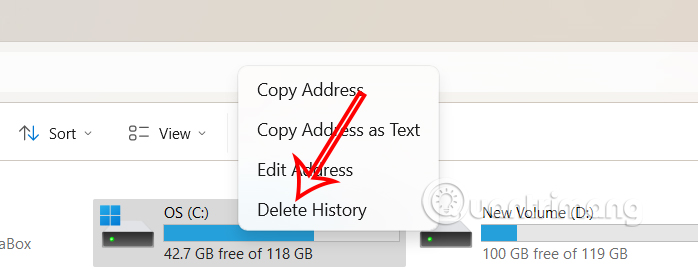
<p style="text-align: justify;">Bạn mở giao diện File Explorer trên máy tính, sau đó nhấn&nbsp;<strong>chuột phải vào thanh địa chỉ của File Explorer</strong>, rồi chọn&nbsp;<strong>Delete history</strong>.</p>

<p style="text-align: justify;"><img alt="Xóa lịch sử tìm kiếm trên Run" data-i="0" data-src="https://st.quantrimang.com/photos/image/2025/01/16/File-Explorer-xoa-lich-su-tim-kiem-1.jpg" data-was-processed="true" height="247" src="https://st.quantrimang.com/photos/image/2025/01/16/File-Explorer-xoa-lich-su-tim-kiem-1.jpg" width="640" /></p>

<h3 id="mcetoc_1ihq9afvo22" style="text-align: justify;">Xóa lịch sử tìm kiếm File Explorer trong Tùy chọn</h3>

<p style="text-align: justify;"><strong>Bước 1:</strong></p>

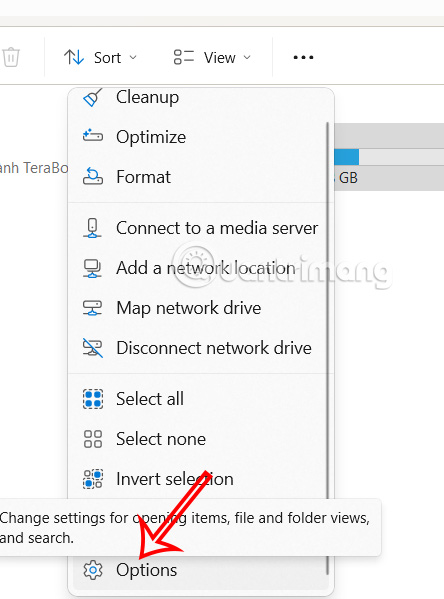
<p style="text-align: justify;">Trong giao diện File Explorer bạn nhấn vào<strong>&nbsp;biểu tượng 3 dấu chấm&nbsp;</strong>rồi nhấn tiếp&nbsp;<strong>Options</strong>&nbsp;trong menu hiển thị.</p>

<p style="text-align: justify;"><img alt="Tùy chỉnh File Explorer" data-i="1" data-src="https://st.quantrimang.com/photos/image/2025/01/16/File-Explorer-xoa-lich-su-tim-kiem-2.jpg" data-was-processed="true" height="540" src="https://st.quantrimang.com/photos/image/2025/01/16/File-Explorer-xoa-lich-su-tim-kiem-2.jpg" width="400" /></p>

<div style="text-align: justify;">&nbsp;</div>

<p style="text-align: justify;"><strong>Bước 2:</strong></p>

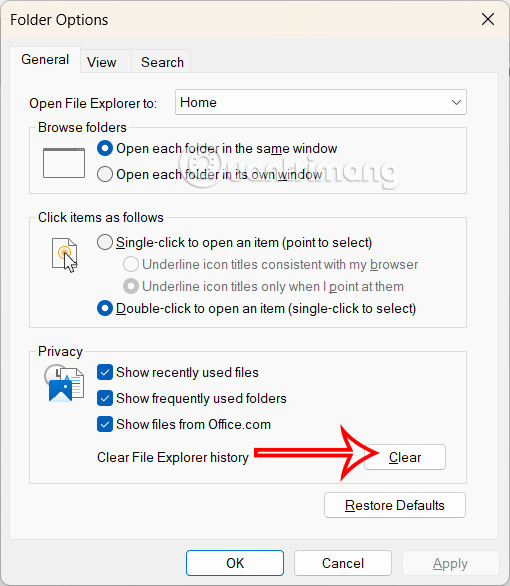
<p style="text-align: justify;">Chúng ta nhấn vào&nbsp;<strong>tab General</strong>, sau đó nhìn xuống bên dưới&nbsp;<strong>nhấn vào nút Clear</strong>&nbsp;để thực hiện xóa lịch sử tìm kiếm File Explorer.</p>

<p style="text-align: justify;"><img alt="Xóa lịch sử tìm kiếm File Explorer" data-i="2" data-src="https://st.quantrimang.com/photos/image/2025/01/16/File-Explorer-xoa-lich-su-tim-kiem-3.jpg" data-was-processed="true" height="517" src="https://st.quantrimang.com/photos/image/2025/01/16/File-Explorer-xoa-lich-su-tim-kiem-3.jpg" width="450" /></p>

<h3 id="mcetoc_1ihq9afvo23" style="text-align: justify;">Xóa lịch sử tìm kiếm File Explorer qua file BAT</h3>

<p style="text-align: justify;"><strong>Bước 1:</strong></p>

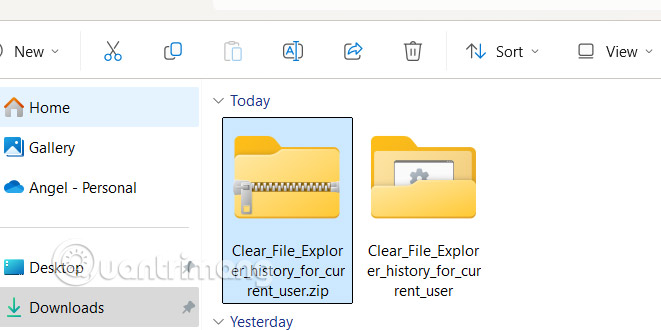
<p style="text-align: justify;">Bạn tải file zip theo link dưới đây xuống máy tính, sau đó tiến hành giải nén tập tin này như bình thường.</p>

<ul>
	<li style="text-align: justify;">Tải file BAT xóa lịch sử tìm kiếm File Explorer</li>
</ul>

<div style="text-align: justify;"><span style="color:rgb(192, 57, 43);"><strong>quantrimang.com/photos/file/2025/01/16/Clear-File-Explorer-history-for-current-user.zip</strong></span></div>

<p style="text-align: justify;"><img alt="Tải tập tin BAT " data-i="3" data-src="https://st.quantrimang.com/photos/image/2025/01/16/File-Explorer-xoa-lich-su-tim-kiem-4.jpg" data-was-processed="true" height="300" src="https://st.quantrimang.com/photos/image/2025/01/16/File-Explorer-xoa-lich-su-tim-kiem-4.jpg" width="600" /></p>

<p style="text-align: justify;"><strong>Bước 2:</strong></p>

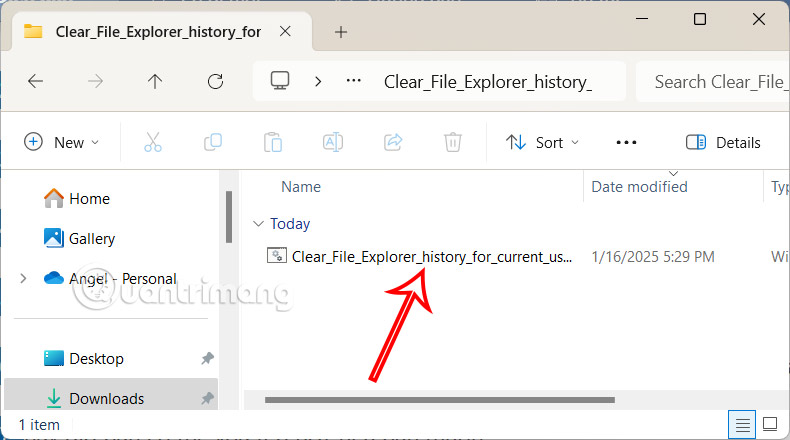
<p style="text-align: justify;">Khi đó chúng ta sẽ thấy file BAT để khởi chạy trên máy tính.</p>

<div style="text-align: justify;"><br />
<img alt="Chạy file BAT " data-adbro-processed="true" data-i="4" data-src="https://st.quantrimang.com/photos/image/2025/01/16/File-Explorer-xoa-lich-su-tim-kiem-5.jpg" data-was-processed="true" height="306" src="https://st.quantrimang.com/photos/image/2025/01/16/File-Explorer-xoa-lich-su-tim-kiem-5.jpg" width="550" /><br />
&nbsp;&nbsp;&nbsp;</div>

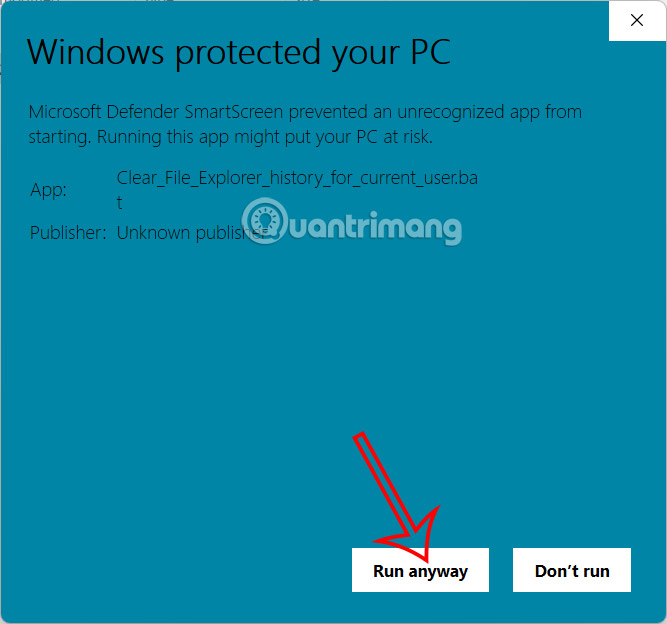
<p style="text-align: justify;">Nếu thấy giao diện cảnh báo chạy file BAT, chúng ta<strong>&nbsp;nhấn More info sau đó nhấn Run away&nbsp;</strong>để thực hiện chạy file BAT này.</p>

<p style="text-align: justify;"><img alt="Xóa lịch sử tìm kiếm File Explorer" data-i="5" data-src="https://st.quantrimang.com/photos/image/2025/01/16/File-Explorer-xoa-lich-su-tim-kiem-6.jpg" data-was-processed="true" height="468" src="https://st.quantrimang.com/photos/image/2025/01/16/File-Explorer-xoa-lich-su-tim-kiem-6.jpg" width="500" /></p>

<p style="text-align: justify;">Kết quả trên màn hình hiển thị dấu nhắc lệnh nhanh chóng mở và đóng để chạy lệnh xóa toàn bộ lịch sử File Explorer.</p>

<h2 id="mcetoc_1ihq9afvo24" style="text-align: justify;">Cách xóa lịch sử tìm kiếm trên File Explorer Windows 10</h2>

<h3 id="mcetoc_1ihq9afvo25" style="text-align: justify;">1. Xóa trực tiếp trên File Explorer</h3>

<p style="text-align: justify;">Cách tốt nhất để xóa lịch sử truy cập thư mục và tập tin trong Windows Explorer là xóa trực tiếp trên File Explorer. Để làm được điều này, đầu tiên bạn nhấn tổ hợp phím<strong>&nbsp;Win + E</strong>&nbsp;để mở File Explorer.</p>

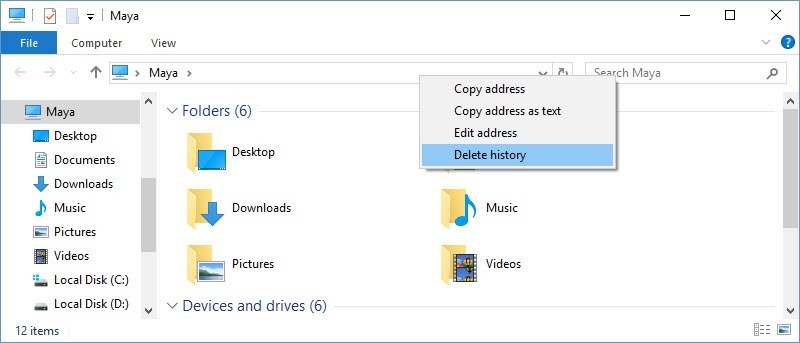
<p style="text-align: justify;">Sau khi cửa sổ File Explorer xuất hiện, bạn kích chuột phải vào thanh địa chỉ chọn&nbsp;<strong>Delete History</strong>.</p>

<p style="text-align: justify;"><img alt="chọn Delete History" data-i="6" data-src="https://st.quantrimang.com/photos/image/2016/02/03/delete-history.jpg" data-was-processed="true" height="279" src="https://st.quantrimang.com/photos/image/2016/02/03/delete-history.jpg" title="chọn Delete History" width="650" /></p>

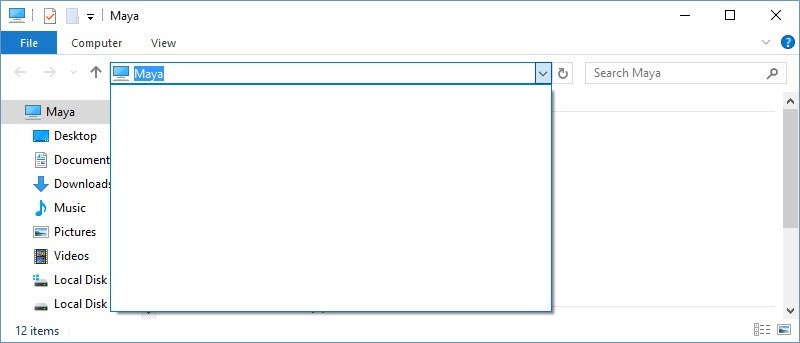
<p style="text-align: justify;">Lúc này trên màn hình, tất cả lịch sử File Explorer đã bị xóa. Để chắc chắn, bạn có thể kích chuột vào mũi tên xuống ở cuối thanh địa chỉ để thả xuống danh sách.</p>

<p style="text-align: justify;"><img alt="Kiểm tra lại" data-i="7" data-src="https://st.quantrimang.com/photos/image/2016/02/03/sau-khi-xoa.jpg" data-was-processed="true" height="279" src="https://st.quantrimang.com/photos/image/2016/02/03/sau-khi-xoa.jpg" title="Kiểm tra lại" width="650" /></p>

<h3 id="mcetoc_1ihq9afvo26" style="text-align: justify;">2. Xóa trên Folder Options</h3>

<p style="text-align: justify;">Để xóa lịch sử truy cập thư mục và tập tin trong Windows Explorer, ngoài cách xóa trực tiếp trên File Explorer bạn có thể sử dụng Folder Options.</p>

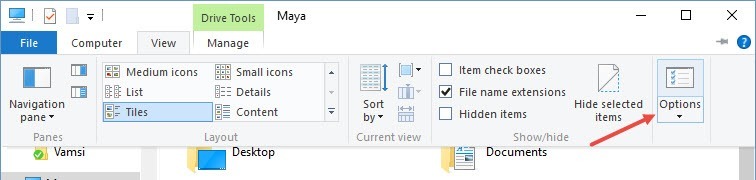
<p style="text-align: justify;">Đầu tiên mở File Explorer bằng cách nhấn tổ hợp phím&nbsp;<strong>Win + E</strong>, sau đó chọn tùy chọn&nbsp;<strong>Options</strong>&nbsp;trong tab&nbsp;<strong>View</strong>.</p>

<div style="text-align: justify;">&nbsp;</div>

<p style="text-align: justify;"><img alt="Options" data-i="8" data-src="https://st.quantrimang.com/photos/image/2016/02/03/folder-options.jpg" data-was-processed="true" height="155" src="https://st.quantrimang.com/photos/image/2016/02/03/folder-options.jpg" title="Options" width="650" /></p>

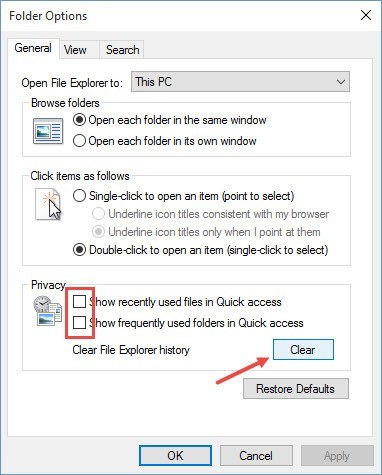
<p style="text-align: justify;">Sau khi cửa sổ Folder Options xuất hiện, bạn click chuột chọn&nbsp;<strong>Clear</strong>&nbsp;để xóa toàn bộ lịch sử truy cập thư mục và tập tin trong File Explorer nhanh chóng.</p>

<p style="text-align: justify;"><img alt="Chọn clear" data-i="9" data-src="https://st.quantrimang.com/photos/image/2016/02/03/clear.jpg" data-was-processed="true" height="475" src="https://st.quantrimang.com/photos/image/2016/02/03/clear.jpg" title="Chọn clear" width="382" /></p>

<p style="text-align: justify;">Nếu không muốn File Explorer lưu trữ lịch sử truy cập thư mục và tập tin gần đây, bạn bỏ dấu tích cả 2 tùy chọn&nbsp;<strong>Show recently used files in Quick access</strong>&nbsp;và&nbsp;<strong>Show frequently used folder in Quick access</strong>&nbsp;trong mục Privacy.</p>

<p style="text-align: justify;">Cuối cùng click&nbsp;<strong>OK</strong>&nbsp;để lưu lại thay đổi.</p>

<h3 id="mcetoc_1ihq9afvo27" style="text-align: justify;">3. Sử dụng trình Registry</h3>

<p style="text-align: justify;">Ngoài 2 cách trên, bạn có thể sử dụng thêm trình Registry để xóa lịch sử truy cập thư mục và tập tin trên File Explorer.</p>

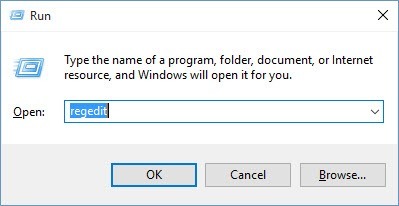
<p style="text-align: justify;">Đầu tiên nhấn tổ hợp phím&nbsp;<strong>Win + R</strong>&nbsp;để mở cửa sổ Run. Sau đó gõ&nbsp;<strong>regedit</strong>&nbsp;vào cửa sổ Run rồi nhấn<strong>&nbsp;Enter</strong>.</p>

<p style="text-align: justify;"><img alt="Gõ regedit" data-i="10" data-src="https://st.quantrimang.com/photos/image/2016/02/03/regedit.jpg" data-was-processed="true" height="206" src="https://st.quantrimang.com/photos/image/2016/02/03/regedit.jpg" title="Gõ regedit" width="399" /></p>

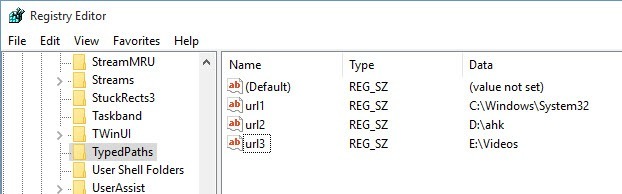
<p style="text-align: justify;">Sau khi cửa sổ trình Registry xuất hiện, bạn tìm theo địa chỉ:</p>

<p style="text-align: justify;"><strong>HKEY_CURRENT_USER\Software\Microsoft\Windows\CurrentVersion\Explorer\TypedPaths</strong></p>

<p style="text-align: justify;"><strong><img alt="Địa chỉ" data-i="11" data-src="https://st.quantrimang.com/photos/image/2016/02/03/duong-dan.jpg" data-was-processed="true" height="194" src="https://st.quantrimang.com/photos/image/2016/02/03/duong-dan.jpg" title="Địa chỉ" width="622" /></strong></p>

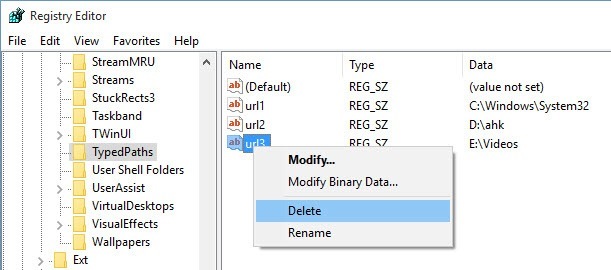
<p style="text-align: justify;">Lúc này trên màn hình, cửa sổ trình Registry sẽ hiển thị lịch sử truy cập thư mục và tập tin như URLs. Để xóa từng URLs một, bạn kích chuột phải vào URLs đó sau đó chọn&nbsp;<strong>Delete</strong>.</p>

<p style="text-align: justify;"><img alt="Chọn Delete" data-i="12" data-src="https://st.quantrimang.com/photos/image/2016/02/03/delete-file-explorer-address.jpg" data-was-processed="true" height="270" src="https://st.quantrimang.com/photos/image/2016/02/03/delete-file-explorer-address.jpg" title="Chọn Delete" width="611" /></p>

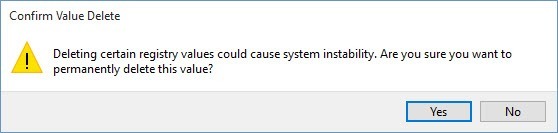
<p style="text-align: justify;">Trên màn hình sẽ xuất hiện một thông báo cảnh báo bạn có muốn xóa URLs hay không. Click<strong>&nbsp;Yes</strong>&nbsp;để xóa URLs.</p>

<p style="text-align: justify;"><img alt="Cảnh báo" data-i="13" data-src="https://st.quantrimang.com/photos/image/2016/02/03/yes.jpg" data-was-processed="true" height="133" src="https://st.quantrimang.com/photos/image/2016/02/03/yes.jpg" title="Cảnh báo" width="558" /></p>

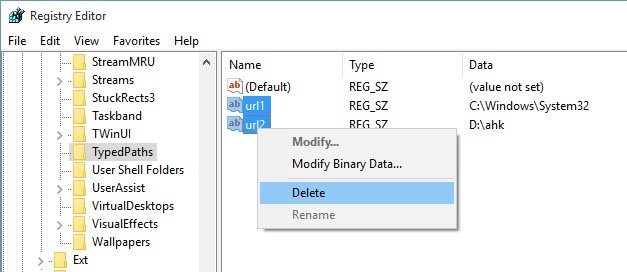
<p style="text-align: justify;">Nếu bạn muốn xóa toàn bộ lịch sử truy cập thư mục và tập tin trên File Explorer, bạn có thể chọn tất cả URLs (ngoại trừ&nbsp;<strong>Default</strong>) bằng cách giữ phím<strong>&nbsp;Ctrl</strong>&nbsp;rồi kích chuột chọn URLs, sau đó kích chuột phải chọn&nbsp;<strong>Delete</strong>.</p>

<p style="text-align: justify;"><img alt="Delete toàn bộ " data-i="14" data-src="https://st.quantrimang.com/photos/image/2016/02/03/delete-toan-bo.jpg" data-was-processed="true" height="272" src="https://st.quantrimang.com/photos/image/2016/02/03/delete-toan-bo.jpg" title="Delete toàn bộ " width="627" /></p>

<div style="text-align: justify;">&nbsp;</div>
		</div>
				<div id="author">
						<p>
				<strong>Nguồn tin:</strong>
				Quantrimang.com:
			</p>
		</div>
	</div>
	<div id="footer" class="clearfix">
		<div id="url">
			<strong>URL của bản tin này: </strong><a href="https://www.nguoicodonvn2008.info/vi/news/savefile/kien-thuc-may-tinh/cach-xoa-lich-su-tim-kiem-thu-muc-tap-tin-tren-file-explorer-9697.html" title="Cách xóa lịch sử tìm kiếm thư mục, tập tin trên File Explorer">https://www.nguoicodonvn2008.info/vi/news/savefile/kien-thuc-may-tinh/cach-xoa-lich-su-tim-kiem-thu-muc-tap-tin-tren-file-explorer-9697.html</a>

		</div>
		<div class="clear"></div>
		<div class="copyright">
			&copy; .&#x3A; Nguoicodonvn2008.info - Cõi lòng người cô đơn &#x3A;.
		</div>
		<div id="contact">
			<a href="mailto:admin@nguoicodonvn2008.info">admin@nguoicodonvn2008.info</a>
		</div>
	</div>
</div>
        <div id="timeoutsess" class="chromeframe">
            Bạn đã không sử dụng Site, <a onclick="timeoutsesscancel();" href="https://nguoicodonvn2008.info/#">Bấm vào đây để duy trì trạng thái đăng nhập</a>. Thời gian chờ: <span id="secField"> 60 </span> giây
        </div>
        <div id="openidResult" class="nv-alert" style="display:none"></div>
        <div id="openidBt" data-result="" data-redirect=""></div>
		</script>
		<div class="car-top">
  <span><img src="https://nguoicodonvn2008.info/themes/default/images/car.png" alt=""></span>
</div>
<script src="https://nguoicodonvn2008.info/assets/js/jquery/jquery.min.js"></script>
<script>var nv_base_siteurl="/",nv_lang_data="vi",nv_lang_interface="vi",nv_name_variable="nv",nv_fc_variable="op",nv_lang_variable="language",nv_module_name="news",nv_func_name="savefile",nv_is_user=0, nv_my_ofs=-4,nv_my_abbr="EDT",nv_cookie_prefix="nv4c_e856T",nv_check_pass_mstime=1738000,nv_area_admin=0,nv_safemode=0,theme_responsive=0,nv_recaptcha_ver=2,nv_recaptcha_sitekey="",nv_recaptcha_type="image",XSSsanitize=1;</script>
<script src="https://nguoicodonvn2008.info/assets/js/language/vi.js"></script>
<script src="https://nguoicodonvn2008.info/assets/js/DOMPurify/purify3.js"></script>
<script src="https://nguoicodonvn2008.info/assets/js/global.js"></script>
<script src="https://nguoicodonvn2008.info/assets/js/site.js"></script>
<script src="https://nguoicodonvn2008.info/themes/default/js/news.js"></script>
<script src="https://nguoicodonvn2008.info/themes/default/js/main.js"></script>
<script src="https://nguoicodonvn2008.info/themes/default/js/custom.js"></script>
<script type="application/ld+json">
        {
            "@context": "https://schema.org",
            "@type": "Organization",
            "url": "https://nguoicodonvn2008.info",
            "logo": "https://nguoicodonvn2008.info/uploads/angel.gif"
        }
        </script>
<script src="https://nguoicodonvn2008.info/themes/default/js/bootstrap.min.js"></script>
<script type="text/javascript">
var $scrolltop = $('.car-top');
$scrolltop.on('click', function () {
    $('html,body').animate({
        scrollTop: 0
    }, 800);
    $(this).addClass("car-run");
    setTimeout(function(){ $scrolltop.removeClass('car-run');}, 1000);
    return false;
});
$(window).on('scroll', function ()
{ 
    if($(window).scrollTop() >= 200)
    {
        $scrolltop.addClass("show");
        $scrolltop.addClass("car-down");
    }
    else
    {
       $scrolltop.removeClass("show");
       setTimeout(function(){ $scrolltop.removeClass('car-down');}, 300);
    }
});
</script>
</body>
</html>