<!DOCTYPE html>
    <html lang="vi" xmlns="http://www.w3.org/1999/xhtml" prefix="og: http://ogp.me/ns#">
    <head>
<title>Cách xóa biểu tượng chuông khỏi Taskbar Windows 11</title>
<meta name="description" content="Cách xóa biểu tượng chuông khỏi Taskbar Windows 11 - Savefile - Tin Tức -...">
<meta name="author" content=".: Nguoicodonvn2008.info - Cõi lòng người cô đơn :.">
<meta name="copyright" content=".: Nguoicodonvn2008.info - Cõi lòng người cô đơn :. [admin@nguoicodonvn2008.info]">
<meta name="robots" content="index, archive, follow, noodp">
<meta name="googlebot" content="index,archive,follow,noodp">
<meta name="msnbot" content="all,index,follow">
<meta name="generator" content="NukeViet v4.5">
<meta http-equiv="Content-Type" content="text/html; charset=utf-8">
<meta property="og:title" content="Cách xóa biểu tượng chuông khỏi Taskbar Windows 11">
<meta property="og:type" content="website">
<meta property="og:description" content="Savefile - Tin Tức - https&#x3A;&#x002F;&#x002F;www.nguoicodonvn2008.info&#x002F;vi&#x002F;news&#x002F;savefile&#x002F;kien-thuc-may-tinh&#x002F;cach-xoa-bieu-tuong-chuong-khoi-taskbar-windows-11-10444.html">
<meta property="og:site_name" content=".&#x3A; Nguoicodonvn2008.info - Cõi lòng người cô đơn &#x3A;.">
<meta property="og:url" content="https://www.nguoicodonvn2008.info/vi/news/savefile/kien-thuc-may-tinh/cach-xoa-bieu-tuong-chuong-khoi-taskbar-windows-11-10444.html">
<link rel="shortcut icon" href="https://nguoicodonvn2008.info/favicon.ico">
<link rel="canonical" href="https://www.nguoicodonvn2008.info/vi/news/savefile/kien-thuc-may-tinh/cach-xoa-bieu-tuong-chuong-khoi-taskbar-windows-11-10444.html">
<link rel="alternate" href="https://nguoicodonvn2008.info/vi/news/rss/" title="Tin Tức" type="application/rss+xml">
<link rel="alternate" href="https://nguoicodonvn2008.info/vi/news/rss/karaoke-dual/" title="Tin Tức - Karaoke Dual" type="application/rss+xml">
<link rel="alternate" href="https://nguoicodonvn2008.info/vi/news/rss/nhac-tre/" title="Tin Tức - Nhạc trẻ" type="application/rss+xml">
<link rel="alternate" href="https://nguoicodonvn2008.info/vi/news/rss/tru-tinh/" title="Tin Tức - Trữ tình" type="application/rss+xml">
<link rel="alternate" href="https://nguoicodonvn2008.info/vi/news/rss/nuoc-ngoai/" title="Tin Tức - Nước ngoài" type="application/rss+xml">
<link rel="alternate" href="https://nguoicodonvn2008.info/vi/news/rss/remix/" title="Tin Tức - Remix" type="application/rss+xml">
<link rel="alternate" href="https://nguoicodonvn2008.info/vi/news/rss/tam-su-tinh-yeu/" title="Tin Tức - Tâm sự tình yêu" type="application/rss+xml">
<link rel="alternate" href="https://nguoicodonvn2008.info/vi/news/rss/tho-suu-tam/" title="Tin Tức - Thơ sưu tầm" type="application/rss+xml">
<link rel="alternate" href="https://nguoicodonvn2008.info/vi/news/rss/cuoc-song/" title="Tin Tức - Cuộc sống" type="application/rss+xml">
<link rel="alternate" href="https://nguoicodonvn2008.info/vi/news/rss/phan-mem/" title="Tin Tức - Phần mềm" type="application/rss+xml">
<link rel="alternate" href="https://nguoicodonvn2008.info/vi/news/rss/kien-thuc-may-tinh/" title="Tin Tức - Kiến thức máy tính" type="application/rss+xml">
<link rel="alternate" href="https://nguoicodonvn2008.info/vi/news/rss/hoc-tap/" title="Tin Tức - Học tập" type="application/rss+xml">
<link rel="alternate" href="https://nguoicodonvn2008.info/vi/news/rss/tai-lieu/" title="Tin Tức - Tài liệu" type="application/rss+xml">
<link rel="alternate" href="https://nguoicodonvn2008.info/vi/news/rss/de-thi/" title="Tin Tức - Đề thi" type="application/rss+xml">
<link rel="preload" as="style" href="https://nguoicodonvn2008.info/assets/css/font-awesome.min.css" type="text/css">
<link rel="preload" as="style" href="https://nguoicodonvn2008.info/themes/default/css/bootstrap.non-responsive.css" type="text/css">
<link rel="preload" as="style" href="https://nguoicodonvn2008.info/themes/default/css/style.css" type="text/css">
<link rel="preload" as="style" href="https://nguoicodonvn2008.info/themes/default/css/style.non-responsive.css" type="text/css">
<link rel="preload" as="style" href="https://nguoicodonvn2008.info/themes/default/css/news.css" type="text/css">
<link rel="preload" as="style" href="https://nguoicodonvn2008.info/themes/default/css/custom.css" type="text/css">
<link rel="preload" as="script" href="https://nguoicodonvn2008.info/assets/js/jquery/jquery.min.js" type="text/javascript">
<link rel="preload" as="script" href="https://nguoicodonvn2008.info/assets/js/language/vi.js" type="text/javascript">
<link rel="preload" as="script" href="https://nguoicodonvn2008.info/assets/js/DOMPurify/purify3.js" type="text/javascript">
<link rel="preload" as="script" href="https://nguoicodonvn2008.info/assets/js/global.js" type="text/javascript">
<link rel="preload" as="script" href="https://nguoicodonvn2008.info/assets/js/site.js" type="text/javascript">
<link rel="preload" as="script" href="https://nguoicodonvn2008.info/themes/default/js/news.js" type="text/javascript">
<link rel="preload" as="script" href="https://nguoicodonvn2008.info/themes/default/js/main.js" type="text/javascript">
<link rel="preload" as="script" href="https://nguoicodonvn2008.info/themes/default/js/custom.js" type="text/javascript">
<link rel="preload" as="script" href="https://nguoicodonvn2008.info/themes/default/js/bootstrap.min.js" type="text/javascript">
<link rel="stylesheet" href="https://nguoicodonvn2008.info/assets/css/font-awesome.min.css">
<link rel="stylesheet" href="https://nguoicodonvn2008.info/themes/default/css/bootstrap.non-responsive.css">
<link rel="stylesheet" href="https://nguoicodonvn2008.info/themes/default/css/style.css">
<link rel="stylesheet" href="https://nguoicodonvn2008.info/themes/default/css/style.non-responsive.css">
<link rel="StyleSheet" href="https://nguoicodonvn2008.info/themes/default/css/news.css">
<link rel="stylesheet" href="https://nguoicodonvn2008.info/themes/default/css/custom.css">
<style type="text/css">
	body{background: #fff;}
</style>
    </head>
    <body>
<div id="print">
	<div id="hd_print">
		<h2 class="pull-left">.&#x3A; Nguoicodonvn2008.info - Cõi lòng người cô đơn &#x3A;.</h2>
		<p class="pull-right"><a title=".&#x3A; Nguoicodonvn2008.info - Cõi lòng người cô đơn &#x3A;." href="https://nguoicodonvn2008.info/">https://nguoicodonvn2008.info</a></p>
	</div>
	<div class="clear"></div>
	<hr />
	<div id="content">
		<h1>Cách xóa biểu tượng chuông khỏi Taskbar Windows 11</h1>
		<ul class="list-inline">
			<li>Chủ nhật - 25/05/2025 23:29</li>
			<li class="hidden-print txtrequired"><em class="fa fa-print">&nbsp;</em><a title="In ra" href="javascript:;" onclick="window.print()">In ra</a></li>
			<li class="hidden-print txtrequired"><em class="fa fa-power-off">&nbsp;</em><a title="Đóng cửa sổ này" href="javascript:;" onclick="window.close()">Đóng cửa sổ này</a></li>
		</ul>
		<div class="clear"></div>
		<div id="hometext">
		</div>
				<div class="imghome">
			<img alt="Cách xóa biểu tượng chuông khỏi Taskbar Windows 11" src="https://st.quantrimang.com/photos/image/2025/05/09/xoa-bieu-tuong-chuong-khoi-taskbar-windows-11-2.jpg" width="460" class="img-thumbnail" />
		</div>
		<div class="clear"></div>
		<div id="bodytext" class="clearfix">
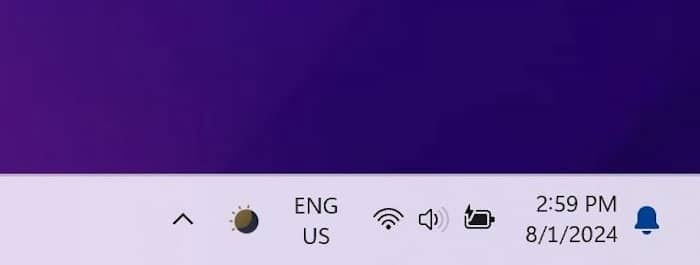
			<p style="text-align: justify;">Windows 11&nbsp;hiển thị biểu tượng chuông ở góc phải cùng của thanh tác vụ. Di con trỏ chuột qua biểu tượng chuông sẽ hiển thị số lượng thông báo chưa xem đang chờ xử lý và nhấp vào biểu tượng chuông sẽ mở Notification Center (Trung tâm thông báo), hiển thị tất cả các thông báo gần đây, chẳng hạn như email và tin nhắn&nbsp;WhatsApp.</p>

<div style="text-align: justify;">&nbsp;</div>

<p style="text-align: justify;">Nếu đang chạy Windows 11 trên&nbsp;&nbsp;máy tính&nbsp;xách tay có màn hình tương đối nhỏ hoặc đã ghim/mở nhiều ứng dụng, bạn có thể muốn xóa biểu tượng chuông khỏi thanh tác vụ để có thêm không gian. Mặc dù Windows 11 chưa cung cấp cách xóa biểu tượng chuông khỏi thanh tác vụ cho đến nay, nhưng bản build Windows Insider mới nhất đã mang đến tùy chọn này.</p>

<h2 style="text-align: justify;">Xóa biểu tượng chuông khỏi thanh tác vụ Windows 11</h2>

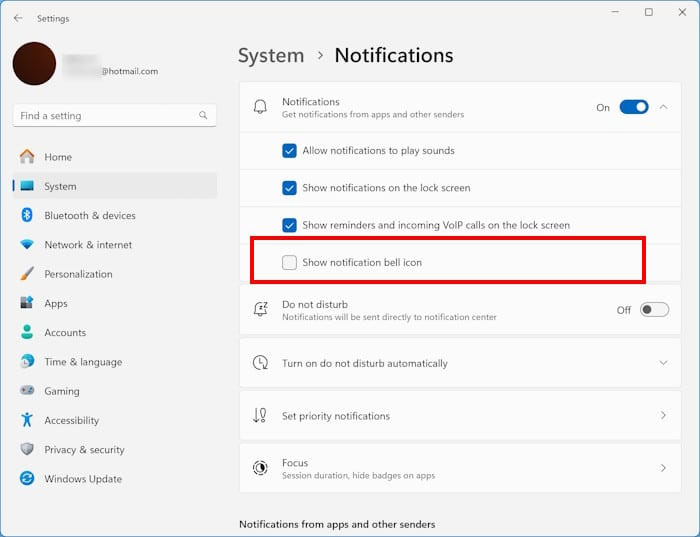
<p style="text-align: justify;">Bắt đầu từ bản build 22635.3930, người dùng Windows 11 có thể xóa biểu tượng chuông khỏi thanh tác vụ. Ngay cả sau khi xóa biểu tượng chuông, bạn vẫn có thể mở Notification Center và xem thông báo bằng cách nhấp vào ngày/đồng hồ hoặc sử dụng phím tắt&nbsp;<strong>Windows + N</strong>. Vì vậy, việc xóa biểu tượng chuông sẽ không vô hiệu hóa trung tâm thông báo, đây là một điều tốt.</p>

<figure>
<div style="text-align: justify;"><img alt="Xóa biểu tượng chuông khỏi thanh tác vụ Windows 11" data-i="0" data-src="https://st.quantrimang.com/photos/image/2025/05/09/xoa-bieu-tuong-chuong-khoi-taskbar-windows-11-1.jpg" data-was-processed="true" height="265" src="https://st.quantrimang.com/photos/image/2025/05/09/xoa-bieu-tuong-chuong-khoi-taskbar-windows-11-1.jpg" width="700" /></div>

<figcaption>
<div style="text-align: justify;">Xóa biểu tượng chuông khỏi thanh tác vụ Windows 11</div>
</figcaption>
</figure>

<p style="text-align: justify;"><strong>Bước 1</strong>:&nbsp;Mở ứng dụng Settings trong Windows 11&nbsp;bằng cách sử dụng tính năng tìm kiếm hoặc phím tắt<strong>&nbsp;Windows + I</strong>.</p>

<p style="text-align: justify;"><strong>Bước 2</strong>: Trong ngăn bên trái của Settings, nhấp vào&nbsp;<strong>System</strong>. Ở bên phải, nhấp vào&nbsp;<strong>Notifications</strong>.</p>

<p style="text-align: justify;"><strong>Bước 3</strong>: Trên trang này, nhấp vào&nbsp;<strong>Notifications</strong>&nbsp;để xem các tùy chọn khả dụng. Tắt tùy chọn có nhãn&nbsp;<strong>Show notification bell icon</strong>&nbsp;để xóa biểu tượng chuông khỏi thanh tác vụ ngay lập tức. Nếu tùy chọn bị thiếu, có thể là do bạn đang chạy bản build Windows 11 chưa có tùy chọn này.</p>

<figure>
<div style="text-align: justify;"><img alt="Hiển thị hoặc ẩn biểu tượng chuông thông báo trên thanh tác vụ Windows 11" data-i="1" data-src="https://st.quantrimang.com/photos/image/2025/05/09/xoa-bieu-tuong-chuong-khoi-taskbar-windows-11-2.jpg" data-was-processed="true" height="537" src="https://st.quantrimang.com/photos/image/2025/05/09/xoa-bieu-tuong-chuong-khoi-taskbar-windows-11-2.jpg" width="700" /></div>

<figcaption>
<div style="text-align: justify;">Hiển thị hoặc ẩn biểu tượng chuông thông báo trên thanh tác vụ Windows 11</div>
</figcaption>
</figure>

<p style="text-align: justify;">Như đã nói trước đó, bạn có thể tiếp tục truy cập Notification Center bằng cách nhấp vào ngày/đồng hồ hoặc dùng phím tắt&nbsp;<strong>Windows + N</strong>.</p>

<div style="text-align: justify;">&nbsp;</div>
		</div>
				<div id="author">
						<p>
				<strong>Nguồn tin:</strong>
				Quantrimang.com:
			</p>
		</div>
	</div>
	<div id="footer" class="clearfix">
		<div id="url">
			<strong>URL của bản tin này: </strong><a href="https://www.nguoicodonvn2008.info/vi/news/savefile/kien-thuc-may-tinh/cach-xoa-bieu-tuong-chuong-khoi-taskbar-windows-11-10444.html" title="Cách xóa biểu tượng chuông khỏi Taskbar Windows 11">https://www.nguoicodonvn2008.info/vi/news/savefile/kien-thuc-may-tinh/cach-xoa-bieu-tuong-chuong-khoi-taskbar-windows-11-10444.html</a>

		</div>
		<div class="clear"></div>
		<div class="copyright">
			&copy; .&#x3A; Nguoicodonvn2008.info - Cõi lòng người cô đơn &#x3A;.
		</div>
		<div id="contact">
			<a href="mailto:admin@nguoicodonvn2008.info">admin@nguoicodonvn2008.info</a>
		</div>
	</div>
</div>
        <div id="timeoutsess" class="chromeframe">
            Bạn đã không sử dụng Site, <a onclick="timeoutsesscancel();" href="https://nguoicodonvn2008.info/#">Bấm vào đây để duy trì trạng thái đăng nhập</a>. Thời gian chờ: <span id="secField"> 60 </span> giây
        </div>
        <div id="openidResult" class="nv-alert" style="display:none"></div>
        <div id="openidBt" data-result="" data-redirect=""></div>
		</script>
		<div class="car-top">
  <span><img src="https://nguoicodonvn2008.info/themes/default/images/car.png" alt=""></span>
</div>
<script src="https://nguoicodonvn2008.info/assets/js/jquery/jquery.min.js"></script>
<script>var nv_base_siteurl="/",nv_lang_data="vi",nv_lang_interface="vi",nv_name_variable="nv",nv_fc_variable="op",nv_lang_variable="language",nv_module_name="news",nv_func_name="savefile",nv_is_user=0, nv_my_ofs=-4,nv_my_abbr="EDT",nv_cookie_prefix="nv4c_e856T",nv_check_pass_mstime=1738000,nv_area_admin=0,nv_safemode=0,theme_responsive=0,nv_recaptcha_ver=2,nv_recaptcha_sitekey="",nv_recaptcha_type="image",XSSsanitize=1;</script>
<script src="https://nguoicodonvn2008.info/assets/js/language/vi.js"></script>
<script src="https://nguoicodonvn2008.info/assets/js/DOMPurify/purify3.js"></script>
<script src="https://nguoicodonvn2008.info/assets/js/global.js"></script>
<script src="https://nguoicodonvn2008.info/assets/js/site.js"></script>
<script src="https://nguoicodonvn2008.info/themes/default/js/news.js"></script>
<script src="https://nguoicodonvn2008.info/themes/default/js/main.js"></script>
<script src="https://nguoicodonvn2008.info/themes/default/js/custom.js"></script>
<script type="application/ld+json">
        {
            "@context": "https://schema.org",
            "@type": "Organization",
            "url": "https://nguoicodonvn2008.info",
            "logo": "https://nguoicodonvn2008.info/uploads/angel.gif"
        }
        </script>
<script src="https://nguoicodonvn2008.info/themes/default/js/bootstrap.min.js"></script>
<script type="text/javascript">
var $scrolltop = $('.car-top');
$scrolltop.on('click', function () {
    $('html,body').animate({
        scrollTop: 0
    }, 800);
    $(this).addClass("car-run");
    setTimeout(function(){ $scrolltop.removeClass('car-run');}, 1000);
    return false;
});
$(window).on('scroll', function ()
{ 
    if($(window).scrollTop() >= 200)
    {
        $scrolltop.addClass("show");
        $scrolltop.addClass("car-down");
    }
    else
    {
       $scrolltop.removeClass("show");
       setTimeout(function(){ $scrolltop.removeClass('car-down');}, 300);
    }
});
</script>
</body>
</html>