<!DOCTYPE html>
    <html lang="vi" xmlns="http://www.w3.org/1999/xhtml" prefix="og: http://ogp.me/ns#">
    <head>
<title>Cách xem ID máy tính, check ID phần cứng</title>
<meta name="description" content="Cách xem ID máy tính, check ID phần cứng - Savefile - Tin Tức -...">
<meta name="author" content=".: Nguoicodonvn2008.info - Cõi lòng người cô đơn :.">
<meta name="copyright" content=".: Nguoicodonvn2008.info - Cõi lòng người cô đơn :. [admin@nguoicodonvn2008.info]">
<meta name="robots" content="index, archive, follow, noodp">
<meta name="googlebot" content="index,archive,follow,noodp">
<meta name="msnbot" content="all,index,follow">
<meta name="generator" content="NukeViet v4.5">
<meta http-equiv="Content-Type" content="text/html; charset=utf-8">
<meta property="og:title" content="Cách xem ID máy tính, check ID phần cứng">
<meta property="og:type" content="website">
<meta property="og:description" content="Savefile - Tin Tức - https&#x3A;&#x002F;&#x002F;www.nguoicodonvn2008.info&#x002F;vi&#x002F;news&#x002F;savefile&#x002F;kien-thuc-may-tinh&#x002F;cach-xem-id-may-tinh-check-id-phan-cung-6723.html">
<meta property="og:site_name" content=".&#x3A; Nguoicodonvn2008.info - Cõi lòng người cô đơn &#x3A;.">
<meta property="og:url" content="https://www.nguoicodonvn2008.info/vi/news/savefile/kien-thuc-may-tinh/cach-xem-id-may-tinh-check-id-phan-cung-6723.html">
<link rel="shortcut icon" href="https://nguoicodonvn2008.info/favicon.ico">
<link rel="canonical" href="https://www.nguoicodonvn2008.info/vi/news/savefile/kien-thuc-may-tinh/cach-xem-id-may-tinh-check-id-phan-cung-6723.html">
<link rel="alternate" href="https://nguoicodonvn2008.info/vi/news/rss/" title="Tin Tức" type="application/rss+xml">
<link rel="alternate" href="https://nguoicodonvn2008.info/vi/news/rss/karaoke-dual/" title="Tin Tức - Karaoke Dual" type="application/rss+xml">
<link rel="alternate" href="https://nguoicodonvn2008.info/vi/news/rss/nhac-tre/" title="Tin Tức - Nhạc trẻ" type="application/rss+xml">
<link rel="alternate" href="https://nguoicodonvn2008.info/vi/news/rss/tru-tinh/" title="Tin Tức - Trữ tình" type="application/rss+xml">
<link rel="alternate" href="https://nguoicodonvn2008.info/vi/news/rss/nuoc-ngoai/" title="Tin Tức - Nước ngoài" type="application/rss+xml">
<link rel="alternate" href="https://nguoicodonvn2008.info/vi/news/rss/remix/" title="Tin Tức - Remix" type="application/rss+xml">
<link rel="alternate" href="https://nguoicodonvn2008.info/vi/news/rss/tam-su-tinh-yeu/" title="Tin Tức - Tâm sự tình yêu" type="application/rss+xml">
<link rel="alternate" href="https://nguoicodonvn2008.info/vi/news/rss/tho-suu-tam/" title="Tin Tức - Thơ sưu tầm" type="application/rss+xml">
<link rel="alternate" href="https://nguoicodonvn2008.info/vi/news/rss/cuoc-song/" title="Tin Tức - Cuộc sống" type="application/rss+xml">
<link rel="alternate" href="https://nguoicodonvn2008.info/vi/news/rss/phan-mem/" title="Tin Tức - Phần mềm" type="application/rss+xml">
<link rel="alternate" href="https://nguoicodonvn2008.info/vi/news/rss/kien-thuc-may-tinh/" title="Tin Tức - Kiến thức máy tính" type="application/rss+xml">
<link rel="alternate" href="https://nguoicodonvn2008.info/vi/news/rss/hoc-tap/" title="Tin Tức - Học tập" type="application/rss+xml">
<link rel="alternate" href="https://nguoicodonvn2008.info/vi/news/rss/tai-lieu/" title="Tin Tức - Tài liệu" type="application/rss+xml">
<link rel="alternate" href="https://nguoicodonvn2008.info/vi/news/rss/de-thi/" title="Tin Tức - Đề thi" type="application/rss+xml">
<link rel="preload" as="style" href="https://nguoicodonvn2008.info/assets/css/font-awesome.min.css" type="text/css">
<link rel="preload" as="style" href="https://nguoicodonvn2008.info/themes/default/css/bootstrap.non-responsive.css" type="text/css">
<link rel="preload" as="style" href="https://nguoicodonvn2008.info/themes/default/css/style.css" type="text/css">
<link rel="preload" as="style" href="https://nguoicodonvn2008.info/themes/default/css/style.non-responsive.css" type="text/css">
<link rel="preload" as="style" href="https://nguoicodonvn2008.info/themes/default/css/news.css" type="text/css">
<link rel="preload" as="style" href="https://nguoicodonvn2008.info/themes/default/css/custom.css" type="text/css">
<link rel="preload" as="script" href="https://nguoicodonvn2008.info/assets/js/jquery/jquery.min.js" type="text/javascript">
<link rel="preload" as="script" href="https://nguoicodonvn2008.info/assets/js/language/vi.js" type="text/javascript">
<link rel="preload" as="script" href="https://nguoicodonvn2008.info/assets/js/DOMPurify/purify3.js" type="text/javascript">
<link rel="preload" as="script" href="https://nguoicodonvn2008.info/assets/js/global.js" type="text/javascript">
<link rel="preload" as="script" href="https://nguoicodonvn2008.info/assets/js/site.js" type="text/javascript">
<link rel="preload" as="script" href="https://nguoicodonvn2008.info/themes/default/js/news.js" type="text/javascript">
<link rel="preload" as="script" href="https://nguoicodonvn2008.info/themes/default/js/main.js" type="text/javascript">
<link rel="preload" as="script" href="https://nguoicodonvn2008.info/themes/default/js/custom.js" type="text/javascript">
<link rel="preload" as="script" href="https://nguoicodonvn2008.info/themes/default/js/bootstrap.min.js" type="text/javascript">
<link rel="stylesheet" href="https://nguoicodonvn2008.info/assets/css/font-awesome.min.css">
<link rel="stylesheet" href="https://nguoicodonvn2008.info/themes/default/css/bootstrap.non-responsive.css">
<link rel="stylesheet" href="https://nguoicodonvn2008.info/themes/default/css/style.css">
<link rel="stylesheet" href="https://nguoicodonvn2008.info/themes/default/css/style.non-responsive.css">
<link rel="StyleSheet" href="https://nguoicodonvn2008.info/themes/default/css/news.css">
<link rel="stylesheet" href="https://nguoicodonvn2008.info/themes/default/css/custom.css">
<style type="text/css">
	body{background: #fff;}
</style>
    </head>
    <body>
<div id="print">
	<div id="hd_print">
		<h2 class="pull-left">.&#x3A; Nguoicodonvn2008.info - Cõi lòng người cô đơn &#x3A;.</h2>
		<p class="pull-right"><a title=".&#x3A; Nguoicodonvn2008.info - Cõi lòng người cô đơn &#x3A;." href="https://nguoicodonvn2008.info/">https://nguoicodonvn2008.info</a></p>
	</div>
	<div class="clear"></div>
	<hr />
	<div id="content">
		<h1>Cách xem ID máy tính, check ID phần cứng</h1>
		<ul class="list-inline">
			<li>Thứ hai - 13/02/2023 23:56</li>
			<li class="hidden-print txtrequired"><em class="fa fa-print">&nbsp;</em><a title="In ra" href="javascript:;" onclick="window.print()">In ra</a></li>
			<li class="hidden-print txtrequired"><em class="fa fa-power-off">&nbsp;</em><a title="Đóng cửa sổ này" href="javascript:;" onclick="window.close()">Đóng cửa sổ này</a></li>
		</ul>
		<div class="clear"></div>
		<div id="hometext">
		</div>
				<div class="imghome">
			<img alt="Cách xem ID máy tính, check ID phần cứng" src="https://st.quantrimang.com/photos/image/2023/02/13/xem-id-may-tinh-check-id-phan-cung-10.jpg" width="460" class="img-thumbnail" />
		</div>
		<div class="clear"></div>
		<div id="bodytext" class="clearfix">
			<p style="text-align: justify;">Việc kiểm tra thông tin máy tính,&nbsp;kiểm tra cấu hình laptop hay PC&nbsp;giúp người dùng nắm rõ được các phần cứng được trang bị trên máy tính. Ngoài thao tác kiểm tra những thông tin cơ bản đó thì việc tìm ID phần cứng (Hardware ID) cũng cần thiết để dễ dàng tra cứu thông tin của nhà sản xuất và model của các phần cứng. Điều này giúp chúng ta có thể kiểm tra bảo hành hoặc&nbsp;cập nhật driver cho máy tính.</p>

<p style="text-align: justify;">Ngoài ra cũng nhờ thông tin ID phần cứng gồm thông tin về nhà sản xuất và model mà bạn có thể kiểm tra, chẩn đoán lỗi phần cứng bên cạnh việc sử dụng các&nbsp;công cụ chẩn đoán lỗi phần cứng&nbsp;như Memory Diagnostic Tool, CrystalDiskInfo,... Bài viết dưới đây sẽ hướng dẫn bạn xem ID của máy tính, check ID phần cứng.</p>

<h2 style="text-align: justify;">&nbsp;</h2>

<h2 id="mcetoc_1gp4v28u264h" style="text-align: justify;">1. Cách check ID máy tính</h2>

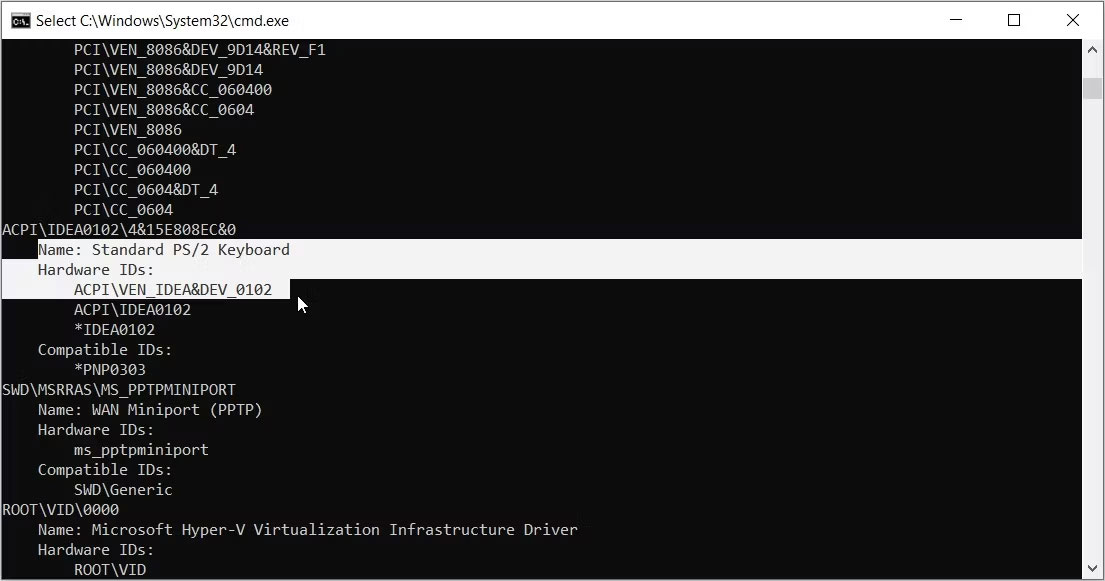
<p style="text-align: justify;">Trước hết bạn nhấn&nbsp;<strong>tổ hợp phím Windows + I</strong>&nbsp;để mở&nbsp;<strong>Windows Settings</strong>&nbsp;rồi nhấn tiếp vào&nbsp;<strong>System</strong>.</p>

<p style="text-align: justify;">Chuyển sang giao diện mới người dùng nhấn vào&nbsp;<strong>mục About</strong>&nbsp;ở danh sách bên trái màn hình.</p>

<p style="text-align: justify;"><img alt="System" data-i="0" data-src="https://st.quantrimang.com/photos/image/2021/03/30/check-ID-phan-cung-1.jpg" data-was-processed="true" height="515" src="https://st.quantrimang.com/photos/image/2021/03/30/check-ID-phan-cung-1.jpg" width="332" /></p>

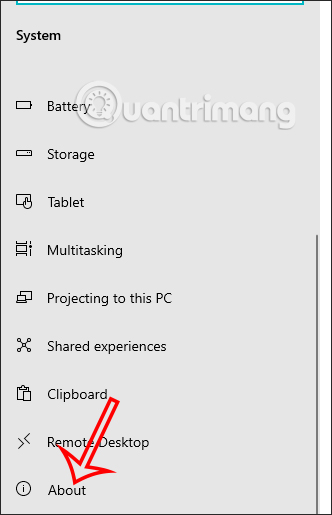
<p style="text-align: justify;">Nhìn sang nội dung bên phải bạn sẽ thấy&nbsp;<strong>mục Device Specifications</strong>&nbsp;và sau đó sẽ thấy phần&nbsp;<strong>Device ID chính là ID máy tính</strong>.</p>

<p style="text-align: justify;"><img alt="ID máy tính" data-i="1" data-src="https://st.quantrimang.com/photos/image/2021/03/30/check-ID-phan-cung-9.jpg" data-was-processed="true" height="402" src="https://st.quantrimang.com/photos/image/2021/03/30/check-ID-phan-cung-9.jpg" width="548" /></p>

<h2 id="mcetoc_1gp4v28u264i" style="text-align: justify;">2. Hướng dẫn tìm ID phần cứng (Hardware ID) bằng Device Manager</h2>

<p style="text-align: justify;"><strong>Bước 1:</strong></p>

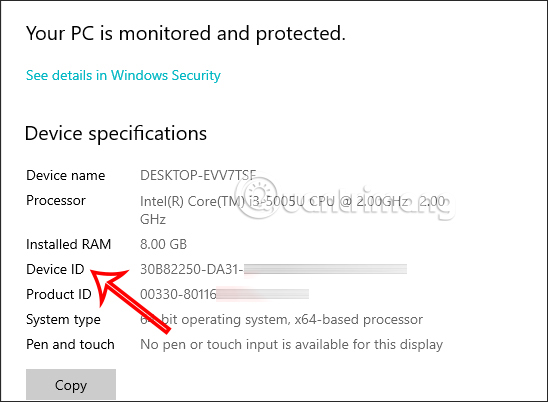
<p style="text-align: justify;">Tại giao diện trên máy tính bạn nhấn&nbsp;<strong>tổ hợp phím Windows + R</strong>&nbsp;rồi nhấn<strong>&nbsp;từ khóa devmgmt.msc</strong>.</p>

<p style="text-align: justify;"><img alt="Tìm ID phần cứng" data-i="2" data-src="https://st.quantrimang.com/photos/image/2021/03/30/check-ID-phan-cung-3.jpg" data-was-processed="true" height="206" src="https://st.quantrimang.com/photos/image/2021/03/30/check-ID-phan-cung-3.jpg" width="399" /></p>

<p style="text-align: justify;"><strong>Bước 2:</strong></p>

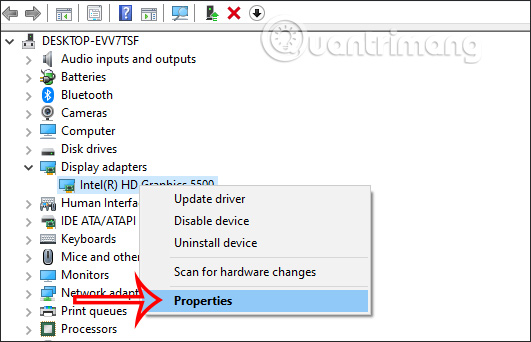
<p style="text-align: justify;">Trong giao diện&nbsp;<strong>Device Manager</strong>&nbsp;bạn tìm tới&nbsp;<strong>mục Display adapters</strong>&nbsp;rồi nhấn chuột phải vào thiết bị muốn kiểm tra và&nbsp;<strong>chọn Properties</strong>.</p>

<p style="text-align: justify;"><img alt="Display adapters" data-i="3" data-src="https://st.quantrimang.com/photos/image/2021/03/30/check-ID-phan-cung-4.jpg" data-was-processed="true" height="342" src="https://st.quantrimang.com/photos/image/2021/03/30/check-ID-phan-cung-4.jpg" width="531" /></p>

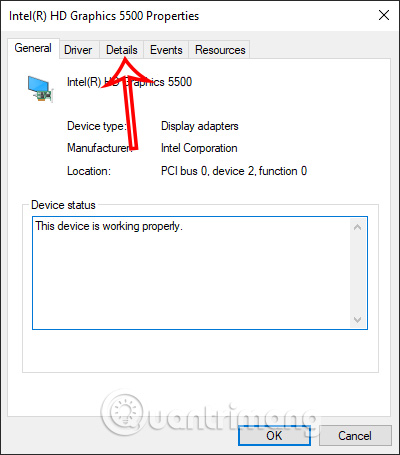
<p style="text-align: justify;">Hiển thị giao diện mới bạn nhấn tiếp vào<strong>&nbsp;mục Details</strong>.</p>

<p style="text-align: justify;"><img alt="Chi tiết phần cứng" data-i="4" data-src="https://st.quantrimang.com/photos/image/2021/03/30/check-ID-phan-cung-5.jpg" data-was-processed="true" height="455" src="https://st.quantrimang.com/photos/image/2021/03/30/check-ID-phan-cung-5.jpg" width="400" /></p>

<p style="text-align: justify;"><strong>Bước 3:</strong></p>

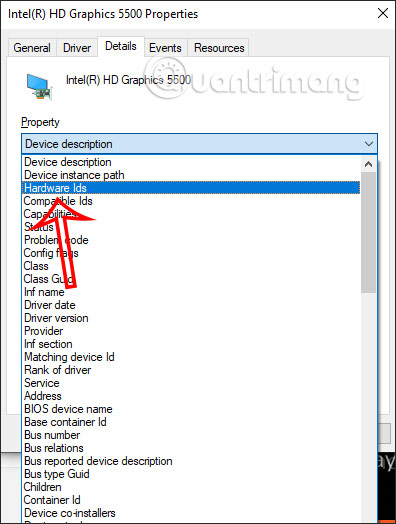
<p style="text-align: justify;">Trong giao diện này tại&nbsp;<strong>phần Property</strong>&nbsp;chúng ta nhấn vào&nbsp;<strong>biểu tượng mũi tên xổ xuống</strong>&nbsp;rồi nhấn tiếp vào&nbsp;<strong>Hardware Ids</strong>.</p>

<p style="text-align: justify;"><img alt="Xem ID phần cứng" data-i="5" data-src="https://st.quantrimang.com/photos/image/2021/03/30/check-ID-phan-cung-8.jpg" data-was-processed="true" height="524" src="https://st.quantrimang.com/photos/image/2021/03/30/check-ID-phan-cung-8.jpg" width="396" /></p>

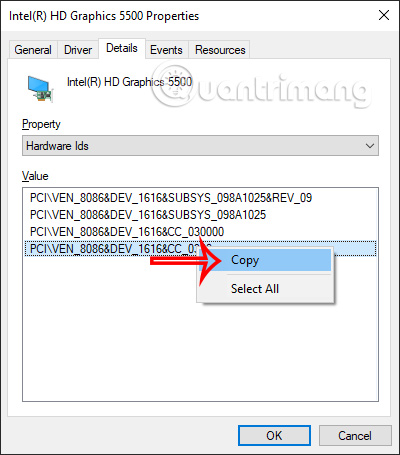
<p style="text-align: justify;">Kết quả sẽ thấy&nbsp;<strong>ID phần cứng</strong>&nbsp;trên máy tính để phục vụ cho việc tìm kiếm driver phù hợp cho máy tính.</p>

<p style="text-align: justify;"><img alt="ID phần cứng" data-i="6" data-src="https://st.quantrimang.com/photos/image/2021/03/30/check-ID-phan-cung-6.jpg" data-was-processed="true" height="455" src="https://st.quantrimang.com/photos/image/2021/03/30/check-ID-phan-cung-6.jpg" width="400" /></p>

<p style="text-align: justify;"><strong>Bước 4:</strong></p>

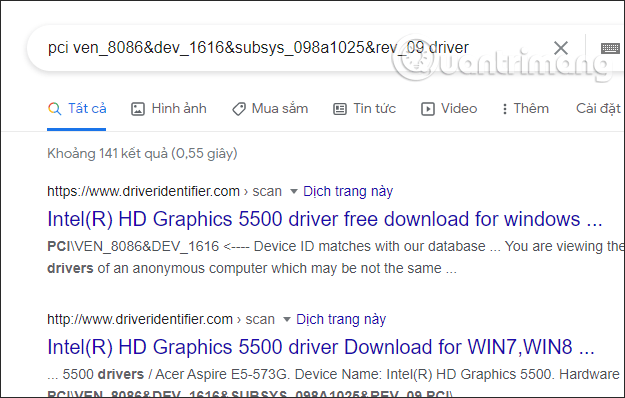
<p style="text-align: justify;">Chúng ta sao chép ID đầu tiên rồi tìm kiếm trên Google. Kết quả chúng ta sẽ thấy những trang web hỗ trợ tải driver hoặc bạn có thể thêm driver đằng sau dãy ký tự để tìm nhanh hơn.</p>

<p style="text-align: justify;"><img alt="Tim driver cho máy tính" data-i="7" data-src="https://st.quantrimang.com/photos/image/2021/03/30/check-ID-phan-cung-7.png" data-was-processed="true" height="398" src="https://st.quantrimang.com/photos/image/2021/03/30/check-ID-phan-cung-7.png" width="625" /></p>

<h2 id="mcetoc_1gp4v28u264j" style="text-align: justify;">3. Hướng dẫn tìm ID phần cứng bằng Command Prompt</h2>

<p style="text-align: justify;">Command Prompt&nbsp;là một công cụ đáng kinh ngạc giúp bạn truy cập hầu hết các ứng dụng, cấu hình cài đặt hệ thống và khắc phục sự cố thiết bị. Bạn cũng có thể thực hiện các thủ thuật khác với nó, chẳng hạn như kiểm tra ID phần cứng cho thiết bị của mình.</p>

<p style="text-align: justify;">Hãy xem các bước bạn cần làm theo:</p>

<p style="text-align: justify;">1. Nhấn&nbsp;<strong>Win + R</strong>&nbsp;để&nbsp;mở hộp thoại lệnh Run.</p>

<p style="text-align: justify;">2. Nhập&nbsp;<strong>CMD</strong>&nbsp;và nhấn&nbsp;<strong>Ctrl + Shift + Enter</strong>&nbsp;để&nbsp;mở Command Prompt với quyền admin.</p>

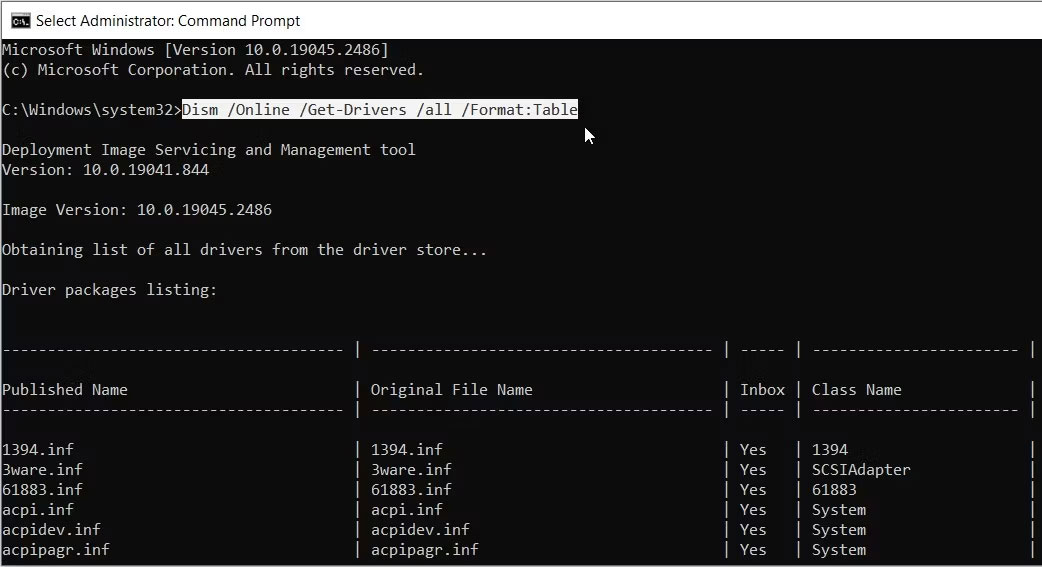
<p style="text-align: justify;">3. Nhập lệnh sau để nhận danh sách tất cả các driver và thiết bị của bạn:</p>

<pre id="pre0">
<code>Dism /Online /Get-Drivers /all /Format:Table</code></pre>

<figure>
<div style="text-align: justify;"><img alt="Hiển thị thông tin thiết bị trên Command Prompt" data-i="8" data-src="https://st.quantrimang.com/photos/image/2023/02/13/xem-id-may-tinh-check-id-phan-cung-1.jpg" data-was-processed="true" height="567" src="https://st.quantrimang.com/photos/image/2023/02/13/xem-id-may-tinh-check-id-phan-cung-1.jpg" width="1042" /></div>

<figcaption>
<div style="text-align: justify;">Hiển thị thông tin thiết bị trên Command Prompt</div>
</figcaption>
</figure>

<p style="text-align: justify;">Bây giờ, giả sử bạn muốn có ID phần cứng cho chuột. Đây là cách bạn có thể tìm kiếm nó:</p>

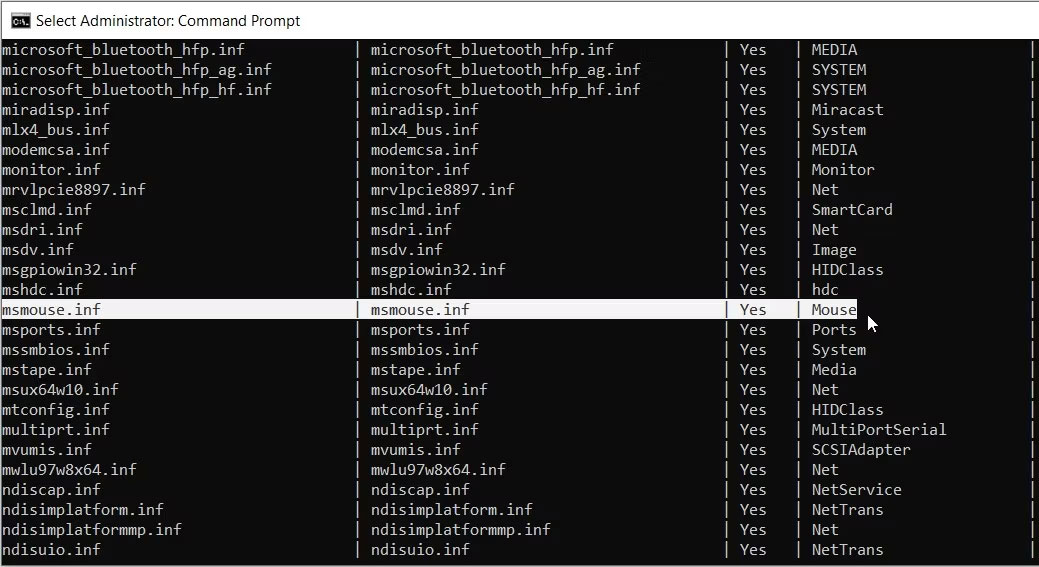
<p style="text-align: justify;">1. Cuộn xuống kết quả Command Prompt và tìm&nbsp;<strong>Mouse</strong>&nbsp;trong danh mục&nbsp;<strong>Class Name.</strong></p>

<p style="text-align: justify;">2. Trong cùng một hàng, hãy chọn tùy chọn xuất hiện trong danh mục&nbsp;<strong>Published Name.</strong></p>

<figure>
<div style="text-align: justify;"><img alt="Lựa chọn tùy chọn chuột" data-i="9" data-src="https://st.quantrimang.com/photos/image/2023/02/13/xem-id-may-tinh-check-id-phan-cung-2.jpg" data-was-processed="true" height="567" src="https://st.quantrimang.com/photos/image/2023/02/13/xem-id-may-tinh-check-id-phan-cung-2.jpg" width="1039" /></div>

<figcaption>
<div style="text-align: justify;">Lựa chọn tùy chọn chuột</div>
</figcaption>
</figure>

<p style="text-align: justify;">Trong trường hợp này, tùy chọn trong danh mục&nbsp;<strong>Published Name</strong>&nbsp;là&nbsp;<strong>msmouse.inf.</strong></p>

<p style="text-align: justify;">Bây giờ, bạn đã tìm thấy kết quả&nbsp;<strong>Published Name</strong>&nbsp;cho chuột, đây là cách bạn có thể sử dụng nó để tìm ID phần cứng:</p>

<p style="text-align: justify;">1. Mở cửa sổ Command Prompt mới bằng cách làm theo các bước trước đó.</p>

<p style="text-align: justify;">2. Nhập lệnh sau và thay thế&nbsp;<strong>Published Name</strong>&nbsp;bằng lệnh có liên quan:</p>

<pre id="pre1">
<code>Dism /Online /Get-DriverInfo /Driver:Published Name</code></pre>

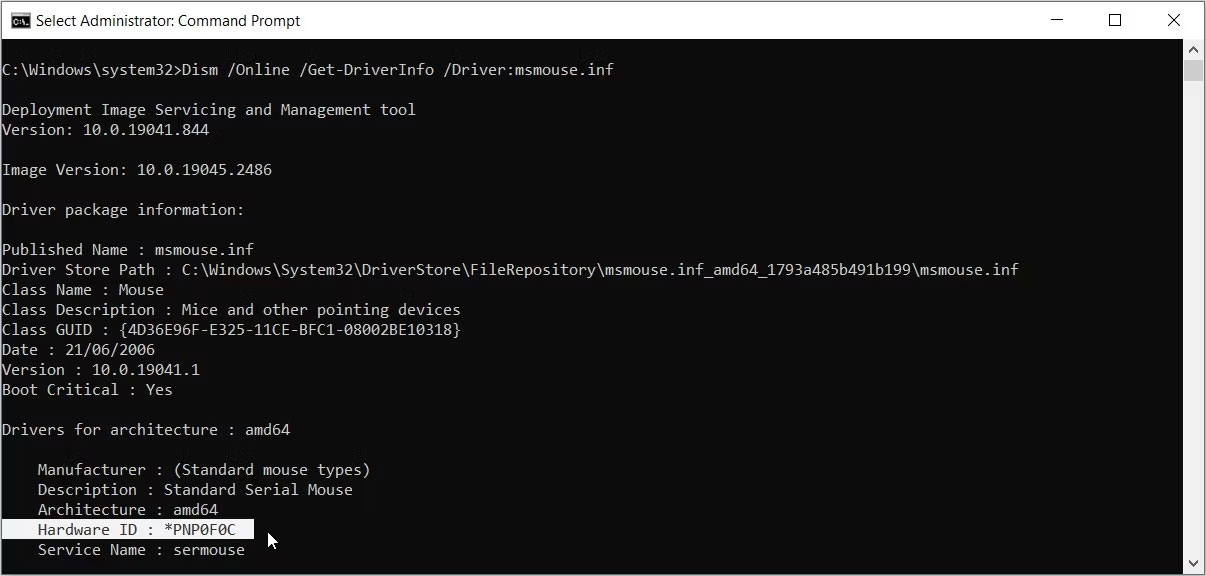
<p style="text-align: justify;">Ví dụ đã phát hiện ra trước đó rằng kết quả Published Name cho chuột là&nbsp;<strong>msmouse.inf.</strong>&nbsp;Lệnh sẽ như sau:</p>

<pre id="pre2">
<code>Dism /Online /Get-DriverInfo /Driver:msmouse.inf</code></pre>

<p style="text-align: justify;">Bây giờ, nhấn&nbsp;<strong>Enter</strong>&nbsp;sau khi bạn đã nhập đúng lệnh. Từ đó, tìm tùy chọn&nbsp;<strong>Hardware ID</strong>&nbsp;từ kết quả.</p>

<figure>
<div style="text-align: justify;"><img alt="Chọn tùy chọn Hardware ID trong màn hình Command Prompt" data-i="10" data-src="https://st.quantrimang.com/photos/image/2023/02/13/xem-id-may-tinh-check-id-phan-cung-3.jpg" data-was-processed="true" height="576" src="https://st.quantrimang.com/photos/image/2023/02/13/xem-id-may-tinh-check-id-phan-cung-3.jpg" width="1206" /></div>

<figcaption>
<div style="text-align: justify;">Chọn tùy chọn Hardware ID trong màn hình Command Prompt</div>
</figcaption>
</figure>

<h2 id="mcetoc_1gp4v28u264k" style="text-align: justify;">4. Hướng dẫn tìm ID phần cứng bằng Powershell</h2>

<p style="text-align: justify;">Ngoài ra, bạn cũng có thể kiểm tra ID phần cứng bằng&nbsp;Windows PowerShell. Đó là một công cụ đáng kinh ngạc khác cho phép bạn chạy nhiều lệnh khác nhau.</p>

<p style="text-align: justify;">Hãy khám phá cách bạn có thể kiểm tra ID phần cứng bằng công cụ này:</p>

<p style="text-align: justify;">1. Nhấn&nbsp;<strong>Win + R</strong>&nbsp;để mở hộp thoại lệnh&nbsp;<strong>Run.</strong></p>

<p style="text-align: justify;">2. Nhập&nbsp;<strong>PowerShell</strong>&nbsp;và nhấn&nbsp;<strong>Ctrl + Shift + Enter</strong>&nbsp;để&nbsp;mở cửa sổ PowerShell với quyền admin.</p>

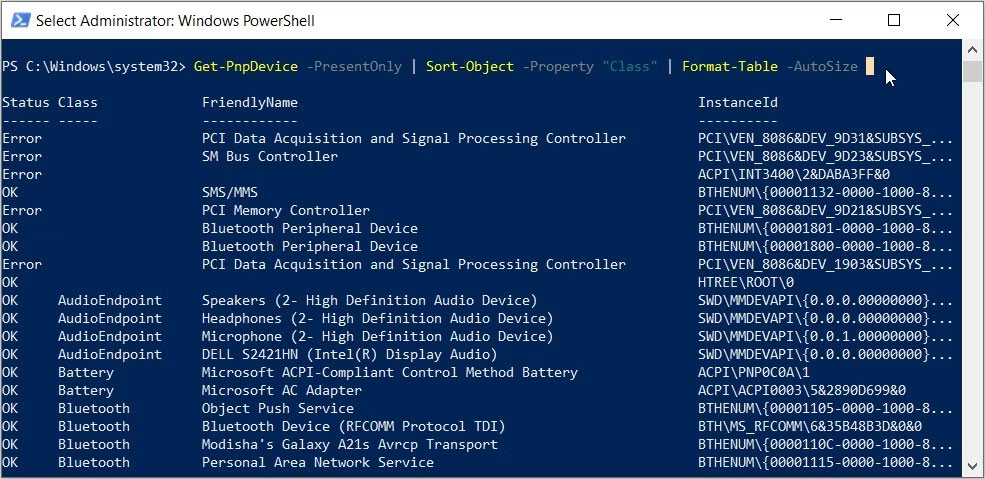
<p style="text-align: justify;">3. Nhập lệnh sau để nhận danh sách driver và thiết bị của bạn:</p>

<pre id="pre3">
<code>Get-PnpDevice -PresentOnly | Sort-Object -Property &amp;ldquo;Class&amp;rdquo; | Format-Table -AutoSize</code></pre>

<figure>
<div style="text-align: justify;"><img alt="Cửa sổ PowerShell hiển thị thông tin thiết bị" data-i="11" data-src="https://st.quantrimang.com/photos/image/2023/02/13/xem-id-may-tinh-check-id-phan-cung-4.jpg" data-was-processed="true" height="479" src="https://st.quantrimang.com/photos/image/2023/02/13/xem-id-may-tinh-check-id-phan-cung-4.jpg" width="985" /></div>

<figcaption>
<div style="text-align: justify;">Cửa sổ PowerShell hiển thị thông tin thiết bị</div>
</figcaption>
</figure>

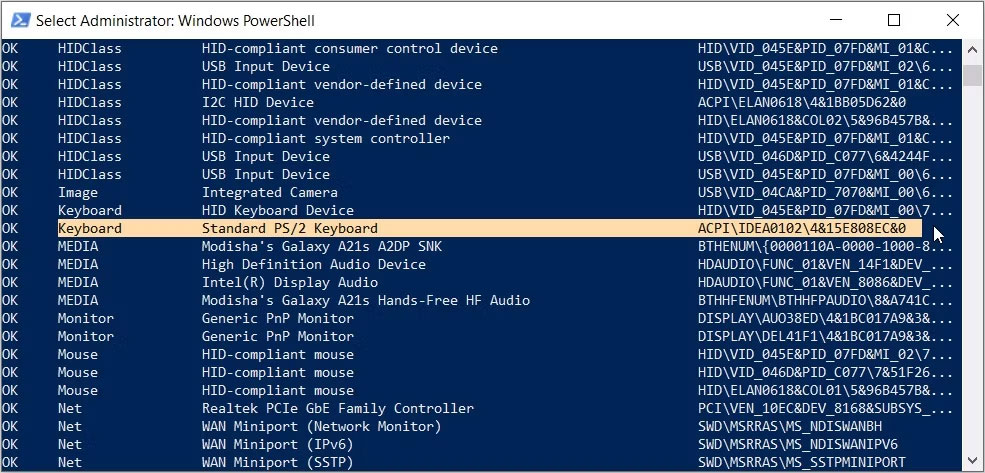
<p style="text-align: justify;">Bây giờ, hãy tìm thiết bị mục tiêu của bạn trong danh mục&nbsp;<strong>&quot;FriendlyName&quot;.</strong></p>

<p style="text-align: justify;">Ví dụ, giả sử thiết bị mục tiêu của bạn là bàn phím. Trong trường hợp này, tùy chọn xuất hiện trong danh mục&nbsp;<strong>&quot;FriendlyName&quot;</strong>&nbsp;cho bàn phím là&nbsp;<strong>Standard PS/2 Keyboard</strong>.</p>

<p style="text-align: justify;">Sau khi tìm thấy thiết bị mục tiêu của bạn, hãy kiểm tra&nbsp;<strong>Instance ID</strong>&nbsp;(giá trị xuất hiện trong cột cuối cùng).</p>

<figure>
<div style="text-align: justify;"><img alt="Chọn tùy chọn Keyboard từ các tùy chọn lệnh PowerShell" data-i="12" data-src="https://st.quantrimang.com/photos/image/2023/02/13/xem-id-may-tinh-check-id-phan-cung-5.jpg" data-was-processed="true" height="473" src="https://st.quantrimang.com/photos/image/2023/02/13/xem-id-may-tinh-check-id-phan-cung-5.jpg" width="985" /></div>

<figcaption>
<div style="text-align: justify;">Chọn tùy chọn Keyboard từ các tùy chọn lệnh PowerShell</div>
</figcaption>
</figure>

<p style="text-align: justify;">Đối với bàn phím, Instance ID là&nbsp;<strong>ACPI\IDEA0102\4&amp;15E808EC&amp;0.</strong></p>

<p style="text-align: justify;">Bây giờ, bạn đã tìm thấy Instance ID, đây là cách bạn có thể sử dụng nó để tìm ID phần cứng:</p>

<p style="text-align: justify;">1. Mở cửa sổ PowerShell với quyền admin theo các bước trước đó.</p>

<p style="text-align: justify;">2. Nhập lệnh sau và thay thế lệnh&nbsp;<em>Instance Id</em>&nbsp;bằng tùy chọn có liên quan:</p>

<pre id="pre4">
<code>Get-PnpDeviceProperty -InstanceId &quot;Instance Id&quot; | Format-Table -AutoSize</code></pre>

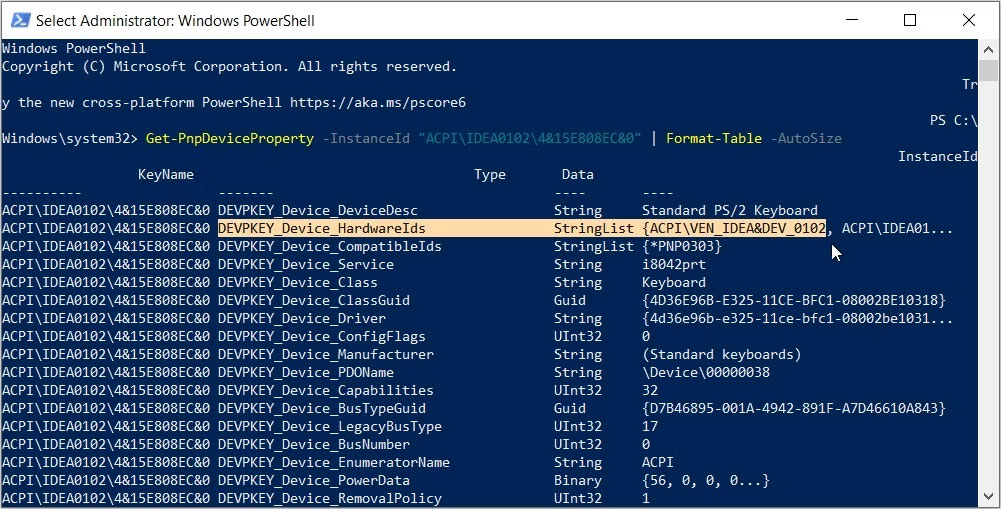
<p style="text-align: justify;">Nếu sử dụng Instance ID cho bàn phím (ACPI\IDEA0102\4&amp;15E808EC&amp;0), thì lệnh sẽ như sau:</p>

<pre id="pre5">
<code>Get-PnpDeviceProperty -InstanceId &quot;ACPI\IDEA0102\4&amp;15E808EC&amp;0&quot; | Format-Table -AutoSize</code></pre>

<p style="text-align: justify;">Bây giờ, nhấn&nbsp;<strong>Enter</strong>&nbsp;để chạy lệnh. Từ đó, hãy tìm tùy chọn&nbsp;<strong>DEVPKEY_Device_HardwareIds</strong>&nbsp;trong danh mục&nbsp;<strong>KeyName.</strong></p>

<p style="text-align: justify;">Tiếp theo, hãy tìm giá trị tương ứng trong danh mục&nbsp;<strong>Data.</strong>&nbsp;Giá trị xuất hiện trong phần này là ID phần cứng.</p>

<figure>
<div style="text-align: justify;"><img alt="Chọn tùy chọn ID phần cứng trên PowerShell" data-i="13" data-src="https://st.quantrimang.com/photos/image/2023/02/13/xem-id-may-tinh-check-id-phan-cung-6.jpg" data-was-processed="true" height="509" src="https://st.quantrimang.com/photos/image/2023/02/13/xem-id-may-tinh-check-id-phan-cung-6.jpg" width="1001" /></div>

<figcaption>
<div style="text-align: justify;">Chọn tùy chọn ID phần cứng trên PowerShell</div>
</figcaption>
</figure>

<p style="text-align: justify;">Trong trường hợp này, ID phần cứng cho bàn phím (xuất hiện trong danh mục Data) là&nbsp;<strong>ACPI\VEN_IDEA&amp;DEV_0102.</strong></p>

<h2 id="mcetoc_1gp4v28u264l" style="text-align: justify;">5. Hướng dẫn tìm ID phần cứng bằng Windows Device Console</h2>

<p style="text-align: justify;">Device Console (DevCon) là một tính năng hiển thị cho bạn thông tin chi tiết về các thiết bị trên máy tính. Công cụ này cũng có thể giúp bạn cấu hình, cài đặt, xóa, bật hoặc tắt thiết bị.</p>

<p style="text-align: justify;">Thật thú vị, công cụ này cho phép bạn xem ID phần cứng của nhiều ứng dụng cùng một lúc. Rất tiếc, Device Console không được tích hợp sẵn trên thiết bị của bạn. Điều này có nghĩa là bạn cần tải xuống và cài đặt nó trước.</p>

<p style="text-align: justify;">Hãy xem cách bạn có thể cài đặt công cụ này và sử dụng nó để kiểm tra ID phần cứng:</p>

<p style="text-align: justify;">1. Tải xuống và cài đặt&nbsp;Windows Drivers Kit&nbsp;từ trang web của Microsoft. Khi bạn đang truy cập trang web, hãy chuyển đến phần&nbsp;<strong>Step 2: Install the WDK</strong>&nbsp;và chọn một ứng dụng tương thích với thiết bị của bạn.</p>

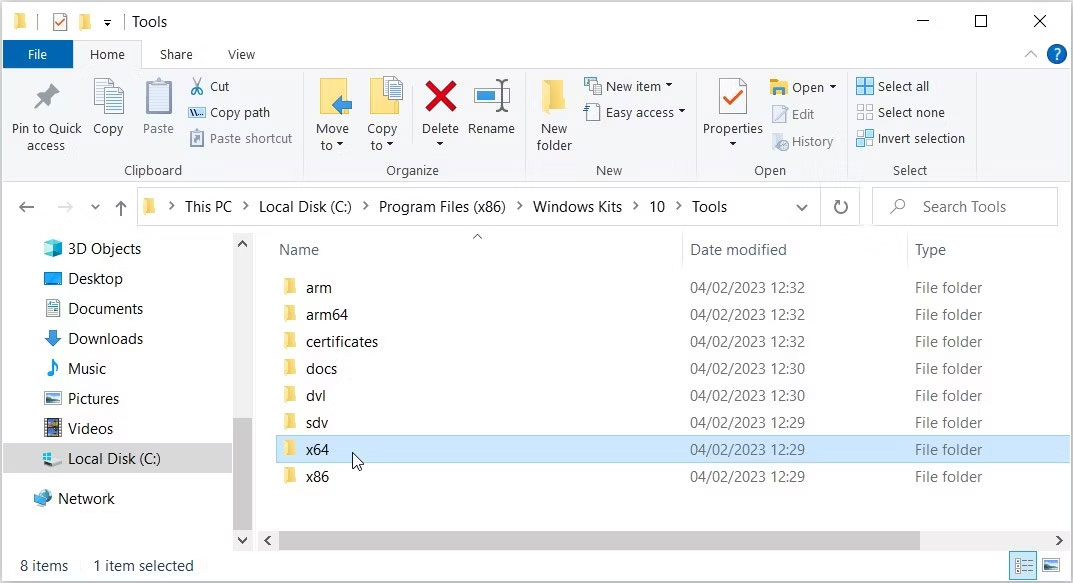
<p style="text-align: justify;">2. Khi bạn đã cài đặt xong công cụ, hãy&nbsp;mở File Explorer&nbsp;và điều hướng đến&nbsp;<strong>This PC &gt; Local Disk (C:) &gt; Program Files (x86) &gt; Windows Kits &gt; 10 &gt; Tools</strong>. Nếu bạn đang sử dụng Windows 11, đường dẫn sẽ là&nbsp;<strong>This PC &gt; Local Disk (C:) &gt; Program Files (x86) &gt; Windows Kits &gt; 11 &gt; Tools</strong>.</p>

<p style="text-align: justify;">3. Truy cập thư mục&nbsp;<strong>x64 (64-bit)</strong>&nbsp;nếu bạn đang sử dụng thiết bị 64-bit hoặc thư mục&nbsp;<strong>x86 (32-bit)</strong>&nbsp;nếu bạn sử dụng PC 32-bit. Nếu bạn không chắc, trước tiên hãy&nbsp;<a href="https://quantrimang.com/cong-nghe/cach-kiem-tra-cau-hinh-may-tinh-windows-117075" title="Cách kiểm tra cấu hình máy tính, xem phần cứng máy tính, laptop">kiểm tra thông số kỹ thuật PC Windows</a>.</p>

<figure>
<div style="text-align: justify;"><img alt="Chọn thư mục x64 trong phần Tools" data-i="14" data-src="https://st.quantrimang.com/photos/image/2023/02/13/xem-id-may-tinh-check-id-phan-cung-7.jpg" data-was-processed="true" height="583" src="https://st.quantrimang.com/photos/image/2023/02/13/xem-id-may-tinh-check-id-phan-cung-7.jpg" width="1073" /></div>

<figcaption>
<div style="text-align: justify;">Chọn thư mục x64 trong phần Tools</div>
</figcaption>
</figure>

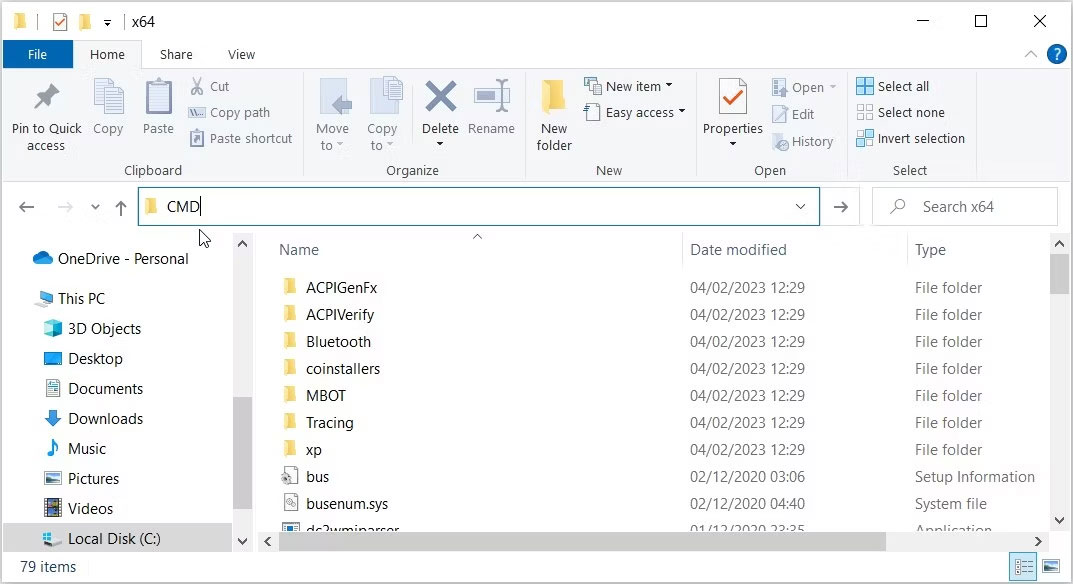
<p style="text-align: justify;">Khi bạn đang ở đúng thư mục, hãy làm theo các bước sau:</p>

<p style="text-align: justify;">1. Nhấp vào thanh địa chỉ File Explorer.</p>

<p style="text-align: justify;">2. Nhập&nbsp;<strong>CMD</strong>&nbsp;rồi nhấn&nbsp;<strong>Enter.</strong>&nbsp;Thao tác này sẽ chạy Command Prompt trong thư mục hiện tại.</p>

<figure>
<div style="text-align: justify;"><img alt="Gõ lệnh CMD vào thanh địa chỉ File Explorer" data-i="15" data-src="https://st.quantrimang.com/photos/image/2023/02/13/xem-id-may-tinh-check-id-phan-cung-8.jpg" data-was-processed="true" height="584" src="https://st.quantrimang.com/photos/image/2023/02/13/xem-id-may-tinh-check-id-phan-cung-8.jpg" width="1073" /></div>

<figcaption>
<div style="text-align: justify;">Gõ lệnh CMD vào thanh địa chỉ File Explorer</div>
</figcaption>
</figure>

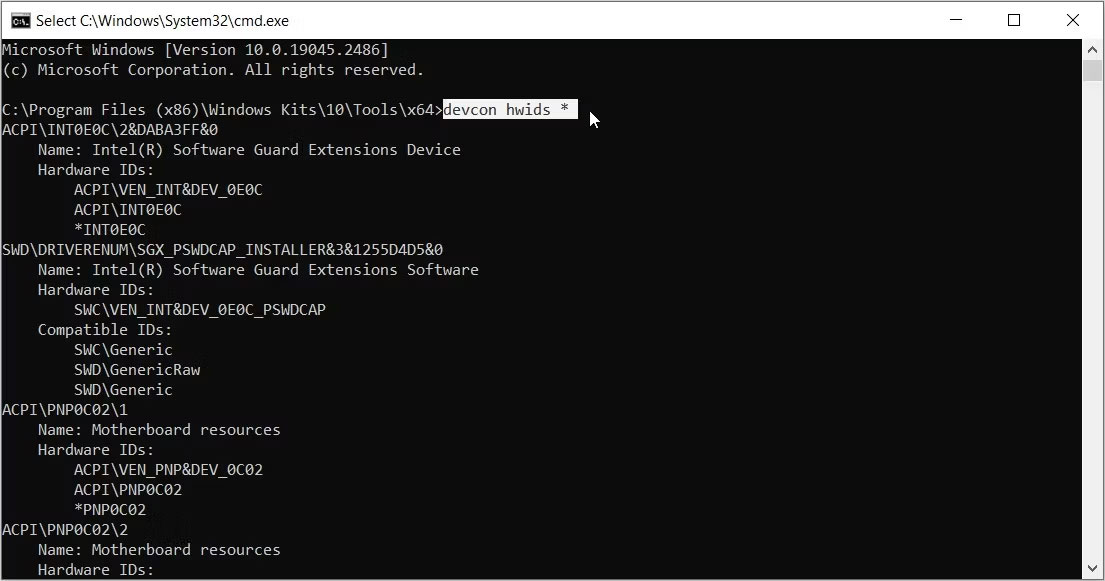
<p style="text-align: justify;">Từ đó, nhập lệnh sau vào Command Prompt và nhấn&nbsp;<strong>Enter</strong>:</p>

<pre id="pre6">
<code>devcon hwids *</code></pre>

<figure>
<div style="text-align: justify;"><img alt="Hiển thị ID phần cứng bằng DevCon" data-i="16" data-src="https://st.quantrimang.com/photos/image/2023/02/13/xem-id-may-tinh-check-id-phan-cung-9.jpg" data-was-processed="true" height="581" src="https://st.quantrimang.com/photos/image/2023/02/13/xem-id-may-tinh-check-id-phan-cung-9.jpg" width="1105" /></div>

<figcaption>
<div style="text-align: justify;">Hiển thị ID phần cứng bằng DevCon</div>
</figcaption>
</figure>

<p style="text-align: justify;">Thao tác này sẽ hiển thị cho bạn thông tin chi tiết về tất cả các thiết bị trên máy tính. Kết quả cũng sẽ chứa ID phần cứng.</p>

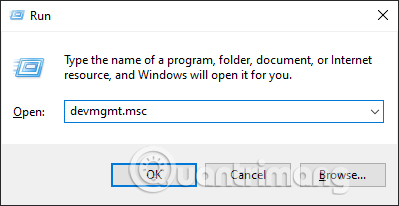
<p style="text-align: justify;">Ví dụ đã đánh dấu ID phần cứng cho&nbsp;<strong>Standard PS/2 Keyboard</strong>&nbsp;trong hình bên dưới.</p>

<figure>
<div style="text-align: justify;"><img alt="Chọn ID phần cứng cho Standard PS/2 Keyboard" data-i="17" data-src="https://st.quantrimang.com/photos/image/2023/02/13/xem-id-may-tinh-check-id-phan-cung-10.jpg" data-was-processed="true" height="581" src="https://st.quantrimang.com/photos/image/2023/02/13/xem-id-may-tinh-check-id-phan-cung-10.jpg" width="1105" /></div>

<figcaption>
<div style="text-align: justify;">Chọn ID phần cứng cho Standard PS/2 Keyboard</div>
</figcaption>
</figure>

<p style="text-align: justify;">Hãy nhớ rằng, nếu có nhiều ID phần cứng, hãy luôn chọn tùy chọn đầu tiên. Điều này có nghĩa là ID phần cứng cho bàn phím, trong ví dụ trên, là&nbsp;<strong>ACPI\VEN_IDEA&amp;DEV_0102.</strong></p>

<p style="text-align: justify;">Nếu bạn muốn khám phá chi tiết về Device Console, hãy xem các&nbsp;cách khác nhau để sử dụng Dev Con&nbsp;trên trang web của Microsoft.</p>

<div style="text-align: justify;">&nbsp;</div>
		</div>
				<div id="author">
						<p>
				<strong>Nguồn tin:</strong>
				Quantrimang.com
			</p>
		</div>
	</div>
	<div id="footer" class="clearfix">
		<div id="url">
			<strong>URL của bản tin này: </strong><a href="https://www.nguoicodonvn2008.info/vi/news/savefile/kien-thuc-may-tinh/cach-xem-id-may-tinh-check-id-phan-cung-6723.html" title="Cách xem ID máy tính, check ID phần cứng">https://www.nguoicodonvn2008.info/vi/news/savefile/kien-thuc-may-tinh/cach-xem-id-may-tinh-check-id-phan-cung-6723.html</a>

		</div>
		<div class="clear"></div>
		<div class="copyright">
			&copy; .&#x3A; Nguoicodonvn2008.info - Cõi lòng người cô đơn &#x3A;.
		</div>
		<div id="contact">
			<a href="mailto:admin@nguoicodonvn2008.info">admin@nguoicodonvn2008.info</a>
		</div>
	</div>
</div>
        <div id="timeoutsess" class="chromeframe">
            Bạn đã không sử dụng Site, <a onclick="timeoutsesscancel();" href="https://nguoicodonvn2008.info/#">Bấm vào đây để duy trì trạng thái đăng nhập</a>. Thời gian chờ: <span id="secField"> 60 </span> giây
        </div>
        <div id="openidResult" class="nv-alert" style="display:none"></div>
        <div id="openidBt" data-result="" data-redirect=""></div>
		</script>
		<div class="car-top">
  <span><img src="https://nguoicodonvn2008.info/themes/default/images/car.png" alt=""></span>
</div>
<div id="run_cronjobs" style="visibility:hidden;display:none;"><img alt="cron" src="/index.php?second=cronjobs&amp;p=h0CA304q" width="1" height="1" /></div>
<script src="https://nguoicodonvn2008.info/assets/js/jquery/jquery.min.js"></script>
<script>var nv_base_siteurl="/",nv_lang_data="vi",nv_lang_interface="vi",nv_name_variable="nv",nv_fc_variable="op",nv_lang_variable="language",nv_module_name="news",nv_func_name="savefile",nv_is_user=0, nv_my_ofs=-4,nv_my_abbr="EDT",nv_cookie_prefix="nv4c_e856T",nv_check_pass_mstime=1738000,nv_area_admin=0,nv_safemode=0,theme_responsive=0,nv_recaptcha_ver=2,nv_recaptcha_sitekey="",nv_recaptcha_type="image",XSSsanitize=1;</script>
<script src="https://nguoicodonvn2008.info/assets/js/language/vi.js"></script>
<script src="https://nguoicodonvn2008.info/assets/js/DOMPurify/purify3.js"></script>
<script src="https://nguoicodonvn2008.info/assets/js/global.js"></script>
<script src="https://nguoicodonvn2008.info/assets/js/site.js"></script>
<script src="https://nguoicodonvn2008.info/themes/default/js/news.js"></script>
<script src="https://nguoicodonvn2008.info/themes/default/js/main.js"></script>
<script src="https://nguoicodonvn2008.info/themes/default/js/custom.js"></script>
<script type="application/ld+json">
        {
            "@context": "https://schema.org",
            "@type": "Organization",
            "url": "https://nguoicodonvn2008.info",
            "logo": "https://nguoicodonvn2008.info/uploads/angel.gif"
        }
        </script>
<script src="https://nguoicodonvn2008.info/themes/default/js/bootstrap.min.js"></script>
<script type="text/javascript">
var $scrolltop = $('.car-top');
$scrolltop.on('click', function () {
    $('html,body').animate({
        scrollTop: 0
    }, 800);
    $(this).addClass("car-run");
    setTimeout(function(){ $scrolltop.removeClass('car-run');}, 1000);
    return false;
});
$(window).on('scroll', function ()
{ 
    if($(window).scrollTop() >= 200)
    {
        $scrolltop.addClass("show");
        $scrolltop.addClass("car-down");
    }
    else
    {
       $scrolltop.removeClass("show");
       setTimeout(function(){ $scrolltop.removeClass('car-down');}, 300);
    }
});
</script>
</body>
</html>