<!DOCTYPE html>
    <html lang="vi" xmlns="http://www.w3.org/1999/xhtml" prefix="og: http://ogp.me/ns#">
    <head>
<title>Cách vô hiệu hóa màn hình cảm ứng trong Windows 11</title>
<meta name="description" content="Cách vô hiệu hóa màn hình cảm ứng trong Windows 11 - Savefile - Tin Tức -...">
<meta name="author" content=".: Nguoicodonvn2008.info - Cõi lòng người cô đơn :.">
<meta name="copyright" content=".: Nguoicodonvn2008.info - Cõi lòng người cô đơn :. [admin@nguoicodonvn2008.info]">
<meta name="robots" content="index, archive, follow, noodp">
<meta name="googlebot" content="index,archive,follow,noodp">
<meta name="msnbot" content="all,index,follow">
<meta name="generator" content="NukeViet v4.5">
<meta http-equiv="Content-Type" content="text/html; charset=utf-8">
<meta property="og:title" content="Cách vô hiệu hóa màn hình cảm ứng trong Windows 11">
<meta property="og:type" content="website">
<meta property="og:description" content="Savefile - Tin Tức - https&#x3A;&#x002F;&#x002F;www.nguoicodonvn2008.info&#x002F;vi&#x002F;news&#x002F;savefile&#x002F;kien-thuc-may-tinh&#x002F;cach-vo-hieu-hoa-man-hinh-cam-ung-trong-windows-11-4710.html">
<meta property="og:site_name" content=".&#x3A; Nguoicodonvn2008.info - Cõi lòng người cô đơn &#x3A;.">
<meta property="og:url" content="https://www.nguoicodonvn2008.info/vi/news/savefile/kien-thuc-may-tinh/cach-vo-hieu-hoa-man-hinh-cam-ung-trong-windows-11-4710.html">
<link rel="shortcut icon" href="https://nguoicodonvn2008.info/favicon.ico">
<link rel="canonical" href="https://www.nguoicodonvn2008.info/vi/news/savefile/kien-thuc-may-tinh/cach-vo-hieu-hoa-man-hinh-cam-ung-trong-windows-11-4710.html">
<link rel="alternate" href="https://nguoicodonvn2008.info/vi/news/rss/" title="Tin Tức" type="application/rss+xml">
<link rel="alternate" href="https://nguoicodonvn2008.info/vi/news/rss/karaoke-dual/" title="Tin Tức - Karaoke Dual" type="application/rss+xml">
<link rel="alternate" href="https://nguoicodonvn2008.info/vi/news/rss/nhac-tre/" title="Tin Tức - Nhạc trẻ" type="application/rss+xml">
<link rel="alternate" href="https://nguoicodonvn2008.info/vi/news/rss/tru-tinh/" title="Tin Tức - Trữ tình" type="application/rss+xml">
<link rel="alternate" href="https://nguoicodonvn2008.info/vi/news/rss/nuoc-ngoai/" title="Tin Tức - Nước ngoài" type="application/rss+xml">
<link rel="alternate" href="https://nguoicodonvn2008.info/vi/news/rss/remix/" title="Tin Tức - Remix" type="application/rss+xml">
<link rel="alternate" href="https://nguoicodonvn2008.info/vi/news/rss/tam-su-tinh-yeu/" title="Tin Tức - Tâm sự tình yêu" type="application/rss+xml">
<link rel="alternate" href="https://nguoicodonvn2008.info/vi/news/rss/tho-suu-tam/" title="Tin Tức - Thơ sưu tầm" type="application/rss+xml">
<link rel="alternate" href="https://nguoicodonvn2008.info/vi/news/rss/cuoc-song/" title="Tin Tức - Cuộc sống" type="application/rss+xml">
<link rel="alternate" href="https://nguoicodonvn2008.info/vi/news/rss/phan-mem/" title="Tin Tức - Phần mềm" type="application/rss+xml">
<link rel="alternate" href="https://nguoicodonvn2008.info/vi/news/rss/kien-thuc-may-tinh/" title="Tin Tức - Kiến thức máy tính" type="application/rss+xml">
<link rel="alternate" href="https://nguoicodonvn2008.info/vi/news/rss/hoc-tap/" title="Tin Tức - Học tập" type="application/rss+xml">
<link rel="alternate" href="https://nguoicodonvn2008.info/vi/news/rss/tai-lieu/" title="Tin Tức - Tài liệu" type="application/rss+xml">
<link rel="alternate" href="https://nguoicodonvn2008.info/vi/news/rss/de-thi/" title="Tin Tức - Đề thi" type="application/rss+xml">
<link rel="preload" as="style" href="https://nguoicodonvn2008.info/assets/css/font-awesome.min.css" type="text/css">
<link rel="preload" as="style" href="https://nguoicodonvn2008.info/themes/default/css/bootstrap.non-responsive.css" type="text/css">
<link rel="preload" as="style" href="https://nguoicodonvn2008.info/themes/default/css/style.css" type="text/css">
<link rel="preload" as="style" href="https://nguoicodonvn2008.info/themes/default/css/style.non-responsive.css" type="text/css">
<link rel="preload" as="style" href="https://nguoicodonvn2008.info/themes/default/css/news.css" type="text/css">
<link rel="preload" as="style" href="https://nguoicodonvn2008.info/themes/default/css/custom.css" type="text/css">
<link rel="preload" as="script" href="https://nguoicodonvn2008.info/assets/js/jquery/jquery.min.js" type="text/javascript">
<link rel="preload" as="script" href="https://nguoicodonvn2008.info/assets/js/language/vi.js" type="text/javascript">
<link rel="preload" as="script" href="https://nguoicodonvn2008.info/assets/js/DOMPurify/purify3.js" type="text/javascript">
<link rel="preload" as="script" href="https://nguoicodonvn2008.info/assets/js/global.js" type="text/javascript">
<link rel="preload" as="script" href="https://nguoicodonvn2008.info/assets/js/site.js" type="text/javascript">
<link rel="preload" as="script" href="https://nguoicodonvn2008.info/themes/default/js/news.js" type="text/javascript">
<link rel="preload" as="script" href="https://nguoicodonvn2008.info/themes/default/js/main.js" type="text/javascript">
<link rel="preload" as="script" href="https://nguoicodonvn2008.info/themes/default/js/custom.js" type="text/javascript">
<link rel="preload" as="script" href="https://nguoicodonvn2008.info/themes/default/js/bootstrap.min.js" type="text/javascript">
<link rel="stylesheet" href="https://nguoicodonvn2008.info/assets/css/font-awesome.min.css">
<link rel="stylesheet" href="https://nguoicodonvn2008.info/themes/default/css/bootstrap.non-responsive.css">
<link rel="stylesheet" href="https://nguoicodonvn2008.info/themes/default/css/style.css">
<link rel="stylesheet" href="https://nguoicodonvn2008.info/themes/default/css/style.non-responsive.css">
<link rel="StyleSheet" href="https://nguoicodonvn2008.info/themes/default/css/news.css">
<link rel="stylesheet" href="https://nguoicodonvn2008.info/themes/default/css/custom.css">
<style type="text/css">
	body{background: #fff;}
</style>
    </head>
    <body>
<div id="print">
	<div id="hd_print">
		<h2 class="pull-left">.&#x3A; Nguoicodonvn2008.info - Cõi lòng người cô đơn &#x3A;.</h2>
		<p class="pull-right"><a title=".&#x3A; Nguoicodonvn2008.info - Cõi lòng người cô đơn &#x3A;." href="https://nguoicodonvn2008.info/">https://nguoicodonvn2008.info</a></p>
	</div>
	<div class="clear"></div>
	<hr />
	<div id="content">
		<h1>Cách vô hiệu hóa màn hình cảm ứng trong Windows 11</h1>
		<ul class="list-inline">
			<li>Chủ nhật - 07/11/2021 23:54</li>
			<li class="hidden-print txtrequired"><em class="fa fa-print">&nbsp;</em><a title="In ra" href="javascript:;" onclick="window.print()">In ra</a></li>
			<li class="hidden-print txtrequired"><em class="fa fa-power-off">&nbsp;</em><a title="Đóng cửa sổ này" href="javascript:;" onclick="window.close()">Đóng cửa sổ này</a></li>
		</ul>
		<div class="clear"></div>
		<div id="hometext">
		</div>
				<div class="imghome">
			<img alt="Cách vô hiệu hóa màn hình cảm ứng trong Windows 11" src="https://st.quantrimang.com/photos/image/2021/10/30/vo-hieu-hoa-man-hinh-cam-ung-windows-118.png" width="460" class="img-thumbnail" />
		</div>
		<div class="clear"></div>
		<div id="bodytext" class="clearfix">
			<p style="text-align: justify;">Màn hình cảm ứng là một trang bị tuyệt vời, nhưng dường như không phải là yếu tố không thể thiếu trên các mẫu máy tính Windows nói chung. Theo các khảo sát trước đây, đã có không ít trường hợp người dùng laptop có màn hình cảm ứng thú nhận rằng họ không mấy khi chạm tay lên màn hình.</p>

<p style="text-align: justify;">Điều này là do bản thân các nền tảng như Windows, Mac, hay Chrome OS vốn được tối ưu để sử dụng với chuột và bàn phím, thay vì màn hình cảm ứng như các hệ điều hành di động. Do đó, người dùng cũng chỉ cần chuột và bàn phím là đã có thể tận dụng tốt tiềm năng của hệ điều hành.</p>

<p style="text-align: justify;">Bài viết này sẽ hướng dẫn bạn cách vô hiệu hóa màn hình cảm ứng trong Windows 11, tránh trường hợp thao tác nhầm khi lỡ chạm tay trên màn hình.</p>

<h2 style="text-align: justify;">Tắt màn hình cảm ứng bằng Device Manager</h2>

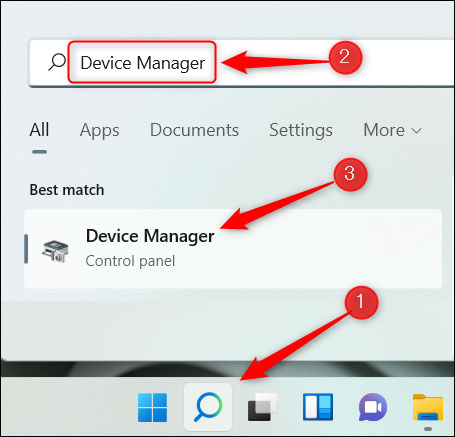
<p style="text-align: justify;">Để bắt đầu, hãy nhấp vào biểu tượng Windows Search (hình chiếc kính lúp) trên thanh tác vụ, nhập từ khóa “<strong>Device Manager</strong>” vào thanh tìm kiếm, sau đó nhấp vào kết quả tương ứng trả về.</p>

<p style="text-align: justify;"><img alt="Mở “Device Manager”" data-i="0" data-src="https://st.quantrimang.com/photos/image/2021/10/30/vo-hieu-hoa-man-hinh-cam-ung-windows-111.jpg" data-was-processed="true" height="437" src="https://st.quantrimang.com/photos/image/2021/10/30/vo-hieu-hoa-man-hinh-cam-ung-windows-111.jpg" width="455" /></p>

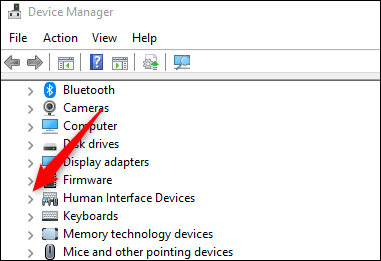
<p style="text-align: justify;">Trên giao diện Device Manager mở ra, bạn tìm mục&nbsp;<strong>Human Interface Devices</strong>&nbsp;và nhấp vào mũi tên phải bên cạnh thiết bị đó.</p>

<p style="text-align: justify;"><img alt="Nhập vào mũi tên cạnh mục Human Interface Devices" data-i="1" data-src="https://st.quantrimang.com/photos/image/2021/10/30/vo-hieu-hoa-man-hinh-cam-ung-windows-112.png" data-was-processed="true" height="261" src="https://st.quantrimang.com/photos/image/2021/10/30/vo-hieu-hoa-man-hinh-cam-ung-windows-112.png" width="381" /></p>

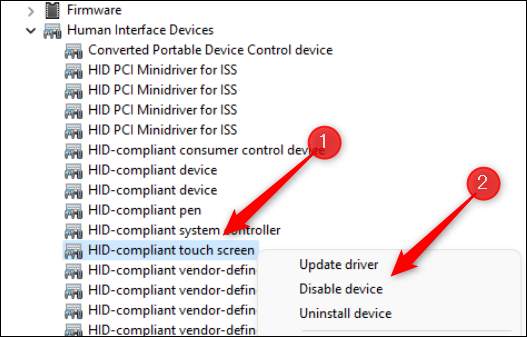
<p style="text-align: justify;">Trong danh sách hiện ra, bạn tìm mục&nbsp;<strong>HID-Compliant Touch Screen</strong>. Nhấp chuột phải vào nó và chọn “<strong>Disable Device</strong>”.</p>

<p style="text-align: justify;"><img alt="Chọn “Disable Device”" data-i="2" data-src="https://st.quantrimang.com/photos/image/2021/10/30/vo-hieu-hoa-man-hinh-cam-ung-windows-113.png" data-was-processed="true" height="337" src="https://st.quantrimang.com/photos/image/2021/10/30/vo-hieu-hoa-man-hinh-cam-ung-windows-113.png" width="527" /></p>

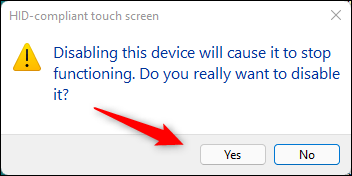
<p style="text-align: justify;">Trong hộp thoại xuất hiện, nhấp vào “<strong>Yes</strong>” để xác nhận rằng bạn thực sự muốn vô hiệu hóa màn hình cảm ứng.</p>

<p style="text-align: justify;"><img alt="Nhấp vào “Yes”" data-i="3" data-src="https://st.quantrimang.com/photos/image/2021/10/30/vo-hieu-hoa-man-hinh-cam-ung-windows-114.png" data-was-processed="true" height="176" src="https://st.quantrimang.com/photos/image/2021/10/30/vo-hieu-hoa-man-hinh-cam-ung-windows-114.png" width="352" /></p>

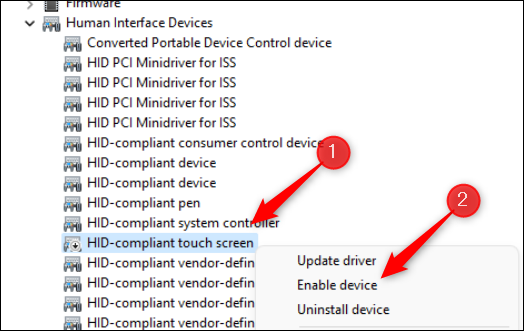
<p style="text-align: justify;">Màn hình cảm ứng của thiết bị hiện đã bị tắt. Trong trường hợp bạn thay đổi ý định và muốn kích hoạt lại Màn hình cảm ứng, chỉ cần làm theo các bước tương tự và chọn “<strong>Enable Device</strong>” từ menu hiện ra.</p>

<p style="text-align: justify;"><img alt="Chọn “Enable Device” " data-i="4" data-src="https://st.quantrimang.com/photos/image/2021/10/30/vo-hieu-hoa-man-hinh-cam-ung-windows-115.png" data-was-processed="true" height="331" src="https://st.quantrimang.com/photos/image/2021/10/30/vo-hieu-hoa-man-hinh-cam-ung-windows-115.png" width="524" /></p>

<h2 style="text-align: justify;">Tắt màn hình cảm ứng bằng Windows Terminal</h2>

<p style="text-align: justify;">Bạn cũng có thể chạy một lệnh trong Windows Terminal để vô hiệu hóa màn hình cảm ứng.</p>

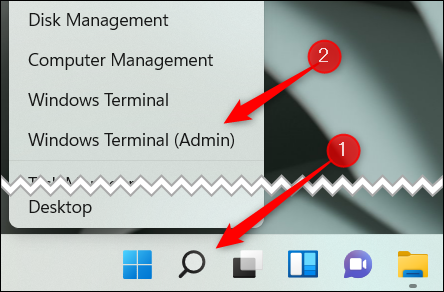
<p style="text-align: justify;">Để thực hiện việc này, bạn trước tiên cần khởi chạy Windows Terminal với tư cách quản trị viên. Nhấp chuột phải vào biểu tượng Windows trên thanh tác vụ (hoặc nhấn Windows + X) để mở menu Power User. Tiếp theo, nhấp vào tùy chọn “<strong>Windows Terminal (Admin)</strong>”.</p>

<p style="text-align: justify;"><img alt="Khởi chạy Windows Terminal với tư cách quản trị viên" data-i="5" data-src="https://st.quantrimang.com/photos/image/2021/10/30/vo-hieu-hoa-man-hinh-cam-ung-windows-116.png" data-was-processed="true" height="292" src="https://st.quantrimang.com/photos/image/2021/10/30/vo-hieu-hoa-man-hinh-cam-ung-windows-116.png" width="444" /></p>

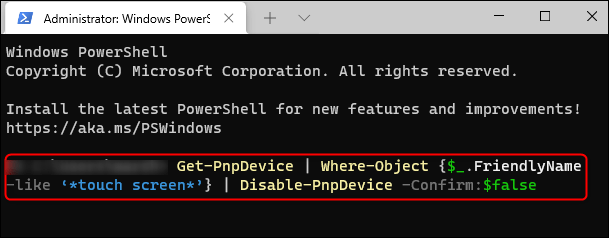
<p style="text-align: justify;">Trong giao diện Windows Terminal mở ra, bạn chạy lệnh sau:</p>

<pre id="pre0" style="text-align: justify;">
Get-PnpDevice | Where-Object {$_.FriendlyName -like &#039;*touch screen*&#039;} | Disable-PnpDevice -Confirm:$false</pre>

<p style="text-align: justify;"><img alt="Chạy lệnh " data-i="6" data-src="https://st.quantrimang.com/photos/image/2021/10/30/vo-hieu-hoa-man-hinh-cam-ung-windows-117.png" data-was-processed="true" height="238" src="https://st.quantrimang.com/photos/image/2021/10/30/vo-hieu-hoa-man-hinh-cam-ung-windows-117.png" width="609" /></p>

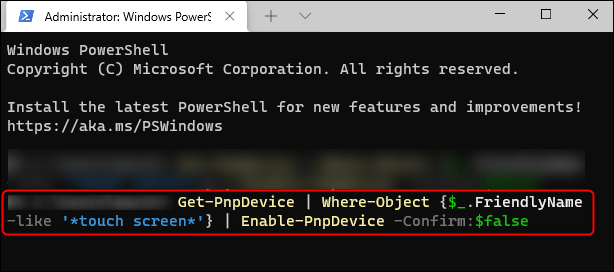
<p style="text-align: justify;">Sau khi bạn chạy lệnh, màn hình cảm ứng sẽ bị vô hiệu hóa. Để bật lại, hãy chạy lệnh sau:</p>

<pre id="pre1" style="text-align: justify;">
Get-PnpDevice | Where-Object {$_.FriendlyName -like &#039;*touch screen*&#039;} | Enable-PnpDevice -Confirm:$false</pre>

<p style="text-align: justify;"><img alt="Chạy lệnh " data-i="7" data-src="https://st.quantrimang.com/photos/image/2021/10/30/vo-hieu-hoa-man-hinh-cam-ung-windows-118.png" data-was-processed="true" height="272" src="https://st.quantrimang.com/photos/image/2021/10/30/vo-hieu-hoa-man-hinh-cam-ung-windows-118.png" width="614" /></p>

<p style="text-align: justify;">Chúc bạn thực hiện thành công!</p>
		</div>
				<div id="author">
						<p>
				<strong>Nguồn tin:</strong>
				Quantrimang.com
			</p>
		</div>
	</div>
	<div id="footer" class="clearfix">
		<div id="url">
			<strong>URL của bản tin này: </strong><a href="https://www.nguoicodonvn2008.info/vi/news/savefile/kien-thuc-may-tinh/cach-vo-hieu-hoa-man-hinh-cam-ung-trong-windows-11-4710.html" title="Cách vô hiệu hóa màn hình cảm ứng trong Windows 11">https://www.nguoicodonvn2008.info/vi/news/savefile/kien-thuc-may-tinh/cach-vo-hieu-hoa-man-hinh-cam-ung-trong-windows-11-4710.html</a>

		</div>
		<div class="clear"></div>
		<div class="copyright">
			&copy; .&#x3A; Nguoicodonvn2008.info - Cõi lòng người cô đơn &#x3A;.
		</div>
		<div id="contact">
			<a href="mailto:admin@nguoicodonvn2008.info">admin@nguoicodonvn2008.info</a>
		</div>
	</div>
</div>
        <div id="timeoutsess" class="chromeframe">
            Bạn đã không sử dụng Site, <a onclick="timeoutsesscancel();" href="https://nguoicodonvn2008.info/#">Bấm vào đây để duy trì trạng thái đăng nhập</a>. Thời gian chờ: <span id="secField"> 60 </span> giây
        </div>
        <div id="openidResult" class="nv-alert" style="display:none"></div>
        <div id="openidBt" data-result="" data-redirect=""></div>
		</script>
		<div class="car-top">
  <span><img src="https://nguoicodonvn2008.info/themes/default/images/car.png" alt=""></span>
</div>
<script src="https://nguoicodonvn2008.info/assets/js/jquery/jquery.min.js"></script>
<script>var nv_base_siteurl="/",nv_lang_data="vi",nv_lang_interface="vi",nv_name_variable="nv",nv_fc_variable="op",nv_lang_variable="language",nv_module_name="news",nv_func_name="savefile",nv_is_user=0, nv_my_ofs=-4,nv_my_abbr="EDT",nv_cookie_prefix="nv4c_e856T",nv_check_pass_mstime=1738000,nv_area_admin=0,nv_safemode=0,theme_responsive=0,nv_recaptcha_ver=2,nv_recaptcha_sitekey="",nv_recaptcha_type="image",XSSsanitize=1;</script>
<script src="https://nguoicodonvn2008.info/assets/js/language/vi.js"></script>
<script src="https://nguoicodonvn2008.info/assets/js/DOMPurify/purify3.js"></script>
<script src="https://nguoicodonvn2008.info/assets/js/global.js"></script>
<script src="https://nguoicodonvn2008.info/assets/js/site.js"></script>
<script src="https://nguoicodonvn2008.info/themes/default/js/news.js"></script>
<script src="https://nguoicodonvn2008.info/themes/default/js/main.js"></script>
<script src="https://nguoicodonvn2008.info/themes/default/js/custom.js"></script>
<script type="application/ld+json">
        {
            "@context": "https://schema.org",
            "@type": "Organization",
            "url": "https://nguoicodonvn2008.info",
            "logo": "https://nguoicodonvn2008.info/uploads/angel.gif"
        }
        </script>
<script src="https://nguoicodonvn2008.info/themes/default/js/bootstrap.min.js"></script>
<script type="text/javascript">
var $scrolltop = $('.car-top');
$scrolltop.on('click', function () {
    $('html,body').animate({
        scrollTop: 0
    }, 800);
    $(this).addClass("car-run");
    setTimeout(function(){ $scrolltop.removeClass('car-run');}, 1000);
    return false;
});
$(window).on('scroll', function ()
{ 
    if($(window).scrollTop() >= 200)
    {
        $scrolltop.addClass("show");
        $scrolltop.addClass("car-down");
    }
    else
    {
       $scrolltop.removeClass("show");
       setTimeout(function(){ $scrolltop.removeClass('car-down');}, 300);
    }
});
</script>
</body>
</html>