<!DOCTYPE html>
    <html lang="vi" xmlns="http://www.w3.org/1999/xhtml" prefix="og: http://ogp.me/ns#">
    <head>
<title>Cách vẽ đường thẳng, vẽ mũi tên trong Excel</title>
<meta name="description" content="Cách vẽ đường thẳng, vẽ mũi tên trong Excel - Savefile - Tin Tức -...">
<meta name="author" content=".: Nguoicodonvn2008.info - Cõi lòng người cô đơn :.">
<meta name="copyright" content=".: Nguoicodonvn2008.info - Cõi lòng người cô đơn :. [admin@nguoicodonvn2008.info]">
<meta name="robots" content="index, archive, follow, noodp">
<meta name="googlebot" content="index,archive,follow,noodp">
<meta name="msnbot" content="all,index,follow">
<meta name="generator" content="NukeViet v4.5">
<meta http-equiv="Content-Type" content="text/html; charset=utf-8">
<meta property="og:title" content="Cách vẽ đường thẳng, vẽ mũi tên trong Excel">
<meta property="og:type" content="website">
<meta property="og:description" content="Savefile - Tin Tức - https&#x3A;&#x002F;&#x002F;www.nguoicodonvn2008.info&#x002F;vi&#x002F;news&#x002F;savefile&#x002F;kien-thuc-may-tinh&#x002F;cach-ve-duong-thang-ve-mui-ten-trong-excel-8270.html">
<meta property="og:site_name" content=".&#x3A; Nguoicodonvn2008.info - Cõi lòng người cô đơn &#x3A;.">
<meta property="og:url" content="https://www.nguoicodonvn2008.info/vi/news/savefile/kien-thuc-may-tinh/cach-ve-duong-thang-ve-mui-ten-trong-excel-8270.html">
<link rel="shortcut icon" href="https://nguoicodonvn2008.info/favicon.ico">
<link rel="canonical" href="https://www.nguoicodonvn2008.info/vi/news/savefile/kien-thuc-may-tinh/cach-ve-duong-thang-ve-mui-ten-trong-excel-8270.html">
<link rel="alternate" href="https://nguoicodonvn2008.info/vi/news/rss/" title="Tin Tức" type="application/rss+xml">
<link rel="alternate" href="https://nguoicodonvn2008.info/vi/news/rss/karaoke-dual/" title="Tin Tức - Karaoke Dual" type="application/rss+xml">
<link rel="alternate" href="https://nguoicodonvn2008.info/vi/news/rss/nhac-tre/" title="Tin Tức - Nhạc trẻ" type="application/rss+xml">
<link rel="alternate" href="https://nguoicodonvn2008.info/vi/news/rss/tru-tinh/" title="Tin Tức - Trữ tình" type="application/rss+xml">
<link rel="alternate" href="https://nguoicodonvn2008.info/vi/news/rss/nuoc-ngoai/" title="Tin Tức - Nước ngoài" type="application/rss+xml">
<link rel="alternate" href="https://nguoicodonvn2008.info/vi/news/rss/remix/" title="Tin Tức - Remix" type="application/rss+xml">
<link rel="alternate" href="https://nguoicodonvn2008.info/vi/news/rss/tam-su-tinh-yeu/" title="Tin Tức - Tâm sự tình yêu" type="application/rss+xml">
<link rel="alternate" href="https://nguoicodonvn2008.info/vi/news/rss/tho-suu-tam/" title="Tin Tức - Thơ sưu tầm" type="application/rss+xml">
<link rel="alternate" href="https://nguoicodonvn2008.info/vi/news/rss/cuoc-song/" title="Tin Tức - Cuộc sống" type="application/rss+xml">
<link rel="alternate" href="https://nguoicodonvn2008.info/vi/news/rss/phan-mem/" title="Tin Tức - Phần mềm" type="application/rss+xml">
<link rel="alternate" href="https://nguoicodonvn2008.info/vi/news/rss/kien-thuc-may-tinh/" title="Tin Tức - Kiến thức máy tính" type="application/rss+xml">
<link rel="alternate" href="https://nguoicodonvn2008.info/vi/news/rss/hoc-tap/" title="Tin Tức - Học tập" type="application/rss+xml">
<link rel="alternate" href="https://nguoicodonvn2008.info/vi/news/rss/tai-lieu/" title="Tin Tức - Tài liệu" type="application/rss+xml">
<link rel="alternate" href="https://nguoicodonvn2008.info/vi/news/rss/de-thi/" title="Tin Tức - Đề thi" type="application/rss+xml">
<link rel="preload" as="style" href="https://nguoicodonvn2008.info/assets/css/font-awesome.min.css" type="text/css">
<link rel="preload" as="style" href="https://nguoicodonvn2008.info/themes/default/css/bootstrap.non-responsive.css" type="text/css">
<link rel="preload" as="style" href="https://nguoicodonvn2008.info/themes/default/css/style.css" type="text/css">
<link rel="preload" as="style" href="https://nguoicodonvn2008.info/themes/default/css/style.non-responsive.css" type="text/css">
<link rel="preload" as="style" href="https://nguoicodonvn2008.info/themes/default/css/news.css" type="text/css">
<link rel="preload" as="style" href="https://nguoicodonvn2008.info/themes/default/css/custom.css" type="text/css">
<link rel="preload" as="script" href="https://nguoicodonvn2008.info/assets/js/jquery/jquery.min.js" type="text/javascript">
<link rel="preload" as="script" href="https://nguoicodonvn2008.info/assets/js/language/vi.js" type="text/javascript">
<link rel="preload" as="script" href="https://nguoicodonvn2008.info/assets/js/DOMPurify/purify3.js" type="text/javascript">
<link rel="preload" as="script" href="https://nguoicodonvn2008.info/assets/js/global.js" type="text/javascript">
<link rel="preload" as="script" href="https://nguoicodonvn2008.info/assets/js/site.js" type="text/javascript">
<link rel="preload" as="script" href="https://nguoicodonvn2008.info/themes/default/js/news.js" type="text/javascript">
<link rel="preload" as="script" href="https://nguoicodonvn2008.info/themes/default/js/main.js" type="text/javascript">
<link rel="preload" as="script" href="https://nguoicodonvn2008.info/themes/default/js/custom.js" type="text/javascript">
<link rel="preload" as="script" href="https://nguoicodonvn2008.info/themes/default/js/bootstrap.min.js" type="text/javascript">
<link rel="stylesheet" href="https://nguoicodonvn2008.info/assets/css/font-awesome.min.css">
<link rel="stylesheet" href="https://nguoicodonvn2008.info/themes/default/css/bootstrap.non-responsive.css">
<link rel="stylesheet" href="https://nguoicodonvn2008.info/themes/default/css/style.css">
<link rel="stylesheet" href="https://nguoicodonvn2008.info/themes/default/css/style.non-responsive.css">
<link rel="StyleSheet" href="https://nguoicodonvn2008.info/themes/default/css/news.css">
<link rel="stylesheet" href="https://nguoicodonvn2008.info/themes/default/css/custom.css">
<style type="text/css">
	body{background: #fff;}
</style>
    </head>
    <body>
<div id="print">
	<div id="hd_print">
		<h2 class="pull-left">.&#x3A; Nguoicodonvn2008.info - Cõi lòng người cô đơn &#x3A;.</h2>
		<p class="pull-right"><a title=".&#x3A; Nguoicodonvn2008.info - Cõi lòng người cô đơn &#x3A;." href="https://nguoicodonvn2008.info/">https://nguoicodonvn2008.info</a></p>
	</div>
	<div class="clear"></div>
	<hr />
	<div id="content">
		<h1>Cách vẽ đường thẳng, vẽ mũi tên trong Excel</h1>
		<ul class="list-inline">
			<li>Thứ năm - 04/04/2024 23:31</li>
			<li class="hidden-print txtrequired"><em class="fa fa-print">&nbsp;</em><a title="In ra" href="javascript:;" onclick="window.print()">In ra</a></li>
			<li class="hidden-print txtrequired"><em class="fa fa-power-off">&nbsp;</em><a title="Đóng cửa sổ này" href="javascript:;" onclick="window.close()">Đóng cửa sổ này</a></li>
		</ul>
		<div class="clear"></div>
		<div id="hometext">
		</div>
				<div class="imghome">
			<img alt="Cách vẽ đường thẳng, vẽ mũi tên trong Excel" src="https://st.quantrimang.com/photos/image/2018/09/20/Excel-ve-duong-thang-mui-ten-18.jpg" width="460" class="img-thumbnail" />
		</div>
		<div class="clear"></div>
		<div id="bodytext" class="clearfix">
			<p style="text-align: justify;">Để vẽ đường thẳng, mũi tên trong Excel có rất nhiều cách thực hiện khác nhau. Đường thẳng và mũi tên trong Excel thường được sử dụng để&nbsp;vẽ sơ đồ tư duy&nbsp;trong Excel hoặc vẽ đồ thị hàm số trong Excel. Dưới đây là hướng dẫn chi tiết để vẽ đường thẳng, vẽ mũi tên trong Excel.</p>

<h2 style="text-align: justify;">Hướng dẫn vẽ mũi tên trong Excel</h2>

<p style="text-align: justify;"><strong>Bước 1:</strong></p>

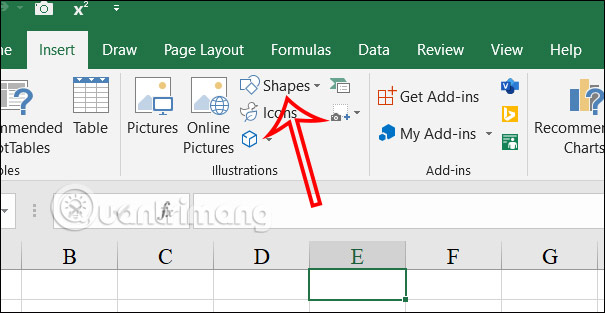
<p style="text-align: justify;">Chúng ta&nbsp;<strong>nhấn vào Insert</strong>&nbsp;sau đó nhấn&nbsp;<strong>chọn Shapes</strong>&nbsp;để hiển thị hình khối trong Excel.</p>

<p style="text-align: justify;"><img alt="Chọn hình khối trong Excel" data-i="0" data-src="https://st.quantrimang.com/photos/image/2024/04/03/Excel-ve-mui-ten-1.jpg" data-was-processed="true" height="313" src="https://st.quantrimang.com/photos/image/2024/04/03/Excel-ve-mui-ten-1.jpg" width="605" /></p>

<p style="text-align: justify;"><strong>Bước 2:</strong></p>

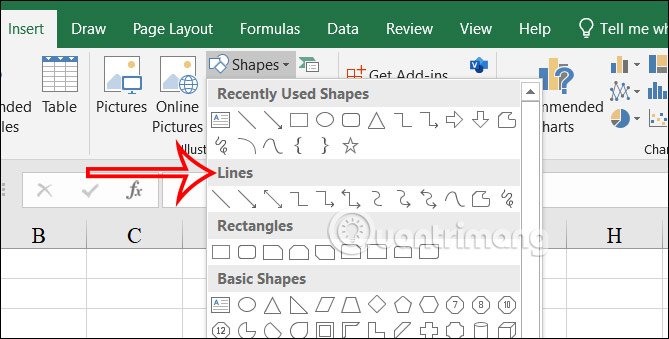
<p style="text-align: justify;">Trong phần Lines, bạn tìm tới&nbsp;<strong>mũi tên muốn sử dụng trong Excel</strong>, mũi tên 1 chiều hay mũi tên 2 chiều để chèn vào nội dung.</p>

<p style="text-align: justify;">&nbsp;</p>

<div style="text-align: justify;"><br />
<img alt="Chèn mũi tên trong Excel" data-adbro-processed="true" data-i="1" data-src="https://st.quantrimang.com/photos/image/2024/04/03/Excel-ve-mui-ten-2.jpg" data-was-processed="true" height="304" src="https://st.quantrimang.com/photos/image/2024/04/03/Excel-ve-mui-ten-2.jpg" width="600" /></div>

<p style="text-align: justify;"><strong>Bước 3:</strong></p>

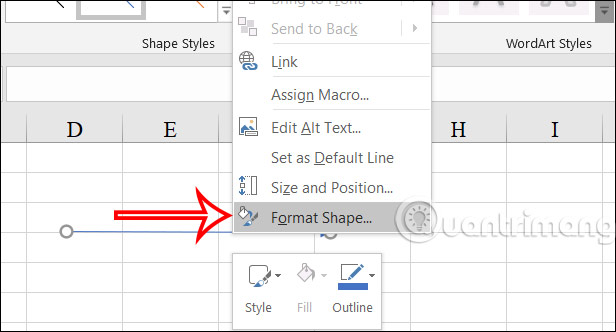
<p style="text-align: justify;">Nhấn<strong>&nbsp;chuột phải vào mũi tên</strong>&nbsp;đã vẽ trong Excel rồi&nbsp;<strong>chọn Format Shape</strong>&nbsp;hiển thị trong danh sách.</p>

<div style="text-align: justify;">&nbsp;</div>

<p style="text-align: justify;"><img alt="Chỉnh mũi tên trong Excel" data-i="2" data-src="https://st.quantrimang.com/photos/image/2024/04/03/Excel-ve-mui-ten-3.jpg" data-was-processed="true" height="313" src="https://st.quantrimang.com/photos/image/2024/04/03/Excel-ve-mui-ten-3.jpg" width="580" /></p>

<p style="text-align: justify;"><strong>Bước 4:</strong></p>

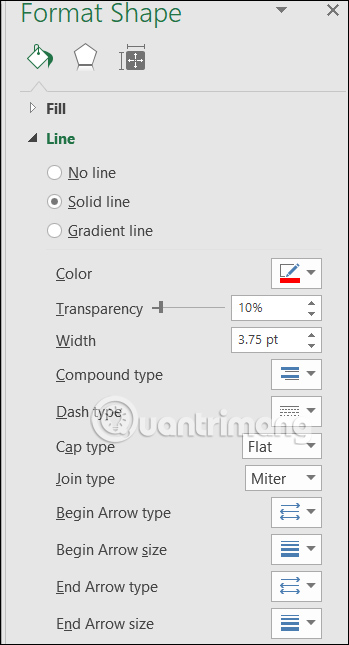
<p style="text-align: justify;">Hiển thị ở cạnh phải giao diện các tùy chọn thay đổi lại giao diện mũi tên vẽ trong Excel.</p>

<ul>
	<li style="text-align: justify;">Color: Chỉnh màu sắc của mũi tên.</li>
	<li style="text-align: justify;">Transparency: Chỉnh độ mờ của mũi tên.</li>
	<li style="text-align: justify;">Width: Độ dày cho mũi tên.</li>
	<li style="text-align: justify;">Compound type: Tạo kiểu nhiều đường kẻ</li>
	<li style="text-align: justify;">Dash type: Kiểu mũi tên.</li>
	<li style="text-align: justify;">Begin Arrow type: Chỉnh sửa hình dạng ở đầu mũi tên.</li>
	<li style="text-align: justify;">Begin Arrow size: Chỉnh độ lớn cho đầu mũi tên</li>
	<li style="text-align: justify;">End Arrow type: Chỉnh sửa hình dạng ở cuối mũi tên.</li>
	<li style="text-align: justify;">End Arrow size: Chỉnh sửa độ lớn cho cuối mũi tên.</li>
</ul>

<p style="text-align: justify;">Chúng ta sẽ nhấn vào từng mục để thay đổi giao diện hiển thị cho mũi tên trong Excel.</p>

<p style="text-align: justify;"><img alt="Chỉnh giao diện mũi tên trong Excel" data-i="3" data-src="https://st.quantrimang.com/photos/image/2024/04/03/Excel-ve-mui-ten-4.jpg" data-was-processed="true" height="554" src="https://st.quantrimang.com/photos/image/2024/04/03/Excel-ve-mui-ten-4.jpg" width="300" /></p>

<p style="text-align: justify;"><strong>Bước 5:</strong></p>

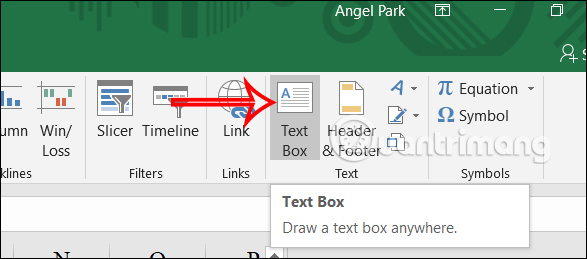
<p style="text-align: justify;">Để&nbsp;<strong>viết chữ lên mũi tên</strong>, bạn&nbsp;<strong>nhấn vào Text Box&nbsp;</strong>trong mục Insert để viết.</p>

<p style="text-align: justify;"><img alt="Chèn chữ vào mũi tên trong Excel" data-i="4" data-src="https://st.quantrimang.com/photos/image/2024/04/03/Excel-ve-mui-ten-6.jpg" data-was-processed="true" height="259" src="https://st.quantrimang.com/photos/image/2024/04/03/Excel-ve-mui-ten-6.jpg" width="587" /></p>

<div style="text-align: justify;"><iframe allowtransparency="true" aria-label="Advertisement" data-google-container-id="a!3" data-google-query-id="CMvelsGRqoUDFbA6ewcd5TYGWQ" data-load-complete="true" frameborder="0" height="174" hspace="0" id="aswift_2" marginheight="0" marginwidth="0" name="aswift_2" sandbox="" scrolling="no" tabindex="0" title="Advertisement" vspace="0" width="694"></iframe></div>

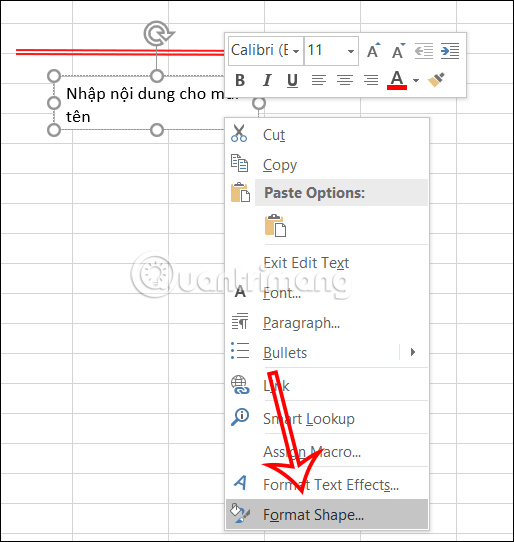
<p style="text-align: justify;">Chúng ta sẽ&nbsp;<strong>kẻ 1 khung tại vị trí muốn viết chữ</strong>&nbsp;trong mũi tên. Tiếp đến bạn&nbsp;<strong>nhập nội dung vào khung&nbsp;</strong>rồi nhấn&nbsp;<strong>chuột phải chọn Format Shape</strong>.</p>

<p style="text-align: justify;"><img alt="Chỉnh Text box trong Excel" data-i="5" data-src="https://st.quantrimang.com/photos/image/2024/04/03/Excel-ve-mui-ten-7.jpg" data-was-processed="true" height="506" src="https://st.quantrimang.com/photos/image/2024/04/03/Excel-ve-mui-ten-7.jpg" width="480" /></p>

<p style="text-align: justify;"><strong>Bước 6:</strong></p>

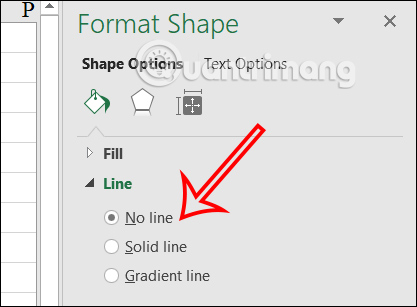
<p style="text-align: justify;">Tiếp tục bạn&nbsp;<strong>nhấn vào No Line trong phần Line&nbsp;</strong>để loại bỏ viền.</p>

<p style="text-align: justify;"><img alt="Loại bỏ viền Text bõ trong Excel" data-i="6" data-src="https://st.quantrimang.com/photos/image/2024/04/03/Excel-ve-mui-ten-8.jpg" data-was-processed="true" height="294" src="https://st.quantrimang.com/photos/image/2024/04/03/Excel-ve-mui-ten-8.jpg" width="400" /></p>

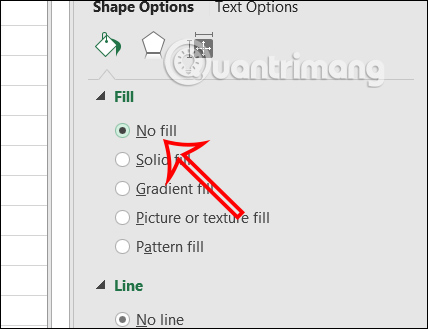
<p style="text-align: justify;">Tại&nbsp;<strong>Fill</strong>, bạn&nbsp;<strong>tích chọn No fill&nbsp;</strong>để loại bỏ nền trong khung Textbox.</p>

<p style="text-align: justify;"><img alt="Loại bỏ nền Text box trong Excel" data-i="7" data-src="https://st.quantrimang.com/photos/image/2024/04/03/Excel-ve-mui-ten-9.jpg" data-was-processed="true" height="307" src="https://st.quantrimang.com/photos/image/2024/04/03/Excel-ve-mui-ten-9.jpg" width="400" /></p>

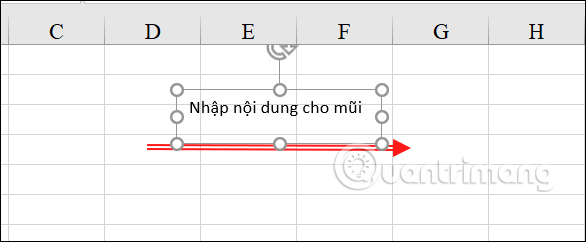
<p style="text-align: justify;">Kết quả bạn đã có được mũi tên với nội dung hiển thị như hình dưới đây. Chúng ta có điều chỉnh vị trí hiển thị nội dung sao cho phù hợp với mũi tên.</p>

<p style="text-align: justify;"><img alt="Vẽ mũi tên trong Excel" data-i="8" data-src="https://st.quantrimang.com/photos/image/2024/04/03/Excel-ve-mui-ten-10.jpg" data-was-processed="true" height="242" src="https://st.quantrimang.com/photos/image/2024/04/03/Excel-ve-mui-ten-10.jpg" width="586" /></p>

<p style="text-align: justify;"><strong>Bước 7:</strong></p>

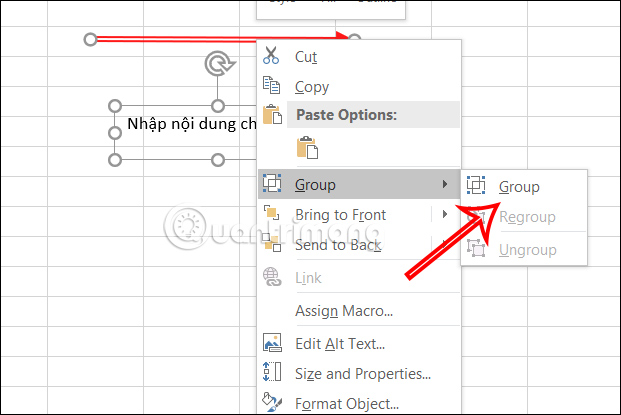
<p style="text-align: justify;">Để dễ dàng hơn trong việc điều chỉnh vị trí của mũi tên, bạn<strong>&nbsp;nhấn phím Shift rồi click vào mũi tên và chữ</strong>&nbsp;rồi nhấn<strong>&nbsp;chuột phải chọn Group</strong>&nbsp;để nhóm các đối tượng là 1. Như vậy khi bạn di chuyển sẽ di chuyển mũi tên và chữ viết.</p>

<div style="text-align: justify;">&nbsp;</div>

<p style="text-align: justify;"><img alt="Nhóm mũi tên và chữ viết trong Excel " data-i="9" data-src="https://st.quantrimang.com/photos/image/2024/04/03/Excel-ve-mui-ten-11.jpg" data-was-processed="true" height="368" src="https://st.quantrimang.com/photos/image/2024/04/03/Excel-ve-mui-ten-11.jpg" width="550" /></p>

<h2 style="text-align: justify;">Hướng dẫn vẽ đường thẳng trong Excel</h2>

<p style="text-align: justify;"><strong>Bước 1:</strong></p>

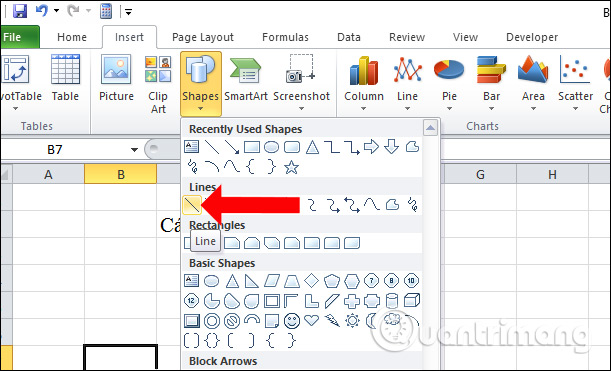
<p style="text-align: justify;">Tại nội dung trên Excel nhấn chọn vào&nbsp;<strong>tab Insert</strong>&nbsp;rồi nhấn tiếp vào&nbsp;<strong>nhóm Illustrations</strong>. Lựa chọn&nbsp;<strong>mục Shapes</strong>&nbsp;để biểu diễn hình vẽ trên Excel. Tại đây&nbsp;<strong>phần Line</strong>&nbsp;người dùng nhấn chọn vào đường kẻ đầu tiên.</p>

<p style="text-align: justify;"><img alt="Chọn đường kẻ " data-i="10" data-src="https://st.quantrimang.com/photos/image/2018/09/20/Excel-ve-duong-thang-mui-ten-1.jpg" data-was-processed="true" height="371" src="https://st.quantrimang.com/photos/image/2018/09/20/Excel-ve-duong-thang-mui-ten-1.jpg" width="611" /></p>

<p style="text-align: justify;"><strong>Bước 2:</strong></p>

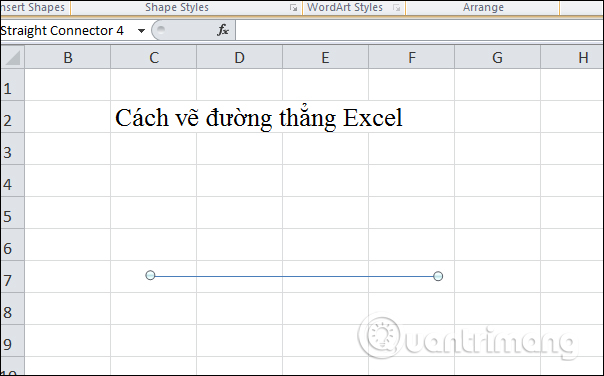
<p style="text-align: justify;">Bạn click chuột tại 1 ô rồi kéo chuột sang bên phải để tạo đường thẳng. Khi thả chuột sẽ thấy 2 điểm mút ở 2 đầu của đường thẳng. Lưu ý trong quá trình vẽ nên&nbsp;<strong>nhấn giữ phím Shift</strong>&nbsp;để đường vẽ không bị gãy khúc.</p>

<p style="text-align: justify;"><img alt="Kẻ đường thẳng" data-i="11" data-src="https://st.quantrimang.com/photos/image/2018/09/20/Excel-ve-duong-thang-mui-ten-2.jpg" data-was-processed="true" height="376" src="https://st.quantrimang.com/photos/image/2018/09/20/Excel-ve-duong-thang-mui-ten-2.jpg" width="604" /></p>

<p style="text-align: justify;"><strong>Bước 3:</strong></p>

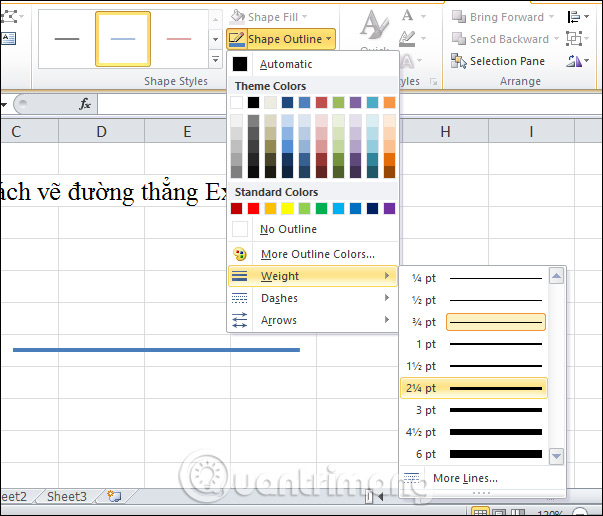
<p style="text-align: justify;">Sau khi tạo đường thẳng xong chúng ta sẽ tùy chỉnh độ dày cho đường thẳng, kích chọn vào đường thẳng vừa vẽ rồi nhấn vào&nbsp;<strong>tab Format</strong>, chọn&nbsp;<strong>Shape Outline</strong>&nbsp;và chọn&nbsp;<strong>Weight</strong>&nbsp;để lựa chọn độ dày cho đường thẳng.</p>

<p style="text-align: justify;">Khi di chuột vào kích cỡ độ dày sẽ được áp dụng ngay trên đường thẳng để người dùng được biết.</p>

<p style="text-align: justify;"><img alt="Chọn độ dày" data-i="12" data-src="https://st.quantrimang.com/photos/image/2018/09/20/Excel-ve-duong-thang-mui-ten-3.jpg" data-was-processed="true" height="516" src="https://st.quantrimang.com/photos/image/2018/09/20/Excel-ve-duong-thang-mui-ten-3.jpg" width="603" /></p>

<p style="text-align: justify;"><strong>Bước 4:</strong></p>

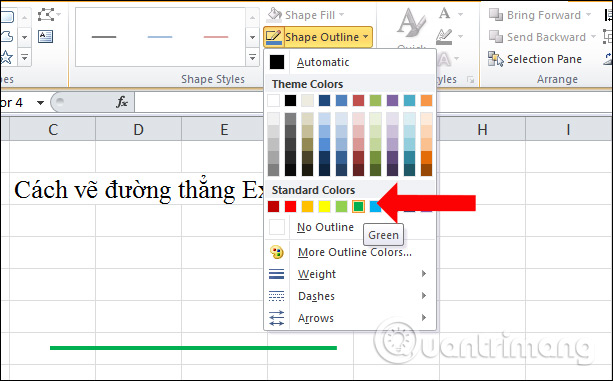
<p style="text-align: justify;">Để thay đổi màu sắc cho đường thẳng, chúng ta cũng nhấn vào Shape Outline rồi<strong>&nbsp;chọn màu sắc</strong>&nbsp;muốn dùng cho đường thẳng.</p>

<div style="text-align: justify;"><iframe allowtransparency="true" aria-label="Advertisement" data-google-container-id="a!5" data-google-query-id="CM7WpsKRqoUDFcLETAId3XgJGA" data-load-complete="true" frameborder="0" height="174" hspace="0" id="aswift_4" marginheight="0" marginwidth="0" name="aswift_4" sandbox="" scrolling="no" tabindex="0" title="Advertisement" vspace="0" width="694"></iframe></div>

<p style="text-align: justify;"><img alt="Chọn màu sắc" data-i="13" data-src="https://st.quantrimang.com/photos/image/2018/09/20/Excel-ve-duong-thang-mui-ten-4.jpg" data-was-processed="true" height="381" src="https://st.quantrimang.com/photos/image/2018/09/20/Excel-ve-duong-thang-mui-ten-4.jpg" width="613" /></p>

<p style="text-align: justify;"><strong>Bước 5:</strong></p>

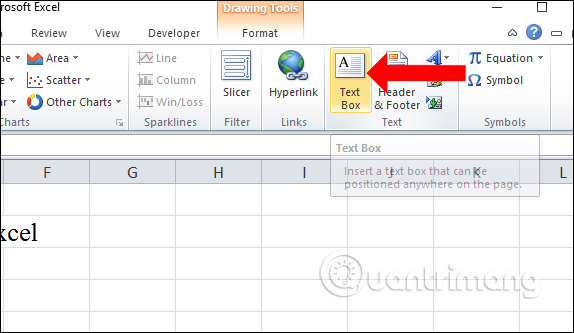
<p style="text-align: justify;">Khi đã tạo xong đường thẳng và chỉnh sửa đường thẳng, bạn cần chèn chữ tại 2 điểm mút đường thẳng. Nhấn vào&nbsp;<strong>tab Insert</strong>&nbsp;rồi tìm tới nhóm Text, chọn tiếp&nbsp;<strong>Textbox</strong>.</p>

<p style="text-align: justify;"><img alt="Tạo 2 điểm mút " data-i="14" data-src="https://st.quantrimang.com/photos/image/2018/09/20/Excel-ve-duong-thang-mui-ten-5.jpg" data-was-processed="true" height="333" src="https://st.quantrimang.com/photos/image/2018/09/20/Excel-ve-duong-thang-mui-ten-5.jpg" width="574" /></p>

<p style="text-align: justify;"><strong>Bước 6:</strong></p>

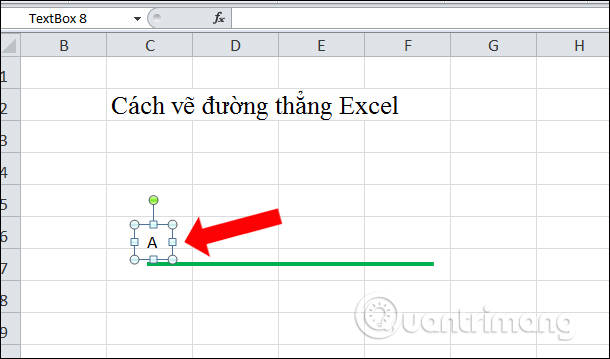
<p style="text-align: justify;">Nhấn và giữ chuột theo hướng muốn tạo Textbox mà ở đây là 2 điểm đầu đường thẳng, nhập nội dung cho văn bản.</p>

<p style="text-align: justify;"><img alt="Nhập nội dung Textbox" data-i="15" data-src="https://st.quantrimang.com/photos/image/2018/09/20/Excel-ve-duong-thang-mui-ten-6.jpg" data-was-processed="true" height="359" src="https://st.quantrimang.com/photos/image/2018/09/20/Excel-ve-duong-thang-mui-ten-6.jpg" width="610" /></p>

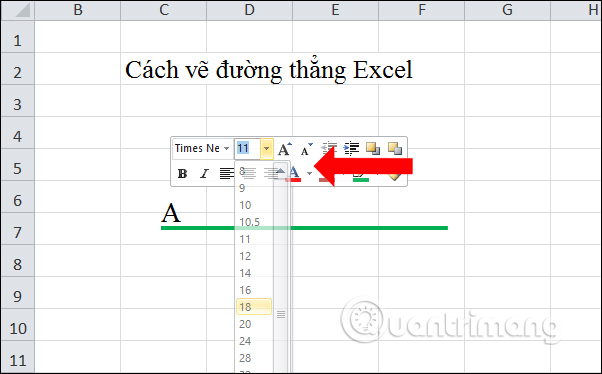
<p style="text-align: justify;">Để đổi font chữ và cỡ chữ trong Textbox, bôi đen chữ rồi chọn kiểu định dạng trong hộp thoại nhỏ hiển thị. Bạn cũng có thể điều chỉnh lại vị trí cho chữ trên 2 đầu mút.</p>

<p style="text-align: justify;"><img alt="Chỉnh Textbox" data-i="16" data-src="https://st.quantrimang.com/photos/image/2018/09/20/Excel-ve-duong-thang-mui-ten-7.jpg" data-was-processed="true" height="374" src="https://st.quantrimang.com/photos/image/2018/09/20/Excel-ve-duong-thang-mui-ten-7.jpg" width="602" /></p>

<p style="text-align: justify;"><strong>Bước 7:</strong></p>

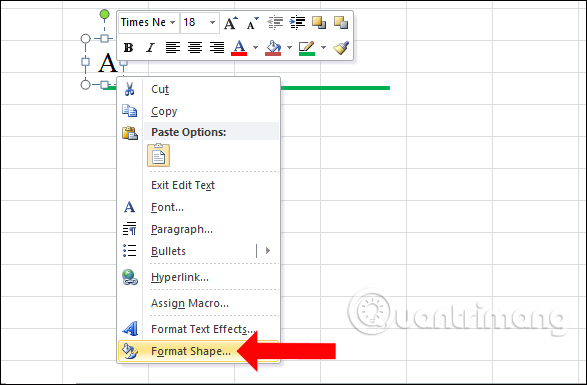
<p style="text-align: justify;">Tiếp đến xóa bỏ đường viền và nền cho Textbox, nhấn&nbsp;<strong>chuột phải</strong>&nbsp;vào&nbsp;<strong>Textbox</strong>&nbsp;và chọn&nbsp;<strong>Format Shapes</strong>.</p>

<p style="text-align: justify;"><img alt="Xóa đường viền Textbox" data-i="17" data-src="https://st.quantrimang.com/photos/image/2018/09/20/Excel-ve-duong-thang-mui-ten-8.jpg" data-was-processed="true" height="385" src="https://st.quantrimang.com/photos/image/2018/09/20/Excel-ve-duong-thang-mui-ten-8.jpg" width="587" /></p>

<p style="text-align: justify;"><strong>Bước 8:</strong></p>

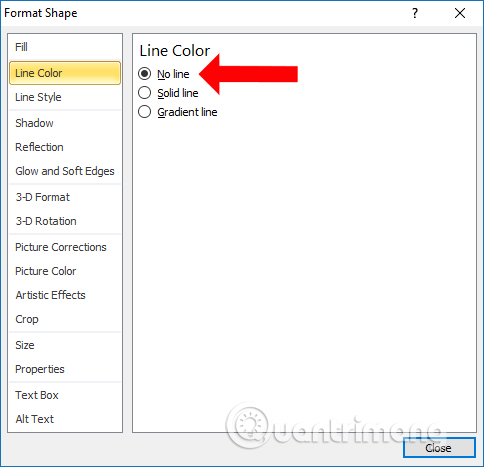
<p style="text-align: justify;">Hiển thị giao diện mới, trong mục&nbsp;<strong>Line Color</strong>&nbsp;nhấn chọn&nbsp;<strong>No Line</strong>.</p>

<p style="text-align: justify;"><img alt="No Line" data-i="18" data-src="https://st.quantrimang.com/photos/image/2018/09/20/Excel-ve-duong-thang-mui-ten-9.jpg" data-was-processed="true" height="467" src="https://st.quantrimang.com/photos/image/2018/09/20/Excel-ve-duong-thang-mui-ten-9.jpg" width="484" /></p>

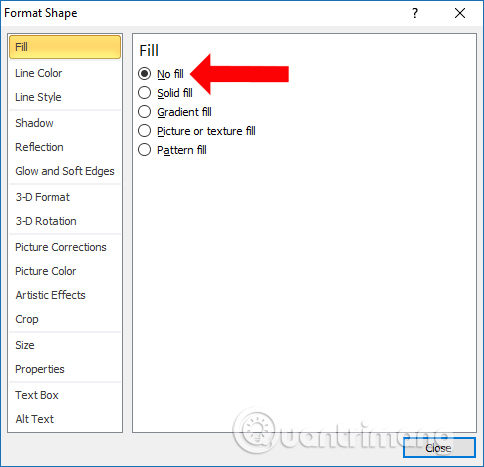
<p style="text-align: justify;">Tiếp đến mục Fill nhấn chọn&nbsp;<strong>No Fill</strong>.</p>

<p style="text-align: justify;"><img alt="Chọn No Fill" data-i="19" data-src="https://st.quantrimang.com/photos/image/2018/09/20/Excel-ve-duong-thang-mui-ten-10.jpg" data-was-processed="true" height="467" src="https://st.quantrimang.com/photos/image/2018/09/20/Excel-ve-duong-thang-mui-ten-10.jpg" width="484" /></p>

<div style="text-align: justify;"><iframe allowtransparency="true" aria-label="Advertisement" data-google-container-id="a!6" data-google-query-id="CO-Kz8ORqoUDFTcEewcdMCgHrQ" data-load-complete="true" frameborder="0" height="174" hspace="0" id="aswift_5" marginheight="0" marginwidth="0" name="aswift_5" sandbox="" scrolling="no" tabindex="0" title="Advertisement" vspace="0" width="694"></iframe></div>

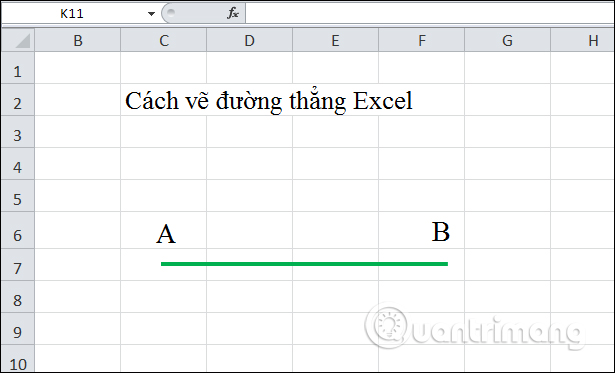
<p style="text-align: justify;">Sau đó tiếp tục tạo Textbox với đầu mút còn lại và đặt tên là B để có được đường thẳng AB như hình.</p>

<p style="text-align: justify;"><img alt="Đường thẳng AB " data-i="20" data-src="https://st.quantrimang.com/photos/image/2018/09/20/Excel-ve-duong-thang-mui-ten-11.jpg" data-was-processed="true" height="373" src="https://st.quantrimang.com/photos/image/2018/09/20/Excel-ve-duong-thang-mui-ten-11.jpg" width="615" /></p>

<p style="text-align: justify;"><strong>Bước 9:</strong></p>

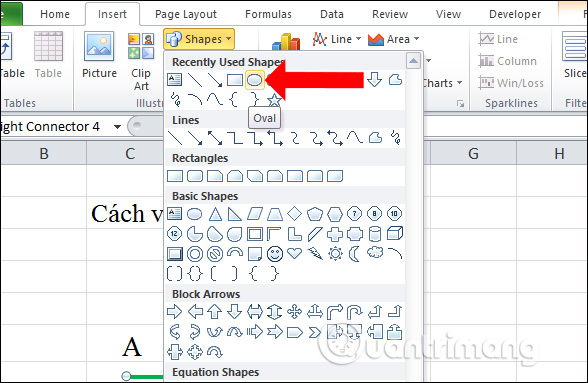
<p style="text-align: justify;">2 đầu mút sẽ biến mất khi bạn nhấn chuột ra ngoài nội dung. Để tạo đoạn thẳng chặn điểm đầu và điểm cuối, nhấn vào&nbsp;<strong>mục Shapes</strong>&nbsp;chọn hình&nbsp;<strong>elip Oval</strong>&nbsp;để thêm 2 điểm đầu cuối cho đường thẳng.</p>

<p style="text-align: justify;"><img alt="Tạo điểm đầu cuối" data-i="21" data-src="https://st.quantrimang.com/photos/image/2018/09/20/Excel-ve-duong-thang-mui-ten-12.jpg" data-was-processed="true" height="383" src="https://st.quantrimang.com/photos/image/2018/09/20/Excel-ve-duong-thang-mui-ten-12.jpg" width="588" /></p>

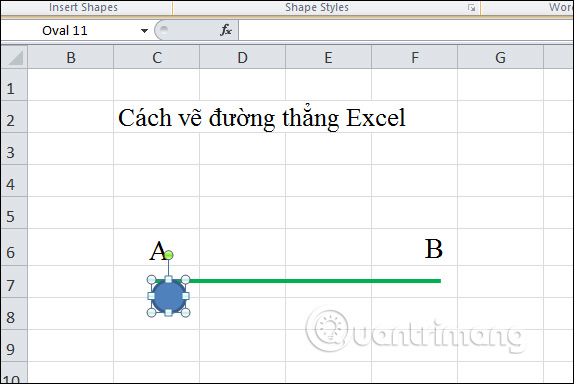
<p style="text-align: justify;">Chúng ta sẽ được hình elip như bên dưới. Việc tiếp theo đó là co kéo khung để tạo thành hình tròn và di chuyển tới đầu đường thẳng để tạo điểm mút.</p>

<p style="text-align: justify;"><img alt="Điểm mút đầu tiên" data-i="22" data-src="https://st.quantrimang.com/photos/image/2018/09/20/Excel-ve-duong-thang-mui-ten-13.jpg" data-was-processed="true" height="384" src="https://st.quantrimang.com/photos/image/2018/09/20/Excel-ve-duong-thang-mui-ten-13.jpg" width="574" /></p>

<p style="text-align: justify;"><strong>Bước 10:</strong></p>

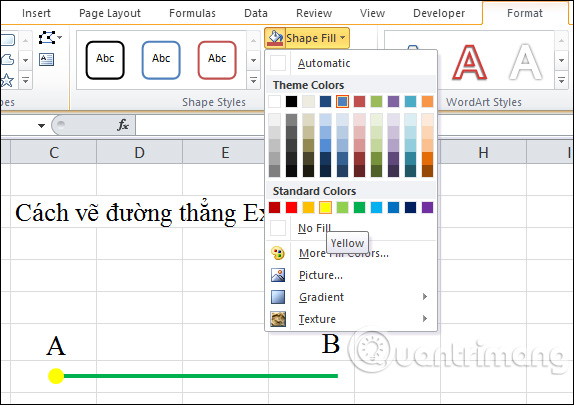
<p style="text-align: justify;">Như vậy bạn sẽ được 1 điểm mút như hình. Nhấn vào<strong>&nbsp;Format</strong>&nbsp;rồi chỉnh sửa màu sắc cho điểm mút tại&nbsp;<strong>Shape Fill</strong>&nbsp;và&nbsp;<strong>Shape Outline</strong>.</p>

<p style="text-align: justify;"><img alt="Chỉnh điểm mút" data-i="23" data-src="https://st.quantrimang.com/photos/image/2018/09/20/Excel-ve-duong-thang-mui-ten-14.jpg" data-was-processed="true" height="384" src="https://st.quantrimang.com/photos/image/2018/09/20/Excel-ve-duong-thang-mui-ten-14.jpg" width="574" /></p>

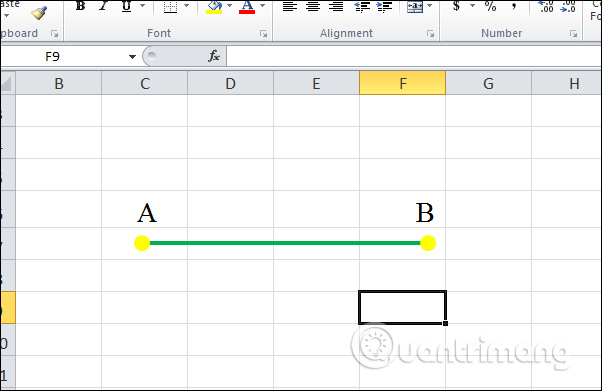
<p style="text-align: justify;">Tạo nốt điểm mút còn lại và sẽ được đoạn thẳng AB như hình.</p>

<p style="text-align: justify;"><img alt="Đoạn thẳng AB" data-i="24" data-src="https://st.quantrimang.com/photos/image/2018/09/20/Excel-ve-duong-thang-mui-ten-15.jpg" data-was-processed="true" height="391" src="https://st.quantrimang.com/photos/image/2018/09/20/Excel-ve-duong-thang-mui-ten-15.jpg" width="602" /></p>

<p style="text-align: justify;"><strong>Bước 11:</strong></p>

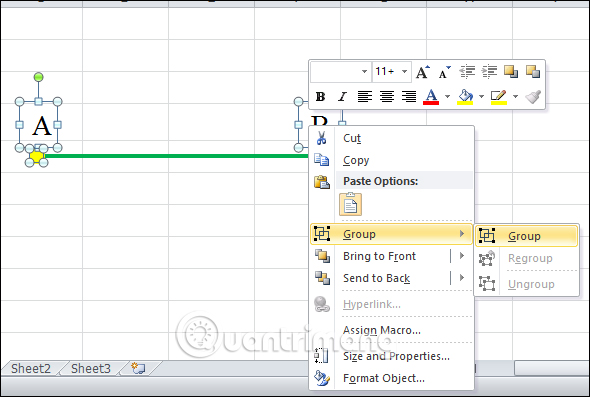
<p style="text-align: justify;">Để di chuyển đoạn thẳng và các đối tượng trong đoạn thẳng, người dùng cần nhóm các đối tượng trong đoạn thẳng thành 1 đối tượng chung.</p>

<p style="text-align: justify;"><strong>Nhấn giữ phím Shift</strong>&nbsp;rồi click chuột vào các đối tượng trong hình. Sau đó nhấn chuột phải vào bất kỳ đối tượng nào chọn&nbsp;<strong>Group</strong>&nbsp;chọn tiếp&nbsp;<strong>Group</strong>&nbsp;để nhóm chúng lại.</p>

<p style="text-align: justify;"><img alt="Nhóm đối tượng" data-i="25" data-src="https://st.quantrimang.com/photos/image/2018/09/20/Excel-ve-duong-thang-mui-ten-16.jpg" data-was-processed="true" height="397" src="https://st.quantrimang.com/photos/image/2018/09/20/Excel-ve-duong-thang-mui-ten-16.jpg" width="590" /></p>

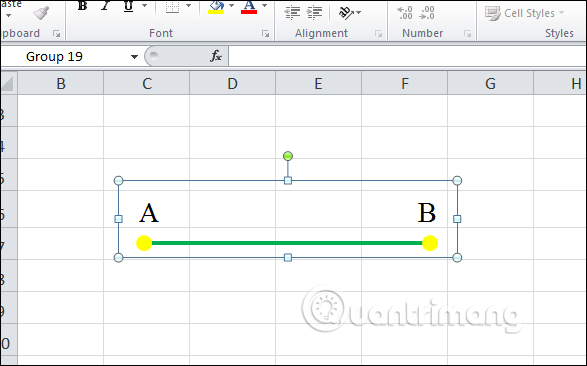
<p style="text-align: justify;">Khi nhóm thành công sẽ có khung kẻ bao quanh đoạn thẳng.</p>

<p style="text-align: justify;"><img alt="Khung bao quanh" data-i="26" data-src="https://st.quantrimang.com/photos/image/2018/09/20/Excel-ve-duong-thang-mui-ten-17.jpg" data-was-processed="true" height="397" src="https://st.quantrimang.com/photos/image/2018/09/20/Excel-ve-duong-thang-mui-ten-17.jpg" width="590" /></p>

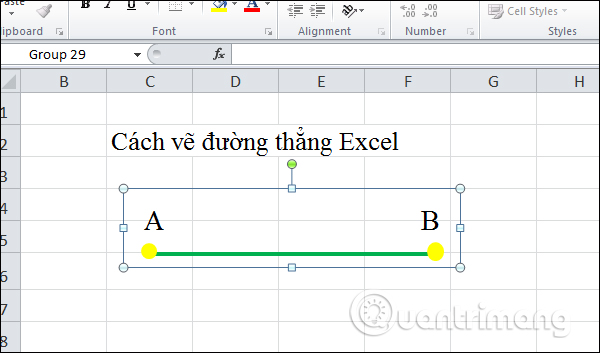
<p style="text-align: justify;">Như vậy người dùng có thể di chyển đoạn thẳng mà không làm thay đổi vị trí các đối tượng trong hình.</p>

<p style="text-align: justify;"><img alt="Di chuyển đoạn thẳng" data-i="27" data-src="https://st.quantrimang.com/photos/image/2018/09/20/Excel-ve-duong-thang-mui-ten-18.jpg" data-was-processed="true" height="353" src="https://st.quantrimang.com/photos/image/2018/09/20/Excel-ve-duong-thang-mui-ten-18.jpg" width="600" /></p>

<div style="text-align: justify;">&nbsp;</div>
		</div>
				<div id="author">
						<p>
				<strong>Nguồn tin:</strong>
				Quantrimang.com
			</p>
		</div>
	</div>
	<div id="footer" class="clearfix">
		<div id="url">
			<strong>URL của bản tin này: </strong><a href="https://www.nguoicodonvn2008.info/vi/news/savefile/kien-thuc-may-tinh/cach-ve-duong-thang-ve-mui-ten-trong-excel-8270.html" title="Cách vẽ đường thẳng, vẽ mũi tên trong Excel">https://www.nguoicodonvn2008.info/vi/news/savefile/kien-thuc-may-tinh/cach-ve-duong-thang-ve-mui-ten-trong-excel-8270.html</a>

		</div>
		<div class="clear"></div>
		<div class="copyright">
			&copy; .&#x3A; Nguoicodonvn2008.info - Cõi lòng người cô đơn &#x3A;.
		</div>
		<div id="contact">
			<a href="mailto:admin@nguoicodonvn2008.info">admin@nguoicodonvn2008.info</a>
		</div>
	</div>
</div>
        <div id="timeoutsess" class="chromeframe">
            Bạn đã không sử dụng Site, <a onclick="timeoutsesscancel();" href="https://nguoicodonvn2008.info/#">Bấm vào đây để duy trì trạng thái đăng nhập</a>. Thời gian chờ: <span id="secField"> 60 </span> giây
        </div>
        <div id="openidResult" class="nv-alert" style="display:none"></div>
        <div id="openidBt" data-result="" data-redirect=""></div>
		</script>
		<div class="car-top">
  <span><img src="https://nguoicodonvn2008.info/themes/default/images/car.png" alt=""></span>
</div>
<script src="https://nguoicodonvn2008.info/assets/js/jquery/jquery.min.js"></script>
<script>var nv_base_siteurl="/",nv_lang_data="vi",nv_lang_interface="vi",nv_name_variable="nv",nv_fc_variable="op",nv_lang_variable="language",nv_module_name="news",nv_func_name="savefile",nv_is_user=0, nv_my_ofs=-4,nv_my_abbr="EDT",nv_cookie_prefix="nv4c_e856T",nv_check_pass_mstime=1738000,nv_area_admin=0,nv_safemode=0,theme_responsive=0,nv_recaptcha_ver=2,nv_recaptcha_sitekey="",nv_recaptcha_type="image",XSSsanitize=1;</script>
<script src="https://nguoicodonvn2008.info/assets/js/language/vi.js"></script>
<script src="https://nguoicodonvn2008.info/assets/js/DOMPurify/purify3.js"></script>
<script src="https://nguoicodonvn2008.info/assets/js/global.js"></script>
<script src="https://nguoicodonvn2008.info/assets/js/site.js"></script>
<script src="https://nguoicodonvn2008.info/themes/default/js/news.js"></script>
<script src="https://nguoicodonvn2008.info/themes/default/js/main.js"></script>
<script src="https://nguoicodonvn2008.info/themes/default/js/custom.js"></script>
<script type="application/ld+json">
        {
            "@context": "https://schema.org",
            "@type": "Organization",
            "url": "https://nguoicodonvn2008.info",
            "logo": "https://nguoicodonvn2008.info/uploads/angel.gif"
        }
        </script>
<script src="https://nguoicodonvn2008.info/themes/default/js/bootstrap.min.js"></script>
<script type="text/javascript">
var $scrolltop = $('.car-top');
$scrolltop.on('click', function () {
    $('html,body').animate({
        scrollTop: 0
    }, 800);
    $(this).addClass("car-run");
    setTimeout(function(){ $scrolltop.removeClass('car-run');}, 1000);
    return false;
});
$(window).on('scroll', function ()
{ 
    if($(window).scrollTop() >= 200)
    {
        $scrolltop.addClass("show");
        $scrolltop.addClass("car-down");
    }
    else
    {
       $scrolltop.removeClass("show");
       setTimeout(function(){ $scrolltop.removeClass('car-down');}, 300);
    }
});
</script>
</body>
</html>