<!DOCTYPE html>
    <html lang="vi" xmlns="http://www.w3.org/1999/xhtml" prefix="og: http://ogp.me/ns#">
    <head>
<title>Cách tự động hóa các file batch bằng Task Scheduler trên Windows</title>
<meta name="description" content="Cách tự động hóa các file batch bằng Task Scheduler trên Windows - Savefile - Tin Tức -...">
<meta name="author" content=".: Nguoicodonvn2008.info - Cõi lòng người cô đơn :.">
<meta name="copyright" content=".: Nguoicodonvn2008.info - Cõi lòng người cô đơn :. [admin@nguoicodonvn2008.info]">
<meta name="robots" content="index, archive, follow, noodp">
<meta name="googlebot" content="index,archive,follow,noodp">
<meta name="msnbot" content="all,index,follow">
<meta name="generator" content="NukeViet v4.5">
<meta http-equiv="Content-Type" content="text/html; charset=utf-8">
<meta property="og:title" content="Cách tự động hóa các file batch bằng Task Scheduler trên Windows">
<meta property="og:type" content="website">
<meta property="og:description" content="Savefile - Tin Tức - https&#x3A;&#x002F;&#x002F;www.nguoicodonvn2008.info&#x002F;vi&#x002F;news&#x002F;savefile&#x002F;kien-thuc-may-tinh&#x002F;cach-tu-dong-hoa-cac-file-batch-bang-task-scheduler-tren-windows-7604.html">
<meta property="og:site_name" content=".&#x3A; Nguoicodonvn2008.info - Cõi lòng người cô đơn &#x3A;.">
<meta property="og:url" content="https://www.nguoicodonvn2008.info/vi/news/savefile/kien-thuc-may-tinh/cach-tu-dong-hoa-cac-file-batch-bang-task-scheduler-tren-windows-7604.html">
<link rel="shortcut icon" href="https://nguoicodonvn2008.info/favicon.ico">
<link rel="canonical" href="https://www.nguoicodonvn2008.info/vi/news/savefile/kien-thuc-may-tinh/cach-tu-dong-hoa-cac-file-batch-bang-task-scheduler-tren-windows-7604.html">
<link rel="alternate" href="https://nguoicodonvn2008.info/vi/news/rss/" title="Tin Tức" type="application/rss+xml">
<link rel="alternate" href="https://nguoicodonvn2008.info/vi/news/rss/karaoke-dual/" title="Tin Tức - Karaoke Dual" type="application/rss+xml">
<link rel="alternate" href="https://nguoicodonvn2008.info/vi/news/rss/nhac-tre/" title="Tin Tức - Nhạc trẻ" type="application/rss+xml">
<link rel="alternate" href="https://nguoicodonvn2008.info/vi/news/rss/tru-tinh/" title="Tin Tức - Trữ tình" type="application/rss+xml">
<link rel="alternate" href="https://nguoicodonvn2008.info/vi/news/rss/nuoc-ngoai/" title="Tin Tức - Nước ngoài" type="application/rss+xml">
<link rel="alternate" href="https://nguoicodonvn2008.info/vi/news/rss/remix/" title="Tin Tức - Remix" type="application/rss+xml">
<link rel="alternate" href="https://nguoicodonvn2008.info/vi/news/rss/tam-su-tinh-yeu/" title="Tin Tức - Tâm sự tình yêu" type="application/rss+xml">
<link rel="alternate" href="https://nguoicodonvn2008.info/vi/news/rss/tho-suu-tam/" title="Tin Tức - Thơ sưu tầm" type="application/rss+xml">
<link rel="alternate" href="https://nguoicodonvn2008.info/vi/news/rss/cuoc-song/" title="Tin Tức - Cuộc sống" type="application/rss+xml">
<link rel="alternate" href="https://nguoicodonvn2008.info/vi/news/rss/phan-mem/" title="Tin Tức - Phần mềm" type="application/rss+xml">
<link rel="alternate" href="https://nguoicodonvn2008.info/vi/news/rss/kien-thuc-may-tinh/" title="Tin Tức - Kiến thức máy tính" type="application/rss+xml">
<link rel="alternate" href="https://nguoicodonvn2008.info/vi/news/rss/hoc-tap/" title="Tin Tức - Học tập" type="application/rss+xml">
<link rel="alternate" href="https://nguoicodonvn2008.info/vi/news/rss/tai-lieu/" title="Tin Tức - Tài liệu" type="application/rss+xml">
<link rel="alternate" href="https://nguoicodonvn2008.info/vi/news/rss/de-thi/" title="Tin Tức - Đề thi" type="application/rss+xml">
<link rel="preload" as="style" href="https://nguoicodonvn2008.info/assets/css/font-awesome.min.css" type="text/css">
<link rel="preload" as="style" href="https://nguoicodonvn2008.info/themes/default/css/bootstrap.non-responsive.css" type="text/css">
<link rel="preload" as="style" href="https://nguoicodonvn2008.info/themes/default/css/style.css" type="text/css">
<link rel="preload" as="style" href="https://nguoicodonvn2008.info/themes/default/css/style.non-responsive.css" type="text/css">
<link rel="preload" as="style" href="https://nguoicodonvn2008.info/themes/default/css/news.css" type="text/css">
<link rel="preload" as="style" href="https://nguoicodonvn2008.info/themes/default/css/custom.css" type="text/css">
<link rel="preload" as="script" href="https://nguoicodonvn2008.info/assets/js/jquery/jquery.min.js" type="text/javascript">
<link rel="preload" as="script" href="https://nguoicodonvn2008.info/assets/js/language/vi.js" type="text/javascript">
<link rel="preload" as="script" href="https://nguoicodonvn2008.info/assets/js/DOMPurify/purify3.js" type="text/javascript">
<link rel="preload" as="script" href="https://nguoicodonvn2008.info/assets/js/global.js" type="text/javascript">
<link rel="preload" as="script" href="https://nguoicodonvn2008.info/assets/js/site.js" type="text/javascript">
<link rel="preload" as="script" href="https://nguoicodonvn2008.info/themes/default/js/news.js" type="text/javascript">
<link rel="preload" as="script" href="https://nguoicodonvn2008.info/themes/default/js/main.js" type="text/javascript">
<link rel="preload" as="script" href="https://nguoicodonvn2008.info/themes/default/js/custom.js" type="text/javascript">
<link rel="preload" as="script" href="https://nguoicodonvn2008.info/themes/default/js/bootstrap.min.js" type="text/javascript">
<link rel="stylesheet" href="https://nguoicodonvn2008.info/assets/css/font-awesome.min.css">
<link rel="stylesheet" href="https://nguoicodonvn2008.info/themes/default/css/bootstrap.non-responsive.css">
<link rel="stylesheet" href="https://nguoicodonvn2008.info/themes/default/css/style.css">
<link rel="stylesheet" href="https://nguoicodonvn2008.info/themes/default/css/style.non-responsive.css">
<link rel="StyleSheet" href="https://nguoicodonvn2008.info/themes/default/css/news.css">
<link rel="stylesheet" href="https://nguoicodonvn2008.info/themes/default/css/custom.css">
<style type="text/css">
	body{background: #fff;}
</style>
    </head>
    <body>
<div id="print">
	<div id="hd_print">
		<h2 class="pull-left">.&#x3A; Nguoicodonvn2008.info - Cõi lòng người cô đơn &#x3A;.</h2>
		<p class="pull-right"><a title=".&#x3A; Nguoicodonvn2008.info - Cõi lòng người cô đơn &#x3A;." href="https://nguoicodonvn2008.info/">https://nguoicodonvn2008.info</a></p>
	</div>
	<div class="clear"></div>
	<hr />
	<div id="content">
		<h1>Cách tự động hóa các file batch bằng Task Scheduler trên Windows</h1>
		<ul class="list-inline">
			<li>Thứ năm - 05/10/2023 09:56</li>
			<li class="hidden-print txtrequired"><em class="fa fa-print">&nbsp;</em><a title="In ra" href="javascript:;" onclick="window.print()">In ra</a></li>
			<li class="hidden-print txtrequired"><em class="fa fa-power-off">&nbsp;</em><a title="Đóng cửa sổ này" href="javascript:;" onclick="window.close()">Đóng cửa sổ này</a></li>
		</ul>
		<div class="clear"></div>
		<div id="hometext">
		</div>
				<div class="imghome">
			<img alt="Cách tự động hóa các file batch bằng Task Scheduler trên Windows" src="https://st.quantrimang.com/photos/image/2023/10/04/tu-dong-hoa-file-batch-bang-task-scheduler-7.jpg" width="460" class="img-thumbnail" />
		</div>
		<div class="clear"></div>
		<div id="bodytext" class="clearfix">
			<p style="text-align: justify;">Bạn có thể khá mệt mỏi khi phải chạy đi chạy lại các file batch trong những thời điểm hoặc sự kiện nhất định trên máy tính của mình. May mắn thay, Windows cung cấp một cách để bạn tự động hóa quy trình đó để bạn không phải lúc nào cũng phải thực hiện thủ công.</p>

<p style="text-align: justify;">Hướng dẫn này sẽ chỉ cho bạn cách tự động hóa một file batch bằng Task Scheduler.</p>

<h2 style="text-align: justify;">Có nên lên lịch cho các file batch trên Windows không?</h2>

<p style="text-align: justify;">Tất nhiên, không phải tất cả các file batch đều cần được tự động hóa. Nhưng nếu chúng chứa các nhiệm vụ mà bạn cần thực hiện một cách nhất quán thì việc tự động hóa quy trình sẽ đảm bảo rằng bạn không bỏ sót một nhịp nào. Ví dụ, nếu bạn đã tạo một file batch để tự động hóa các tác vụ lặp đi lặp lại, chẳng hạn như tạo bản sao lưu hoặc mở một số chương trình nhất định khi bạn đăng nhập vào máy tính của mình thì bạn có thể tự động hóa các file batch đó.</p>

<p style="text-align: justify;">Đó là một cách hiệu quả để đảm bảo rằng bạn không quên chạy file batch vào những thời điểm cụ thể hoặc khi một số sự kiện nhất định xảy ra. Chưa kể nó còn giúp bạn tiết kiệm thời gian và công sức, đặc biệt nếu bạn có nhiều file batch cần chạy, cho phép bạn làm việc hiệu quả hơn.</p>

<h2 style="text-align: justify;">Lên lịch cho một file batch để chạy tự động trên Windows</h2>

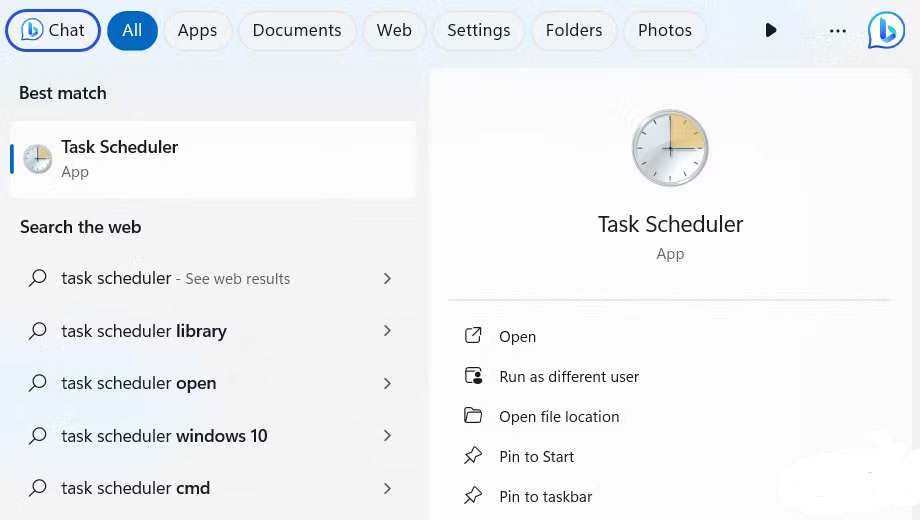
<p style="text-align: justify;">Để bắt đầu quá trình tự động hóa file batch, bạn sẽ phải&nbsp;<a data-type="internal" href="https://quantrimang.com/cong-nghe/mo-task-scheduler-trong-win-10-171730" title="8 cách mở Task Scheduler trong Windows 10">mở Task Scheduler</a>. Để làm điều đó, hãy nhấp vào&nbsp;<strong>Search</strong>&nbsp;trên Taskbar và nhập&nbsp;<strong>Task Scheduler</strong>&nbsp;vào hộp tìm kiếm. Trong kết quả nhấn vào Task Scheduler để mở ứng dụng.</p>

<figure>
<div style="text-align: justify;"><img alt="Task Scheduler trong Windows Search" data-i="0" data-src="https://st.quantrimang.com/photos/image/2023/10/04/tu-dong-hoa-file-batch-bang-task-scheduler-1.jpg" data-was-processed="true" height="520" src="https://st.quantrimang.com/photos/image/2023/10/04/tu-dong-hoa-file-batch-bang-task-scheduler-1.jpg" width="920" /></div>

<figcaption>
<div style="text-align: justify;">Task Scheduler trong Windows Search</div>
</figcaption>
</figure>

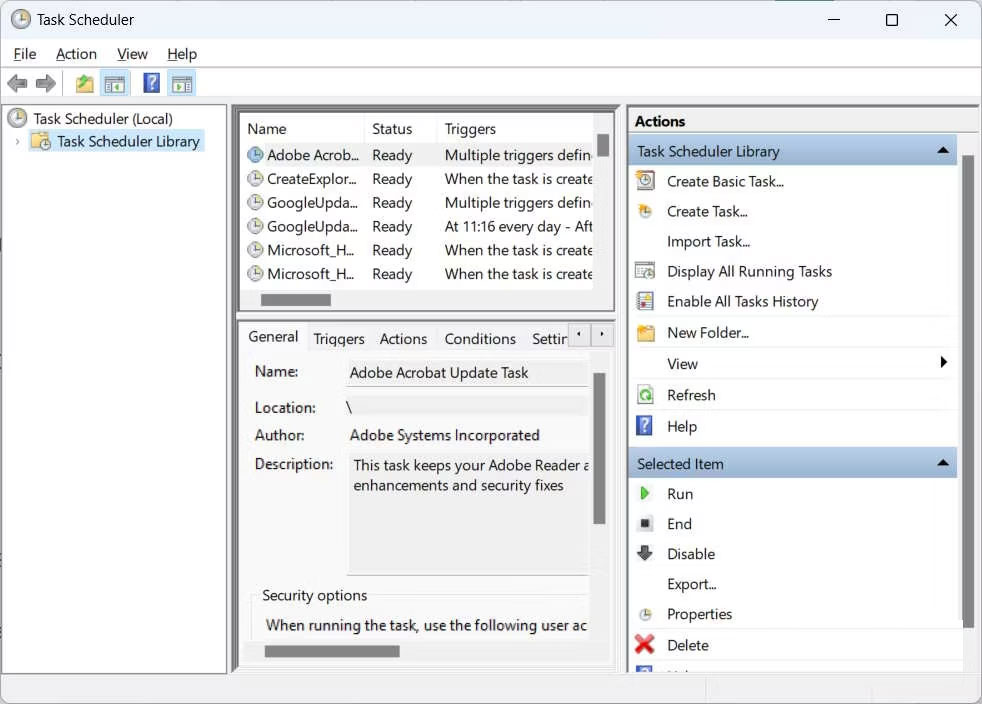
<p style="text-align: justify;">Trong bảng điều khiển bên phải, bên dưới&nbsp;<strong>Actions</strong>, nhấp vào&nbsp;<strong>Create Basic Task</strong>.</p>

<figure>
<div style="text-align: justify;"><img alt="Lịch trình tác vụ trên Windows" data-i="1" data-src="https://st.quantrimang.com/photos/image/2023/10/04/tu-dong-hoa-file-batch-bang-task-scheduler-2.jpg" data-was-processed="true" height="704" src="https://st.quantrimang.com/photos/image/2023/10/04/tu-dong-hoa-file-batch-bang-task-scheduler-2.jpg" width="982" /></div>

<figcaption>
<div style="text-align: justify;">Lịch trình tác vụ trên Windows</div>
</figcaption>
</figure>

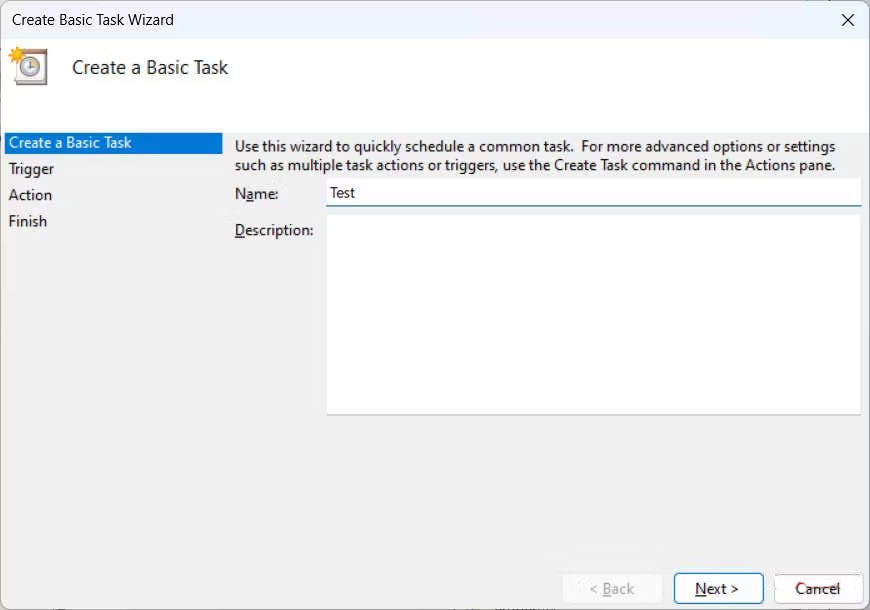
<p style="text-align: justify;">Đặt tên mô tả cho tác vụ và sau đó nhấp vào&nbsp;<strong>Next</strong>. Phần&nbsp;<strong>Description</strong>&nbsp;là tùy chọn nhưng bạn nên điền nó vào để không quên nhiệm vụ đó là gì.</p>

<figure>
<div style="text-align: justify;"><img alt="Tạo một tác vụ cơ bản trong Task Scheduler trên Windows" data-i="2" data-src="https://st.quantrimang.com/photos/image/2023/10/04/tu-dong-hoa-file-batch-bang-task-scheduler-3.jpg" data-was-processed="true" height="610" src="https://st.quantrimang.com/photos/image/2023/10/04/tu-dong-hoa-file-batch-bang-task-scheduler-3.jpg" width="870" /></div>

<figcaption>
<div style="text-align: justify;">Tạo một tác vụ cơ bản trong Task Scheduler trên Windows</div>
</figcaption>
</figure>

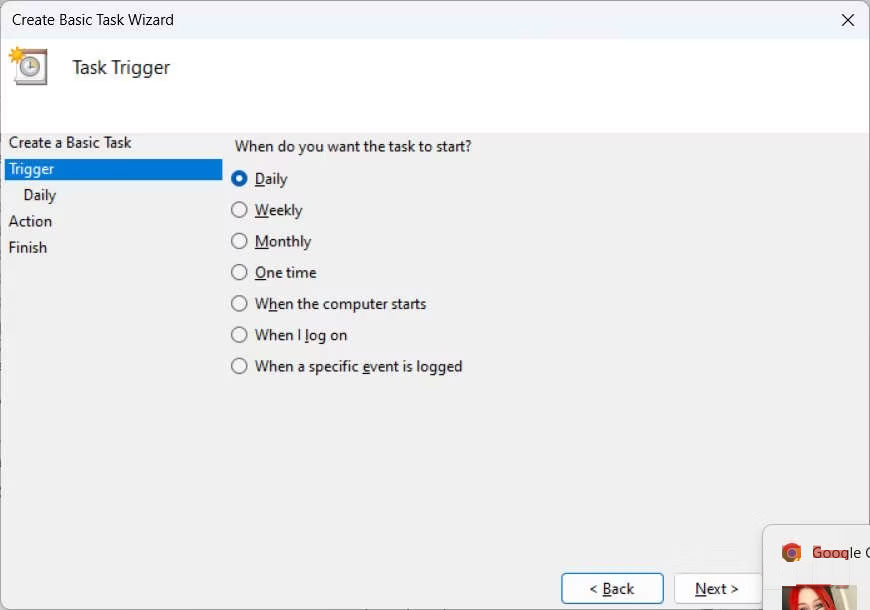
<p style="text-align: justify;">Chọn một trình kích hoạt, đó là thời điểm bạn muốn tác vụ chạy, bằng cách nhấp vào nút radio thích hợp, sau đó nhấp vào&nbsp;<strong>Next</strong>. Ví dụ đã chọn&nbsp;<strong>Daily</strong>, nghĩa là để chạy tác vụ mỗi ngày.</p>

<figure>
<div style="text-align: justify;"><img alt="Chọn trình kích hoạt trong Task Scheduler" data-i="3" data-src="https://st.quantrimang.com/photos/image/2023/10/04/tu-dong-hoa-file-batch-bang-task-scheduler-4.jpg" data-was-processed="true" height="610" src="https://st.quantrimang.com/photos/image/2023/10/04/tu-dong-hoa-file-batch-bang-task-scheduler-4.jpg" width="870" /></div>

<figcaption>
<div style="text-align: justify;">Chọn trình kích hoạt trong Task Scheduler</div>
</figcaption>
</figure>

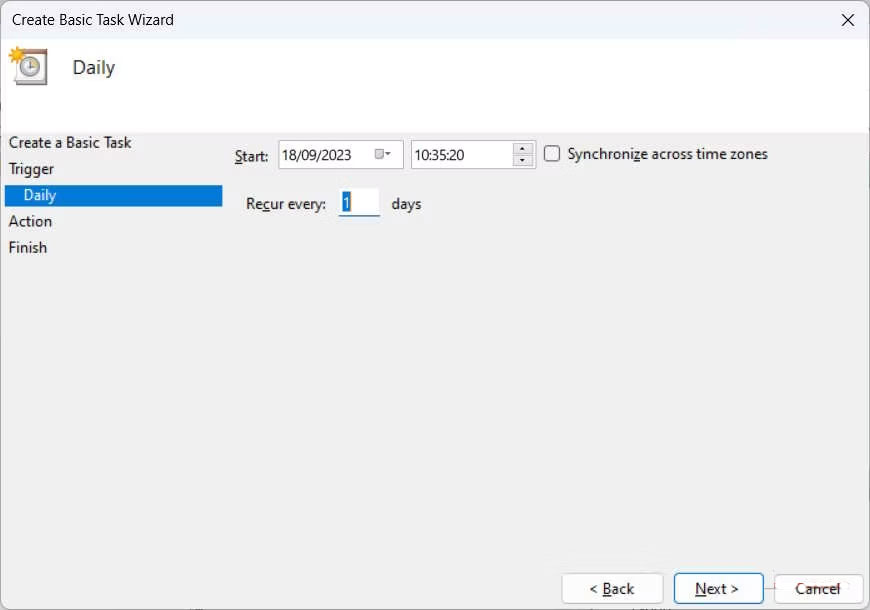
<p style="text-align: justify;">Mỗi trình kích hoạt có các tham số riêng mà bạn cần thiết lập. Đối với trình kích hoạt&nbsp;<strong>Daily</strong>, bạn phải chọn ngày và giờ bắt đầu cũng như số ngày nhiệm vụ sẽ lặp lại. Sau khi bạn thiết lập những thứ đó, hãy nhấp vào&nbsp;<strong>Next</strong>.</p>

<figure>
<div style="text-align: justify;"><img alt="Thiết lập tùy chọn cho trình kích hoạt Daily trong Task Scheduler" data-i="4" data-src="https://st.quantrimang.com/photos/image/2023/10/04/tu-dong-hoa-file-batch-bang-task-scheduler-5.jpg" data-was-processed="true" height="610" src="https://st.quantrimang.com/photos/image/2023/10/04/tu-dong-hoa-file-batch-bang-task-scheduler-5.jpg" width="870" /></div>

<figcaption>
<div style="text-align: justify;">Thiết lập tùy chọn cho trình kích hoạt Daily trong Task Scheduler</div>
</figcaption>
</figure>

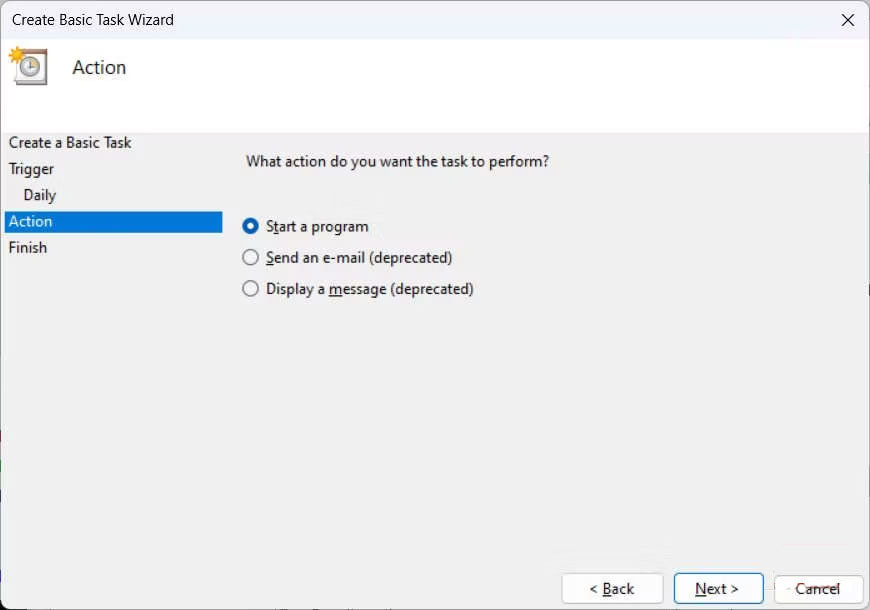
<p style="text-align: justify;">Bây giờ, bạn cần chọn một hành động và đối với file batch ví dụ, nút&nbsp;<strong>Start a program&nbsp;</strong>sẽ được chọn rồi nhấp vào&nbsp;<strong>Next</strong>.</p>

<figure>
<div style="text-align: justify;"><img alt="Chọn một hành động trong Task Scheduler trên Windows" data-i="5" data-src="https://st.quantrimang.com/photos/image/2023/10/04/tu-dong-hoa-file-batch-bang-task-scheduler-6.jpg" data-was-processed="true" height="610" src="https://st.quantrimang.com/photos/image/2023/10/04/tu-dong-hoa-file-batch-bang-task-scheduler-6.jpg" width="870" /></div>

<figcaption>
<div style="text-align: justify;">Chọn một hành động trong Task Scheduler trên Windows</div>
</figcaption>
</figure>

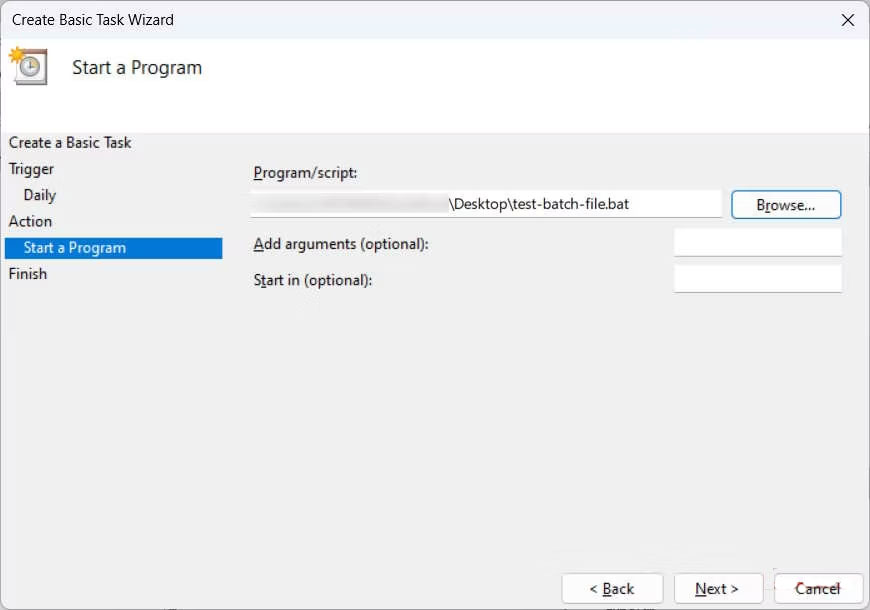
<p style="text-align: justify;">Trong&nbsp;<strong>Program/Script</strong>, nhấp vào&nbsp;<strong>Browse</strong>, chọn file batch bạn muốn tự động hóa, sau đó nhấp vào&nbsp;<strong>Next</strong>.</p>

<figure>
<div style="text-align: justify;"><img alt="Chọn chương trình hoặc script để tự động hóa trong Task Scheduler" data-i="6" data-src="https://st.quantrimang.com/photos/image/2023/10/04/tu-dong-hoa-file-batch-bang-task-scheduler-7.jpg" data-was-processed="true" height="610" src="https://st.quantrimang.com/photos/image/2023/10/04/tu-dong-hoa-file-batch-bang-task-scheduler-7.jpg" width="870" /></div>

<figcaption>
<div style="text-align: justify;">Chọn chương trình hoặc script để tự động hóa trong Task Scheduler</div>
</figcaption>
</figure>

<p style="text-align: justify;">Cuối cùng, nhấp vào&nbsp;<strong>Finish</strong>. Bây giờ, Task Scheduler sẽ chạy batch đó tùy thuộc vào trình kích hoạt bạn đặt (đó là&nbsp;<strong>Daily</strong>&nbsp;trong trường hợp ví dụ)</p>

<div style="text-align: justify;">&nbsp;</div>
		</div>
				<div id="author">
						<p>
				<strong>Nguồn tin:</strong>
				Quantrimang.com
			</p>
		</div>
	</div>
	<div id="footer" class="clearfix">
		<div id="url">
			<strong>URL của bản tin này: </strong><a href="https://www.nguoicodonvn2008.info/vi/news/savefile/kien-thuc-may-tinh/cach-tu-dong-hoa-cac-file-batch-bang-task-scheduler-tren-windows-7604.html" title="Cách tự động hóa các file batch bằng Task Scheduler trên Windows">https://www.nguoicodonvn2008.info/vi/news/savefile/kien-thuc-may-tinh/cach-tu-dong-hoa-cac-file-batch-bang-task-scheduler-tren-windows-7604.html</a>

		</div>
		<div class="clear"></div>
		<div class="copyright">
			&copy; .&#x3A; Nguoicodonvn2008.info - Cõi lòng người cô đơn &#x3A;.
		</div>
		<div id="contact">
			<a href="mailto:admin@nguoicodonvn2008.info">admin@nguoicodonvn2008.info</a>
		</div>
	</div>
</div>
        <div id="timeoutsess" class="chromeframe">
            Bạn đã không sử dụng Site, <a onclick="timeoutsesscancel();" href="https://nguoicodonvn2008.info/#">Bấm vào đây để duy trì trạng thái đăng nhập</a>. Thời gian chờ: <span id="secField"> 60 </span> giây
        </div>
        <div id="openidResult" class="nv-alert" style="display:none"></div>
        <div id="openidBt" data-result="" data-redirect=""></div>
		</script>
		<div class="car-top">
  <span><img src="https://nguoicodonvn2008.info/themes/default/images/car.png" alt=""></span>
</div>
<script src="https://nguoicodonvn2008.info/assets/js/jquery/jquery.min.js"></script>
<script>var nv_base_siteurl="/",nv_lang_data="vi",nv_lang_interface="vi",nv_name_variable="nv",nv_fc_variable="op",nv_lang_variable="language",nv_module_name="news",nv_func_name="savefile",nv_is_user=0, nv_my_ofs=-4,nv_my_abbr="EDT",nv_cookie_prefix="nv4c_e856T",nv_check_pass_mstime=1738000,nv_area_admin=0,nv_safemode=0,theme_responsive=0,nv_recaptcha_ver=2,nv_recaptcha_sitekey="",nv_recaptcha_type="image",XSSsanitize=1;</script>
<script src="https://nguoicodonvn2008.info/assets/js/language/vi.js"></script>
<script src="https://nguoicodonvn2008.info/assets/js/DOMPurify/purify3.js"></script>
<script src="https://nguoicodonvn2008.info/assets/js/global.js"></script>
<script src="https://nguoicodonvn2008.info/assets/js/site.js"></script>
<script src="https://nguoicodonvn2008.info/themes/default/js/news.js"></script>
<script src="https://nguoicodonvn2008.info/themes/default/js/main.js"></script>
<script src="https://nguoicodonvn2008.info/themes/default/js/custom.js"></script>
<script type="application/ld+json">
        {
            "@context": "https://schema.org",
            "@type": "Organization",
            "url": "https://nguoicodonvn2008.info",
            "logo": "https://nguoicodonvn2008.info/uploads/angel.gif"
        }
        </script>
<script src="https://nguoicodonvn2008.info/themes/default/js/bootstrap.min.js"></script>
<script type="text/javascript">
var $scrolltop = $('.car-top');
$scrolltop.on('click', function () {
    $('html,body').animate({
        scrollTop: 0
    }, 800);
    $(this).addClass("car-run");
    setTimeout(function(){ $scrolltop.removeClass('car-run');}, 1000);
    return false;
});
$(window).on('scroll', function ()
{ 
    if($(window).scrollTop() >= 200)
    {
        $scrolltop.addClass("show");
        $scrolltop.addClass("car-down");
    }
    else
    {
       $scrolltop.removeClass("show");
       setTimeout(function(){ $scrolltop.removeClass('car-down');}, 300);
    }
});
</script>
</body>
</html>