<!DOCTYPE html>
    <html lang="vi" xmlns="http://www.w3.org/1999/xhtml" prefix="og: http://ogp.me/ns#">
    <head>
<title>Cách thực hiện Clean Boot trên Windows 11</title>
<meta name="description" content="Cách thực hiện Clean Boot trên Windows 11 - Savefile - Tin Tức -...">
<meta name="author" content=".: Nguoicodonvn2008.info - Cõi lòng người cô đơn :.">
<meta name="copyright" content=".: Nguoicodonvn2008.info - Cõi lòng người cô đơn :. [admin@nguoicodonvn2008.info]">
<meta name="robots" content="index, archive, follow, noodp">
<meta name="googlebot" content="index,archive,follow,noodp">
<meta name="msnbot" content="all,index,follow">
<meta name="generator" content="NukeViet v4.5">
<meta http-equiv="Content-Type" content="text/html; charset=utf-8">
<meta property="og:title" content="Cách thực hiện Clean Boot trên Windows 11">
<meta property="og:type" content="website">
<meta property="og:description" content="Savefile - Tin Tức - https&#x3A;&#x002F;&#x002F;www.nguoicodonvn2008.info&#x002F;vi&#x002F;news&#x002F;savefile&#x002F;kien-thuc-may-tinh&#x002F;cach-thuc-hien-clean-boot-tren-windows-11-8165.html">
<meta property="og:site_name" content=".&#x3A; Nguoicodonvn2008.info - Cõi lòng người cô đơn &#x3A;.">
<meta property="og:url" content="https://www.nguoicodonvn2008.info/vi/news/savefile/kien-thuc-may-tinh/cach-thuc-hien-clean-boot-tren-windows-11-8165.html">
<link rel="shortcut icon" href="https://nguoicodonvn2008.info/favicon.ico">
<link rel="canonical" href="https://www.nguoicodonvn2008.info/vi/news/savefile/kien-thuc-may-tinh/cach-thuc-hien-clean-boot-tren-windows-11-8165.html">
<link rel="alternate" href="https://nguoicodonvn2008.info/vi/news/rss/" title="Tin Tức" type="application/rss+xml">
<link rel="alternate" href="https://nguoicodonvn2008.info/vi/news/rss/karaoke-dual/" title="Tin Tức - Karaoke Dual" type="application/rss+xml">
<link rel="alternate" href="https://nguoicodonvn2008.info/vi/news/rss/nhac-tre/" title="Tin Tức - Nhạc trẻ" type="application/rss+xml">
<link rel="alternate" href="https://nguoicodonvn2008.info/vi/news/rss/tru-tinh/" title="Tin Tức - Trữ tình" type="application/rss+xml">
<link rel="alternate" href="https://nguoicodonvn2008.info/vi/news/rss/nuoc-ngoai/" title="Tin Tức - Nước ngoài" type="application/rss+xml">
<link rel="alternate" href="https://nguoicodonvn2008.info/vi/news/rss/remix/" title="Tin Tức - Remix" type="application/rss+xml">
<link rel="alternate" href="https://nguoicodonvn2008.info/vi/news/rss/tam-su-tinh-yeu/" title="Tin Tức - Tâm sự tình yêu" type="application/rss+xml">
<link rel="alternate" href="https://nguoicodonvn2008.info/vi/news/rss/tho-suu-tam/" title="Tin Tức - Thơ sưu tầm" type="application/rss+xml">
<link rel="alternate" href="https://nguoicodonvn2008.info/vi/news/rss/cuoc-song/" title="Tin Tức - Cuộc sống" type="application/rss+xml">
<link rel="alternate" href="https://nguoicodonvn2008.info/vi/news/rss/phan-mem/" title="Tin Tức - Phần mềm" type="application/rss+xml">
<link rel="alternate" href="https://nguoicodonvn2008.info/vi/news/rss/kien-thuc-may-tinh/" title="Tin Tức - Kiến thức máy tính" type="application/rss+xml">
<link rel="alternate" href="https://nguoicodonvn2008.info/vi/news/rss/hoc-tap/" title="Tin Tức - Học tập" type="application/rss+xml">
<link rel="alternate" href="https://nguoicodonvn2008.info/vi/news/rss/tai-lieu/" title="Tin Tức - Tài liệu" type="application/rss+xml">
<link rel="alternate" href="https://nguoicodonvn2008.info/vi/news/rss/de-thi/" title="Tin Tức - Đề thi" type="application/rss+xml">
<link rel="preload" as="style" href="https://nguoicodonvn2008.info/assets/css/font-awesome.min.css" type="text/css">
<link rel="preload" as="style" href="https://nguoicodonvn2008.info/themes/default/css/bootstrap.non-responsive.css" type="text/css">
<link rel="preload" as="style" href="https://nguoicodonvn2008.info/themes/default/css/style.css" type="text/css">
<link rel="preload" as="style" href="https://nguoicodonvn2008.info/themes/default/css/style.non-responsive.css" type="text/css">
<link rel="preload" as="style" href="https://nguoicodonvn2008.info/themes/default/css/news.css" type="text/css">
<link rel="preload" as="style" href="https://nguoicodonvn2008.info/themes/default/css/custom.css" type="text/css">
<link rel="preload" as="script" href="https://nguoicodonvn2008.info/assets/js/jquery/jquery.min.js" type="text/javascript">
<link rel="preload" as="script" href="https://nguoicodonvn2008.info/assets/js/language/vi.js" type="text/javascript">
<link rel="preload" as="script" href="https://nguoicodonvn2008.info/assets/js/DOMPurify/purify3.js" type="text/javascript">
<link rel="preload" as="script" href="https://nguoicodonvn2008.info/assets/js/global.js" type="text/javascript">
<link rel="preload" as="script" href="https://nguoicodonvn2008.info/assets/js/site.js" type="text/javascript">
<link rel="preload" as="script" href="https://nguoicodonvn2008.info/themes/default/js/news.js" type="text/javascript">
<link rel="preload" as="script" href="https://nguoicodonvn2008.info/themes/default/js/main.js" type="text/javascript">
<link rel="preload" as="script" href="https://nguoicodonvn2008.info/themes/default/js/custom.js" type="text/javascript">
<link rel="preload" as="script" href="https://nguoicodonvn2008.info/themes/default/js/bootstrap.min.js" type="text/javascript">
<link rel="stylesheet" href="https://nguoicodonvn2008.info/assets/css/font-awesome.min.css">
<link rel="stylesheet" href="https://nguoicodonvn2008.info/themes/default/css/bootstrap.non-responsive.css">
<link rel="stylesheet" href="https://nguoicodonvn2008.info/themes/default/css/style.css">
<link rel="stylesheet" href="https://nguoicodonvn2008.info/themes/default/css/style.non-responsive.css">
<link rel="StyleSheet" href="https://nguoicodonvn2008.info/themes/default/css/news.css">
<link rel="stylesheet" href="https://nguoicodonvn2008.info/themes/default/css/custom.css">
<style type="text/css">
	body{background: #fff;}
</style>
    </head>
    <body>
<div id="print">
	<div id="hd_print">
		<h2 class="pull-left">.&#x3A; Nguoicodonvn2008.info - Cõi lòng người cô đơn &#x3A;.</h2>
		<p class="pull-right"><a title=".&#x3A; Nguoicodonvn2008.info - Cõi lòng người cô đơn &#x3A;." href="https://nguoicodonvn2008.info/">https://nguoicodonvn2008.info</a></p>
	</div>
	<div class="clear"></div>
	<hr />
	<div id="content">
		<h1>Cách thực hiện Clean Boot trên Windows 11</h1>
		<ul class="list-inline">
			<li>Thứ năm - 07/03/2024 22:18</li>
			<li class="hidden-print txtrequired"><em class="fa fa-print">&nbsp;</em><a title="In ra" href="javascript:;" onclick="window.print()">In ra</a></li>
			<li class="hidden-print txtrequired"><em class="fa fa-power-off">&nbsp;</em><a title="Đóng cửa sổ này" href="javascript:;" onclick="window.close()">Đóng cửa sổ này</a></li>
		</ul>
		<div class="clear"></div>
		<div id="hometext">
		</div>
				<div class="imghome">
			<img alt="Cách thực hiện Clean Boot trên Windows 11" src="https://st.quantrimang.com/photos/image/2024/03/07/clean-boot-windows-11-4.jpg" width="460" class="img-thumbnail" />
		</div>
		<div class="clear"></div>
		<div id="bodytext" class="clearfix">
			<p style="text-align: justify;">Clean Boot trên&nbsp;Windows 11&nbsp;có thể giúp bạn khắc phục mọi thứ, từ máy tính chạy chậm đến bất kỳ chương trình cụ thể nào đột nhiên gặp trục trặc. Nó hoạt động bằng cách khởi động PC của bạn với một bộ driver và ứng dụng tối thiểu, cho phép bạn tìm ra nguyên nhân gây ra lỗi.</p>

<p style="text-align: justify;">Tin vui là việc khởi động Windows 11 của bạn vào môi trường Clean Boot sẽ là một quá trình dễ dàng.</p>

<h2 style="text-align: justify;">Cách thực hiện Clean Boot trên Windows 11</h2>

<p style="text-align: justify;">Clean Boot trong Windows là một kỹ thuật khắc phục sự cố giúp khởi động hệ thống với một bộ chương trình và driver khởi động tối thiểu. Nó giúp bạn tìm hiểu xem liệu một chương trình bổ sung có phải là nguyên nhân gây ra sự cố này hay không hay đó là do sự cố trong file hệ thống.</p>

<p style="text-align: justify;">Lý do chính đằng sau quá trình Clean Boot rất đơn giản: Nếu sự cố vẫn tiếp diễn ngay cả sau khi bạn khởi động Windows 11 vào môi trường Clean Boot thì vấn đề nằm ở một nơi khác trên PC của bạn. Tuy nhiên, nếu bạn không gặp phải sự cố nào trong quá trình chạy Clean Boot thì rất có thể ứng dụng đó đã gây ra lỗi. Bằng cách này, sau khi xác định được nguyên nhân gây ra sự cố khi Clean Boot, bạn có thể thực hiện các bước để khắc phục.</p>

<p style="text-align: justify;">Để thực hiện Clean Boot trên Windows 11, hãy làm theo các bước dưới đây:</p>

<ol>
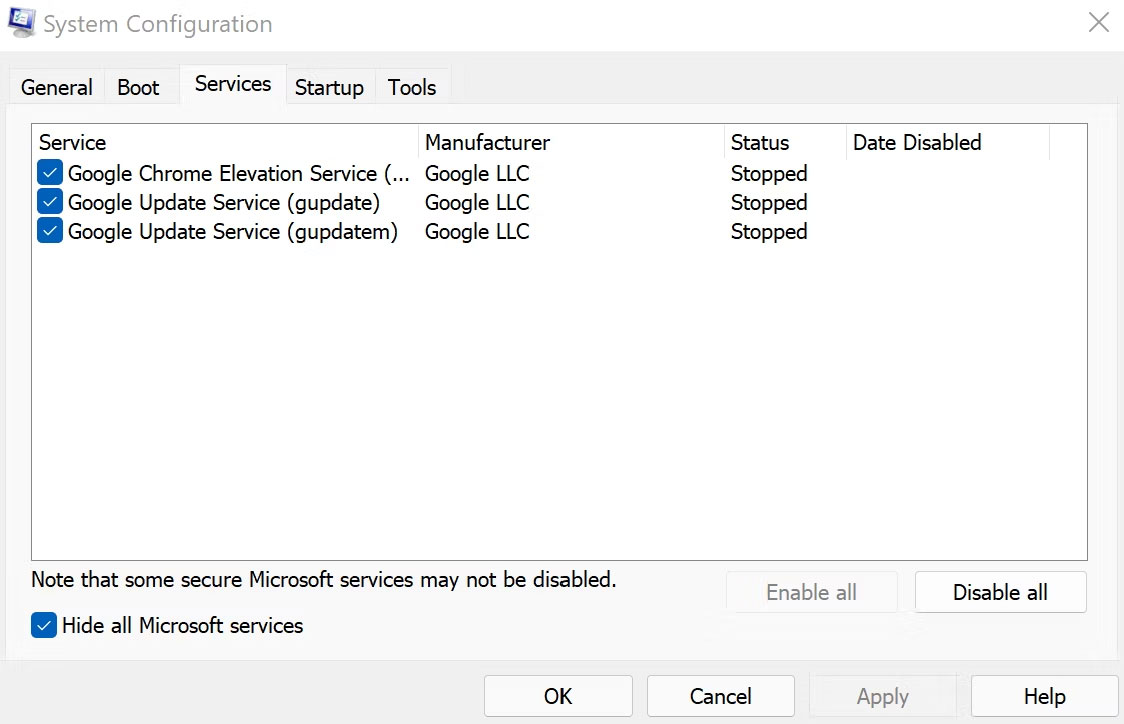
	<li style="text-align: justify;">Chuyển đến thanh tìm kiếm trong menu Start, nhập&nbsp;<strong>“msconfig”</strong>&nbsp;và chọn&nbsp;<strong>System Configuration</strong>&nbsp;từ kết quả.</li>
	<li style="text-align: justify;">Chuyển sang tab&nbsp;<strong>Services</strong>, chọn&nbsp;<strong>Hide all Microsoft Services&nbsp;</strong>và nhấp vào&nbsp;<strong>Disable All</strong>.</li>
</ol>

<figure>
<div style="text-align: justify;"><img alt="Vô hiệu hóa tất cả các service từ tab System Configuration" data-i="0" data-src="https://st.quantrimang.com/photos/image/2024/03/07/clean-boot-windows-11-1.jpg" data-was-processed="true" height="724" src="https://st.quantrimang.com/photos/image/2024/03/07/clean-boot-windows-11-1.jpg" width="1124" /></div>

<figcaption>
<div style="text-align: justify;">Vô hiệu hóa tất cả các service từ tab System Configuration</div>
</figcaption>
</figure>

<div style="text-align: justify;"><iframe allowtransparency="true" data-google-container-id="a!2" data-google-query-id="CMir1qDa44QDFdVLDwIdEvgHqw" data-load-complete="true" frameborder="0" height="0" hspace="0" id="aswift_1" marginheight="0" marginwidth="0" name="aswift_1" sandbox="" scrolling="no" vspace="0" width="694"></iframe></div>

<p style="text-align: justify;">Bây giờ, bạn phải&nbsp;<a data-type="internal" href="https://quantrimang.com/cong-nghe/6-cach-don-gian-mo-task-manager-tren-windows-119941" title="11 cách mở Task Manager trên Windows đơn giản nhất">khởi chạy Task Manager</a>. Đây là cách bạn có thể làm điều đó:</p>

<ol>
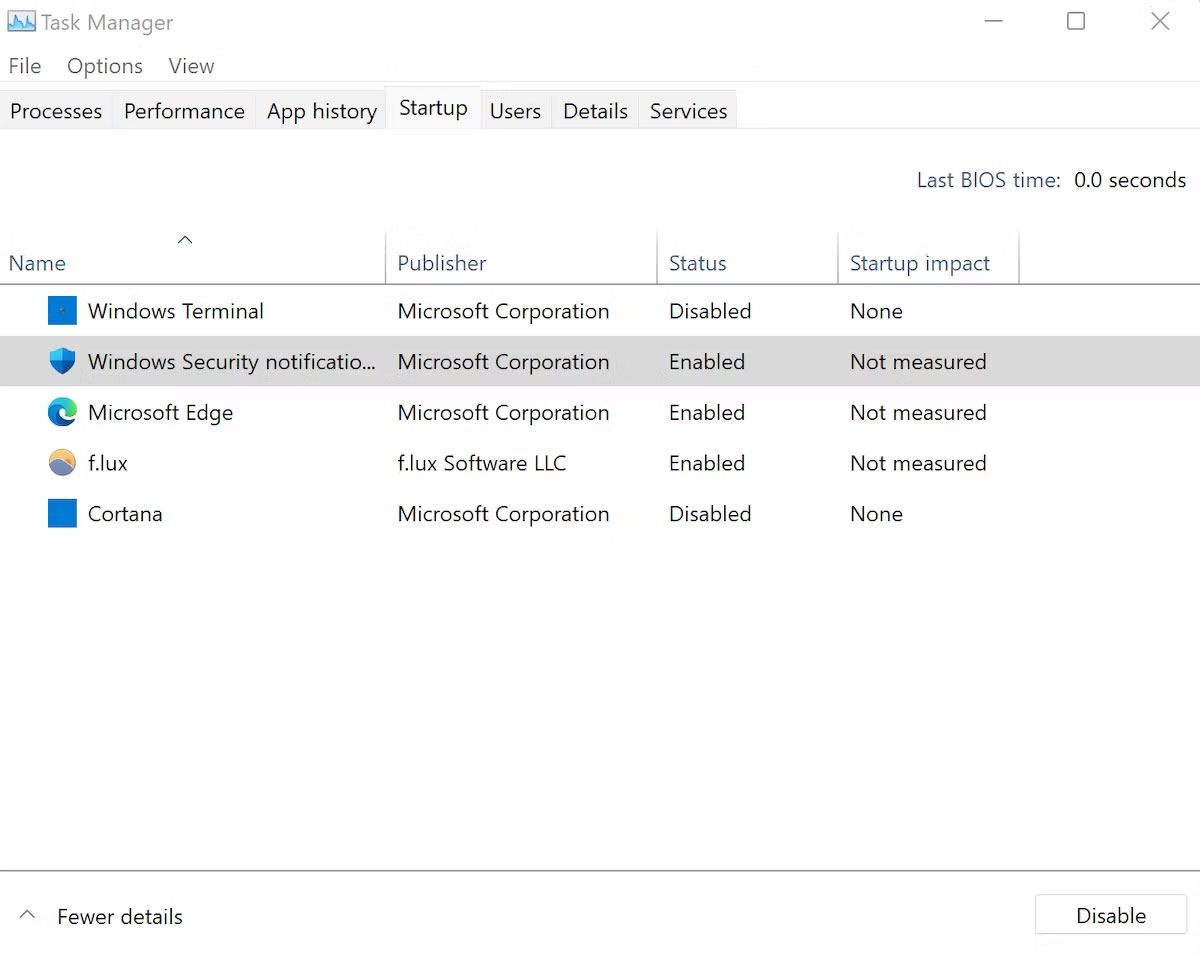
	<li style="text-align: justify;">Trong&nbsp;<strong>System Configuration</strong>, chuyển đến tab&nbsp;<strong>Start</strong>&nbsp;và chọn&nbsp;<strong>Open Task Manager</strong>.</li>
	<li style="text-align: justify;">Bây giờ, hãy tắt từng ứng dụng một trong tab&nbsp;<strong>Startup</strong>.</li>
	<li style="text-align: justify;">Quay lại tab&nbsp;<strong>Startup</strong>&nbsp;trong&nbsp;<strong>System Configuration</strong>&nbsp;và chọn&nbsp;<strong>OK</strong>.</li>
</ol>

<figure>
<div style="text-align: justify;"><img alt="Vô hiệu hóa các ứng dụng khởi động từ Task Manager" data-adbro-processed="true" data-i="1" data-src="https://st.quantrimang.com/photos/image/2024/03/07/clean-boot-windows-11-2.jpg" data-was-processed="true" height="954" src="https://st.quantrimang.com/photos/image/2024/03/07/clean-boot-windows-11-2.jpg" width="1200" /></div>

<figcaption>
<div style="text-align: justify;">Vô hiệu hóa các ứng dụng khởi động từ Task Manager</div>
</figcaption>
</figure>

<p style="text-align: justify;">Trong lần khởi động lại tiếp theo của bạn, Windows sẽ được khởi chạy trong môi trường Clean Boot.</p>

<p style="text-align: justify;">Nếu sự cố vẫn tiếp diễn thì vấn đề là ở chỗ khác. Vì vậy, bạn có thể phải thử các phương pháp khác nhau để khắc phục. Nếu đó là trường hợp của bạn, hãy chuyển sang phần tiếp theo để quay lại quá trình khởi động bình thường.</p>

<div style="text-align: justify;"><iframe allowtransparency="true" data-google-container-id="a!3" data-google-query-id="COrM1aDa44QDFQRPDwId9FgHyA" data-load-complete="true" frameborder="0" height="0" hspace="0" id="aswift_2" marginheight="0" marginwidth="0" name="aswift_2" sandbox="" scrolling="no" vspace="0" width="694"></iframe></div>

<p style="text-align: justify;">Tuy nhiên, nếu máy tính của bạn hoạt động tốt sau khi thực hiện Clean Boot thì việc này đã có kết quả. Từ đây, bạn sẽ kích hoạt từng ứng dụng một, điều này sẽ giúp bạn tìm ra ứng dụng nào là thủ phạm gây ra lỗi Windows của bạn. Đây là cách thực hiện:</p>

<ol>
	<li style="text-align: justify;"><a data-type="internal" href="https://quantrimang.com/cong-nghe/mo-system-configuration-trong-windows-171250" title="9 cách để mở System Configuration trong Windows">Mở System Configuration</a>.</li>
	<li style="text-align: justify;">Chuyển đến tab&nbsp;<strong>Services</strong>, chọn ứng dụng ở nửa trên của danh sách và nhấp vào&nbsp;<strong>Enable</strong>. (Nếu sự cố xuất hiện trở lại, thao tác này sẽ loại bỏ nửa dưới của ứng dụng.)</li>
	<li style="text-align: justify;">Sau đó, nhấp vào&nbsp;<strong>Task Manager</strong>&nbsp;và chuyển đến tab&nbsp;<strong>Startup</strong>.</li>
	<li style="text-align: justify;">Chọn nửa trên của service và kích hoạt (<strong>Enable</strong>)<strong>&nbsp;</strong>chúng.</li>
	<li style="text-align: justify;">Cuối cùng nhấn&nbsp;<strong>OK</strong>&nbsp;và chọn&nbsp;<strong>Restart</strong>.</li>
</ol>

<p style="text-align: justify;">Lặp lại quy trình cho đến khi bạn không còn ứng dụng gây rắc rối trên PC của mình.</p>

<h2 style="text-align: justify;">Cách dừng Clean Boot trên Windows 11</h2>

<p style="text-align: justify;">Cho dù quá trình Clean Boot có khắc phục được lỗi Windows 11 của bạn hay không thì cuối cùng bạn vẫn phải thoát khỏi nó. Để làm điều đó, hãy làm theo các bước dưới đây:</p>

<ol>
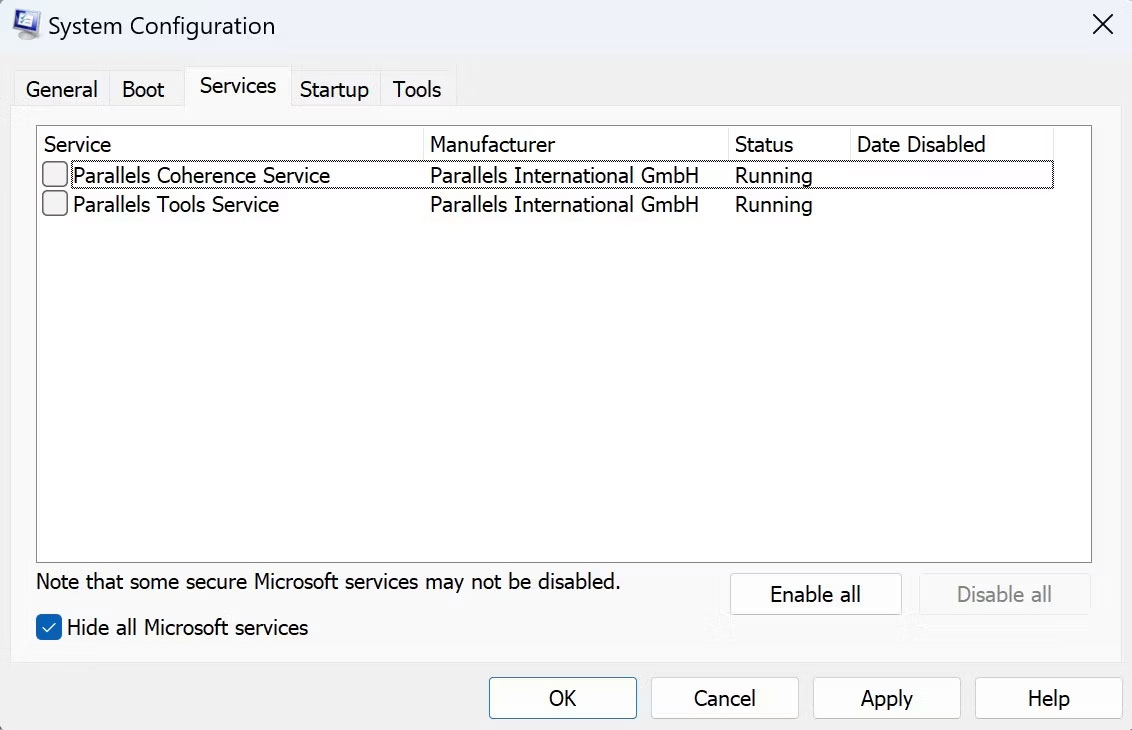
	<li style="text-align: justify;">Đi tới thanh tìm kiếm trong menu Start, nhập&nbsp;<strong>&#039;msconfig&#039;</strong>&nbsp;và chọn&nbsp;<strong>System Configuration</strong>.</li>
	<li style="text-align: justify;">Nhấp vào tab&nbsp;<strong>Services</strong>, chọn hộp kiểm&nbsp;<strong>Hide all Microsoft services</strong>&nbsp;và nhấp vào nút&nbsp;<strong>Enable all</strong>.</li>
</ol>

<figure>
<div style="text-align: justify;"><img alt="Hộp thoại System Configuration" data-i="2" data-src="https://st.quantrimang.com/photos/image/2024/03/07/clean-boot-windows-11-3.jpg" data-was-processed="true" height="730" src="https://st.quantrimang.com/photos/image/2024/03/07/clean-boot-windows-11-3.jpg" width="1132" /></div>

<figcaption>
<div style="text-align: justify;">Hộp thoại System Configuration</div>
</figcaption>
</figure>

<p style="text-align: justify;">Bây giờ, hãy làm theo các bước dưới đây:</p>

<ol>
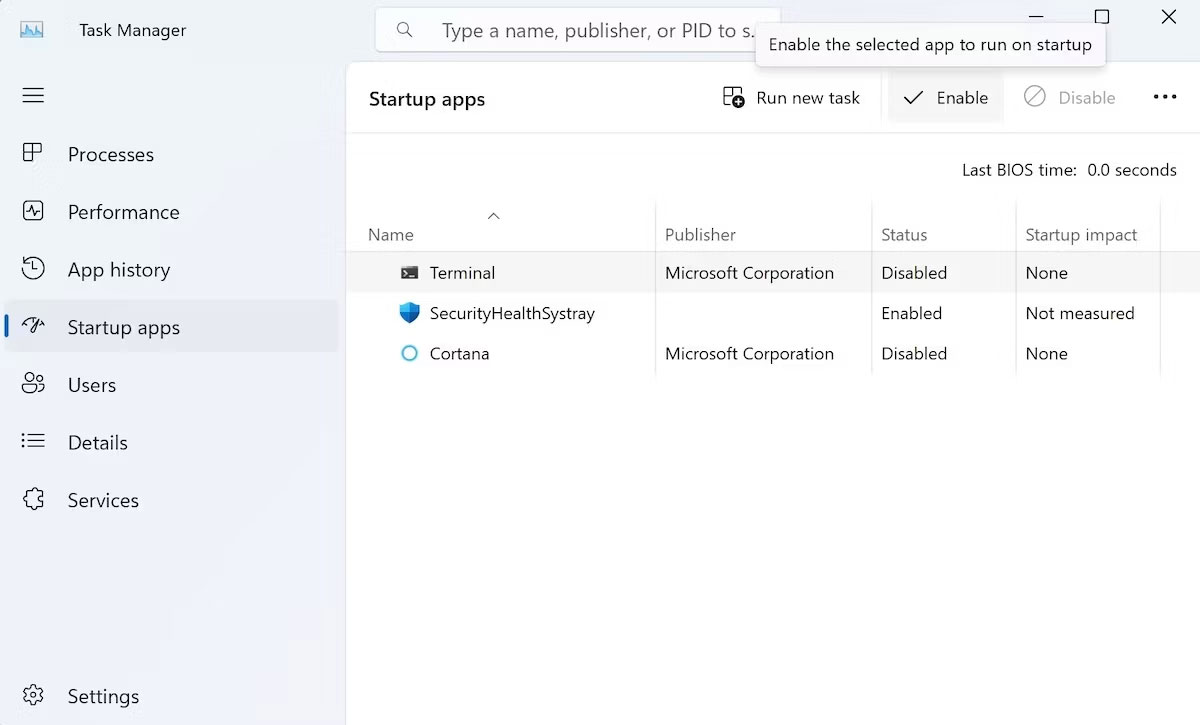
	<li style="text-align: justify;">Bây giờ, nhấp vào&nbsp;<strong>Startup &gt; Open Task Manager</strong>.</li>
	<li style="text-align: justify;">Chọn từng ứng dụng bị vô hiệu hóa và nhấp vào&nbsp;<strong>Enable</strong>.</li>
</ol>

<figure>
<div style="text-align: justify;"><img alt="Bật ứng dụng từ trình quản lý tác vụ" data-i="3" data-src="https://st.quantrimang.com/photos/image/2024/03/07/clean-boot-windows-11-4.jpg" data-was-processed="true" height="725" src="https://st.quantrimang.com/photos/image/2024/03/07/clean-boot-windows-11-4.jpg" width="1200" /></div>

<figcaption>
<div style="text-align: justify;">Bật ứng dụng từ trình quản lý tác vụ</div>
</figcaption>
</figure>

<div style="text-align: justify;"><iframe allowtransparency="true" data-google-container-id="a!4" data-google-query-id="CNaIwq7a44QDFZ1ODwId-T8GvQ" data-load-complete="true" frameborder="0" height="0" hspace="0" id="aswift_3" marginheight="0" marginwidth="0" name="aswift_3" sandbox="" scrolling="no" vspace="0" width="694"></iframe></div>

<p style="text-align: justify;">Bây giờ, hãy khởi động lại nhanh và Windows 11 của bạn sẽ khởi động bình thường từ đây trở đi.</p>

<p style="text-align: justify;">Clean Boot là một phương pháp hữu ích cần ghi nhớ để tìm ra sự cố trên Windows 11. Mặc dù đôi khi mọi người không biết rõ&nbsp;sự khác biệt giữa chế độ Clean Boot và Safe Boot, nhưng Clean Boot khác ở chỗ nó cho phép bạn kiểm soát nhiều hơn những gì ứng dụng và service có thể chạy trong khi khởi động.</p>

<div style="text-align: justify;">&nbsp;</div>
		</div>
				<div id="author">
						<p>
				<strong>Nguồn tin:</strong>
				Quantrimang.com
			</p>
		</div>
	</div>
	<div id="footer" class="clearfix">
		<div id="url">
			<strong>URL của bản tin này: </strong><a href="https://www.nguoicodonvn2008.info/vi/news/savefile/kien-thuc-may-tinh/cach-thuc-hien-clean-boot-tren-windows-11-8165.html" title="Cách thực hiện Clean Boot trên Windows 11">https://www.nguoicodonvn2008.info/vi/news/savefile/kien-thuc-may-tinh/cach-thuc-hien-clean-boot-tren-windows-11-8165.html</a>

		</div>
		<div class="clear"></div>
		<div class="copyright">
			&copy; .&#x3A; Nguoicodonvn2008.info - Cõi lòng người cô đơn &#x3A;.
		</div>
		<div id="contact">
			<a href="mailto:admin@nguoicodonvn2008.info">admin@nguoicodonvn2008.info</a>
		</div>
	</div>
</div>
        <div id="timeoutsess" class="chromeframe">
            Bạn đã không sử dụng Site, <a onclick="timeoutsesscancel();" href="https://nguoicodonvn2008.info/#">Bấm vào đây để duy trì trạng thái đăng nhập</a>. Thời gian chờ: <span id="secField"> 60 </span> giây
        </div>
        <div id="openidResult" class="nv-alert" style="display:none"></div>
        <div id="openidBt" data-result="" data-redirect=""></div>
		</script>
		<div class="car-top">
  <span><img src="https://nguoicodonvn2008.info/themes/default/images/car.png" alt=""></span>
</div>
<script src="https://nguoicodonvn2008.info/assets/js/jquery/jquery.min.js"></script>
<script>var nv_base_siteurl="/",nv_lang_data="vi",nv_lang_interface="vi",nv_name_variable="nv",nv_fc_variable="op",nv_lang_variable="language",nv_module_name="news",nv_func_name="savefile",nv_is_user=0, nv_my_ofs=-4,nv_my_abbr="EDT",nv_cookie_prefix="nv4c_e856T",nv_check_pass_mstime=1738000,nv_area_admin=0,nv_safemode=0,theme_responsive=0,nv_recaptcha_ver=2,nv_recaptcha_sitekey="",nv_recaptcha_type="image",XSSsanitize=1;</script>
<script src="https://nguoicodonvn2008.info/assets/js/language/vi.js"></script>
<script src="https://nguoicodonvn2008.info/assets/js/DOMPurify/purify3.js"></script>
<script src="https://nguoicodonvn2008.info/assets/js/global.js"></script>
<script src="https://nguoicodonvn2008.info/assets/js/site.js"></script>
<script src="https://nguoicodonvn2008.info/themes/default/js/news.js"></script>
<script src="https://nguoicodonvn2008.info/themes/default/js/main.js"></script>
<script src="https://nguoicodonvn2008.info/themes/default/js/custom.js"></script>
<script type="application/ld+json">
        {
            "@context": "https://schema.org",
            "@type": "Organization",
            "url": "https://nguoicodonvn2008.info",
            "logo": "https://nguoicodonvn2008.info/uploads/angel.gif"
        }
        </script>
<script src="https://nguoicodonvn2008.info/themes/default/js/bootstrap.min.js"></script>
<script type="text/javascript">
var $scrolltop = $('.car-top');
$scrolltop.on('click', function () {
    $('html,body').animate({
        scrollTop: 0
    }, 800);
    $(this).addClass("car-run");
    setTimeout(function(){ $scrolltop.removeClass('car-run');}, 1000);
    return false;
});
$(window).on('scroll', function ()
{ 
    if($(window).scrollTop() >= 200)
    {
        $scrolltop.addClass("show");
        $scrolltop.addClass("car-down");
    }
    else
    {
       $scrolltop.removeClass("show");
       setTimeout(function(){ $scrolltop.removeClass('car-down');}, 300);
    }
});
</script>
</body>
</html>