<!DOCTYPE html>
    <html lang="vi" xmlns="http://www.w3.org/1999/xhtml" prefix="og: http://ogp.me/ns#">
    <head>
<title>Cách thu nhỏ Spotify vào khay hệ thống trong Linux</title>
<meta name="description" content="Cách thu nhỏ Spotify vào khay hệ thống trong Linux - Savefile - Tin Tức -...">
<meta name="author" content=".: Nguoicodonvn2008.info - Cõi lòng người cô đơn :.">
<meta name="copyright" content=".: Nguoicodonvn2008.info - Cõi lòng người cô đơn :. [admin@nguoicodonvn2008.info]">
<meta name="robots" content="index, archive, follow, noodp">
<meta name="googlebot" content="index,archive,follow,noodp">
<meta name="msnbot" content="all,index,follow">
<meta name="generator" content="NukeViet v4.5">
<meta http-equiv="Content-Type" content="text/html; charset=utf-8">
<meta property="og:title" content="Cách thu nhỏ Spotify vào khay hệ thống trong Linux">
<meta property="og:type" content="website">
<meta property="og:description" content="Savefile - Tin Tức - https&#x3A;&#x002F;&#x002F;www.nguoicodonvn2008.info&#x002F;vi&#x002F;news&#x002F;savefile&#x002F;kien-thuc-may-tinh&#x002F;cach-thu-nho-spotify-vao-khay-he-thong-trong-linux-2694.html">
<meta property="og:site_name" content=".&#x3A; Nguoicodonvn2008.info - Cõi lòng người cô đơn &#x3A;.">
<meta property="og:url" content="https://www.nguoicodonvn2008.info/vi/news/savefile/kien-thuc-may-tinh/cach-thu-nho-spotify-vao-khay-he-thong-trong-linux-2694.html">
<link rel="shortcut icon" href="https://nguoicodonvn2008.info/favicon.ico">
<link rel="canonical" href="https://www.nguoicodonvn2008.info/vi/news/savefile/kien-thuc-may-tinh/cach-thu-nho-spotify-vao-khay-he-thong-trong-linux-2694.html">
<link rel="alternate" href="https://nguoicodonvn2008.info/vi/news/rss/" title="Tin Tức" type="application/rss+xml">
<link rel="alternate" href="https://nguoicodonvn2008.info/vi/news/rss/karaoke-dual/" title="Tin Tức - Karaoke Dual" type="application/rss+xml">
<link rel="alternate" href="https://nguoicodonvn2008.info/vi/news/rss/nhac-tre/" title="Tin Tức - Nhạc trẻ" type="application/rss+xml">
<link rel="alternate" href="https://nguoicodonvn2008.info/vi/news/rss/tru-tinh/" title="Tin Tức - Trữ tình" type="application/rss+xml">
<link rel="alternate" href="https://nguoicodonvn2008.info/vi/news/rss/nuoc-ngoai/" title="Tin Tức - Nước ngoài" type="application/rss+xml">
<link rel="alternate" href="https://nguoicodonvn2008.info/vi/news/rss/remix/" title="Tin Tức - Remix" type="application/rss+xml">
<link rel="alternate" href="https://nguoicodonvn2008.info/vi/news/rss/tam-su-tinh-yeu/" title="Tin Tức - Tâm sự tình yêu" type="application/rss+xml">
<link rel="alternate" href="https://nguoicodonvn2008.info/vi/news/rss/tho-suu-tam/" title="Tin Tức - Thơ sưu tầm" type="application/rss+xml">
<link rel="alternate" href="https://nguoicodonvn2008.info/vi/news/rss/cuoc-song/" title="Tin Tức - Cuộc sống" type="application/rss+xml">
<link rel="alternate" href="https://nguoicodonvn2008.info/vi/news/rss/phan-mem/" title="Tin Tức - Phần mềm" type="application/rss+xml">
<link rel="alternate" href="https://nguoicodonvn2008.info/vi/news/rss/kien-thuc-may-tinh/" title="Tin Tức - Kiến thức máy tính" type="application/rss+xml">
<link rel="alternate" href="https://nguoicodonvn2008.info/vi/news/rss/hoc-tap/" title="Tin Tức - Học tập" type="application/rss+xml">
<link rel="alternate" href="https://nguoicodonvn2008.info/vi/news/rss/tai-lieu/" title="Tin Tức - Tài liệu" type="application/rss+xml">
<link rel="alternate" href="https://nguoicodonvn2008.info/vi/news/rss/de-thi/" title="Tin Tức - Đề thi" type="application/rss+xml">
<link rel="preload" as="style" href="https://nguoicodonvn2008.info/assets/css/font-awesome.min.css" type="text/css">
<link rel="preload" as="style" href="https://nguoicodonvn2008.info/themes/default/css/bootstrap.non-responsive.css" type="text/css">
<link rel="preload" as="style" href="https://nguoicodonvn2008.info/themes/default/css/style.css" type="text/css">
<link rel="preload" as="style" href="https://nguoicodonvn2008.info/themes/default/css/style.non-responsive.css" type="text/css">
<link rel="preload" as="style" href="https://nguoicodonvn2008.info/themes/default/css/news.css" type="text/css">
<link rel="preload" as="style" href="https://nguoicodonvn2008.info/themes/default/css/custom.css" type="text/css">
<link rel="preload" as="script" href="https://nguoicodonvn2008.info/assets/js/jquery/jquery.min.js" type="text/javascript">
<link rel="preload" as="script" href="https://nguoicodonvn2008.info/assets/js/language/vi.js" type="text/javascript">
<link rel="preload" as="script" href="https://nguoicodonvn2008.info/assets/js/DOMPurify/purify3.js" type="text/javascript">
<link rel="preload" as="script" href="https://nguoicodonvn2008.info/assets/js/global.js" type="text/javascript">
<link rel="preload" as="script" href="https://nguoicodonvn2008.info/assets/js/site.js" type="text/javascript">
<link rel="preload" as="script" href="https://nguoicodonvn2008.info/themes/default/js/news.js" type="text/javascript">
<link rel="preload" as="script" href="https://nguoicodonvn2008.info/themes/default/js/main.js" type="text/javascript">
<link rel="preload" as="script" href="https://nguoicodonvn2008.info/themes/default/js/custom.js" type="text/javascript">
<link rel="preload" as="script" href="https://nguoicodonvn2008.info/themes/default/js/bootstrap.min.js" type="text/javascript">
<link rel="stylesheet" href="https://nguoicodonvn2008.info/assets/css/font-awesome.min.css">
<link rel="stylesheet" href="https://nguoicodonvn2008.info/themes/default/css/bootstrap.non-responsive.css">
<link rel="stylesheet" href="https://nguoicodonvn2008.info/themes/default/css/style.css">
<link rel="stylesheet" href="https://nguoicodonvn2008.info/themes/default/css/style.non-responsive.css">
<link rel="StyleSheet" href="https://nguoicodonvn2008.info/themes/default/css/news.css">
<link rel="stylesheet" href="https://nguoicodonvn2008.info/themes/default/css/custom.css">
<style type="text/css">
	body{background: #fff;}
</style>
    </head>
    <body>
<div id="print">
	<div id="hd_print">
		<h2 class="pull-left">.&#x3A; Nguoicodonvn2008.info - Cõi lòng người cô đơn &#x3A;.</h2>
		<p class="pull-right"><a title=".&#x3A; Nguoicodonvn2008.info - Cõi lòng người cô đơn &#x3A;." href="https://nguoicodonvn2008.info/">https://nguoicodonvn2008.info</a></p>
	</div>
	<div class="clear"></div>
	<hr />
	<div id="content">
		<h1>Cách thu nhỏ Spotify vào khay hệ thống trong Linux</h1>
		<ul class="list-inline">
			<li>Thứ sáu - 11/09/2020 00:53</li>
			<li class="hidden-print txtrequired"><em class="fa fa-print">&nbsp;</em><a title="In ra" href="javascript:;" onclick="window.print()">In ra</a></li>
			<li class="hidden-print txtrequired"><em class="fa fa-power-off">&nbsp;</em><a title="Đóng cửa sổ này" href="javascript:;" onclick="window.close()">Đóng cửa sổ này</a></li>
		</ul>
		<div class="clear"></div>
		<div id="hometext">
		</div>
				<div class="imghome">
			<img alt="Cách thu nhỏ Spotify vào khay hệ thống trong Linux" src="https://st.quantrimang.com/photos/image/2020/09/08/thu-nho-spotify-vao-khay-he-thong-3.jpg" width="460" class="img-thumbnail" />
		</div>
		<div class="clear"></div>
		<div id="bodytext" class="clearfix">
			<p style="text-align: justify;">Spotify&nbsp;không như trước đây. Các phiên bản gần đây của Spotify client dành cho Linux đã mất khả năng ẩn trong khay hệ thống. Giờ đây, chúng luôn chiếm một vị trí trong thanh tác vụ hoặc thanh dock, nhưng may mắn thay, có một cách để thu nhỏ Spotify xuống khay hệ thống trong&nbsp;Linux. Hãy xem cách làm trong bài viết sau nhé!</p>

<h2 style="text-align: justify;">Cài đặt KDocker</h2>

<p style="text-align: justify;">Để làm điều này, bài viết sẽ sử dụng cả phiên bản mới nhất của Spotify client và KDocker. KDocker là một công cụ đơn giản cho phép bạn di chuyển bất kỳ ứng dụng nào vào khay hệ thống, trong hầu hết các môi trường desktop phổ biến. Mặc dù đã không được cập nhật trong một thời gian dài, nhưng KDocker vẫn hoạt động tốt cho hầu hết các môi trường desktop. Đây có lẽ là giải pháp tốt nhất hiện tại để kết nối Spotify client.</p>

<p style="text-align: justify;">Bạn có thể cài đặt KDocker trong&nbsp;Ubuntu&nbsp;và các bản phân phối tương thích với:</p>

<pre id="pre0">
<code>sudo apt install kdocker</code></pre>

<p style="text-align: justify;">Trong Fedora, Red Hat và các phiên bản khác, hãy thử:</p>

<pre id="pre1">
<code>sudo dnf install kdocker</code></pre>

<div style="text-align: justify;">&nbsp;</div>

<h2 style="text-align: justify;">Sử dụng KDocker để thu nhỏ Spotify vào khay hệ thống</h2>

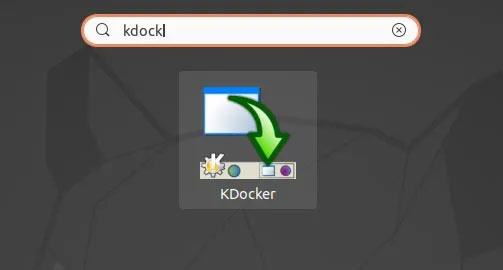
<p style="text-align: justify;">Khởi chạy KDocker từ menu&nbsp;<strong>Applications</strong>&nbsp;sau khi cài đặt.</p>

<figure data-inimage-loaded="true">
<div style="text-align: justify;"><a href="https://stats.adrealclick.com/url?q=aHR0cHM6Ly9tZXRhLnZuL21heS1ydWEteGUtYzgxNz91dG1fc291cmNlPWluLWltYWdlJnV0bV9tZWRpdW09UVRNJnJlZj1pbi1pbWFnZS1RVE0tYmx1ZQ%3D%3D&amp;bid=9698&amp;zid=421" rel="nofollow" target="_blank"><img alt="" data-i="0" height="100" loading="lazy" src="https://as.gamevui.com/data/image/2020/07/02/may-rua-xe-640x100.png" width="640" /></a><br />
<img alt="Khởi chạy KDocker từ menu Applications" data-i="1" data-src="https://st.quantrimang.com/photos/image/2020/09/08/thu-nho-spotify-vao-khay-he-thong-1.jpg" data-was-processed="true" height="270" src="https://st.quantrimang.com/photos/image/2020/09/08/thu-nho-spotify-vao-khay-he-thong-1.jpg" width="503" /></div>

<figcaption>
<div style="text-align: justify;">Khởi chạy KDocker từ menu Applications</div>
</figcaption>
</figure>

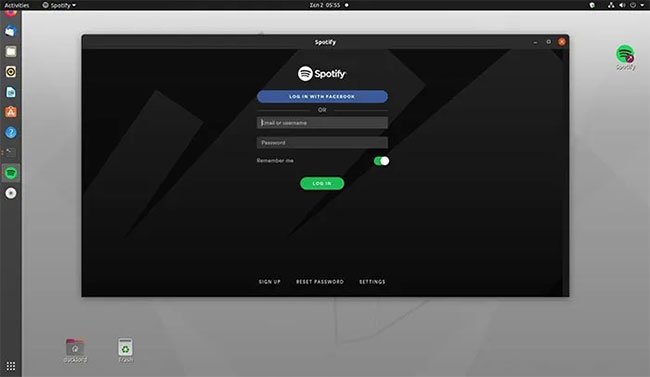
<p style="text-align: justify;">Nhấp vào cửa sổ&nbsp;<strong>Spotify</strong>&nbsp;để thu nhỏ nó vào khay hệ thống.</p>

<figure>
<div style="text-align: justify;"><img alt="Nhấp vào cửa sổ Spotify để thu nhỏ nó vào khay hệ thống" data-i="2" data-src="https://st.quantrimang.com/photos/image/2020/09/08/thu-nho-spotify-vao-khay-he-thong-2.jpg" data-was-processed="true" height="377" src="https://st.quantrimang.com/photos/image/2020/09/08/thu-nho-spotify-vao-khay-he-thong-2.jpg" width="650" /></div>

<figcaption>
<div style="text-align: justify;">Nhấp vào cửa sổ Spotify để thu nhỏ nó vào khay hệ thống</div>
</figcaption>
</figure>

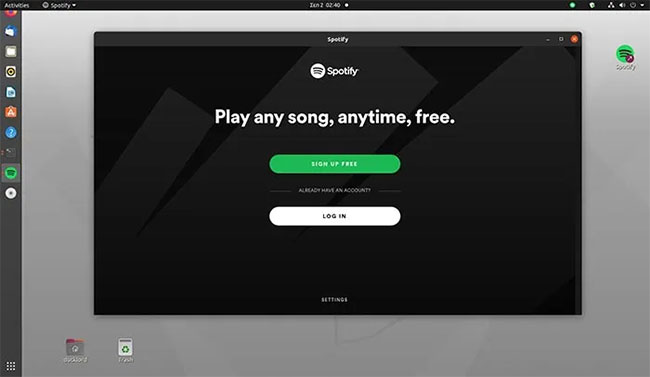
<p style="text-align: justify;">Mọi thứ đã xong! Bạn sẽ tìm thấy ứng dụng của mình trong khay hệ thống thay vì thanh tác vụ.</p>

<figure>
<div style="text-align: justify;"><img alt="Bạn sẽ tìm thấy ứng dụng của mình trong khay hệ thống" data-i="3" data-src="https://st.quantrimang.com/photos/image/2020/09/08/thu-nho-spotify-vao-khay-he-thong-3.jpg" data-was-processed="true" height="324" src="https://st.quantrimang.com/photos/image/2020/09/08/thu-nho-spotify-vao-khay-he-thong-3.jpg" width="517" /></div>

<figcaption>
<div style="text-align: justify;">Bạn sẽ tìm thấy ứng dụng của mình trong khay hệ thống</div>
</figcaption>
</figure>

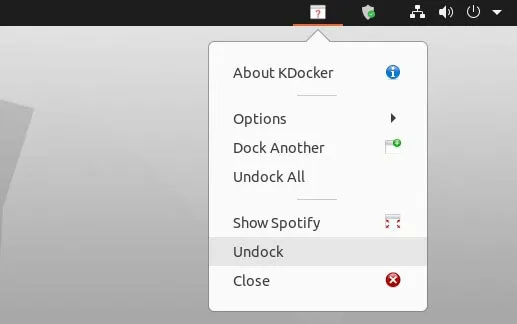
<p style="text-align: justify;">Để hiển thị lại Spotify, hãy nhấp vào biểu tượng khay hệ thống KDocker và chọn&nbsp;<strong>Show Spotify</strong>.</p>

<p style="text-align: justify;">Bạn cũng có thể nhấp chuột phải vào biểu tượng và chọn&nbsp;<strong>Dock Another</strong>&nbsp;để lặp lại quy trình cho các ứng dụng khác.</p>

<h2 style="text-align: justify;">Tích hợp KDocker với Spotify</h2>

<p style="text-align: justify;">Như bạn có thể thấy, phương pháp trên yêu cầu bạn chạy Spotify và KDocker đồng thời. Một cách khác để thực hiện là tích hợp KDocker với Spotify để nó có thể thu nhỏ vào khay hệ thống bất cứ lúc nào.</p>

<p style="text-align: justify;">Lưu ý rằng các hướng dẫn sau sử dụng desktop mặc định của Ubuntu.</p>

<div style="text-align: justify;">&nbsp;</div>

<p style="text-align: justify;">Ngoài ra, hãy nhớ rằng những chỉnh sửa này sẽ chỉ áp dụng cho biểu tượng desktop. Nếu bạn khởi chạy Spotify theo bất kỳ cách nào khác, chẳng hạn như từ danh sách ứng dụng hoặc Terminal, Spotify sẽ hoạt động bình thường và sẽ không ẩn vào khay hệ thống.</p>

<p style="text-align: justify;">Bắt đầu bằng cách định vị các biểu tượng của Spotify. Nhập lệnh:</p>

<pre id="pre2">
<code>ls /usr/share/icons/Papirus/64x64/apps/spotify.svg</code></pre>

<p style="text-align: justify;">Bạn sẽ thấy danh sách các biểu tượng liên quan đến Spotify. Ghi nhanh đường dẫn đến một biểu tượng cụ thể, chẳng hạn như&nbsp;<strong>/usr/share/icons/Papirus/64×64/apps/spotify.svg.</strong></p>

<p style="text-align: justify;">Sao chép mục nhập trên màn hình của Spotify client vào thư mục&nbsp;<strong>Home</strong>&nbsp;bằng lệnh:</p>

<pre id="pre3">
<code>cp /usr/share/applications/spotify.desktop ~/.local/share/applications</code></pre>

<p style="text-align: justify;">Chỉnh sửa file đã sao chép bằng trình soạn thảo văn bản yêu thích. Bài viết&nbsp;sử dụng Nano, vì vậy lệnh sẽ là:</p>

<pre id="pre4">
<code>nano ~/.local/share/applications/spotify.desktop</code></pre>

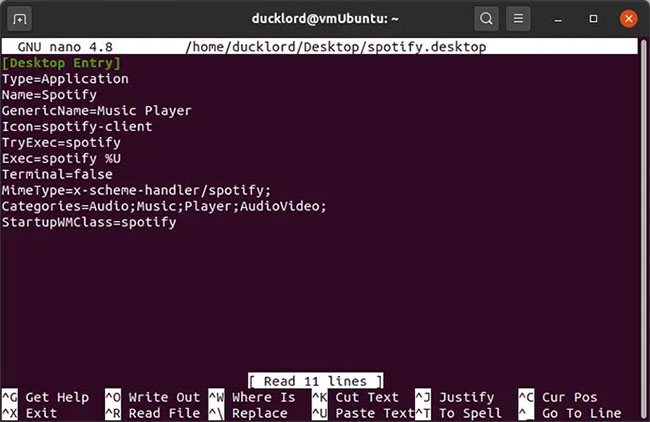
<p style="text-align: justify;">Tìm dòng&nbsp;<strong>Exec=spotify %U.</strong></p>

<figure>
<div style="text-align: justify;"><img alt="Tìm dòng Exec=spotify %U" data-i="4" data-src="https://st.quantrimang.com/photos/image/2020/09/08/thu-nho-spotify-vao-khay-he-thong-4.jpg" data-was-processed="true" height="422" src="https://st.quantrimang.com/photos/image/2020/09/08/thu-nho-spotify-vao-khay-he-thong-4.jpg" width="650" /></div>

<figcaption>
<div style="text-align: justify;">Tìm dòng Exec=spotify %U</div>
</figcaption>
</figure>

<p style="text-align: justify;">Thay đổi nó thành:</p>

<pre id="pre5">
<code>Exec=kdocker -q -o -l -i /usr/share/icons/Papirus/64x64/apps/spotify.svg -n Spotify spotify %U</code></pre>

<p style="text-align: justify;">Những gì lệnh trên làm là để KDocker xử lý việc mở ứng dụng Spotify và khiến nó có thể thu nhỏ được. Đường dẫn đến biểu tượng Spotify là để KDocker hiển thị biểu tượng Spotify trên khay hệ thống. Nếu không có nó, nó sẽ chỉ hiển thị một biểu tượng chung chung.</p>

<p style="text-align: justify;">Lưu các thay đổi bằng&nbsp;<strong>Ctrl + O</strong>&nbsp;và thoát khỏi file bằng&nbsp;<strong>Ctrl + X</strong>.</p>

<p style="text-align: justify;">Khởi chạy Spotify và bạn sẽ thấy biểu tượng của nó trên khay hệ thống.</p>

<figure>
<div style="text-align: justify;"><img alt="Biểu tượng Spotify trên khay hệ thống" data-i="5" data-src="https://st.quantrimang.com/photos/image/2020/09/08/thu-nho-spotify-vao-khay-he-thong-5.jpg" data-was-processed="true" height="377" src="https://st.quantrimang.com/photos/image/2020/09/08/thu-nho-spotify-vao-khay-he-thong-5.jpg" width="650" /></div>

<figcaption>
<div style="text-align: justify;">Biểu tượng Spotify trên khay hệ thống</div>
</figcaption>
</figure>

<p style="text-align: justify;">Nhấp vào biểu tượng để thu nhỏ Spotify xuống khay hệ thống.</p>
		</div>
				<div id="author">
						<p>
				<strong>Nguồn tin:</strong>
				Quantrimang.com
			</p>
		</div>
	</div>
	<div id="footer" class="clearfix">
		<div id="url">
			<strong>URL của bản tin này: </strong><a href="https://www.nguoicodonvn2008.info/vi/news/savefile/kien-thuc-may-tinh/cach-thu-nho-spotify-vao-khay-he-thong-trong-linux-2694.html" title="Cách thu nhỏ Spotify vào khay hệ thống trong Linux">https://www.nguoicodonvn2008.info/vi/news/savefile/kien-thuc-may-tinh/cach-thu-nho-spotify-vao-khay-he-thong-trong-linux-2694.html</a>

		</div>
		<div class="clear"></div>
		<div class="copyright">
			&copy; .&#x3A; Nguoicodonvn2008.info - Cõi lòng người cô đơn &#x3A;.
		</div>
		<div id="contact">
			<a href="mailto:admin@nguoicodonvn2008.info">admin@nguoicodonvn2008.info</a>
		</div>
	</div>
</div>
        <div id="timeoutsess" class="chromeframe">
            Bạn đã không sử dụng Site, <a onclick="timeoutsesscancel();" href="https://nguoicodonvn2008.info/#">Bấm vào đây để duy trì trạng thái đăng nhập</a>. Thời gian chờ: <span id="secField"> 60 </span> giây
        </div>
        <div id="openidResult" class="nv-alert" style="display:none"></div>
        <div id="openidBt" data-result="" data-redirect=""></div>
		</script>
		<div class="car-top">
  <span><img src="https://nguoicodonvn2008.info/themes/default/images/car.png" alt=""></span>
</div>
<script src="https://nguoicodonvn2008.info/assets/js/jquery/jquery.min.js"></script>
<script>var nv_base_siteurl="/",nv_lang_data="vi",nv_lang_interface="vi",nv_name_variable="nv",nv_fc_variable="op",nv_lang_variable="language",nv_module_name="news",nv_func_name="savefile",nv_is_user=0, nv_my_ofs=-4,nv_my_abbr="EDT",nv_cookie_prefix="nv4c_e856T",nv_check_pass_mstime=1738000,nv_area_admin=0,nv_safemode=0,theme_responsive=0,nv_recaptcha_ver=2,nv_recaptcha_sitekey="",nv_recaptcha_type="image",XSSsanitize=1;</script>
<script src="https://nguoicodonvn2008.info/assets/js/language/vi.js"></script>
<script src="https://nguoicodonvn2008.info/assets/js/DOMPurify/purify3.js"></script>
<script src="https://nguoicodonvn2008.info/assets/js/global.js"></script>
<script src="https://nguoicodonvn2008.info/assets/js/site.js"></script>
<script src="https://nguoicodonvn2008.info/themes/default/js/news.js"></script>
<script src="https://nguoicodonvn2008.info/themes/default/js/main.js"></script>
<script src="https://nguoicodonvn2008.info/themes/default/js/custom.js"></script>
<script type="application/ld+json">
        {
            "@context": "https://schema.org",
            "@type": "Organization",
            "url": "https://nguoicodonvn2008.info",
            "logo": "https://nguoicodonvn2008.info/uploads/angel.gif"
        }
        </script>
<script src="https://nguoicodonvn2008.info/themes/default/js/bootstrap.min.js"></script>
<script type="text/javascript">
var $scrolltop = $('.car-top');
$scrolltop.on('click', function () {
    $('html,body').animate({
        scrollTop: 0
    }, 800);
    $(this).addClass("car-run");
    setTimeout(function(){ $scrolltop.removeClass('car-run');}, 1000);
    return false;
});
$(window).on('scroll', function ()
{ 
    if($(window).scrollTop() >= 200)
    {
        $scrolltop.addClass("show");
        $scrolltop.addClass("car-down");
    }
    else
    {
       $scrolltop.removeClass("show");
       setTimeout(function(){ $scrolltop.removeClass('car-down');}, 300);
    }
});
</script>
</body>
</html>