<!DOCTYPE html>
    <html lang="vi" xmlns="http://www.w3.org/1999/xhtml" prefix="og: http://ogp.me/ns#">
    <head>
<title>Cách thiết lập Wireguard VPN trên Linux</title>
<meta name="description" content="Cách thiết lập Wireguard VPN trên Linux - Savefile - Tin Tức -...">
<meta name="author" content=".: Nguoicodonvn2008.info - Cõi lòng người cô đơn :.">
<meta name="copyright" content=".: Nguoicodonvn2008.info - Cõi lòng người cô đơn :. [admin@nguoicodonvn2008.info]">
<meta name="robots" content="index, archive, follow, noodp">
<meta name="googlebot" content="index,archive,follow,noodp">
<meta name="msnbot" content="all,index,follow">
<meta name="generator" content="NukeViet v4.5">
<meta http-equiv="Content-Type" content="text/html; charset=utf-8">
<meta property="og:title" content="Cách thiết lập Wireguard VPN trên Linux">
<meta property="og:type" content="website">
<meta property="og:description" content="Savefile - Tin Tức - https&#x3A;&#x002F;&#x002F;www.nguoicodonvn2008.info&#x002F;vi&#x002F;news&#x002F;savefile&#x002F;kien-thuc-may-tinh&#x002F;cach-thiet-lap-wireguard-vpn-tren-linux-9637.html">
<meta property="og:site_name" content=".&#x3A; Nguoicodonvn2008.info - Cõi lòng người cô đơn &#x3A;.">
<meta property="og:url" content="https://www.nguoicodonvn2008.info/vi/news/savefile/kien-thuc-may-tinh/cach-thiet-lap-wireguard-vpn-tren-linux-9637.html">
<link rel="shortcut icon" href="https://nguoicodonvn2008.info/favicon.ico">
<link rel="canonical" href="https://www.nguoicodonvn2008.info/vi/news/savefile/kien-thuc-may-tinh/cach-thiet-lap-wireguard-vpn-tren-linux-9637.html">
<link rel="alternate" href="https://nguoicodonvn2008.info/vi/news/rss/" title="Tin Tức" type="application/rss+xml">
<link rel="alternate" href="https://nguoicodonvn2008.info/vi/news/rss/karaoke-dual/" title="Tin Tức - Karaoke Dual" type="application/rss+xml">
<link rel="alternate" href="https://nguoicodonvn2008.info/vi/news/rss/nhac-tre/" title="Tin Tức - Nhạc trẻ" type="application/rss+xml">
<link rel="alternate" href="https://nguoicodonvn2008.info/vi/news/rss/tru-tinh/" title="Tin Tức - Trữ tình" type="application/rss+xml">
<link rel="alternate" href="https://nguoicodonvn2008.info/vi/news/rss/nuoc-ngoai/" title="Tin Tức - Nước ngoài" type="application/rss+xml">
<link rel="alternate" href="https://nguoicodonvn2008.info/vi/news/rss/remix/" title="Tin Tức - Remix" type="application/rss+xml">
<link rel="alternate" href="https://nguoicodonvn2008.info/vi/news/rss/tam-su-tinh-yeu/" title="Tin Tức - Tâm sự tình yêu" type="application/rss+xml">
<link rel="alternate" href="https://nguoicodonvn2008.info/vi/news/rss/tho-suu-tam/" title="Tin Tức - Thơ sưu tầm" type="application/rss+xml">
<link rel="alternate" href="https://nguoicodonvn2008.info/vi/news/rss/cuoc-song/" title="Tin Tức - Cuộc sống" type="application/rss+xml">
<link rel="alternate" href="https://nguoicodonvn2008.info/vi/news/rss/phan-mem/" title="Tin Tức - Phần mềm" type="application/rss+xml">
<link rel="alternate" href="https://nguoicodonvn2008.info/vi/news/rss/kien-thuc-may-tinh/" title="Tin Tức - Kiến thức máy tính" type="application/rss+xml">
<link rel="alternate" href="https://nguoicodonvn2008.info/vi/news/rss/hoc-tap/" title="Tin Tức - Học tập" type="application/rss+xml">
<link rel="alternate" href="https://nguoicodonvn2008.info/vi/news/rss/tai-lieu/" title="Tin Tức - Tài liệu" type="application/rss+xml">
<link rel="alternate" href="https://nguoicodonvn2008.info/vi/news/rss/de-thi/" title="Tin Tức - Đề thi" type="application/rss+xml">
<link rel="preload" as="style" href="https://nguoicodonvn2008.info/assets/css/font-awesome.min.css" type="text/css">
<link rel="preload" as="style" href="https://nguoicodonvn2008.info/themes/default/css/bootstrap.non-responsive.css" type="text/css">
<link rel="preload" as="style" href="https://nguoicodonvn2008.info/themes/default/css/style.css" type="text/css">
<link rel="preload" as="style" href="https://nguoicodonvn2008.info/themes/default/css/style.non-responsive.css" type="text/css">
<link rel="preload" as="style" href="https://nguoicodonvn2008.info/themes/default/css/news.css" type="text/css">
<link rel="preload" as="style" href="https://nguoicodonvn2008.info/themes/default/css/custom.css" type="text/css">
<link rel="preload" as="script" href="https://nguoicodonvn2008.info/assets/js/jquery/jquery.min.js" type="text/javascript">
<link rel="preload" as="script" href="https://nguoicodonvn2008.info/assets/js/language/vi.js" type="text/javascript">
<link rel="preload" as="script" href="https://nguoicodonvn2008.info/assets/js/DOMPurify/purify3.js" type="text/javascript">
<link rel="preload" as="script" href="https://nguoicodonvn2008.info/assets/js/global.js" type="text/javascript">
<link rel="preload" as="script" href="https://nguoicodonvn2008.info/assets/js/site.js" type="text/javascript">
<link rel="preload" as="script" href="https://nguoicodonvn2008.info/themes/default/js/news.js" type="text/javascript">
<link rel="preload" as="script" href="https://nguoicodonvn2008.info/themes/default/js/main.js" type="text/javascript">
<link rel="preload" as="script" href="https://nguoicodonvn2008.info/themes/default/js/custom.js" type="text/javascript">
<link rel="preload" as="script" href="https://nguoicodonvn2008.info/themes/default/js/bootstrap.min.js" type="text/javascript">
<link rel="stylesheet" href="https://nguoicodonvn2008.info/assets/css/font-awesome.min.css">
<link rel="stylesheet" href="https://nguoicodonvn2008.info/themes/default/css/bootstrap.non-responsive.css">
<link rel="stylesheet" href="https://nguoicodonvn2008.info/themes/default/css/style.css">
<link rel="stylesheet" href="https://nguoicodonvn2008.info/themes/default/css/style.non-responsive.css">
<link rel="StyleSheet" href="https://nguoicodonvn2008.info/themes/default/css/news.css">
<link rel="stylesheet" href="https://nguoicodonvn2008.info/themes/default/css/custom.css">
<style type="text/css">
	body{background: #fff;}
</style>
    </head>
    <body>
<div id="print">
	<div id="hd_print">
		<h2 class="pull-left">.&#x3A; Nguoicodonvn2008.info - Cõi lòng người cô đơn &#x3A;.</h2>
		<p class="pull-right"><a title=".&#x3A; Nguoicodonvn2008.info - Cõi lòng người cô đơn &#x3A;." href="https://nguoicodonvn2008.info/">https://nguoicodonvn2008.info</a></p>
	</div>
	<div class="clear"></div>
	<hr />
	<div id="content">
		<h1>Cách thiết lập Wireguard VPN trên Linux</h1>
		<ul class="list-inline">
			<li>Thứ ba - 07/01/2025 22:09</li>
			<li class="hidden-print txtrequired"><em class="fa fa-print">&nbsp;</em><a title="In ra" href="javascript:;" onclick="window.print()">In ra</a></li>
			<li class="hidden-print txtrequired"><em class="fa fa-power-off">&nbsp;</em><a title="Đóng cửa sổ này" href="javascript:;" onclick="window.close()">Đóng cửa sổ này</a></li>
		</ul>
		<div class="clear"></div>
		<div id="hometext">
		</div>
				<div class="imghome">
			<img alt="Cách thiết lập Wireguard VPN trên Linux" src="https://st.quantrimang.com/photos/image/2024/11/15/thiet-lap-wireguard-vpn-tren-linux-3.png" width="460" class="img-thumbnail" />
		</div>
		<div class="clear"></div>
		<div id="bodytext" class="clearfix">
			<h1 style="text-align: justify;">Wireguard là một daemon&nbsp;mạng riêng ảo (VPN)&nbsp;mã nguồn mở mạnh mẽ có thể chạy trên cả desktop và thiết bị di động. Nó cung cấp một giải pháp thay thế nhanh và nhẹ cho các VPN truyền thống như IPsec và OpenVPN. Bài viết hôm nay sẽ chỉ cho bạn cách cài đặt Wireguard và tạo một thiết lập VPN đơn giản bằng 3 máy Linux.</h1>

<h2 style="text-align: justify;">&nbsp;</h2>

<h2 id="mcetoc_1ih056euv5v" style="text-align: justify;">Tại sao nên sử dụng Wireguard làm giải pháp VPN?</h2>

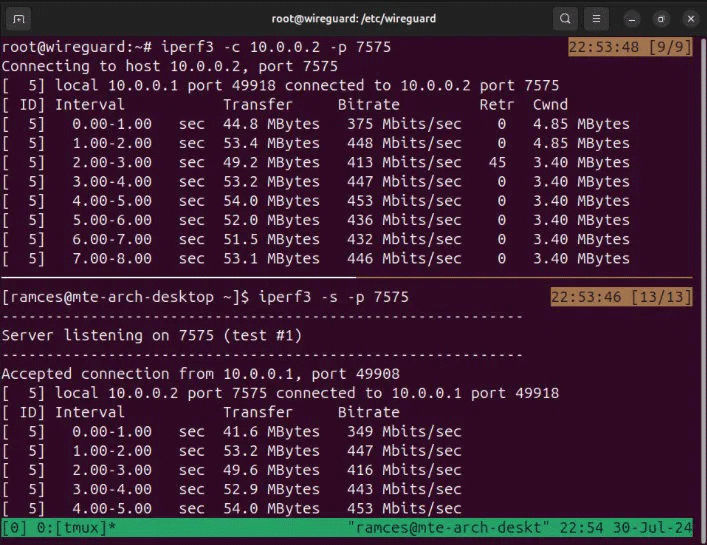
<p style="text-align: justify;">Một trong những ưu điểm lớn nhất của Wireguard là nó là một daemon VPN nhanh và nhẹ. Không giống như các giải pháp truyền thống, Wireguard không làm tăng thêm nhiều chi phí cho mạng của bạn. Điều này dẫn đến độ trễ thấp hơn và tốc độ thông lượng tổng thể cao trên các node của bạn.</p>

<figure>
<div style="text-align: justify;"><img alt="Thử nghiệm iperf3 giữa hai node Wireguard cho thấy thông lượng cao." data-i="0" data-src="https://st.quantrimang.com/photos/image/2024/11/15/thiet-lap-wireguard-vpn-tren-linux-3.png" data-was-processed="true" height="545" src="https://st.quantrimang.com/photos/image/2024/11/15/thiet-lap-wireguard-vpn-tren-linux-3.png" width="707" /></div>

<figcaption>
<div style="text-align: justify;">Thử nghiệm iperf3 giữa hai node Wireguard cho thấy thông lượng cao.</div>
</figcaption>
</figure>

<div style="text-align: justify;">&nbsp;</div>

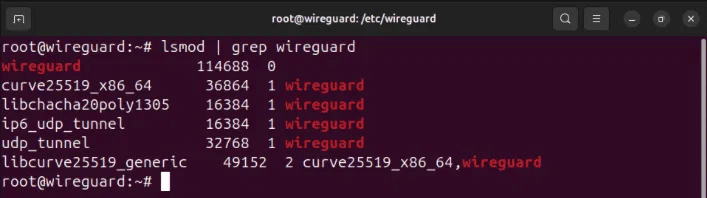
<p style="text-align: justify;">Một tính năng chính khác của Wireguard là nó là một mô-đun bên trong Linux kernel. Điều này cho phép nó chạy mà không chiếm bất kỳ tài nguyên hệ thống bổ sung nào từ máy tính của bạn, khiến nó trở thành lựa chọn lý tưởng để triển khai trên các thiết bị cấp thấp và SOC.</p>

<figure>
<div style="text-align: justify;"><img alt="Wireguard được load trên Linux kernel." data-i="1" data-src="https://st.quantrimang.com/photos/image/2024/11/15/thiet-lap-wireguard-vpn-tren-linux-4.png" data-was-processed="true" height="198" src="https://st.quantrimang.com/photos/image/2024/11/15/thiet-lap-wireguard-vpn-tren-linux-4.png" width="707" /></div>

<figcaption>
<div style="text-align: justify;">Wireguard được load trên Linux kernel.</div>
</figcaption>
</figure>

<p style="text-align: justify;">Cuối cùng, Wireguard cũng tận dụng các tiêu chuẩn mã hóa hiện đại và các hoạt động phát triển. Nó cũng có nhiều xác minh chính thức, xác nhận tính chính xác của mã, đảm bảo bảo mật và khả năng chống lại các cuộc tấn công của Wireguard.</p>

<h2 id="mcetoc_1ih056euv60" style="text-align: justify;">Tải Wireguard</h2>

<p style="text-align: justify;">Bước đầu tiên để thiết lập Wireguard trên Linux là tải xuống các công cụ cốt lõi của nó từ kho lưu trữ của bản phân phối. Điều này cho phép bạn kiểm soát mô-đun kernel Wireguard tích hợp bằng các lệnh userspace.</p>

<p style="text-align: justify;">Để cài đặt các công cụ cốt lõi trong&nbsp;Ubuntu&nbsp;và Debian, hãy chạy lệnh sau:</p>

<pre id="pre0">
<code>sudo apt install wireguard wireguard-tools</code></pre>

<p style="text-align: justify;">Trong Fedora, bạn có thể sử dụng trình quản lý gói dnf:</p>

<pre id="pre1">
<code>sudo dnf install wireguard-tools</code></pre>

<p style="text-align: justify;">Đối với&nbsp;Arch Linux, bạn có thể chạy pacman để tải các công cụ cốt lõi của Wireguard:</p>

<pre id="pre2">
<code>sudo pacman -S wireguard-tools</code></pre>

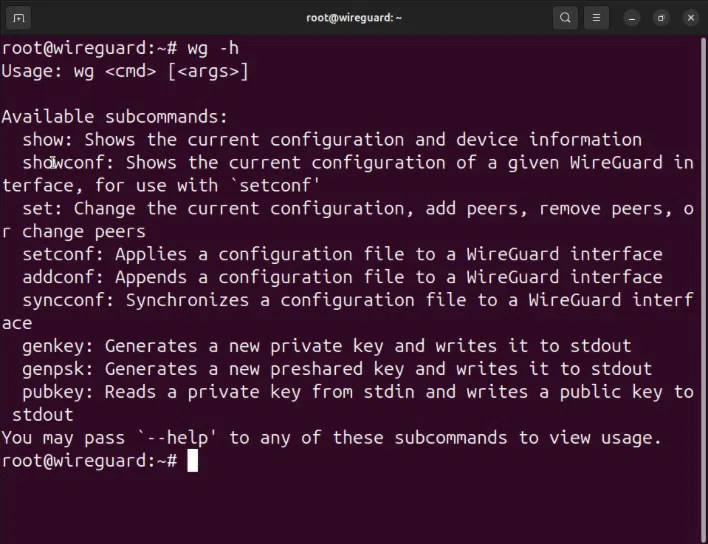
<p style="text-align: justify;">Xác nhận rằng bạn đã cài đặt đúng các công cụ Wireguard bằng cách load màn hình trợ giúp của nó:</p>

<pre id="pre3">
<code>wg -h</code></pre>

<figure>
<div style="text-align: justify;"><img alt="Menu trợ giúp cho công cụ userspace Wireguard" data-adbro-processed="true" data-i="2" data-src="https://st.quantrimang.com/photos/image/2024/08/06/thiet-lap-wireguard-vpn-tren-linux-1.jpg" data-was-processed="true" height="544" src="https://st.quantrimang.com/photos/image/2024/08/06/thiet-lap-wireguard-vpn-tren-linux-1.jpg" width="708" /></div>

<figcaption>
<div style="text-align: justify;">Menu trợ giúp cho công cụ userspace Wireguard</div>
</figcaption>
</figure>

<div style="text-align: justify;">&nbsp;</div>

<h2 id="mcetoc_1ih056euv61" style="text-align: justify;">Thiết lập Wireguard server</h2>

<p style="text-align: justify;"><strong>Giả định</strong>: Bài viết này giả định rằng bạn đang cài đặt Wireguard server trên hệ thống Linux có địa chỉ IPv4 có thể truy cập công khai. Các hướng dẫn vẫn sẽ hoạt động trên máy chủ đằng sau một NAT, nhưng nó sẽ không tìm thấy những node bên ngoài mạng con của nó.</p>

<p style="text-align: justify;">Với bộ công cụ cốt lõi Wireguard trên máy Linux, giờ đây bạn có thể thiết lập server node của VPN. Node này sẽ đóng vai trò là cổng Internet cho các client node&nbsp;trong mạng.</p>

<p style="text-align: justify;">Bắt đầu bằng cách điều hướng đến thư mục cấu hình Wireguard và đặt quyền mặc định của nó thành &quot;root only&quot;:</p>

<pre id="pre4">
<code>cd /etc/wireguard
sudo umask 077</code></pre>

<p style="text-align: justify;"><strong>Lưu ý</strong>: Một số hệ thống có thể ngăn bạn vào thư mục &quot;/etc/wireguard&quot; với tư cách là người dùng thông thường. Để khắc phục điều đó, hãy chuyển sang người dùng root bằng&nbsp;<strong>sudo -s</strong>.</p>

<p style="text-align: justify;">Tạo public và private key cho Wireguard server:</p>

<pre id="pre5">
<code>sudo sh -c &#039;wg genkey | tee /etc/wireguard/server-private-key | wg pubkey &gt; /etc/wireguard/server-public-key&#039;</code></pre>

<p style="text-align: justify;">Tạo file cấu hình máy chủ bằng trình soạn thảo văn bản yêu thích:</p>

<pre id="pre6">
<code>sudo nano /etc/wireguard/wg0.conf</code></pre>

<p style="text-align: justify;">Dán block code sau vào file cấu hình máy chủ:</p>

<pre id="pre7">
<code>&#91;Interface&#93;
PrivateKey = PASTE-YOUR-SERVER-PRIVATE-KEY-HERE
Address = 10.0.0.1/32
ListenPort = 60101
PostUp = iptables -t nat -I POSTROUTING -o NETWORK-INTERFACE-HERE -j MASQUERADE
PostDown = iptables -t nat -D POSTROUTING -o NETWORK-INTERFACE-HERE -j MASQUERADE</code></pre>

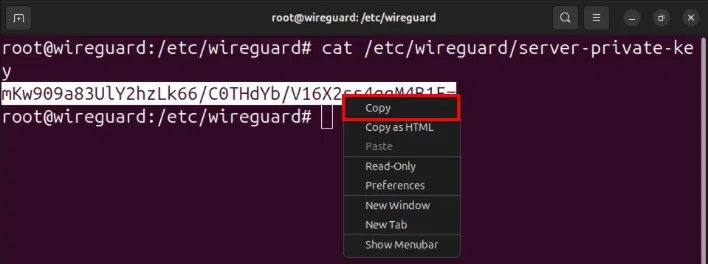
<p style="text-align: justify;">Mở một phiên terminal mới, sau đó in Wireguard private key của máy chủ:</p>

<pre id="pre8">
<code>sudo cat /etc/wireguard/server-private-key</code></pre>

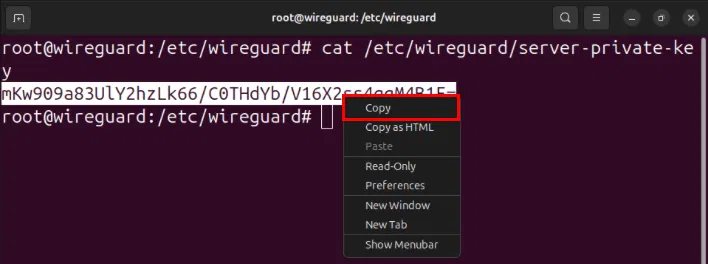
<p style="text-align: justify;">Sao chép private key của máy chủ vào clipboard.</p>

<figure>
<div style="text-align: justify;"><img alt="Sao chép private key của máy chủ trên Ubuntu" data-i="3" data-src="https://st.quantrimang.com/photos/image/2024/08/06/thiet-lap-wireguard-vpn-tren-linux-2.jpg" data-was-processed="true" height="264" src="https://st.quantrimang.com/photos/image/2024/08/06/thiet-lap-wireguard-vpn-tren-linux-2.jpg" width="708" /></div>

<figcaption>
<div style="text-align: justify;">Sao chép private key của máy chủ trên Ubuntu</div>
</figcaption>
</figure>

<p style="text-align: justify;">Thay thế giá trị của biến&nbsp;<strong>PrivateKey</strong>&nbsp;bằng key trên clipboard.</p>

<figure>
<div style="text-align: justify;"><img alt="Private key của máy chủ trong cấu hình Wireguard" data-i="4" data-src="https://st.quantrimang.com/photos/image/2024/08/06/thiet-lap-wireguard-vpn-tren-linux-3.jpg" data-was-processed="true" height="264" src="https://st.quantrimang.com/photos/image/2024/08/06/thiet-lap-wireguard-vpn-tren-linux-3.jpg" width="708" /></div>

<figcaption>
<div style="text-align: justify;">Private key của máy chủ trong cấu hình Wireguard</div>
</figcaption>
</figure>

<p style="text-align: justify;">Tìm network interface có quyền truy cập Internet bằng lệnh ip:</p>

<pre id="pre9">
<code>ip route get 8.8.8.8</code></pre>

<figure>
<div style="text-align: justify;"><img alt="Tên của network interface có quyền truy cập Internet." data-i="5" data-src="https://st.quantrimang.com/photos/image/2024/08/06/thiet-lap-wireguard-vpn-tren-linux-4.jpg" data-was-processed="true" height="138" src="https://st.quantrimang.com/photos/image/2024/08/06/thiet-lap-wireguard-vpn-tren-linux-4.jpg" width="708" /></div>

<figcaption>
<div style="text-align: justify;">Tên của network interface có quyền truy cập Internet.</div>
</figcaption>
</figure>

<div style="text-align: justify;">&nbsp;</div>

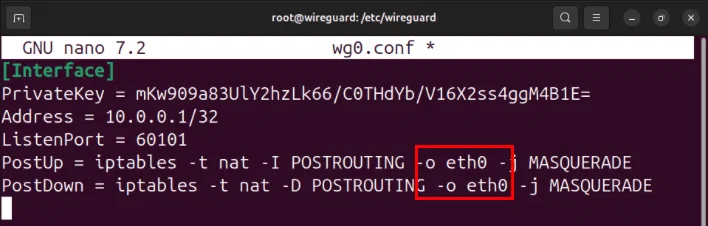
<p style="text-align: justify;">Đặt giá trị của flag -o trên cả hai biến PostUp và PostDown thành giao diện có quyền truy cập Internet, sau đó lưu file cấu hình.</p>

<figure>
<div style="text-align: justify;"><img alt="Tên thiết bị phù hợp trong file cấu hình của Wireguard server." data-i="6" data-src="https://st.quantrimang.com/photos/image/2024/08/06/thiet-lap-wireguard-vpn-tren-linux-5.jpg" data-was-processed="true" height="226" src="https://st.quantrimang.com/photos/image/2024/08/06/thiet-lap-wireguard-vpn-tren-linux-5.jpg" width="708" /></div>

<figcaption>
<div style="text-align: justify;">Tên thiết bị phù hợp trong file cấu hình của Wireguard server.</div>
</figcaption>
</figure>

<p style="text-align: justify;">Mở file &quot;/etc/sysctl.conf&quot; của máy chủ bằng trình soạn thảo văn bản yêu thích:</p>

<pre id="pre10">
<code>sudo nano /etc/sysctl.conf</code></pre>

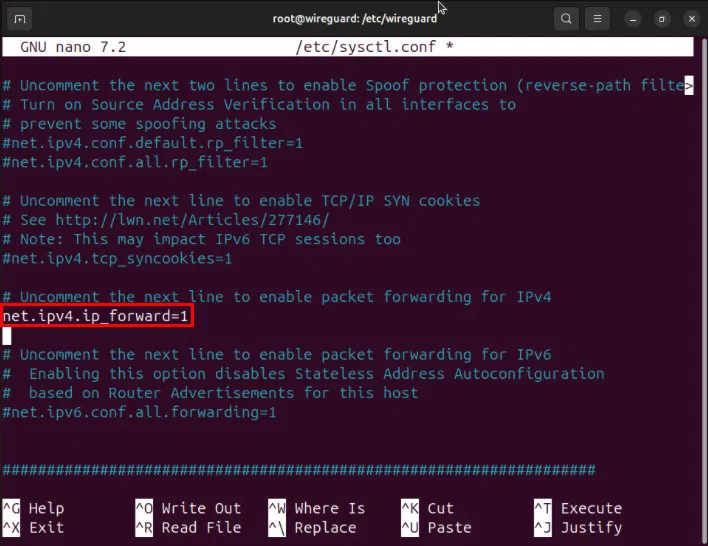
<p style="text-align: justify;">Cuộn xuống dòng có chứa&nbsp;<strong>net.ipv4.ip_forward=1</strong>, sau đó xóa dấu thăng (#) ở phía trước.</p>

<figure>
<div style="text-align: justify;"><img alt="Vị trí của tùy chọn chuyển tiếp IPv4 trong sysctl.conf." data-i="7" data-src="https://st.quantrimang.com/photos/image/2024/08/06/thiet-lap-wireguard-vpn-tren-linux-6.jpg" data-was-processed="true" height="546" src="https://st.quantrimang.com/photos/image/2024/08/06/thiet-lap-wireguard-vpn-tren-linux-6.jpg" width="708" /></div>

<figcaption>
<div style="text-align: justify;">Vị trí của tùy chọn chuyển tiếp IPv4 trong sysctl.conf.</div>
</figcaption>
</figure>

<p style="text-align: justify;">Load lại cấu hình sysctl mới bằng cách chạy:&nbsp;<strong>sudo sysctl -p</strong>.</p>

<figure>
<div style="text-align: justify;"><img alt="Quá trình load lại file sysctl.conf." data-i="8" data-src="https://st.quantrimang.com/photos/image/2024/08/06/thiet-lap-wireguard-vpn-tren-linux-7.jpg" data-was-processed="true" height="109" src="https://st.quantrimang.com/photos/image/2024/08/06/thiet-lap-wireguard-vpn-tren-linux-7.jpg" width="708" /></div>

<figcaption>
<div style="text-align: justify;">Quá trình load lại file sysctl.conf.</div>
</figcaption>
</figure>

<h2 id="mcetoc_1ih056euv62" style="text-align: justify;">Thiết lập và kết nối Wireguard client</h2>

<p style="text-align: justify;">Lúc này, bạn đã có Wireguard server được cấu hình đúng mà không có bất kỳ peer nào. Để sử dụng, bạn cần thiết lập và kết nối Wireguard client đầu tiên của mình.</p>

<p style="text-align: justify;">Điều hướng đến thư mục cấu hình Wireguard của hệ thống client và đặt quyền mặc định của nó:</p>

<pre id="pre11">
<code>cd /etc/wireguard
sudo umask 077</code></pre>

<p style="text-align: justify;">Tạo cặp key Wireguard của client bằng lệnh sau:</p>

<pre id="pre12">
<code>sudo sh -c &#039;wg genkey | tee /etc/wireguard/client1-private-key | wg pubkey &gt; /etc/wireguard/client1-public-key&#039;</code></pre>

<p style="text-align: justify;">Tạo file cấu hình Wireguard của client bằng trình soạn thảo văn bản yêu thích:</p>

<pre id="pre13">
<code>sudo nano /etc/wireguard/wg0.conf</code></pre>

<p style="text-align: justify;">Dán block code sau vào file cấu hình client:</p>

<pre id="pre14">
<code>&#91;Interface&#93;
PrivateKey = PASTE-YOUR-CLIENT1-PRIVATE-KEY-HERE
Address = 10.0.0.2/32
ListenPort = 60101
&#91;Peer&#93;
PublicKey = PASTE-YOUR-SERVER-PUBLIC-KEY-HERE
AllowedIPs = 0.0.0.0/0
Endpoint = PASTE-YOUR-SERVER-IP-ADDRESS-HERE:60101
PersistentKeepalive = 25</code></pre>

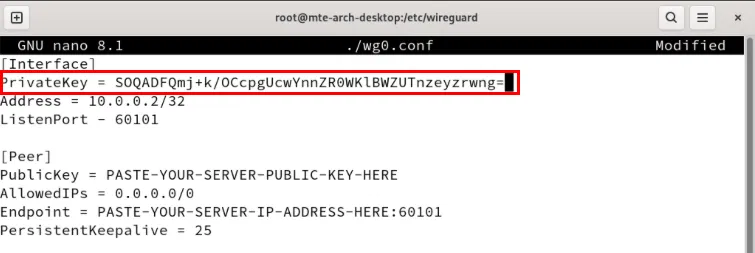
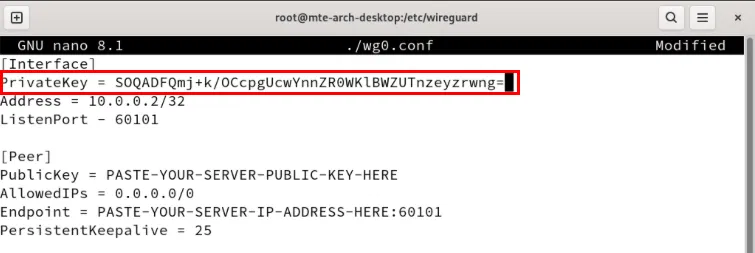
<p style="text-align: justify;">Thay thế biến PrivateKey bằng private key của client.</p>

<figure>
<div style="text-align: justify;"><img alt="Private key cho Wireguard client đầu tiên." data-i="9" data-src="https://st.quantrimang.com/photos/image/2024/08/06/thiet-lap-wireguard-vpn-tren-linux-8.jpg" data-was-processed="true" height="253" src="https://st.quantrimang.com/photos/image/2024/08/06/thiet-lap-wireguard-vpn-tren-linux-8.jpg" width="755" /></div>

<figcaption>
<div style="text-align: justify;">Private key cho Wireguard client đầu tiên.</div>
</figcaption>
</figure>

<p style="text-align: justify;">Mở phiên terminal của Wireguard server, sau đó in public key của nó:</p>

<pre id="pre15">
<code>sudo cat /etc/wireguard/server-public-key</code></pre>

<div style="text-align: justify;">&nbsp;</div>

<p style="text-align: justify;">Đặt giá trị của biến PublicKey thành public key của máy chủ.</p>

<figure>
<div style="text-align: justify;"><img alt="Public key của Wireguard server trong file cấu hình của client thứ hai." data-i="10" data-src="https://st.quantrimang.com/photos/image/2024/08/06/thiet-lap-wireguard-vpn-tren-linux-9.jpg" data-was-processed="true" height="253" src="https://st.quantrimang.com/photos/image/2024/08/06/thiet-lap-wireguard-vpn-tren-linux-9.jpg" width="755" /></div>

<figcaption>
<div style="text-align: justify;">Public key của Wireguard server trong file cấu hình của client thứ hai.</div>
</figcaption>
</figure>

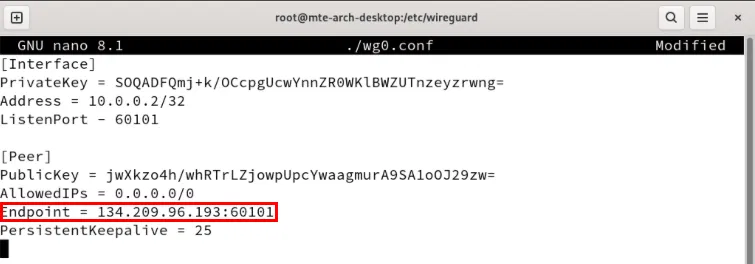
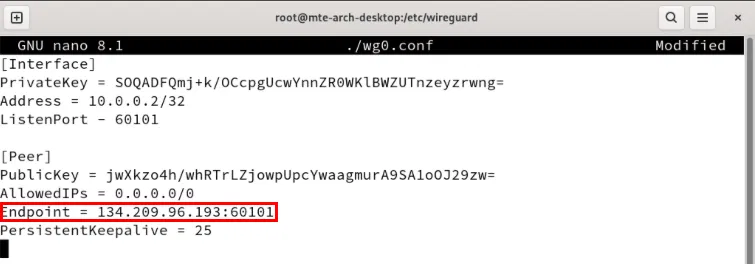
<p style="text-align: justify;">Thay đổi biến Endpoint thành địa chỉ IP của Wireguard server.</p>

<figure>
<div style="text-align: justify;"><img alt="Địa chỉ IP của Wireguard server." data-i="11" data-src="https://st.quantrimang.com/photos/image/2024/08/06/thiet-lap-wireguard-vpn-tren-linux-10.jpg" data-was-processed="true" height="264" src="https://st.quantrimang.com/photos/image/2024/08/06/thiet-lap-wireguard-vpn-tren-linux-10.jpg" width="755" /></div>

<figcaption>
<div style="text-align: justify;">Địa chỉ IP của Wireguard server.</div>
</figcaption>
</figure>

<p style="text-align: justify;">Lưu file cấu hình, sau đó sử dụng lệnh wg-quick để khởi động Wireguard client:</p>

<pre id="pre16">
<code>sudo wg-quick up wg0</code></pre>

<figure>
<div style="text-align: justify;"><img alt="Quá trình khởi động daemon Wireguard client." data-i="12" data-src="https://st.quantrimang.com/photos/image/2024/08/06/thiet-lap-wireguard-vpn-tren-linux-11.jpg" data-was-processed="true" height="264" src="https://st.quantrimang.com/photos/image/2024/08/06/thiet-lap-wireguard-vpn-tren-linux-11.jpg" width="755" /></div>

<figcaption>
<div style="text-align: justify;">Quá trình khởi động daemon Wireguard client.</div>
</figcaption>
</figure>

<p style="text-align: justify;"><strong>Lưu ý</strong>: Lệnh này sẽ vô hiệu hóa kết nối mạng của client cho đến khi bạn khởi động Wireguard server. Để quay lại mạng ban đầu, hãy chạy&nbsp;<strong>sudo wg-quick down wg0</strong>.</p>

<h3 id="mcetoc_1ih056euv63" style="text-align: justify;">Liên kết Wireguard server với client</h3>

<p style="text-align: justify;">Truy cập phiên terminal của Wireguard server, sau đó mở file cấu hình của máy chủ:</p>

<pre id="pre17">
<code>sudo nano /etc/wireguard/wg0.conf</code></pre>

<p style="text-align: justify;">Dán block code sau vào sau phần &#91;Interface&#93;:</p>

<pre id="pre18">
<code>&#91;Peer&#93;
PublicKey = PASTE-YOUR-CLIENT1-PUBLIC-KEY-HERE
AllowedIPs = 10.0.0.2/32
PersistentKeepalive = 25</code></pre>

<p style="text-align: justify;">Đặt biến PublicKey thành public key của Wireguard client.</p>

<figure>
<div style="text-align: justify;"><img alt="Vị trí của block &#91;Peer&#93; và public key của client." data-i="13" data-src="https://st.quantrimang.com/photos/image/2024/08/06/thiet-lap-wireguard-vpn-tren-linux-12.jpg" data-was-processed="true" height="318" src="https://st.quantrimang.com/photos/image/2024/08/06/thiet-lap-wireguard-vpn-tren-linux-12.jpg" width="707" /></div>

<figcaption>
<div style="text-align: justify;">Vị trí của block &#91;Peer&#93; và public key của client.</div>
</figcaption>
</figure>

<p style="text-align: justify;"><strong>Lưu ý</strong>: Bạn có thể lấy public key bằng cách chạy&nbsp;<strong>sudo cat /etc/wireguard/client1-public-key</strong>&nbsp;trên client của mình.</p>

<p style="text-align: justify;">Lưu file cấu hình, sau đó chạy lệnh sau để khởi động service Wireguard trên máy chủ:</p>

<pre id="pre19">
<code>sudo wg-quick up wg0</code></pre>

<h2 id="mcetoc_1ih056euv64" style="text-align: justify;">Thêm client thứ hai vào server</h2>

<p style="text-align: justify;">Một tính năng chính của mọi dịch vụ VPN là nó có thể liên kết nhiều máy từ các mạng khác nhau. Tính năng này hữu ích nếu bạn có máy tính ở nhiều vị trí khác nhau hoặc muốn host game server riêng cho bạn bè.</p>

<p style="text-align: justify;">Để thực hiện việc này trong Wireguard, bạn cần tạo file cấu hình cho giao diện VPN mới trên máy chủ của mình. Cách dễ nhất để thực hiện việc này là sao chép cấu hình máy chủ hiện tại và đặt tên mới cho bản sao:</p>

<pre id="pre20">
<code>sudo cp /etc/wireguard/wg0.conf /etc/wireguard/wg1.conf</code></pre>

<p style="text-align: justify;">Mở file cấu hình mới của bạn bằng trình soạn thảo văn bản yêu thích:</p>

<pre id="pre21">
<code>sudo nano /etc/wireguard/wg1.conf</code></pre>

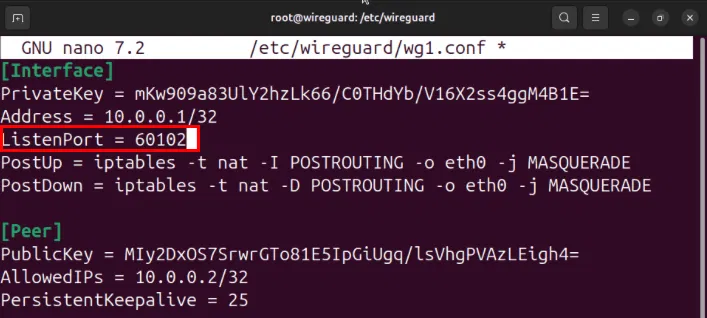
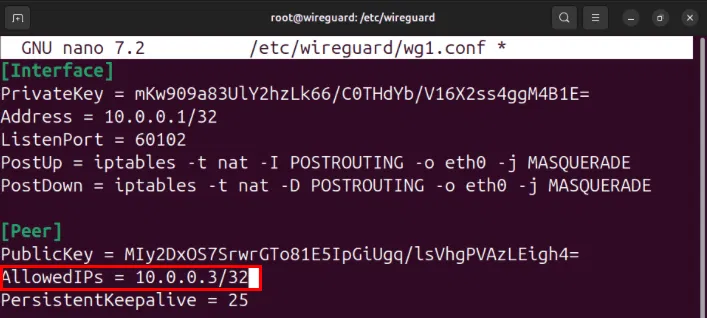
<p style="text-align: justify;">Đặt biến&nbsp;<strong>ListenPort</strong>&nbsp;thành&nbsp;<strong>60102.</strong>&nbsp;Thực hiện thao tác này sẽ ngăn chặn mọi xung đột cổng giữa giao diện VPN wg0 và wg1.</p>

<figure>
<div style="text-align: justify;"><img alt="Biến ListenPort đã sửa đổi cho interface Wireguard thứ hai." data-i="14" data-src="https://st.quantrimang.com/photos/image/2024/09/25/thiet-lap-wireguard-vpn-tren-linux-1.jpg" data-was-processed="true" height="318" src="https://st.quantrimang.com/photos/image/2024/09/25/thiet-lap-wireguard-vpn-tren-linux-1.jpg" width="707" /></div>

<figcaption>
<div style="text-align: justify;">Biến ListenPort đã sửa đổi cho interface Wireguard thứ hai.</div>
</figcaption>
</figure>

<p style="text-align: justify;">Đi đến phần&nbsp;<strong>&#91;Peer&#93;</strong>&nbsp;và thay đổi biến&nbsp;<strong>AllowedIPs</strong>&nbsp;từ&nbsp;<strong>“10.0.0.2/32”</strong>&nbsp;thành&nbsp;<strong>“10.0.0.3/32”</strong>, sau đó lưu file cấu hình của bạn.</p>

<figure>
<div style="text-align: justify;"><img alt="Biến AllowedIPs đã sửa đổi cho máy khách Wireguard thứ hai." data-i="15" data-src="https://st.quantrimang.com/photos/image/2024/09/25/thiet-lap-wireguard-vpn-tren-linux-2.jpg" data-was-processed="true" height="318" src="https://st.quantrimang.com/photos/image/2024/09/25/thiet-lap-wireguard-vpn-tren-linux-2.jpg" width="707" /></div>

<figcaption>
<div style="text-align: justify;">Biến AllowedIPs đã sửa đổi cho máy khách Wireguard thứ hai.</div>
</figcaption>
</figure>

<div style="text-align: justify;">&nbsp;</div>

<h3 id="mcetoc_1ih056euv65" style="text-align: justify;">Cấu hình Wireguard client thứ hai</h3>

<p style="text-align: justify;">Đăng nhập vào máy thứ hai, sau đó chuẩn bị thư mục cấu hình Wireguard của bạn:</p>

<pre id="pre22">
<code>cd /etc/wireguard
sudo umask 077</code></pre>

<p style="text-align: justify;">Tạo cặp key Wireguard mới bằng lệnh sau:</p>

<pre id="pre23">
<code>sudo sh -c &#039;wg genkey | tee /etc/wireguard/client2-private-key | wg pubkey &gt; /etc/wireguard/client2-public-key&#039;</code></pre>

<p style="text-align: justify;">Tạo file cấu hình mới bằng trình soạn thảo văn bản yêu thích:</p>

<pre id="pre24">
<code>sudo nano /etc/wireguard/wg0.conf</code></pre>

<p style="text-align: justify;">Dán block code sau vào file cấu hình mới:</p>

<pre id="pre25">
<code>&#91;Interface&#93;
PrivateKey = PASTE-YOUR-CLIENT2-PRIVATE-KEY-HERE
Address = 10.0.0.3/32
ListenPort = 60102
&#91;Peer&#93;
PublicKey = PASTE-YOUR-SERVER-PUBLIC-KEY-HERE
AllowedIPs = 0.0.0.0/0
Endpoint = PASTE-YOUR-SERVER-IP-ADDRESS-HERE:60102
PersistentKeepalive = 25</code></pre>

<p style="text-align: justify;">Đặt biến&nbsp;<strong>PrivateKey</strong>&nbsp;thành private key của máy thứ hai, sau đó đổi biến&nbsp;<strong>PublicKey</strong>&nbsp;thành public key của máy chủ.</p>

<figure>
<div style="text-align: justify;"><img alt="Private key của client thứ hai và public key của máy chủ Wireguard." data-i="16" data-src="https://st.quantrimang.com/photos/image/2024/09/25/thiet-lap-wireguard-vpn-tren-linux-3.jpg" data-was-processed="true" height="140" src="https://st.quantrimang.com/photos/image/2024/09/25/thiet-lap-wireguard-vpn-tren-linux-3.jpg" width="800" /></div>

<figcaption>
<div style="text-align: justify;">Private key của client thứ hai và public key của máy chủ Wireguard.</div>
</figcaption>
</figure>

<p style="text-align: justify;">Thay thế biến&nbsp;<strong>Endpoint</strong>&nbsp;bằng địa chỉ IP của máy chủ, theo sau là&nbsp;<strong>“:60102”.</strong></p>

<figure>
<div style="text-align: justify;"><img alt="Địa chỉ IP của máy chủ Wireguard trong cấu hình của client thứ hai." data-i="17" data-src="https://st.quantrimang.com/photos/image/2024/09/25/thiet-lap-wireguard-vpn-tren-linux-4.jpg" data-was-processed="true" height="140" src="https://st.quantrimang.com/photos/image/2024/09/25/thiet-lap-wireguard-vpn-tren-linux-4.jpg" width="800" /></div>

<figcaption>
<div style="text-align: justify;">Địa chỉ IP của máy chủ Wireguard trong cấu hình của client thứ hai.</div>
</figcaption>
</figure>

<p style="text-align: justify;">Lưu file cấu hình của bạn, sau đó khởi động Wireguard client của máy thứ hai:</p>

<pre id="pre26">
<code>sudo wg-quick up wg0</code></pre>

<h3 id="mcetoc_1ih056euv66" style="text-align: justify;">Liên kết client thứ hai với máy chủ Wireguard</h3>

<p style="text-align: justify;">Đăng nhập lại vào máy chủ Wireguard, sau đó mở cấu hình interface VPN cho client thứ hai của bạn:</p>

<pre id="pre27">
<code>sudo nano /etc/wireguard/wg1.conf</code></pre>

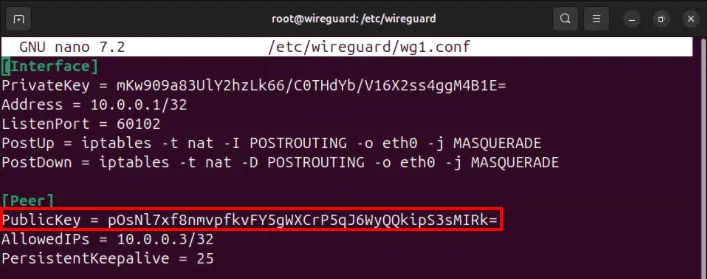
<p style="text-align: justify;">Cuộn xuống phần<strong>&nbsp;&#91;Peer&#93;</strong>, sau đó thay thế biến&nbsp;<strong>PublicKey</strong>&nbsp;bằng public key của client thứ hai.</p>

<figure>
<div style="text-align: justify;"><img alt="Public key của client thứ hai bên trong file cấu hình wg1 của máy chủ." data-i="18" data-src="https://st.quantrimang.com/photos/image/2024/11/15/thiet-lap-wireguard-vpn-tren-linux-1.png" data-was-processed="true" height="279" src="https://st.quantrimang.com/photos/image/2024/11/15/thiet-lap-wireguard-vpn-tren-linux-1.png" width="707" /></div>

<figcaption>
<div style="text-align: justify;">Public key của client thứ hai bên trong file cấu hình wg1 của máy chủ.</div>
</figcaption>
</figure>

<p style="text-align: justify;">Lưu file cấu hình của bạn, sau đó khởi động interface VPN thứ hai bằng lệnh wg-quick:</p>

<pre id="pre28">
<code>sudo wg-quick up wg1</code></pre>

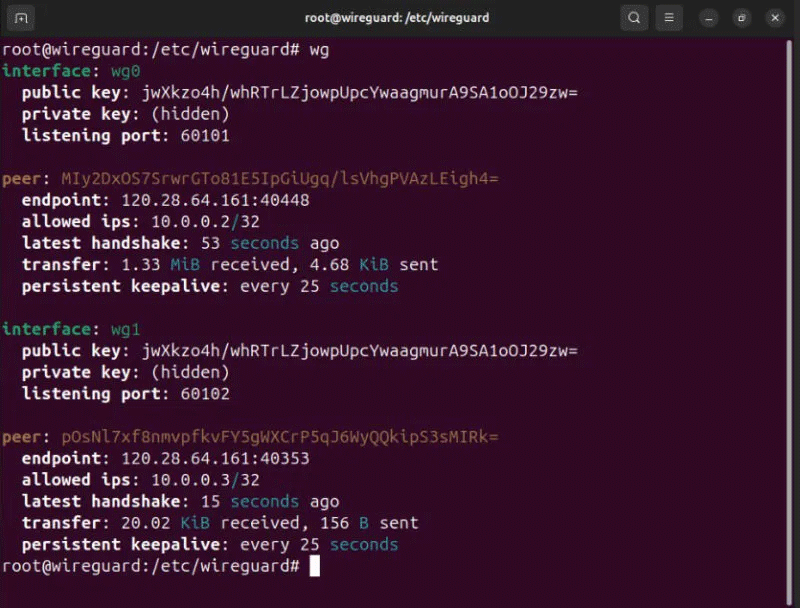
<p style="text-align: justify;">Xác nhận rằng client Wireguard đầu tiên và thứ hai của bạn đang hiển thị chính xác trên máy chủ bằng cách chạy wg.</p>

<figure>
<div style="text-align: justify;"><img alt="2 node client đang giao tiếp với máy chủ Wireguard." data-i="19" data-src="https://st.quantrimang.com/photos/image/2024/11/15/thiet-lap-wireguard-vpn-tren-linux-2.png" data-was-processed="true" height="608" src="https://st.quantrimang.com/photos/image/2024/11/15/thiet-lap-wireguard-vpn-tren-linux-2.png" width="800" /></div>

<figcaption>
<div style="text-align: justify;">2 node client đang giao tiếp với máy chủ Wireguard.</div>
</figcaption>
</figure>

<h2 id="mcetoc_1ih056euv67" style="text-align: justify;">Kiểm tra mạng Wireguard</h2>

<p style="text-align: justify;">Với cả server và client trên mạng Wireguard, giờ đây bạn có thể kiểm tra khả năng kết nối và độ trễ giữa các node của mình. Để thực hiện việc này, hãy đảm bảo rằng bạn đã cài đặt các công cụ chẩn đoán mạng trên hệ thống:</p>

<pre id="pre29">
<code>sudo apt install net-tools curl</code></pre>

<p style="text-align: justify;">Trong Fedora, bạn chỉ cần cài đặt curl vì nó đã có sẵn các công cụ mạng ngay khi cài đặt:</p>

<pre id="pre30">
<code>sudo dnf install curl</code></pre>

<p style="text-align: justify;">Đối với Arch Linux, bạn có thể sử dụng pacman để cài đặt các công cụ mạng và curl:</p>

<pre id="pre31">
<code>sudo pacman -S traceroute curl</code></pre>

<p style="text-align: justify;">Bắt đầu bằng cách theo dõi tuyến đường của một gói tin giữa hai client. Sau đây sẽ hiển thị cách một gói tin IP đi từ “10.0.0.2” đến “10.0.0.3:”</p>

<pre id="pre32">
<code>traceroute 10.0.0.3</code></pre>

<figure>
<div style="text-align: justify;"><img alt="Lệnh traceroute thành công giữa hai node Wireguard." data-i="20" data-src="https://st.quantrimang.com/photos/image/2025/01/07/thiet-lap-wireguard-vpn-tren-linux-1.png" data-was-processed="true" height="141" src="https://st.quantrimang.com/photos/image/2025/01/07/thiet-lap-wireguard-vpn-tren-linux-1.png" width="755" /></div>

<figcaption>
<div style="text-align: justify;">Lệnh traceroute thành công giữa hai node Wireguard.</div>
</figcaption>
</figure>

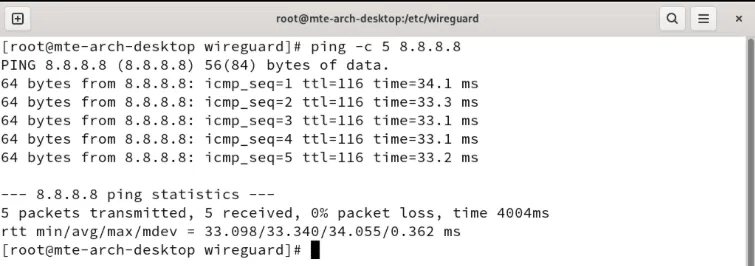
<p style="text-align: justify;">Kiểm tra xem bất kỳ node nào của bạn có thể truy cập Internet công cộng hay không bằng cách ping một địa chỉ IP chung:</p>

<pre id="pre33">
<code>ping -c 5 8.8.8.8</code></pre>

<figure>
<div style="text-align: justify;"><img alt="Độ trễ từ mạng Wireguard đến một trang web bên ngoài." data-i="21" data-src="https://st.quantrimang.com/photos/image/2025/01/07/thiet-lap-wireguard-vpn-tren-linux-2.png" data-was-processed="true" height="266" src="https://st.quantrimang.com/photos/image/2025/01/07/thiet-lap-wireguard-vpn-tren-linux-2.png" width="755" /></div>

<figcaption>
<div style="text-align: justify;">Độ trễ từ mạng Wireguard đến một trang web bên ngoài.</div>
</figcaption>
</figure>

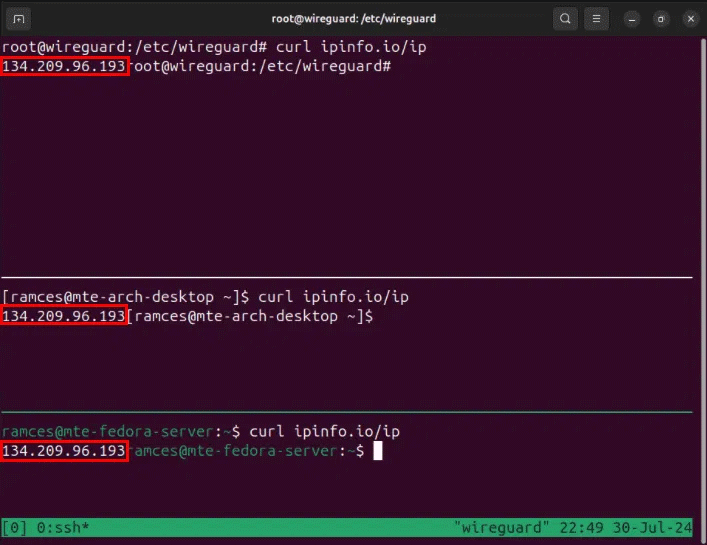
<p style="text-align: justify;">Cuối cùng, hãy xác nhận rằng các node của bạn chia sẻ cùng một địa chỉ IP public với máy chủ Wireguard của bạn:</p>

<pre id="pre34">
<code>curl ipinfo.io/ip</code></pre>

<figure>
<div style="text-align: justify;"><img alt="Địa chỉ IP bên ngoài tương tự trên 3 node Wireguard." data-i="22" data-src="https://st.quantrimang.com/photos/image/2025/01/07/thiet-lap-wireguard-vpn-tren-linux-3.png" data-was-processed="true" height="545" src="https://st.quantrimang.com/photos/image/2025/01/07/thiet-lap-wireguard-vpn-tren-linux-3.png" width="707" /></div>

<figcaption>
<div style="text-align: justify;">Địa chỉ IP bên ngoài tương tự trên 3 node Wireguard.</div>
</figcaption>
</figure>

<p style="text-align: justify;">Học cách thiết lập mạng Wireguard trên Linux là bước đầu tiên để khám phá thế giới VPN hấp dẫn. Hãy tìm hiểu sâu hơn và xem các lựa chọn về&nbsp;những nhà cung cấp VPN tập trung vào bảo mật tốt nhất&nbsp;mà bạn có thể nhận được ngày hôm nay.</p>

<div style="text-align: justify;">&nbsp;</div>
		</div>
				<div id="author">
						<p>
				<strong>Nguồn tin:</strong>
				Quantrimang.com:
			</p>
		</div>
	</div>
	<div id="footer" class="clearfix">
		<div id="url">
			<strong>URL của bản tin này: </strong><a href="https://www.nguoicodonvn2008.info/vi/news/savefile/kien-thuc-may-tinh/cach-thiet-lap-wireguard-vpn-tren-linux-9637.html" title="Cách thiết lập Wireguard VPN trên Linux">https://www.nguoicodonvn2008.info/vi/news/savefile/kien-thuc-may-tinh/cach-thiet-lap-wireguard-vpn-tren-linux-9637.html</a>

		</div>
		<div class="clear"></div>
		<div class="copyright">
			&copy; .&#x3A; Nguoicodonvn2008.info - Cõi lòng người cô đơn &#x3A;.
		</div>
		<div id="contact">
			<a href="mailto:admin@nguoicodonvn2008.info">admin@nguoicodonvn2008.info</a>
		</div>
	</div>
</div>
        <div id="timeoutsess" class="chromeframe">
            Bạn đã không sử dụng Site, <a onclick="timeoutsesscancel();" href="https://nguoicodonvn2008.info/#">Bấm vào đây để duy trì trạng thái đăng nhập</a>. Thời gian chờ: <span id="secField"> 60 </span> giây
        </div>
        <div id="openidResult" class="nv-alert" style="display:none"></div>
        <div id="openidBt" data-result="" data-redirect=""></div>
		</script>
		<div class="car-top">
  <span><img src="https://nguoicodonvn2008.info/themes/default/images/car.png" alt=""></span>
</div>
<script src="https://nguoicodonvn2008.info/assets/js/jquery/jquery.min.js"></script>
<script>var nv_base_siteurl="/",nv_lang_data="vi",nv_lang_interface="vi",nv_name_variable="nv",nv_fc_variable="op",nv_lang_variable="language",nv_module_name="news",nv_func_name="savefile",nv_is_user=0, nv_my_ofs=-4,nv_my_abbr="EDT",nv_cookie_prefix="nv4c_e856T",nv_check_pass_mstime=1738000,nv_area_admin=0,nv_safemode=0,theme_responsive=0,nv_recaptcha_ver=2,nv_recaptcha_sitekey="",nv_recaptcha_type="image",XSSsanitize=1;</script>
<script src="https://nguoicodonvn2008.info/assets/js/language/vi.js"></script>
<script src="https://nguoicodonvn2008.info/assets/js/DOMPurify/purify3.js"></script>
<script src="https://nguoicodonvn2008.info/assets/js/global.js"></script>
<script src="https://nguoicodonvn2008.info/assets/js/site.js"></script>
<script src="https://nguoicodonvn2008.info/themes/default/js/news.js"></script>
<script src="https://nguoicodonvn2008.info/themes/default/js/main.js"></script>
<script src="https://nguoicodonvn2008.info/themes/default/js/custom.js"></script>
<script type="application/ld+json">
        {
            "@context": "https://schema.org",
            "@type": "Organization",
            "url": "https://nguoicodonvn2008.info",
            "logo": "https://nguoicodonvn2008.info/uploads/angel.gif"
        }
        </script>
<script src="https://nguoicodonvn2008.info/themes/default/js/bootstrap.min.js"></script>
<script type="text/javascript">
var $scrolltop = $('.car-top');
$scrolltop.on('click', function () {
    $('html,body').animate({
        scrollTop: 0
    }, 800);
    $(this).addClass("car-run");
    setTimeout(function(){ $scrolltop.removeClass('car-run');}, 1000);
    return false;
});
$(window).on('scroll', function ()
{ 
    if($(window).scrollTop() >= 200)
    {
        $scrolltop.addClass("show");
        $scrolltop.addClass("car-down");
    }
    else
    {
       $scrolltop.removeClass("show");
       setTimeout(function(){ $scrolltop.removeClass('car-down');}, 300);
    }
});
</script>
</body>
</html>