<!DOCTYPE html>
    <html lang="vi" xmlns="http://www.w3.org/1999/xhtml" prefix="og: http://ogp.me/ns#">
    <head>
<title>Cách thiết lập và sử dụng tính năng Quick Export trong Photoshop</title>
<meta name="description" content="Cách thiết lập và sử dụng tính năng Quick Export trong Photoshop - Savefile - Tin Tức -...">
<meta name="author" content=".: Nguoicodonvn2008.info - Cõi lòng người cô đơn :.">
<meta name="copyright" content=".: Nguoicodonvn2008.info - Cõi lòng người cô đơn :. [admin@nguoicodonvn2008.info]">
<meta name="robots" content="index, archive, follow, noodp">
<meta name="googlebot" content="index,archive,follow,noodp">
<meta name="msnbot" content="all,index,follow">
<meta name="generator" content="NukeViet v4.5">
<meta http-equiv="Content-Type" content="text/html; charset=utf-8">
<meta property="og:title" content="Cách thiết lập và sử dụng tính năng Quick Export trong Photoshop">
<meta property="og:type" content="website">
<meta property="og:description" content="Savefile - Tin Tức - https&#x3A;&#x002F;&#x002F;www.nguoicodonvn2008.info&#x002F;vi&#x002F;news&#x002F;savefile&#x002F;kien-thuc-may-tinh&#x002F;cach-thiet-lap-va-su-dung-tinh-nang-quick-export-trong-photoshop-4225.html">
<meta property="og:site_name" content=".&#x3A; Nguoicodonvn2008.info - Cõi lòng người cô đơn &#x3A;.">
<meta property="og:url" content="https://www.nguoicodonvn2008.info/vi/news/savefile/kien-thuc-may-tinh/cach-thiet-lap-va-su-dung-tinh-nang-quick-export-trong-photoshop-4225.html">
<link rel="shortcut icon" href="https://nguoicodonvn2008.info/favicon.ico">
<link rel="canonical" href="https://www.nguoicodonvn2008.info/vi/news/savefile/kien-thuc-may-tinh/cach-thiet-lap-va-su-dung-tinh-nang-quick-export-trong-photoshop-4225.html">
<link rel="alternate" href="https://nguoicodonvn2008.info/vi/news/rss/" title="Tin Tức" type="application/rss+xml">
<link rel="alternate" href="https://nguoicodonvn2008.info/vi/news/rss/karaoke-dual/" title="Tin Tức - Karaoke Dual" type="application/rss+xml">
<link rel="alternate" href="https://nguoicodonvn2008.info/vi/news/rss/nhac-tre/" title="Tin Tức - Nhạc trẻ" type="application/rss+xml">
<link rel="alternate" href="https://nguoicodonvn2008.info/vi/news/rss/tru-tinh/" title="Tin Tức - Trữ tình" type="application/rss+xml">
<link rel="alternate" href="https://nguoicodonvn2008.info/vi/news/rss/nuoc-ngoai/" title="Tin Tức - Nước ngoài" type="application/rss+xml">
<link rel="alternate" href="https://nguoicodonvn2008.info/vi/news/rss/remix/" title="Tin Tức - Remix" type="application/rss+xml">
<link rel="alternate" href="https://nguoicodonvn2008.info/vi/news/rss/tam-su-tinh-yeu/" title="Tin Tức - Tâm sự tình yêu" type="application/rss+xml">
<link rel="alternate" href="https://nguoicodonvn2008.info/vi/news/rss/tho-suu-tam/" title="Tin Tức - Thơ sưu tầm" type="application/rss+xml">
<link rel="alternate" href="https://nguoicodonvn2008.info/vi/news/rss/cuoc-song/" title="Tin Tức - Cuộc sống" type="application/rss+xml">
<link rel="alternate" href="https://nguoicodonvn2008.info/vi/news/rss/phan-mem/" title="Tin Tức - Phần mềm" type="application/rss+xml">
<link rel="alternate" href="https://nguoicodonvn2008.info/vi/news/rss/kien-thuc-may-tinh/" title="Tin Tức - Kiến thức máy tính" type="application/rss+xml">
<link rel="alternate" href="https://nguoicodonvn2008.info/vi/news/rss/hoc-tap/" title="Tin Tức - Học tập" type="application/rss+xml">
<link rel="alternate" href="https://nguoicodonvn2008.info/vi/news/rss/tai-lieu/" title="Tin Tức - Tài liệu" type="application/rss+xml">
<link rel="alternate" href="https://nguoicodonvn2008.info/vi/news/rss/de-thi/" title="Tin Tức - Đề thi" type="application/rss+xml">
<link rel="preload" as="style" href="https://nguoicodonvn2008.info/assets/css/font-awesome.min.css" type="text/css">
<link rel="preload" as="style" href="https://nguoicodonvn2008.info/themes/default/css/bootstrap.non-responsive.css" type="text/css">
<link rel="preload" as="style" href="https://nguoicodonvn2008.info/themes/default/css/style.css" type="text/css">
<link rel="preload" as="style" href="https://nguoicodonvn2008.info/themes/default/css/style.non-responsive.css" type="text/css">
<link rel="preload" as="style" href="https://nguoicodonvn2008.info/themes/default/css/news.css" type="text/css">
<link rel="preload" as="style" href="https://nguoicodonvn2008.info/themes/default/css/custom.css" type="text/css">
<link rel="preload" as="script" href="https://nguoicodonvn2008.info/assets/js/jquery/jquery.min.js" type="text/javascript">
<link rel="preload" as="script" href="https://nguoicodonvn2008.info/assets/js/language/vi.js" type="text/javascript">
<link rel="preload" as="script" href="https://nguoicodonvn2008.info/assets/js/DOMPurify/purify3.js" type="text/javascript">
<link rel="preload" as="script" href="https://nguoicodonvn2008.info/assets/js/global.js" type="text/javascript">
<link rel="preload" as="script" href="https://nguoicodonvn2008.info/assets/js/site.js" type="text/javascript">
<link rel="preload" as="script" href="https://nguoicodonvn2008.info/themes/default/js/news.js" type="text/javascript">
<link rel="preload" as="script" href="https://nguoicodonvn2008.info/themes/default/js/main.js" type="text/javascript">
<link rel="preload" as="script" href="https://nguoicodonvn2008.info/themes/default/js/custom.js" type="text/javascript">
<link rel="preload" as="script" href="https://nguoicodonvn2008.info/themes/default/js/bootstrap.min.js" type="text/javascript">
<link rel="stylesheet" href="https://nguoicodonvn2008.info/assets/css/font-awesome.min.css">
<link rel="stylesheet" href="https://nguoicodonvn2008.info/themes/default/css/bootstrap.non-responsive.css">
<link rel="stylesheet" href="https://nguoicodonvn2008.info/themes/default/css/style.css">
<link rel="stylesheet" href="https://nguoicodonvn2008.info/themes/default/css/style.non-responsive.css">
<link rel="StyleSheet" href="https://nguoicodonvn2008.info/themes/default/css/news.css">
<link rel="stylesheet" href="https://nguoicodonvn2008.info/themes/default/css/custom.css">
<style type="text/css">
	body{background: #fff;}
</style>
    </head>
    <body>
<div id="print">
	<div id="hd_print">
		<h2 class="pull-left">.&#x3A; Nguoicodonvn2008.info - Cõi lòng người cô đơn &#x3A;.</h2>
		<p class="pull-right"><a title=".&#x3A; Nguoicodonvn2008.info - Cõi lòng người cô đơn &#x3A;." href="https://nguoicodonvn2008.info/">https://nguoicodonvn2008.info</a></p>
	</div>
	<div class="clear"></div>
	<hr />
	<div id="content">
		<h1>Cách thiết lập và sử dụng tính năng Quick Export trong Photoshop</h1>
		<ul class="list-inline">
			<li>Thứ năm - 10/06/2021 00:56</li>
			<li class="hidden-print txtrequired"><em class="fa fa-print">&nbsp;</em><a title="In ra" href="javascript:;" onclick="window.print()">In ra</a></li>
			<li class="hidden-print txtrequired"><em class="fa fa-power-off">&nbsp;</em><a title="Đóng cửa sổ này" href="javascript:;" onclick="window.close()">Đóng cửa sổ này</a></li>
		</ul>
		<div class="clear"></div>
		<div id="hometext">
		</div>
				<div class="imghome">
			<img alt="Cách thiết lập và sử dụng tính năng Quick Export trong Photoshop" src="https://st.quantrimang.com/photos/image/2021/05/31/tinh-nang-quick-export-trong-photoshop6.jpg" width="460" class="img-thumbnail" />
		</div>
		<div class="clear"></div>
		<div id="bodytext" class="clearfix">
			<p style="text-align: justify;">Quick Export là một tính năng cực kỳ hữu ích trong Photoshop mà nếu biết cách tận dụng, nó có thể hỗ trợ rất nhiều cho công việc của bạn. Trong bài viết này, chúng ta sẽ cùng tìm hiểu cách thiết lập và phát huy triệt để công dụng của tính năng cơ bản nhưng hữu ích này.</p>

<h2 style="text-align: justify;">Cách sử dụng Quick Export dưới dạng PNG</h2>

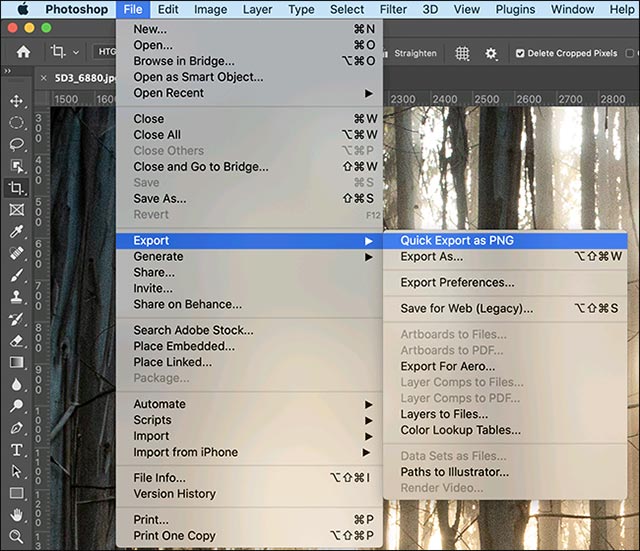
<p style="text-align: justify;">Để sử dụng tính năng xuất tệp nhanh này trong Photoshop, bạn chỉ cần điều hướng đến File &gt; Export &gt; Quick Export as a PNG. Chọn vị trí muốn lưu tệp hình ảnh và nhấp vào “Save”.</p>

<p style="text-align: justify;"><img alt="File &gt; Export &gt; Quick Export as a PNG" data-i="0" data-src="https://st.quantrimang.com/photos/image/2021/05/31/tinh-nang-quick-export-trong-photoshop1.jpg" data-was-processed="true" height="551" src="https://st.quantrimang.com/photos/image/2021/05/31/tinh-nang-quick-export-trong-photoshop1.jpg" width="640" /></p>

<p style="text-align: justify;">Thao tác này sẽ tự động lưu một file PNG “phẳng”, bảo toàn độ phân giải đầy đủ của hình ảnh mà bạn đang làm việc.</p>

<h2 style="text-align: justify;">Cách thay đổi cài đặt mặc định của Quick Export</h2>

<p style="text-align: justify;">Theo mặc định, Quick Export sẽ lưu nhanh hình ảnh dưới dạng tệp PNG khá tiện lợi. Tuy nhiên, nếu bạn là một nhiếp ảnh gia hoặc thường xuyên phải làm việc với nhiều loại file ảnh khác nhau, rõ ràng PNG không phải là định dạng tệp lý tưởng. Thay vào đó, bạn sẽ muốn có một hình ảnh được lưu dưới dạng file JPG.</p>

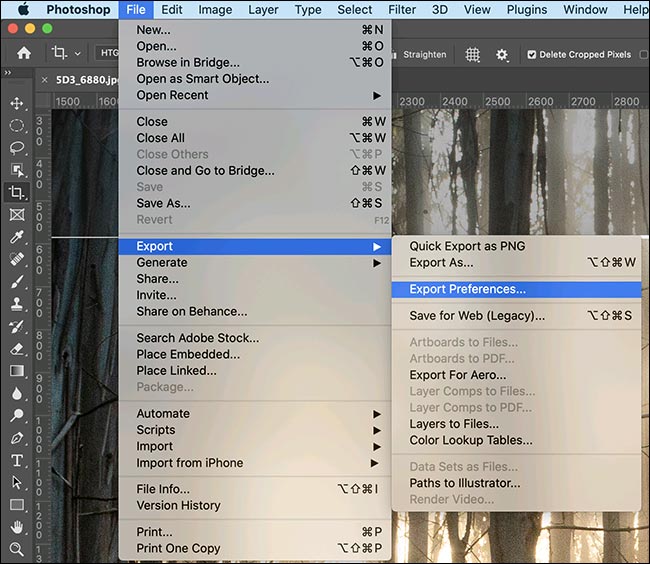
<p style="text-align: justify;">Để định cấu hình cài đặt cho tính năng Quick Export, bạn điều hướng tới File &gt; Export &gt; Export Preferences.</p>

<p style="text-align: justify;"><img alt="File &gt; Export &gt; Export Preferences" data-i="1" data-src="https://st.quantrimang.com/photos/image/2021/05/31/tinh-nang-quick-export-trong-photoshop2.jpg" data-was-processed="true" height="564" src="https://st.quantrimang.com/photos/image/2021/05/31/tinh-nang-quick-export-trong-photoshop2.jpg" width="650" /></p>

<div style="text-align: justify;">&nbsp;</div>

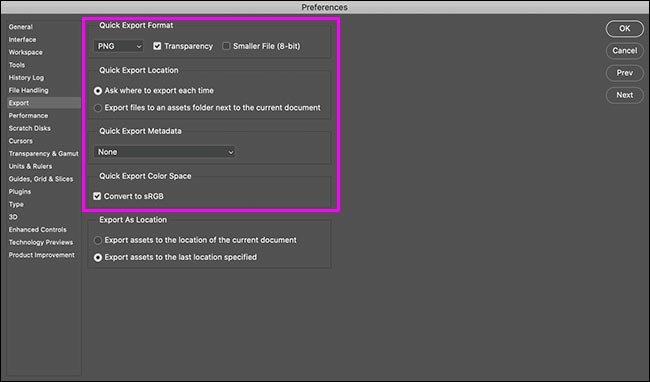
<p style="text-align: justify;">Có một số tùy chọn bạn cần cân nhắc ở đây:</p>

<ul>
	<li style="text-align: justify;"><strong>Quick Export Format</strong>&nbsp;(Định dạng xuất nhanh): Bạn có thể chọn PNG, JPG, GIF và SVG làm định dạng tệp mặc định, cũng như thiết lập chất lượng tệp. Nếu bạn là người vẽ minh họa, thì định dạng mặc định PNG với Transparency là ổn. Tuy nhiên khi làm việc với ảnh, bạn nên chọn JPG với Quality ít nhất là 80.</li>
	<li style="text-align: justify;"><strong>Quick Export Location</strong>&nbsp;(Vị trí xuất nhanh): Bạn có thể bấm chọn “Ask Where to Export Each Time” chọn vị trí lưu tệp thủ công. Hoặc bạn có thể chọn “Export Files to an Assets Folder Next to the Current Document” nếu bạn muốn tệp tự động được lưu vào một thư mục mới.</li>
	<li style="text-align: justify;"><strong>Quick Export Metadata</strong>&nbsp;(xuất nhanh siêu dữ liệu): Bạn có thể chọn “None” hoặc nhúng “Copyright and Contact Info”. Nếu bạn dự định chia sẻ ảnh của mình trên internet, nên sử dụng tùy chọn thứ hai.</li>
	<li style="text-align: justify;"><strong>Quick Export Color Space</strong>: Bạn có thể bật hoặc tắt “Convert to sRGB”. Nếu bạn không nắm rõ về không gian màu và cấu hình, tốt nhất là bạn nên giữ nguyên thiết lập mặc định.</li>
</ul>

<h2 style="text-align: justify;"><img alt="Các tùy chọn thiết lập" data-i="2" data-src="https://st.quantrimang.com/photos/image/2021/05/31/tinh-nang-quick-export-trong-photoshop3.jpg" data-was-processed="true" height="382" src="https://st.quantrimang.com/photos/image/2021/05/31/tinh-nang-quick-export-trong-photoshop3.jpg" width="650" /></h2>

<h2 style="text-align: justify;">Cách thêm phím tắt Quick Export</h2>

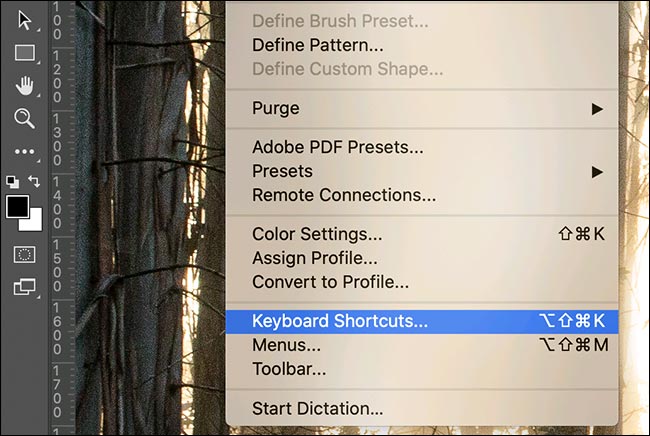
<p style="text-align: justify;">Để tạo các shortcut truy cập nhanh cho tính năng Quick Export, bạn đi tới Edit &gt; Keyboard Shortcuts để truy cập các tùy chọn phím tắt.</p>

<p style="text-align: justify;"><img alt="Edit &gt; Keyboard Shortcuts" data-i="3" data-src="https://st.quantrimang.com/photos/image/2021/05/31/tinh-nang-quick-export-trong-photoshop4.jpg" data-was-processed="true" height="436" src="https://st.quantrimang.com/photos/image/2021/05/31/tinh-nang-quick-export-trong-photoshop4.jpg" width="650" /></p>

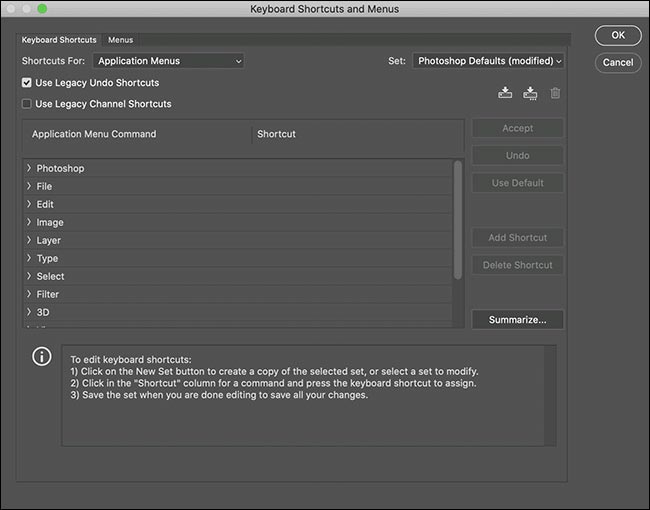
<p style="text-align: justify;">Tại đây, bạn có thể chỉnh sửa hoặc gán các phím tắt cho khá nhiều tính năng của Photoshop. Đối với tính năng Quick Export, bạn bấm mở rộng phần “File”, cuộn xuống mục “Quick Export as…” và bấm chọn nó.</p>

<p style="text-align: justify;">&nbsp;</p>

<div style="text-align: justify;"><br />
<img alt="Bấm vào “Quick Export as…”" data-i="4" data-src="https://st.quantrimang.com/photos/image/2021/05/31/tinh-nang-quick-export-trong-photoshop5.jpg" data-was-processed="true" height="510" src="https://st.quantrimang.com/photos/image/2021/05/31/tinh-nang-quick-export-trong-photoshop5.jpg" width="650" /></div>

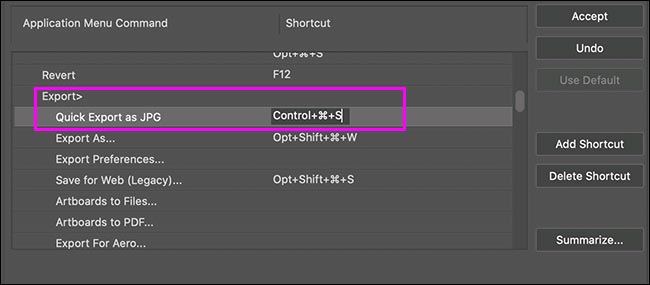
<p style="text-align: justify;">Nhập phím tắt mà bạn muốn sử dụng, chẳng hạn như Control-Alt-Shift-S trên PC (hoặc Command-Control-Shift-S trên máy Mac).</p>

<p style="text-align: justify;"><img alt="Chọn phím tắt" data-i="5" data-src="https://st.quantrimang.com/photos/image/2021/05/31/tinh-nang-quick-export-trong-photoshop6.jpg" data-was-processed="true" height="285" src="https://st.quantrimang.com/photos/image/2021/05/31/tinh-nang-quick-export-trong-photoshop6.jpg" width="650" /></p>

<p style="text-align: justify;">Nếu bạn nhập một phím tắt đã được sử dụng, Photoshop sẽ hiển thị thông báo cho bạn biết và lựa chọn cụm phím tắt khác.</p>

<p style="text-align: justify;">Khi bạn hoàn tất, hãy nhấp vào “Accept”, sau đó nhấn “OK”.</p>
		</div>
				<div id="author">
						<p>
				<strong>Nguồn tin:</strong>
				Quantrimang.com
			</p>
		</div>
	</div>
	<div id="footer" class="clearfix">
		<div id="url">
			<strong>URL của bản tin này: </strong><a href="https://www.nguoicodonvn2008.info/vi/news/savefile/kien-thuc-may-tinh/cach-thiet-lap-va-su-dung-tinh-nang-quick-export-trong-photoshop-4225.html" title="Cách thiết lập và sử dụng tính năng Quick Export trong Photoshop">https://www.nguoicodonvn2008.info/vi/news/savefile/kien-thuc-may-tinh/cach-thiet-lap-va-su-dung-tinh-nang-quick-export-trong-photoshop-4225.html</a>

		</div>
		<div class="clear"></div>
		<div class="copyright">
			&copy; .&#x3A; Nguoicodonvn2008.info - Cõi lòng người cô đơn &#x3A;.
		</div>
		<div id="contact">
			<a href="mailto:admin@nguoicodonvn2008.info">admin@nguoicodonvn2008.info</a>
		</div>
	</div>
</div>
        <div id="timeoutsess" class="chromeframe">
            Bạn đã không sử dụng Site, <a onclick="timeoutsesscancel();" href="https://nguoicodonvn2008.info/#">Bấm vào đây để duy trì trạng thái đăng nhập</a>. Thời gian chờ: <span id="secField"> 60 </span> giây
        </div>
        <div id="openidResult" class="nv-alert" style="display:none"></div>
        <div id="openidBt" data-result="" data-redirect=""></div>
		</script>
		<div class="car-top">
  <span><img src="https://nguoicodonvn2008.info/themes/default/images/car.png" alt=""></span>
</div>
<script src="https://nguoicodonvn2008.info/assets/js/jquery/jquery.min.js"></script>
<script>var nv_base_siteurl="/",nv_lang_data="vi",nv_lang_interface="vi",nv_name_variable="nv",nv_fc_variable="op",nv_lang_variable="language",nv_module_name="news",nv_func_name="savefile",nv_is_user=0, nv_my_ofs=-4,nv_my_abbr="EDT",nv_cookie_prefix="nv4c_e856T",nv_check_pass_mstime=1738000,nv_area_admin=0,nv_safemode=0,theme_responsive=0,nv_recaptcha_ver=2,nv_recaptcha_sitekey="",nv_recaptcha_type="image",XSSsanitize=1;</script>
<script src="https://nguoicodonvn2008.info/assets/js/language/vi.js"></script>
<script src="https://nguoicodonvn2008.info/assets/js/DOMPurify/purify3.js"></script>
<script src="https://nguoicodonvn2008.info/assets/js/global.js"></script>
<script src="https://nguoicodonvn2008.info/assets/js/site.js"></script>
<script src="https://nguoicodonvn2008.info/themes/default/js/news.js"></script>
<script src="https://nguoicodonvn2008.info/themes/default/js/main.js"></script>
<script src="https://nguoicodonvn2008.info/themes/default/js/custom.js"></script>
<script type="application/ld+json">
        {
            "@context": "https://schema.org",
            "@type": "Organization",
            "url": "https://nguoicodonvn2008.info",
            "logo": "https://nguoicodonvn2008.info/uploads/angel.gif"
        }
        </script>
<script src="https://nguoicodonvn2008.info/themes/default/js/bootstrap.min.js"></script>
<script type="text/javascript">
var $scrolltop = $('.car-top');
$scrolltop.on('click', function () {
    $('html,body').animate({
        scrollTop: 0
    }, 800);
    $(this).addClass("car-run");
    setTimeout(function(){ $scrolltop.removeClass('car-run');}, 1000);
    return false;
});
$(window).on('scroll', function ()
{ 
    if($(window).scrollTop() >= 200)
    {
        $scrolltop.addClass("show");
        $scrolltop.addClass("car-down");
    }
    else
    {
       $scrolltop.removeClass("show");
       setTimeout(function(){ $scrolltop.removeClass('car-down');}, 300);
    }
});
</script>
</body>
</html>