<!DOCTYPE html>
    <html lang="vi" xmlns="http://www.w3.org/1999/xhtml" prefix="og: http://ogp.me/ns#">
    <head>
<title>Cách thiết lập shortcut cho applet Devices and Printers trong Windows 11</title>
<meta name="description" content="Cách thiết lập shortcut cho applet Devices and Printers trong Windows 11 - Savefile - Tin Tức -...">
<meta name="author" content=".: Nguoicodonvn2008.info - Cõi lòng người cô đơn :.">
<meta name="copyright" content=".: Nguoicodonvn2008.info - Cõi lòng người cô đơn :. [admin@nguoicodonvn2008.info]">
<meta name="robots" content="index, archive, follow, noodp">
<meta name="googlebot" content="index,archive,follow,noodp">
<meta name="msnbot" content="all,index,follow">
<meta name="generator" content="NukeViet v4.5">
<meta http-equiv="Content-Type" content="text/html; charset=utf-8">
<meta property="og:title" content="Cách thiết lập shortcut cho applet Devices and Printers trong Windows 11">
<meta property="og:type" content="website">
<meta property="og:description" content="Savefile - Tin Tức -...">
<meta property="og:site_name" content=".&#x3A; Nguoicodonvn2008.info - Cõi lòng người cô đơn &#x3A;.">
<meta property="og:url" content="https://www.nguoicodonvn2008.info/vi/news/savefile/kien-thuc-may-tinh/cach-thiet-lap-shortcut-cho-applet-devices-and-printers-trong-windows-11-6244.html">
<link rel="shortcut icon" href="https://nguoicodonvn2008.info/favicon.ico">
<link rel="canonical" href="https://www.nguoicodonvn2008.info/vi/news/savefile/kien-thuc-may-tinh/cach-thiet-lap-shortcut-cho-applet-devices-and-printers-trong-windows-11-6244.html">
<link rel="alternate" href="https://nguoicodonvn2008.info/vi/news/rss/" title="Tin Tức" type="application/rss+xml">
<link rel="alternate" href="https://nguoicodonvn2008.info/vi/news/rss/karaoke-dual/" title="Tin Tức - Karaoke Dual" type="application/rss+xml">
<link rel="alternate" href="https://nguoicodonvn2008.info/vi/news/rss/nhac-tre/" title="Tin Tức - Nhạc trẻ" type="application/rss+xml">
<link rel="alternate" href="https://nguoicodonvn2008.info/vi/news/rss/tru-tinh/" title="Tin Tức - Trữ tình" type="application/rss+xml">
<link rel="alternate" href="https://nguoicodonvn2008.info/vi/news/rss/nuoc-ngoai/" title="Tin Tức - Nước ngoài" type="application/rss+xml">
<link rel="alternate" href="https://nguoicodonvn2008.info/vi/news/rss/remix/" title="Tin Tức - Remix" type="application/rss+xml">
<link rel="alternate" href="https://nguoicodonvn2008.info/vi/news/rss/tam-su-tinh-yeu/" title="Tin Tức - Tâm sự tình yêu" type="application/rss+xml">
<link rel="alternate" href="https://nguoicodonvn2008.info/vi/news/rss/tho-suu-tam/" title="Tin Tức - Thơ sưu tầm" type="application/rss+xml">
<link rel="alternate" href="https://nguoicodonvn2008.info/vi/news/rss/cuoc-song/" title="Tin Tức - Cuộc sống" type="application/rss+xml">
<link rel="alternate" href="https://nguoicodonvn2008.info/vi/news/rss/phan-mem/" title="Tin Tức - Phần mềm" type="application/rss+xml">
<link rel="alternate" href="https://nguoicodonvn2008.info/vi/news/rss/kien-thuc-may-tinh/" title="Tin Tức - Kiến thức máy tính" type="application/rss+xml">
<link rel="alternate" href="https://nguoicodonvn2008.info/vi/news/rss/hoc-tap/" title="Tin Tức - Học tập" type="application/rss+xml">
<link rel="alternate" href="https://nguoicodonvn2008.info/vi/news/rss/tai-lieu/" title="Tin Tức - Tài liệu" type="application/rss+xml">
<link rel="alternate" href="https://nguoicodonvn2008.info/vi/news/rss/de-thi/" title="Tin Tức - Đề thi" type="application/rss+xml">
<link rel="preload" as="style" href="https://nguoicodonvn2008.info/assets/css/font-awesome.min.css" type="text/css">
<link rel="preload" as="style" href="https://nguoicodonvn2008.info/themes/default/css/bootstrap.non-responsive.css" type="text/css">
<link rel="preload" as="style" href="https://nguoicodonvn2008.info/themes/default/css/style.css" type="text/css">
<link rel="preload" as="style" href="https://nguoicodonvn2008.info/themes/default/css/style.non-responsive.css" type="text/css">
<link rel="preload" as="style" href="https://nguoicodonvn2008.info/themes/default/css/news.css" type="text/css">
<link rel="preload" as="style" href="https://nguoicodonvn2008.info/themes/default/css/custom.css" type="text/css">
<link rel="preload" as="script" href="https://nguoicodonvn2008.info/assets/js/jquery/jquery.min.js" type="text/javascript">
<link rel="preload" as="script" href="https://nguoicodonvn2008.info/assets/js/language/vi.js" type="text/javascript">
<link rel="preload" as="script" href="https://nguoicodonvn2008.info/assets/js/DOMPurify/purify3.js" type="text/javascript">
<link rel="preload" as="script" href="https://nguoicodonvn2008.info/assets/js/global.js" type="text/javascript">
<link rel="preload" as="script" href="https://nguoicodonvn2008.info/assets/js/site.js" type="text/javascript">
<link rel="preload" as="script" href="https://nguoicodonvn2008.info/themes/default/js/news.js" type="text/javascript">
<link rel="preload" as="script" href="https://nguoicodonvn2008.info/themes/default/js/main.js" type="text/javascript">
<link rel="preload" as="script" href="https://nguoicodonvn2008.info/themes/default/js/custom.js" type="text/javascript">
<link rel="preload" as="script" href="https://nguoicodonvn2008.info/themes/default/js/bootstrap.min.js" type="text/javascript">
<link rel="stylesheet" href="https://nguoicodonvn2008.info/assets/css/font-awesome.min.css">
<link rel="stylesheet" href="https://nguoicodonvn2008.info/themes/default/css/bootstrap.non-responsive.css">
<link rel="stylesheet" href="https://nguoicodonvn2008.info/themes/default/css/style.css">
<link rel="stylesheet" href="https://nguoicodonvn2008.info/themes/default/css/style.non-responsive.css">
<link rel="StyleSheet" href="https://nguoicodonvn2008.info/themes/default/css/news.css">
<link rel="stylesheet" href="https://nguoicodonvn2008.info/themes/default/css/custom.css">
<style type="text/css">
	body{background: #fff;}
</style>
    </head>
    <body>
<div id="print">
	<div id="hd_print">
		<h2 class="pull-left">.&#x3A; Nguoicodonvn2008.info - Cõi lòng người cô đơn &#x3A;.</h2>
		<p class="pull-right"><a title=".&#x3A; Nguoicodonvn2008.info - Cõi lòng người cô đơn &#x3A;." href="https://nguoicodonvn2008.info/">https://nguoicodonvn2008.info</a></p>
	</div>
	<div class="clear"></div>
	<hr />
	<div id="content">
		<h1>Cách thiết lập shortcut cho applet Devices and Printers trong Windows 11</h1>
		<ul class="list-inline">
			<li>Thứ tư - 26/10/2022 00:57</li>
			<li class="hidden-print txtrequired"><em class="fa fa-print">&nbsp;</em><a title="In ra" href="javascript:;" onclick="window.print()">In ra</a></li>
			<li class="hidden-print txtrequired"><em class="fa fa-power-off">&nbsp;</em><a title="Đóng cửa sổ này" href="javascript:;" onclick="window.close()">Đóng cửa sổ này</a></li>
		</ul>
		<div class="clear"></div>
		<div id="hometext">
		</div>
				<div class="imghome">
			<img alt="Cách thiết lập shortcut cho applet Devices and Printers trong Windows 11" src="https://st.quantrimang.com/photos/image/2022/10/24/thiet-lap-shortcut-applet-devices-and-printers-14.jpg" width="460" class="img-thumbnail" />
		</div>
		<div class="clear"></div>
		<div id="bodytext" class="clearfix">
			<p style="text-align: justify;">Devices and Printers là một applet Control Panel trong Windows 11 hiển thị các thiết bị được kết nối hoặc ghép nối với PC của bạn. Bạn có thể chọn thêm hoặc xóa máy in và các thiết bị khác ở đó. Menu Tools của nó cũng bao gồm một tùy chọn tiện dụng để ánh xạ các ổ cứng mạng.</p>

<p style="text-align: justify;">Do đó, Devices and Printers là một applet hữu ích để quản lý các thiết bị ngoại vi được kết nối trong Windows 11, nhưng nó lại nằm sâu trong Control Panel. Bạn có thể truy cập nhanh hơn bằng cách thiết lập nhiều loại shortcut khác nhau để mở applet này. Sau đây là cách bạn có thể tạo shortcut cho Devices and Printers trong Windows 11.</p>

<h2 style="text-align: justify;">Cách thiết lập shortcut desktop cho Devices and Printers</h2>

<p style="text-align: justify;">Desktop là khu vực tiêu chuẩn nhất của Windows để tạo shortcut. Bạn có thể desktop shortcut cho Devices and Printers bằng code GUID của ứng dụng đó trong trình hướng dẫn Create Shortcut. Đây là các bước để thêm shortcut Devices and Printers vào desktop Windows 11:</p>

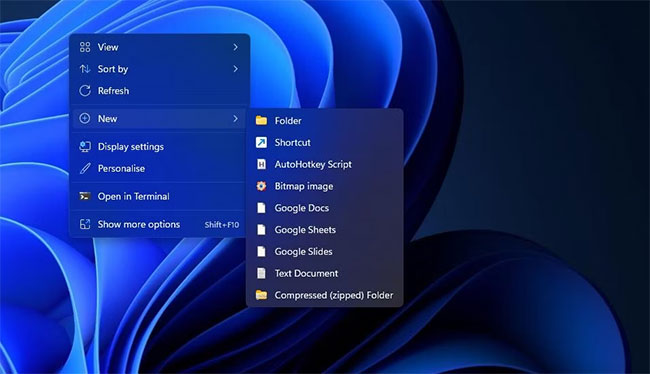
<p style="text-align: justify;">1. Nhấp chuột phải vào bất kỳ khoảng trống nào trên desktop nơi không có bất kỳ biểu tượng nào và chọn&nbsp;<strong>New.</strong></p>

<p style="text-align: justify;">2. Bấm vào tùy chọn menu ngữ cảnh&nbsp;<strong>Shortcut</strong>&nbsp;để xem trình hướng dẫn.</p>

<figure>
<div style="text-align: justify;"><img alt="Tùy chọn Shortcut" data-i="0" data-src="https://st.quantrimang.com/photos/image/2022/10/24/thiet-lap-shortcut-applet-devices-and-printers-1.jpg" data-was-processed="true" height="374" src="https://st.quantrimang.com/photos/image/2022/10/24/thiet-lap-shortcut-applet-devices-and-printers-1.jpg" width="650" /></div>

<figcaption>
<div style="text-align: justify;">Tùy chọn Shortcut</div>
</figcaption>
</figure>

<p style="text-align: justify;">3. Sau đó nhập code GUID này vào hộp vị trí:</p>

<pre id="pre0">
<code>explorer.exe shell:::{A8A91A66-3A7D-4424-8D24-04E180695C7A}</code></pre>

<p style="text-align: justify;">4. Chọn&nbsp;<strong>Next</strong>&nbsp;để xem hộp&nbsp;<strong>Type a name</strong>.</p>

<p style="text-align: justify;">5. Xóa tiêu đề mặc định và đầu vào&nbsp;<strong>Devices and Printers</strong>&nbsp;trong hộp văn bản.</p>

<p style="text-align: justify;">6. Bấm&nbsp;<strong>Finish</strong>&nbsp;để thêm shortcut desktop Devices and Printers.</p>

<p style="text-align: justify;">7. Nhấp đúp vào&nbsp;<strong>Devices and Printers</strong>&nbsp;trên màn hình để xem applet Control Panel.</p>

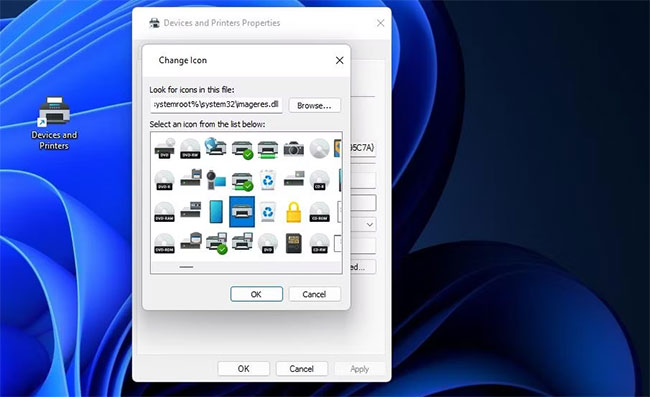
<p style="text-align: justify;">Shortcut đó sẽ có biểu tượng Explorer thư viện thư mục, biểu tượng này không lý tưởng cho applet Devices and Printers. Để thay đổi biểu tượng của nó thành một thứ gì đó tốt hơn, hãy nhấp chuột phải vào biểu tượng Devices and Shortcuts để chọn&nbsp;<strong>Properties.</strong>&nbsp;Chọn tùy chọn&nbsp;<strong>Change Icons&nbsp;</strong>để hiển thị cửa sổ bên dưới.</p>

<figure>
<div style="text-align: justify;"><img alt="Cửa sổ Change Icons" data-i="1" data-src="https://st.quantrimang.com/photos/image/2022/10/24/thiet-lap-shortcut-applet-devices-and-printers-2.jpg" data-was-processed="true" height="397" src="https://st.quantrimang.com/photos/image/2022/10/24/thiet-lap-shortcut-applet-devices-and-printers-2.jpg" width="650" /></div>

<figcaption>
<div style="text-align: justify;">Cửa sổ Change Icons</div>
</figcaption>
</figure>

<p style="text-align: justify;">Vị trí explorer.exe mặc định có một vài biểu tượng để bạn lựa chọn. Tuy nhiên, bạn có thể chọn nhiều biểu tượng khác từ imageres.dll. Nhập&nbsp;<strong>%systemroot%\system32\imageres.dll</strong>&nbsp;vào hộp&nbsp;<strong>Look for icons v</strong>à nhấn&nbsp;<strong>Enter.</strong>&nbsp;Sau đó, chọn một máy in hoặc biểu tượng thiết bị khác từ đó và nhấp vào nút&nbsp;<strong>OK &gt; Apply</strong>.</p>

<h2 style="text-align: justify;">Cách thiết lập shortcut Devices and Printers trên Taskbar và menu Start</h2>

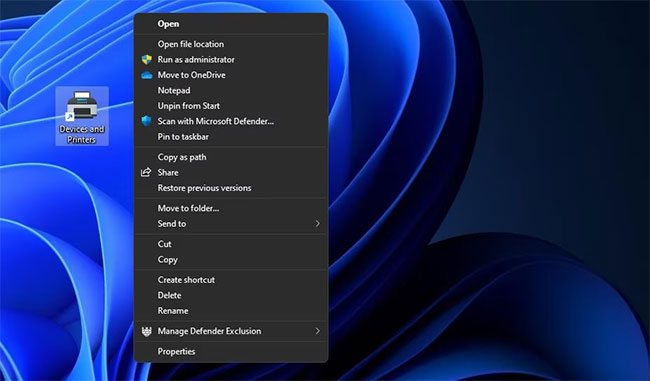
<p style="text-align: justify;">Thật dễ dàng để tạo shortcut Devices and Printers trên thanh tác vụ từ shortcut trên desktop. Nhấp chuột phải vào shortcut desktop Devices and Shortcuts và chọn&nbsp;<strong>Show more options</strong>. Chọn tùy chọn&nbsp;<strong>Pin to taskbar</strong>&nbsp;trên menu cổ điển.</p>

<figure>
<div style="text-align: justify;"><img alt="Tùy chọn Pin to taskbar" data-i="2" data-src="https://st.quantrimang.com/photos/image/2022/10/24/thiet-lap-shortcut-applet-devices-and-printers-3.jpg" data-was-processed="true" height="381" src="https://st.quantrimang.com/photos/image/2022/10/24/thiet-lap-shortcut-applet-devices-and-printers-3.jpg" width="650" /></div>

<figcaption>
<div style="text-align: justify;">Tùy chọn Pin to taskbar</div>
</figcaption>
</figure>

<p style="text-align: justify;">Nếu bạn thích các shortcut trên menu, thay vào đó, bạn có thể chọn&nbsp;<strong>Pin to Start</strong>&nbsp;ngay phía trên tùy chọn thanh tác vụ. Sau đó, bạn sẽ thấy shortcut Devices and Printers trong phần được ghim ở phía trước menu Start. Bạn có thể đặt shortcut đó ở đầu menu bằng cách nhấp chuột phải vào nó và chọn&nbsp;<strong>Move to top</strong>.</p>

<h2 style="text-align: justify;">Cách thiết lập phím tắt cho Devices and Printers</h2>

<p style="text-align: justify;">Không có gì đánh bại khả năng truy cập của các phím tắt. Chúng cho phép bạn mở mọi thứ mọi lúc mọi nơi trong Windows bằng cách nhấn các tổ hợp phím tương ứng. Đây là cách bạn có thể tạo hotkey để mở applet Devices and Printers trong Windows 11:</p>

<p style="text-align: justify;">1. Tạo shortcut desktop Devices and Printers như hướng dẫn trong phương pháp một.</p>

<p style="text-align: justify;">2. Nhấp vào shortcut&nbsp;<strong>Devices and Printers</strong>&nbsp;một lần để chọn mà không cần mở.</p>

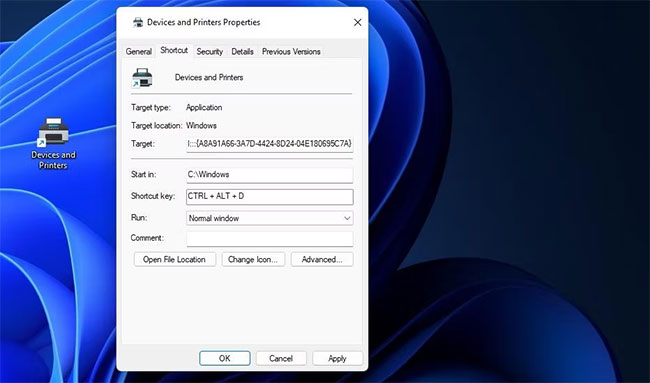
<p style="text-align: justify;">3. Nhấn hotkey&nbsp;<strong>Alt + Enter</strong>&nbsp;để hiển thị cửa sổ thuộc tính của shortcut.</p>

<p style="text-align: justify;">4. Tiếp theo, nhấp vào bên trong hộp Shortcut key để kích hoạt nó.</p>

<p style="text-align: justify;">5. Nhấn phím&nbsp;<strong>D</strong>&nbsp;(viết tắt của&nbsp;<em>device</em>), phím này sẽ thiết lập hotkey&nbsp;<strong>Ctrl + Alt + D</strong>.</p>

<figure>
<div style="text-align: justify;"><img alt="Hộp Shortcut key" data-i="3" data-src="https://st.quantrimang.com/photos/image/2022/10/24/thiet-lap-shortcut-applet-devices-and-printers-4.jpg" data-was-processed="true" height="383" src="https://st.quantrimang.com/photos/image/2022/10/24/thiet-lap-shortcut-applet-devices-and-printers-4.jpg" width="650" /></div>

<figcaption>
<div style="text-align: justify;">Hộp Shortcut key</div>
</figcaption>
</figure>

<p style="text-align: justify;">6. Chọn&nbsp;<strong>Apply</strong>&nbsp;để lưu hotkey Devices and Printers mới.</p>

<p style="text-align: justify;">7. Bấm&nbsp;<strong>OK</strong>&nbsp;để đóng cửa sổ<strong>&nbsp;Devices and Printers Properties</strong>.</p>

<p style="text-align: justify;">Hotkey&nbsp;<strong>Ctrl + Alt + D</strong>&nbsp;sẽ mở Devices and Printers bất cứ khi nào bạn nhấn nó. Bạn có thể thay đổi phím tắt đó thành một chữ cái khác nếu muốn, nhưng không thể sửa đổi phần Ctrl + Alt của hotkey này. Hãy nhớ rằng việc xóa shortcut desktop Devices and Printers cũng sẽ xóa hotkey để mở nó.</p>

<h2 style="text-align: justify;">Cách thiết lập shortcut menu ngữ cảnh cho Devices and Printers</h2>

<p style="text-align: justify;">Bạn cũng có thể thêm một tùy chọn để mở Devices and Printers vào menu ngữ cảnh cổ điển của&nbsp;Windows 11. Tuy nhiên, việc thiết lập shortcut như vậy không đơn giản vì Windows không bao gồm bất kỳ tùy chọn tích hợp nào để tùy chỉnh menu ngữ cảnh trên desktop. Bạn sẽ cần thêm key&nbsp;<strong>DevicesAndPrinters</strong>&nbsp;vào registry theo cách thủ công như sau:</p>

<p style="text-align: justify;">1.&nbsp;Mở ứng dụng Registry Editor&nbsp;của Windows 11.</p>

<p style="text-align: justify;">2. Nhấp vào thanh địa chỉ ở đầu Registry Editor để xóa vị trí key hiện tại.</p>

<p style="text-align: justify;">3. Nhập vị trí key&nbsp;<strong>Shell</strong>&nbsp;này và nhấn&nbsp;<strong>Enter:</strong></p>

<pre id="pre1">
<code>HKEY_CLASSES_ROOT\DesktopBackground\Shell</code></pre>

<figure>
<div style="text-align: justify;"><img alt="Cửa sổ Edit String cho chuỗi MUIVerb" data-i="4" data-src="https://st.quantrimang.com/photos/image/2022/10/24/thiet-lap-shortcut-applet-devices-and-printers-5.jpg" data-was-processed="true" height="399" src="https://st.quantrimang.com/photos/image/2022/10/24/thiet-lap-shortcut-applet-devices-and-printers-5.jpg" width="650" /></div>

<figcaption>
<div style="text-align: justify;">Cửa sổ Edit String cho chuỗi MUIVerb</div>
</figcaption>
</figure>

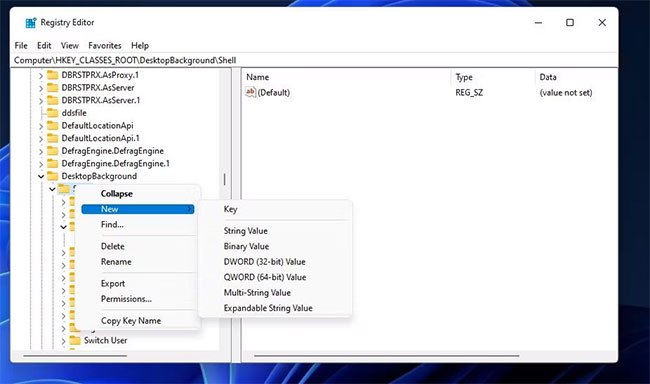
<p style="text-align: justify;">4. Nhấp chuột phải vào key&nbsp;<strong>Shell</strong>&nbsp;để chọn&nbsp;<strong>New.</strong></p>

<p style="text-align: justify;">5. Chọn&nbsp;<strong>Key</strong>&nbsp;trên menu con&nbsp;<strong>New.</strong></p>

<figure>
<div style="text-align: justify;"><img alt="Các tùy chọn New và Key" data-i="5" data-src="https://st.quantrimang.com/photos/image/2022/10/24/thiet-lap-shortcut-applet-devices-and-printers-6.jpg" data-was-processed="true" height="384" src="https://st.quantrimang.com/photos/image/2022/10/24/thiet-lap-shortcut-applet-devices-and-printers-6.jpg" width="650" /></div>

<figcaption>
<div style="text-align: justify;">Các tùy chọn New và Key</div>
</figcaption>
</figure>

<p style="text-align: justify;">6. Sau đó, nhập&nbsp;<strong>DevicesAndPrinters</strong>&nbsp;bên trong hộp văn bản của key mới.</p>

<p style="text-align: justify;">7. Nhấp chuột phải vào&nbsp;<strong>DevicesAndPrinters</strong>&nbsp;để chọn các tùy chọn&nbsp;<strong>New</strong>&nbsp;và&nbsp;<strong>String Value.</strong></p>

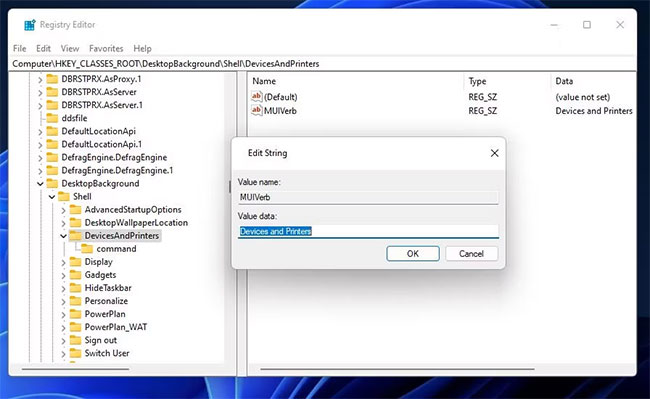
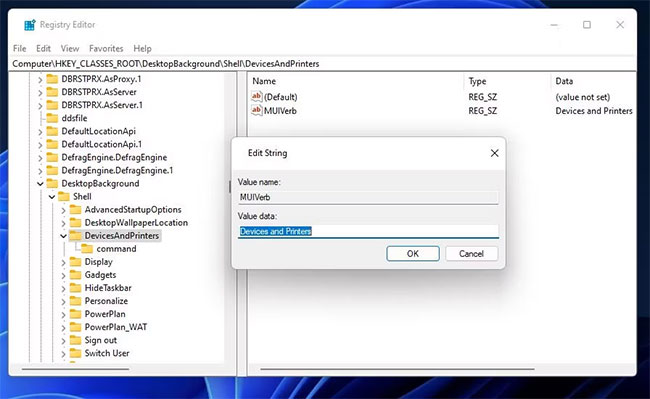
<p style="text-align: justify;">8. Nhập&nbsp;<strong>MUIVerb</strong>&nbsp;làm tiêu đề của chuỗi.</p>

<p style="text-align: justify;">9. Nhấp đúp vào&nbsp;<strong>MUIVerb</strong>&nbsp;để xem hộp&nbsp;<strong>Value data</strong>&nbsp;của chuỗi đó.</p>

<p style="text-align: justify;">10. Nhập&nbsp;<strong>Devices and Printers</strong>&nbsp;vào hộp&nbsp;<strong>Value text</strong>&nbsp;và chọn&nbsp;<strong>OK</strong>&nbsp;để thoát.</p>

<figure>
<div style="text-align: justify;"><img alt="Cửa sổ Edit String cho chuỗi MUIVerb" data-i="6" data-src="https://st.quantrimang.com/photos/image/2022/10/24/thiet-lap-shortcut-applet-devices-and-printers-7.jpg" data-was-processed="true" height="399" src="https://st.quantrimang.com/photos/image/2022/10/24/thiet-lap-shortcut-applet-devices-and-printers-7.jpg" width="650" /></div>

<figcaption>
<div style="text-align: justify;">Cửa sổ Edit String cho chuỗi MUIVerb</div>
</figcaption>
</figure>

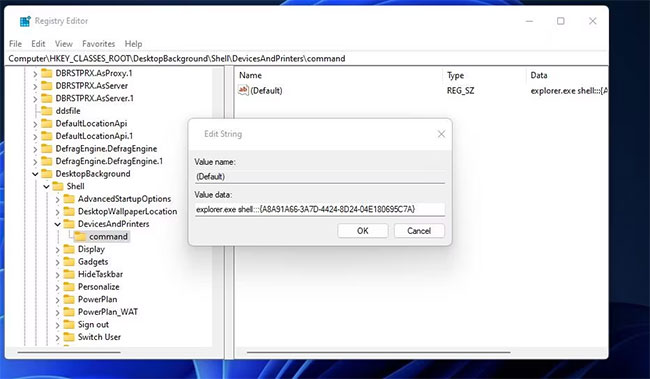
<p style="text-align: justify;">11. Nhấp chuột phải vào key&nbsp;<strong>DevicesAndPrinters</strong>&nbsp;một lần nữa và chọn&nbsp;<strong>New &gt; Key</strong>.</p>

<p style="text-align: justify;">12. Sau đó, nhấp chuột phải vào&nbsp;<strong>(Default) string</strong>&nbsp;của key lệnh mới và chọn&nbsp;<strong>Modify.</strong></p>

<p style="text-align: justify;">13. Nhập vị trí GUID này vào hộp&nbsp;<strong>Value</strong>:</p>

<pre id="pre2">
<code>explorer.exe shell:::{A8A91A66-3A7D-4424-8D24-04E180695C7A}</code></pre>

<figure>
<div style="text-align: justify;"><img alt="Nhập vị trí GUID vào hộp Value" data-i="7" data-src="https://st.quantrimang.com/photos/image/2022/10/24/thiet-lap-shortcut-applet-devices-and-printers-8.jpg" data-was-processed="true" height="379" src="https://st.quantrimang.com/photos/image/2022/10/24/thiet-lap-shortcut-applet-devices-and-printers-8.jpg" width="650" /></div>

<figcaption>
<div style="text-align: justify;">Nhập vị trí GUID vào hộp Value</div>
</figcaption>
</figure>

<p style="text-align: justify;">14. Chọn tùy chọn&nbsp;<strong>OK</strong>&nbsp;trong cửa sổ&nbsp;<strong>Edit String.</strong></p>

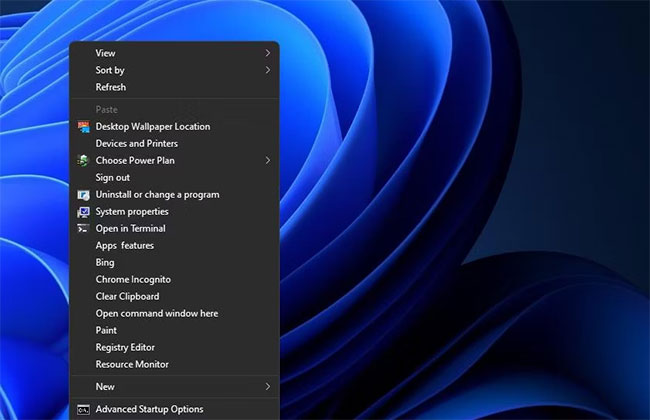
<p style="text-align: justify;">Bây giờ, hãy xem shortcut Devices and Printers mới trên menu ngữ cảnh desktop cổ điển trong Windows 11. Nhấp vào bất kỳ đâu trên khu vực desktop bằng nút chuột phải và chọn&nbsp;<strong>Show more options</strong>. Chọn&nbsp;<strong>Devices and Printers</strong>&nbsp;trên menu cổ điển phụ để mở applet đó.</p>

<figure>
<div style="text-align: justify;"><img alt="Chọn Devices and Printers để mở applet" data-i="8" data-src="https://st.quantrimang.com/photos/image/2022/10/24/thiet-lap-shortcut-applet-devices-and-printers-9.jpg" data-was-processed="true" height="420" src="https://st.quantrimang.com/photos/image/2022/10/24/thiet-lap-shortcut-applet-devices-and-printers-9.jpg" width="650" /></div>

<figcaption>
<div style="text-align: justify;">Chọn Devices and Printers để mở applet</div>
</figcaption>
</figure>

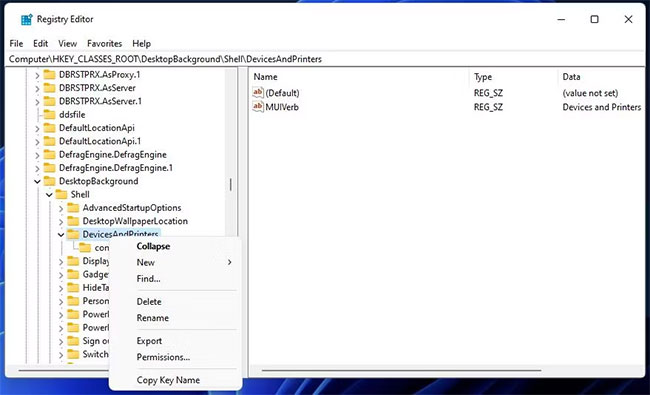
<p style="text-align: justify;">Bạn có thể dễ dàng hoàn tác chỉnh sửa sổ registry này bằng cách xóa key của nó. Quay lại key&nbsp;<strong>DevicesAndPrinters</strong>&nbsp;bạn đã thêm trong Registry Editor. Bấm chuột phải vào&nbsp;<strong>DevicesAndPrinters</strong>&nbsp;và chọn&nbsp;<strong>Delete &gt; Yes</strong>.</p>

<figure>
<div style="text-align: justify;"><img alt="Xóa key DevicesAndPrinters đã thêm trong Registry Editor" data-i="9" data-src="https://st.quantrimang.com/photos/image/2022/10/24/thiet-lap-shortcut-applet-devices-and-printers-10.jpg" data-was-processed="true" height="395" src="https://st.quantrimang.com/photos/image/2022/10/24/thiet-lap-shortcut-applet-devices-and-printers-10.jpg" width="650" /></div>

<figcaption>
<div style="text-align: justify;">Xóa key DevicesAndPrinters đã thêm trong Registry Editor</div>
</figcaption>
</figure>

<h2 style="text-align: justify;">Cách thiết lập shortcut Devices and Printers trong File Explorer</h2>

<p style="text-align: justify;">Phần&nbsp;<strong>This PC</strong>&nbsp;của File Explorer là một nơi khác mà bạn có thể thêm các shortcut để mở những thư mục và applet Control Panel như Devices and Printers. Không có bất kỳ tùy chọn nào trong Explorer để thêm shortcut ở đó. Tuy nhiên, bạn có thể thêm Devices and Printers vào This PC bằng phần mềm tùy chỉnh Winaero Tweaker miễn phí như sau:</p>

<p style="text-align: justify;">1. Đi tới trang tải xuống Winaero Tweaker.</p>

<p style="text-align: justify;"><iframe data-mce-fragment="1" data-src="https://quantrimang.com/service/embed/188119" data-was-processed="true" height="150" width="300"></iframe></p>

<p style="text-align: justify;">2. Giải nén và cài đặt phần mềm Winaero Tweaker. Hướng dẫn&nbsp;<a href="https://quantrimang.com/cong-nghe/cach-tuy-chinh-windows-voi-winaero-tweaker-149585" title="Cách tùy chỉnh Windows với Winaero Tweaker">tùy chỉnh Windows với Winaero</a>&nbsp;bao gồm hướng dẫn từng bước để cài đặt ứng dụng đó.</p>

<p style="text-align: justify;">3. Chạy Winaero Tweaker trong Windows 11.</p>

<p style="text-align: justify;">4. Nhấp đúp vào danh mục&nbsp;<strong>File Explorer settings</strong>.</p>

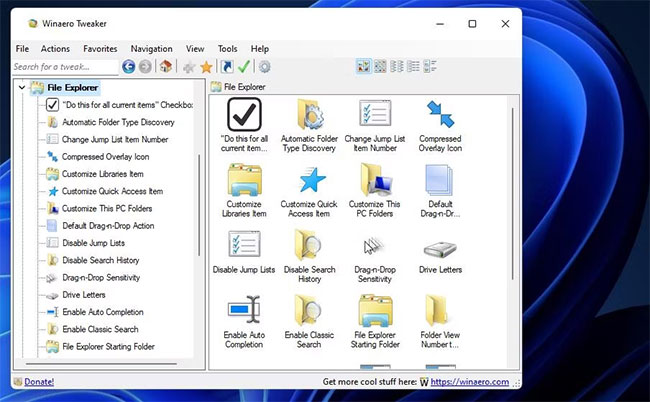
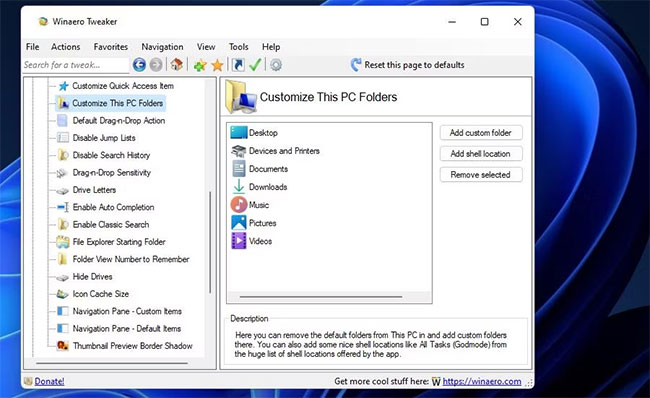
<p style="text-align: justify;">5. Chọn tùy chọn&nbsp;<strong>Customize This PC Folders</strong>.</p>

<figure>
<div style="text-align: justify;"><img alt="Chọn tùy chọn Customize This PC Folders" data-i="10" data-src="https://st.quantrimang.com/photos/image/2022/10/24/thiet-lap-shortcut-applet-devices-and-printers-11.jpg" data-was-processed="true" height="402" src="https://st.quantrimang.com/photos/image/2022/10/24/thiet-lap-shortcut-applet-devices-and-printers-11.jpg" width="650" /></div>

<figcaption>
<div style="text-align: justify;">Chọn tùy chọn Customize This PC Folders</div>
</figcaption>
</figure>

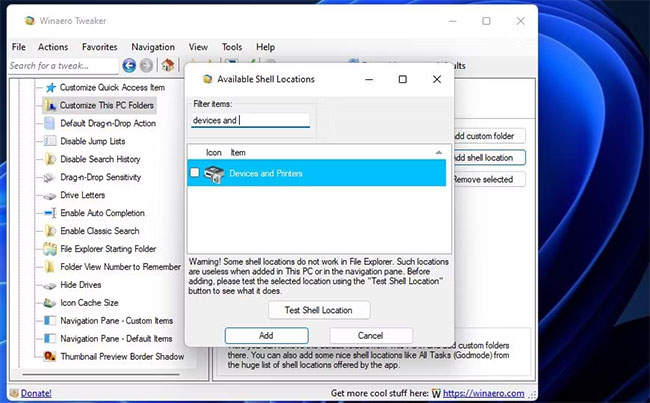
<p style="text-align: justify;">6. Nhấp vào&nbsp;<strong>Add shell location</strong>&nbsp;để truy cập cửa sổ hiển thị bên dưới.</p>

<figure>
<div style="text-align: justify;"><img alt="Nhấp vào Add shell location" data-i="11" data-src="https://st.quantrimang.com/photos/image/2022/10/24/thiet-lap-shortcut-applet-devices-and-printers-12.jpg" data-was-processed="true" height="398" src="https://st.quantrimang.com/photos/image/2022/10/24/thiet-lap-shortcut-applet-devices-and-printers-12.jpg" width="650" /></div>

<figcaption>
<div style="text-align: justify;">Nhấp vào Add shell location</div>
</figcaption>
</figure>

<p style="text-align: justify;">7. Chọn&nbsp;<strong>Devices and Printers</strong>&nbsp;ở đó và nhấp vào nút&nbsp;<strong>Add.</strong></p>

<figure>
<div style="text-align: justify;"><img alt="Nhấp vào nút Add" data-i="12" data-src="https://st.quantrimang.com/photos/image/2022/10/24/thiet-lap-shortcut-applet-devices-and-printers-13.jpg" data-was-processed="true" height="403" src="https://st.quantrimang.com/photos/image/2022/10/24/thiet-lap-shortcut-applet-devices-and-printers-13.jpg" width="650" /></div>

<figcaption>
<div style="text-align: justify;">Nhấp vào nút Add</div>
</figcaption>
</figure>

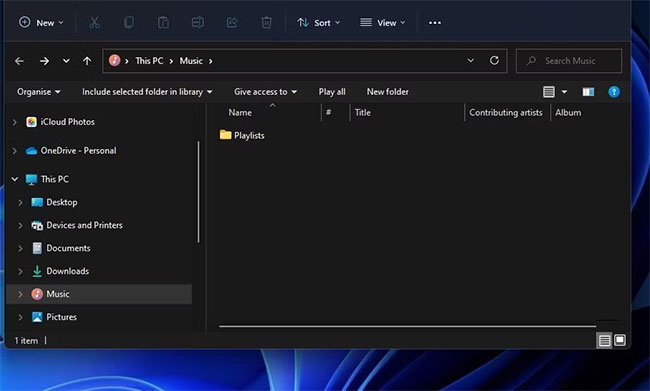
<p style="text-align: justify;">Bây giờ, bạn sẽ thấy Devices and Printers trong phần This PC của File Explorer. Mở thư mục Explorer và trình quản lý file, rồi nhấp đúp vào&nbsp;<strong>This PC</strong>&nbsp;trong thanh bên trái của nó. Sau đó nhấp vào Devices and Printers trong thanh bên để mở nó từ đó.</p>

<figure>
<div style="text-align: justify;"><img alt="Nhấp vào Devices and Printers trong thanh bên để mở" data-i="13" data-src="https://st.quantrimang.com/photos/image/2022/10/24/thiet-lap-shortcut-applet-devices-and-printers-14.jpg" data-was-processed="true" height="391" src="https://st.quantrimang.com/photos/image/2022/10/24/thiet-lap-shortcut-applet-devices-and-printers-14.jpg" width="650" /></div>

<figcaption>
<div style="text-align: justify;">Nhấp vào Devices and Printers trong thanh bên để mở</div>
</figcaption>
</figure>

<p style="text-align: justify;">Bạn có 5 phương pháp để thêm shortcut Devices and Printers vào Windows 11. Thiết lập shortcut trên desktop, thanh tác vụ, File Explorer, menu ngữ cảnh hoặc phím tắt sẽ cho phép bạn truy cập nhanh chóng và dễ dàng vào một applet Control Panel hữu ích để quản lý các thiết bị ngoại vi. Hãy thêm bất kỳ loại shortcut Devices and Printers nào mà bạn thích.</p>
		</div>
				<div id="author">
						<p>
				<strong>Nguồn tin:</strong>
				Quantrimang.com
			</p>
		</div>
	</div>
	<div id="footer" class="clearfix">
		<div id="url">
			<strong>URL của bản tin này: </strong><a href="https://www.nguoicodonvn2008.info/vi/news/savefile/kien-thuc-may-tinh/cach-thiet-lap-shortcut-cho-applet-devices-and-printers-trong-windows-11-6244.html" title="Cách thiết lập shortcut cho applet Devices and Printers trong Windows 11">https://www.nguoicodonvn2008.info/vi/news/savefile/kien-thuc-may-tinh/cach-thiet-lap-shortcut-cho-applet-devices-and-printers-trong-windows-11-6244.html</a>

		</div>
		<div class="clear"></div>
		<div class="copyright">
			&copy; .&#x3A; Nguoicodonvn2008.info - Cõi lòng người cô đơn &#x3A;.
		</div>
		<div id="contact">
			<a href="mailto:admin@nguoicodonvn2008.info">admin@nguoicodonvn2008.info</a>
		</div>
	</div>
</div>
        <div id="timeoutsess" class="chromeframe">
            Bạn đã không sử dụng Site, <a onclick="timeoutsesscancel();" href="https://nguoicodonvn2008.info/#">Bấm vào đây để duy trì trạng thái đăng nhập</a>. Thời gian chờ: <span id="secField"> 60 </span> giây
        </div>
        <div id="openidResult" class="nv-alert" style="display:none"></div>
        <div id="openidBt" data-result="" data-redirect=""></div>
		</script>
		<div class="car-top">
  <span><img src="https://nguoicodonvn2008.info/themes/default/images/car.png" alt=""></span>
</div>
<script src="https://nguoicodonvn2008.info/assets/js/jquery/jquery.min.js"></script>
<script>var nv_base_siteurl="/",nv_lang_data="vi",nv_lang_interface="vi",nv_name_variable="nv",nv_fc_variable="op",nv_lang_variable="language",nv_module_name="news",nv_func_name="savefile",nv_is_user=0, nv_my_ofs=-4,nv_my_abbr="EDT",nv_cookie_prefix="nv4c_e856T",nv_check_pass_mstime=1738000,nv_area_admin=0,nv_safemode=0,theme_responsive=0,nv_recaptcha_ver=2,nv_recaptcha_sitekey="",nv_recaptcha_type="image",XSSsanitize=1;</script>
<script src="https://nguoicodonvn2008.info/assets/js/language/vi.js"></script>
<script src="https://nguoicodonvn2008.info/assets/js/DOMPurify/purify3.js"></script>
<script src="https://nguoicodonvn2008.info/assets/js/global.js"></script>
<script src="https://nguoicodonvn2008.info/assets/js/site.js"></script>
<script src="https://nguoicodonvn2008.info/themes/default/js/news.js"></script>
<script src="https://nguoicodonvn2008.info/themes/default/js/main.js"></script>
<script src="https://nguoicodonvn2008.info/themes/default/js/custom.js"></script>
<script type="application/ld+json">
        {
            "@context": "https://schema.org",
            "@type": "Organization",
            "url": "https://nguoicodonvn2008.info",
            "logo": "https://nguoicodonvn2008.info/uploads/angel.gif"
        }
        </script>
<script src="https://nguoicodonvn2008.info/themes/default/js/bootstrap.min.js"></script>
<script type="text/javascript">
var $scrolltop = $('.car-top');
$scrolltop.on('click', function () {
    $('html,body').animate({
        scrollTop: 0
    }, 800);
    $(this).addClass("car-run");
    setTimeout(function(){ $scrolltop.removeClass('car-run');}, 1000);
    return false;
});
$(window).on('scroll', function ()
{ 
    if($(window).scrollTop() >= 200)
    {
        $scrolltop.addClass("show");
        $scrolltop.addClass("car-down");
    }
    else
    {
       $scrolltop.removeClass("show");
       setTimeout(function(){ $scrolltop.removeClass('car-down');}, 300);
    }
});
</script>
</body>
</html>